Provision a Cluster
A Cluster is a resilient Kubernetes based system, tailored for edge computing, consisting of edge computers or virtual machines with the Kelvin software installed. Designed to operate in Edge environments without internet connectivity, it provides a robust framework to deploy, manage, and monitor Kelvin SmartApps™, Docker Apps and Connections, ensuring optimal performance and streamlined operations.
There are two ways to setup a Cluster:
- Create K3S Cluster: Kelvin provides a provision script to automatically setup a K3S Kubernetes cluster on a Linux bare metal system or within a Virtual Machine.
- Import Kubernetes Cluster: Kelvin provides the yaml definitions to import an existing Kubernetes cluster that is hosted in a cloud provider (AKS, EKS, GKE, etc.) or setup within a pre-existing Kubernetes cluster.
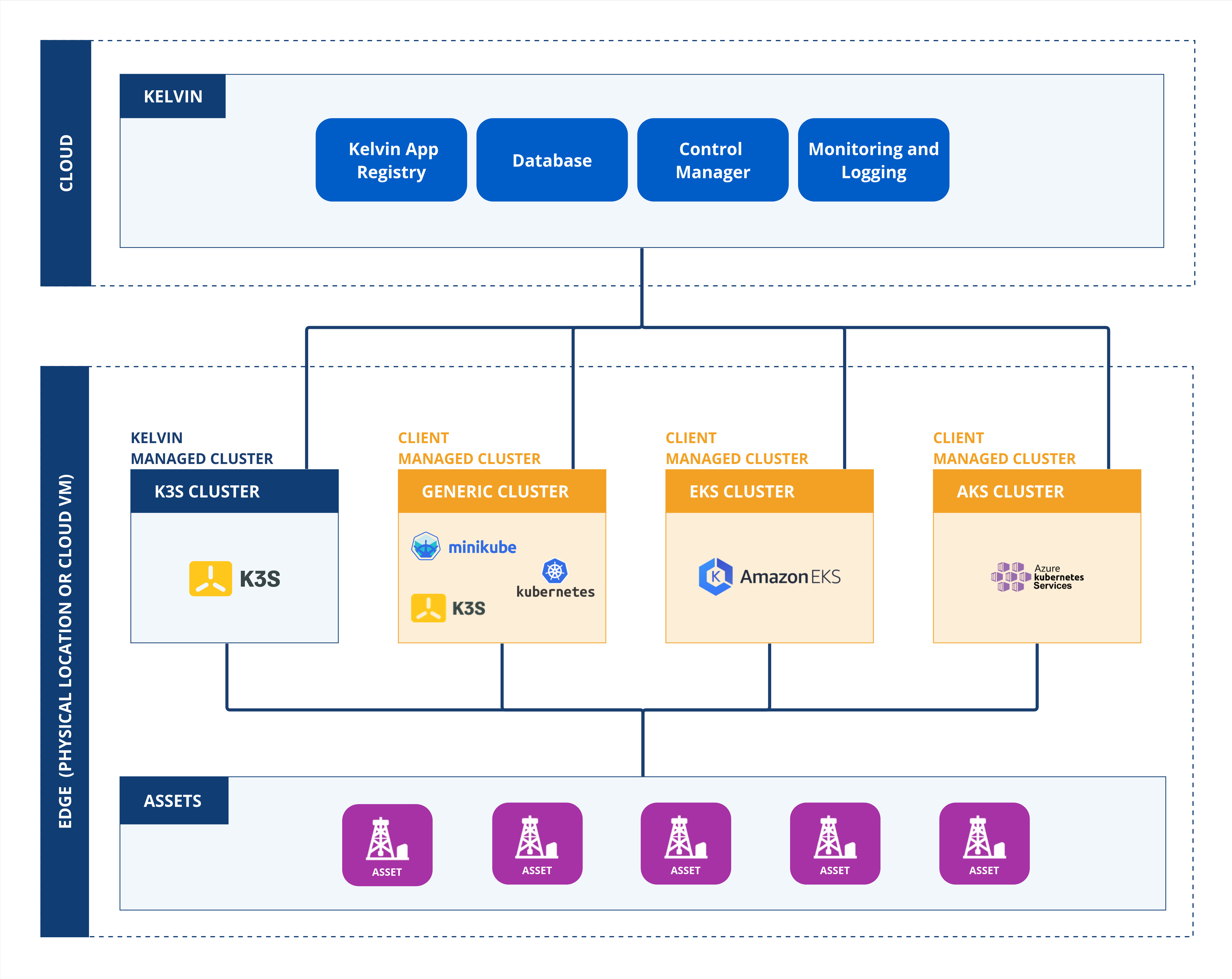
In this guide, we will demonstrate how to setup a K3S Cluster.
Requirements
We recommend reading the official K3S requirements page to understand all the requirements for a K3S Cluster.
Pre-requisites
Two nodes cannot have the same hostname. Please make sure that the hostname of the machine is unique.
Architecture
The supported CPU architectures for a K3S Cluster are:
| Architecture | Supported |
|---|---|
| x86_64 | Yes |
| arm64/aarch64 | Planned for 2024 |
Hardware
The hardware requirements for a K3S Cluster are:
| Spec | Minimum | Recommended |
|---|---|---|
| CPU | 1 Core | 2 Cores |
| RAM | 2 GB | 4 GB |
| Disk | 16 GB | 32 GB |
Actual CPU and RAM requirements will depend heavily on the requirements and quantity of Kelvin SmartApps™, Dockers Apps and Connections that you want to deploy.
Operating System
The supported operating systems for a K3S Cluster are:
| Operating System | Version |
|---|---|
| Ubuntu Server | 22.04 |
| Ubuntu Server | 20.04 |
| Ubuntu Server | 18.04 |
You can also use other Linux distributions like CentOS, Debian, etc. but they are not officially supported.
Networking
We recommend reading the official K3S Network Requirements page to understand all the network requirements for a K3S Cluster.
If the cluster is more than 1 node, the Main Node must have a static IP address.
Register a K3S Cluster
This will install Kubernetes and setup the Main Node into a one Node cluster and register the Cluster with the Kelvin Cloud.
After the Cluster has been successfully setup, you can then add additional Nodes to the Cluster.
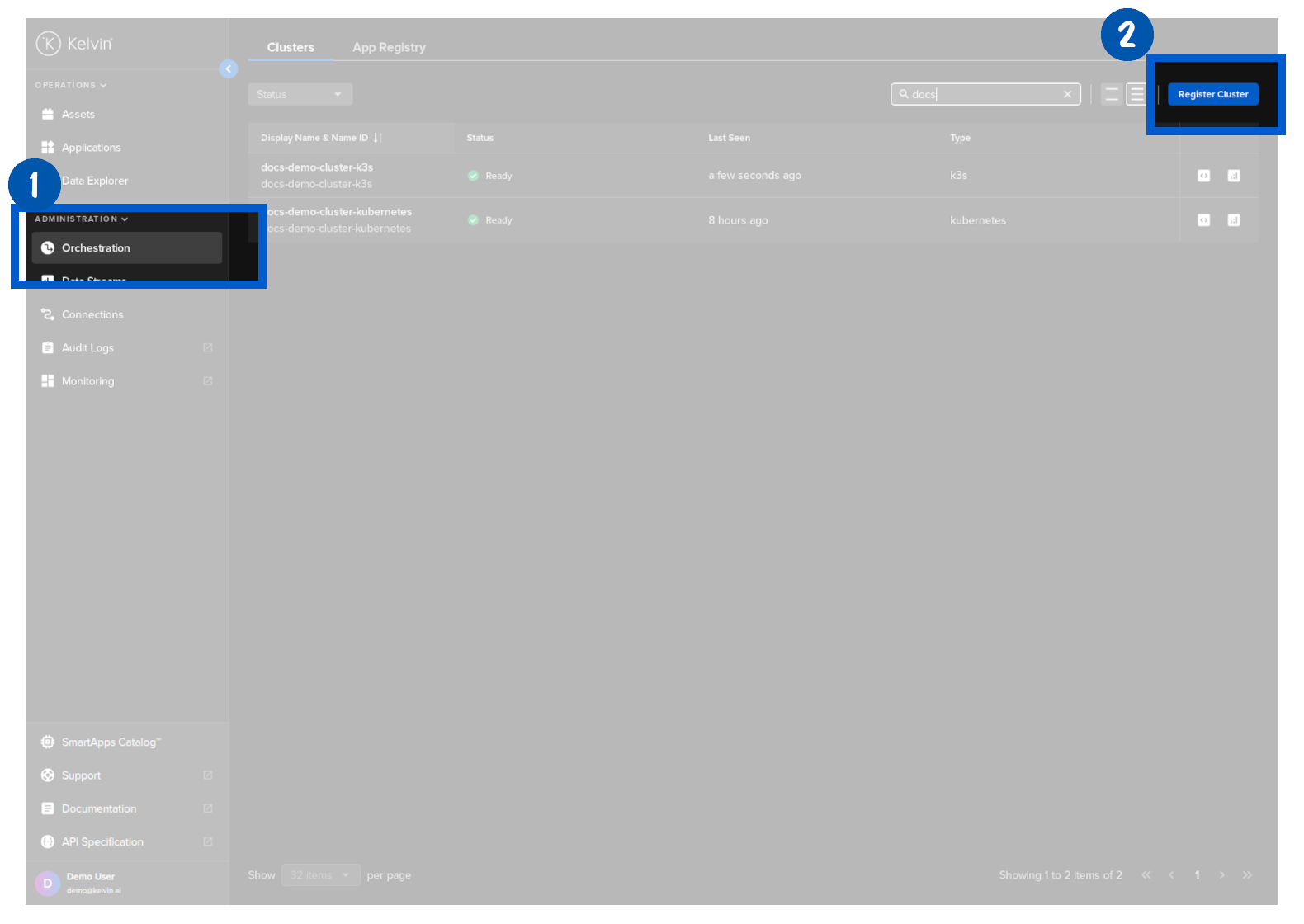
To start, go to the Orchestration page and click on the Register Cluster button;
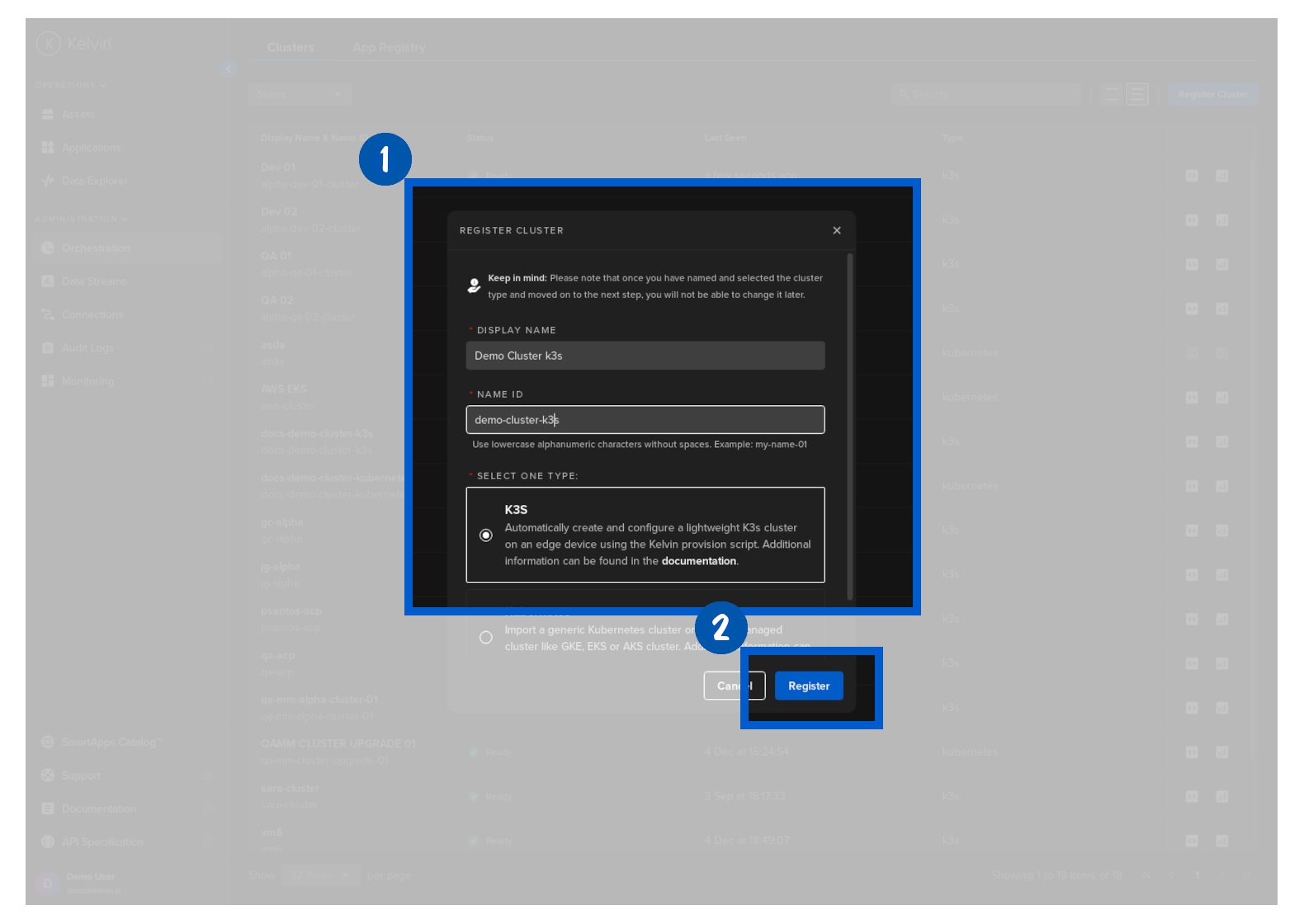
Then in the popup options, select K3S and type in a display name and optionally a name ID for this new kubernetes cluster.
| Display Name | This can be any characters and spaces that gives your cluster a memorable name for reference |
| Name ID | A unique lower-case alphanumeric name which uniquely identifies this cluster. This will be automatically filled in when you type the Display Name. Normally you do not need to change unless the Name ID clashes with another cluster's Name ID. |
The Name ID is the unique identifier name for the cluster. This must contain only lowercase alphanumeric characters. The ., _ and - characters are also allowed to separate words instead of a space BUT can not be at the beginning or end of the name.
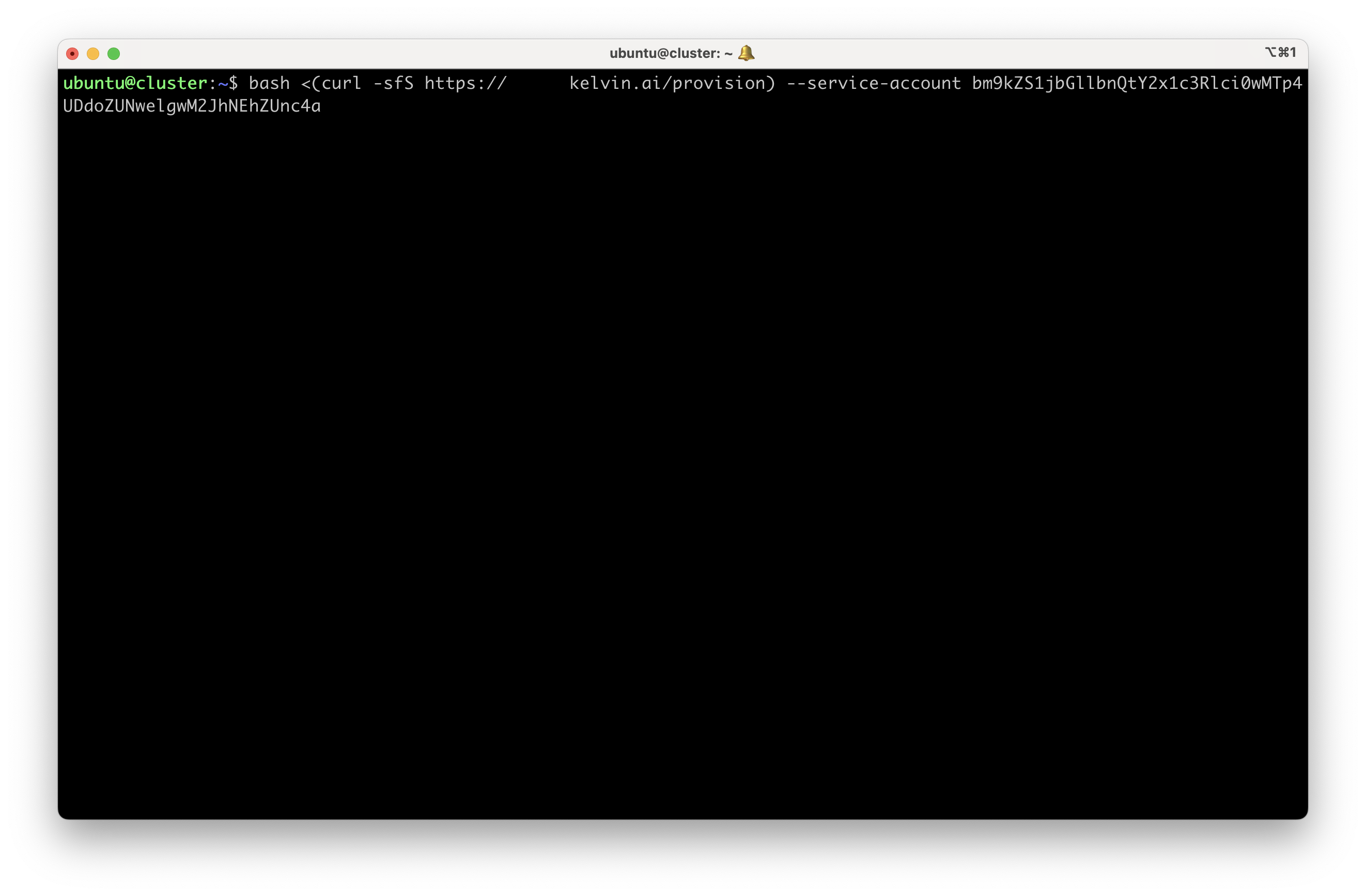
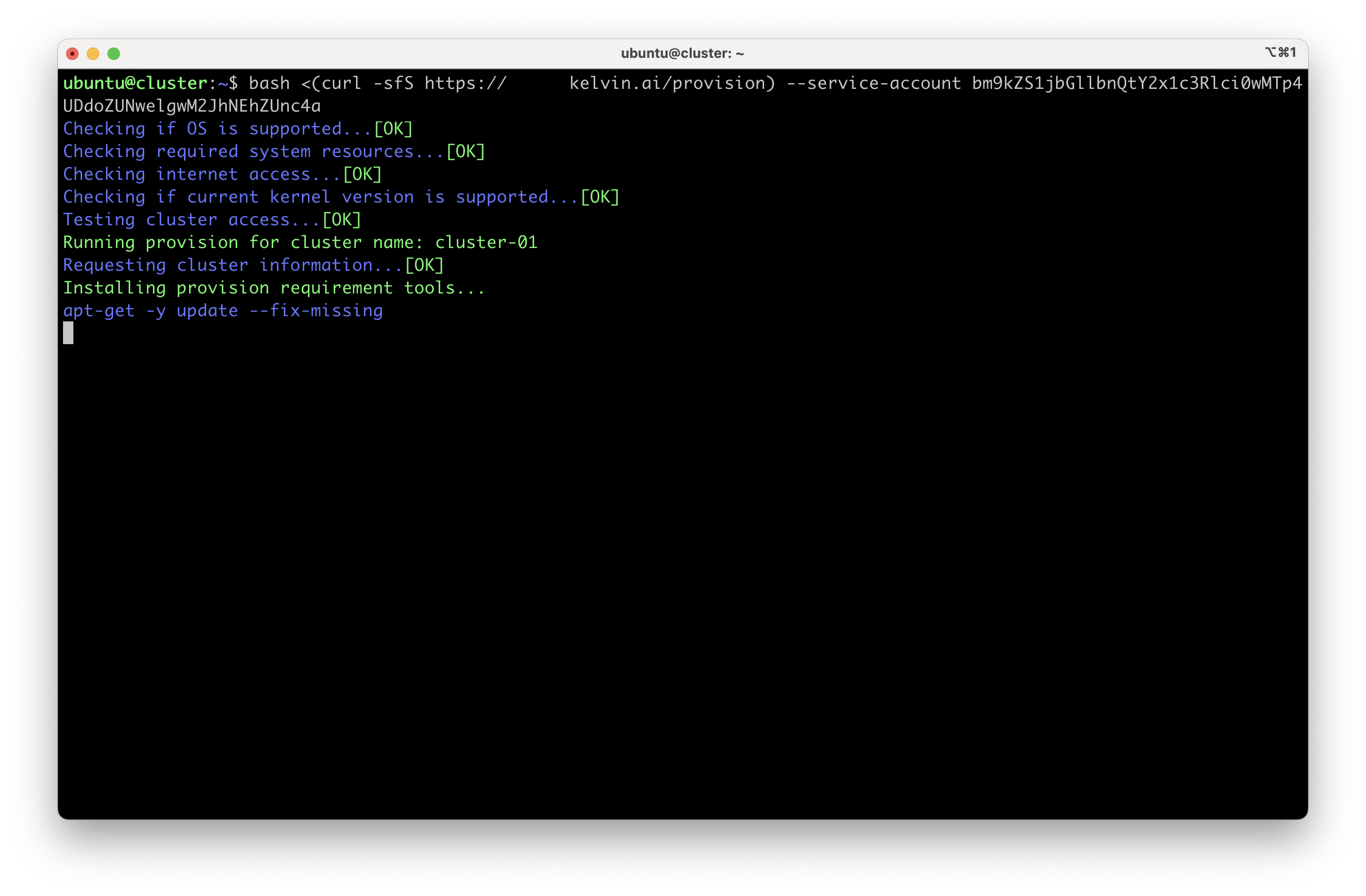
When you press next., you will then be given the bash script that you need to run on the new Kelvin Cluster machine. The bash script will look something like this;
bash <(curl -sfS https://{kelvin-platform-url}/provision) --service-account bm9kZS1jbGllbnQtZG9jdW1lbnRhdGlvbi1jbHVzdGVyOmFuRnlZZFJ2WGlHSk83cTFaSFE4OW01QTNEMElsNFVN
Copy and type this into the Ubuntu server terminal. The whole setup procedure is then setup automatically.
Optionally you can ignore the --service-account parameter. When the installation is started you will be asked to give your username and password and the name of the Cluster to install.
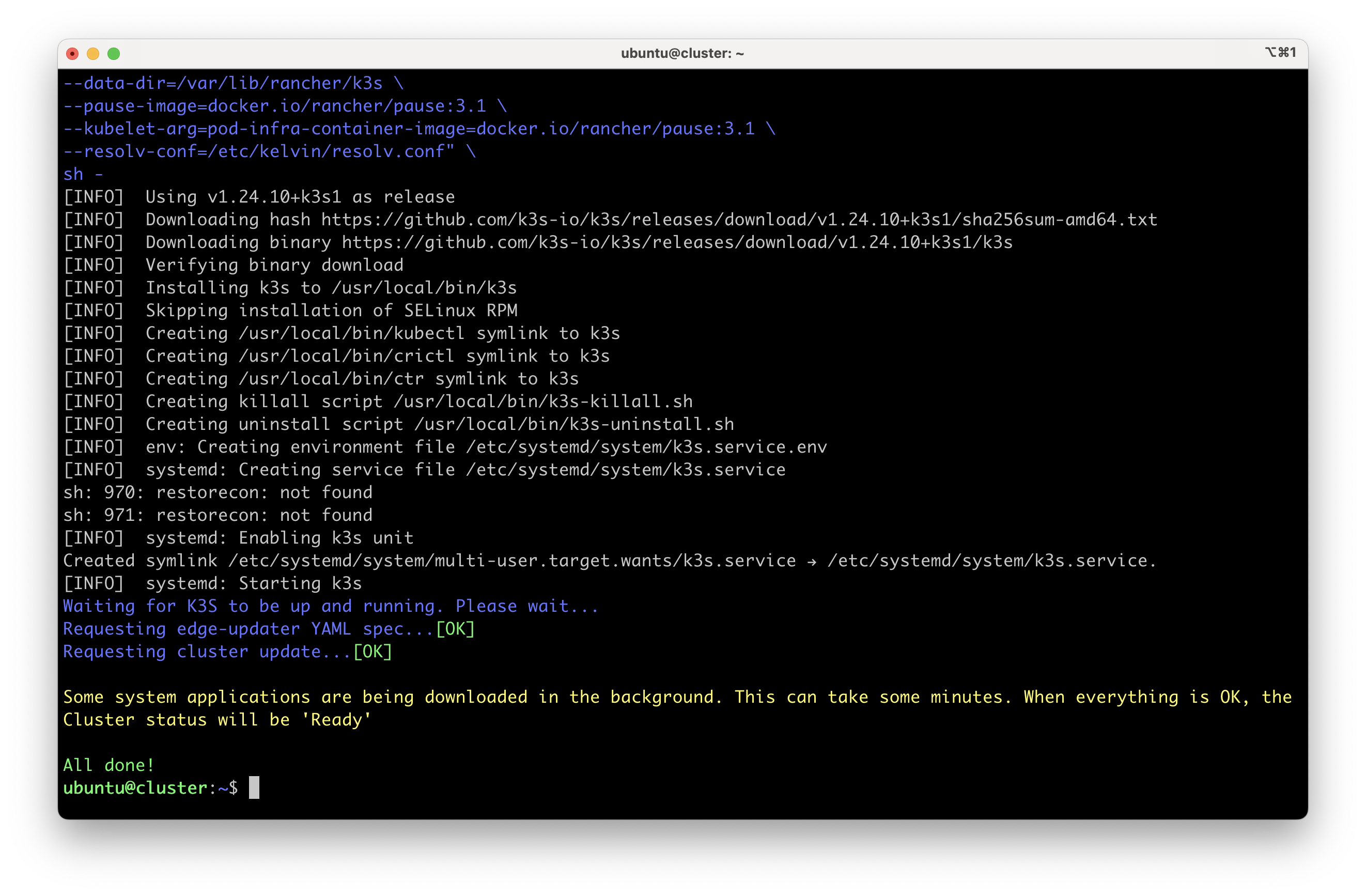
Wait a couple of minutes for the script to finish.
When the script finishes, you will see the following output:
And now you can go back to the Orchestration page and see the cluster is ready to be used:
You can also see the status of the Nodes (Online/Unreacheable) by clicking on the cluster and going to the Nodes tab:
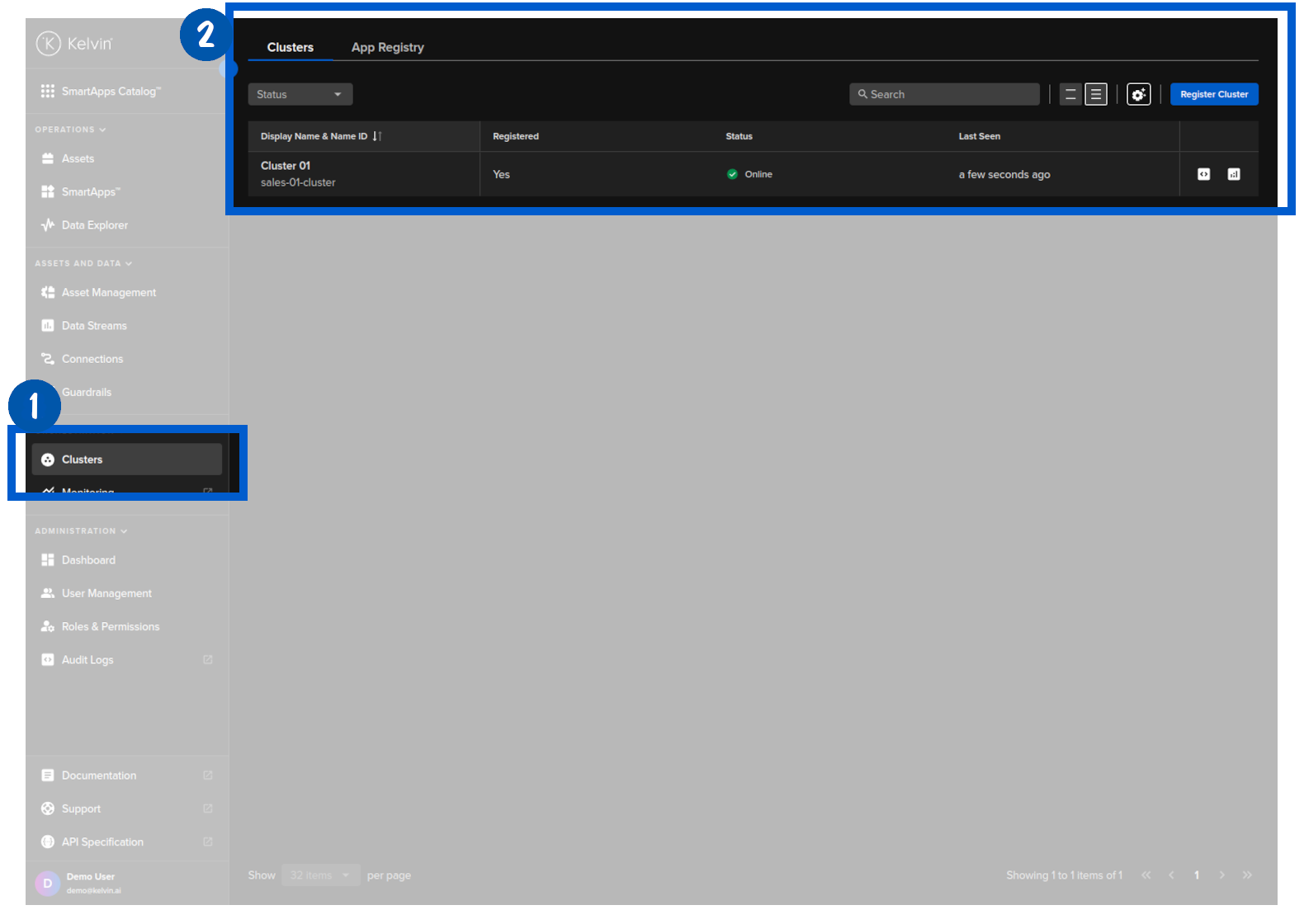
Congratulations! You successfully registered a K3S Cluster with the Kelvin Cloud.
Next Step
Now that you have a K3S Cluster registered with Kelvin, you can use it to deploy Kelvin SmartApps™, Docker Apps and Connections and connect to your data.