View Assets Details
On this page you will learn about accessing and understanding the Asset Details Page in Kelvin UI.
Overview
The Assets page is the first page you will see when you log into the Kelvin UI. You can also go there by clicking on the Asset option in the left sidebar.
Here you have a list of all Assets registered in Kelvin. From here you can see the Assets and associated information.
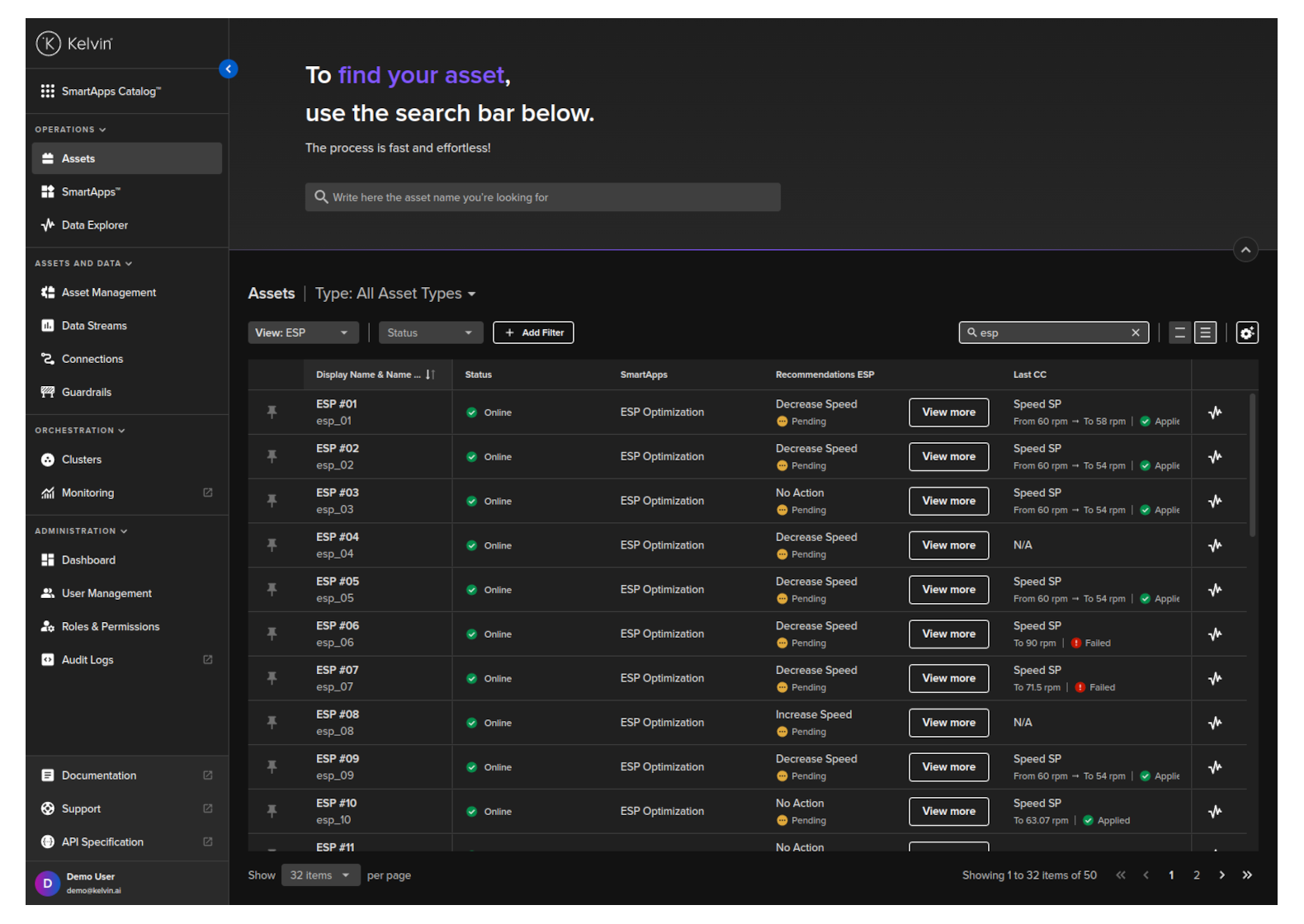
When you click on an Asset you will see a new page with all the details about the Asset.
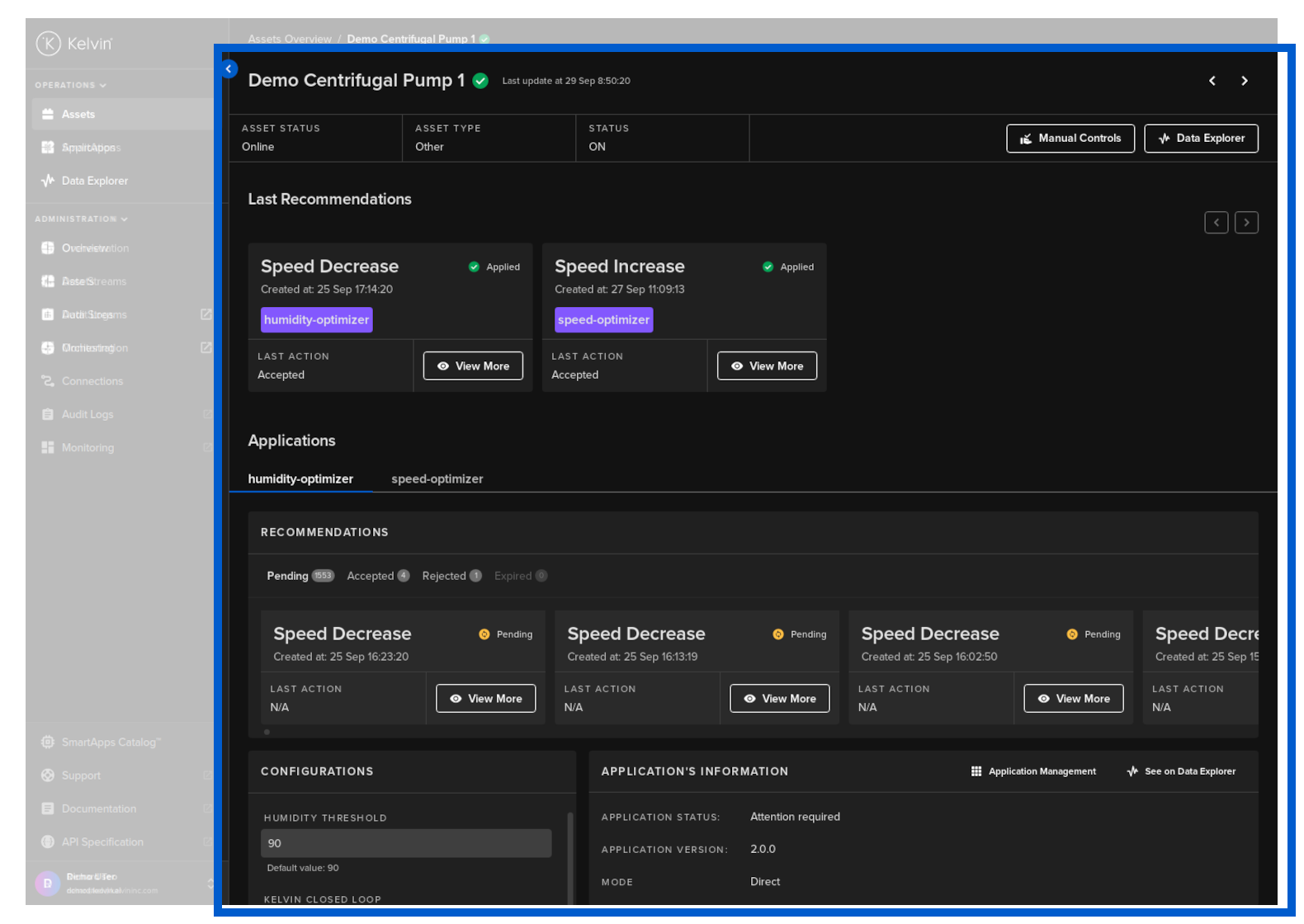
On this page, the Production Engineers will be able to perform most of the operational tasks required in managing the Assets including;
- See the status of an Asset
- See the last Recommendation and its status for each Kelvin SmartApp™
- View all details about an Asset in each Kelvin SmartApp™ that it is associated with
- Change the configuration values for any Asset Parameter in Kelvin SmartApps™
- Apply manual Control Changes to any associated Data Streams that are write enabled
Status and Links
At the top you have the Asset status, the ability to switch between Assets and links to Manual Controls and Data Explorer.
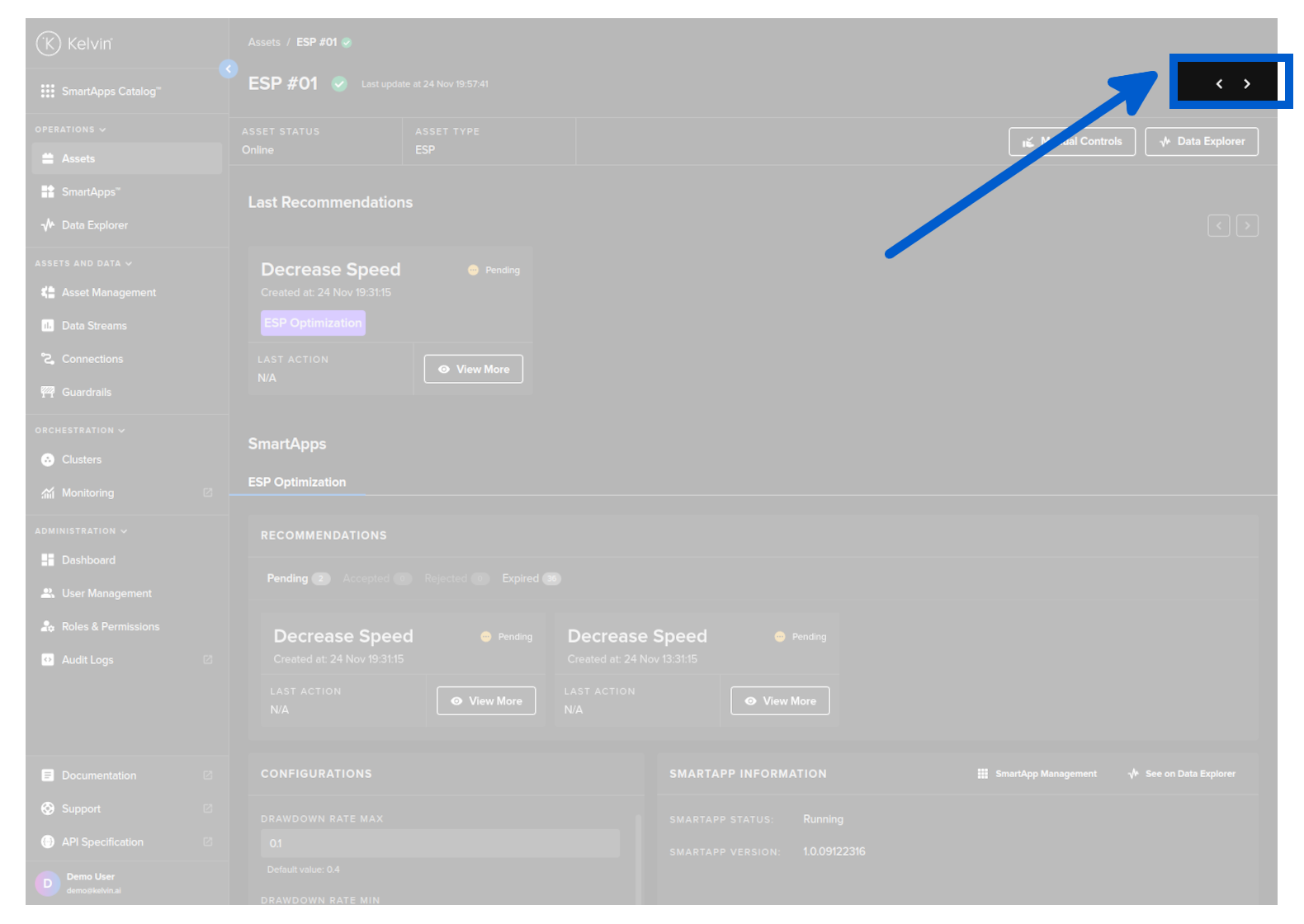
At the top right hand corner you have two buttons to move quickly between the Assets.
Kelvin UI intelligently remembers your search results from the Assets Overview page and will rotate through your Assets that are in the search results ONLY. This allows you to quickly move between the Assets that matter the most to you at that time.
If you want to view other Assets you will need to return to the Assets page and update or clear the search box
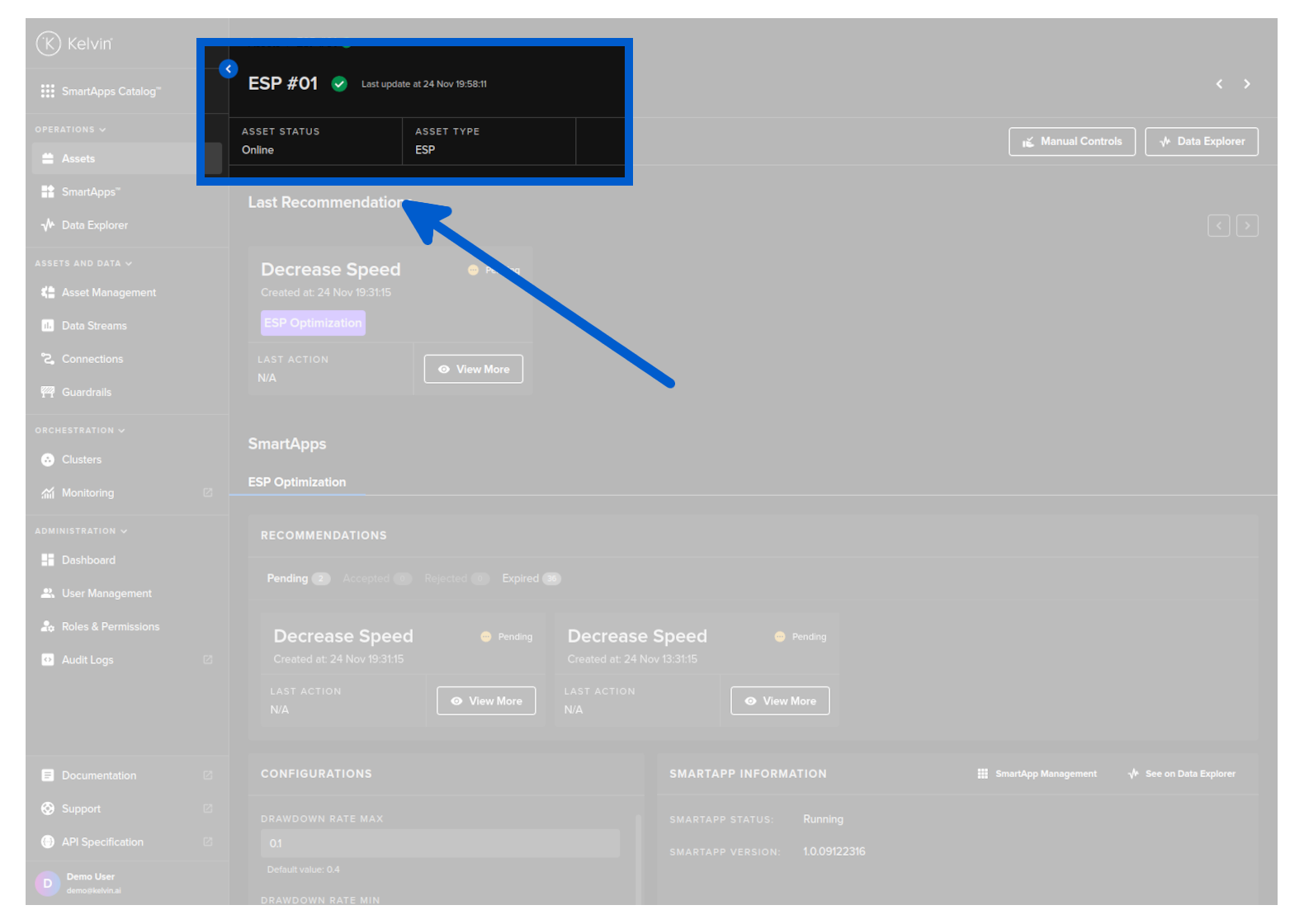
At the top you can see the status of the Asset.
| Title | Description |
|---|---|
| Asset Status | This tells you if Kelvin SmartApps™ processing the Asset is connected to the Kelvin Cloud. If it is not connected, then Kelvin SmartApps™ has no access to the Data Streams for its inputs and outputs. |
| Asset Type | This is a group classification for Assets. It has no affect on the operations of the Asset and is used to group similar Assets together for easy viewing. |
When you click on the Manual Controls button;
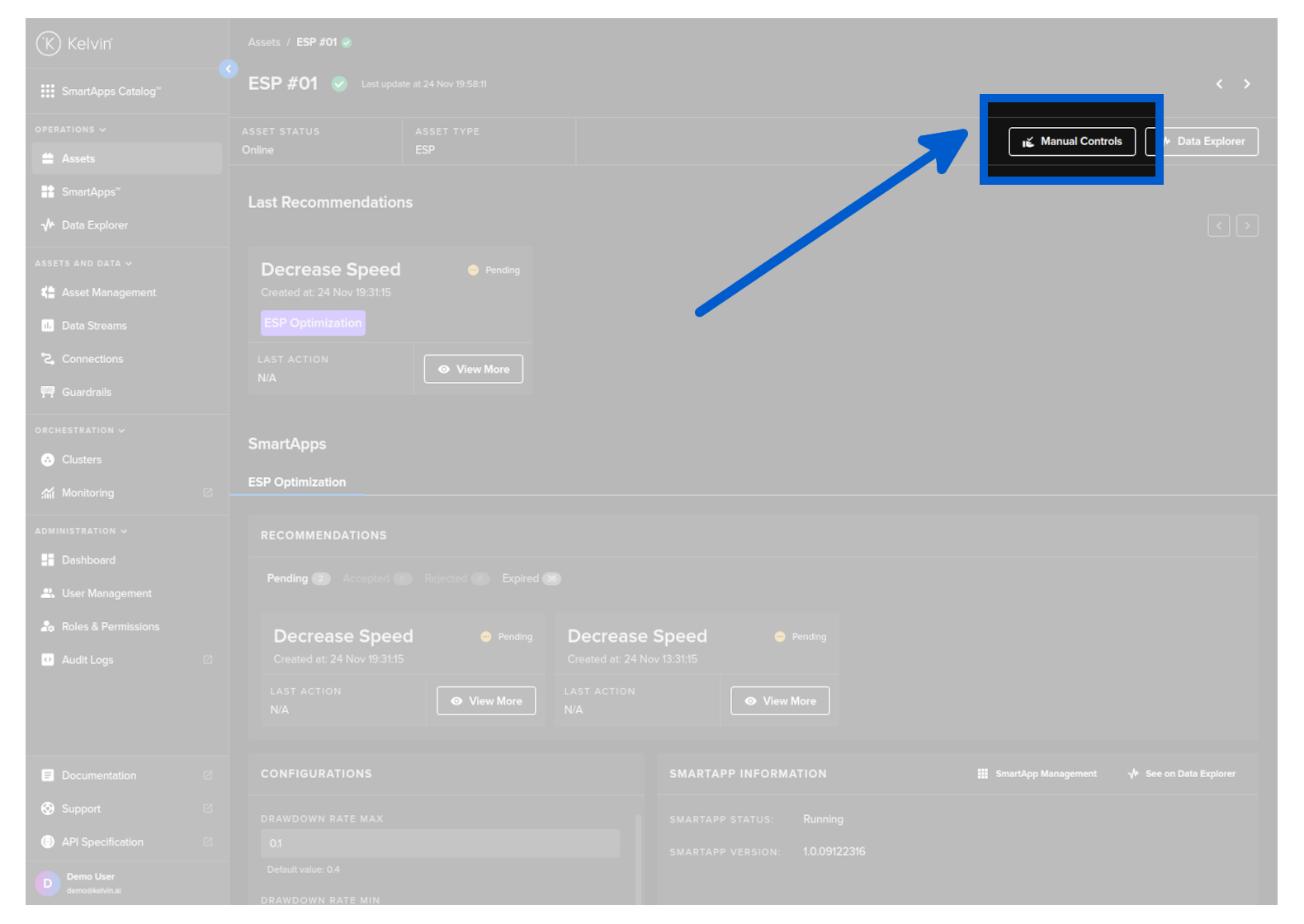
And go to the Manual Controls page, you will see all the Data Streams and their latest value for this Asset.
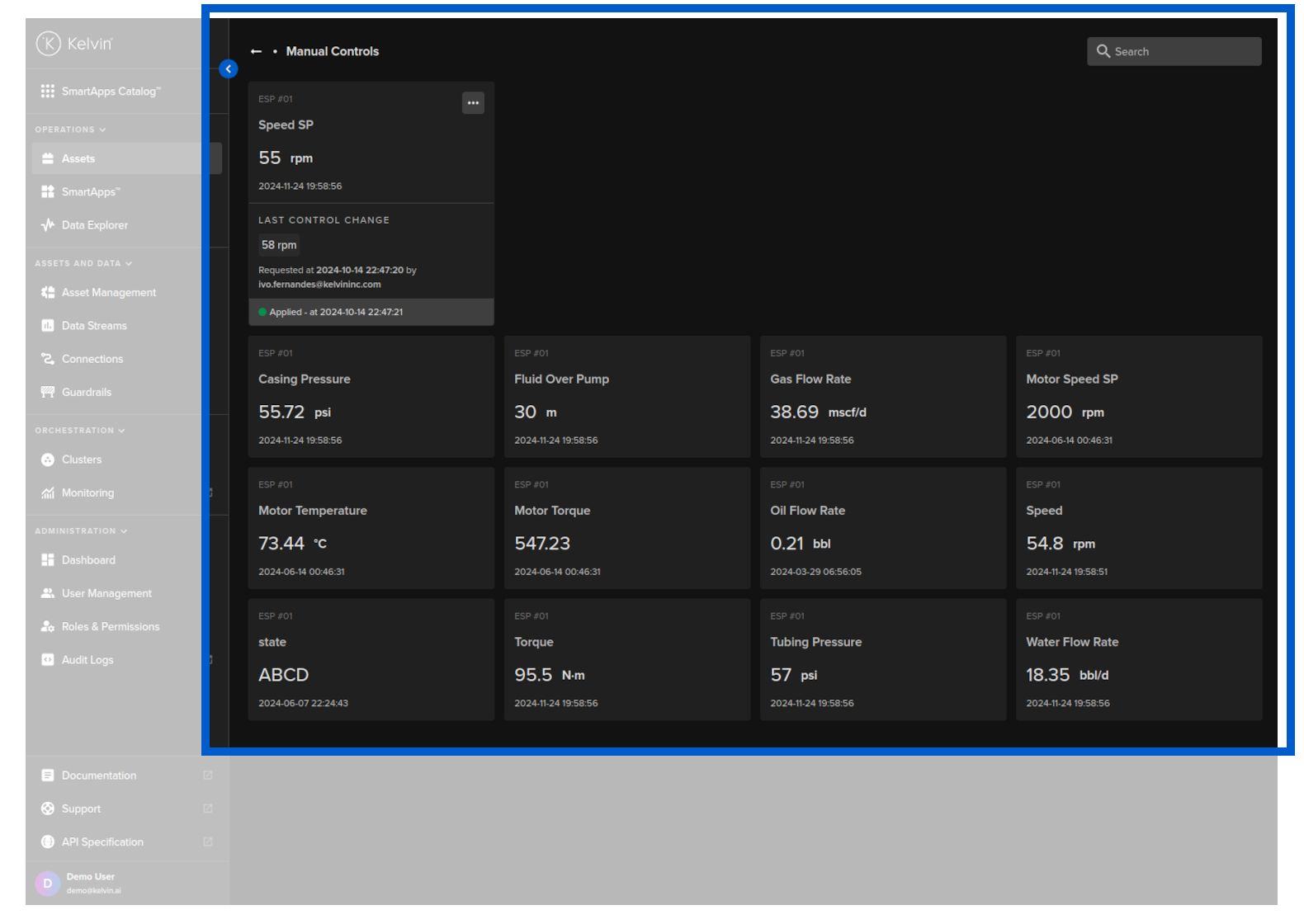
Check out the Manual Controls page for more details.
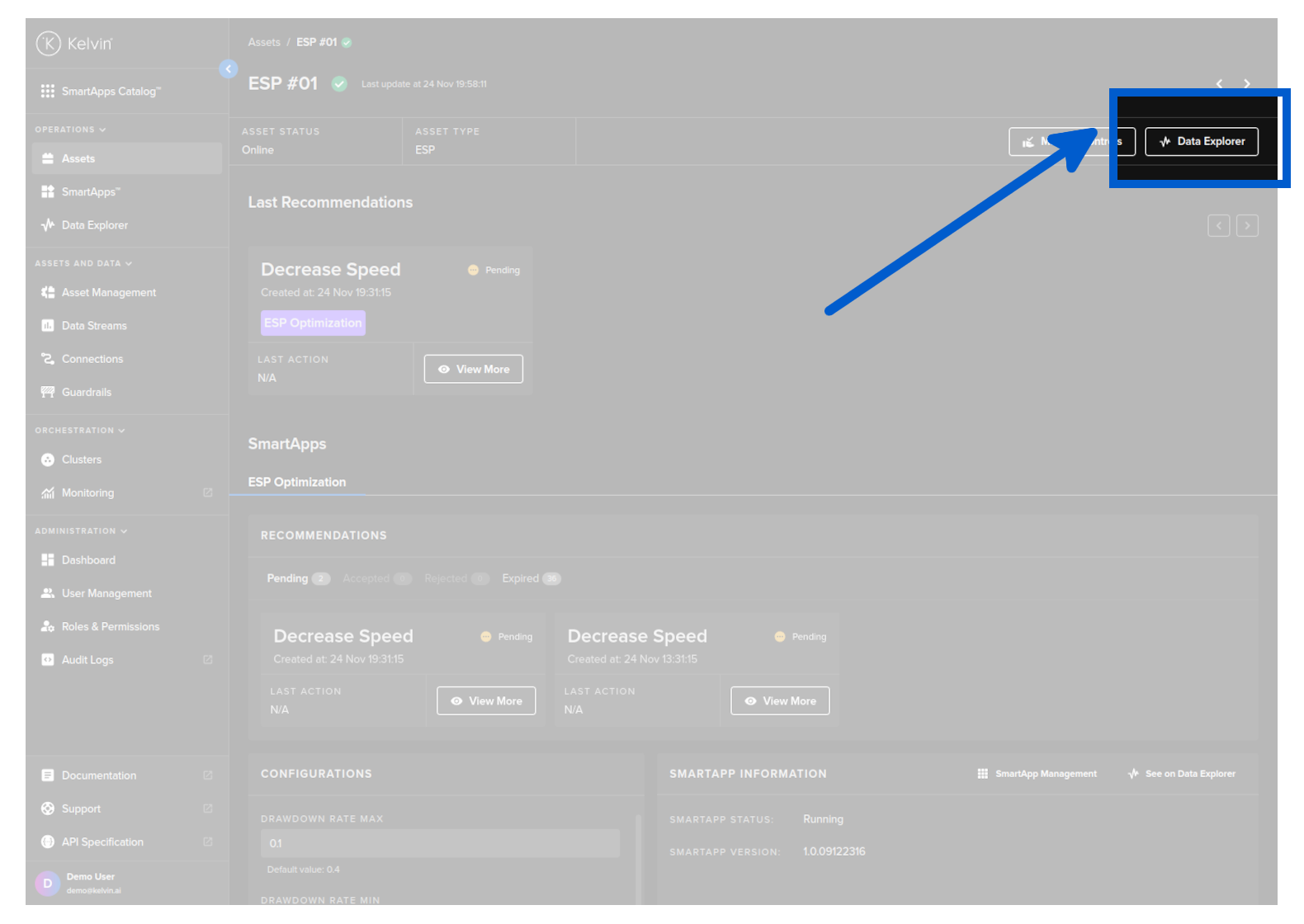
This button will take you to the Data Explorer and pre-populate the Asset into the filters selection.
There is also a link called See on Data Explorer in the Kelvin SmartApps™ Information further down the page. Do not confuse that link with this button. That link goes to a Data Explorer related to the selected Kelvin SmartApps™ not the general Asset data explorer.
In Data Explorer you can see the historical graphical data about one or more Assets and all the Data Streams associated with the asset.
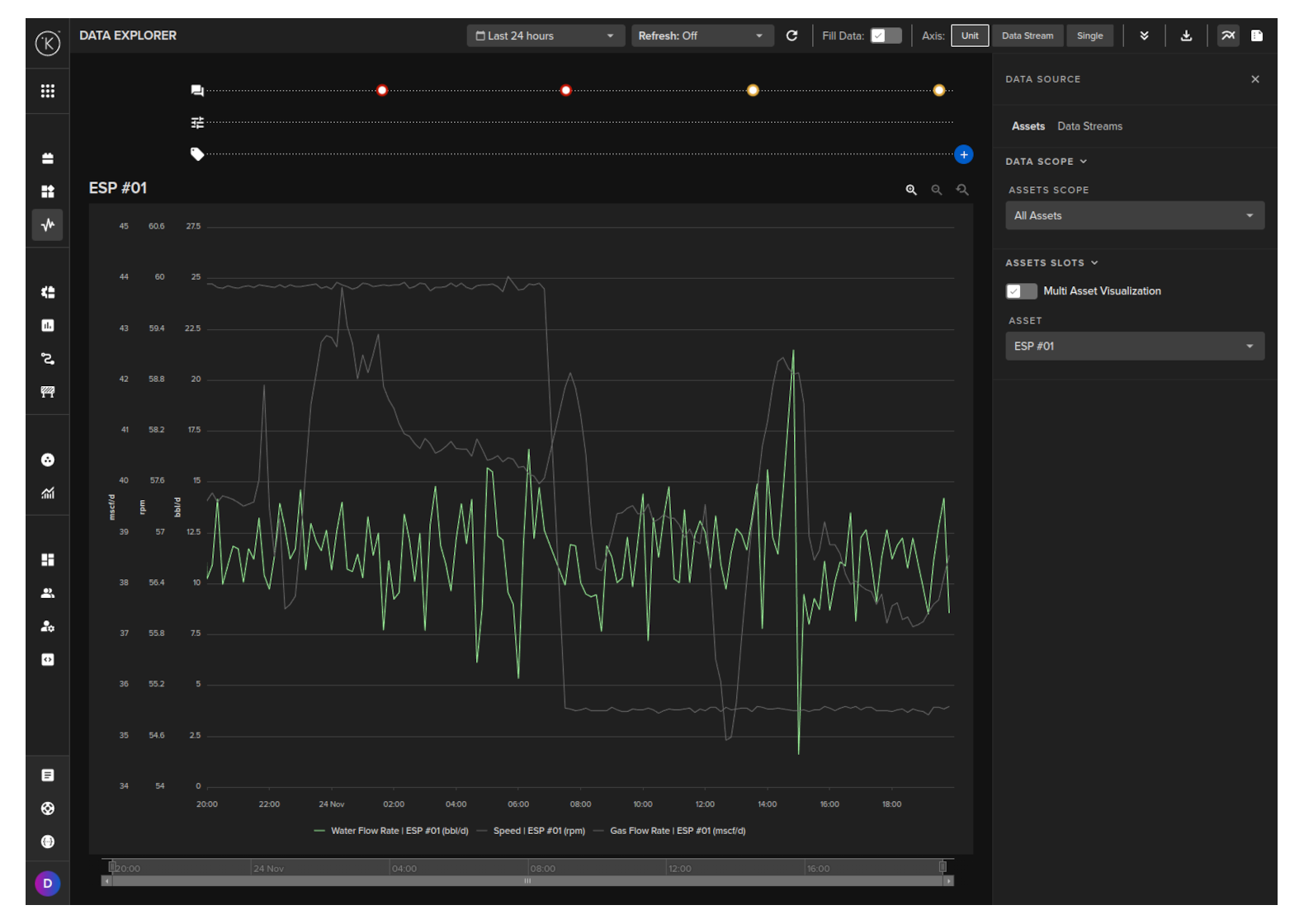
The Data Explorer is tightly integrated with the Kelvin and gives many additional features to the standard graphs including;
- Reference to time when a control change was performed on a Data Stream
- Reference when a Recommendation was activated
- Easily change timezone to see what time events happened according to your location
- Filter which Assets and Data Streams to view - even data that is not related to this Asset.
- Select the Y axis to be either all Data Streams on one axis value range, one axis value range per Data Stream or one axis value range per type (e.g. for temperature, vibrations, etc)
- Independent Y-Axis Zoom controls when displaying multiple y-axis value ranges.
- Multi-chart (up to four) to deeper analysis of multiple Assets together.
To learn all the details and features of the Data Explorer, check out the Data Explorer documentation page in Operations Tools.
Last Recommendations
In the Last Recommendations section you can see the latest Recommendation that was processed for each Kelvin SmartApp™ and that Recommendation's current status.
You will only see the latest Recommendation action that has been performed in any Kelvin SmartApp™. Do not be confused with the Recommendations in Kelvin SmartApps™ below which is showing you all Recommendations for a particular status and Kelvin SmartApp™.

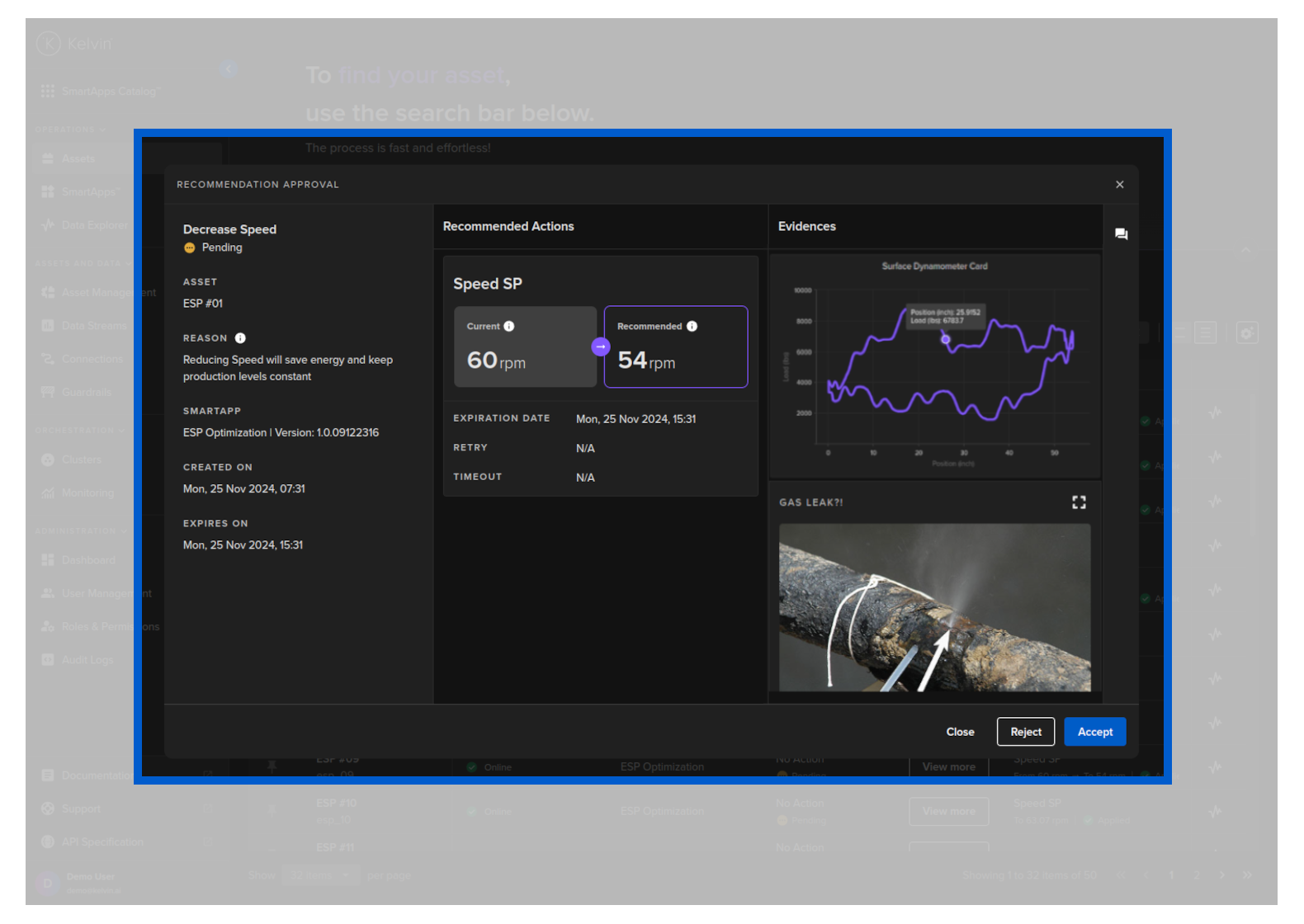
When you click on View More button you will see the standard Recommendation popup.
You can also leave comments about the recommendation as a comment for other users to read or as a note for future reference.
Kelvin SmartApps™
If you click on an Asset to go to Asset Details page, in this section you can see the full details of each Kelvin SmartApp™ that is associated with this Asset.
Just under the Applications header there are tabs for you to select which Kelvin SmartApp™ you want to look at.
This is where you can see all the Recommendations. They are grouped into the four possible statuses; Pending, Accepted, Rejected, Expired. If there are Recommendations in each group then you will see the number of Recommendations in the group and you will be able to click on the text and a list of Recommendations in date/time order will be displayed.
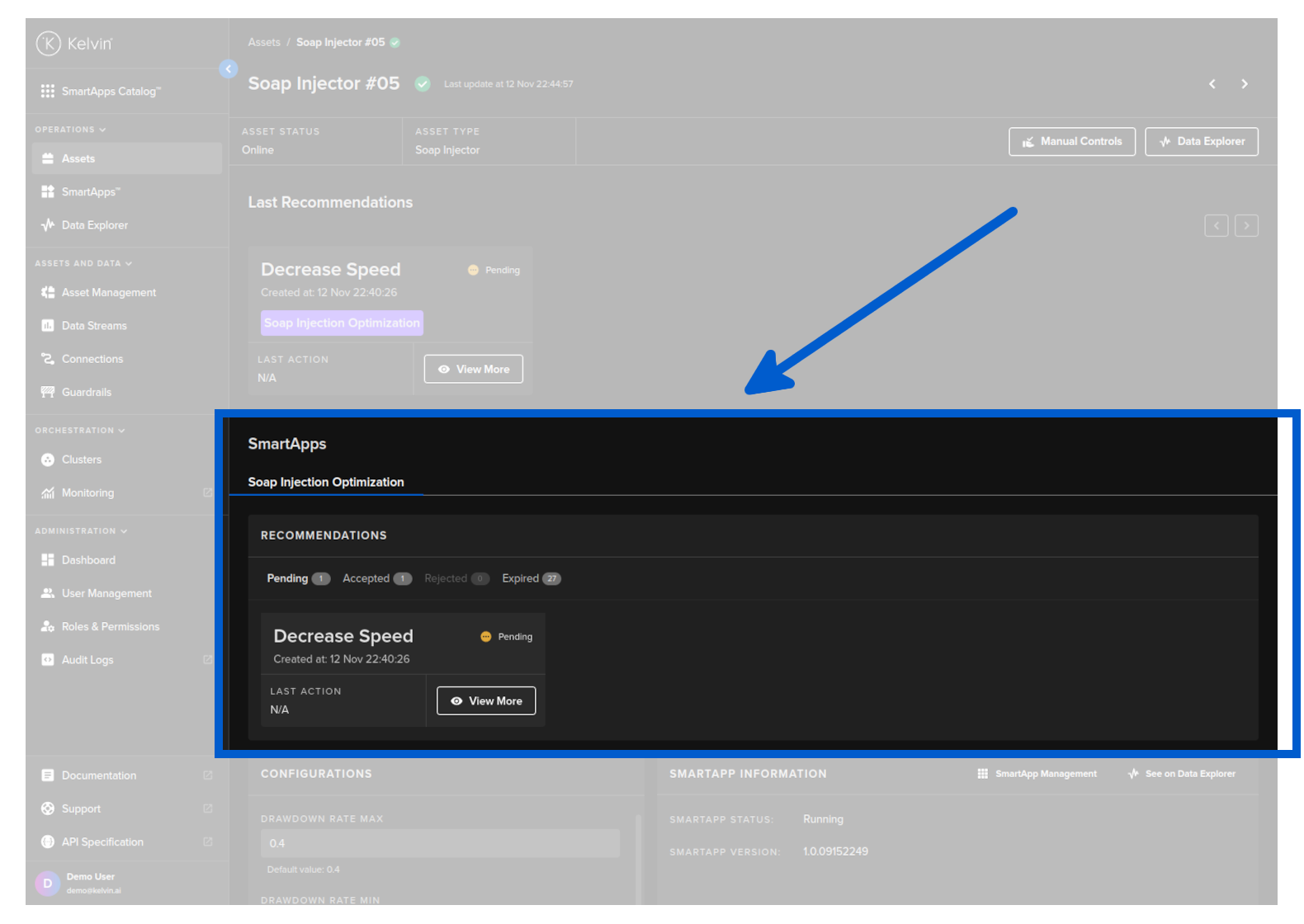
For the Pending status, you will see them all regardless of the age of the Recommendation. Normally Recommendations will have an expire date so will automatically convert to Expired after some time, though it is possible to have a Recommendation remain open indefinitely until a Operations Engineers takes a decision.
For the other three statuses, Accepted, Rejected and Expired, you can select the time range to view up to a maximum of the past 7 days. Anything older will not be shown here.
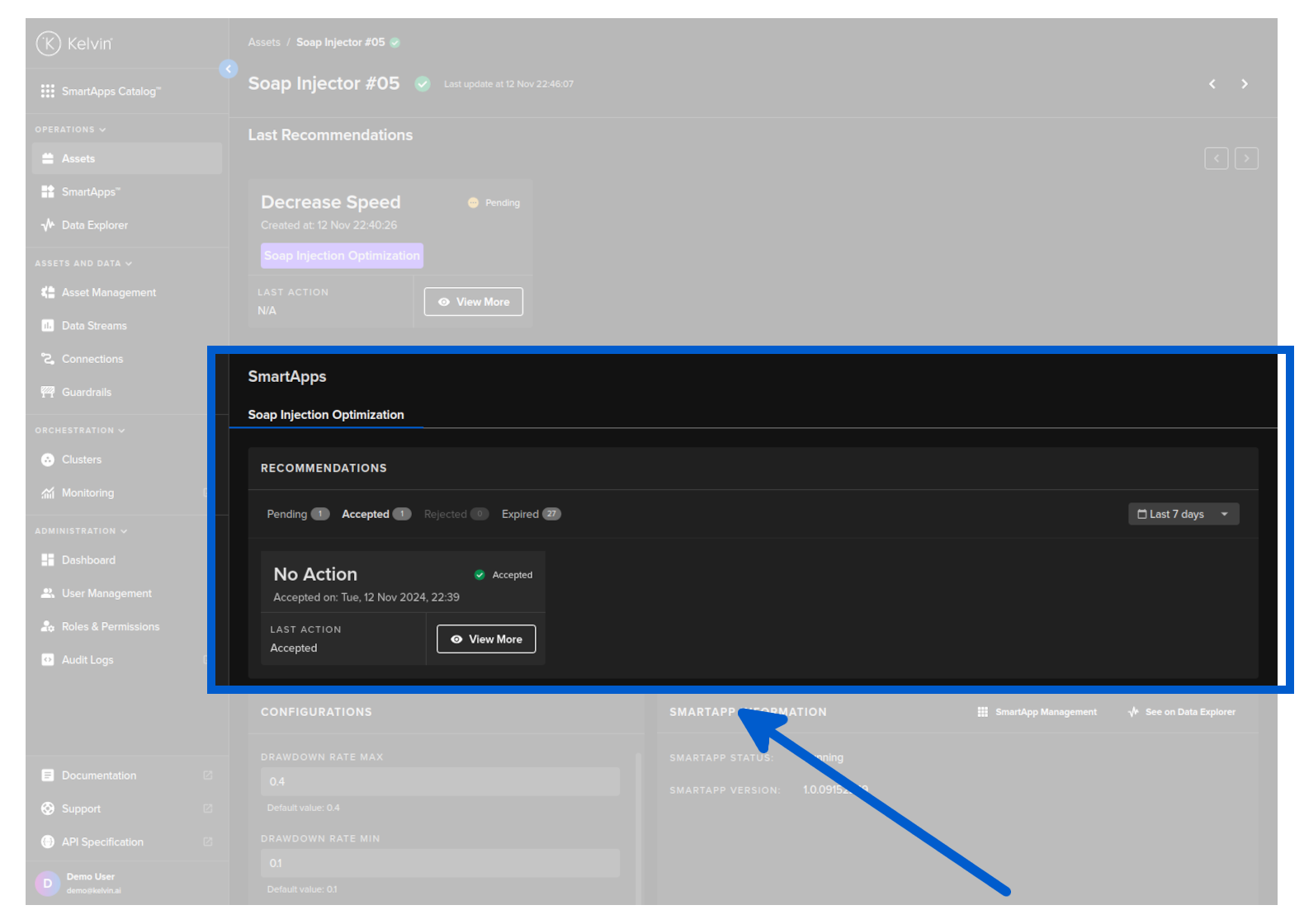
When you click on View More button you will see the standard Recommendation popup which we have described in detail earlier on this page. Read there for full information on how to navigate the popup and manage the Recommendations.
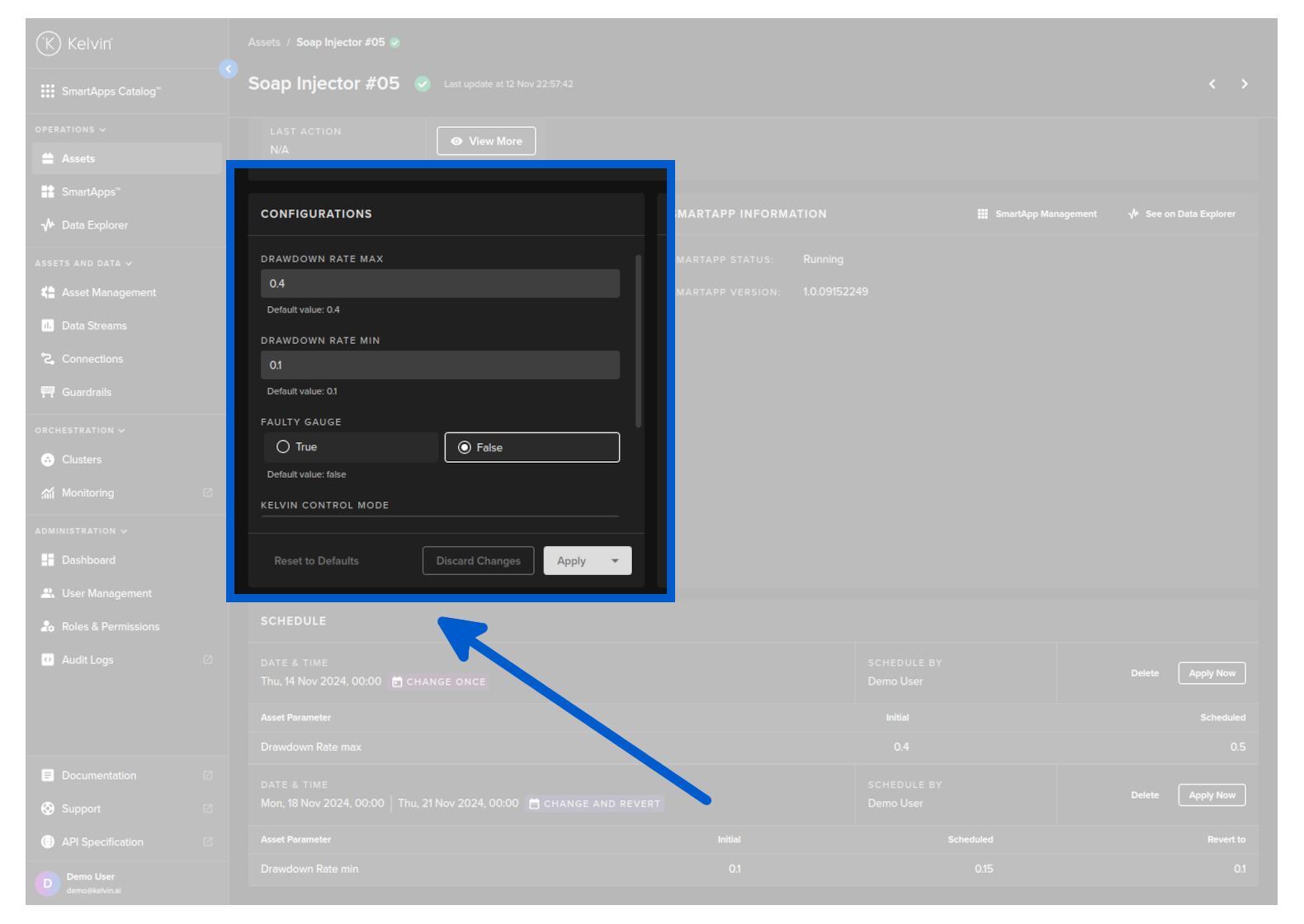
In the configurations section you can change and update the configuration parameters of this Asset for this Kelvin SmartApps™. Any changes done will be sent immediately to the edge or if the is no connection with the edge, the it will be sent when the Cluster next comes online.
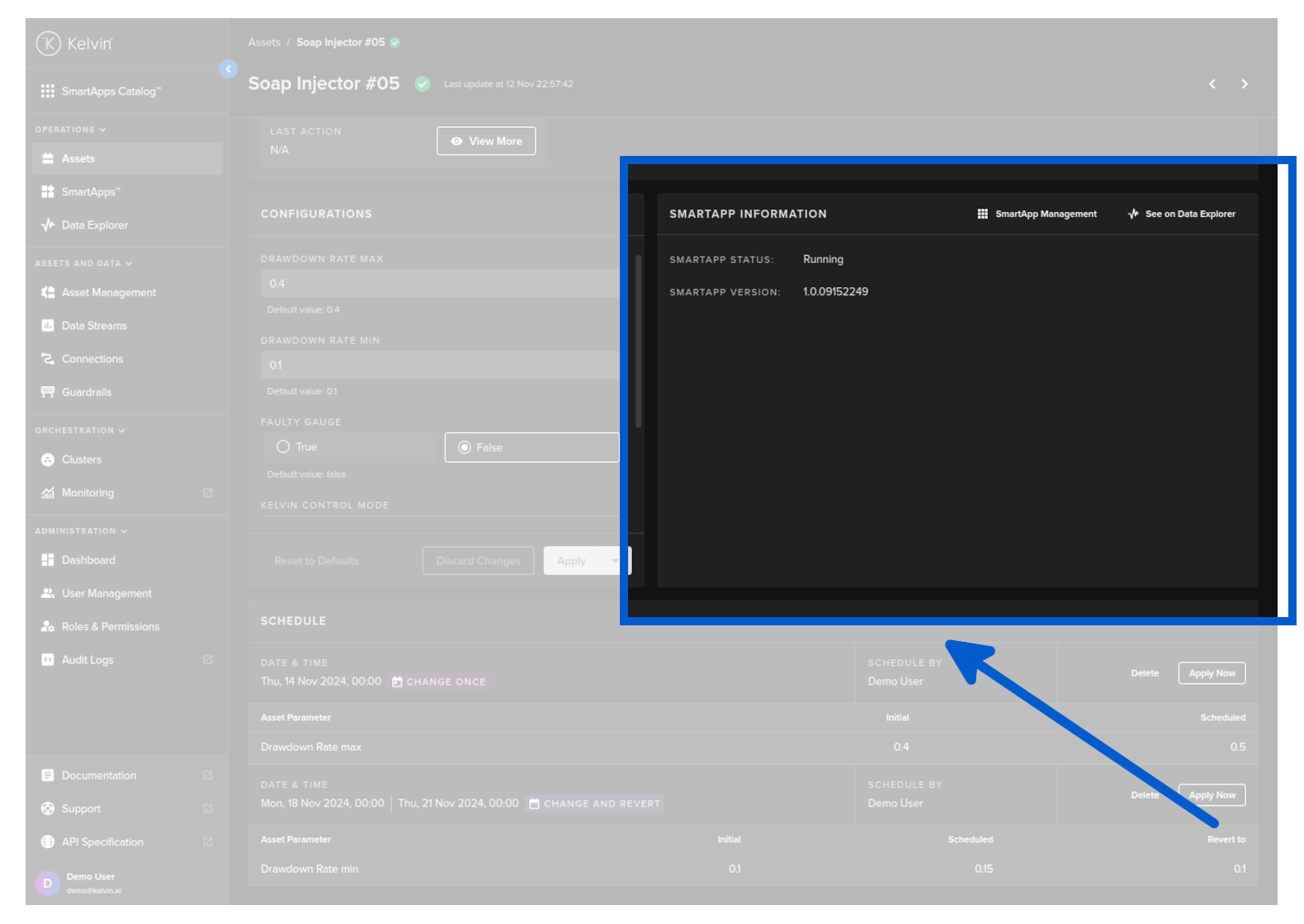
This is the general information about Kelvin SmartApps™.
The mode in the information can be either direct or check (there will be options to modify these terms). This defines if Recommendations are automatically accepted (direct) or need to be accepted by the Operations Engineers (check). Direct will see the Control Changes in a Recommendation automatically initiated, relieving the Operations Engineers of the task to focus on the problematic assets which remain in check.
This link will take you to the Kelvin SmartApp™ overview page.
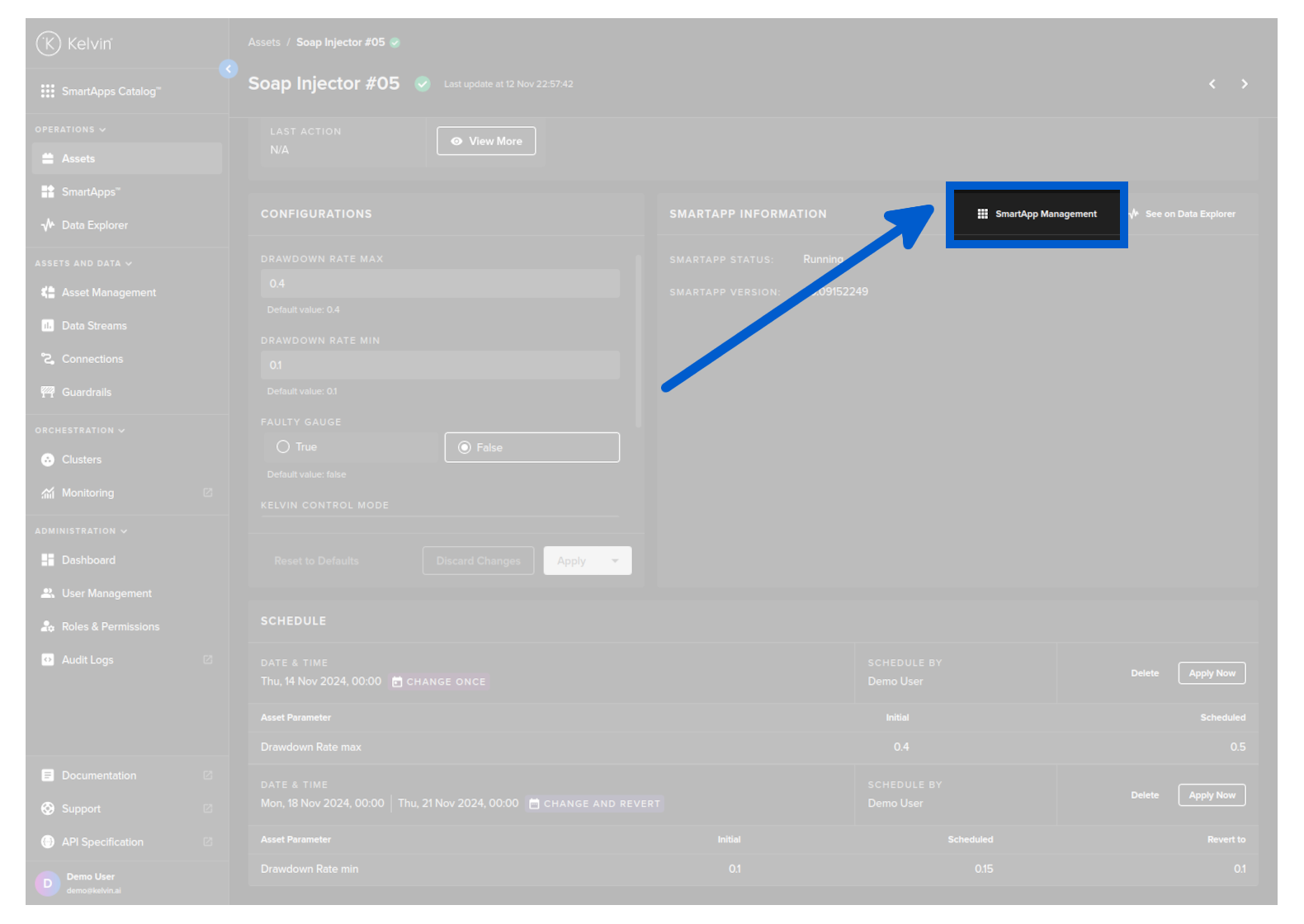
This link will take you to the Data Explorer and pre-populate the current Asset in the first slot.
Do not confuse this with the Data Explorer button at the top right hand corner of the screen which is related to the Asset only and not to specific Kelvin SmartApps™.
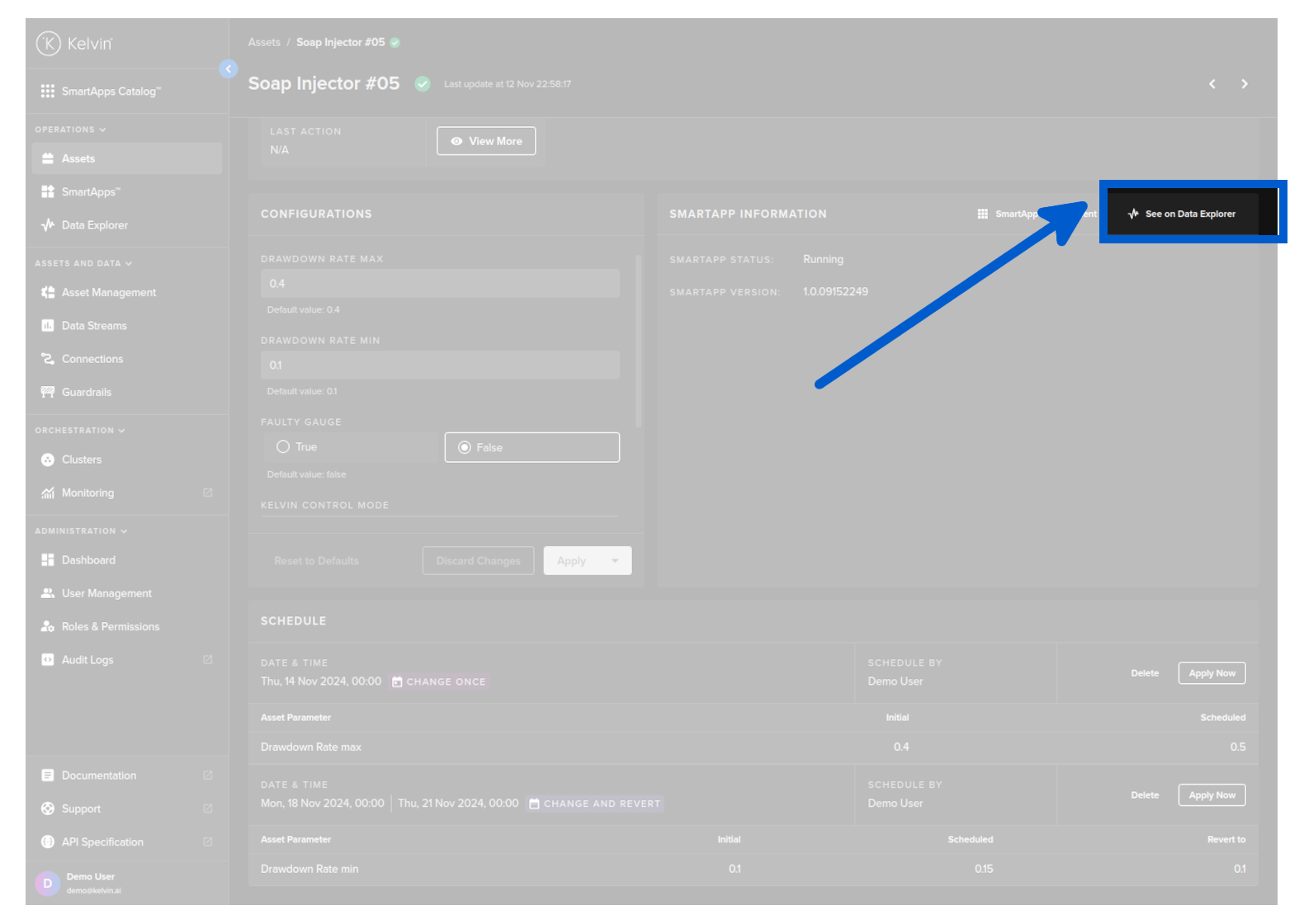
In Data Explorer you can see the historical graphical data about one or more Assets and all the Data Streams associated with the asset.
The Data Explorer is tightly integrated with Kelvin features and gives many additional features to the standard graphs including;
- Reference to time when a control change was performed on a Data Stream
- Reference when a Recommendation was activated
- Easily change timezone to see what time events happened according to your location
- Filter which Assets and Data Streams to view - even data that is not related to this Asset.
- Select the Y axis to be either all Data Streams on one axis value range, one axis value range per Data Stream or one axis value range per type (e.g. for temperature, vibrations, etc)
- Independent Y-Axis Zoom controls when displaying multiple y-axis value ranges.
- Multi-chart (up to four) to deeper analysis of multiple Assets together.
To learn all the details and features of the Data Explorer, check out the Data Explorer documentation page in Operations Tools.
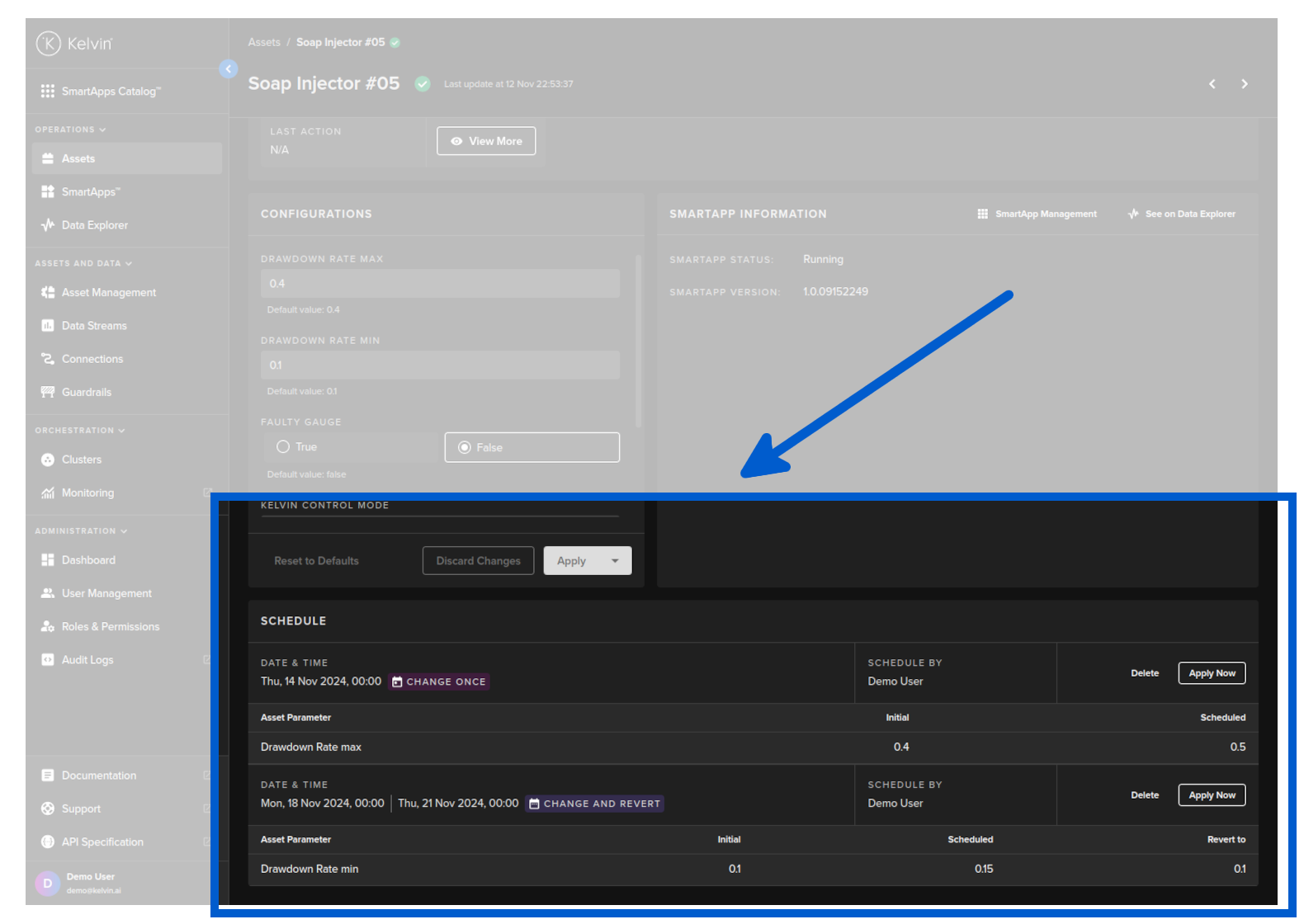
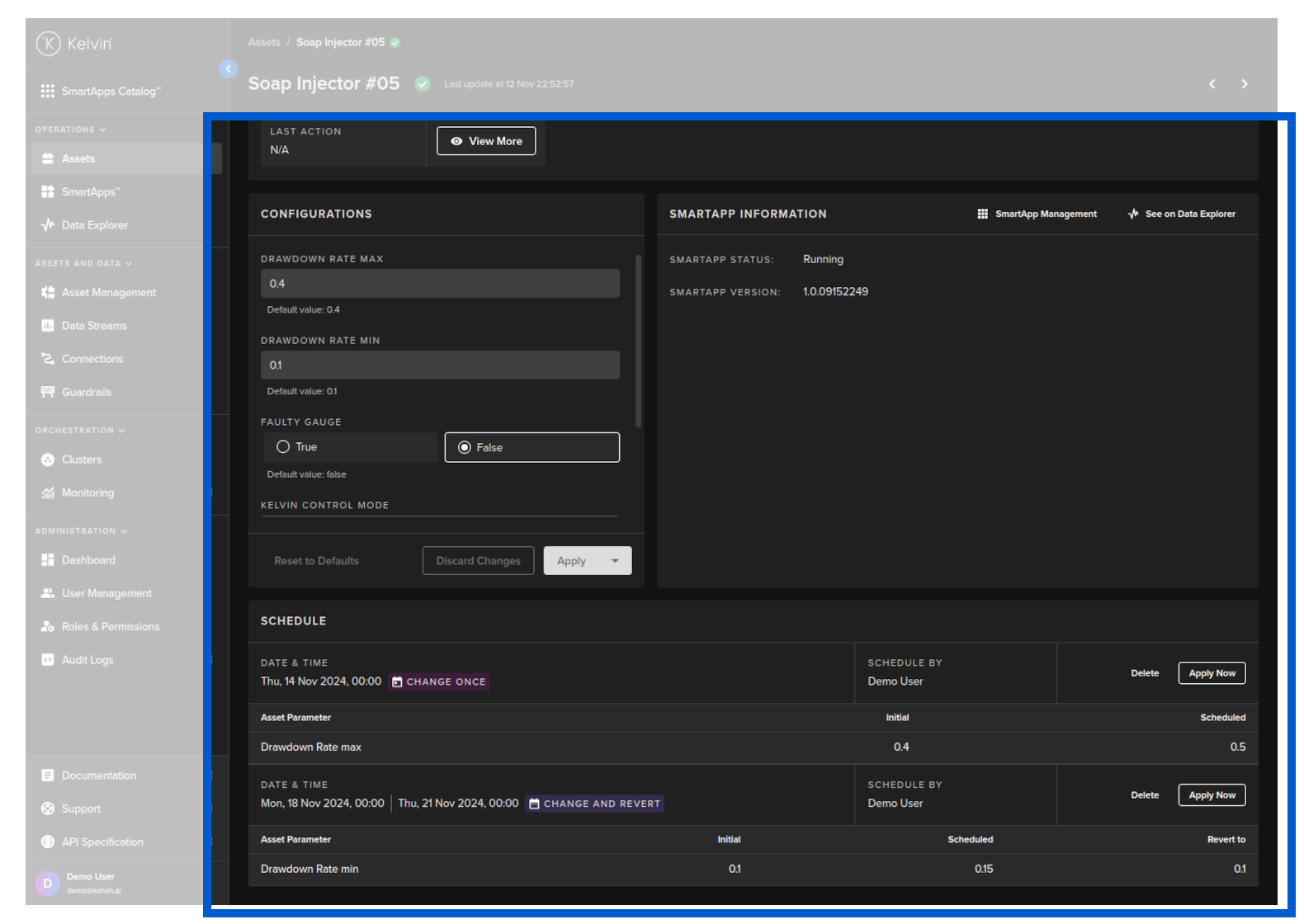
This is where you can see all the Schedules that are queued for automated Parameter changes.
Only schedules planned to be implemented in the future are shown here. All schedules that have already implemented or canceled will not be shown here.
If the schedule only has one Asset to change, then you will be able to apply the schedule immediately from this screen.
Assets with multiple Assets to update can only be updated by going to the Kelvin SmartApp™ page and viewing the Schedules tab.