Customize Columns
On this page you will learn about customizing the columns in the Assets Overview page in Kelvin UI.
Asset Page
The Assets page is the first page you will see when you log into the Kelvin UI. You can also go there by clicking on the Asset option in the left sidebar.
Here you have a list of all Assets registered in Kelvin. From here you can see the Assets and associated information.
This uses the asset-centric table which is a highly optimized way to customize columns and view many kelvin-centric information related to the assets that are relevant to you.
For example, here we have an example with Control Changes and Recommendations included.
The View More button in the Recommendations column is a button that takes you directly to that recommendation to make a record a decision about that Recommendation.
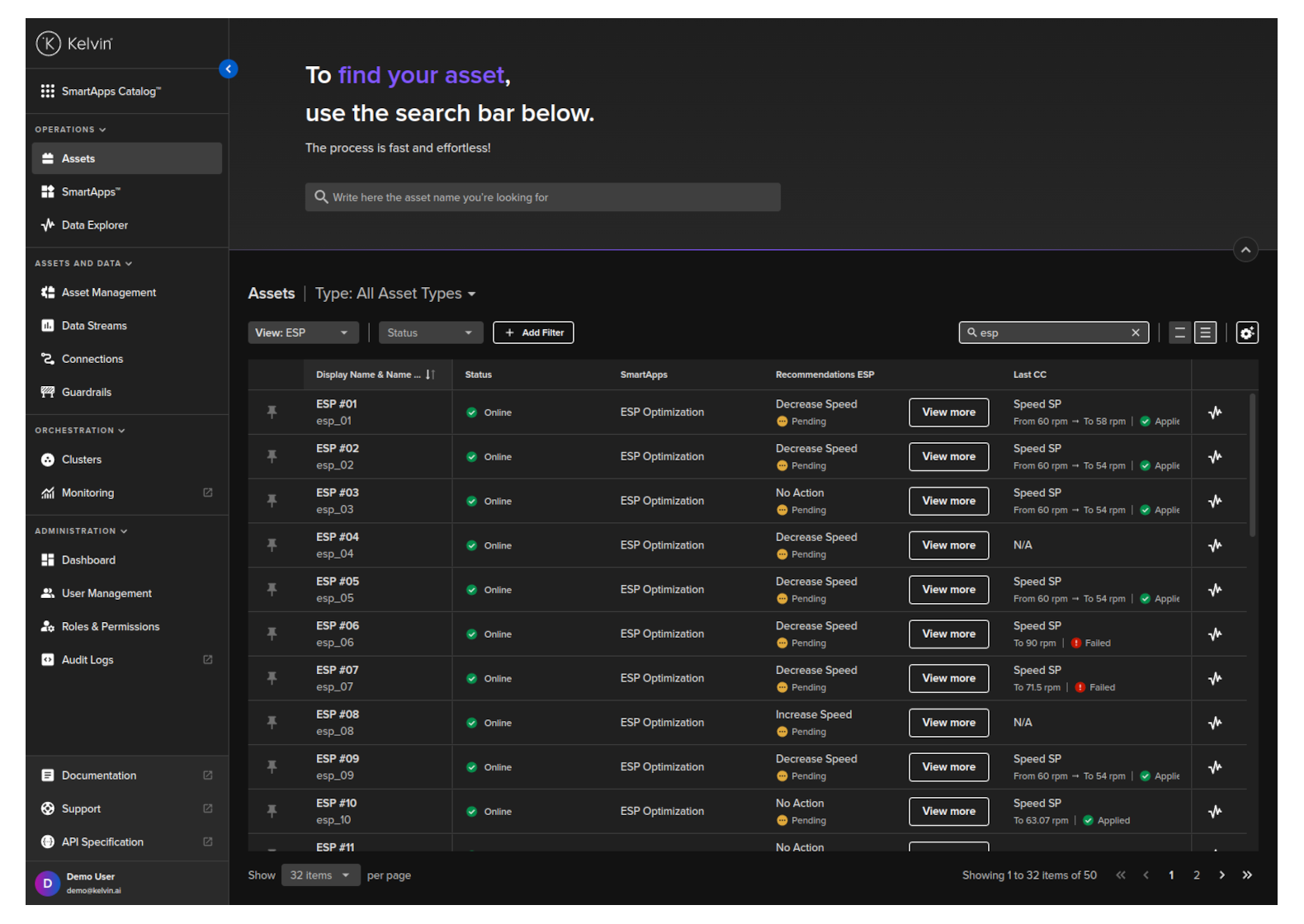
Column Settings
Asset-centric tables bring many more advanced features to the lists to give you greater control in setting up the right overview experience to streamline your workflow. This includes being able to incorporate specific Recommendations and Control Changes into the lists with direct links to control the Assets.
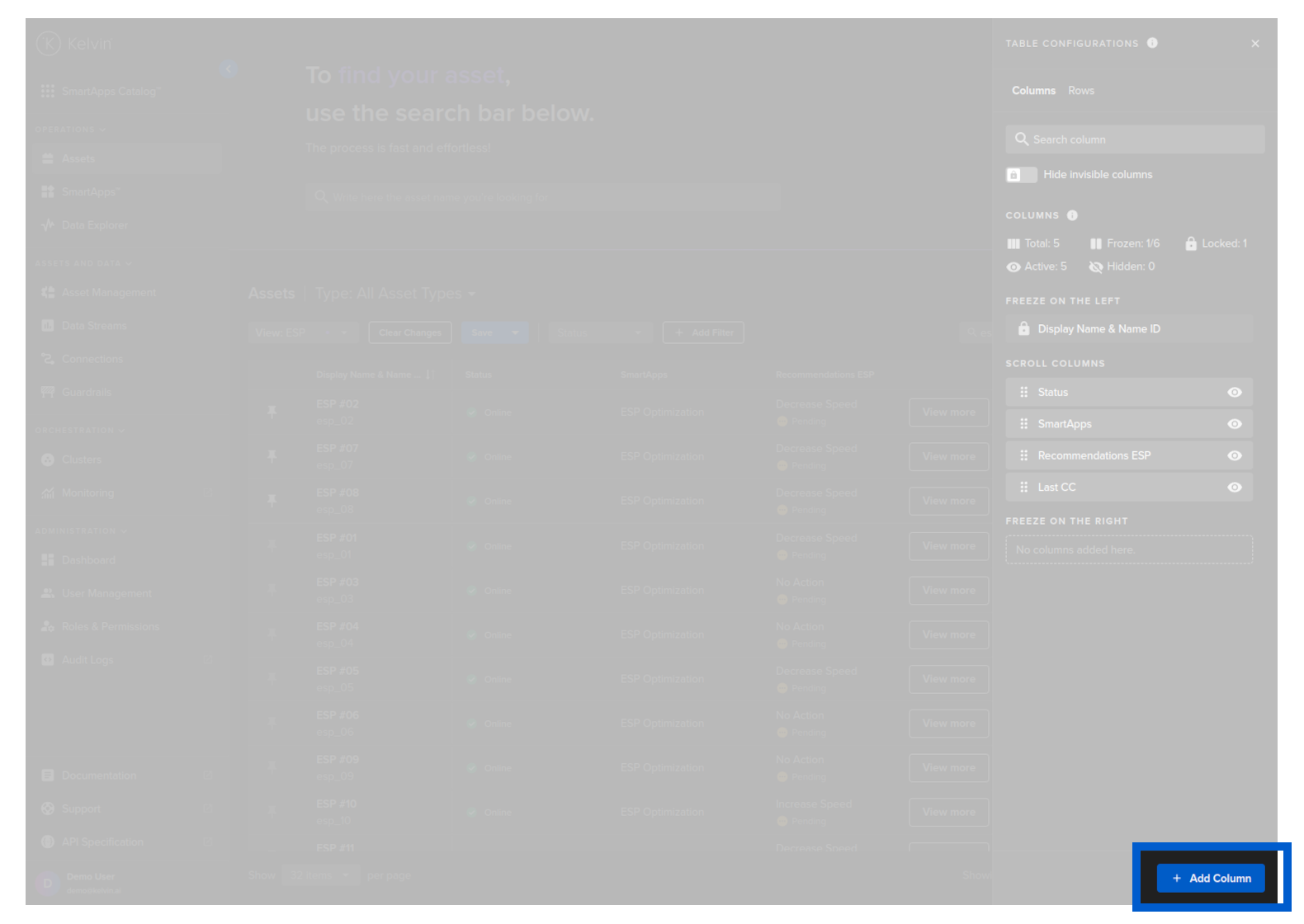
When you click on the button you will get the Configuration Table options come up;
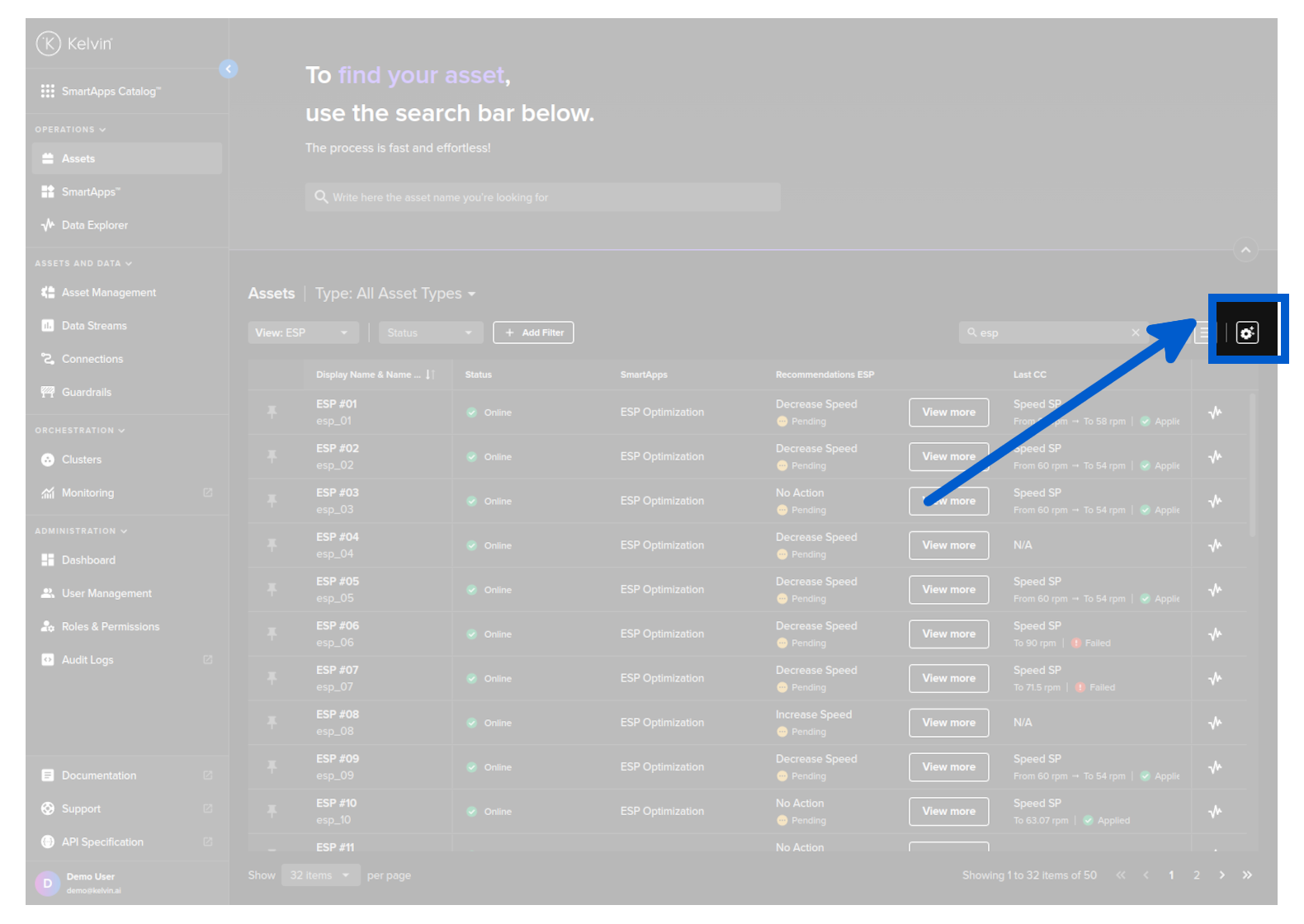
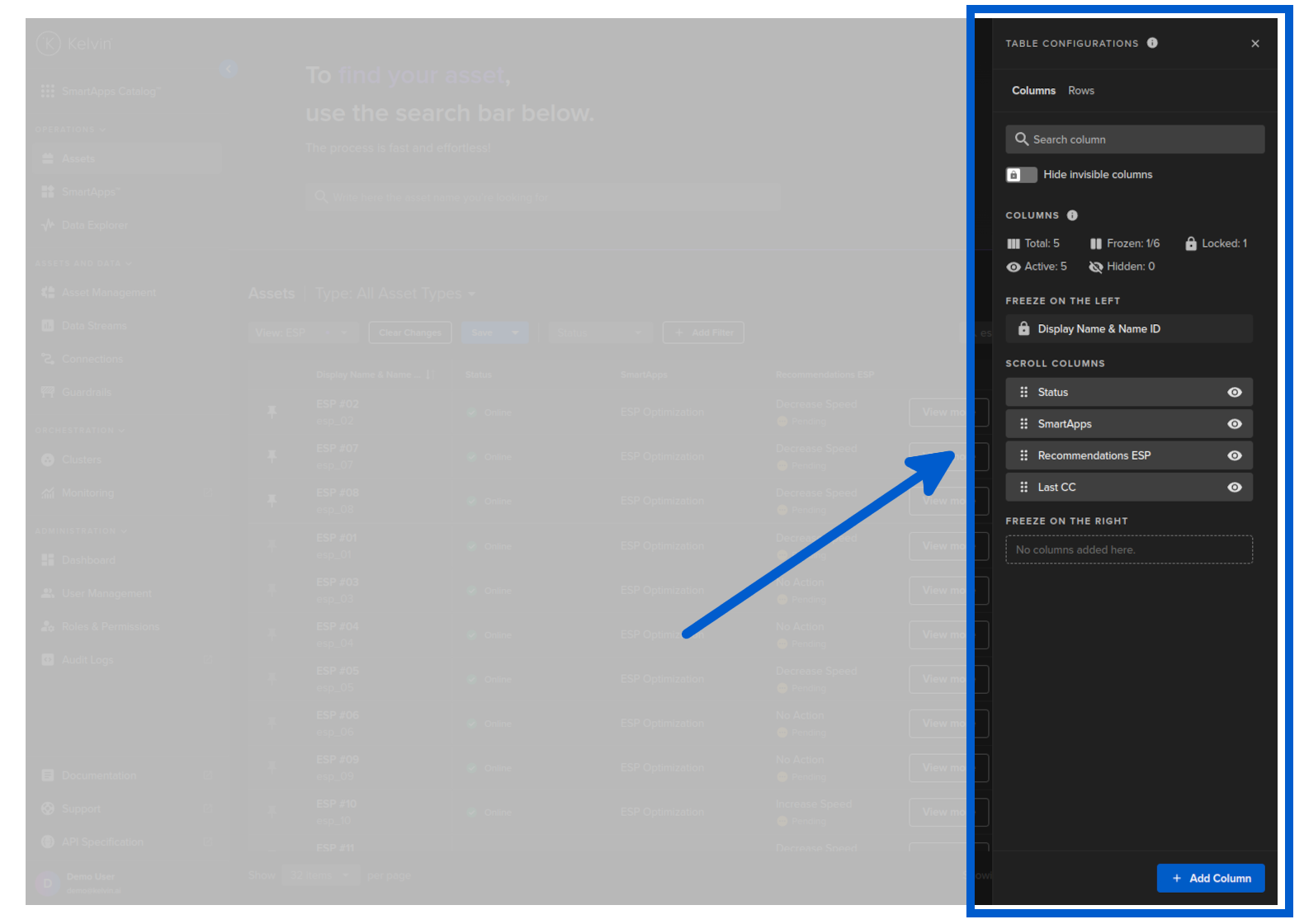
You will then see a new option bar open up on the right hand side.
Options
There are a number of options available to find and pin the Assets of interest.
Kelvin UI intelligently remembers your search results from the Assets Overview page and will use it in the Asset Details page to rotate through your Assets that are on the search results ONLY. This allows you to quickly move between the details page of each Asset that matters the most to you at that time.
If you want to view other Assets in the Assets Details page you will need to return to this page and update or clear the search box and pinned Assets.
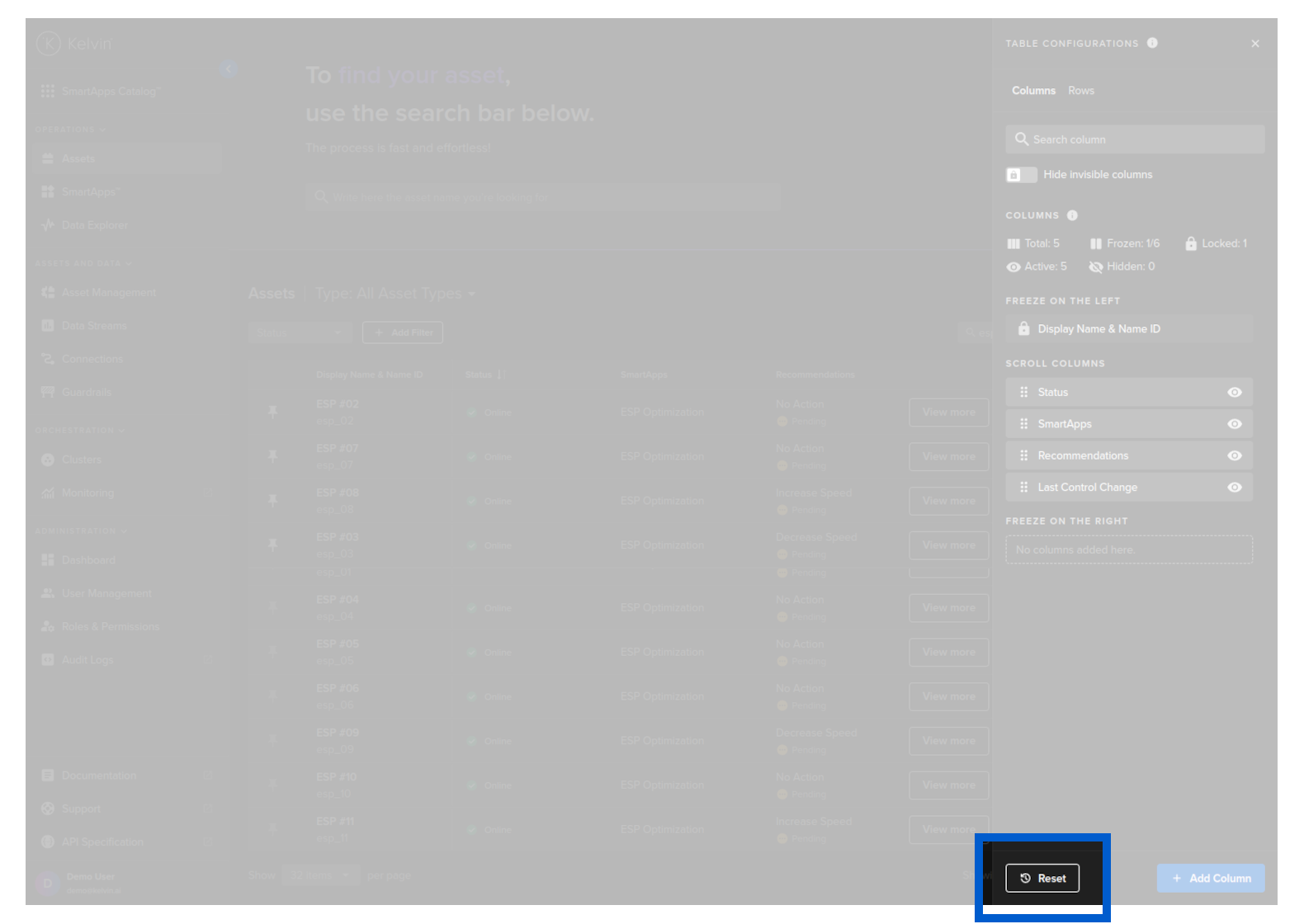
There are times when you want to start your column customization again. To do this click on the Reset button to return all column settings back to the factory default setup.
When you are inside the column settings you can freeze columns left and right. This ensures the columns will always show, even when you scroll left or right to see all the columns.
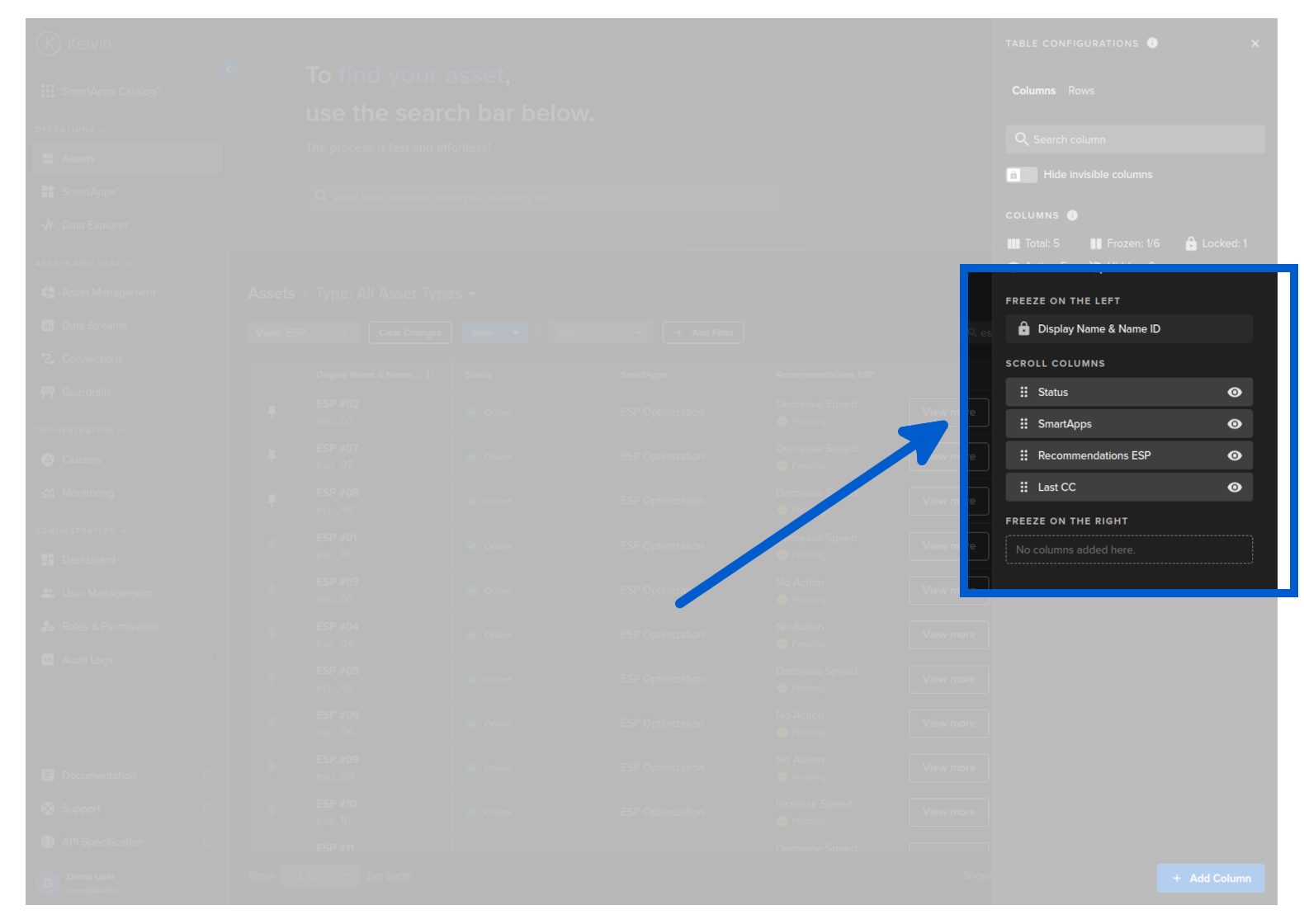
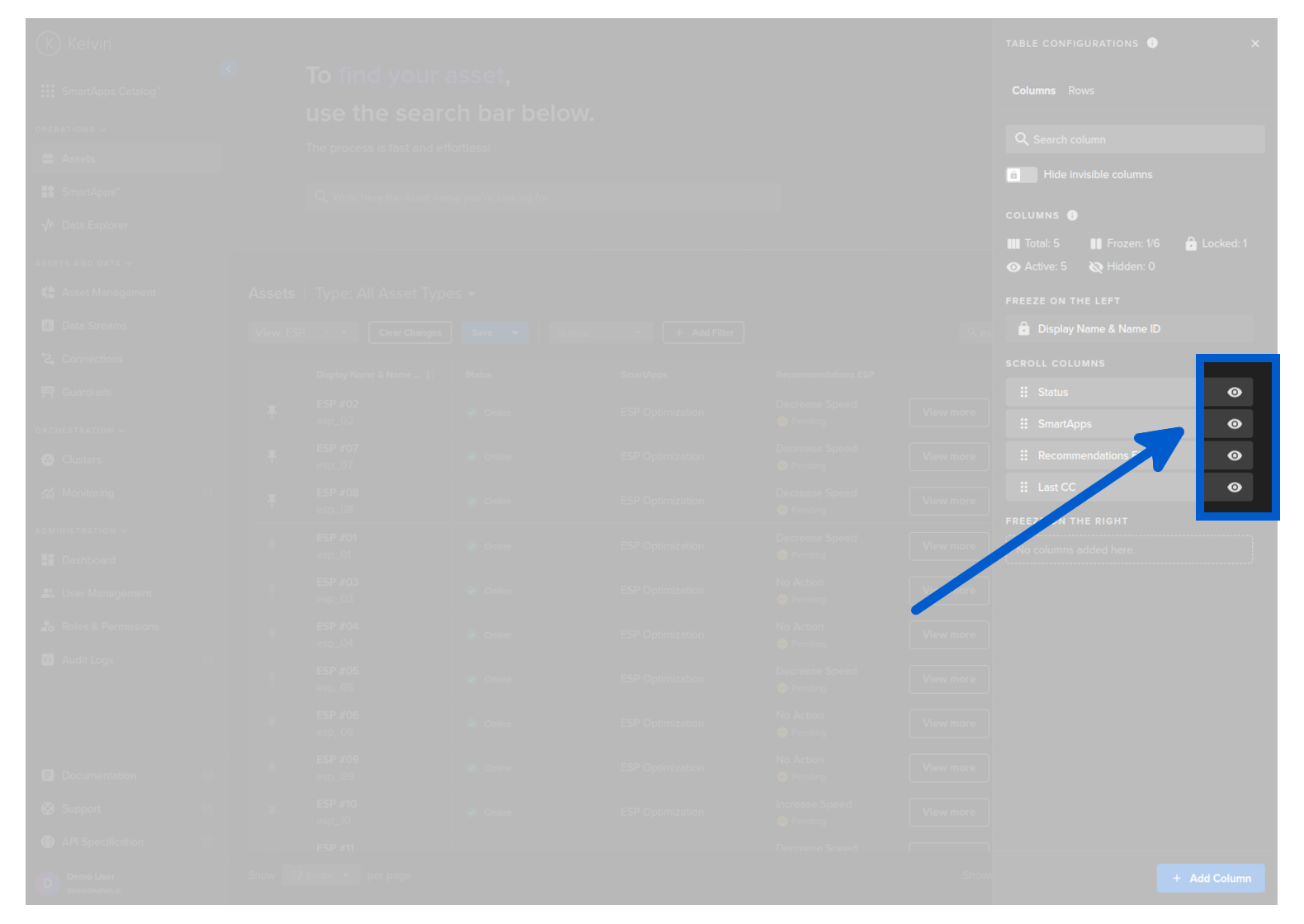
When you are inside the column settings you can show or hide columns to ensure you only see what you need to see.
When you are inside the column settings you can see an overview of the columns available and showing.
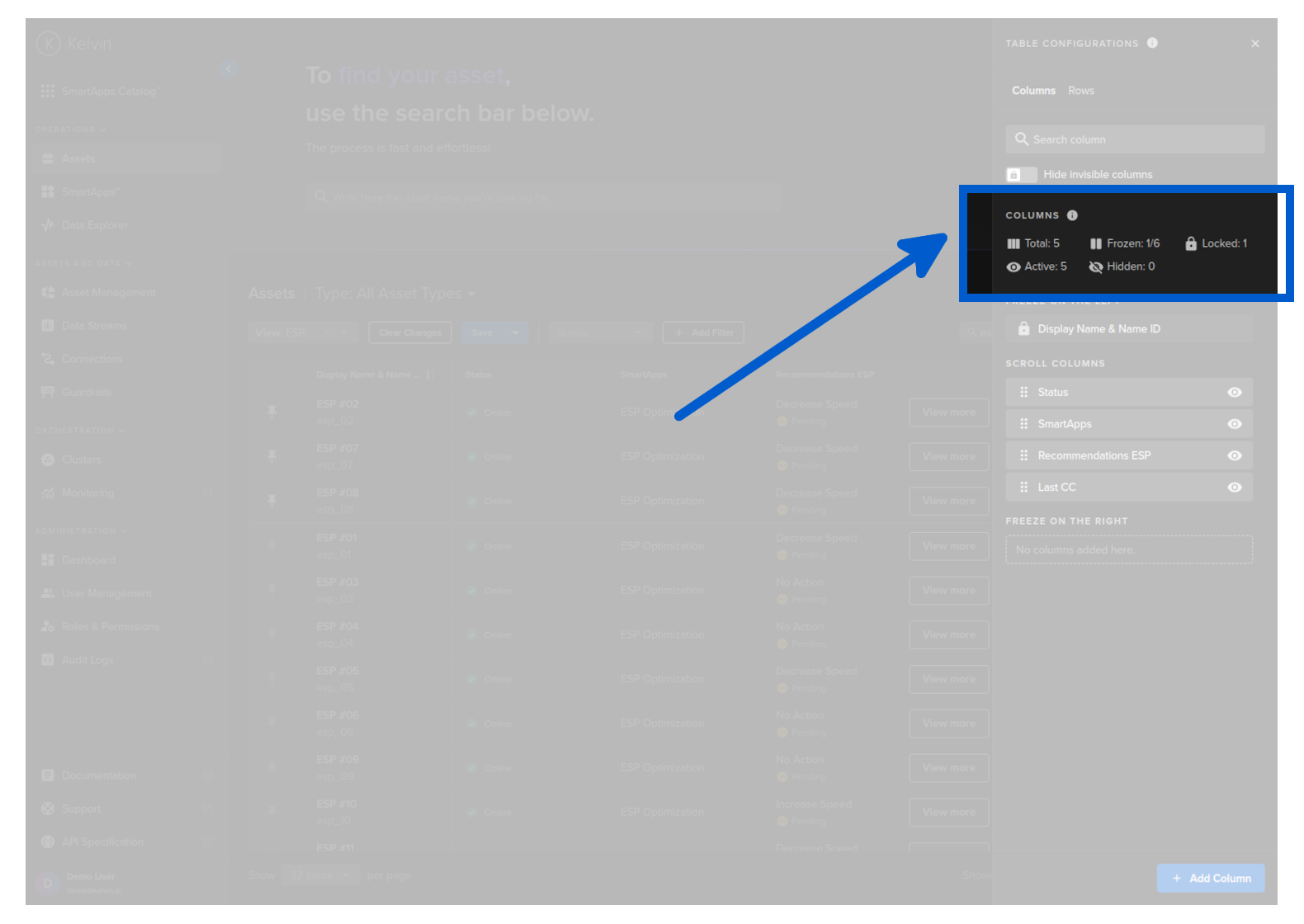
| Item | Description |
|---|---|
| Total | Total number of columns available (both active and hidden) |
| Frozen | Total number of columns that are in the left or right freeze positions out of a total number of columns that can be moved to the frozen sections |
| Locked | Total number of columns that can not be moved or edited |
| Active | Total number of columns that will be shown on the table |
| Hidden | Total number of columns that will not be shown on the table |
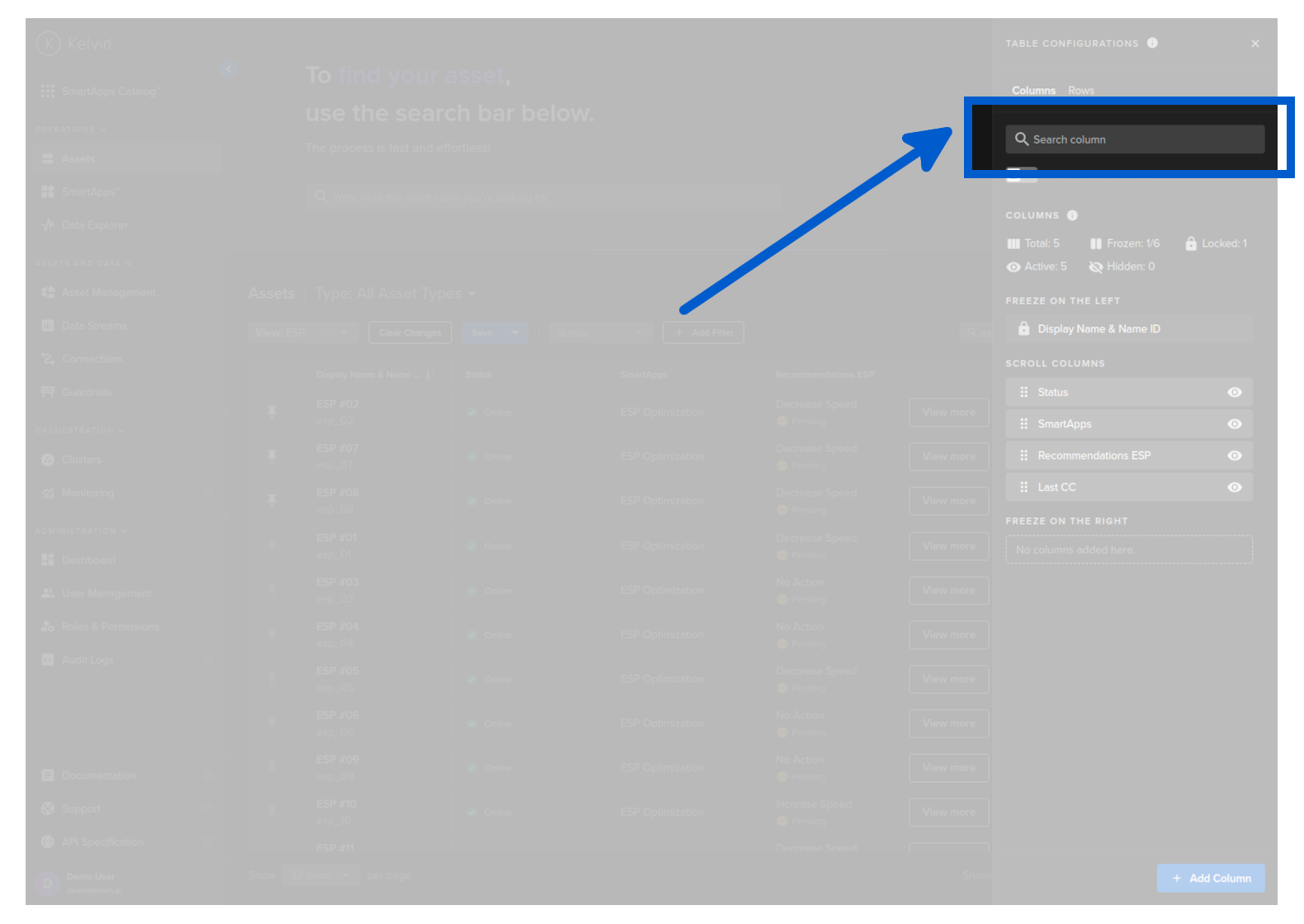
When you are inside the column settings with a large number of columns, this feature is useful to find columns and to hide the hidden columns from the list to make it easier to see what is relevant.
Add Custom Columns
You can add a number of customizable columns to the Asset Table list.
Each type you select can be customized to only the information that you required. This is especially useful if you want to have the same content type in multiple columns showing different types of information.
For example, you can select Control Change, you can create separate columns for Pending, Success and Failure counts to easily get a picture of where Infrastructure problems can be occurring.
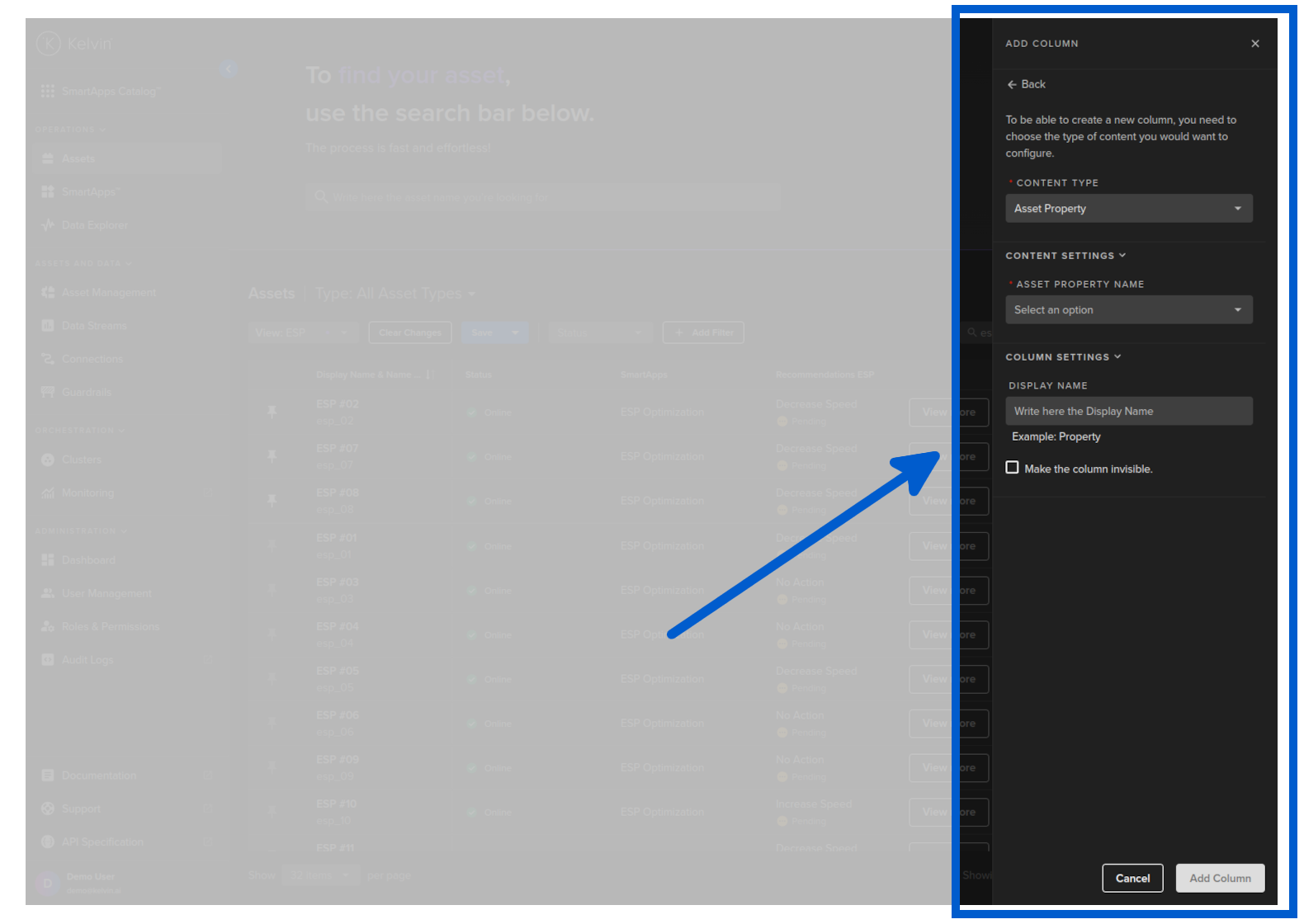
Assets have a special section called Asset Properties.
This is a client custom configuration that can hold any type of information useful for clients. It does not affect Kelvin in any way.
In this setting, you can select the properties to show in the column. This is a list of all property names available across all Assets.
| Option | Description |
|---|---|
| Asset Property Name | This is the name of the Asset Property Name to display its value for each Asset in the column. If this property does not exist for an Asset, then it is left blank in the row. |
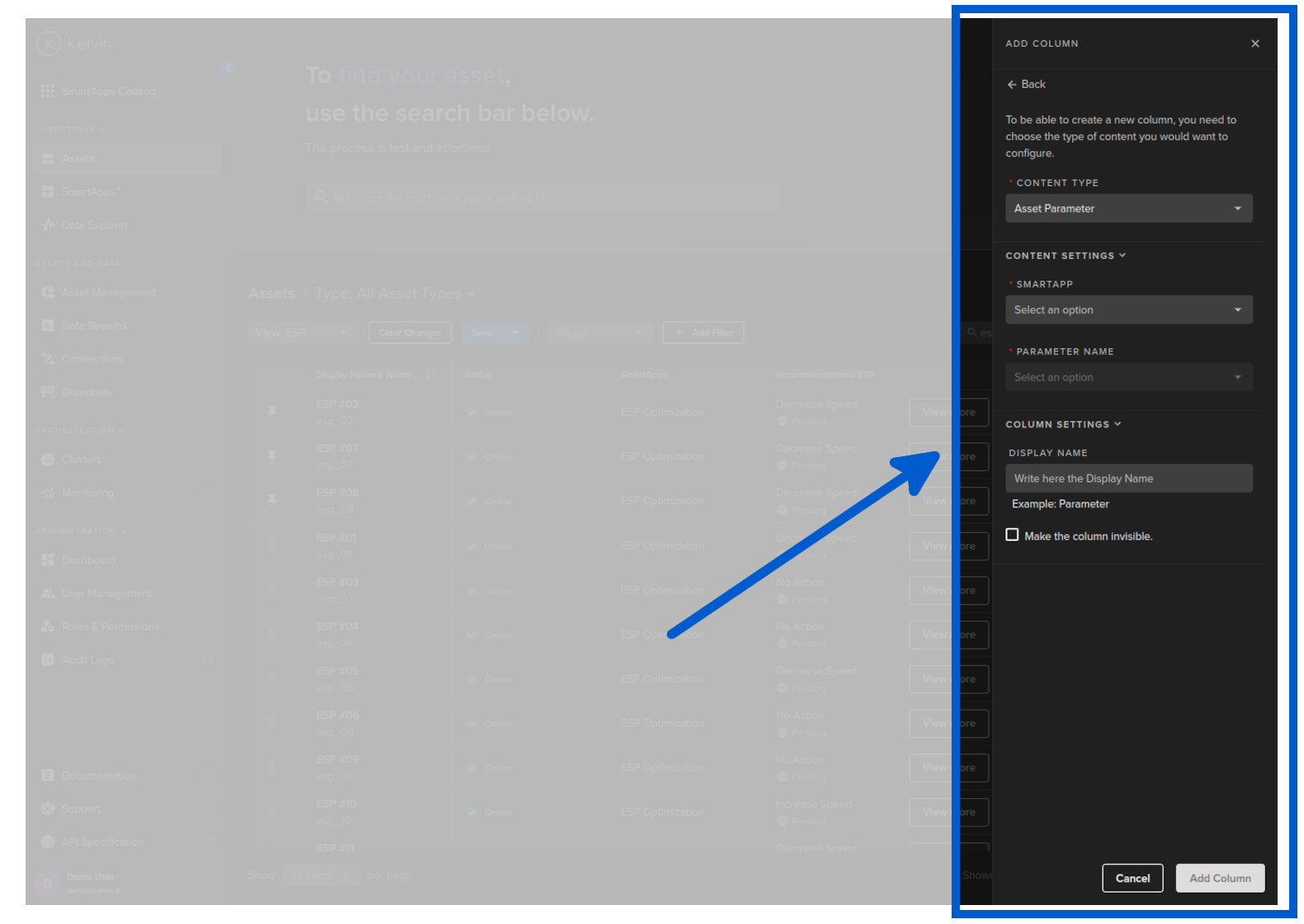
When Assets are added to a Kelvin SmartApp™, the associated Asset Parameters become available.
On the table the Asset Parameters are read only. If you want to change an Asset Parameter, you need to go to the Asset Details page or to Kelvin SmartApps™ page to change them.
| Option | Description |
|---|---|
| Application | This is the name of the Kelvin SmartApp™ that the Asset Parameters are linked to. You can only pick one Kelvin SmartApps™ per column. |
| Parameter Name | Options available will depend on which Kelvin SmartApps™ is selected. |
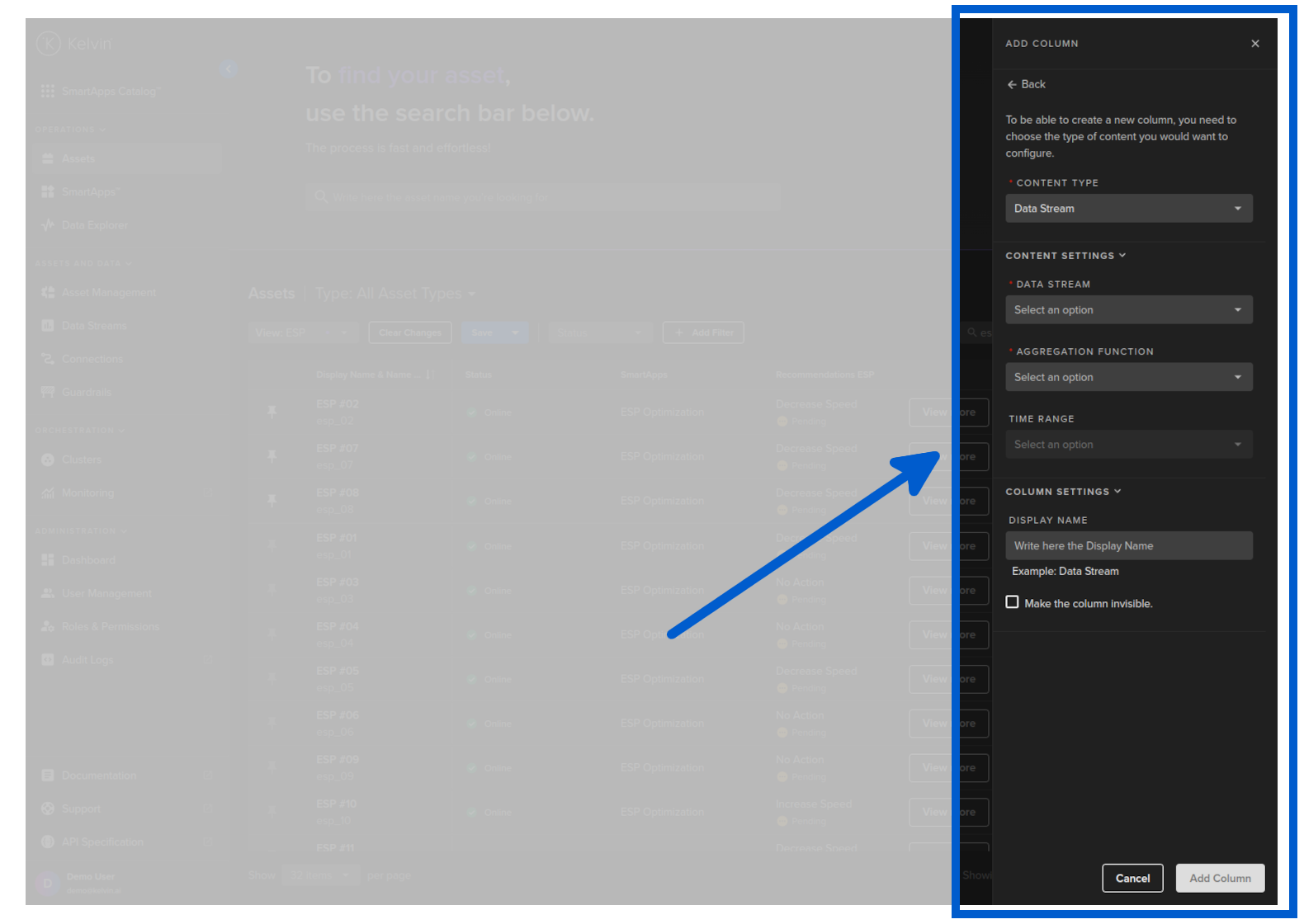
You can select a Data Stream to perform a number of different types of aggregation functions on the Asset / Data Stream pair.
| Option | Description |
|---|---|
| Data Stream Name | This is the name of the Data Stream to reference. You can only pick one Data Stream per column. When processing, this will pick relevant information that is associated with the Asset / Data Stream pair. |
| Aggregation Function | Options are; Count, Mean, Sum, Max, Min, Last This is what information will be displayed. Each one is self explanatory and will be associated with the Time Range option to produce the required information for the column. |
| Time Range | Options are from Last 5 minutes to Last 7 day. This is the time range that will be used to perform the aggregation function selected above. In cases where you select Last and there is no data available or the Asset has not pair with the Data Stream in the time range, then you will see N/A. |
You can select Last Control Change to be able to capture the last control change sent to an asset and its status for each Asset.
You can also filter to only show certain statuses.
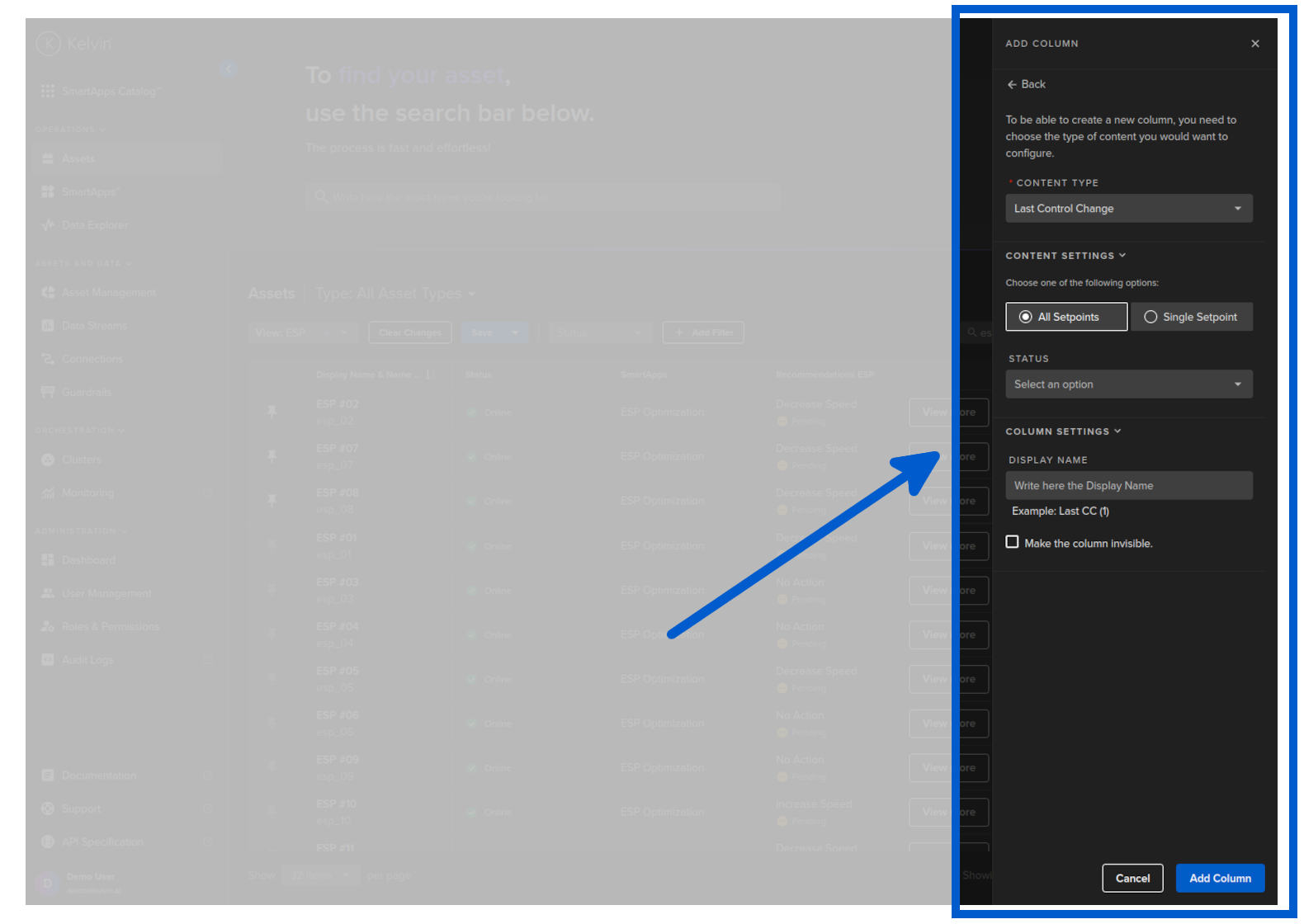
All Setpoints option will produce the following other options;
| Option | Description |
|---|---|
| All Setpoints | This option will show the latest control change created for any Data Stream. |
| Status | Options are; Pending, Ready, Sent, Processed, Applied and Failed. This is the status of any of the setpoints that you want to filter and display. |
Single Setpoint option will produce the following other options;
| Option | Description |
|---|---|
| All Setpoints | This option will show the latest control change created from any Data Stream related to the Asset. |
| Single Setpoint | This option will show the latest control change created for the selected Data Stream. |
| Setpoint | Options are; This selection is a selection of Data Streams though you will not see all Data Streams available, it will depend on which Data Streams meet a certain validity criteria. |
| Status | Options are; Pending, Ready, Sent, Processed, Applied and Failed. This is the status of the selected setpoint that you want to filter and display. |
You can select which Recommendations associated with a Kelvin SmartApp™ over a defined period of time to be shown in the column for each Asset.
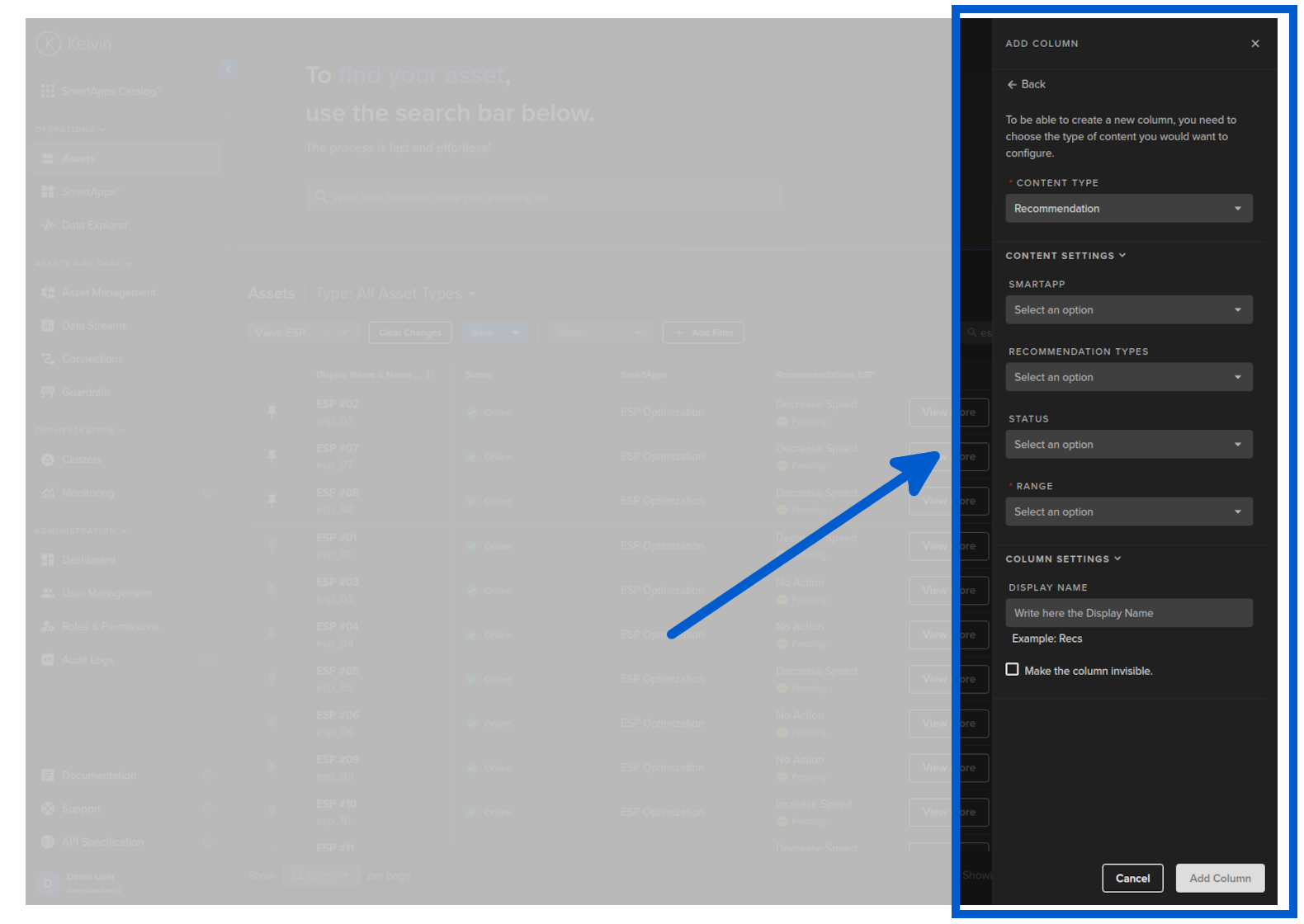
There are also a number of mandatory and optional filters you can select to focus the information shown in the column.
| Option | Description |
|---|---|
| Application | Options are; All Kelvin SmartApp™ in the App Registry. This looks for Recommendations that have been issued by a certain Kelvin SmartApp™ as the source. This option is optional and you can only select one Kelvin SmartApps™. |
| Recommendation Types | Options are; The recommendation types list (it is customizable by the client, so will be different for each Kelvin Instance. This will filter the Recommendations shown to only those that are selected here. This option is optional and you can multi-select many types. |
| Status | Options are; Pending, Accepted, Rejected and Expired. This will filter the Recommendations shown to only those that have a certain status. This option is optional and you can multi-select many status. |
| Range | Options are; a Time range from 5 minutes to 7 days. This will only look for Recommendations meeting the options above within a defined time range. |
You can select which upcoming Schedules over a defined period of time to be shown in the column for each Asset.
You can not see schedules in the past. These have already been converted into Control Changes and can be viewed with Control Change filters and columns.
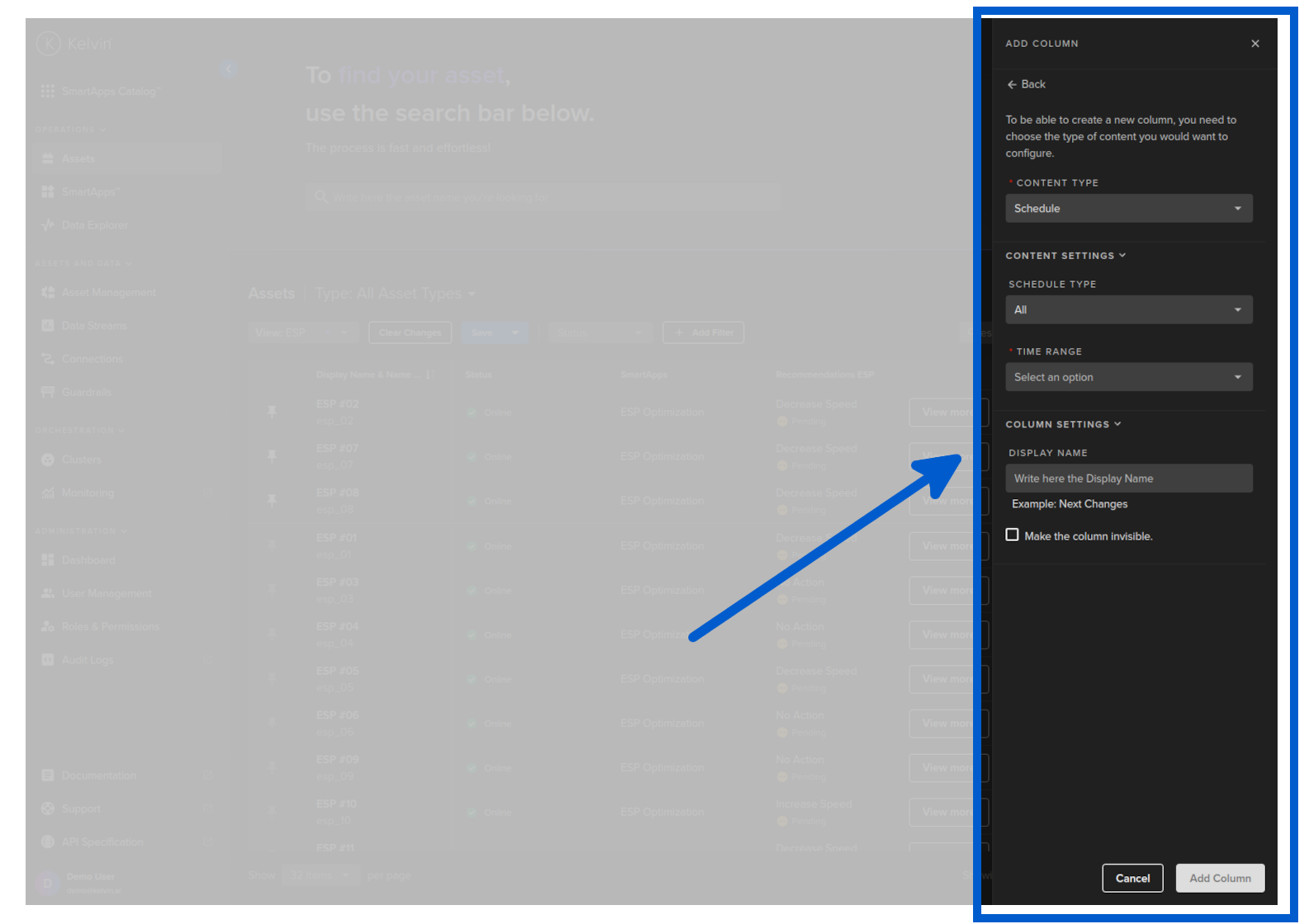
| Option | Description |
|---|---|
| Schedule Type | Options are; Change Once and Change and Revert. You can not view both in the same column. |
| Time Range | FIlter on time range from now to the future. Options are in hours and days. |