Install Docker
Introduction
Docker is a tool that allows you to run applications in isolated environments called containers.
Containers package up everything an application needs — os, code, libraries, and settings — making it easy to run consistently across different systems and even different OS's like Windows, MacOS or Linux.
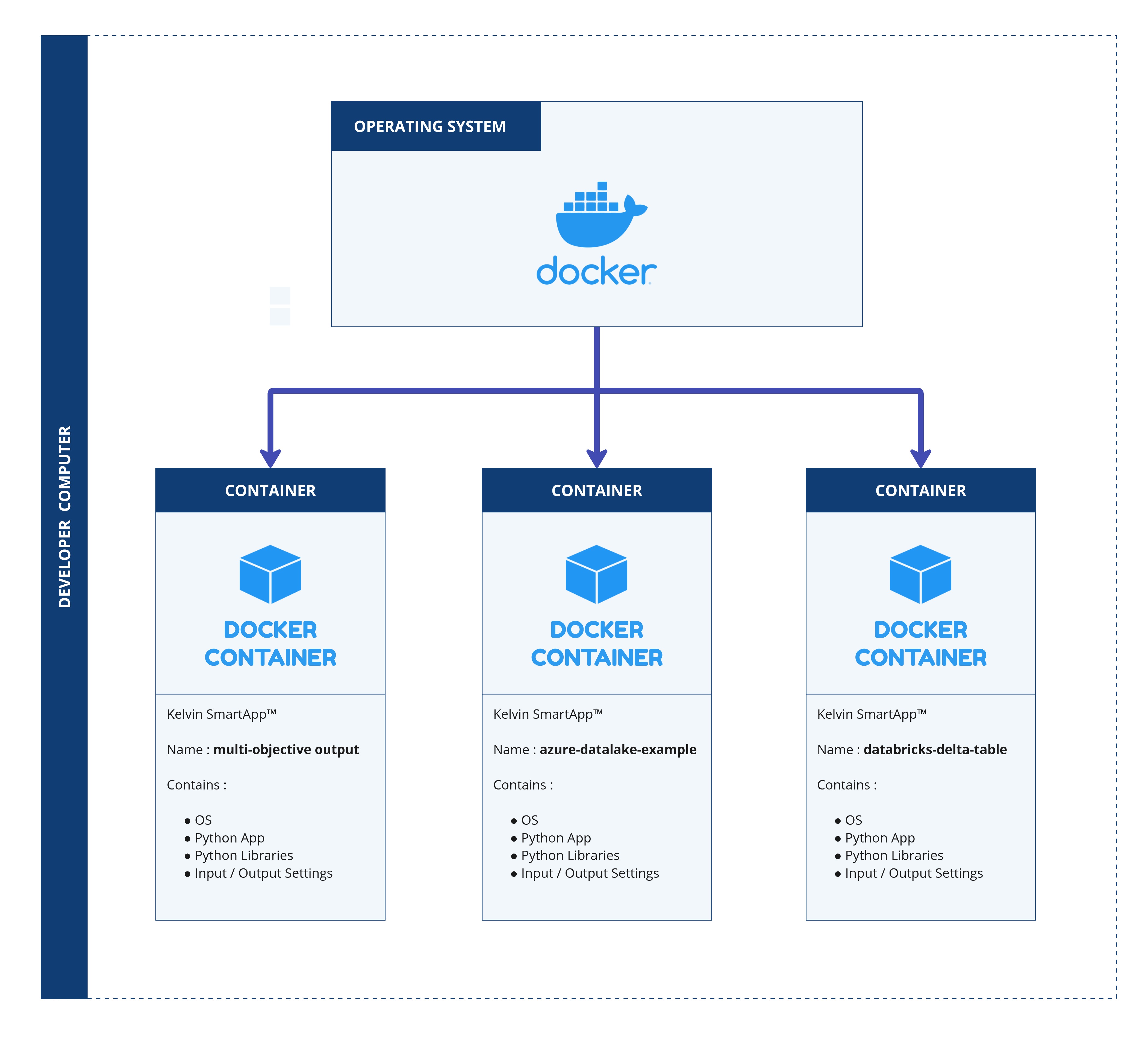
With Docker, developers can quickly deploy, scale, and manage applications without worrying about setup differences or compatibility issues, making it popular for both development and production environments.
Install Docker
Video Tutorial
You can watch this video tutorial or read the full step-by step written tutorial below.
Written Tutorial
Before you can install Docker, you will need to ensure that WSL 2 is installed and running on your Windows computer.
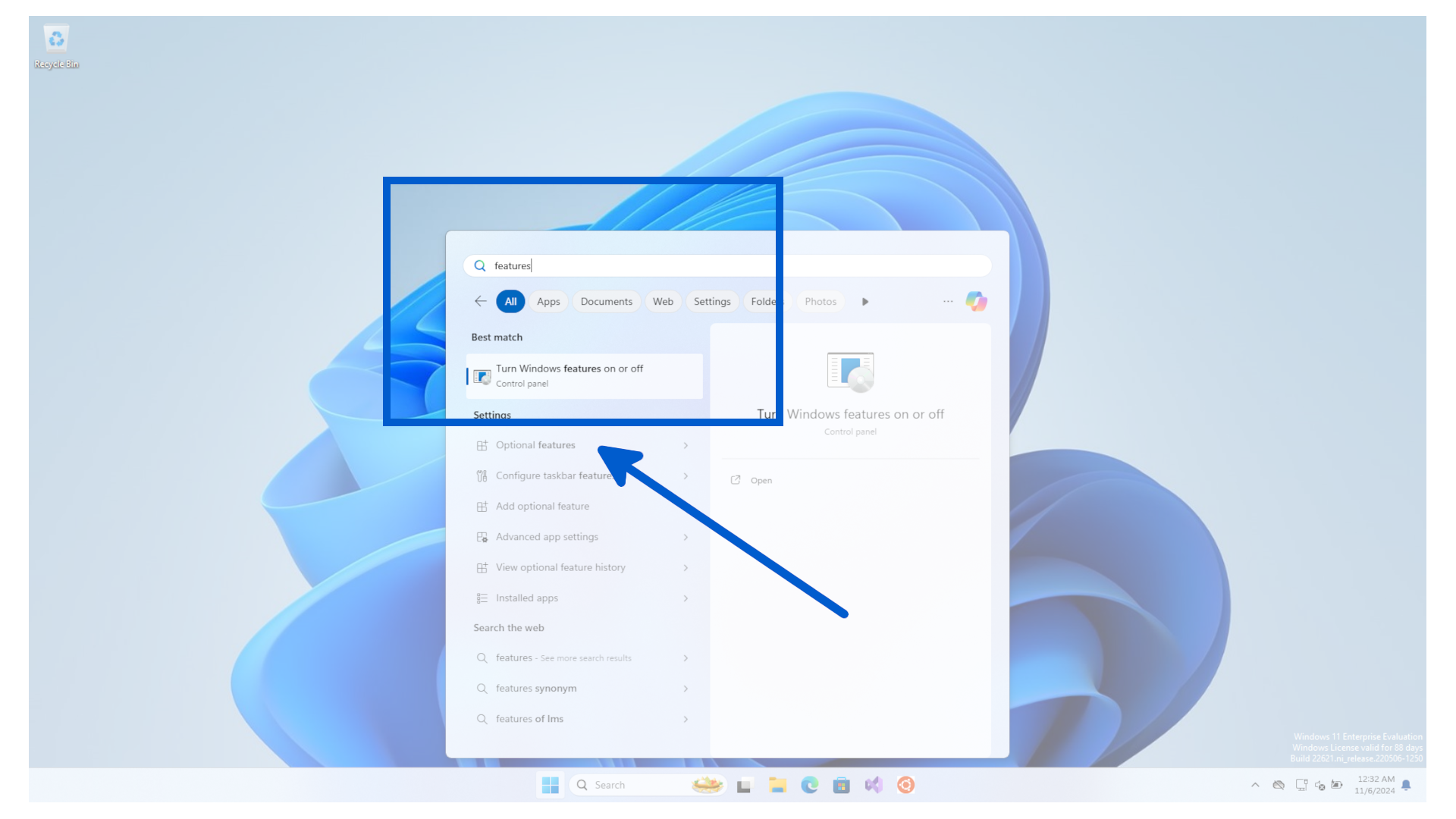
To do this click on the Start button and search for features and click on the Turn Windows features on or off option.
Then scroll down to the bottom and find these two features and ensure they are checked;
- Virtual Machine Platform
- Windows Subsystem for Linux
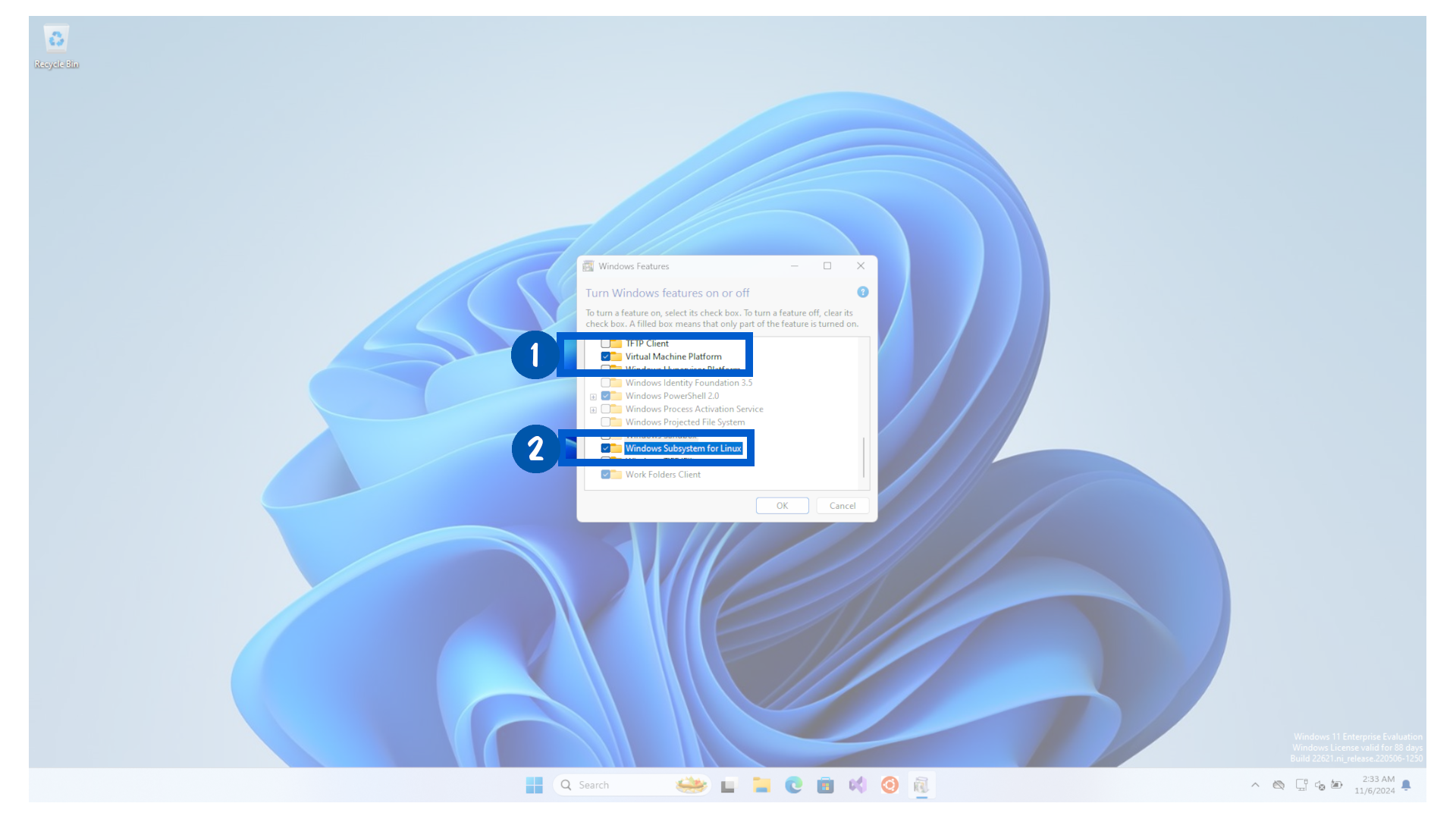
Click OK. If they were not checked when you opened, then you will see the relevant features being installed.
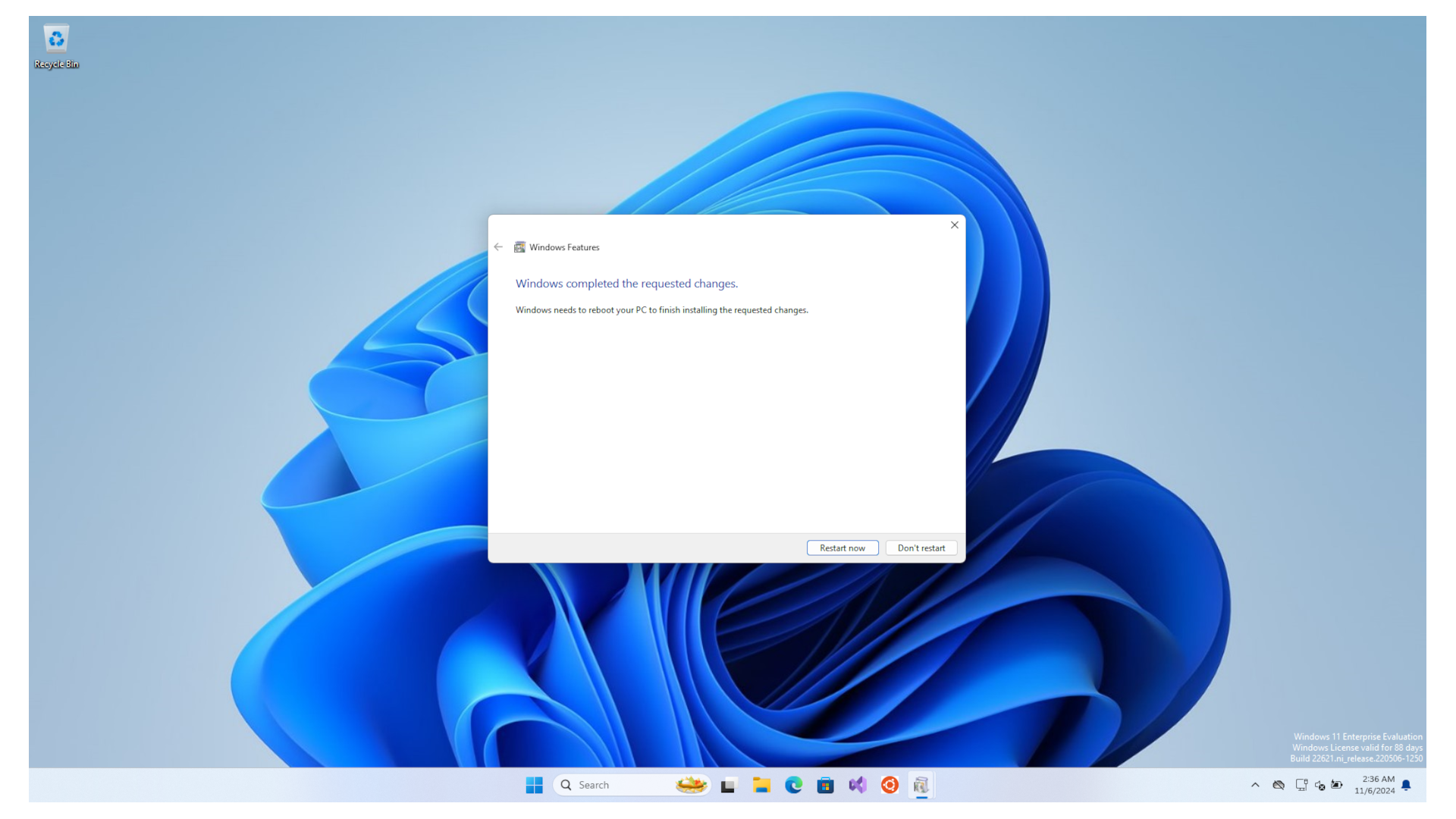
If new features were installed then click Restart now, or if they were already installed then just click OK.
Now open a browser and go to the Docker website, click on Products, then click on Docker Desktop. Or just follow this link.
Download the windows version.

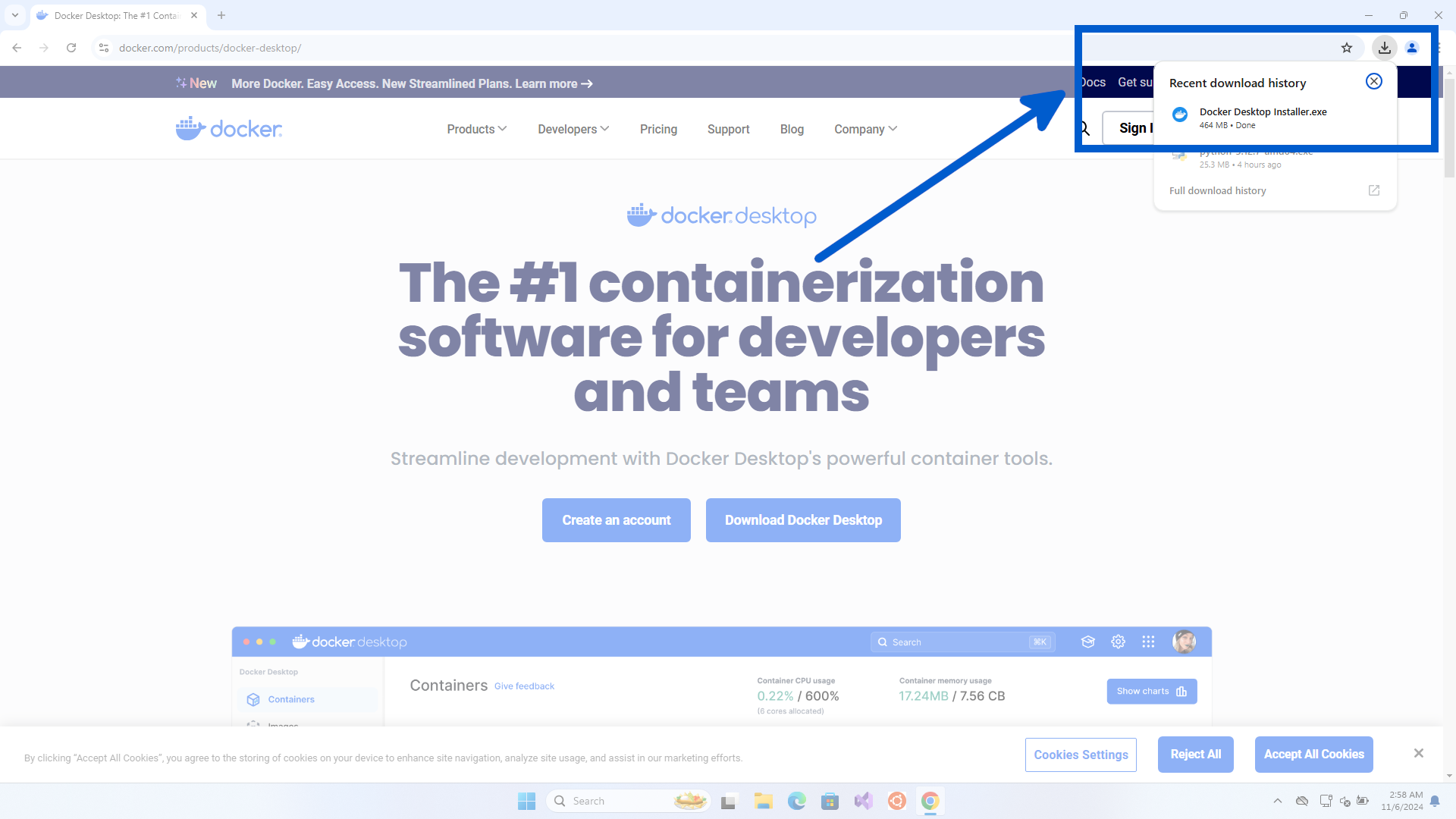
Run the downloaded installation file.
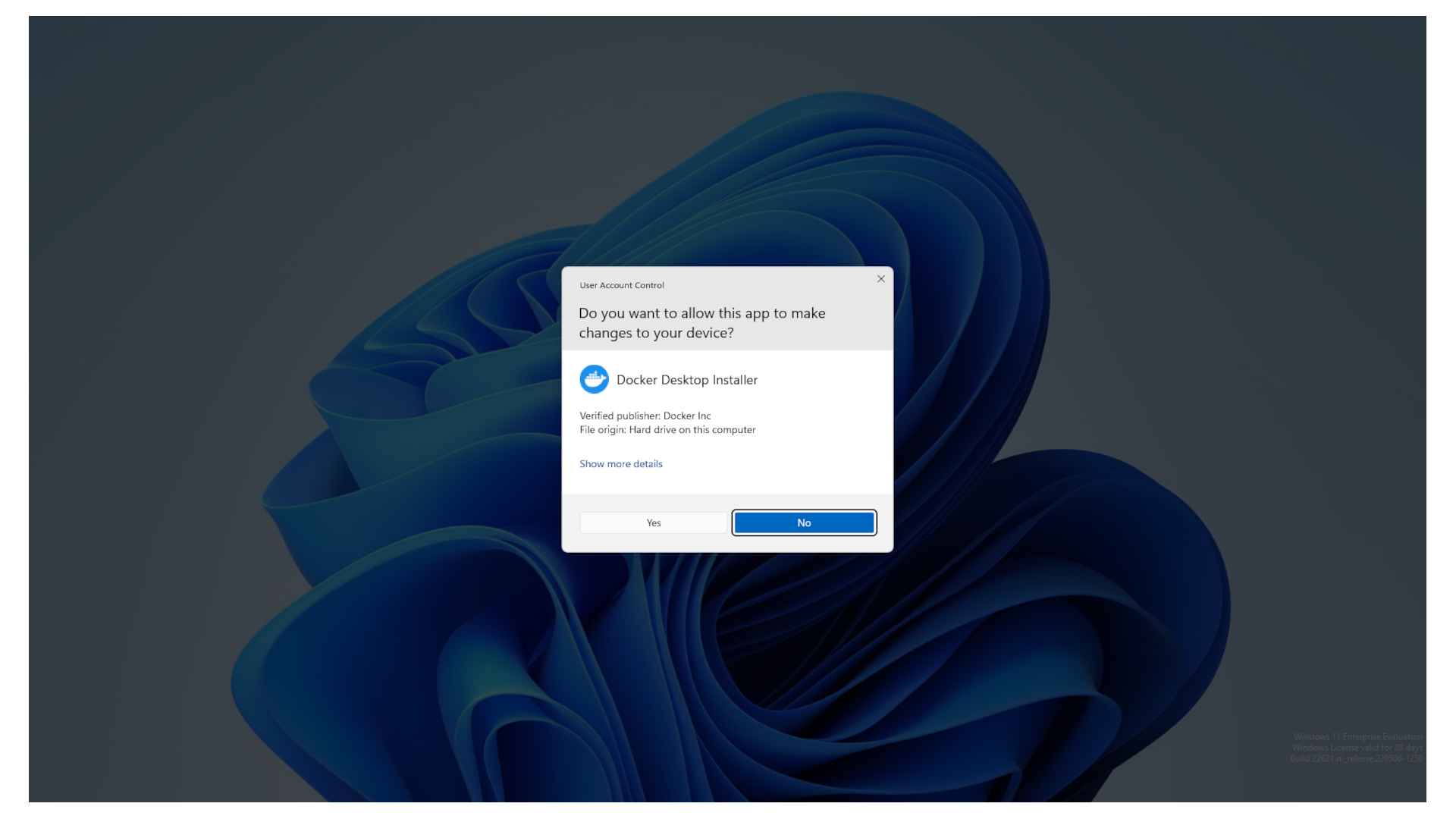
When the user account control popup appears, click on Yes to allow it to make changes to your OS.
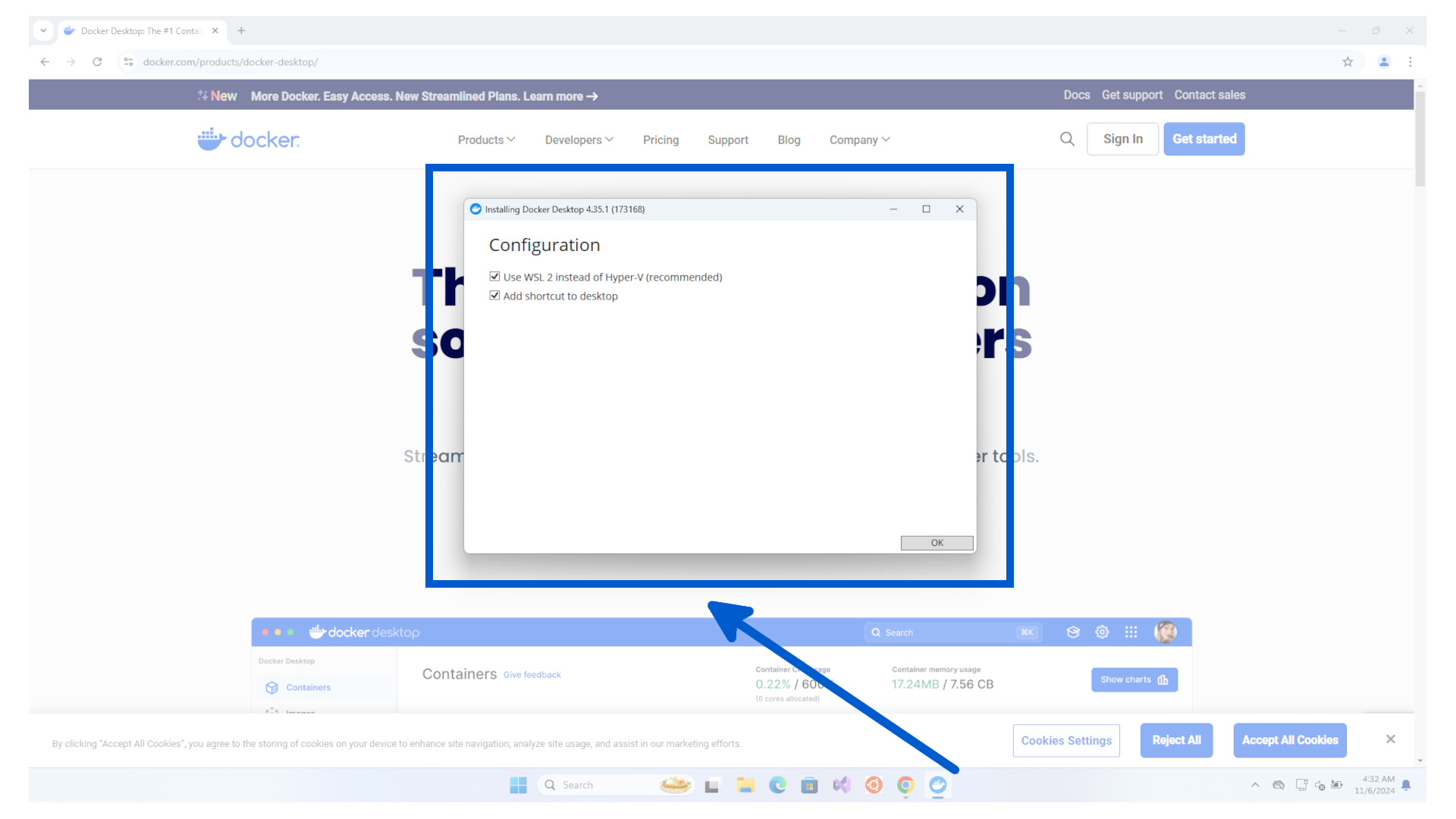
First you will be asked to confirm the configuration. You can keep the defaults and click the OK button.
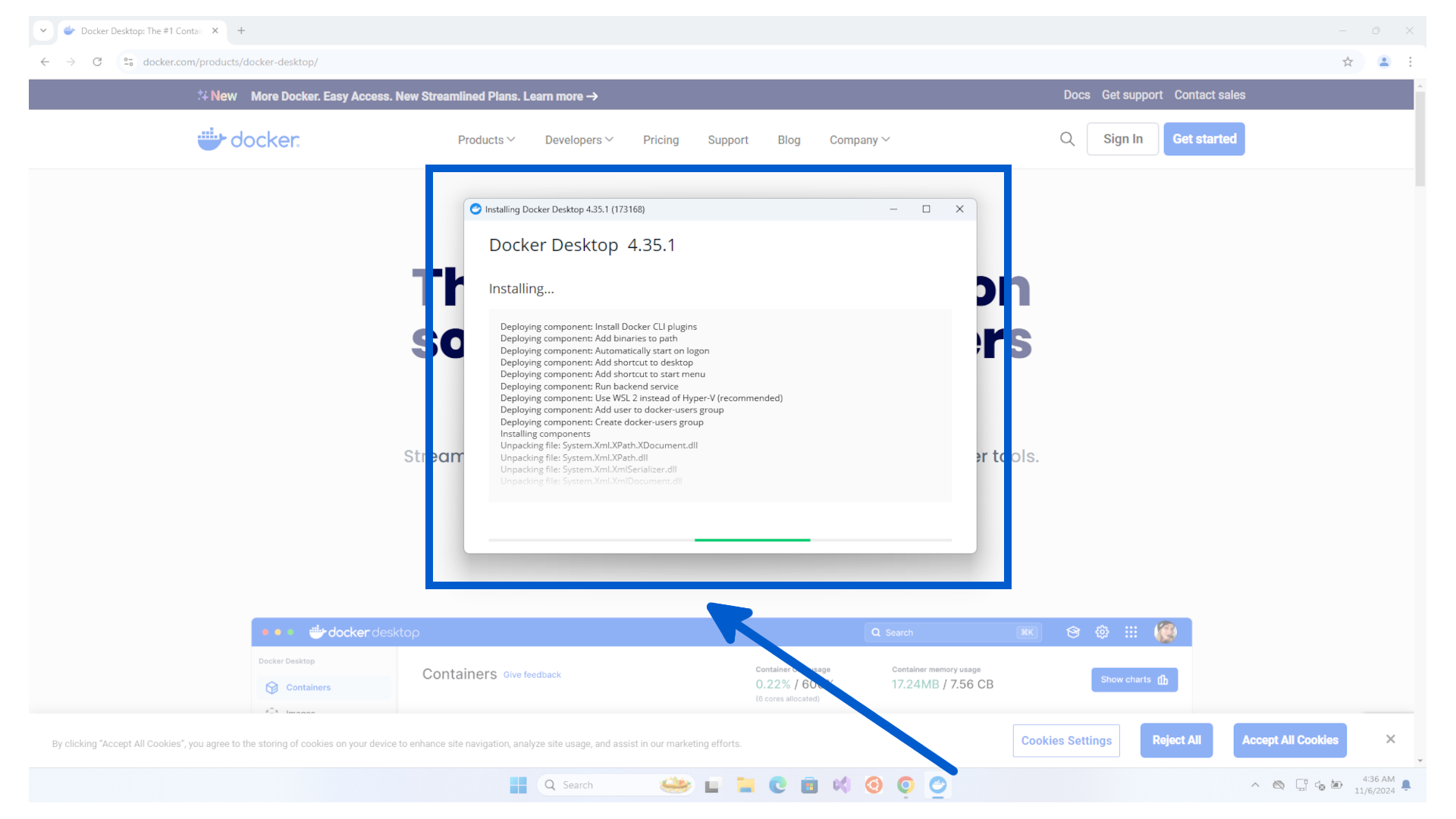
It will then start the unpacking and installation process.
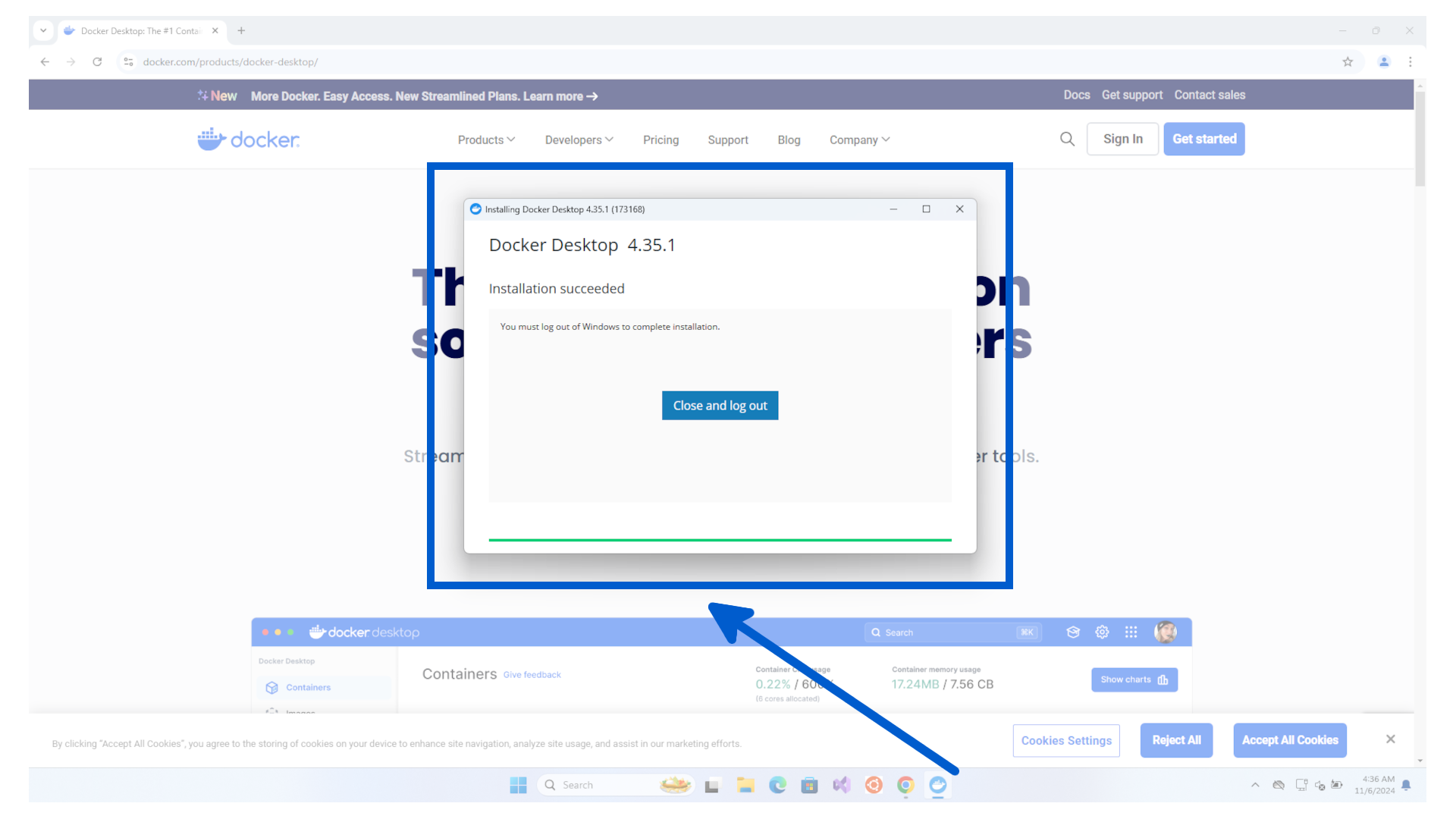
When finished it will show an Installation succeeded message and ask you to Close and log out.
Clicking on it will log out. You can then login again.
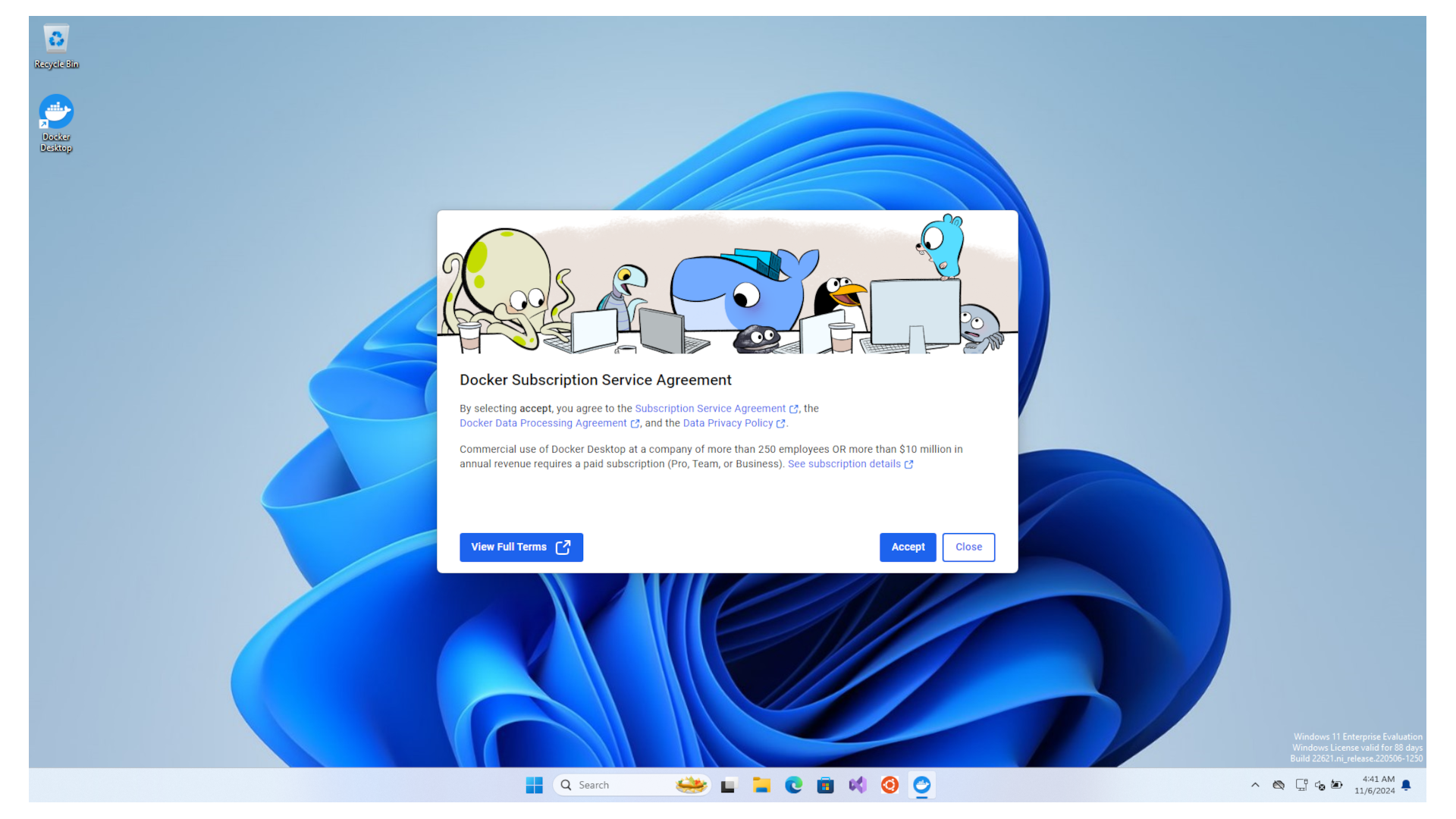
Once you log back in, a popup will appear asking you accept the Docker Subscription Service Agreement. You can read the full terms then click the Accept button.
Note
Ensure you conform to their commercial use terms, especially in regards to the company size and income. Docker is open source, but Docker Desktop is a proprietary application and is subject to a commercial license under certain circumstances.
It's a great development, so do support them and help how you can. It benefits everyone !
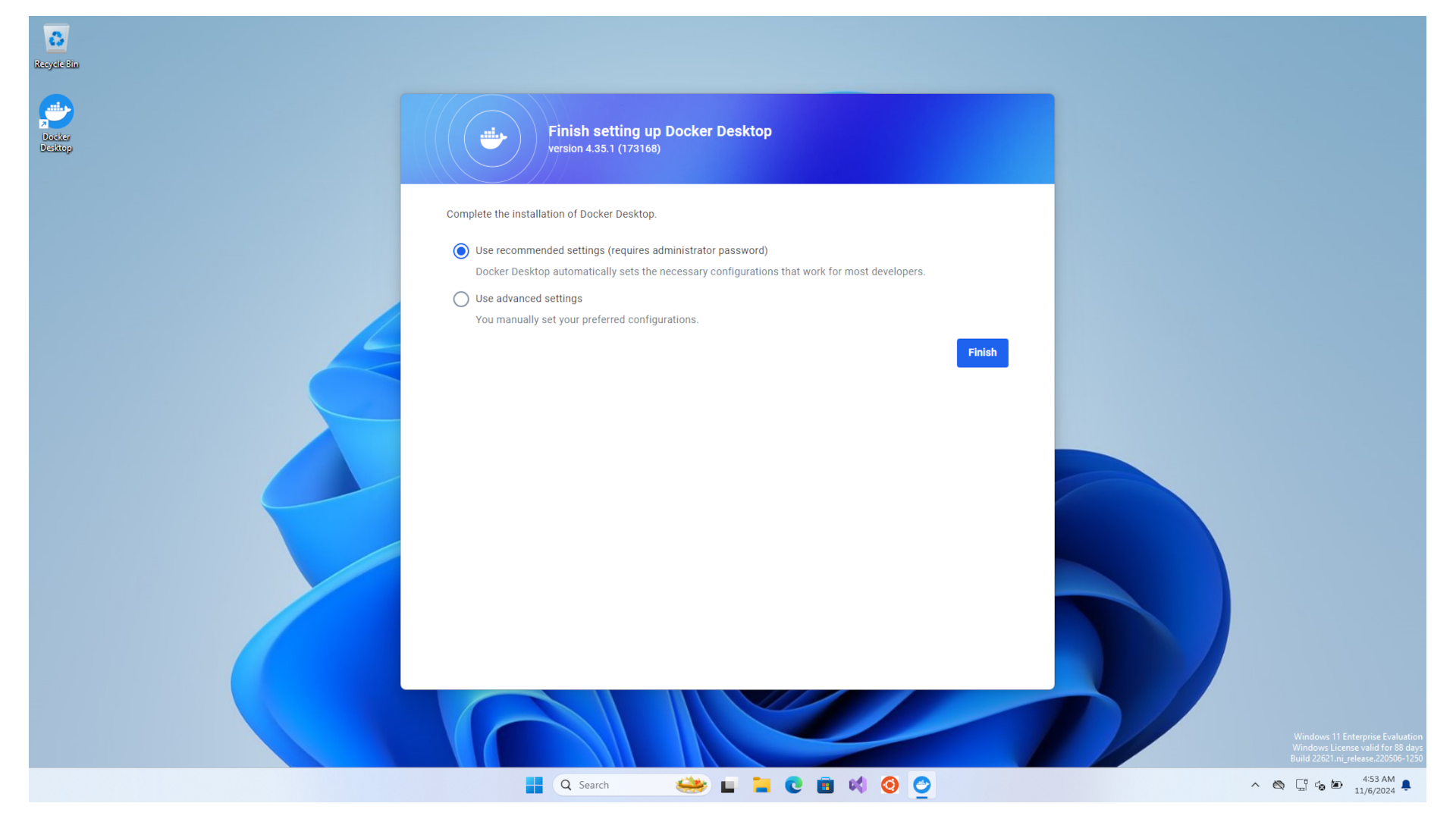
You will then be asked to complete the installation.
You can choose the recommended settings and click the Finish button.
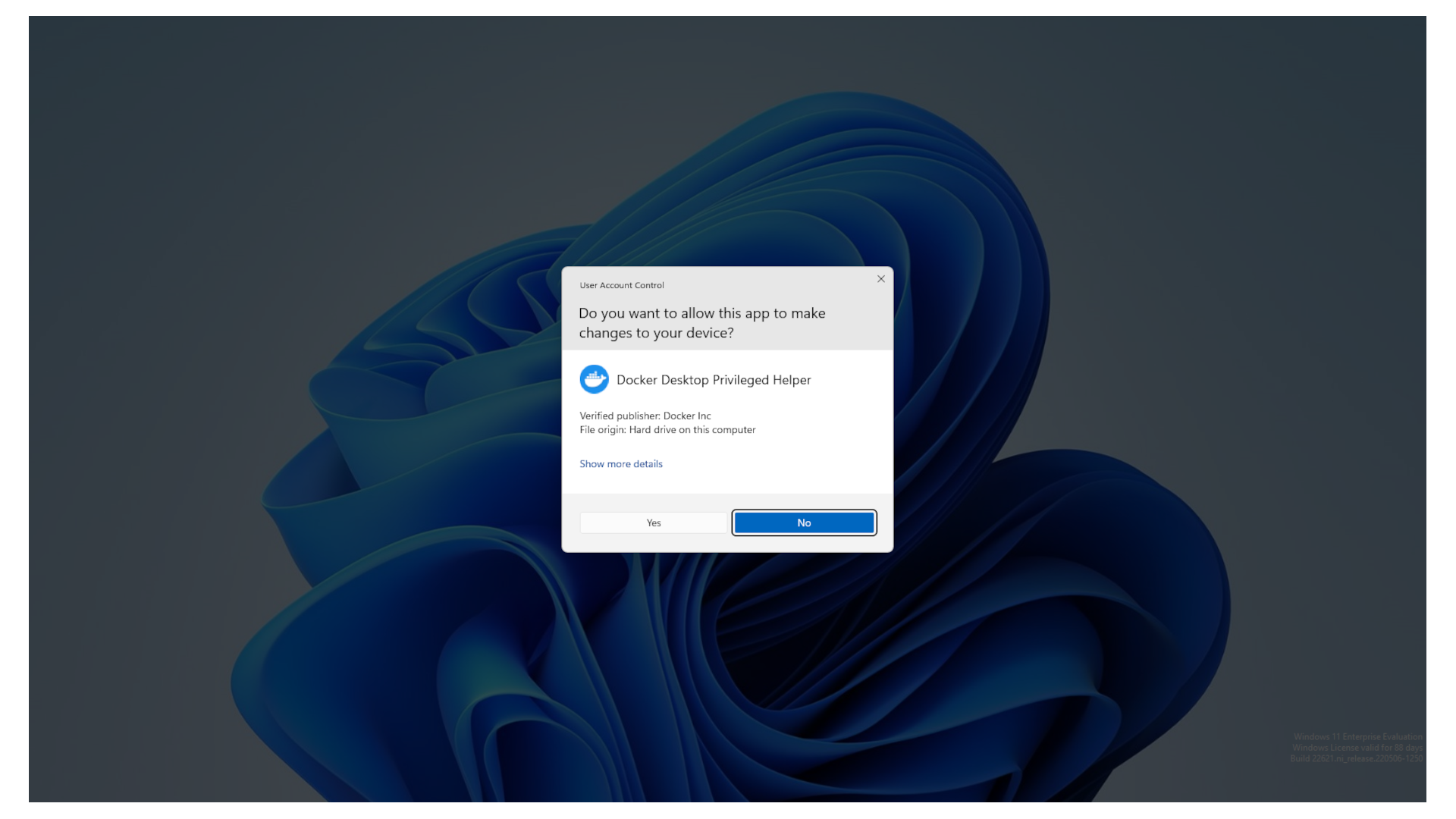
Some setup will now be automatically done by the Docker installation script.
When the user account control popup appears, click on Yes to allow it to make changes to your OS.
You will then have a few minor questions to get you started.
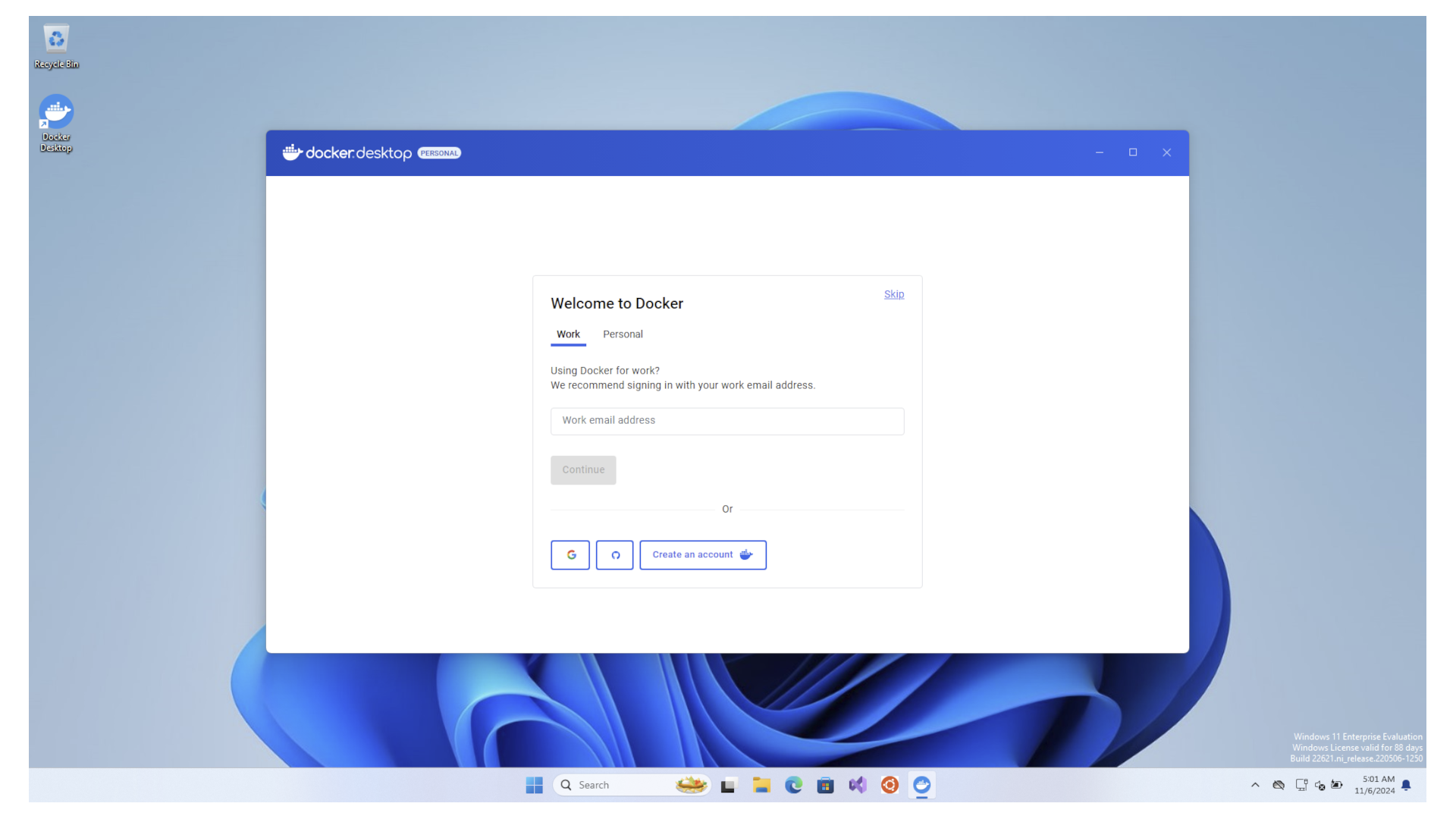
Congratulations ! You have successfully installed Docker.