Download Timeseries
Available Guides
- Download Raw Timeseries Data
- Download Raw Timeseries Data to CSV file
- Download Aggregated Timeseries Data
Reference:
| Field | Description |
|---|---|
| resource | Asset / Data Stream pair in KRN format. The KRN format is krn:ad:<asset_name>/<data_stream_name> |
| payload | The data value |
| timestamp | Exact UTC time when the data value was recorded, formatted in ISO 8601. |
| data_type | Type of data stored, such as number, string, or boolean. |
| source | User, Workload or Application that created the data in the Cloud |
| fields | The field name keys for the data saved. By default this is just value |
| created | UTC time when the data was created, formatted in ISO 8601. |
| updated | UTC time when any of the data information was updated, formatted in ISO 8601. |
Download Raw Timeseries Data
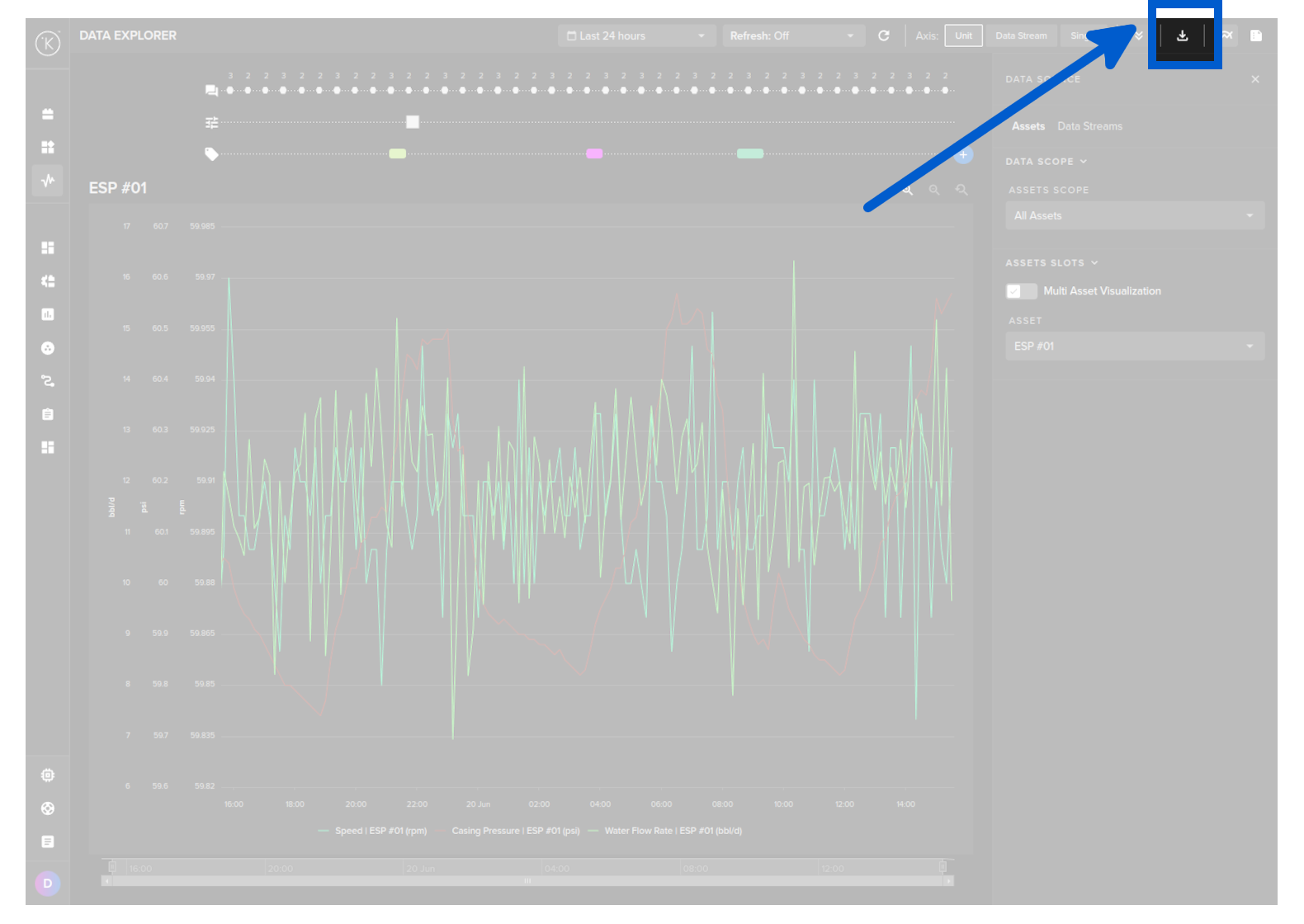
You can export a range of data from the Data Explorer page.
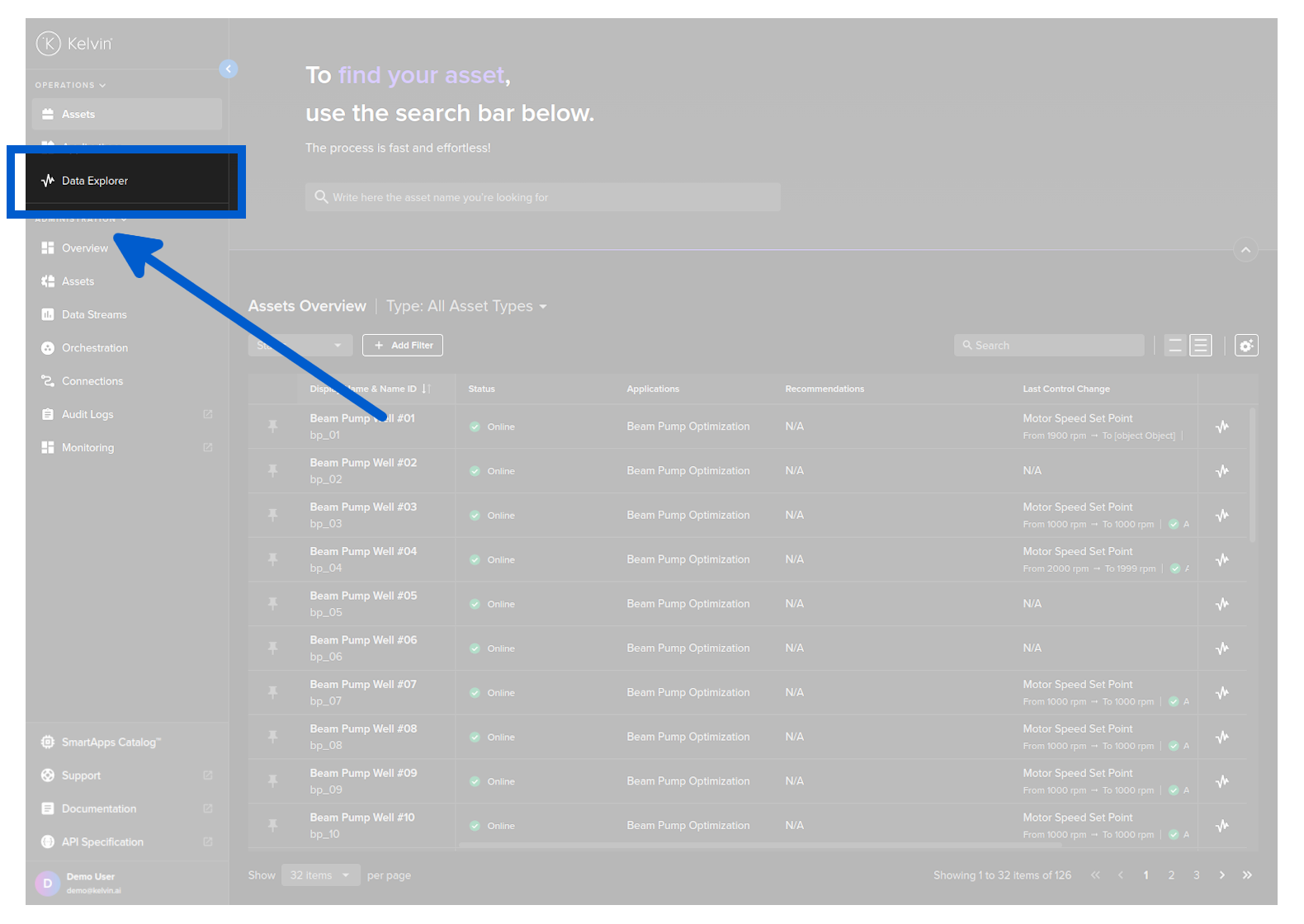
To do this go to the Data Explorer page.
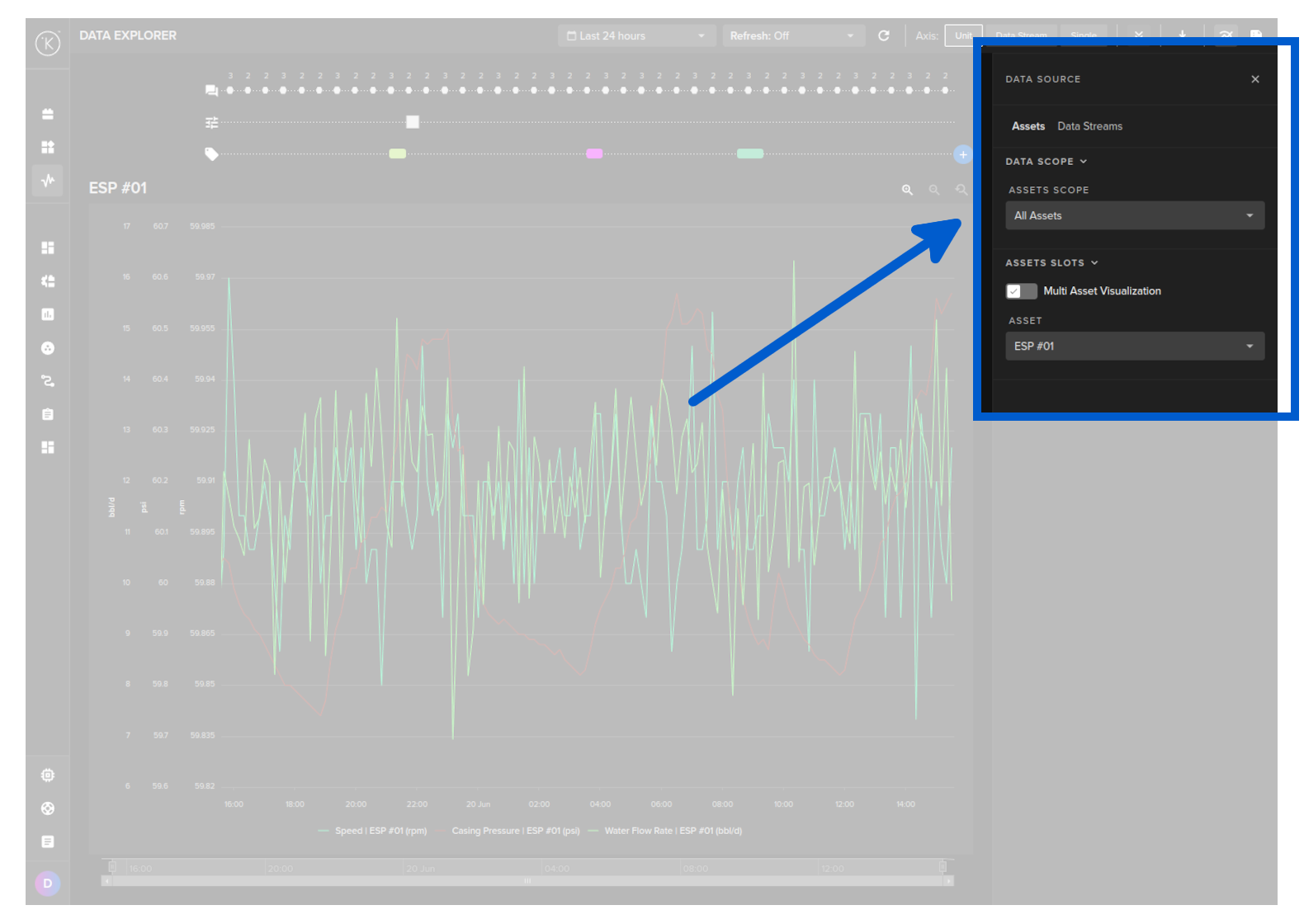
Select the Asset.
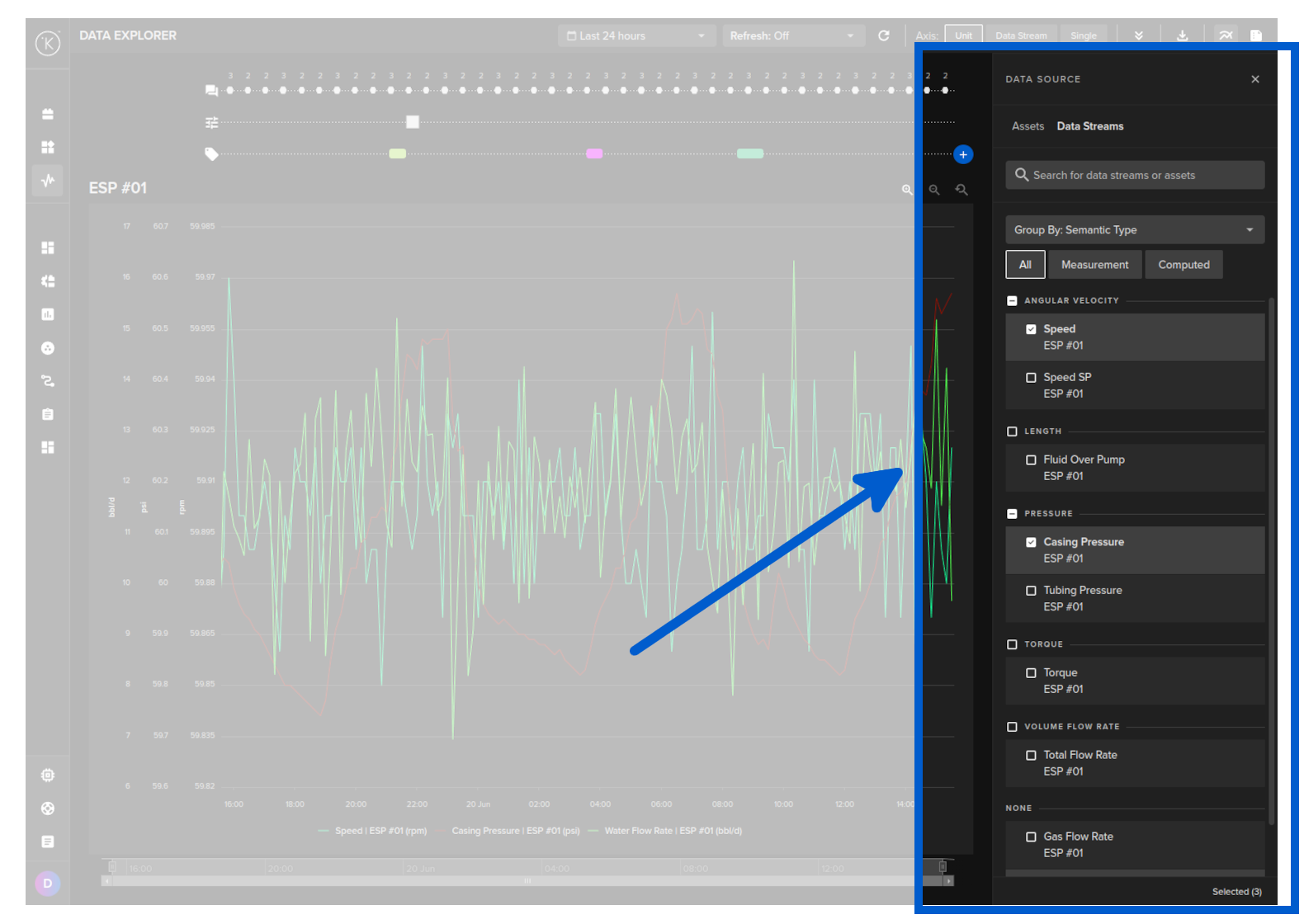
Select one Data Stream only.
Choose a time period.
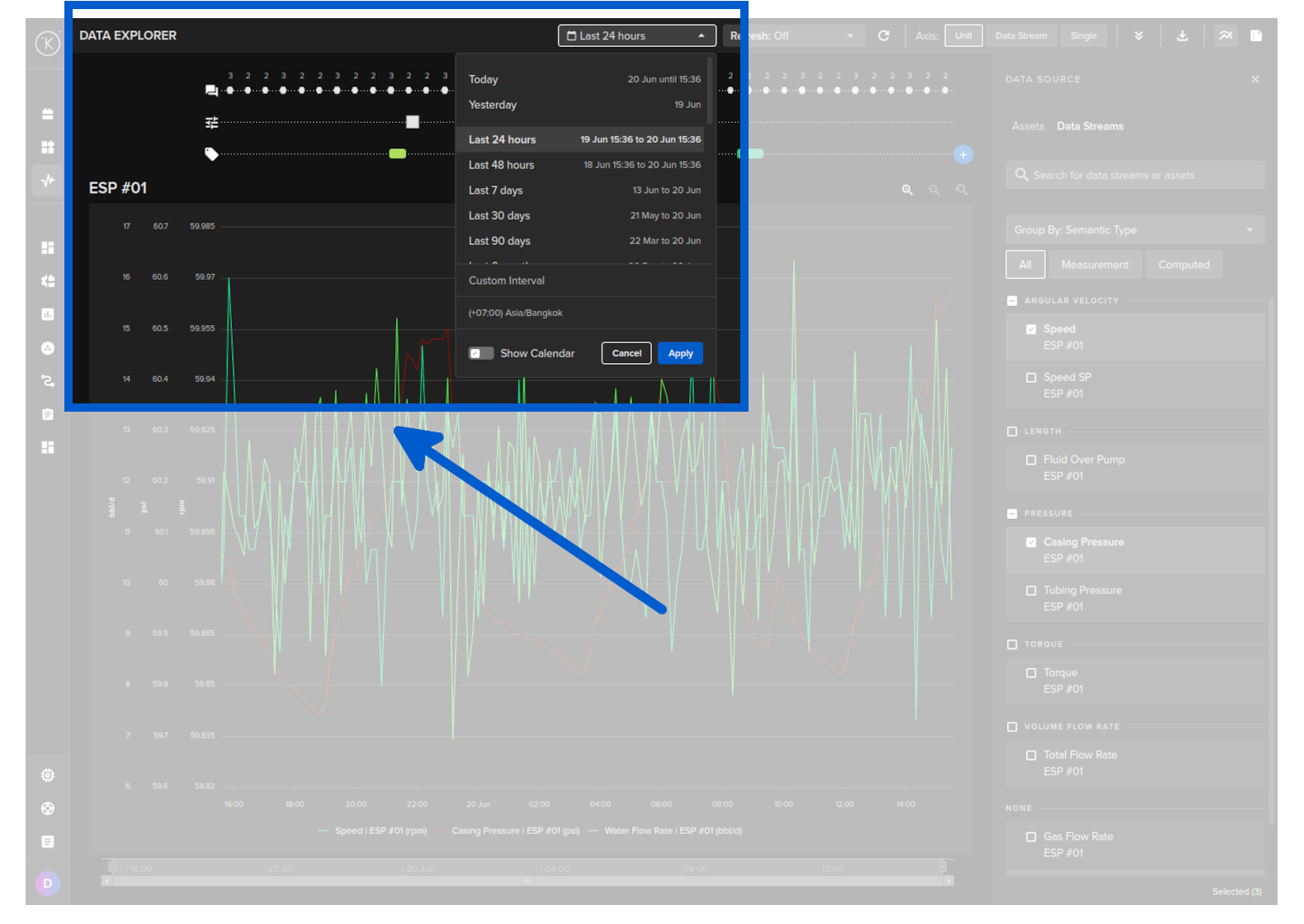
Then click on the download button.
curl -X "POST" \
  "https://<url.kelvin.ai>/api/v4/timeseries/range/get" \
  -H "Authorization: Bearer <Your Current Token>" \
  -H "Accept: application/x-json-stream" \
  -H "Content-Type: application/json" \
  -d '{
        "start_time": "2024-04-18T12:00:00.000000Z",
        "end_time": "2024-04-19T12:00:00.000000Z",
        "selectors": [
          {
            "resource": "krn:ad:pcp_01/casing_pressure"
          }
        ]
      }'
You will receive a response body with a status code of 200, indicating a successful operation.
For example, the response body might look like this:
[
   {
      "resource":"krn:ad:pcp_01/casing_pressure",
      "payload":9.207480441058955,
      "timestamp":"2024-04-18T12:00:00.000000Z"
   },
   {
      "resource":"krn:ad:pcp_01/casing_pressure",
      "payload":10.558049248009134,
      "timestamp":"2024-04-18T13:00:00.000000Z"
   },
   {
      "resource":"krn:ad:pcp_01/casing_pressure",
      "payload":10.213212569176205,
      "timestamp":"2024-04-18T14:00:00.000000Z"
   },
   {
      "resource":"krn:ad:pcp_01/casing_pressure",
      "payload":10.550493801775435,
      "timestamp":"2024-04-18T15:00:00.000000Z"
   },
   {
      "resource":"krn:ad:pcp_01/casing_pressure",
      "payload":8.934414753917585,
      "timestamp":"2024-04-18T16:00:00.000000Z"
   }
]
We will convert the information into a Pandas DataFrame.
from kelvin.api.client import Client

# Login
client = Client(config={"url": "https://<url.kelvin.ai>", "username": "<your_username>"})
client.login(password="<your_password>")

# Get Time Series Data
response = client.timeseries.get_timeseries_range(
    data={
        "start_time": "2024-04-18T12:00:00.000000Z",
        "end_time": "2024-04-19T12:00:00.000000Z",
        "selectors": [
            {
                "resource": "krn:ad:pcp_01/casing_pressure",
            }
        ]
    }
)

# Convert the response into a Pandas DataFrame
df = response.to_df()

# Print the result
print(df)
The response will look something like this;
    payload                       resource                        timestamp
0    56.173943  krn:ad:pcp_01/casing_pressure 2024-04-18 12:00:00.706047+00:00
1    56.167675  krn:ad:pcp_01/casing_pressure 2024-04-18 12:00:06.446622+00:00
2    56.167675  krn:ad:pcp_01/casing_pressure 2024-04-18 12:00:09.986859+00:00
3    56.167675  krn:ad:pcp_01/casing_pressure 2024-04-18 12:00:15.551953+00:00
4    56.210941  krn:ad:pcp_01/casing_pressure 2024-04-18 12:00:20.028296+00:00
..         ...                            ...                              ...
Download Raw Timeseries Data to CSV file
You can download a range of data from the Data Explorer page.
You can only download the raw data. It is not possible in Kelvin UI to aggregate the data before downloading.
You will need to aggregate the data in a spreadsheet or other third party program.
To do this go to the Data Explorer page.
Select the Asset.
Select one Data Stream only.
Choose a time period.
Then click on the download button.
curl -X "POST" \
  "https://<url.kelvin.ai>/api/v4/timeseries/range/download" \
  -H "Authorization: Bearer <Your Current Token>" \
  -H "Accept: text/csv" \
  -H "Content-Type: application/json" \
  -d '{
        "start_time": "2024-04-18T12:00:00.000000Z",
        "end_time": "2024-04-19T12:00:00.000000Z",
        "selectors": [
          {
            "resource": "krn:ad:pcp_01/casing_pressure"
          }
        ]
      }' > data.csv
The data.csv file will look something like this;
resource,time,value
krn:ad:pcp_01/casing_pressure,2024-04-18T15:00:00.000000Z,11.768450335460644
krn:ad:pcp_01/casing_pressure,2024-04-18T16:00:00.000000Z,8.934414753917585
We will save the information into a CSV file.
from kelvin.api.client import Client

# Login
client = Client(config={"url": "https://<url.kelvin.ai>", "username": "<your_username>"})
client.login(password="<your_password>")

# Save Time Series Range of Data to CSV
response = client.timeseries.download_timeseries_range(
    data={
        "start_time": "2024-04-18T12:00:00.000000Z",
        "end_time": "2024-04-19T12:00:00.000000Z",
        "selectors": [
            {
                "resource": "krn:ad:pcp_01/casing_pressure"
            }
        ]
    }
)

# Open a file in write mode
with open('data.csv', 'w') as file:
    # Write the response to the file
    file.write(response)
The data.csv file will look something like this;
resource,time,value
krn:ad:pcp_01/casing_pressure,2024-04-18T15:00:00.000000Z,11.768450335460644
krn:ad:pcp_01/casing_pressure,2024-04-18T16:00:00.000000Z,8.934414753917585
Download Aggregated Timeseries Data
In Time Series API, you can download a range of data either in a raw format or aggregated format. The type of aggregation possible depends on the Data Type for the Asset / Data Stream pair.
Available Aggregations:
| Data Type | Aggregate Option | Description |
|---|---|---|
| number | none | Raw data is returned |
| count | Counts the number of values within each time bucket. | |
| distinct | Returns distinct values within each time_bucket bucket. |
|
| integral | Calculates the area under the curve for each time_bucket bucket. |
|
| mean | Calculates the average value within each time bucket. | |
| median | Finds the middle value in each time bucket. | |
| mode | Identifies the most frequently occurring value in each time time_bucket. |
|
| spread | Represents the difference between the max and min values within each time time_bucket. |
|
| stddev | Measures variation within each time time_bucket. |
|
| sum | Adds up all the values within each time time_bucket. |
|
| string | none | Raw data is returned |
| count | Counts the number of values within each time_bucket bucket. |
|
| distinct | Returns distinct values within each time time_bucket. |
|
| mode | Identifies the most frequently occurring value in each time time_bucket. |
There are also the options to;
time_bucket: The window of data to aggregate, e.g. 5m, 1h (see https://golang.org/pkg/time/#ParseDuration for the acceptable formats)time_shift: The offset for each window.fill: allows you to fill missing points from a time bucket. It might be one of: none (default); null; linear (performs a linear regression); previous (uses the previous non-empty value); or an int.
In this example we will get the mean value per hour over a 24 hour period for an Asset / Data Stream pair. The Asset name is pcp_01 and the Data Stream name is casing_pressure.
It is not possible to export aggregated data from the Kelvin UI.
curl -X "POST" \
  "https://<url.kelvin.ai>/api/v4/timeseries/range/get" \
  -H "Authorization: Bearer <Your Current Token>" \
  -H "Accept: application/x-json-stream" \
  -H "Content-Type: application/json" \
  -d '{
        "start_time": "2024-04-17T12:00:00.000000Z",
        "end_time": "2024-04-18T12:00:00.000000Z",
        "selectors": [
          {
            "resource": "krn:ad:pcp_01/casing_pressure"
          }
        ],
        "agg": "mean",
        "fill": "none",
        "group_by_selector": True,
        "time_bucket": "1h",
        "time_shift": "1h"
      }'
You will receive a response body with a status code of 200, indicating a successful operation.
For example, the response body might look like this:
[
  {
    "resource": "krn:ad:pcp_01/casing_pressure",
    "payload": 55.81689687106529,
    "timestamp": "2024-04-17T01:00:00.000000Z",
  },
  {
    "resource": "krn:ad:pcp_01/casing_pressure",
    "payload": 55.802643852964586,
    "timestamp": "2024-04-18T01:00:00.000000Z",
  },
  {
    "resource": "krn:ad:pcp_01/casing_pressure",
    "payload": 55.65272958881385,
    "timestamp": "2024-04-19T01:00:00.000000Z",
  },
  {
    "resource": "krn:ad:pcp_01/casing_pressure",
    "payload": 55.672962275470624,
    "timestamp": "2024-04-20T01:00:00.000000Z",
  },
  {
    "resource": "krn:ad:pcp_01/casing_pressure",
    "payload": 55.79699800861461,
    "timestamp": "2024-04-21T01:00:00.000000Z",
  },
  {
    "resource": "krn:ad:pcp_01/casing_pressure",
    "payload": 55.75498124182507,
    "timestamp": "2024-04-22T01:00:00.000000Z",
  },
  {
    "resource": "krn:ad:pcp_01/casing_pressure",
    "payload": 55.71693869571614,
    "timestamp": "2024-04-23T01:00:00.000000Z",
  },
  {
    "resource": "krn:ad:pcp_01/casing_pressure",
    "payload": 55.93863554640519,
    "timestamp": "2024-04-24T01:00:00.000000Z",
  },
  {
    "resource": "krn:ad:pcp_01/casing_pressure",
    "payload": 59.94188689356177,
    "timestamp": "2024-04-25T01:00:00.000000Z",
  },
]
We will convert the information into a Pandas DataFrame.
from kelvin.api.client import Client

# Login
client = Client(config={"url": "https://<url.kelvin.ai>", "username": "<your_username>"})
client.login(password="<your_password>")

# Get Time Series Aggregated Range of Data
response = client.timeseries.get_timeseries_range(
    data={
        "start_time": "2024-04-17T12:00:00.000000Z",
        "end_time": "2024-04-25T12:00:00.000000Z",
        "selectors": [
            {
                "resource": "krn:ad:pcp_01/casing_pressure",
            }
        ],
        "agg": "mean",
        "fill": "none",
        "group_by_selector": True,
        "time_bucket": "24h",
        "time_shift": "1h",
    }
)

# Convert the response into a Pandas DataFrame
df = response.to_df()

# Print the result
print(df)
The response will look something like this;
    payload                       resource                 timestamp
0  55.816897  krn:ad:pcp_01/casing_pressure 2024-04-17 01:00:00+00:00
1  55.802644  krn:ad:pcp_01/casing_pressure 2024-04-18 01:00:00+00:00
2  55.652730  krn:ad:pcp_01/casing_pressure 2024-04-19 01:00:00+00:00
3  55.672962  krn:ad:pcp_01/casing_pressure 2024-04-20 01:00:00+00:00
4  55.796998  krn:ad:pcp_01/casing_pressure 2024-04-21 01:00:00+00:00
5  55.754981  krn:ad:pcp_01/casing_pressure 2024-04-22 01:00:00+00:00
6  55.716939  krn:ad:pcp_01/casing_pressure 2024-04-23 01:00:00+00:00
7  55.938636  krn:ad:pcp_01/casing_pressure 2024-04-24 01:00:00+00:00
8  59.941887  krn:ad:pcp_01/casing_pressure 2024-04-25 01:00:00+00:00