Install Python
Introduction
Python is one of the most popular programming language known for its simple syntax and versatility.
It’s widely used in web development, data science, artificial intelligence, automation, and more.
Python’s easy-to-read code makes it accessible for beginners, while its powerful libraries and community support allow developers to build everything from small scripts to complex applications.
Install Python 3
Video Tutorial
You can watch this video tutorial or read the full step-by step written tutorial below.
Written Tutorial
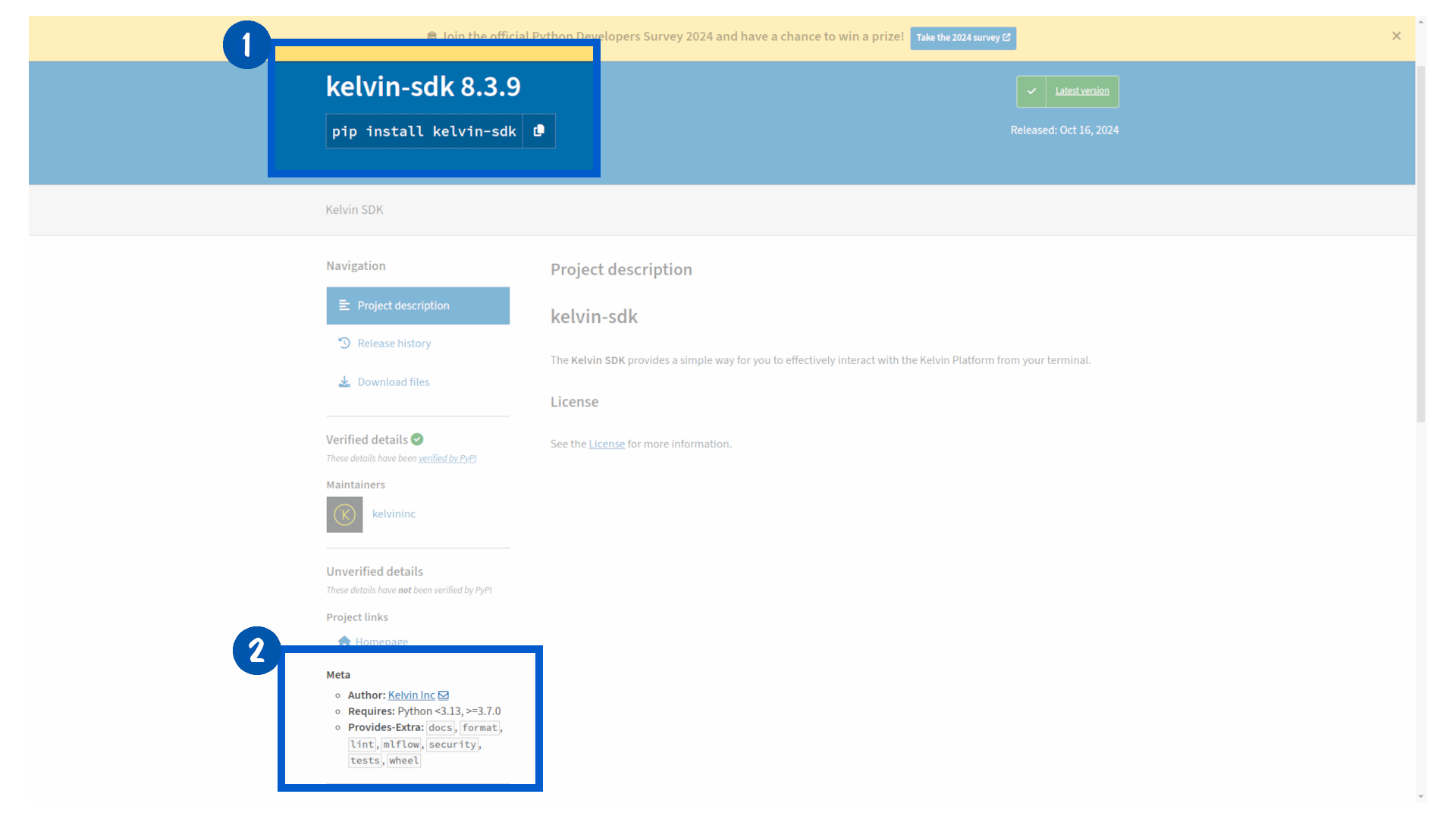
First check the latest Python version that is supported by the Kelvin SDK.
To do this go to the Pypi Kelvin SDK package page and check the Requires under the Meta heading.
Warning
Be very careful how you read this.
When you see Requires: Python <3.13, >=3.7.0, this means the latest support Python version is 3.12, NOT 3.13 !! It is a common mistake, even by professionals.
You can install Python in two ways, depending on your preference;
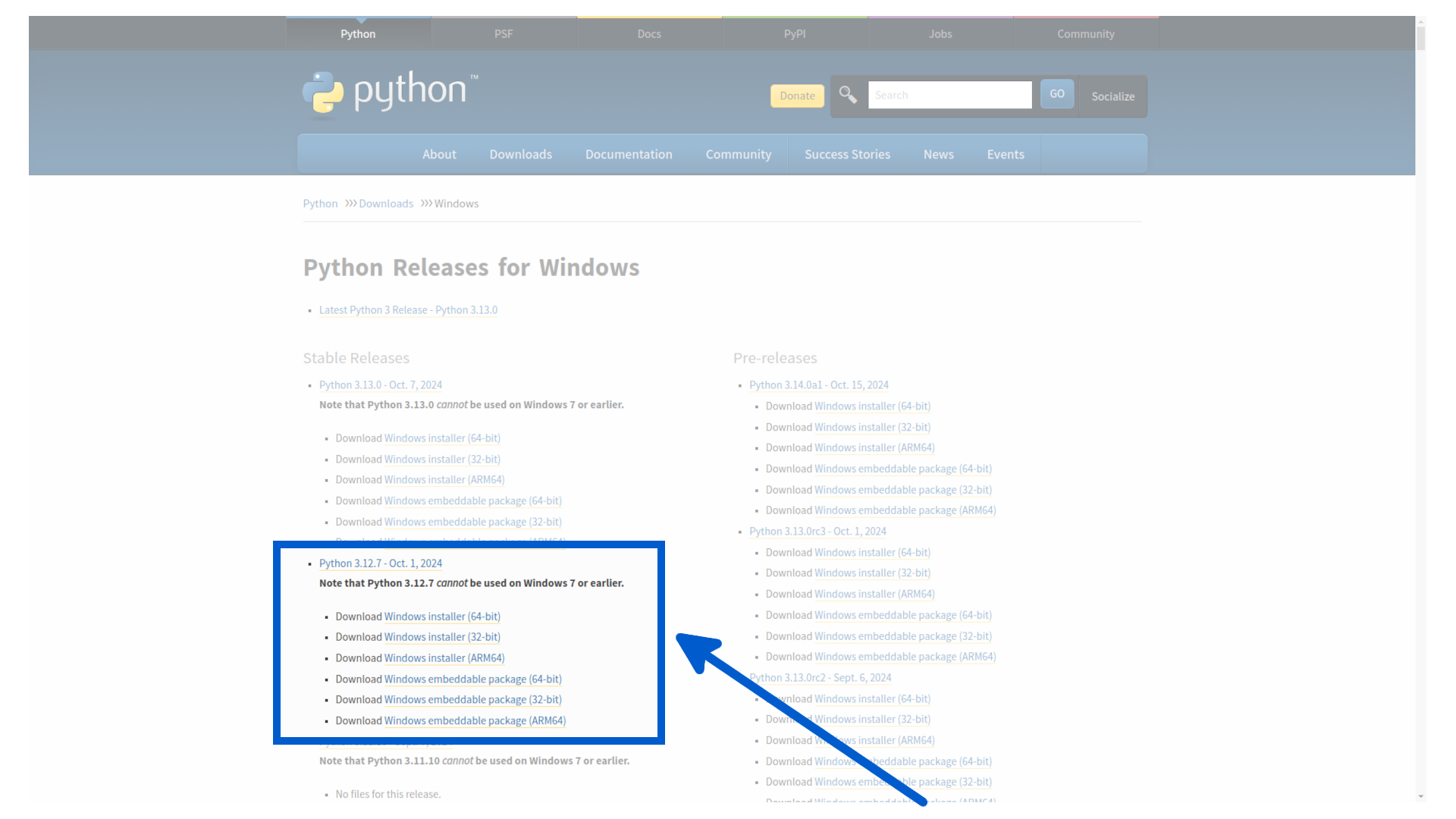
To install Python 3, go to the python website and click on the downloads menu and select Windows. Or just click this link here.
Select the latest version that is supported by the Kelvin SDK.
In this case we will download the Python 3.12.7 - Oct.1, 2024 version.
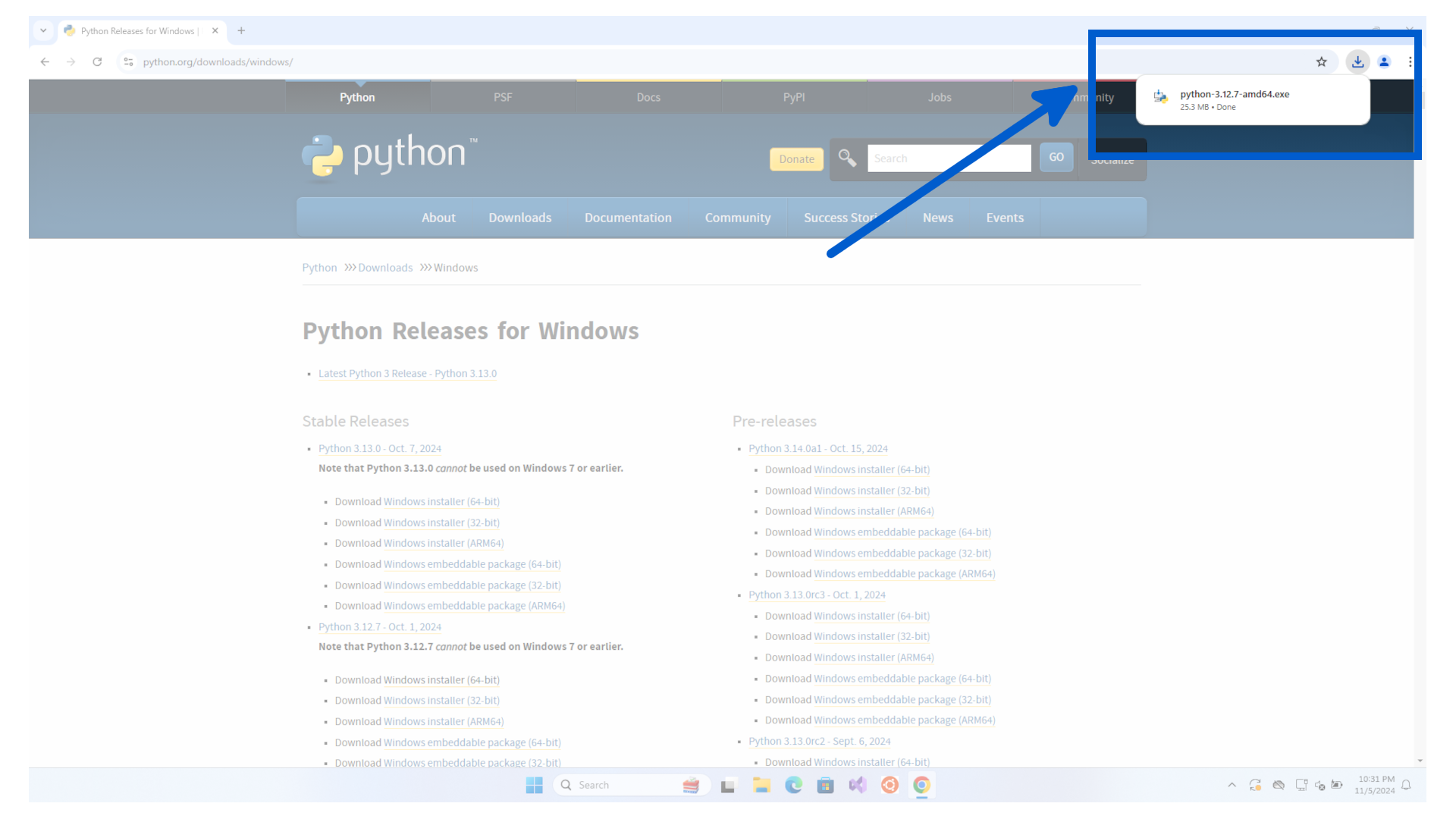
Once downloaded, run the installation file.
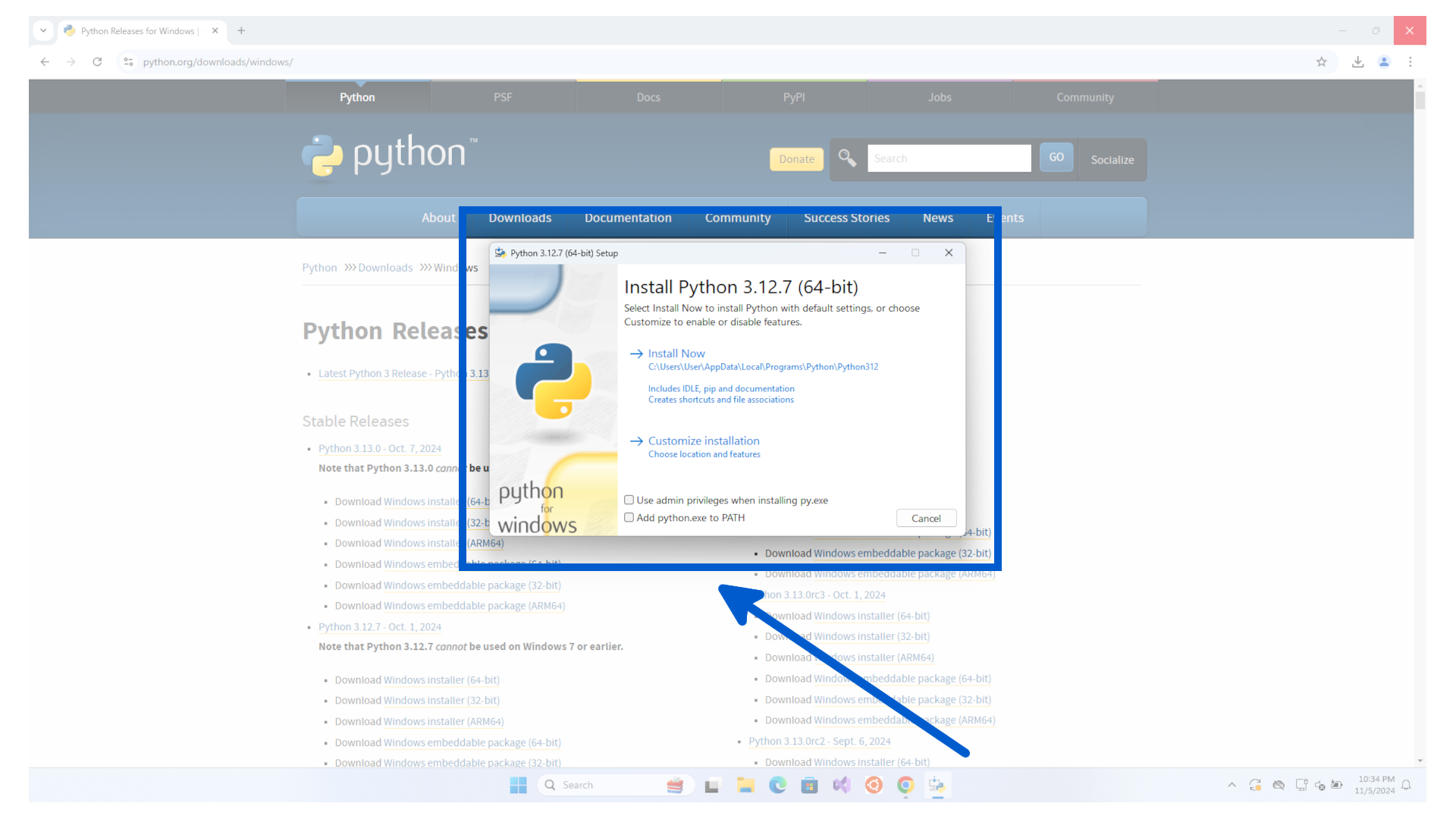
Click on Install Now
The installation will then start and is fully automated. No interactions are required by the user.
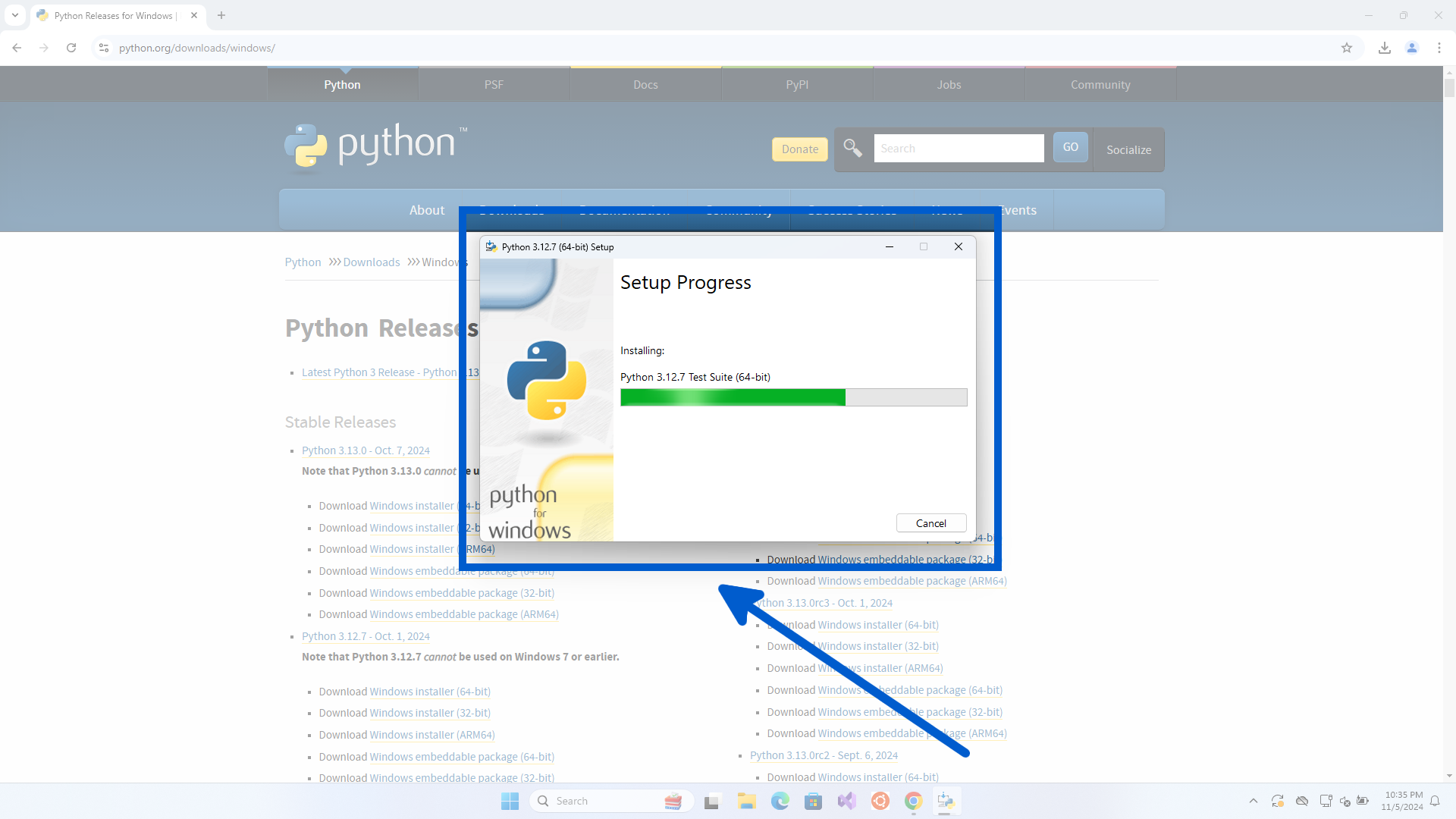
When it is finished you will get a success notification.
Warning
Do not close this window yet, there is one link we need to click before closing.
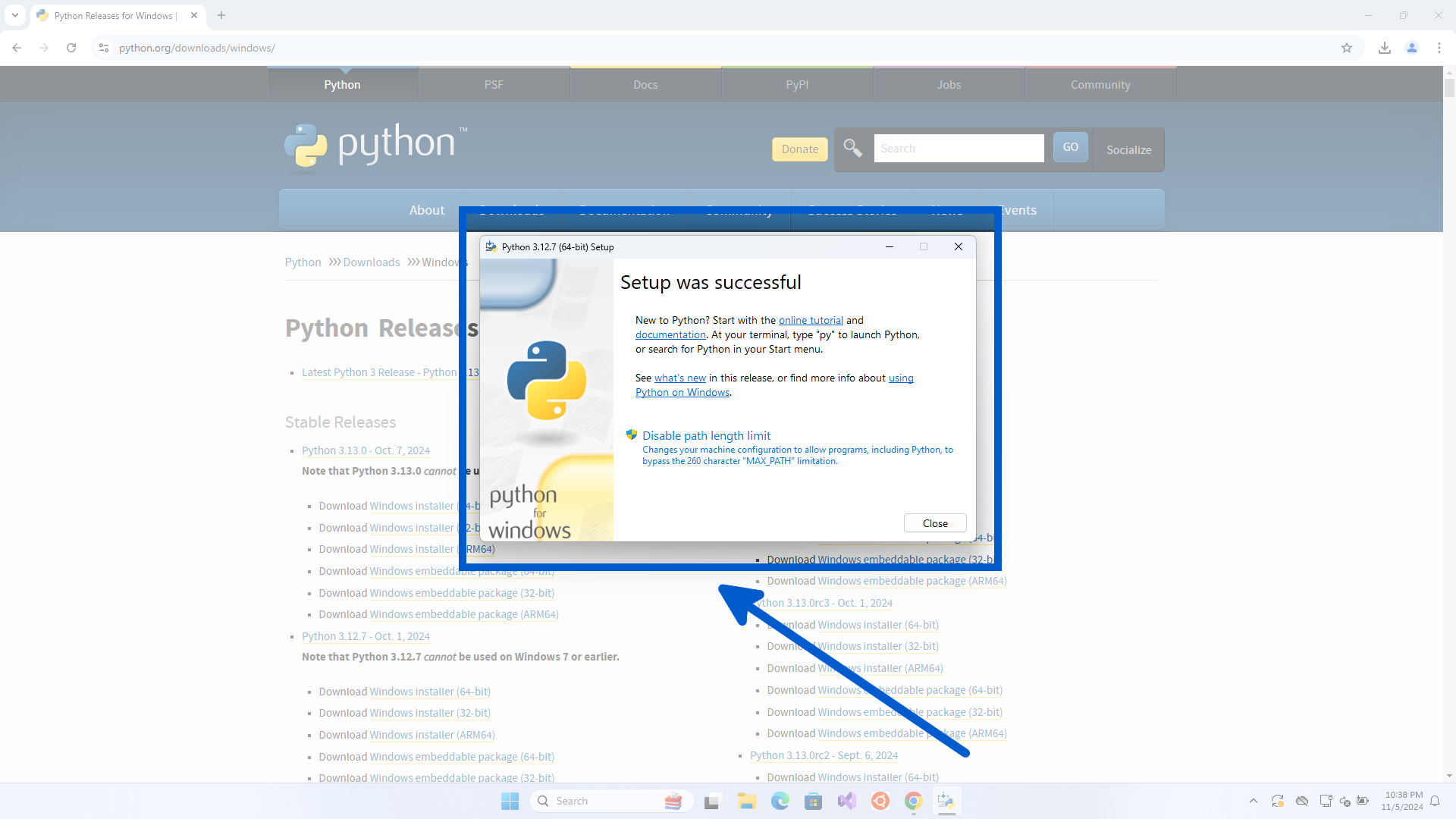
Before closing this windows, it is recommended you click on the Disable path length limit link.
Success
If you do not see this message, then it means your Windows environment already is configured correctly and you can skip this step.
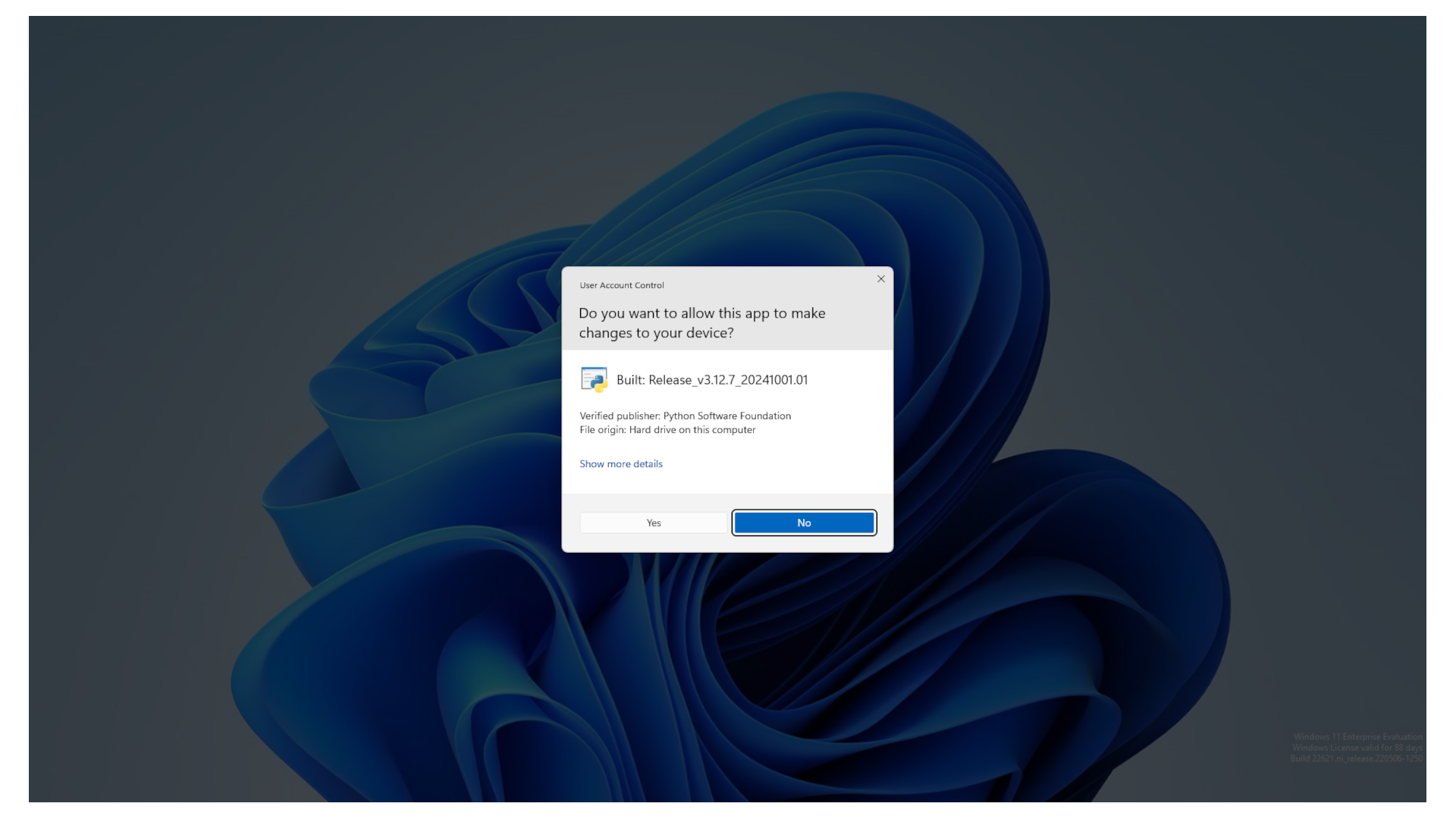
This will bring up a warning as it will make changes to the OS settings.
This is ok. Just click Yes.
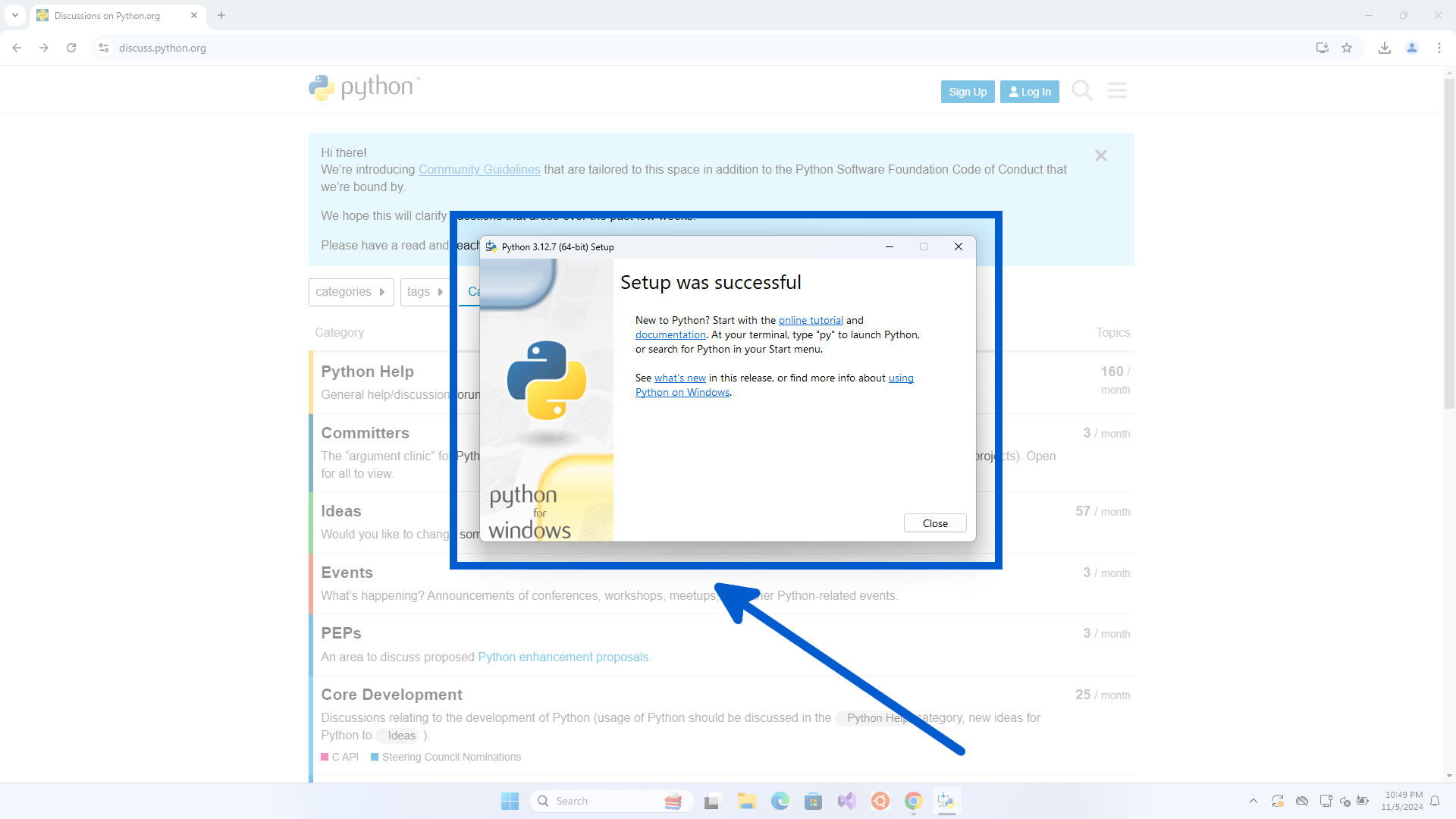
Then the message will disappear on the success screen. To move on just click Close button.
Warning
If you have any errors in trying to install Python, there could be many reasons.
The best location to get advice is to search the Python forums. Follow this link and then click on the search icon.
Now the links to the Python program will not work properly in the terminal, so we will need to add these to the Windows environment variable.
First we check the location of the Python program.
Open File Explorer, and click anywhere to the right of Home.

And replace Home with this C:\Users\<YOUR_USER_NAME>\AppData\Local\Programs\Python, remembering to replace <YOUR_USER_NAME> with your actual username.
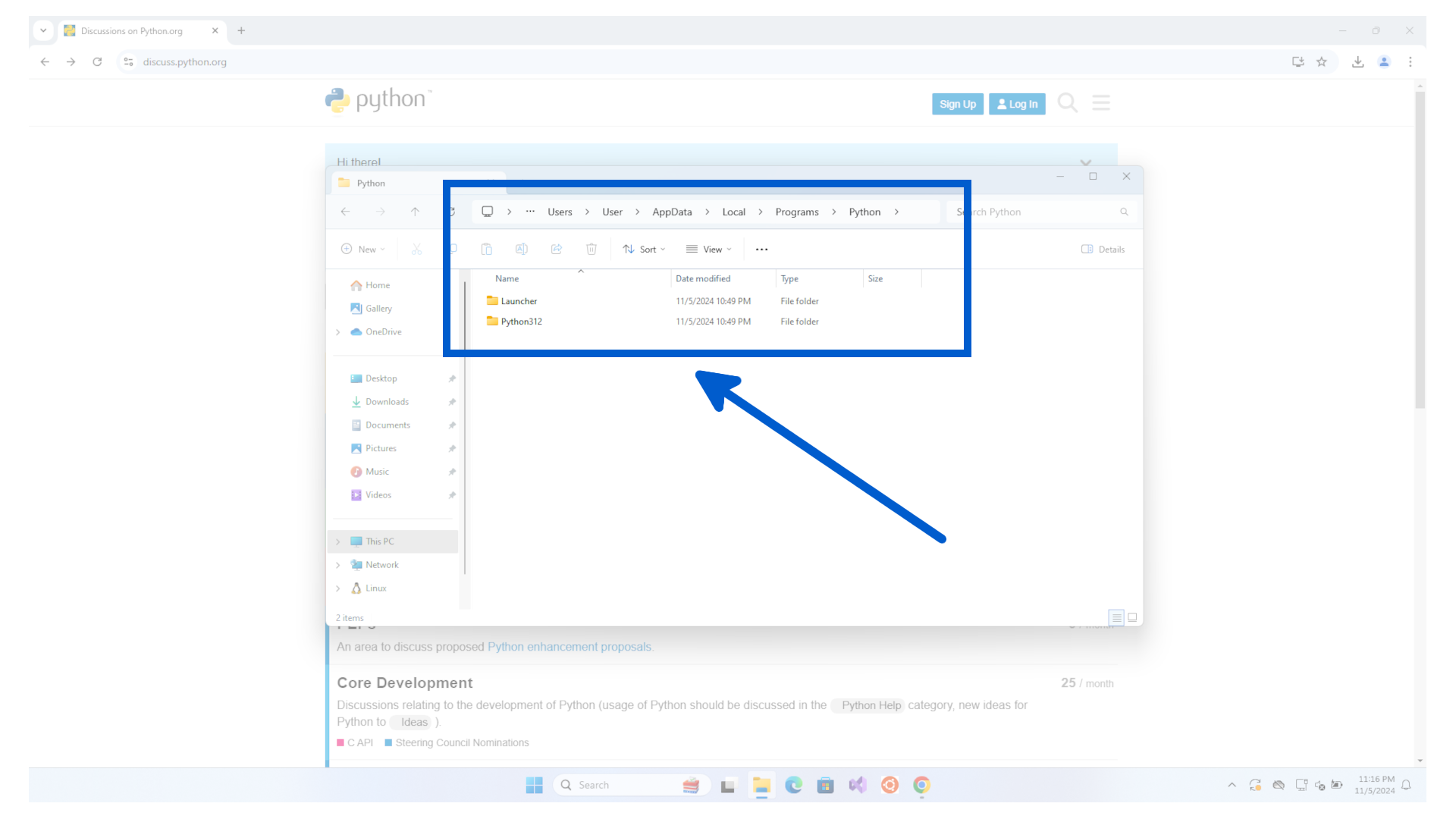
Take note of the actual Python folder location. In this case it is Python312.
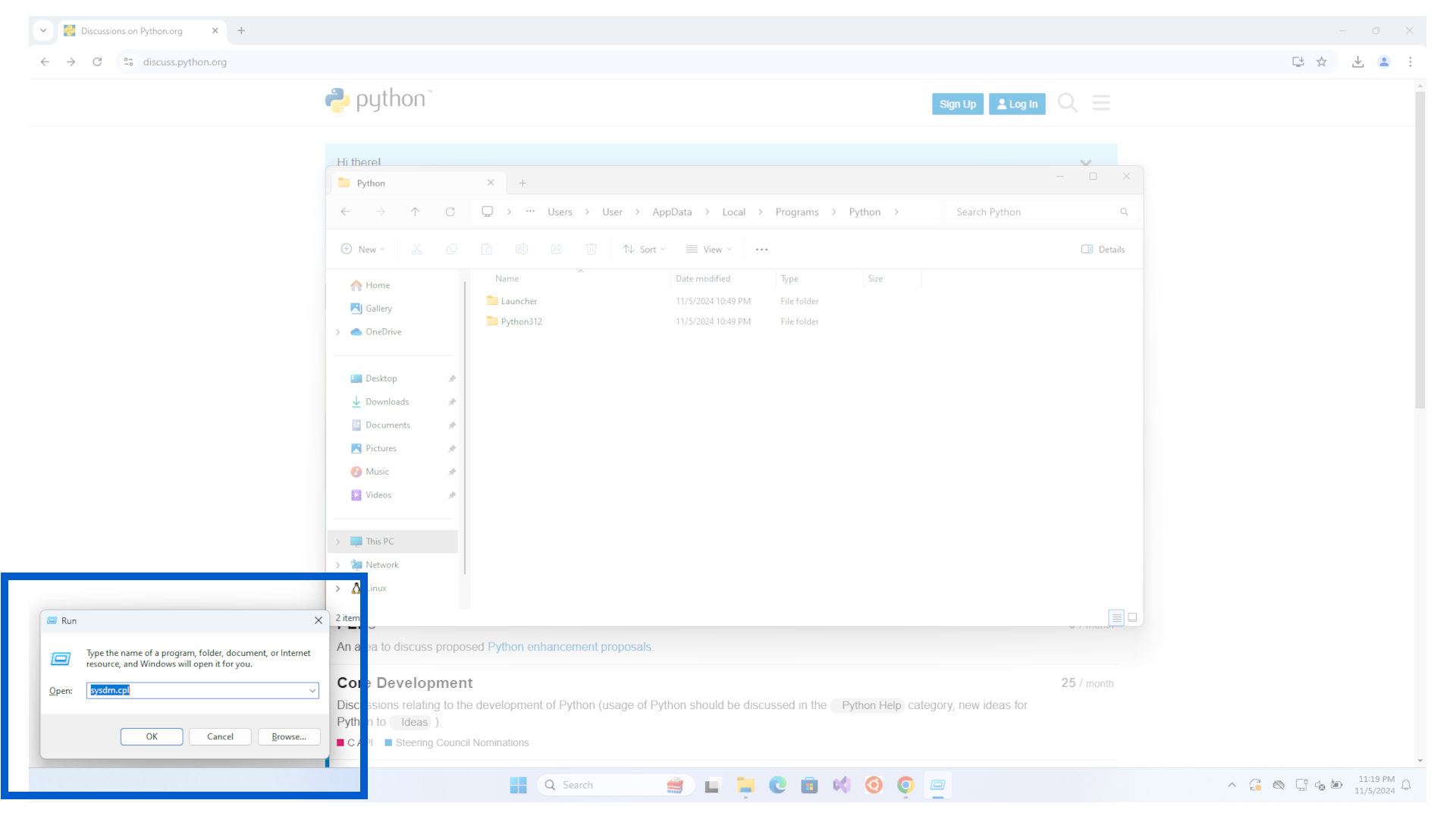
Now press Win + R, and type sysdm.cpl and press enter to open System Properties.
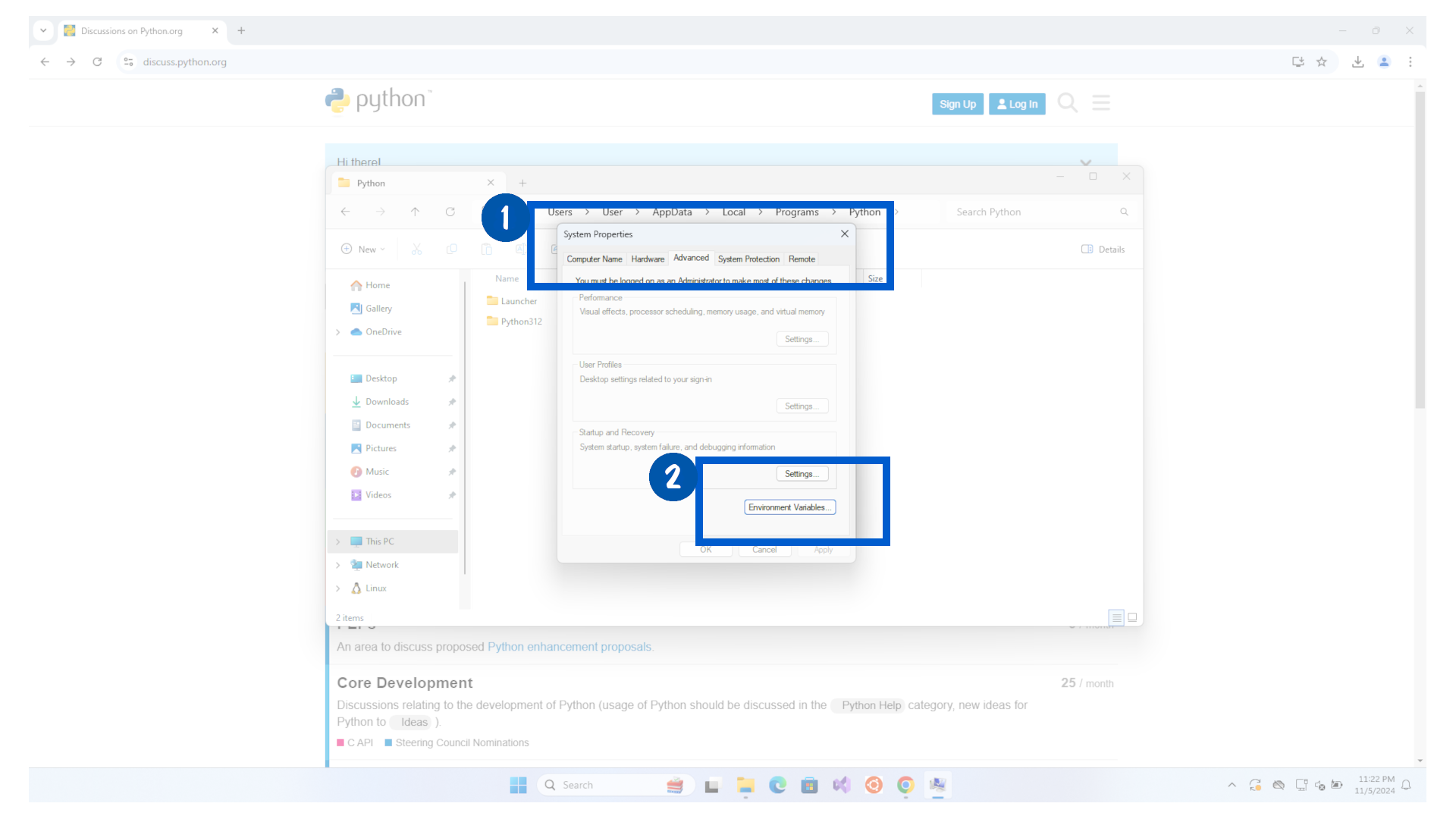
Go to Advanced tab and click on Environment Variables button.
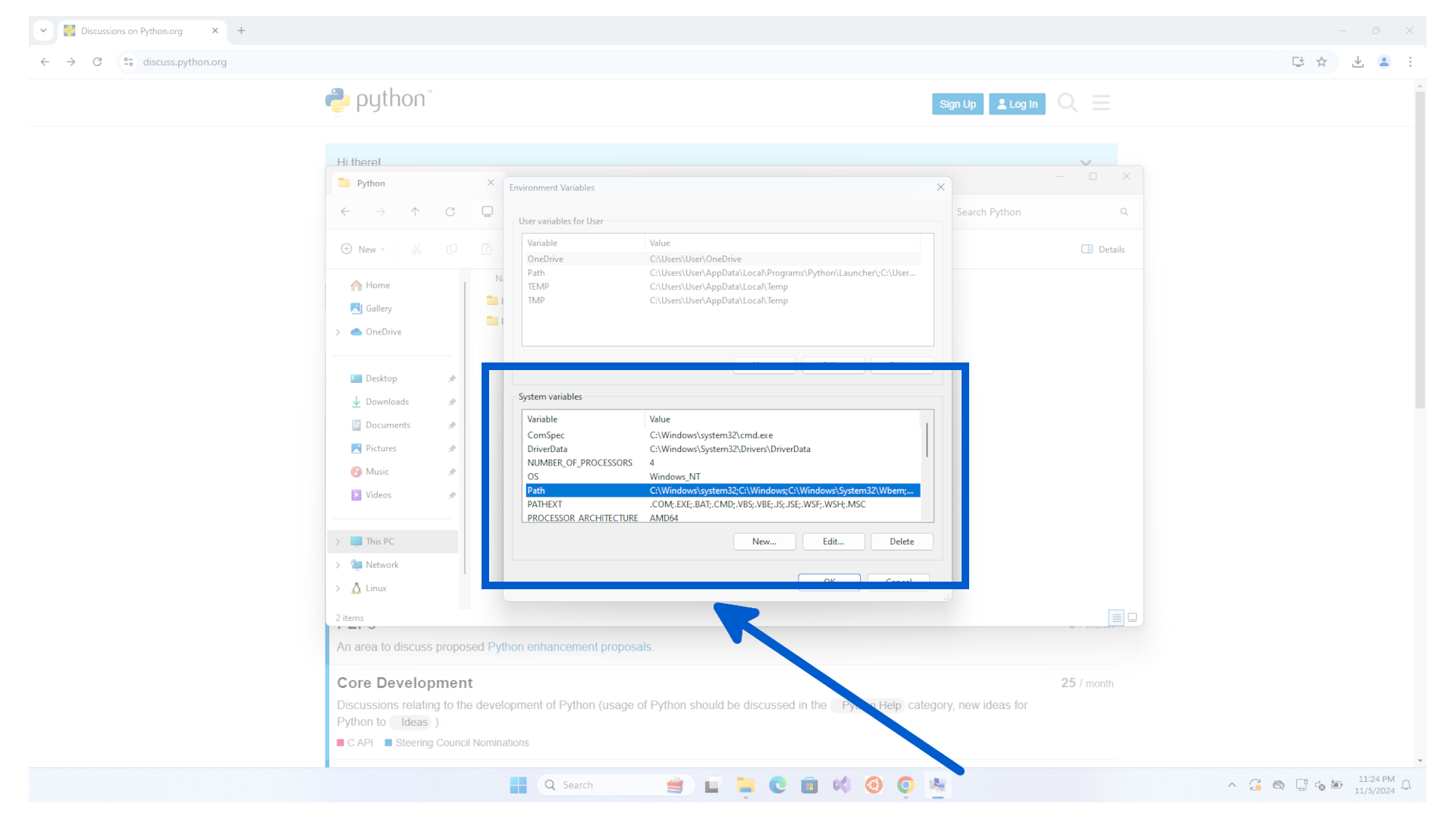
Click on Path and then click Edit button.
Click New and add the path to your Python installation (e.g., C:\Users\
Also, add the Scripts folder path (e.g., C:\Users\
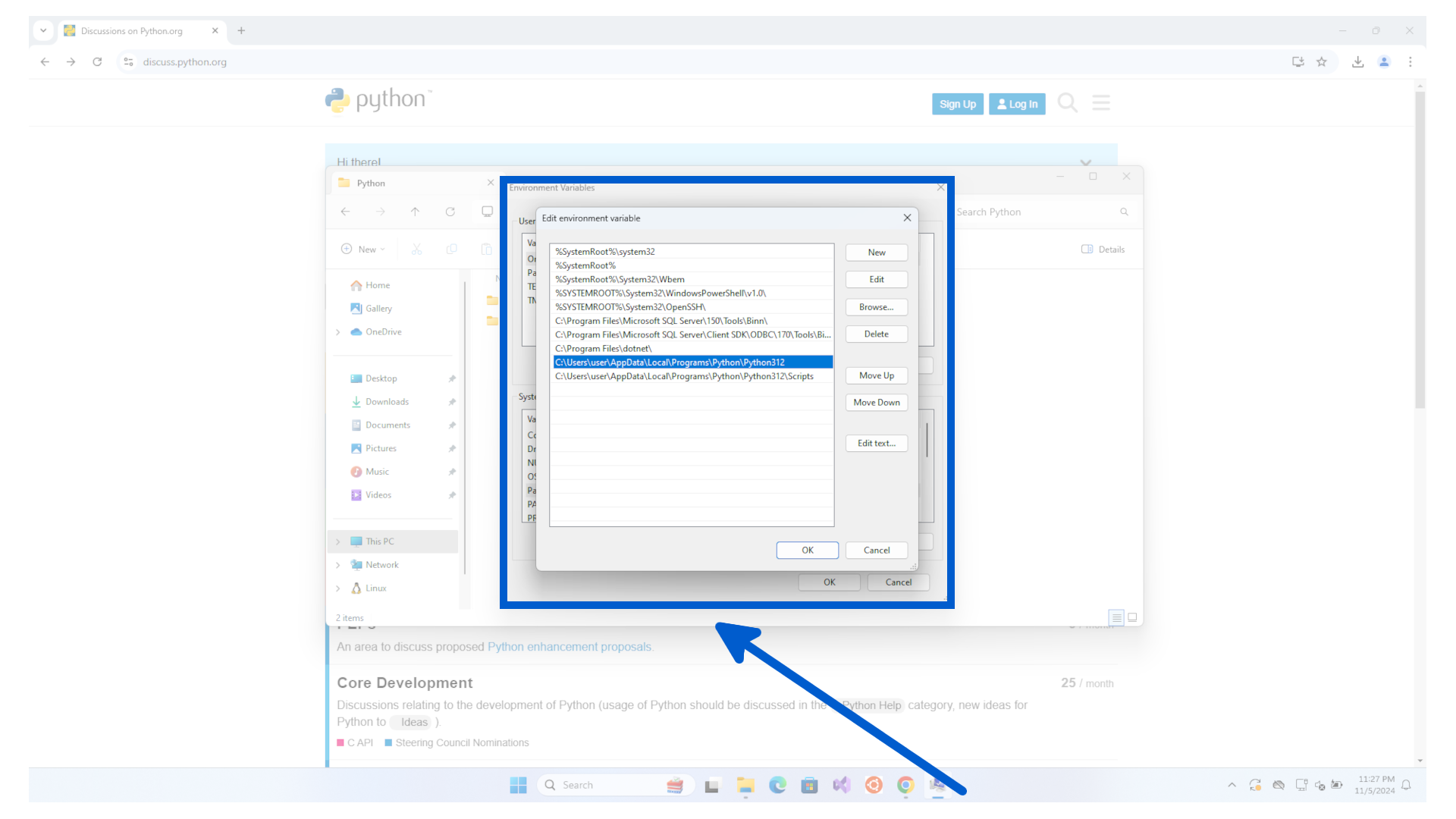
Click Ok three times to save the changes.
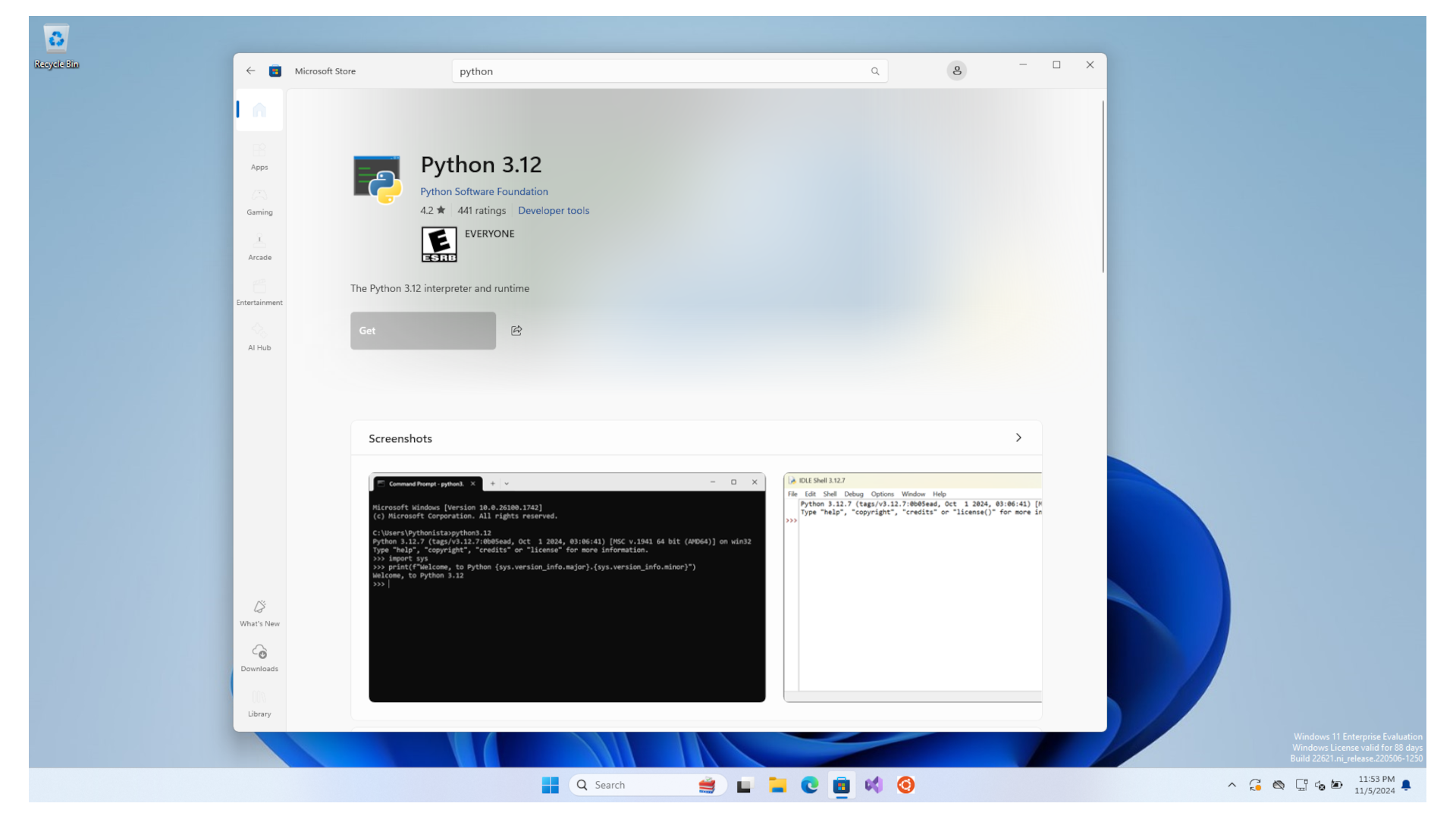
To install Python 3, click start and search for the Microsoft Store.
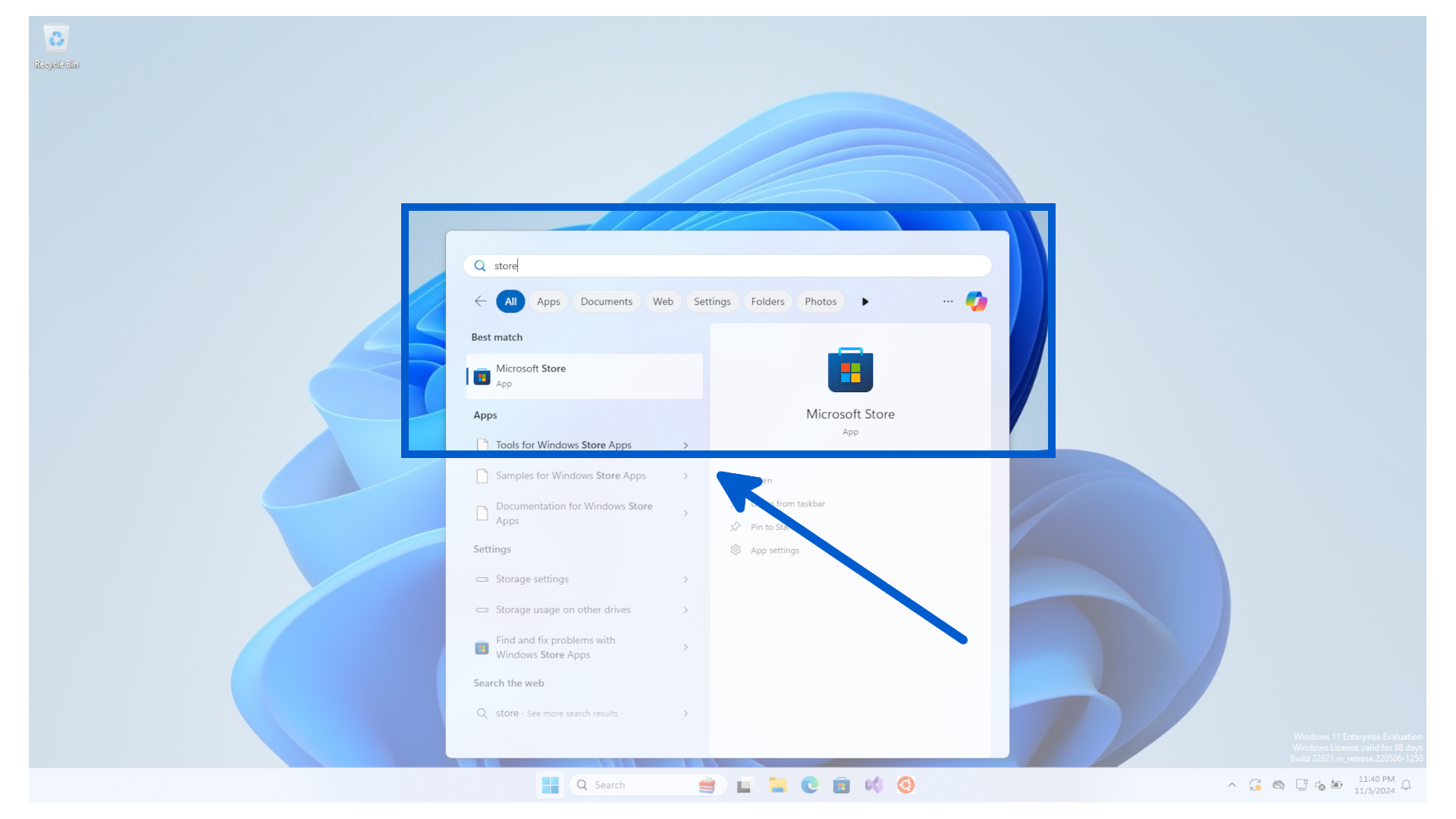
In the Microsoft Store, search for python.
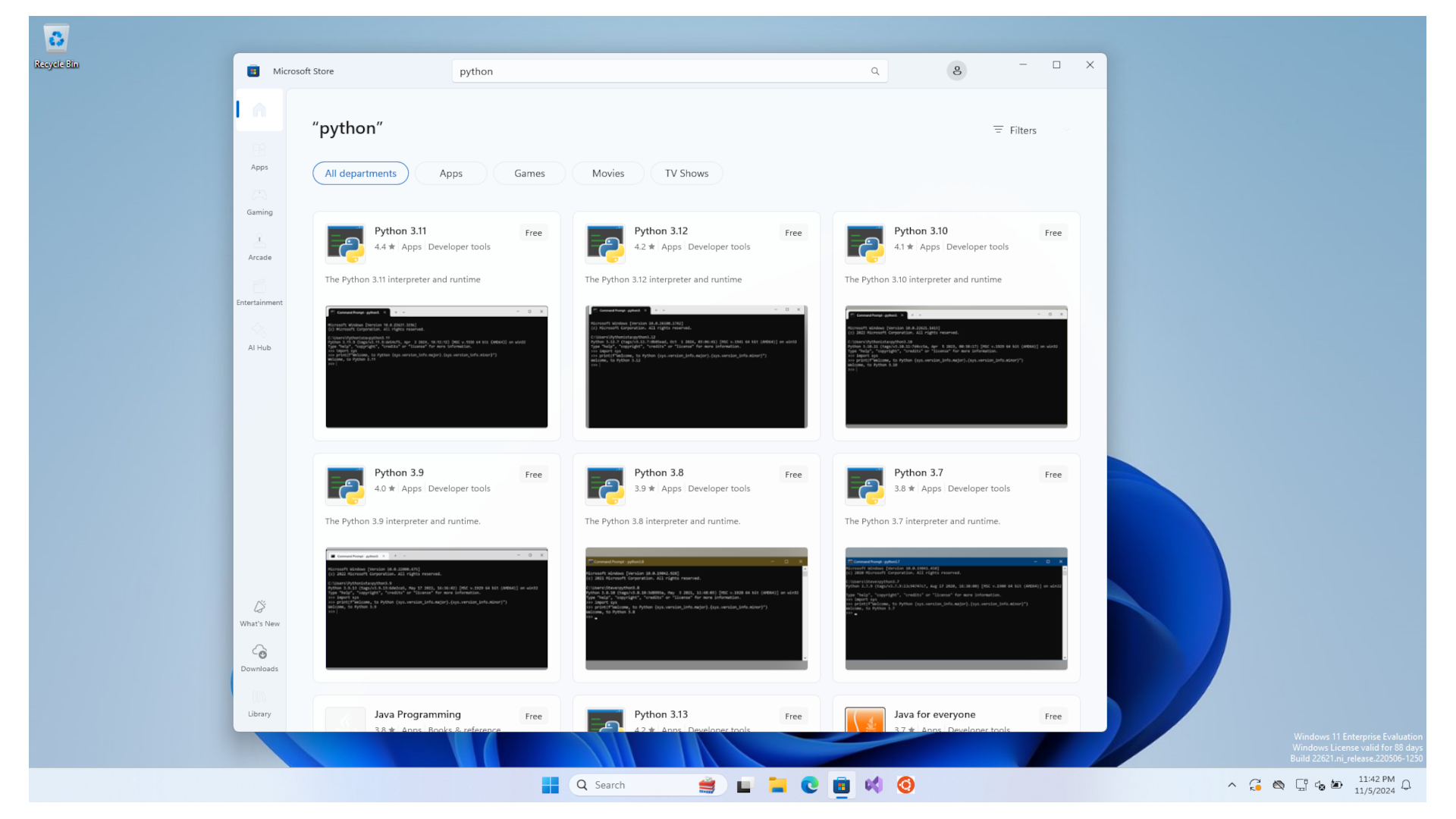
Select the latest version compatible with the Kelvin SDK.
In this case we will click on the Python 3.12 and then click on the Get button.
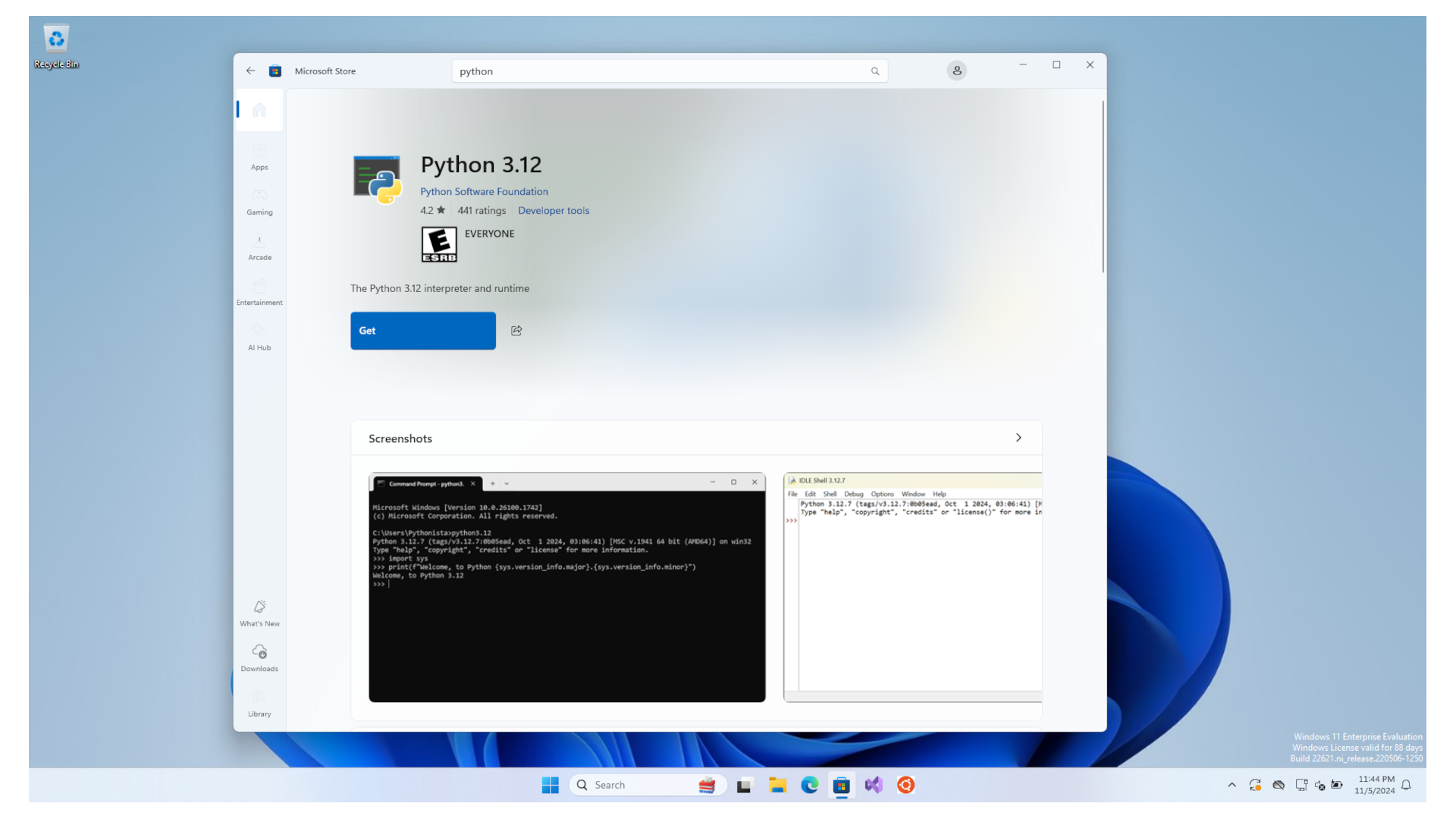
When finished, the Get button will turn gray.
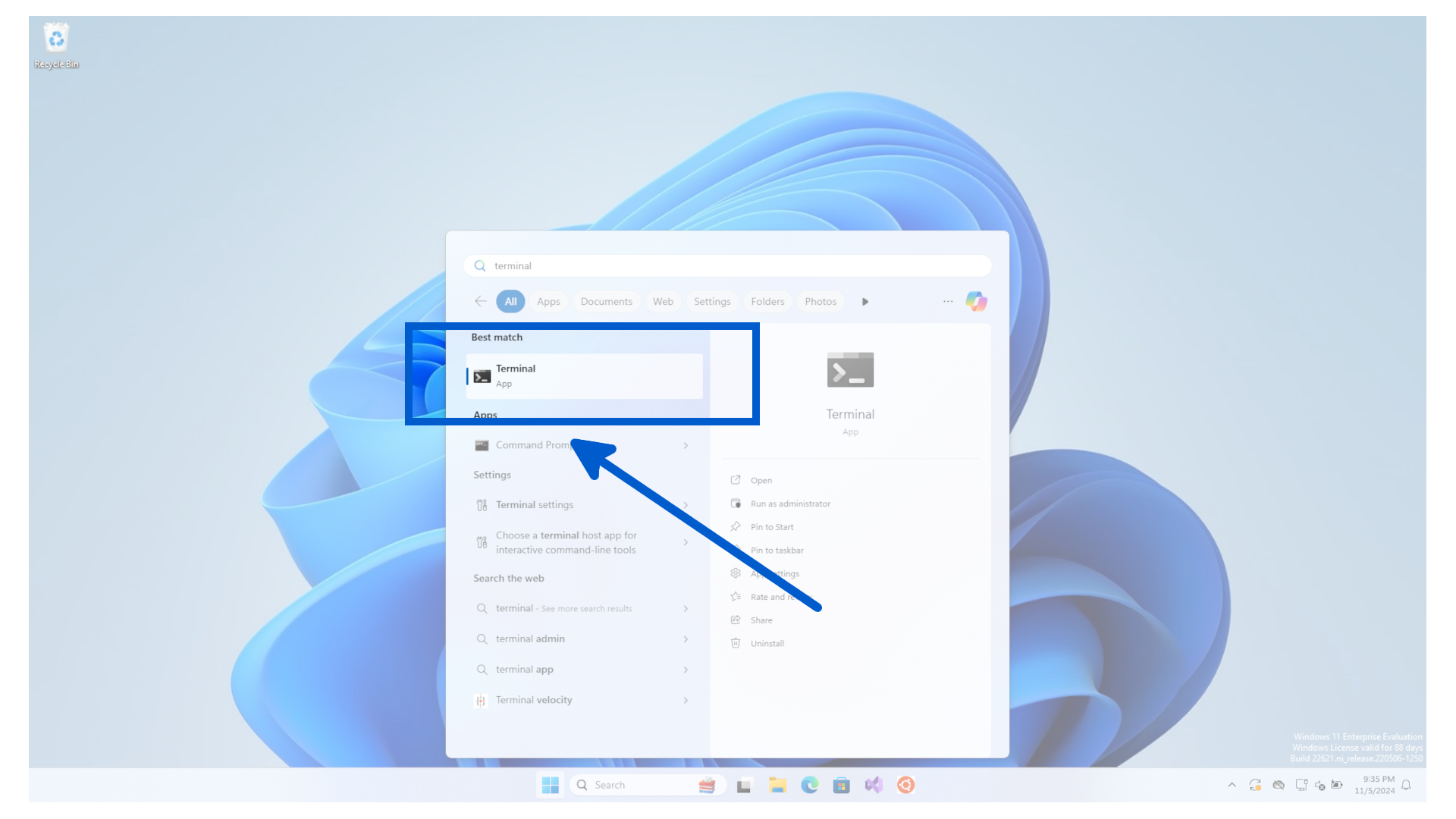
To confirm everything worked as expected, open a new terminal.
Warning
If you already have a terminal open, then you will need to close it and open a new one.
This is to ensure that the new environment variables are properly initiated into the terminal.
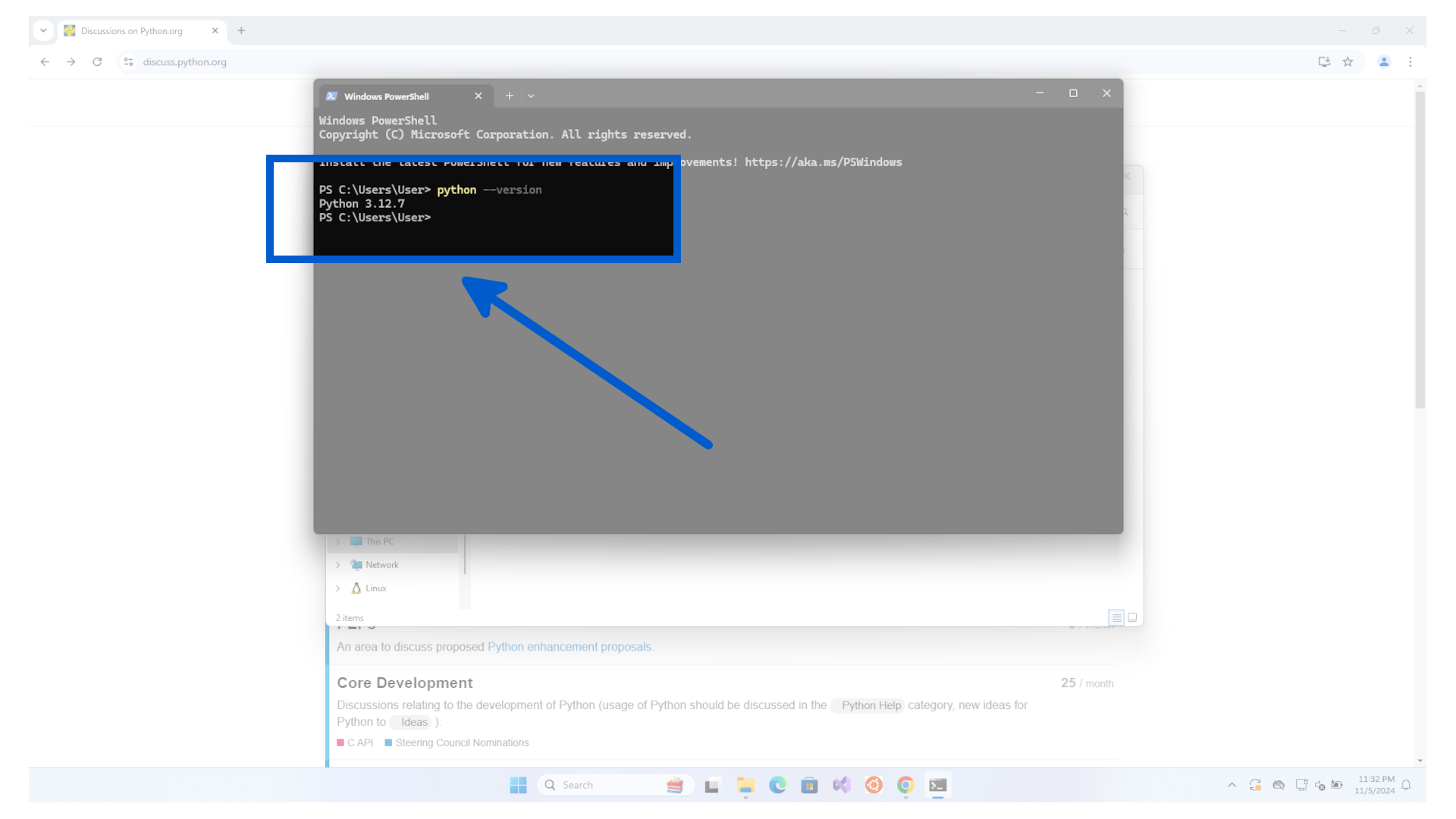
And type python --version to check Python is working ok.
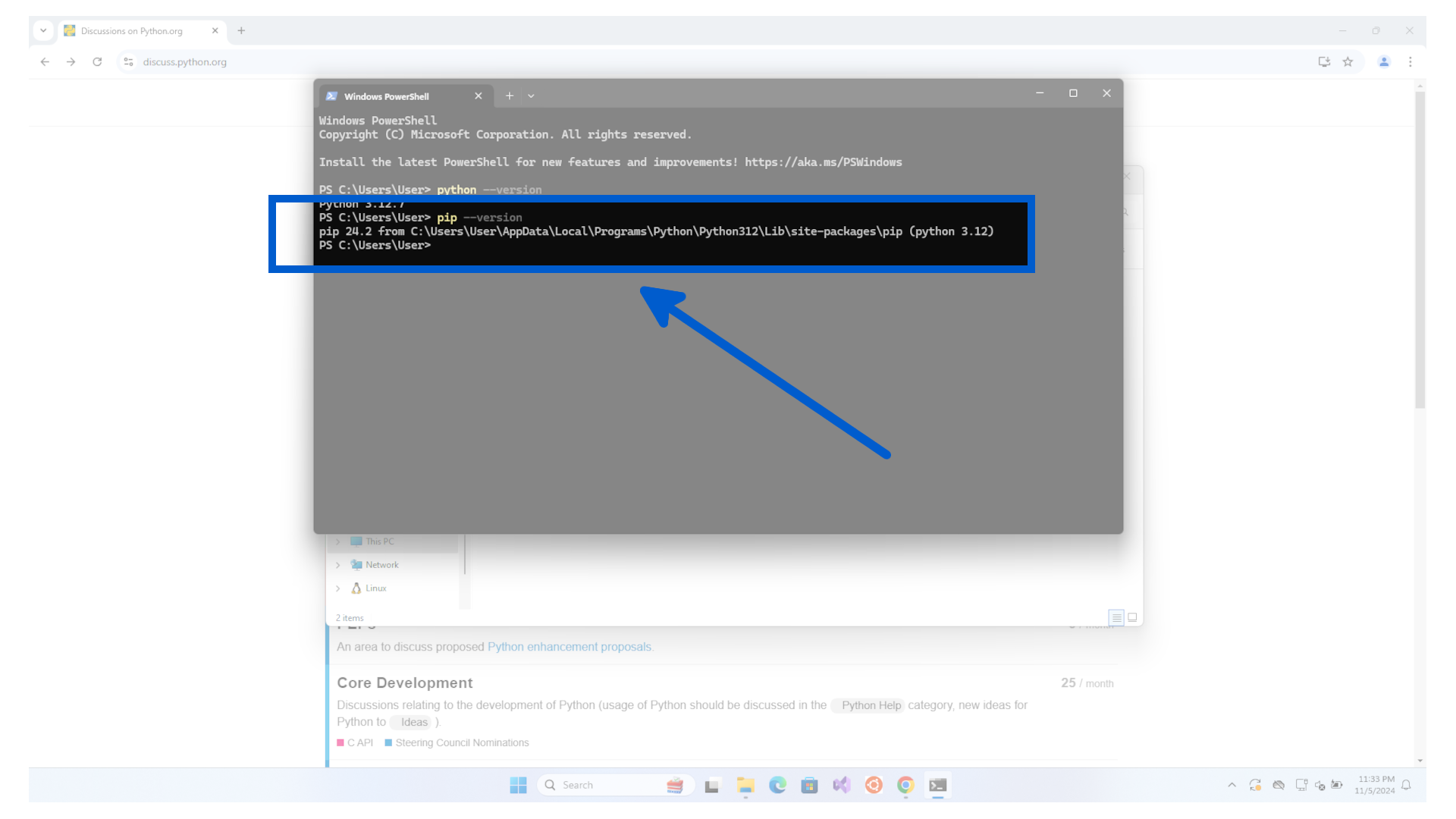
Also check that pip is also installed.
Note
pip is the program used to install Python packages from Pypi.
This is used a lot in Python programming and comes with the Python installation.
Congratulation ! You have installed and tested Python.