Managing Assets
On this page you get an overview of all Assets being managed by Kelvin. You can build custom views for the overview by using information like Data Streams, Kelvin SmartApps™ configurations, Recommendations, actions like last Control Change and more.
Overview
The Assets page is the first page you will see when you log into the Kelvin UI. You can also go there by clicking on the Asset option in the left sidebar.
Here you have a list of all Assets registered in Kelvin. From here you can see the Assets and associated information.
The first time you see this page it will only show the basic information; name, status, Kelvin SmartApps™, Asset Type and a link to the Data Explorer.
You will have many options to add columns in this list with kelvin specific information relevant to you. You can read more about it in the Customize Column page.
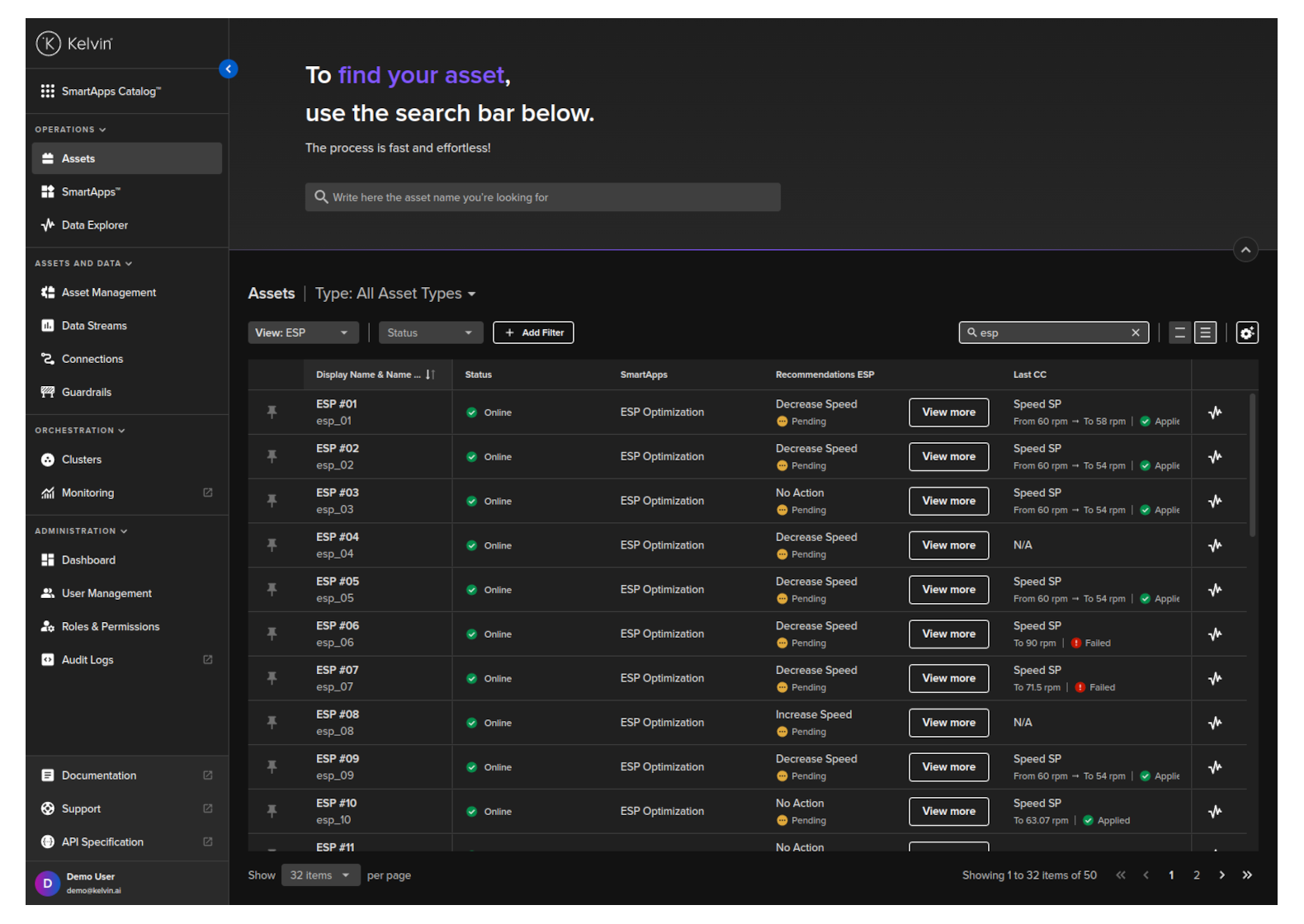
This uses the asset-centric table which is a highly optimized way to customize and view many kelvin-centric information related to the Assets that are relevant to you.
For example, here we have an example with Control Changes and Recommendations included.
The Details link in the Recommendations column is a link that takes you directly to that recommendation to make a record a decision about that Recommendation.
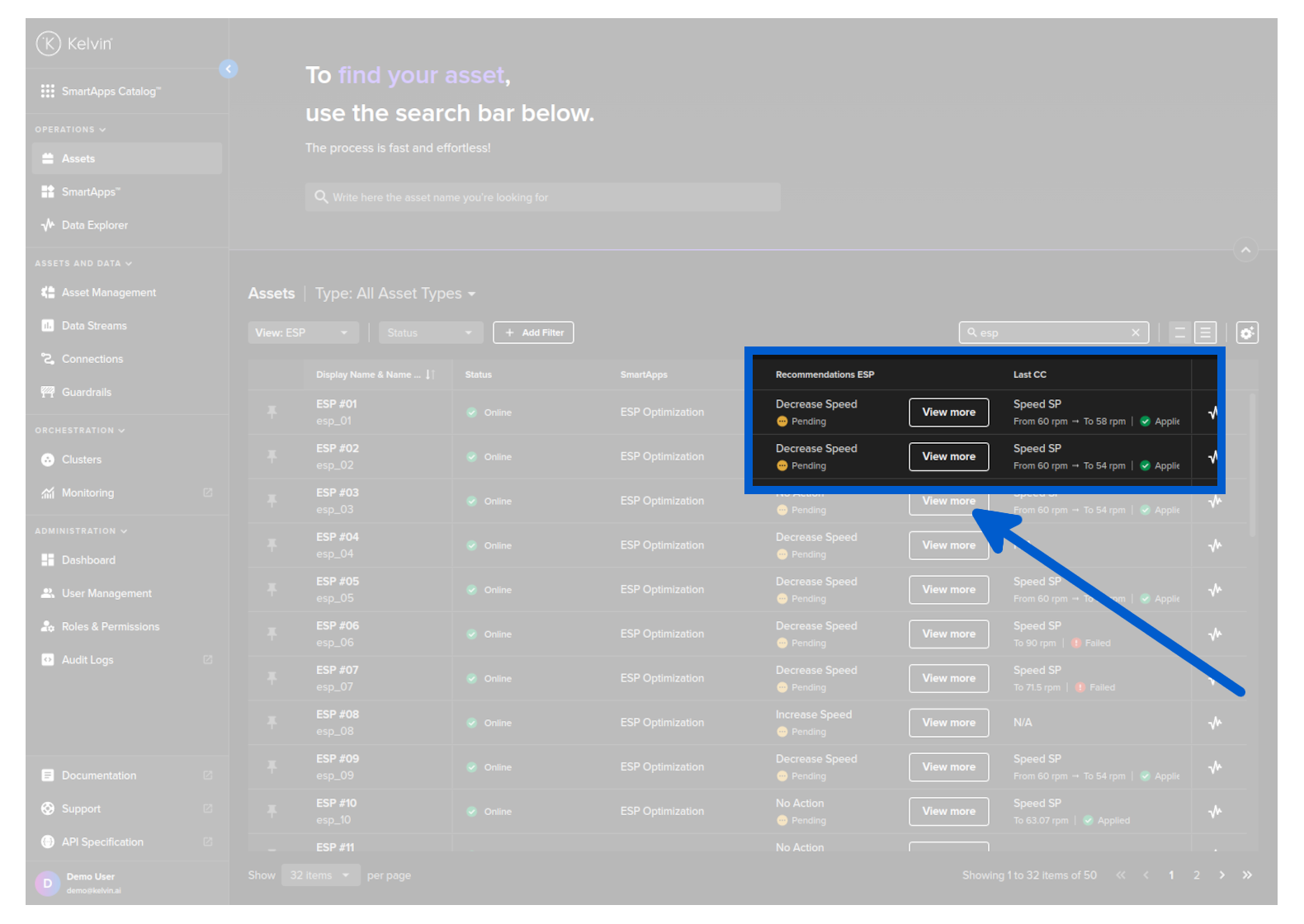
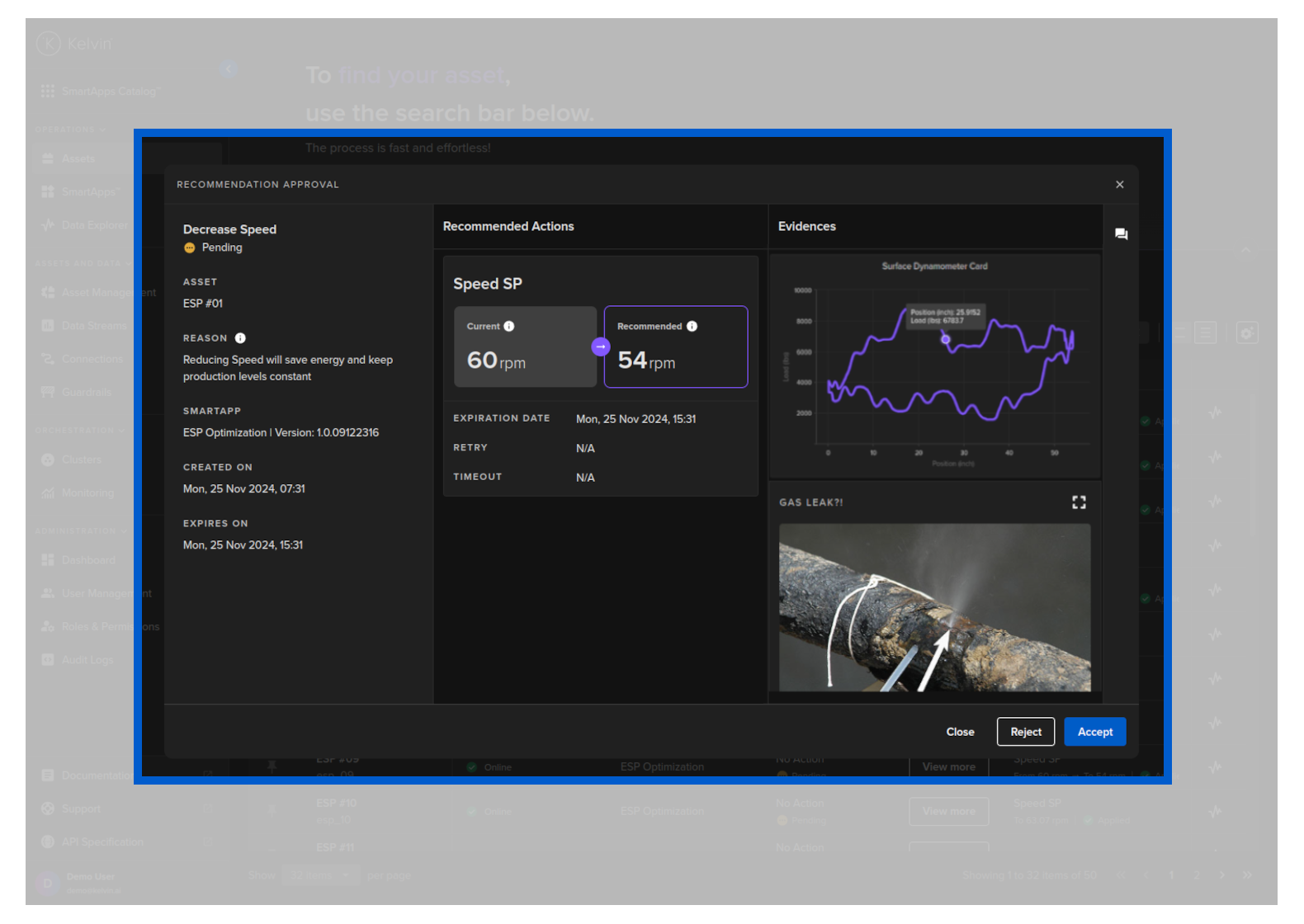
If you click on the Details link then you can see and take actions on the Recommendation.
You can also leave comments about the recommendation as a comment for other users to read or as a note for future reference.
Basic Features
On the overview page you have a number of common features that help you quickly navigate, find and filter the assets of interest.
Once you have configured and filtered your list, the list as you see it will be utilized as the reference list on the Asset Details page which we discuss in detail in the View Asset Details page, allowing for easier navigation and scrolling.
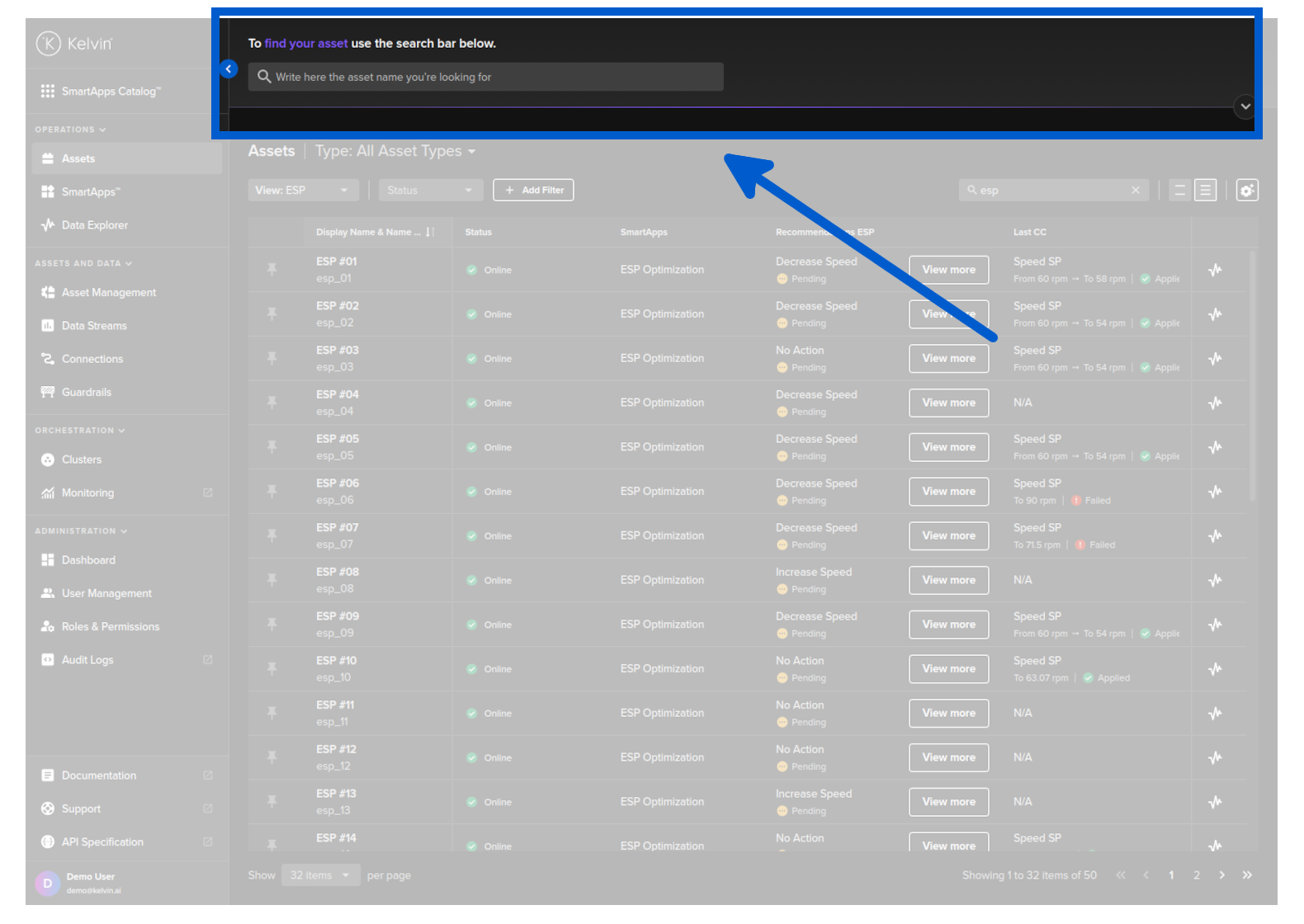
At the top we have a search bar which uses fuzzy logic to filter the Assets list. This is very useful in quickly finding what you are looking for even if you misspell the name of the Asset.
For example; if you have an Asset called Demo Asset and you type in this fuzzy search bar deo where you accidentally forgot the letter m, it will still show up in the list.
Don't be confused with the second search bar lower down near the table. This is a traditional search filter which is case insensitive, but you need to type the name exactly correct (though they can occur anywhere in the name).
For example, if you type fugal, it will find the word Centrifugal Pump and CENTRIFUGAL PUMP.
It will start searching dynamically as you type. See the Search tab for more details.
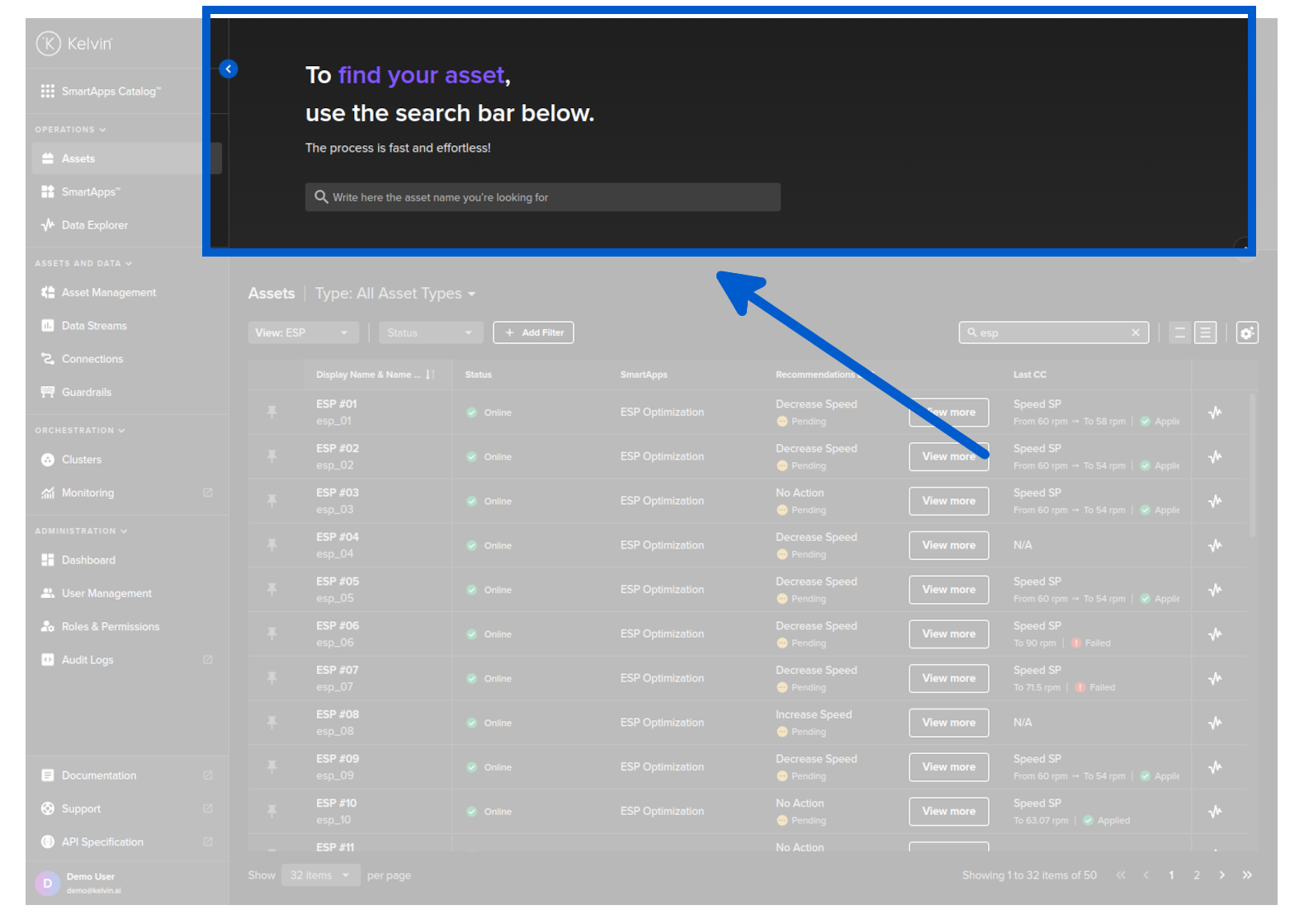
You can also minimize the Fuzzy search bar to maximize the number of Assets you can see in the table.
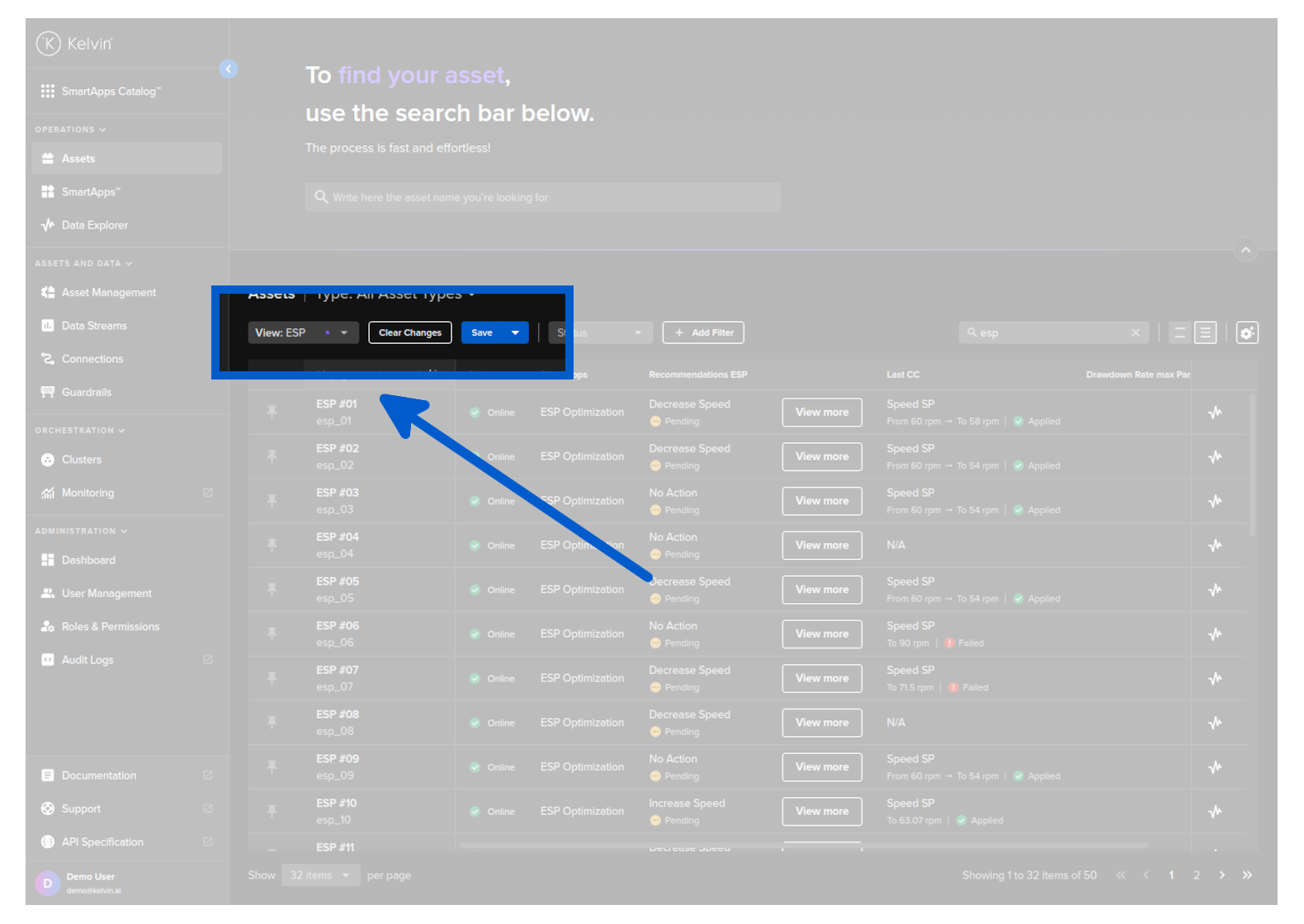
You can customize your column views and save them, allowing you to quickly change views for different operations.
Note
See more details about custom views below in Custom Asset View.
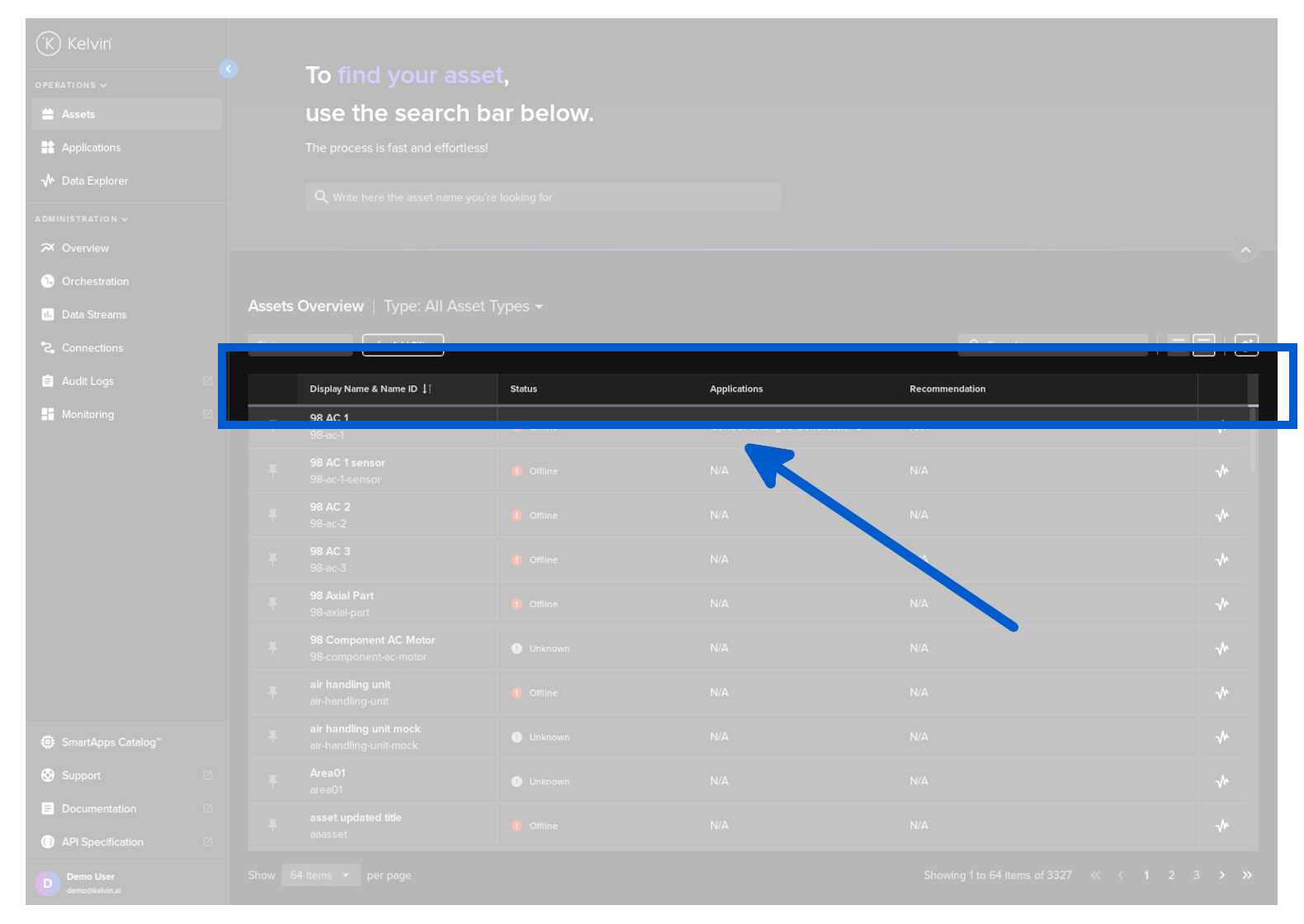
You can sort the table rows simply by clicking on the header name. Clicking it will cancel the other sorts in other headers and each click will rotate between ascending, descending and no sorting.
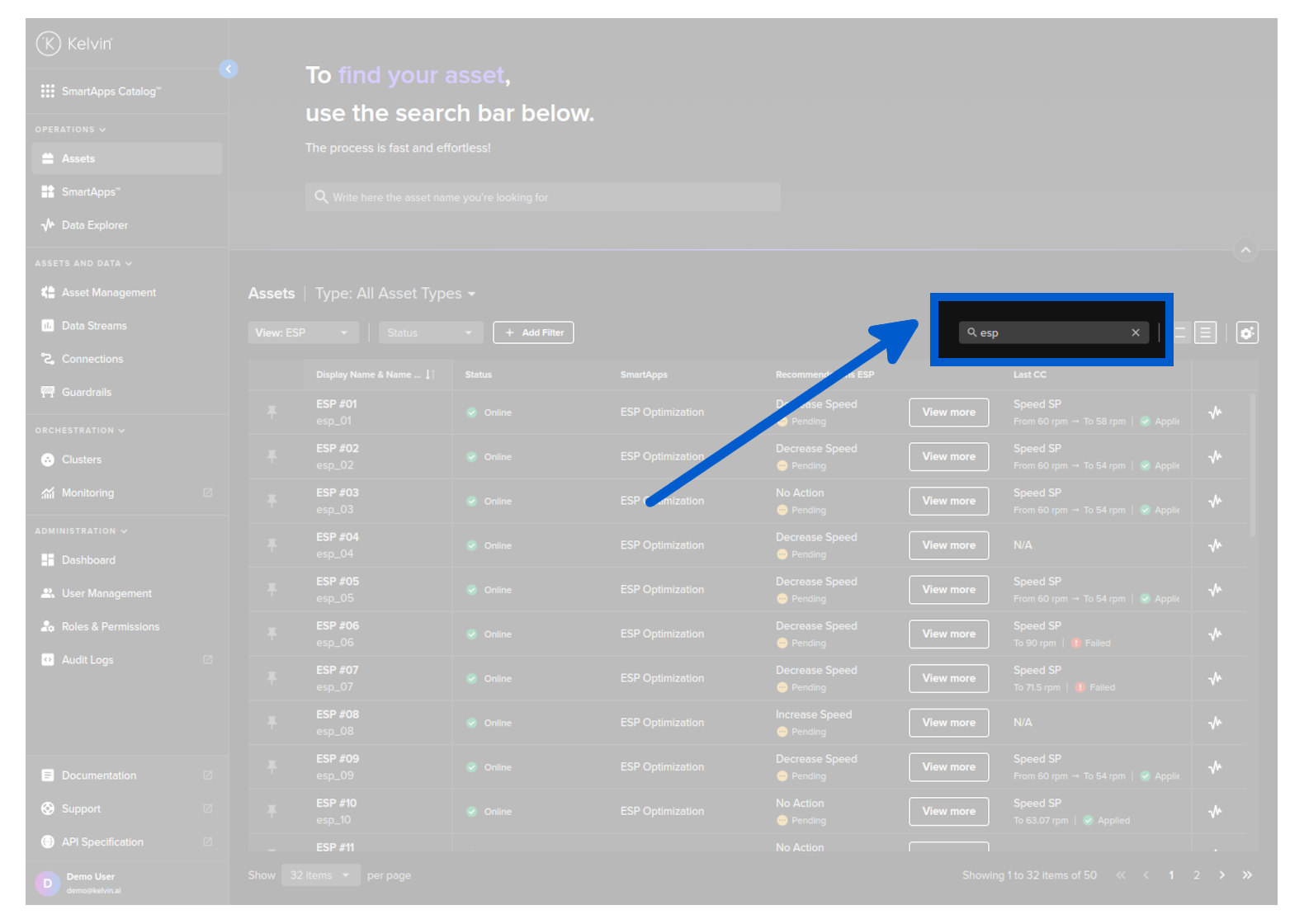
When dealing with large quantities of Assets, you can search for the Assets of interest.
This is dynamic and will update the list as you type.
The search feature is not case-sensitive and will search for any matches anywhere in the Asset name, i.e. it does not have to be at the beginning of the name.
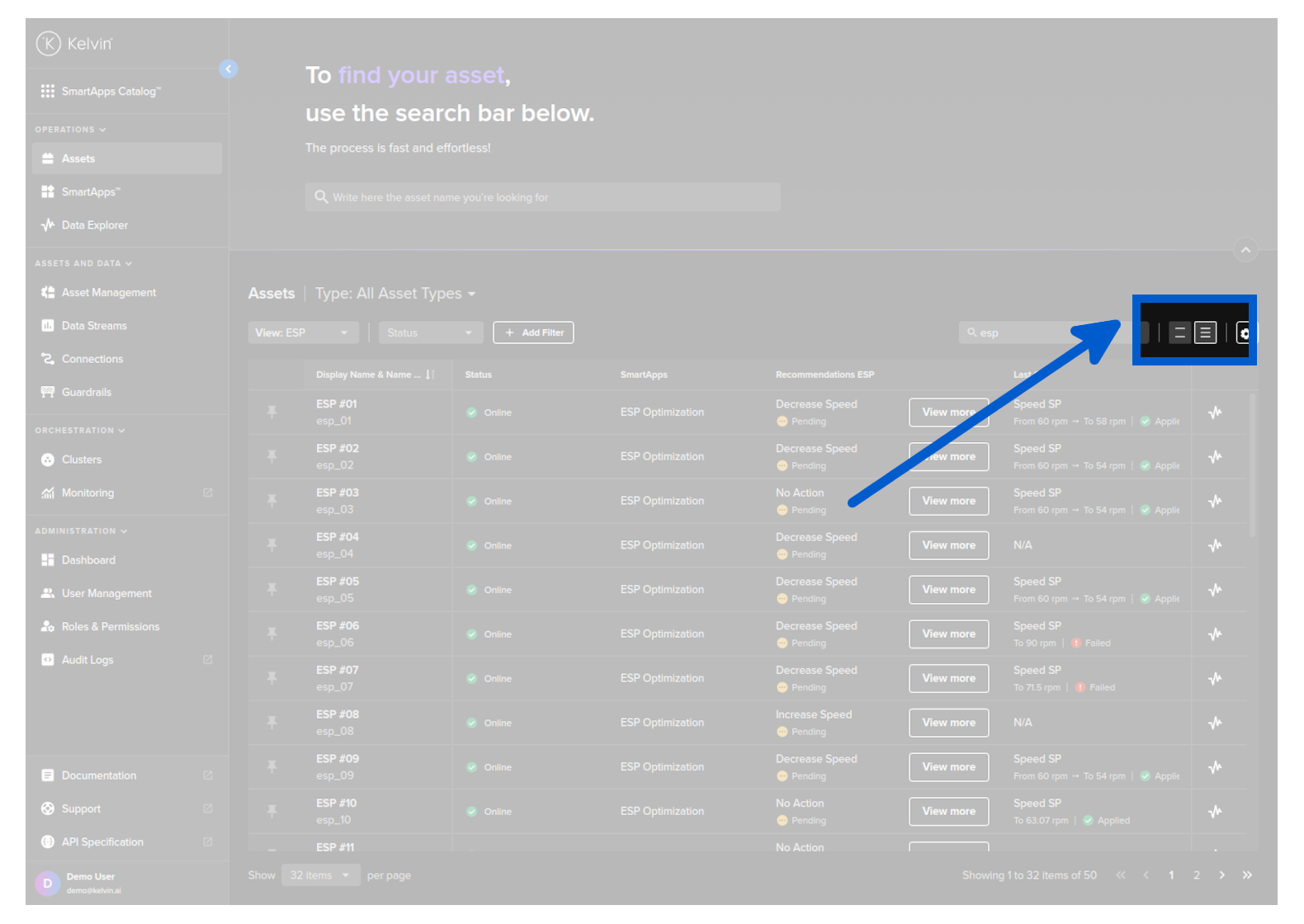
You can choose the height of the row to fit as many rows as possible on the screen, or space them out for easier readability.
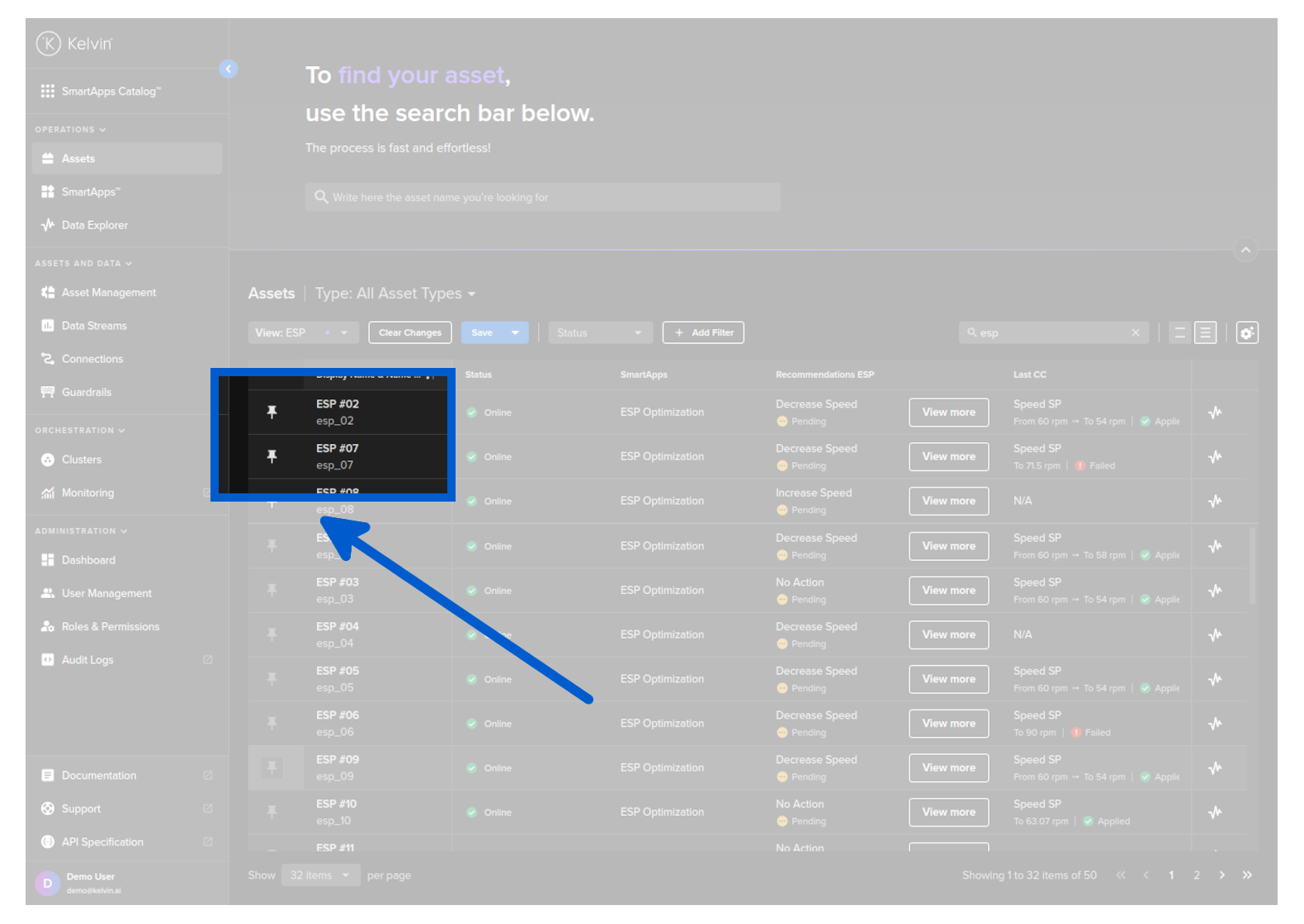
You can keep important Assets pinned to the top of the page simply by clicking on the pin icon.
The pinned Assets will show on the top of every page.
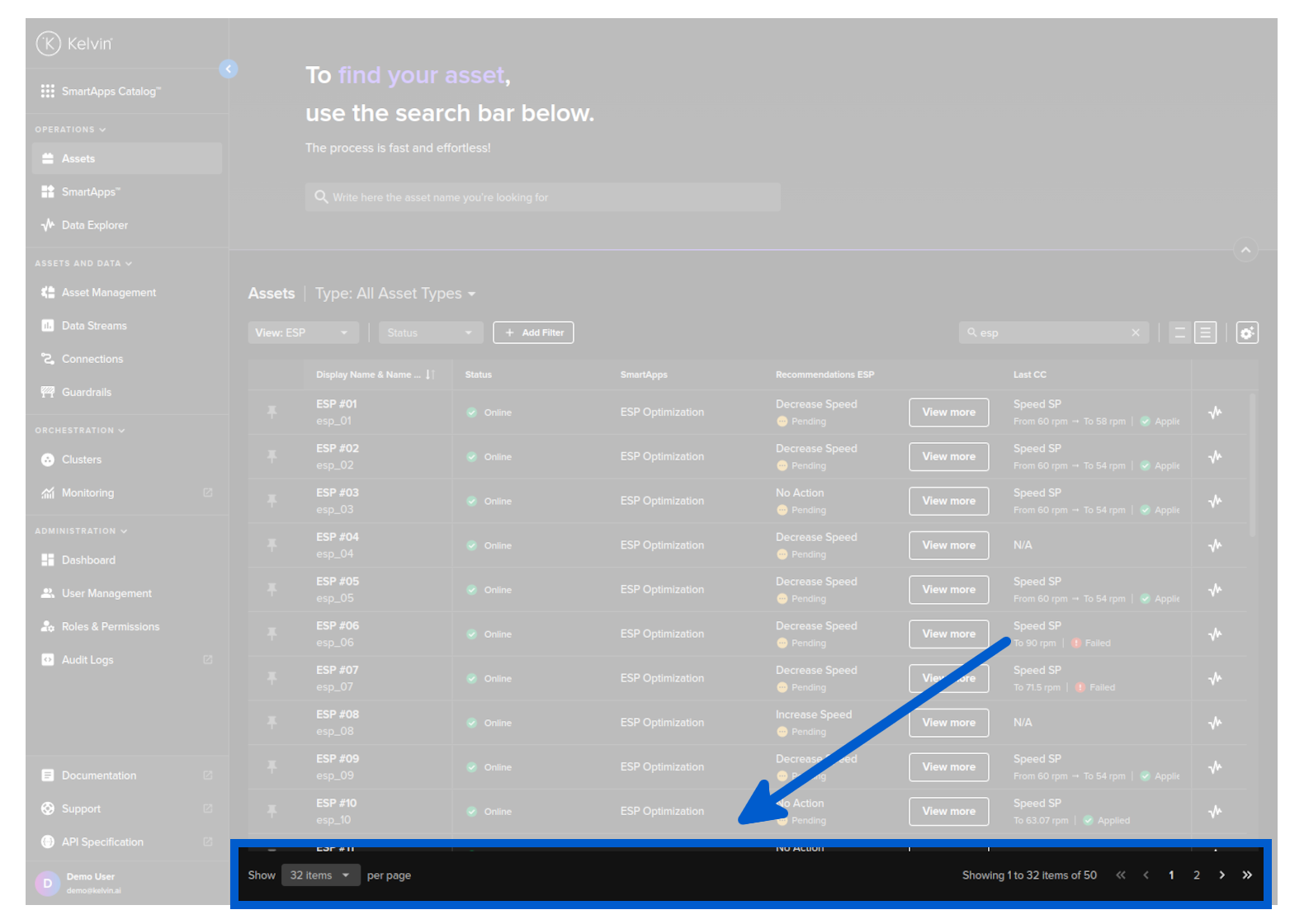
You can select the number of Assets to show on each page and the page number to view. This is especially useful to set the information available in one page based on your screen size.
There is a powerful filtering setup that can help configure the information you want to display.
All filters are persistent, so if you got to other pages or log out the filters will still be implemented when you return.
There are three types of filters you can apply;
- On Asset Properties
- On Asset Parameters in Kelvin SmartApps™
- On Asset / Data Stream pairs aggregation of data
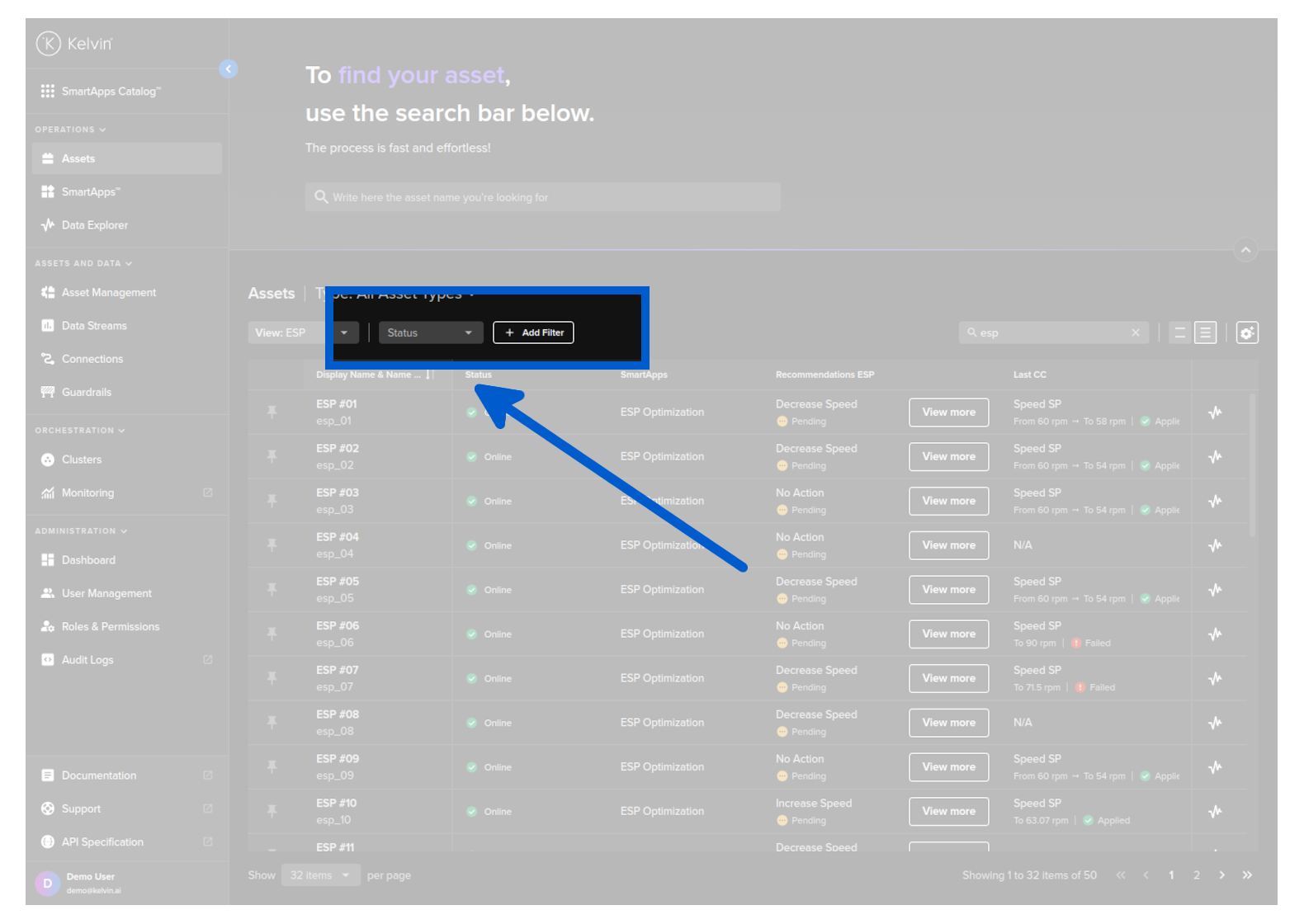
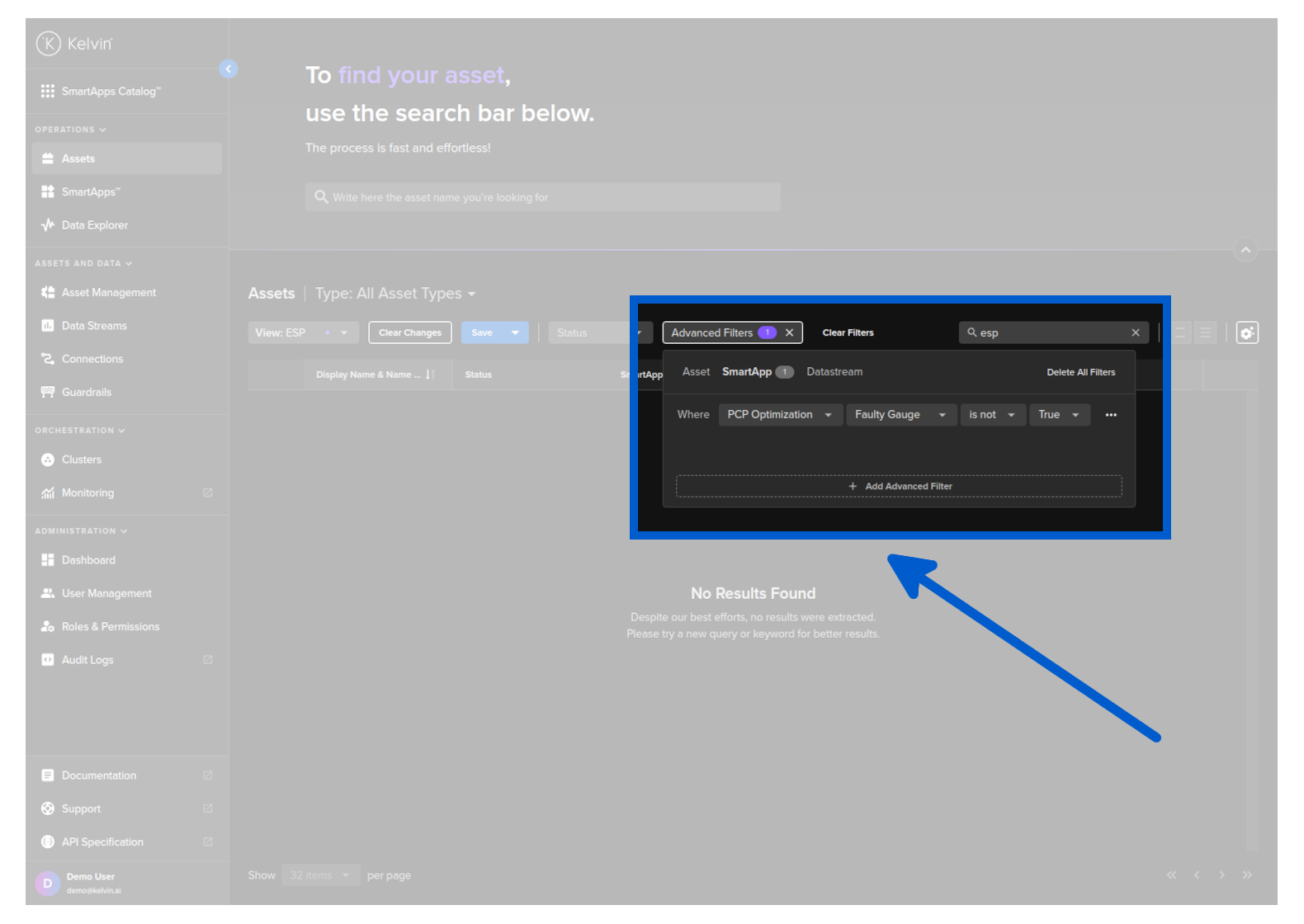
The Add Filter section allows you to create complex multi-criteria on Asset / Data Stream data or on any Kelvin SmartApp™ Recommendations and Control Changes.
If your filter is complex, then it can take time for the rows to be initially updated, sometimes over 10 seconds or more.
If you update your filter conditions with extra conditions, it will not take so long the second time as it only applies the new filter conditions to the existing list.
Customize Asset View
In operations you normally have a large number of Assets to manage and look after. Normally most of the Assets are set to Closed Loop in Recommendations and require very little attention. Other Assets may need careful monitoring and manual adjustments.
In the Asset Over page you have the ability to customize your view and ensure on the most important Assets are being shown.
Any settings in this page are remembered between sessions, so once set you can come back at any time and see the Assets you have selected.
There are four main ways to customize your Asset Overview.
- Customize your Views (Columns)
- Pin important Assets to always appear at the top of the page
- Select the Statuses of Assets to show
- Apply advanced filters on Asset Properties or Kelvin SmartApps™
All four of these methods will be applied together.
Note
For example, if you filter only Online Assets, running in Open Loop mode in Kelvin SmartApps™, then you will not see any Assets Partially Offline even if they are running in Open Loop mode.
Custom Views
You have the option to save customized views. Customized views will retain both custom columns and filters.
This allows you to easily switch between different custom Asset views you have created.
You can see all your saved views in this drop down menu.
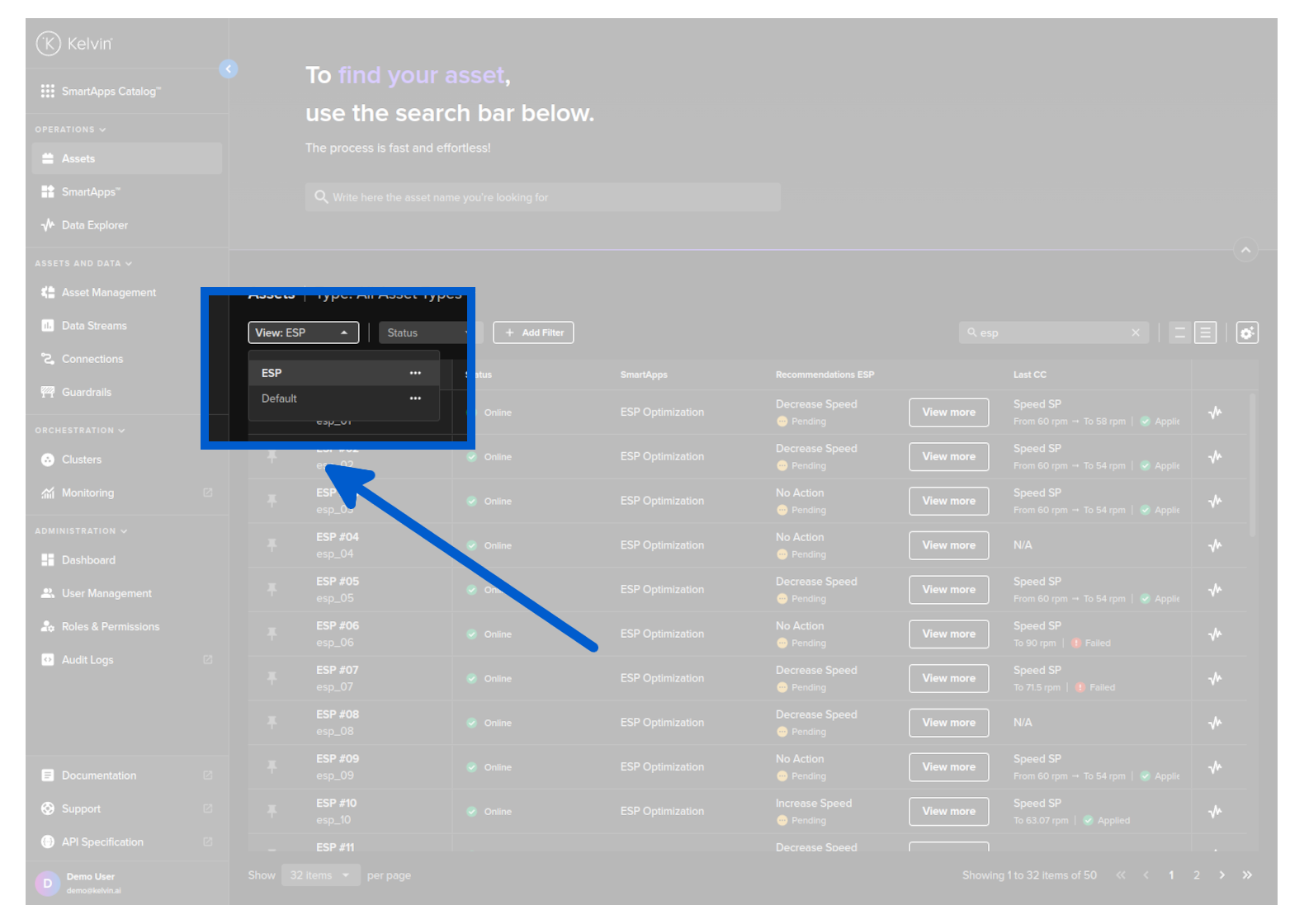
And when you change the view layout and columns you will have the choice to overwrite the current view or save it to a new view.
Pin Assets
You can keep important Assets pinned to the top of the page simply by clicking on the pin icon.
The pinned Assets will show on the top of every page.
Select Statuses
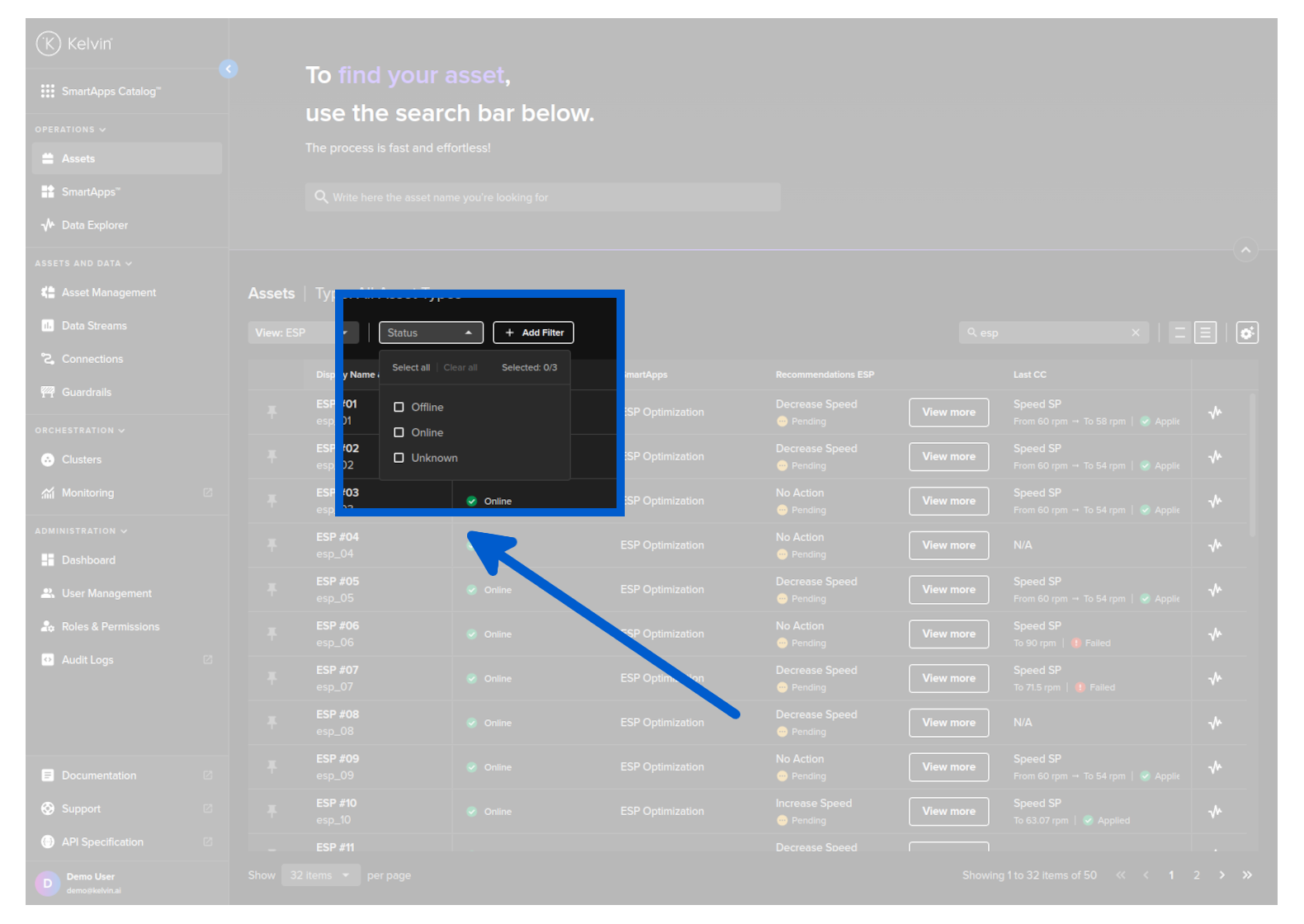
You can limit the Assets shown according to their current status. There are four statuses available; Offline, Online, Partially Online and Unknown.
| Status | Description |
|---|---|
| Offline | All Data Streams associated with the Asset are currently not connected to the Cloud |
| Online | All Data Streams associated with the Asset are currently connected to the Cloud and recording data |
| Unknown | All Data Streams associated with the Asset have not sent any data since being created |
Advanced Filters
This is a powerful filter that allows you to create as many conditions as required to fine tune the Assets that are shown in the table.
Any settings are persistent between sessions, so you do not have to continually reconfigure your requirements.
For example, you are managing a large number of wells and want to only monitor wells that are running the Motor Speed Control Kelvin SmartApp™ in Open Loop mode and are in drilling operations. You can setup this view by;
Click on Add Filter button and add a Application (Kelvin SmartApp™) filter like this
It is also the same process to add a filter on the Asset Properties.
That's it ! All the filters are automatically applied as you create them. Now you only see these filtered Assets.
All filters are processed together as AND.