2. Create

On this page you will learn how to create and configure a Kelvin SmartApp™.
This demonstration video was done in v5.9.
There may be slight differences with the latest version.
Check the latest documentation for the specific tasks should any feature not quite work as expected.
Video Guide
Watch this quick start guide performed in real time in less than 8 minutes.
Written Guide
Create Folder
Type the following command to create a Kelvin SmartApp™:
kelvin app create event-detection
Kelvin SDK will create a new folder named after the project name and automatically create the required files and add a sample Python program for reference. You can now open the folder in your favorite IDE (like Visual Studio Code) and start to modify the files.
Below is a brief description of each file.
| File | Description |
|---|---|
| app.yaml | The app.yaml file serves as the configuration file for the Kelvin SmartApp™, detailing specific parameters and settings of the app. We will modify this file as part of this tutorial in the next couple of steps.You can read more about the |
| main.py | The main.py is used as the entry point of this Kelvin SmartApp™. When it runs, main.py is typically the first script that gets executed, and it usually contains the main logic or orchestrates the flow of apps. We will modify this file as part of this tutorial in the next couple of steps.You can read more about the |
| requirements.txt | This is a list of Python libraries that need to be installed when compiling the Kelvin SmartApp™. This is treated like any normal Python requirements.txt file.The sample You can read more about the |
| Dockerfile | This is a standard Dockerfile that is used to compile the Kelvin SmartApp™ into a Docker image. The sample Dockerfile comes with the minimum steps required. This is adequate for this example and does not require any changes. You can read more about the |
Inputs and Outputs
The Kelvin SmartApp™ stands out for its seamless integration with streaming data. As a developer, you're given a simplified interface. Simply define:
- Inputs: The streaming data your app will consume.
- Outputs: The streaming data your app will produce.
Kelvin takes care of the rest, ensuring reliable communication, fault-tolerance, data serialization, and data integrity.
Define Inputs
Inputs are specified within the app.yaml file. Each input requires:
- A unique name to identify the input. This will be used in the Python code to reference the input. It must contain only lowercase alphanumeric characters. The characters
.,_and-are allowed to separate words instead of a space BUT can not be at the beginning or end of the name. - An expected data type, which can be:
number,boolean,string.
For this guide, the Event Detection SmartApp is monitoring a motor's temperature.
Edit the app.yaml and add the following input:
app:
  kelvin:
    inputs:
      - data_type: number
        name: motor_temperature
Define Outputs
Outputs, similar to inputs, are defined in the app.yaml file. Each output needs:
- A unique name to identify the output. This will be used in the Python code to reference the output. It must contain only lowercase alphanumeric characters. The characters
.,_and-are allowed to separate words instead of a space BUT can not be at the beginning or end of the name. - An expected data type, which can be:
number,boolean,string.
Additionally, some outputs might initiate control changes. For instance, the Event Detection SmartApp determines a need to modify a motor speed.
Edit the app.yaml and add the following output:
app:
  kelvin:
    outputs:
      - data_type: number
        name: motor_speed_set_point
        control_change: True
The control_change: True indicates that the output will trigger the appropriate logic to adjust the Motor Speed based on the provided set point. We recommend keeping this value to True for this guide to see what a Control Change looks like.
Asset Parameters
Kelvin SmartApps™ can leverage Asset Parameters to parameterize the assets they are deployed to. These parameters can be updated through the user interface, enabling dynamic configuration of the app.
Define Asset Parameters
In order to define an Asset Parameter, the following attributes are available:
- name: This will be used in the Python code to reference the input. It must contain only lowercase alphanumeric characters. The characters
.,_and-are allowed to separate words instead of a space BUT can not be at the beginning or end of the name. - data_type:
number,booleanorstring. - default: [optional] sets a
defaultvaluethat will be applied to each - schema: [optional] sets a
titleand/or itsminimumandmaximumvalue boundaries
Asset Parameters are also defined in the app.yaml file as follows:
app:
  kelvin:
    parameters:
    - name: closed_loop
      data_type: boolean
      default:
        value: false
      schema:
        title: "Closed Loop"
    - name: speed_decrease_set_point
      data_type: number
      default:
        value: 1000
      schema:
        title: "Speed Decrease SetPoint"
        minimum: 1000
        maximum: 3000
    - name: temperature_max_threshold
      data_type: number
      default:
        value: 59
      schema:
        title: "Temperature Max Threshold"
        minimum: 50
        maximum: 100
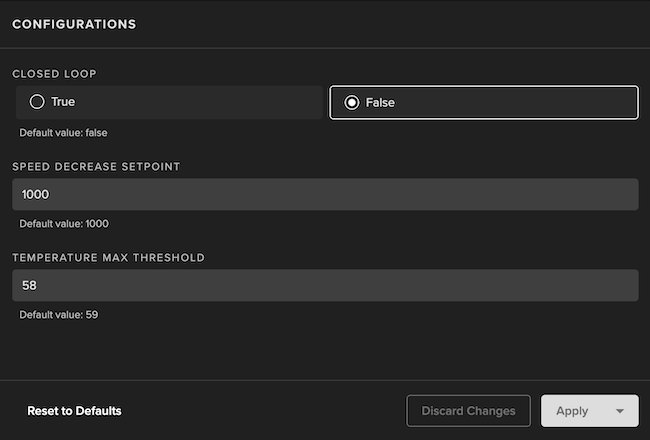
Which will be displayed on the Kelvin UI as:
Final app.yaml
Your final app.yaml file with Inputs, Outputs and Asset Parameters should look like:
info:
  description: Monitors if a motor is overheating. If so, it will send a Control Change/Recommendation to reduce the Motor Speed.
  name: event-detection
  title: Event Detection
  version: 1.0.0

spec_version: 4.12.0

app:
  type: kelvin
  kelvin:
    inputs:
    - data_type: number
      name: motor_temperature

    outputs:
    - name: motor_speed_set_point
      data_type: number
      control_change: true

    parameters:
    - name: closed_loop
      data_type: boolean
      default:
        value: false
      schema:
        title: "Closed Loop"
    - name: speed_decrease_set_point
      data_type: number
      default:
        value: 1000
      schema:
        title: "Speed Decrease SetPoint"
        minimum: 1000
        maximum: 3000
    - name: temperature_max_threshold
      data_type: number
      default:
        value: 59
      schema:
        title: "Temperature Max Threshold"
        minimum: 50
        maximum: 100

    language:
      python:
        entry_point: kelvin_python_sdk
      type: python

system:
  environment_vars:
    - name: KELVIN_GW_MODE
      value: SOCKETS
Next, we’ll proceed to the Python code.
Python Code
The main.py file defines the code that will be executed by the Kelvin SmartApp™. In the case of the Event Detection SmartApp we want the code to be like this:
import asyncio
from typing import AsyncGenerator
from datetime import timedelta

from kelvin.application import KelvinApp, filters
from kelvin.message import Number, ControlChange, Recommendation
from kelvin.krn import KRNAssetDataStream, KRNAsset


async def main() -> None:
    app = KelvinApp()
    await app.connect()

    # Create a Filtered Stream with Temperature (Number) Input Messages
    motor_temperature_msg_stream: AsyncGenerator[Number, None] = app.stream_filter(filters.input_equals("motor_temperature"))

    # Wait & Read new Temperature Inputs
    async for motor_temperature_msg in motor_temperature_msg_stream:
        asset = motor_temperature_msg.resource.asset
        value = motor_temperature_msg.payload

        print(f"\nReceived Motor Temperature | Asset: {asset} | Value: {value}")

        # Check if the Temperature is above the Max Threshold
        if value > app.assets[asset].parameters["temperature_max_threshold"]:

            # Build Control Change Object
            control_change = ControlChange(
                resource=KRNAssetDataStream(asset, "motor_speed_set_point"),
                payload=app.assets[asset].parameters["speed_decrease_set_point"],
                expiration_date=timedelta(minutes=10)
            )

            if app.assets[asset].parameters["closed_loop"]:
                # Publish Control Change
                await app.publish(control_change)

                print(f"\nPublished Motor Speed SetPoint Control Change: {control_change.payload}")
            else:
                # Build and Publish Recommendation
                await app.publish(
                    Recommendation(
                        resource=KRNAsset(asset),
                        type="decrease_speed",
                        control_changes=[control_change]
                    )
                )

                print(f"\nPublished Motor Speed SetPoint (Control Change) Recommendation: {control_change.payload}")


if __name__ == "__main__":
    asyncio.run(main())
Code Explanation
This script establishes a connection to the Kelvin system and sets up a Python Async Generator (Stream) to listen for motor_temperature messages. The script continuously monitors incoming motor temperature data and reacts according to predefined parameters.
-
Temperature Monitoring: The script listens for motor temperature messages via an asynchronous stream.
-
Threshold Check: Upon receiving a temperature message, the script compares the temperature value (payload) to a predefined threshold, specified by the temperature_max_threshold Asset Parameter.
-
Control Action: If the received temperature exceeds the temperature_max_threshold, the script triggers an action based on the closed_loop parameter:
-
closed_loop=True: The script sends a direct Control Change command to the Kelvin system to adjust the motor speed to the value specified by speed_decrease_set_point. -
closed_loop=False: The script sends a Recommendation to adjust the motor speed to the speed_decrease_set_point value, without making the change directly. This Recommendation will be shown on the Kelvin UI for users to accept or reject.
-
-
Continuous Operation: The Async Generator (Stream) operates in a loop, constantly checking for new motor temperature messages and applying the logic described above as needed.
Success
Congratulations! You have successfully created your Kelvin SmartApp™.
Next Step
Once you have successfully created your first SmartApp, it's crucial to test it locally to ensure it works as expected. Local testing allows you to catch and fix issues early, improving the quality and reliability of your app.
Let's now move on to testing this SmartApp.