Events in Data Explorer
On this page you will go through understanding how to view Events and turn them into Insights in the Data Explorer.
You can watch this short demo video on Events and Insights in the Data Explorer, or read the full written guide below.
Overview
Events are the occurrences that the platform has detected on your Assets and identified as noteworthy based on the behavior of the Asset. You can read more about how events are detected in Events.
Every Event detected is shown in the Events lane in the Data Explorer. This allows you to quickly and visually see the Data Streams at the time the Event was detected.
Show or Hide the Events Lane
Click the Events icon in the Lanes control in the top right corner to show or hide the lane.
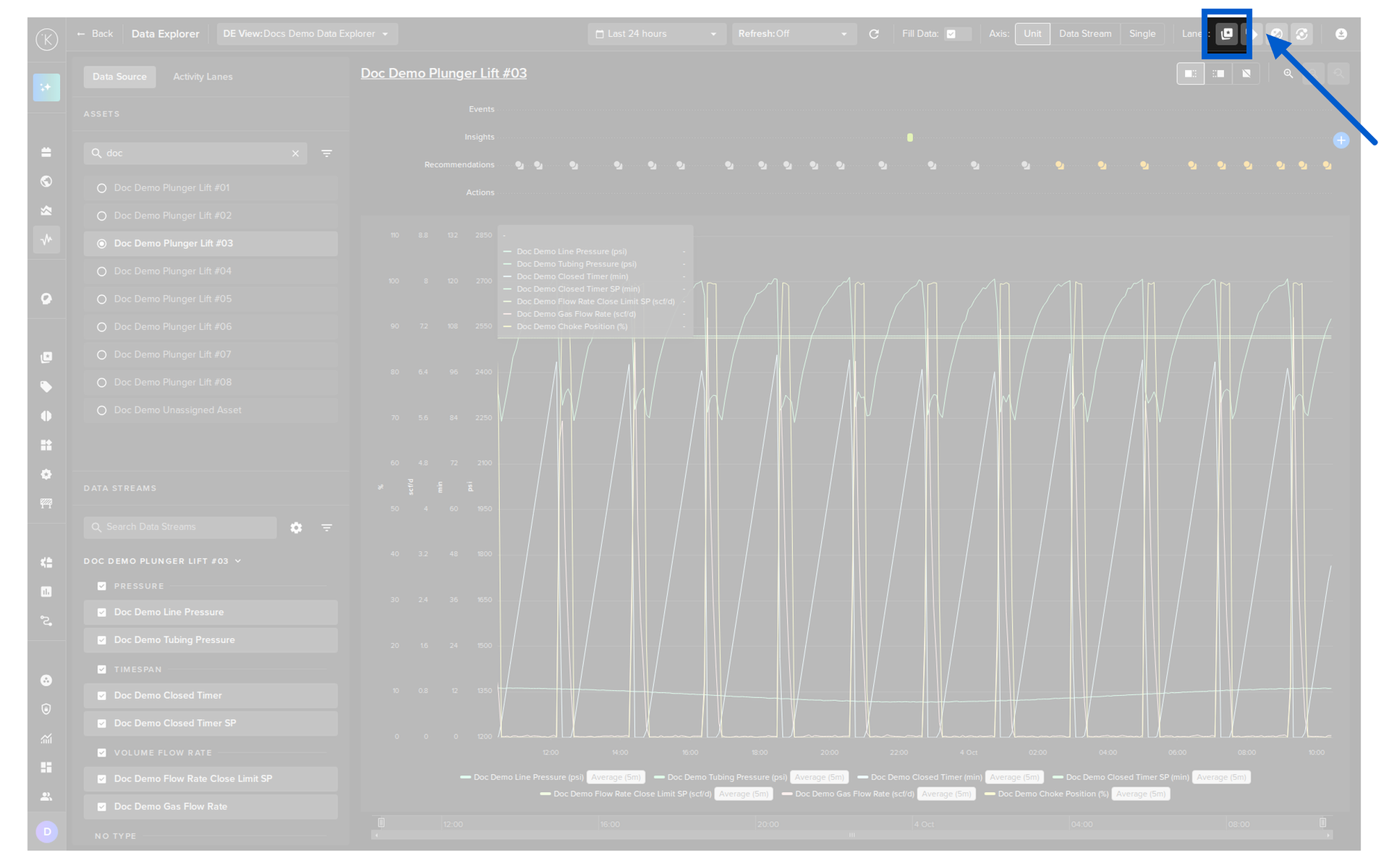
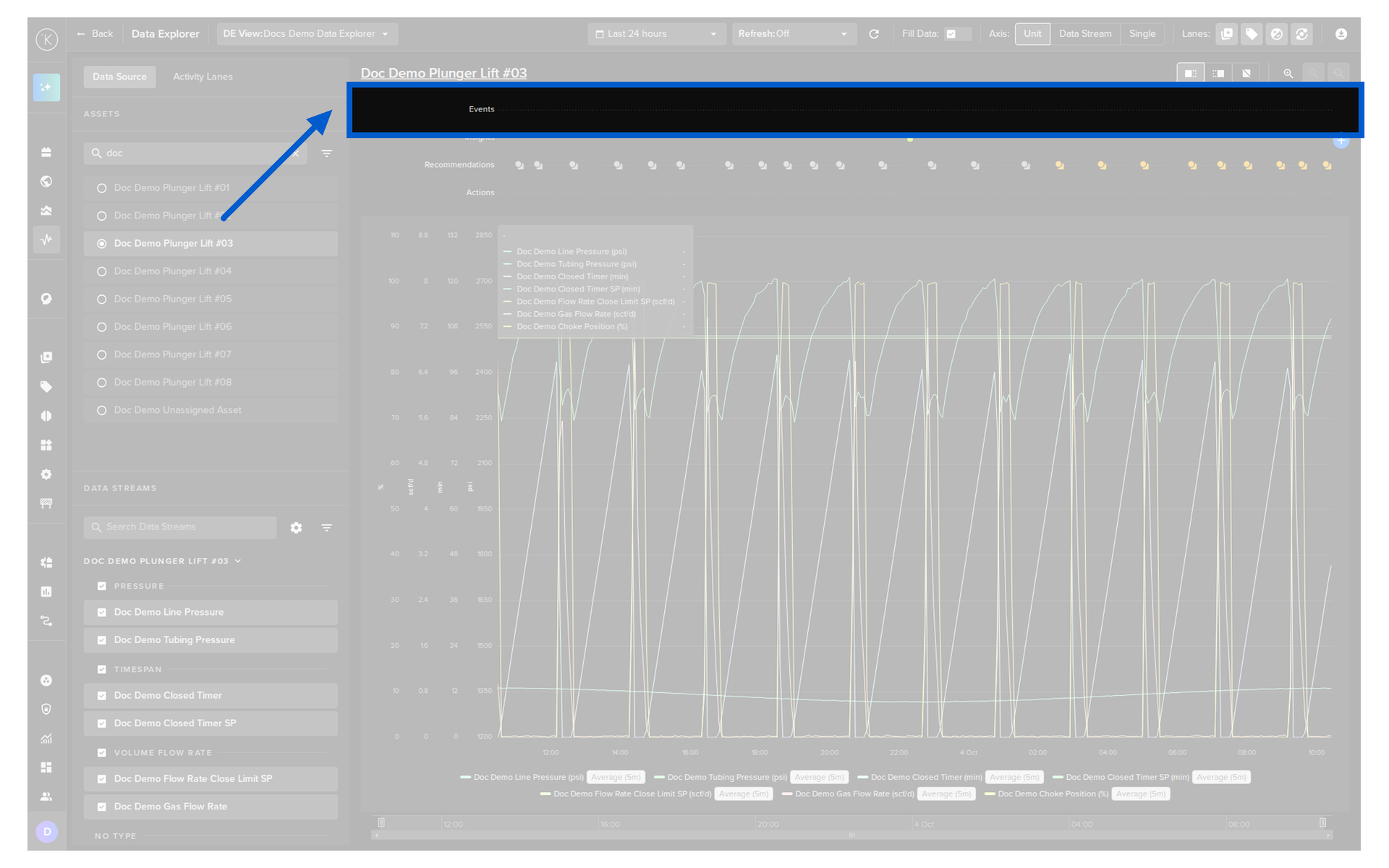
View Current and Past Events
Click the Activity Lanes tab in the left panel and select the Events option to see the current and past Events as a list of cards.
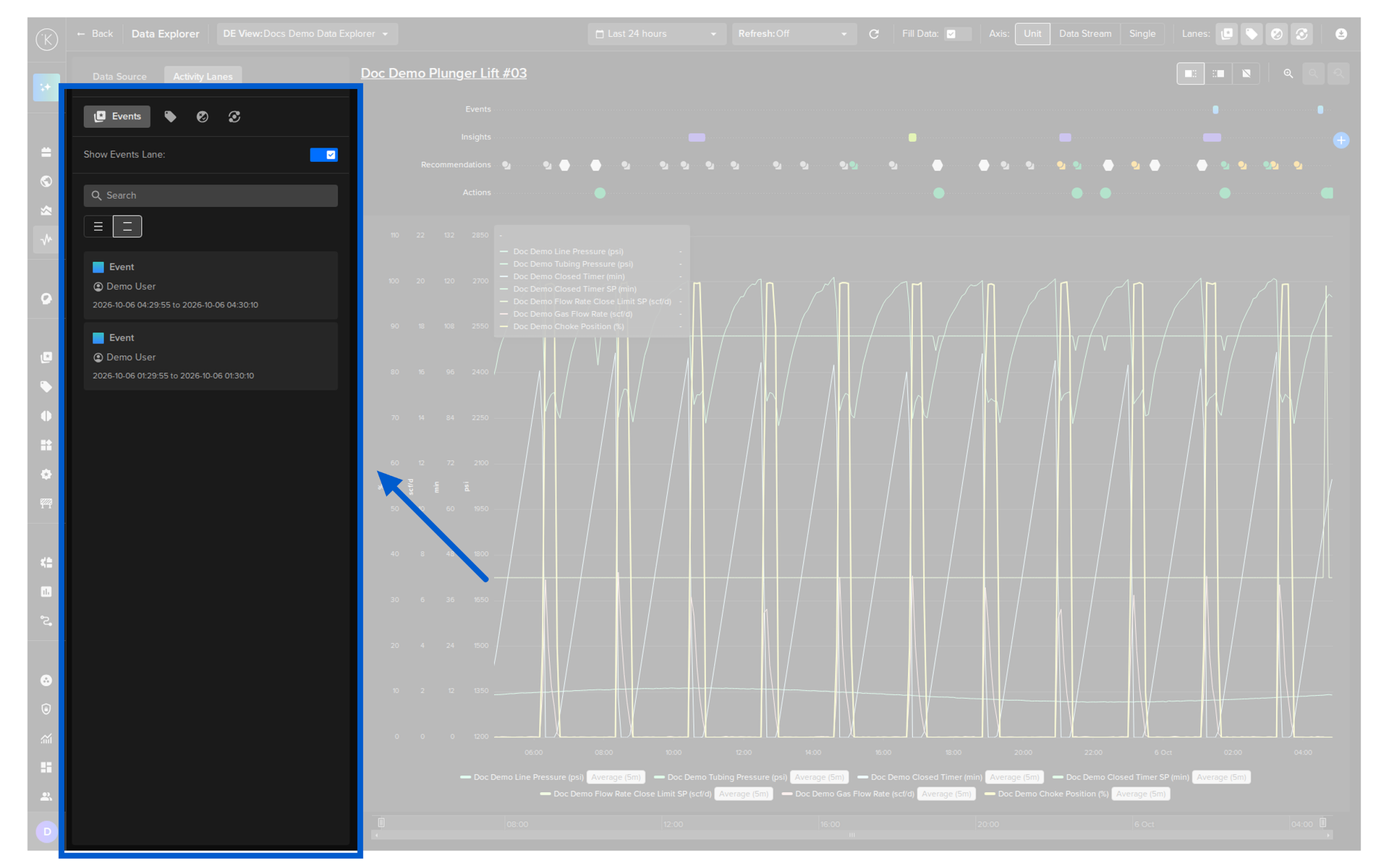
You can search the list and change the row size.
View the Details of an Event
Click a card in the list to open its details.
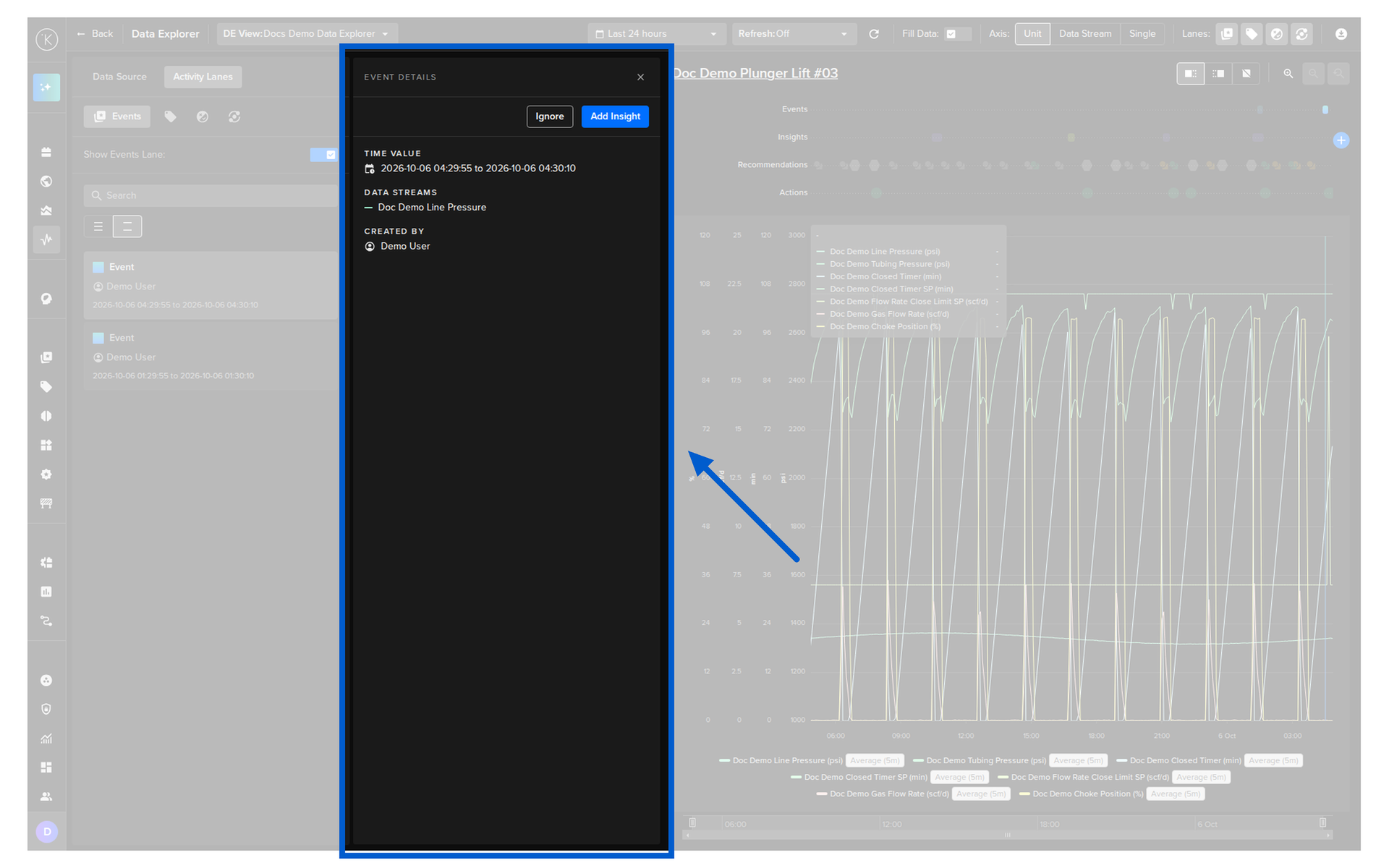
The details show the following information.
| Field | Description |
|---|---|
| Time Value | The time range of the Event. |
| Data Streams | The Data Streams related to the Event. |
| Created By | Who or what created the Event. |
Event to Insight
From the details of an Event you can decide what to do with it.
Ignore
Click the Ignore button to dismiss the Event.
The Event is removed from your list. If the same type of Event is detected again on the same Asset, it will appear in the list again.
Note
Read more about stopping Event types that are not relevant to your operation in Events.
Add Insight
If the Event is significant, click the Add Insight button to mark it as an Insight.
The Add Insight panel opens, see Add Insights.
Note
Read more about Insights in Insights in Data Explorer and the full workflow in Insights.