Insight Types Overview
On this page you will learn how to review Insight Types, and how to create, edit, and delete them.
An Insight Type is the name, color and Data Streams shared by all Insights of one kind, such as Motor Fail or Flushing. Every Insight belongs to an Insight Type.
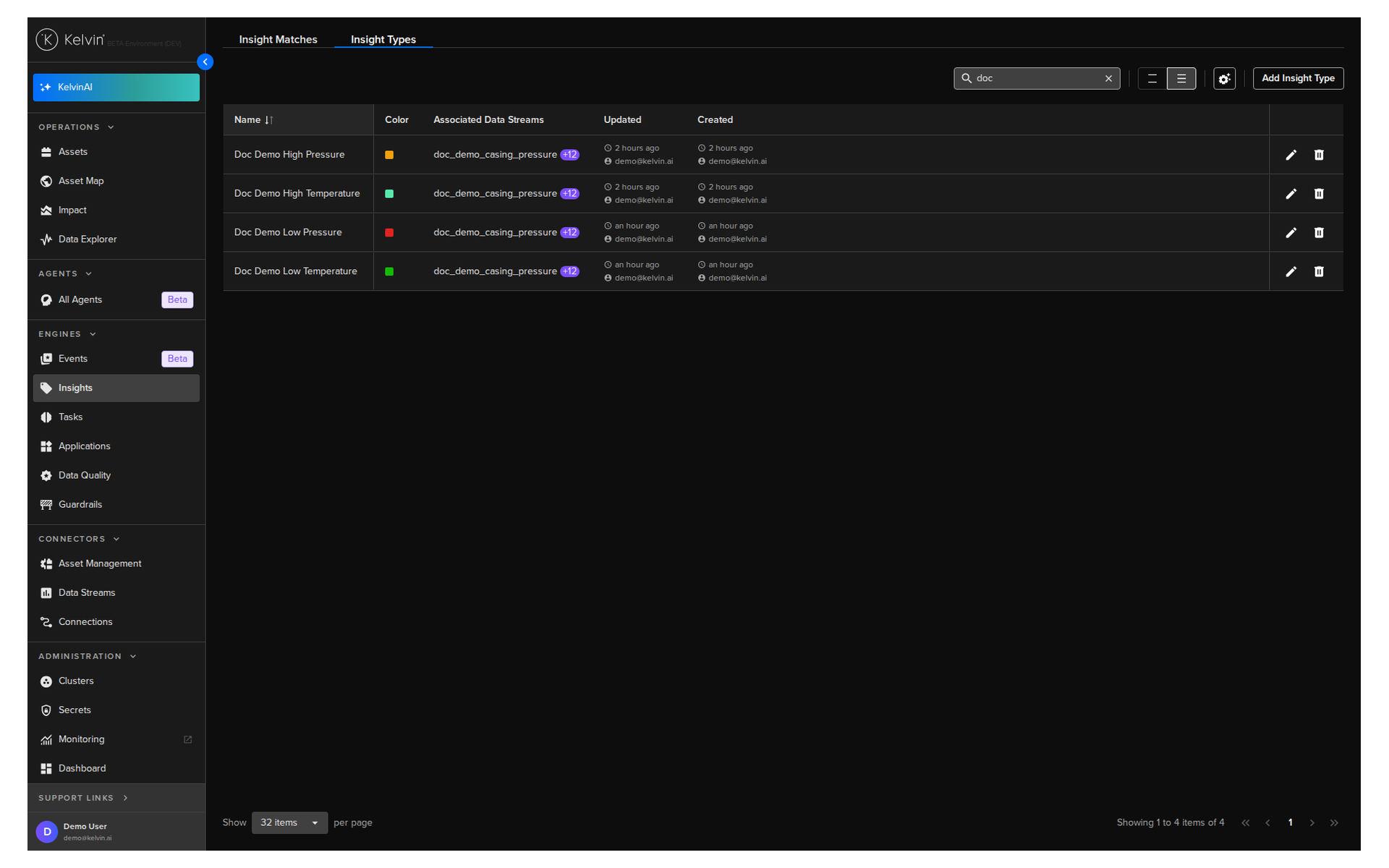
The Insight Types tab gives you a full view of every Insight Type on your Kelvin instance. Click the Insight Types tab next to Insight Matches.
Basic features
The Insight Types overview has the same features as the Insight Matches overview, plus the option to add a new Insight Type.
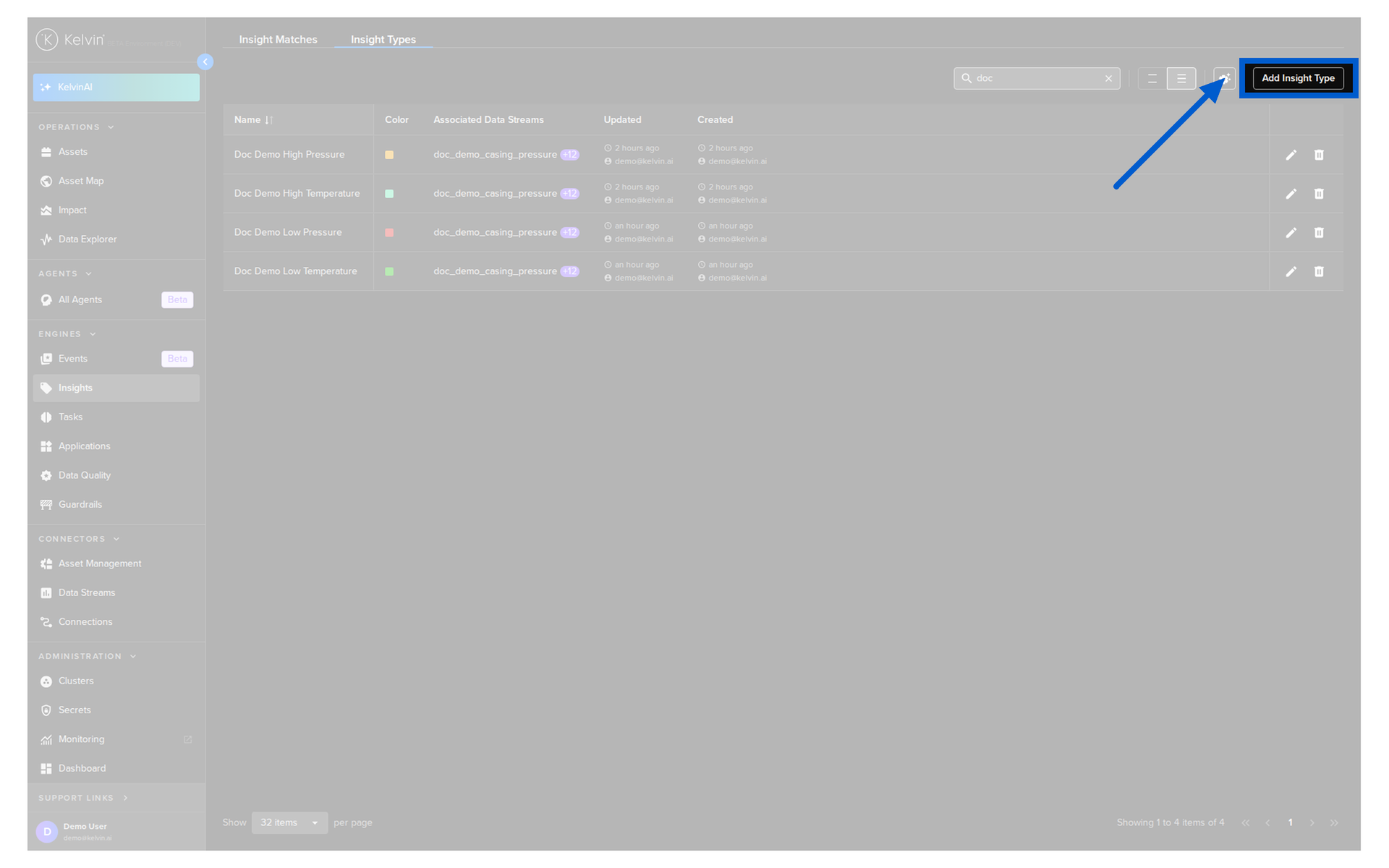
Click Add Insight Type to create a new Insight Type. Read more in Create Insight Type.
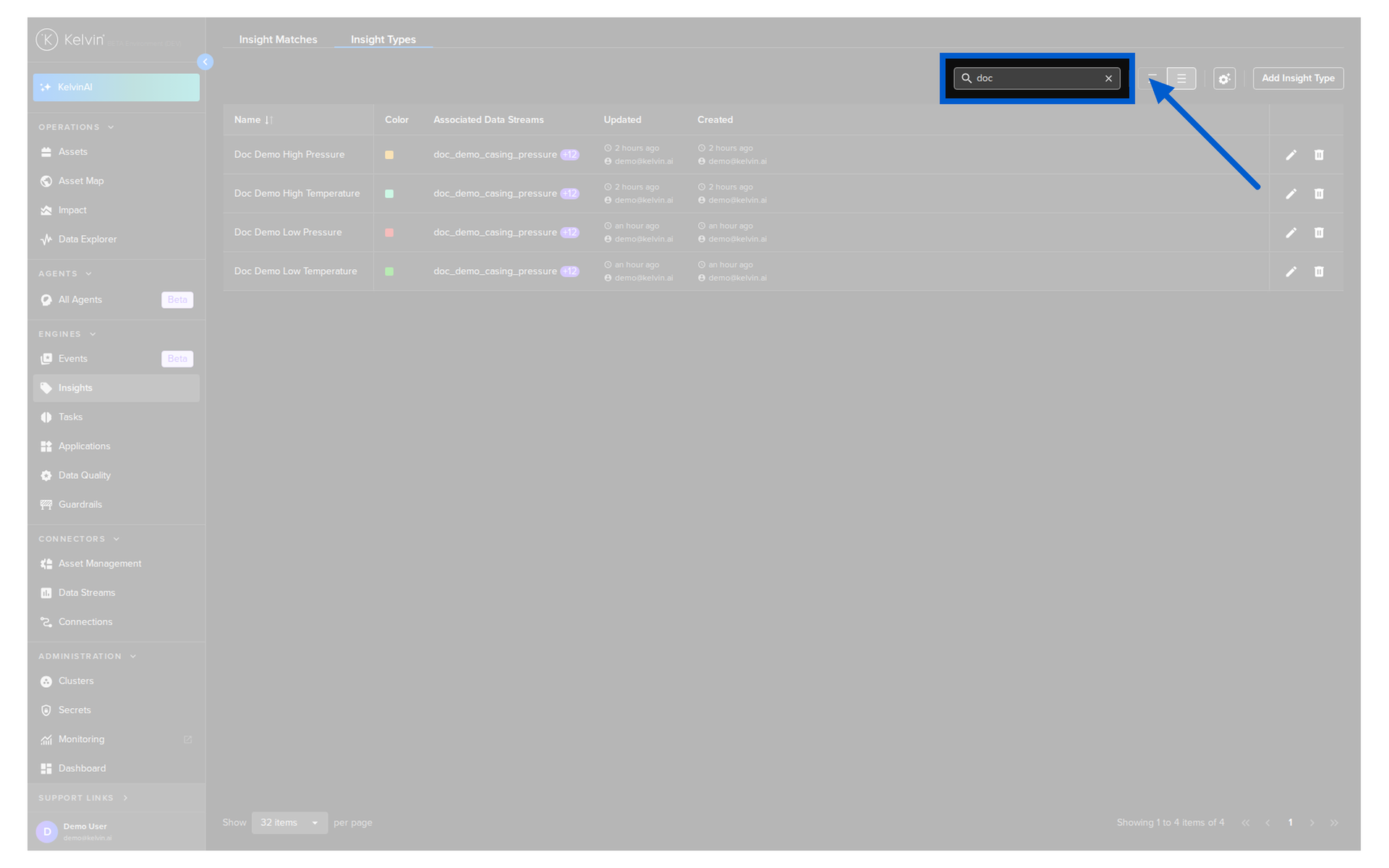
Use the search bar at the top right to find Insight Types by name. The list filters as you type.
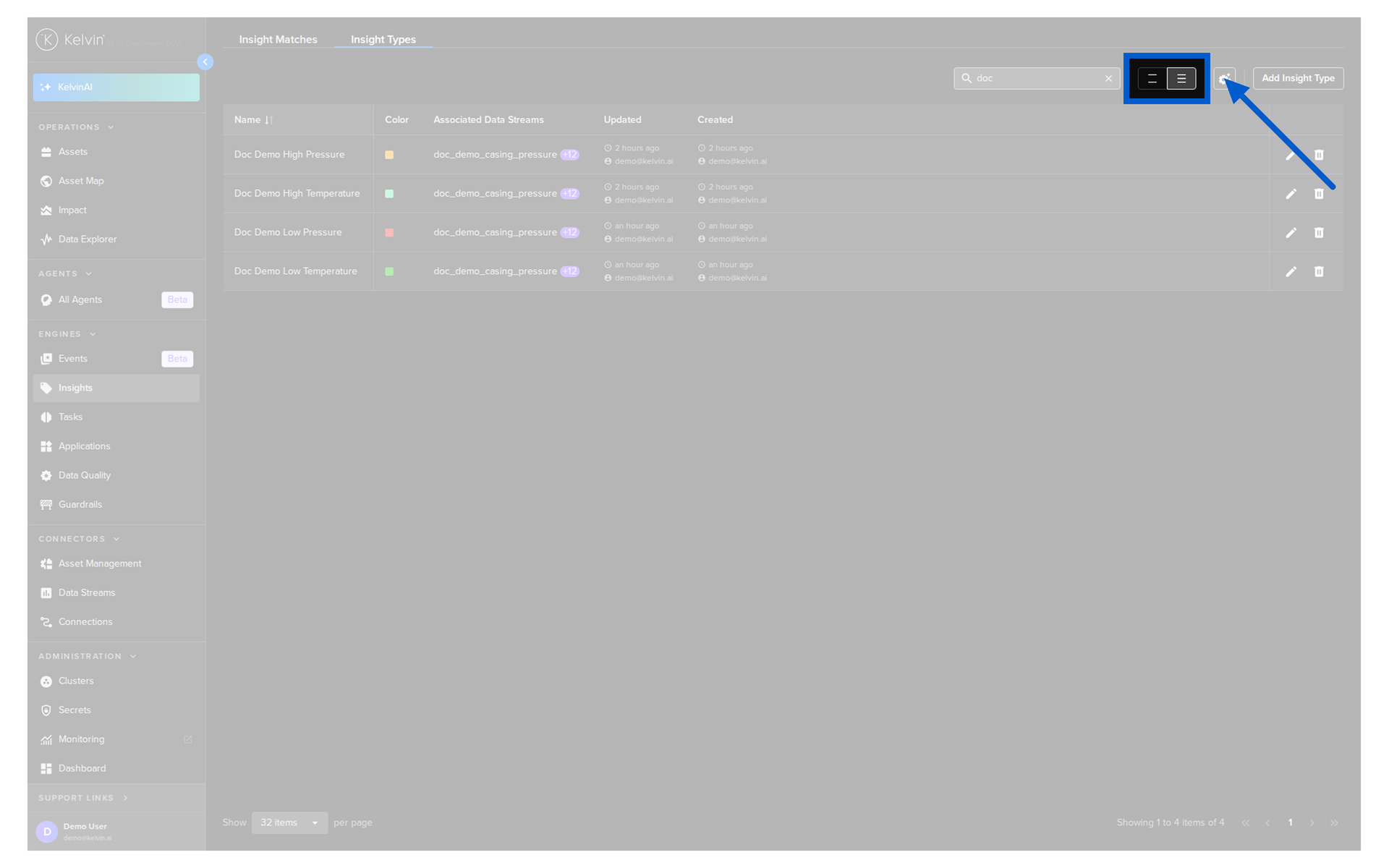
Use the row spacing control to adjust how compact or spaced out the rows appear.
The Insight Types table has a fixed set of columns.
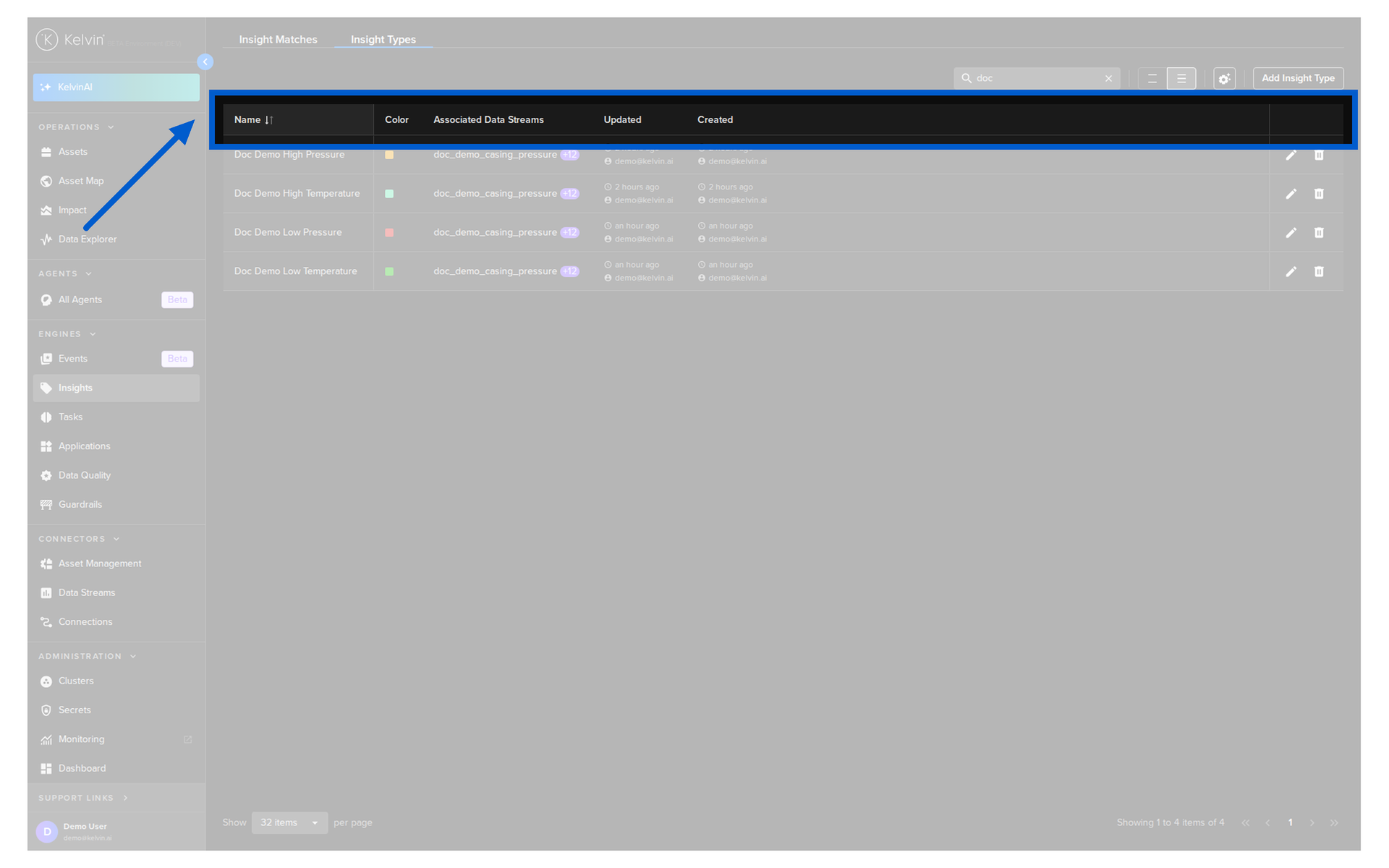
| Column | Description |
|---|---|
| Name | The name of the Insight Type. |
| Color | The color used for Insights of this type in the Data Explorer and asset tables. |
| Data Streams | The Data Streams associated with the Insight Type. |
| Updated | When the Insight Type was last modified, and by whom. |
| Created | When the Insight Type was created. |
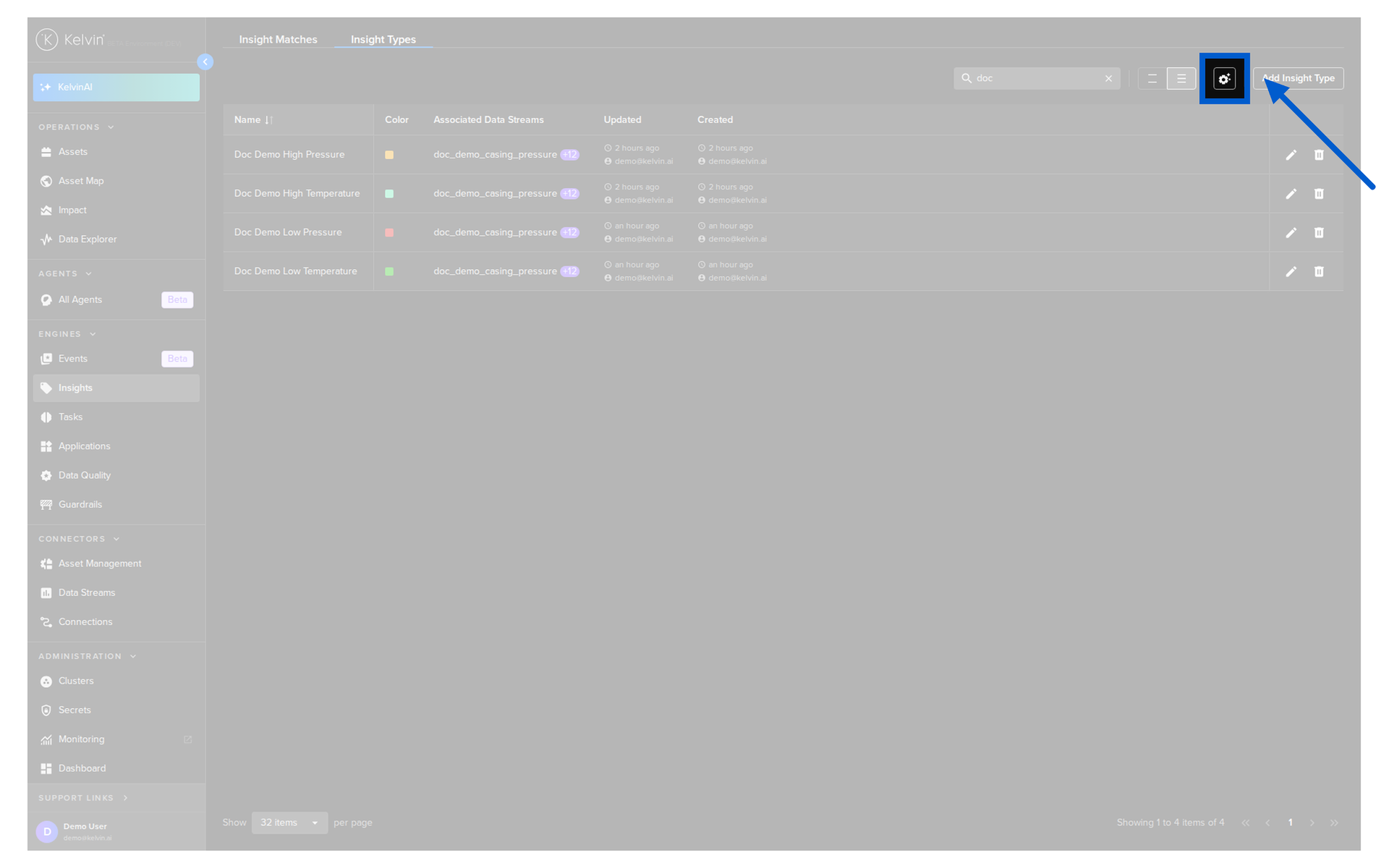
The table configuration icon in the top toolbar opens the same Table Configurations panel as in Insight Matches. You can reorder, freeze, hide, or show columns, but no custom columns can be added.
Create Insight Type
Click Add Insight Type. A popup asks for;
- Name of the Insight Type
- Data Streams associated with the Insight Type
- Color for the Insight Type
You can watch this short demo video or read the full step-by-step written tutorial below.
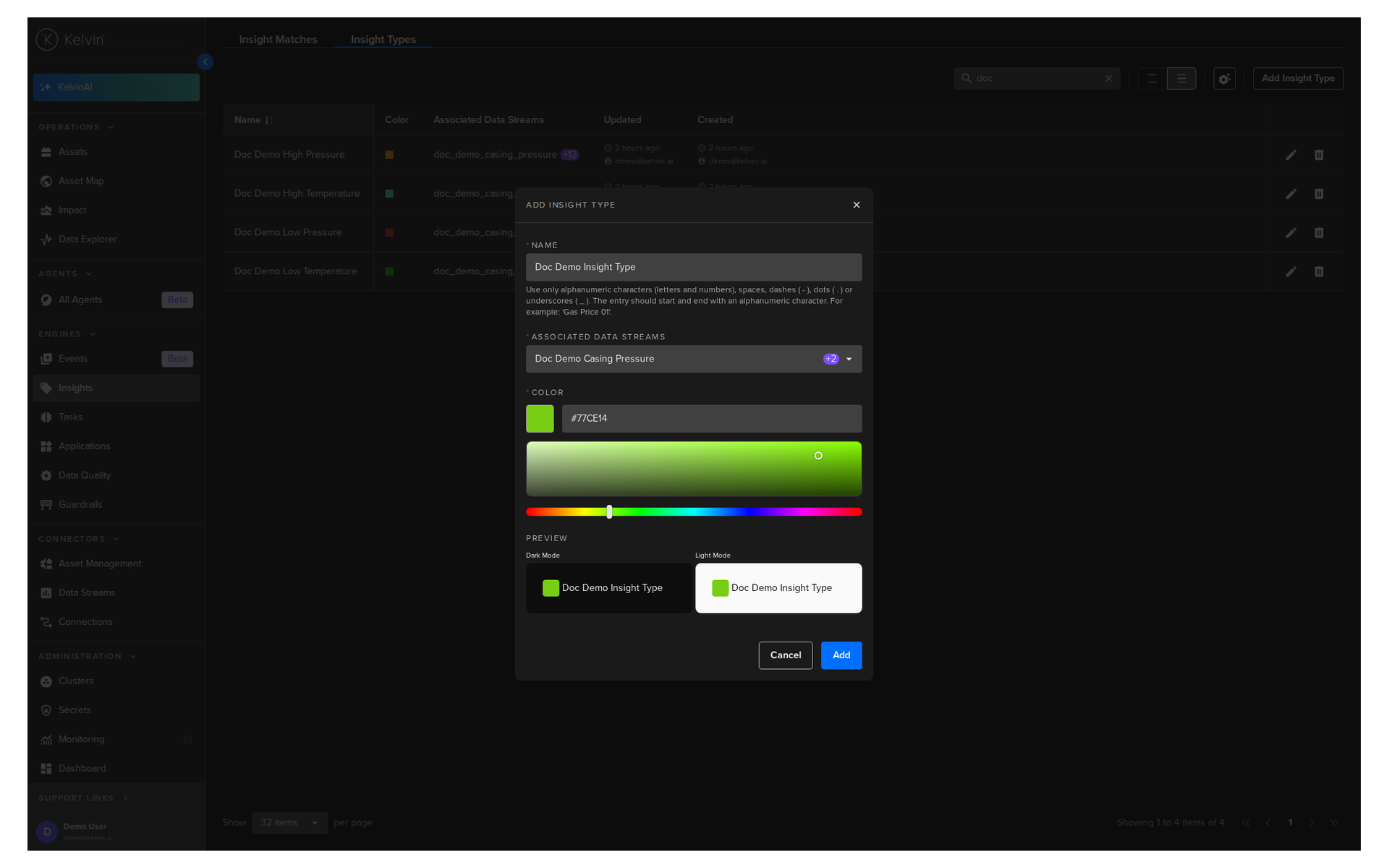
Choose the color with the color picker.
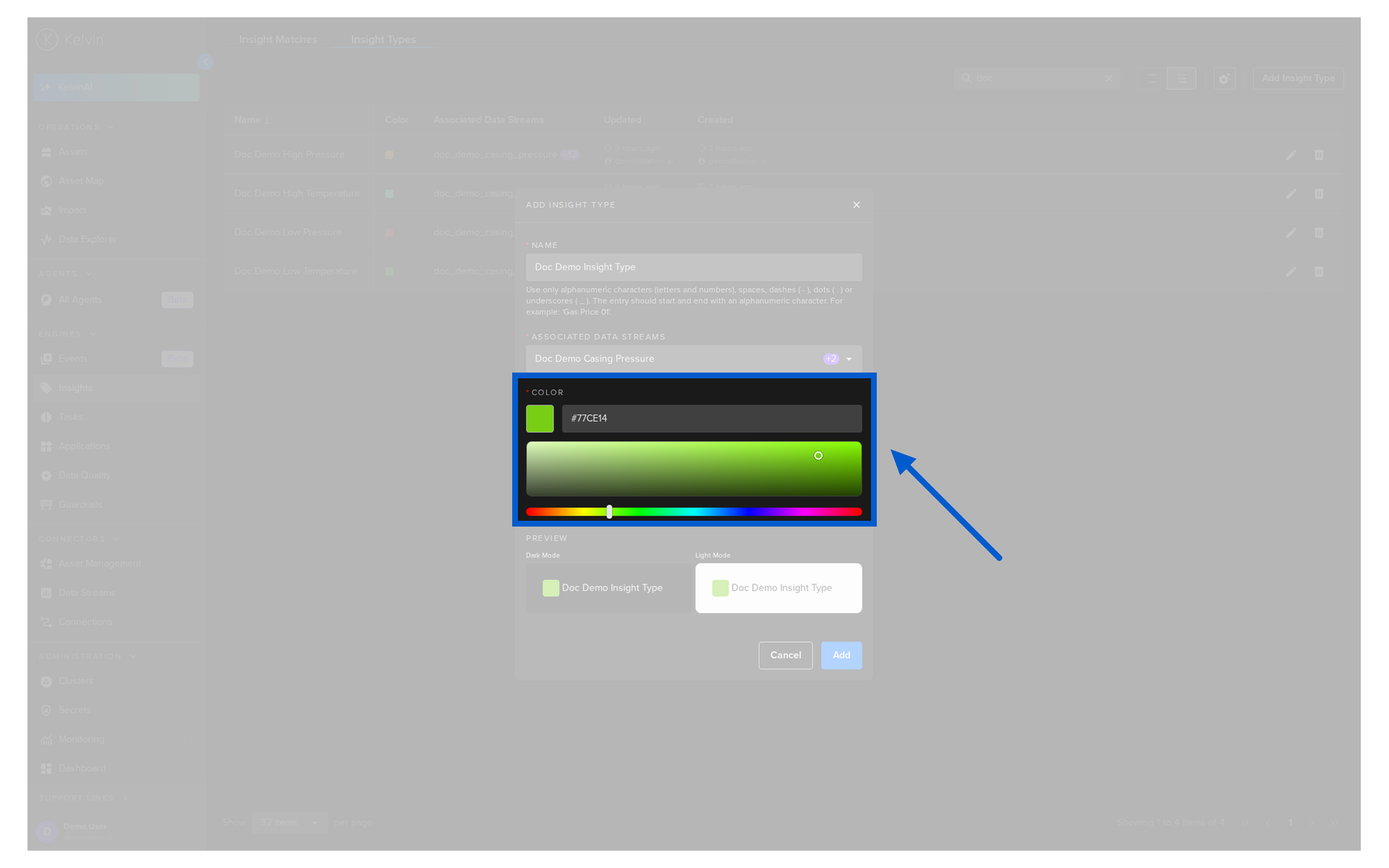
Click Add to create the Insight Type.
Edit Insight Type
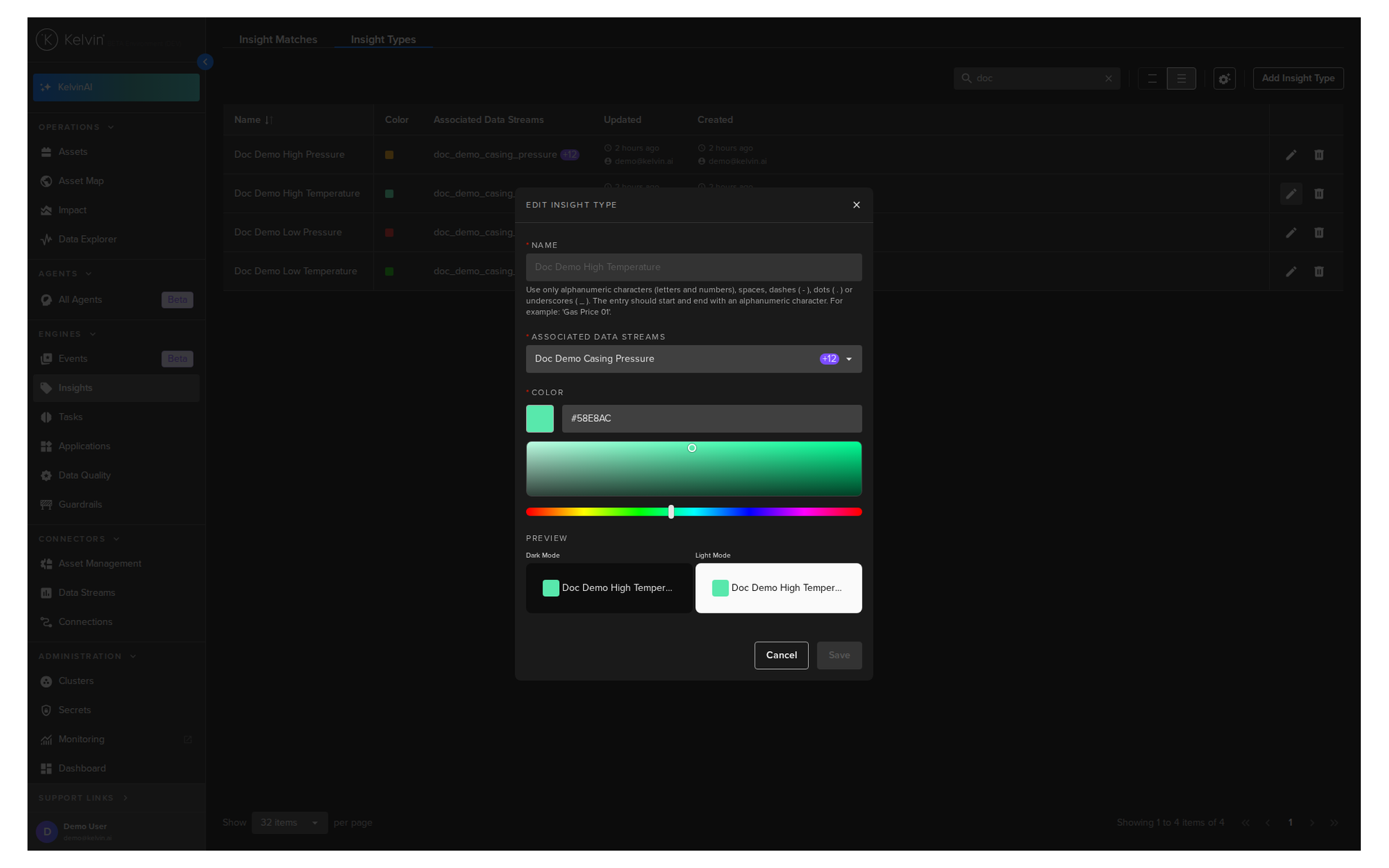
An Insight Type can be edited at any time to change its Data Streams and Color.
You can watch this short demo video or read the full step-by-step written tutorial below.
Note
The name is set when the Insight Type is created and can not be changed.
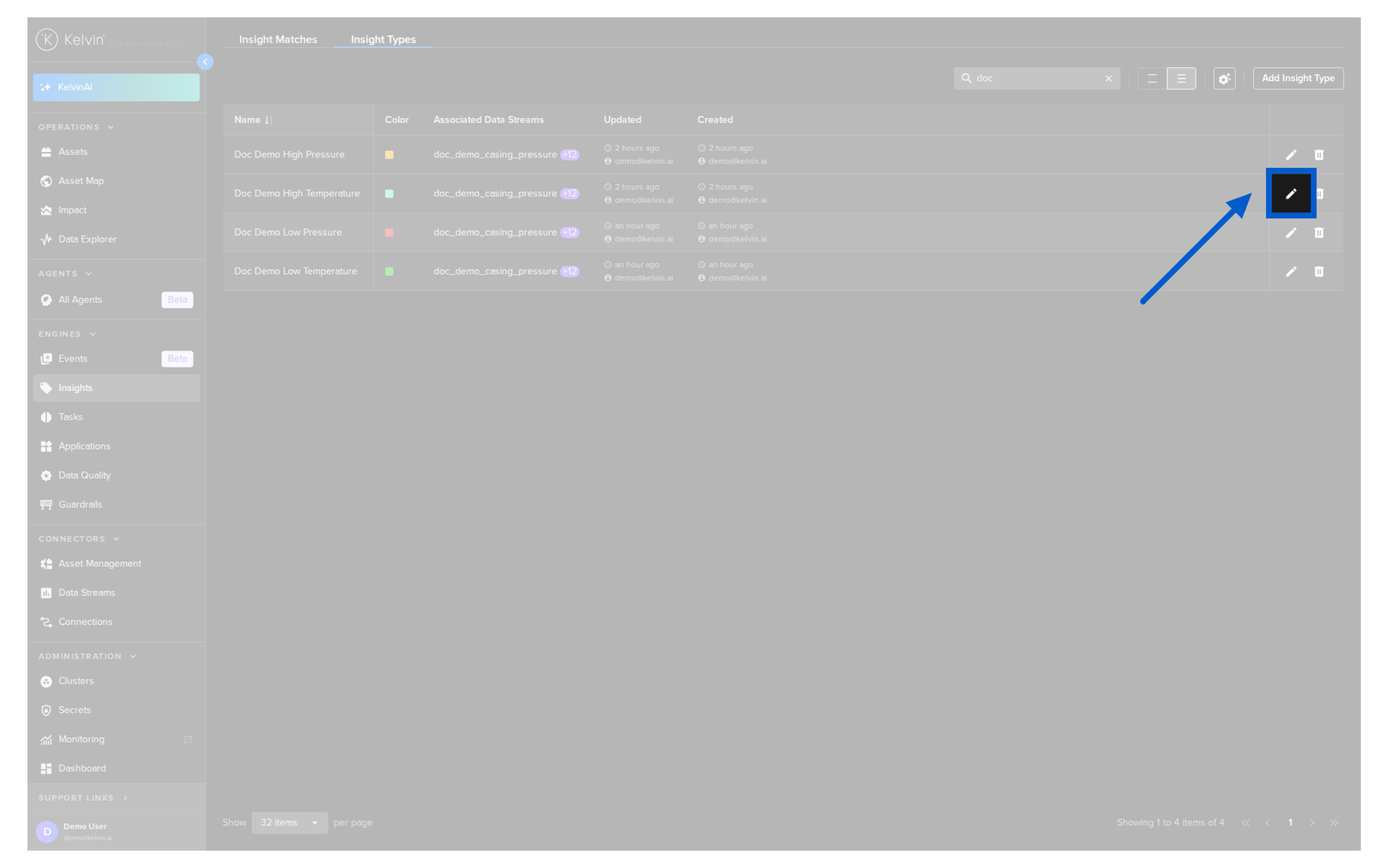
Click the edit icon in the row.
Change the Data Streams or Color in the popup and click Save.
Delete Insight Type
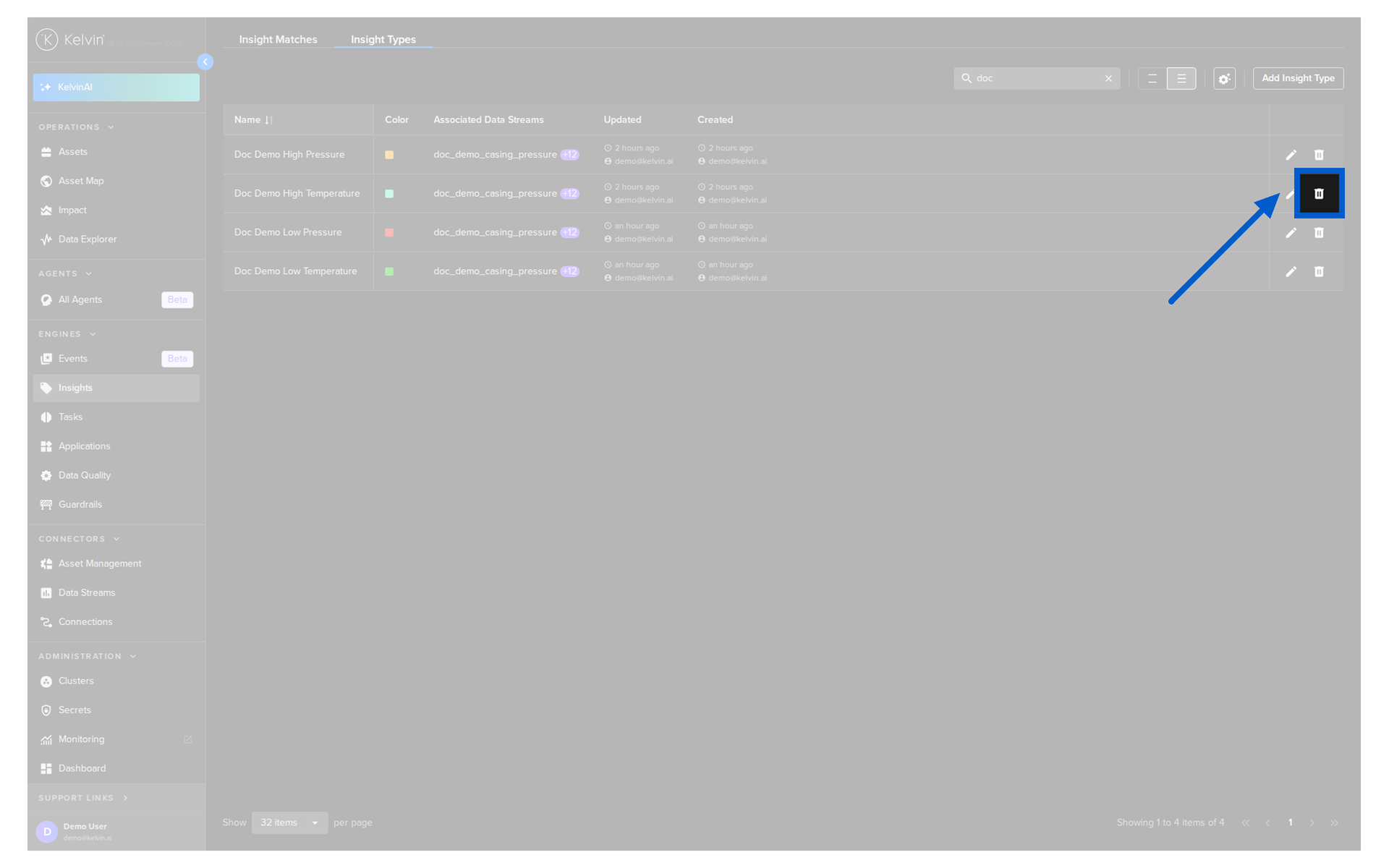
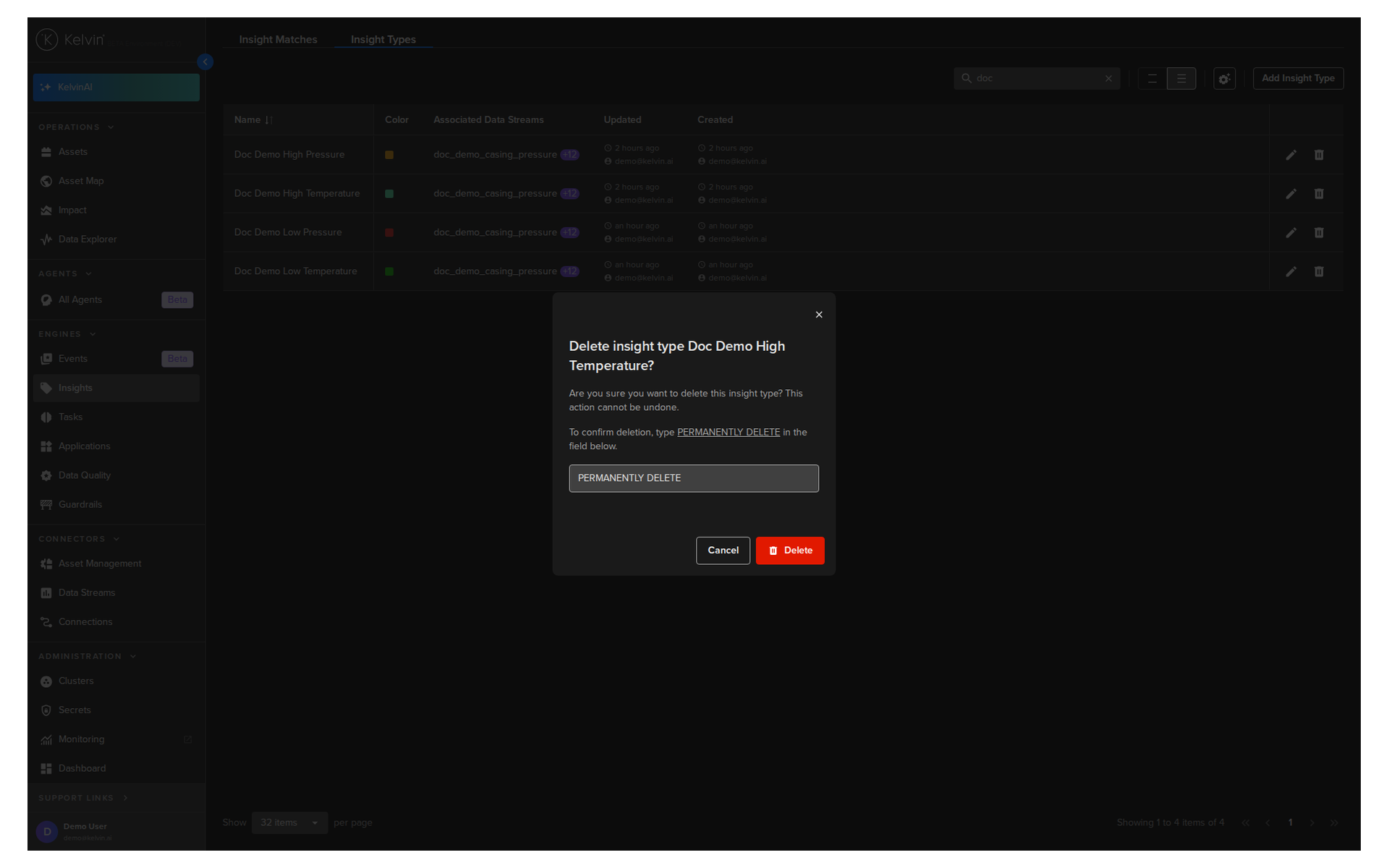
To delete an Insight Type click on the delete icon in the row and confirm with PERMANENTLY DELETE.
You can watch this short demo video or read the full step-by-step written tutorial below.
Note
An Insight Type that is still used by Insights can not be deleted.