Click on the Secrets menu under Orchestration.
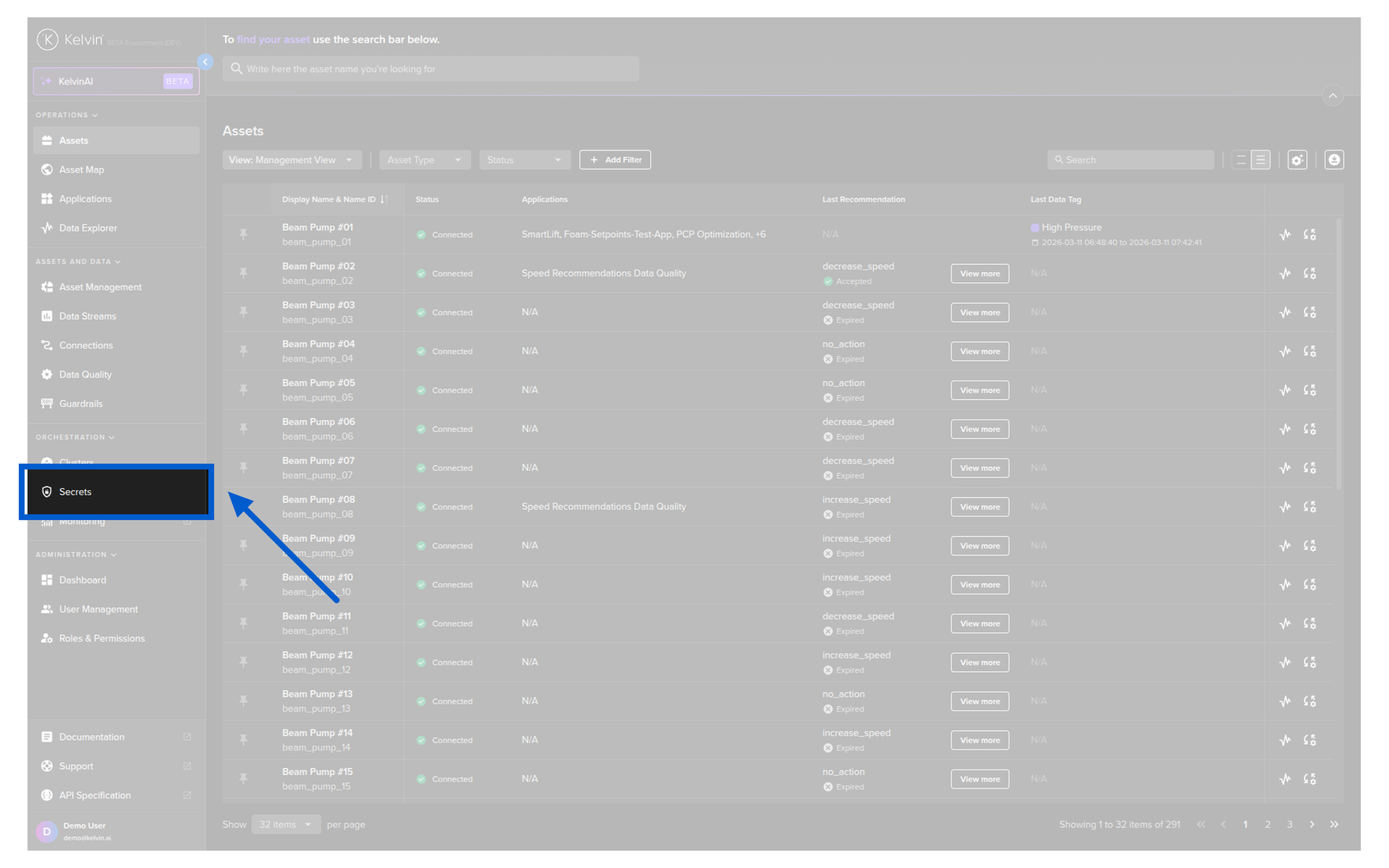
Click on the Add Secret button in the top right corner.
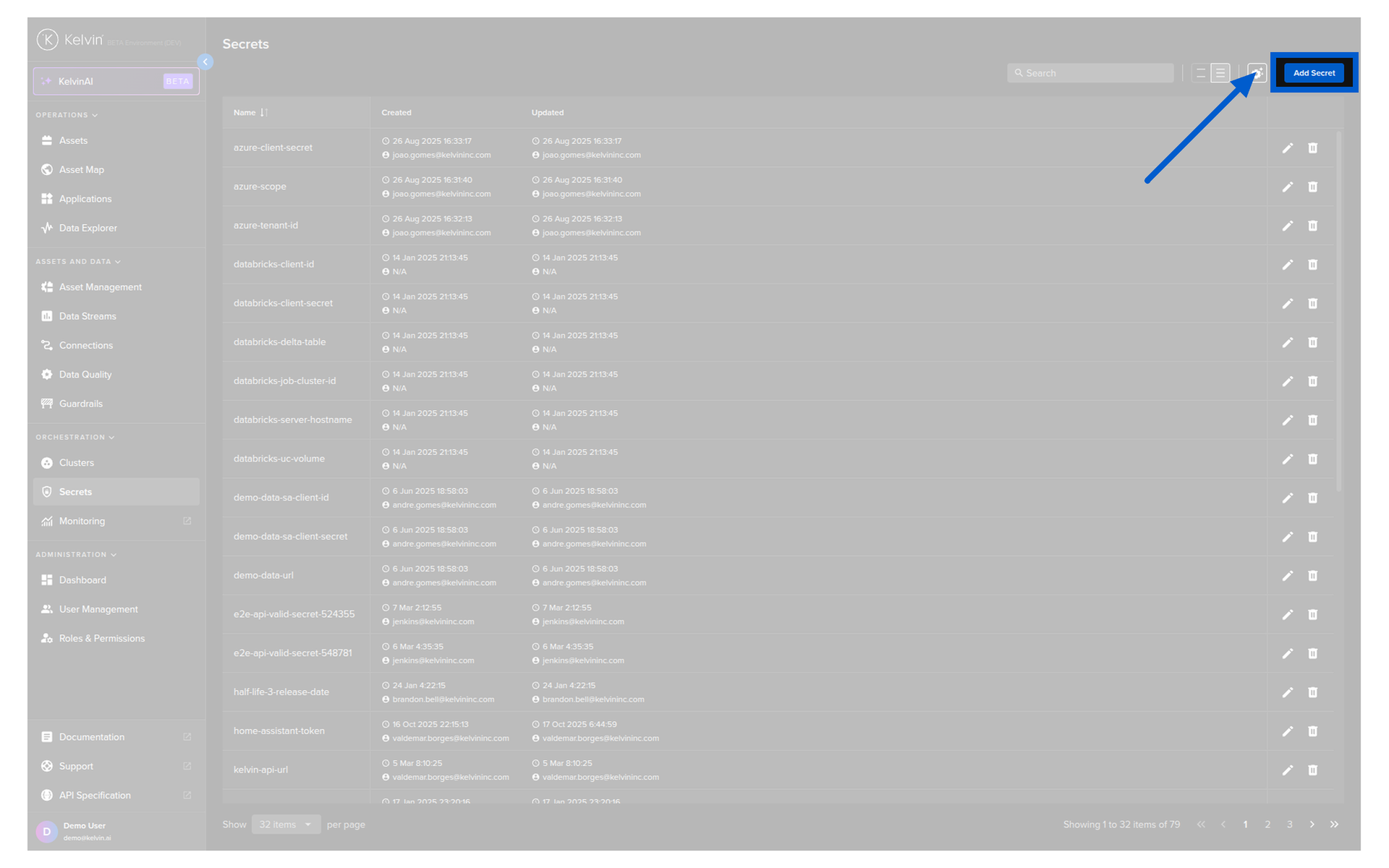
Give your Secret a name which you will reference in your Application and a value.
Then click the Add button to save it.
Warning
You will not see the secret again, so make sure you type it correctly.
You can update the value with a new one, but you will not be able to see the original value.
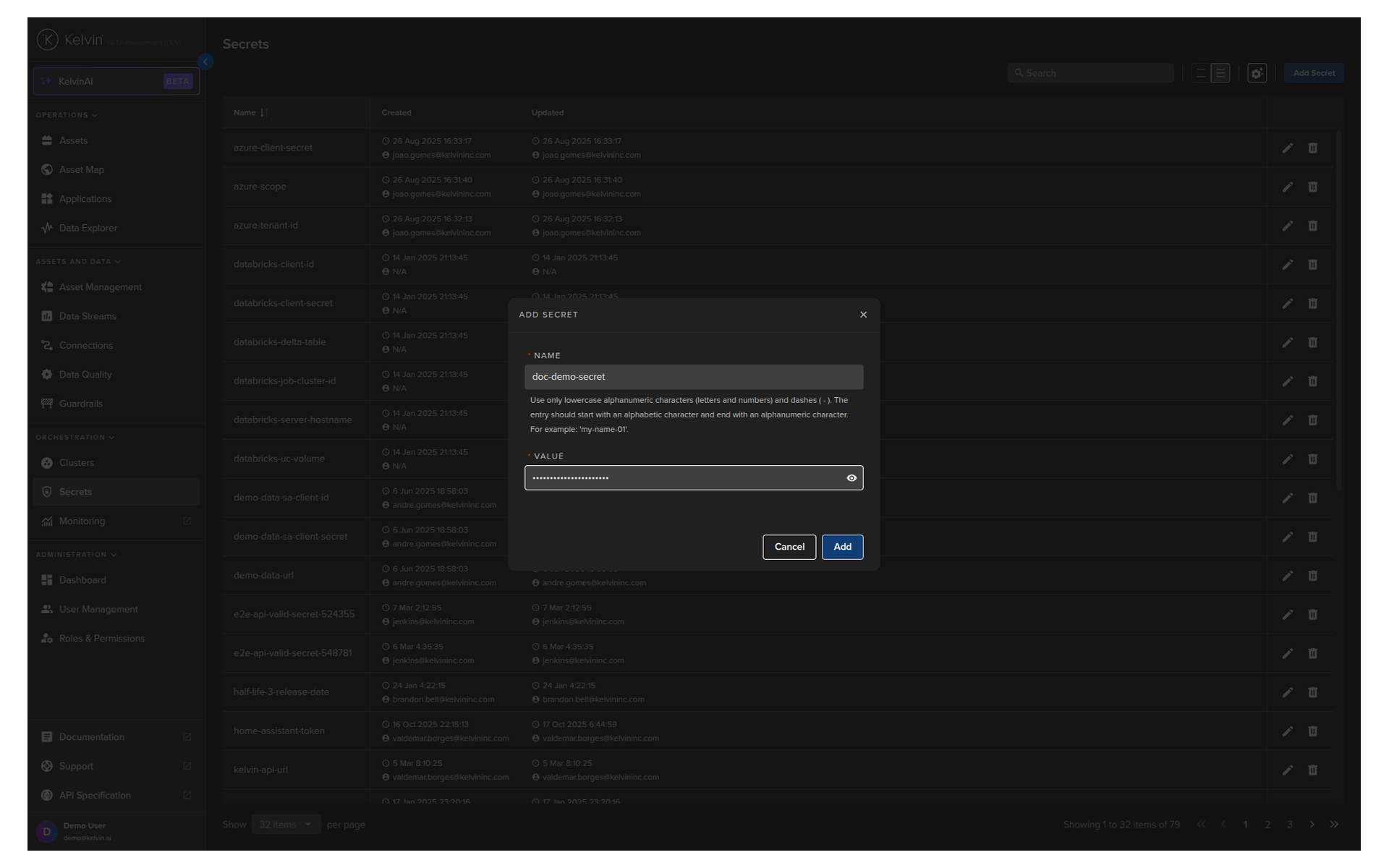
You will then see your new secret listed.
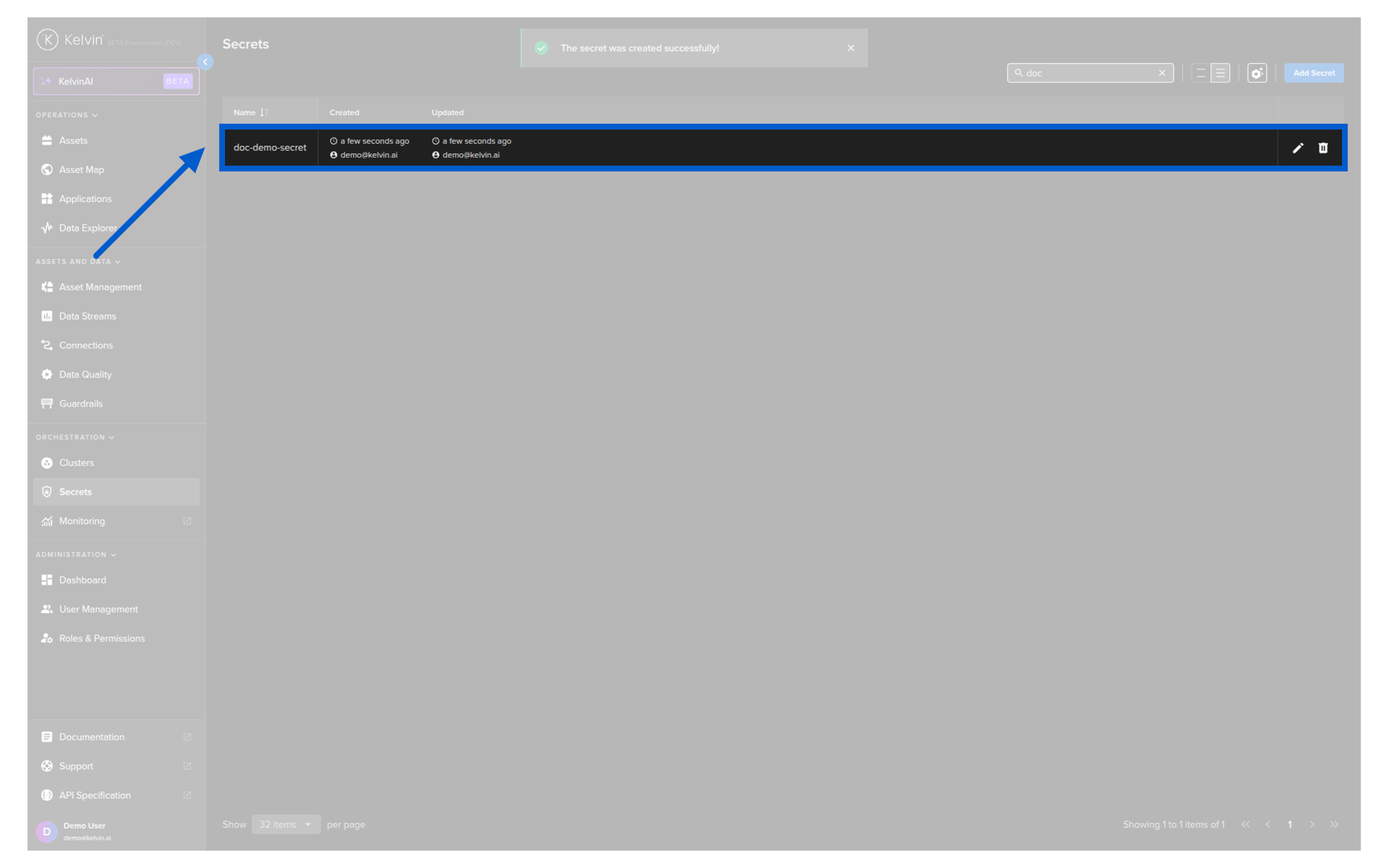
Congratulations, you now have created a new secret variable.
| API cURL Example |
|---|
| curl -X "POST" \
"https://<url.kelvin.ai>/api/v4/secrets/create" \
-H "Authorization: Bearer <Your Current Token>" \
-H "Accept: application/json" \
-H "Content-Type: application/json" \
-d '{
"name": "demosecret",
"value": "This is a really big secret!"
}'
|
The response will look like this;
| API cURL Example Response |
|---|
| |
| API Client (Python) Example |
|---|
| from kelvin.api.client import Client
# Login
client = Client(url="https://<url.kelvin.ai>", username="<your_username>")
client.login(password="<your_password>")
# Create Secret
response = client.secret.create_secret(data={
"name": "demosecret",
"value": "This is a really big secret!"
}
)
print(response)
|
You will see the output like this;
| API Client (Python) Example Response |
|---|
| name='demosecret' created=datetime.datetime(2025, 11, 24, 7, 40, 35, 179577, tzinfo=TzInfo(UTC)) created_by='krn:user:example@kelvin.ai' updated=datetime.datetime(2025, 11, 24, 7, 40, 35, 179577, tzinfo=TzInfo(UTC)) updated_by='krn:user:example@kelvin.ai'
|
| Kelvin SDK Command Line Example |
|---|
| kelvin secret create demosecret --value="This is a really big secret!"
|
If everything went well you will get the confirmation response like this;
| Kelvin SDK Command Line Output |
|---|
| [kelvin.sdk][2025-03-19 20:00:45][I] Creating secret "demosecret" on the platform
|