Skip to content

Insights Beta

Beta Release

Insights is currently in beta. Improvements and new capabilities will continue to be added quickly with each new release.

On this page you will learn how to capture an Insight from a detected event, search for similar historical patterns, and review the results.

Overview

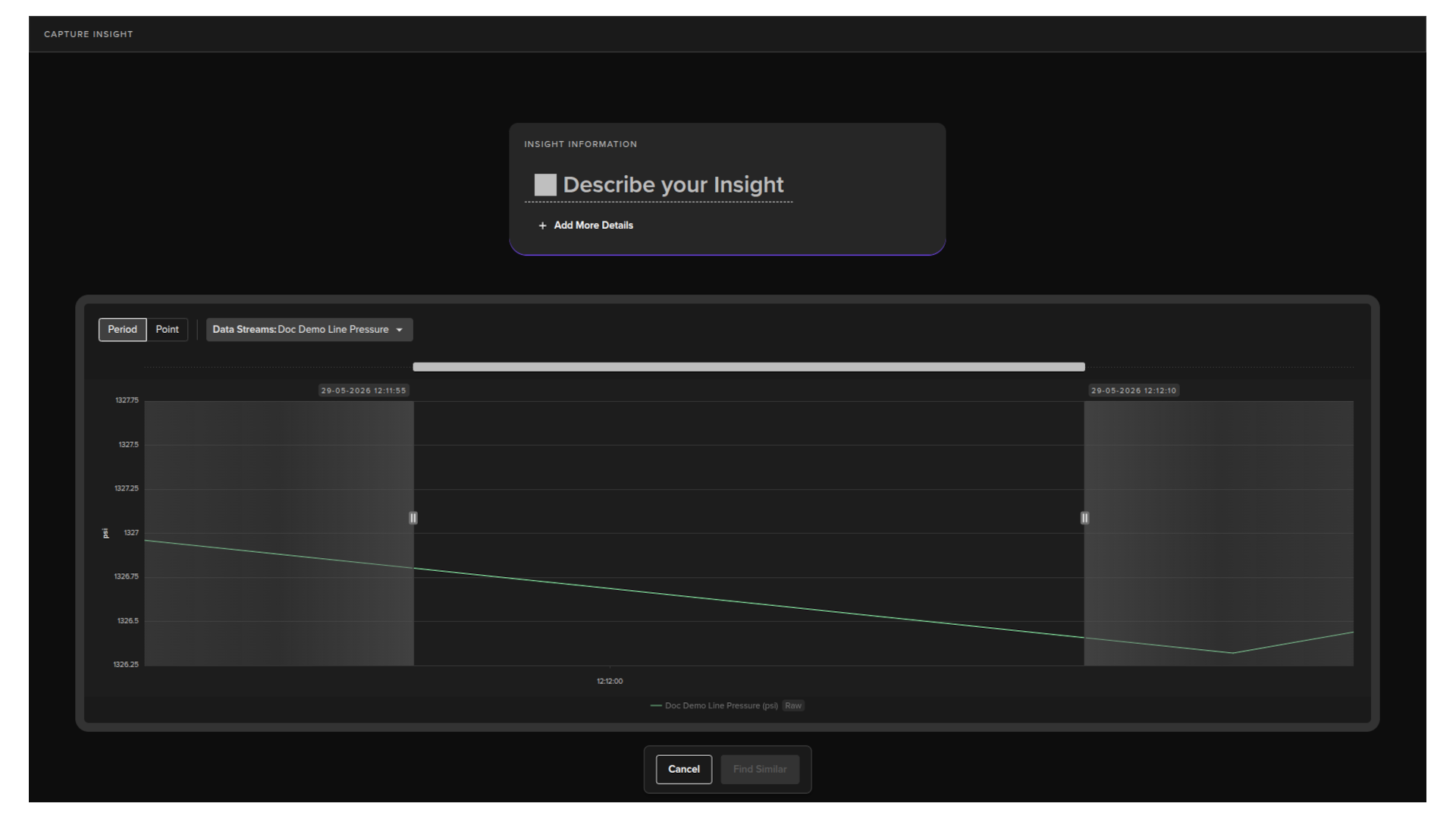
The Capture Insight page opens immediately after you click Add Insight on an event card.

This is where you give the event meaning. You name it, describe it, choose whether it represents a period of time or a single point, and confirm which data streams are relevant.

Once captured, the platform searches for similar historical patterns across your assets so you can build up a picture of the event before deciding what to do next.
Name your Insight

In the Describe your Insight field, type a name for this insight.
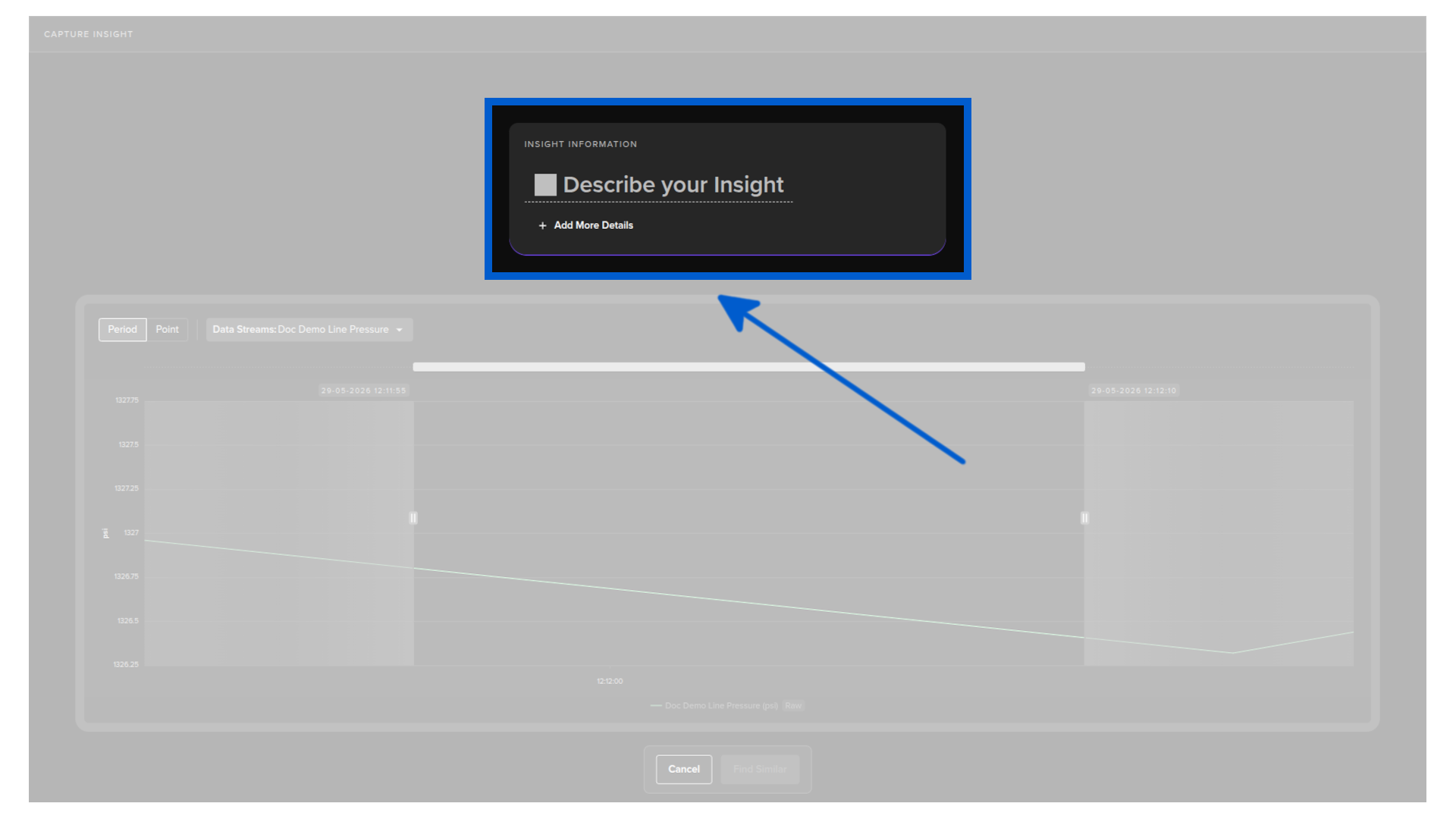
As you type, a list of existing insight names appears. If this event matches something you have already named before, select it from the list. If this is a new type of event, type a new name and click Create.

Note

Selecting an existing name in the Insights does not automatically associate it with the other Insights with the same name.

You will need to explicitly click on Accept in the next section when similar events are listed to connect similar patterns together for model detection improvement.
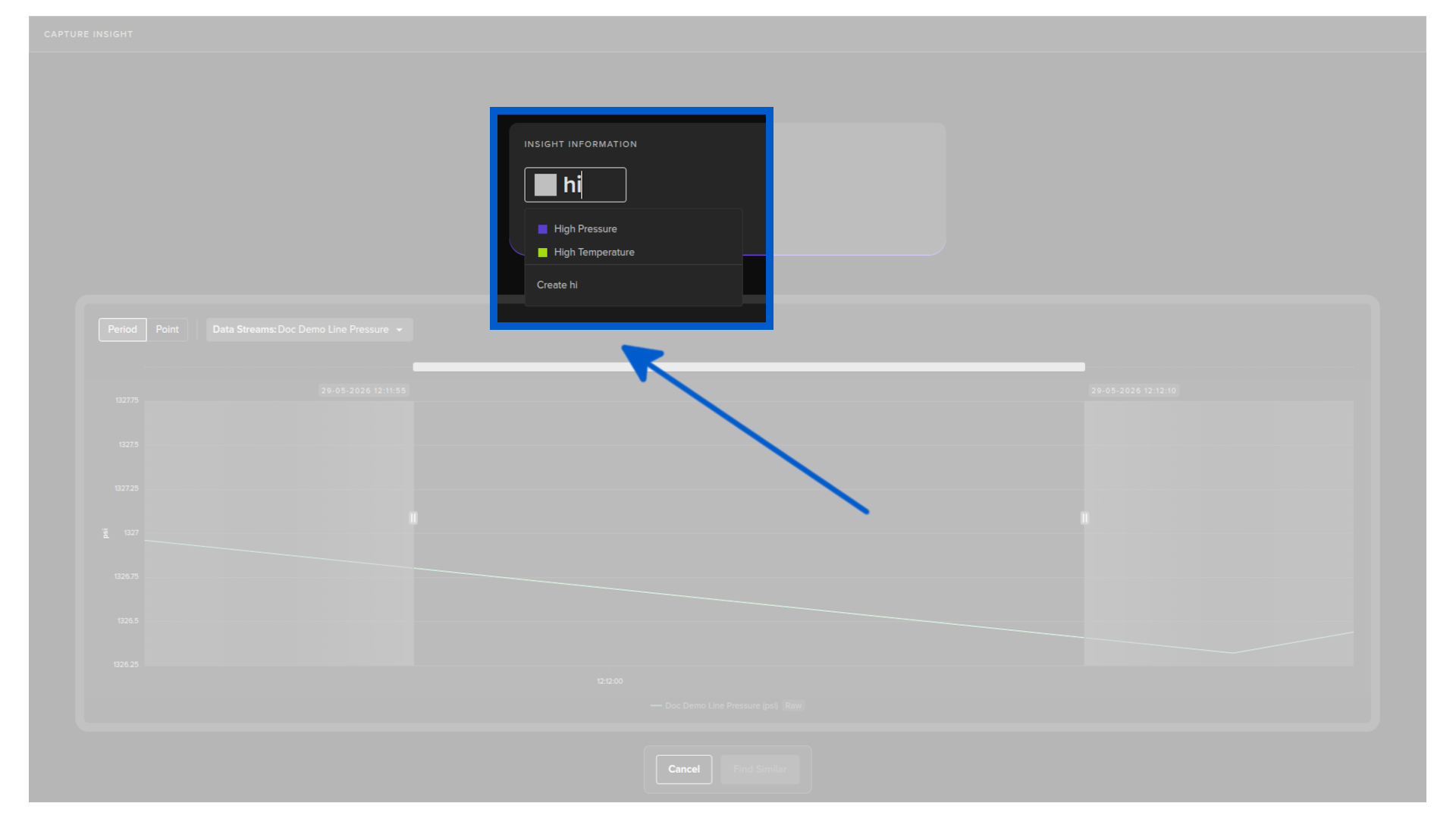
If the name alone is not enough context, click + Add More Details to open a longer description field. Use this to capture anything that will help you and your team understand the insight in future.

Select the event type

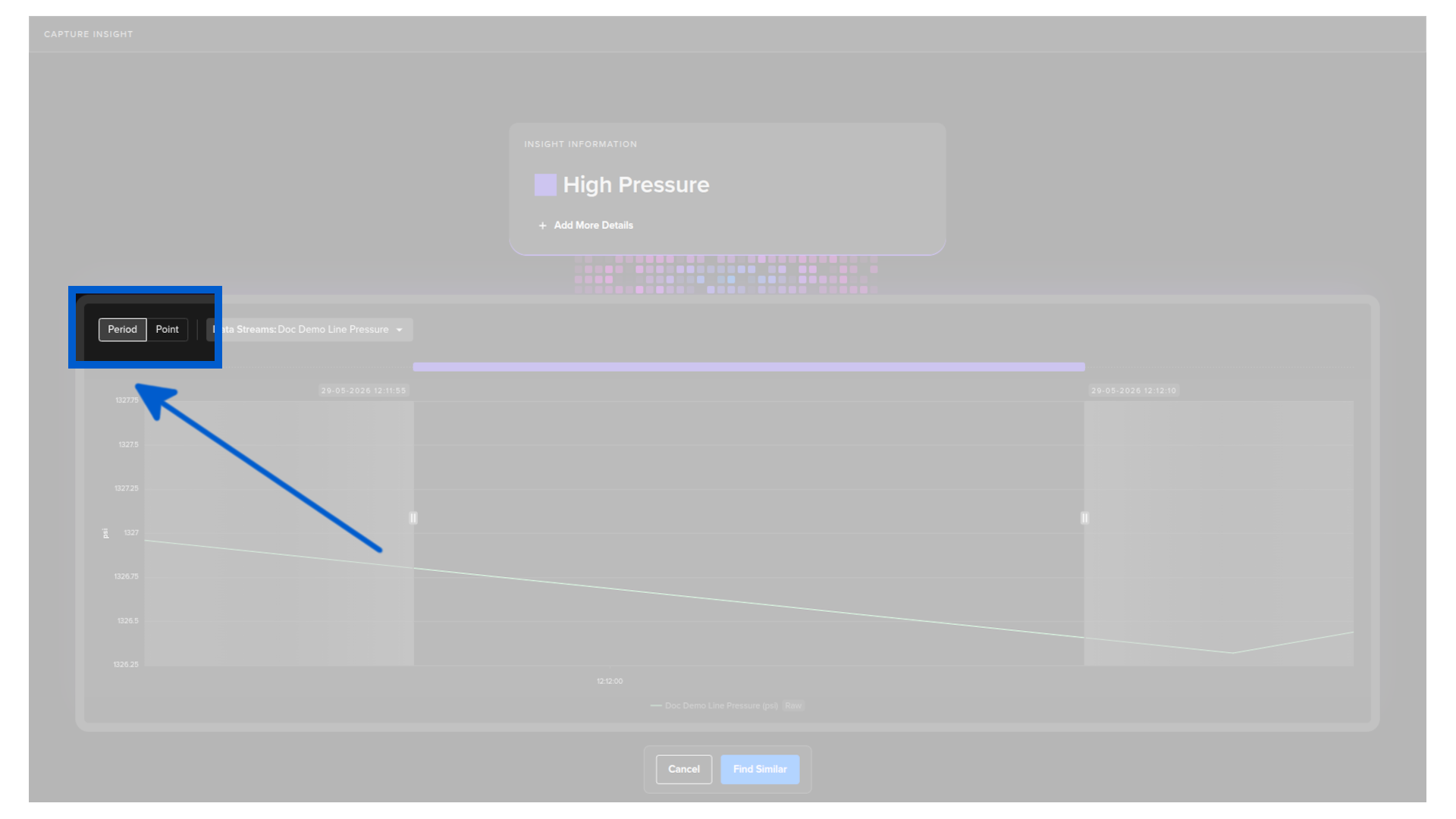
Choose whether the event occurred over a period of time or at a specific point:

Note

If you select period, you can then use the markers in the Data Explorer to drag and highlight the exact start and end points of the event.

  • Period: the event spans a range of time. Use this when the behavior developed gradually or continued for a duration.
  • Point: the event happened at a single moment. Use this when the behavior is a sudden spike, drop, or threshold crossing.
Select data streams

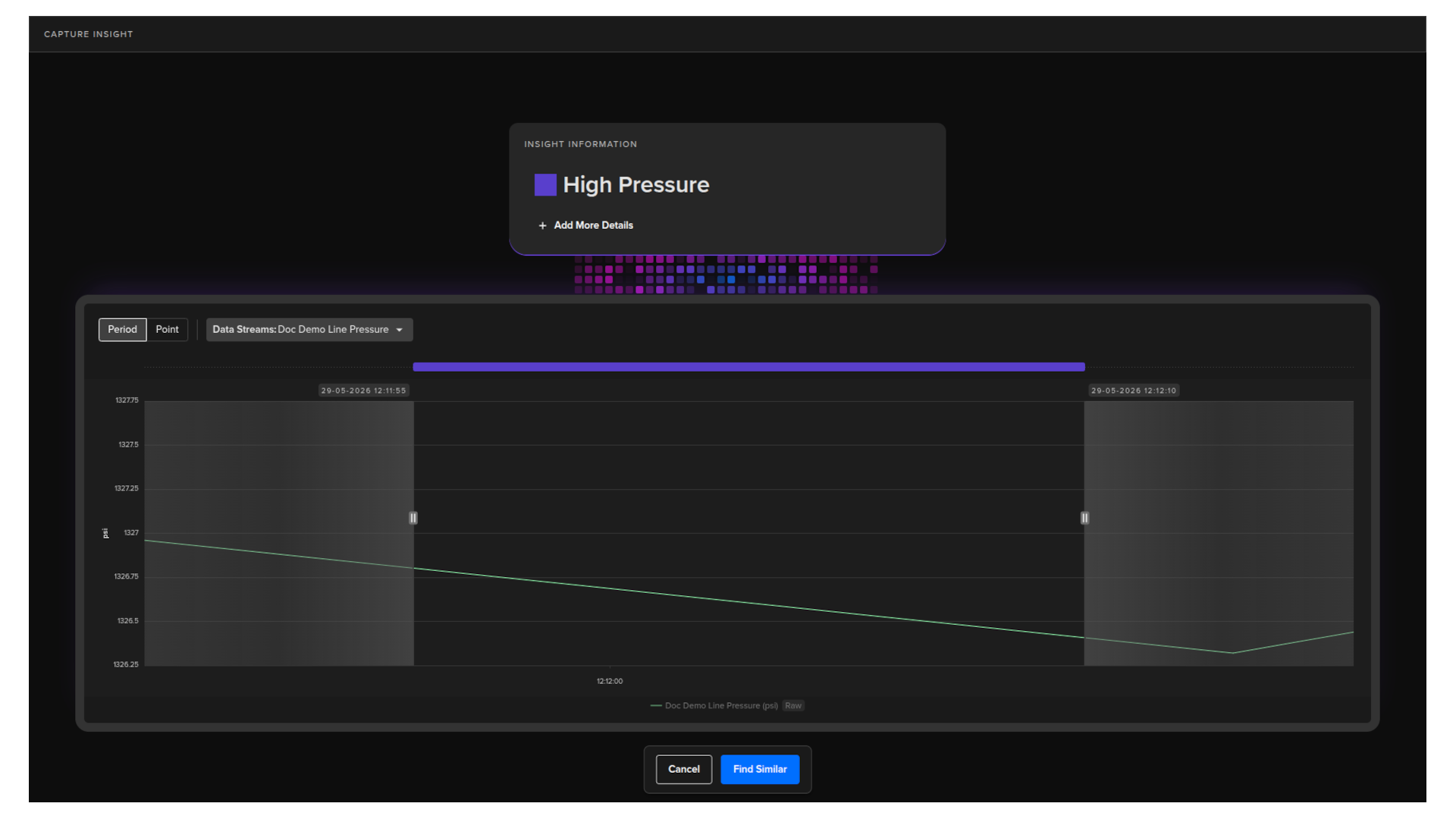
If the event involves more than one data stream, select only the streams that are relevant to this specific insight. Streams that are not meaningful for this event type can be left out.
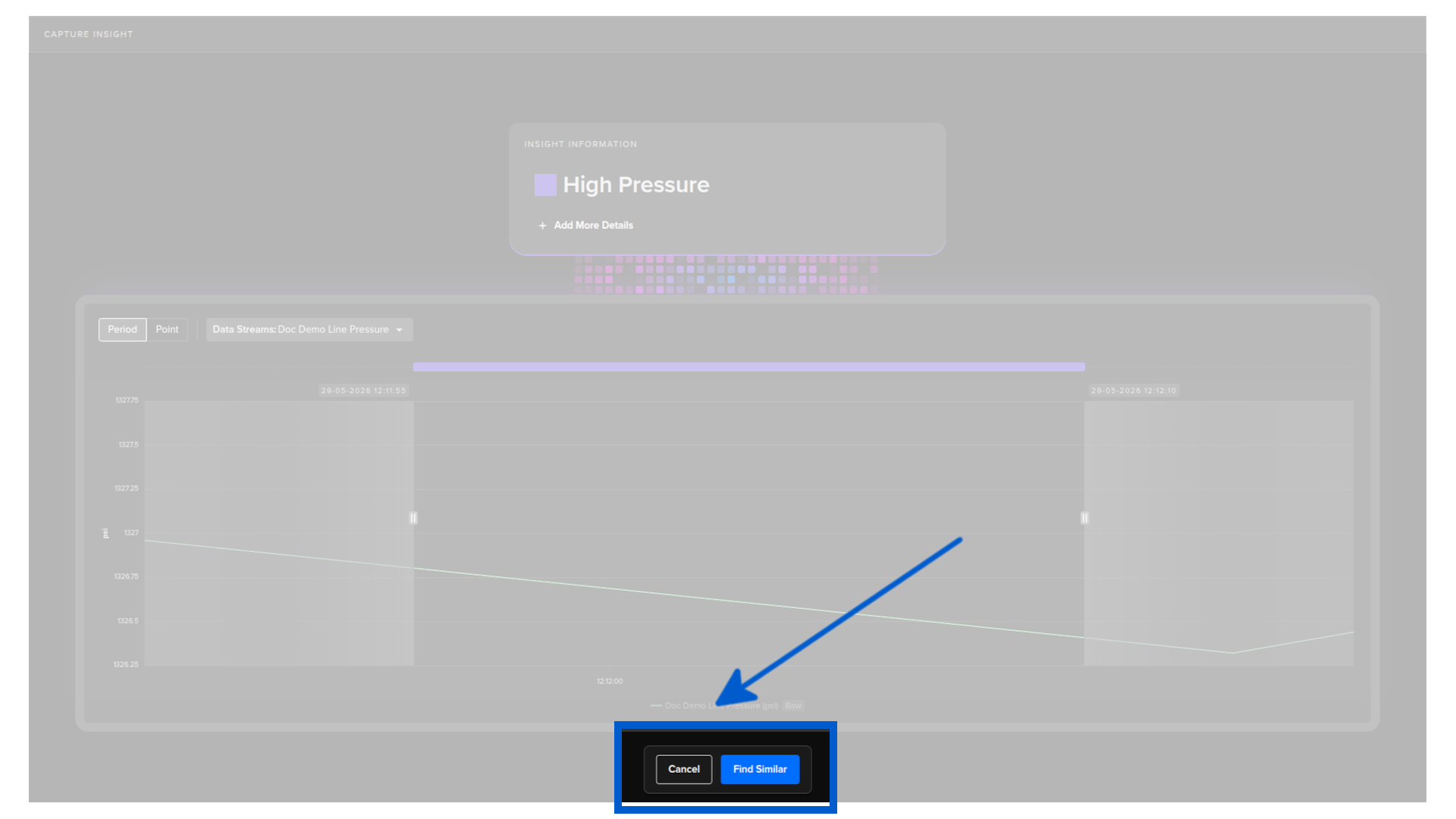
Find Similar

When you are ready, click Find Similar. The Insight is saved and the AI will start to search for similar event patterns.

Note

To start it will only search in the Asset that triggered the event.

You can optionally select additional Assets to search for similar patterns.

Next, if a similar pattern already exists, there is an extra step where you will be asked whether to add this pattern to the existing search name.

Warning

The search name is NOT the same as the Insight name.

The search name is the collection of event patterns that have been linked together.

Regardless whether you have a new or existing similar search name, the next step begins where a search for historical patterns that match the same signature.

A message will appear confirming the search is underway.

Searching for similar patterns across selected assets. This may take a few moments as the models analyze the data to find matches.

Review similar results

Once the search completes, any matching patterns are shown in a list of cards with easy to compare Data Explorer highlights.

Success

Matching patterns with a confidence level above 90% are automatically accepted and will not appear in the Operations Accept/Reject stage.

You can also optionally select additional Assets to expand the search for similar patterns.

For each result card you have three options.

Note

If you click on Accept or Reject, the card will be removed from the screen.

If there are other similar results, then a new card will appear in its place for Accept/Ignore confirmation.

Success

Accept or reject results wherever you can. These decisions retrain the similarity search over time, which means results become more relevant and you build a more accurate historical record of what has happened on each asset.

Accept

Click Accept to confirm that the identified pattern is what you expected.

The item disappears from the screen. Accepting tells the model that this pattern is correct and helps it learn for future detections of this event.

Ignore or Reject

Click Ignore to tell the model that the identified pattern is not what you are looking for.

The item disappears from the screen and that specific event will not be shown again.

Adjust

The adjust button allows you to edit the the start and end times of the event for greater accuracy of retraining the AI model.

What happens next

Once you have worked through the similar results, new events will be triggered against the insights models. This keeps track of recurring issues automatically without any further action from you.

If you want to go further and automate a response each time this type of event and insight is detected, you can create a Task.

Click Create Task to continue.

Note

The full Task creation workflow is covered in the next step.


Insight Matches Overview

The Insight Matches list gives you a full view of every named insight pattern that has been captured. You can reach it at any time by clicking Insight in the left sidebar under Engines.

Each row represents a named insight and shows how many assets it is currently active on.

Basic features

The Insight Matches overview includes several features to help you find and manage your insights.

Use the search bar at the top right to find insight matches by name. The list filters as you type.

Use the row spacing control to adjust how compact or spaced out the rows appear.

Edit Insight Match

The insight match can be edited at any time to Accept/Ignore more similar matches.

Click on any of the Insight Match names.

Delete Insight Match

To delete an Insight Match click on the delete icon in the row and confirm with PERMANENTLY DELETE.

Note

This will not delete the Insight name or the association between the Event and the Insight.

This only deletes the Insight similarity match information.

Table columns

The Insight Matches table has a fixed set of columns.

Column Description
Name The name given to this insight match.
Insight Name The insight name this match is associated with.
Active Assets The number of assets currently matched against this insight pattern.
Updated When the insight match was last modified, and by whom.
Created When the insight match was created, and by whom.

Table configurations

Click the table configuration icon in the top toolbar to open the Table Configurations panel.

You can reorder, freeze, hide, or show columns, but no custom columns can be added.

This panel lets you control column visibility and layout. The columns are divided into three sections:

When you are inside the column settings you can freeze columns left and right. This ensures the columns will always show, even when you scroll left or right to see all the columns.

When you are inside the column settings you can show or hide columns to ensure you only see what you need to see.

When you are inside the column settings you can see an overview of the columns available and showing.

Item Description
Total Total number of columns available (both active and hidden)
Frozen Total number of columns that are in the left or right freeze positions out of a total number of columns that can be moved to the frozen sections
Locked Total number of columns that can not be moved or edited
Active Total number of columns that will be shown on the table
Hidden Total number of columns that will not be shown on the table

When you are inside the column settings with a large number of columns, this feature is useful to find columns and to hide the hidden columns from the list to make it easier to see what is relevant.