Action a Recommendation
Recommendations current status and actions for each Asset can be seen in the Asset list in a column.
The default Asset-centric table does not show Recommendations in the column.
You can read the documentation on how to show Recommendation column here.
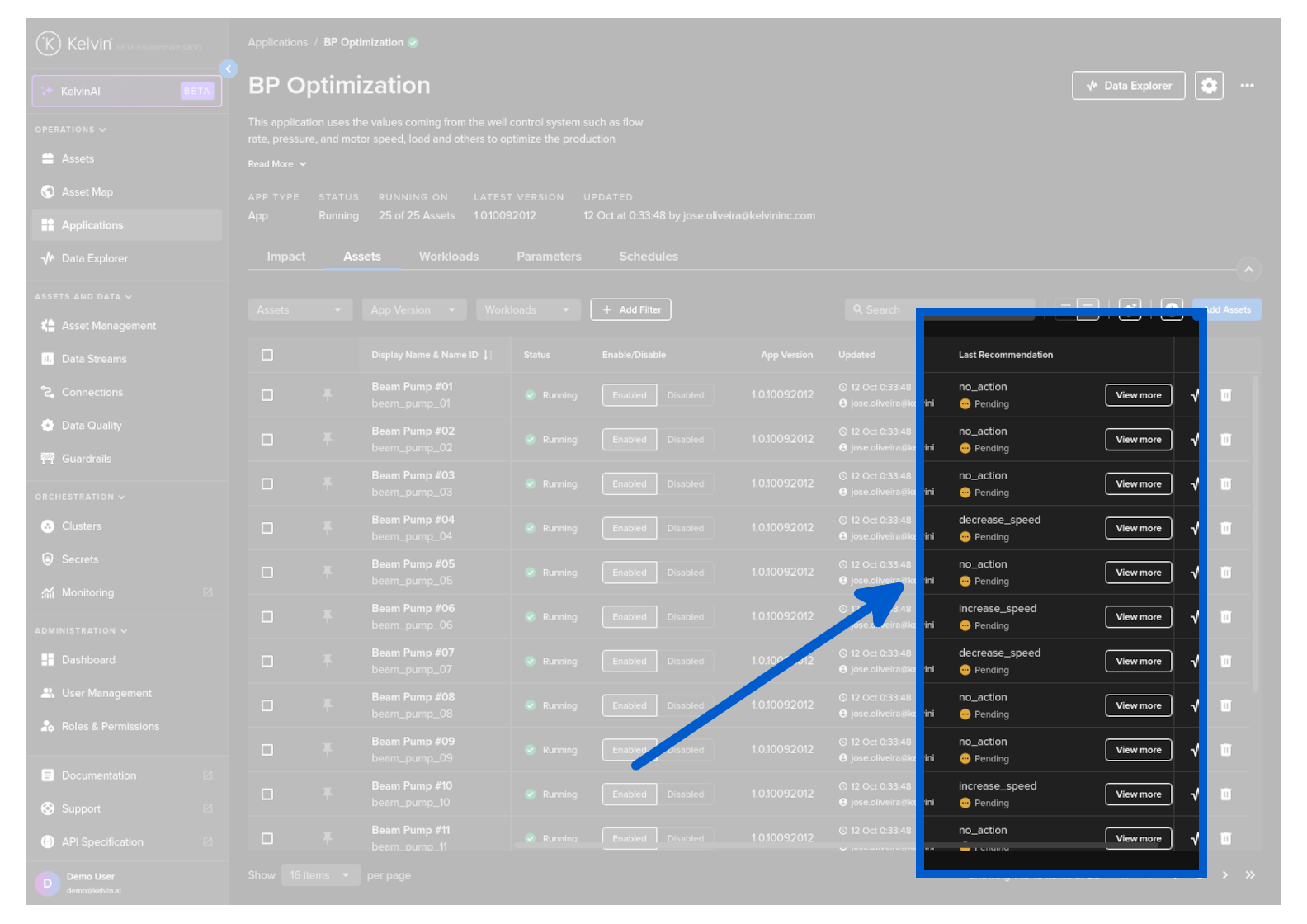
When you click on View More button (or See More in the Data Explorer popup) you will see the Recommendation popup where you can see the full details of the Recommendation.
Warning
If you see a Details link instead of a View More button, this means there are no pending Recommendations for that Asset and no actions are available.
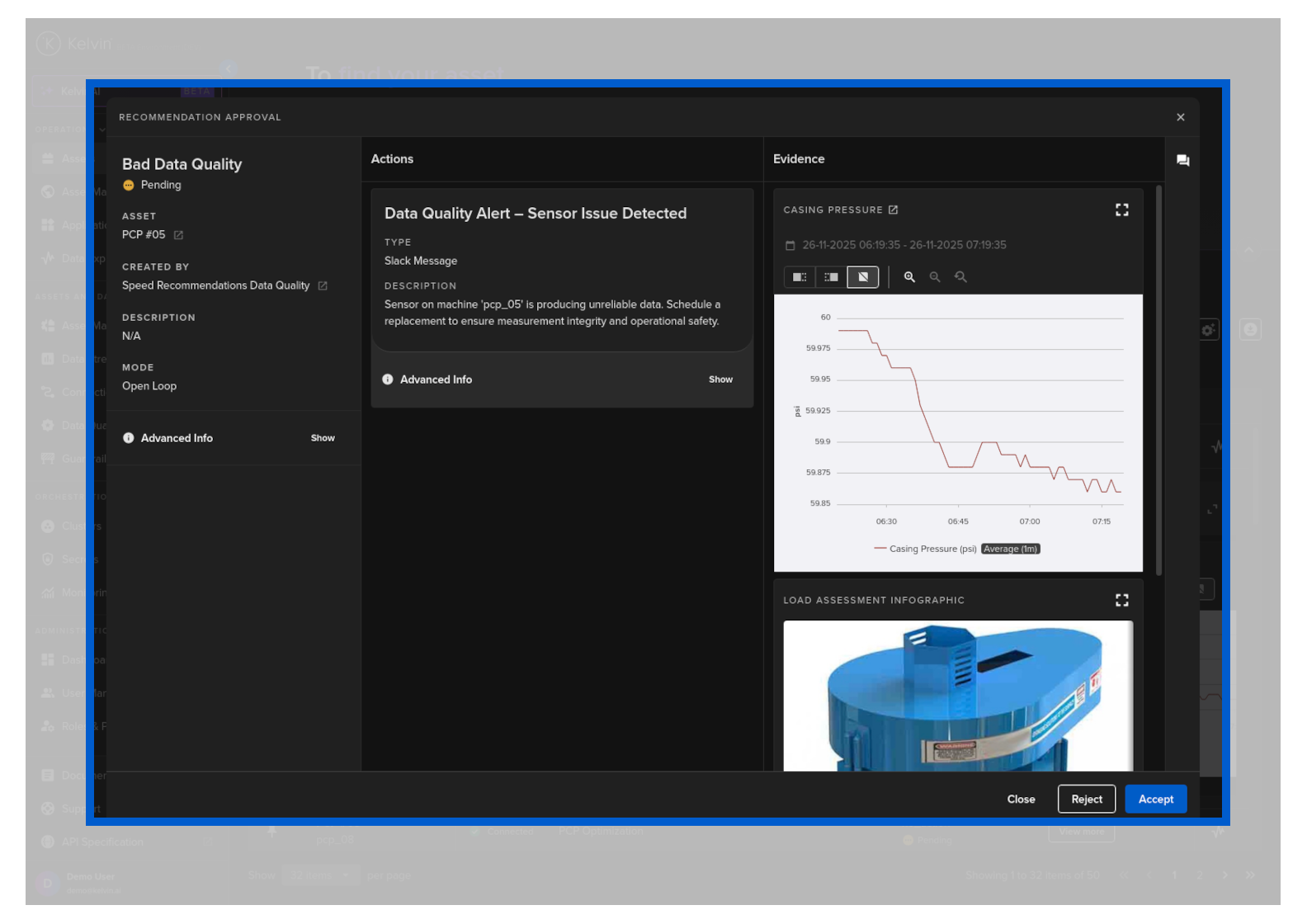
In the Recommendations popup you can see the full details of the Recommendation on the left hand side.
This will include information about;
- Recommendation Tag (In this example this is
Decrease Speed) - Current Status (In this example this is
Pending) - Assets that will be affect if Recommendation is accepted (In this example this is
ESP #01) - Reason for the Recommendation
- When the Recommendation will expire and automatically be rejected
The middle column named Recommendation Actions shows all the actions that will be taken if the recommendation is accepted.
This example gives only one action, but this could be a list of multiple actions to be implemented if the Recommendation accepted.
This will also give you information about the current setting when the Recommendation was created as well as the Recommended new setting.
The actions are not just limited to Control Changes but can also be one of the following;
Warning
Even if a Recommendation is accepted, this does not mean the Actions will also succeed. It just means the Actions are initiated.
There may be cases where a Recommendation is accepted and highlighted green, but the Control Change fails, for example due to Guardrail rule violation, and is highlighted Red.
- Control Changes
- Send Emails and Alerts (future feature)
- Create Alarms (future feature)
Evidence are attachments to the recommendation that provide comprehensive information to Operations, enabling informed decision-making.
If evidence is attached, it may include one or more items in various formats, such as bar or line charts, dynacards, images and even IFrames to external websites.
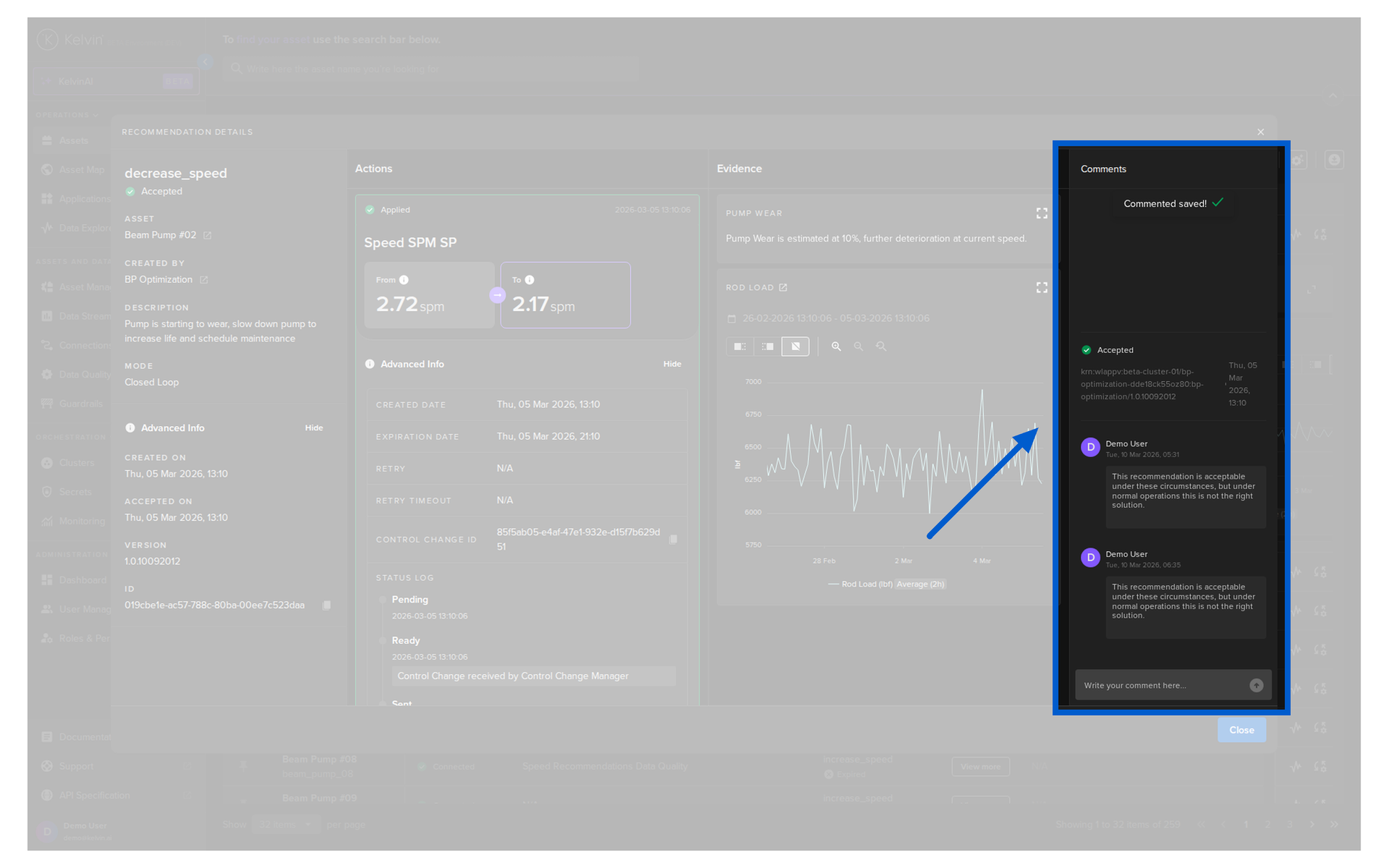
You can add an unlimited amount of comments at any time to this Recommendation.
You do not need to Accept or Reject a Recommendation to add a comment.
Comments are very useful for;
- Sharing information between Operations or shifts about certain Recommendations
- As feedback to the Developer. The Developers can use the comments to determine how to improve the Kelvin SmartApps™ that produce the Recommendations.
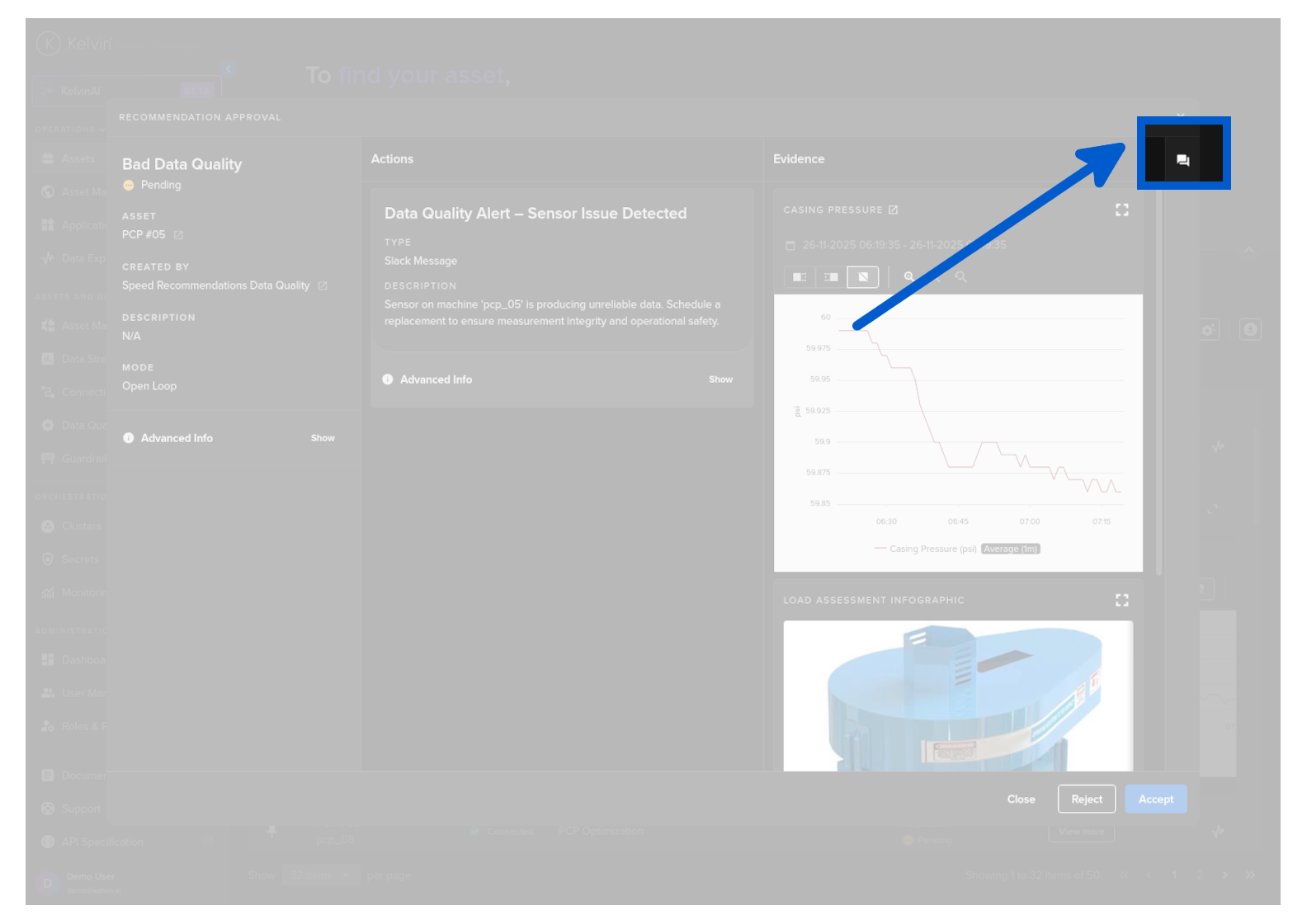
To see or add comments, click on the comments icon
And then the comments will appear;