Windowing
Introduction
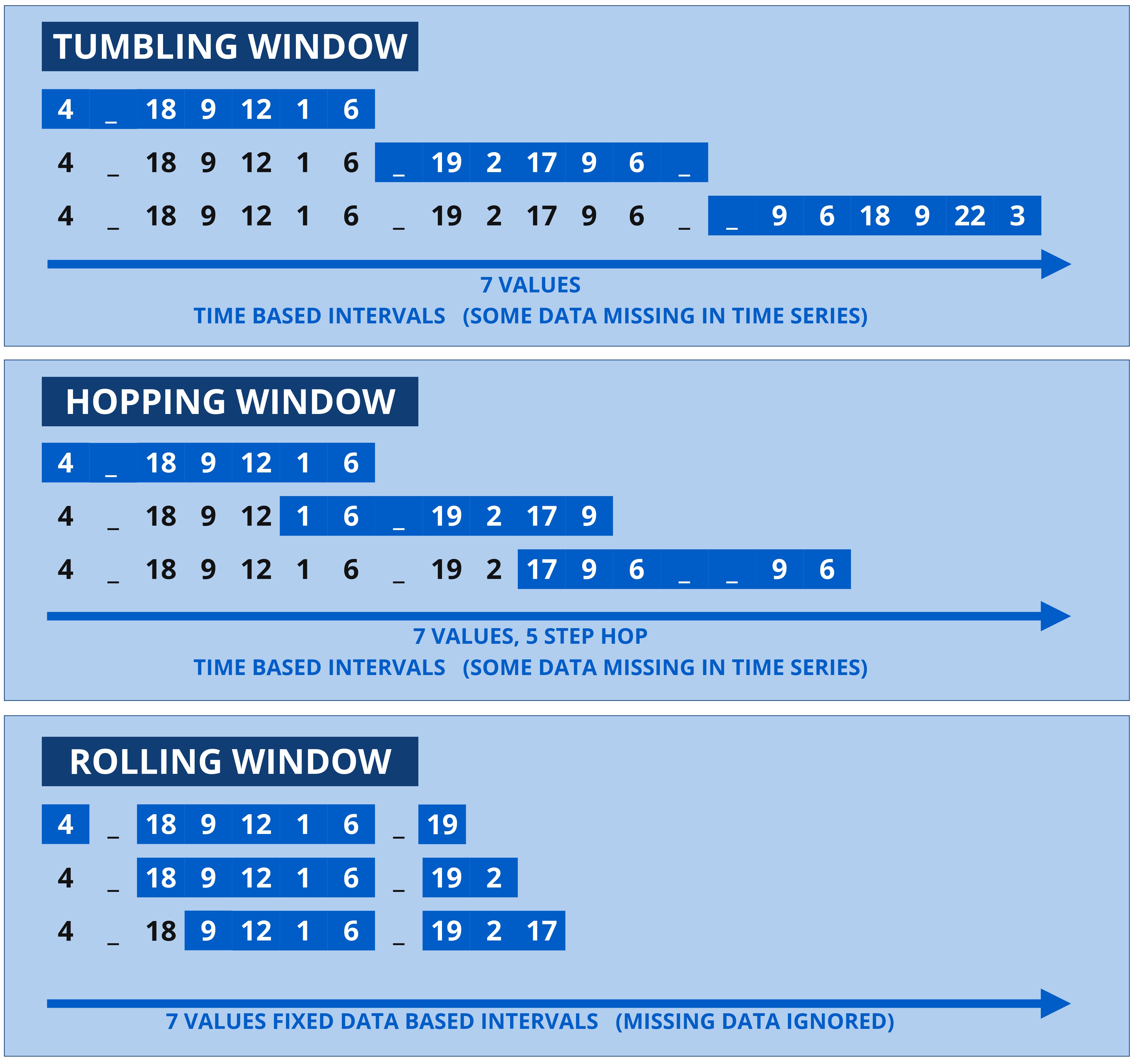
The Kelvin SDK facilitates three primary windowing methods:
- Tumbling Window: This method uses fixed-size, non-overlapping windows that reset after each window period, making it suitable for isolated data analysis in each segment.
- Hopping Window: These windows are also fixed-size but can overlap based on a specified hop size, allowing for more frequent data analysis intervals.
- Rolling Window: Unlike the other types, this method creates fixed-size windows based on the count of messages, not on time intervals.
Info
It is important to note that windows are always ordered by timestamp, ensuring that temporal sequencing is maintained across the data processed.
Irregular Data Scenarios
-
Lateness in Data: Lateness occurs when data arrives after its processing window. Kelvin incorporates late data into open windows; otherwise, it is ignored.
-
Out-of-Order Events: Out-of-order events arrive in a sequence different from their timestamps. Window methods correctly place them in their respective windows by timestamp, preserving temporal order.
Time Windows
Time-based windows include the start of the interval but exclude the end, preventing data duplication across windows.
Tumbling Window
Example of temperature readings with a tumbling window of 10 seconds.
| Tumbling Window Example | |
|---|---|
1 2 3 4 5 6 7 8 9 10 11 12 13 14 15 16 | |
Each window (W1, W2, etc.) processes data that falls within its respective 10-second time frame. No data overlaps between the windows.
Examples
| Basic Tumbling Window Python Example | |
|---|---|
1 2 3 4 5 6 | |
This will automatically process data in 5-minute intervals for all datastreams defined in your app.yaml and for all assets your app is running on. Each iteration of the loop will return:
asset_name: the unique identifier of the assetdf: a Pandas DataFrame containing the data for that asset within the 5-minute window. This DataFrame’s index is timestamp-based, with the values in monotonic increasing order.
To narrow down the processing to specific data streams within a window, you can specify which streams to include:
Info
The order of data streams in the list specifies the order of the columns within the DataFrame produced by the window.
| Filtered Data Streams Tumbling Window Python Example | |
|---|---|
1 2 3 4 5 6 | |
To narrow down the processing to specific Assets within a window, you can specify which Asset to include:
| Filtered Asset Tumbling Window Python Example | |
|---|---|
1 2 3 4 5 6 | |
The round_to parameter is designed to align message timestamps to the nearest specified time unit, such as a second, minute, or hour. This functionality is particularly beneficial for ensuring that rows within a DataFrame are synchronized, which is crucial for consistent data analysis and reporting.
| Time Aligned Tumbling Window Python Example | |
|---|---|
1 2 3 4 5 6 7 | |
Hopping Window
A hopping window, also known as a sliding window, is a series of fixed-sized, overlapping intervals where each window “hops” forward by a specified time interval (hop size). It is suitable for applications where data points may need to be included in multiple intervals for continuous calculations.
Example of temperature readings with a hopping window size of 10 seconds and a hop size of 5 seconds:
| Hopping Window Example | |
|---|---|
1 2 3 4 5 6 7 8 9 10 11 12 13 14 15 16 17 18 19 | |
Here, each new window starts every 5 seconds, causing overlapping between windows (e.g., 26°C and 29°C appear in multiple windows).
Examples
| Basic Hopping Window Python Example | |
|---|---|
1 2 3 4 5 6 7 | |
This code snippet will stream data from all configured data streams and assets, processing it in 5-minute windows that move forward by 2 minutes after each iteration.
To narrow down the processing to specific data streams within a window, you can specify which streams to include:
Info
The order of data streams in the list specifies the order of the columns within the DataFrame produced by the window.
| Filtered Data Streams Hopping Window Python Example | |
|---|---|
1 2 3 4 5 6 7 8 | |
To narrow down the processing to specific Assets within a window, you can specify which Asset to include:
| Filtered Asset Hopping Window Python Example | |
|---|---|
1 2 3 4 5 6 7 8 | |
The round_to parameter is designed to align message timestamps to the nearest specified time unit, such as a second, minute, or hour. This functionality is particularly beneficial for ensuring that rows within a DataFrame are synchronized, which is crucial for consistent data analysis and reporting.
| Time Aligned Hopping Window Python Example | |
|---|---|
1 2 3 4 5 6 7 8 | |
Rolling Window
A rolling window, also known as a moving window, calculates over a window of a specified number of data points (count size). Unlike time-based windows, it moves one observation at a time. This method is ideal for smoothing or averaging data points directly.
Example of temperature readings with a rolling window of 3 elements:
| Rolling Window Example | |
|---|---|
1 2 3 4 5 6 7 8 9 10 11 12 13 14 15 16 17 18 19 | |
Each window contains 3 events, and as new data arrives, the window shifts forward, always keeping the latest 3 events in focus.
Examples
| Basic Rolling Window Python Example | |
|---|---|
1 2 3 4 5 | |
To narrow down the processing to specific data streams within a window, you can specify which streams to include:
Info
The order of data streams in the list specifies the order of the columns within the DataFrame produced by the window.
| Filtered Data Streams Rolling Window Python Example | |
|---|---|
1 2 3 4 5 6 | |
To narrow down the processing to specific Assets within a window, you can specify which Asset to include:
| Filtered Asset Rolling Window Python Example | |
|---|---|
1 2 3 4 5 6 | |
The round_to parameter is designed to align message timestamps to the nearest specified time unit, such as a second, minute, or hour. This functionality is particularly beneficial for ensuring that rows within a DataFrame are synchronized, which is crucial for consistent data analysis and reporting.
| Time Aligned Rolling Window Python Example | |
|---|---|
1 2 3 4 5 6 | |