Edit App Parameter Values
Click on the App Parameters tab, and you can see a list of Assets and the App Parameter options for Kelvin SmartApps™.
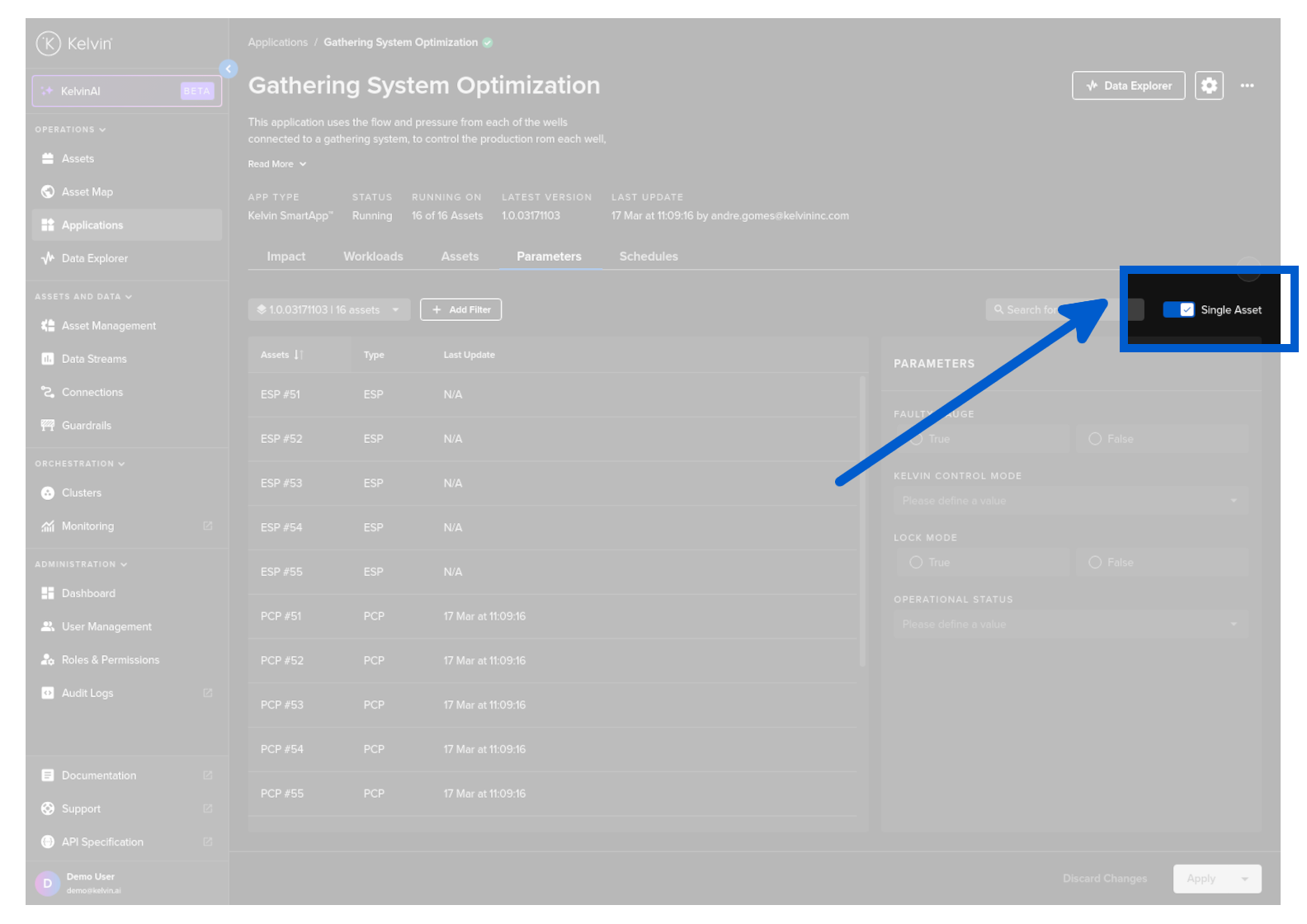
Turn off the Single Asset toggle switch, you can select many Assets and update their values at the same time.
In multi-asset mode you can not see the current App Parameter values of any Asset even if you only select one Asset.
To see the current App Parameter values you will need to turn on the Single Asset toggle and then select an Asset.
If you can not find an Asset that you know you have deployed, make sure you change Kelvin SmartApps™ version as it may have been deployed using a different version. Also check the advanced filters you may be using.
Edit Values
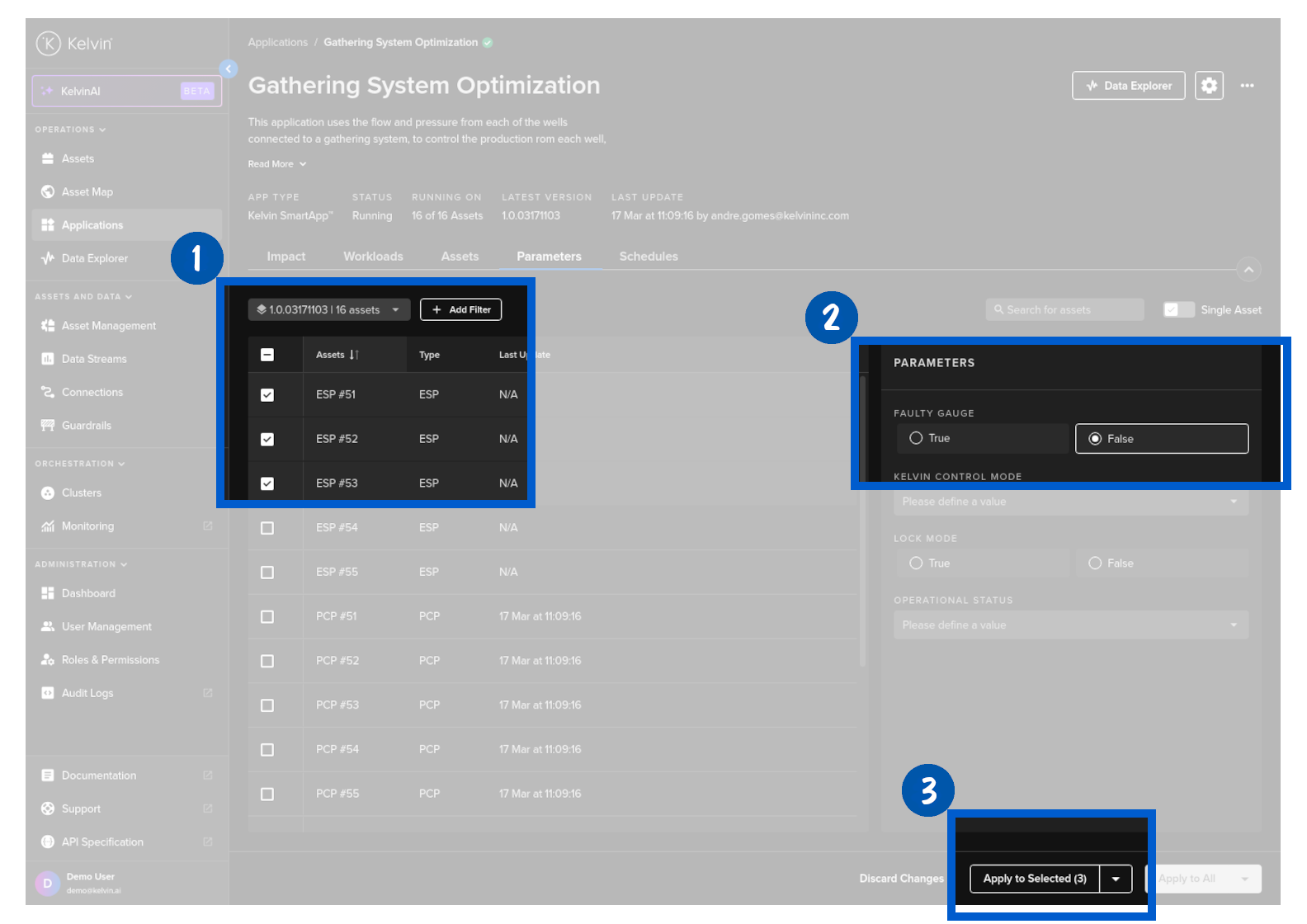
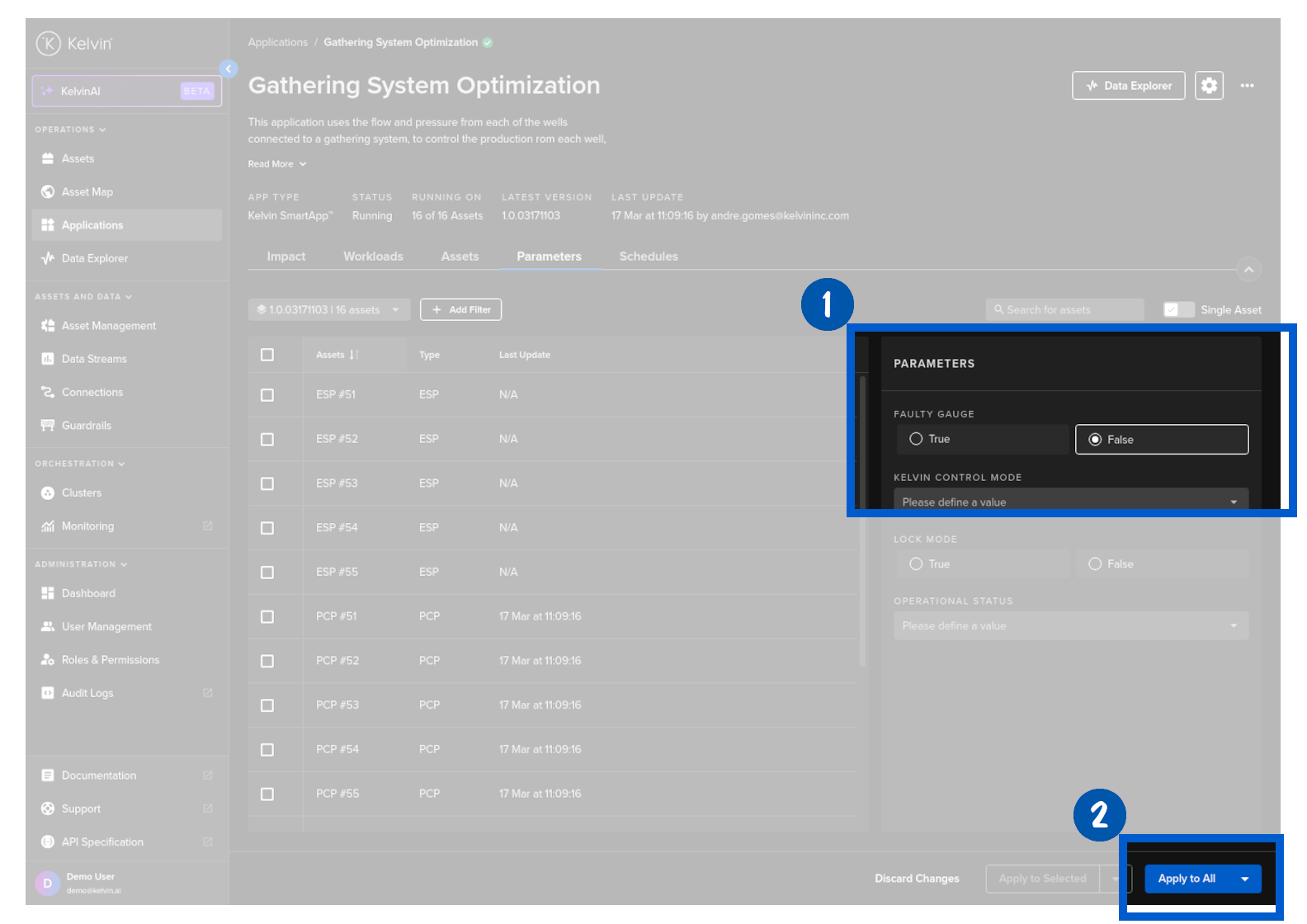
To update any of the App Parameter values, select one or more Assets, change any of the values in the App Parameter section and then click Apply to Selected or Apply to All to initiate the update. A confirmation will be displayed when the values have been sent to the edge.
Only the App Parameter parameters with new values will be written to the Assets. Any App Parameter parameters you do not fill in will be left with their original values.
This is important to avoid overwriting App Parameter values to multiple Assets that have different values for the same App Parameter parameter.
If you select any Assets, then you can only click on the Apply to Selected button.
If you do not select any Assets then you will only be able to click on the Apply to All button.
Schedule Updates
When controlling your Assets with Kelvin SmartApps™, there are times when temporary parameter setting adjustments are necessary for optimal performance, such as during planned maintenance periods or planned production changes.
Kelvin's Scheduling feature automates this process, ensuring settings change as needed. You can also optionally add a "revert to normal" after a defined time period.
This allows you to "set and forget" parameter changes, leaving you to focus on the more critical aspects of running and maintaining your assets.