Set Assets Configurations
On this page you will learn how to set the configuration parameters for Assets in Kelvin SmartApps™ section of Kelvin UI.
What is Configurations ?
Configurations are parameters set by the user and used by Kelvin SmartApps™ when performing calculations on the incoming data for each individual Asset.
The configurations parameter are used in the Application while it is running its program. How they are used will depend on the type of program and how the Software Engineers have programmed it.
In many cases they will have an influence on the type of Recommendations that are produced to either control the assets directly or for the Production Engineers to review and approve.
Changing Configuration Values
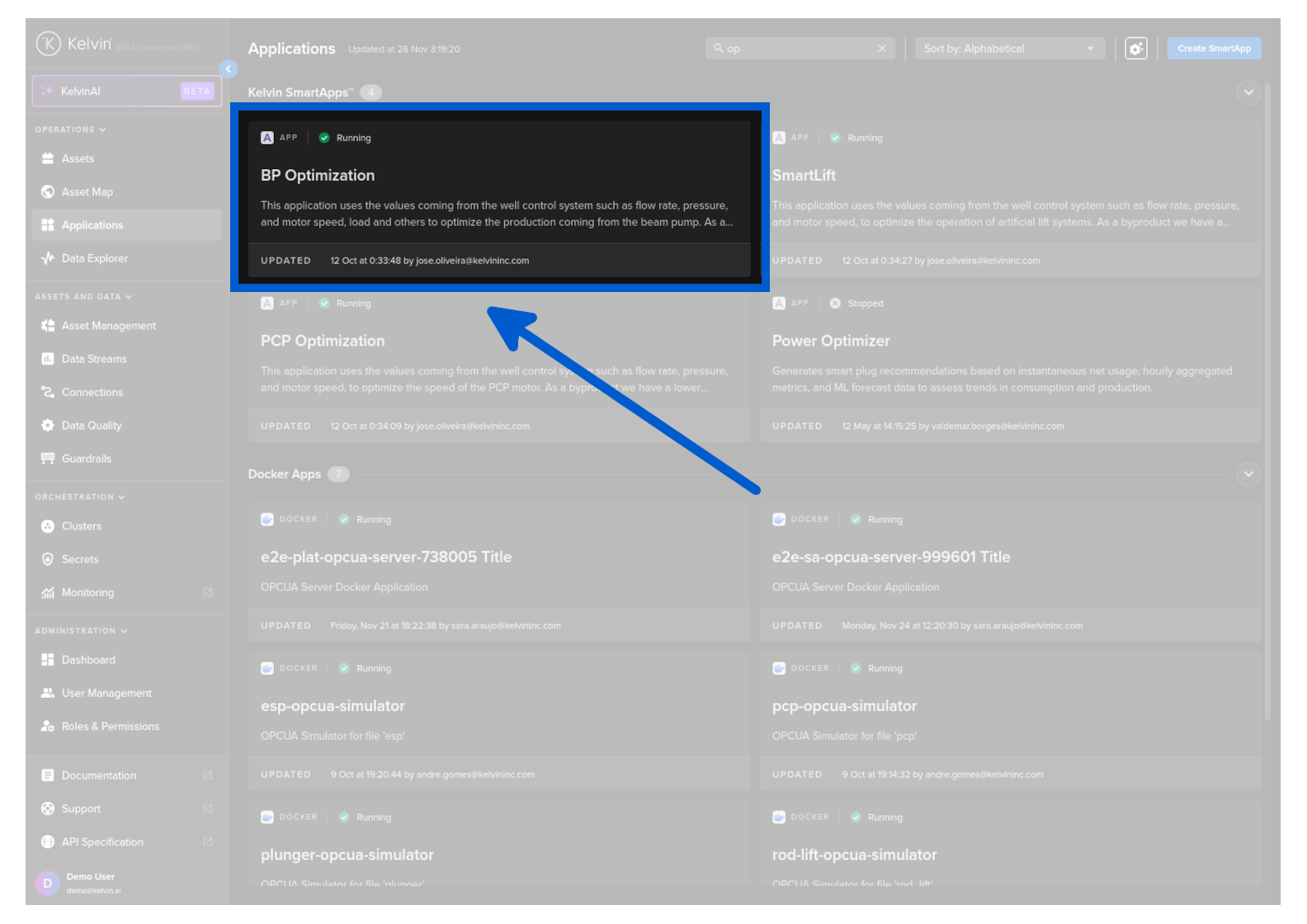
To start, go to the Application dashboard page and select Kelvin SmartApps™ where your Assets have been deployed.
Click on the Configurations tab, and you can see a list of Assets and the configuration options for Kelvin SmartApps™.
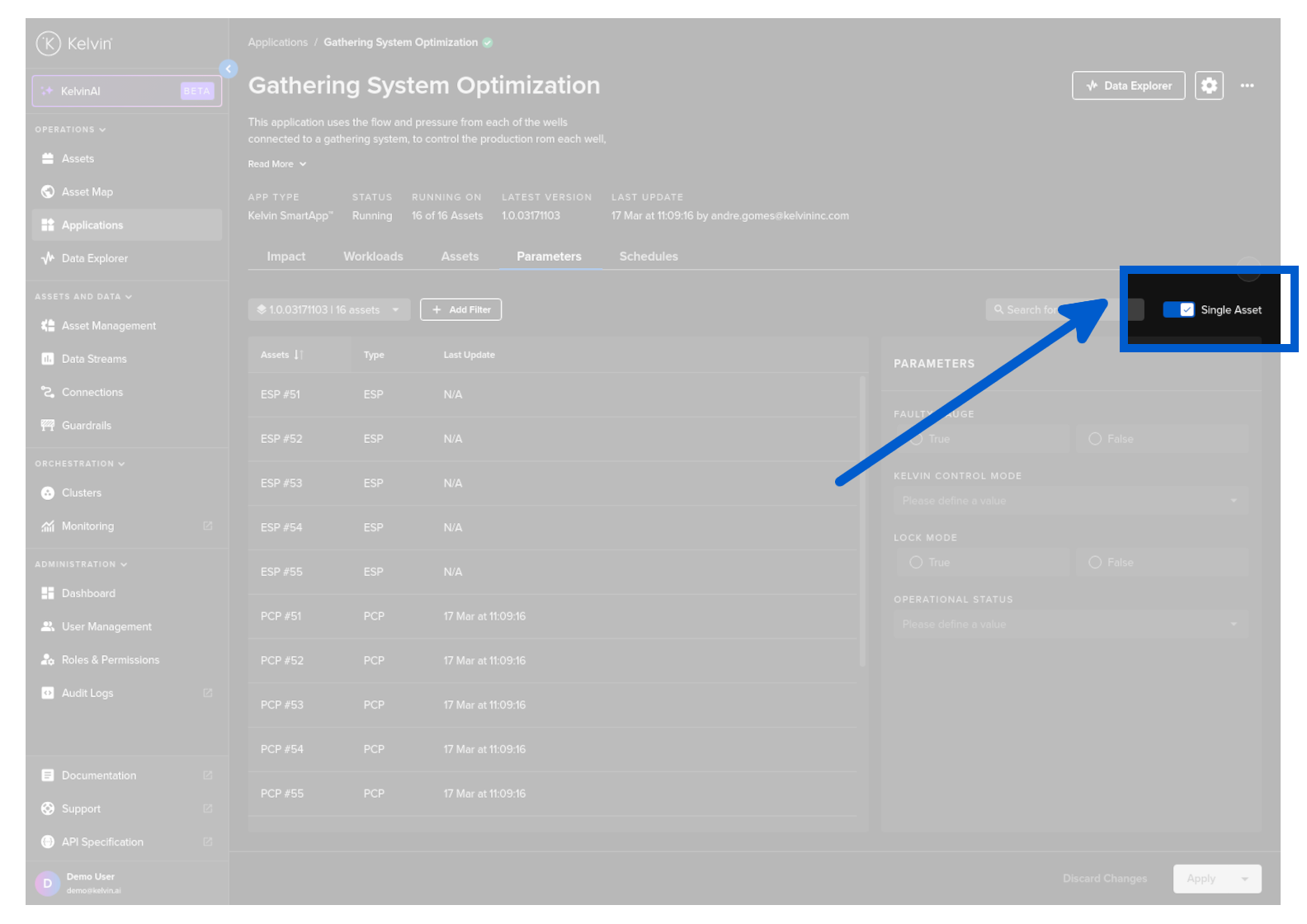
If you turn on the Single Asset toggle switch then when you click on an Asset you will see the current configurations parameters in the configurations section. If the toggle switch is off, then you will only be able to set new configurations but you will not see the current settings of any selected Asset.
You can filter the Asset table to show relevant Assets only.
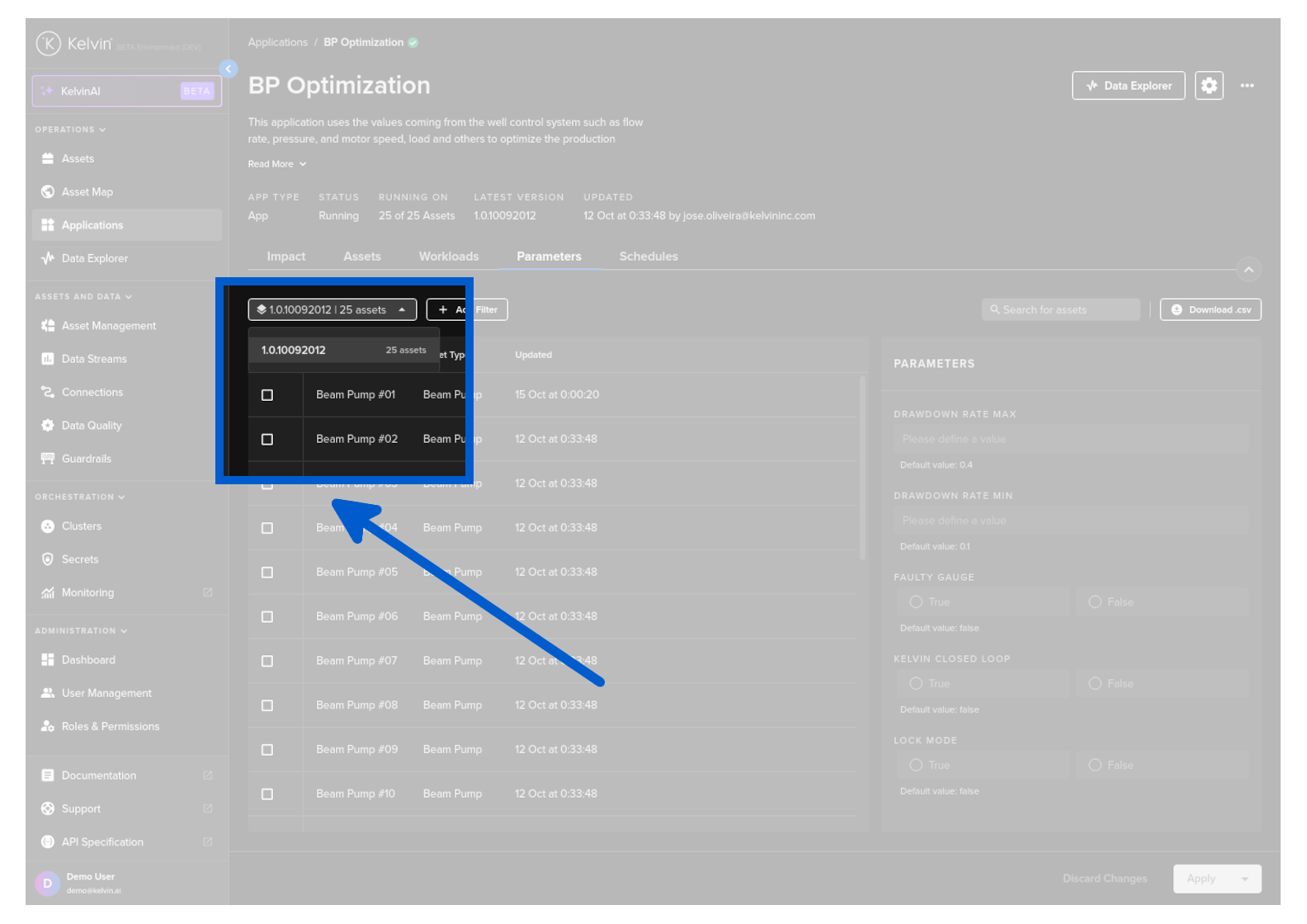
You can filter according to the App version. Only Assets deployed with this version will be displayed.
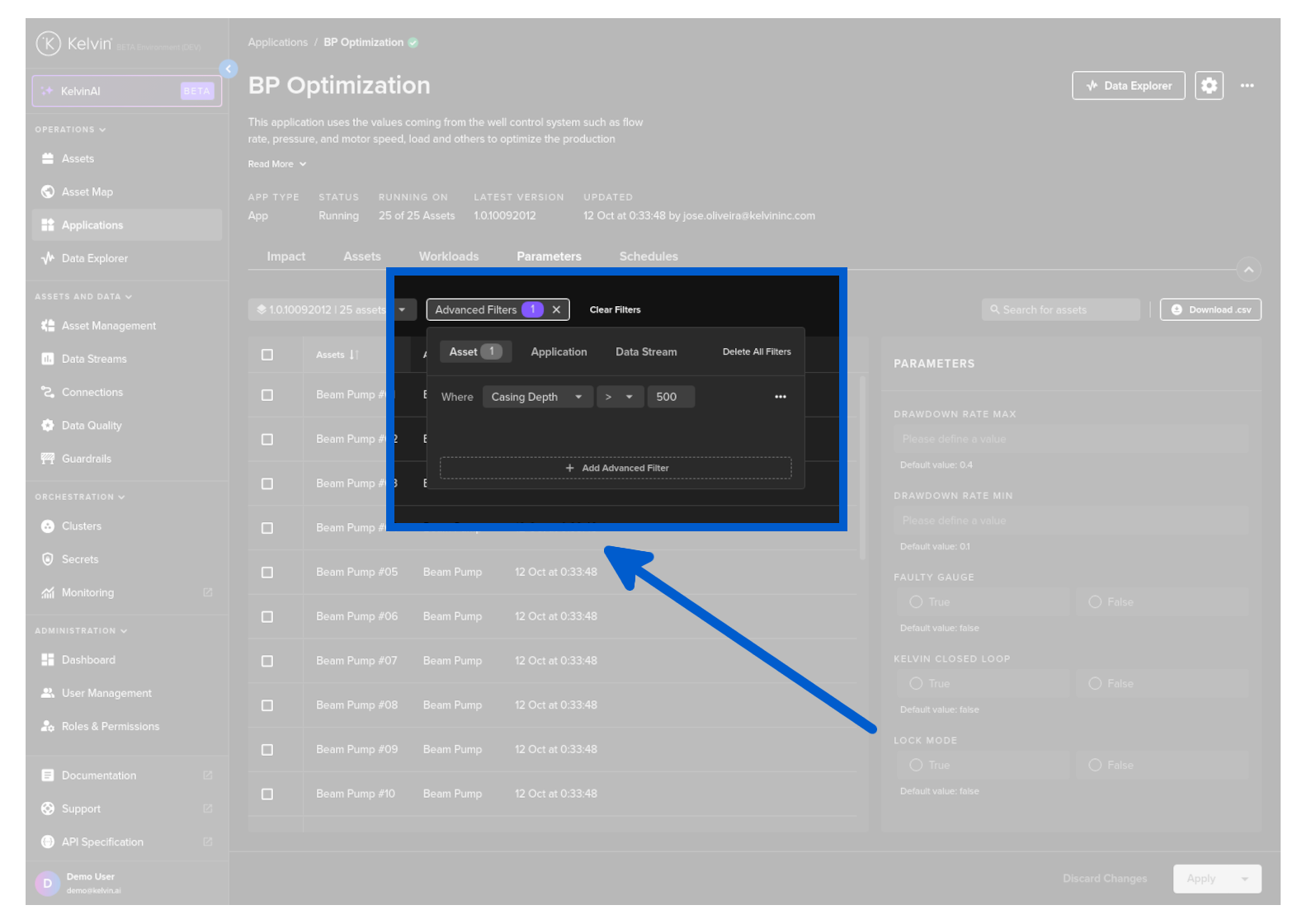
You can also filter on an advanced filter setting from Asset Properties and/or Kelvin SmartApps™ Parameters.
Multiple advanced filters can be defined and will be filtered as AND meaning that Assets displayed must meet all criteria in the advanced filters section.
When changing the configuration values (Kelvin SmartApps™ Parameters), you can choose to change the values for one Asset, a selection of Assets or all Assets in the table.
When you turn on the Single Asset toggle switch, you can only select one Asset at a time.
If you can not find an Asset that you know you have deployed, make sure you change Kelvin SmartApps™ version as it may have been deployed using a different version.
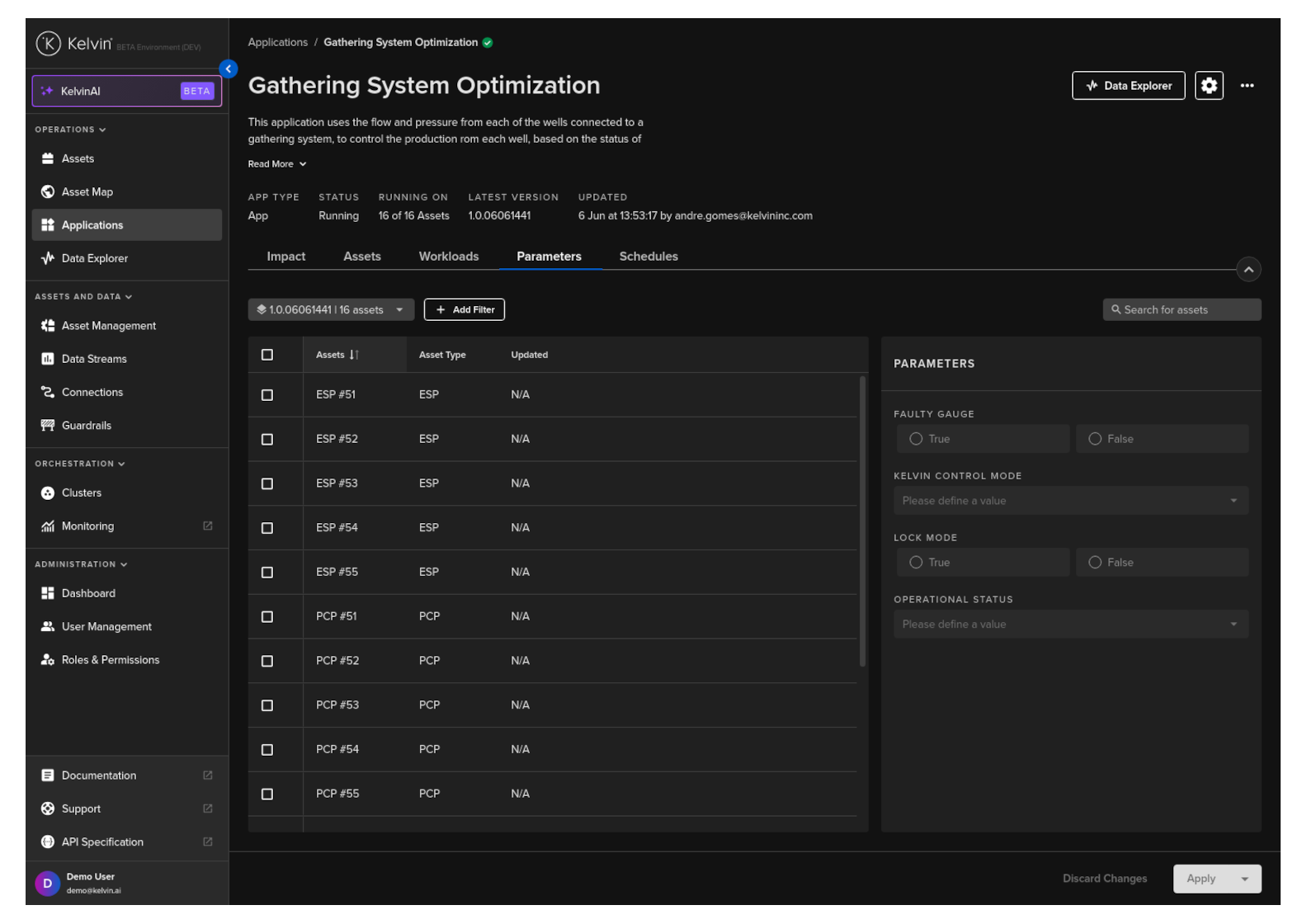
On the right hand side you will see the standard configuration parameters available for Kelvin SmartApps™. When you click on an Asset, then the current configuration values in Kelvin SmartApps™ will be shown in the configurations section.
To update any of the configuration values, select an Asset, change any of the values in the configuration section and then click Apply to initiate the update. A confirmation will be displayed when the values have been sent to the edge.

When you turn off the Single Asset toggle switch, you can select many Assets and update their values at the same time.
In multi-asset mode you can not see the current configuration values of any Asset even if you only select one Asset.
To see the current configuration values you will need to turn on the Single Asset toggle and then select an Asset.
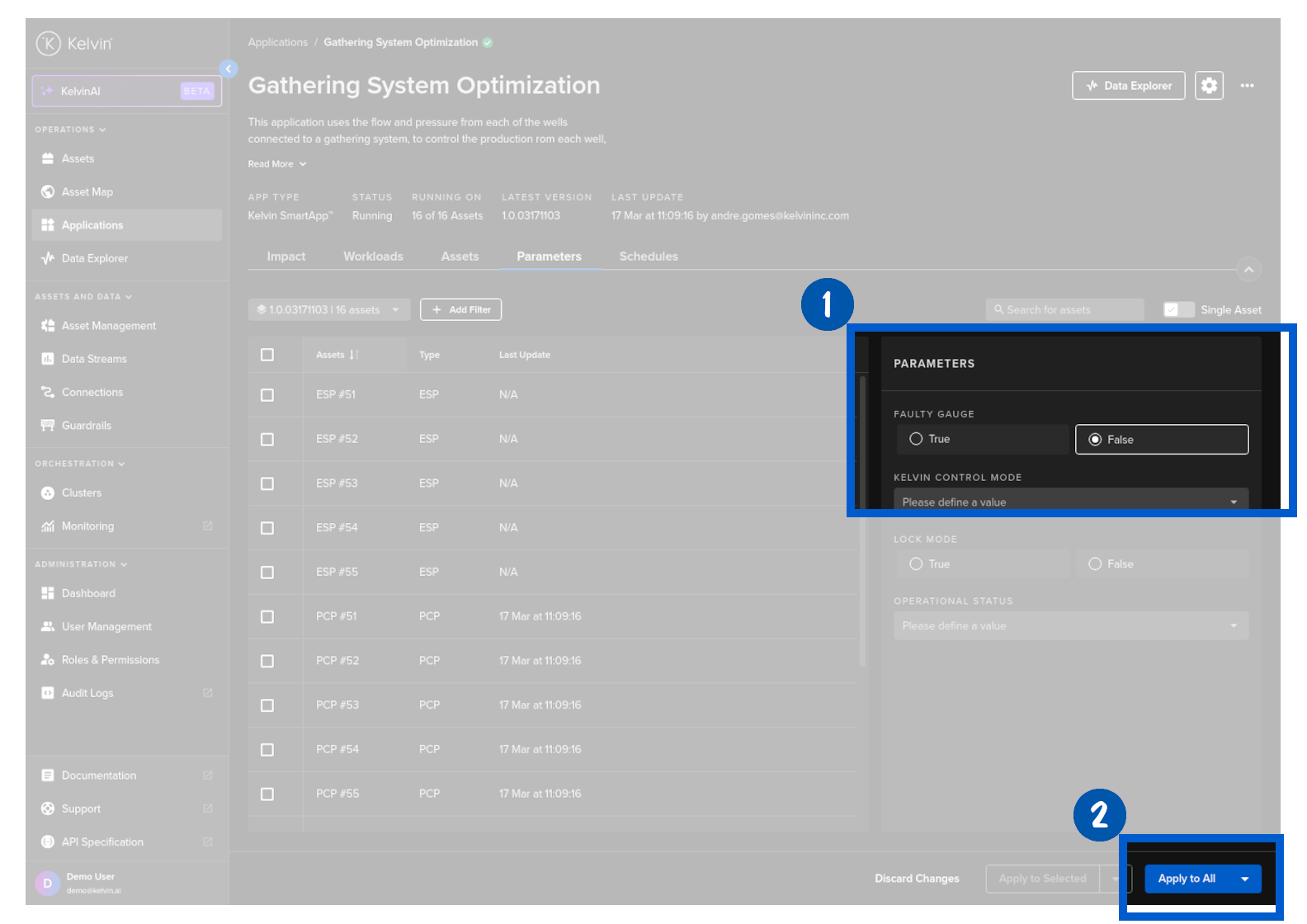
On the left hand side you will see the Assets table and on the right hand side you will see the standard configuration parameters available for Kelvin SmartApps™. You do not need to fill in all the parameters when updating, only the parameters that need new common values for all Assets selected.
If you can not find an Asset that you know you have deployed, make sure you change Kelvin SmartApps™ version as it may have been deployed using a different version. Also check the advanced filters you may be using.
To update any of the configuration values, select one or more Assets, change any of the values in the configuration section and then click Apply to Selected or Apply to All. to initiate the update. A confirmation will be displayed when the values have been sent to the edge.
Only the configuration parameters with new values will be written to the Assets. Any configuration parameters you do not fill in will be left with their original values.
This is important to avoid overwriting configuration values to multiple Assets that have different values for the same configuration parameter.
If you select any Assets, then you can only click on the Apply to Selected button.
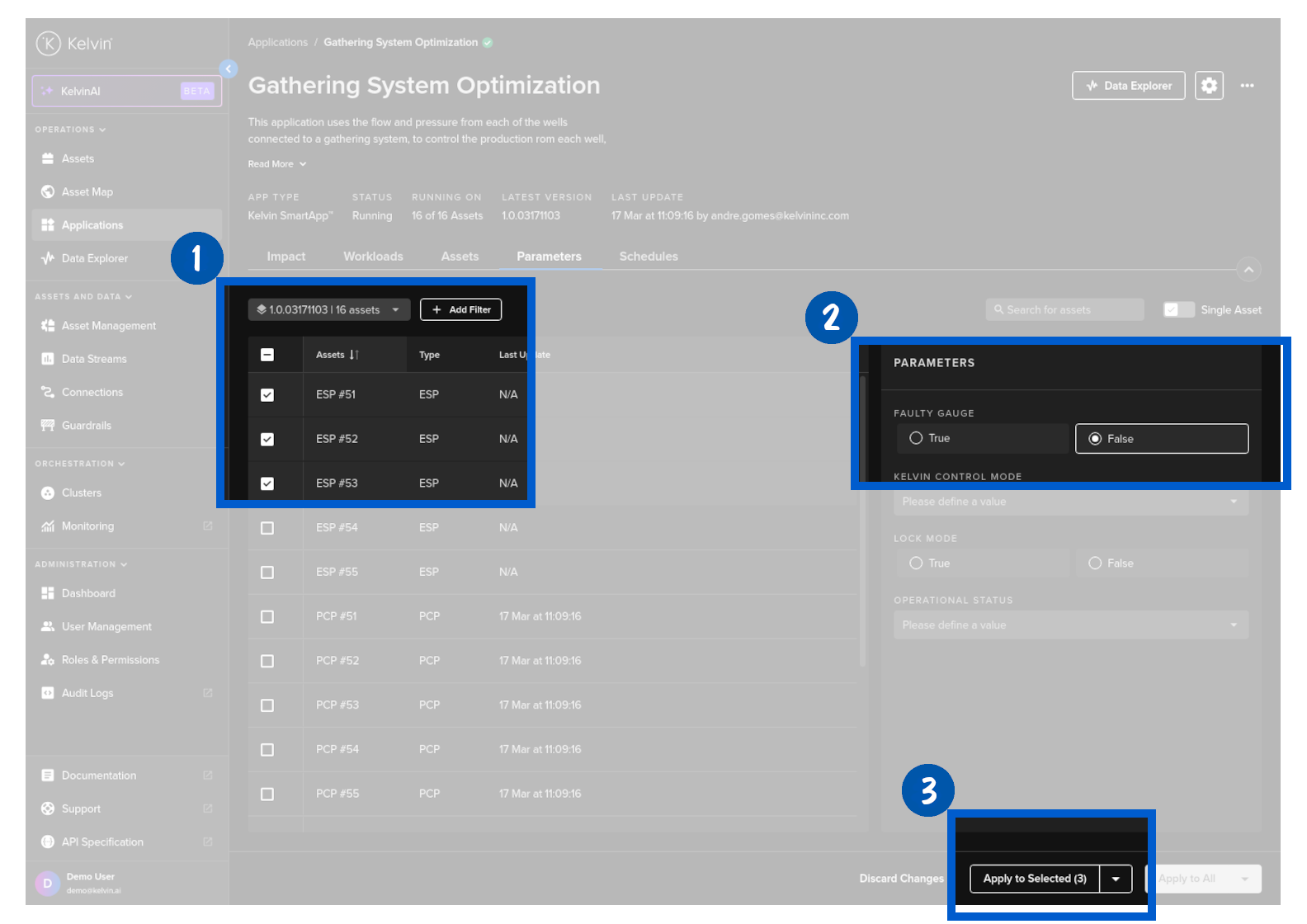
If you do not select any Assets then you will be able to click on the Apply to All button.