Deploy a Staged Workload
When deploying a Workload to the edge, you can decide how Kelvin will perform the task. This is called Staged Workload. There are pros and cons for each method, and the right method will depend on your requirements.
This is particular useful if your edge system has unreliable Internet connection and/or you want to minimize operational disruptions by having all Workloads downloaded and ready on the edge system before deploying.
| Deploy | Deployment Method | Description | Pros | Cons |
|---|---|---|---|---|
| By Kelvin Separately | Download and deploy processes are separate | All workload images will be downloaded in the background, in the end, the workload definition/spec will not be deployed in the cluster. The cluster will wait forever until it receives a signal to apply the new workload definition/spec or there is a new deploy spec for the same workload. | Useful for Edge systems with unreliable Internet. Downloads can be done at any time and the deploy can be manually initiated to cause minimal disruptions | Requires manual initiation of workload upgrade |
| By Kubernetes Combined | Download and deploy processes are done simultaneously with one command by Kuberentes | This is the default behavior (unless changed in the instance API). The workload definition/spec is applied to the cluster, and Kubernetes will be responsible for downloading the images and starting Kelvin SmartApps™. | No configurations required, everything is done by Kubernetes | No control over multiple workload deployment |
| By Kelvin Combined | Download and upgrade processes are done simultaneously with one command by Kelvin | All workload images will be downloaded in the background, and in the end, the workload definition/spec is automatically applied in the cluster. Even if we are updating an existing workload, the previous one will still be running until the download has finished. This acts as a rolling update since the previous workload will still be running. | Multiple Workloads can be deployed (or upgraded) after all Workloads are downloaded, giving minimal operational disruptions to multi-Workload environments | Depending on download speeds, it may take longer for the new Workloads to start |
By default, Kubernetes manages the deployment of the Workload.
With this information, you can use the Deploying a Workload chapter above to choose what type of deployment, standard or staged, that you want to initiate.
The staged deployment in Kelvin UI is explained in the Deploying a Workload chapter above.
So here we will give a simple example with an API request to show you the different key values required for staged and instantly_apply to achieve each of the three scenarios mentioned in the table above.
To separate the download and the deployment process of a workload separately, the following keys in the API and the Kelvin Api Client (Python) need to be set in this configuration;
| key | Value |
|---|---|
| staged | true |
| instantly_apply | false |
For example you can initiate the download by deploying the workload like this;
Once downloaded, the Workload is available in the Cluster but will not be deployed until manually initiated.
curl -X "POST" \
  "https://<url.kelvin.ai>/api/v4/workloads/deploy" \
  -H "Authorization: Bearer <Your Current Token>" \
    -H "Accept: application/json" \
  -H "Content-Type: application/json" \
  -d '{
  "app_name": "motor-speed",
  "app_version": "2.3.0",
  "cluster_name": "docs-demo-cluster-k3s",
  "instantly_apply": false,                     <=== THIS KEY IS IMPORTANT
  "name": "docs-demo-motor-speed",
  "payload": {
    ...
  },
  "staged": true,                               <=== THIS KEY IS IMPORTANT
  "source": "krn:user:demo@kelvin.ai",
  "title": "Docs Demo Motor Speed"
}'
You will receive a response similar to this (Note that the staged section is not Null);
{
"name": "workload_name",
"title": "Workload Display Name (Title)",
"acp_name": "target_cluster_name (DEPRECATED)",
"app_name": "application_name",
"app_version": "application_version",
"cluster_name": "target_cluster_name",
"enabled": true,
"instantly_apply": false,
"networking": [],
"node_name": "",
"payload": { ... },
"status": {
    "last_seen": "2023-12-18T18:22:18.582724Z",
    "state": "pending_deploy",
    "message": "Pending for deploy",
    "warnings": []
},
"staged": {                    <=== NULL IF DOESN'T HAVE A STAGED VERSION
    "ready": false,
    "app_name": "application_name",
    "app_version": "application_version",
    "payload": {},
    "status": {
    "state": "received | processing | downloading | ready | failed",
    "message": "Received | Processing | Downloading | Ready | Failed",
    "warnings": []
    }
},
"download_status": "pending",
"created": "2023-12-26T18:22:18.582724Z",
"updated": "2023-12-18T18:22:18.582724Z"
}
When you are ready to deploy and start the Workload(s), you can do that either by Kelvin UI, Kelvin API, Kelvin APi Client (Python) or at the edge terminal using kelvin-provision.
This will only work if the workload was deployed with the correct keys (staged = true and instantly_apply = false)
To read how to apply or activate the staged Workload, you can read the documentation in the next Chapter below Apply Staged Workload.
You can also deploy using the Kelvin UI. You can read how to do this in the chapter Deploying a Workload
To download and deploy a workload using Kubernetes, the following keys in the API request /workloads/deploy need to be set in this configuration;
| key | Value |
|---|---|
| staged | false |
| instantly_apply | true |
For example you can deploy the workload like this;
curl -X "POST" \
  "https://<url.kelvin.ai>/api/v4/workloads/deploy" \
  -H "Authorization: Bearer <Your Current Token>" \
    -H "Accept: application/json" \
  -H "Content-Type: application/json" \
  -d '{
  "app_name": "motor-speed",
  "app_version": "2.3.0",
  "cluster_name": "docs-demo-cluster-k3s",
  "instantly_apply": true,
  "name": "docs-demo-motor-speed",
  "payload": {
    ...
  },
  "staged": false,
  "source": "krn:user:demo@kelvin.ai",
  "title": "Docs Demo Motor Speed"
}'
The Workload will be automatically deployed and started through the default Kubernetes method.
You can check the status of all workloads at the edge with the API request /workloads/list and its parameter staged set to false.
For a comprehensive list of available statuses and their meanings, please continue reading.
curl -X "GET" \
"https://<url.kelvin.ai>/api/v4/workloads/list?workload_name=docs-demo-motor-speed&staged=false&pagination_type=cursor&page_size=20&direction=asc&sort_by=name" \
  -H "Authorization: Bearer <Your Current Token>" \
-H "Accept: application/json-cursor"
Under normal conditions where the deploy succeeds, the status will flow like this; pending_deploy → received → deploying → [running, failed]
You can also deploy using the Kelvin UI. You can read how to do this in the chapter Deploying a Workload
To download all Workloads to the edge first and then automatically deploy them, the following keys in the API request /workloads/deploy need to be set in this configuration;
| key | Value |
|---|---|
| staged | true |
| instantly_apply | true |
For example you can deploy the workload like this;
curl -X "POST" \
  "https://<url.kelvin.ai>/api/v4/workloads/deploy" \
  -H "Authorization: Bearer <Your Current Token>" \
    -H "Accept: application/json" \
  -H "Content-Type: application/json" \
  -d '{
  "app_name": "motor-speed",
  "app_version": "2.3.0",
  "cluster_name": "docs-demo-cluster-k3s",
  "instantly_apply": true,
  "name": "docs-demo-motor-speed",
  "payload": {
    ...
  },
  "staged": true,
  "source": "krn:user:demo@kelvin.ai",
  "title": "Docs Demo Motor Speed"
}'
You will receive a response similar to this;
{
"name": "workload_name",
"title": "Workload Display Name (Title)",
"acp_name": "target_cluster_name (DEPRECATED)",
"app_name": "application_name",
"app_version": "application_version",
"cluster_name": "target_cluster_name",
"enabled": true,
"instantly_apply": false,
"networking": [],
"node_name": "",
"payload": { ... },
"status": {
    "last_seen": "2023-12-18T18:22:18.582724Z",
    "state": "pending_deploy",
    "message": "Pending for deploy",
    "warnings": []
},
"staged": null,
"download_status": "pending",
"created": "2023-12-26T18:22:18.582724Z",
"updated": "2023-12-18T18:22:18.582724Z"
}
The Workloads will be automatically deployed and started together once all Workloads are downloaded to the Edge System.
You can check the status of all workloads at the edge with the API request /workloads/list and its parameter staged set to false.
For a comprehensive list of available statuses and their meanings, please continue reading.
curl -X "GET" \
"https://<url.kelvin.ai>/api/v4/workloads/list?workload_name=docs-demo-motor-speed&staged=false&pagination_type=cursor&page_size=20&direction=asc&sort_by=name" \
  -H "Authorization: Bearer <Your Current Token>" \
  -H "Accept: application/json-cursor"
Under normal conditions where the deploy succeeds, the status will flow like this; pending_deploy → received → deploying → [running, failed]
There are a number of Workload Status messages available to know exactly as which stage the Staged Workload process is currently on.
| Status | Description |
|---|---|
pending_deploy |
Server state, eventually the cluster will sync with the server and deploy the workload. |
pending_start |
Server state, eventually the cluster will sync with the server and will start the workload. |
pending_stop |
Server state, eventually the cluster will sync with the server and will stop the workload. |
pending_apply |
Server state, eventually the cluster will sync with the server and apply the “ready” workload definition/spec. |
deploying |
The cluster is deploying a workload. |
running |
The workload is currently running without any issues. |
stopping |
The workload is being stopped. |
failed |
The workload failed to start. Check the warning messages. |
starting |
The workload is starting. |
received |
The cluster has received new workload changes to be applied. It will act soon to apply the changes. |
downloading |
The cluster is downloading all necessary workload images (pre_download is set to true) |
ready |
The cluster is waiting for a signal to apply the workload spec (instantly_apply is set to false) |
unreachable |
The cluster is unable to sync with the server. Could be a temporary communication problem. |
staged |
Means there is no currently running version of this workload, only a staged version of the workload exists. This is the case if you deploy a new workload as staged. |
Apply Staged Workload
If you staged a Workload and now want it to replace the current running Workload, you can send an apply or activate command to the Cluster to initiate the replacement of the current Workload with the staged Workload.
If you have an Internet connection to the Edge Cluster, then you can initiate this apply through the Kelvin UI, Kelvin API or the Kelvin API Client (Python).
If you do not have any Internet connectivity at the edge Cluster, then you can apply it locally through the terminal of the edge computer.
When you go to view the workloads in a Cluster (through the Orchestration page) you will see that the Workload has an arrow next to it.
For this method the Edge System needs to have an active Internet connection for the activate command to reach the Edge system.
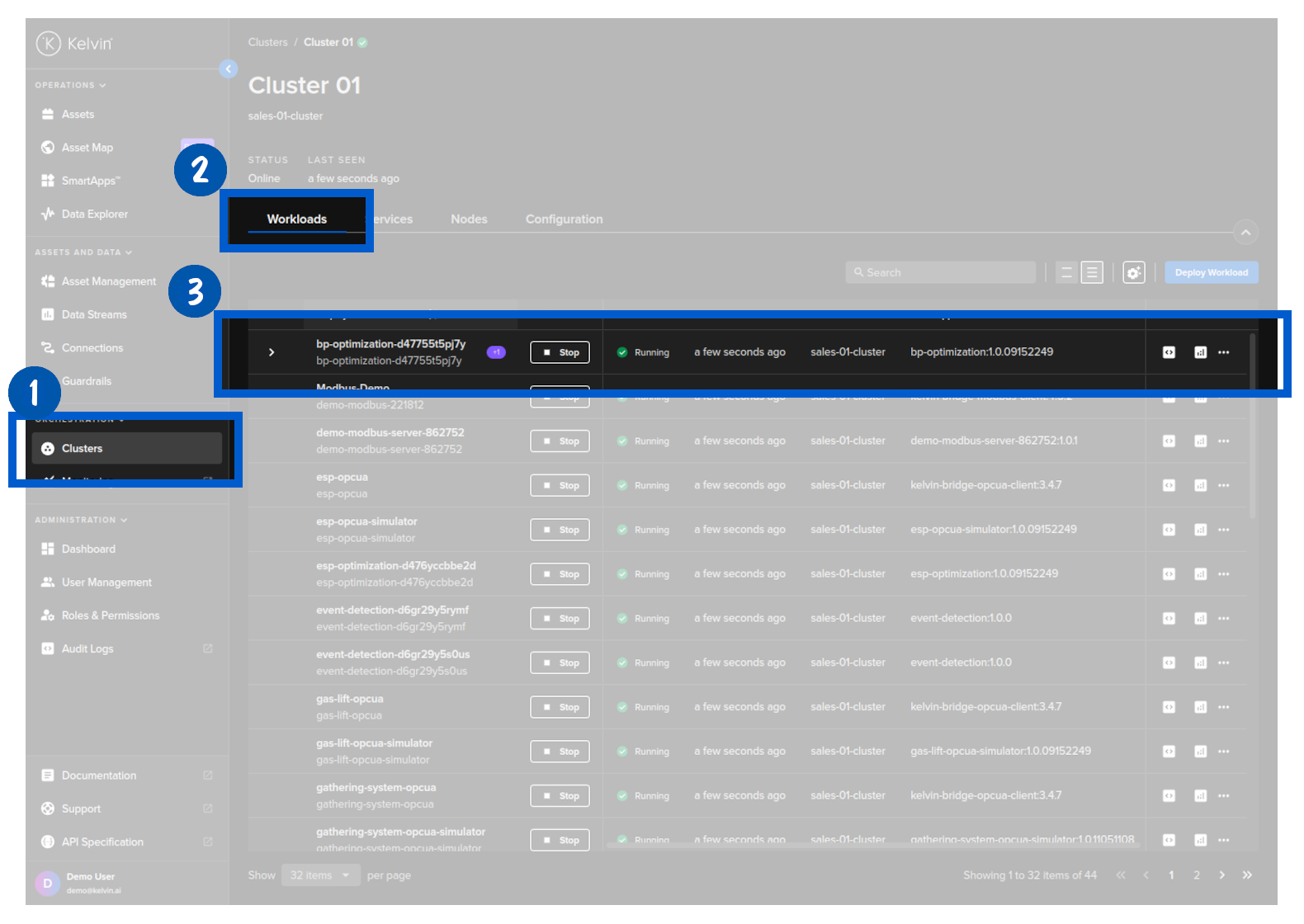
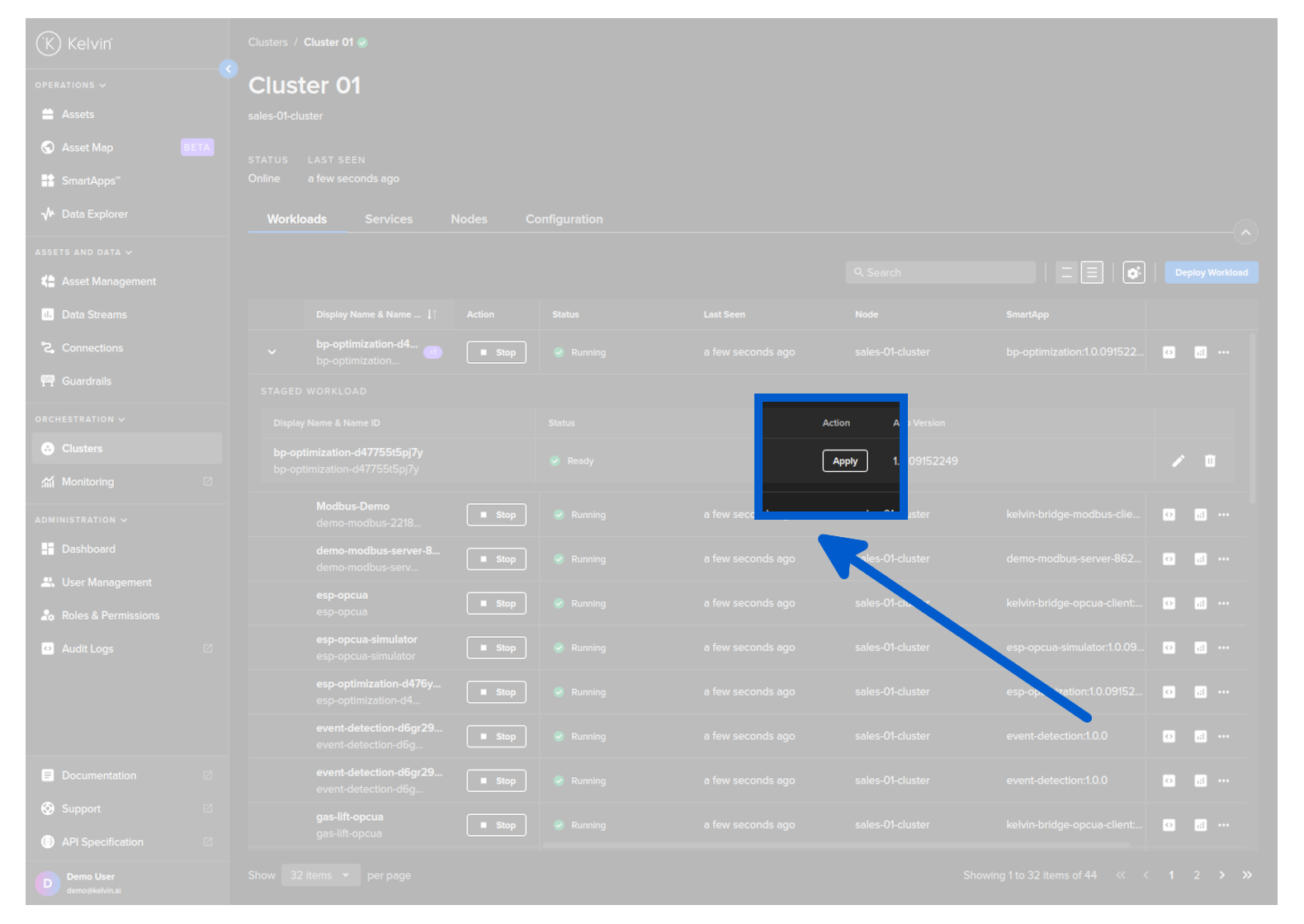
Click on this and you will see the details of the staged Workload ready for deploying.

To depoy this staged workload and replace the current Workload running, click on the Activate button.
Using the API request /workloads/{workload_name}/apply. This will initiate the deploy when Kelvin Cloud next communicates with the Edge System.
For this method the Edge System needs to have an active Internet connection for the apply command to reach the Edge system.
curl -X "POST" \
  "https://<url.kelvin.ai>/api/v4/workloads/apply" \
  -H "Authorization: Bearer <Your Current Token>" \
  -H "Accept: */*" \
  -H "Content-Type: application/json" \
  -d '{
  "workload_names": [
    "<workload_name1>",
    "<workload_name2>"
  ]
}'
You can check the status of only staged workloads at the edge with the API request /workloads/list and its parameter staged set to true.
curl -X "GET" \
"https://<url.kelvin.ai>/api/v4/workloads/list?workload_name=docs-demo-motor-speed&staged=true&pagination_type=cursor&page_size=20&direction=asc&sort_by=name" \
  -H "Authorization: Bearer <Your Current Token>" \
-H "Accept: application/json-cursor"
You can use Python to apply the staged workload.
For this method the Edge System needs to have an active Internet connection for the apply command to reach the Edge system.
from kelvin.api.client import Client

# Login
client = Client(config={"url": "https://<url.kelvin.ai>", "username": "<your_username>"})
client.login(password="<your_password>")

# Apply staged Workload
response = client.workload.apply_workload(workload_name="docs-demo-motor-speed")
Using the terminal of the Edge System. As the Workload is already downloaded to the Edge System.
For this method, you do not need an active Internet connection to deploy and run the Workload.
kelvin-provision workloads apply -n <workload_name>.
As you are working on the Edge System, the deploy will be immediately initiated regardless whether there is an Internet connection.
You can then check the status of the Workload using the command;
For a comprehensive list of available statuses and their meanings, please continue reading.
kelvin workloads list
You can also see the latest status of a staged workload in the response body;
This will be null if staged parameter was set to false.
Under normal conditions where the download succeeds, the staged → status parameter will flow like this; received → processing → downloading → ready (waiting for the apply signal).
The status section of the workload (not staged → status) will look like this; pending_deploy → running.