Deploy a Offline Workload
You can also deploy a Workload to any Cluster locally on the Edge computer/VM directly. This method does not need an Internet connection (unless you are remotely connecting to the computer with SSH or other remote control software through LAN or Internet).
This will require you to physically visit the targeted edge computer or ssh into a remote VM with the targeted Cluster and manually installing the Workload image.
Firstly we will work on the Kelvin Platform to create the Workload Image.
Create Your Workload
This method of Deployment can be done for Kelvin SmartApps™, Workloads and Connections.
- For Kelvin SmartApps™ deployment you will need to first Add Assets to the Kelvin SmartApps™ in the SmartApps™ section of the Kelvin UI, then go to the default Cluster in Orchestration and find the workload with the status
Pending Deploy. Full details to add assets to a Kelvin SmartApps™ can be found here. - For Workload deployments you can deploy workloads (or
Create Image) in the Cluster section of the Orchestration menu. Full details to deploy a workload can be found here - For a Connection deployment, go to Connections and click on the
Create Connectionbutton. Once successfully created, then go to Orchestration and select the Cluster where you have deployed the Connection where you will see the workload that is your Connection.
Download Your Workload Image
- Find the Workload you just deployed in the Cluster you chose through the Orchestration menu.
- Click on the hamburger menu. Click on the Create Image menu option.
You most likely will need to wait a few minutes for the image to be created and then you can download it from the same menu option.
- When the image has been created, then you can click again on the hamburger menu where the option has changed from Create Image to Download Image. Select where you want to locally save the file.
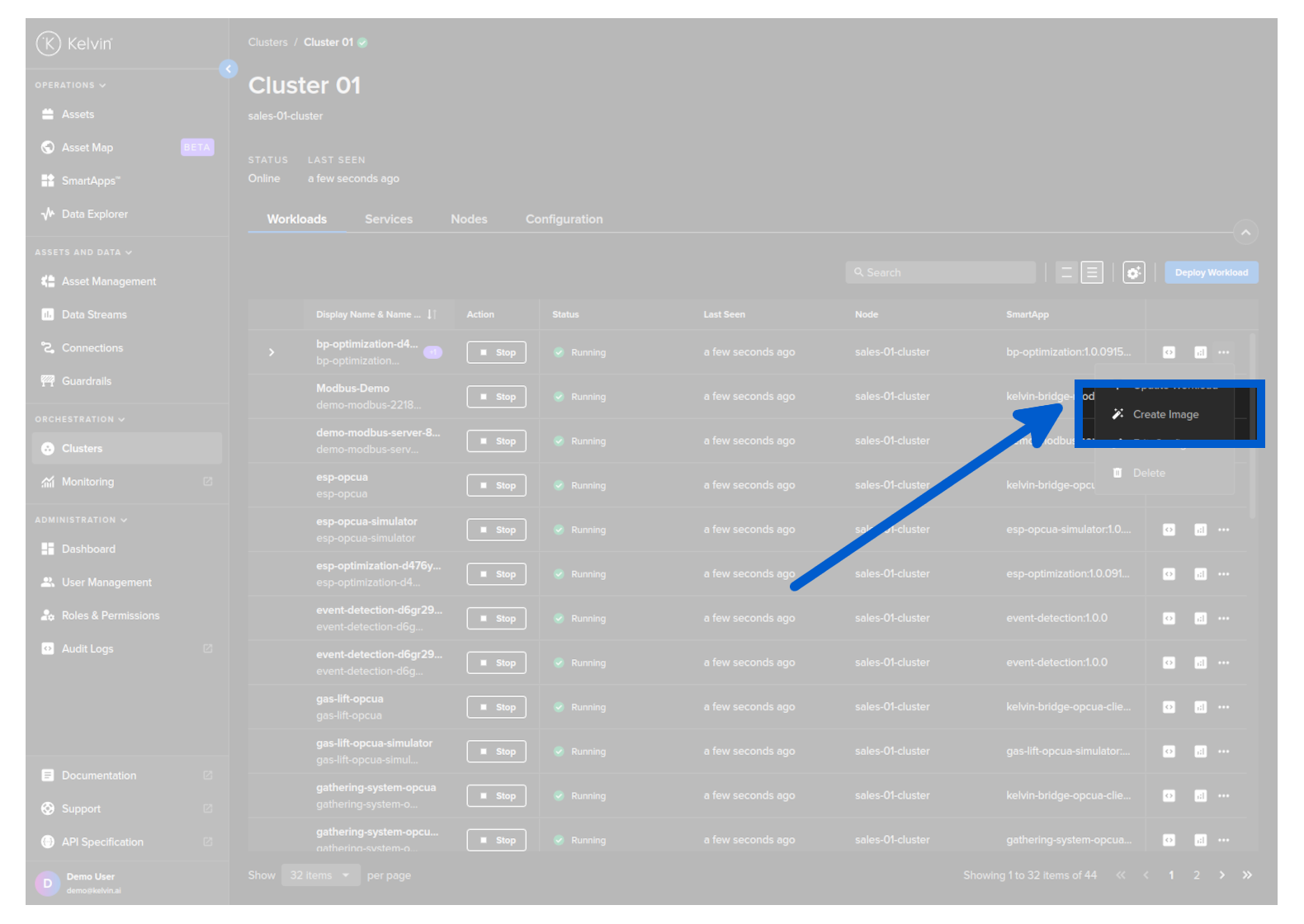
- Transfer the file to the edge system either through a USB stick or via a transfer program like SCP or Filezilla.
This image is ONLY valid for the Cluster you have deployed to. This image will not be able to be used to install the Workload on any other Clusters.
For Kelvin Professional edition the image will be automatically created.
The workload image is stored as a zip file.
Do not unpack the zip file !
Deploy Workload Image
Now go to the Edge computer or login remotely to the Edge VM.
To understand how to access and login to the Edge Services, you can read the full documentation on Edge Services here.
You have a few options to deploy the workload image using the Edge Services on the local Edge computer/VM.
Edge Services
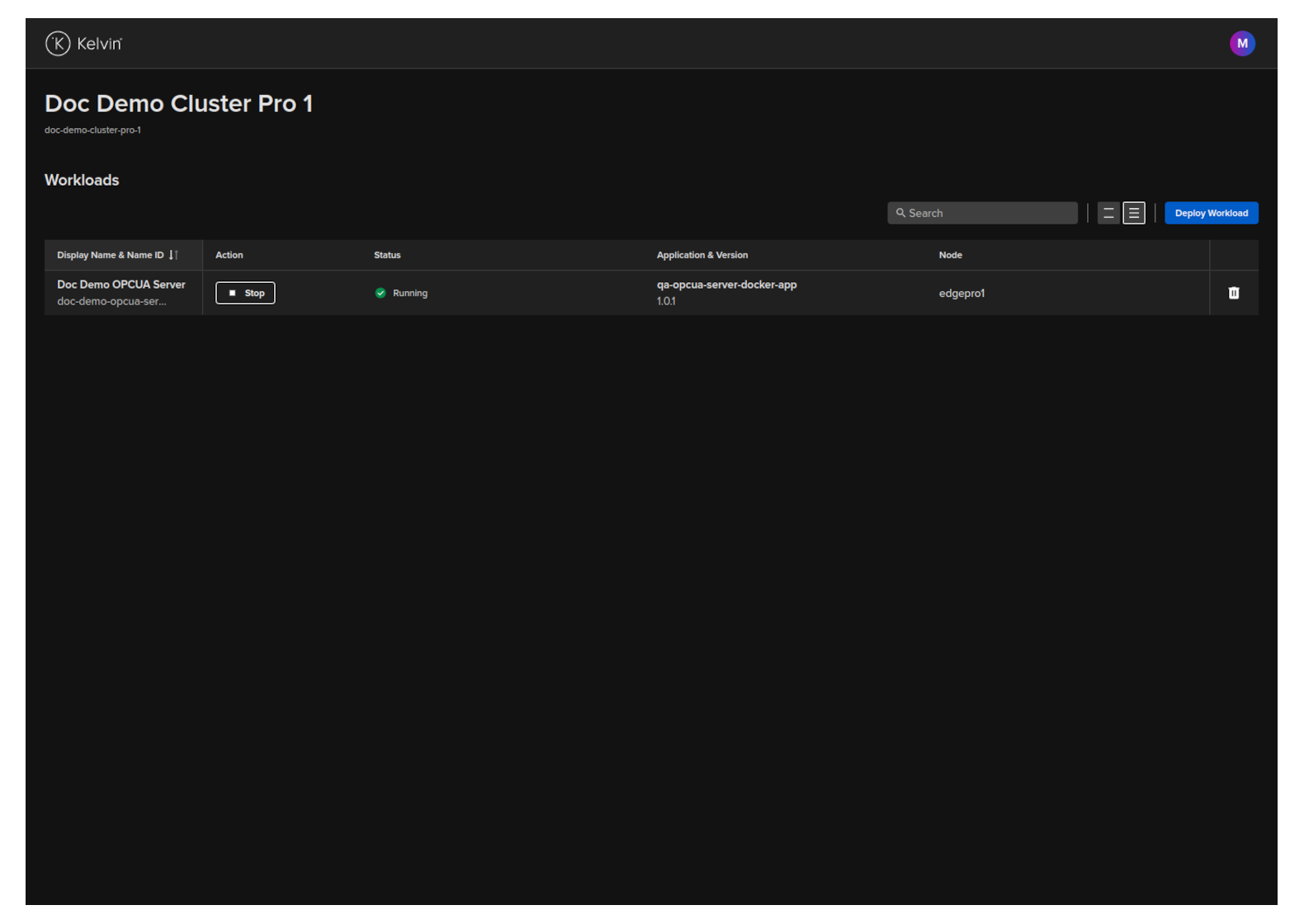
Open the Edge UI in a browser.
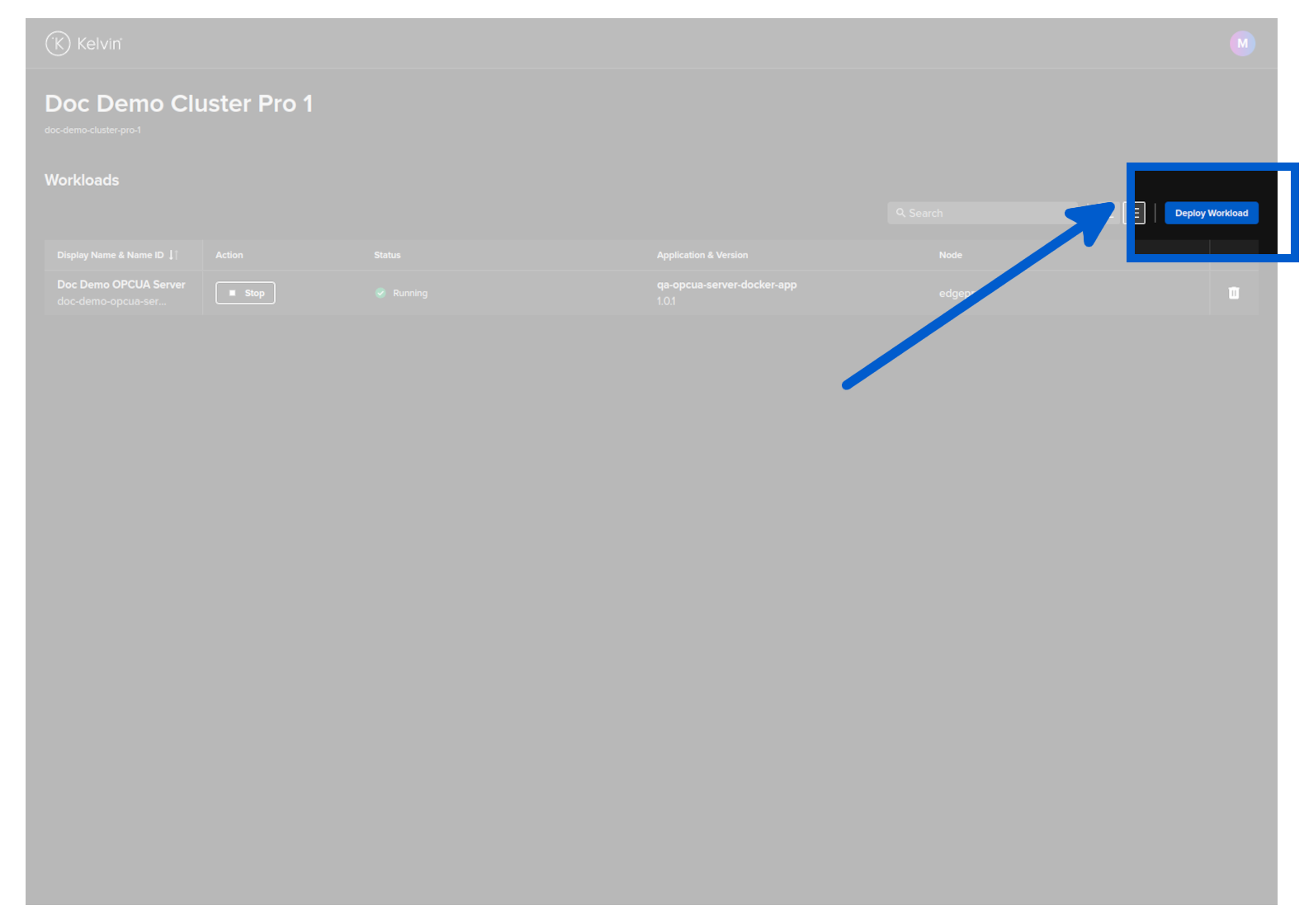
In the dashboard, click on the Deploy Workload button.
Either drag and drop the downloaded image file or click and select it then click on the Deploy button when it turns blue.
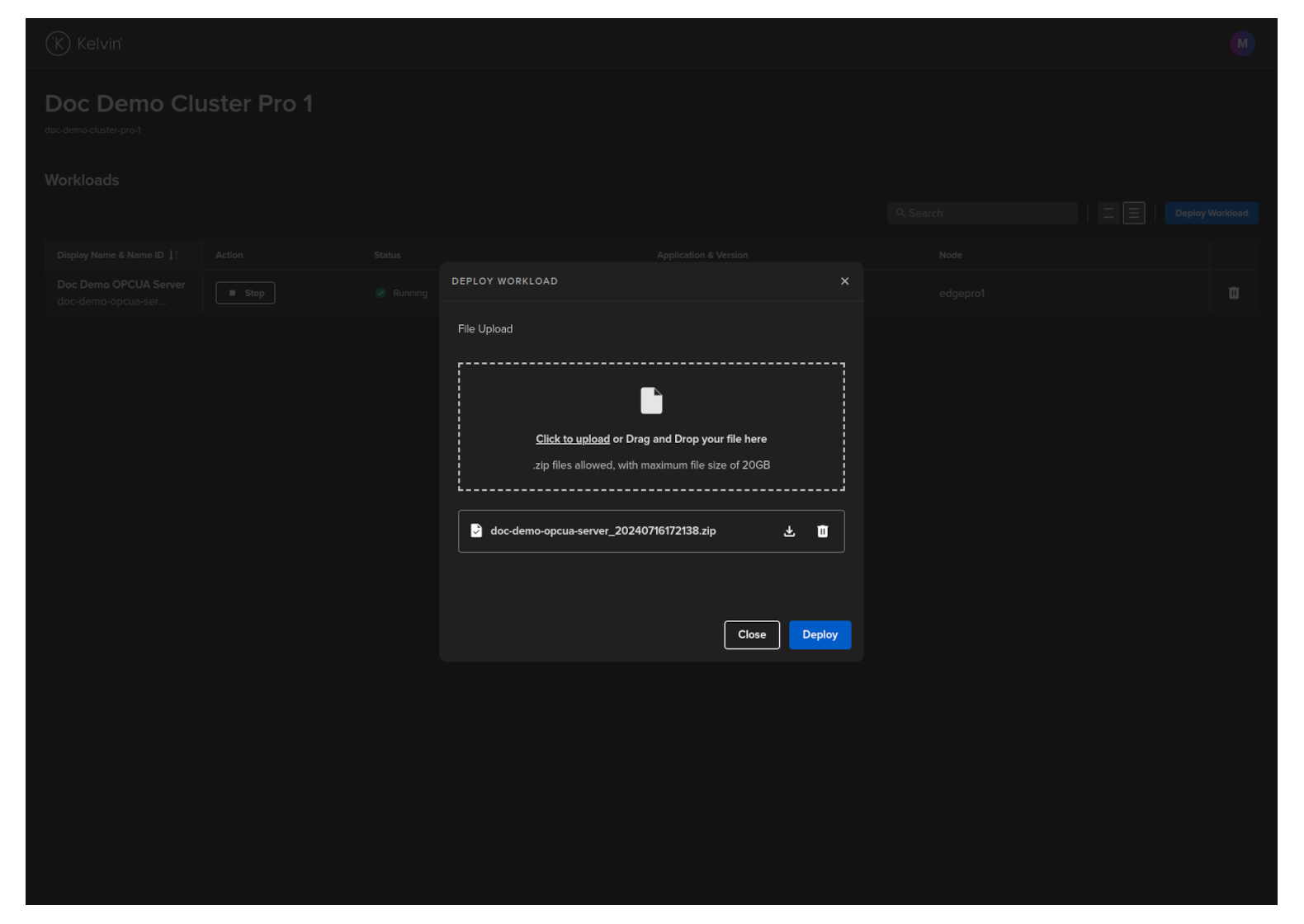
The Workload will be uploaded and deployed to a Node in the Cluster.
Once deployed successfully, the status of the Workload on the Kelvin Platform will be updated from Pending Deploy to Running the next time the edge computer is connected to the Internet.
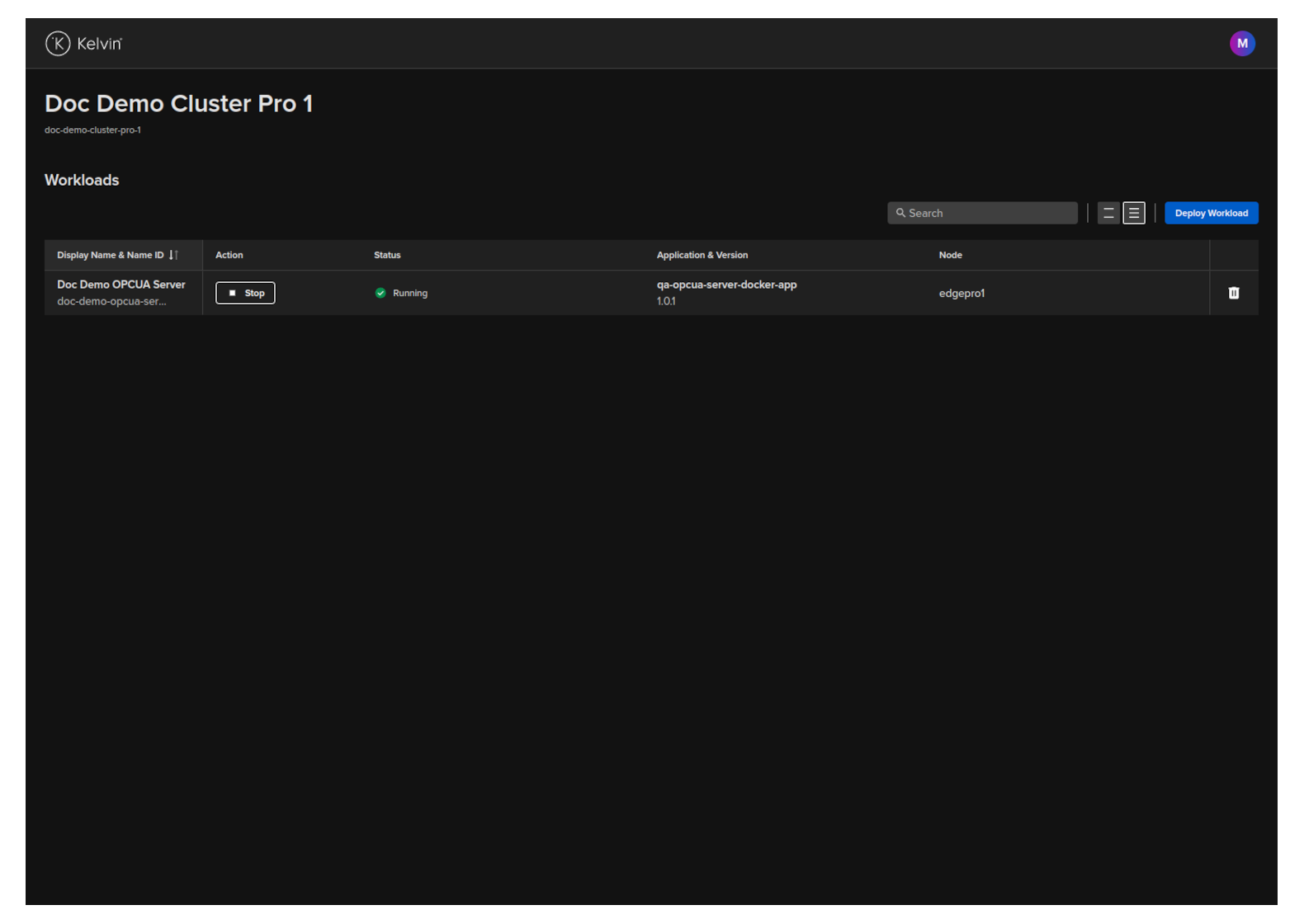
Congratulations, you have deployed your new Workload.
This endpoint is only available in the Edge API. With the Kelvin API you can only do a full Workload deployment with the /workloads/deploy endpoint.
curl -X "POST" \
'https://<edge-computer-ip>/api/v4/workloads/import" \
-H "Authorization: Bearer <Your Current Token>" \
-H "Accept: application/json" \
-H "Content-Type: multipart/form-data" \
-F 'file=@/home/ubuntu/Documents/doc-demo-opcua-server_20240716101813.zip;type=application/zip'
You will get a response similar to this;
{
"name":"doc-demo-opcua-server",
"title":"Doc Demo OPCUA Server",
"app_name":"qa-opcua-server-docker-app",
"app_version":"1.0.1",
"node_name":null,
"status":{
    "state":"received",
    "message":"Received",
    "warnings":null
},
"staged":null
}
This procedure will only work if you install the Cluster using the K3s method where Kelvin also installed and directly manages the Kubernetes cluster.
Ensure the Workload image is accessible from the command line and then type this command;
sudo kelvin-provision workloads import -f [fileLocation/filename]
Afterwards you can check the workload is running with the command.
sudo kelvin-provision workloads list