Add OPC-UA Connection - How To
You can add an OPC-UA connection through the Kelvin UI, Kelvin SDK and Kelvin API.
Connections can be deployed to both x86_64 and ARM64 devices.
You can watch this Create OPC UA Connection using Kelvin UI video tutorial.
Or follow our written step by step guid here.
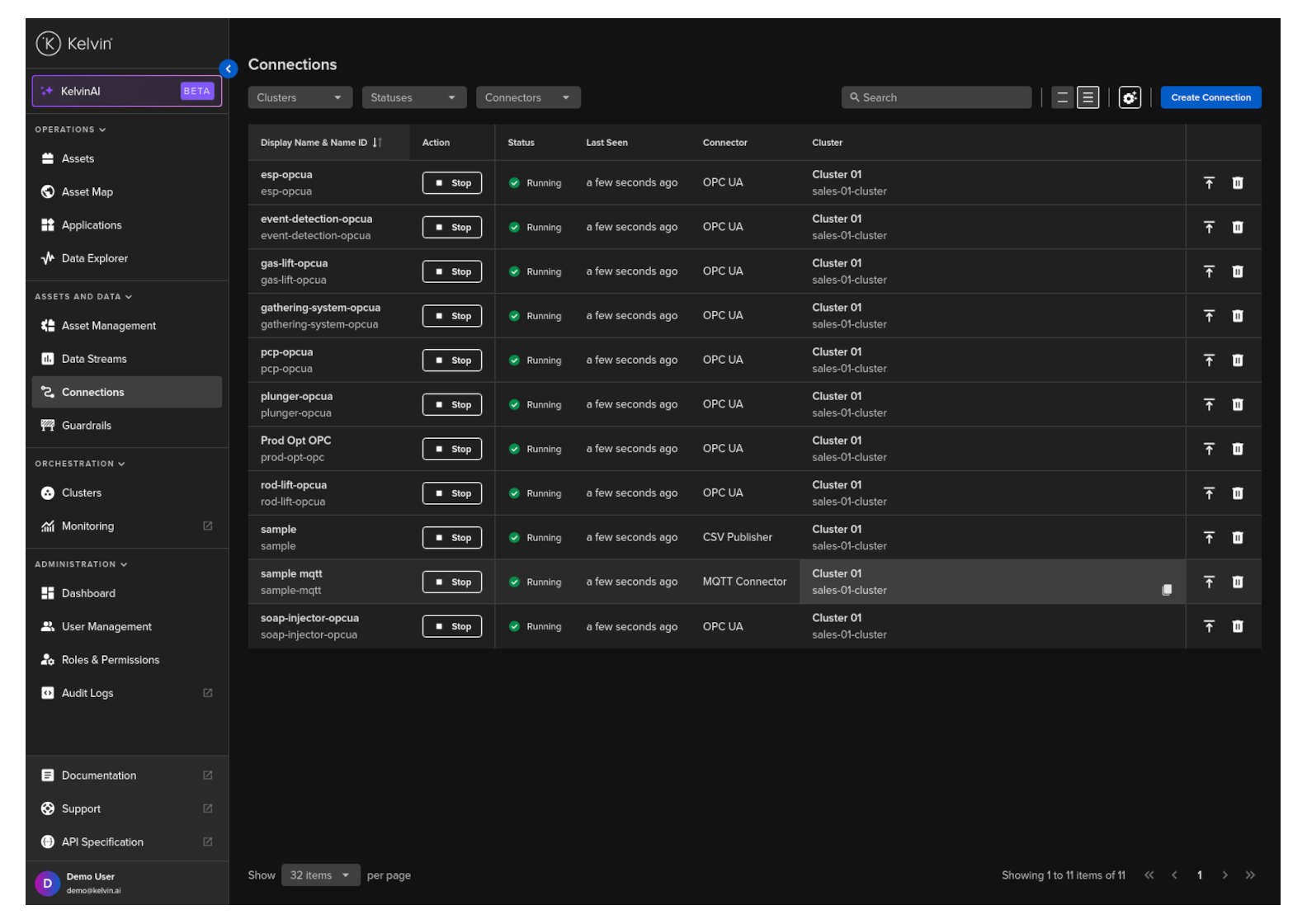
To start click on the Connections menu option from the left side bar menu.
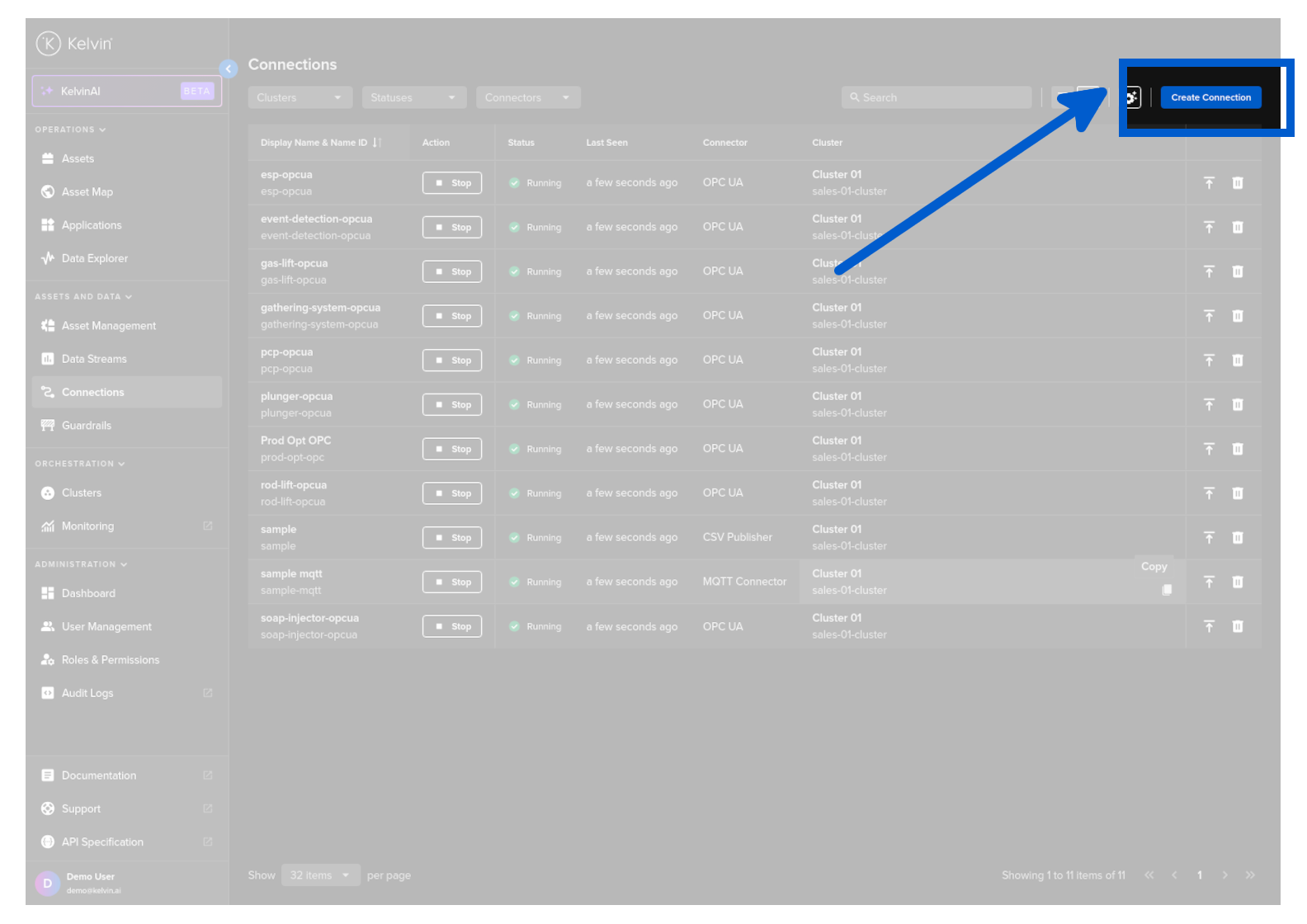
click on the Create Connection button.
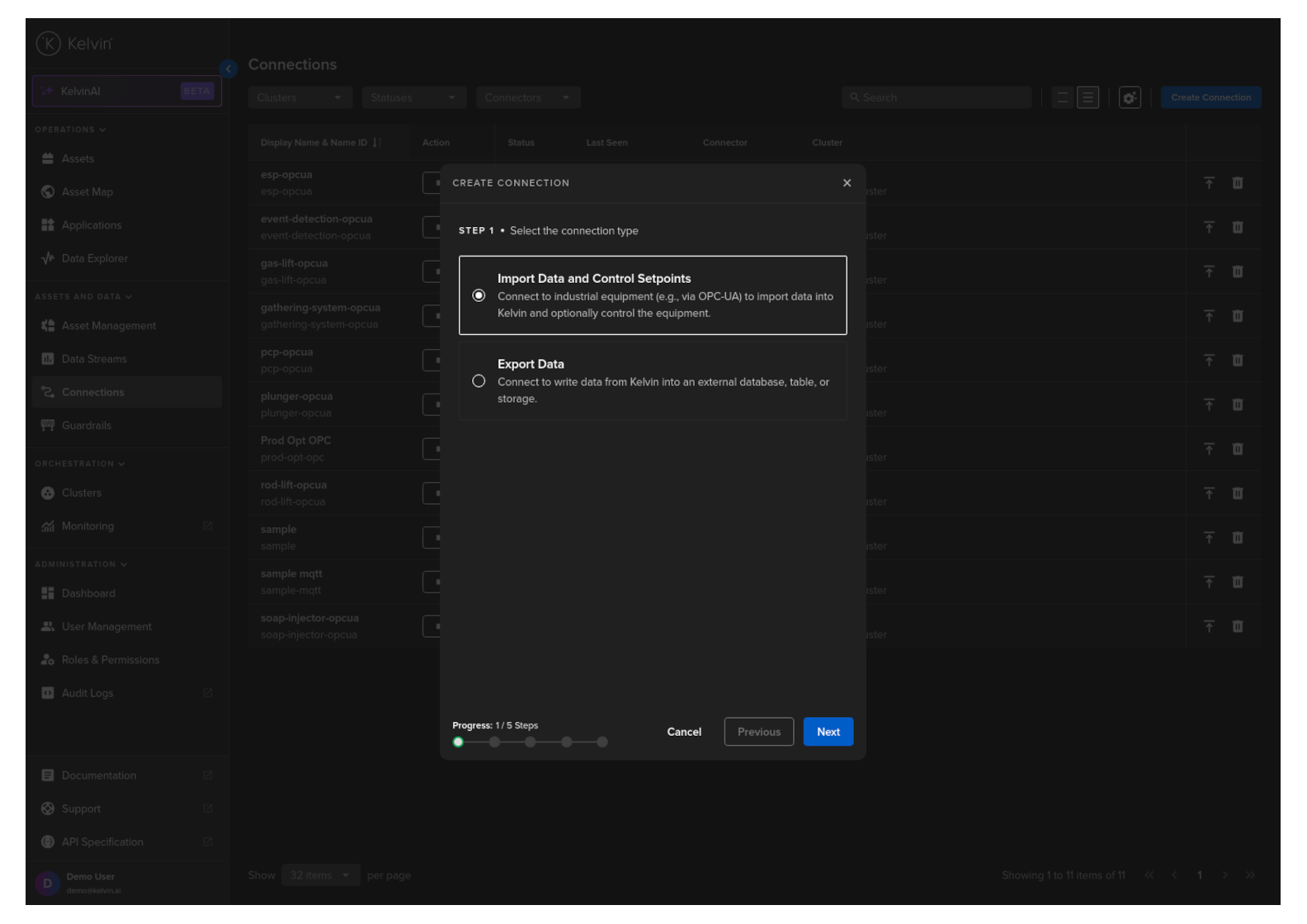
Step 1
Select Import Data and Control Setpoints and click Next.
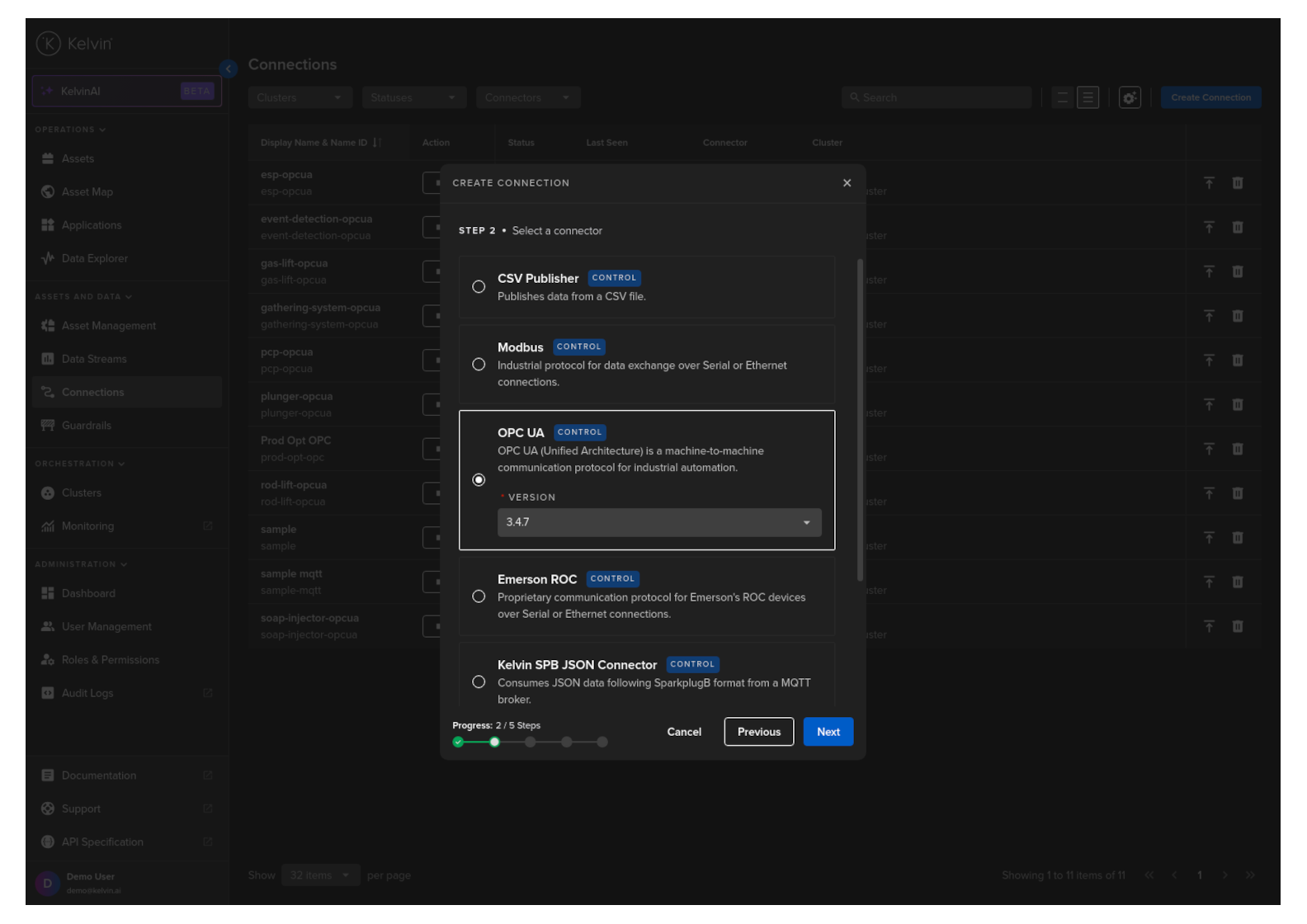
Step 2
Select the OPC UA option, select a Version and click Next.
Step 3
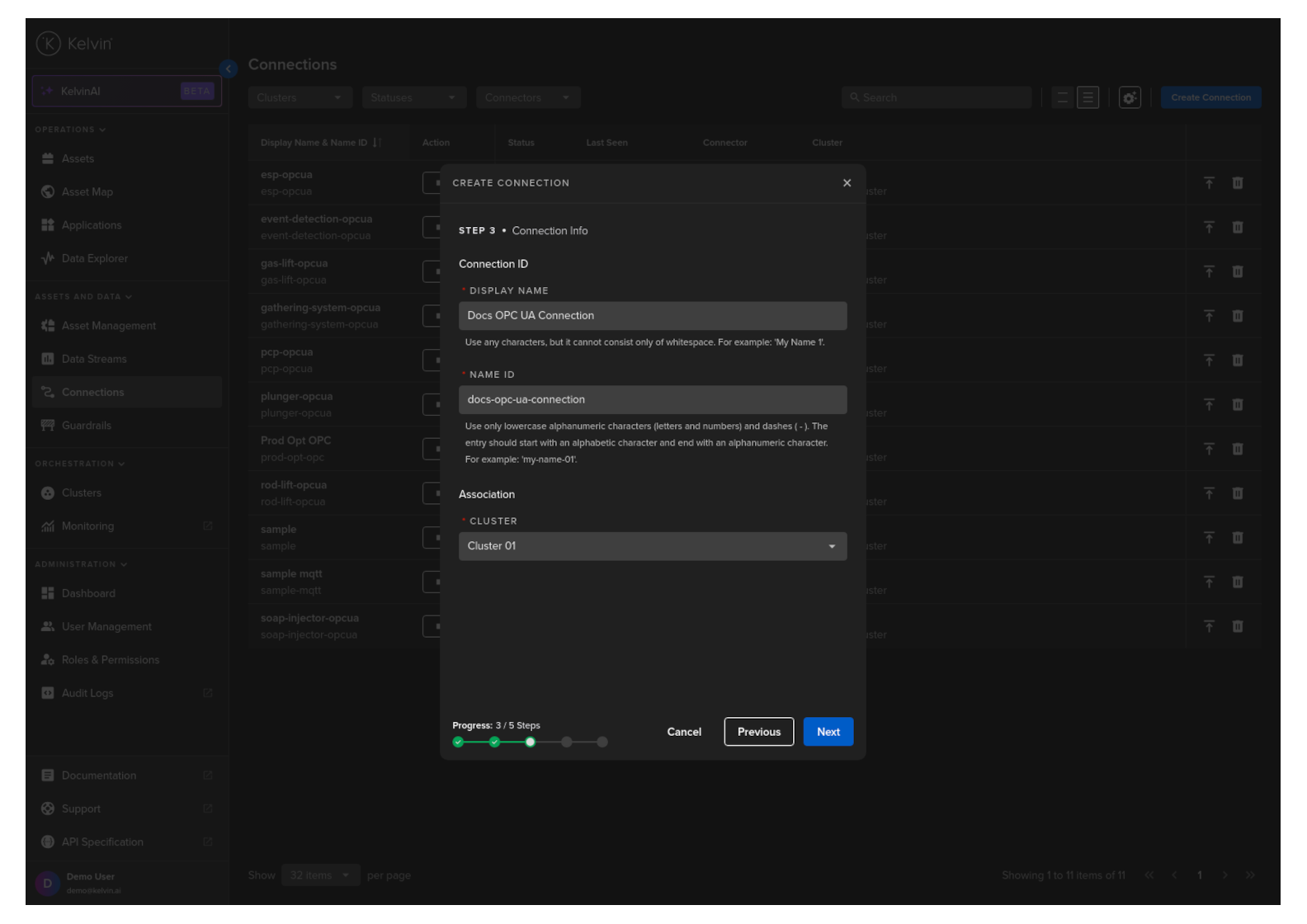
Type in a memorable name in the Connection Display Name text input. You can use any letters, numbers and special characters.
The Connection Name text input will be automatically converted and filled in as you type in the Connection Display Name section. The conversion ensures the Connection Name only contains lowercase alphanumeric characters and ., _ or - characters.
Then select which Cluster to deploy the new Connector to.
It is important that the asset is reachable from the selected Cluster.
Step 4
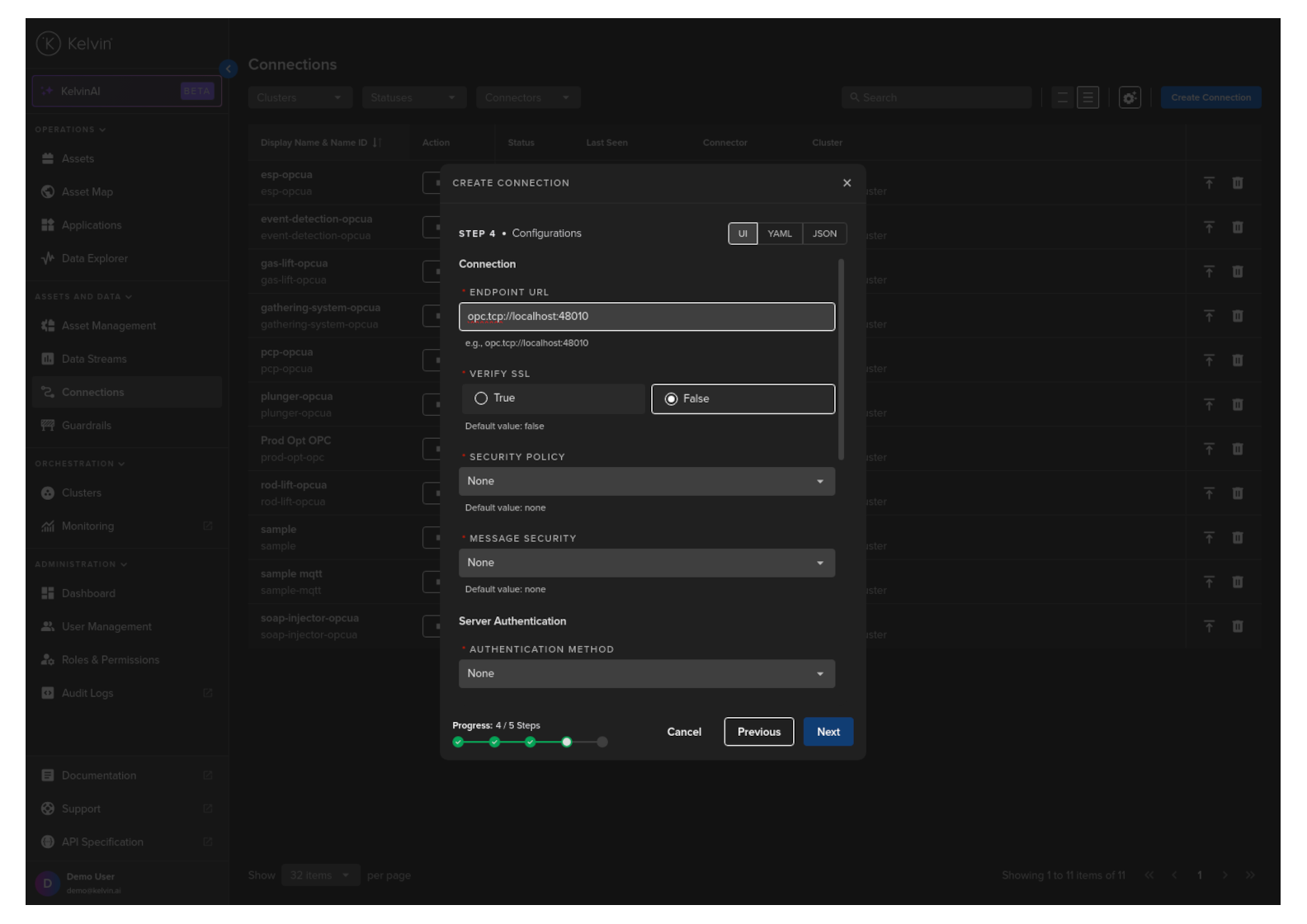
Configure the OPC-UA connection to the asset. There are a number of optional and mandatory parameters to fill in.
Info
You can choose to use the UI view, or work directly in YAML or JSON format.
For the optional parameters, if you do not fill in any values, the default values will be used.
| Parameter | Options | Description | Default | Mandatory |
|---|---|---|---|---|
| Read Timeout | Numeric value (in milliseconds) | Specifies the maximum time to wait for a response when reading data from an OPC UA server. | No | |
| Write Timeout | Numeric value (in milliseconds) | Specifies the maximum time to wait for a response when writing data to an OPC UA server. | No | |
| Watchdog Timeout | Numeric value (in milliseconds) | Defines the timeout for the watchdog mechanism, which monitors the health of the connection to the OPC UA server. | No | |
| Session Name | String | A custom name for the session, used for identification and logging purposes. | No | |
| Endpoint URL | String (opc.tcp://localhost:48010) | The URL of the OPC UA server endpoint to connect to. | Yes | |
| Verify SSL | Boolean (True/False) | Determines whether SSL certificates are verified when connecting to an OPC UA server over a secure channel. | Yes | |
| Security Policy | String (specifying security type) | Specifies the security policy for the connection, such as None, Basic256Sha256, etc. This defines the level of security like encryption and data integrity. |
Yes | |
| Message Security | String (specifying security mode) | Determines the security mode of the messages, such as None, Sign, or SignAndEncrypt. |
None | Yes |
| Authentication Method | String (specifying method) | Specifies the method of authentication used when connecting to the OPC UA server, such as Credentials or Certificate. |
None | Yes |
| Username | String | The username used for authentication if the Credentials option is chosen in Authentication Method. |
Depends | |
| Password | String | The password corresponding to the username if the Credentials option is chosen in Authentication Method. |
Depends | |
| Certificates | File path or certificate object | The path to the certificate file(s) or the certificate object itself if the Certificate option is chosen in Authentication Method. |
Depends | |
| Key Password | String | The password for the private key associated with the client's certificate if the Certificate option is chosen in Authentication Method. |
Depends |
Step 5
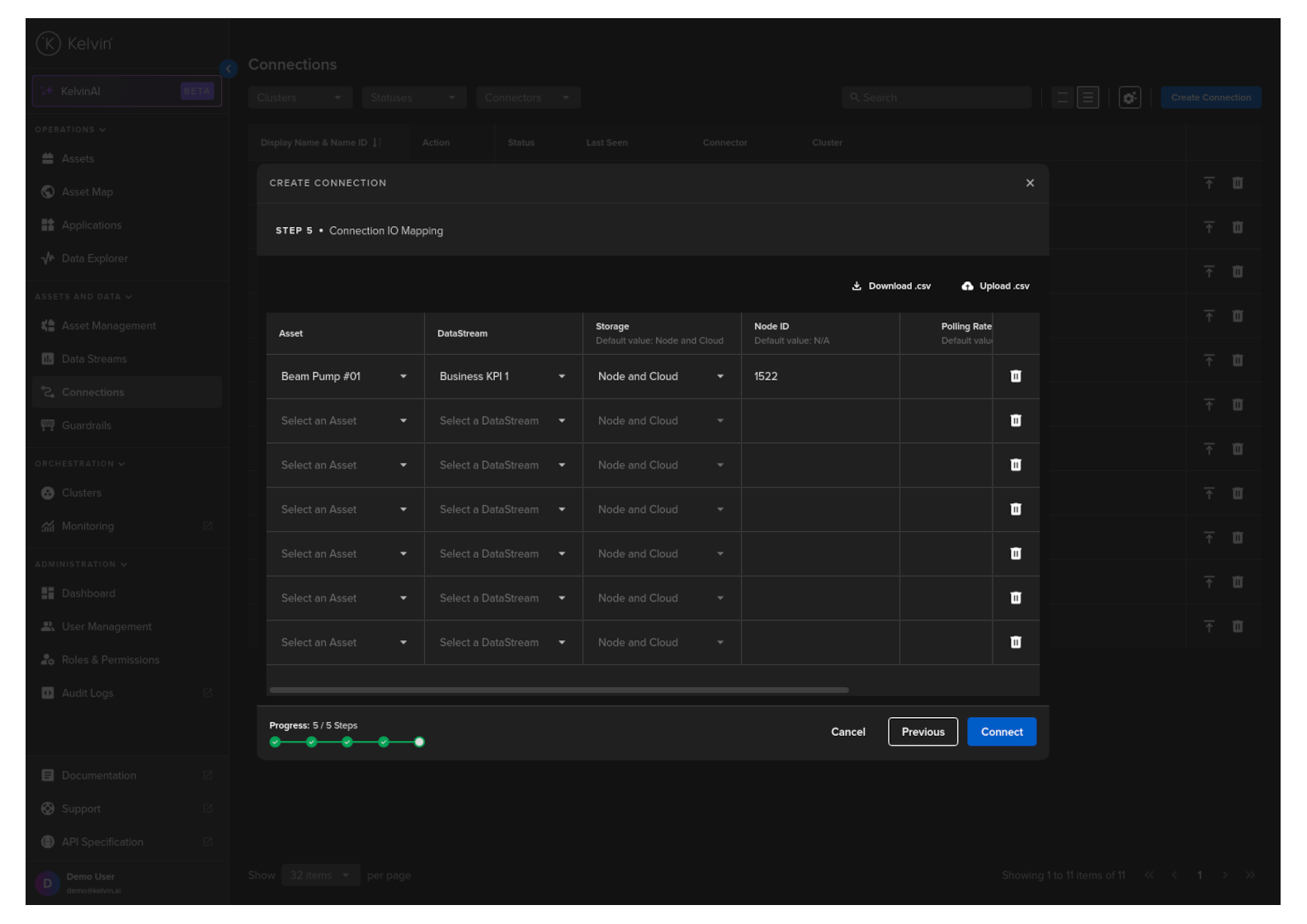
Select an Asset, Data Stream and fill in the connection and other optional values.
Full descriptions of each column is giving below.
Success
If you have many connection IO to fill in, you can save time with the download/upload csv file option in the top right hand corner of the popup.
Use Microsoft Excel or Google Sheets to fill in all the Connection IO details.
You can only upload one file. Multiple file uploads is not allowed and only the latest selected file will be used.
Option Descriptions
| Header | Description | Example | Mandatory |
|---|---|---|---|
| Asset | The Kelvin Asset name (must be lowercase alphanumeric with no spaces) | well-01 | Yes |
| DataStream | The Kelvin Data Stream name (must be lowercase alphanumeric with no spaces) | water-flow | Yes |
| Storage | Location of the storage; "none", "node", "node-and-cloud" | node-and-cloud | No |
| Node ID | OPC UA data address | ns=4;i=1002 | Yes |
| Polling Rate (in seconds) | How often to pull the data from the asset | 30 | Yes |
| Writable | Read/Write (RW) or Read Only (RO) | RO | Yes |
Complete the Connection
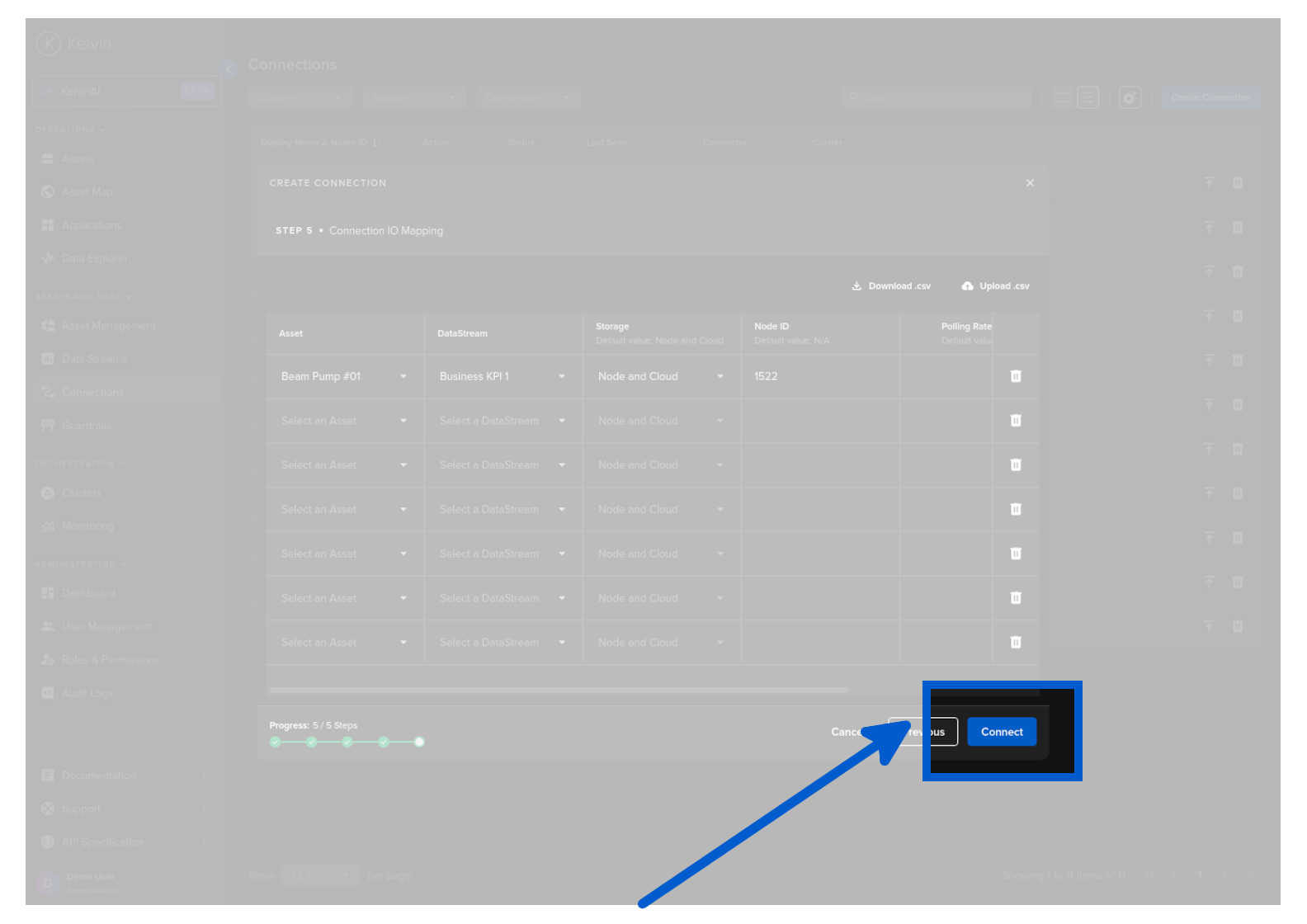
When everything is validated, then you can click on Connect button to deploy the Connection to the Cluster. It will start automatically, connect to the asset and start collecting data.
| API cURL Example | |
|---|---|
1 2 3 4 5 6 7 8 9 10 11 12 13 14 15 16 17 18 19 20 21 22 23 24 25 26 27 28 29 30 31 32 33 34 35 36 37 38 39 40 41 42 43 44 45 46 47 48 49 50 51 52 53 54 55 56 57 58 59 60 61 62 63 64 65 66 67 68 69 70 71 72 73 74 75 76 77 78 79 80 81 82 83 84 85 86 87 88 89 90 91 92 93 94 95 96 97 98 99 100 101 102 103 104 105 106 107 108 109 110 111 112 113 114 115 116 117 118 119 120 121 122 123 124 125 126 127 128 | |
The response will look something like this;
| API cURL Example Response | |
|---|---|
1 2 3 4 5 6 7 8 9 10 11 12 13 14 15 16 17 18 19 20 21 22 23 24 25 26 27 28 29 30 31 32 33 34 35 36 37 38 39 40 41 42 43 44 45 46 47 48 49 50 51 52 53 54 55 56 57 58 59 60 61 62 63 64 65 66 67 68 69 70 71 72 73 74 75 76 77 78 79 80 81 82 83 84 85 86 87 88 89 90 91 92 93 94 95 96 97 98 99 100 101 102 103 104 105 106 107 108 109 110 111 112 113 114 115 116 117 118 119 120 121 122 123 124 125 126 127 128 129 130 131 132 133 134 135 136 137 138 139 140 141 142 143 144 145 146 147 148 149 150 151 152 153 154 155 156 157 158 159 160 161 162 163 164 165 166 167 168 169 170 171 172 173 174 175 176 177 178 179 180 181 182 183 184 185 186 187 188 189 190 191 192 193 194 195 196 197 198 199 200 201 202 203 204 205 206 | |
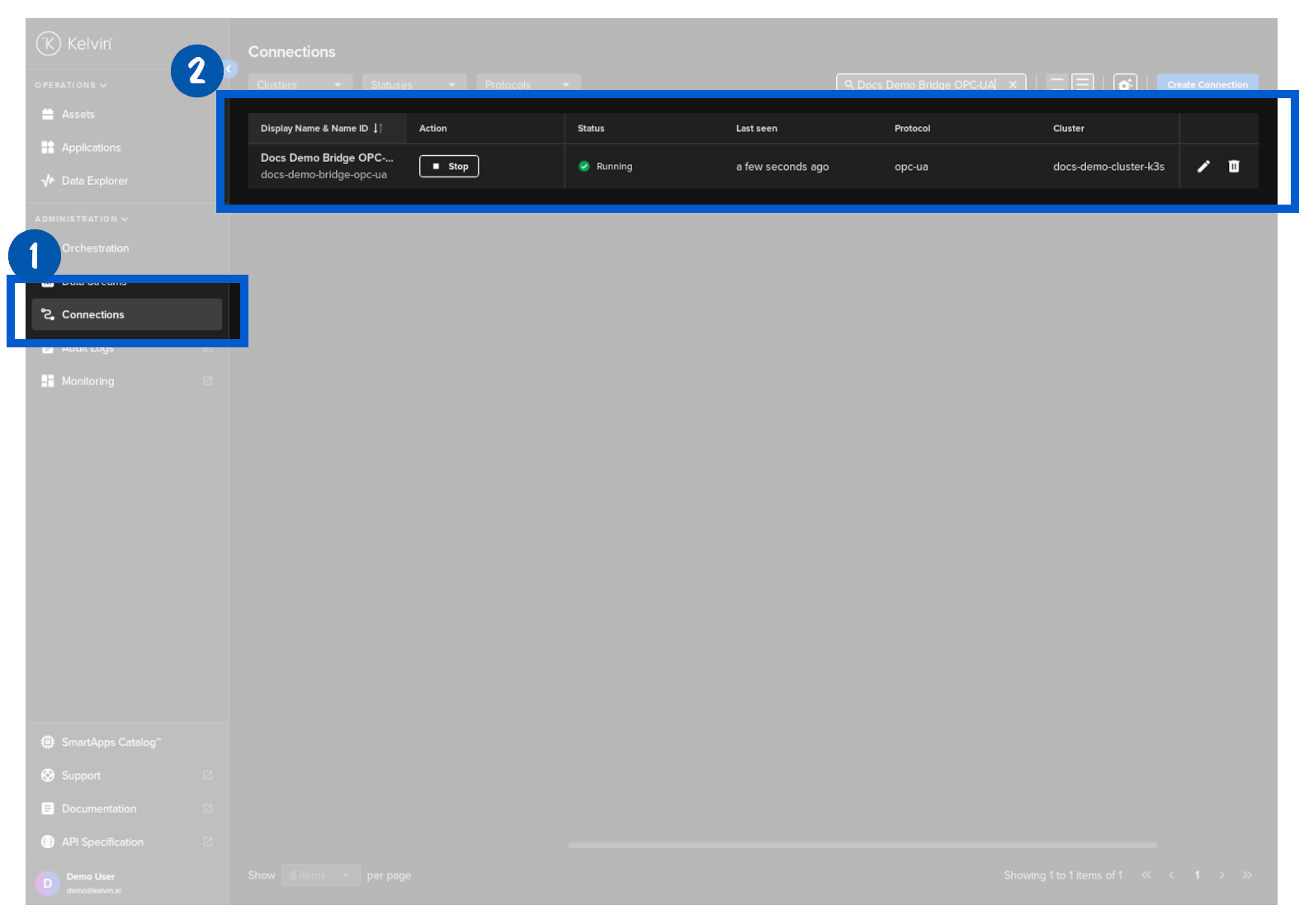
Then in Kelvin UI under Connections you will see your Connection deployed and running.
If you have any issues in the deployment and the /bridges/deploy fails to run, then you can check its logs.
| API Client (Python) Example | |
|---|---|
1 2 3 4 5 6 7 8 9 10 11 12 13 14 15 16 17 18 19 20 21 22 23 24 25 26 27 28 29 30 31 32 33 34 35 36 37 38 39 40 41 42 43 44 45 46 47 48 49 50 51 52 53 54 55 56 57 58 59 60 61 62 63 64 65 66 67 68 69 70 71 72 73 74 75 76 77 78 79 80 81 82 83 84 85 86 87 88 89 90 91 92 93 94 95 96 97 98 99 100 101 102 103 104 105 106 107 108 109 110 111 112 113 114 115 116 117 118 119 120 121 122 123 124 125 126 127 128 129 130 131 | |