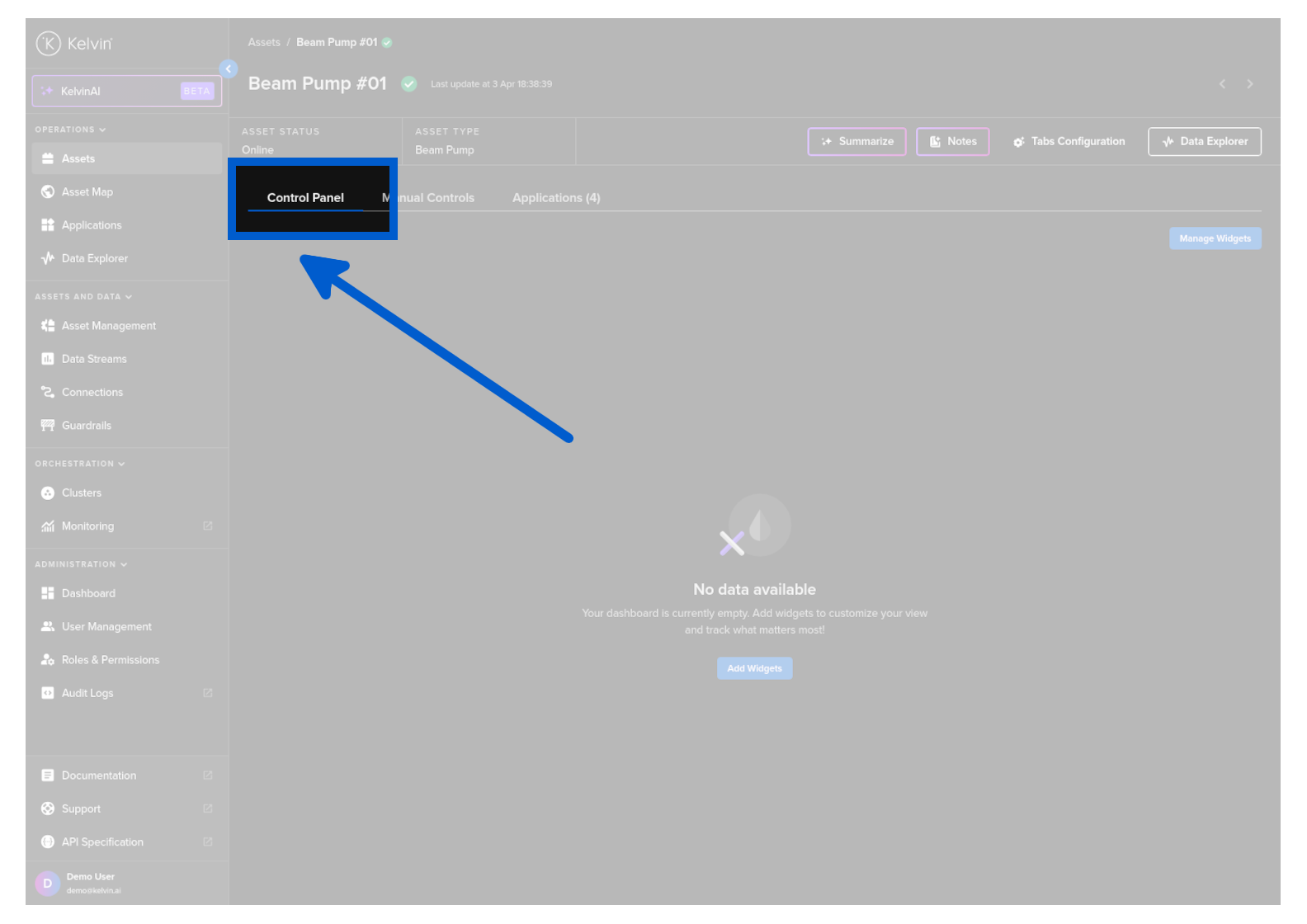
Control Panel Tab
When you view the details of an Asset, one of the tab options is Control Panel.
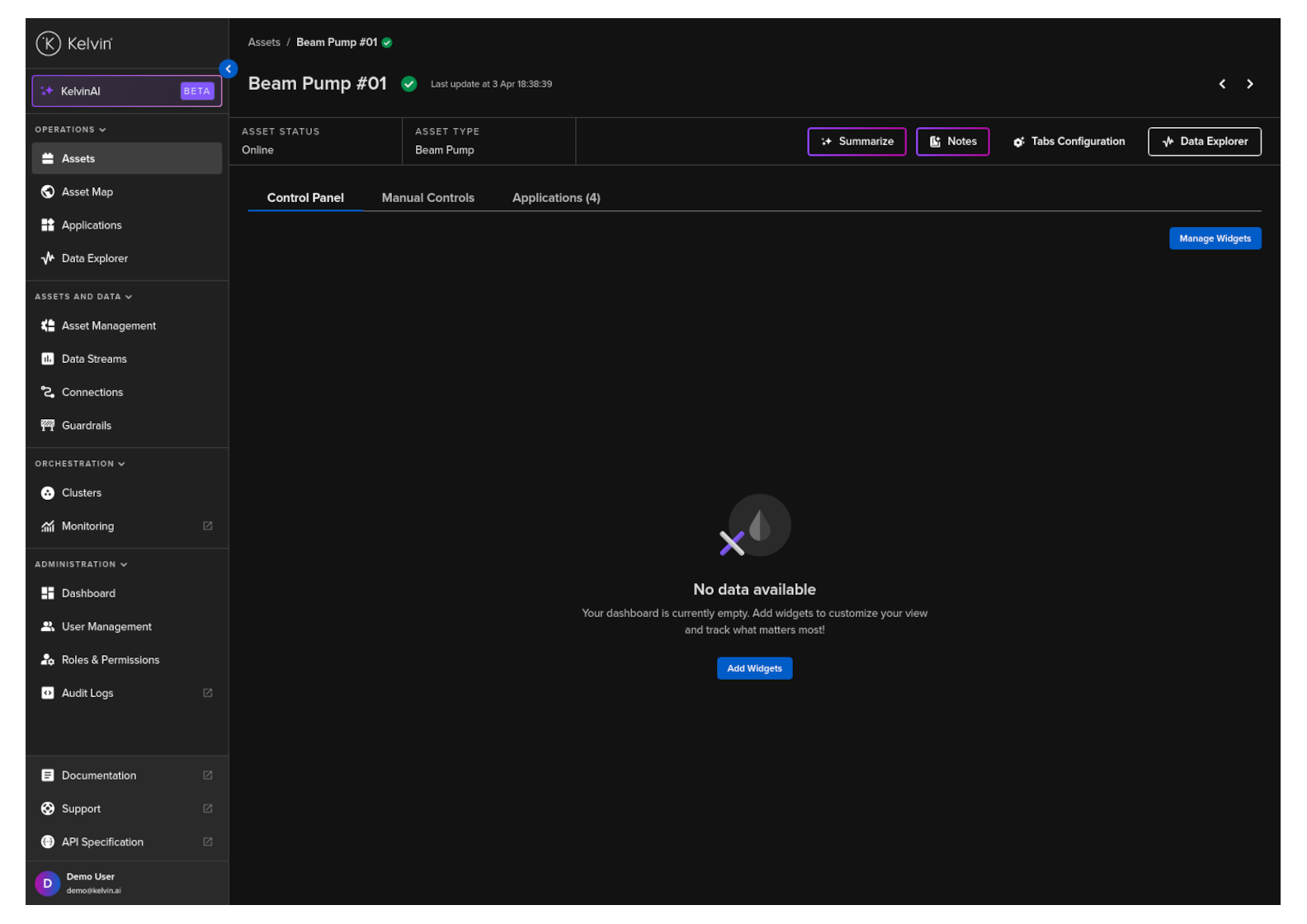
This is a powerful dashboard for you to customize the tools and views you want to see for this Asset.
Note
Any setup you create here will be duplicated to all Assets with the same Asset Type.
This makes it easy for you to setup a group of Assets with a specific Control Panel layout to suit your requirements.
Setup
When you first view an Asset there will be no widgets shown.
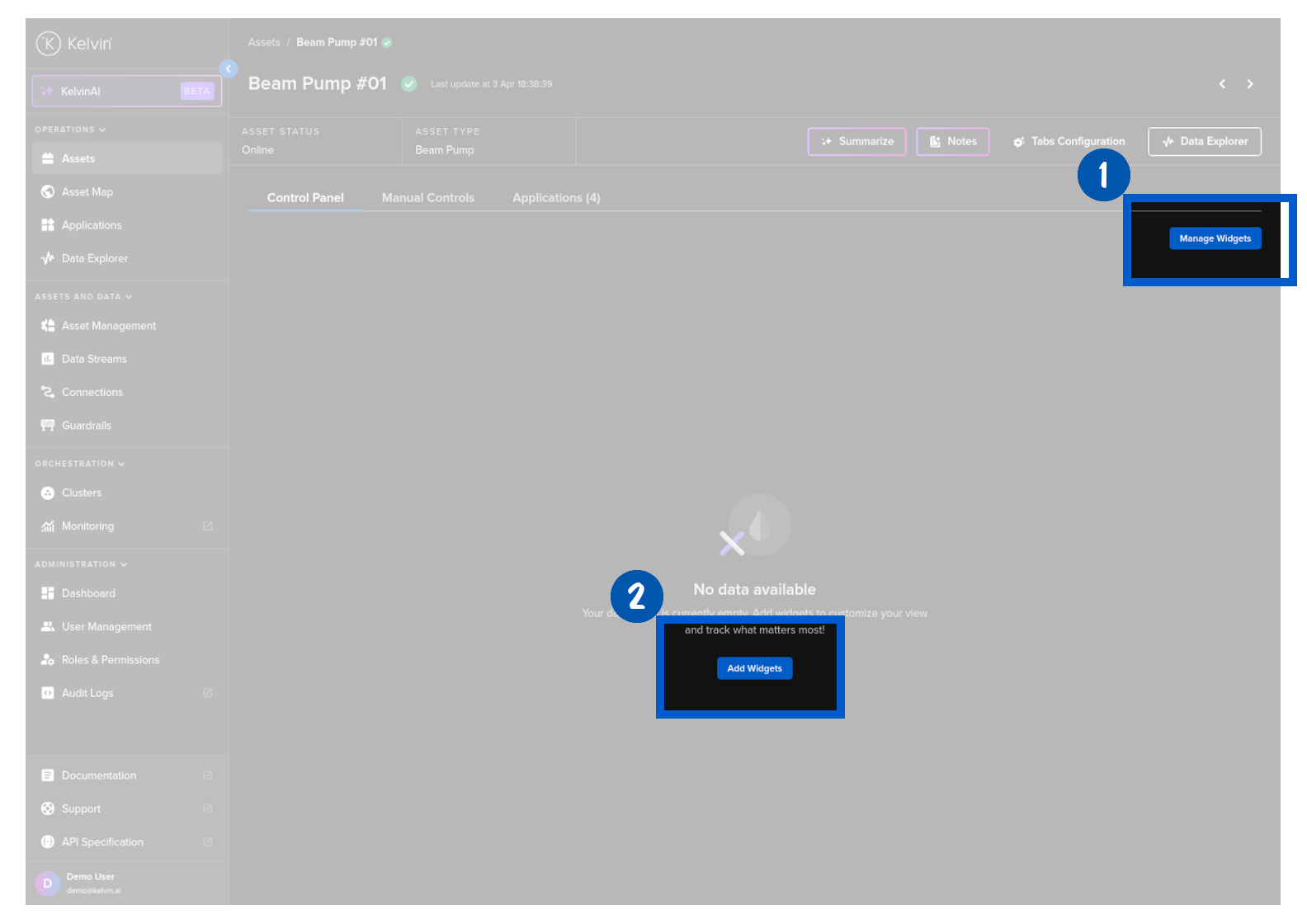
To start click on Add Widgets or Manage Widgets button.
In the Manage Widgets window, you can click on the arrow of each widget to understand what they do.
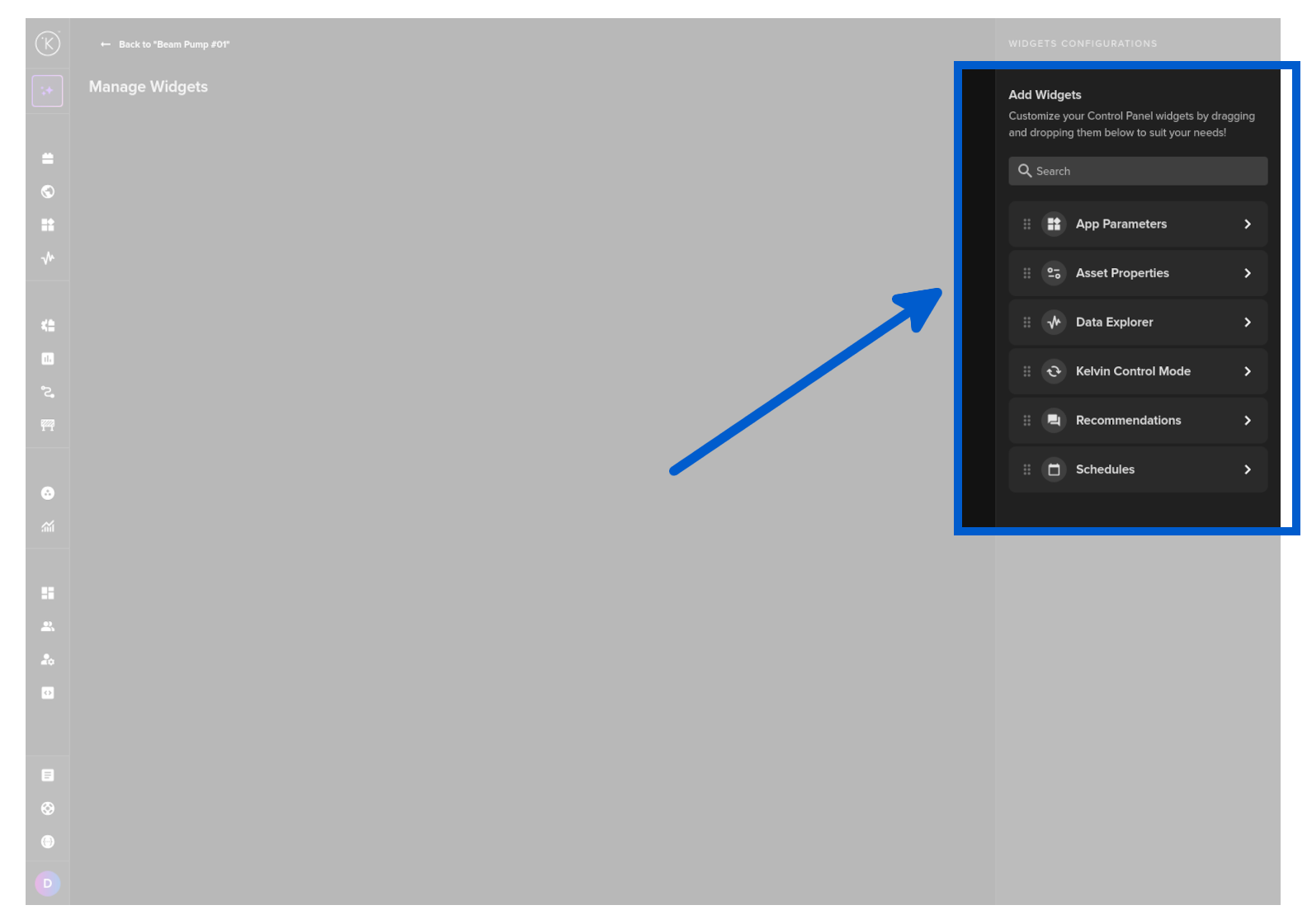
To start, simply click and drag a widget on the screen.
Success
You can drag it anywhere on the screen and resize it.
On the right side bar you will see the widget options available.
Here you can setup the options and views you want in the widget.
Note
In the top right corner dropdown menu you can also reset the widget to default settings or delete it.
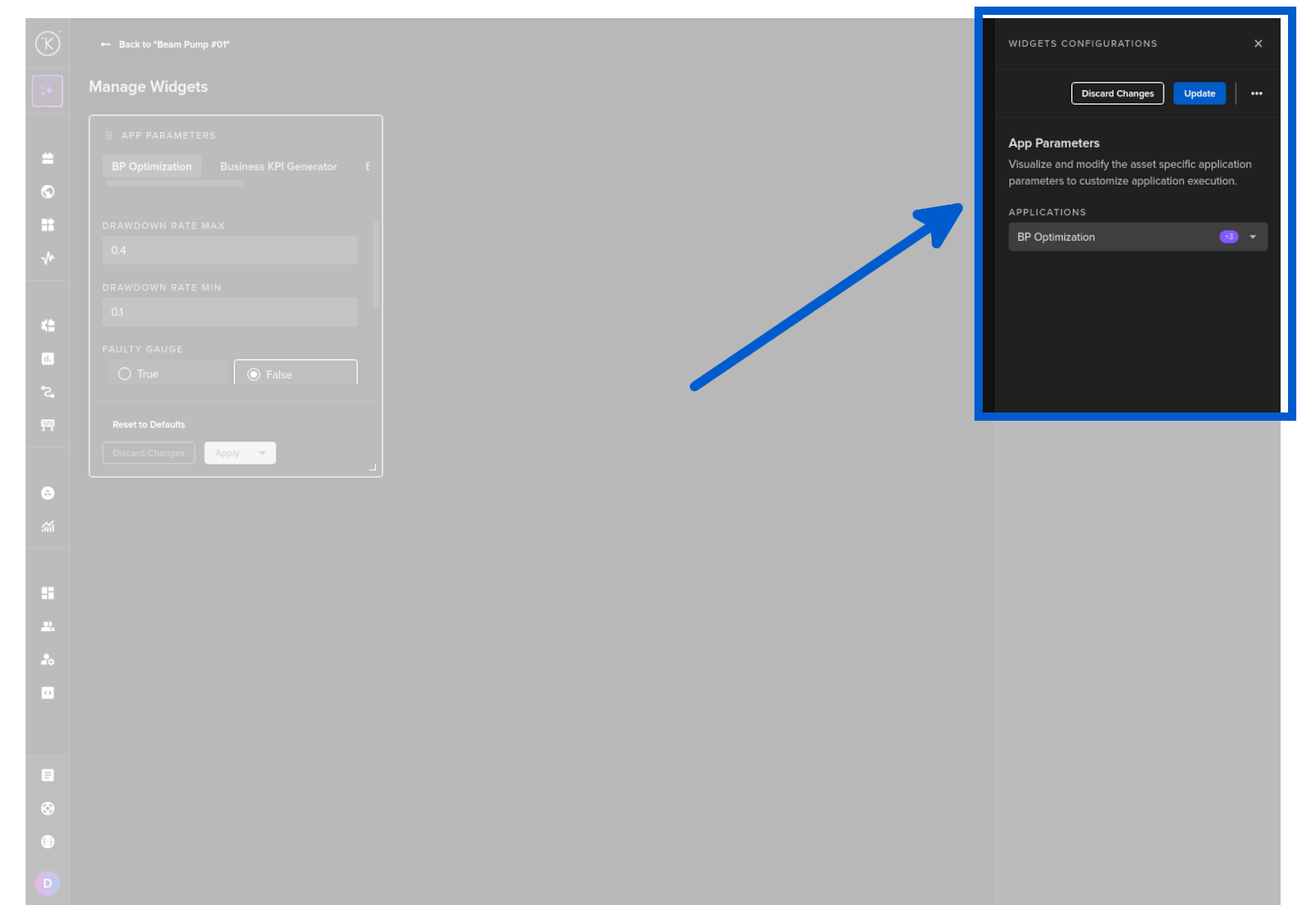
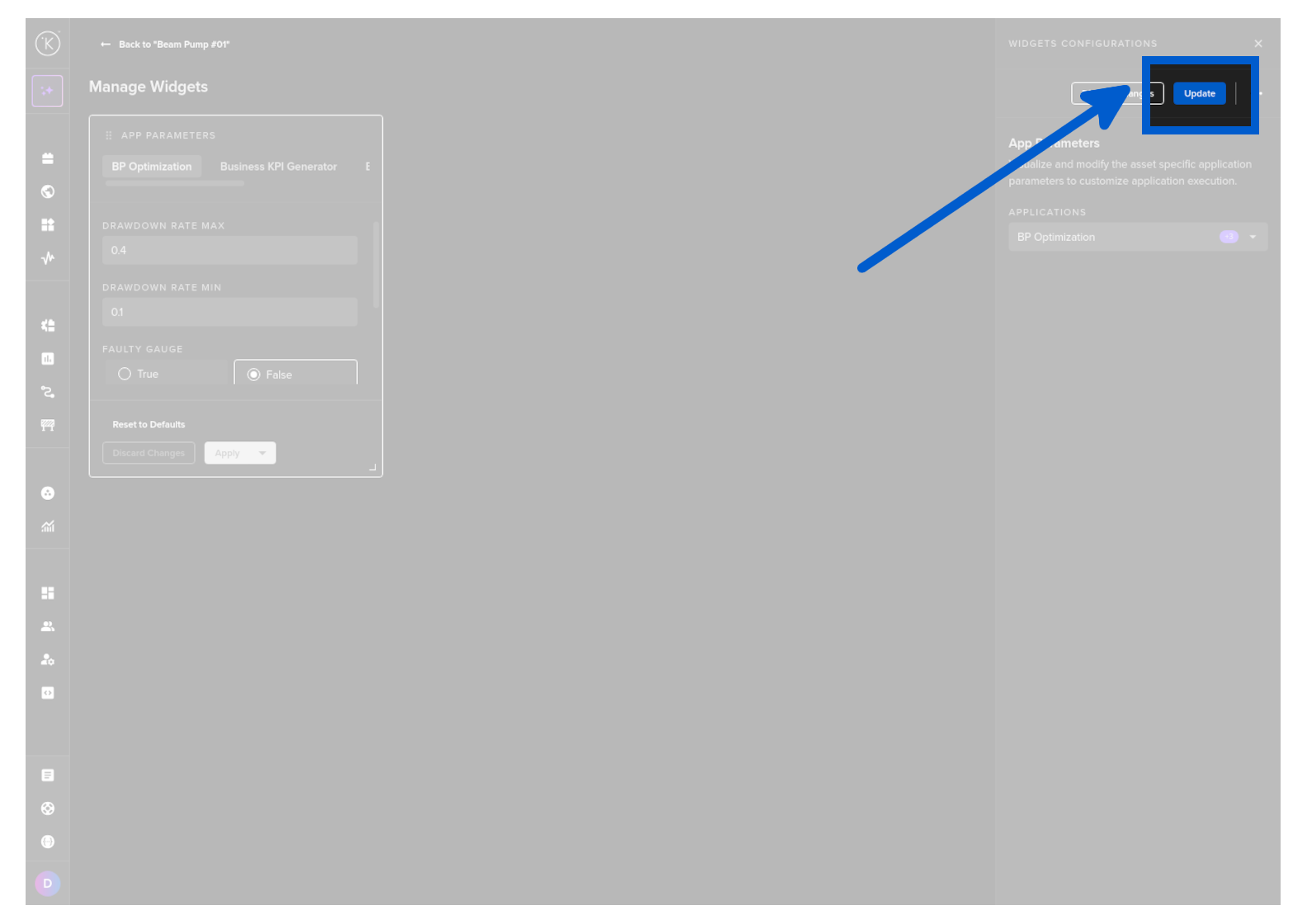
When ready, you can click the Update button or if you have not done any changes then the Update button will be gray, so you can just click the close icon (x).
When you have setup the Control Panel to your satisfaction, then you can click on the Back to
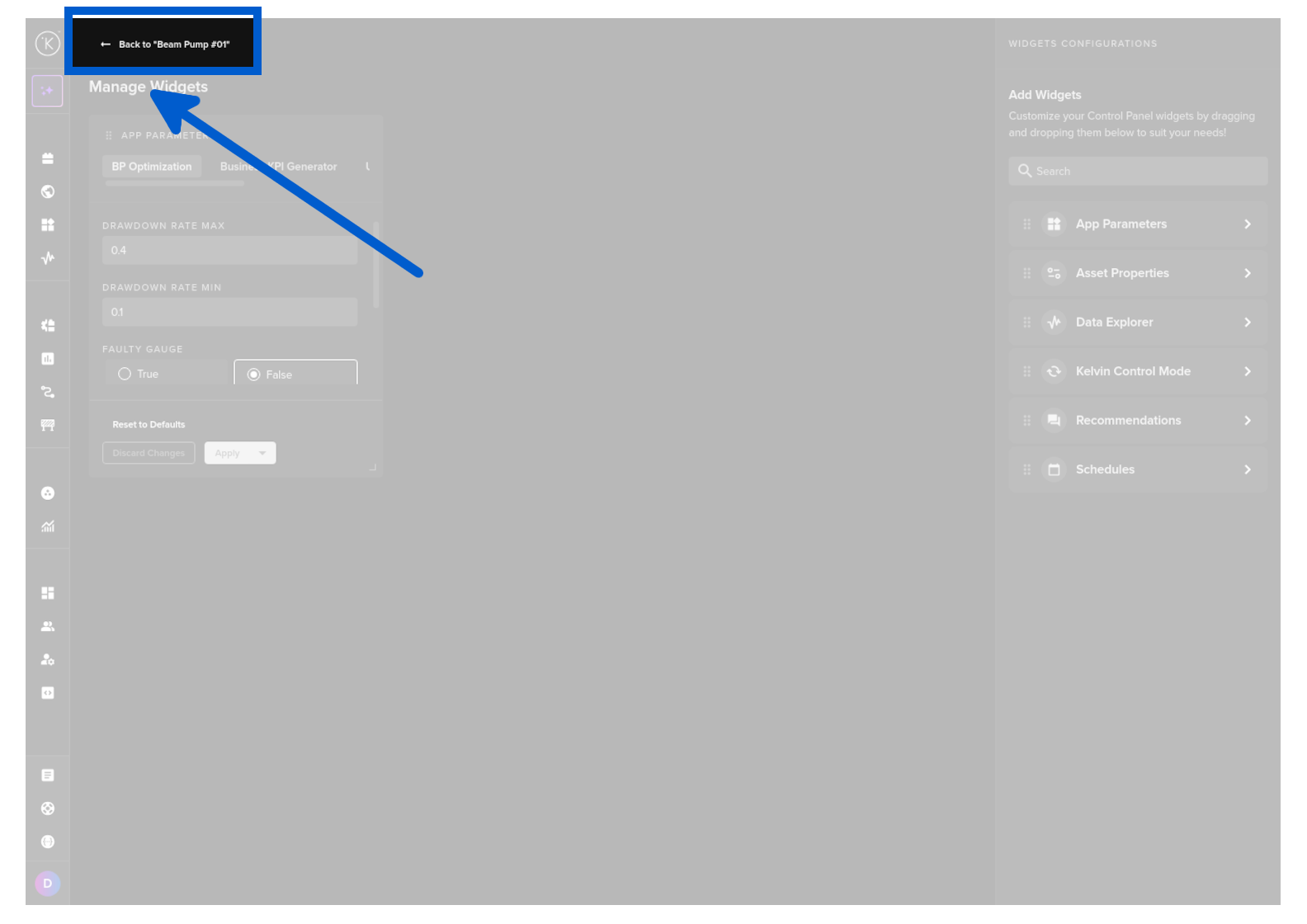
Widgets
There are six widgets you can choose from.
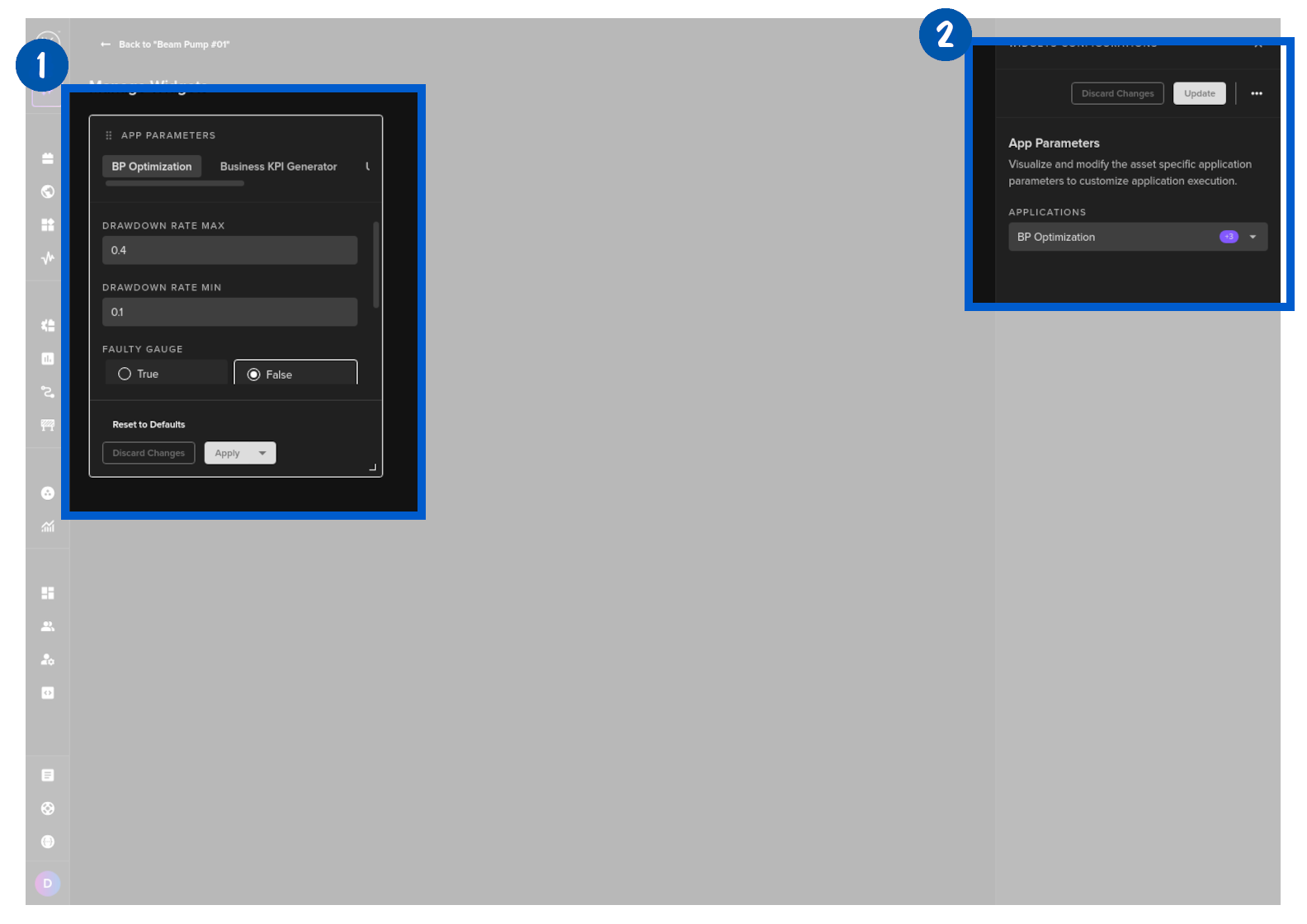
This visualizes the Asset specific App Parameters.
You can choose which applications are available in this widget.
Note
If you select more than one Application, then they will be displayed in the widget in tabs.
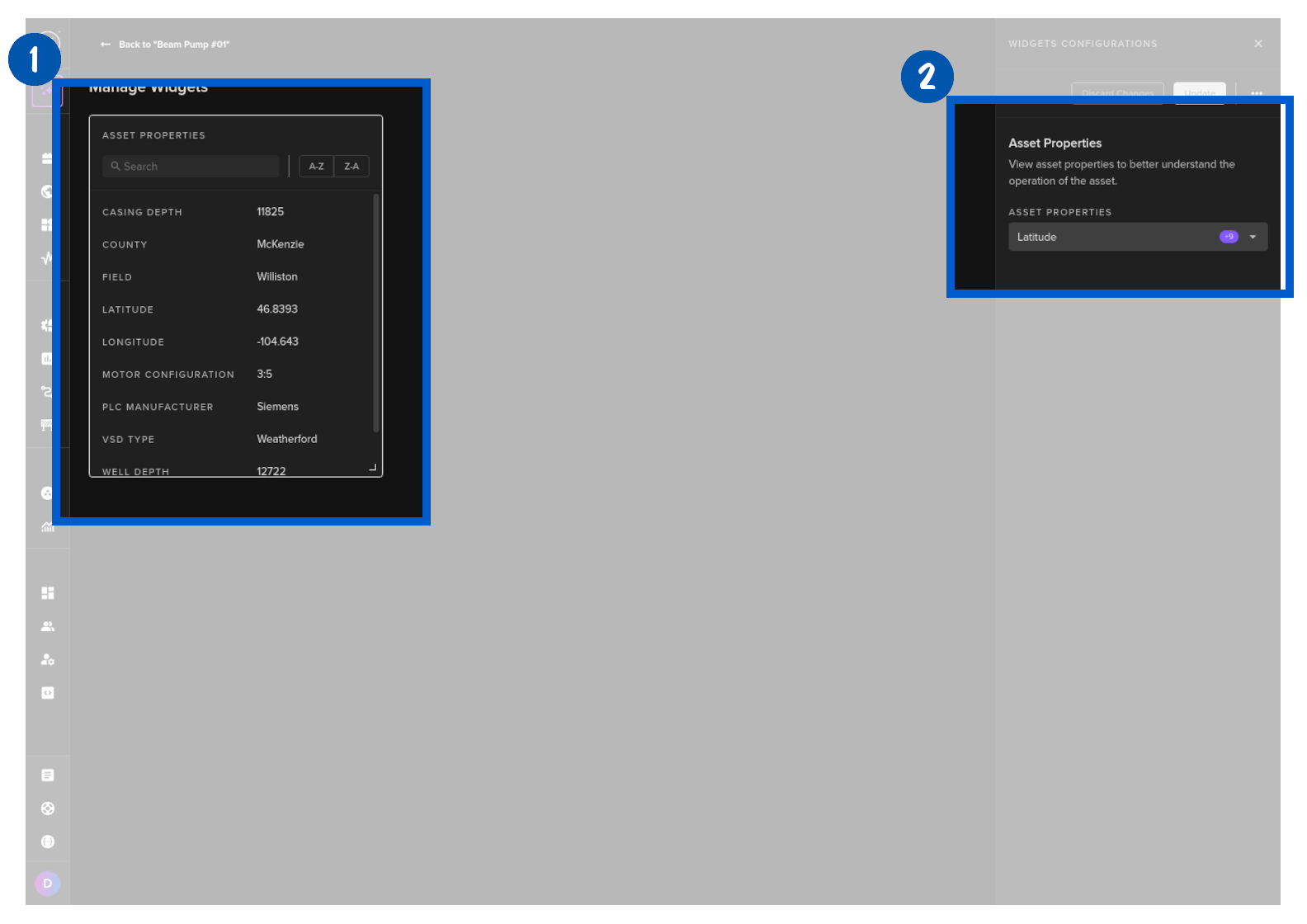
This visualizes Asset Properties.
Note
You can not change them here. You will need to go to the Asset Management to update any Asset Property values.
You can choose which Asset Properties are shown here.
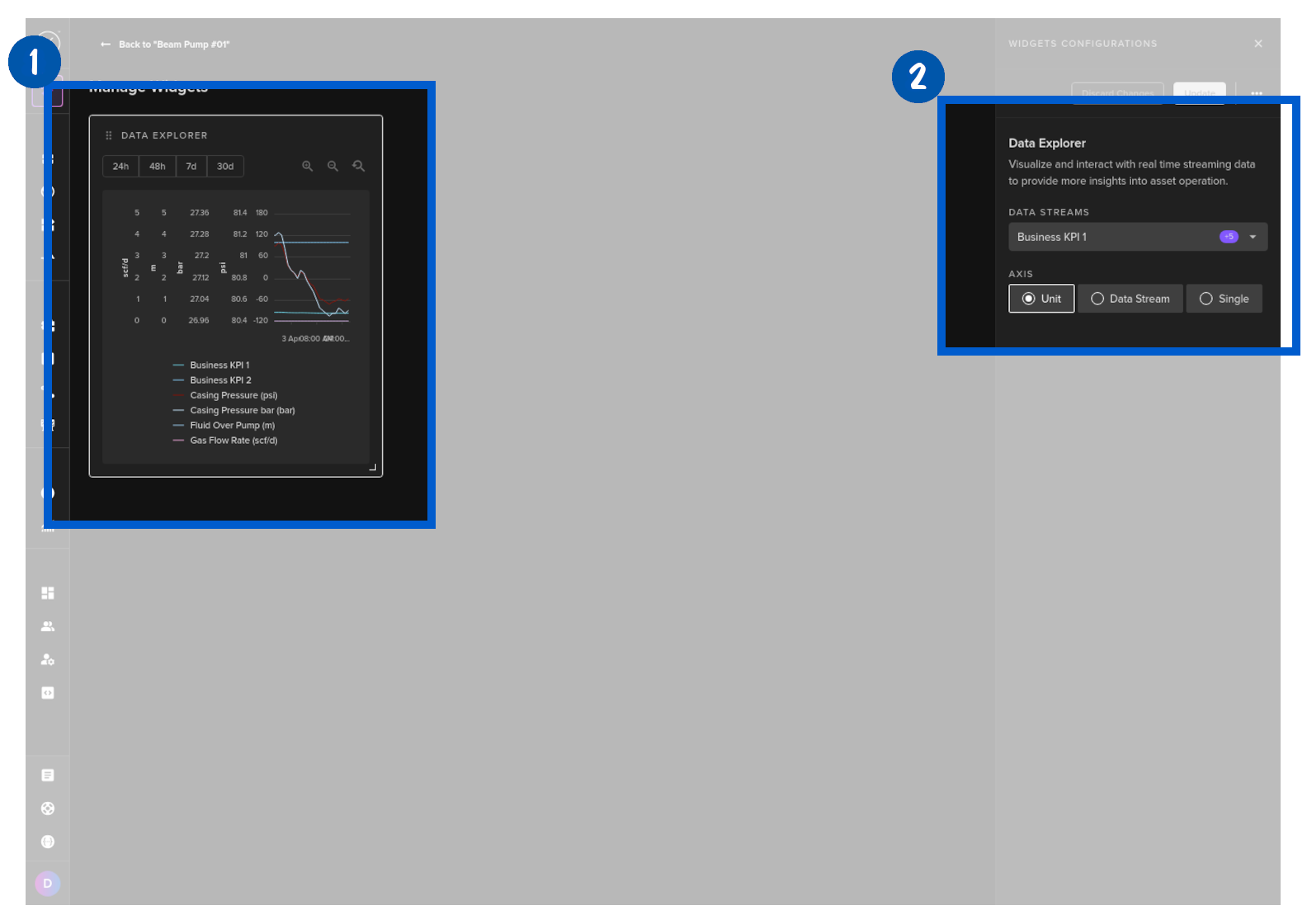
This embeds the Data Explorer into a widget.
Note
You can only see data for this Asset. It is not possible to have multiple Asset / Data Streams available on this widget.
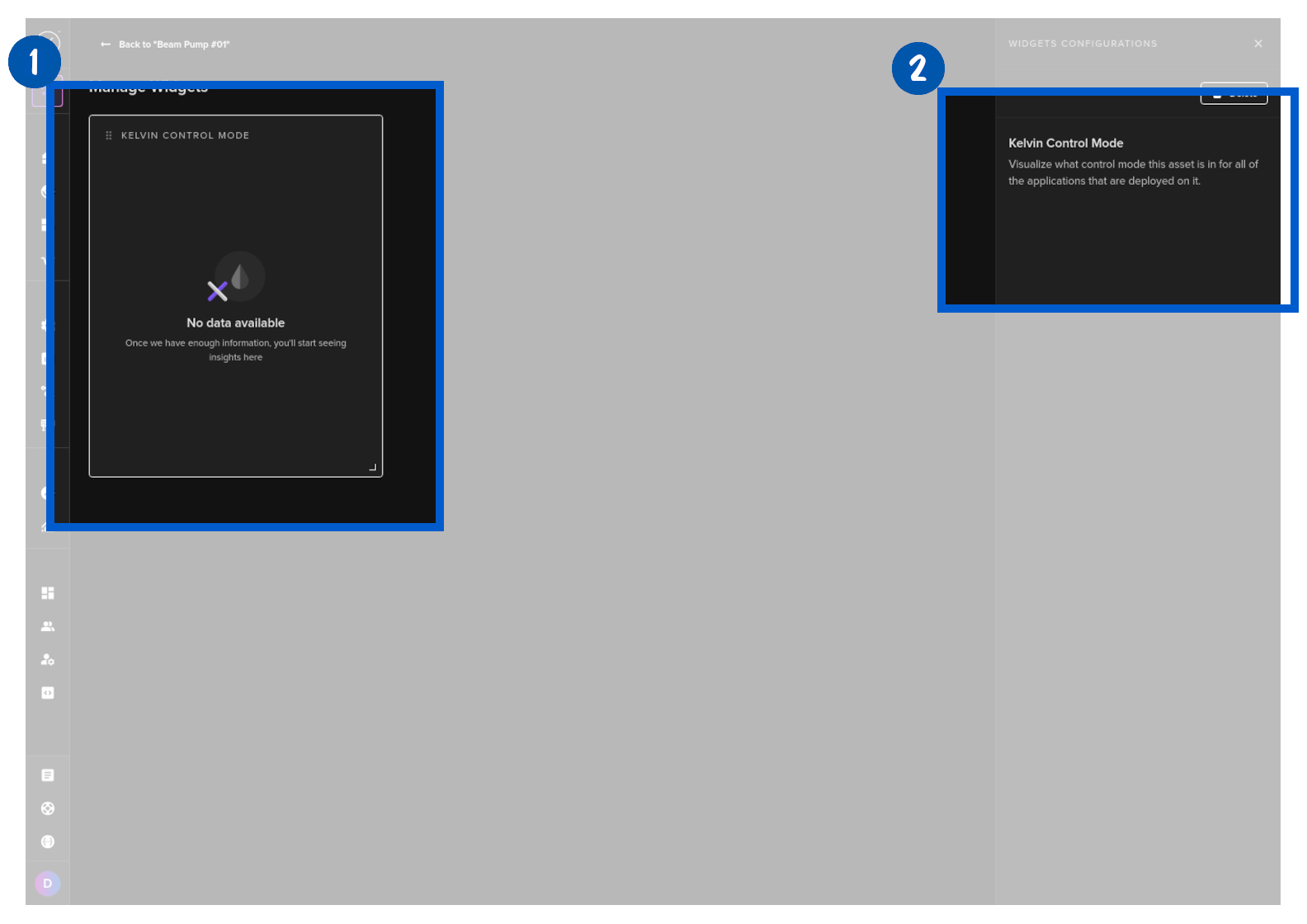
If any Application that is running this Asset has a Control Mode option, then you will be able to set it in Open or Closed Loop mode from this Widget.
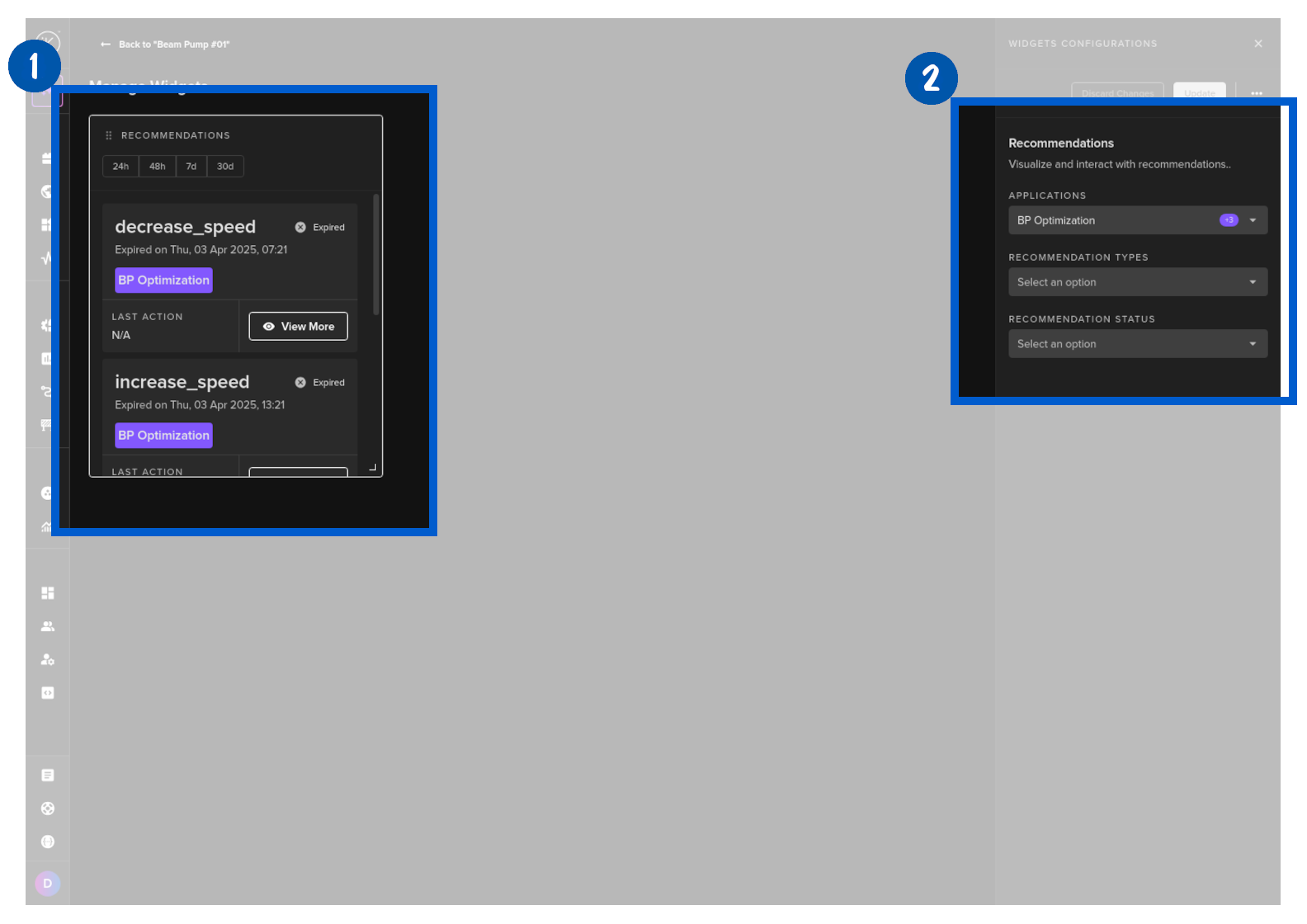
You can show any recommendations in this widget for this Asset.
Note
You also have the option to filter the Applications, Recommendation Types and Status to limit what Recommendations are shown in this widget.
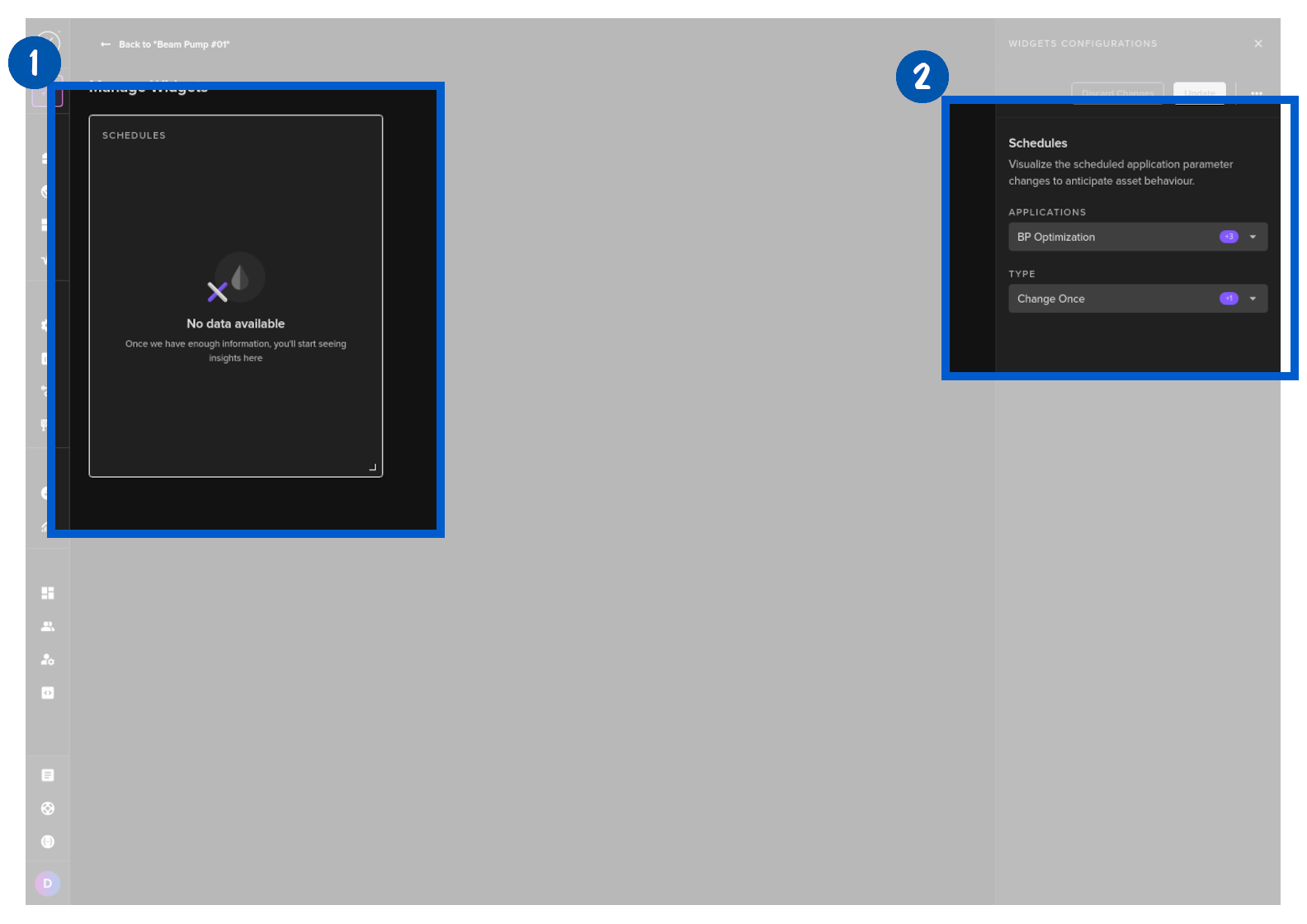
You can show in this widget any schedules that are set for this Asset.
Note
You also have the option to filter the Applications and Schedule Type to limit what Schedules are shown in this widget.