Install Visual Studio Code
Introduction
Visual Studio Code (VSCode) is a popular, free code editor developed by Microsoft that supports multiple programming languages.
Known for its flexibility and rich feature set, VSCode offers built-in tools like debugging, version control, and extensions for customizing the editor to suit any workflow.
The UI in general is split into three areas on a single screen that we normally use in Kelvin.
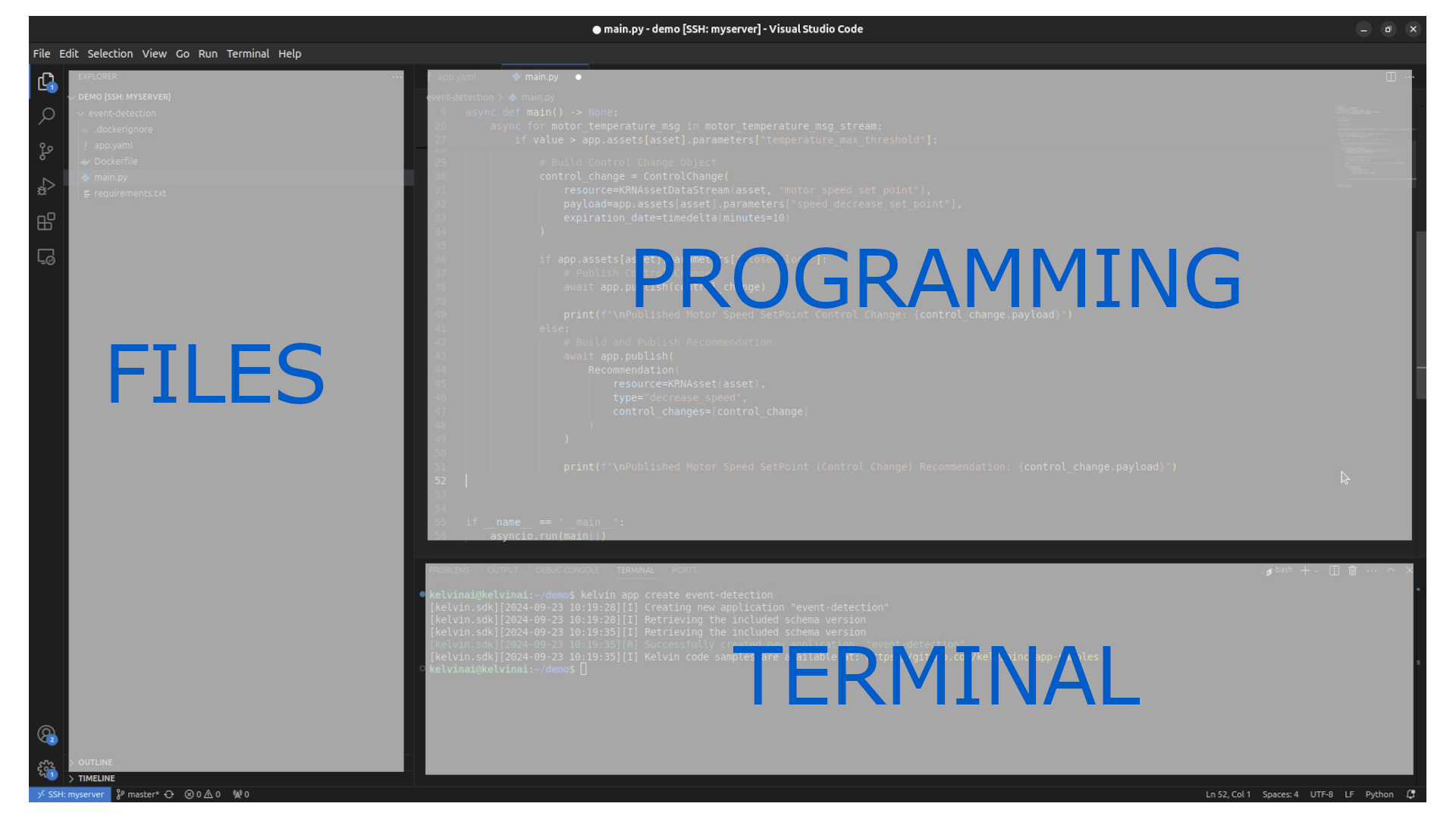
We do all our most recent demonstrations in Visual Studio Code, or VSCode for short.
Note
Some of our older documentation is still using the terminal directly.
Install Visual Studio Code
Video Tutorial
You can watch this video tutorial or read the full step-by step written tutorial below.
Written Tutorial
You can install Visual Studio Code in two ways, depending on your preference;
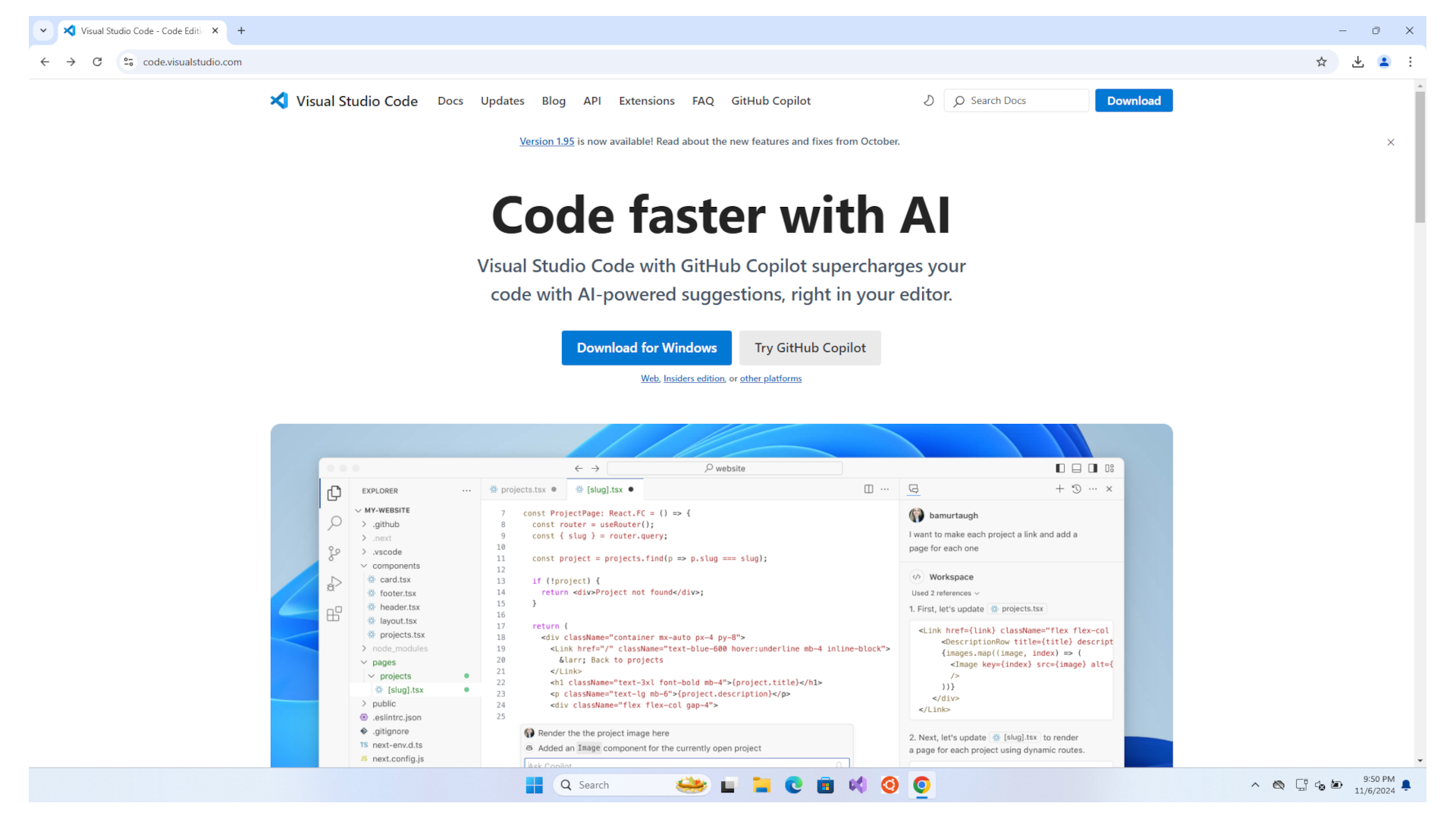
To install Visual Studio Code, go to their website and click on the Download for Windows button.
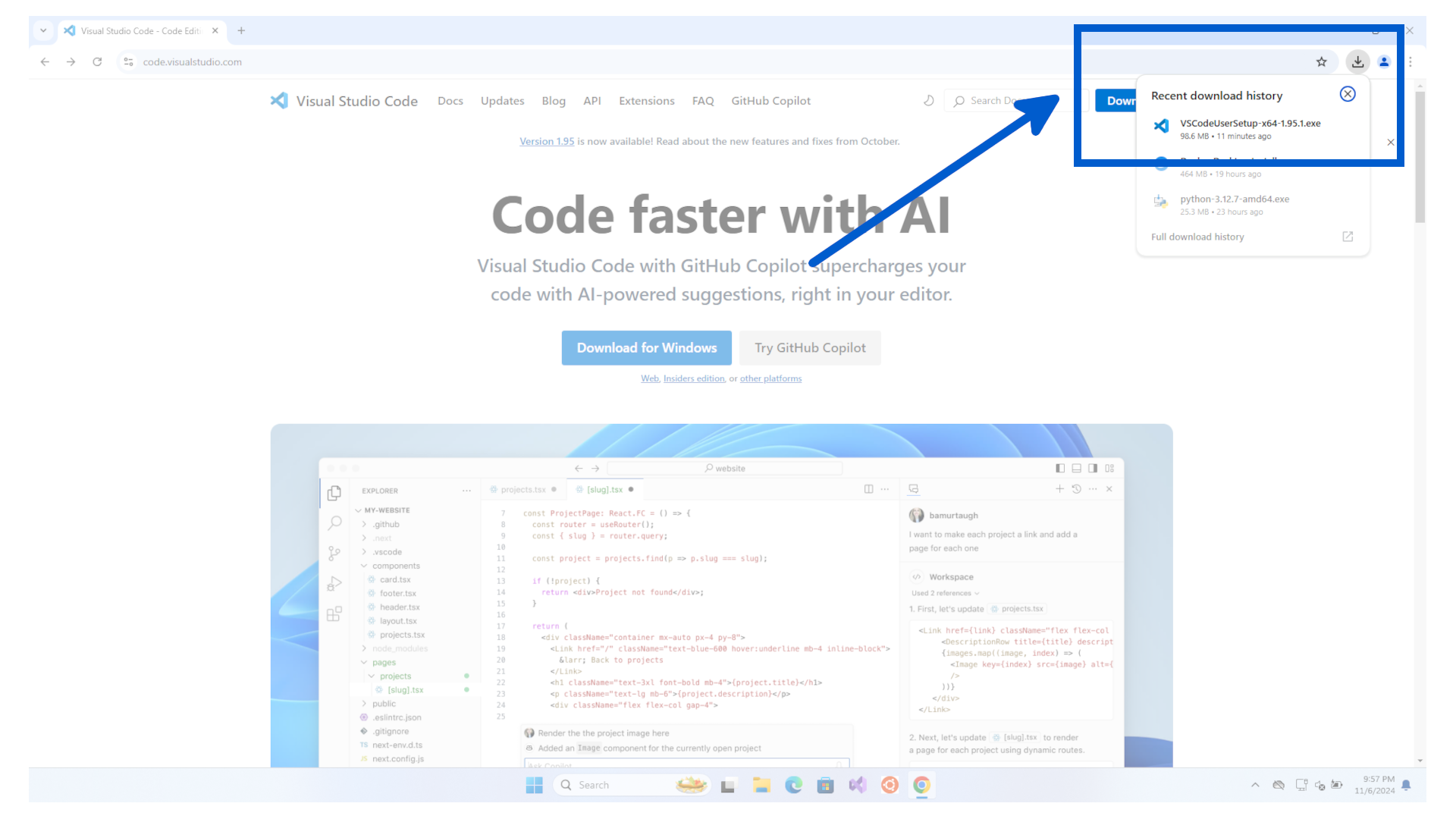
Once downloaded, run the installation file.
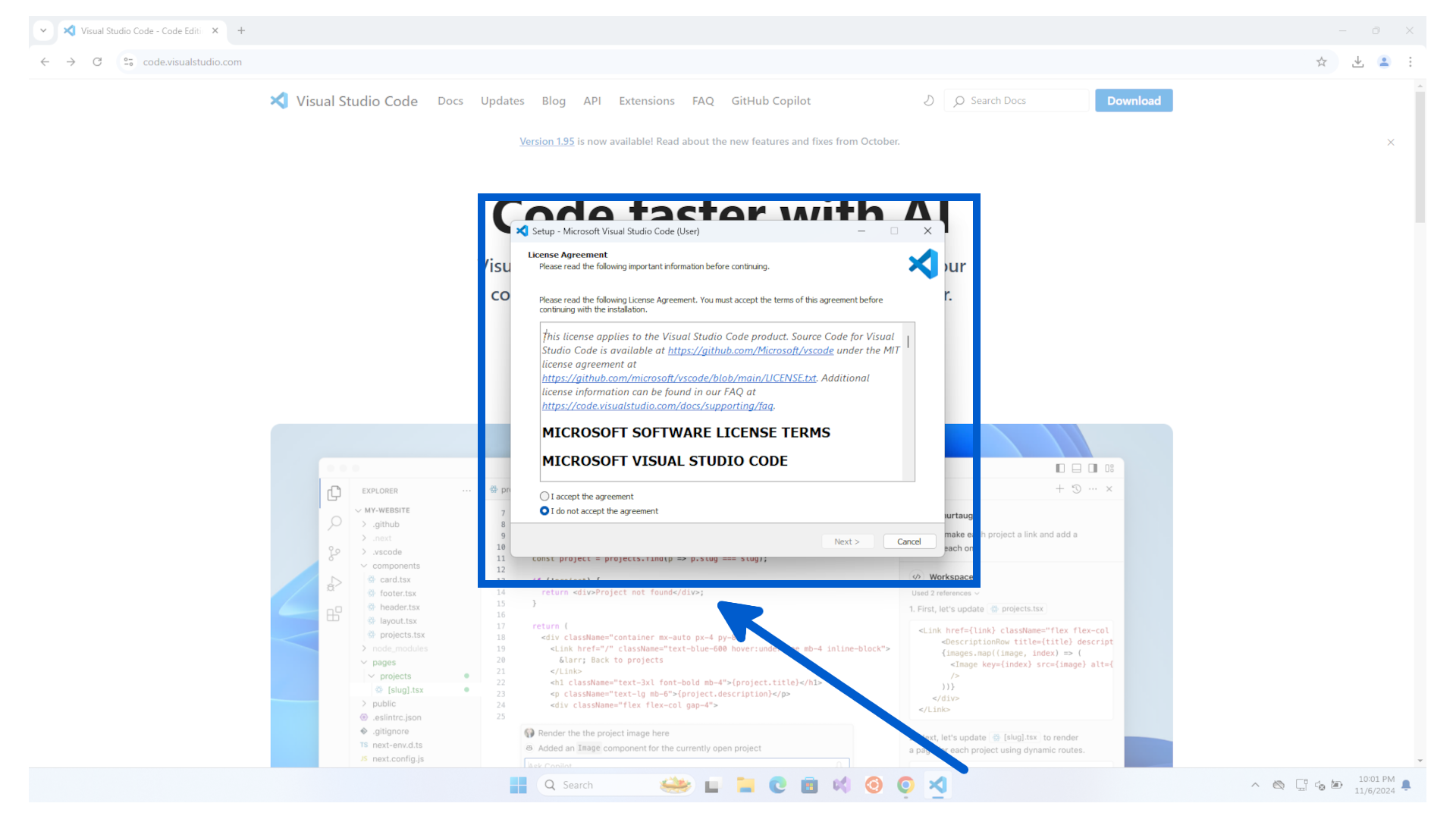
If you accept the agreement, then click on the I accept the agreement option and click Next > button.
You can keep the default destination location and click Next > button.
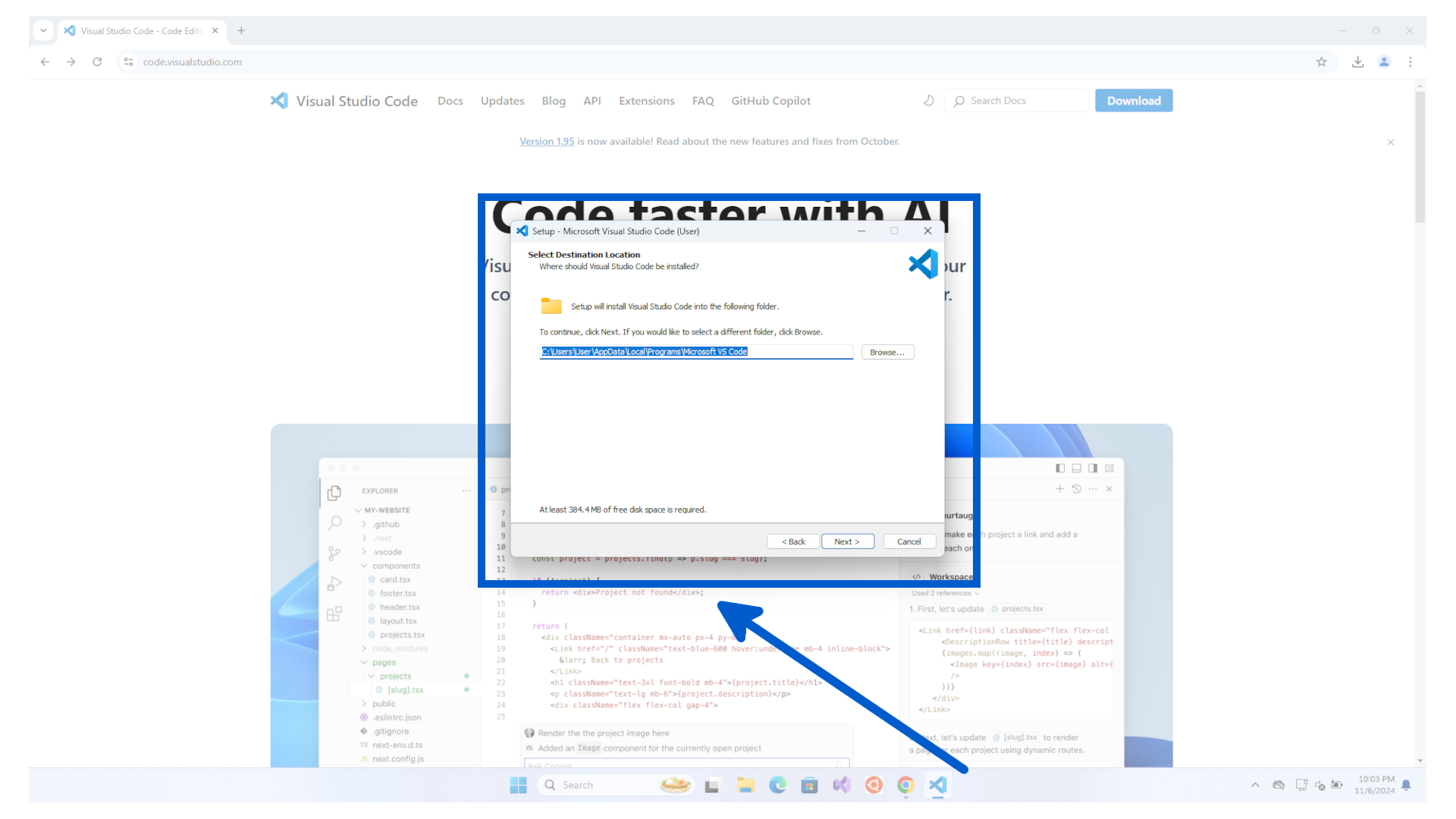
You can keep the default Start Menu Folder and click Next > button.
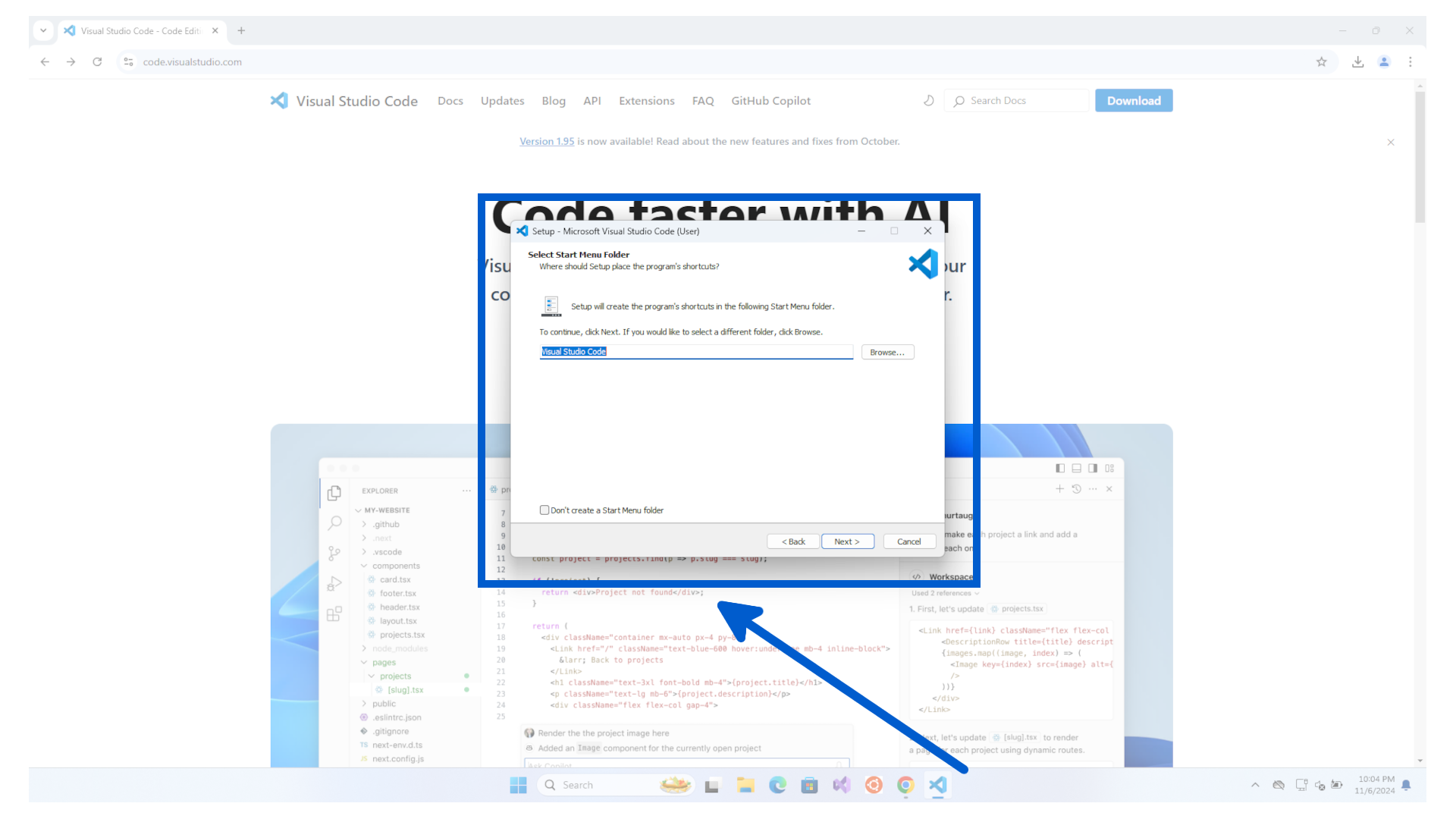
Choose the tasks you want to have or keep the default options.
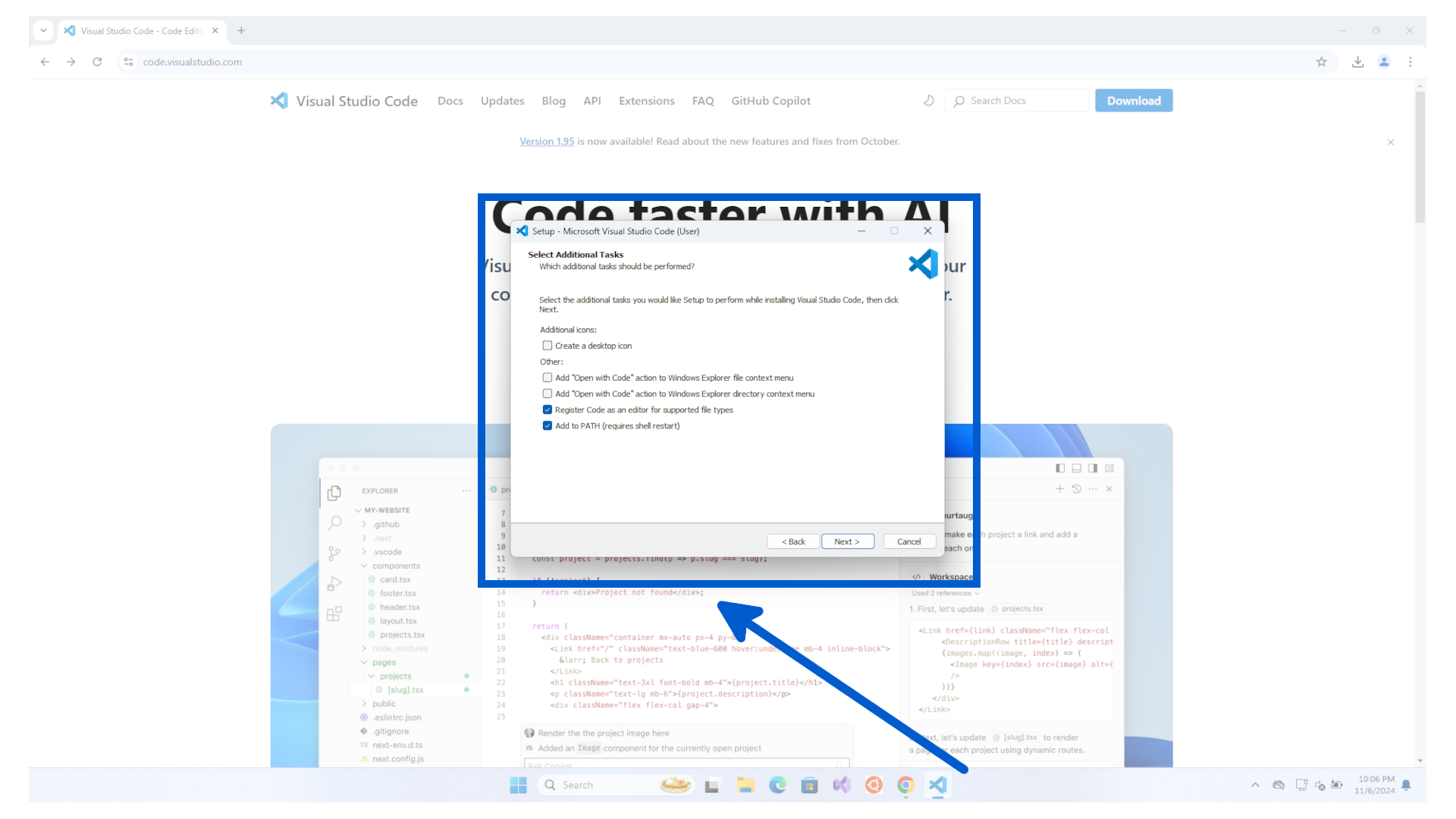
Review the settings and click Install to start the installation process.
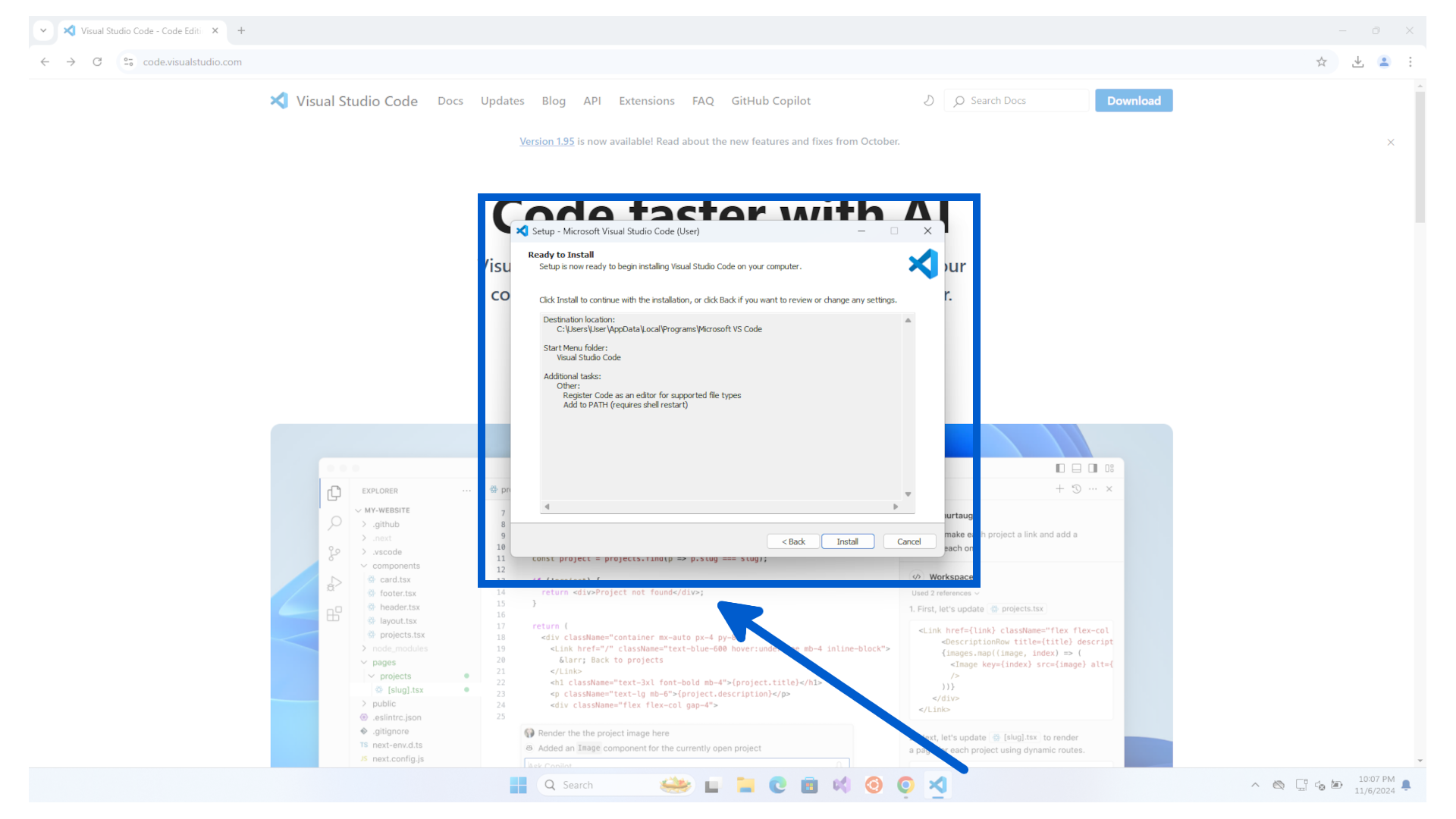
It will then install VSCode. Once finished, you can click on teh Finish button.
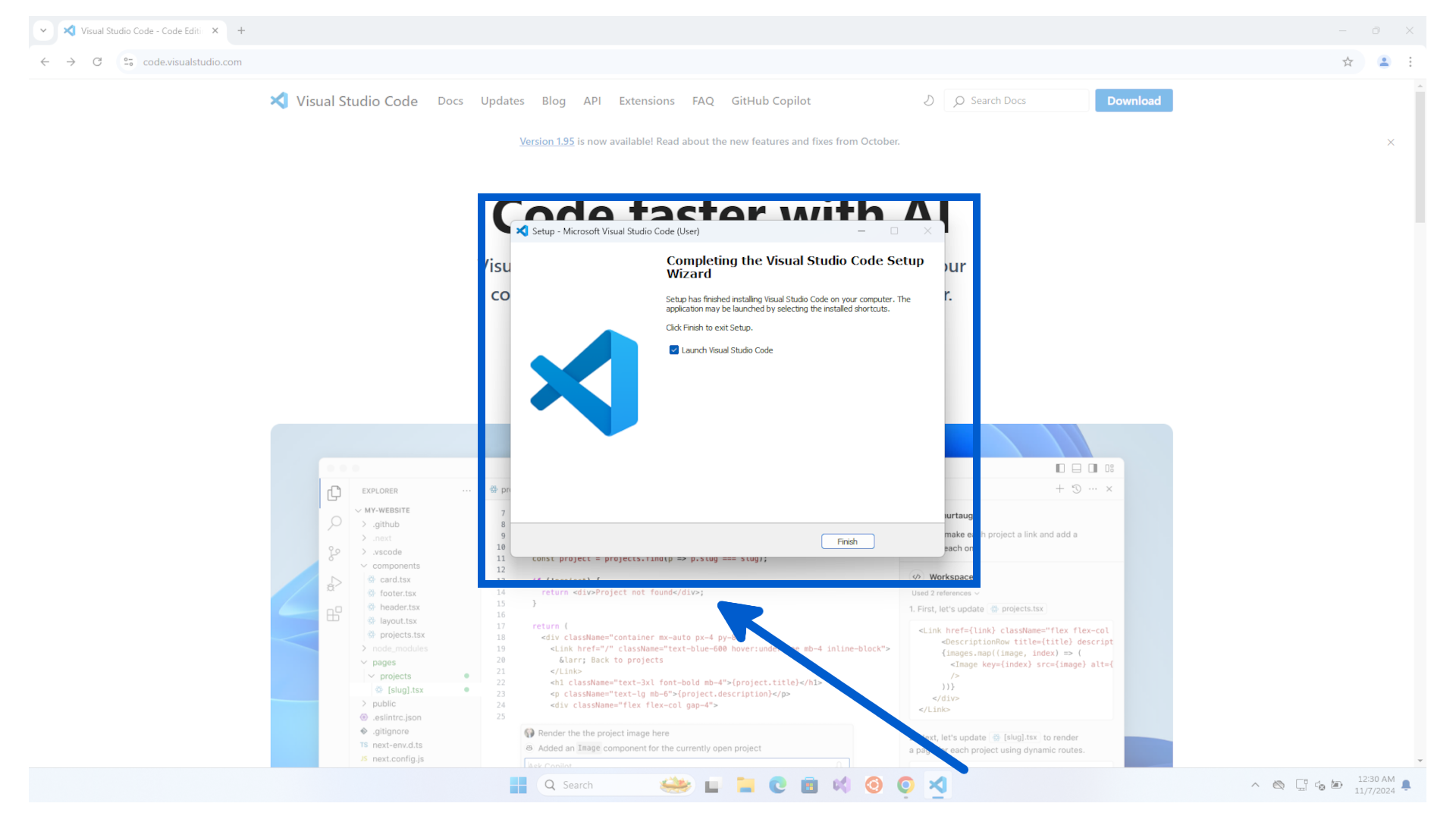
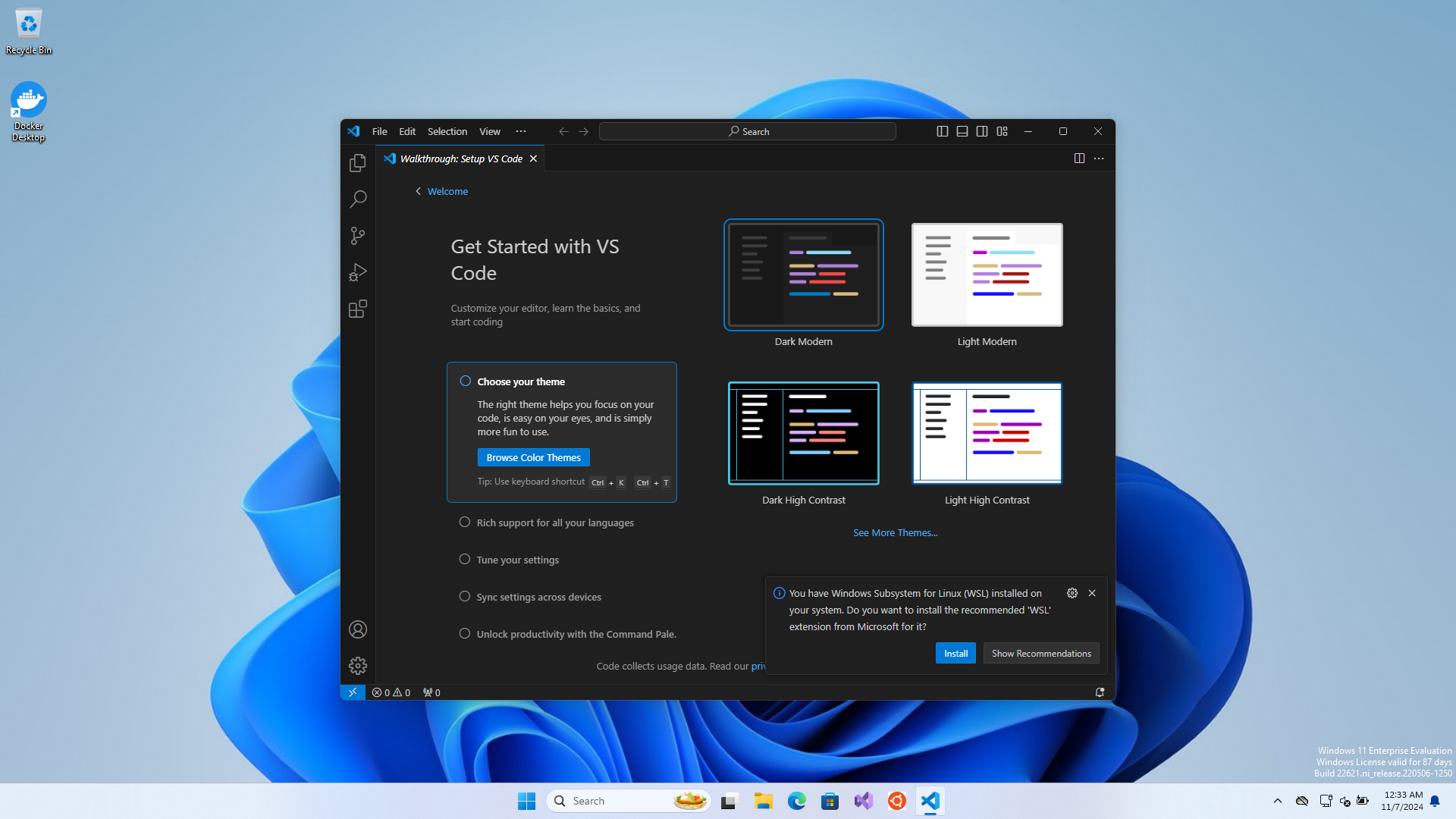
VSCode will automatically start and walkthrough the setup of VSCode.
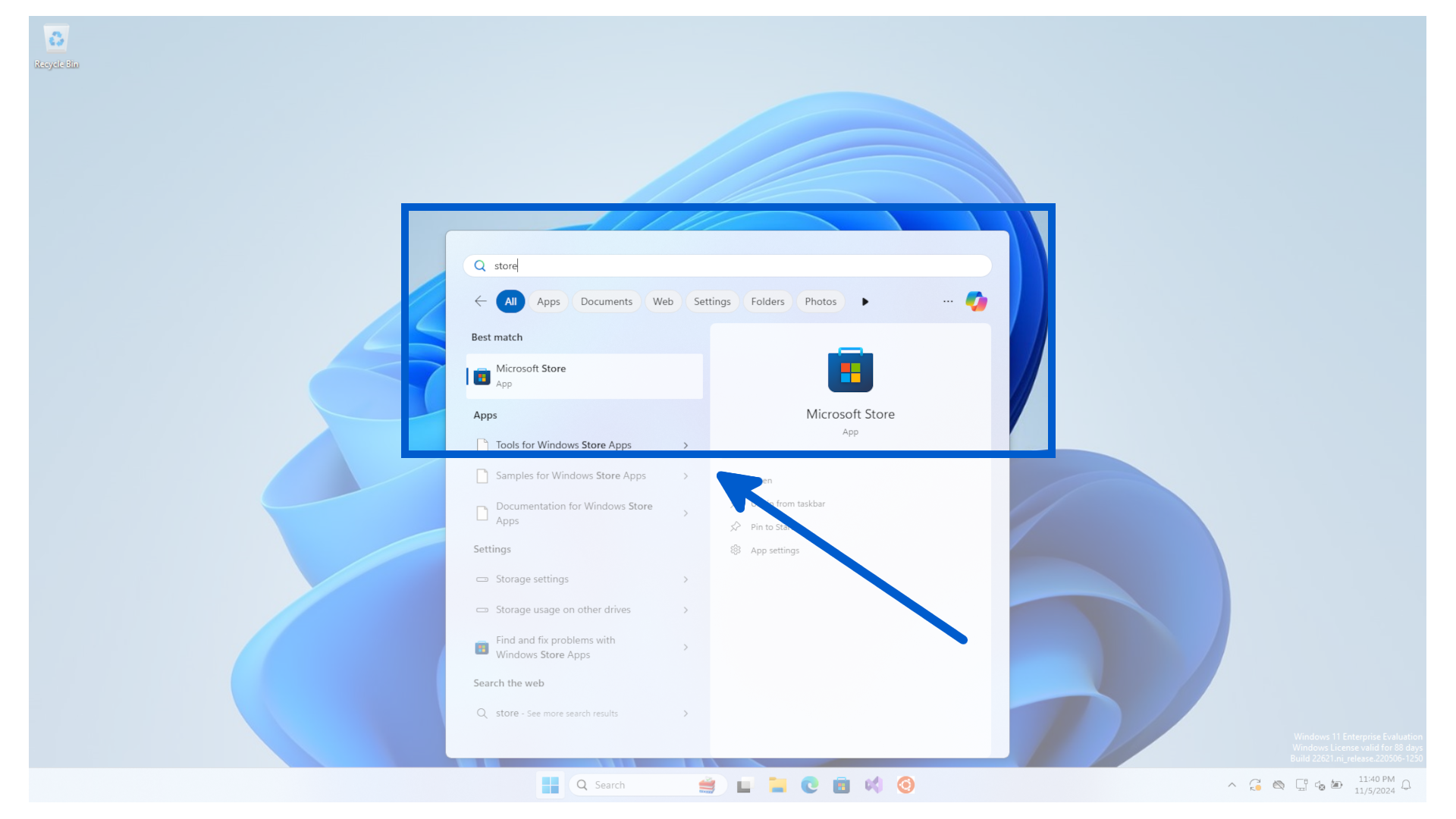
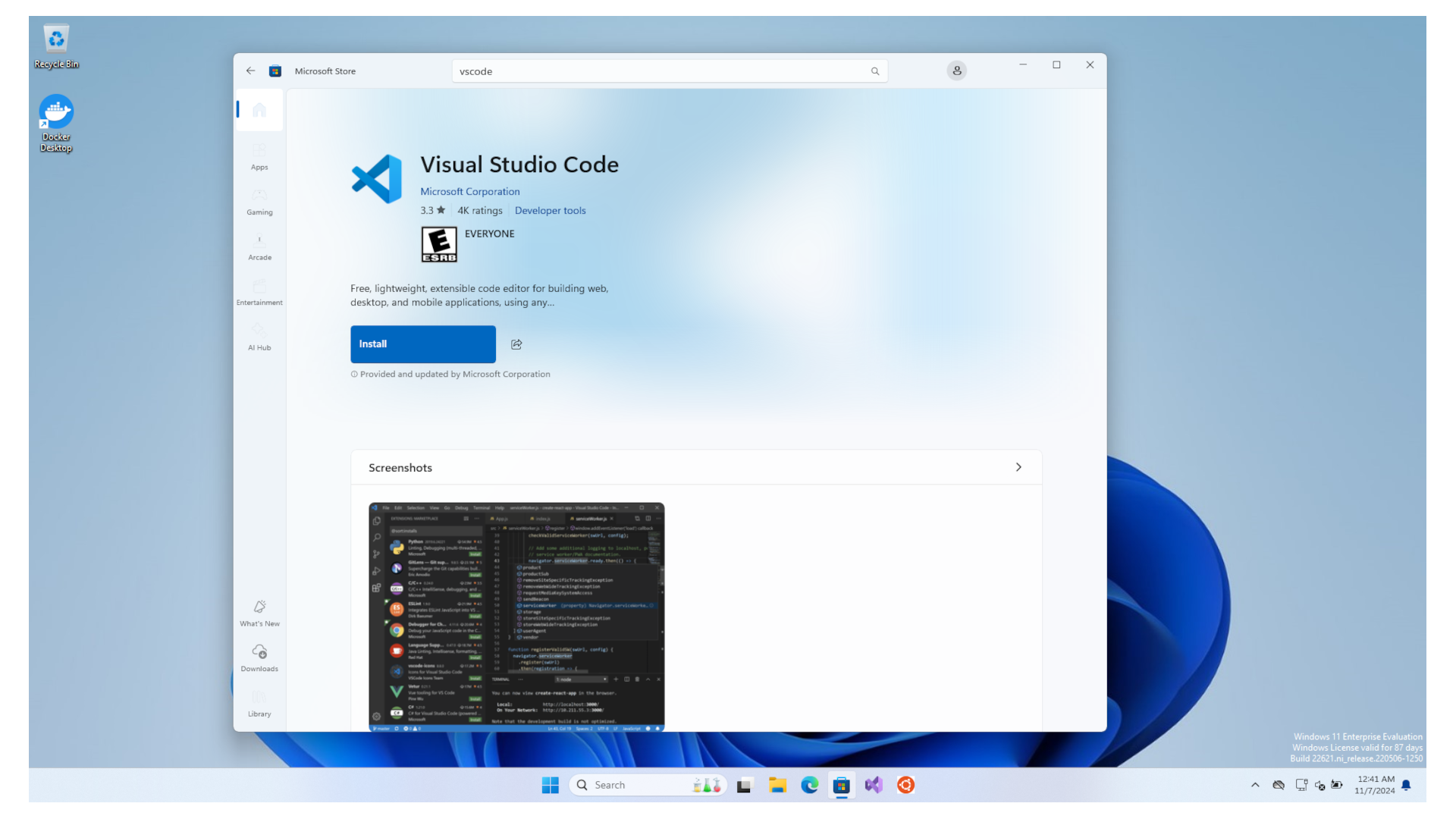
To install Visual Studio Code, click start and search for the Microsoft Store.
In the Microsoft Store, search for vscode.
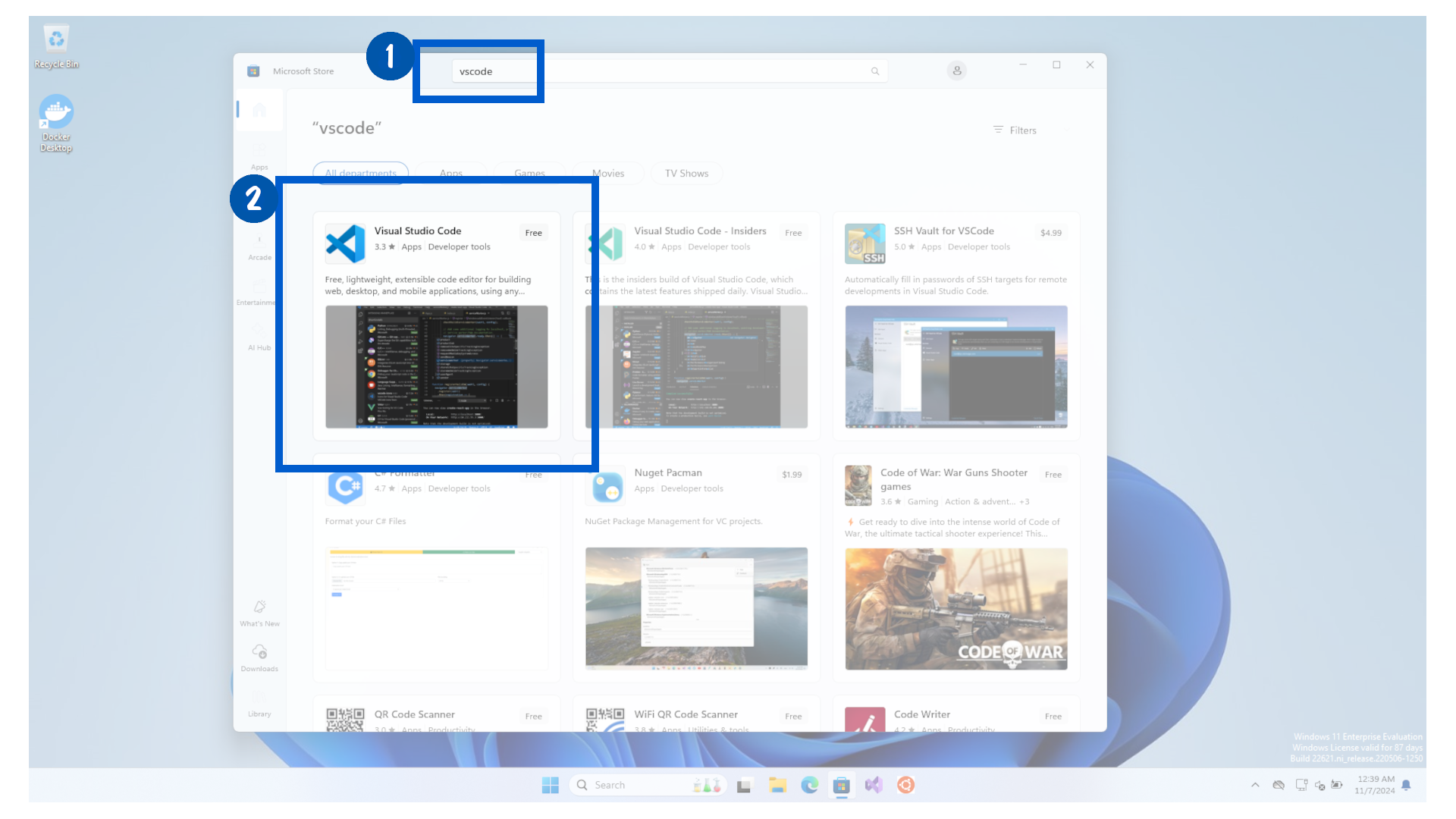
Select Visual Studio Code and click on the Get button.
When finished, the Get button will turn gray.
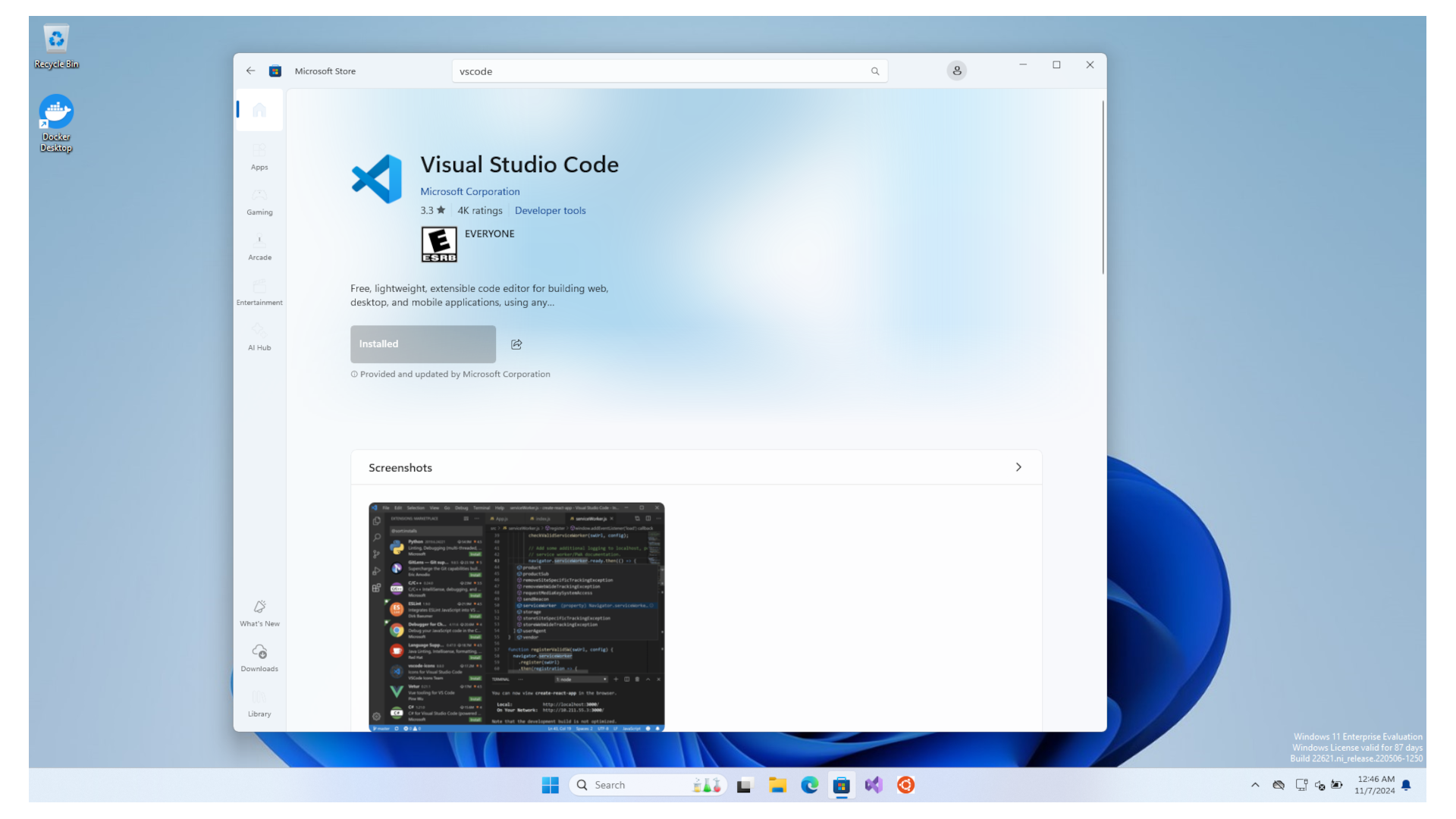
Congratulations ! You have installed Visual Studio Code program. We will now set it up.