Create Import Application
An Import Application is designed to collect information from Assets or external sources and save them to the Kelvin Platform.
Note
An Import Application can also write data to Assets.
You can build for both x86_64 and arm64 devices.
| create default application | |
|---|---|
1 | |
This will give a response similar to this;
| command output | |
|---|---|
1 2 | |
After providing the Import Application name (i.e.: camera-connector):
| command output | |
|---|---|
1 2 3 4 | |
This will automatically create an Application bootstrap within a directory named as camera-connector populated with some default files and configurations.
Warning
The default files and configurations are setup for a Kelvin SmartApp™ Application. We will need to adapt it to be an Import Application.
Folder Structure
You can now open the folder in your favorite IDE or editor and start to modify the files to create your Import Application.
| default folder structure | |
|---|---|
1 2 3 4 5 6 7 8 9 | |
Below is a brief description of each file.
app.yaml
The app.yaml is the main configuration file that holds both Application definitions as well as the deployment/runtime configuration.
This file is used for the Import Application, Docker Apps, Imports (Connectors) and Exports.
On this page we are only focused on the Importer options.
It is composed of the following sections:
spec_version key
The spec_version key is automatically injected and specifies the Import Application JSON Schema (latest) version which both defines and validates the app.yaml structure.
| spec_version | |
|---|---|
1 | |
type
This defines the type for the application.
app: A Smart App that allows mapping inputs and outputs to data streams, sending control changes, recommendations, and data tags.docker: An docker application that does not connect to the platform's data streams.importer: Connects to an external system to import data into the platform as well as receive control changes to act on the external system.exporter: Connects to the platform to export data to an external system.
| application type | |
|---|---|
1 | |
info
The root section holds the Import Application basic information required to make itself uploadable to Kelvin's App Registry.
| application info | |
|---|---|
1 2 3 4 | |
The name is the Import Application's unique identifier.
The title and description will appear on the Kelvin UI when creating a Connector once the Import Application is uploaded.
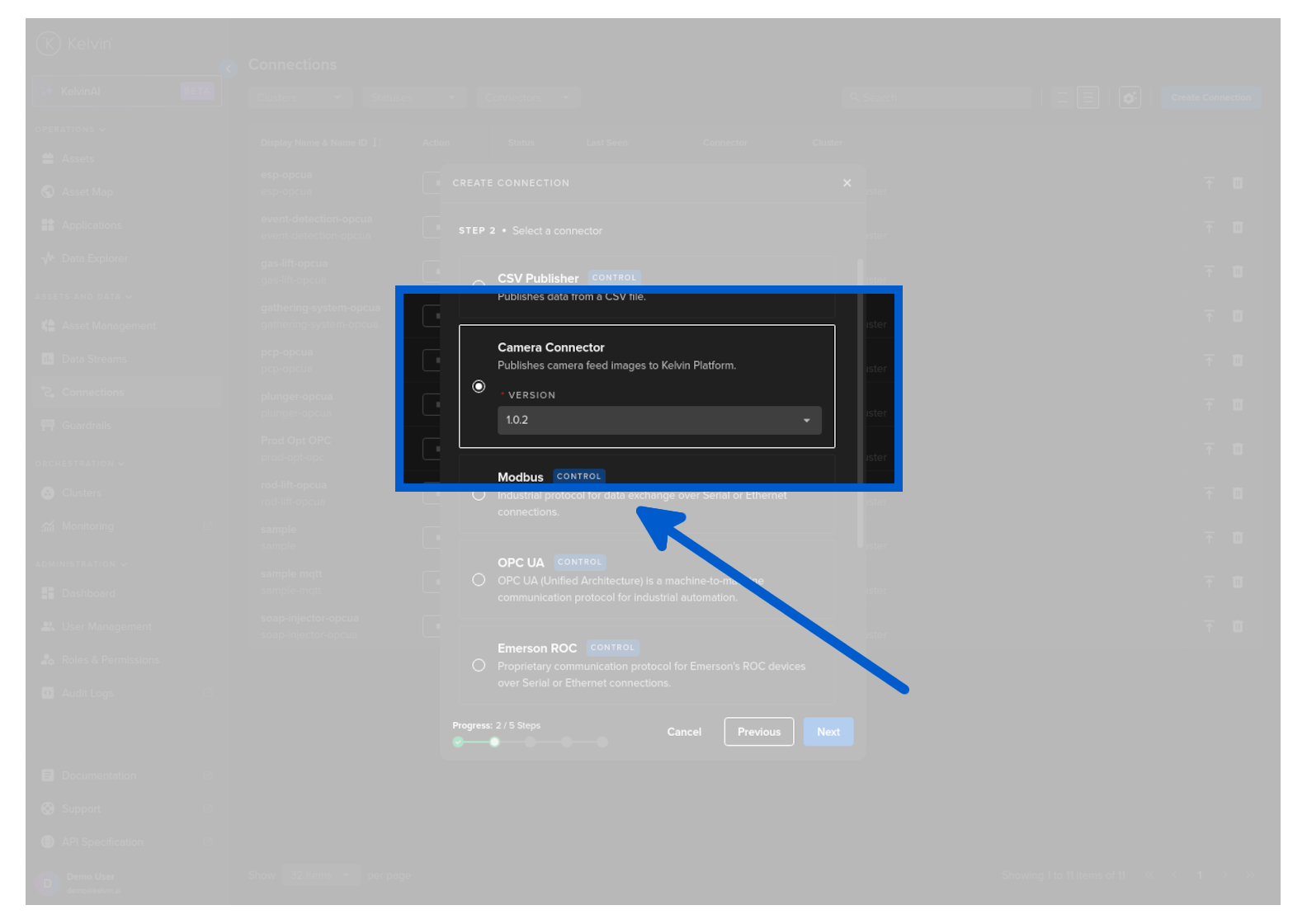
The version defines the version of this Import Application and is used in the Kelvin UI.
Info
The version should be bumped every time the Import Application gets an update, and before it gets uploaded to the App Registry.
flags
This is where you are able to set some of the Application's capabilities.
| application flags | |
|---|---|
1 2 3 4 5 | |
importer_io
This is the main section that defines the types and function of the Data Streams that are allowed for this Import Application.
| example importer_io | |
|---|---|
1 2 3 4 5 6 7 8 | |
ui_schemas
This is where the Importer configuration are defined for the Kelvin UI.
The actual information is kept in a json file in the schemas folder of the project. The file location is defined in the app.yaml file like this;
| application ui schemas | |
|---|---|
1 2 3 4 5 6 7 8 9 10 | |
configuration.json
The configurations.json file will come with default blank schemas when first created.
Note
configurations.json information is optional, and if not provided, the Kelvin UI will display the configuration settings in a raw JSON or YAML file format without verifying the structure or content before applying them to the Import Application.
| default schemas/configurations.json | |
|---|---|
1 2 3 4 5 | |
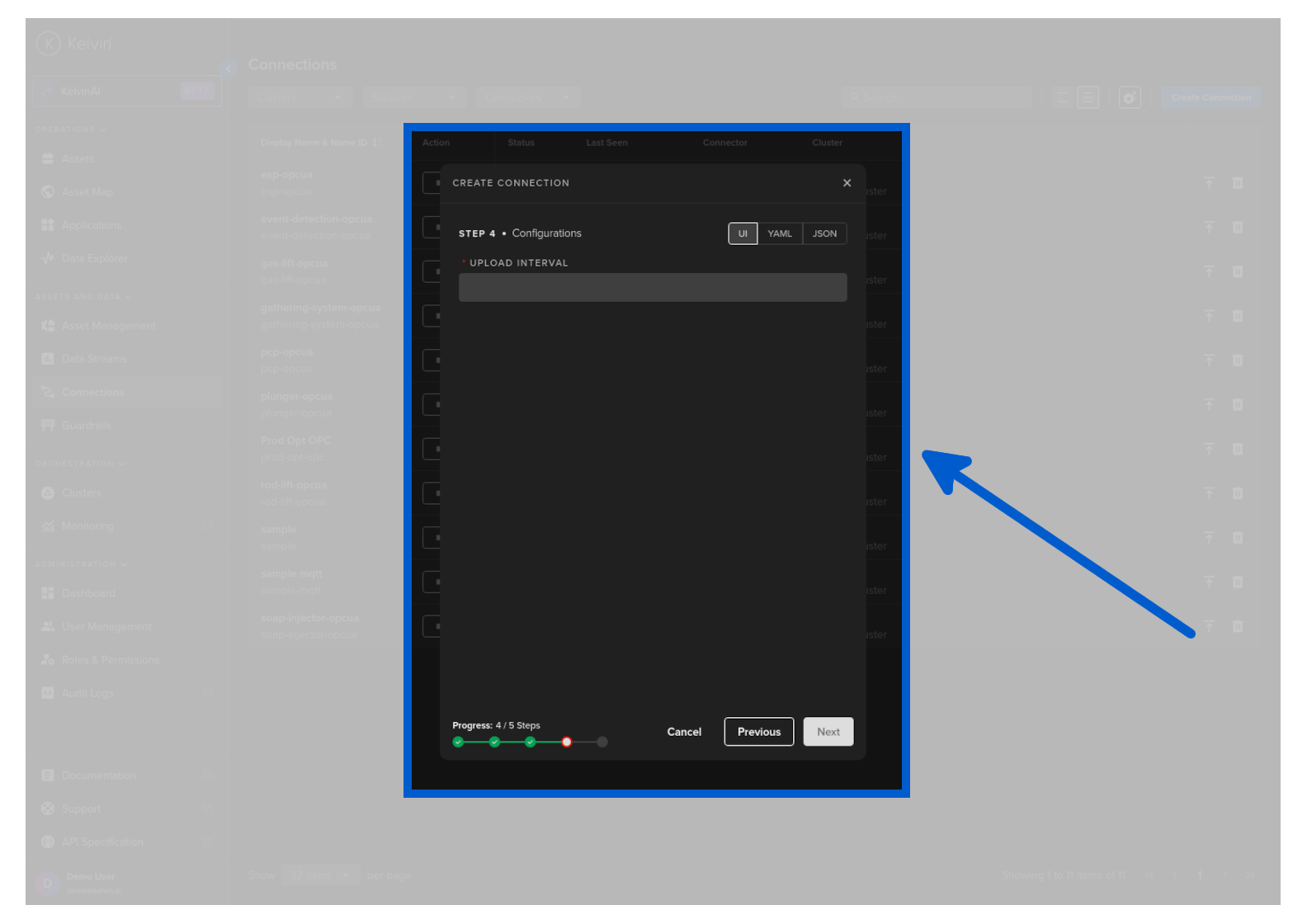
An example of a Configurations file filled in would look something like this;
| sample schemas/configurations.json | |
|---|---|
1 2 3 4 5 6 7 8 9 10 11 12 | |
Which will be displayed on the Kelvin UI like this:
default.json and dyncard.json
These are for the definition of any objects data_types.
If not defined they use the default schemas/io.json.
| sample schemas/io.json | |
|---|---|
1 2 3 4 5 6 7 8 9 10 11 12 | |
defaults
This section hold four main sections;
Note
All items in the defaults section are optional.
system: Is used to set different system requirements/constraints within the Import Application running environment. i.e. Resources, Environment Variables, Volumes, Ports, etc.
| application defaults | |
|---|---|
1 2 | |
defaults/system section
The system section is [optional].
This is where developers can set the system settings that the Import Application needs to be able to function as intended.
This includes opening ports, setting environment variables, limited resource usage, attaching volumes and setting the privileged tag which gives extended privileges on the host system.
| application system defaults | |
|---|---|
1 2 3 4 | |
System Section Options
resources section
The resources defines the reserved (requests) and limits the resources allocated to the Import Application:
-
Limits: This is a maximum resource limit enforced by the cluster. The Import Application will not be allowed to use more than the limit set.
-
Requests: This is the minimum resources that is allocated to the Import Application. This is reserved for the Import Application and can not be used by other Applications. If there are extra resources available, the Import Application can use more than the requested resources as long as it does not exceed the Limits.
You can read the full documentation about CPU and Memory resources in the Advanced section.
| application resource defaults | |
|---|---|
1 2 3 4 5 6 7 8 9 | |
environment_vars section
The environment_vars is used to define Environment Variables available within the Import Application container. i.e.:
| application environmental variable defaults | |
|---|---|
1 2 3 4 5 6 7 8 9 | |
volumes section
Mounted volumes are [optional] and their main purpose is to share and persist data generated by the Import Application or used by it in a specific place. They act like a shared folder between the Import Application and the host. Kelvin supports directory volumes, such as folders or serial ports, persistent, and file/test volumes:
| application attached volume defaults | |
|---|---|
1 2 3 4 5 6 7 8 9 10 11 12 13 14 15 16 17 18 19 20 21 22 23 24 | |
ports section
The ports is [optional] and used to define network port mappings. i.e.:
| application open ports defaults | |
|---|---|
1 2 3 4 5 6 7 8 9 10 11 12 13 14 | |
privileged key
The privileged key is [optional] and used to grant extended privileges to the Import Application, allowing it to access any devices on the host, such as a Serial device:
| application privileged defaults | |
|---|---|
1 2 3 | |
Python
The main.py is used as the entry point of the Import Applications. When it runs, main.py is typically the first script that gets executed, and it usually contains the main logic or orchestrates the flow of the Import Applications. However, naming a file "main.py" is just a convention, and it's not mandatory. The name helps developers quickly identify where the primary logic of the Import Applications begins.
The code example generated upon kelvin app create should be deleted and replaced as this is designed for a Kelvin SmartApp™.
Here is an example script that will grab an image from an RTSP camera stream and import it into the Kelvin Platform.
| example main.py | |
|---|---|
1 2 3 4 5 6 7 8 9 10 11 12 13 14 15 16 17 18 19 20 21 22 23 24 25 26 27 28 29 30 31 32 33 34 35 36 37 38 39 40 41 42 43 44 45 46 47 48 49 50 51 52 53 54 55 56 57 58 | |
Supporting Files
The requirements.txt file is used to list all the dependencies the Python Application needs. It can be used to easily install all the required packages, ensuring the Import Applications runs correctly.
The Dockerfile is a script used to define the instructions and configuration for building a Docker image. It specifies the base image, installation of software, file copying, and other setup tasks needed to create a reproducible and isolated environment for running the Import Applications in Docker containers.
| default Dockerfile | |
|---|---|
1 2 3 4 5 6 7 8 | |
Info
If main.py is not the intended entry point, it also needs to be replaced on the Dockerfile.
Specifies which files and directories should be excluded when building the Import Applications Docker image. It helps reducing the build context, resulting in smaller, more efficient Docker image.