Add Custom Connection - How To
Developers can create custom Connection Applications for the Kelvin Platform.
There are two types of custom Connections available;
- Import Data
- Export Data
You can install them both in the same manner through the Kelvin UI, Kelvin SDK and Kelvin API.
Connections can be deployed to both x86_64 and ARM64 devices.
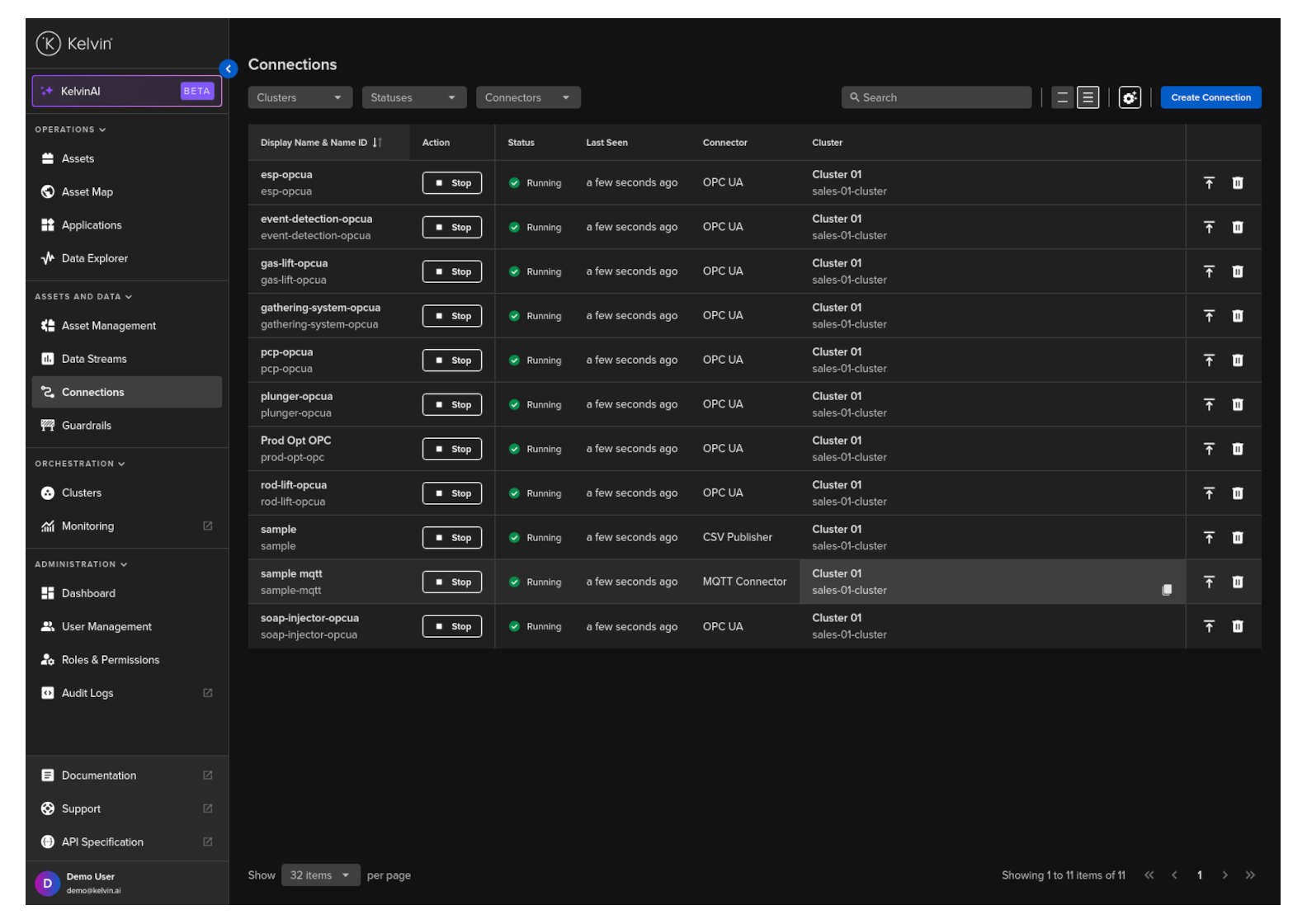
To start click on the Connections menu option from the left side bar menu.
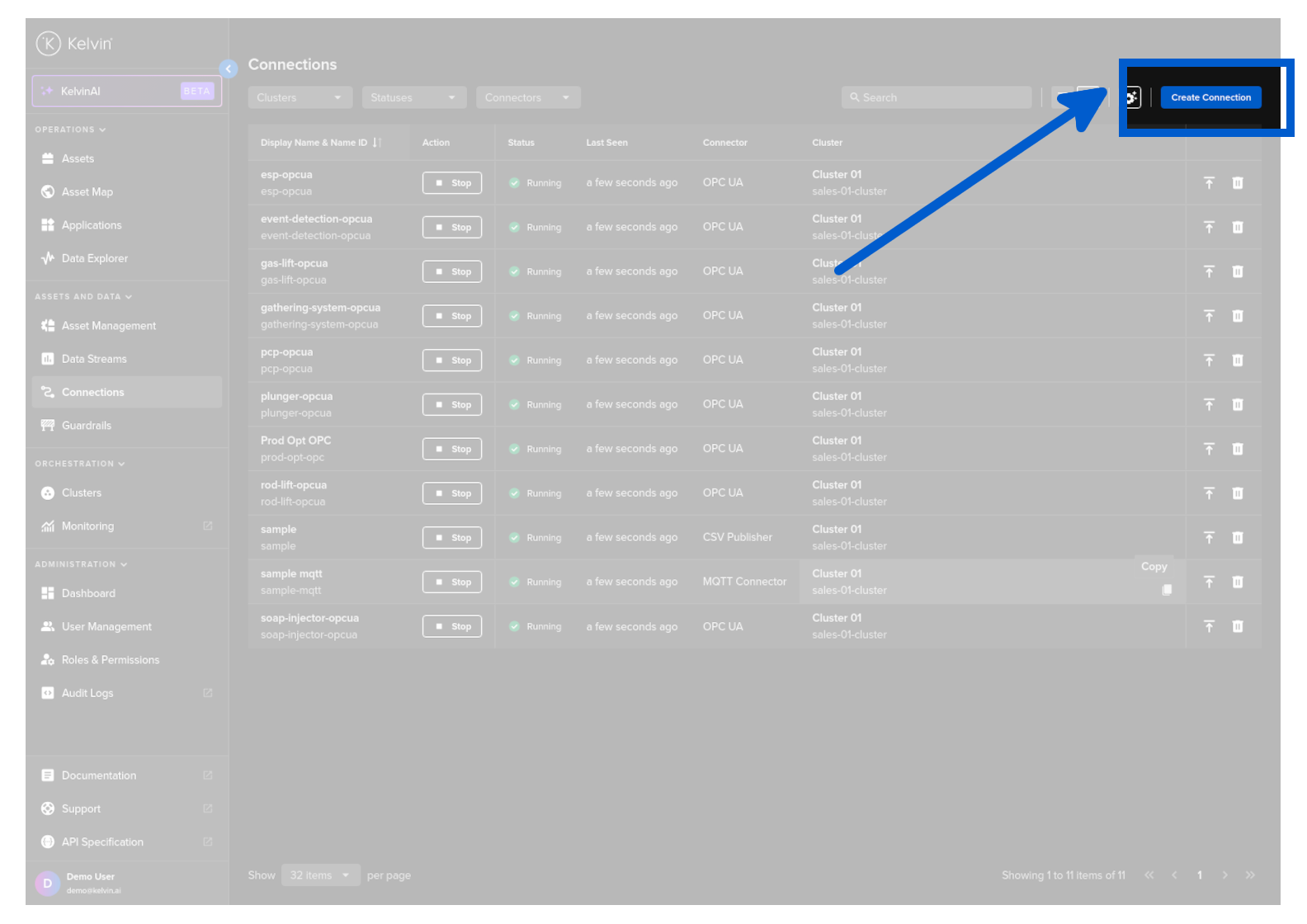
click on the Create Connection button.
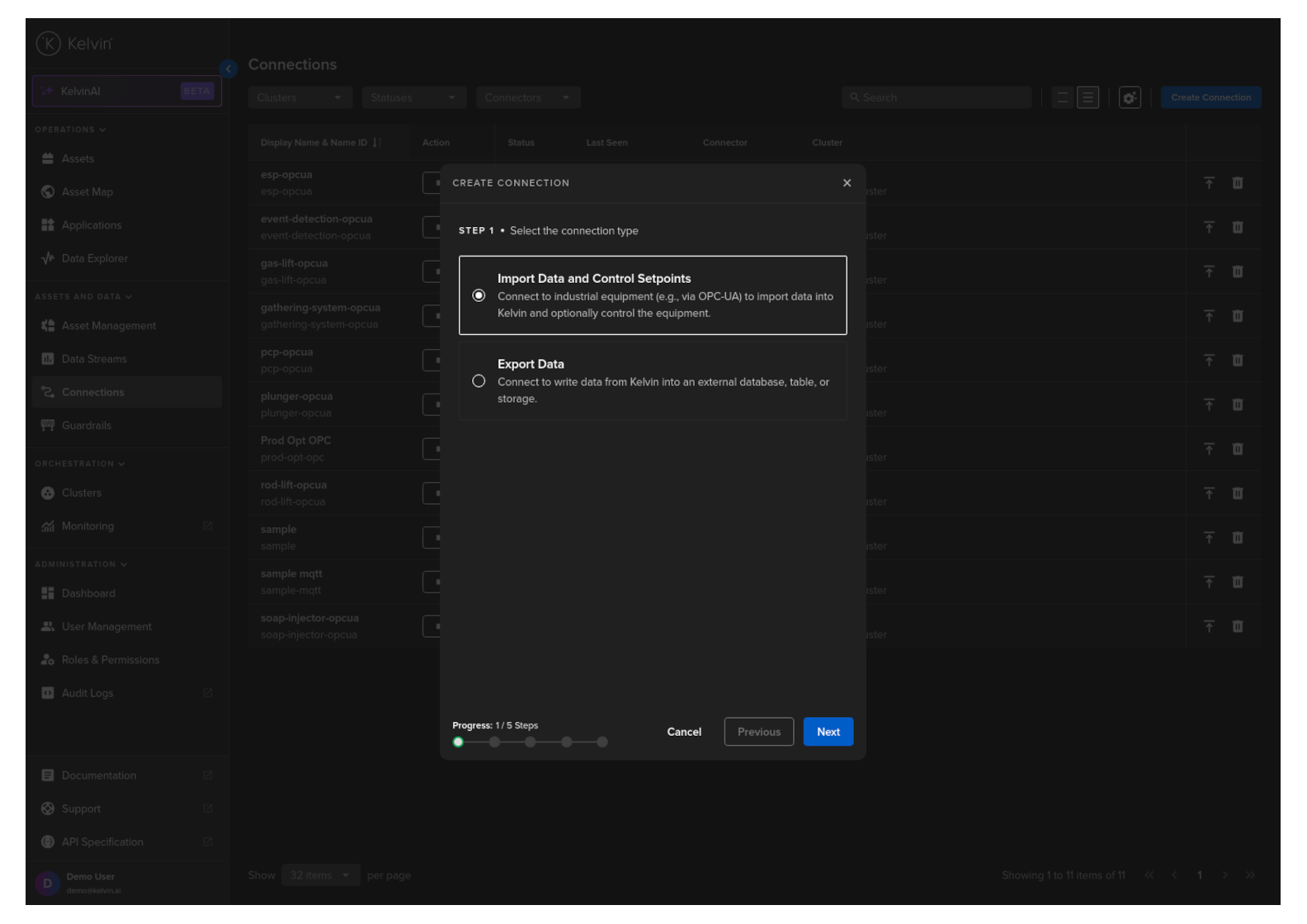
Step 1
Select either Import Data and Control Setpoints or Export Data and click Next.
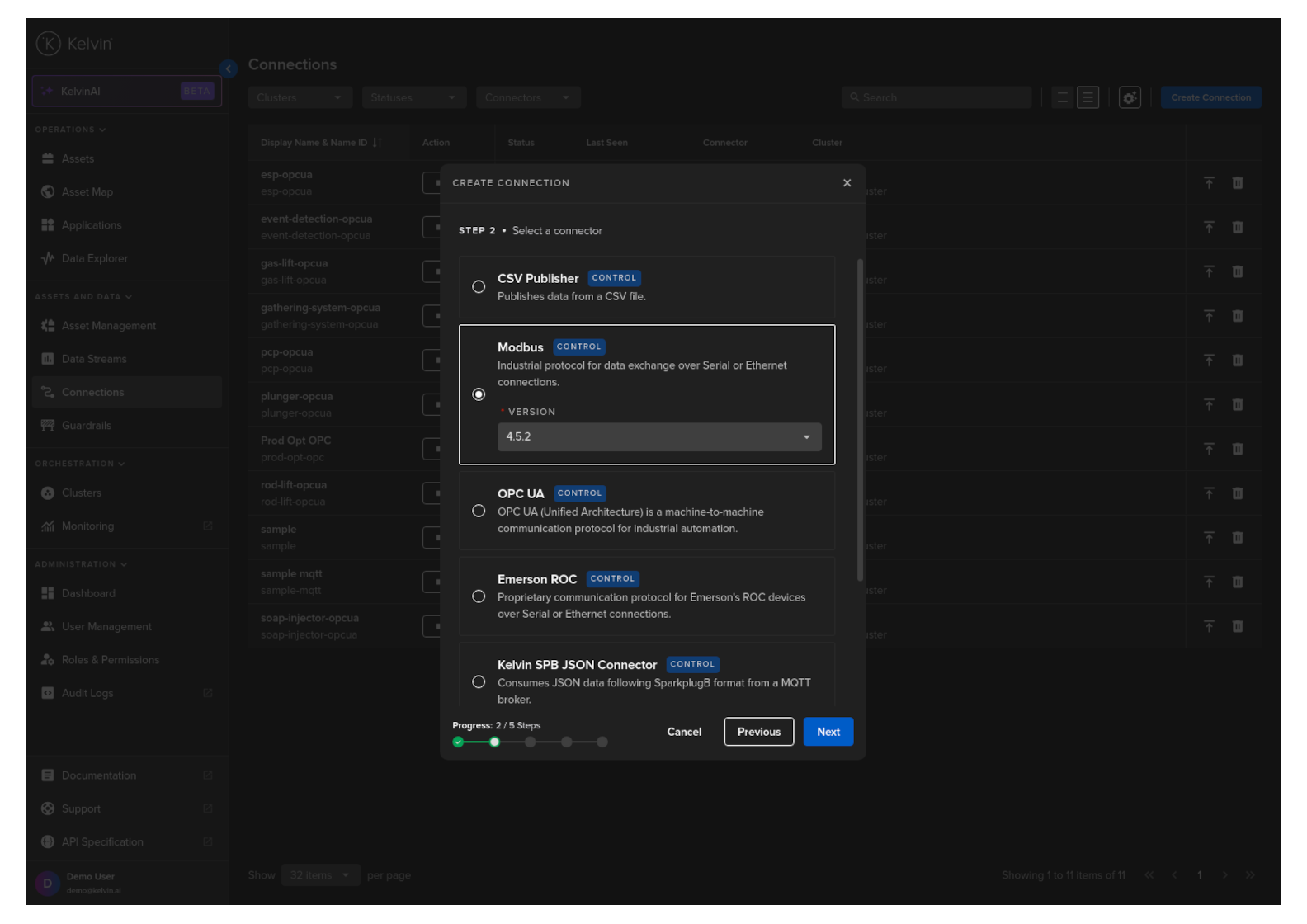
Step 2
Select the custom Connector's name option, select a Version and click Next.
Step 3
Select an Asset, Data Stream and fill in the connection and other optional values.
Full descriptions of each column is giving below.
Success
If you have many connection IO to fill in, you can save time with the download/upload csv file option in the top right hand corner of the popup.
Use Microsoft Excel or Google Sheets to fill in all the Connection IO details.
You can only upload one file. Multiple file uploads is not allowed and only the latest selected file will be used.
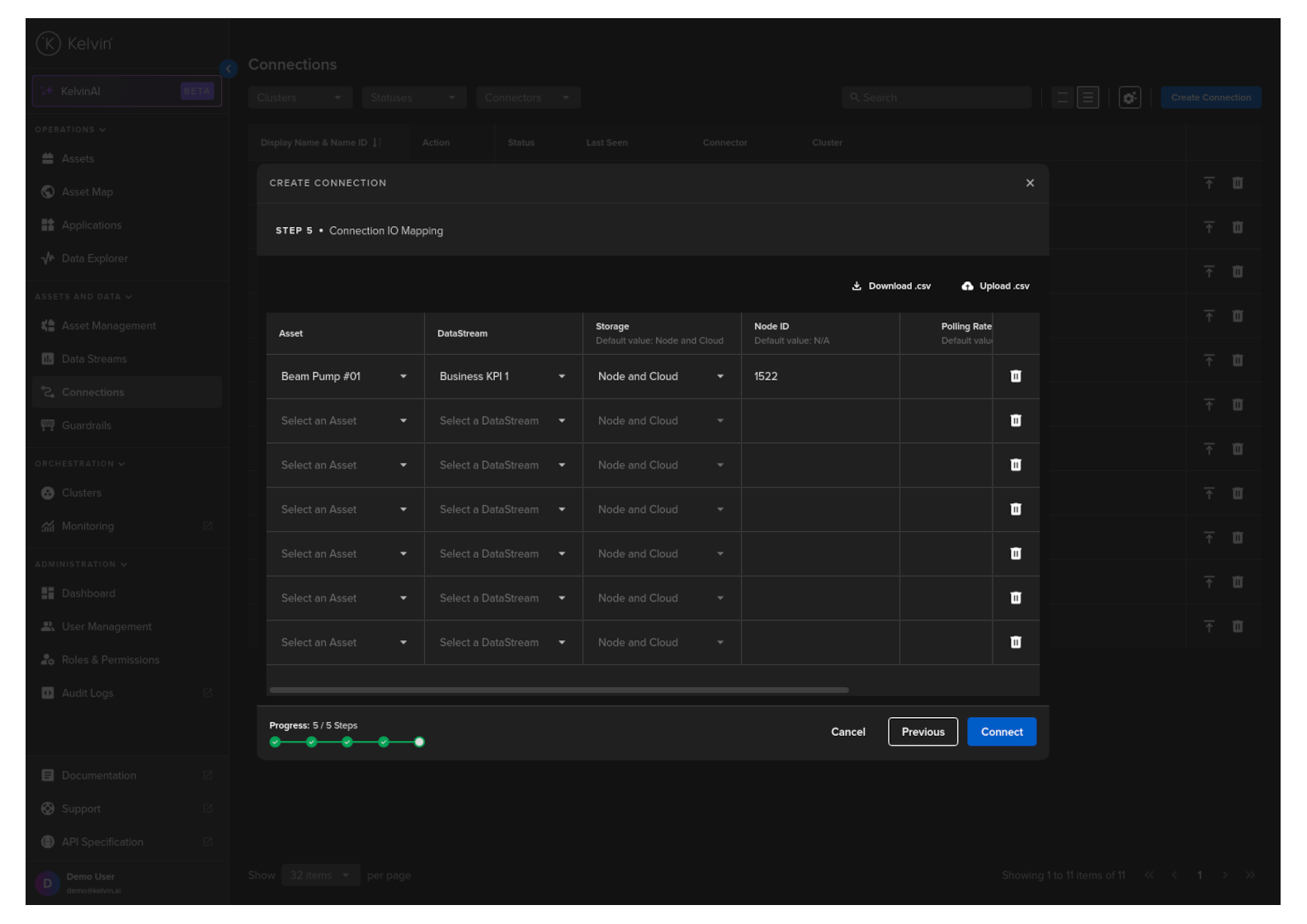
Note : This is only a sample screenshot from OPC UA Import Connection. Actual look will be different for each custom Import or Export Application.
Option Descriptions
| Header | Description | Example | Mandatory |
|---|---|---|---|
| Asset | The Kelvin Asset name (must be lowercase alphanumeric with no spaces) | well-01 | Yes |
| DataStream | The Kelvin Data Stream name (must be lowercase alphanumeric with no spaces) | water-flow | Yes |
| Storage | Location of the storage; "none", "node", "node-and-cloud" | node-and-cloud | No |
| ... | Other variables specific to the custom Import Application ... |
Complete the Connection
When everything is validated, then you can click on Connect button to deploy the Connection to the Cluster. It will start automatically, connect to the asset and start collecting data.
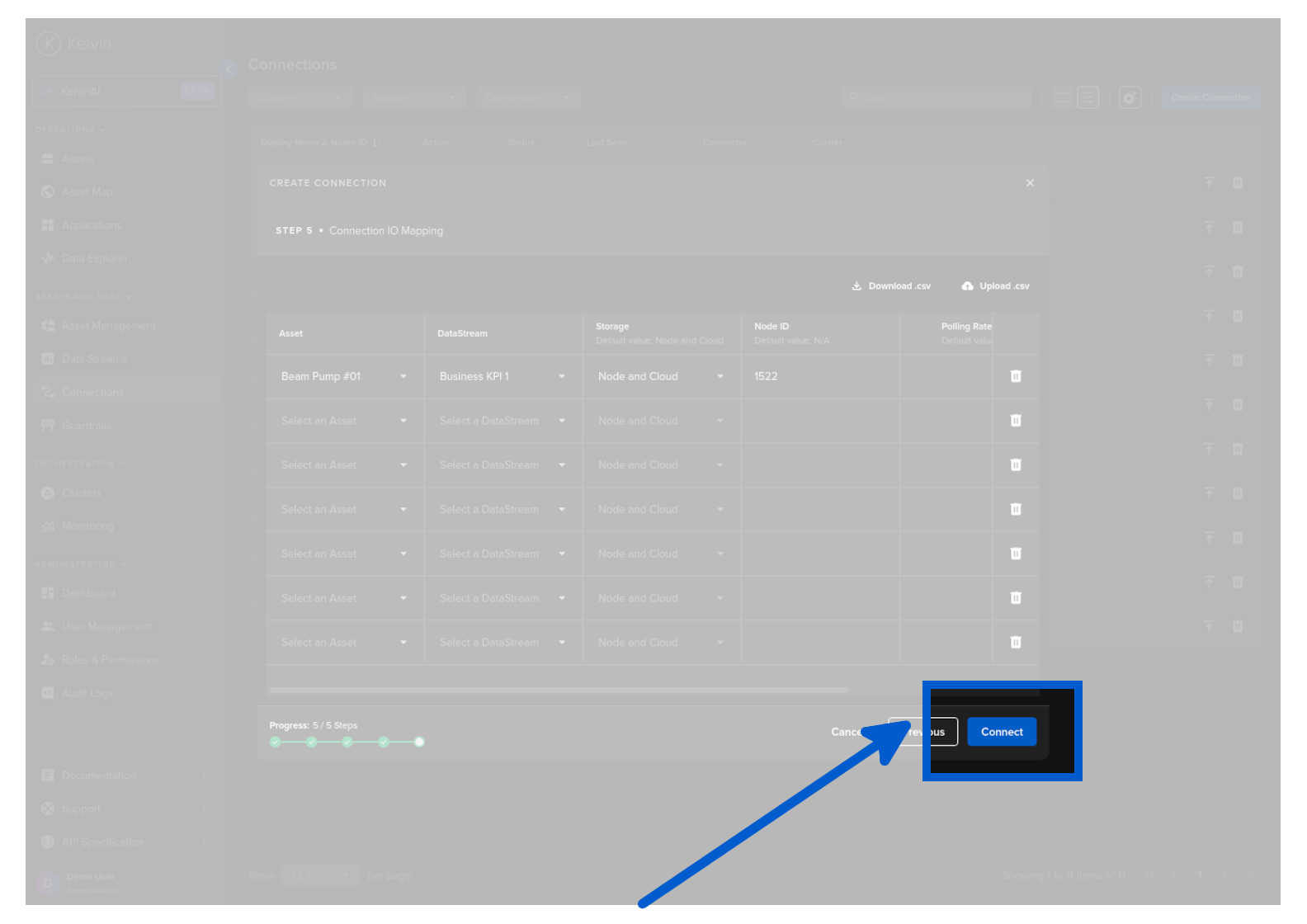
This is a bare bones example of creating a Connection. The specifics of the runtime will depend on the specifications set by the Developer of the Connection Application.
| API cURL Example | |
|---|---|
1 2 3 4 5 6 7 8 9 10 11 12 13 14 15 16 | |
This is a bare bones example of creating a Connection. The specifics of the payload will depend on the specifications set by the Developer of the Connection Application.
| API Client (Python) Example | |
|---|---|
1 2 3 4 5 6 7 8 9 10 11 12 13 14 15 16 17 18 19 | |