App Parameters
You can learn more about Asset Parameters in the Overview ⟶ Concepts page.
Creating Parameters
They are initially declared with default values in the Kelvin SmartApp™ app.yaml file.
The variables can then be dynamically changed by Operations for each Asset deployed to the Kelvin SmartApp™. This allows customized values for each Asset.
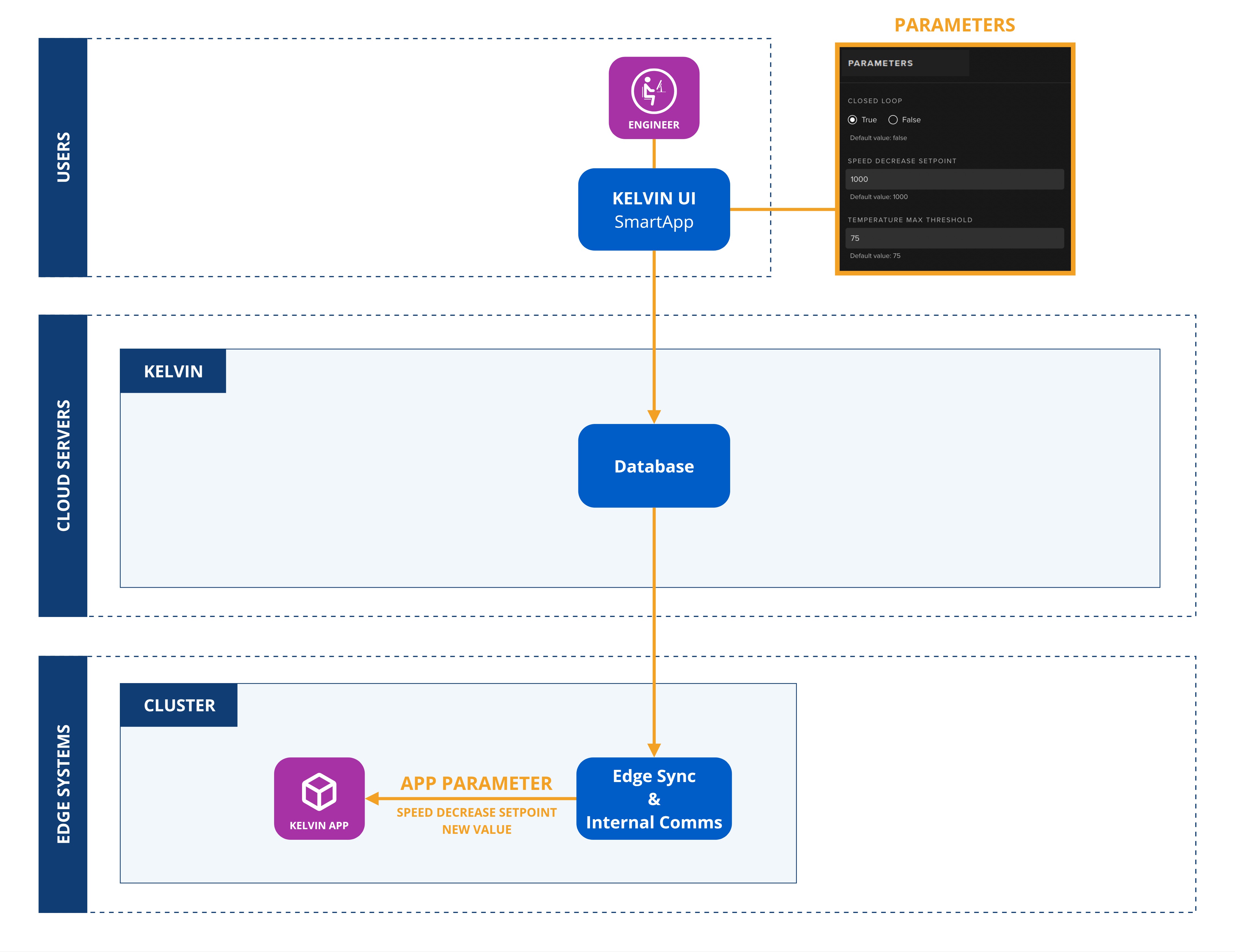
The keys used in the app.yaml file are;
parametersdefines the name and type of the App Parameter.ui_schemasis a link to a JSON file containing all the information about how to display App Parameters in the Kelvin UI.defaults/parametersdefine the default values assigned to each Asset when it is first created or when a Kelvin SmartApp™ update introduces a new App Parameter to existing Assets.
Each parameter can be defined by four different data_types. Full documentation on the different data_types is in the concept overview page.
In the app.yaml file it will look like this;
| app.yaml Example | |
|---|---|
1 2 3 4 5 6 7 8 9 10 11 12 13 14 15 16 | |
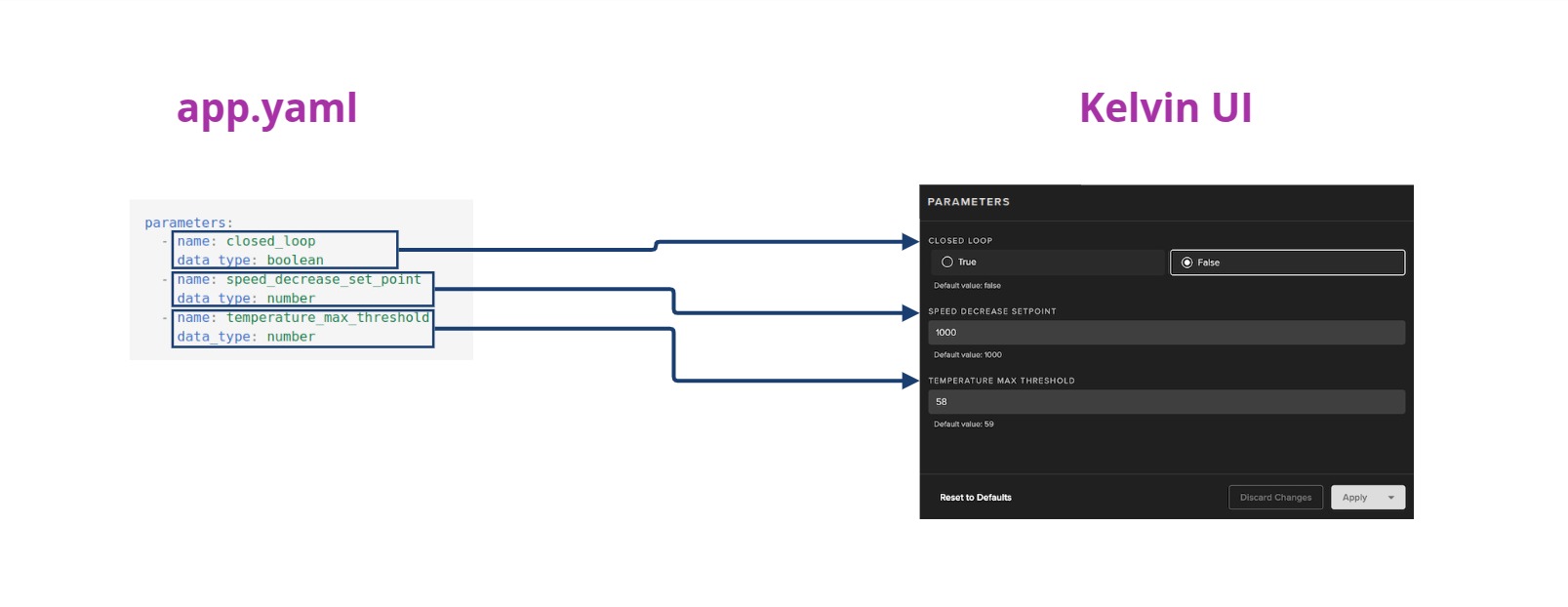
For the parameters.json file you can define all the information for the Kelvin UI. This can be the title, type of input required and limitations of the values allowed.
It will look something like this.
| sample ui_schema/parameters.json | |
|---|---|
1 2 3 4 5 6 7 8 9 10 11 12 13 14 15 16 17 18 19 20 21 22 23 24 25 26 | |
Which will be displayed on the Kelvin UI as:
Get Parameter Values
Access a single App Parameter value directly from an assets Dictionary Object embedded within KelvinApp:
| Get Parameter Values Python Example | |
|---|---|
1 2 3 4 5 6 7 8 9 10 11 12 13 | |
Updating Parameter Values
Writing to a single App Parameter value directly from an assets Dictionary Object embedded within KelvinApp:
| Updating Parameter Values Python Example | |
|---|---|
1 2 3 4 5 6 7 8 9 10 11 12 13 14 | |
Upgrading Kelvin SmartApps™
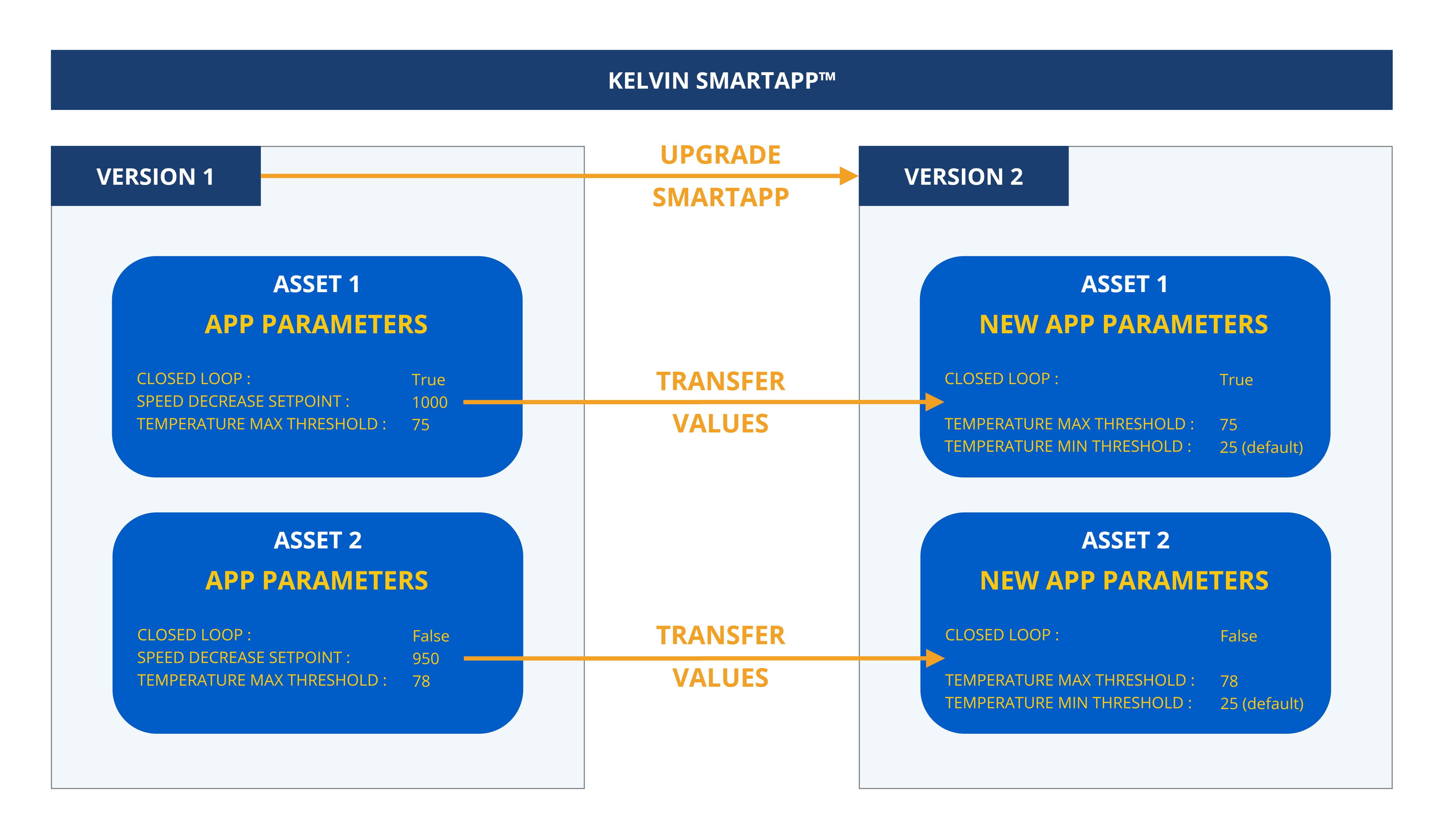
When a Kelvin SmartApp™ is upgraded, Kelvin automatically propagates all matching App Parameter values from the previous version to the new version.
For any new App Parameters introduced in the upgraded Kelvin SmartApp™ version, the default values will initially apply to all Assets using the updated version.
Other Examples
Basic
In the app.yaml file, the minimum you can put is this
| app.yaml Example | |
|---|---|
1 2 3 | |
In the Kelvin SmartApp™ program, it can access the App Parameter values for each Asset like this.
Access a single App Parameter value directly from an assets Dictionary Object embedded within KelvinApp:
| Get Parameter Values Python Example | |
|---|---|
1 2 3 4 5 6 7 8 9 10 11 12 13 | |
Info
app.assets will only be available after app.connect()
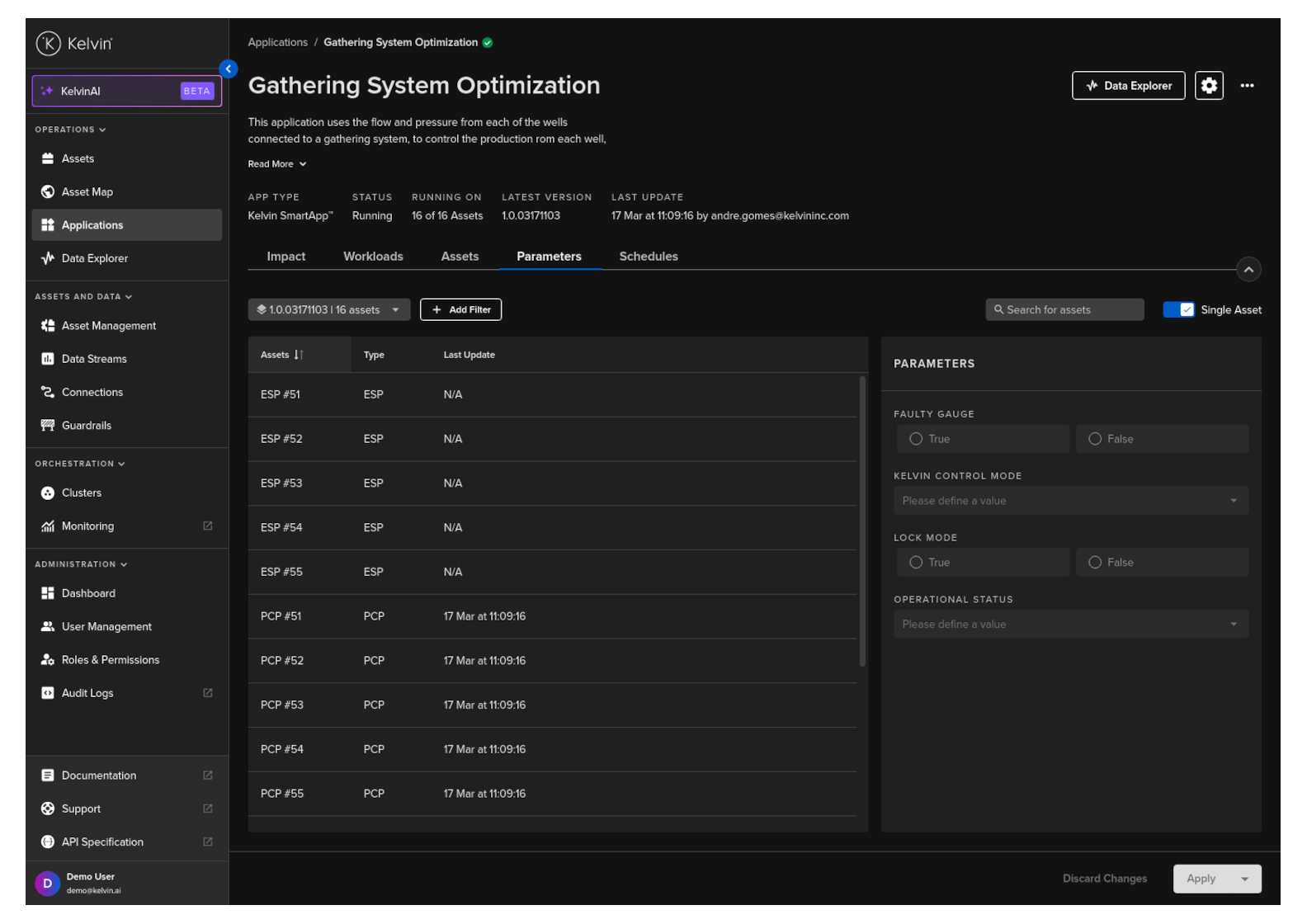
The App Parameter values can be updated by Operations in the Kelvin UI through the parameters section.
SmartLift
A practical example is in the Kelvin SmartApp™ called SmartLift where the Operations can change the values for different App Parameters for each Asset.
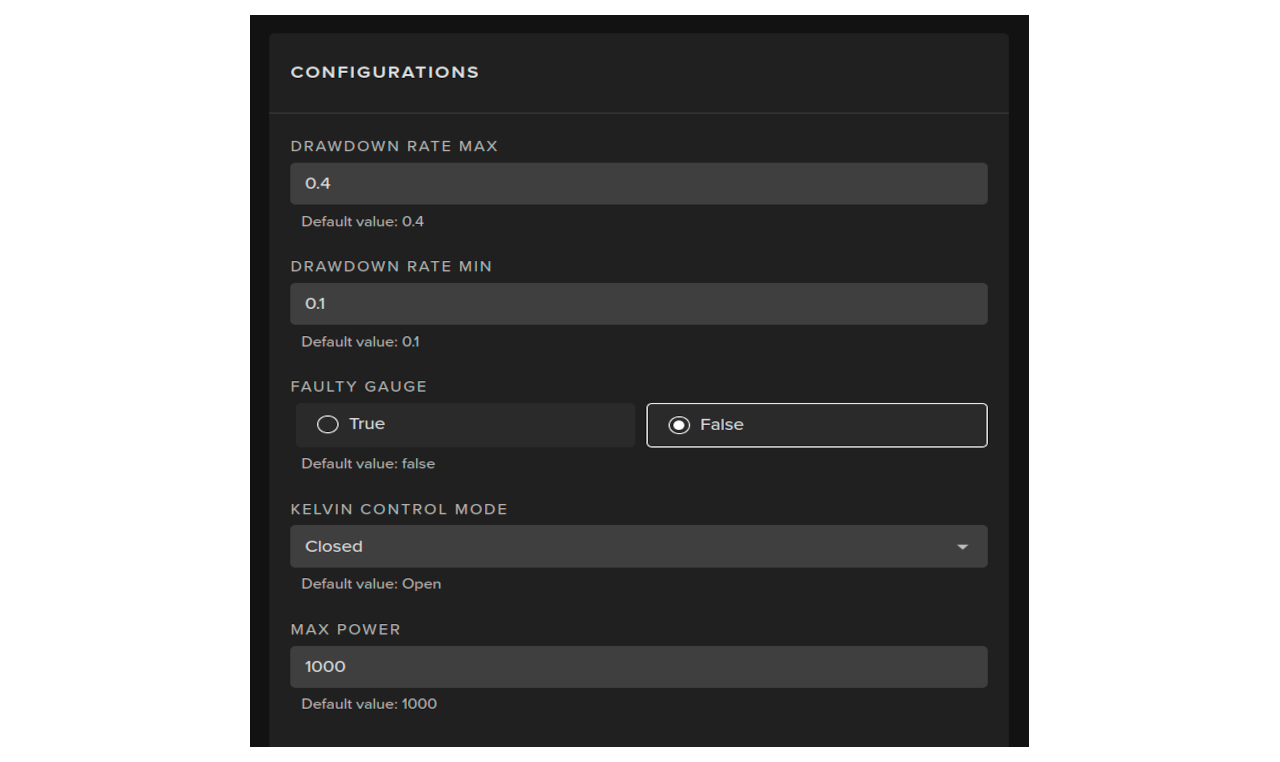
In this example, Operations can set the following values for each Asset;
- Maximum Drawdown rate
- Minimum Drawdowm rate
- Maximum Power
They can also assign whether the gauge is faulty.
Finally, they can choose whether to run the Asset in Open or Closed control mode:
- Open Control Mode: Any data changes the Kelvin SmartApp intends to make to the Asset data values must first be approved by Operations before being applied to the Asset.
- Closed Control Mode: Any data changes the Kelvin SmartApp intends to make are automatically applied to the Asset without requiring prior approval.