Paper Quality Optimization in a Nutshell
This demonstration video was done in v5.5.
There may be slight differences with the latest version.
Check the latest documentation for the specific tasks should any feature not quite work as expected.
The Paper Quality Optimization is also known as Multi-Objective Optimization with Machine Learning.
This is the Overview edition of a 4 part tutorial on turning an inhouse machine learning program developed in a Jupyter Notebook into a scalable solution for deployment to the edge in a Kelvin Instance;
- Overview - Gives an overview workflow over all three detailed tutorials. Especially good for the non-technical who just want to have an understanding how to integrate and scale an inhouse developed machine learning program using Kelvin.
- Developer - Detailed walk through to take a Jupyter Notebook containing an inhouse machine learning model program and integrating it as a Kelvin SmartApp™ ready for upload and deployment to the edge.
- Platform Administrator - Detailed walk through to manage all administrative matters for the tutorial example for the Units, Asset Types, Assets, Data Streams, Connections, Upload to App Registry.
- Process Engineer - Detailed walk through to add Assets to Kelvin SmartApps™, monitor the performance of the Assets and take action on new Recommendations.
Platform Administrator and Process Engineer editions are coming very soon !
Video Tutorial
This tutorial is also in a video format, so you can choose your preferred medium to understand more about Kelvin.
Chapters In Video
- Introduction
- The Developers Journey
- The Platform Administrator's Journey
- The Process Engineer's Journey
Requirements
As this tutorial is for demonstration purposes only there are no requirements.
The Model
For this demonstration we take a global paper production enterprise. At their R&D section, some clever developers have created an ingenious machine learning model for production. The model is monitoring key set point inputs and paper quality check outputs data in a paper mill press line from the steam boiler, dryer, refiner, forming line, press and paper quality. With this data it uses four random forest regression models, one for each output which is put through a generic algorithm (NGSA II) to work out the best settings for optimal paper quality production under current conditions.
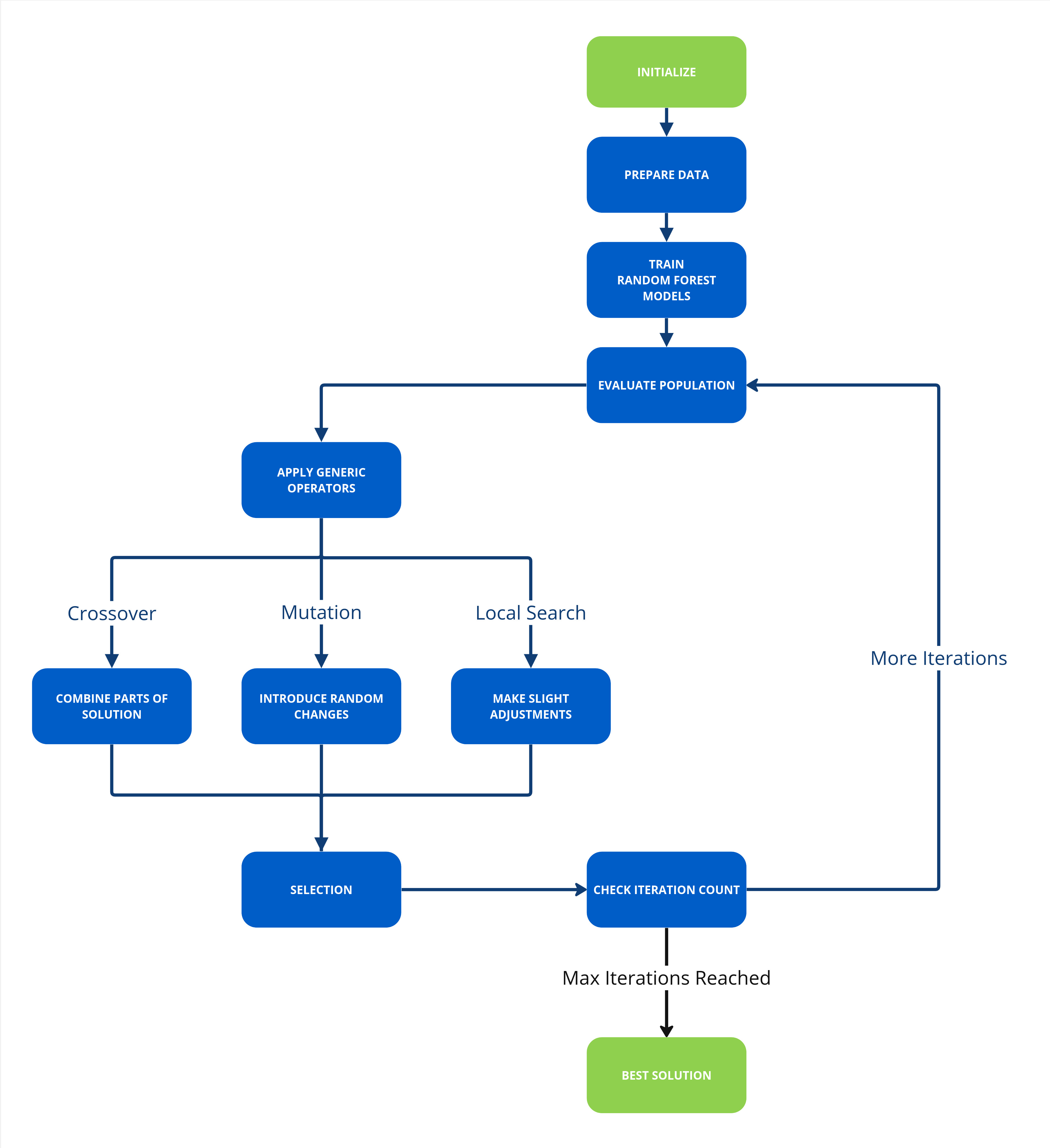
In a Nutshell
The aim of the Multi-Objective Optimization with Machine Learning example is to demonstrate how easy it is to use existing Python code, add a Kelvin Wrapper, upload it to be available on scale, connect it to live data and send Recommendations to the Process Engineers.
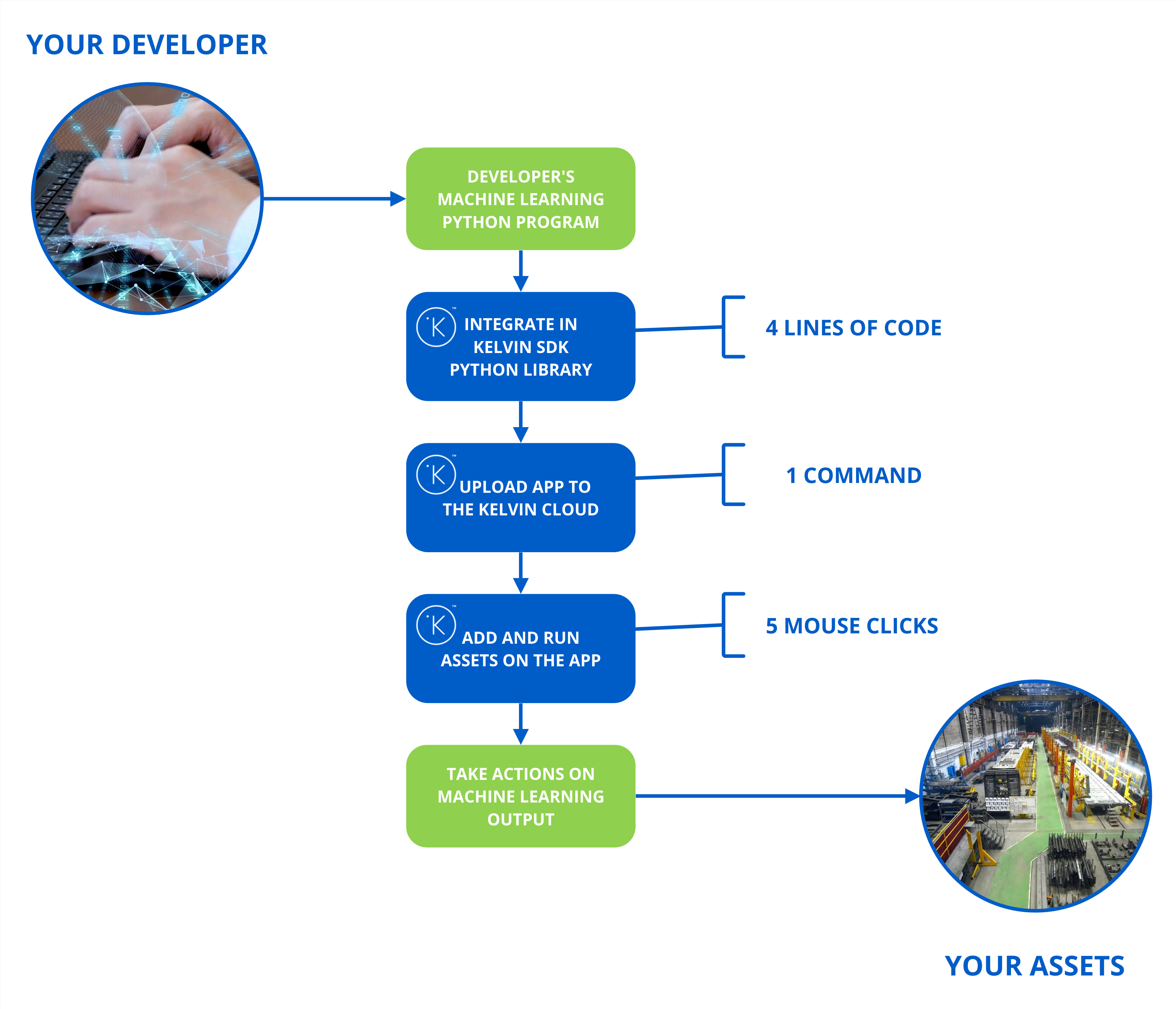
Developer
The journey begins with the Developer and Data Scientists creating new Python machine learning models to be able to improve your production process.
So let's start at the Jupyter Notebook where a Data Scientist has created his model.
You can find the Jupyter Notebook in Kelvin's github examples repository.

From here the Developer converts the Jupyter Notebook into a Python program file.
In this case the Developer has created two files; multi_objective_optimization.py and rolling_window.py.
Also as usual for Python programs a requirements.txt file needs to be created to instruct the compiler which Python libraries are required.
Now the Developer is ready to add the Kelvin Wrapper. To start, the blank Kelvin SmartApp™ template is downloaded using the Kelvin SDK on the command line.
kelvin app create
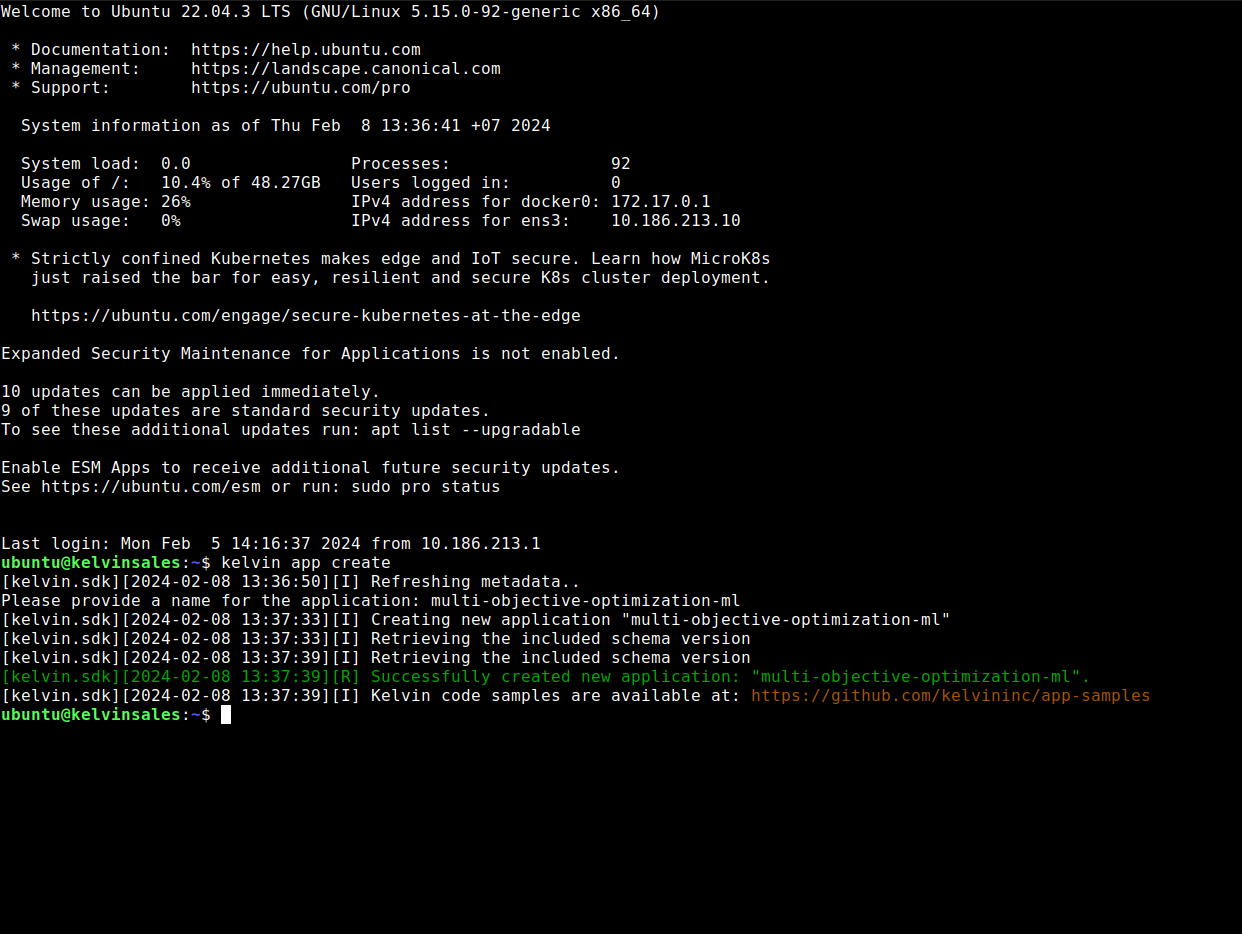
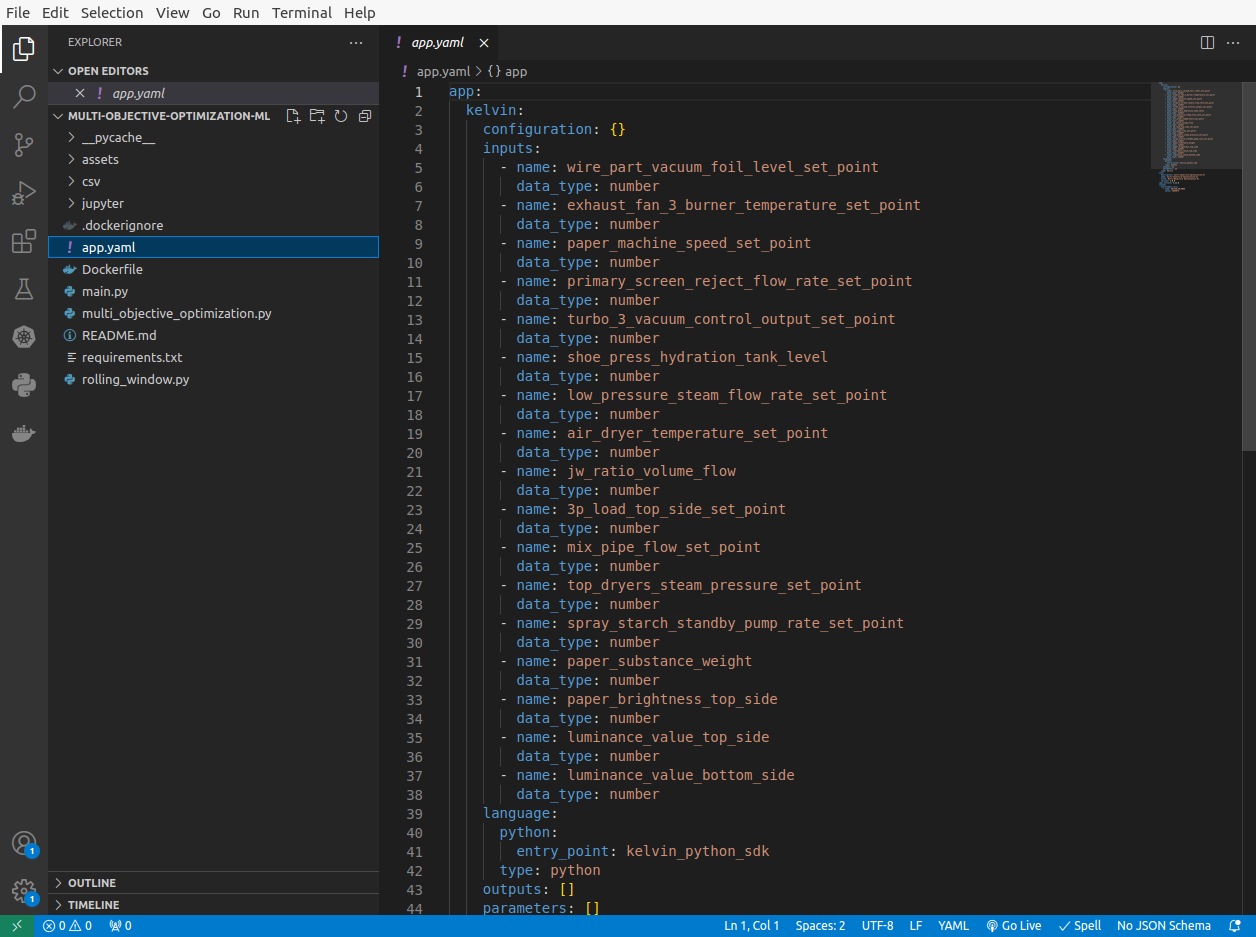
Within the new folder that is created, the Developer first can add the inputs, outputs and parameters to the app.yaml file. This connects the variables in the program with the Data Streams in Kelvin.
Then the Kelvin SmartApp™ title and version number can be updated to be relatable to the Process Engineers at the factories where the program will be used.
Next the Developer can use the main.py template and add the machine learning program function calls to the program files created earlier from the Jupyter Notebook.
In the main function the four most important lines to wrap the program with the Kelvin Wrapper are;
app = KelvinApp()which declares the Kelvin SDK.await app.connect()which connects the Kelvin SDK.msg_queue: asyncio.Queue[Number] = app.filter(filters.is_asset_data_message)which subscribes to the Asset / Data Stream pairs real time data.message = await msg_queue.get()which will be triggered when a new data message arrives at Kelvin.

The Developer can also make their program interactive by connecting the program model's output to Recommendations that are sent to the Kelvin UI. The Process Engineers can then take action on the Recommendations which will in turn automatically update values at the Assets.
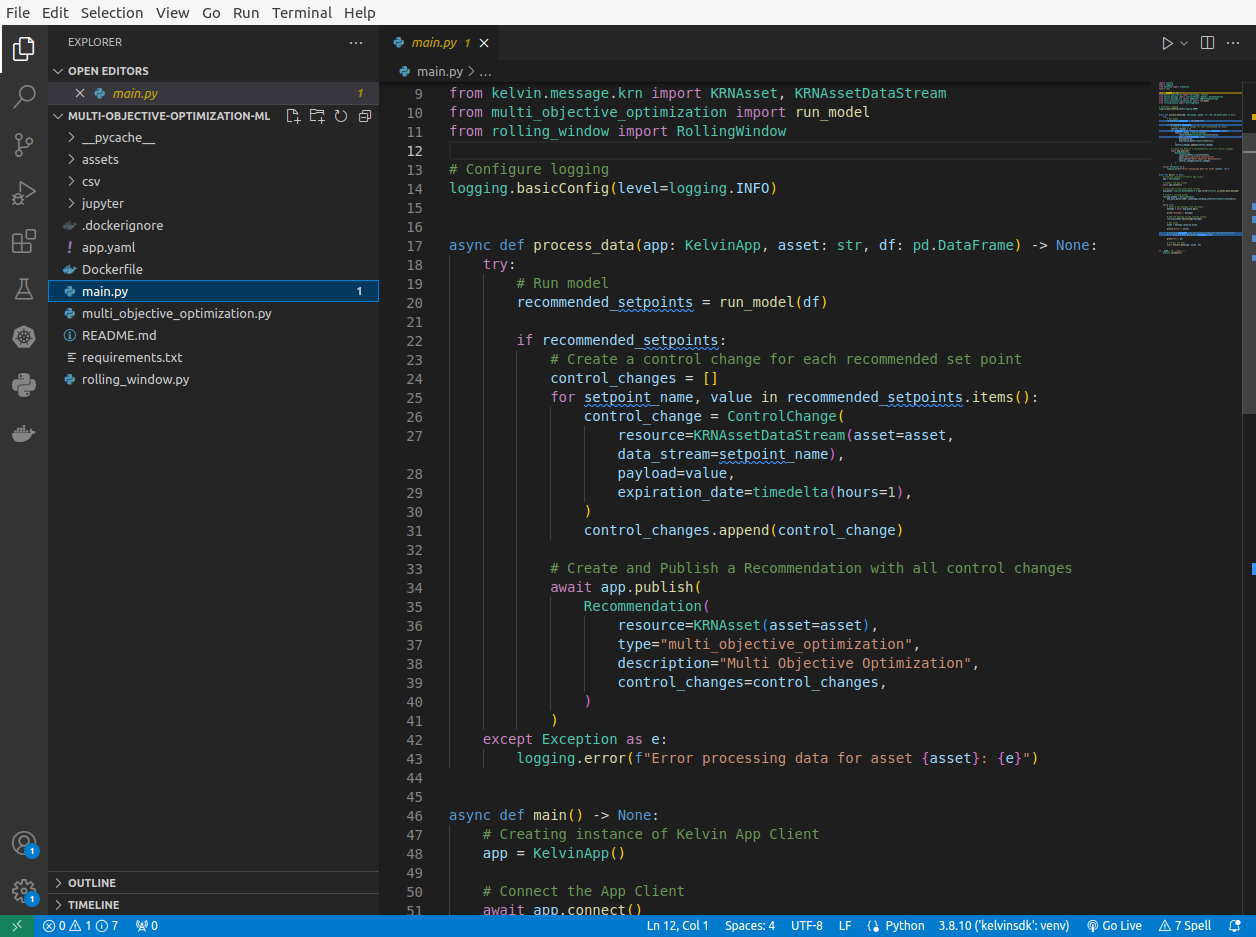
And that's it. For an experienced Developer, the conversion from an in-house Python program to a scalable program using Kelvin Wrapper can take as little as 5 minutes and minimum 4 extra lines of code.
Platform Administrator
These steps can be done by the Developer or a Platform Administrator.
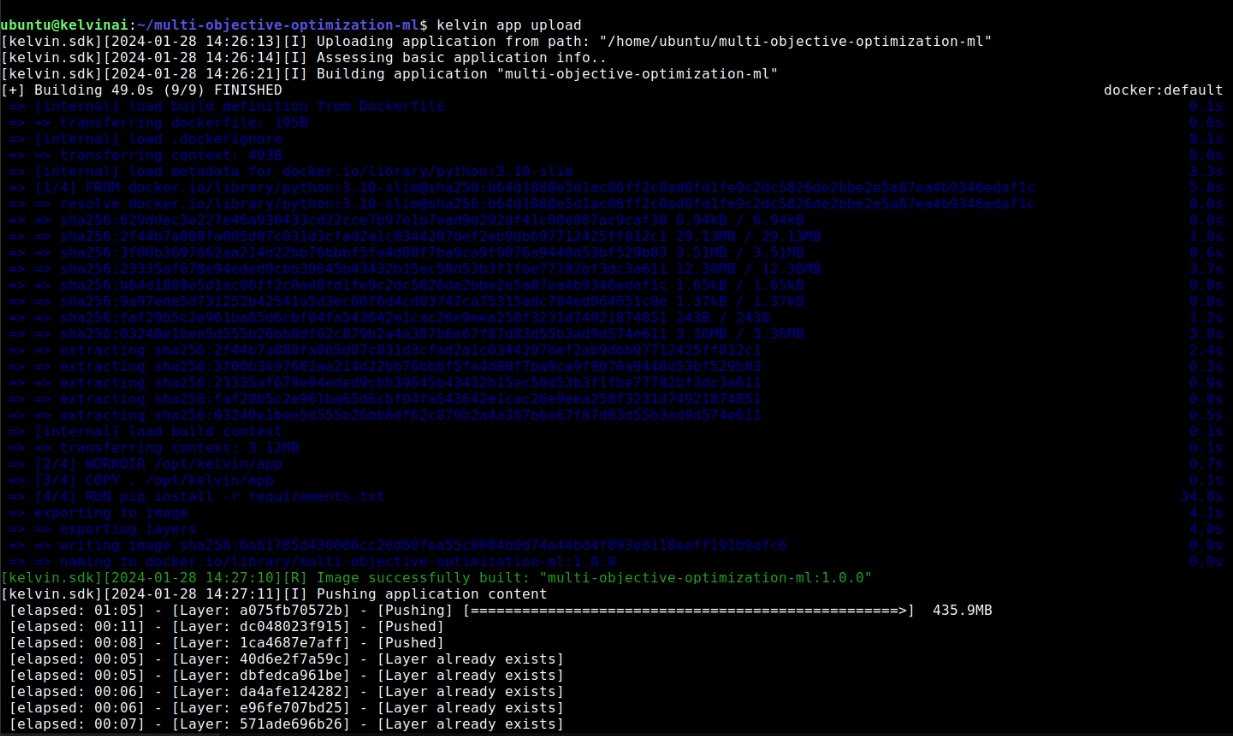
With the program ready, it needs to be uploaded to the App Registry where it will become available to the Process Engineers on the Kelvin UI.
Like with creating the Kelvin SmartApp™ template, this is done from the terminal. Within the project folder where the main.py and app.yaml file are located, simply type;
kelvin app upload
The rest of the process is automatic.
Process Engineer
At the factory the program is now available for the Process Engineers to use on the Assets under their control.
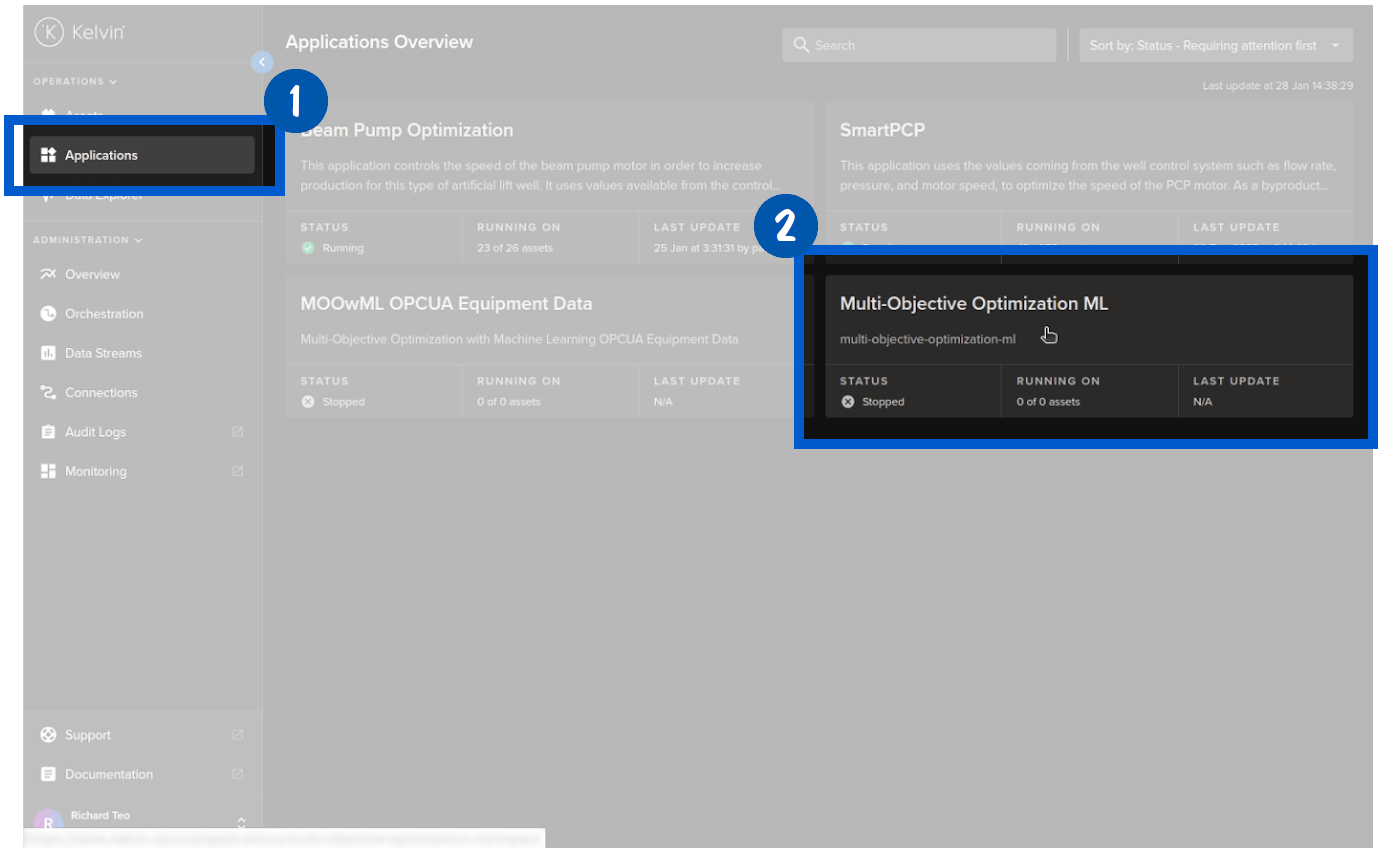
Add Assets to the Program
The program, called SmartApSmartApps™n UI, can now be connected to the Asset's data stream. Once connected Kelvin SmartApps™ will process the data with the Data Scientist's model and if required produce setting change recommendations to improve the quality of the paper.
Add Assets is as simple as five mouse clicks, start with clicking on the Add Assets button in Kelvin SmartApps™ under the Management tab.
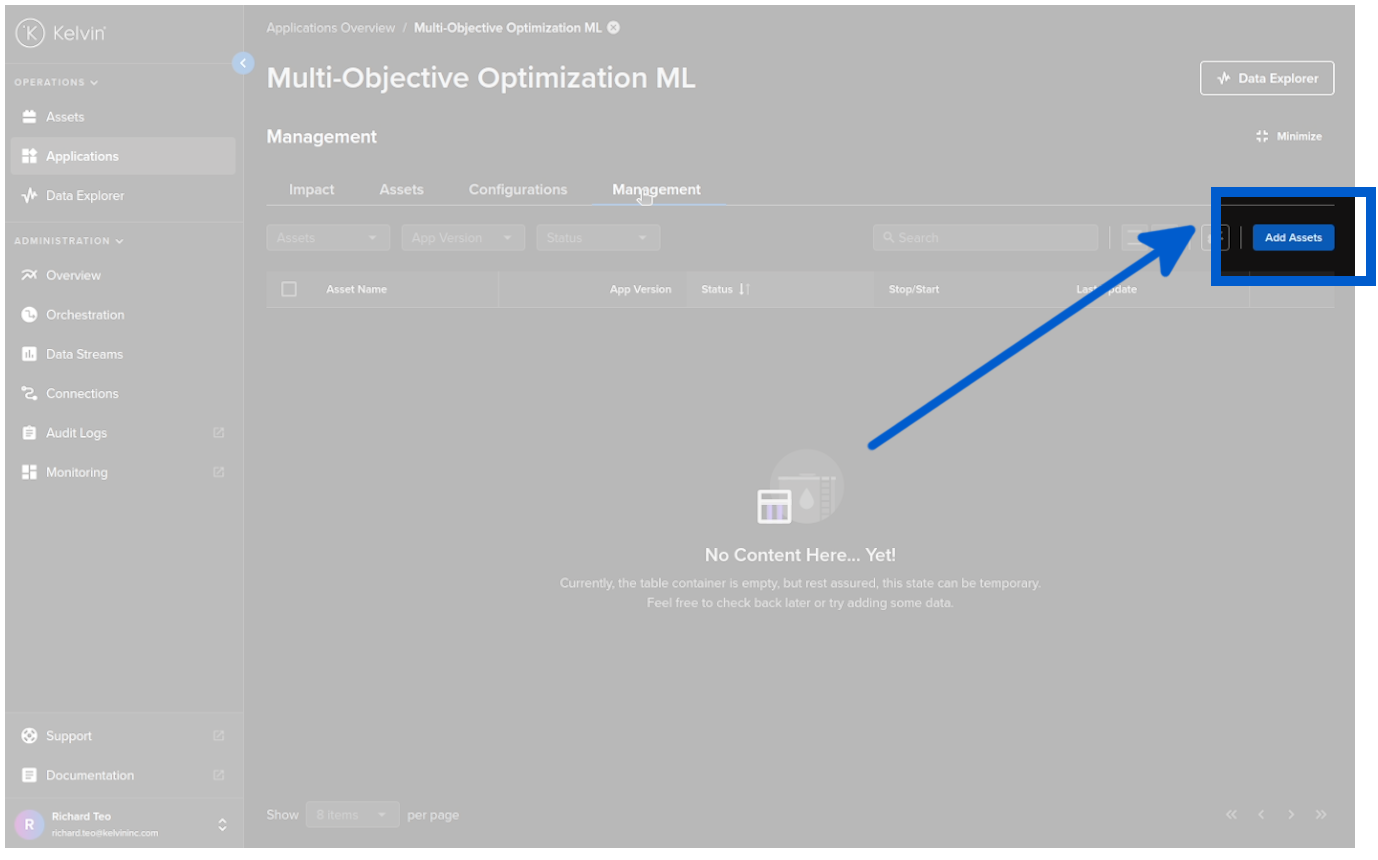
Select the version of Kelvin SmartApps™;
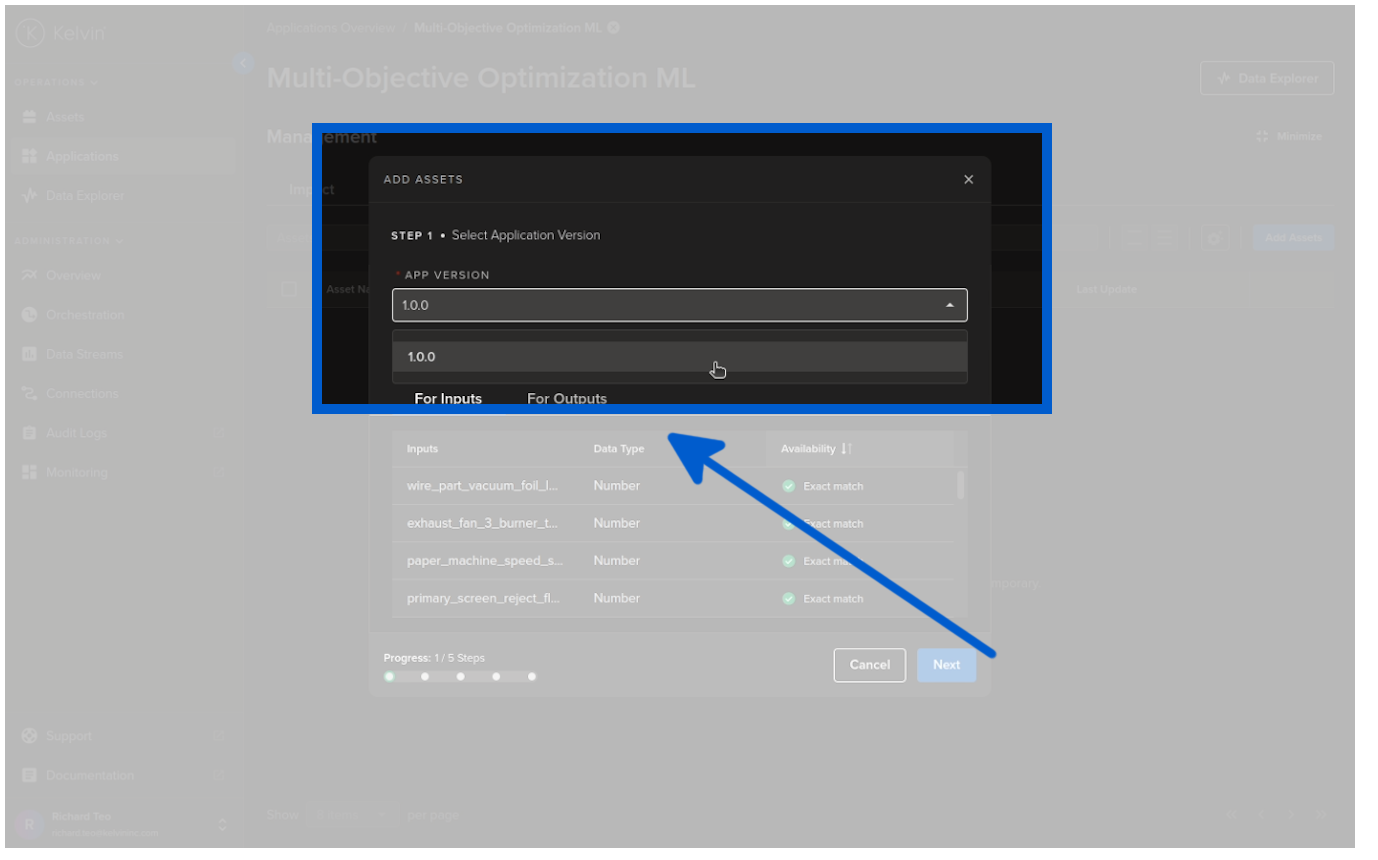
Select the Assets to be processed by Kelvin SmartApps™;
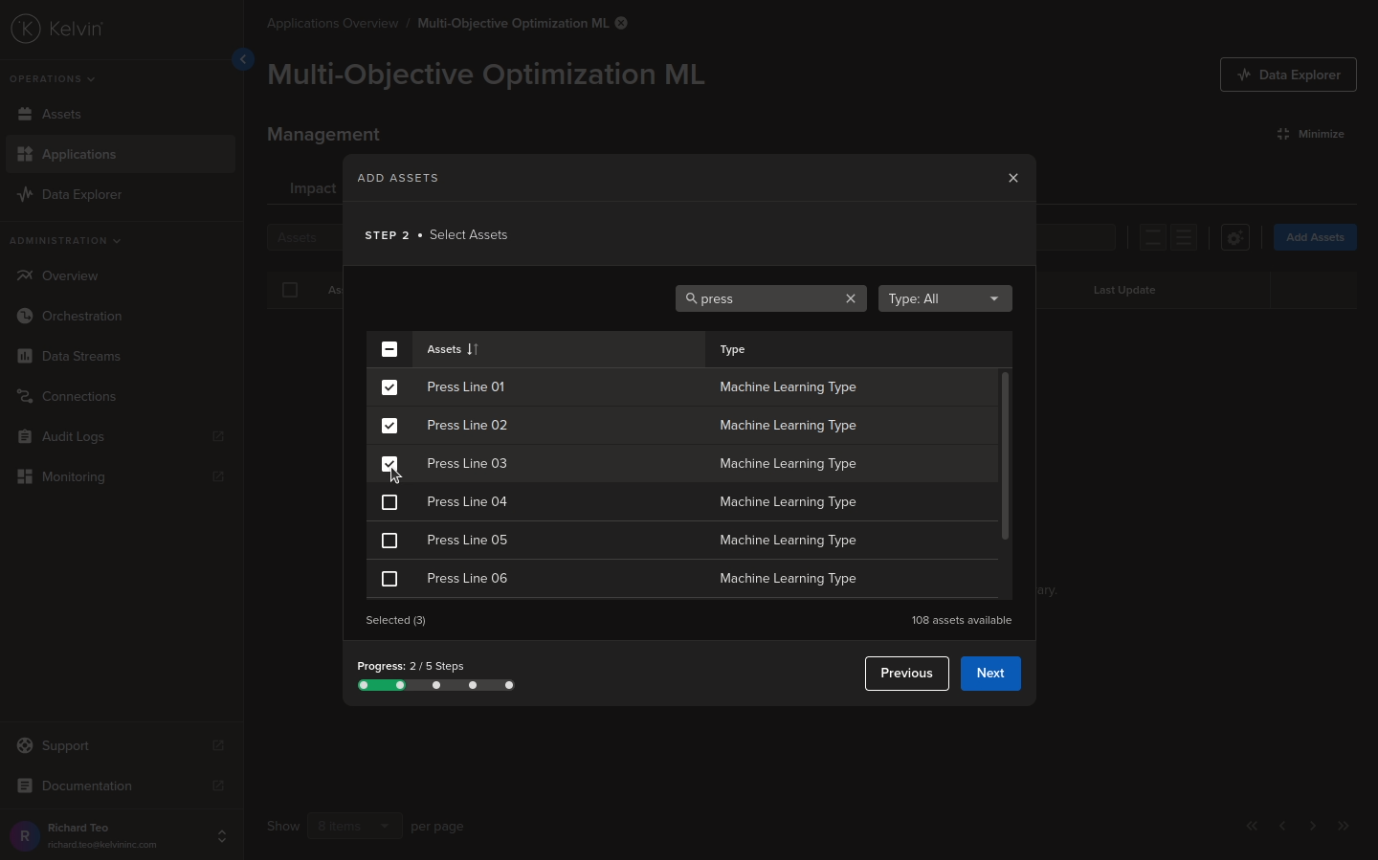
Step 3 and 4 are automatically connecting the Asset Data Streams with the program. There is nothing to do here so we skip showing the screenshots for these and go straight to Step 5 which is simply to submit the Assets to Kelvin SmartApps™.
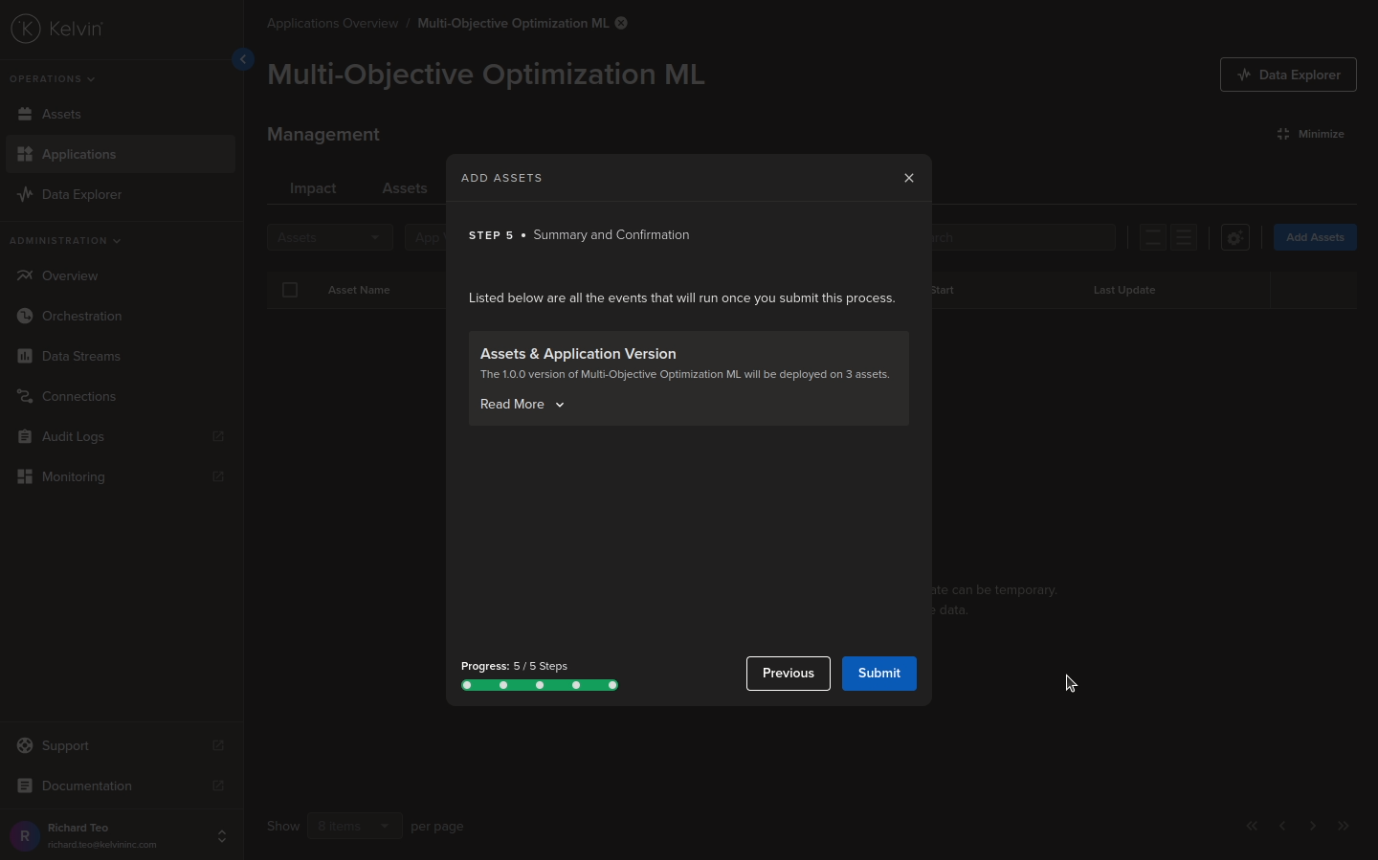
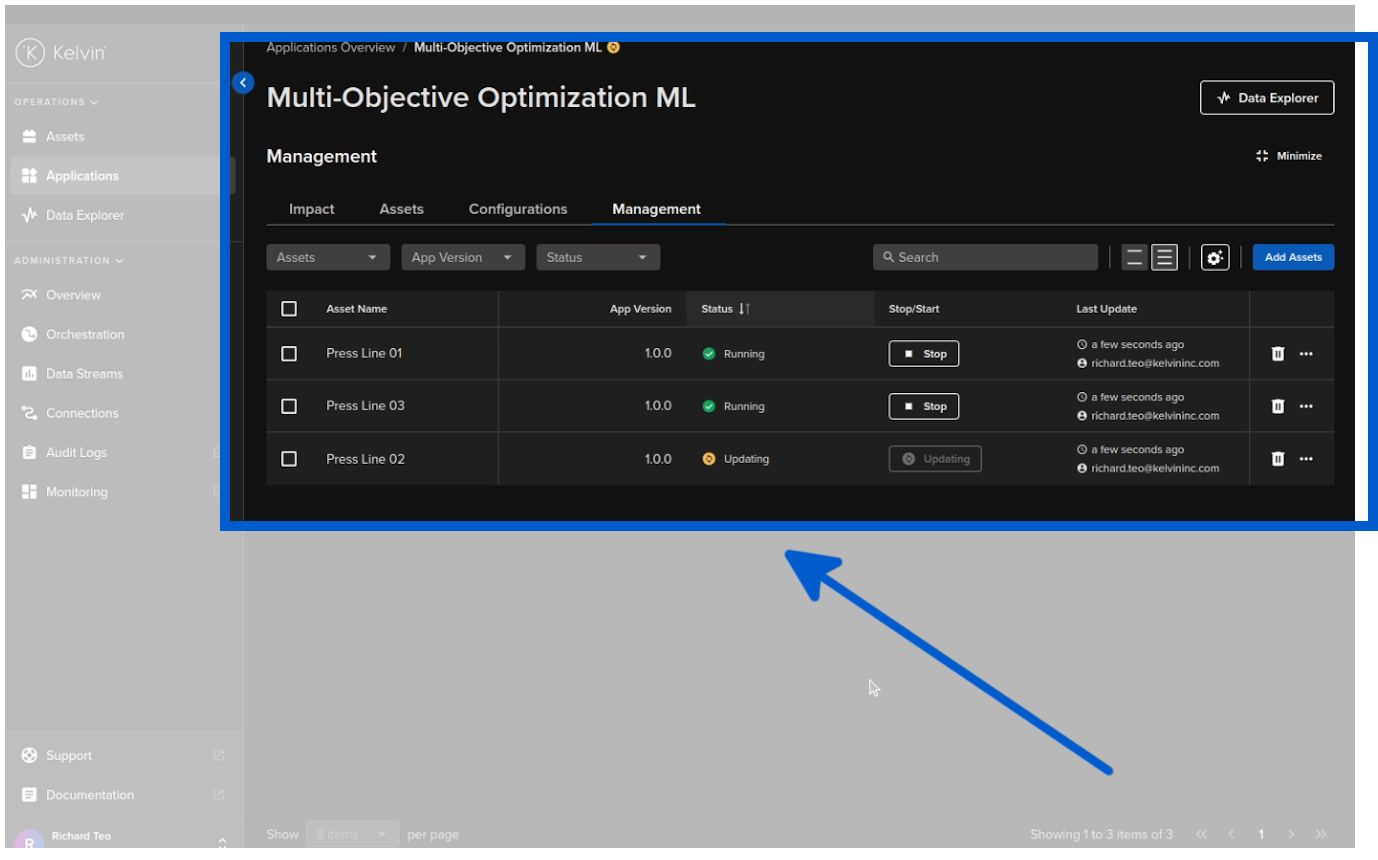
The Assets will then be deployed to Kelvin SmartApps™ and immediately start processing the data through the machine learning model.
Recommendations
When the model output has optimized settings for the Assets, they will be packaged into a Recommendation and sent to the Kelvin UI for the Process Engineer to inspect and make the final decision.
This frees up the Process Engineers to focus on important aspects of the factory process and leave the montioring of setting optimization to the model.
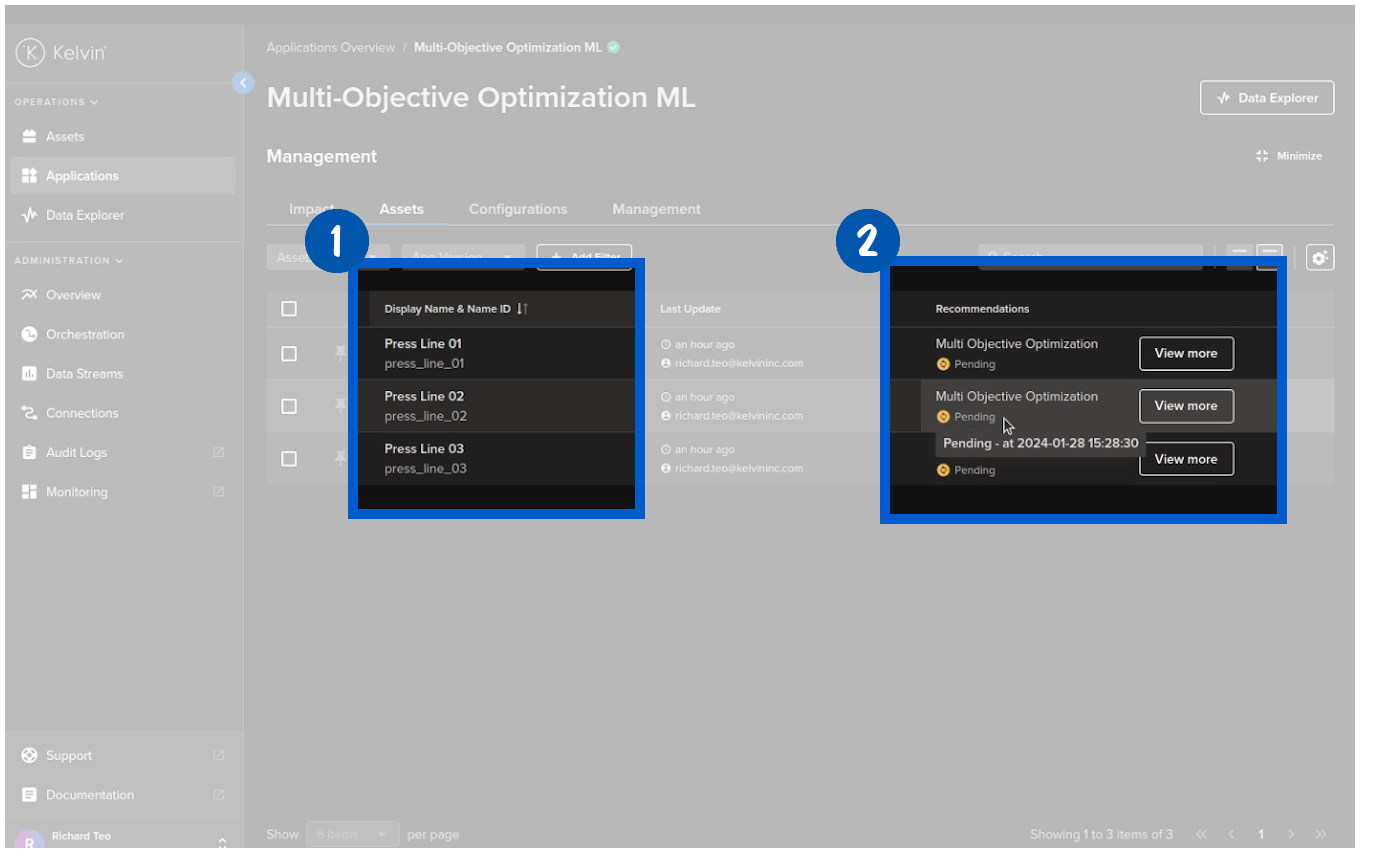
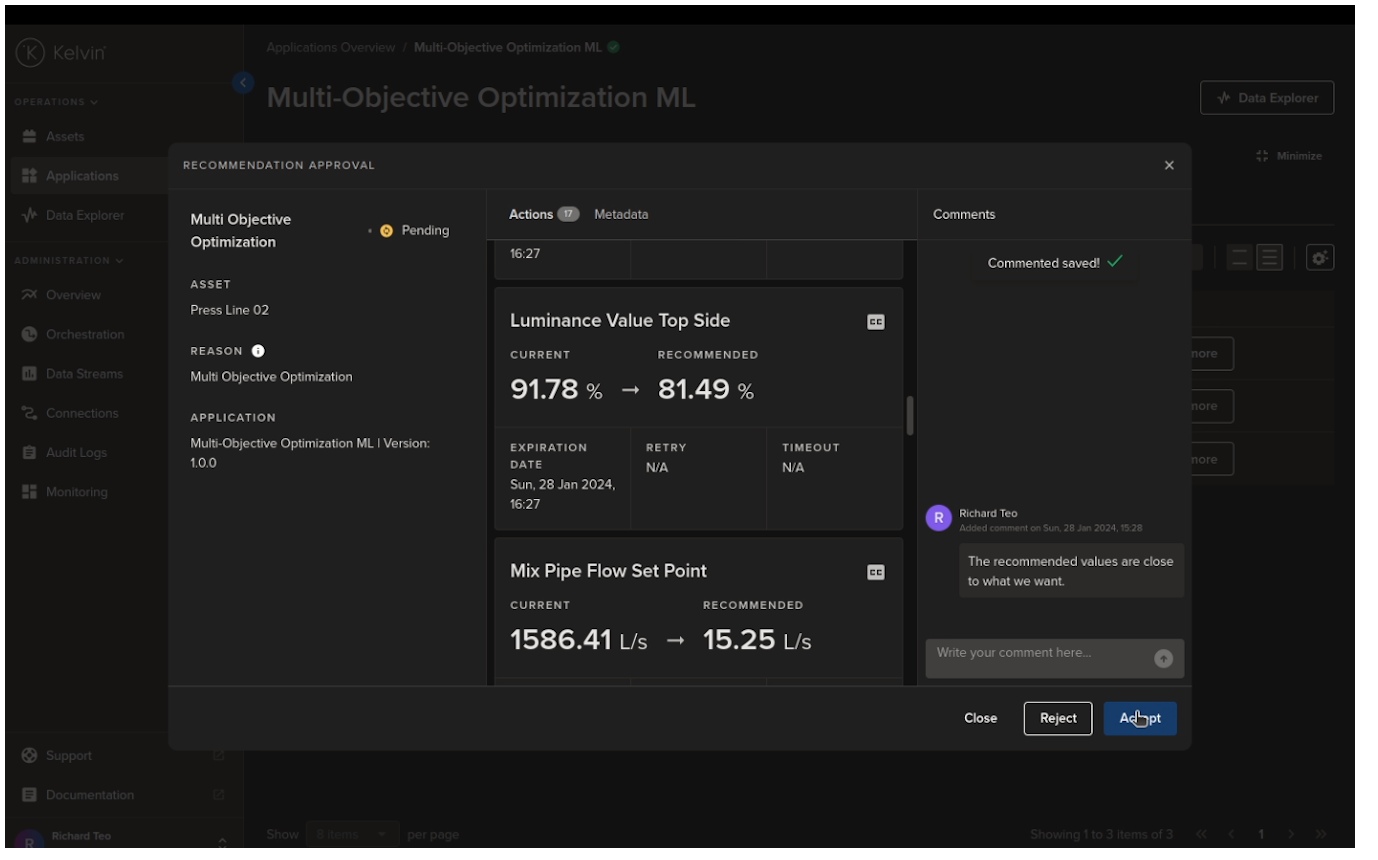
The Process Engineer can open the Recommendation, review the details, add comments, add a confidence level and then make a decision whether to accept or reject the Recommendation.
If accepted, the new settings will be automatically created in Control Changes and sent to the Assets to be updated. Control Changes is a fault tolerant process to update Asset values.
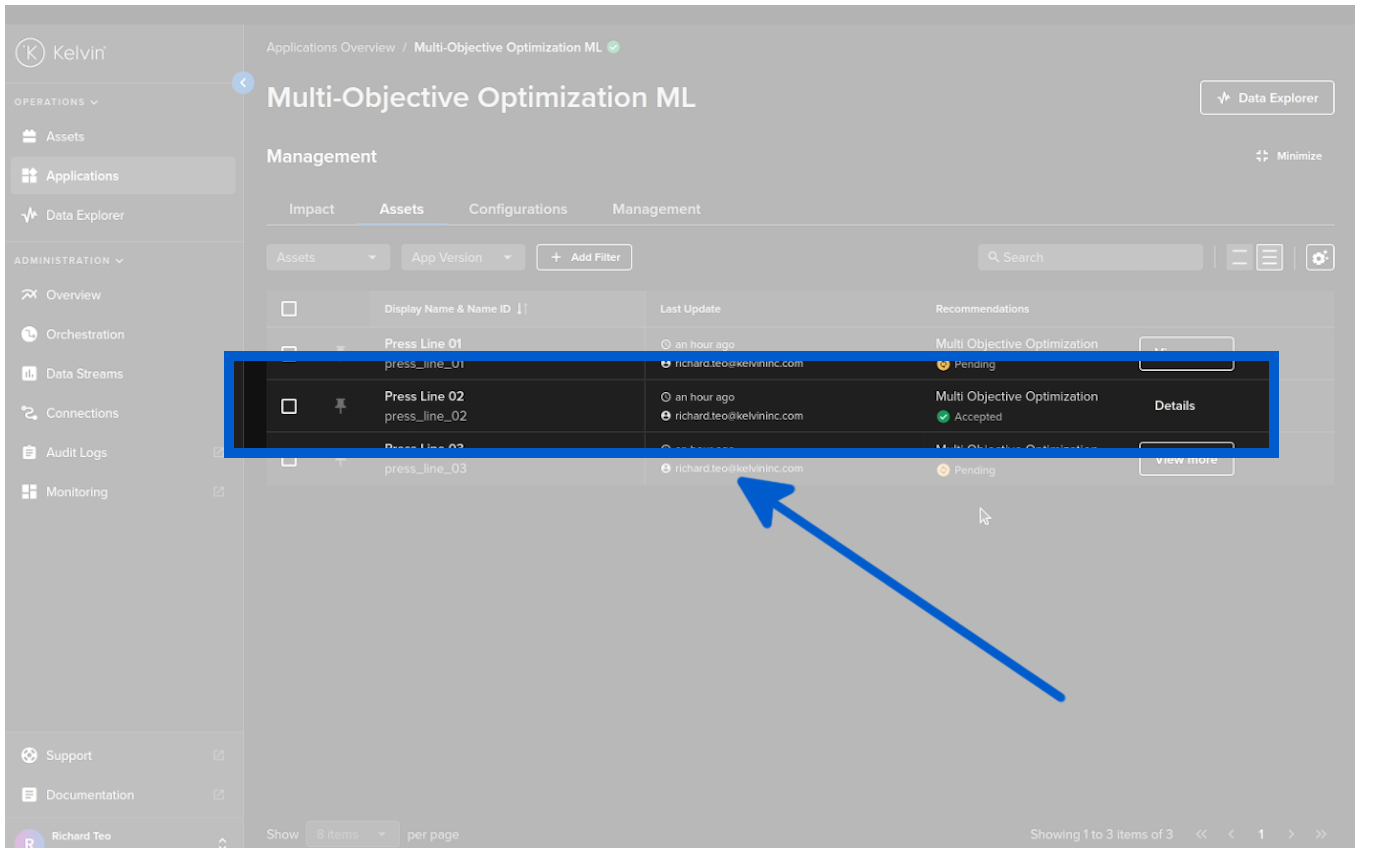
Once the Recommendation is complete you can see the confirmation in the Asset table.
Review
And there you go. From an in-house concept program to scalable solution in 5 minutes.
In summary, Kelvin bridges the gap between developers and operations, offering fast concept to production workflow allowing you to optimize and scale your production and save money.
This enables the decentralization of expertise where you can utilize the skill sets of each area of your workforce to optimize the production processes, specifically by providing technology that connect the experts directly to the machines they aim to optimize.
You can download the example from the Kelvin github repository and try it out for yourself !