How To
Export Data Stream
Reference:
| Field | Description |
|---|---|
| resource | Asset / Data Stream pair in KRN format. The KRN format is krn:ad:<asset_name>/<data_stream_name> |
| data_type | Type of data stored, such as raw.float32 or raw.string |
| source | User, Workload, Docker App or Kelvin SmartApps™ that created the data in the Cloud |
| fields | The field name keys for the data saved. By default this is just value |
| last_value | Last recorded value of the resource |
| last_timestamp | Exact UTC time when the data value was recorded, formatted in ISO 8601. |
| created | UTC time when the data was created, formatted in ISO 8601. |
| updated | UTC time when any of the data information was updated, formatted in ISO 8601. |
Export Last Value
In this example we will get the last value of an Asset / Data Stream pair. The Asset name is beam_pump_01 and the Data Stream name is motor_speed.
The Asset / Data Stream pair needs to be defined as a KRN.
You can see the latest values of any Asset / Data Stream pair in the Asset's Manual Controls page.
curl -X 'POST' \
'https://<url.kelvin.ai>/api/v4/timeseries/last/get' \
-H 'Authorization: Bearer <Your Current Token>' \
-H 'accept: application/json' \
-H 'Content-Type: application/json' \
-d '{
"selectors": [
  {
    "resource": "krn:ad:beam_pump_01/motor_speed"
  }
]
}'
You will receive a response body with a status code of 200, indicating a successful operation. For example, the response body might look like this:
[
  {
    "resource": "krn:ad:beam_pump_01/motor_speed",
    "data_type": "data;icd=raw.float32",
    "source": "krn:user:user@example.com",
    "fields": [
      "value"
    ],
    "last_value": 200.01,
    "last_timestamp": "2023-09-21T16:35:44.703732Z",
    "created": "2023-09-21T16:35:44.786784Z",
    "updated": "2023-09-21T16:35:44.786784Z"
  }
]
We will convert the information into a Pandas DataFrame.
from kelvin.api.client import Client
import pandas as pd

# Login
client = Client(config={"url": "https://<url.kelvin.ai>", "username": "<your_username>"})
client.login(password="<your_password>")

# Get Time Series Last Data Points
response = client.timeseries.get_timeseries_last(data={
  "selectors": [
    {
      "resource": "krn:ad:beam_pump_01/motor_speed"
    }
  ]
})

df = pd.DataFrame([{'last_value': obj.last_value.__root__, 'created': obj.created.isoformat(), 'updated': obj.updated.isoformat()} for obj in response])

print(df)
The response will look something like this;
   last_value                           created                           updated
0         7.0  2024-03-28T04:05:26.705072+00:00  2024-04-19T12:45:47.327306+00:00
Export Data over 24hr period for an Asset
In Time Series API, you can retrieve a range of data either in a raw format or aggregated format. The type of aggregation possible depends on the Data Type for the Asset / Data Stream pair.
| Data Type | Aggregate Option | Description |
|---|---|---|
| number | none | Raw data is returned |
| count | Counts the number of values within each time bucket. | |
| distinct | Returns distinct values within each time_bucket bucket. |
|
| integral | Calculates the area under the curve for each time_bucket bucket. |
|
| mean | Calculates the average value within each time bucket. | |
| median | Finds the middle value in each time bucket. | |
| mode | Identifies the most frequently occurring value in each time time_bucket. |
|
| spread | Represents the difference between the max and min values within each time time_bucket. |
|
| stddev | Measures variation within each time time_bucket. |
|
| sum | Adds up all the values within each time time_bucket. |
|
| string | none | Raw data is returned |
| count | Counts the number of values within each time_bucket bucket. |
|
| distinct | Returns distinct values within each time time_bucket. |
|
| mode | Identifies the most frequently occurring value in each time time_bucket. |
There are also options to;
time_bucket: The window of data to aggregate, e.g. 5m, 1h (see https://golang.org/pkg/time/#ParseDuration for the acceptable formats)time_shift: The offset for each window.fill: allows you to fill missing points from a time bucket. It might be one of: none (default); null; linear (performs a linear regression); previous (uses the previous non-empty value); or an int.
In this example we will get the mean value per hour over a 24 hour period for an Asset / Data Stream pair. The Asset name is beam_pump_01 and the Data Stream name is motor_speed.
The Asset / Data Stream pair needs to be defined as a KRN.
If you want to just export all the raw data for the time period, then modify the data object agg to none and remove the time_bucket parameter.
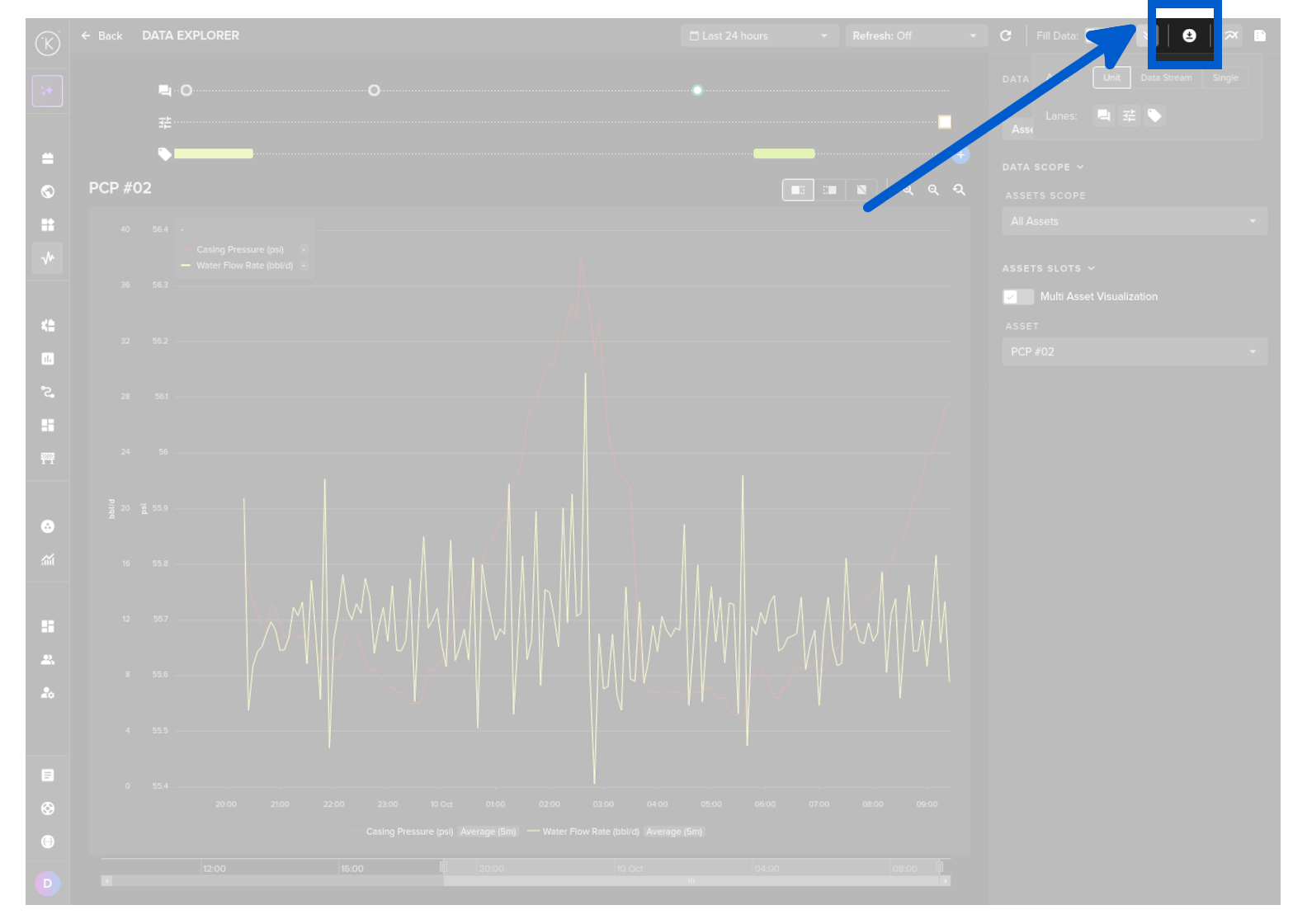
You can export a range of data from the Data Explorer page.
To do this go to the Data Explorer page.
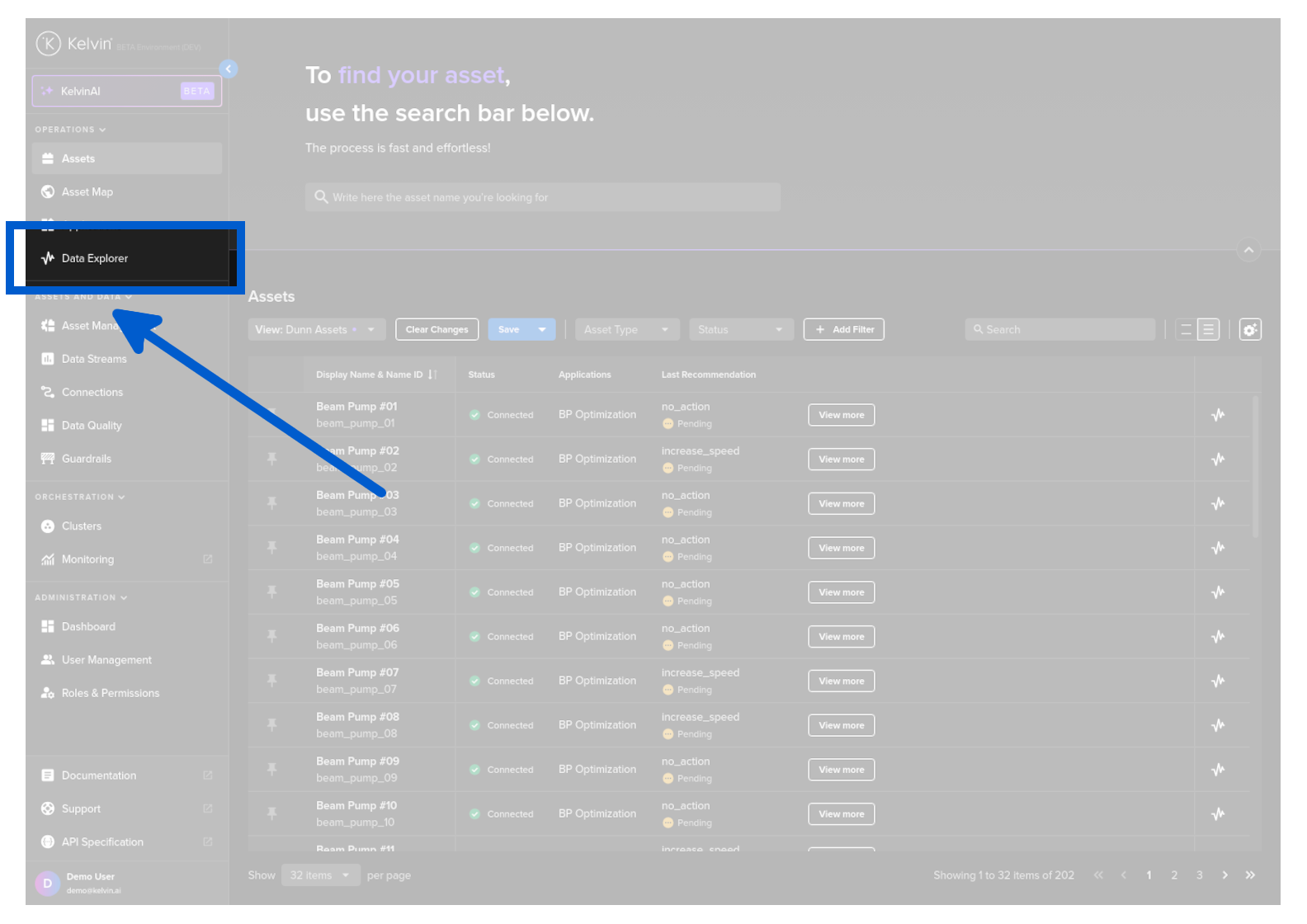
Select the Asset.
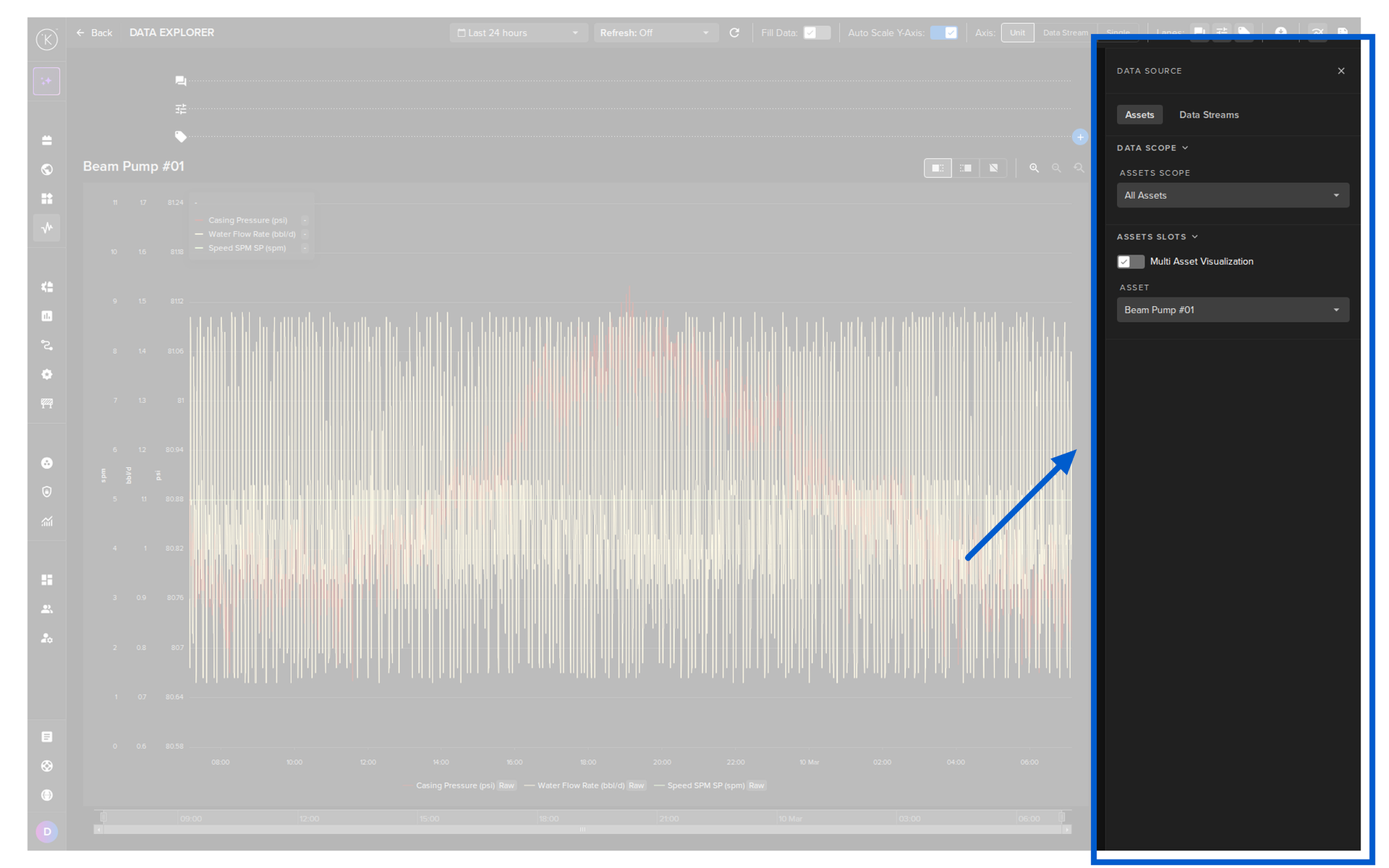
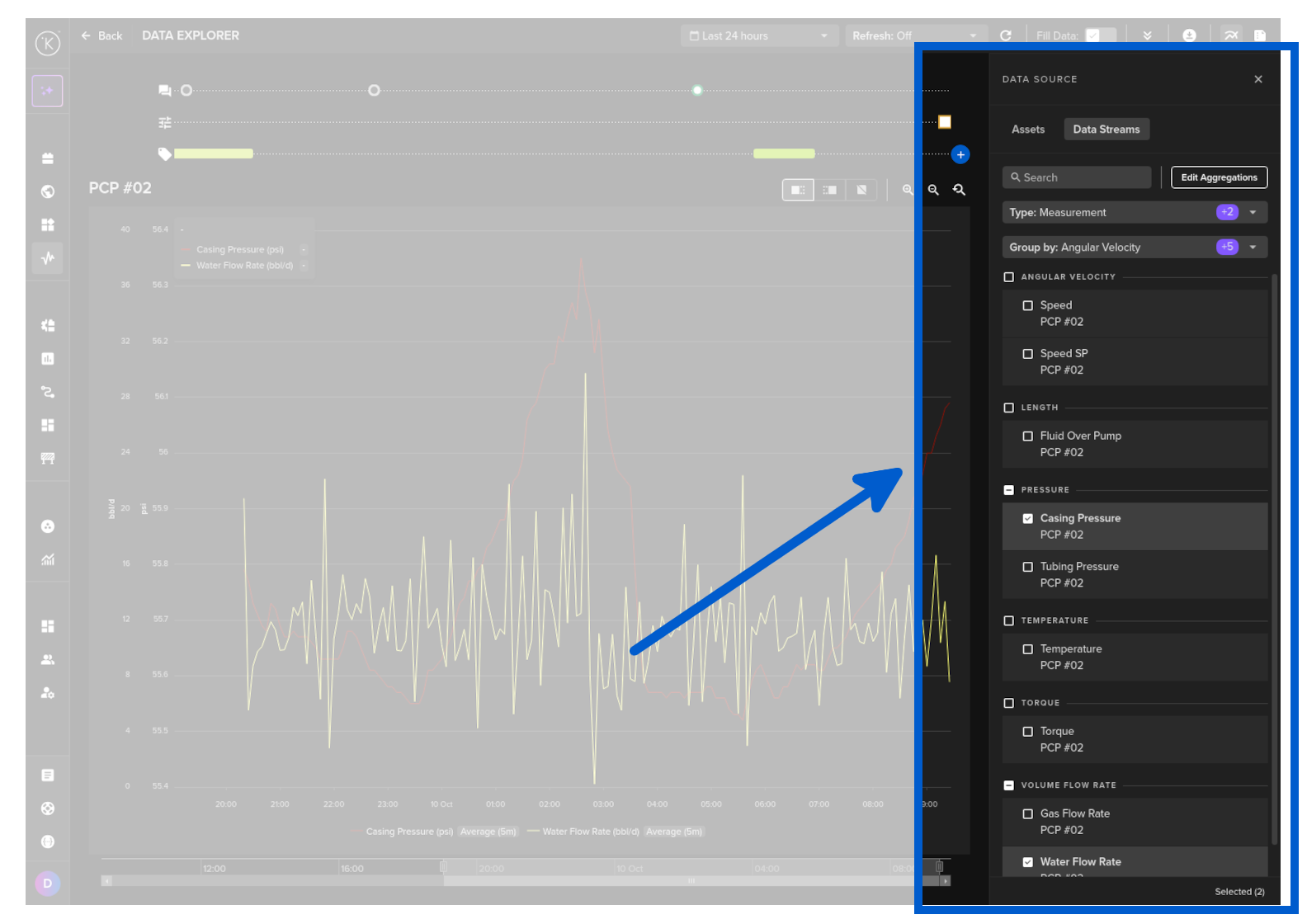
Select one Data Stream only.
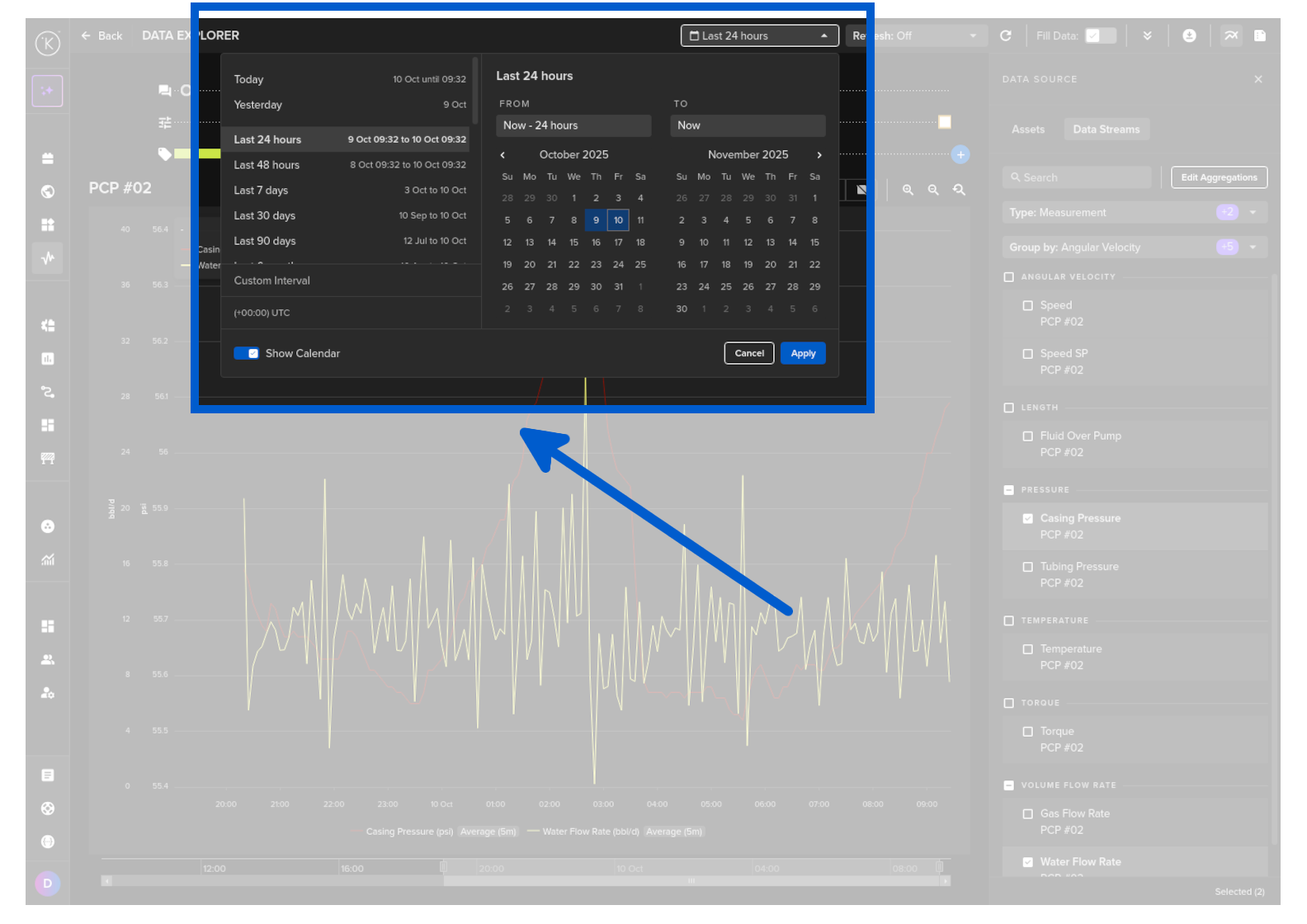
Choose a time period.
Then click on the download button.
curl -X 'POST' \
  'https://<url.kelvin.ai>/api/v4/timeseries/range/get' \
  -H 'Authorization: Bearer <Your Current Token>' \
  -H 'accept: application/x-json-stream' \
  -H 'Content-Type: application/json' \
  -d '{
  "agg": "mean",
  "end_time": "2024-04-18T16:35:44.703732Z",
  "fill": "0",
  "group_by_selector": true,
  "order": "ASC",
  "selectors": [
    {
      "fields": [
        "value"
      ],
      "resource": "krn:ad:demo_asset_02/demo-data-stream-01"
    }
  ],
  "start_time": "2024-04-18T12:35:44.703732Z",
  "time_bucket": "1h"
}'
You will receive a response body with a status code of 200, indicating a successful operation. For example, the response body might look like this:
[
   {
      "resource":"krn:ad:demo_asset_02/demo-data-stream-01",
      "payload":9.207480441058955,
      "timestamp":"2024-04-18T12:00:00.000000Z"
   },
   {
      "resource":"krn:ad:demo_asset_02/demo-data-stream-01",
      "payload":10.558049248009134,
      "timestamp":"2024-04-18T13:00:00.000000Z"
   },
   {
      "resource":"krn:ad:demo_asset_02/demo-data-stream-01",
      "payload":10.213212569176205,
      "timestamp":"2024-04-18T14:00:00.000000Z"
   },
   {
      "resource":"krn:ad:demo_asset_02/demo-data-stream-01",
      "payload":10.550493801775435,
      "timestamp":"2024-04-18T15:00:00.000000Z"
   },
   {
      "resource":"krn:ad:demo_asset_02/demo-data-stream-01",
      "payload":8.934414753917585,
      "timestamp":"2024-04-18T16:00:00.000000Z"
   }
]
We will convert the information into a Pandas DataFrame.
from kelvin.api.client import Client
import pandas as pd

# Login
client = Client(config={"url": "https://<url.kelvin.ai>", "username": "<your_username>"})
client.login(password="<your_password>")

# Get Time Series Aggregated Range of Data
response = client.timeseries.get_timeseries_range(data={
  "agg": "mean",
  "end_time": "2024-04-18T16:35:44.703732Z",
  "fill": "none",
  "group_by_selector": True,
  "order": "ASC",
  "selectors": [
    {
      "fields": [
        "value"
      ],
      "resource": "krn:ad:demo_asset_02/demo-data-stream-01"
    }
  ],
  "start_time": "2024-04-18T12:35:44.703732Z",
  "time_bucket": "1h"
})

# Convert the response list into a DataFrame
response_list = list(response)
df = pd.DataFrame([{
    'timestamp': item.timestamp.isoformat(),
    'resource': item.resource,
    'payload': item.payload.__root__
} for item in response_list])

print(df)
The response will look something like this;
                   timestamp                                  resource    payload
0  2024-04-18T12:00:00+00:00  krn:ad:demo_asset_02/demo-data-stream-01   9.207480
1  2024-04-18T13:00:00+00:00  krn:ad:demo_asset_02/demo-data-stream-01  10.558049
2  2024-04-18T14:00:00+00:00  krn:ad:demo_asset_02/demo-data-stream-01  10.213213
3  2024-04-18T15:00:00+00:00  krn:ad:demo_asset_02/demo-data-stream-01  10.550494
4  2024-04-18T16:00:00+00:00  krn:ad:demo_asset_02/demo-data-stream-01   8.934415
Export Data over 24hr period for Multiple Assets
In Time Series API, you can retrieve a range of data either in a raw format or aggregated format. The type of aggregation possible depends on the Data Type for the Asset / Data Stream pair.
See Previous example above for full details of the Aggregate options, Time Buckets, etc.
In this example we will get the mean value per 12 hours over 24 hour period for multiple Asset / Data Stream pairs. The Assets names are beam_pump_01, beam_pump_02, beam_pump_03 and the Data Stream names are motor_speed and motor_speed_set_point.
The Asset / Data Stream pair needs to be defined as a KRN.
If you want to just export all the raw data for the time period, then modify the data object agg to none and remove the time_bucket parameter.
You can export a range of data from the Data Explorer page.
To do this go to the Data Explorer page.
Select the Asset.
Select any number of Data Streams.
Each Data Stream will be in one column
Choose a time period.
Then click on the download button.
curl -X 'POST' \
  'https://<url.kelvin.ai>/api/v4/timeseries/range/get' \
  -H 'Authorization: Bearer <Your Current Token>' \
  -H 'accept: application/x-json-stream' \
  -H 'Content-Type: application/json' \
  -d '{
  "agg": "mean",
  "end_time": "2024-04-18T12:00:00.000000Z",
  "fill": "0",
  "group_by_selector": true,
  "order": "ASC",
  "selectors": [
    {
      "fields": [
        "value"
      ],
      "resource": "krn:ad:demo_asset_01/demo-data-stream-01"
    },
    {
      "fields": [
        "value"
      ],
      "resource": "krn:ad:demo_asset_02/demo-data-stream-01"
    },
    {
      "fields": [
        "value"
      ],
      "resource": "krn:ad:demo_asset_03/demo-data-stream-01"
    }
  ],
  "start_time": "2024-04-16T12:00:00.000000Z",
  "time_bucket": "12h"
}'
You will receive a response body with a status code of 200, indicating a successful operation. For example, the response body might look like this:
[
   {
      "resource":"krn:ad:demo_asset_01/demo-data-stream-01",
      "payload":277.49153298476233,
      "timestamp":"2024-04-16T12:00:00.000000Z"
   },
   {
      "resource":"krn:ad:demo_asset_01/demo-data-stream-01",
      "payload":277.50593113291035,
      "timestamp":"2024-04-17T00:00:00.000000Z"
   },
   {
      "resource":"krn:ad:demo_asset_01/demo-data-stream-01",
      "payload":277.5277251143913,
      "timestamp":"2024-04-17T12:00:00.000000Z"
   },
   {
      "resource":"krn:ad:demo_asset_01/demo-data-stream-01",
      "payload":277.4684195588359,
      "timestamp":"2024-04-18T00:00:00.000000Z"
   }
][
   {
      "resource":"krn:ad:demo_asset_02/demo-data-stream-01",
      "payload":10.177463394266796,
      "timestamp":"2024-04-16T12:00:00.000000Z"
   },
   {
      "resource":"krn:ad:demo_asset_02/demo-data-stream-01",
      "payload":10.18352044450753,
      "timestamp":"2024-04-17T00:00:00.000000Z"
   },
   {
      "resource":"krn:ad:demo_asset_02/demo-data-stream-01",
      "payload":10.183999990386724,
      "timestamp":"2024-04-17T12:00:00.000000Z"
   },
   {
      "resource":"krn:ad:demo_asset_02/demo-data-stream-01",
      "payload":10.205141965695363,
      "timestamp":"2024-04-18T00:00:00.000000Z"
   }
]
We will convert the information into a Pandas DataFrame.
from kelvin.api.client import Client
import pandas as pd

# Login
client = Client(config={"url": "https://<url.kelvin.ai>", "username": "<your_username>"})
client.login(password="<your_password>")

# Get Time Series Aggregated Range of Data
response = client.timeseries.get_timeseries_range(data={
  "agg": "mean",
  "end_time": "2024-04-18T12:00:00.000000Z",
  "fill": "none",
  "group_by_selector": True,
  "order": "ASC",
  "selectors": [
    {
      "fields": [
        "value"
      ],
      "resource": "krn:ad:demo_asset_01/demo-data-stream-01"
    },
    {
      "fields": [
        "value"
      ],
      "resource": "krn:ad:demo_asset_02/demo-data-stream-01"
    },
    {
      "fields": [
        "value"
      ],
      "resource": "krn:ad:demo_asset_03/demo-data-stream-01"
    }
  ],
  "start_time": "2024-04-16T12:00:00.000000Z",
  "time_bucket": "12h"
})

# Convert the response list into a DataFrame
response_list = list(response)
df = pd.DataFrame([{
    'timestamp': item.timestamp.isoformat(),
    'resource': item.resource,
    'payload': item.payload.__root__
} for item in response_list])

print(df)
The response will look something like this;
                   timestamp                                  resource     payload
0  2024-04-16T12:00:00+00:00  krn:ad:demo_asset_01/demo-data-stream-01  277.491533
1  2024-04-17T00:00:00+00:00  krn:ad:demo_asset_01/demo-data-stream-01  277.505931
2  2024-04-17T12:00:00+00:00  krn:ad:demo_asset_01/demo-data-stream-01  277.527725
3  2024-04-18T00:00:00+00:00  krn:ad:demo_asset_01/demo-data-stream-01  277.468420
4  2024-04-16T12:00:00+00:00  krn:ad:demo_asset_02/demo-data-stream-01   10.177463
5  2024-04-17T00:00:00+00:00  krn:ad:demo_asset_02/demo-data-stream-01   10.183520
6  2024-04-17T12:00:00+00:00  krn:ad:demo_asset_02/demo-data-stream-01   10.184000
7  2024-04-18T00:00:00+00:00  krn:ad:demo_asset_02/demo-data-stream-01   10.205142
Calculate Average over 24hrs for an Asset
In Time Series API, you can retrieve a range of data either in a raw format or aggregated format. The type of aggregation possible depends on the Data Type for the Asset / Data Stream pair.
See Previous example above for full details of the Aggregate options, Time Buckets, etc.
In this example we will get the mean value for a 24 hour period for an Asset / Data Stream pair. The Asset name is beam_pump_01 and the Data Stream name is downhole_pressure.
Because we want the average period to be from midday to midday, we need to add a time_shift option as by default all aggregate calculations start at midnight. So we need to shift by 12 hours to ensure it calculates starting from midday.
The Asset / Data Stream pair needs to be defined as a KRN.
If you want to just export all the raw data for the time period, then modify the data object agg to none and remove the time_bucket parameter.
It is not possible to export aggregated data from the Kelvin UI.
curl -X 'POST' \
  'https://<url.kelvin.ai>/api/v4/timeseries/range/get' \
  -H 'Authorization: Bearer <Your Current Token>' \
  -H 'accept: application/x-json-stream' \
  -H 'Content-Type: application/json' \
  -d '{
  "agg": "mean",
  "end_time": "2024-04-18T12:00:00.000000Z",
  "fill": "0",
  "group_by_selector": true,
  "order": "ASC",
  "selectors": [
    {
      "fields": [
        "value"
      ],
      "resource": "krn:ad:demo_asset_02/demo-data-stream-01"
    }
  ],
  "start_time": "2024-04-17T12:00:00.000000Z",
  "time_bucket": "24h",
  "time_shift": "12h"
  }'
You will receive a response body with a status code of 200, indicating a successful operation. For example, the response body might look like this:
[
   {
      "resource":"krn:ad:demo_asset_02/demo-data-stream-01",
      "payload":10.194570978041014,
      "timestamp":"2024-04-17T12:00:00.000000Z"
   }
]
We will convert the information into a Pandas DataFrame.
from kelvin.api.client import Client
import pandas as pd

# Login
client = Client(config={"url": "https://<url.kelvin.ai>", "username": "<your_username>"})
client.login(password="<your_password>")

# Get Time Series Aggregated Range of Data
response =client.timeseries.get_timeseries_range(data={
  "agg": "mean",
  "end_time": "2024-04-18T11:59:59.999999Z",
  "fill": "none",
  "group_by_selector": True,
  "order": "ASC",
  "selectors": [
    {
      "fields": [
        "value"
      ],
      "resource": "krn:ad:demo_asset_02/demo-data-stream-01"
    }
  ],
  "start_time": "2024-04-17T12:00:00.000000Z",
  "time_bucket": "24h",
  "time_shift": "12h"
})

# Convert the response list into a DataFrame
response_list = list(response)
df = pd.DataFrame([{
    'timestamp': item.timestamp.isoformat(),
    'resource': item.resource,
    'payload': item.payload.__root__
} for item in response_list])

print(df)
The response will look something like this;
                   timestamp                                  resource    payload
0  2024-04-17T12:00:00+00:00  krn:ad:demo_asset_02/demo-data-stream-01  10.194571
Calculate Total Volume over 24hrs for Multiple Assets
In this example we will use the advanced feature of the aggregate function integral to calculate the total volume of oil pumped over a 24 hour period by analyzing the flow rate from the meter of two Assets, beam_pump_01 and beam_pump_02.
See Previous example above for full details of the Aggregate options, Time Buckets, etc.
We will also use the fill parameter as linear so that any missing values will be filled in with a linear calculation from the previous and next values.
Because we want the average period to be from midday to midday, we also need to add a time_shift option as by default all aggregate calculations start at midnight. So we need to shift by 12 hours to ensure it calculates starting from midday.
The Asset / Data Stream pair needs to be defined as a KRN.
It is not possible to export aggregated data from the Kelvin UI.
curl -X 'POST' \
  'https://<url.kelvin.ai>/api/v4/timeseries/range/get' \
  -H 'Authorization: Bearer <Your Current Token>' \
  -H 'accept: application/x-json-stream' \
  -H 'Content-Type: application/json' \
  -d '{
      "agg": "integral",
      "end_time": "2024-04-18T11:59:59.999999Z",
      "fill": "linear",
      "group_by_selector": false,
      "order": "ASC",
      "selectors": [
        {
          "fields": [
            "value"
          ],
          "resource": "krn:ad:demo_asset_01/demo-data-stream-01"
        },
        {
          "fields": [
            "value"
          ],
          "resource": "krn:ad:demo_asset_02/demo-data-stream-01"
        }
      ],
      "start_time": "2024-04-17T12:00:00.000000Z",
      "time_bucket": "24h",
      "time_shift": "12h"
  }'
You will receive a response body with a status code of 200, indicating a successful operation. For example, the response body might look like this:
[
   {
      "resource":"",
      "payload":23974466.23819443,
      "timestamp":"2024-04-17T12:00:00.000000Z"
   }
][
   {
      "resource":"",
      "payload":880761.0045264757,
      "timestamp":"2024-04-17T12:00:00.000000Z"
   }
]
We will convert the information into a Pandas DataFrame.
from kelvin.api.client import Client
import pandas as pd

# Login
client = Client(config={"url": "https://<url.kelvin.ai>", "username": "<your_username>"})
client.login(password="<your_password>")

# Get Time Series Aggregated Range of Data
response = client.timeseries_projection.get_range_timeseries_data(data={
      "agg": "integral",
      "end_time": "2024-04-18T11:59:59.999999Z",
      "fill": "linear",
      "group_by_selector": False,
      "order": "ASC",
      "selectors": [
        {
          "fields": [
            "value"
          ],
          "resource": "krn:ad:demo_asset_01/demo-data-stream-01"
        },
        {
          "fields": [
            "value"
          ],
          "resource": "krn:ad:demo_asset_02/demo-data-stream-01"
        }
      ],
      "start_time": "2024-04-17T12:00:00.000000Z",
      "time_bucket": "24h",
      "time_shift": "12h"
  })

# Convert the response list into a DataFrame
response_list = list(response)
df = pd.DataFrame([{
    'timestamp': item.timestamp.isoformat(),
    'resource': item.resource,
    'payload': item.payload.__root__
} for item in response_list])

total_payload = df['payload'].sum()

print(f"Total volume of oil over 24 hours : {total_payload} liters")
The response will look something like this;
Total volume of oil over 24 hours : 95195.88987153945 liters
Download Time Series Data
In Time Series API, you can retrieve and download a comma delimited file (CSV) with a range of data either in a raw format or aggregated format. The type of aggregation possible depends on the Data Type for the Asset / Data Stream pair.
| Data Type | Aggregate Option | Description |
|---|---|---|
| number | none | Raw data is returned |
| count | Counts the number of values within each time bucket. | |
| distinct | Returns distinct values within each time_bucket bucket. |
|
| integral | Calculates the area under the curve for each time_bucket bucket. |
|
| mean | Calculates the average value within each time bucket. | |
| median | Finds the middle value in each time bucket. | |
| mode | Identifies the most frequently occurring value in each time time_bucket. |
|
| spread | Represents the difference between the max and min values within each time time_bucket. |
|
| stddev | Measures variation within each time time_bucket. |
|
| sum | Adds up all the values within each time time_bucket. |
|
| string | none | Raw data is returned |
| count | Counts the number of values within each time_bucket bucket. |
|
| distinct | Returns distinct values within each time time_bucket. |
|
| mode | Identifies the most frequently occurring value in each time time_bucket. |
There are also the options to;
time_bucket: The window of data to aggregate, e.g. 5m, 1h (see https://golang.org/pkg/time/#ParseDuration for the acceptable formats)time_shift: The offset for each window.fill: allows you to fill missing points from a time bucket. It might be one of: none (default); null; linear (performs a linear regression); previous (uses the previous non-empty value); or an int.
In this example we will get the mean value per hour of an Asset / Data Stream pair. The Asset name is beam_pump_01 and the Data Stream name is motor_speed.
The Asset / Data Stream pair needs to be defined as a KRN.
You can download a range of data from the Data Explorer page.
You can only download the raw data. It is not possible in Kelvin UI to aggregate the data before downloading.
You will need to aggregate the data in a spreadsheet or other third party program.
To do this go to the Data Explorer page.
Select the Asset.
Select one Data Stream only.
Choose a time period.
Then click on the download button.
curl -X 'POST' \
  'https://<url.kelvin.ai>/api/v4/timeseries/range/download' \
  -H 'Authorization: Bearer <Your Current Token>' \
  -H 'accept: text/csv' \
  -H 'Content-Type: application/json' \
  -d '{
  "agg": "mean",
  "end_time": "2024-04-18T16:35:44.703732Z",
  "fill": "0",
  "group_by_selector": true,
  "order": "ASC",
  "selectors": [
    {
      "fields": [
        "value"
      ],
      "resource": "krn:ad:demo_asset_02/demo-data-stream-01"
    }
  ],
  "start_time": "2024-04-18T15:35:44.703732Z",
  "time_bucket": "1h"
}'
You will receive a response body with a status code of 200, indicating a successful operation. For example, the response body might look like this:
resource,time,value
krn:ad:demo_asset_02/demo-data-stream-01,2024-04-18T15:00:00.000000Z,11.768450335460644
krn:ad:demo_asset_02/demo-data-stream-01,2024-04-18T16:00:00.000000Z,8.934414753917585
We will save the information into a CSV file.
from kelvin.api.client import Client

# Login
client = Client(config={"url": "https://<url.kelvin.ai>", "username": "<your_username>"})
client.login(password="<your_password>")

# Save Time Series Range of Data to CSV
response = client.timeseries.download_timeseries_range(data={
  "agg": "mean",
  "end_time": "2024-04-18T16:35:44.703732Z",
  "fill": "none",
  "group_by_selector": True,
  "order": "ASC",
  "selectors": [
    {
      "fields": [
        "value"
      ],
      "resource": "krn:ad:demo_asset_02/demo-data-stream-01"
    }
  ],
  "start_time": "2024-04-18T15:35:44.703732Z",
  "time_bucket": "1h"
})

# Open a file in write mode
with open('data.csv', 'w') as file:
    # Write the response to the file
    file.write(response)
})
The data.csv file will look something like this;
resource,time,value
krn:ad:demo_asset_02/demo-data-stream-01,2024-04-18T15:00:00.000000Z,11.768450335460644
krn:ad:demo_asset_02/demo-data-stream-01,2024-04-18T16:00:00.000000Z,8.934414753917585
Export List of Time Series Data
In this example we will get a list of all Time Series Asset / Data Stream pairs (resources) and their last value for the Asset beam_pump_01.
The Application on the Cluster in source needs to be defined as a KRN.
You can download a range of data from the Data Explorer page.
To do this go to the Data Explorer page.
Select the Asset.
Select all Data Streams.
Each Data Stream will be in one column
Choose a time period.
Then click on the download button.
curl -X 'POST' \
  'https://<url.kelvin.ai>/api/v4/timeseries/list?pagination_type=cursor&page_size=20&direction=asc' \
  -H 'Authorization: Bearer <Your Current Token>' \
  -H 'accept: application/json' \
  -H 'Content-Type: application/json' \
  -d '{
  "resource": [
    "krn:asset:esp_01"
  ]
}'
You will receive a response body with a status code of 200, indicating a successful operation. For example, the response body might look like this:
{
   "pagination":{
      "next_page":null,
      "previous_page":null
   },
   "data":[
      {
         "resource":"krn:ad:esp_01/casing_pressure",
         "data_type":"data;pt=number",
         "source":"krn:wlappv:sales-01-cluster/esp-opcua-bridge:kelvin-bridge-opcua-client/3.4.0",
         "fields":[
            "value"
         ],
         "last_value":55.53747177,
         "last_timestamp":"2024-04-20T08:27:46.323794Z",
         "created":"2024-03-04T14:23:46.211085Z",
         "updated":"2024-04-20T08:27:47.095102Z"
      },
      {
         "resource":"krn:ad:esp_01/fluid_over_pump",
         "data_type":"data;pt=number",
         "source":"krn:wlappv:sales-01-cluster/esp-opcua-bridge:kelvin-bridge-opcua-client/3.4.0",
         "fields":[
            "value"
         ],
         "last_value":30,
         "last_timestamp":"2024-04-20T08:27:41.930239Z",
         "created":"2024-03-04T14:23:46.187673Z",
         "updated":"2024-04-20T08:27:47.580303Z"
      },
      {
         "resource":"krn:ad:esp_01/gas_flow_rate",
         "data_type":"data;pt=number",
         "source":"krn:wlappv:sales-01-cluster/esp-opcua-bridge:kelvin-bridge-opcua-client/3.4.0",
         "fields":[
            "value"
         ],
         "last_value":40.62555313,
         "last_timestamp":"2024-04-20T08:27:36.414142Z",
         "created":"2024-03-04T14:23:46.138773Z",
         "updated":"2024-04-20T08:27:41.93154Z"
      },
      {
         "resource":"krn:ad:esp_01/speed",
         "data_type":"data;pt=number",
         "source":"krn:wlappv:sales-01-cluster/esp-opcua-bridge:kelvin-bridge-opcua-client/3.4.0",
         "fields":[
            "value"
         ],
         "last_value":59.8999939,
         "last_timestamp":"2024-04-20T08:27:37.025358Z",
         "created":"2024-03-04T14:23:46.131907Z",
         "updated":"2024-04-20T08:27:43.112631Z"
      },
      {
         "resource":"krn:ad:esp_01/speed_sp",
         "data_type":"data;pt=number",
         "source":"krn:wlappv:sales-01-cluster/esp-opcua-bridge:kelvin-bridge-opcua-client/3.4.0",
         "fields":[
            "value"
         ],
         "last_value":60,
         "last_timestamp":"2024-04-20T08:27:45.901572Z",
         "created":"2024-03-04T14:23:46.209859Z",
         "updated":"2024-04-20T08:27:47.203344Z"
      },
      {
         "resource":"krn:ad:esp_01/torque",
         "data_type":"data;pt=number",
         "source":"krn:wlappv:sales-01-cluster/esp-opcua-bridge:kelvin-bridge-opcua-client/3.4.0",
         "fields":[
            "value"
         ],
         "last_value":98.9699707,
         "last_timestamp":"2024-04-20T08:27:41.56965Z",
         "created":"2024-03-04T14:23:46.256097Z",
         "updated":"2024-04-20T08:27:46.940466Z"
      },
      {
         "resource":"krn:ad:esp_01/tubing_pressure",
         "data_type":"data;pt=number",
         "source":"krn:wlappv:sales-01-cluster/esp-opcua-bridge:kelvin-bridge-opcua-client/3.4.0",
         "fields":[
            "value"
         ],
         "last_value":57,
         "last_timestamp":"2024-04-20T08:27:41.486735Z",
         "created":"2024-03-04T14:23:46.203248Z",
         "updated":"2024-04-20T08:27:47.450917Z"
      },
      {
         "resource":"krn:ad:esp_01/water_flow_rate",
         "data_type":"data;pt=number",
         "source":"krn:wlappv:sales-01-cluster/esp-opcua-bridge:kelvin-bridge-opcua-client/3.4.0",
         "fields":[
            "value"
         ],
         "last_value":7.247447491,
         "last_timestamp":"2024-04-20T08:27:41.476831Z",
         "created":"2024-03-04T14:23:46.237034Z",
         "updated":"2024-04-20T08:27:47.161412Z"
      }
   ]
}
from kelvin.api.client import Client

# Login
client = Client(config={"url": "https://<url.kelvin.ai>", "username": "<your_username>"})
client.login(password="<your_password>")

response = client.timeseries.list_timeseries(data={
  "resource": [
    "krn:asset:esp_01"
  ]
})

df = pd.DataFrame([{k: repr(v) for k, v in vars(obj).items()} for obj in response])

print(df)
The response file will look something like this;
                                             created         data_type     fields  ...                         resource                                             source                                            updated
0  datetime.datetime(2024, 3, 4, 14, 23, 46, 2110...  'data;pt=number'  ['value']  ...  'krn:ad:esp_01/casing_pressure'  'krn:wlappv:sales-01-cluster/esp-opcua-bridge:...  datetime.datetime(2024, 4, 20, 8, 31, 18, 7779...
1  datetime.datetime(2024, 3, 4, 14, 23, 46, 1876...  'data;pt=number'  ['value']  ...  'krn:ad:esp_01/fluid_over_pump'  'krn:wlappv:sales-01-cluster/esp-opcua-bridge:...  datetime.datetime(2024, 4, 20, 8, 31, 17, 5891...
2  datetime.datetime(2024, 3, 4, 14, 23, 46, 1387...  'data;pt=number'  ['value']  ...    'krn:ad:esp_01/gas_flow_rate'  'krn:wlappv:sales-01-cluster/esp-opcua-bridge:...  datetime.datetime(2024, 4, 20, 8, 31, 17, 9685...
3  datetime.datetime(2024, 3, 4, 14, 23, 46, 1319...  'data;pt=number'  ['value']  ...            'krn:ad:esp_01/speed'  'krn:wlappv:sales-01-cluster/esp-opcua-bridge:...  datetime.datetime(2024, 4, 20, 8, 31, 17, 5897...
4  datetime.datetime(2024, 3, 4, 14, 23, 46, 2098...  'data;pt=number'  ['value']  ...         'krn:ad:esp_01/speed_sp'  'krn:wlappv:sales-01-cluster/esp-opcua-bridge:...  datetime.datetime(2024, 4, 20, 8, 31, 17, 9289...
5  datetime.datetime(2024, 3, 4, 14, 23, 46, 2560...  'data;pt=number'  ['value']  ...           'krn:ad:esp_01/torque'  'krn:wlappv:sales-01-cluster/esp-opcua-bridge:...  datetime.datetime(2024, 4, 20, 8, 31, 17, 6764...
6  datetime.datetime(2024, 3, 4, 14, 23, 46, 2032...  'data;pt=number'  ['value']  ...  'krn:ad:esp_01/tubing_pressure'  'krn:wlappv:sales-01-cluster/esp-opcua-bridge:...  datetime.datetime(2024, 4, 20, 8, 31, 18, 6956...
7  datetime.datetime(2024, 3, 4, 14, 23, 46, 2370...  'data;pt=number'  ['value']  ...  'krn:ad:esp_01/water_flow_rate'  'krn:wlappv:sales-01-cluster/esp-opcua-bridge:...  datetime.datetime(2024, 4, 20, 8, 31, 18, 8300...

[8 rows x 8 columns]
Export Control Changes
Reference:
| Field | Description |
|---|---|
| id | A unique random generated UUID as the key id for the Control Change. |
| resource | Asset / Data Stream pair in KRN format. The KRN format is krn:ad:<asset_name>/<data_stream_name> |
| last_state | The current state of the Control Change (pending, ready, sent, applied, failed) |
| last_message | The message attached to the current state of the Control Change |
| created_type | What type of process created the Control Change |
| created_by | Name of the process that created the Control Change |
| old_payload | Original value of resource before new value is applied |
| payload | New value to write to resource |
| timestamp | Exact UTC time when the data value was recorded, formatted in ISO 8601. |
| created | UTC time when the Control Change was created, formatted in ISO 8601. |
| updated | UTC time when any Control Change values were last updated, formatted in ISO 8601. |
| status_log | An array of objects for the time of each action taken by the Control Change and its related information |
Export Control Change Range
In this example we will get all the Control Changes that were created and remain pending in a 24 hour period for an Asset / Data Stream pair. The Asset name is beam_pump_01 and the Data Stream name is motor_speed.
The Asset / Data Stream pair needs to be defined as a KRN.
It is not possible export control change range from Kelvin UI.
curl -X 'POST' \
  'https://<url.kelvin.ai>/api/v4/control-changes/range/get' \
  -H 'Authorization: Bearer <Your Current Token>' \
  -H 'accept: application/json' \
  -H 'Content-Type: application/json' \
  -d '{
  "end_date": "2024-04-18T12:42:47.042Z",
  "resources": [
    "krn:ad:pcp_01/speed_sp"
  ],
  "states": [
    "applied"
  ],
  "start_date": "2024-04-17T12:42:47.042Z"
}'
You will receive a response body with a status code of 200, indicating a successful operation. For example, the response body might look like this:
{
   "pagination":{
      "next_page":"W3siS2V5IjoiaWQiLCJWYWx1ZSI6IjU4ZGUxMjBiLWUzYjItNGRiOS05YWY4LTI1Zjg0YmU5ZTAyMSJ9XQ==",
      "previous_page":null
   },
   "data":[
      {
         "id":"037240fa-b5e6-41dd-a62a-ec71b5f37b84",
         "resource":"krn:ad:pcp_01/speed_sp",
         "last_state":"applied",
         "last_message":"Verified after 0.93 seconds.",
         "created_type":"workload",
         "created_by":"sales-01-cluster/pcp-optimization-czl2adxj4aii:pcp-optimization/1.0.202403041506",
         "payload":54,
         "timestamp":"2024-04-17T18:49:02.16063Z",
         "created":"2024-04-17T18:49:03.186416Z",
         "updated":"2024-04-17T18:49:03.095393Z",
         "status_log":[
            {
               "timestamp":"2024-04-17T18:49:03.095393Z",
               "state":"applied",
               "message":"Verified after 0.93 seconds.",
               "reported":{
                  "before":{
                     "value":60,
                     "timestamp":"2024-04-17T18:49:00.599558Z",
                     "source":"ccm"
                  },
                  "after":{
                     "value":54,
                     "timestamp":"2024-04-17T18:49:02.765552Z",
                     "source":"ccm"
                  }
               }
            },
            {
               "timestamp":"2024-04-17T18:49:02.166727Z",
               "state":"sent",
               "message":"The Control Change was sent to the Bridge."
            }
         ],
         "reported":{
            "before":{
               "value":60,
               "timestamp":"2024-04-17T18:49:00.599558Z",
               "source":"ccm"
            },
            "after":{
               "value":54,
               "timestamp":"2024-04-17T18:49:02.765552Z",
               "source":"ccm"
            }
         },
         "expiration_date":"2024-04-18T02:49:02.085661Z"
      },
      {
         "id":"43abf6c7-47eb-4ff0-9406-dd825d2e114e",
         "resource":"krn:ad:pcp_01/speed_sp",
         "last_state":"applied",
         "last_message":"Verified after 1.11 seconds.",
         "created_type":"workload",
         "created_by":"sales-01-cluster/pcp-optimization-czl2adxj4aii:pcp-optimization/1.0.202403041506",
         "payload":66,
         "timestamp":"2024-04-18T08:49:23.656427Z",
         "created":"2024-04-18T08:49:23.890143Z",
         "updated":"2024-04-18T08:49:24.767693Z",
         "status_log":[
            {
               "timestamp":"2024-04-18T08:49:24.767693Z",
               "state":"applied",
               "message":"Verified after 1.11 seconds.",
               "reported":{
                  "before":{
                     "value":60,
                     "timestamp":"2024-04-18T08:49:20.080273Z",
                     "source":"ccm"
                  },
                  "after":{
                     "value":66,
                     "timestamp":"2024-04-18T08:49:24.753573Z",
                     "source":"ccm"
                  }
               }
            },
            {
               "timestamp":"2024-04-18T08:49:23.660423Z",
               "state":"sent",
               "message":"The Control Change was sent to the Bridge."
            }
         ],
         "reported":{
            "before":{
               "value":60,
               "timestamp":"2024-04-18T08:49:20.080273Z",
               "source":"ccm"
            },
            "after":{
               "value":66,
               "timestamp":"2024-04-18T08:49:24.753573Z",
               "source":"ccm"
            }
         },
         "expiration_date":"2024-04-18T16:49:23.647596Z"
      },
      {
         "id":"58de120b-e3b2-4db9-9af8-25f84be9e021",
         "resource":"krn:ad:pcp_01/speed_sp",
         "last_state":"applied",
         "last_message":"Verified after 2.89 seconds.",
         "created_type":"workload",
         "created_by":"sales-01-cluster/pcp-optimization-czl2adxj4aii:pcp-optimization/1.0.202403041506",
         "payload":54,
         "timestamp":"2024-04-17T23:49:09.67583Z",
         "created":"2024-04-17T23:49:09.84978Z",
         "updated":"2024-04-17T23:49:12.570116Z",
         "status_log":[
            {
               "timestamp":"2024-04-17T23:49:12.570116Z",
               "state":"applied",
               "message":"Verified after 2.89 seconds.",
               "reported":{
                  "before":{
                     "value":60,
                     "timestamp":"2024-04-17T23:49:05.148053Z",
                     "source":"ccm"
                  },
                  "after":{
                     "value":54,
                     "timestamp":"2024-04-17T23:49:12.55525Z",
                     "source":"ccm"
                  }
               }
            },
            {
               "timestamp":"2024-04-17T23:49:09.681127Z",
               "state":"sent",
               "message":"The Control Change was sent to the Bridge."
            }
         ],
         "reported":{
            "before":{
               "value":60,
               "timestamp":"2024-04-17T23:49:05.148053Z",
               "source":"ccm"
            },
            "after":{
               "value":54,
               "timestamp":"2024-04-17T23:49:12.55525Z",
               "source":"ccm"
            }
         },
         "expiration_date":"2024-04-18T07:49:09.666456Z"
      }
   ]
}
from kelvin.api.client import Client

# Login
client = Client(config={"url": "https://<url.kelvin.ai>", "username": "<your_username>"})
client.login(password="<your_password>")

# Get Range of Control Changes
response = client.control_change.get_control_change_range(data={
      "end_date": "2024-04-18T12:42:47.042Z",
      "resources": [
        "krn:ad:pcp_01/speed_sp"
      ],
      "states": [
        "applied"
      ],
      "start_date": "2024-04-17T12:42:47.042Z"
    })

df = pd.DataFrame([{k: repr(v) for k, v in vars(obj).items()} for obj in response])

print(df)
You will receive a response like this.
                                              created                                         created_by  ...                                          timestamp                                            updated
0   datetime.datetime(2024, 4, 17, 18, 49, 3, 1864...  'sales-01-cluster/pcp-optimization-czl2adxj4ai...  ...  datetime.datetime(2024, 4, 17, 18, 49, 2, 1606...  datetime.datetime(2024, 4, 17, 18, 49, 3, 9539...
1   datetime.datetime(2024, 4, 18, 10, 19, 25, 293...  'sales-01-cluster/pcp-optimization-czl2adxj4ai...  ...  datetime.datetime(2024, 4, 18, 10, 19, 25, 183...  datetime.datetime(2024, 4, 18, 10, 19, 26, 984...
2   datetime.datetime(2024, 4, 18, 12, 19, 30, 695...  'sales-01-cluster/pcp-optimization-czl2adxj4ai...  ...  datetime.datetime(2024, 4, 18, 12, 19, 29, 261...  datetime.datetime(2024, 4, 18, 12, 19, 30, 674...
3   datetime.datetime(2024, 4, 17, 13, 18, 53, 660...  'sales-01-cluster/pcp-optimization-czl2adxj4ai...  ...  datetime.datetime(2024, 4, 17, 13, 18, 52, 913...  datetime.datetime(2024, 4, 17, 13, 18, 53, 841...
4   datetime.datetime(2024, 4, 18, 2, 34, 14, 3717...  'sales-01-cluster/pcp-optimization-czl2adxj4ai...  ...  datetime.datetime(2024, 4, 18, 2, 34, 14, 3014...  datetime.datetime(2024, 4, 18, 2, 34, 14, 7805...
5   datetime.datetime(2024, 4, 18, 12, 34, 31, 578...  'sales-01-cluster/pcp-optimization-czl2adxj4ai...  ...  datetime.datetime(2024, 4, 18, 12, 34, 29, 906...  datetime.datetime(2024, 4, 18, 12, 34, 31, 756...
6   datetime.datetime(2024, 4, 17, 20, 4, 9, 96756...  'sales-01-cluster/pcp-optimization-czl2adxj4ai...  ...  datetime.datetime(2024, 4, 17, 20, 4, 4, 45825...  datetime.datetime(2024, 4, 17, 20, 4, 4, 89759...
7   datetime.datetime(2024, 4, 18, 5, 49, 19, 8761...  'sales-01-cluster/pcp-optimization-czl2adxj4ai...  ...  datetime.datetime(2024, 4, 18, 5, 49, 19, 3643...  datetime.datetime(2024, 4, 18, 5, 49, 19, 8179...
8   datetime.datetime(2024, 4, 17, 15, 33, 56, 517...  'sales-01-cluster/pcp-optimization-czl2adxj4ai...  ...  datetime.datetime(2024, 4, 17, 15, 33, 55, 747...  datetime.datetime(2024, 4, 17, 15, 33, 56, 500...
9   datetime.datetime(2024, 4, 18, 0, 4, 11, 30166...  'sales-01-cluster/pcp-optimization-czl2adxj4ai...  ...  datetime.datetime(2024, 4, 18, 0, 4, 10, 98895...  datetime.datetime(2024, 4, 18, 0, 4, 12, 87166...
Export Control Change Clustering
To count the number of control change events in a time period, you can use Clustering. The response will depend on the filters used in the request. The response will be a full count matching the filters and a list of the id's of all control changes counted.
If state is used as a filter, the filter will be only on the most recent state in the time period. For example, if beam_pump_01 goes through pending, sent and applied during the time period given. only applied will be counted.
time_bucket is the window of data to aggregate, e.g. 5m, 1h (see https://golang.org/pkg/time/#ParseDuration for the acceptable formats)
In this example we will count how many Control Changes events happened to the Asset / Data Stream beam_pump_01/motor_speed_set_point for each hour over a 24 hour period.
Only time_buckets with a positive count will be returned. So if the count is 0 for any time_bucket period, then no object will be returned for that period.
It is not possible export control change clustering from Kelvin UI.
    curl -X 'POST' \
  'https://<url.kelvin.ai>/api/v4/control-changes/clustering/get' \
  -H 'Authorization: Bearer <Your Current Token>' \
  -H 'accept: application/json' \
  -H 'Content-Type: application/json' \
  -d '{
  "end_date": "2024-04-18T06:28:21.654Z",
  "resources": [
    "krn:ad:pcp_01/speed_sp"
  ],
  "start_date": "2024-04-17T06:28:21.654Z",
  "states": [
    "applied"
  ],
  "time_bucket": "1h"
}'
You will receive a response body with a status code of 200, indicating a successful operation. For example, the response body might look like this:
[
   {
      "time_bucket_start":"2024-04-17T23:28:21.654Z",
      "count":3,
      "control_change_ids":[
         "58de120b-e3b2-4db9-9af8-25f84be9e021",
         "33a37118-f6ac-438a-92b6-e4c119988d78",
         "8ff2eeab-5e84-495d-94a0-6b2ea63812da"
      ]
   },
   {
      "time_bucket_start":"2024-04-18T00:28:21.654Z",
      "count":2,
      "control_change_ids":[
         "d8cf6d33-906b-424a-859c-838635b1d1ca",
         "f623e6e4-eb78-415b-976f-36dfef5ede99"
      ]
   },

   ...

]
from kelvin.api.client import Client

# Login
client = Client(config={"url": "https://<url.kelvin.ai>", "username": "<your_username>"})
client.login(password="<your_password>")

response = client.control_change_clustering.get_control_change_clustering(data={
  "end_date": "2024-04-18T06:28:21.654Z",
  "resources": [
    "krn:ad:pcp_01/speed_sp"
  ],
  "start_date": "2024-04-17T06:28:21.654Z",
  "states": [
    "applied"
  ],
  "time_bucket": "1h"
})

print(f"In the one hour period starting {response[0].time_bucket_start.strftime('%dth %b %Y %H:%M:%S')}, there were {response[0].count} control change events.")

df = pd.DataFrame(response)

print(df)
The response file will look something like this;
In the one hour period starting 17th Apr 2024 23:28:21, there were 3 control change events.

                                   client                                 control_change_ids  count                time_bucket_start
0   Client(url='https://<url.kelvin.ai>')  [58de120b-e3b2-4db9-9af8-25f84be9e021, 33a3711...      3 2024-04-17 23:28:21.654000+00:00
1   Client(url='https://<url.kelvin.ai>')  [d8cf6d33-906b-424a-859c-838635b1d1ca, f623e6e...      2 2024-04-18 00:28:21.654000+00:00
2   Client(url='https://<url.kelvin.ai>')  [345ff958-7216-43c6-8741-5e21fc1bb148, ace6c4f...      2 2024-04-17 21:28:21.654000+00:00
3   Client(url='https://<url.kelvin.ai>')  [f2392b71-56e4-4ed2-8fdd-2f5a9cf5ff68, 702475c...      2 2024-04-17 20:28:21.654000+00:00
4   Client(url='https://<url.kelvin.ai>')             [a64f5fc2-0dc6-4679-a9ad-e509610c2344]      1 2024-04-17 06:28:21.654000+00:00
5   Client(url='https://<url.kelvin.ai>')  [c1551d11-b471-43ce-add4-e0cd74bbfe6f, 232d642...      3 2024-04-18 05:28:21.654000+00:00
6   Client(url='https://<url.kelvin.ai>')  [c8ca2fb4-ff41-4f90-a9a1-3c140ec94e74, a3ad2f8...      2 2024-04-17 07:28:21.654000+00:00
7   Client(url='https://<url.kelvin.ai>')  [beadd014-caf6-48dc-bfe0-5f85f2b2c6f1, 5aa536d...      3 2024-04-17 16:28:21.654000+00:00
8   Client(url='https://<url.kelvin.ai>')  [58366afe-6594-4bff-b7c7-83195f462e94, ac48ded...      2 2024-04-17 11:28:21.654000+00:00
9   Client(url='https://<url.kelvin.ai>')  [cf7a4aab-74da-49ce-9df2-b1377dba4294, ccebeed...      3 2024-04-17 19:28:21.654000+00:00
10  Client(url='https://<url.kelvin.ai>')  [df7c07f6-4ed5-4c12-a418-5900ead090eb, 0f46fab...      2 2024-04-17 12:28:21.654000+00:00
11  Client(url='https://<url.kelvin.ai>')  [b2a90cee-40b4-4fcd-a5e1-3f9fbb730dc3, ad881bf...      4 2024-04-17 13:28:21.654000+00:00
12  Client(url='https://<url.kelvin.ai>')  [82ecbf18-329e-4def-a426-2e08a3ab65be, 2adc1b6...      4 2024-04-17 08:28:21.654000+00:00
13  Client(url='https://<url.kelvin.ai>')  [98a4a43a-f5cd-409d-a86d-f160e2397c82, 07b9411...      3 2024-04-17 09:28:21.654000+00:00
14  Client(url='https://<url.kelvin.ai>')             [d0e16f67-a908-4c23-b6f5-ad51843f4a4f]      1 2024-04-17 17:28:21.654000+00:00
15  Client(url='https://<url.kelvin.ai>')  [17bdb4c9-d5c9-4be6-84c6-85c5906fc510, f1d4e6e...      2 2024-04-18 02:28:21.654000+00:00
16  Client(url='https://<url.kelvin.ai>')  [c43da94a-d0ea-4833-961d-ecc4e981a806, c780bfd...      2 2024-04-18 03:28:21.654000+00:00
17  Client(url='https://<url.kelvin.ai>')  [d4d8f160-e5ab-48d5-b514-14348962f92a, eb40100...      2 2024-04-17 22:28:21.654000+00:00
18  Client(url='https://<url.kelvin.ai>')  [5890f87d-ba59-476d-ac5b-6c99a2768b92, 037240f...      4 2024-04-17 18:28:21.654000+00:00
19  Client(url='https://<url.kelvin.ai>')  [d2020a2b-31dc-4688-8355-70fcdd51200e, 88f4664...      3 2024-04-18 04:28:21.654000+00:00
20  Client(url='https://<url.kelvin.ai>')  [62f7b417-566e-4726-a67e-23336185f57a, f3f1935...      3 2024-04-18 01:28:21.654000+00:00
21  Client(url='https://<url.kelvin.ai>')  [9686bd65-3b35-4fcf-87c1-ba0576e78a69, 55a16e1...      3 2024-04-17 10:28:21.654000+00:00
22  Client(url='https://<url.kelvin.ai>')  [377fc28d-dafb-4311-8821-aeea7b0a7ab3, d848310...      2 2024-04-18 06:28:21.654000+00:00
23  Client(url='https://<url.kelvin.ai>')  [c705e899-e1e6-43db-aa45-2300939f6423, c67fde9...      3 2024-04-17 14:28:21.654000+00:00
24  Client(url='https://<url.kelvin.ai>')  [26730074-d81d-4a32-9919-34a8e629b4d7, d6b2931...      2 2024-04-17 15:28:21.654000+00:00
Export a Control Change
In this example we will get the information from one Control Changes event using the Control Change id.
You can get the id from the Control Change list or using one of the other examples on this page.
It is not possible export control change from Kelvin UI. You can only view them.
curl -X 'GET' \
  'https://<url.kelvin.ai>/api/v4/control-changes/41278828-1b8e-45e8-9cbc-68c6fb8ca4bb/get' \
  -H 'Authorization: Bearer <Your Current Token>' \
  -H 'accept: application/json'
{
   "id":"d2020a2b-31dc-4688-8355-70fcdd51200e",
   "resource":"krn:ad:pcp_01/speed_sp",
   "last_state":"applied",
   "last_message":"Verified after 0.70 seconds.",
   "created_type":"workload",
   "created_by":"sales-01-cluster/pcp-optimization-czl2adxj4aii:pcp-optimization/1.0.202403041506",
   "payload":54,
   "timestamp":"2024-04-18T04:49:18.273701Z",
   "created":"2024-04-18T04:49:19.052157Z",
   "updated":"2024-04-18T04:49:18.986612Z",
   "status_log":[
      {
         "timestamp":"2024-04-18T04:49:18.986612Z",
         "state":"applied",
         "message":"Verified after 0.70 seconds.",
         "reported":{
            "before":{
               "value":60,
               "timestamp":"2024-04-18T04:49:15.188217Z",
               "source":"ccm"
            },
            "after":{
               "value":54,
               "timestamp":"2024-04-18T04:49:18.888683Z",
               "source":"ccm"
            }
         }
      },
      {
         "timestamp":"2024-04-18T04:49:18.282222Z",
         "state":"sent",
         "message":"The Control Change was sent to the Bridge."
      }
   ],
   "reported":{
      "before":{
         "value":60,
         "timestamp":"2024-04-18T04:49:15.188217Z",
         "source":"ccm"
      },
      "after":{
         "value":54,
         "timestamp":"2024-04-18T04:49:18.888683Z",
         "source":"ccm"
      }
   },
   "expiration_date":"2024-04-18T12:49:18.252903Z"
}
from kelvin.api.client import Client

# Login
client = Client(config={"url": "https://<url.kelvin.ai>", "username": "<your_username>"})
client.login(password="<your_password>")

response = client.control_change.get_control_change(control_change_id="d2020a2b-31dc-4688-8355-70fcdd51200e",
                                                        status_limit=300)

print(response)
You will see an output like this;
created=datetime.datetime(2024, 4, 18, 4, 49, 19, 52157, tzinfo=datetime.timezone.utc) created_by='sales-01-cluster/pcp-optimization-czl2adxj4aii:pcp-optimization/1.0.202403041506' created_type='workload' id=UUID('d2020a2b-31dc-4688-8355-70fcdd51200e') last_message='Verified after 0.70 seconds.' last_state=<ControlChangeState.applied: 'applied'> retries=None timeout=None expiration_date=datetime.datetime(2024, 4, 18, 12, 49, 18, 252903, tzinfo=datetime.timezone.utc) from_=None reported=ControlChangeReported(before=ControlChangeReport(value=AnyModel(__root__=60.0), timestamp=datetime.datetime(2024, 4, 18, 4, 49, 15, 188217, tzinfo=datetime.timezone.utc), source=<ControlChangeSource.ccm: 'ccm'>), after=ControlChangeReport(value=AnyModel(__root__=54.0), timestamp=datetime.datetime(2024, 4, 18, 4, 49, 18, 888683, tzinfo=datetime.timezone.utc), source=<ControlChangeSource.ccm: 'ccm'>)) payload=AnyModel(__root__=54.0) resource='krn:ad:pcp_01/speed_sp' status_log=[ControlChangeGetStatus(message='Verified after 0.70 seconds.', reported=ControlChangeReported(before=ControlChangeReport(value=AnyModel(__root__=60.0), timestamp=datetime.datetime(2024, 4, 18, 4, 49, 15, 188217, tzinfo=datetime.timezone.utc), source=<ControlChangeSource.ccm: 'ccm'>), after=ControlChangeReport(value=AnyModel(__root__=54.0), timestamp=datetime.datetime(2024, 4, 18, 4, 49, 18, 888683, tzinfo=datetime.timezone.utc), source=<ControlChangeSource.ccm: 'ccm'>)), state=<ControlChangeState.applied: 'applied'>, timestamp=datetime.datetime(2024, 4, 18, 4, 49, 18, 986612, tzinfo=datetime.timezone.utc)), ControlChangeGetStatus(message='The Control Change was sent to the Bridge.', reported=None, state=<ControlChangeState.sent: 'sent'>, timestamp=datetime.datetime(2024, 4, 18, 4, 49, 18, 282222, tzinfo=datetime.timezone.utc))] timestamp=datetime.datetime(2024, 4, 18, 4, 49, 18, 273701, tzinfo=datetime.timezone.utc) updated=datetime.datetime(2024, 4, 18, 4, 49, 18, 986612, tzinfo=datetime.timezone.utc) client=Client(url='https://<url.kelvin.ai>')
Export List of Control Changes
In this example we will get a list of all Control Changes in any state for the Asset / Data Stream pair beam_pump_01 / motor_speed_set_point.
The Asset / Data Stream pair needs to be defined as a KRN.
It is not possible export list of control change from Kelvin UI. You can only view them.
curl -X 'POST' \
  'https://<url.kelvin.ai>/api/v4/control-changes/list' \
  -H 'Authorization: Bearer <Your Current Token>' \
  -H 'accept: application/json' \
  -H 'Content-Type: application/json' \
  -d '{
  "resources": [
    "krn:ad:pcp_01/speed_sp"
  ]
}'
You will receive a response body with a status code of 200, indicating a successful operation. For example, the response body might look like this:
{
   "pagination":{
      "next_page":"W3siS2V5IjoiaWQiLCJWYWx1ZSI6IjAyNjBjYjFkLTdmMzAtNGU1MS1hOGJiLTE2Njg4ZDI1MDVjZSJ9XQ==",
      "previous_page":null
   },
   "data":[
      {
         "id":"004ff40f-4123-49ab-a586-062779fec7ef",
         "resource":"krn:ad:pcp_01/speed_sp",
         "last_state":"failed",
         "last_message":"Invalid control change '54.0' for metric type 'number'",
         "created_type":"workload",
         "created_by":"sales-01-cluster/pcp-optimization-czl2adxj4aii:pcp-optimization/1.0.202403041506",
         "payload":54,
         "timestamp":"2024-03-09T18:36:33.199185Z",
         "created":"2024-03-09T18:36:34.518306Z",
         "updated":"2024-03-09T18:36:33.459974Z",
         "status_log":[
            {
               "timestamp":"2024-03-09T18:36:33.459974Z",
               "state":"failed",
               "message":"Invalid control change '54.0' for metric type 'number'"
            }
         ],
         "expiration_date":"2024-03-10T02:36:33.198017Z"
      },
      {
         "id":"0059b876-d1e5-4922-aba8-7c2638494b28",
         "resource":"krn:ad:pcp_01/speed_sp",
         "last_state":"failed",
         "last_message":"Control change has expired",
         "created_type":"workload",
         "created_by":"sales-01-cluster/pcp-optimization-czl2adxj4aii:pcp-optimization/1.0.202403041506",
         "payload":60.50000000000001,
         "timestamp":"2024-03-16T04:48:27.733101Z",
         "created":"2024-03-18T15:51:36.484611Z",
         "updated":"2024-03-19T23:53:26.185256Z",
         "status_log":[
            {
               "timestamp":"2024-03-19T23:53:26.185256Z",
               "state":"failed",
               "message":"Control change has expired"
            }
         ],
         "expiration_date":"2024-03-16T12:48:27.666854Z"
      },

      ...

   ]
}
from kelvin.api.client import Client

# Login
client = Client(config={"url": "https://<url.kelvin.ai>", "username": "<your_username>"})
client.login(password="<your_password>")

response = client.control_change.list_control_changes(data={
  "resources": [
    "krn:ad:pcp_01/speed_sp"
  ]
})

df = pd.DataFrame([{k: repr(v) for k, v in vars(obj).items()} for obj in response])

print(df)
You will get a response similar to this;
```
                                                created                                         created_by  ...                                          timestamp                                            updated
0     datetime.datetime(2024, 3, 9, 18, 36, 34, 5183...  'sales-01-cluster/pcp-optimization-czl2adxj4ai...  ...  datetime.datetime(2024, 3, 9, 18, 36, 33, 1991...  datetime.datetime(2024, 3, 9, 18, 36, 33, 4599...
1     datetime.datetime(2024, 3, 18, 15, 51, 36, 484...  'sales-01-cluster/pcp-optimization-czl2adxj4ai...  ...  datetime.datetime(2024, 3, 16, 4, 48, 27, 7331...  datetime.datetime(2024, 3, 19, 23, 53, 26, 185...
2     datetime.datetime(2024, 4, 1, 11, 58, 22, 1855...  'sales-01-cluster/pcp-optimization-czl2adxj4ai...  ...  datetime.datetime(2024, 4, 1, 11, 58, 16, 7652...  datetime.datetime(2024, 4, 1, 11, 58, 18, 7313...
3     datetime.datetime(2024, 3, 25, 15, 10, 21, 226...  'sales-01-cluster/pcp-optimization-czl2adxj4ai...  ...  datetime.datetime(2024, 3, 25, 15, 10, 19, 430...  datetime.datetime(2024, 3, 25, 15, 10, 21, 208...
4     datetime.datetime(2024, 3, 26, 23, 11, 0, 3568...  'sales-01-cluster/pcp-optimization-czl2adxj4ai...  ...  datetime.datetime(2024, 3, 26, 23, 10, 54, 266...  datetime.datetime(2024, 3, 26, 23, 10, 55, 117...
...                                                 ...                                                ...  ...                                                ...                                                ...
2310  datetime.datetime(2024, 4, 15, 7, 37, 46, 9605...  'sales-01-cluster/pcp-optimization-czl2adxj4ai...  ...  datetime.datetime(2024, 4, 15, 7, 37, 46, 4705...  datetime.datetime(2024, 4, 15, 7, 37, 46, 8320...
2311  datetime.datetime(2024, 4, 5, 15, 53, 44, 7924...  'sales-01-cluster/pcp-optimization-czl2adxj4ai...  ...  datetime.datetime(2024, 4, 5, 15, 53, 44, 4593...  datetime.datetime(2024, 4, 5, 15, 53, 44, 7754...
2312  datetime.datetime(2024, 4, 7, 20, 54, 30, 7791...  'sales-01-cluster/pcp-optimization-czl2adxj4ai...  ...  datetime.datetime(2024, 4, 7, 20, 54, 30, 2465...  datetime.datetime(2024, 4, 7, 20, 54, 31, 3185...
2313  datetime.datetime(2024, 3, 29, 6, 41, 54, 8997...  'sales-01-cluster/pcp-optimization-czl2adxj4ai...  ...  datetime.datetime(2024, 3, 29, 6, 41, 54, 6921...  datetime.datetime(2024, 3, 29, 6, 41, 56, 3583...
2314  datetime.datetime(2024, 3, 12, 21, 38, 44, 593...  'sales-01-cluster/pcp-optimization-czl2adxj4ai...  ...  datetime.datetime(2024, 3, 12, 21, 38, 43, 647...  datetime.datetime(2024, 3, 12, 21, 38, 45, 331...

[2315 rows x 16 columns]
```
Export Recommendations
Reference:
| Field | Description |
|---|---|
| id | A unique random generated UUID as the key id for the Recommendation. |
| source | User, workload, Docker App or Kelvin SmartApp™ that created the Recommendation in KRN format. The KRN format is krn:{nid}:{nss} |
| resource | Asset in KRN format. The KRN format is krn:asset:<asset_name> |
| state | The current state of the Recommendation (pending, accepted, rejected, applied, expired, error) |
| description | Detailed description of the Recommendation. |
| actions | An array of objects with Control Change information. If the Recommendation is pending, it will display creation information or if the Recommendation is accepted or applied it will show the Control Change status. Each Control Change does not need to be related to the resource of the Recommendation. |
| confidence | Confidence level of the Recommendation. This is usually, but not mandatory, related to any machine learning model confidence results. |
| created | UTC time when the Recommendation was created, formatted in ISO 8601. |
| updated | UTC time when any Recommendation keys were last updated, formatted in ISO 8601. |
| payload | New value to write to resource |
| metadata | Custom dictionary keys/values for use by clients for anything useful and related to the Recommendation. |
| resource_parameters | Used for Internal use. |
| type | The Recommendation Type name associated with the Recommendation. |
| type_title | The Recommendation Type title of its name associated with the Recommendation. |
| logs | A date ordered list of the updates performed on this Recommendation. |
Export Last Asset Recommendation
In this example we will get the last Recommendation for the Asset beam_pump_01.
The Asset needs to be defined as a KRN.
It is not possible export Recommendation from Kelvin UI. You can only view them.
curl -X 'POST' \
  'https://<url.kelvin.ai>/api/v4/recommendations/last/get?pagination_type=cursor&page_size=20&direction=asc' \
  -H 'Authorization: Bearer <Your Current Token>' \
  -H 'accept: application/json' \
  -H 'Content-Type: application/json' \
  -d '{
  "resources": [
    "krn:asset:pcp_01"
  ]
}'
You will receive a response body with a status code of 200, indicating a successful operation. For example, the response body might look like this:
{
  "pagination": {
    "next_page": null,
    "previous_page": null
  },
  "data": [
    {
      "id": "b2447a3d-f90c-44be-    {
   "pagination":{
      "next_page":null,
      "previous_page":null
   },
   "data":[
      {
         "id":"05e3b724-7eb1-4c2c-879b-525f3985c8d5",
         "source":"krn:wlappv:sales-01-cluster/pcp-optimization-czl2adxj4aii:pcp-optimization/1.0.202403041506",
         "resource":"krn:asset:pcp_01",
         "state":"auto_accepted",
         "description":"Reducing Speed will save energy and keep production levels constant",
         "actions":{
            "control_changes":[
               {
                  "trace_id":"d5d09d6e-13c9-4d2e-b110-6a64f56f6288",
                  "control_change_id":"398ccb10-f659-4ed6-b1eb-12c9c4127c25",
                  "resource":"krn:ad:pcp_01/speed_sp",
                  "expiration_date":"2024-04-20T18:05:44.705558Z",
                  "payload":54
               }
            ]
         },
         "created":"2024-04-20T10:05:44.9998Z",
         "updated":"2024-04-20T10:05:44.9998Z",
         "expiration_date":"2024-04-20T18:05:44.705636Z",
         "metadata":{

         },
         "resource_parameters":{
            "dd_rate_max":0.1,
            "dd_rate_min":0.1,
            "faulty_gauge":false,
            "kelvin_control_mode":"Closed",
            "lock_mode":false
         },
         "type":"speed_decrease",
         "type_title":"Speed Decrease",
         "logs":[
            {
               "source":"krn:wlappv:sales-01-cluster/pcp-optimization-czl2adxj4aii:pcp-optimization/1.0.202403041506",
               "state":"auto_accepted",
               "created_at":"2024-04-20T10:05:44.9998Z"
            }
         ]
      }
   ]
}
from kelvin.api.client import Client

# Login
client = Client(config={"url": "https://<url.kelvin.ai>", "username": "<your_username>"})
client.login(password="<your_password>")

response = client.recommendation.get_recommendation_last(data={
    "resources": [
      "krn:asset:pcp_01"
    ]
})

df = pd.DataFrame([{k: repr(v) for k, v in vars(obj).items()} for obj in response])

print(df)
The response file will look something like this;
             actions  confidence                      created  ...                           type                     type_title                      updated
0  [control_changes]           1  2024-01-11T09:08:59.696541Z  ...  docs-demo-recommendation-type  Docs Demo Recommendation Type  2024-01-11T09:08:59.696541Z

[1 rows x 16 columns]
Export A Recommendation
In this example we will get the information of one Recommendation with an id of 3f89f6fb-a303-4991-9a49-2210b3902595.
You will need to know the id number of the Recommendation you want to get.
It is not possible export Recommendation from Kelvin UI. You can only view them.
curl -X 'GET' \
  'https://<url.kelvin.ai>/api/v4/recommendations/05e3b724-7eb1-4c2c-879b-525f3985c8d5/get' \
  -H 'Authorization: Bearer <Your Current Token>' \
  -H 'accept: application/json'
You will receive a response body with a status code of 200, indicating a successful operation. For example, the response body might look like this:
{
   "id":"05e3b724-7eb1-4c2c-879b-525f3985c8d5",
   "source":"krn:wlappv:sales-01-cluster/pcp-optimization-czl2adxj4aii:pcp-optimization/1.0.202403041506",
   "resource":"krn:asset:pcp_01",
   "state":"auto_accepted",
   "description":"Reducing Speed will save energy and keep production levels constant",
   "actions":{
      "control_changes":[
         {
            "trace_id":"d5d09d6e-13c9-4d2e-b110-6a64f56f6288",
            "control_change_id":"398ccb10-f659-4ed6-b1eb-12c9c4127c25",
            "resource":"krn:ad:pcp_01/speed_sp",
            "expiration_date":"2024-04-20T18:05:44.705558Z",
            "payload":54
         }
      ]
   },
   "created":"2024-04-20T10:05:44.9998Z",
   "updated":"2024-04-20T10:05:44.9998Z",
   "expiration_date":"2024-04-20T18:05:44.705636Z",
   "metadata":{

   },
   "resource_parameters":{
      "dd_rate_max":0.1,
      "dd_rate_min":0.1,
      "faulty_gauge":false,
      "kelvin_control_mode":"Closed",
      "lock_mode":false
   },
   "type":"speed_decrease",
   "type_title":"Speed Decrease",
   "logs":[
      {
         "source":"krn:wlappv:sales-01-cluster/pcp-optimization-czl2adxj4aii:pcp-optimization/1.0.202403041506",
         "state":"auto_accepted",
         "created_at":"2024-04-20T10:05:44.9998Z"
      }
   ]
}
from kelvin.api.client import Client

# Login
client = Client(config={"url": "https://<url.kelvin.ai>", "username": "<your_username>"})
client.login(password="<your_password>")

response = client.recommendation.get_recommendation(recommendation_id="05e3b724-7eb1-4c2c-879b-525f3985c8d5")

print(response)
Export List of Recommendations
In this example we will get a list of all Recommendation for the Asset beam_pump_01.
The Asset needs to be defined as a KRN.
It is not possible export Recommendation from Kelvin UI. You can only view them.
curl -X 'POST' \
  'https://<url.kelvin.ai>/api/v4/recommendations/list?pagination_type=cursor&page_size=20&direction=asc' \
  -H 'Authorization: Bearer <Your Current Token>' \
  -H 'accept: application/json' \
  -H 'Content-Type: application/json' \
  -d '{
  "resources": [
    "krn:asset:pcp_01"
  ]
}'
You will receive a response body with a status code of 200, indicating a successful operation. For example, the response body might look like this:
{
   "pagination":{
      "next_page":"W3siS2V5IjoiaWQiLCJWYWx1ZSI6IjA0OWM4ODg2LTYxZGQtNDkxYy05OGJjLTRjZTIxZmVhZmZlZSJ9XQ==",
      "previous_page":null
   },
   "data":[
      {
         "id":"000c5f2b-fd9c-46ef-99b9-fee3c35d649c",
         "source":"krn:wlappv:sales-01-cluster/pcp-optimization-czl2adxj4aii:pcp-optimization/1.0.202403041506",
         "resource":"krn:asset:pcp_01",
         "state":"auto_accepted",
         "description":"Water level increasing, higher pump speed will lead water level to return to optimal.",
         "actions":{
            "control_changes":[
               {
                  "trace_id":"7caddc60-3c09-4471-8328-cc4f498f3ab4",
                  "control_change_id":"748d6135-513a-4405-8bd2-eb6222b4afe4",
                  "resource":"krn:ad:pcp_01/speed_sp",
                  "expiration_date":"2024-04-14T19:22:20.686695Z",
                  "payload":66
               }
            ]
         },
         "created":"2024-04-14T11:22:22.494986Z",
         "updated":"2024-04-14T11:22:22.494986Z",
         "expiration_date":"2024-04-14T19:22:20.686731Z",
         "metadata":{

         },
         "resource_parameters":{
            "dd_rate_max":0.1,
            "dd_rate_min":0.1,
            "faulty_gauge":false,
            "kelvin_control_mode":"Closed",
            "lock_mode":false
         },
         "type":"speed_increase",
         "type_title":"Speed Increase",
         "logs":[
            {
               "source":"krn:wlappv:sales-01-cluster/pcp-optimization-czl2adxj4aii:pcp-optimization/1.0.202403041506",
               "state":"auto_accepted",
               "created_at":"2024-04-14T11:22:22.494986Z"
            }
         ]
      },
      {
         "id":"0067954c-e5ab-4f3a-921a-8a2225bb08a1",
         "source":"krn:wlappv:sales-01-cluster/pcp-optimization-czl2adxj4aii:pcp-optimization/1.0.202403041506",
         "resource":"krn:asset:pcp_01",
         "state":"auto_accepted",
         "description":"Production gain possible after step test, with higher pump speed",
         "actions":{
            "control_changes":[
               {
                  "trace_id":"12d55c3f-1ed6-4645-b385-10dc1a46887c",
                  "control_change_id":"9e4ca0d5-751e-4e5d-ab05-742b4d3aa9f6",
                  "resource":"krn:ad:pcp_01/speed_sp",
                  "expiration_date":"2024-04-14T14:37:15.319303Z",
                  "payload":66
               }
            ]
         },
         "created":"2024-04-14T06:37:17.096943Z",
         "updated":"2024-04-14T06:37:17.096943Z",
         "expiration_date":"2024-04-14T14:37:15.319336Z",
         "metadata":{

         },
         "resource_parameters":{
            "dd_rate_max":0.1,
            "dd_rate_min":0.1,
            "faulty_gauge":false,
            "kelvin_control_mode":"Closed",
            "lock_mode":false
         },
         "type":"speed_increase",
         "type_title":"Speed Increase",
         "logs":[
            {
               "source":"krn:wlappv:sales-01-cluster/pcp-optimization-czl2adxj4aii:pcp-optimization/1.0.202403041506",
               "state":"auto_accepted",
               "created_at":"2024-04-14T06:37:17.096943Z"
            }
         ]
      },

      ...

   ]
}
from kelvin.api.client import Client

# Login
client = Client(config={"url": "https://<url.kelvin.ai>", "username": "<your_username>"})
client.login(password="<your_password>")

response = client.recommendation.list_recommendations(data={
    "resources": [
      "krn:asset:pcp_01"
    ]
})

df = pd.DataFrame(response)

print(df)
The response file will look something like this;
             actions  confidence                      created  ...                           type                     type_title                      updated
0  [control_changes]           1  2024-01-11T09:08:59.696541Z  ...  docs-demo-recommendation-type  Docs Demo Recommendation Type  2024-01-11T09:08:59.696541Z

[1 rows x 16 columns]