Overview - Data Tags
Operations Engineers are able to add Data Tags to Assets which is either linked to a point in time or a time range.
Data Tags, distinct from Tags, derive their tag_names from the predefined list of Tag Names within Tags. New Tag Names can be created by users.
These Data Tags can be used for any reason. One use is for Operations Engineers to tag important events of a certain time for a certain Asset as feedback and review by the Developers and Data Scientists.
The feedback is a crucial link of information sharing about Kelvin SmartApps™ performance between the Operations Engineers and Developers / Data Scientists.
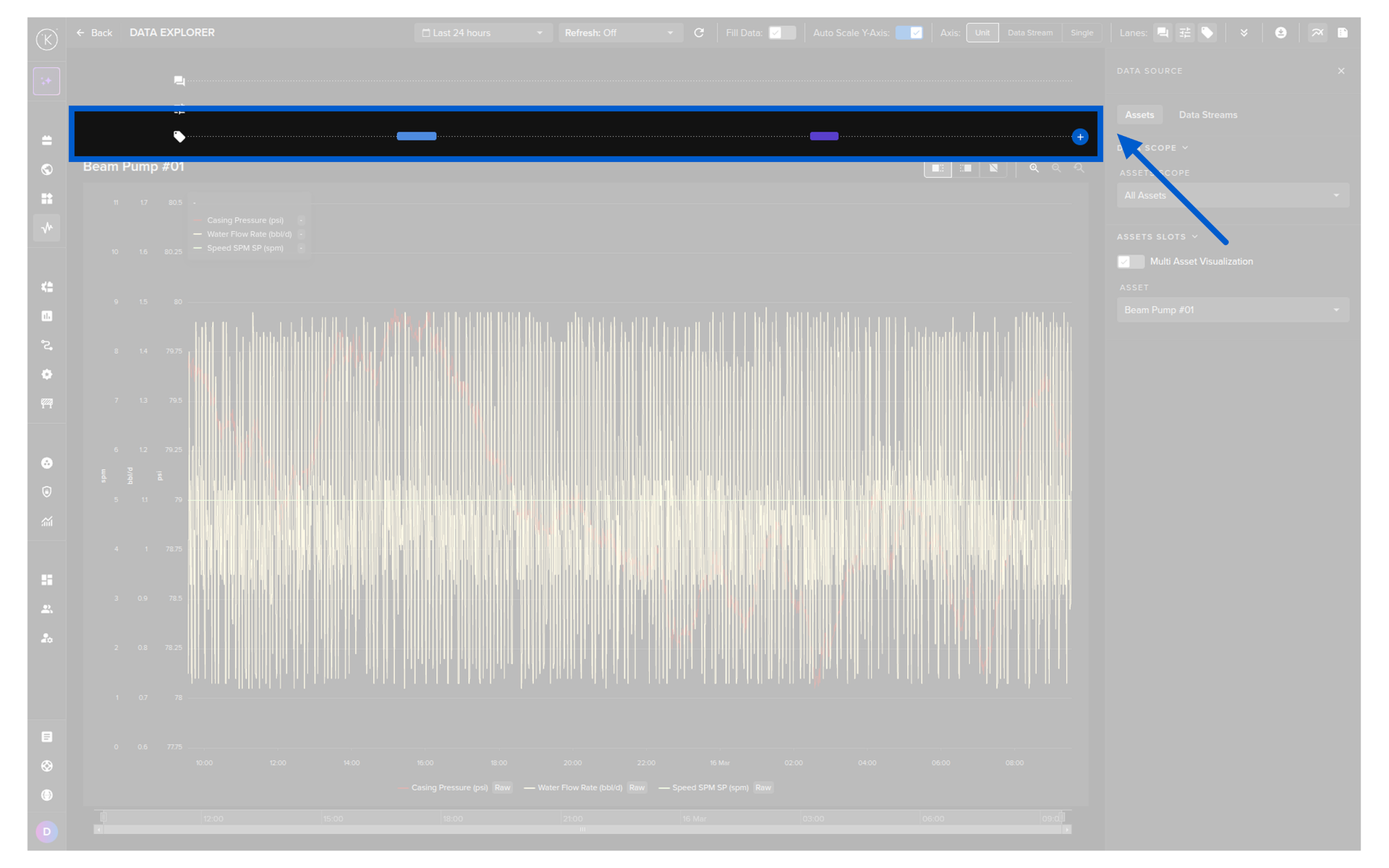
Even though Data Tags are related to Assets and can show up anywhere, they are primarily used in Data Explorer where they can be created and viewed.
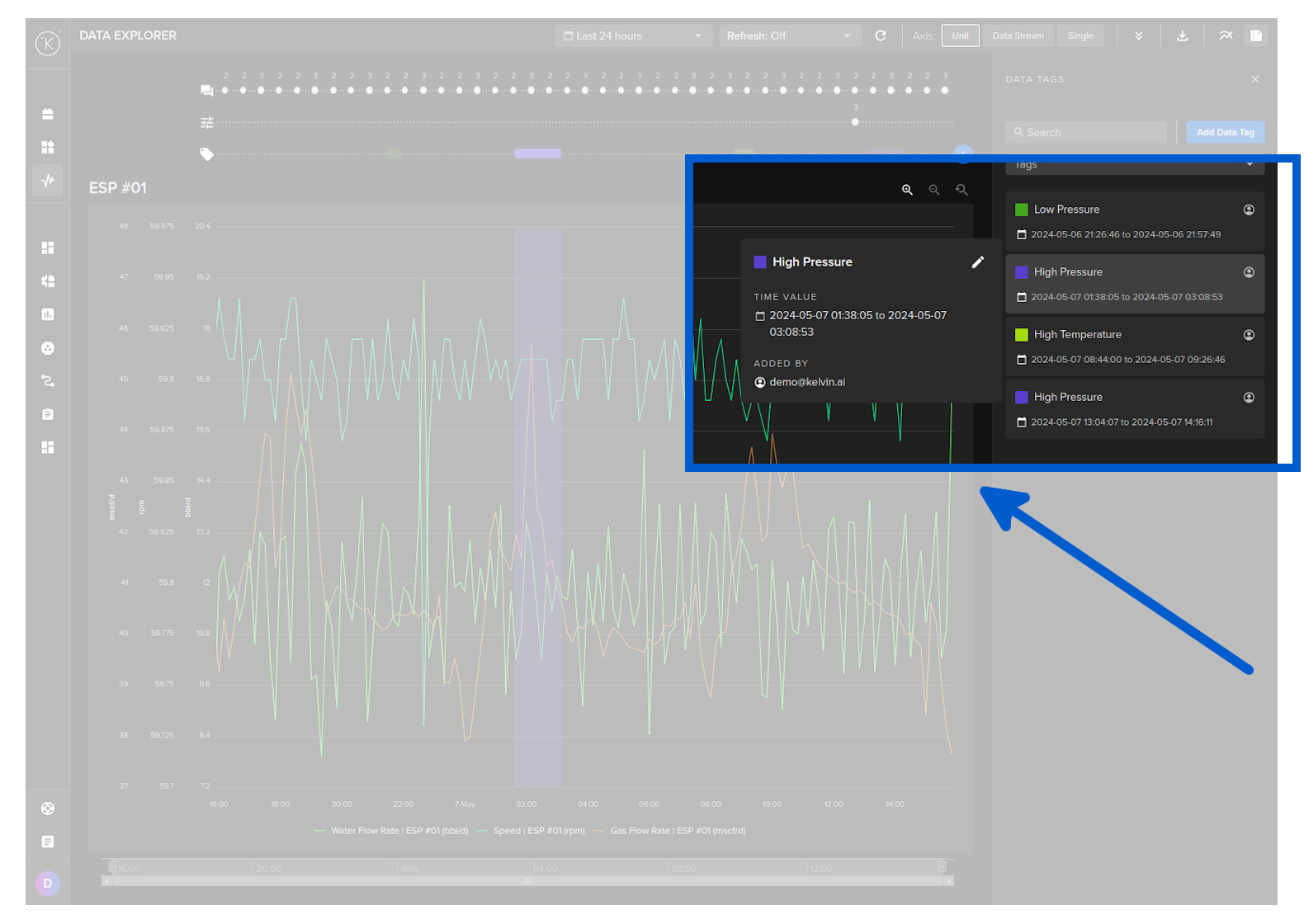
And tags are shown in the graphs itself in a Lane.
Reference:
| Field | Description |
|---|---|
| start_date | Start date for the Data Tag. Time is based on UTC timezone, formatted in RFC 3339. |
| end_date | End date for the Data Tag. Time is based on UTC timezone, formatted in RFC 3339. |
| tag_name | Tag name to categorize the Data Tag |
| resource | The Asset that this Data Tag is related to. This is in KRN format (e.g. krn:asset:bp_01) |
| source | The process that created this Data Tag. This can be a user or an automated process like a workload, Kelvin SmartApps™, Docker Apps, etc. This is KRN format. |
| description | Detailed description of the Data Tag. |
| contexts | A list of associated resources with this Data Tag. This can be a Data Stream, Kelvin SmartApps™ or any other valid resource in the Kelvin Platform. |
Get Data Tags for an Asset
In this example we will retrieve all Data Tags for an Asset
You can view and filter Data Tags for an Asset in the Data Explorer.
Go to the Data Explorer and select the Asset of interest.
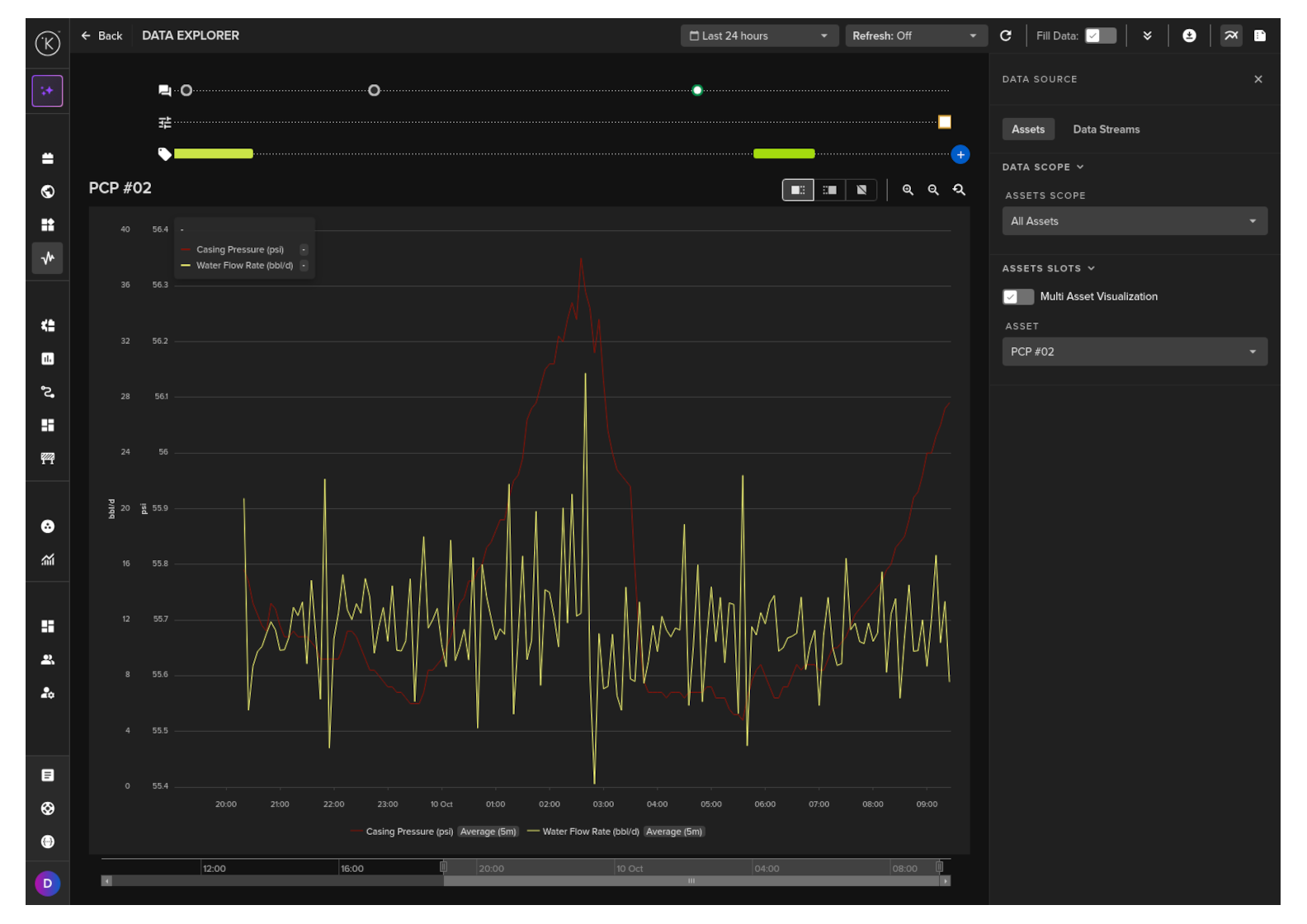
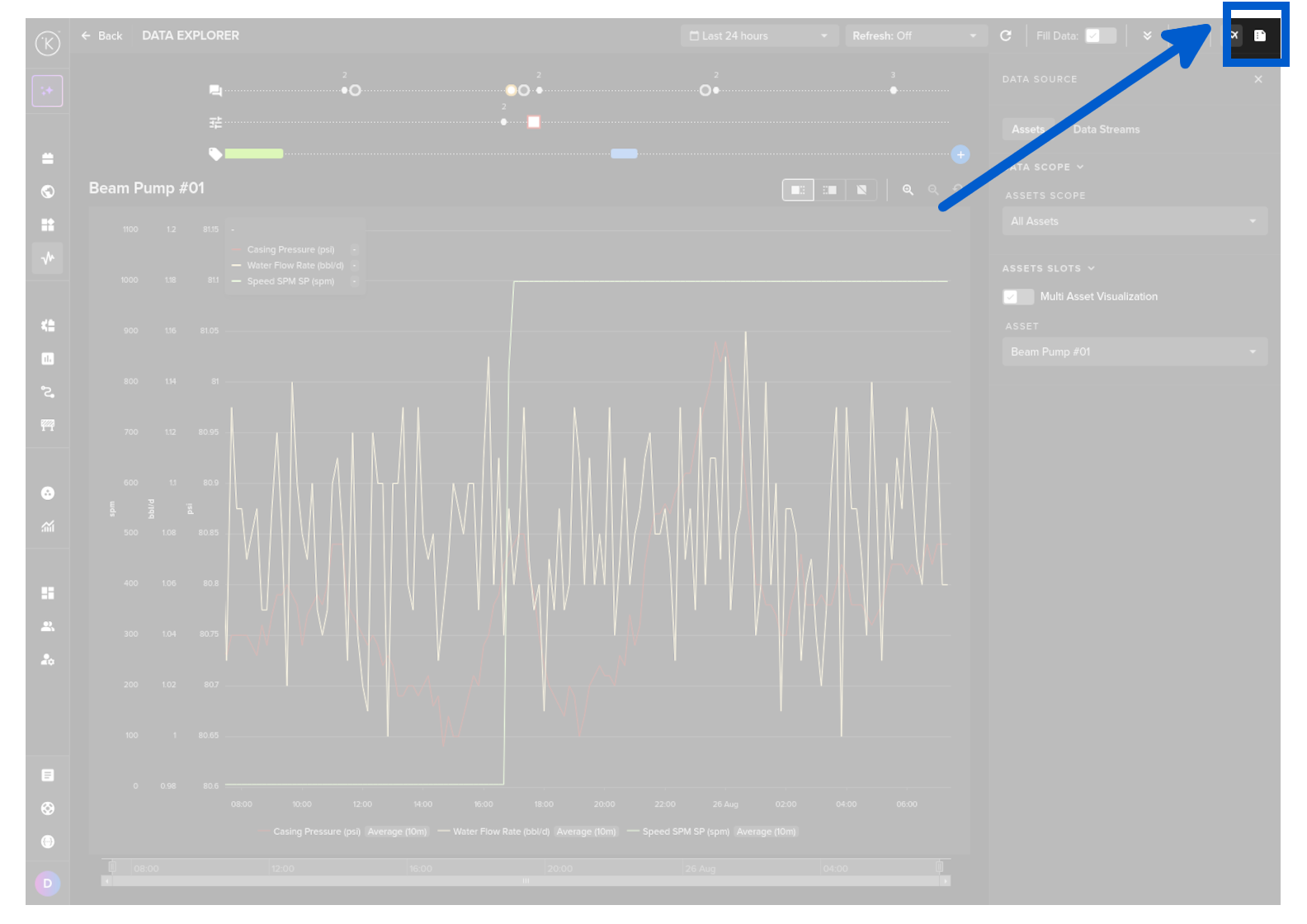
Then click on the Data Tags icon to show the Data Tags in the right hand sidebar.
You will then see a list of the Data Tags for the Asset in the time range shown on the x-axis.
Be aware that not all Data Tags are shown here at the same time ! Only the Data Tags that have any reference in the time range of the x-axis.
You can use the seach to filter the list.
curl -X 'POST' \
  'https://<url.kelvin.ai>/api/v4/datatags/list?pagination_type=cursor&page_size=20&direction=asc' \
  -H 'Authorization: Bearer <Your Current Token>' \
  -H 'accept: application/json' \
  -H 'Content-Type: application/json' \
  -d '{
  "end_date": "2024-04-20T00:41:45.807Z",
  "resources": [
    "krn:asset:pcp_01"
  ],
  "start_date": "2024-04-18T13:41:45.807Z"
}'
The response will look like this;
{
   "pagination":{
      "next_page":null,
      "previous_page":null
   },
   "data":[
      {
         "id":"80d9c4f1-9aa6-4ac8-9b31-18f49640b282",
         "start_date":"2024-04-19T14:40:14.98Z",
         "end_date":"2024-04-20T02:40:14.98Z",
         "tag_name":"Maintenance event",
         "resource":"krn:asset:pcp_01",
         "source":"krn:user:demo@kelvin.ai",
         "description":null,
         "contexts":[

         ],
         "created":"2024-04-20T13:48:15.09811Z",
         "updated":"2024-04-20T13:48:15.09811Z"
      }
   ]
}
from kelvin.api.client import Client

# Login
client = Client(config={"url": "https://<url.kelvin.ai>", "username": "<your_username>"})
client.login(password="<your_password>")

# List all Data Tags
response = client.data_tag.list_data_tag(data={
  "end_date": "2024-04-20T00:41:45.807Z",
  "resources": [
    "krn:asset:pcp_01"
  ],
  "start_date": "2024-04-20T13:41:45.807Z"
})

df = pd.DataFrame([{
    'id': str(item.id),
    'start_date': item.start_date.isoformat(),
    'end_date': item.end_date.isoformat(),
    'tag_name': item.tag_name,
    'resource': item.resource,
    'source': item.source,
    'description': item.description,
    'contexts': item.contexts,  # Assuming this is already in a serializable format
    'created': item.created.isoformat(),
    'updated': item.updated.isoformat()
} for item in response])

print(df)
The response will look like this;
                                     id                        start_date                          end_date           tag_name  ... description contexts                           created                           updated
0  80d9c4f1-9aa6-4ac8-9b31-18f49640b282  2024-04-19T14:40:14.980000+00:00  2024-04-20T02:40:14.980000+00:00  Maintenance event  ...        None       []  2024-04-20T13:48:15.098110+00:00  2024-04-20T13:48:15.098110+00:00

[1 rows x 10 columns]