FAQ for Operations Tools
Search and Filter Options
Search
Quick Filter
Assets
-
What is Asset Fuzzy Search ?
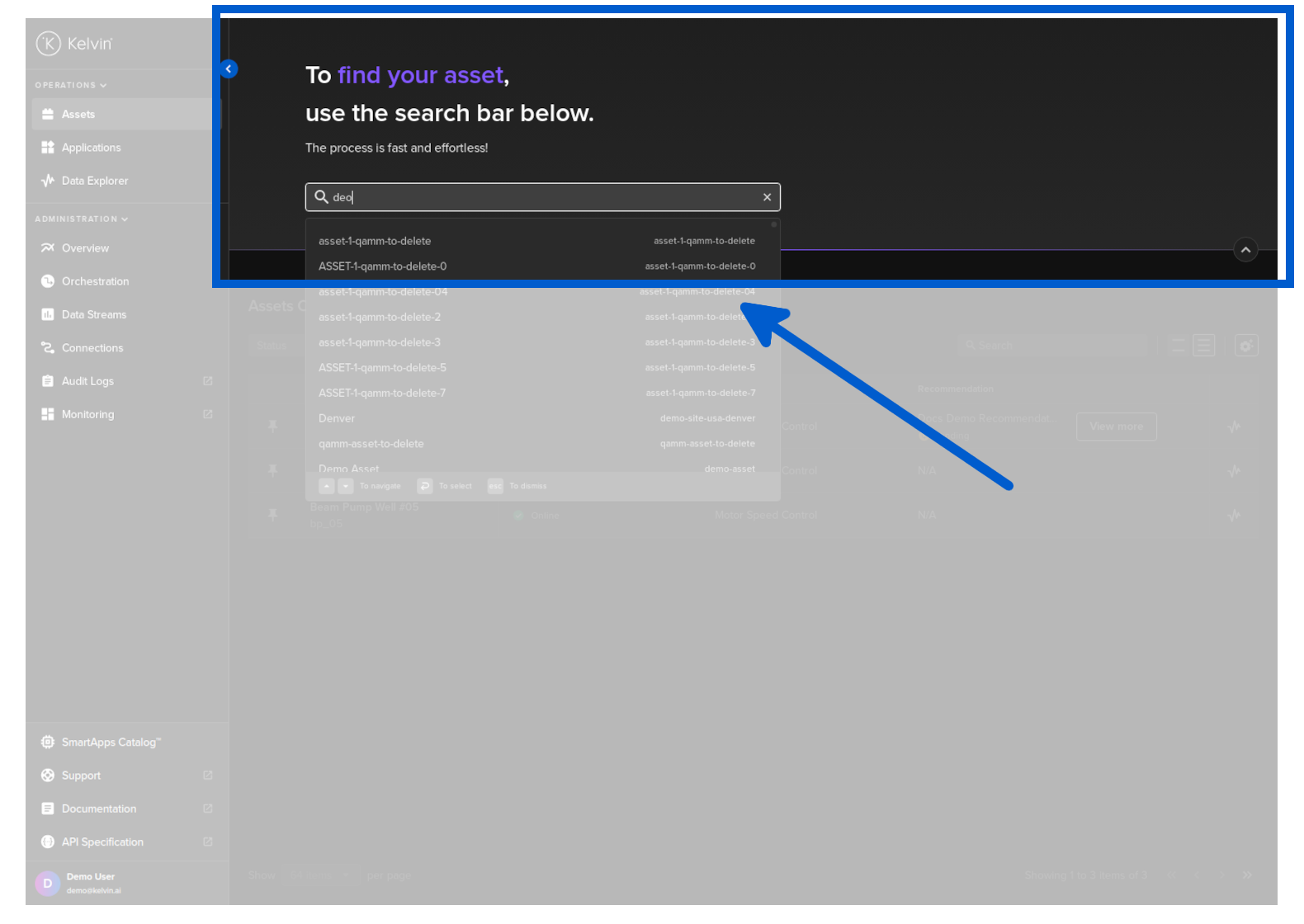
At the top we have a search bar which uses fuzzy logic to filter the Assets list. This is very useful to quickly find what you are looking for even if you misspell the name of the Asset.
For example; if you have an Asset called Demo Asset and you type in this fuzzy search bar "deo" where you accidentally forgot the letter "m", it will still show up in the list.
Recommended Reading
-
How do I keep important Assets at the top ?
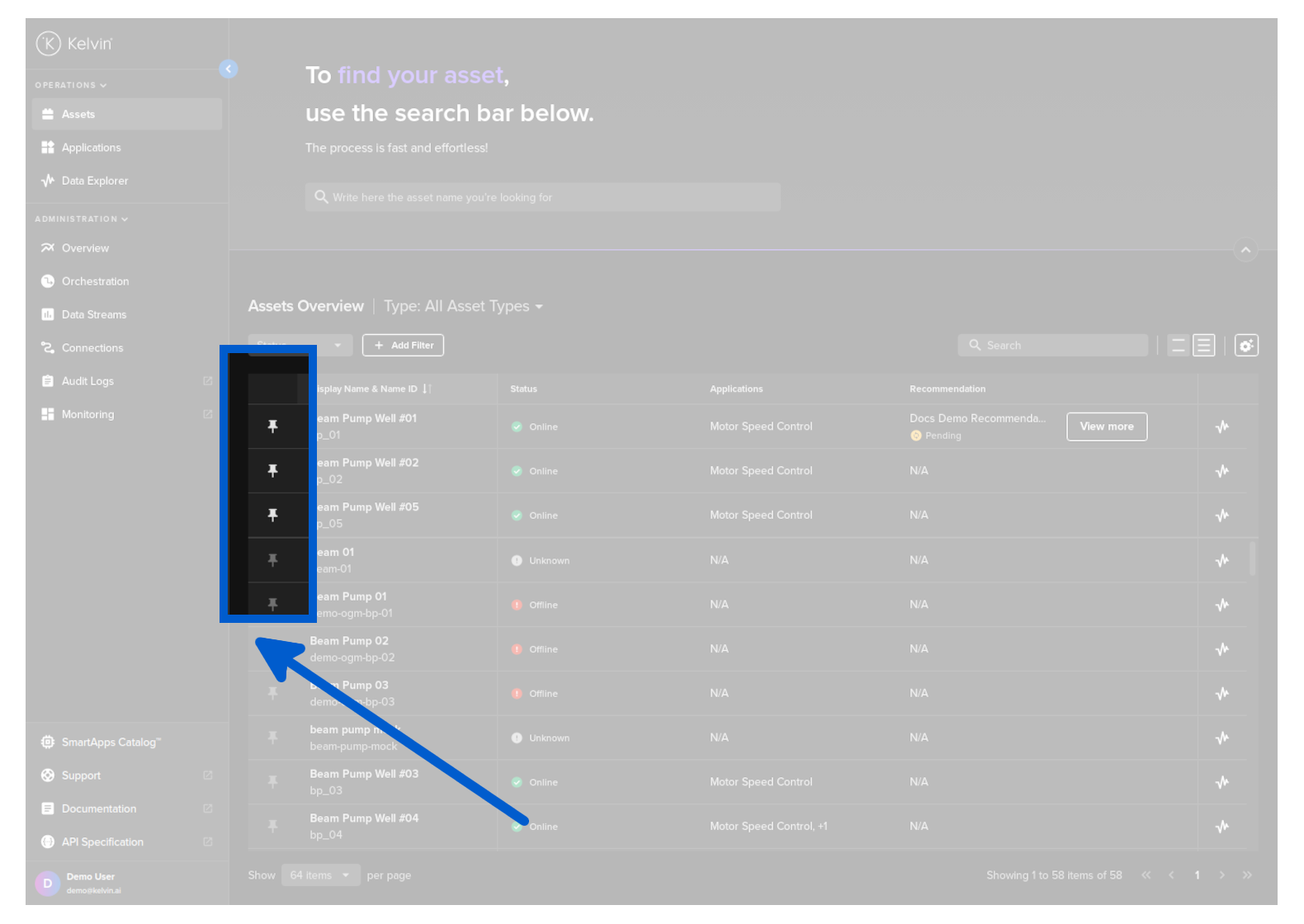
You can keep important Assets pinned to the top of the page simply by clicking on the pin icon.
The pinned Assets will show on the top of every page.
-
Viewing Recommendations & Control Changes in Overview
Asset-centric tables developed by Kelvin bring many more advanced features to the lists to give you greater control in setting up the right overview experience to streamline your workflow. This includes being able to incorporate specific Recommendations and Control Changes into the lists with direct links to control the assets.
First go to the Assets and click on configuration icon.
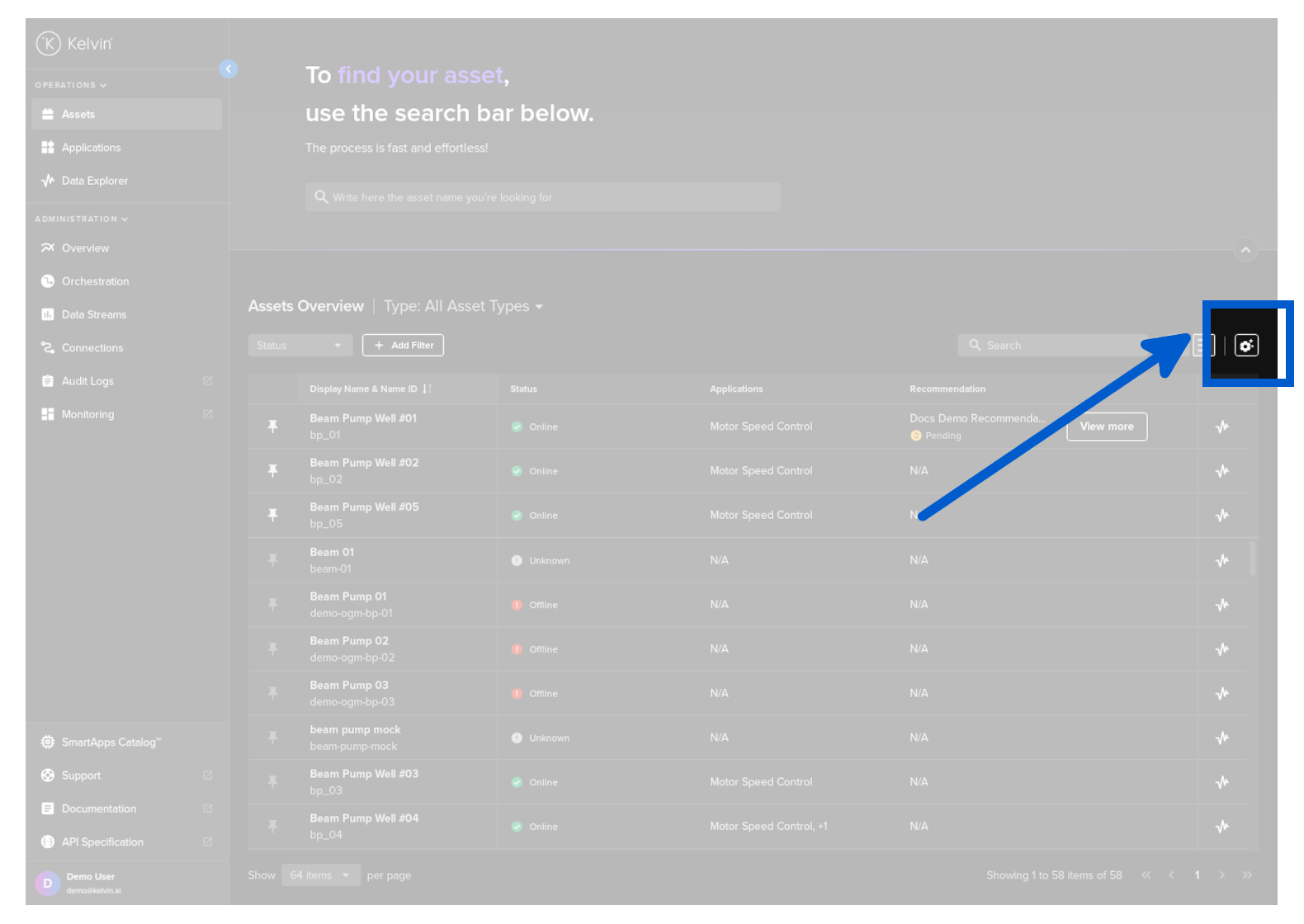
Then the table configuration will appear on the right hand sidebar

-
Where to see all Recommendations for an Asset ?
You can view recommendations in the table by configuring the columns and setting up your requirements to show recommendations.
Go to the Assets page and click on the Asset that you want to look at recommendations.
Then scroll down in the Asset Details page to the Recommendations.

Recommended Reading
Kelvin SmartApps™
-
How to add Assets to Kelvin SmartApps™ ?
To add Assets to a Kelvin SmartApp™, click on the SmartApps menu, select the Kelvin SmartApp™ then click on the Management tab.
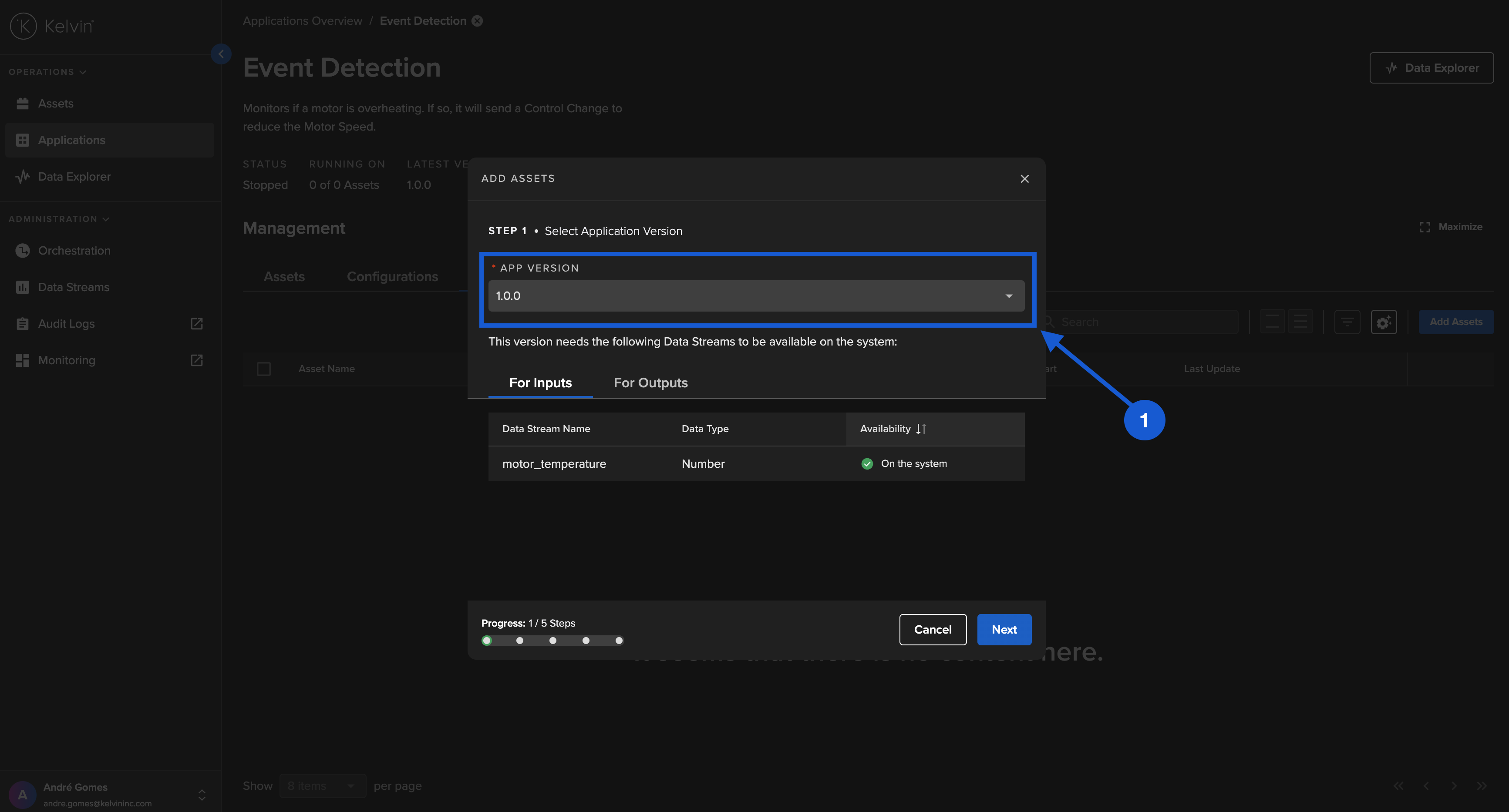
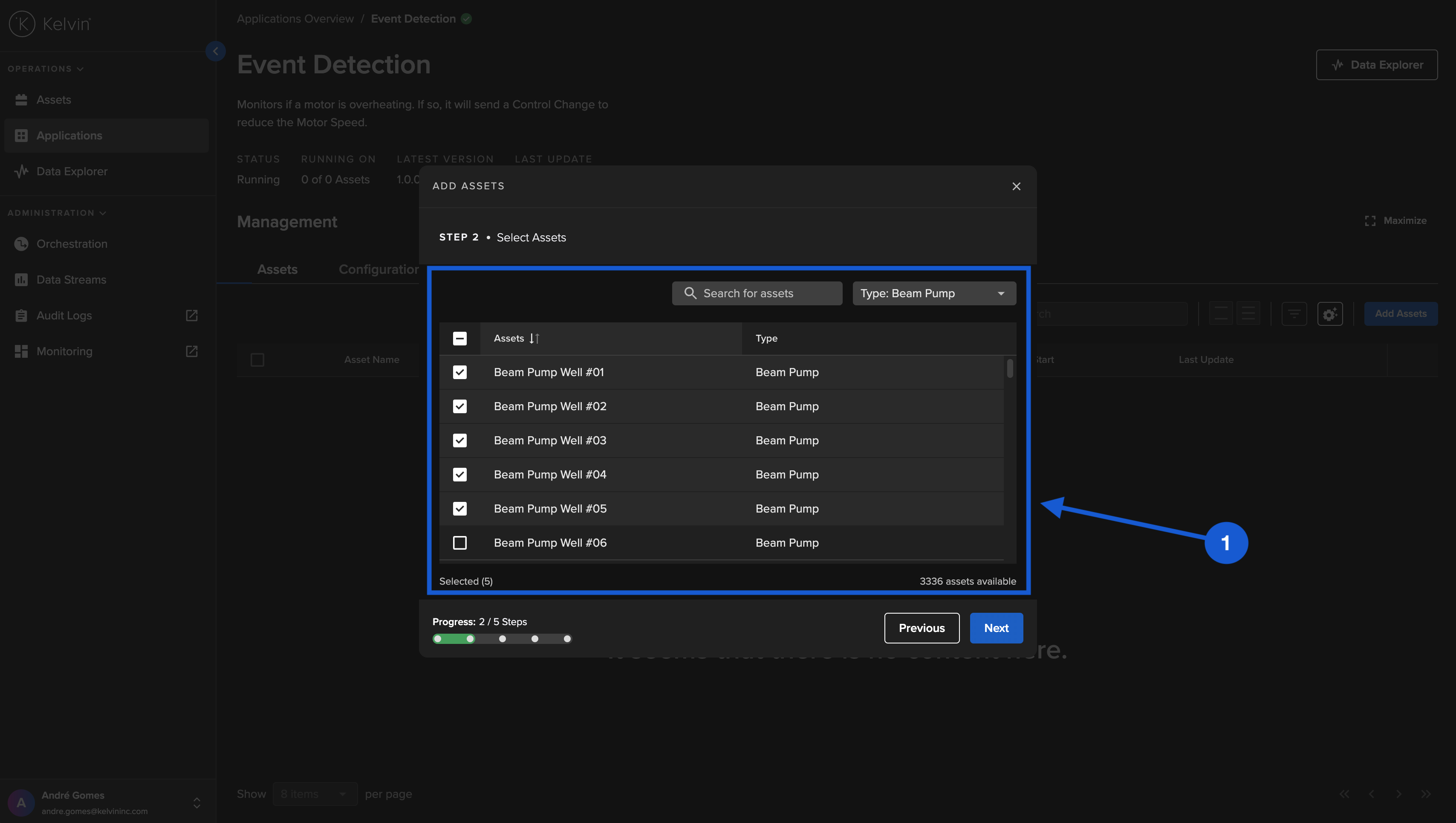
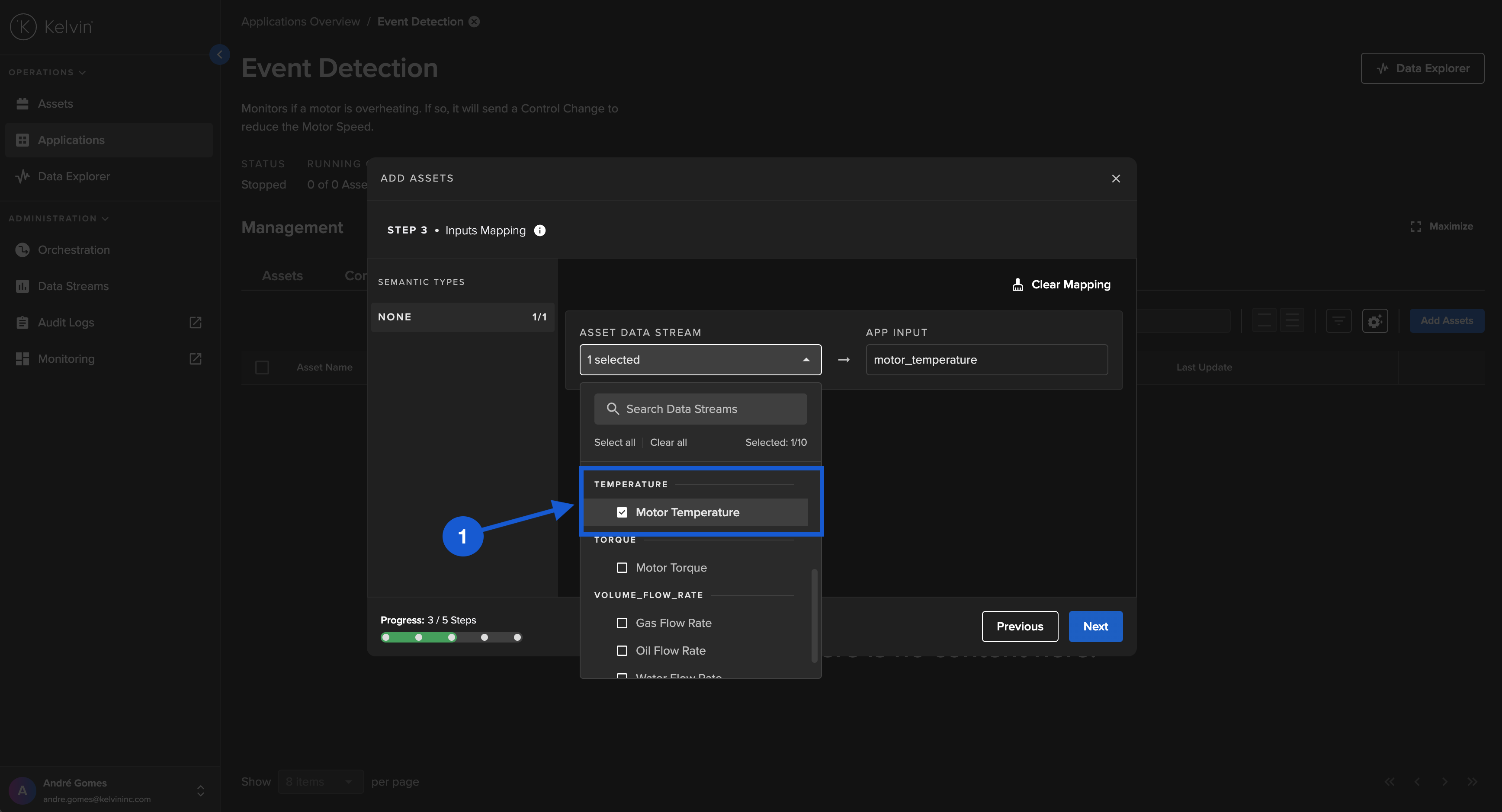
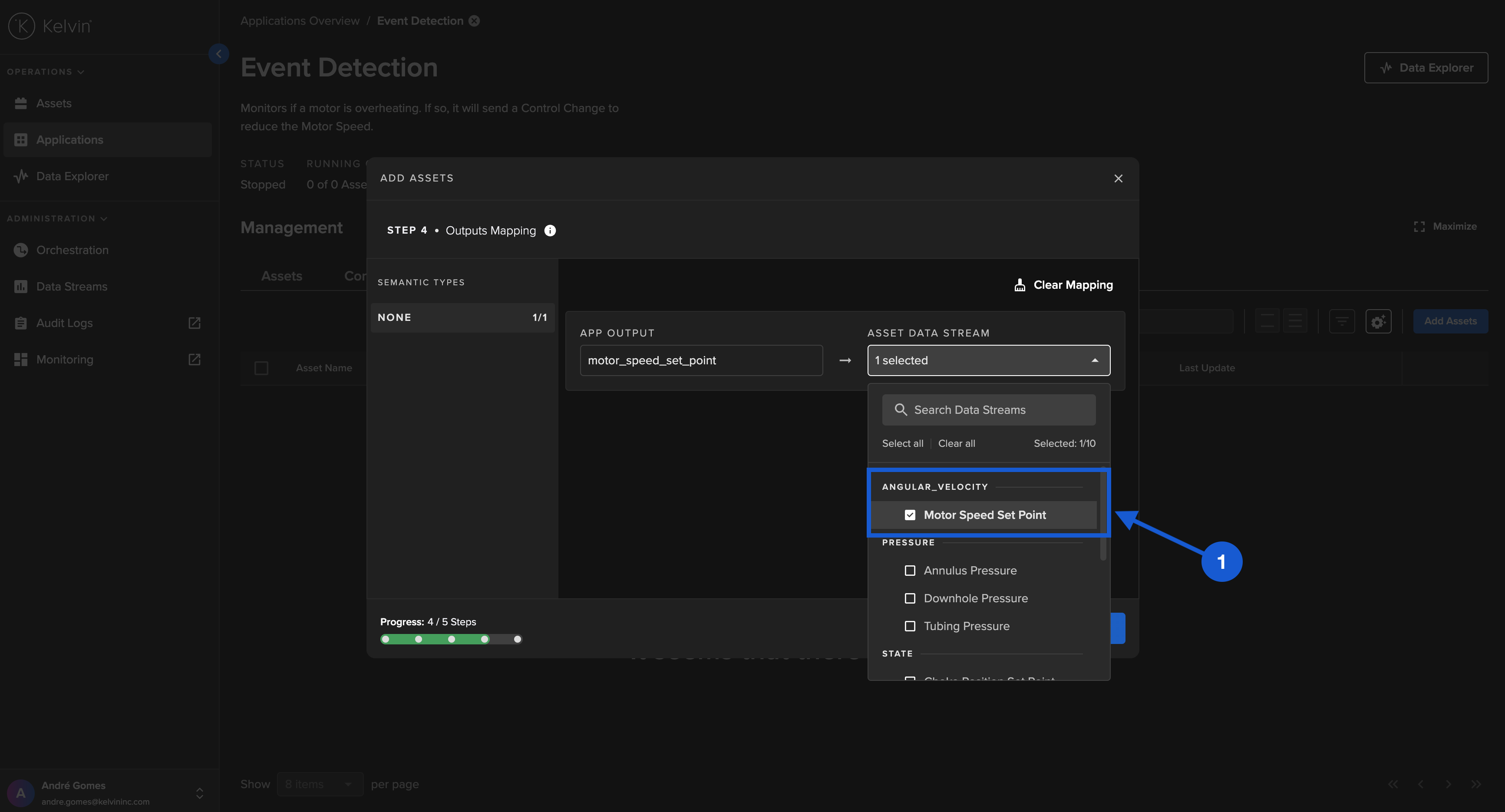
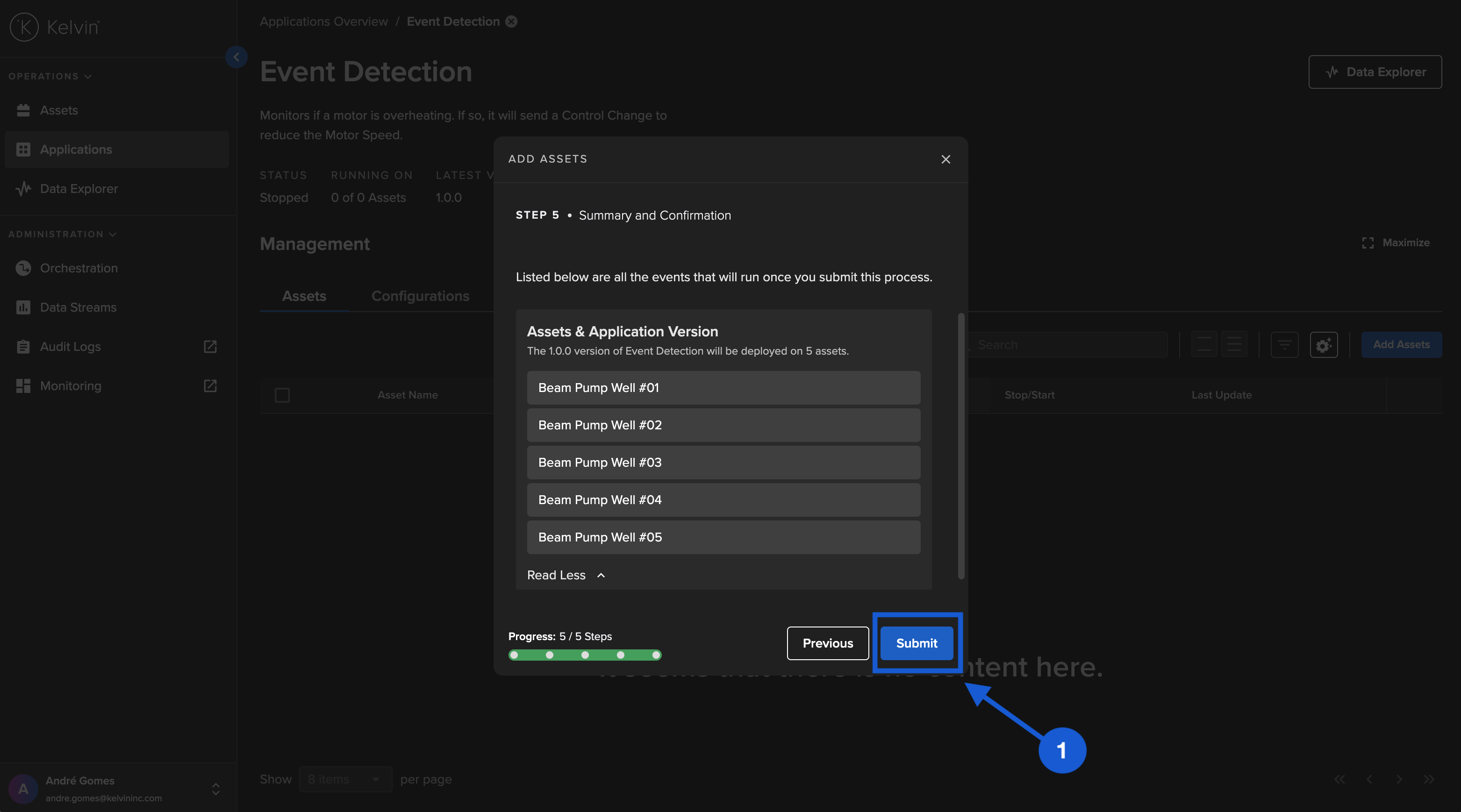
On the right of the screen you have a button to add a new Asset to run in Kelvin SmartApps™. There are 5 steps to deploy.
Select the version of a Kelvin SmartApp™ you want the Asset to use.
Select the Assets you want to add to the Kelvin SmartApp™.
Ensure the right Data Streams are connected to the right Kelvin SmartApp™ inputs.
Ensure the right Data Streams are connected to the right Kelvin SmartApp™ outputs.
Check the summary and then click on Submit button. The Assets will then be deployed with the Kelvin SmartApp™.
Recommended Reading
-
How to update configuration values ?
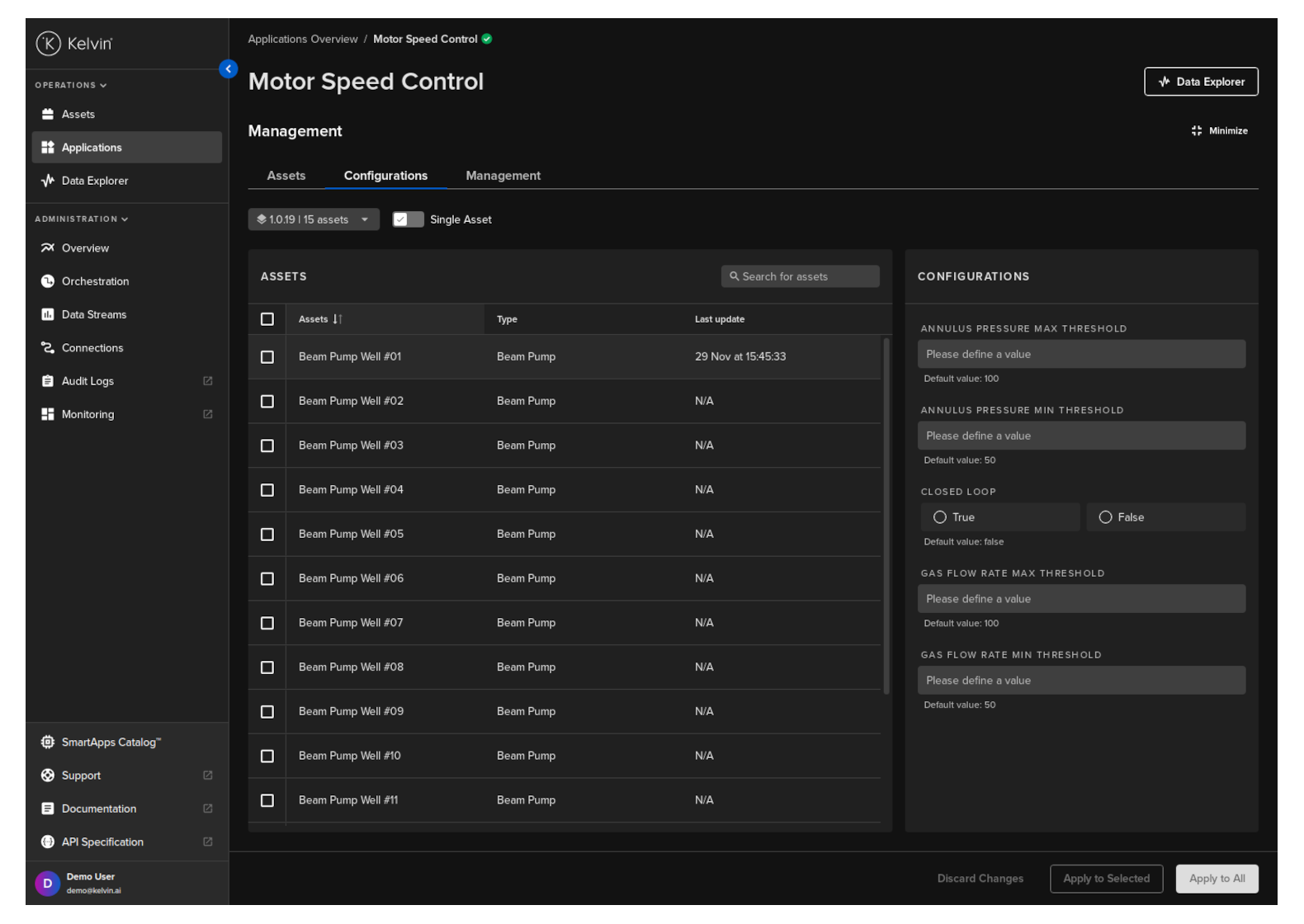
To update the Asset configuration values, click on the SmartApps menu, select the the Kelvin SmartApp™ then click on the Configuration tab.
Toggle the Single Asset switch on and select an Asset. This will show you the current configuration values for this Asset.
If the toggle switch Single Asset is off, then you will not be able to see the current settings.
Update the configurations values on the right, then click Apply button to update the values.
-
How to Start/Stop an Asset ?
When you stop an Asset in a Kelvin SmartApp™, this will stop all processing of the input data and no output data will be generated.
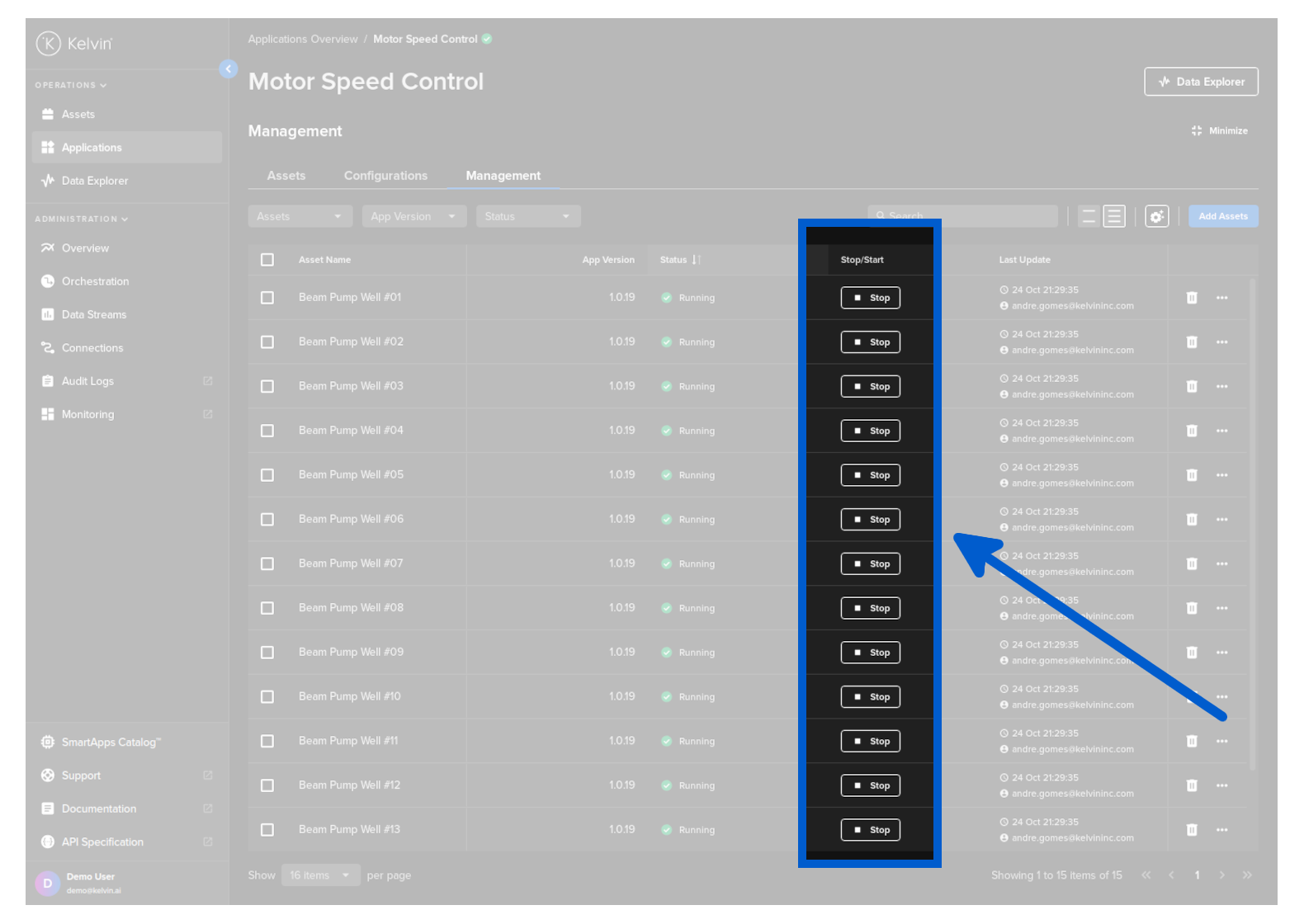
To control the Asset, click on the SmartApps menu, select the Kelvin SmartApp™ then click on the Management tab.
You have the option to also start/stop multiple Assets with one action. Check out the full description for details.
Click on the button in the Start/Stop column for the appropriate Asset.
Data Explorer
-
Can I view multiple assets at the same time ?
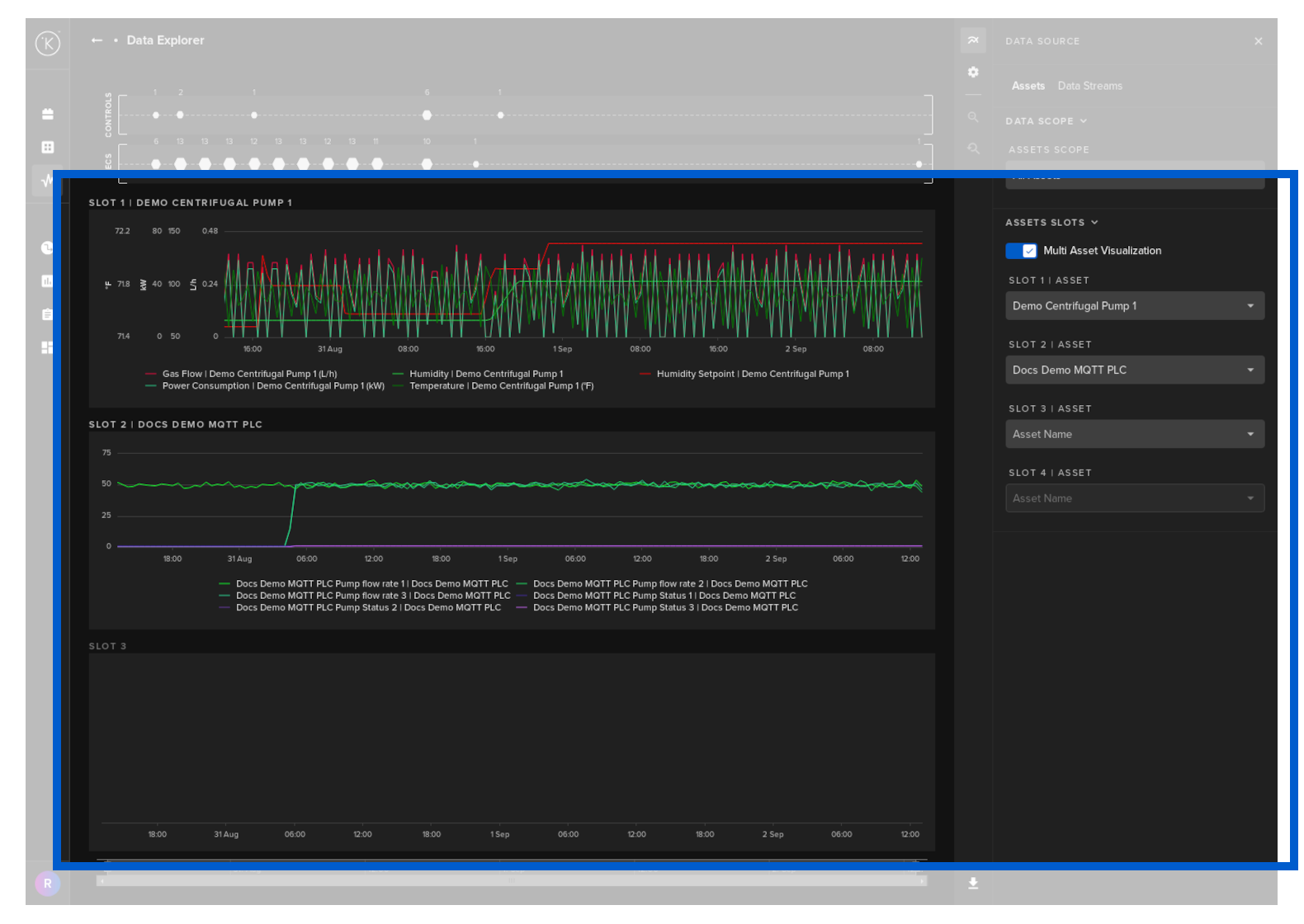
Data Explorer allows you to view the Data Streams of multiple Assets at the same time. This flexibility allows you to analyze in detail the effects of Control Changes and Recommendations over multiple Assets.
In the Data Explorer page, click on the data sources icon on the right hand side.
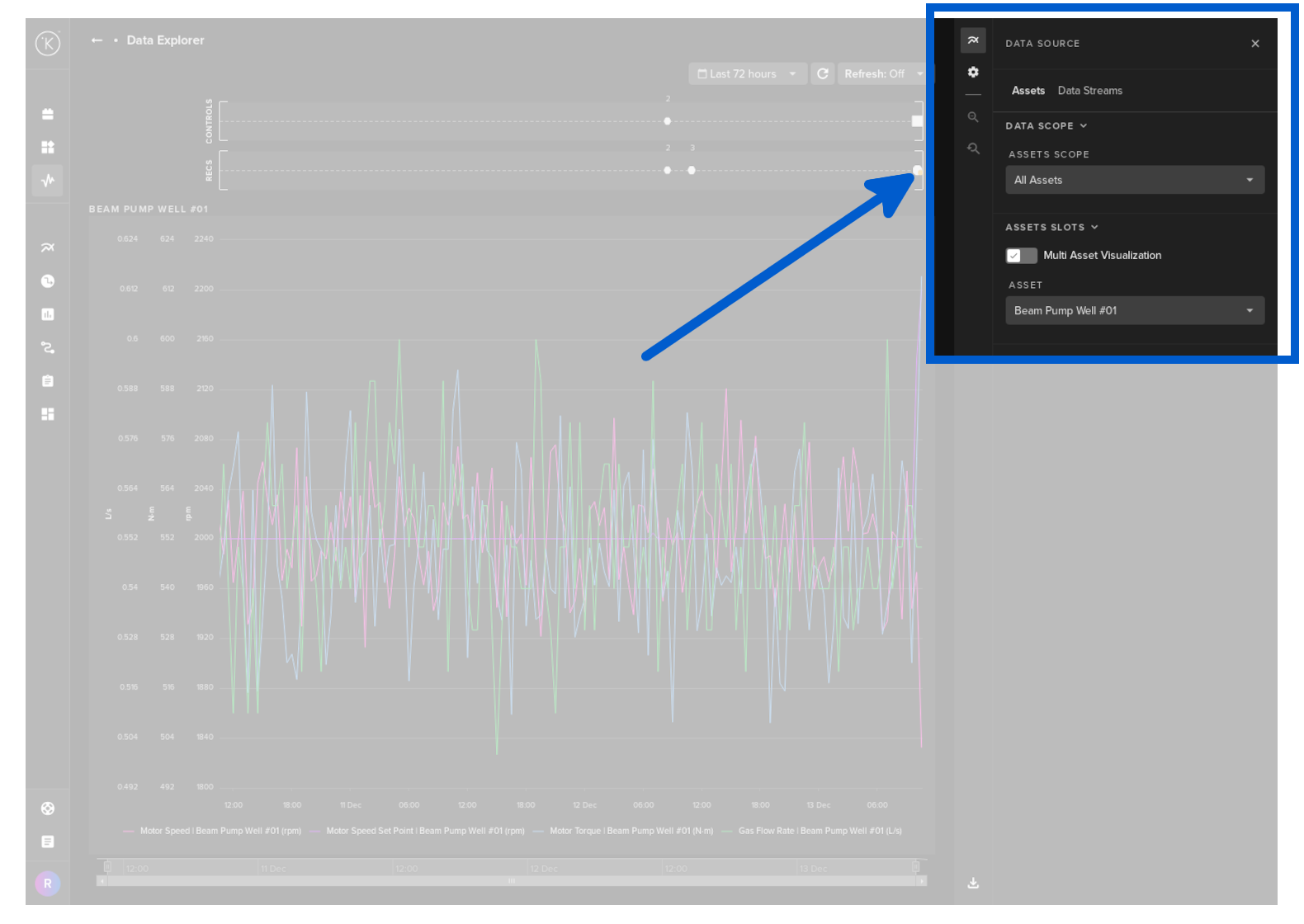
Click on the Multi Asset Visualization toggle switch to activate the multi asset view, then select up to 4 Assets.
Recommended Reading
-
Can I download data to Excel ?
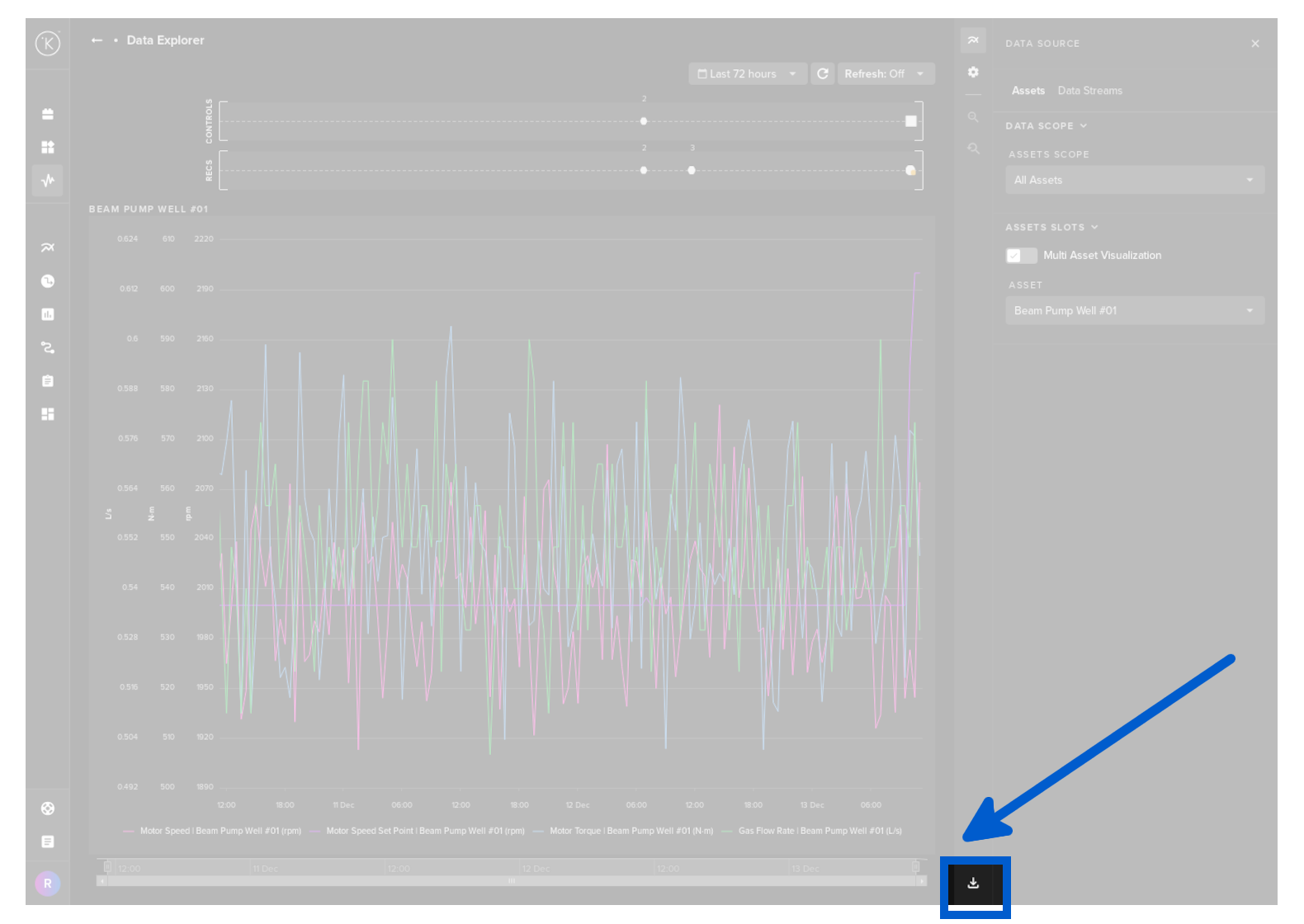
You can download all the data within a selected data range from Data Explorer onto your local computer. This can then be opened in Microsoft Excel or Google Sheets for you to use.
-
Can I view in Real Time ?
You can use the Data Explorer for both real time monitoring or historical data analysis.
In real time monitoring mode, you can set the refresh rate of the graphs from 5 seconds to 1 hour.

To revert to historical data analysis you can turn off real time monitoring by selecting Off.
Miscellaneous
-
Why do I get Login timed out errors ?
The login screen is the critical interface between the Internet users and authorized users. If you use the Kelvin built-in security platform, there is one important behavior incorporated into the login screen. You may encounter a timed out error on your first login attempt, but accepted on the second attempt.

This time out of an active login screen is a security feature designed to reduce the risk of a session fixation hijack attack which occurs during a login session.
To avoid having to type in your credentials twice, it is recommended that if you leave you browser on the login screen for long periods of time, do a refresh of the login page before typing in your credentials. The refresh activates a new login session and you will not see a timed out error.
Recommended Reading