Overview - Data Tags
Operations Engineers are able to add Data Tags to Assets which is either linked to a point in time or a time range.
Data Tags, distinct from Tags, derive their tag_names from the predefined list of Tag Names within Tags. New Tag Names can be created by users.
These Data Tags can be used for any reason. One use is for Operations Engineers to tag important events of a certain time for a certain Asset as feedback and review by the Developers and Data Scientists.
Programmatically you can also add tags. This can be useful when you want to mark certain events automatically when they happen for both future analysis or highlights for Operations in the Data Explorer.
Any tags created programmatically will appear in the graphs in the Kelvin UI.
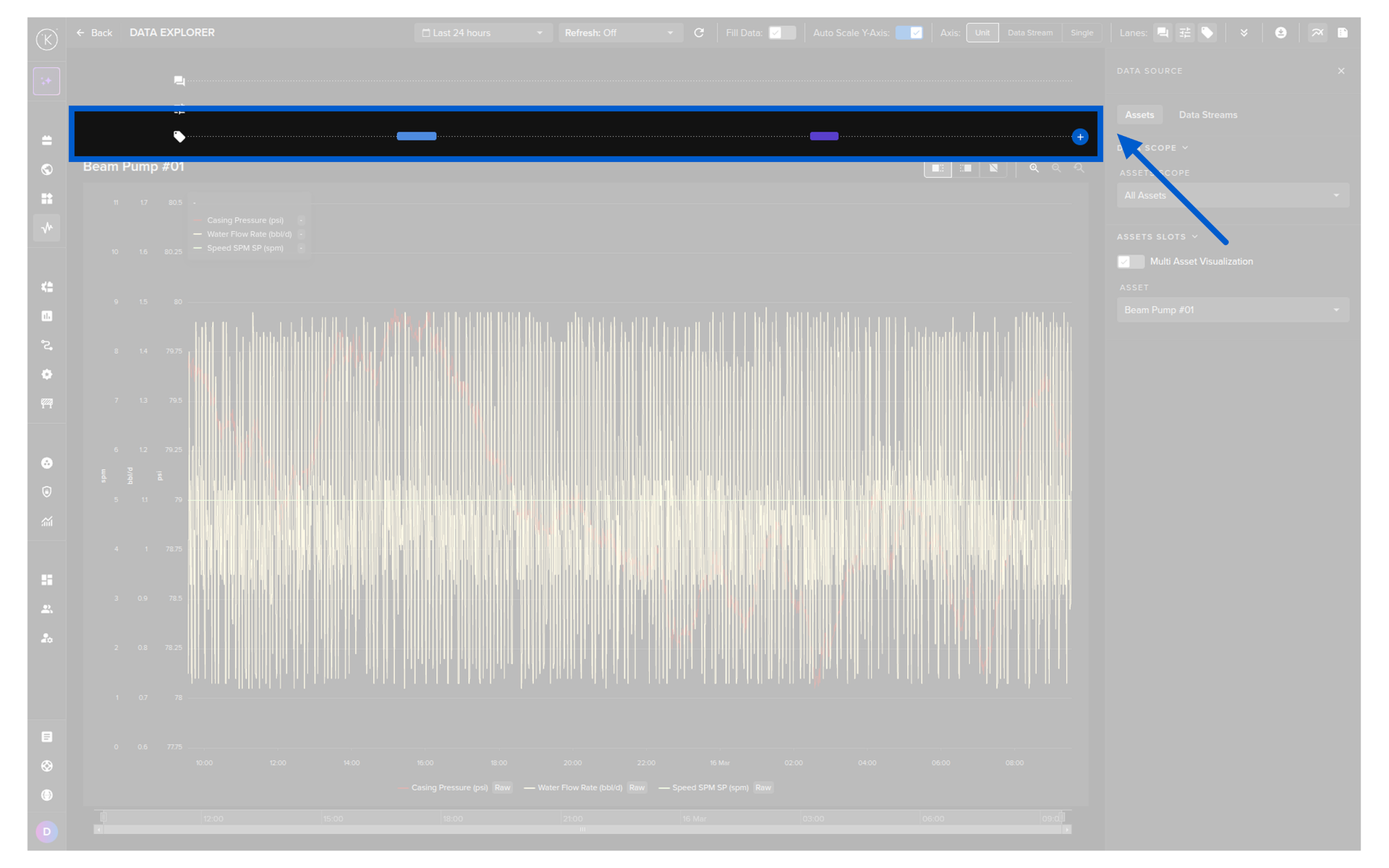
Data Tag Names
All Data Tags are related to a Data Tag Name.
Before you can create new Data Tag events you need to create the Data Tag Names.
Create Data Tag Name
You can read how to create data tags names when creating Data Tags in the Operations Tools documentation here.
curl -X 'POST' \
  'https://<url.kelvin.ai>/api/v4/datatags/tags/create' \
  -H 'Authorization: Bearer <Your Current Token>' \
  -H 'accept: application/json' \
  -H 'Content-Type: application/json' \
  -d '{
      "name": "Demo Doc Tag",
      "metadata": {}
}'
The response will look like this;
{
"name": "Demo Doc Tag",
"metadata": {},
"created": "2024-06-14T10:32:19.614397Z",
"updated": "2024-06-14T10:32:19.614397Z"
}
from kelvin.api.client import Client

# Login
client = Client(config={"url": "https://<url.kelvin.ai>", "username": "<your_username>"})
client.login(password="<your_password>")

# Create Data Tag Name
response = client.data_tag.create_tag(data={
        "name": "Demo Doc Tag",
        "metadata": {}
    })

print(response)
The response will look like this;
name='Demo Doc Tag' metadata={} created=datetime.datetime(2024, 6, 14, 11, 28, 53, 792472, tzinfo=datetime.timezone.utc) updated=datetime.datetime(2024, 6, 14, 11, 28, 53, 792472, tzinfo=datetime.timezone.utc)
Delete Data Tag Name
You can not delete Data Tag Names in the Kelvin UI.
curl -X 'POST' \
  'https://<url.kelvin.ai>/api/v4/datatags/tags/Demo%20Doc%20Tag/delete' \
  -H 'Authorization: Bearer <Your Current Token>' \
  -H 'accept: application/json' \
  -H 'Content-Type: application/json' \
  -d ''
The response will only be the return code 200.
from kelvin.api.client import Client

# Login
client = Client(config={"url": "https://<url.kelvin.ai>", "username": "<your_username>"})
client.login(password="<your_password>")

# Delete Data Tag Name
response = client.data_tag.delete_tag(tag_name="Demo Doc Tag")

print(response)
The response will look like this;
None
List Data Tag Names
You can see a list of all Data Tag Names in the dropdown list in Data Explorer.
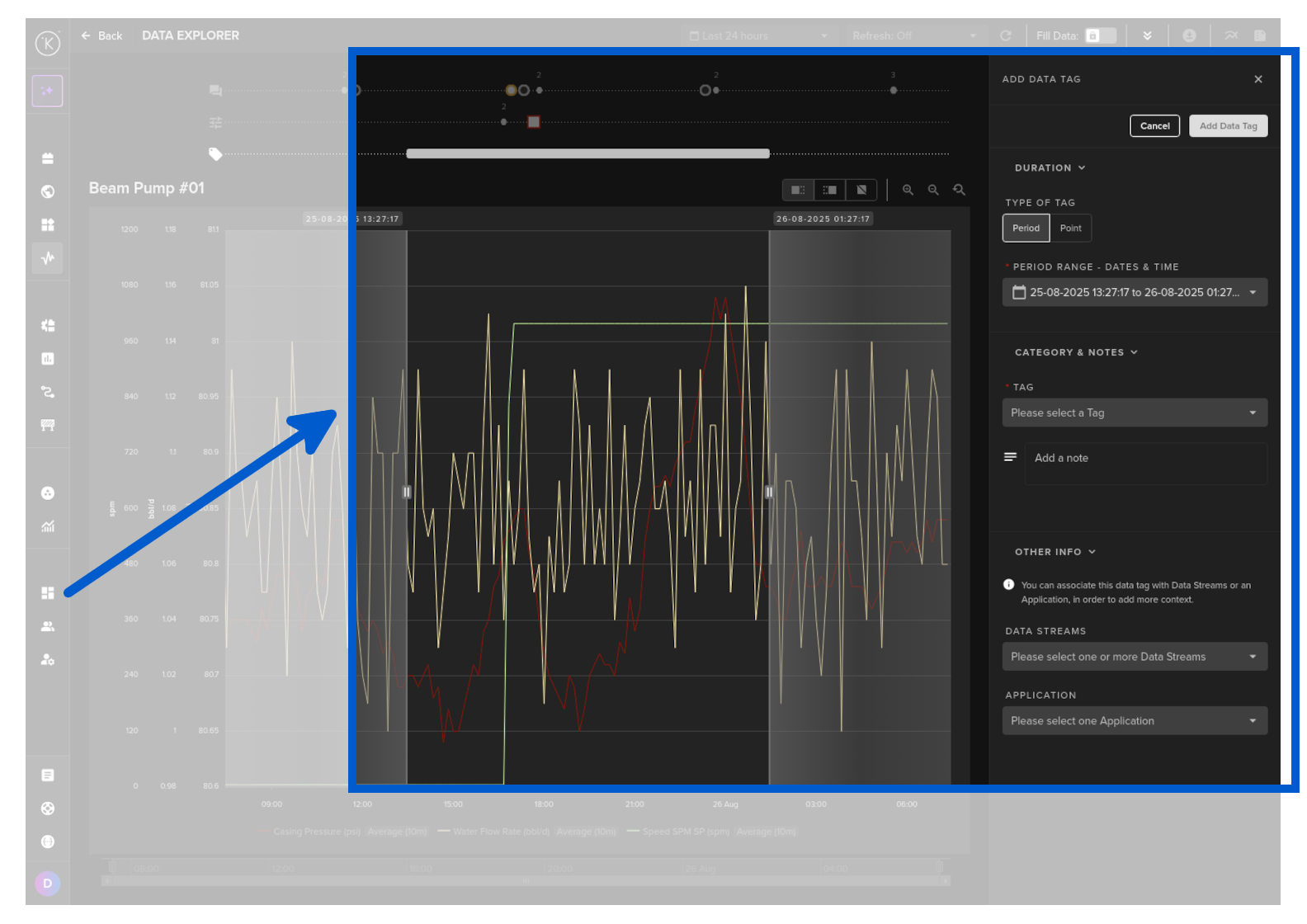
Sort options;
| Field | Description |
|---|---|
| name | Data Tag Names alphabetically |
| created | Sort by created date |
| updated | Sort by updated date |
curl -X 'POST' \
  'https://<url.kelvin.ai>/api/v4/datatags/tags/list?pagination_type=cursor&page_size=20&direction=asc&sort_by=name' \
  -H 'Authorization: Bearer <Your Current Token>' \
  -H 'accept: application/json' \
The response will look like this;
  {
     "pagination": {
     "next_page": null,
     "previous_page": null
     },
     "data": [
     {
        "name": "Connection Failure",
        "metadata": {
           "color": "#8fe516"
        },
        "created": "2024-03-26T14:35:05.206906Z",
        "updated": "2024-03-26T14:35:05.206906Z"
     },

     ...

     {
        "name": "Valve-Open",
        "metadata": {
          "color": "#64e1e5"
        },
        "created": "2024-04-01T22:37:06.644374Z",
        "updated": "2024-04-01T22:37:06.644374Z"
      }
    ]
  }
from kelvin.api.client import Client

# Login
client = Client(config={"url": "https://<url.kelvin.ai>", "username": "<your_username>"})
client.login(password="<your_password>")

# List Data Tag Name
response = client.data_tag.list_tag()

print(response)
The response will look like this;
[Tag(name='Connection Failure', metadata={'color': '#8fe516'}, created=datetime.datetime(2024, 3, 26, 14, 35, 5, 206906, tzinfo=datetime.timezone.utc), updated=datetime.datetime(2024, 3, 26, 14, 35, 5, 206906, tzinfo=datetime.timezone.utc)), Tag(name='frw', metadata={'color': '#82458C'}, created=datetime.datetime(2024, 5, 16, 10, 54, 22, 671783, tzinfo=datetime.timezone.utc), updated=datetime.datetime(2024, 5, 16, 10, 54, 22, 671783, tzinfo=datetime.timezone.utc)), ... ]
Data Tags
Reference:
| Field | Description |
|---|---|
| start_date | Start date for the Data Tag. Time is based on UTC timezone, formatted in RFC 3339. |
| end_date | End date for the Data Tag. Time is based on UTC timezone, formatted in RFC 3339. |
| tag_name | Tag name to categorize the Data Tag |
| resource | The Asset that this Data Tag is related to. This is in KRN format (e.g. krn:asset:bp_01) |
| source | The process that created this Data Tag. This can be a user or an automated process like a workload, Kelvin SmartApps™, etc. This is KRN format. |
| description | Detailed description of the Data Tag. |
| contexts | A list of associated resources with this Data Tag. This can be a Data Stream, Kelvin SmartApps™ or any other valid resource in the Kelvin Platform. |
Create a Data Tag
You can read how to create data tags in the Operations Tools documentation here.
curl -X 'POST' \
  'https://<url.kelvin.ai>/api/v4/datatags/list?pagination_type=cursor&page_size=20&direction=asc' \
  -H 'Authorization: Bearer <Your Current Token>' \
  -H 'accept: application/json' \
  -H 'Content-Type: application/json' \
  -d '{
  "start_date": "2024-02-06T18:22:18.582724Z",
  "end_date": "2024-02-06T19:22:18.582724Z",
  "tag_name": "Valve Change",
  "resource": "krn:asset:pcp_01",
  "source": "krn:user:demo@kelvin.ai",
  "description": "A Valve was changed today.",
  "contexts": [
    "krn:datastream:temperature",
    "krn:appversion:smart-pcp/2.0.0"
  ]
}'
The response will look like this;
{
  "id": "fc96d16d-87f7-48df-b262-917125280537",
  "start_date": "2024-02-06T18:22:18.582724Z",
  "end_date": "2024-02-06T19:22:18.582724Z",
  "tag_name": "Valve Change",
  "resource": "krn:asset:pcp_01",
  "source": "krn:user:demo@kelvin.ai",
  "description": "A Valve was changed today.",
  "contexts": [
    "krn:datastream:temperature",
    "krn:appversion:smart-pcp/2.0.0"
  ],
  "created": "2024-06-14T10:19:50.059813Z",
  "updated": "2024-06-14T10:19:50.059813Z"
}
from kelvin.api.client import Client

# Login
client = Client(config={"url": "https://<url.kelvin.ai>", "username": "<your_username>"})
client.login(password="<your_password>")

# Create Data Tag
response = client.data_tag.create_data_tag({
    "start_date": "2024-06-06T18:22:18.582724Z",
    "end_date": "2024-06-06T19:22:18.582724Z",
    "tag_name": "Valve Change",
    "resource": "krn:asset:pcp_01",
    "source": "krn:user:demo@kelvin.ai",
    "description": "A Valve was changed today.",
    "contexts": [
        "krn:datastream:temperature",
        "krn:appversion:smart-pcp/2.0.0"
    ]
    })

print(response)
The response will look like this;
id=UUID('c9699f02-20b9-40fc-98c2-5d1ddee35d41') start_date=datetime.datetime(2024, 6, 6, 18, 22, 18, 582724, tzinfo=datetime.timezone.utc) end_date=datetime.datetime(2024, 6, 6, 19, 22, 18, 582724, tzinfo=datetime.timezone.utc) tag_name='Valve Change' resource=KRNAsset(asset='pcp_01') source=KRN(krn:user:demo@kelvin.ai) description='A Valve was changed today.' contexts=[KRN(krn:datastream:temperature), KRNAppVersion(app='smart-pcp, version=2.0.0')] created=datetime.datetime(2024, 6, 14, 10, 25, 45, 76859, tzinfo=datetime.timezone.utc) updated=datetime.datetime(2024, 6, 14, 10, 25, 45, 76859, tzinfo=datetime.timezone.utc)
Update a Data Tag
You can read how to create data tags in the Operations Tools documentation here.
curl -X 'POST' \
  'https://<url.kelvin.ai>/api/v4/datatags/118f5665-fdad-4c28-a09f-ca0a416202ff/update' \
  -H 'Authorization: Bearer <Your Current Token>' \
  -H 'accept: application/json' \
  -H 'Content-Type: application/json' \
  -d '{
  "start_date": "2024-06-13T21:07:30.741Z",
  "end_date": "2024-06-14T09:07:30.741Z",
  "tag_name": "Low Temperature",
  "resource": "krn:asset:esp_06",
  "source": "krn:user:ivo.fernandes@kelvininc.com",
  "description": null,
  "contexts": []
}'
The response will look like this;
{
  "id": "118f5665-fdad-4c28-a09f-ca0a416202ff",
  "start_date": "2024-06-13T21:07:30.741Z",
  "end_date": "2024-06-14T09:07:30.741Z",
  "tag_name": "Low Temperature",
  "resource": "krn:asset:esp_06",
  "source": "krn:user:ivo.fernandes@kelvininc.com",
  "description": null,
  "contexts": [],
  "created": "2024-06-14T09:54:23.352478Z",
  "updated": "2024-06-14T11:56:35.192941Z"
}
from kelvin.api.client import Client

# Login
client = Client(config={"url": "https://<url.kelvin.ai>", "username": "<your_username>"})
client.login(password="<your_password>")

# Update Data Tag
response = client.data_tag.update_data_tag(datatag_id="118f5665-fdad-4c28-a09f-ca0a416202ff/", data={
    "start_date": "2024-06-13T21:07:30.741Z",
    "end_date": "2024-06-14T09:07:30.741Z",
    "tag_name": "Low Temperature",
    "resource": "krn:asset:esp_06",
    "source": "krn:user:ivo.fernandes@kelvininc.com",
    "description": None,
    "contexts": []
    })

print(response)
The response will look like this;
id=UUID('118f5665-fdad-4c28-a09f-ca0a416202ff') start_date=datetime.datetime(2024, 6, 13, 21, 7, 30, 741000, tzinfo=datetime.timezone.utc) end_date=datetime.datetime(2024, 6, 14, 9, 7, 30, 741000, tzinfo=datetime.timezone.utc) tag_name='Low Temperature' resource=KRNAsset(asset='esp_06') source=KRN(krn:user:ivo.fernandes@kelvininc.com) description=None contexts=[] created=datetime.datetime(2024, 6, 14, 9, 54, 23, 352478, tzinfo=datetime.timezone.utc) updated=datetime.datetime(2024, 6, 14, 12, 0, 7, 458680, tzinfo=datetime.timezone.utc)
Delete Data Tag
You can delete Data Tags in the Kelvin UI when viewing an individual Data Tag event.
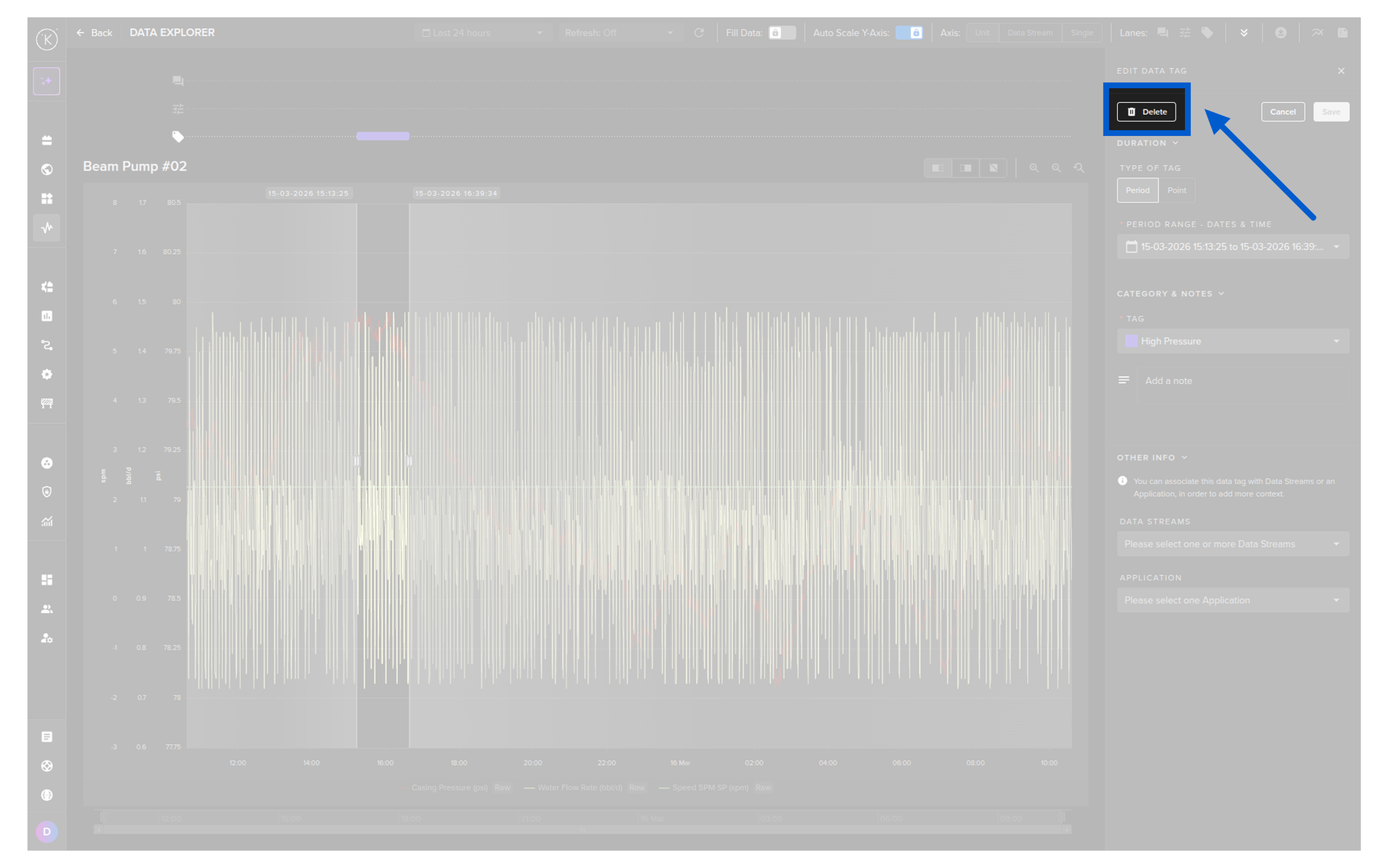
You can read full documentation about the Kelvin UI Data Tags in the Operations Tools here.
curl -X 'POST' \
  'https://<url.kelvin.ai>/api/v4118f5665-fdad-4c28-a09f-ca0a416202ff' \
  -H 'Authorization: Bearer <Your Current Token>' \
  -H 'accept: application/json' \
  -d ''
The response will only be the return code 200.
from kelvin.api.client import Client

# Login
client = Client(config={"url": "https://<url.kelvin.ai>", "username": "<your_username>"})
client.login(password="<your_password>")

# Delete Data Tag
response = client.data_tag.delete_data_tag(datatag_id="2a1fbcf5-772c-4788-8066-94bb885e79b8")

print(response)
The response will look like this;
None
List Data Tags
You can find documentation how to list Data Tags in the Improve section here.