Data Stream - How to
Data Stream
Reference:
| Field | Description |
|---|---|
| Name | Unique name identifier. It must contain only lowercase alphanumeric characters. The characters ., _ and - are allowed to separate words instead of a space BUT can not be at the beginning or end of the name. |
| Title | The display name to show on the Kelvin UI. It can contain any characters, including spaces. |
| Description | Optional description for the data stream, up to 200 characters. |
| Type | Determines if the data is directly derived from sensors or is processed/calculated. Allowed values: Measurement or Computed. |
| Semantic Type | Provides context or deeper meaning behind the data, beyond just its format or structure. Check Kelvin API for the full list of available semantic types. |
| Data Type | Specifies the kind of data in the stream. Allowed values: Boolean, Number, Object, String. |
| Unit | Defines the measurement unit for data. Check Kelvin API for the full list of available units. |
Create Data Stream
In this example we will create a Data Stream with the Semantic Type Pressure and with the name tubing_pressure.
You can watch this short demo video or read the full step-by step written tutorial below.
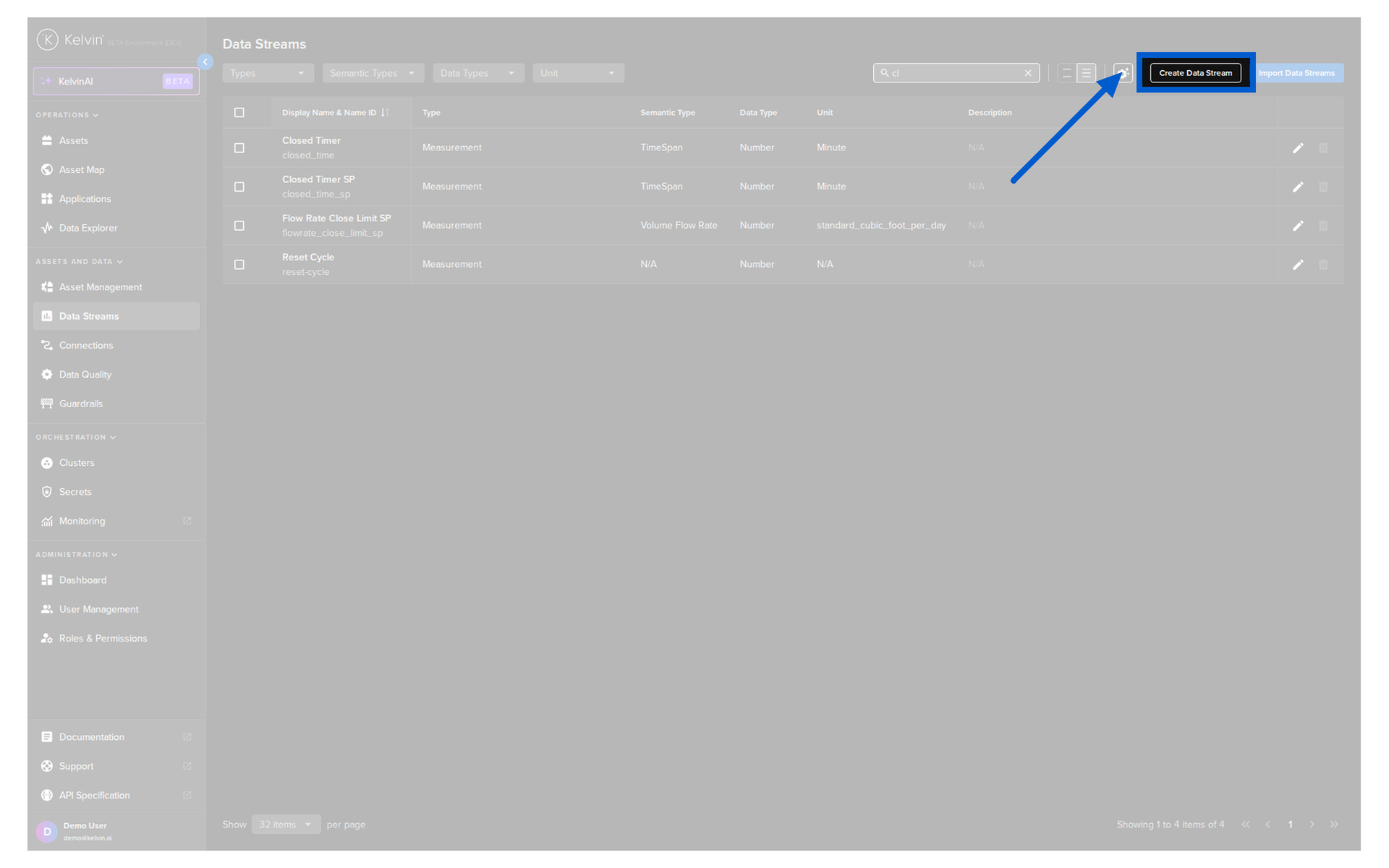
Go to the Data Streams page and click on the Create Data Stream button.
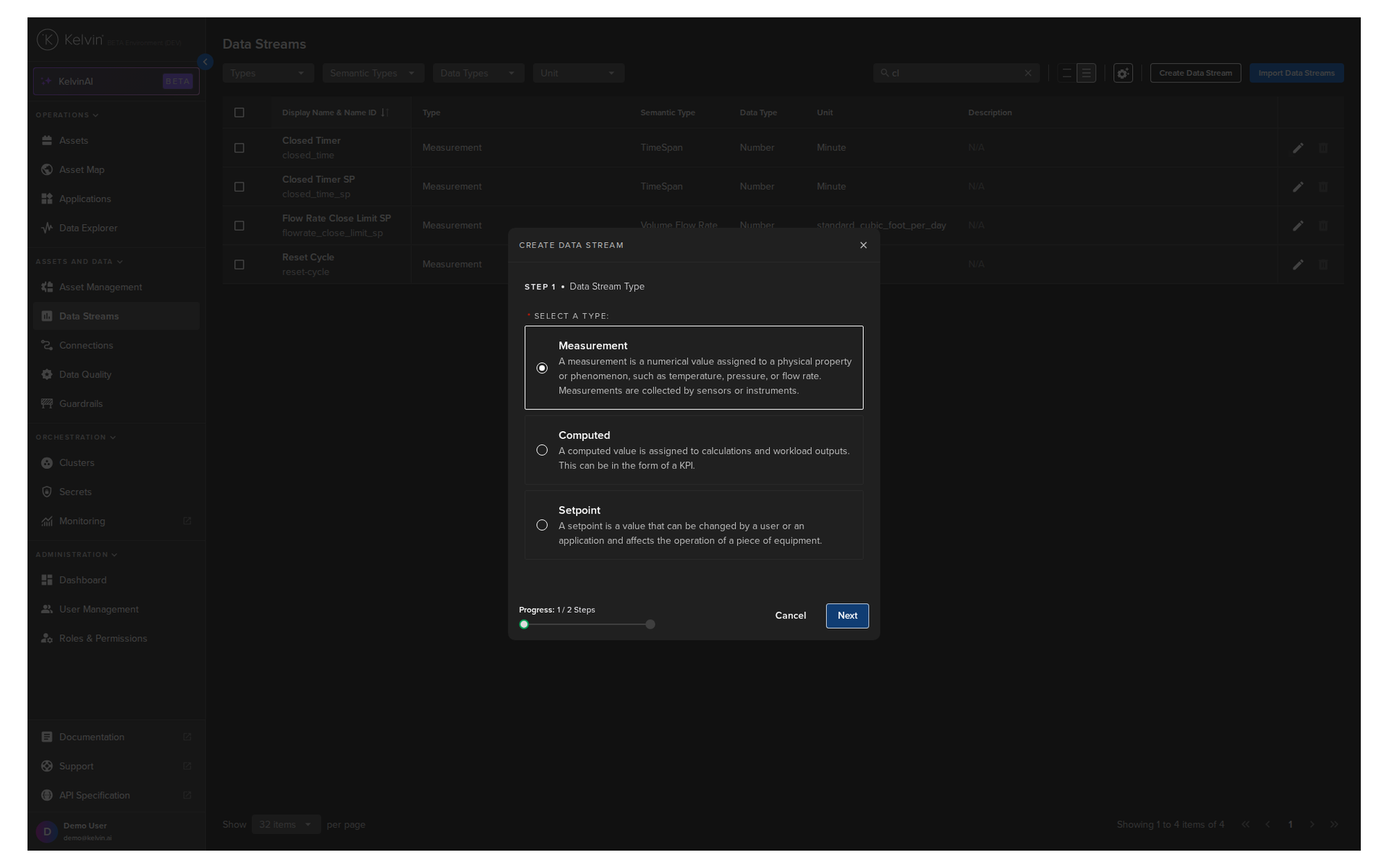
You then have two choices. Select Measurement or Computed and click next.
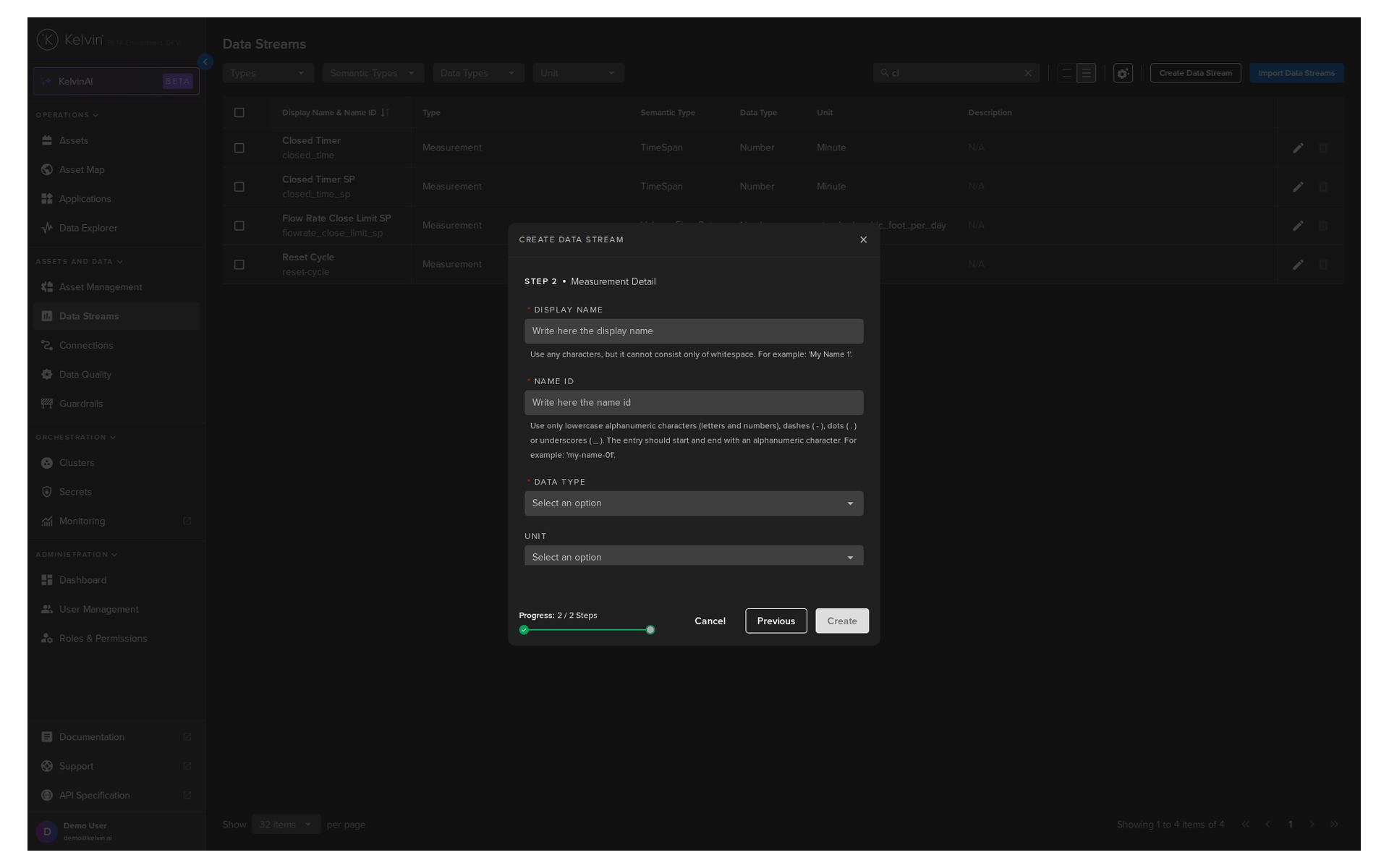
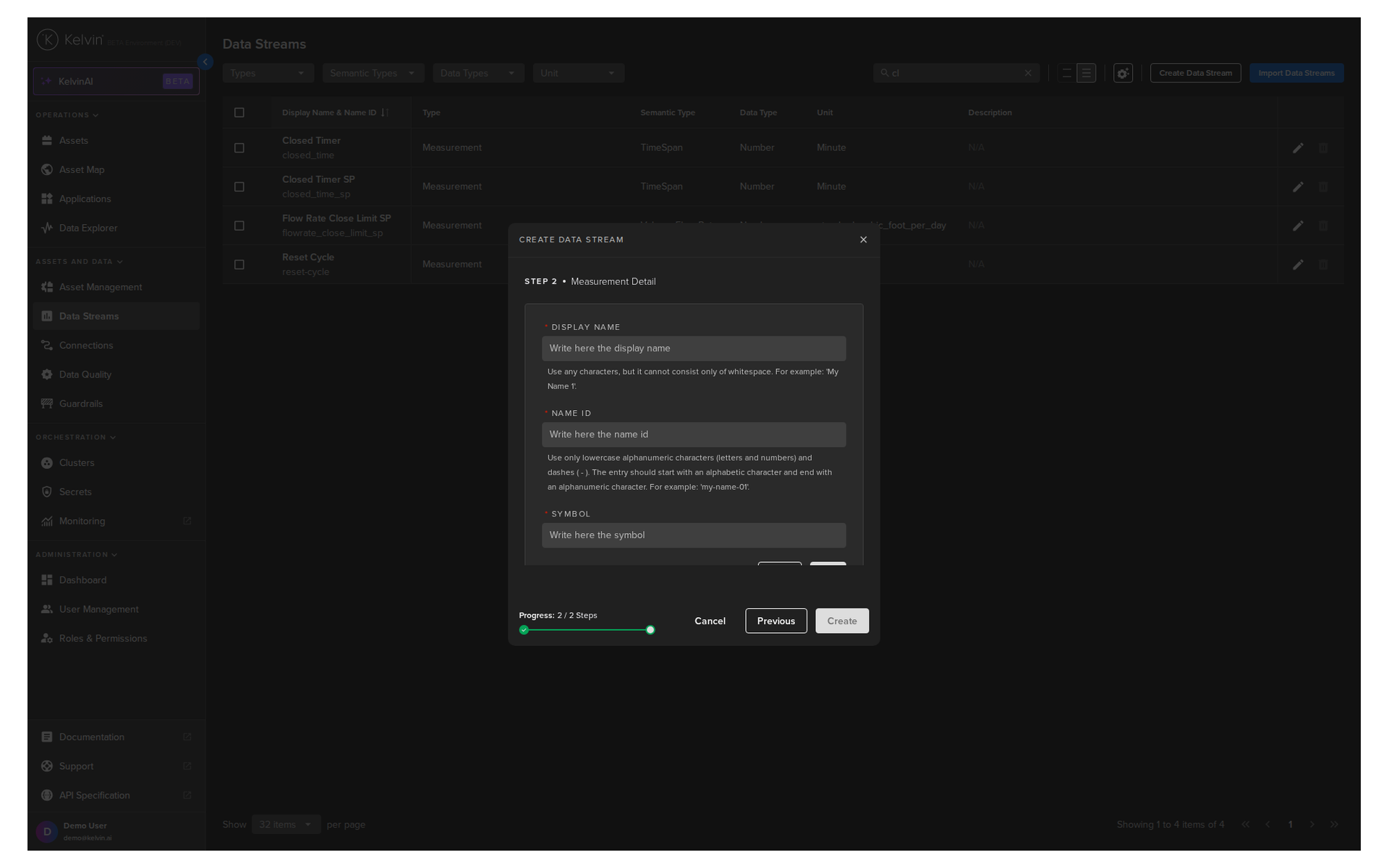
Mandatory field are the Display Name and Data Type. After filling this information you can click Create.
The Name ID is automatically created when you type in your Display Name.
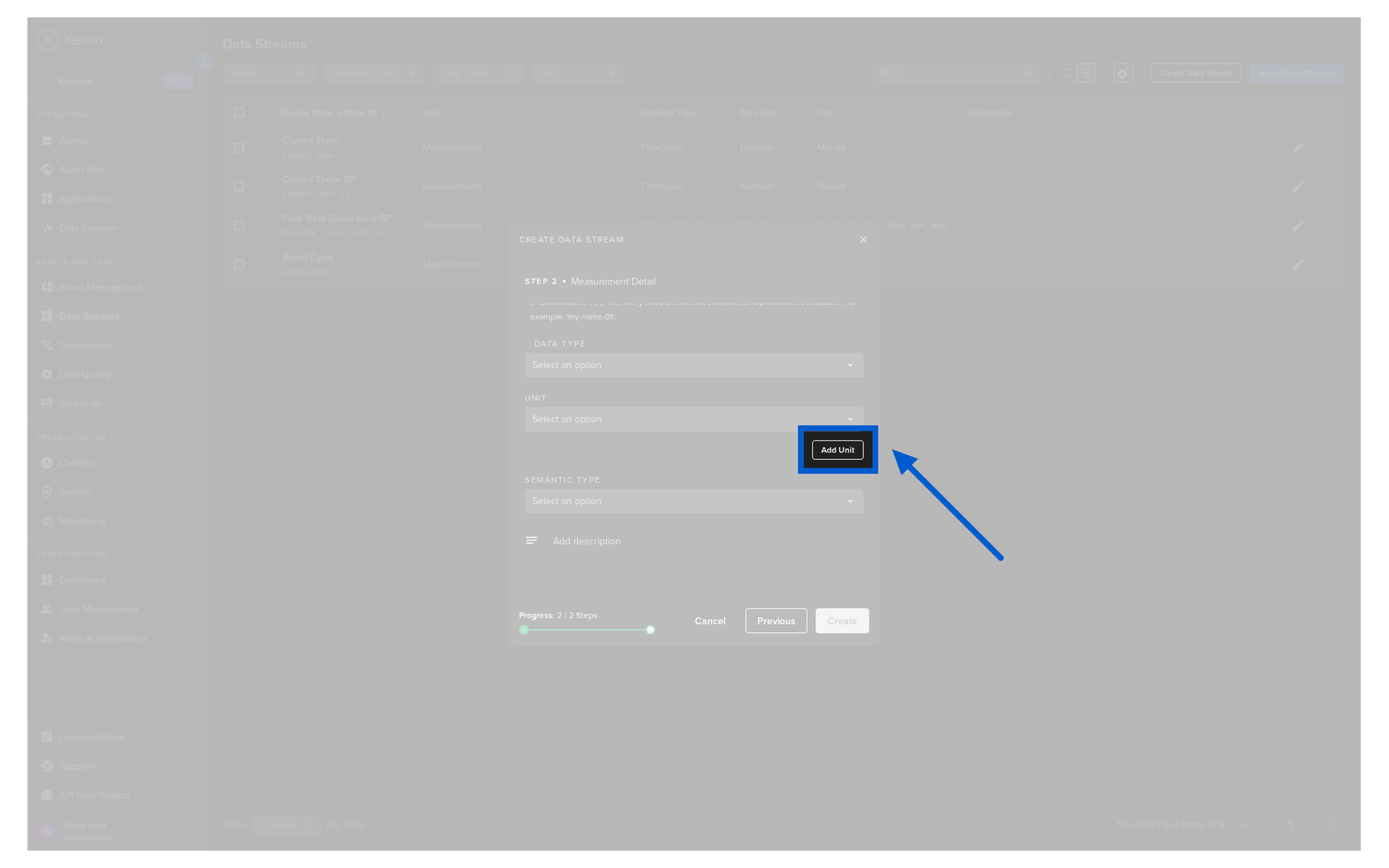
Optionally you can also fill in a Unit and Semantic Type.
For the Unit, you can also create new Units on-the-fly by clicking on the Add Unit button.
A popup will appear where you can create the new unit. Once created, you can then select it and click Create to create the new Data Stream.
curl -X 'POST' \
'https://<url.kelvin.ai>/api/v4/datastreams/create' \
-H 'Authorization: Bearer <Your Current Token>' \
-H 'accept: application/json' \
-H 'Content-Type: application/json' \
-d '{
        "name": "doc_demo_data_stream",
        "title": "Docs Demo Data Stream",
        "description": "Demo for Documentation",
        "type": "measurement",
        "semantic_type_name": "pressure",
        "data_type_name": "number",
        "unit_name": "pound_per_square_inch"
    }'
from kelvin.api.client import Client

# Login
client = Client(config={"url": "https://<url.kelvin.ai>", "username": "<your_username>"})
client.login(password="<your_password>")

# Create Data Stream
response = client.datastreams.create_data_stream(
    data={
        "name": "doc_demo_data_stream",
        "title": "Docs Demo Data Stream",
        "description": "Demo for Documentation",
        "type": "measurement",
        "semantic_type_name": "pressure",
        "data_type_name": "number",
        "unit_name": "pound_per_square_inch",
    }
)

print(response)
Bulk Create Data Streams
In this example we will create a Data Stream with the Semantic Type Pressure and with the name tubing_pressure.
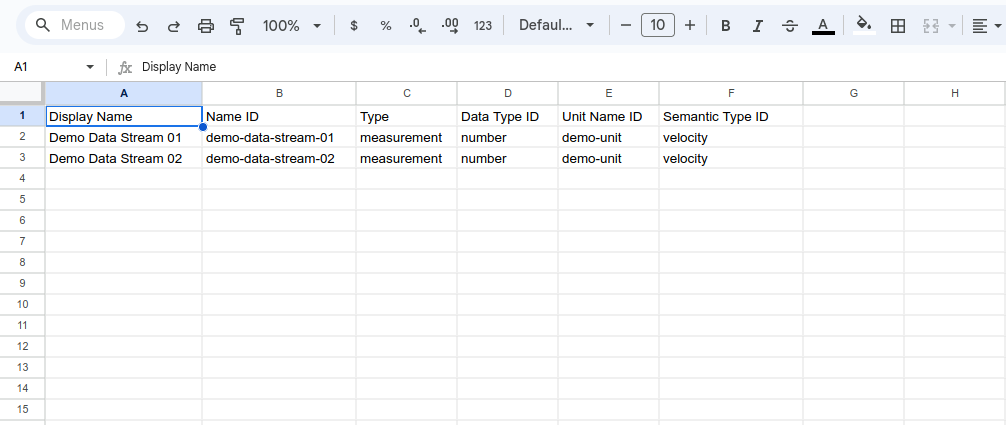
You can create Data Streams in bulk using the import Data Stream option in Data Streams. To start you need to create your Data Stream list in Excel, Google Sheets or any program that can save to a CSV file format.
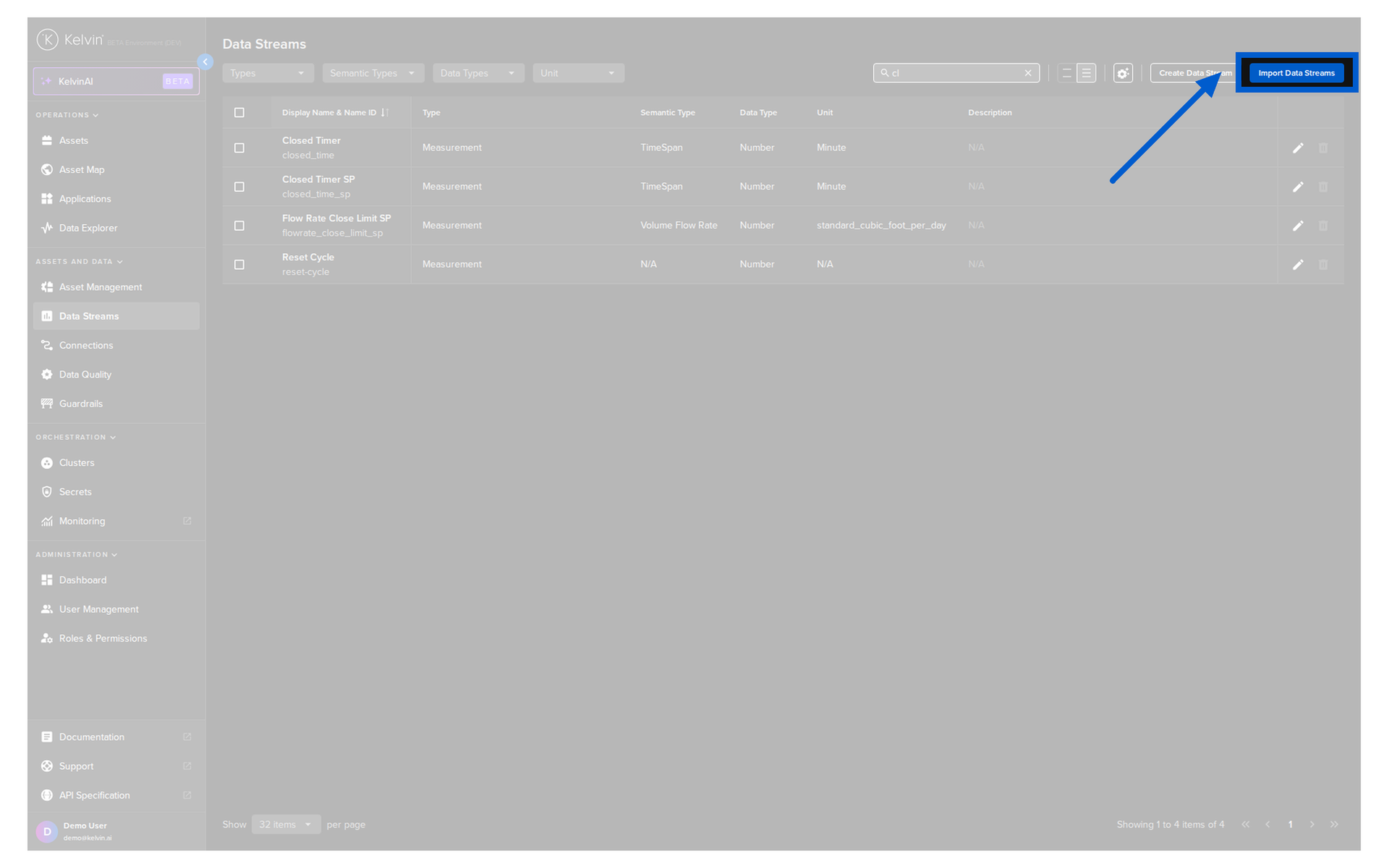
On the Data Streams page, click on the Import Data Streams button.
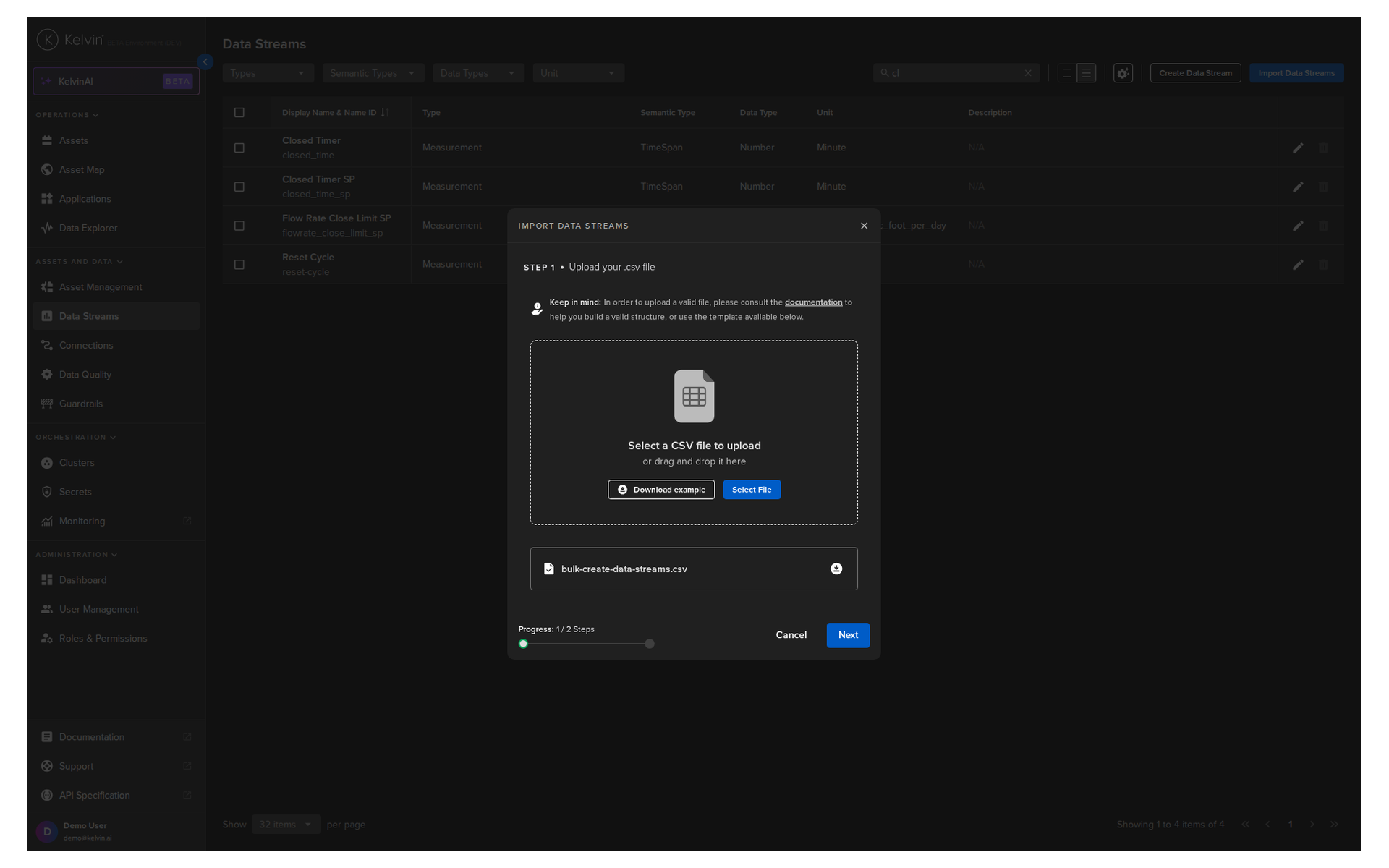
In Step 1, upload your CSV file that you created with all the new Data Stream names you want to create and then click Next.
In Step 2, the file is validated with a check list.
If there is any errors, you will need to correct them and then re-upload the file for re-validation.
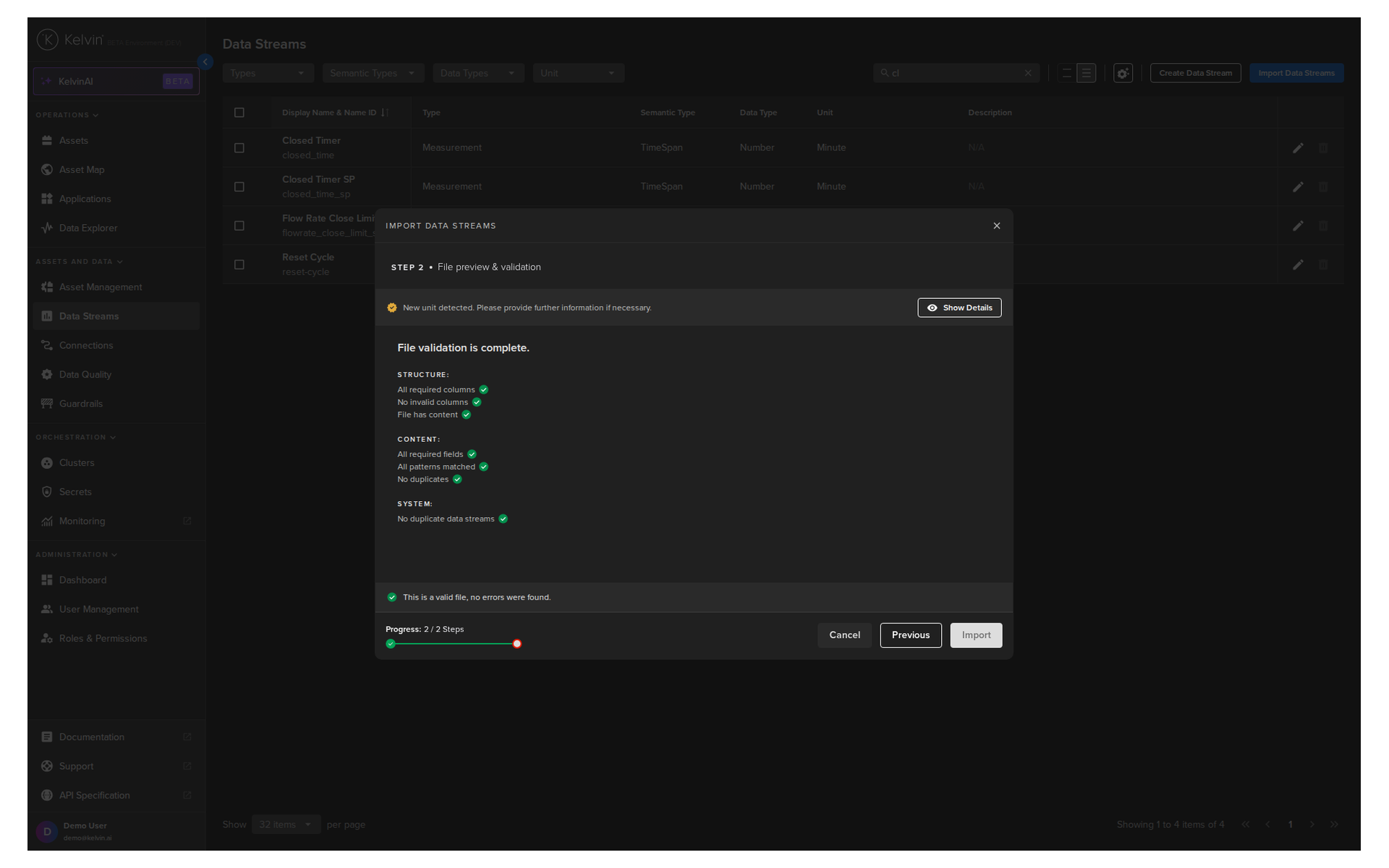
There is a special feature in this step that if the units given do not exist on the Kelvin Platform, then they will be automatically created.
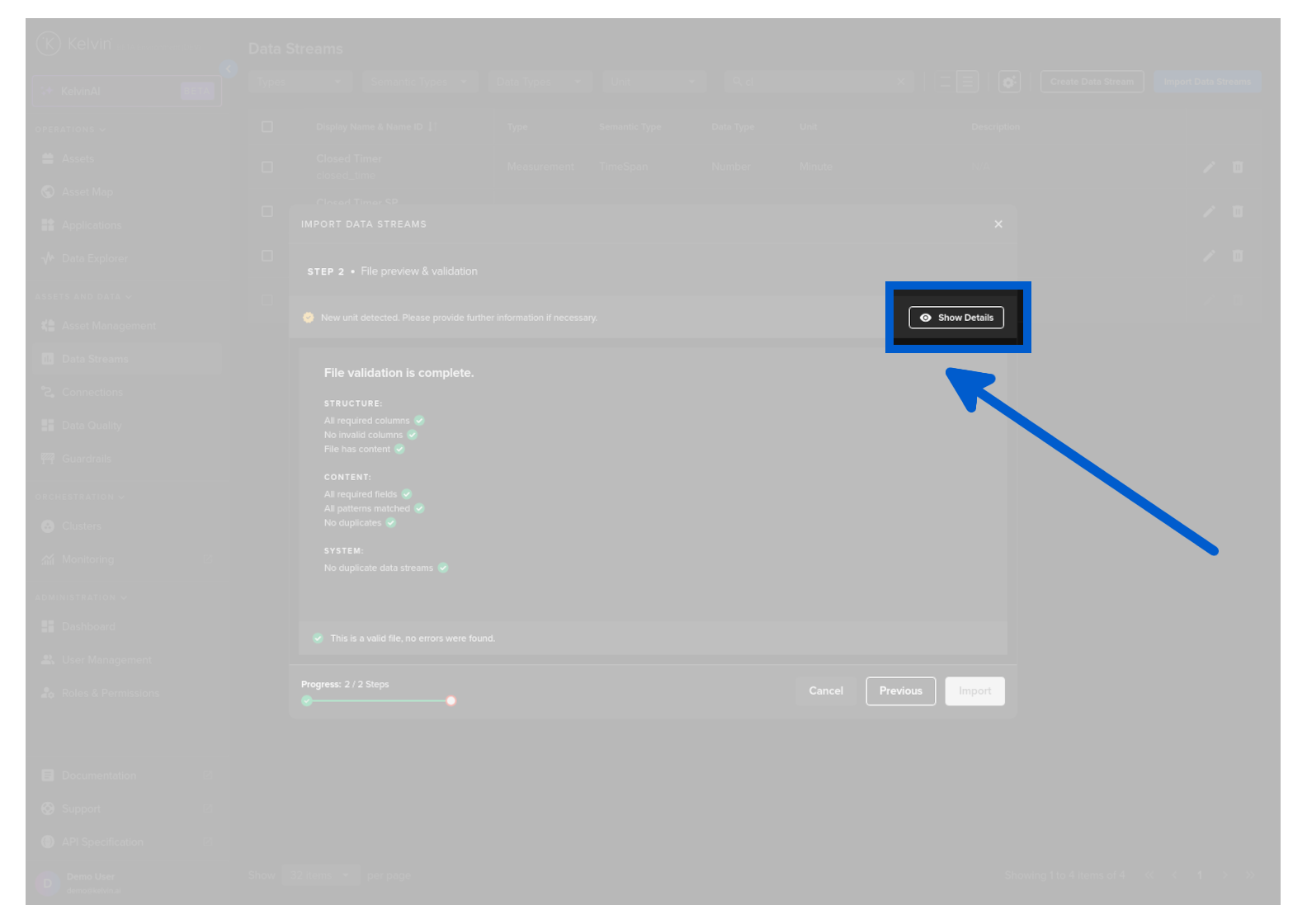
Before you can proceed to import you will need to add symbols to each new unit detected. To do this simply click on the Show Details button.
In the Units section you will see red boxed where you need to fill in the relevant details.
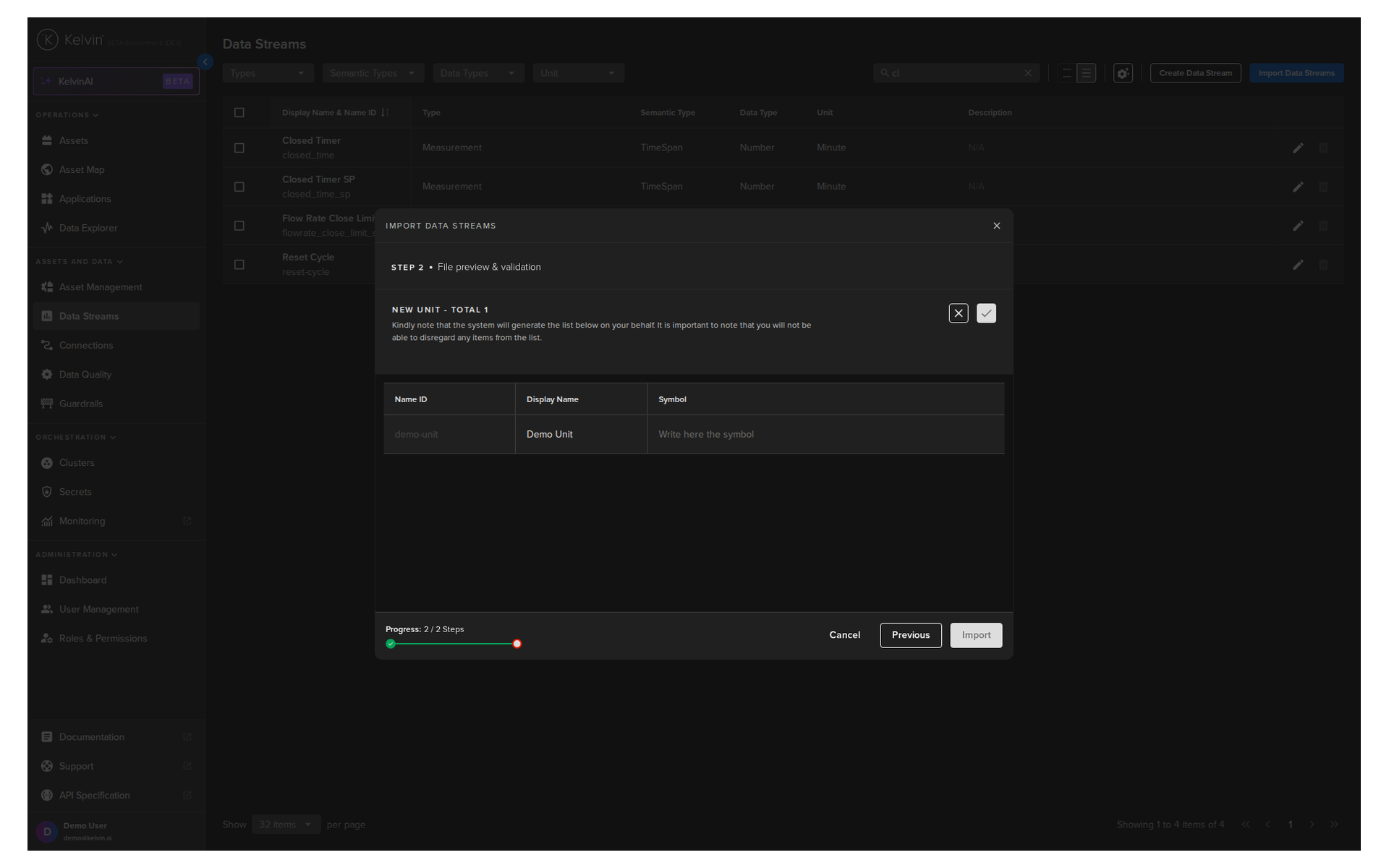
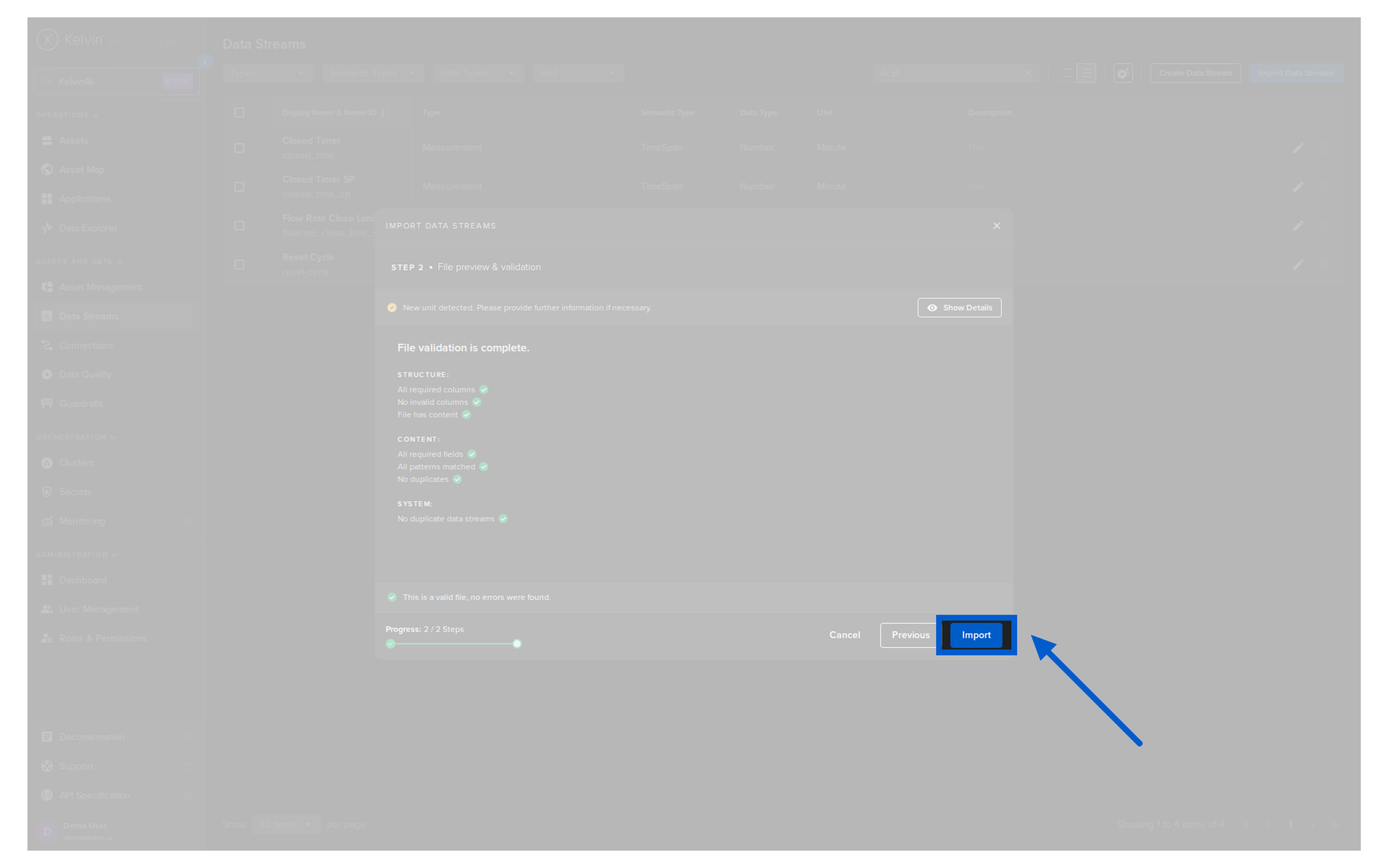
Once filled, then you can click on the tick button and then you will see the Import button is active. You can now click on Import and the Data Streams and Units will be created.
The Kelvin API does not need the csv file for creating many Data Streams with one command.
You add all new new Data Streams into an array of objects and then use the /datastreams/bulk/create endpoint.
Unlike the Kelvin UI buik Data Stream import, units will NOT be automatically created. You need to ensure they exist before running this endpoint.
curl -X 'POST' \
'https://<url.kelvin.ai>/api/v4/datastreams/bulk/create' \
-H 'Authorization: Bearer <Your Current Token>' \
-H 'accept: application/json' \
-H 'Content-Type: application/json' \
-d '{
"datastreams": [
    {
      "data_type_name": "number",
      "description": "Demo for Documentation",
      "name": "doc_demo_data_stream_01",
      "semantic_type_name": "velocity",
      "title": "Docs Demo Data Stream 01",
      "type": "measurement",
      "unit_name": "pound_per_square_inch"
    },
    {
      "data_type_name": "number",
      "description": "Demo for Documentation",
      "name": "doc_demo_data_stream_02",
      "semantic_type_name": "velocity",
      "title": "Docs Demo Data Stream 02",
      "type": "measurement",
      "unit_name": "percent"
    }
  ]
}'
from kelvin.api.client import Client

# Login
client = Client(config={"url": "https://<url.kelvin.ai>", "username": "<your_username>"})
client.login(password="<your_password>")

# New Data Streams Configurations
datastream_data = {
    "datastreams": [
        {
          "data_type_name": "number",
          "description": "Demo for Documentation",
          "name": "doc_demo_data_stream_01",
          "semantic_type_name": "velocity",
          "title": "Docs Demo Data Stream 01",
          "type": "measurement",
          "unit_name": "pound_per_square_inch"
        },
        {
          "data_type_name": "number",
          "description": "Demo for Documentation",
          "name": "doc_demo_data_stream_02",
          "semantic_type_name": "velocity",
          "title": "Docs Demo Data Stream 02",
          "type": "measurement",
          "unit_name": "percent"
        }
    ]
}

# Create all Data Streams
response = client.datastreams.create_bulk_data_stream(
    data=datastream_data
)

print(response)
Update Data Stream
You can only change the Display Name and Description of a Data Stream.
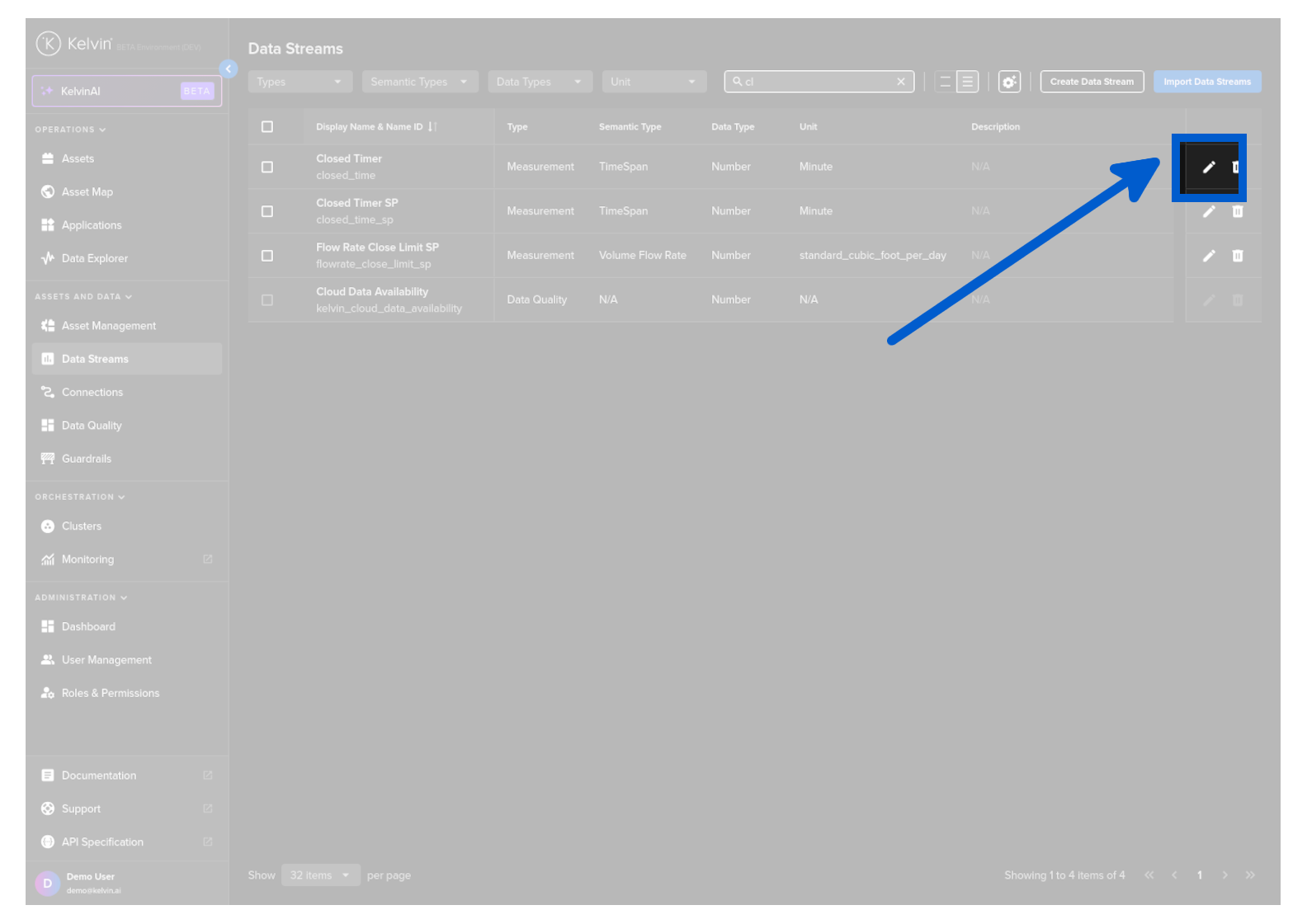
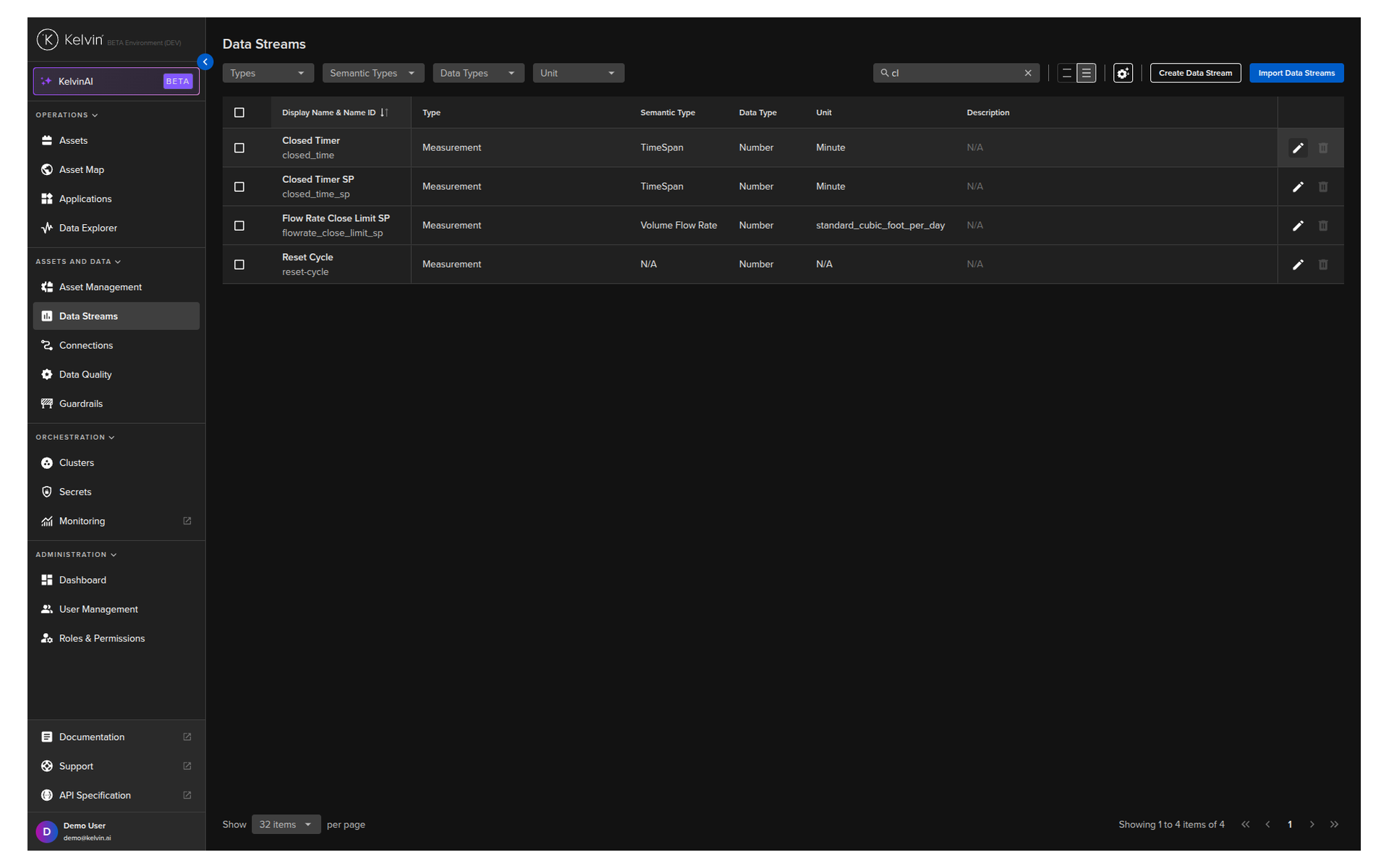
Go to the Data Streams page, select the Data Stream you want to edit and click on the Pencil button on the right hand side.
You can only edit the Display Name and Description.
Then click on the Save button.
curl -X 'POST' \
'https://<url.kelvin.ai>/api/v4/datastreams/doc_demo_data_stream/update' \
-H 'Authorization: Bearer <Your Current Token>' \
-H 'accept: application/json' \
-H 'Content-Type: application/json' \
-d '{
        "title": "My Tubing Pressure",
        "description": "Tubing pressure in oil and gas refers to the pressure within the production tubing."
    }'
from kelvin.api.client import Client

# Login
client = Client(config={"url": "https://<url.kelvin.ai>", "username": "<your_username>"})
client.login(password="<your_password>")

# Update Data Stream
response = client.datastreams.update_data_stream(
    data_stream_name="doc_demo_data_stream",
    data={
        "title": "My Tubing Pressure",
        "description": "Tubing pressure in oil and gas refers to the pressure within the production tubing.",
    },
)

print(response)
Delete Data Stream
Deleting a Data Stream is very simple. The only information you need is the actual name of the Data Stream.
There are two ways to delete Data Streams, either with the delete button or in edit mode.
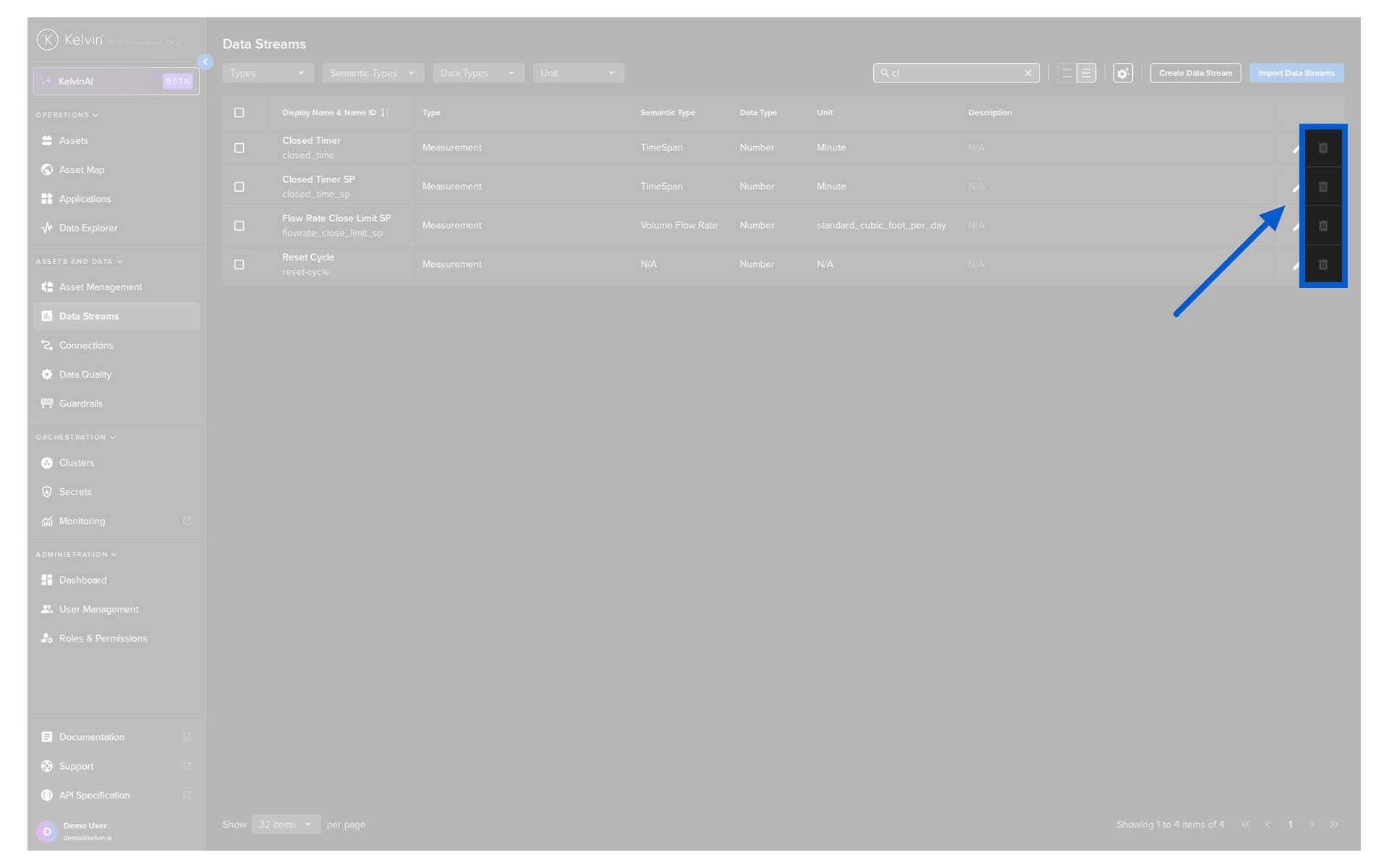
To delete with the Delete button, simply go to the Data Streams page, select the Data Stream to delete and click the Delete button.
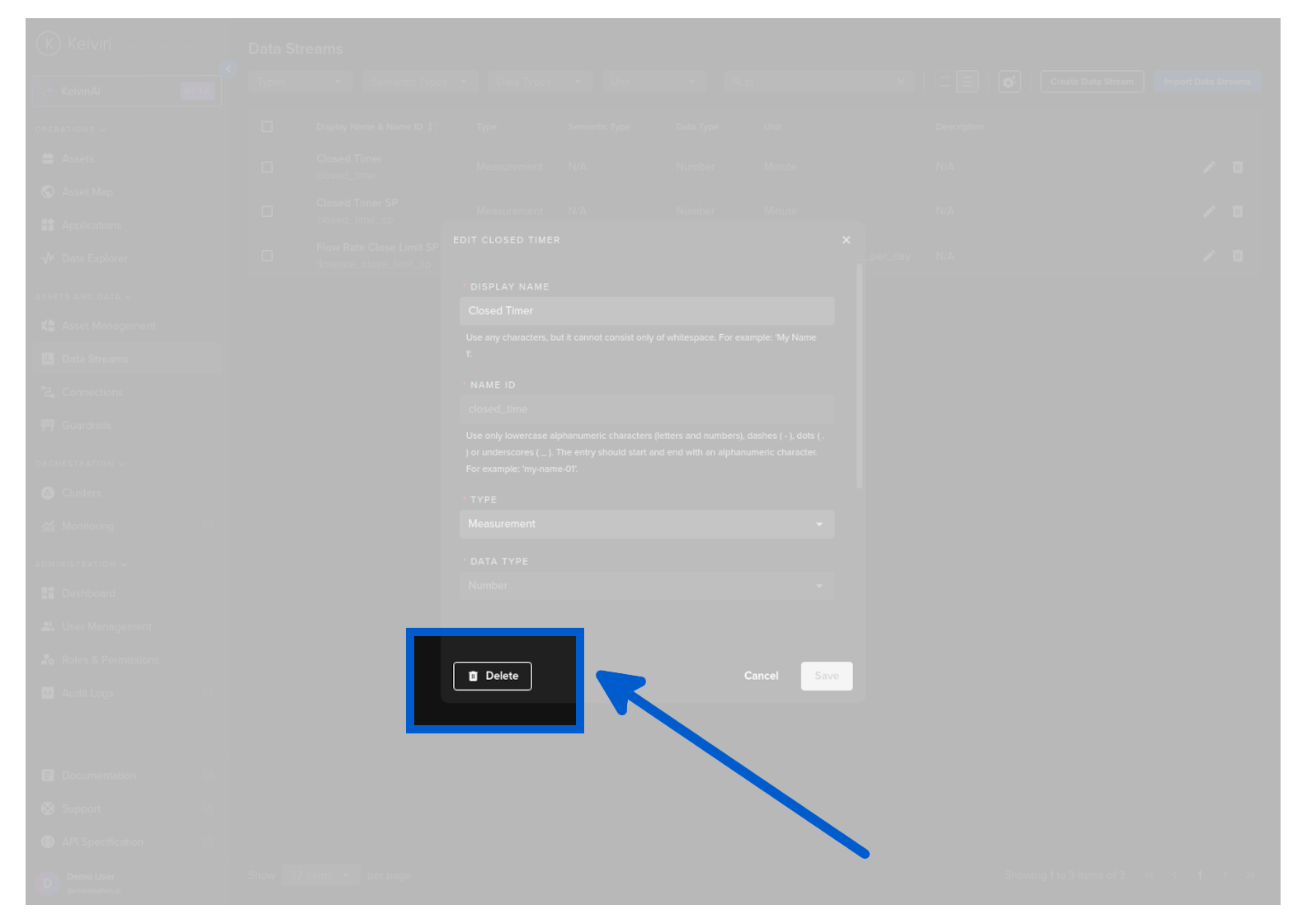
To delete in edit mode, go to the Data Streams page, select the Data Stream you want to edit and click on the Pencil button on the right hand side.
Then click on the Delete button and confirm the delete.
curl -X 'POST' \
'https://<url.kelvin.ai>/api/v4/datastreams/doc_demo_data_stream/delete' \
-H 'Authorization: Bearer <Your Current Token>' \
-H 'accept: application/json' \
-d ''
from kelvin.api.client import Client

# Login
client = Client(config={"url": "https://<url.kelvin.ai>", "username": "<your_username>"})
client.login(password="<your_password>")

# Delete Data Stream
response = client.datastreams.delete_data_stream(data_stream_name='doc_demo_data_stream')

print(response)