Monitor an application
Visualize Application Inputs and Outputs
Once the application is deployed, you can visualize the application data in Data Explorer.
Data Explorer is a powerful tool that allows you to visualize the data from your assets and applications. You can explore the Inputs and Outputs of your application by filtering the data by time, data streams, and assets.
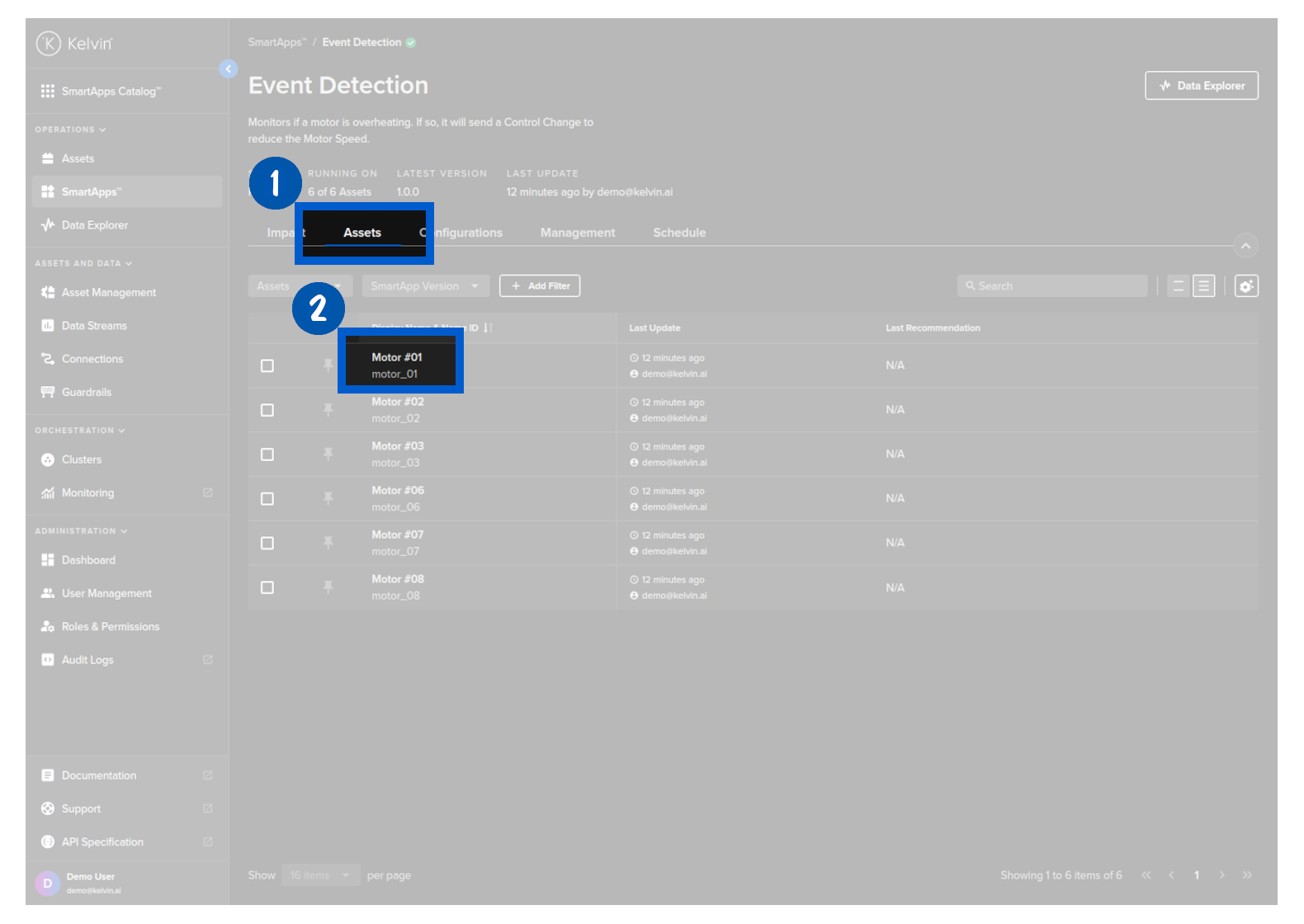
To do this, go to the Assets tab and click on the asset you want to visualize the data. This will open Data Explorer with the asset automatically selected.
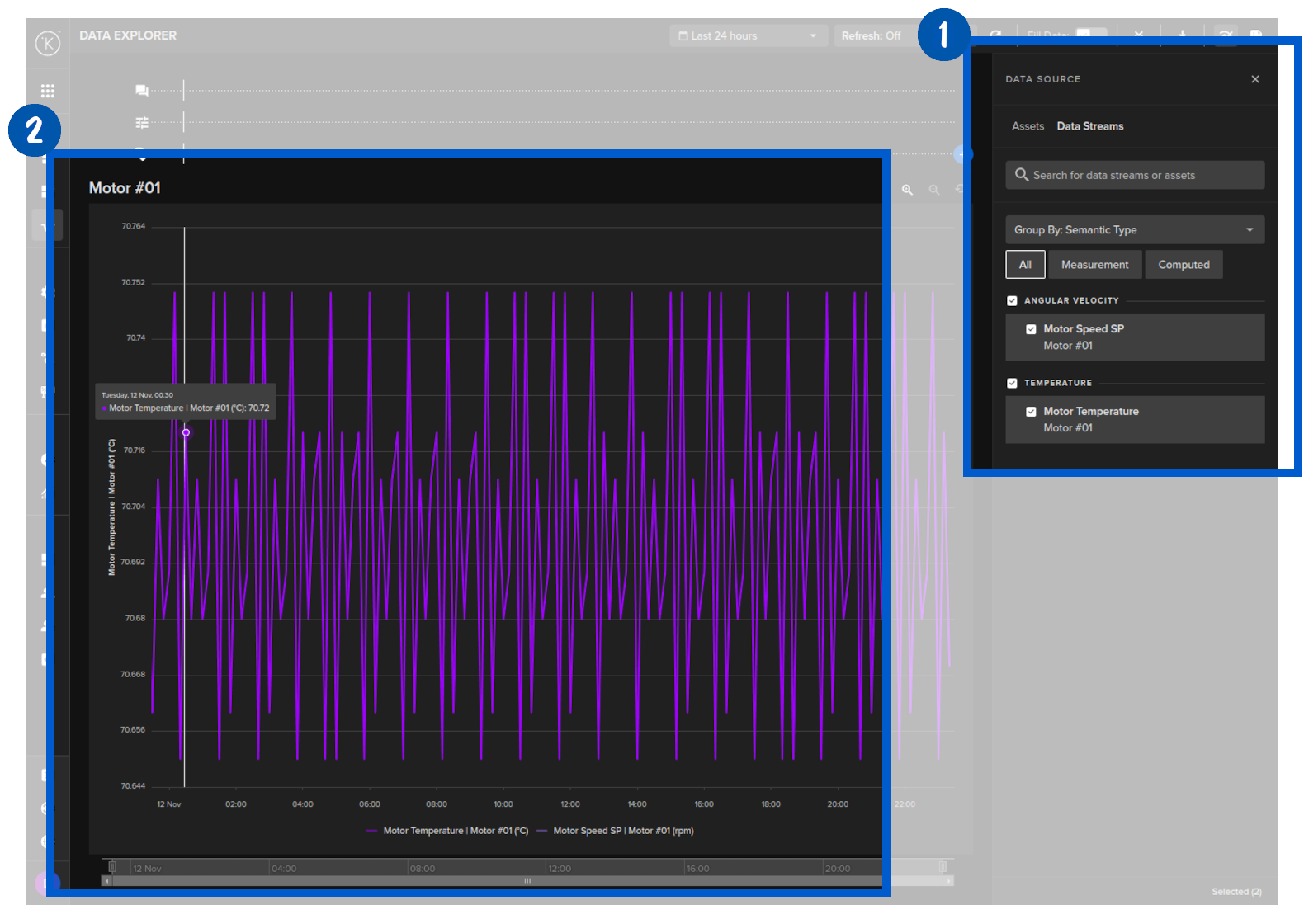
Select the data streams you want to visualize. In this case we will select the Motor Temperature and the Motor Speed Set Point data streams.
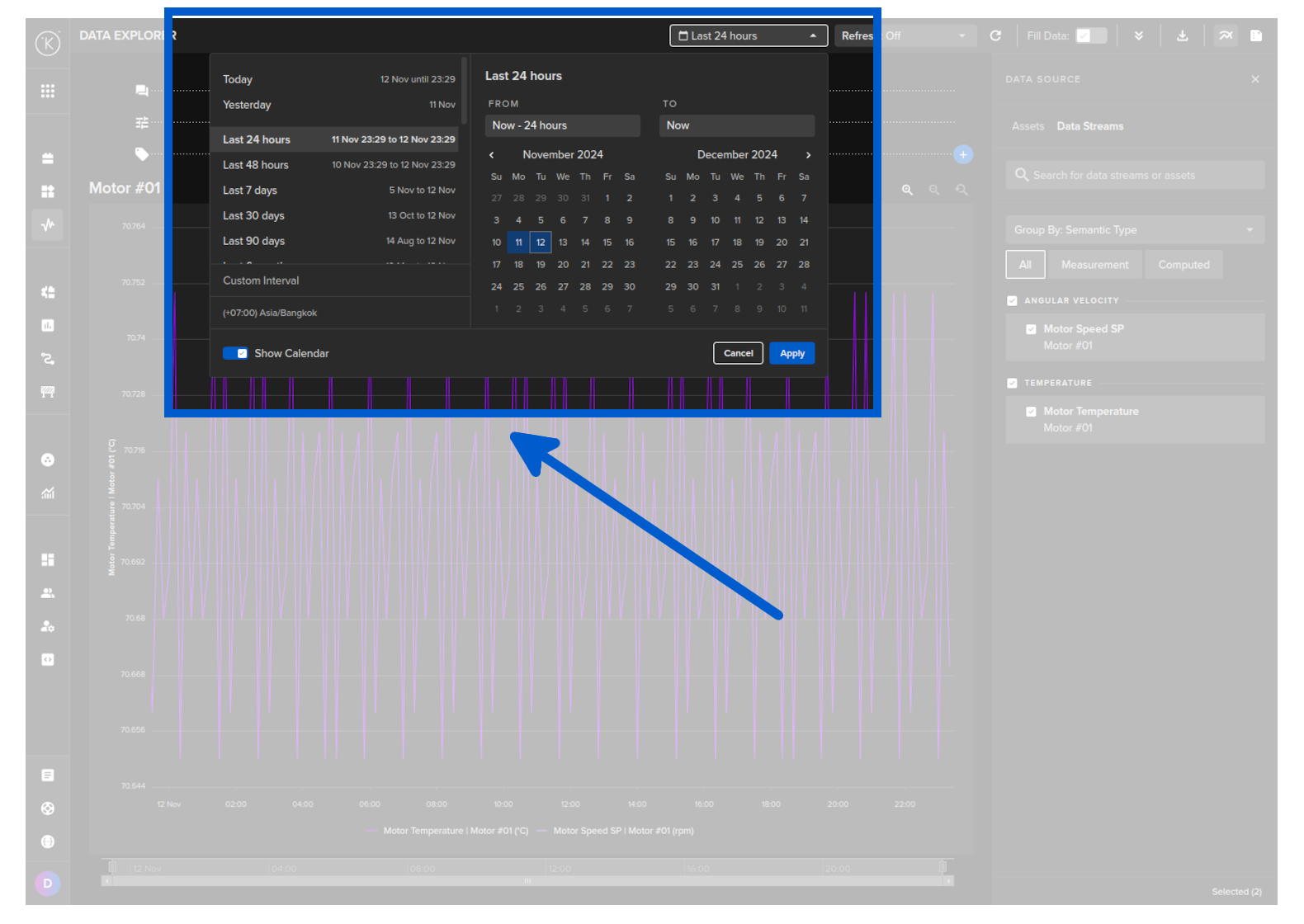
Select the time interval you want to visualize the data. In this case we will select the last 15 minutes.
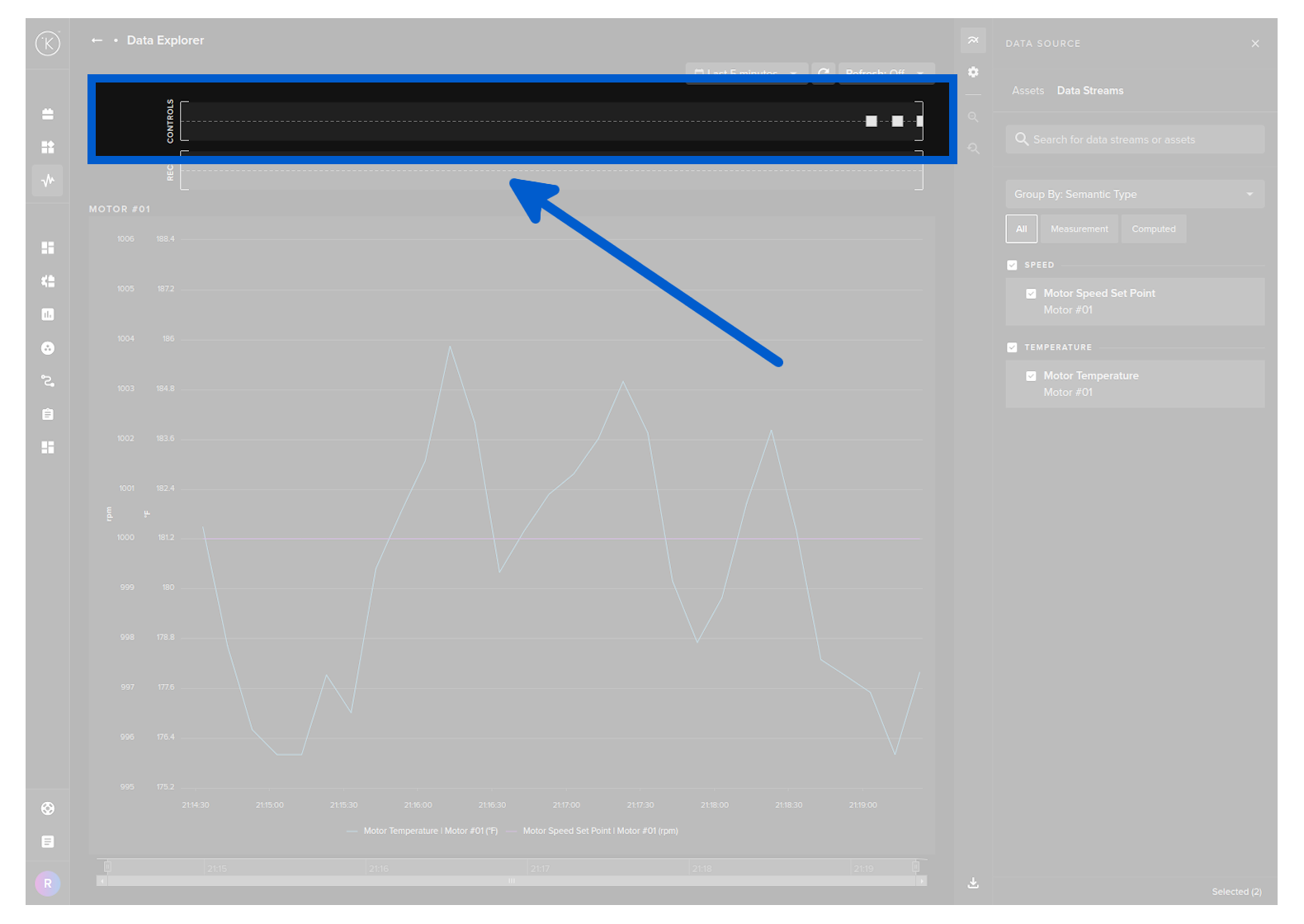
You can also see the control changes published by your application in the swim lane above the chart.
Monitor Application Logs
Application logs are automatically uploaded to the Kelvin Instance.
Kelvin uses Grafana to visualize the application logs. This allows you to easily monitor the application and debug any issues. You can also define alerts in Grafana to automatically notify you when an issue occurs based on your log messages.
To visualize the application logs, click on the Workload Logs button:
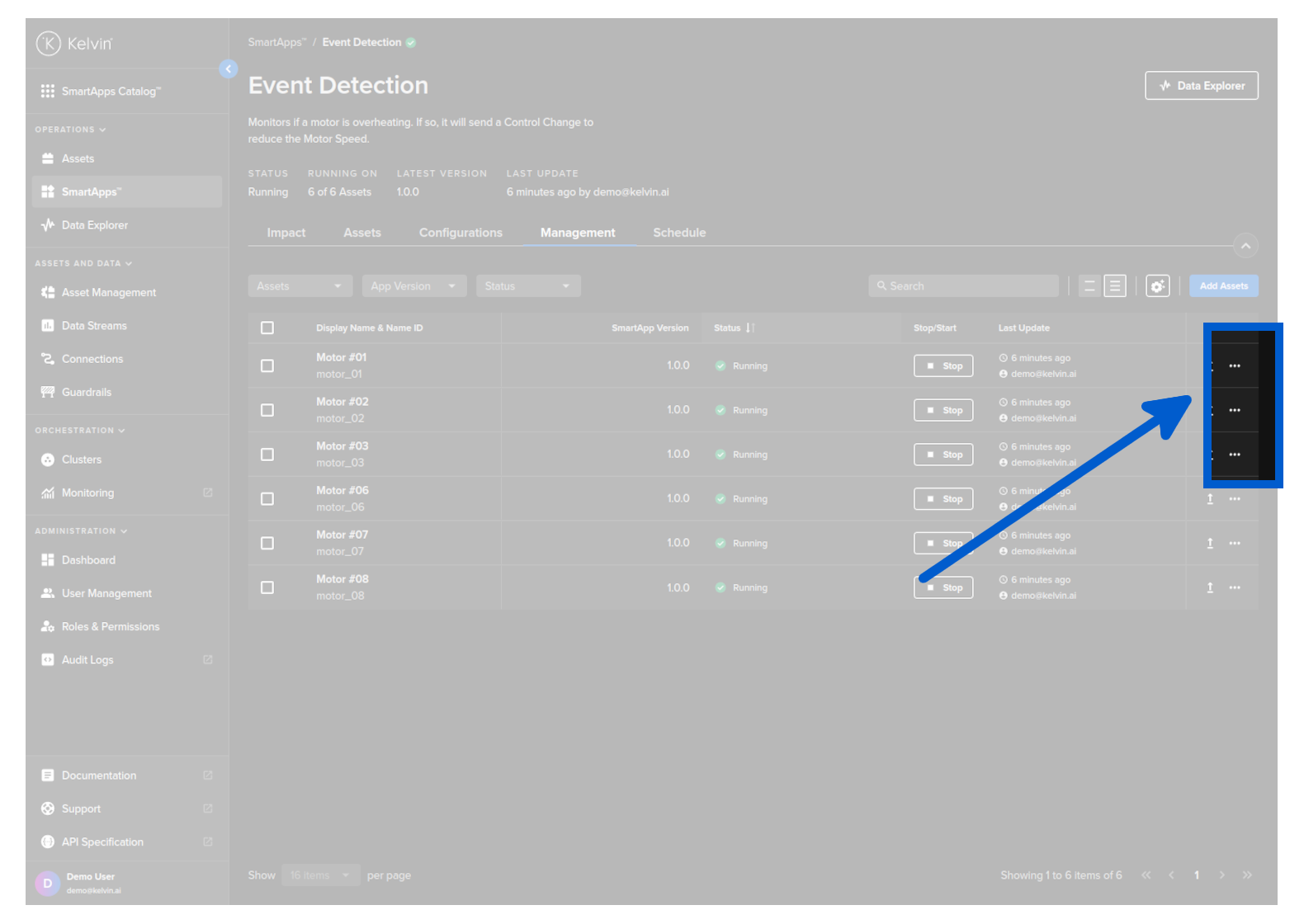
This will open the Workload Logs Grafana dashboard and automatically select the logs for your application:
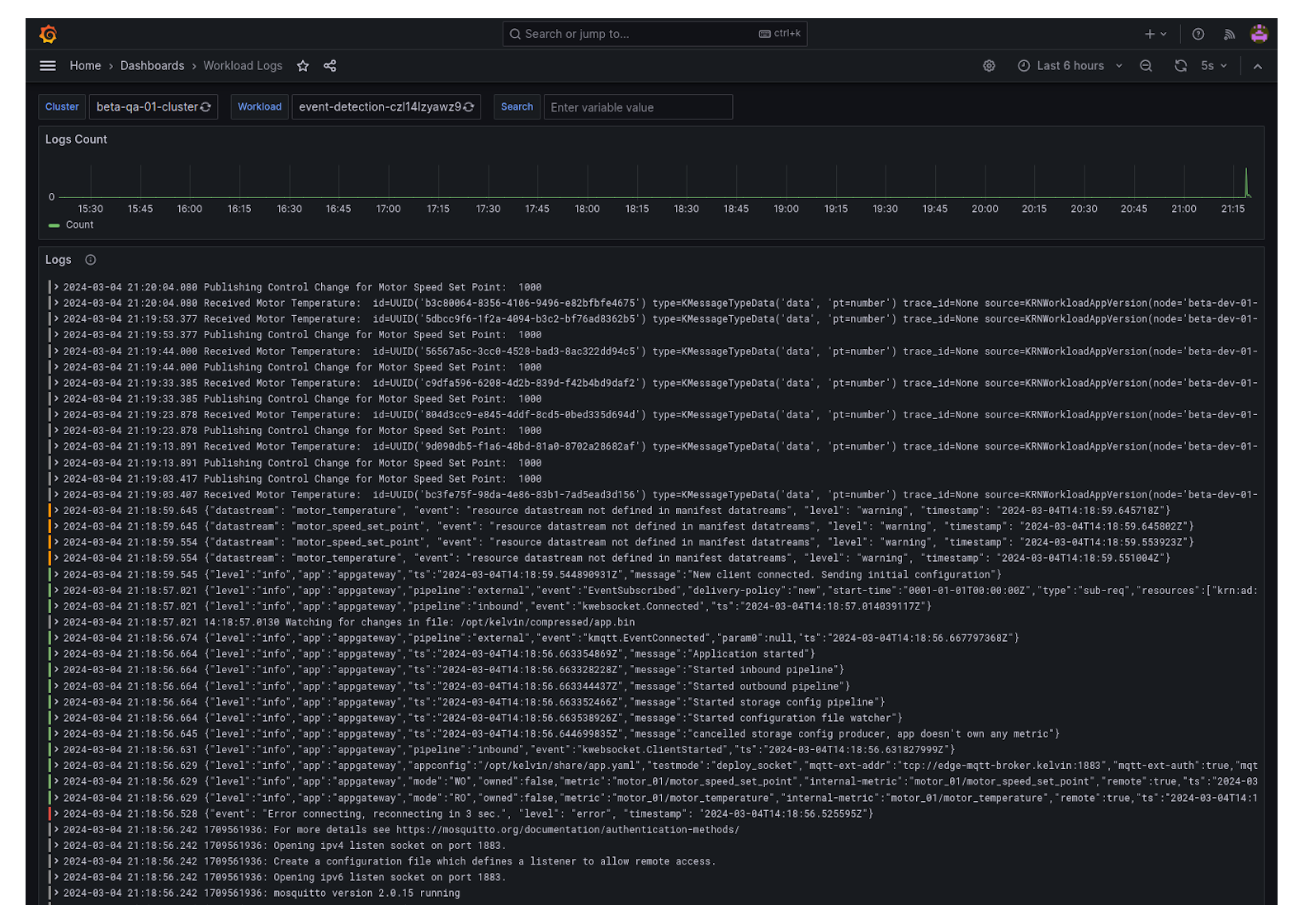
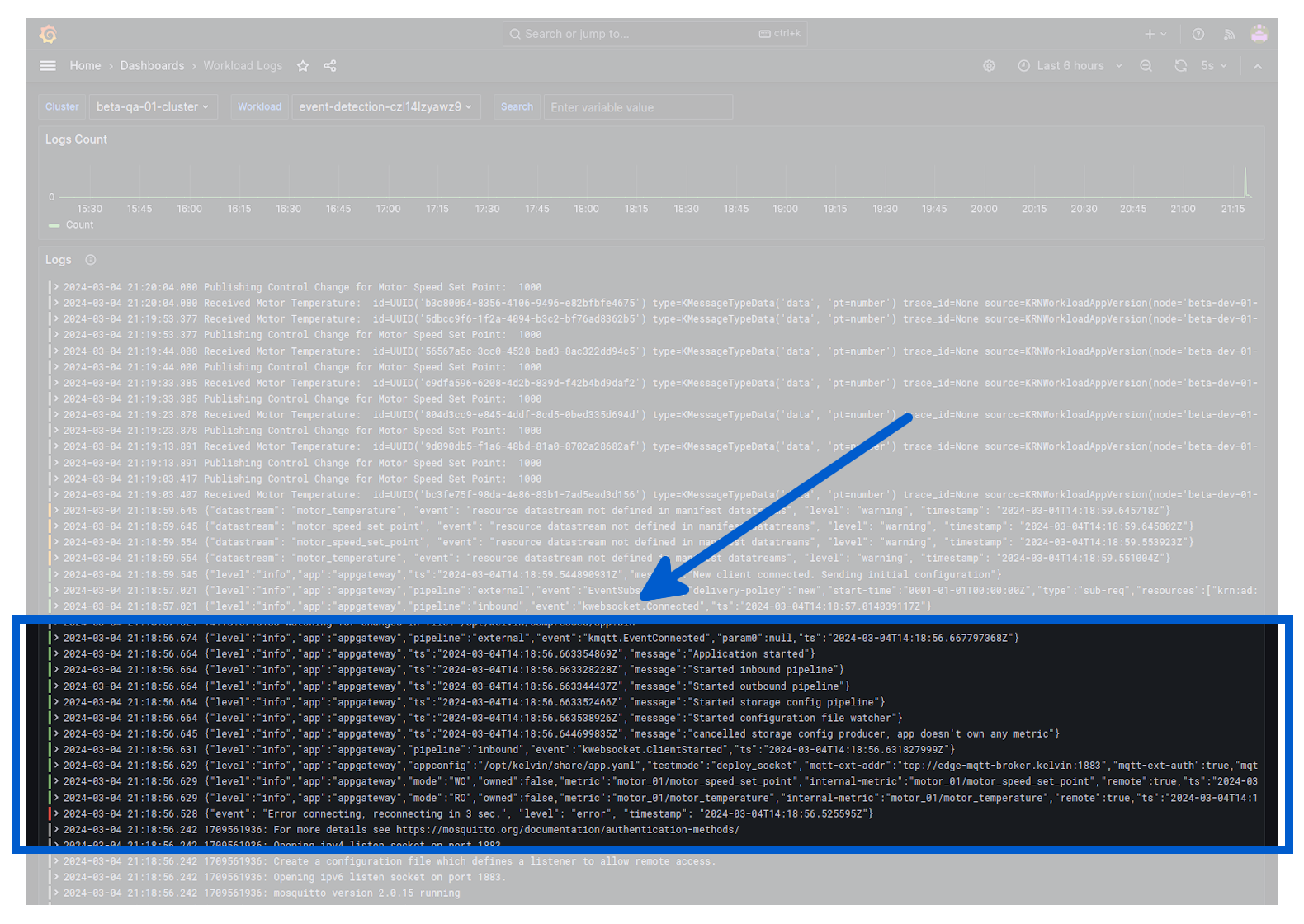
You can inspect the log messages and verify that the application is receiving the data from the asset:
Monitor Application Telemetry
Another aspect of monitoring your application is to monitor telemetry data of your application.
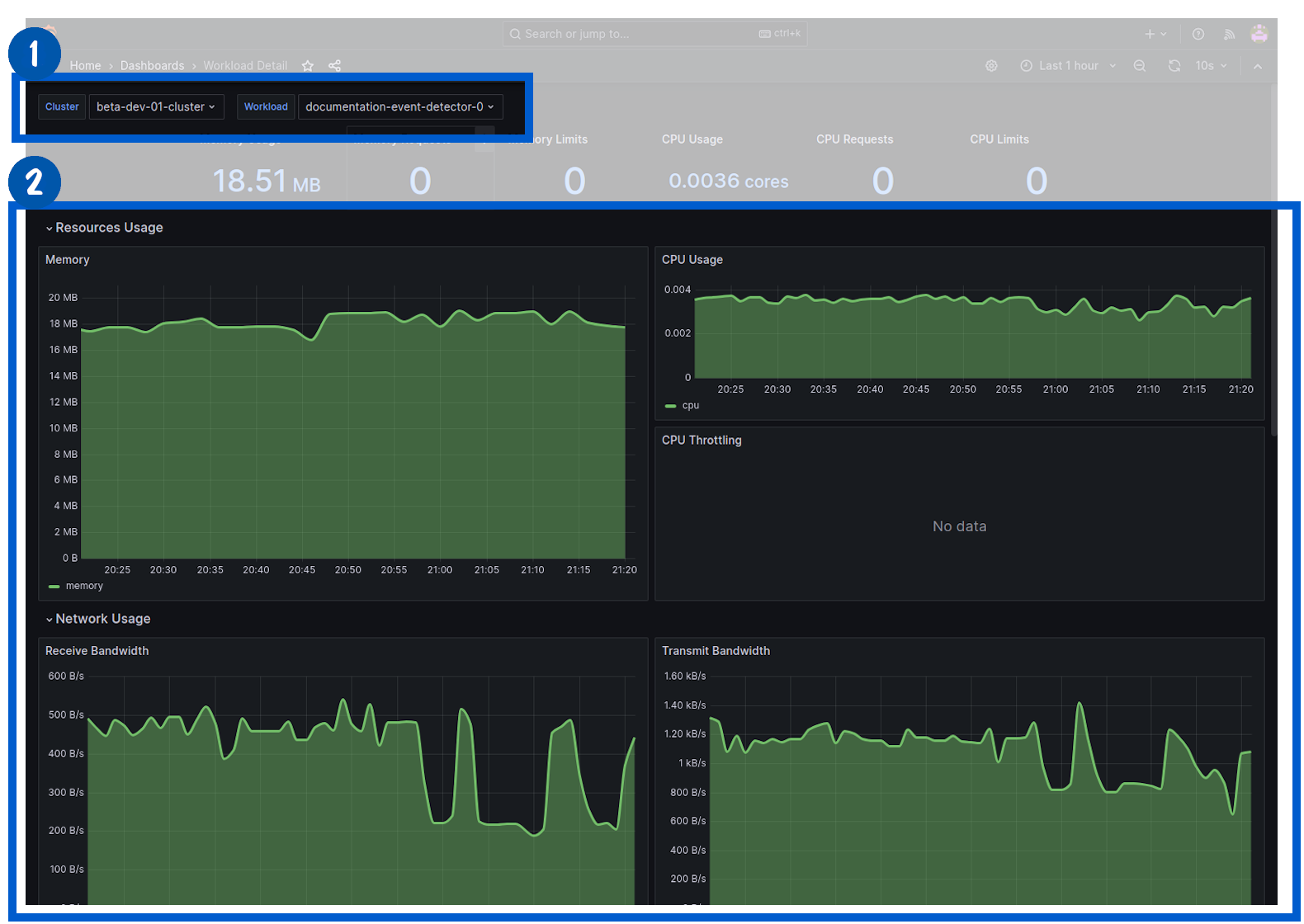
The application automatically uploads information related with CPU, Memory and Network usage. These metrics can be used to assess the performance of your application and to debug any issues.
To visualize the application telemetry, click on the Monitoring button:
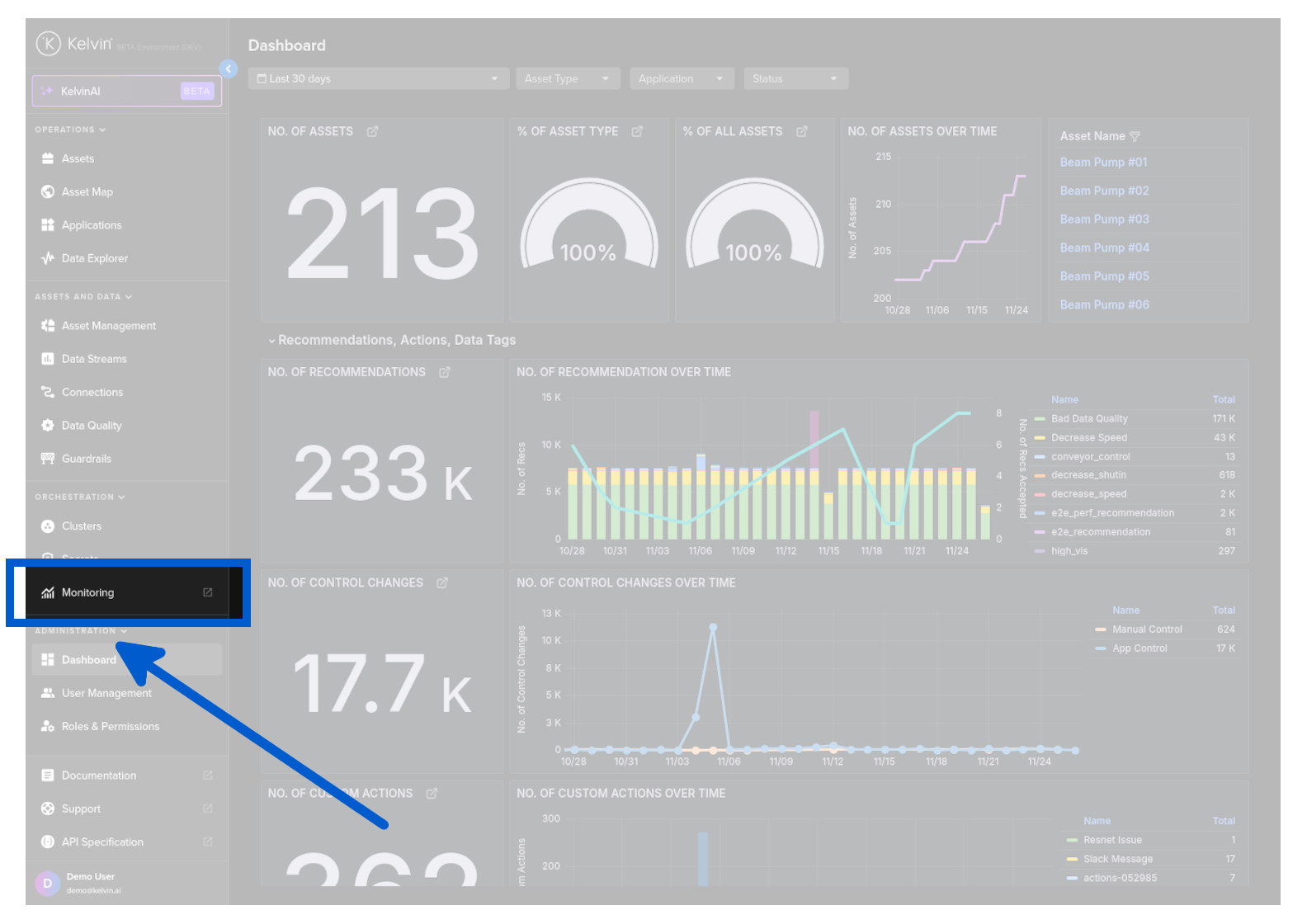
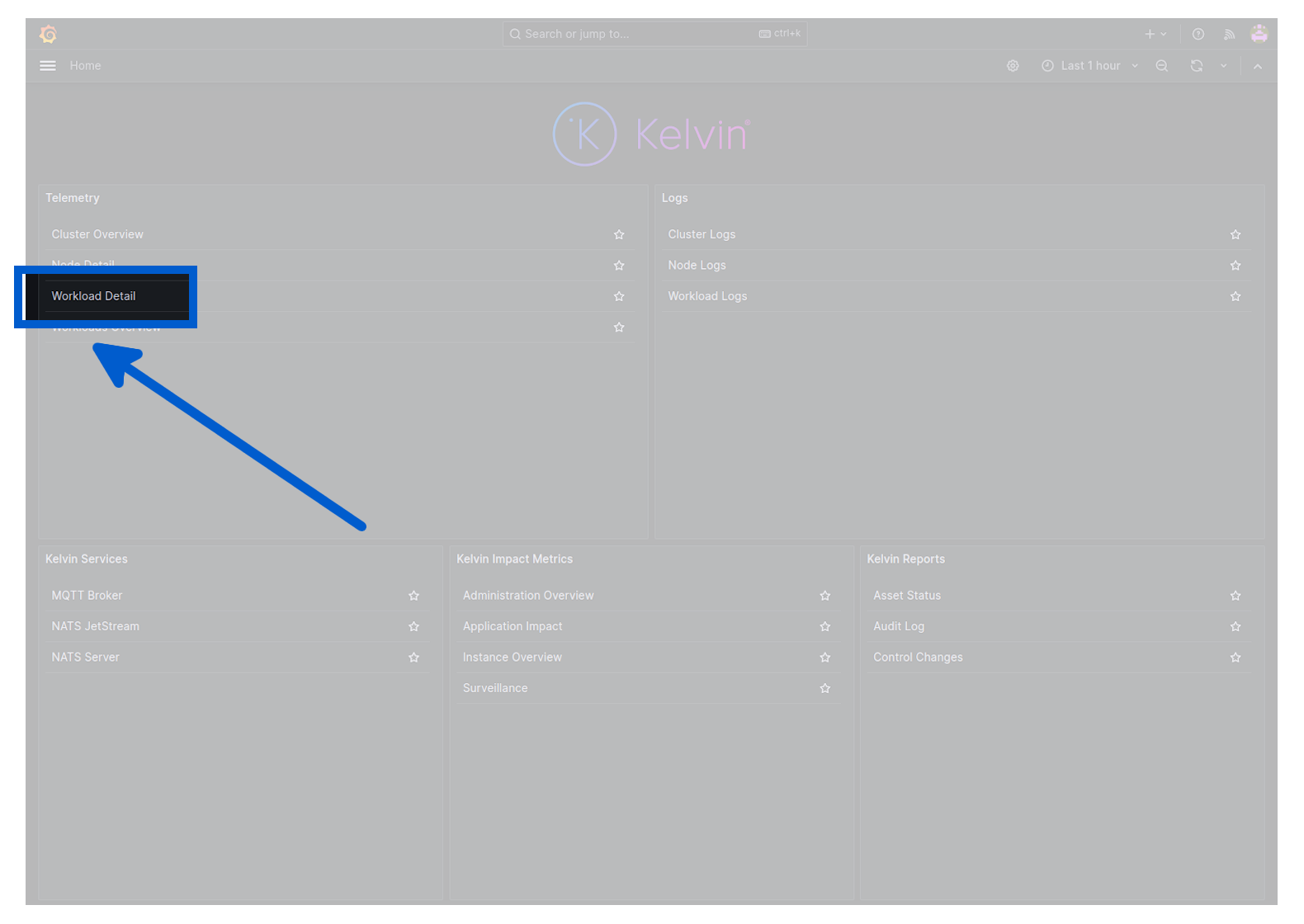
In Grafana, under the Telemetry section, select the Workload Detail dashboard:
And select the Cluster and the Workload you want to visualize the telemetry. In this case we will select the Event Detection application.
Congratulations! You've successfully monitored your Kelvin App by visualizing the data, logs and telemetry.
All done!
Congratulations! You've successfully created, uploaded and deployed your first Kelvin App. You are now ready to start exploring other topics within Kelvin.