Volumes
This tutorial aims to explain what kind of volumes you can use in your apps, and how and why to use each one.
Types of Volumes
When developing your app, be it a kelvin app or a generic app, you can use these types of volumes:
- Persistent
- Host
- Text
The volume type to use depends entirely on its purpose. Below you'll find why and how to use each type of volumes.
You are not limited to one volume of a particular type, you can have several volumes of any type mixed and matched in your app.
Persistent Volume
Why?
- To persist data: Every workload (instance of your app) will be running on a virtualized environment created specifically for it, while you can access and write to the file system, anything you will write will not be persisted if the workload restarts for whatever reason. But if you use a Persistent volume, as the name implies, your data will be kept even if the app restarts or is stopped.
How?
Proprieties of a persistent volume:
- name: A name for your volume
- target: the folder path where the volume will be mounted. This is will be the path you need to use in your app to store your data
You can change these properties either by editing your app.yaml directly or using Kelvin Studio to interactively edit it:
-
Editing the app.yaml directly
You can then use the folder you defined in the target to write your data.# app.yaml ... system: volumes: - type: persistent name: a-persistent-volume target: /apvc ... -
Using Kelvin Studio
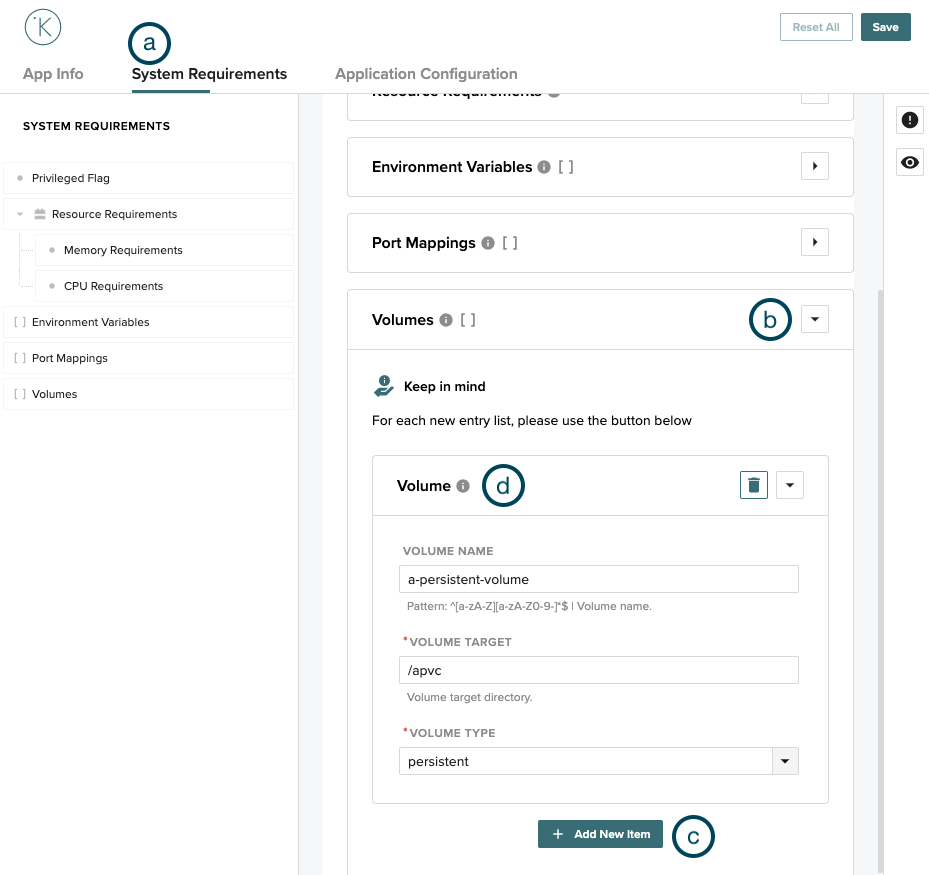
- Go to the "System Requirements" tab
- Expand the "Volumes" sections
- Add New Item
- Select volume Type "persistent", and choose a name and target folder
Host Volume
Why?
-
To access the host(Node) file system: You might need to access the host's file system. One such use case is to read from a device connected to the host machine.
Note that you might need to run in privileged mode.
-
To share data between workloads running on the same host(Node): You can use the host's file system to store data that can be then accessed by multiple workloads.
Keep in mind that concurrent access to the same files can be problematic, and there won't be any safeguards in place.
How?
Proprieties of an host volume:
- name: A name for your volume
- target: the folder path where the volume will be mounted. This is will be the path you need to use in your app to store your data
- host:
- source: the path folder to the folder in the host file system
You can change these properties either by editing your app.yaml directly or using Kelvin Studio to interactively edit it:
-
Editing the app.yaml directly
You can then use the folder you defined in the target to read or write your data.# app.yaml ... system: volumes: - type: host name: an-host-volume target: /anhostvolume host: source: /hostpath ... -
Using Kelvin Studio
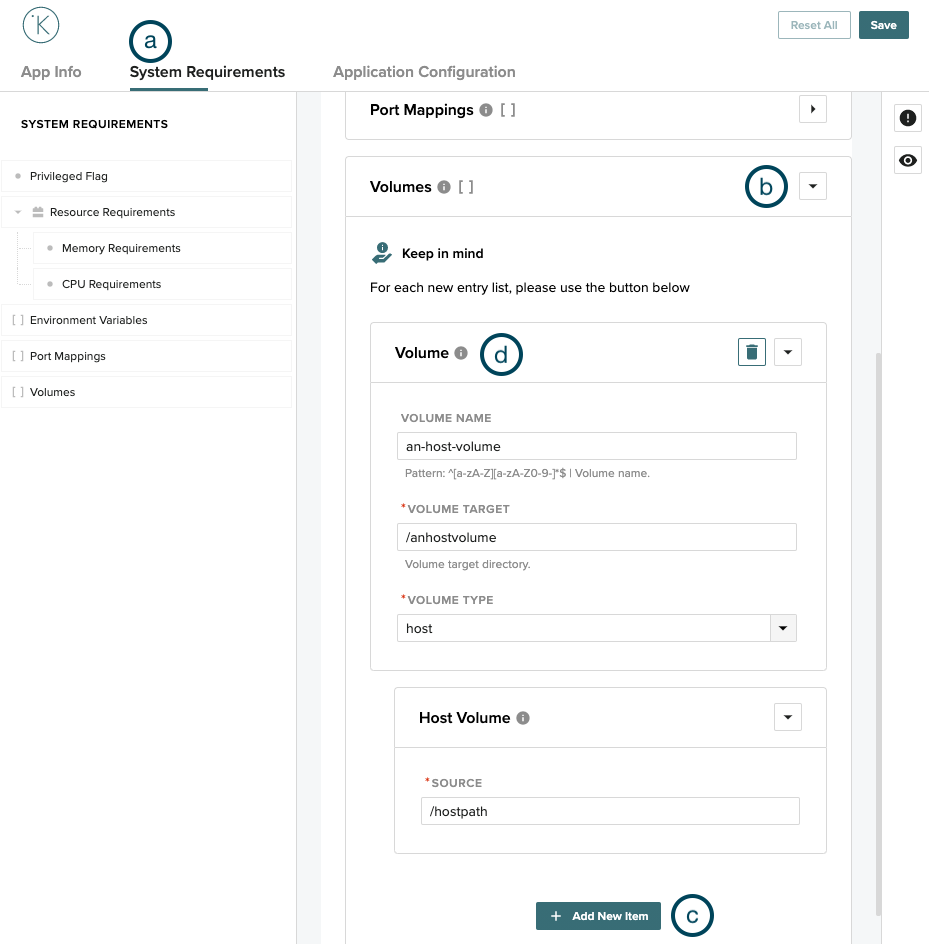
- Go to the "System Requirements" tab
- Expand the "Volumes" sections
- Add New Item
- Select Volume Type "host", choose a name, target folder and host source folder
Text Volumes
Why?
- To make text files available to your app: You may want text files "injected" into the file system your app has access to. Each text volume will be a different file.
How?
Proprieties of a text volume:
- name: A name for your volume
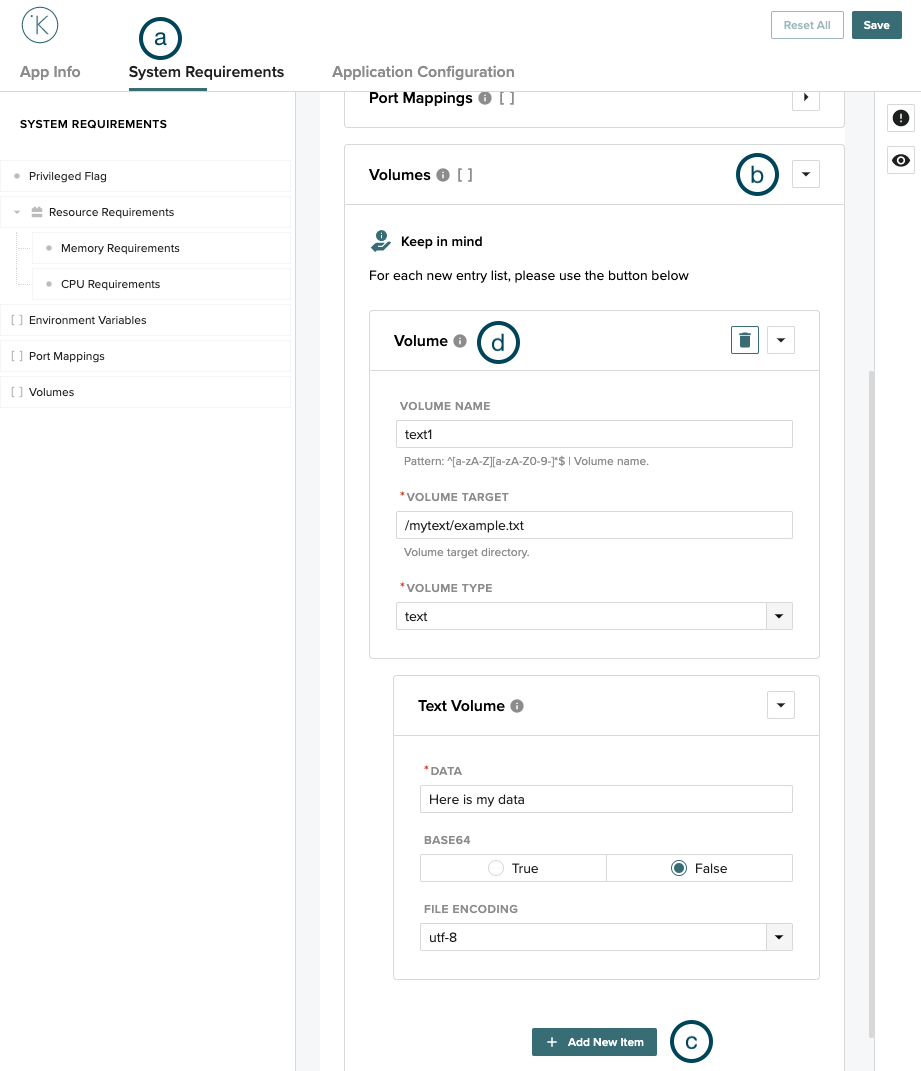
- target: the file path where the volume will be mounted. This will be the path you need to use in your app to read the file.
- text:
- data: The contents of your file
- base64: true or false. If true, the data propriety above should be the contents for your file in a base64 string. This will be then decoded for your app to access
- encoding: The file contents encoding. Should be utf-8.
You can change these properties either by editing your app.yaml directly or using Kelvin Studio to interactively edit it:
-
Editing the app.yaml directly
You can then use the file you defined in the target to read data.# app.yaml ... system: volumes: - type: persistent name: a-persistent-volume target: /apvc ... -
Using Kelvin Studio
- Go to the "System Requirements" tab
- Expand the "Volumes" sections
- Add New Item
- Select Volume Type "text", choose a name, target file and text contents