Windows
Pre-requisites and requirements
The KICS command line tool has the following requirements:
- Docker 19.03.5+
- Python 3.7+ (64bit)
- Windows 10 Pro (64bit)
Recommendation
It is recommended to use the PowerShell as command line shell.
If your machine already meets these requirements, you may skip the next steps.
Install Docker
Kelvin SDK, as part of KICS, leverages Docker to package and run applications as containers.
Kelvin SDK requires Docker 19.03+.
Info
If you have Docker working on your machine, skip to Installing Python
The following features and requirements must be enabled in order for docker to work on your machine in order.
- Hardware Virtualization supported by CPU and enabled in BIOS/UEFI. See Enable hardware virtualization
- Windows Subsystem for Linux 2 (WSL2). See WSL2 Installation
- Windows features enabled. See Activate Windows Features
- Hyper-v
- Virtual Machine Platform
- Windows Subsystem for Linux
The following steps will show how to install docker and enable the required features.
Install Docker Desktop
To install Docker on your local machine, download Docker Desktop:
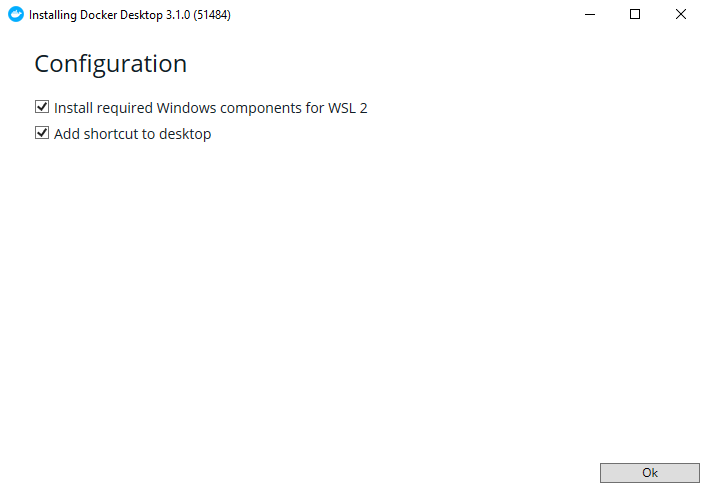
Install Docker using the installation defaults, as shown here:
Enabled Hardware virtualization
Your machine's CPU must support hardware virtualization in order to run docker.
Check if it's enabled on the tab Performance on Windows task manager:
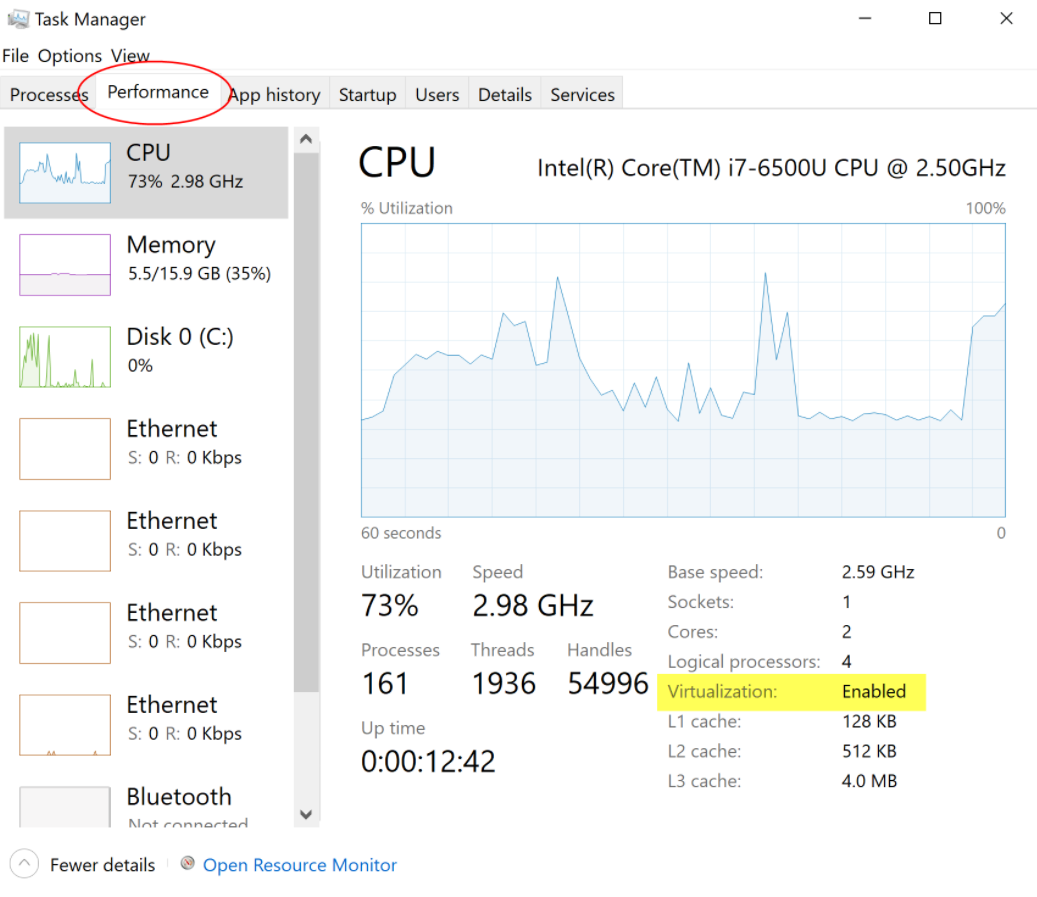
In some cases, the hardware virtualization feature is disabled by default. It is required to enabled through BIOS/UEFI. Check the following link to see how to enable hardware virtualization.
Warning
The BIOS/UEFI layout is different for each motherboard and CPU manufacturer. Check your motherboard's documentation to see how to enable hardware virtualization
WSL2 Installation/Update
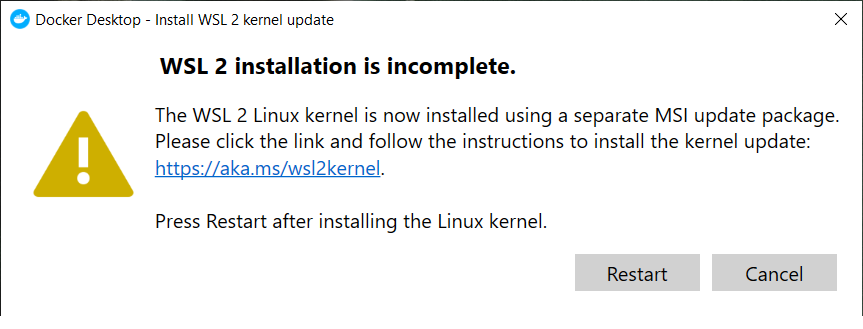
The WSL2 installation complete error when starting docker is common. Docker requires WSl 2 Linux Kernel to be updated.
-
Download and install WSL2 Linux kernel update package for x64 machines. After, just press restart on the message box as shown above.
-
Set WSL to version 2 by running the following command:
$ wsl --set-default-version 2

For more information on key differences with WSL 2 please visit https://aka.ms/wsl2
Windows Subsystem for Linux Installation Guide for Windows 10
More info: Windows Subsystem for Linux Installation Guide for Windows 10.
Activate Windows features
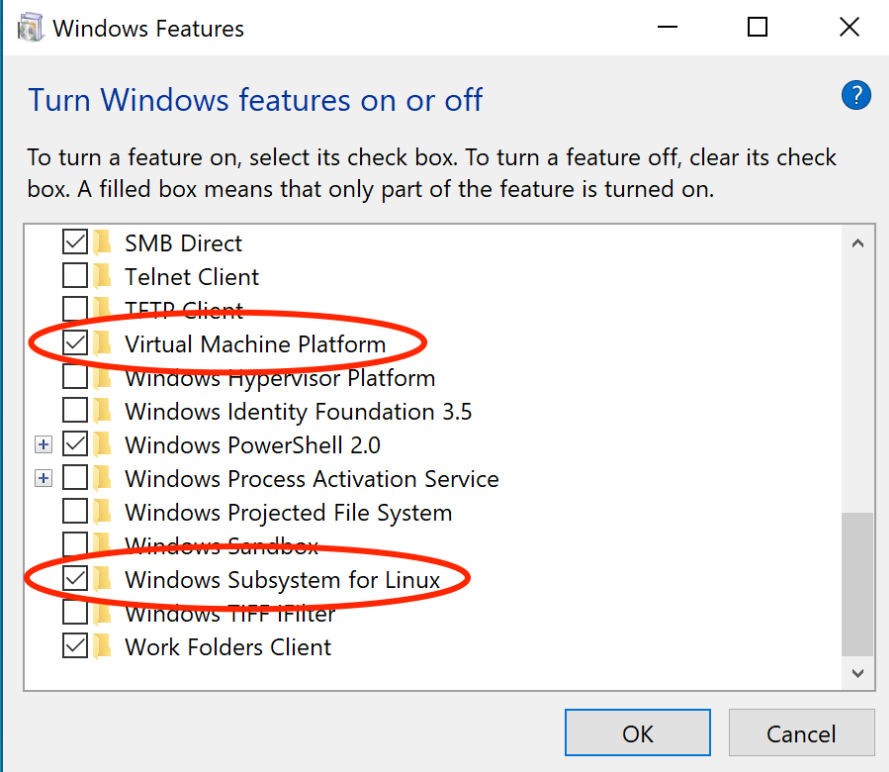
In order to docker to run the following features must be enabled: - Hyper-v - Virtual Machine Platform - Windows Subsystem for Linux
Go to Windows start menu and search "Turn Windows features on or off". Enable the highlighted features.
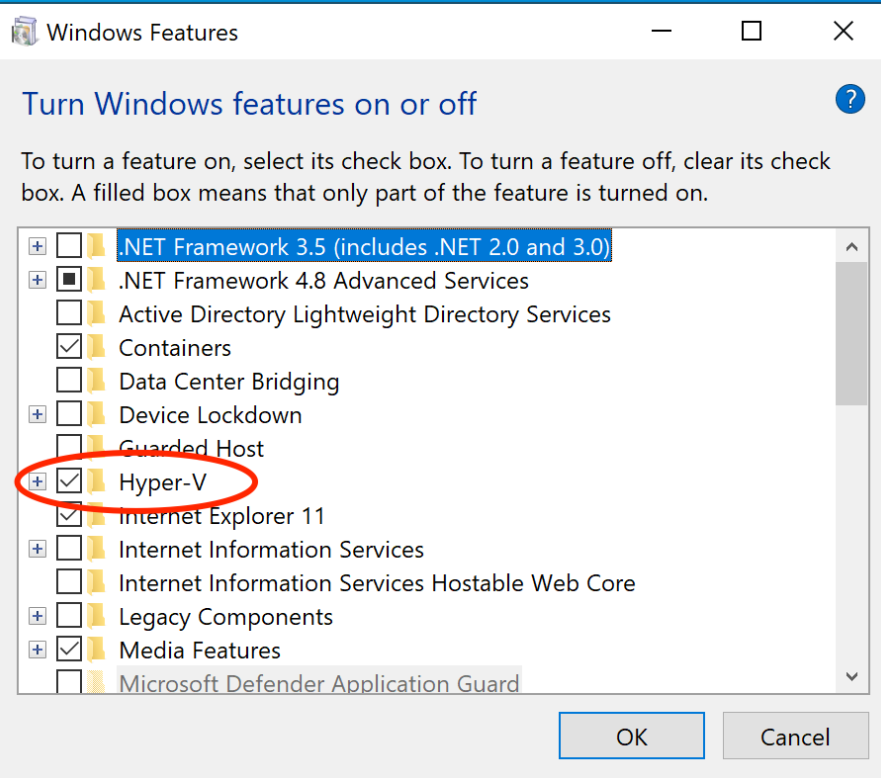
Test docker installation
Finally, run the following command to test if docker is running, by opening in browser localhost/tutorial:
docker run -d -p 80:80 docker/getting-started
Troubleshooting
Check docker installation troubleshooting for more errors not described above Docker Troubleshooting or Virtualization.
Installing Python
Kelvin SDK requires Python 3.7+ (Python 3.9 is not yet recommended as many third party libraries have not yet been ported for this version of Python).
Make sure to install a 64-bit version of Python
For more stability and performance, make sure to install a 64-bit version of Python.
To download Python on your local machine:
Once the download is complete, run the installer.
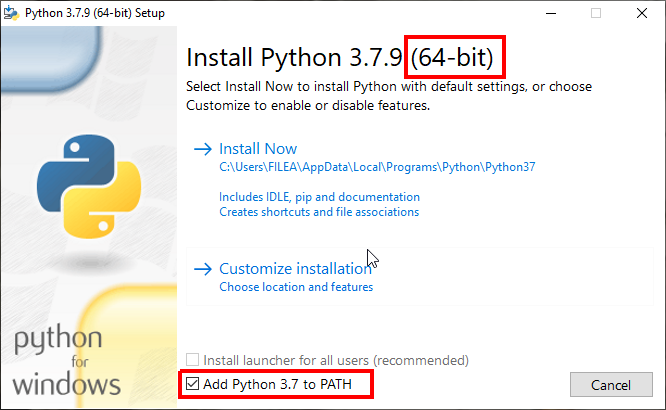
Select the "Add Python 3.7 to Path" option if there are no other versions of python installed.
Warning
If you have PowerShell open, please restart it so that the Windows PATHs are reloaded.
Update pip with the latest version
Execute the commands for rest of the installation steps.
python -m pip install pip -U
Virtual Environment
It is strongly recommended to use a virtual environment for each project. This will avoid
dependencies issues and incompatibilities between installed python packages.
Run the following commands to install virtualenv, create a new virtualenv and activate it
Install virtualenv
pip3 install virtualenv
Create a virtual environment with virtualenv
Create a virtualenv name venv
virtualenv venv -p python3.7
Activate the virtual environment
Once created, activate the virtual environment. While the virtual environment is active, installed dependencies become isolated from other projects/system.
.\venv\Scripts\Activate.PS1
Activate.PS1 cannot be loaded because running scripts is disabled on this system.
To fix this issue, open PowerShell with Administrator permissions and run the following command:
Set-ExecutionPolicy Unrestricted
and, for terminal:
.\venv\Scripts\activate.bat
Check virtualenv installed dependencies
(venv)$ pip3 list
Package    Version
---------- -------
pip        21.2.4
setuptools 50.3.2
wheel      0.35.1
Install KICS
To install the KICS package:
(venv)$ pip3 install kics==3.8.*
Check the KICS version
(venv)$ kics --version
KICS version: 3.8.0

Component versions:

    kelvin-sdk  6.2.0