View Recommendations
Recommendations are generated from Application or from third party sources using the Kelvin API endpoint and will either be automatically accepted and implemented or wait for the Operations Engineers decision on the actions to take.
Recommendations can be accessed and controlled from many locations.
You can see how to view Recommendations from the different areas of the Kelvin UI
Data Explorer Lane
Every Recommendation is shown in the Recommendations lane in the Data Explorer. This allows you to quickly and visually see the effects of individual Recommendations on your Data Streams.
You can watch this short demo video on managing Recommendations in the Data Explorer, or read the full written guide below.
Show or Hide the Recommendations Lane
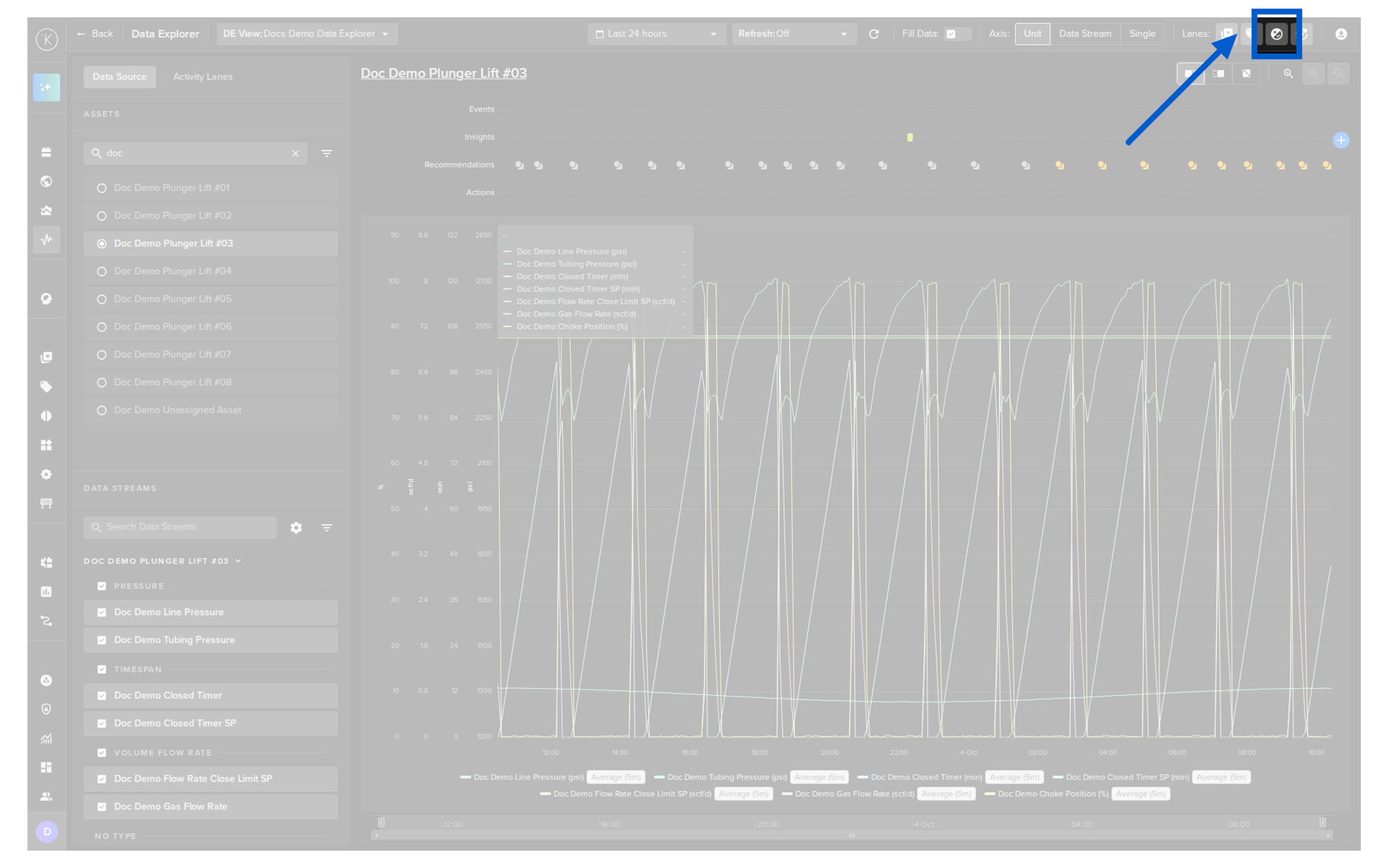
Click the Recommendations icon in the Lanes control in the top right corner to show or hide the lane.
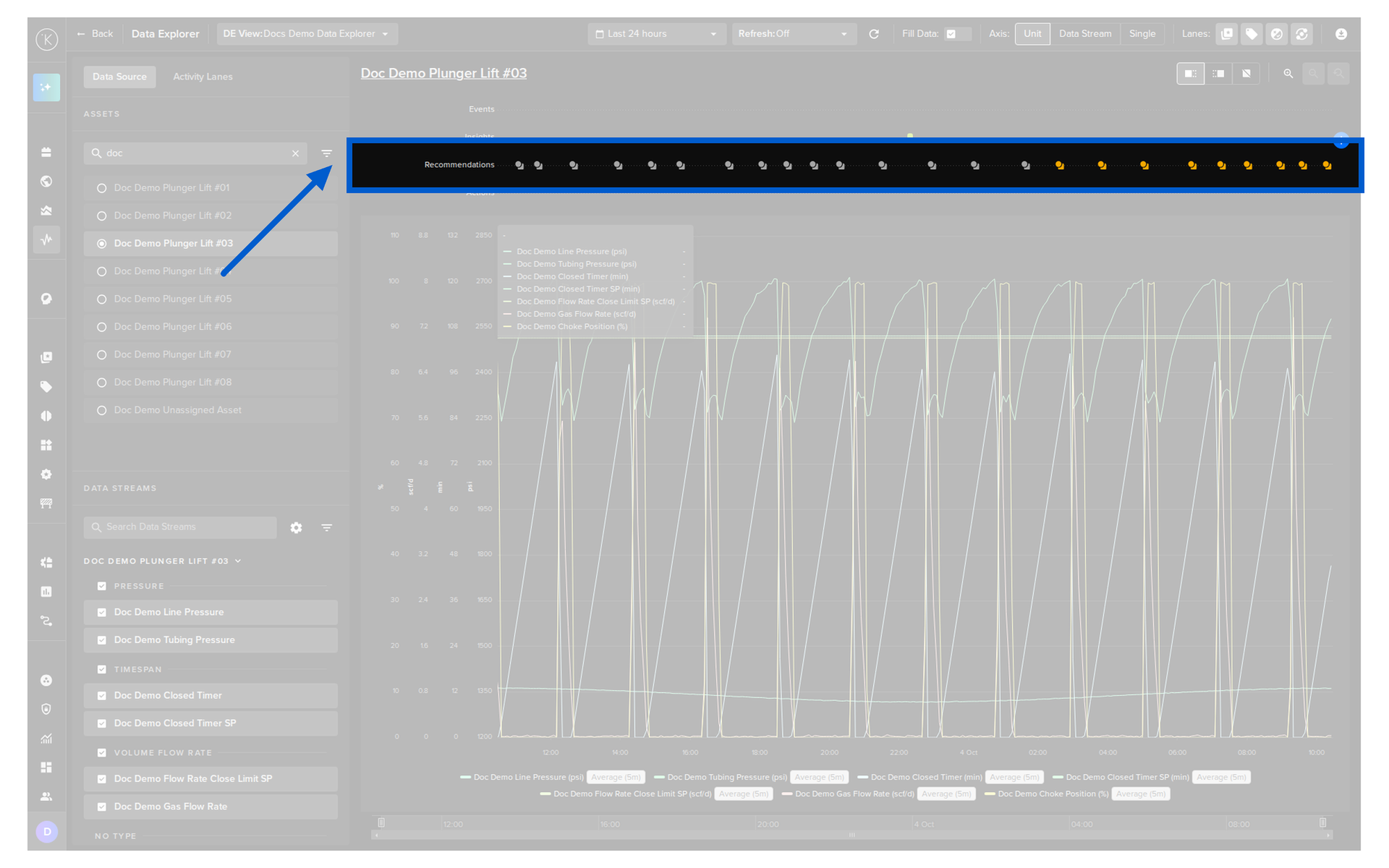
If the time between Recommendations is very close, the Recommendations are clustered together in the Recommendations lane above the chart and in the list in the Activity Lanes tab. The number of Recommendations is shown on the cluster.
Each Recommendation is still a separate Recommendation. They are clustered to make them easier to view and to match the list to the lane at the top.
Double-click on a cluster in the lane and the graph will automatically zoom to that location in time and show the individual Recommendations.
View Current and Past Recommendations
Click the Activity Lanes tab in the left panel and select the Recommendations option to see the current and past Recommendations as a list of cards.
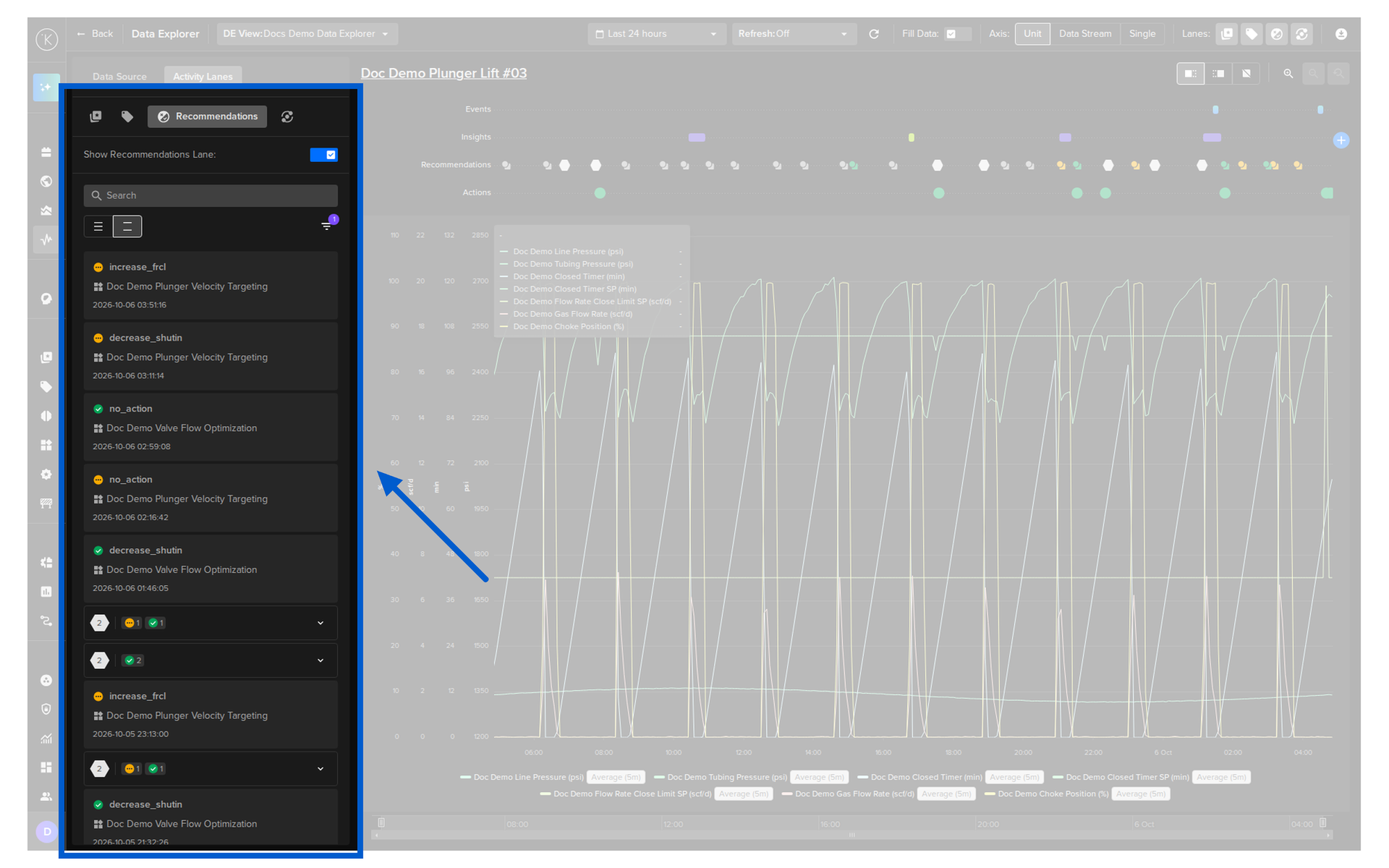
You can search the list, filter it and change the row size.
| Status | Meaning |
|---|---|
| Accepted | Recommendation Accepted |
| Pending | Recommendation Waiting for User Action |
| Rejected | Recommendation Rejected |
| Expired | Recommendation Expired (The Operations did not accept or reject the Recommendation within the allotted timeframe) |
| Snoozed | Recommendation generated after its type was snoozed for the Asset. It can not be accepted or rejected |
Note
By default the status filter shows Pending, Accepted, Rejected and Expired. Snoozed is not selected, so snoozed Recommendations are hidden. Select Snoozed in the status filter to also see them. Read more in Snooze Recommendations.
View the Details of a Recommendation
Click the Activity Lanes tab in the left panel, select the Recommendations option and click a card in the list to open its details.
Actions and Evidences
The Actions and Evidences tab shows the actions that will be taken if the Recommendation is accepted and the evidences that support it.
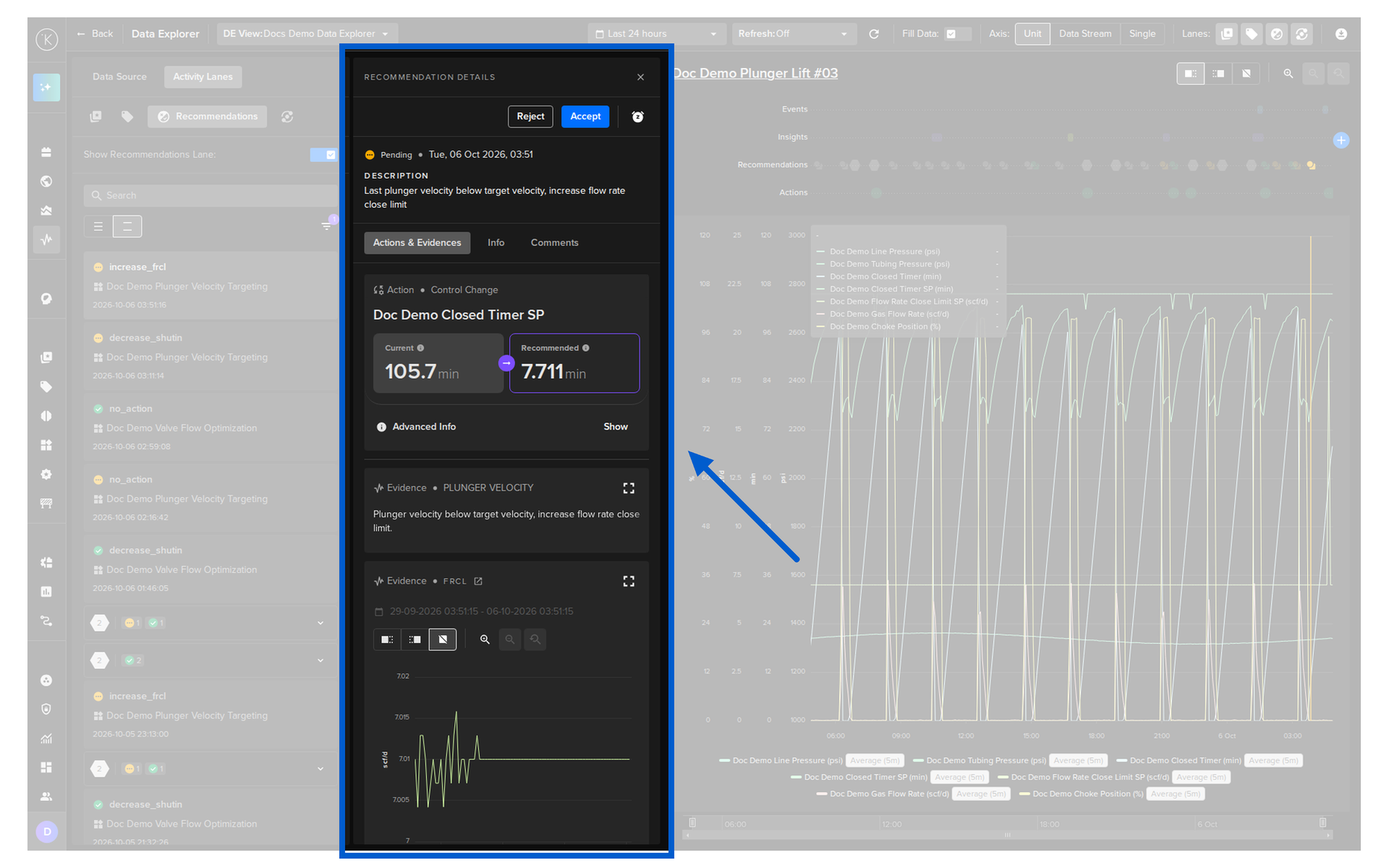
To accept or reject the Recommendation, read Action a Recommendation.
Info
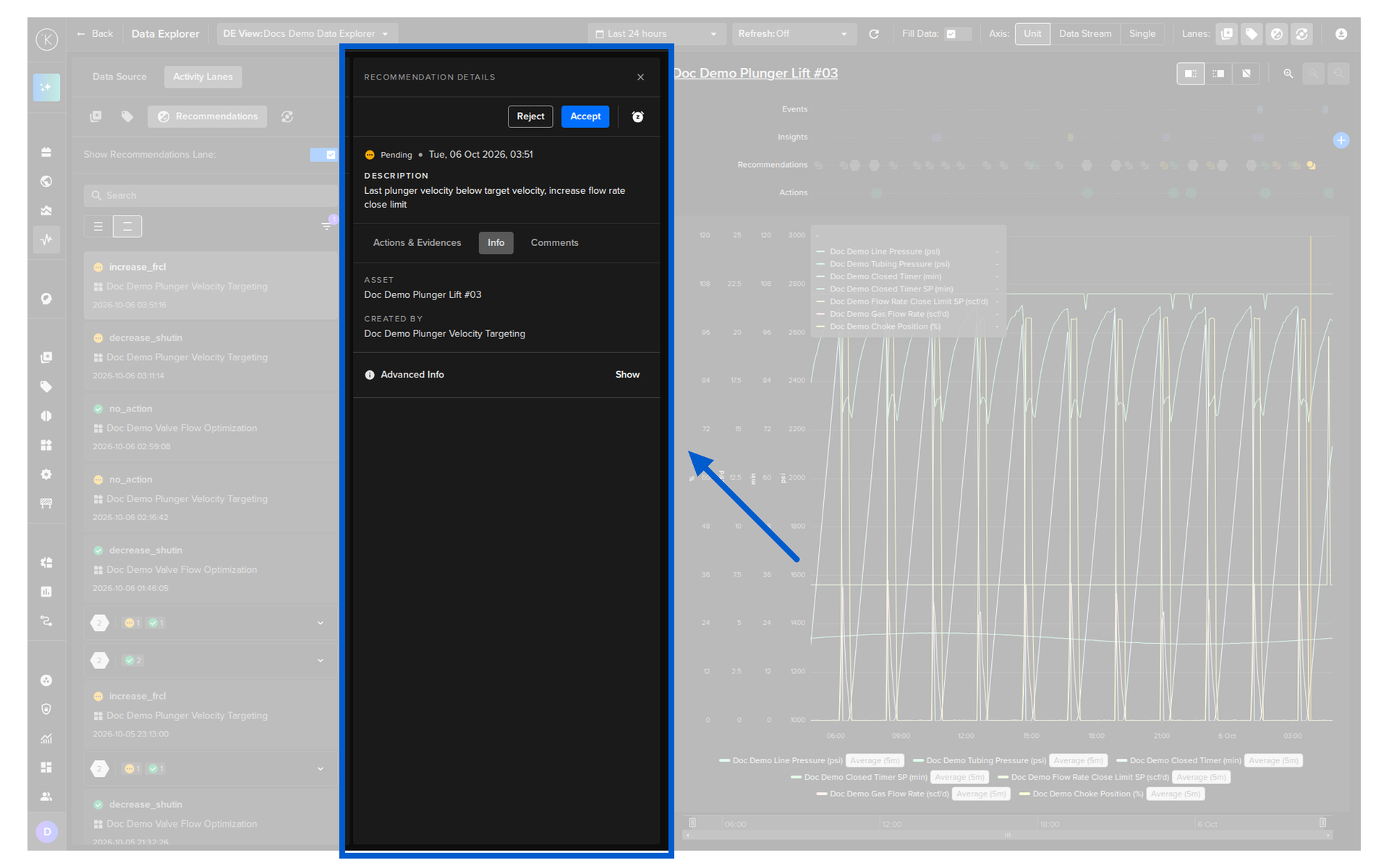
The Info tab shows the details of the Asset, who created the Recommendation and when, and the version of the Application.
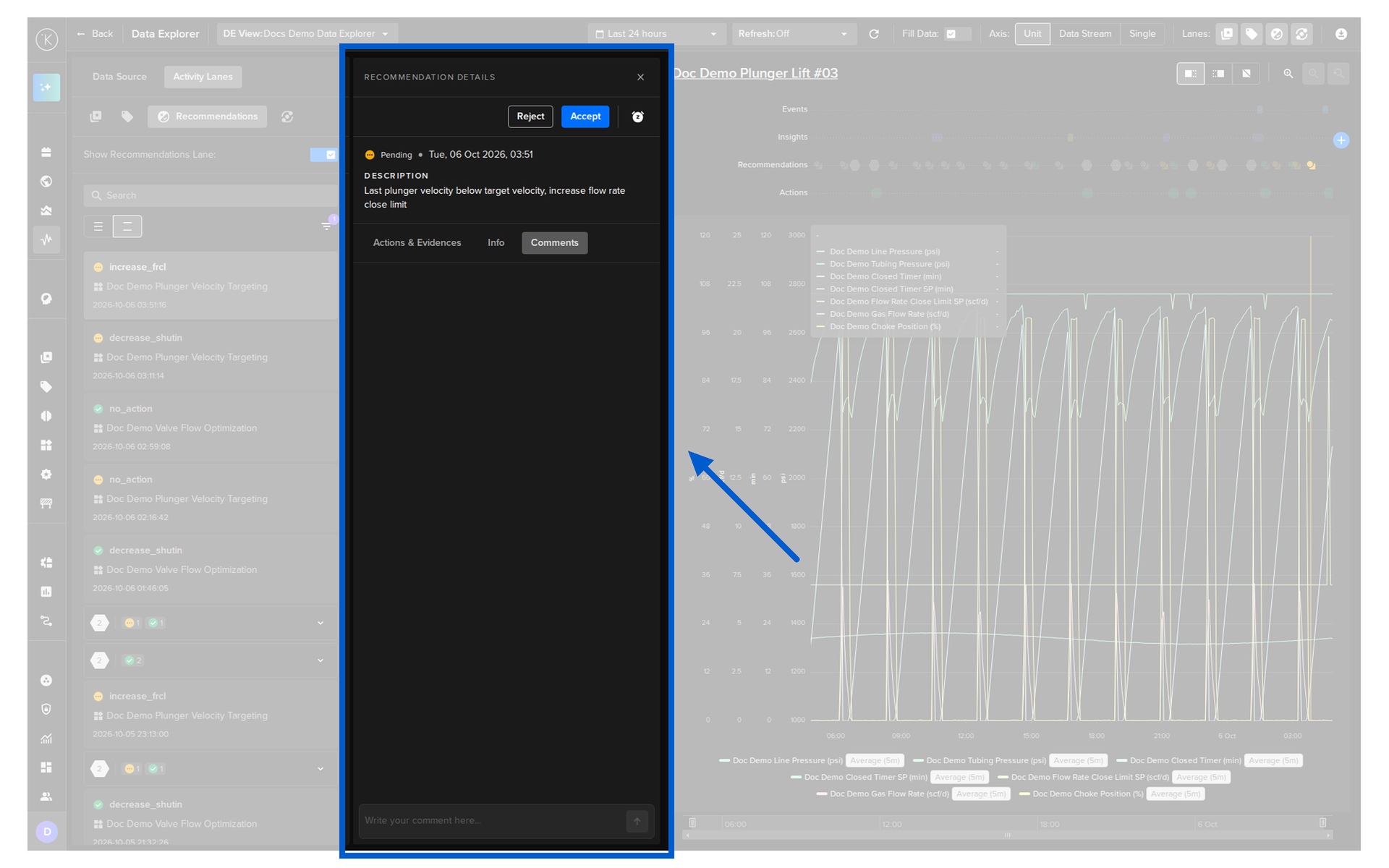
Comments
In the Comments tab you can read the comments and add new comments to the Recommendation.