Download Data Tags
Insights & Data Tags
In the Kelvin UI and in the Kelvin SDK, Data Tags are now known as Insights.
In the Kelvin SDK, the Data Tag names are deprecated in favor of the Insight names.
The Kelvin API and the Kelvin API Client (Python) still use the Data Tag names, so the examples on this page use them too.
Insights Management
You can also manage your insights using the Kelvin SDK and Kelvin API.
You can read all the details in the Platform Administration in the Insights section.
Available Guides
Reference:
| Field | Description |
|---|---|
| start_date | Start date for the Data Tag. Time is based on UTC timezone, formatted in RFC 3339. |
| end_date | End date for the Data Tag. Time is based on UTC timezone, formatted in RFC 3339. |
| tag_name | Tag name to categorize the Data Tag |
| resource | The Asset that this Data Tag is related to. This is in KRN format (e.g. krn:asset:bp_01) |
| source | The process that created this Data Tag. This can be a user or an automated process like a workload, Applications, Docker Apps, etc. This is KRN format. |
| description | Detailed description of the Data Tag. |
| contexts | A list of associated resources with this Data Tag. This can be a Data Stream, Applications or any other valid resource in the Kelvin Platform. |
| acceptance | accepted, or snoozed while the Insight type is snoozed for the Asset. |
To list only some Data Tags by acceptance, add acceptance to the request with accepted, snoozed or both. If you do not set it, all the Data Tags are returned.
Download Data Tags for an Asset
In this example we will retrieve all Data Tags for an Asset.
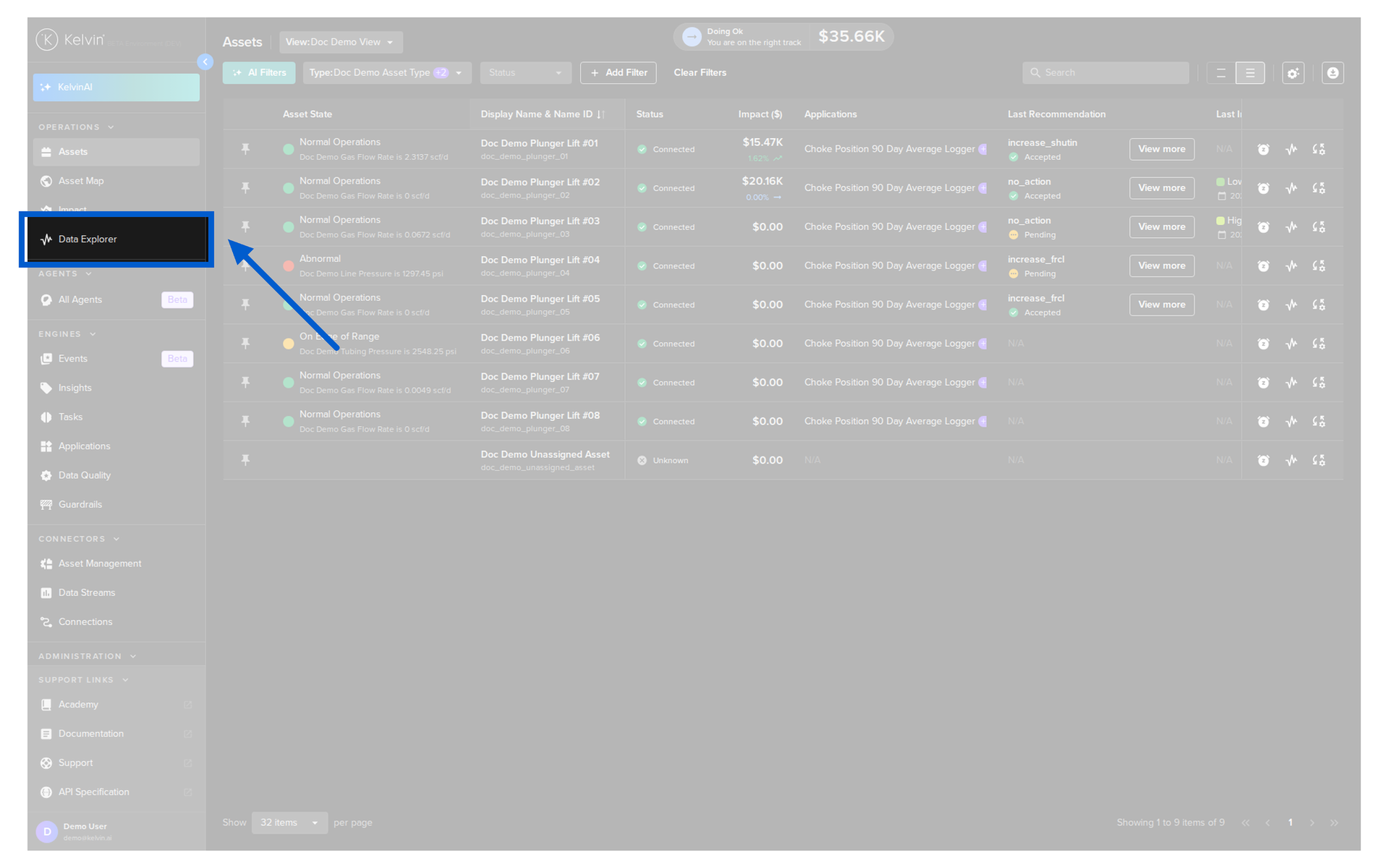
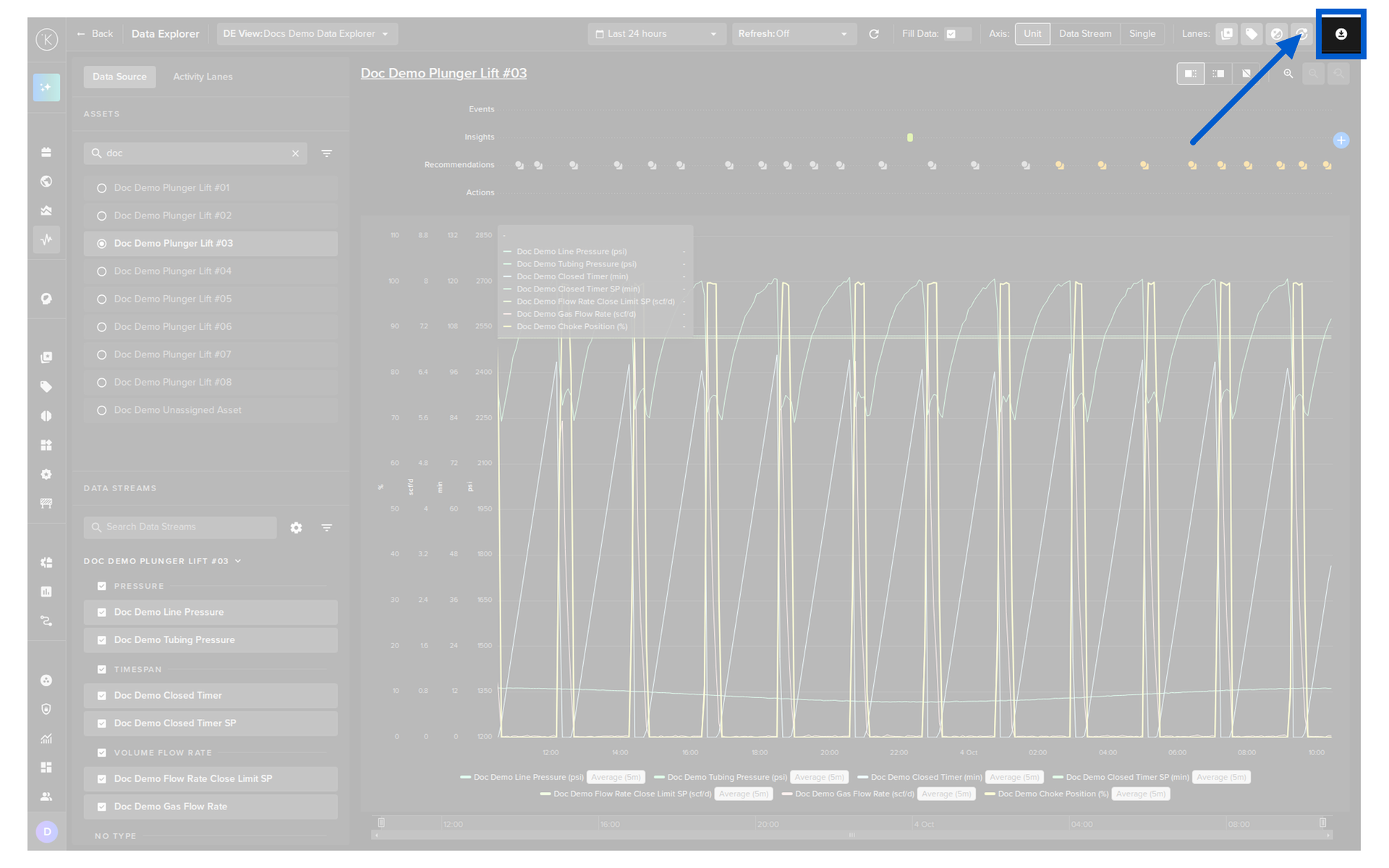
You can download a range of Data Tag information from the Data Explorer page.
To do this go to the Data Explorer page.
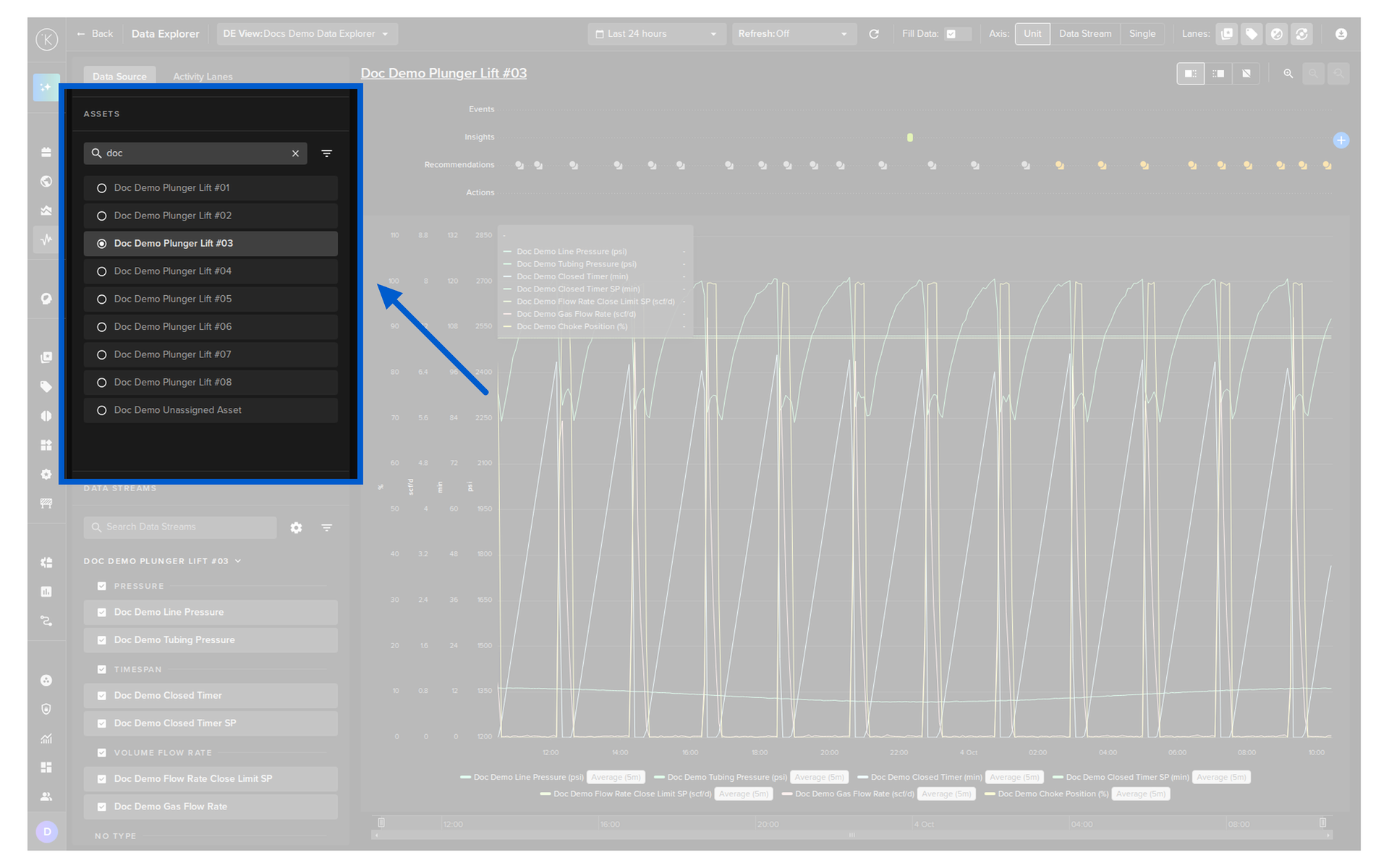
Select the Asset.
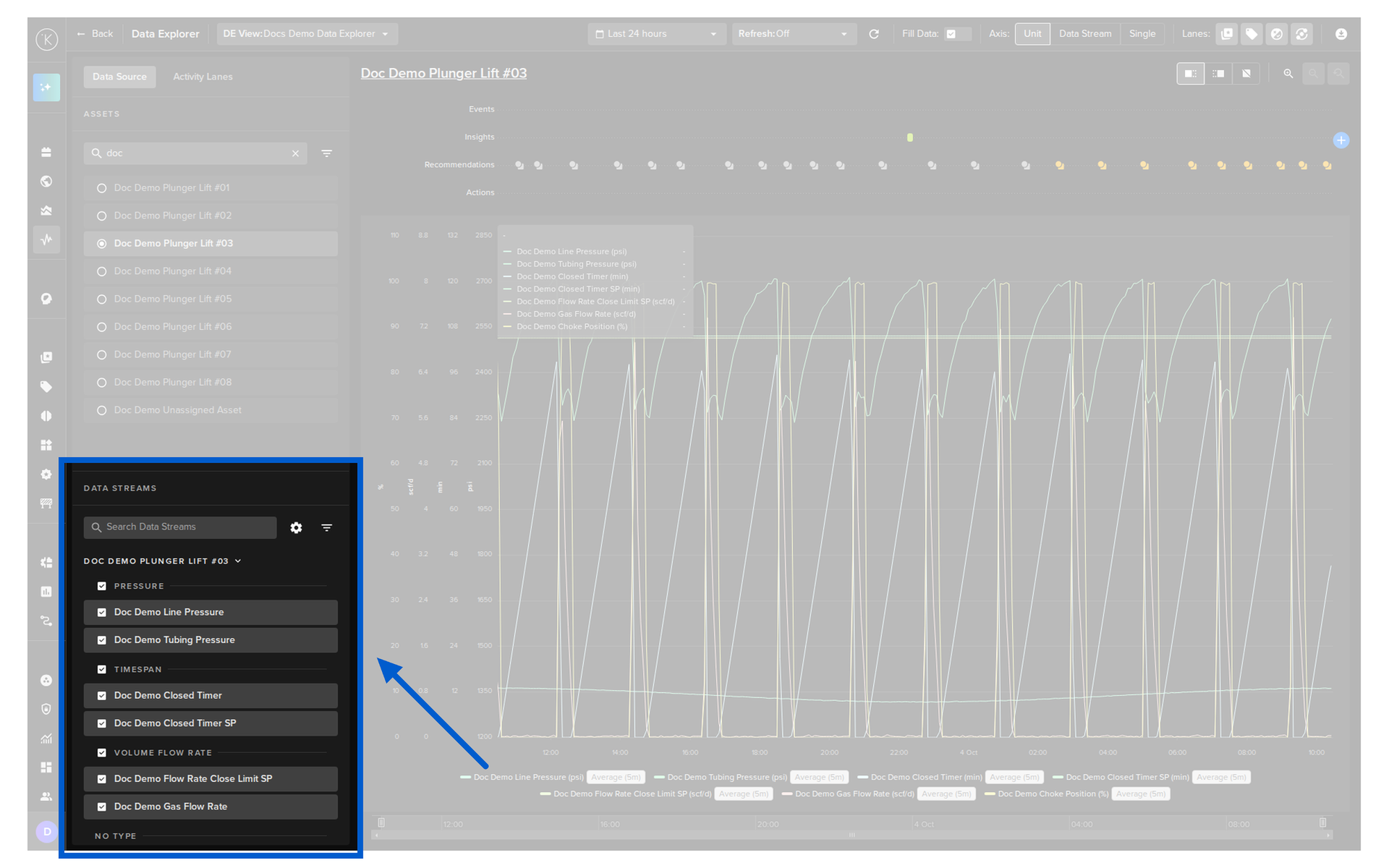
Select one or more Data Streams that you want to download the related information.
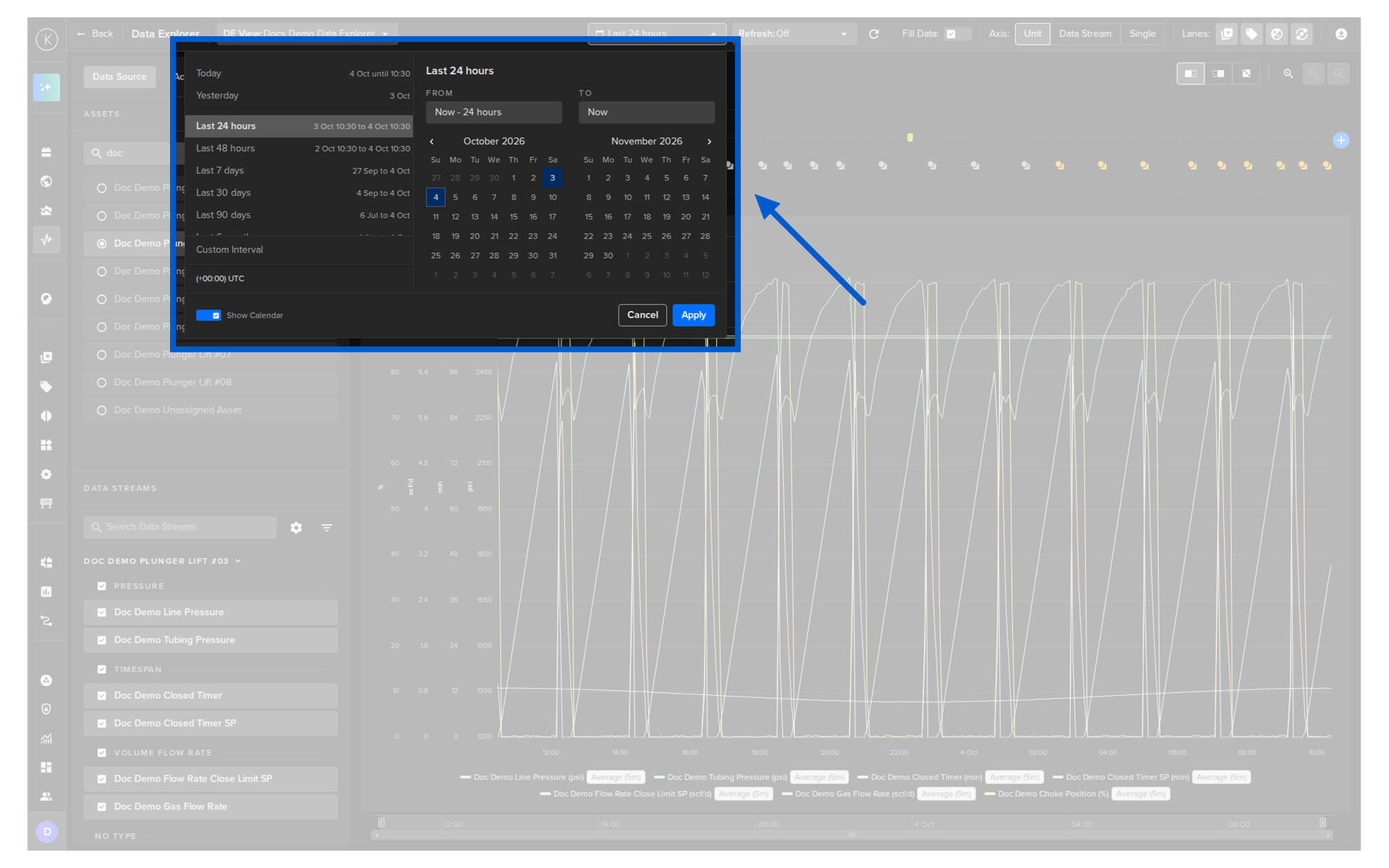
Choose a time period.
Then click on the download button.
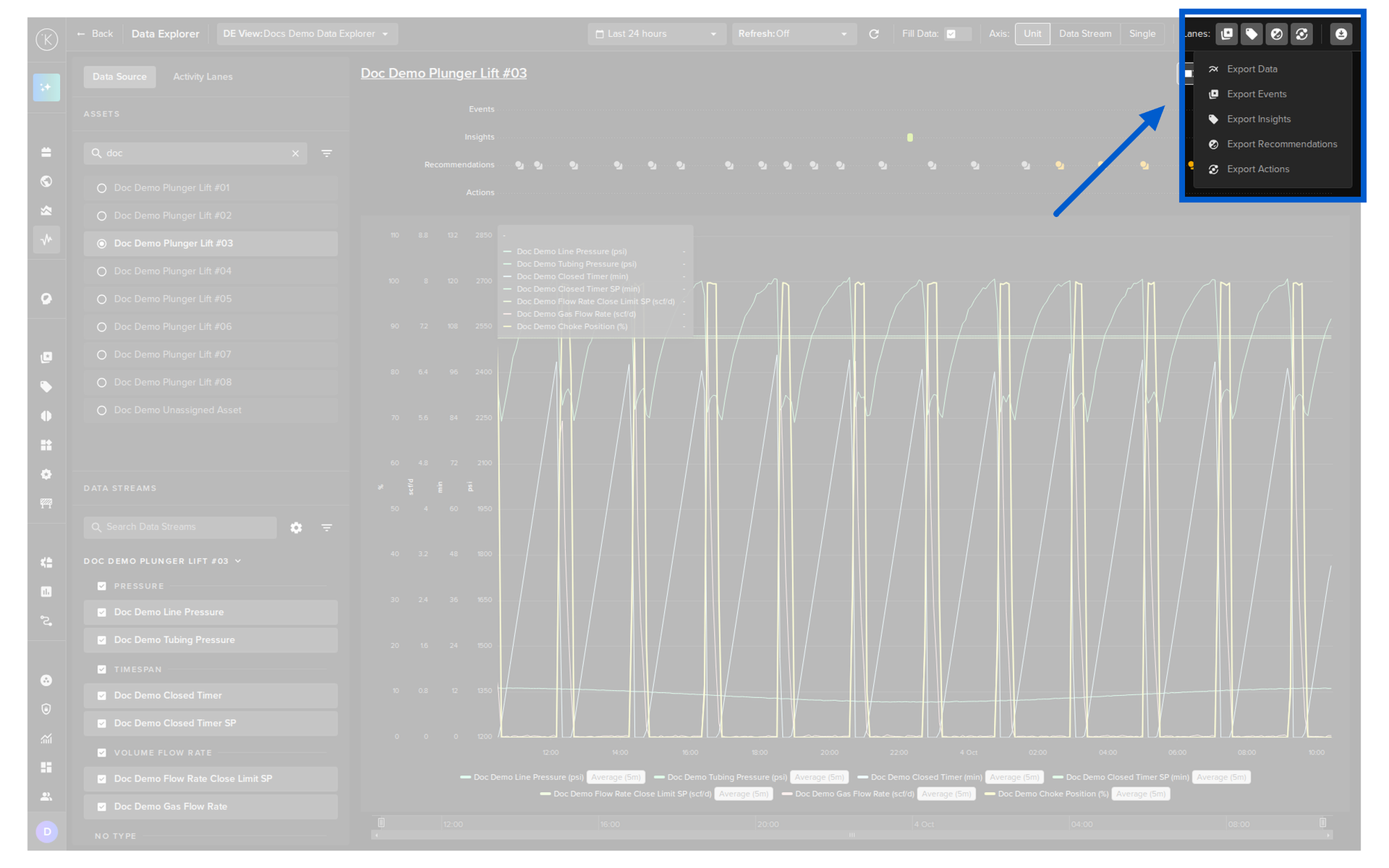
Select the Export Insights option.
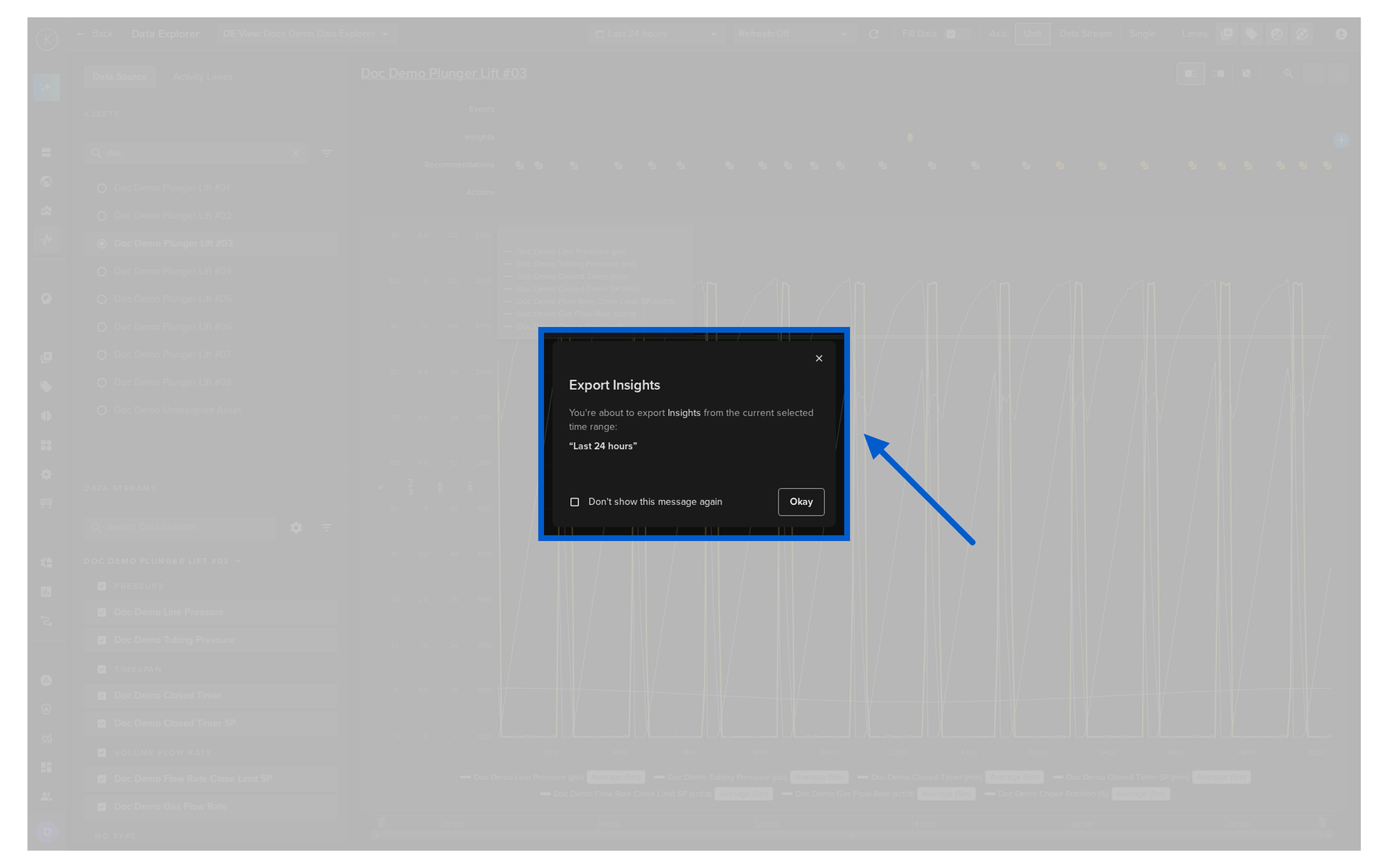
And finally confirm the download by clicking on the Okay button.
The response will look like this;
The response will look like this;
| API Client (Python) Example Response | |
|---|---|