Insight Matches Overview
On this page you will learn how to review Insight Matches, use Find Similar to accept or ignore similar historical patterns, and delete Insight Matches.
The Insights section has two tabs, Insight Matches and Insight Types.
When you click Insights in the left sidebar under Engines, the Insight Matches tab is shown first.
The Insight Matches list gives you a full view of every named insight pattern that has been captured.
Each row represents a named insight and shows how many assets it is currently active on.
Basic features
The Insight Matches overview includes several features to help you find and manage your insights.
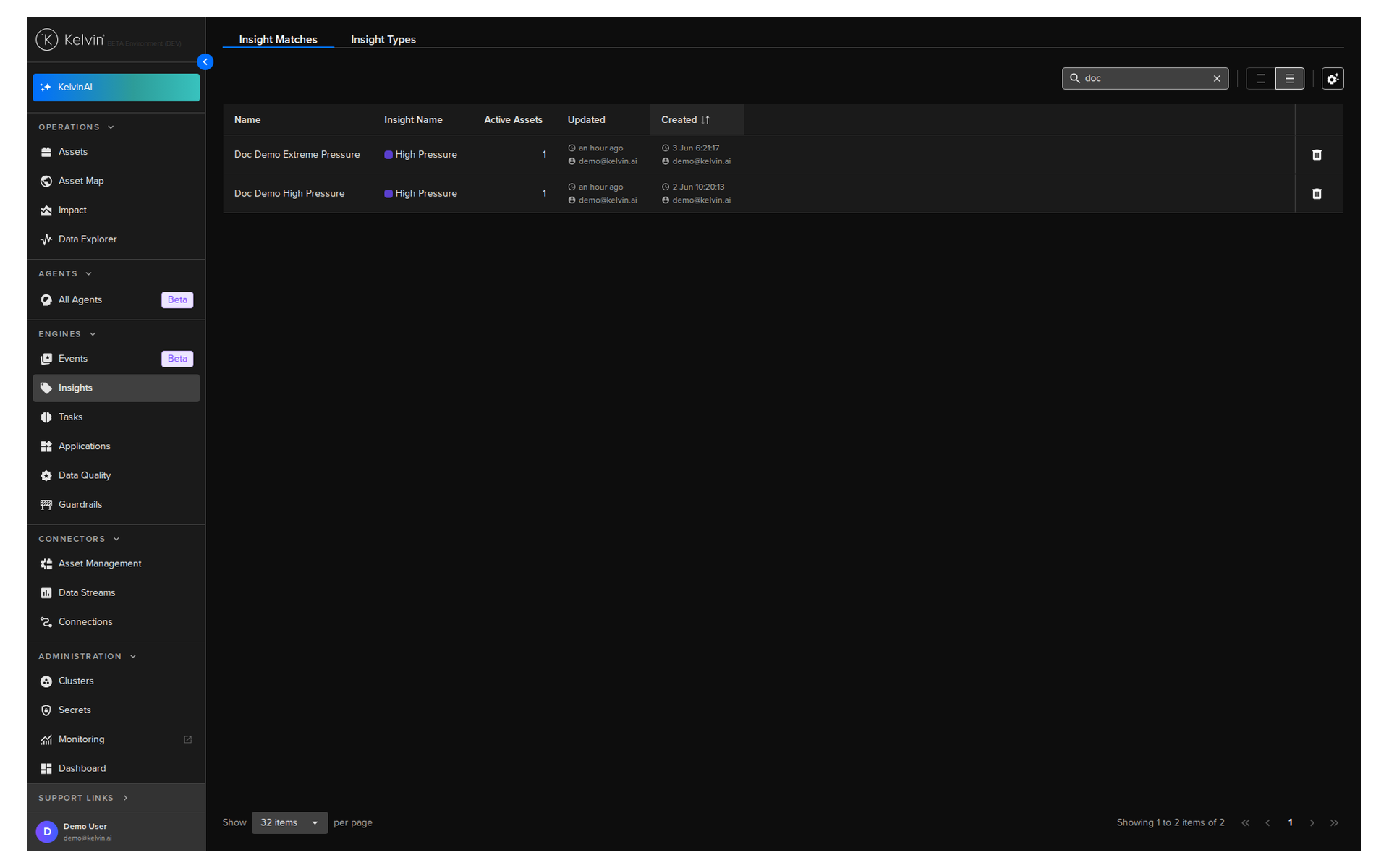
Use the search bar at the top right to find insight matches by name. The list filters as you type.
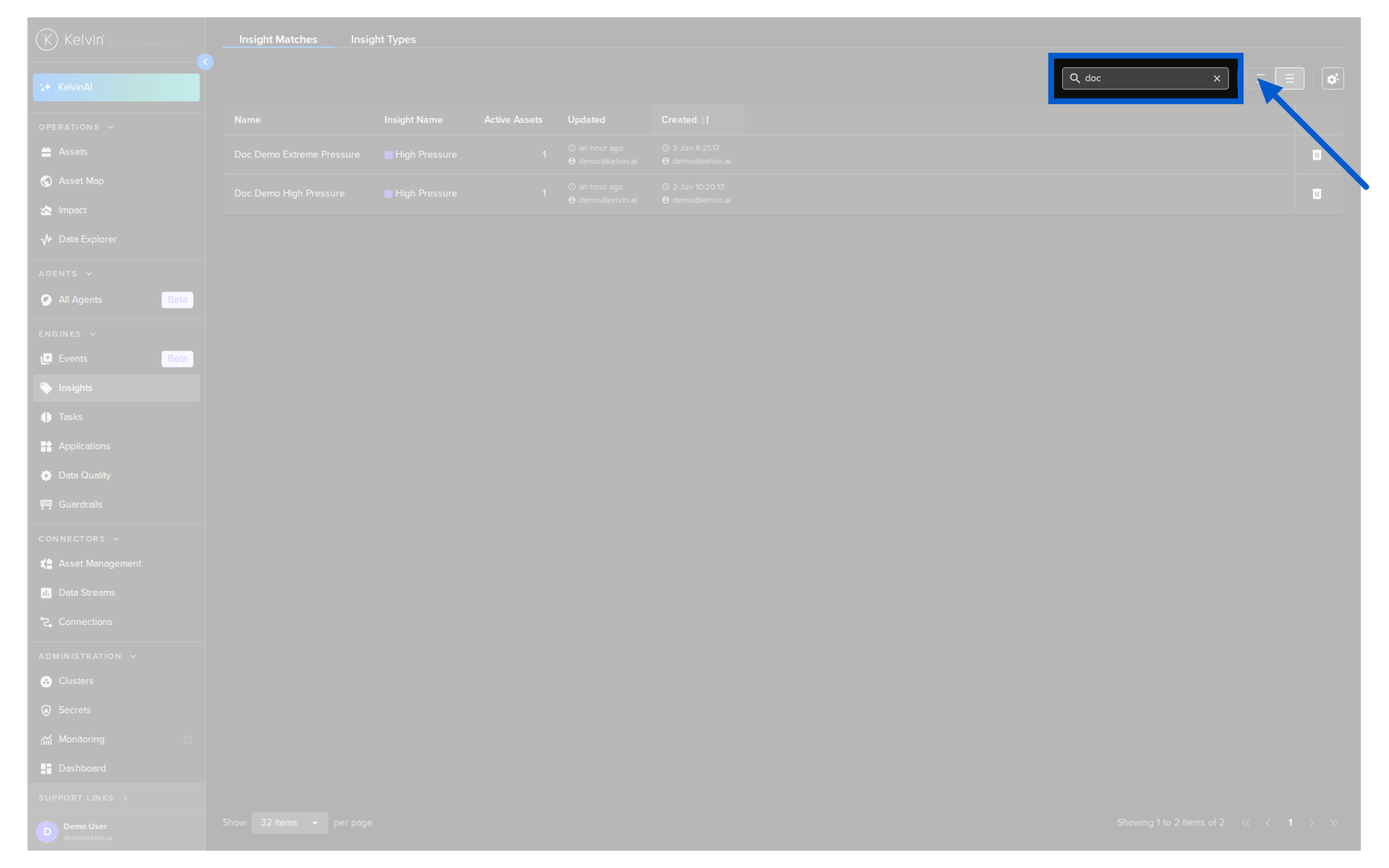
Use the row spacing control to adjust how compact or spaced out the rows appear.
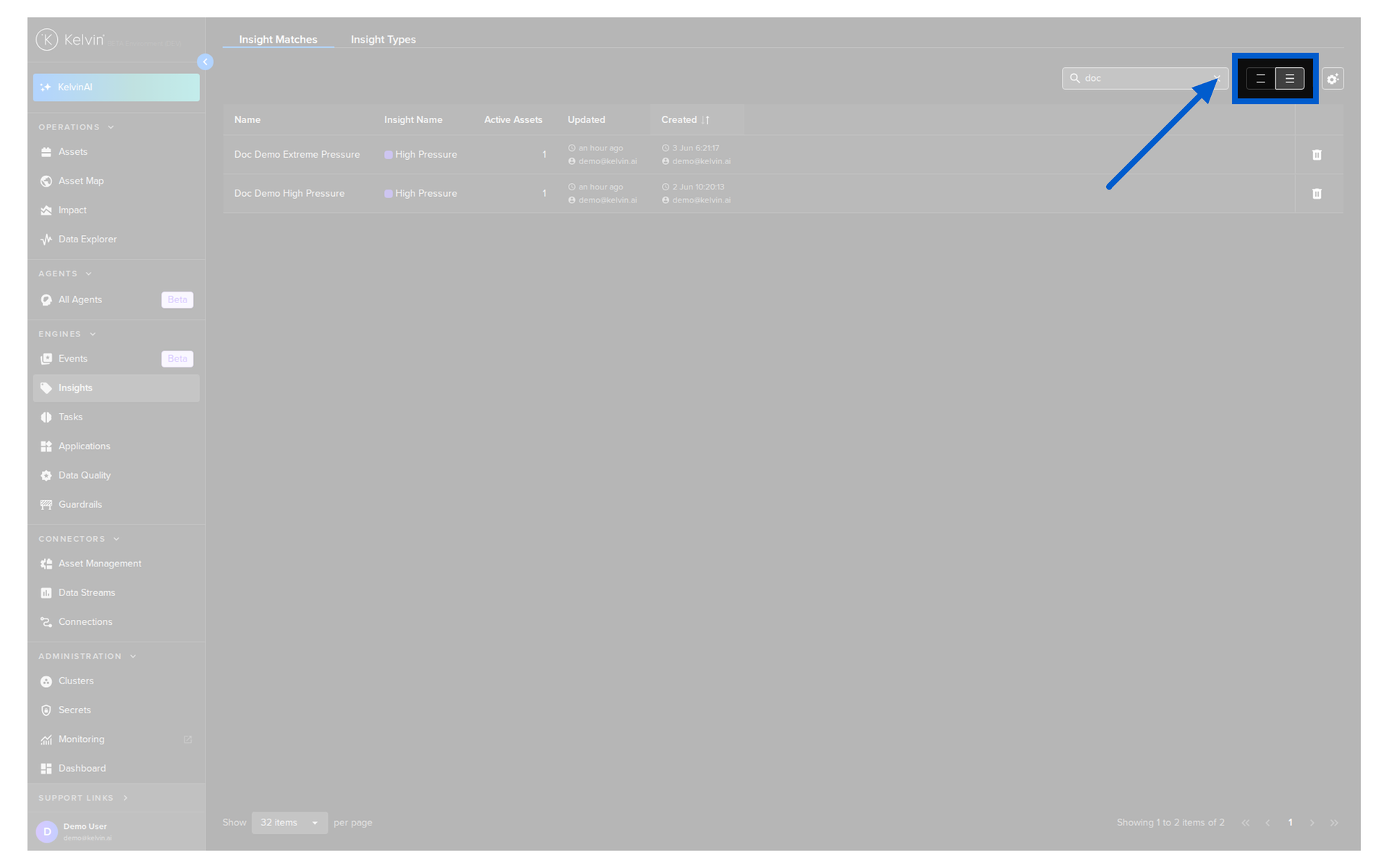
The Insight Matches table has a fixed set of columns.
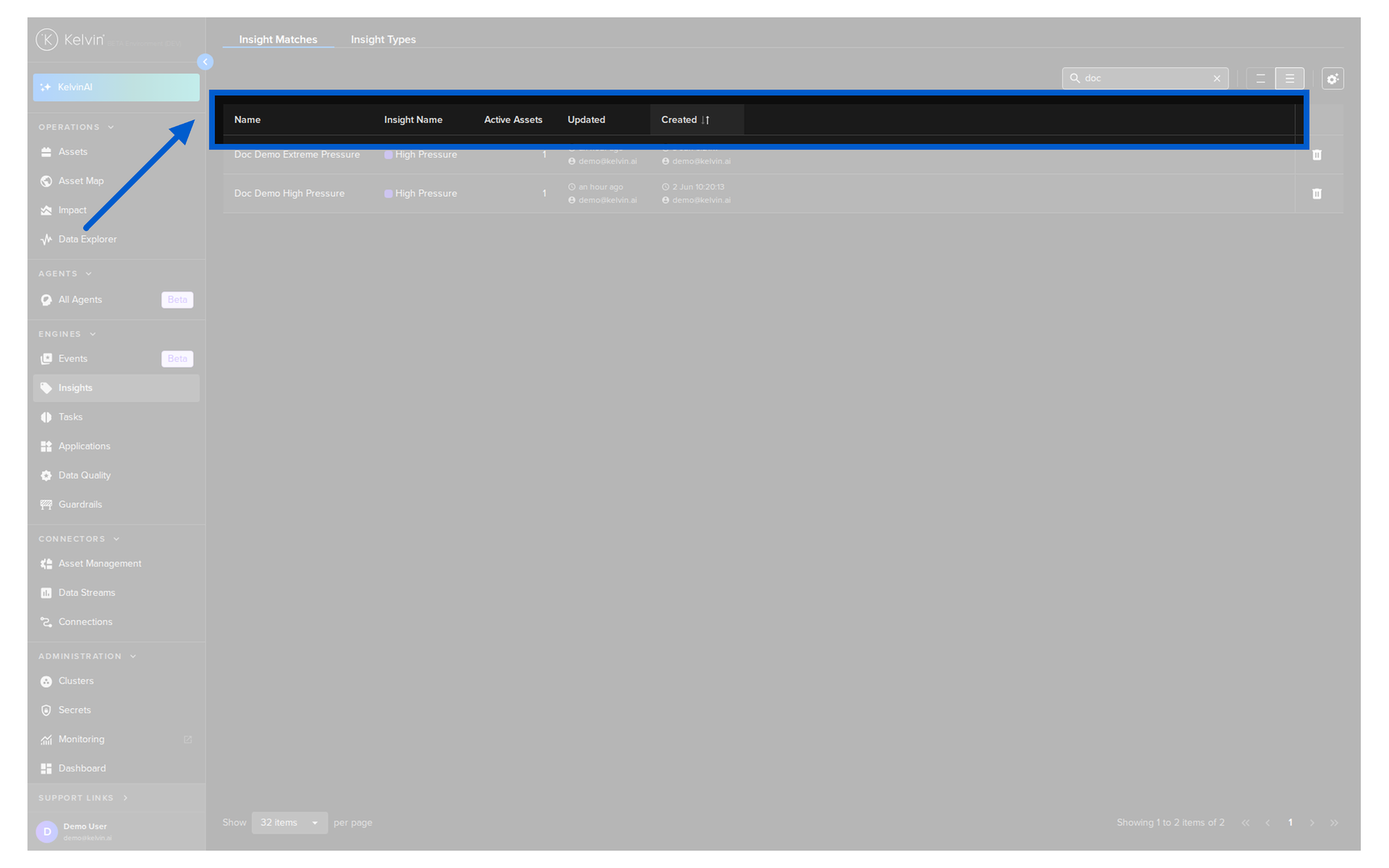
| Column | Description |
|---|---|
| Name | The name given to this insight match. |
| Insight Name | The insight name this match is associated with. |
| Active Assets | The number of assets currently matched against this insight pattern. |
| Updated | When the insight match was last modified, and by whom. |
| Created | When the insight match was created, and by whom. |
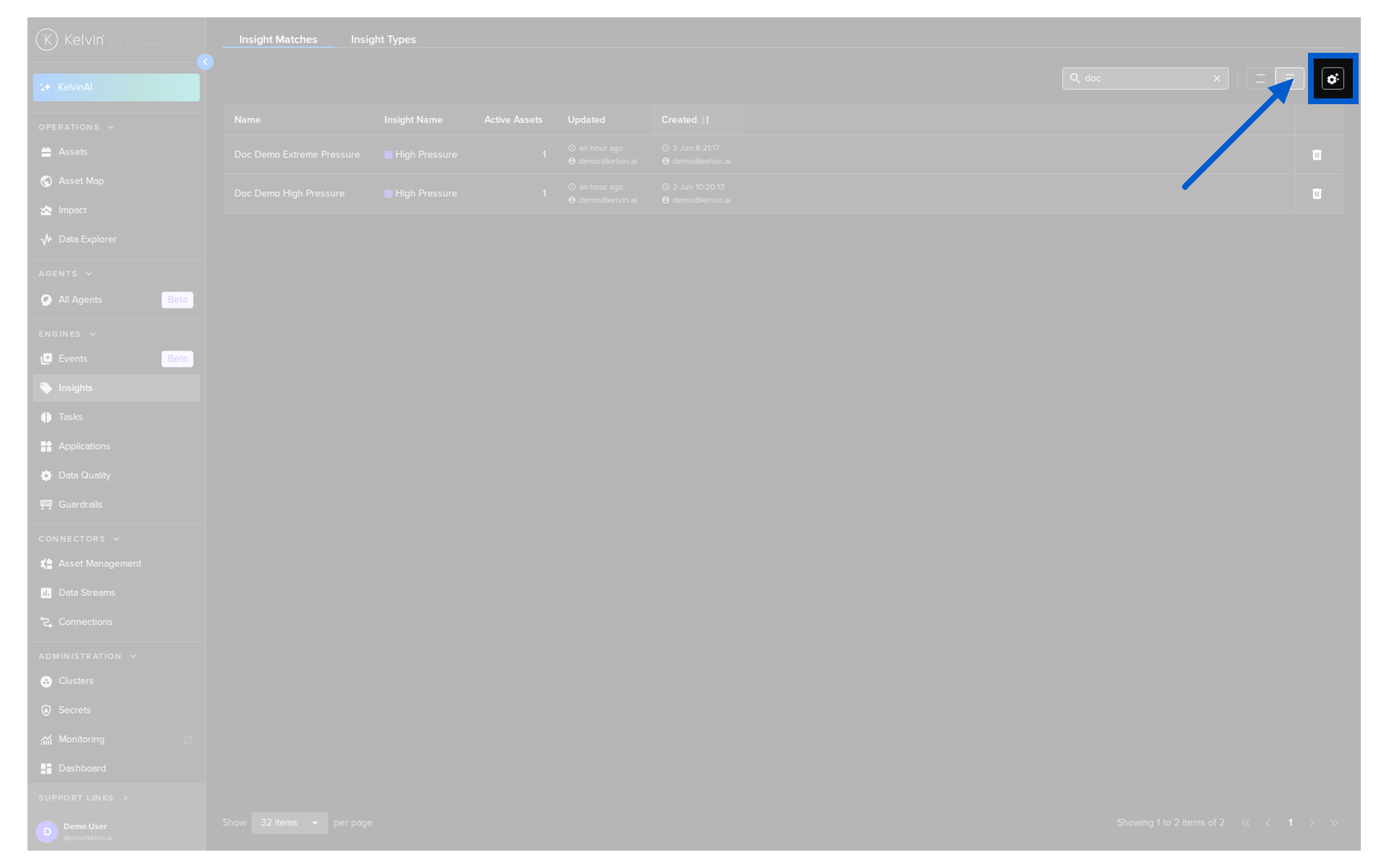
Click the table configuration icon in the top toolbar to open the Table Configurations panel.
You can reorder, freeze, hide, or show columns, but no custom columns can be added.
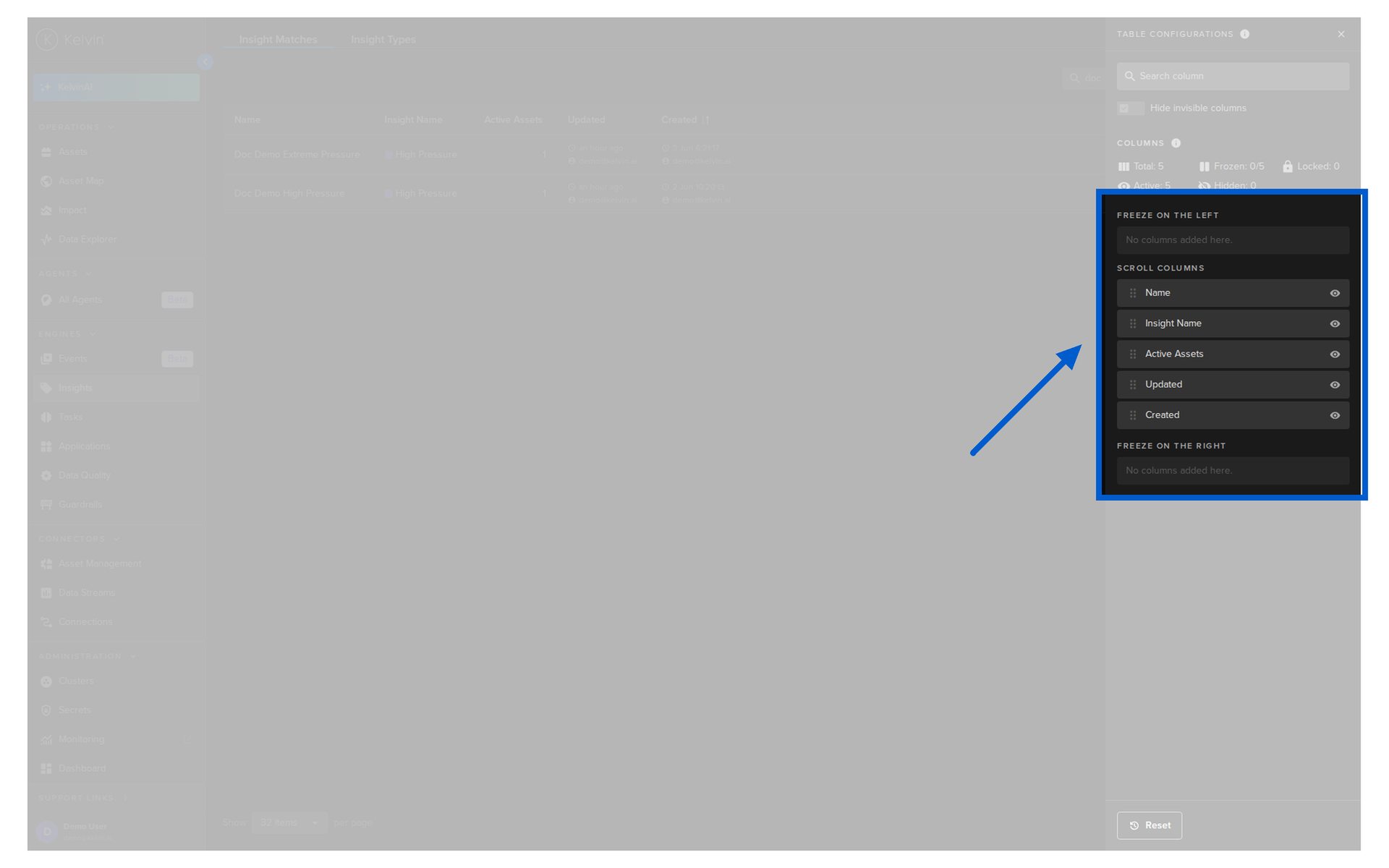
This panel lets you control column visibility and layout. The columns are divided into three sections:
When you are inside the column settings you can freeze columns left and right. This ensures the columns will always show, even when you scroll left or right to see all the columns.
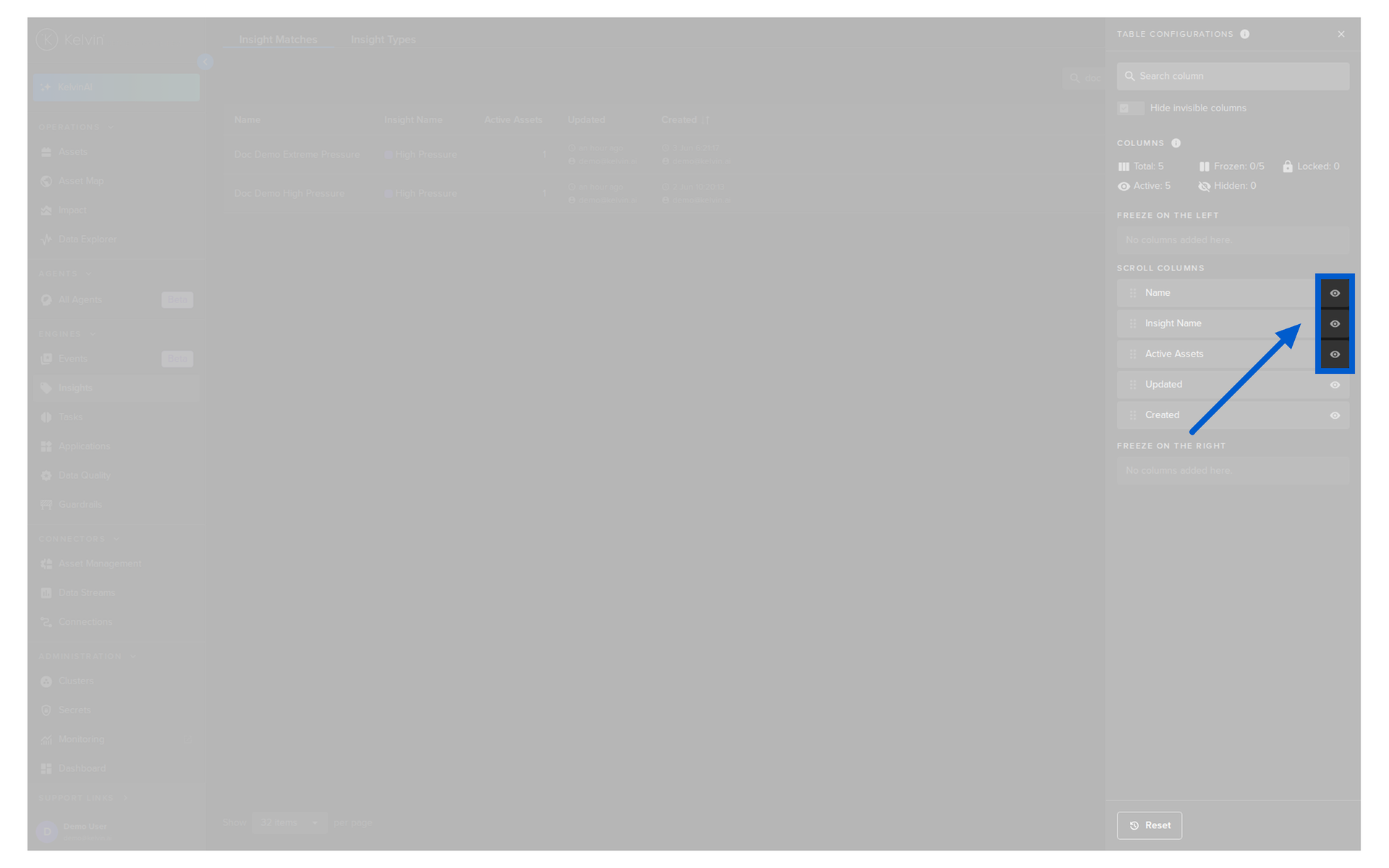
When you are inside the column settings you can show or hide columns to ensure you only see what you need to see.
When you are inside the column settings you can see an overview of the columns available and showing.
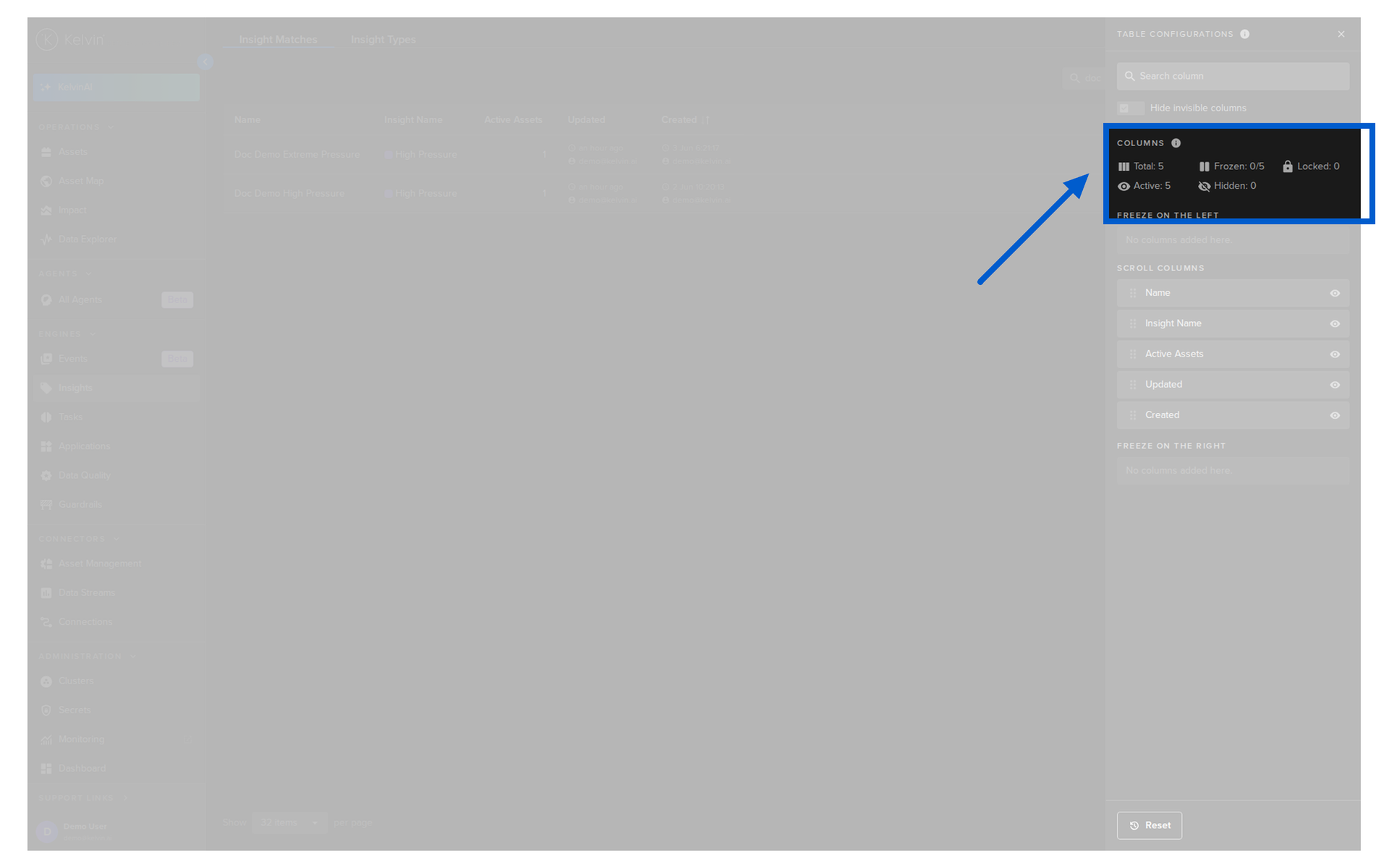
| Item | Description |
|---|---|
| Total | Total number of columns available (both active and hidden) |
| Frozen | Total number of columns that are in the left or right freeze positions out of a total number of columns that can be moved to the frozen sections |
| Locked | Total number of columns that can not be moved or edited |
| Active | Total number of columns that will be shown on the table |
| Hidden | Total number of columns that will not be shown on the table |
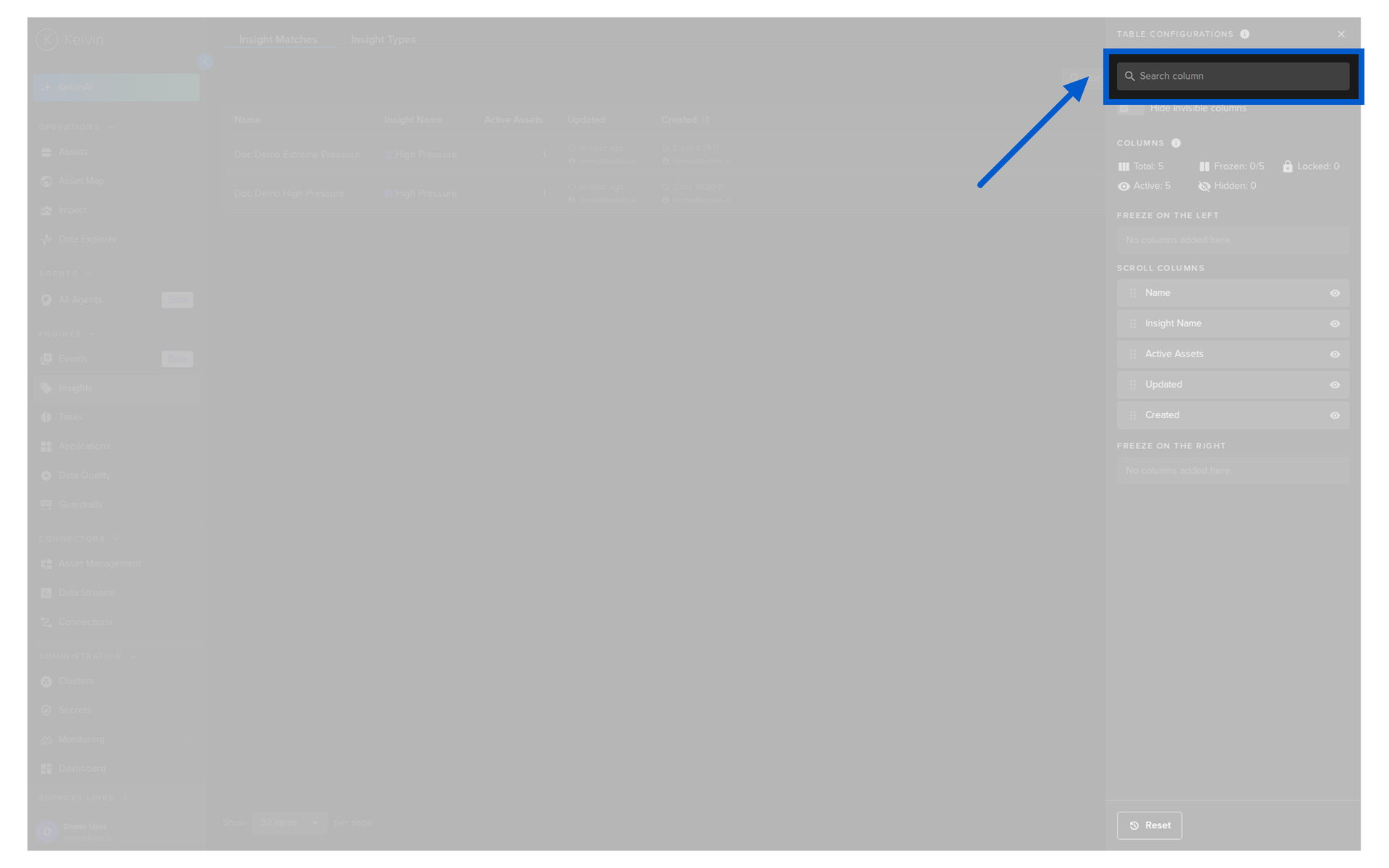
When you are inside the column settings with a large number of columns, this feature is useful to find columns and to hide the hidden columns from the list to make it easier to see what is relevant.
Find Similar
Click on an Insight Match name to open its details. Here you will see a list of similar matches, shown as cards with easy to compare Data Explorer highlights.
You can watch this short demo video or read the full step-by-step written tutorial below.
Success
Matching patterns with a confidence level above 90% are automatically accepted and will not appear in the Operations Accept/Reject stage.
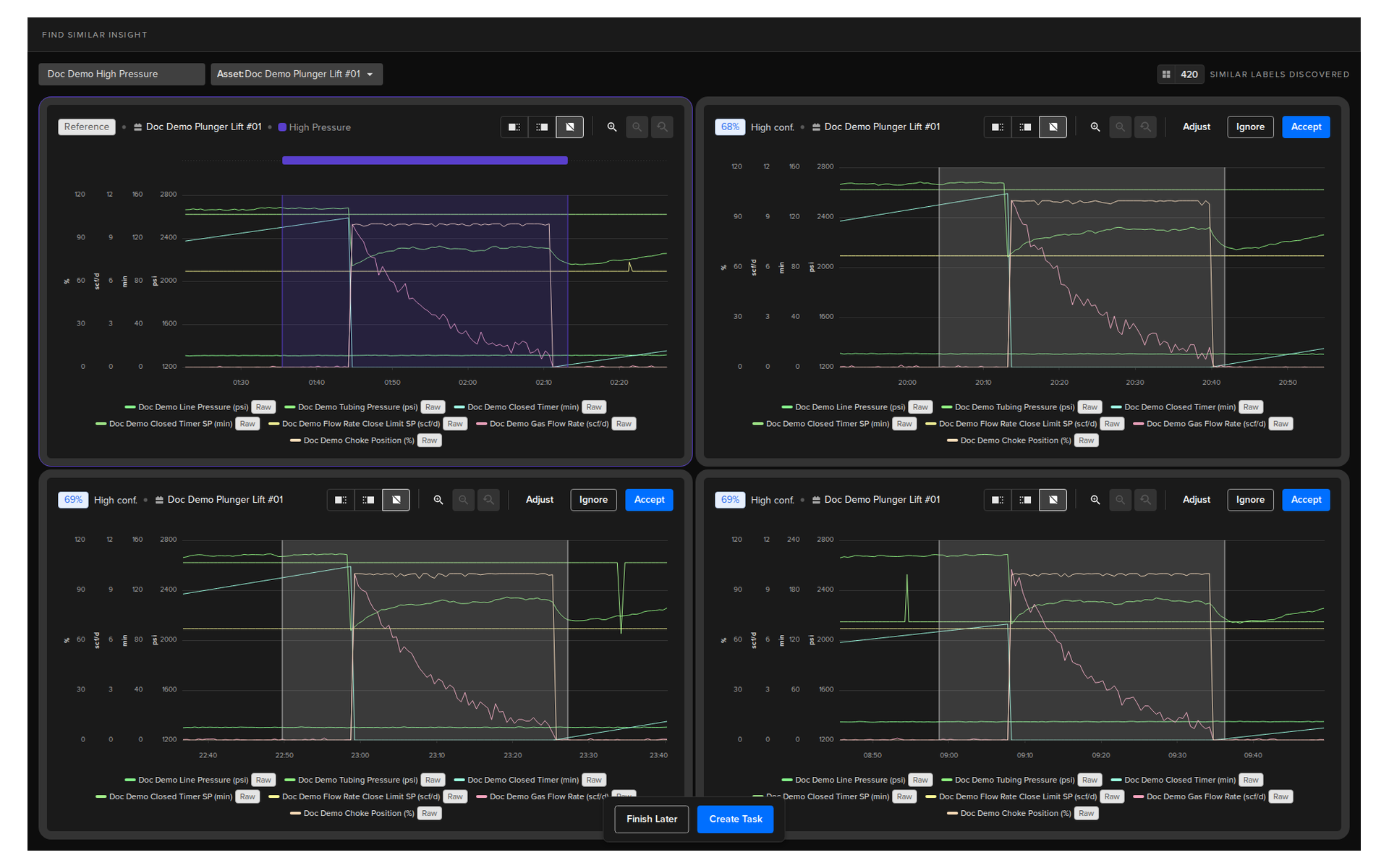
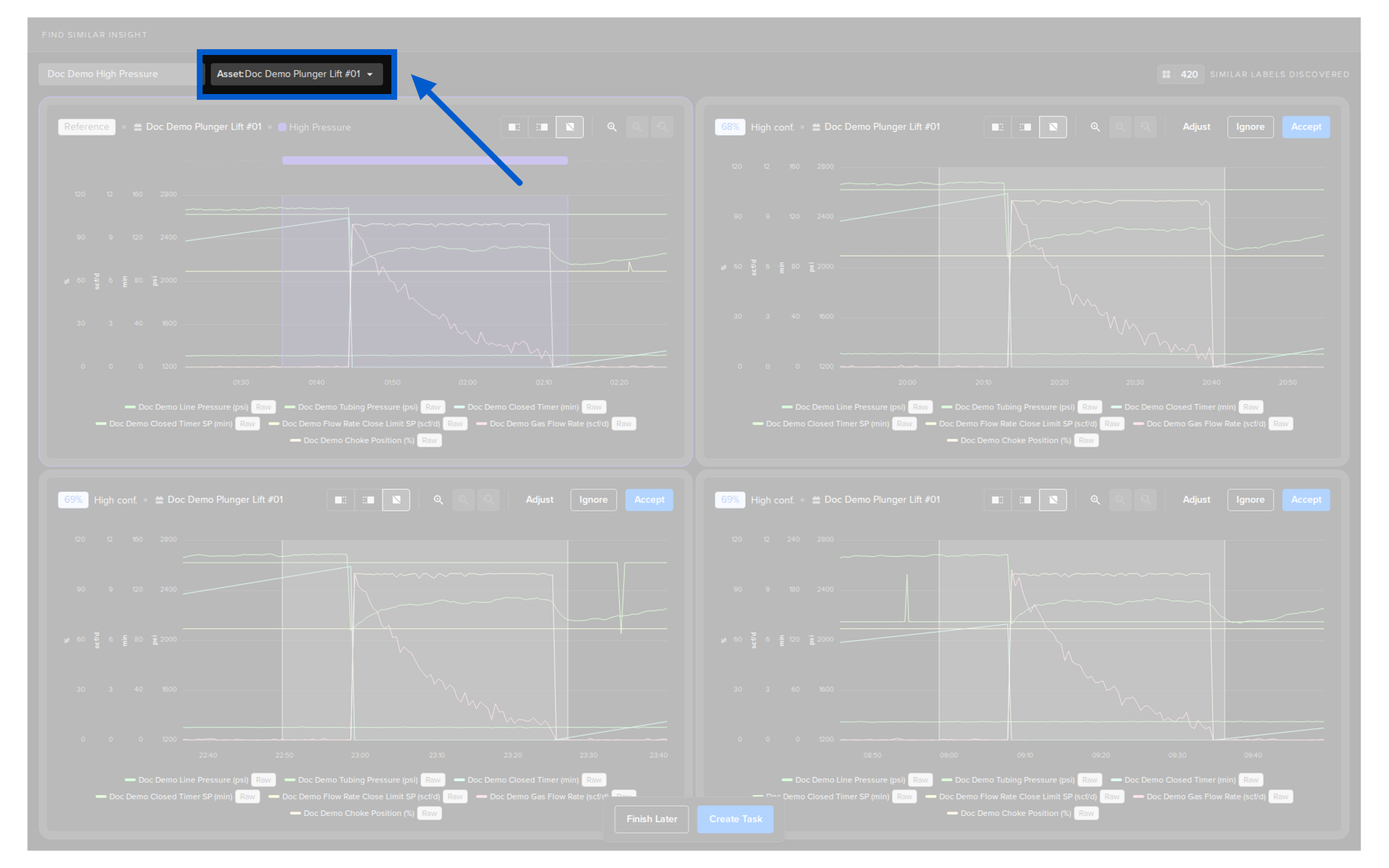
You can also optionally select additional Assets to expand the search for similar patterns.
For each result card you have three options.
Note
If you click on Accept or Reject, the card will be removed from the screen.
If there are other similar results, then a new card will appear in its place for Accept/Ignore confirmation.
Success
Accept or reject results wherever you can. These decisions retrain the similarity search over time, which means results become more relevant and you build a more accurate historical record of what has happened on each asset.
Accept
Click Accept to confirm that the identified pattern is what you expected.
The item disappears from the screen. Accepting tells the model that this pattern is correct and helps it learn for future detections of this event.
Ignore or Reject
Click Ignore to tell the model that the identified pattern is not what you are looking for.
The item disappears from the screen and that specific event will not be shown again.
Adjust
The adjust button allows you to edit the the start and end times of the event for greater accuracy of retraining the AI model.
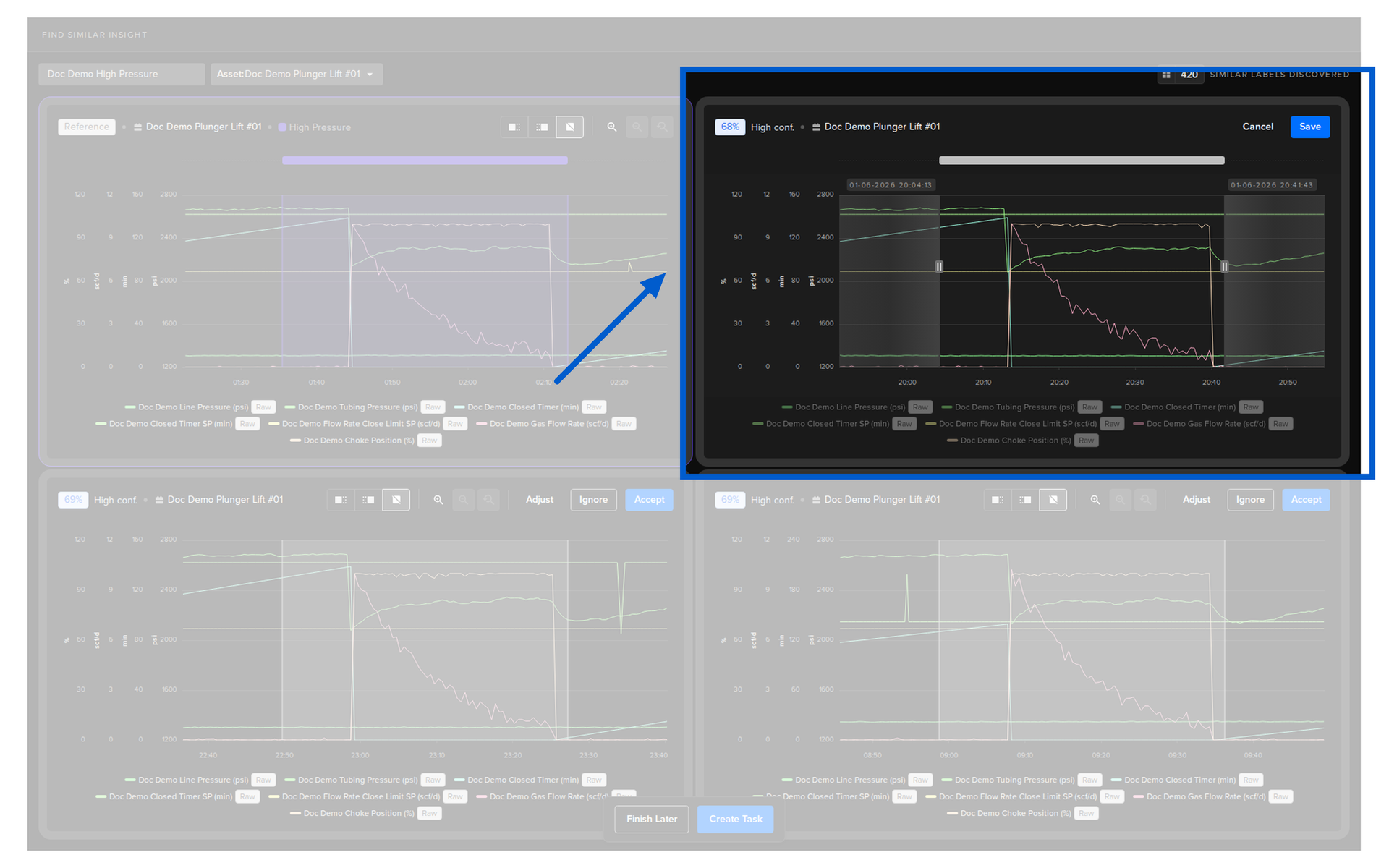
Note
To leave the Insight Match details, click the Finish Later button.
Edit Insight Match
The insight match can be edited at any time to Accept/Ignore more similar matches.
You can watch this short demo video or read the full step-by-step written tutorial below.
Click on any of the Insight Match names.
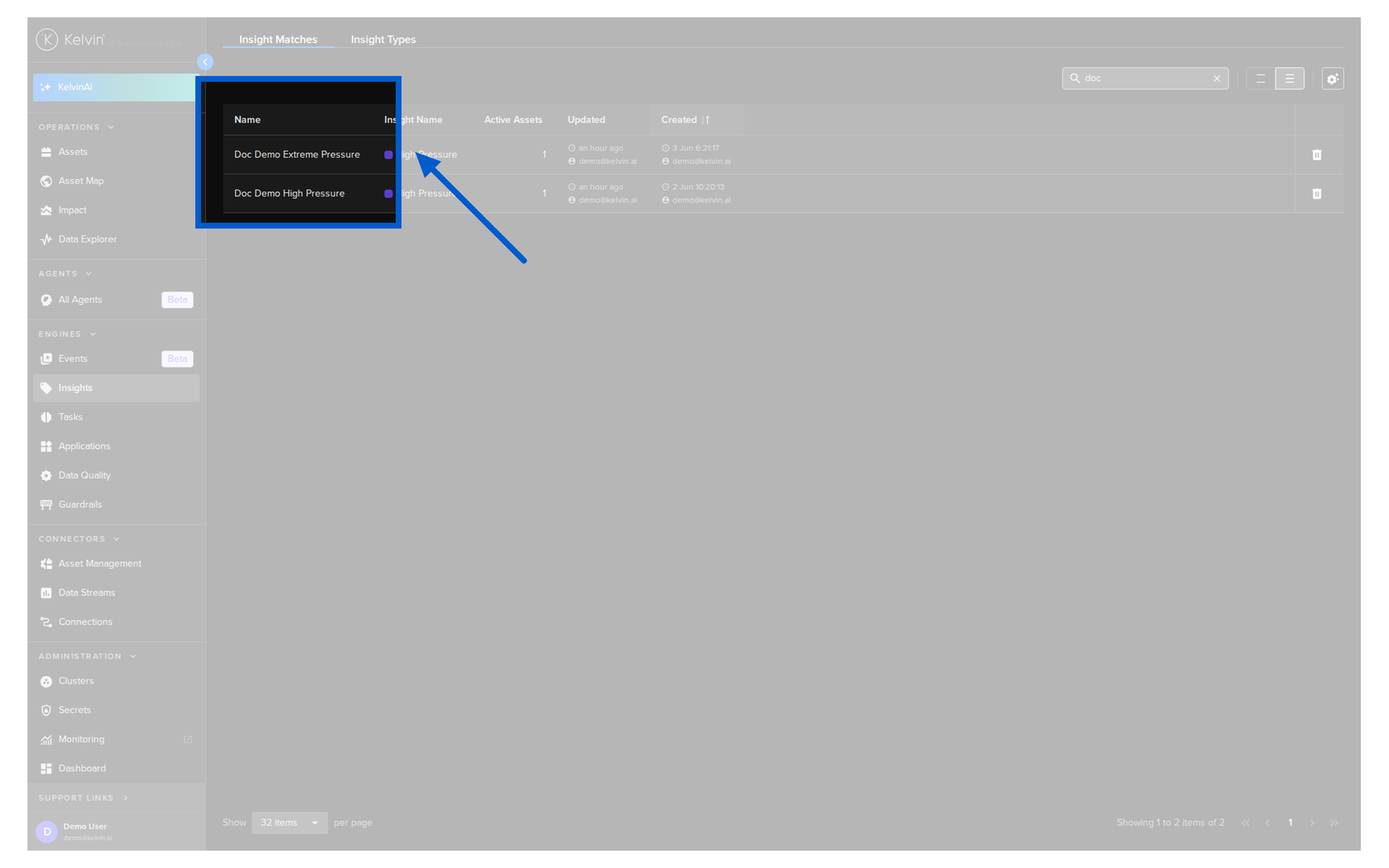
Delete Insight Match
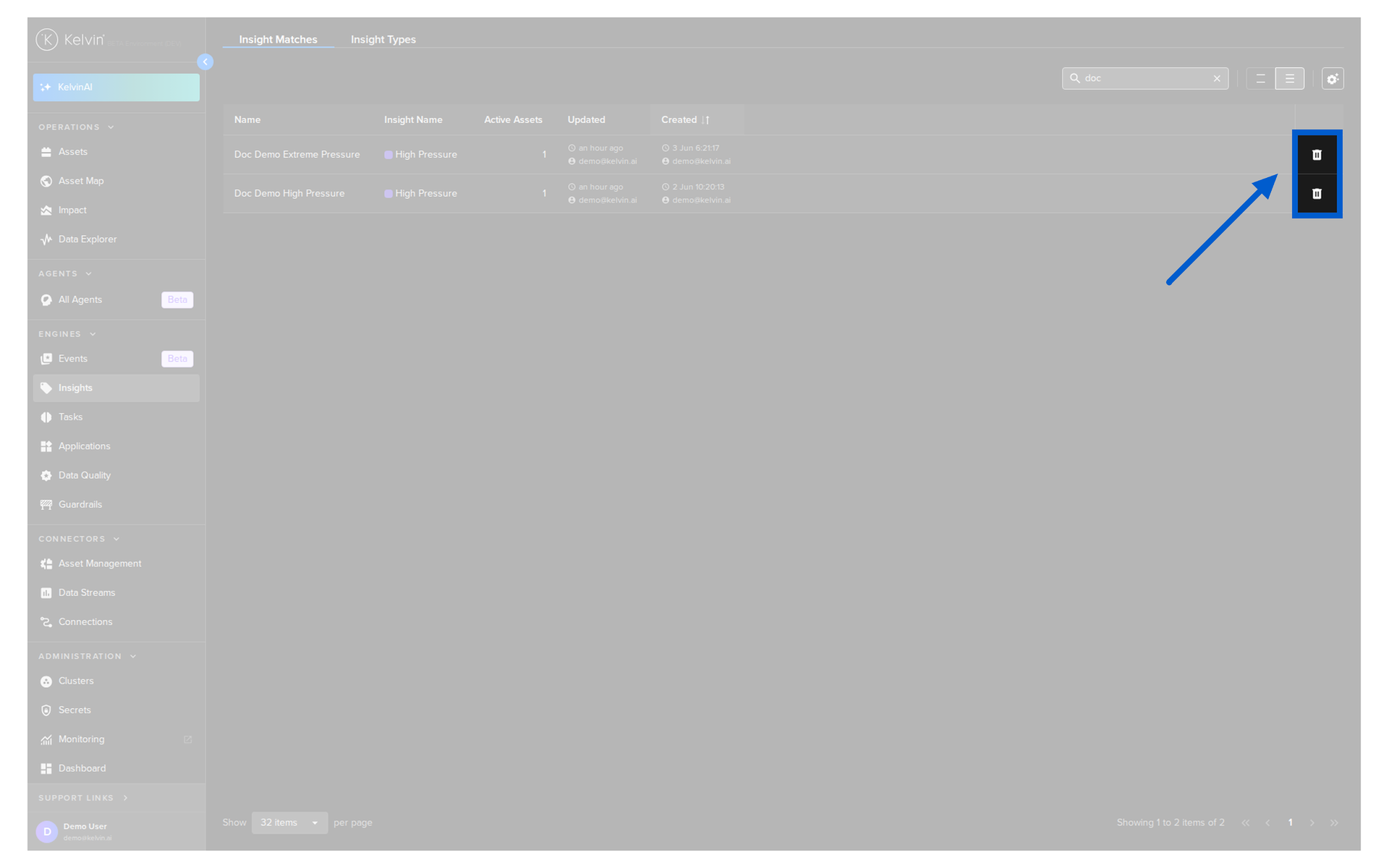
To delete an Insight Match click on the delete icon in the row and confirm with PERMANENTLY DELETE.
You can watch this short demo video or read the full step-by-step written tutorial below.
Note
This will not delete the Insight name or the association between the Event and the Insight.
This only deletes the Insight similarity match information.