Deploy Workload
Deploying a workload means that you select an Application or Docker App from the App Registry and deploy it to the edge to monitor and control nominated assets.
Note
The App Registry is a list of all Applications that have been developed and uploaded to the Kelvin Platform. You can see the full App Registry by going to Applications on the Kelvin UI.
The App Registry is already split up into groups with by type (Applications or Docker App) or in a custom defined group.
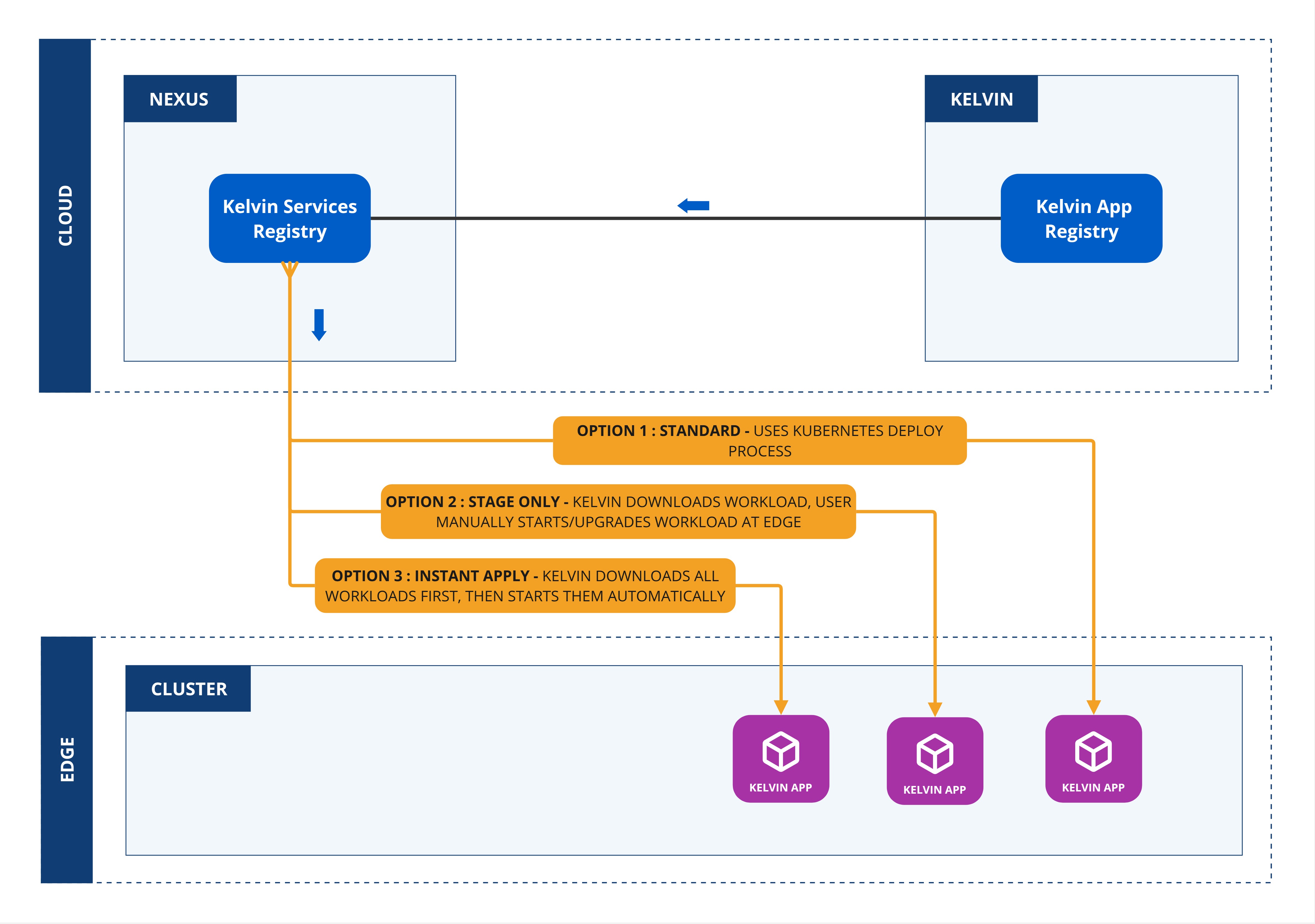
When you deploy a workload, you can choose whether to deploy immediately or to stage the workload at the edge and apply it at a later time.
| Field | Option | Description |
|---|---|---|
| Standard | None | This will use the standard Kubernetes deployment process for workload containers and the workload will be automatically started after downloaded to the edge. |
| Staged | Stage Only | This will download the workload to the edge but will not start the workload. You will need to send an additional command to start the workload either through the Kelvin API or locally in the terminal of the edge computer |
| Staged | Instant Apply | This will use Kelvin's deployment process for workload containers and the workload will be automatically started after downloaded to the edge. The difference to the Kubernetes deployment process is that Kelvin will download all workloads and stage them first. Only when all workloads have been successfully downloaded will the start command be given to all the workloads. |
Default Settings
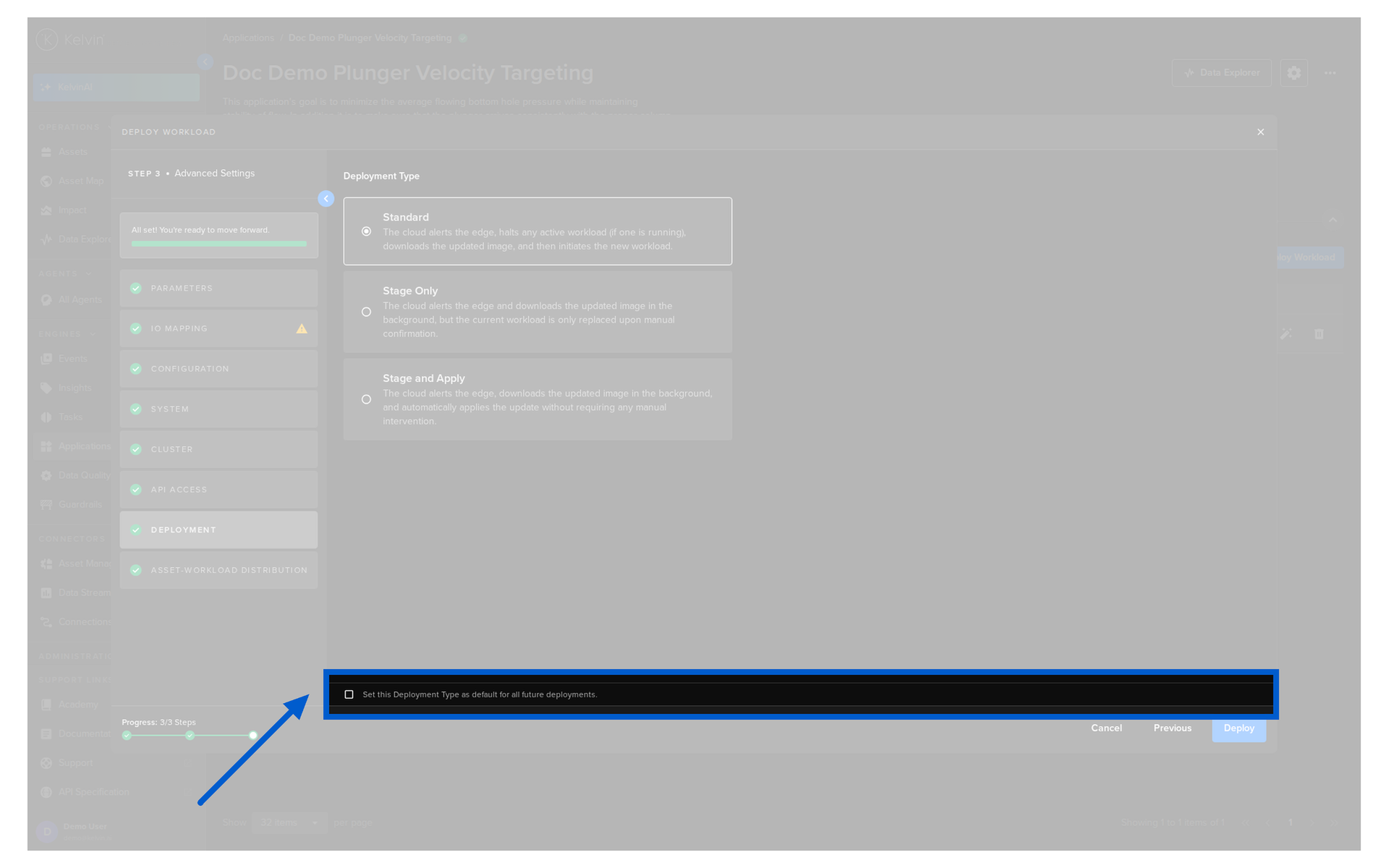
To simplify the deployment process, you can set default settings that will be automatically chosen when deploying.
Note
The default settings can overwritten during each deploy if special conditions are required.
When completing the deployment of a Workload there is an option to update the default settings with the current deploy selections.
Deploy Standard Workload
On this page we will show you how to deploy a standard workload.
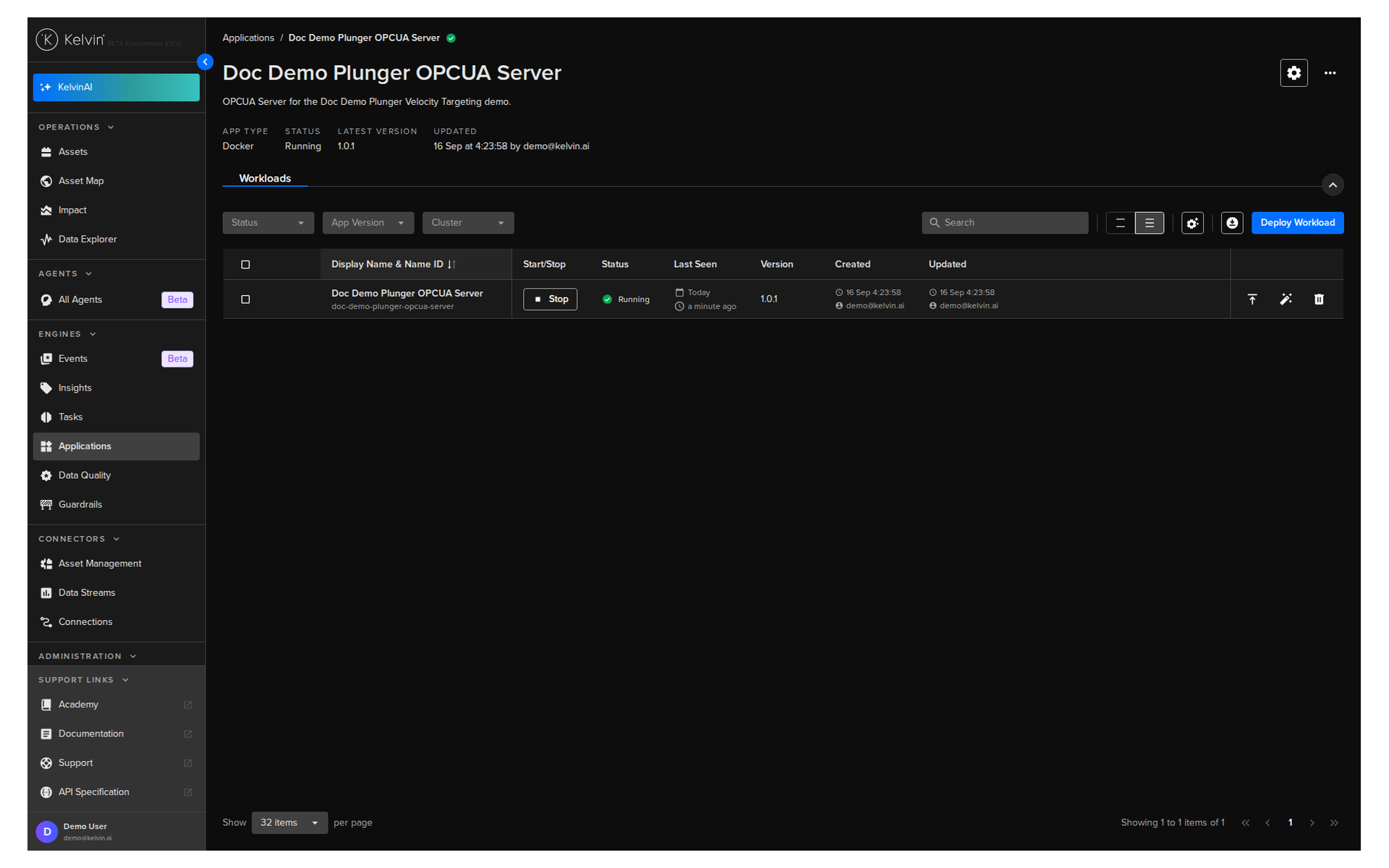
To start, go to Applications, select an application with the Docker Apps tag  , click on the Workloads tab then click on the Deploy Workload button;
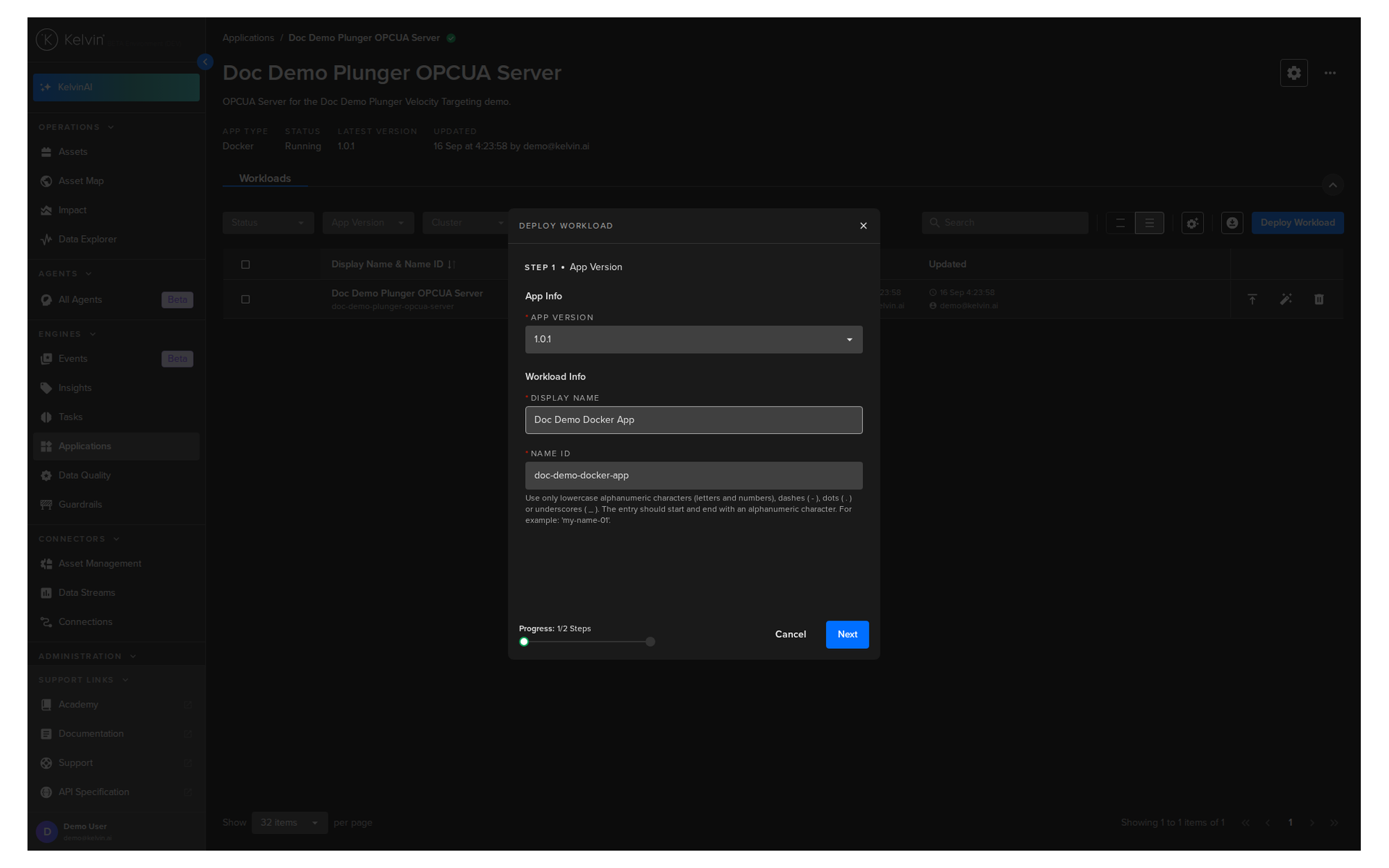
Select the Docker App version and give it a name. When ready click Next to go to Step 2.
Note
The ID will be filled in automatically when you type a name. Normally you can accept the default, though you have the option to create you own custom name ID.
In Step 2 you have a range of options available.
Note
You will only be able to deploy your workload once all options have a green check  .
.
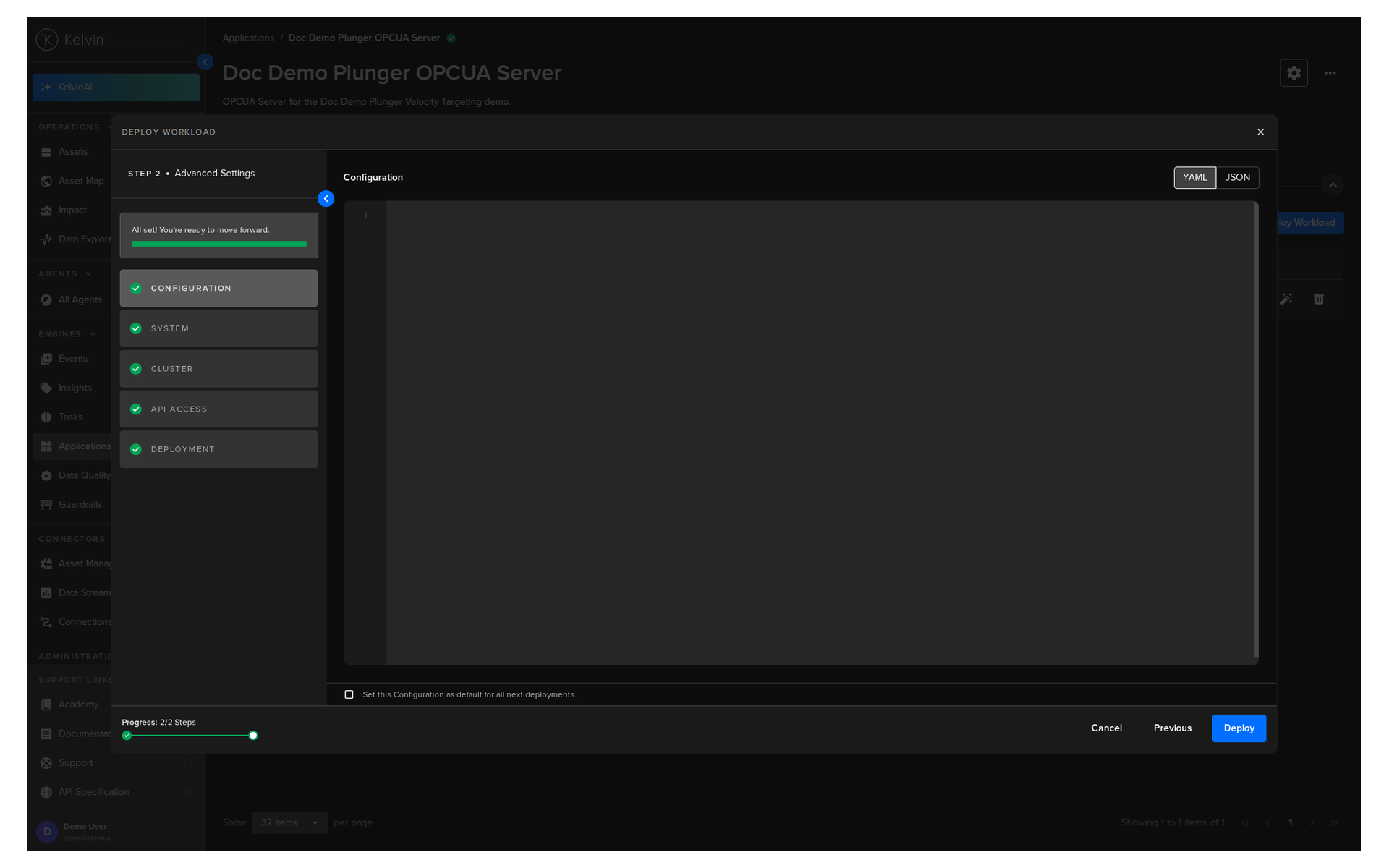
Configuration
Add any configuration information that is required by the Docker App.
Note
Instead of typing a credential, you can insert a reference to a secret that already exists on the platform. Use the YAML or JSON editor and enter <% secrets.secret-name %>. Kelvin injects the secret value at runtime, so the value is never stored or shown here.
Injecting the reference here means the secret does not have to be fixed into the Docker App in the app.yaml file. See Use Secrets.
System
Here you will be able to tune all the system variables that are present in the app.yaml file of the Docker App.
You can choose to edit it using a UI or directly on the YAML or JSON.
Note
Using YAML or JSON is very useful for fast application of settings if you have preset configurations and want to copy/paste them into here.
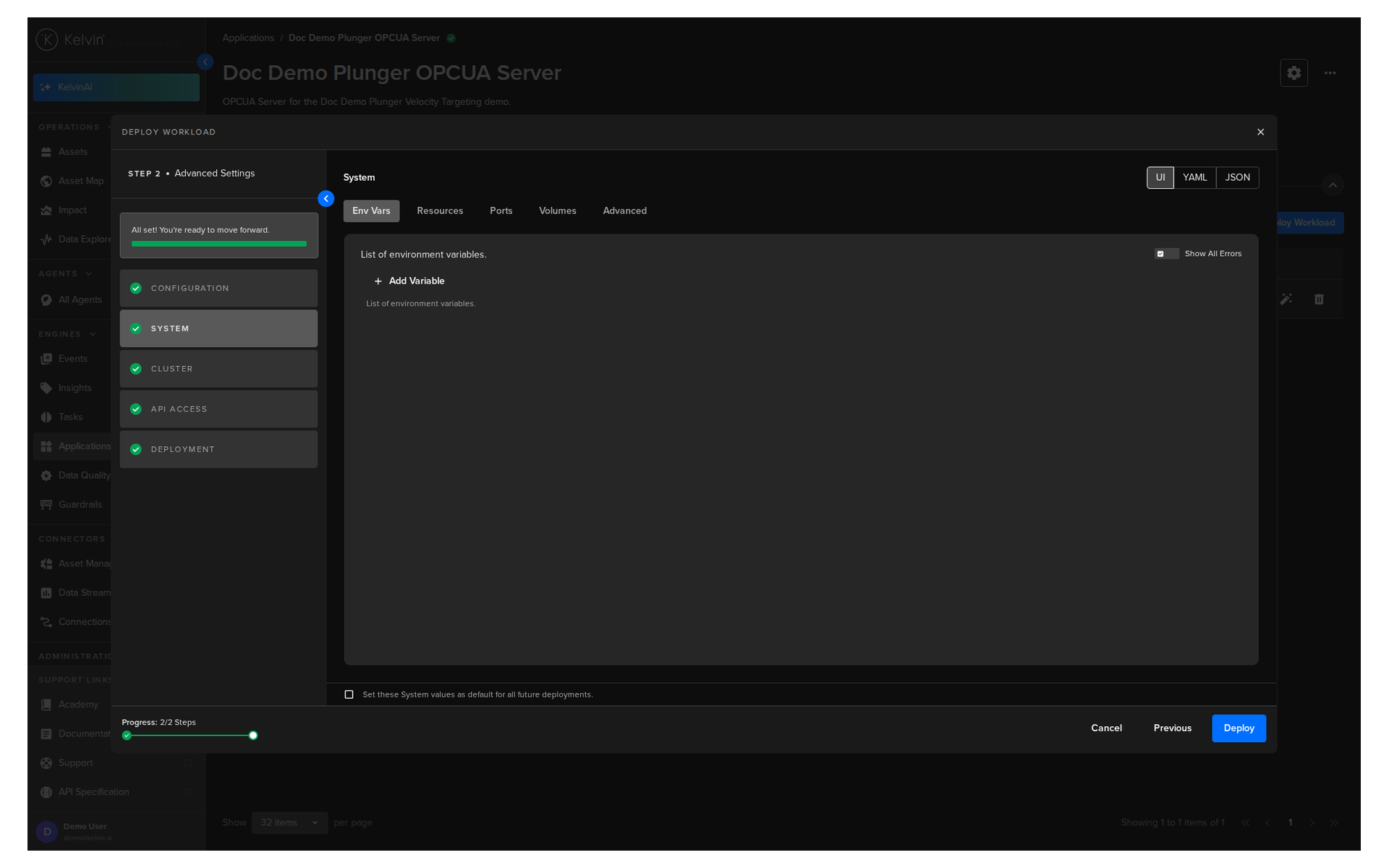
Env Vars
Here will be shown the list of default Environment Variables and the default values that were set in the app.yaml file of the Docker App during development.
You can edit these and change both the environment name or value. You can also add addition Environment variables.
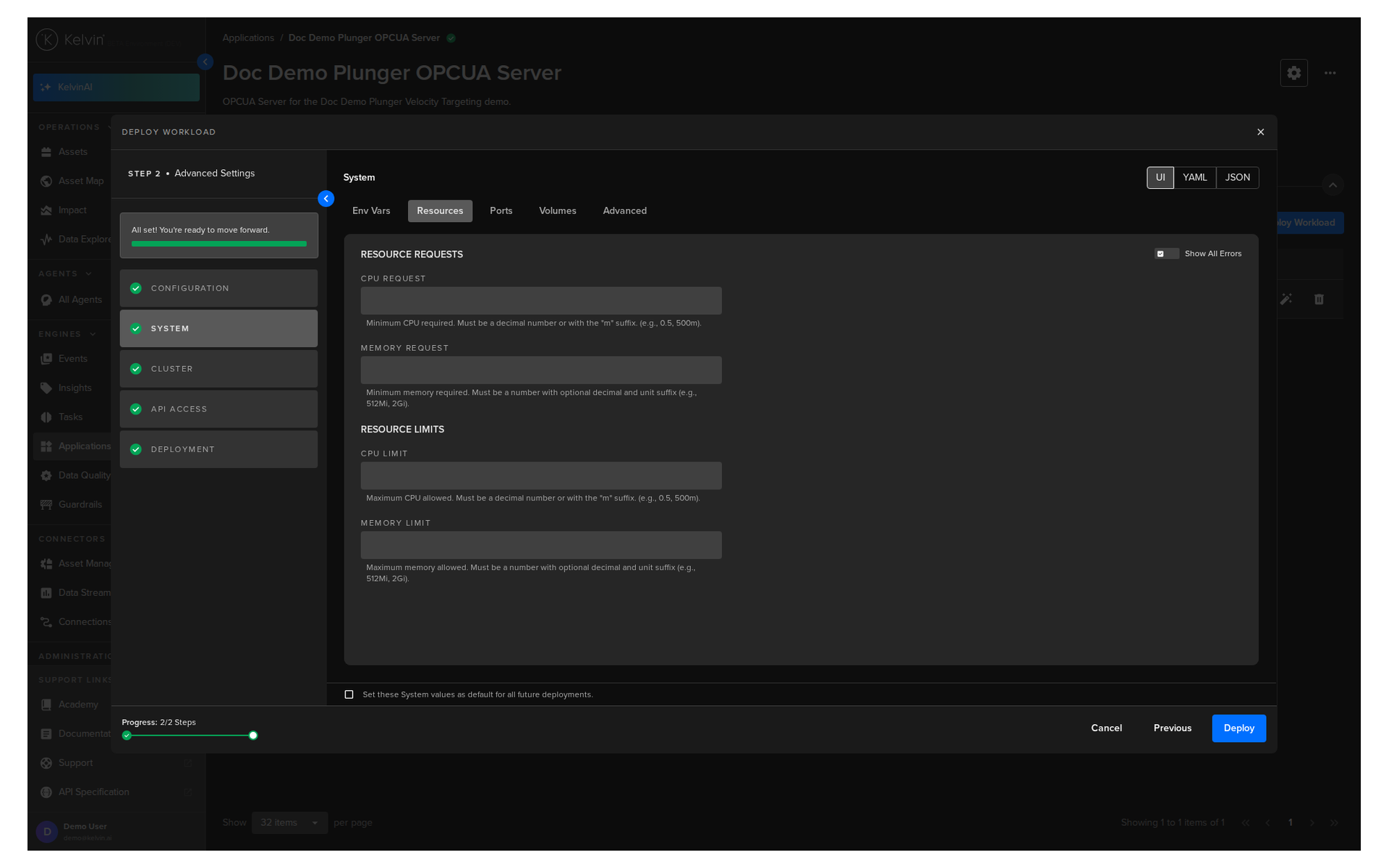
Resources
Apply resources available for the Workload.
See Set CPU/Memory Limits for detailed documentation on this section.
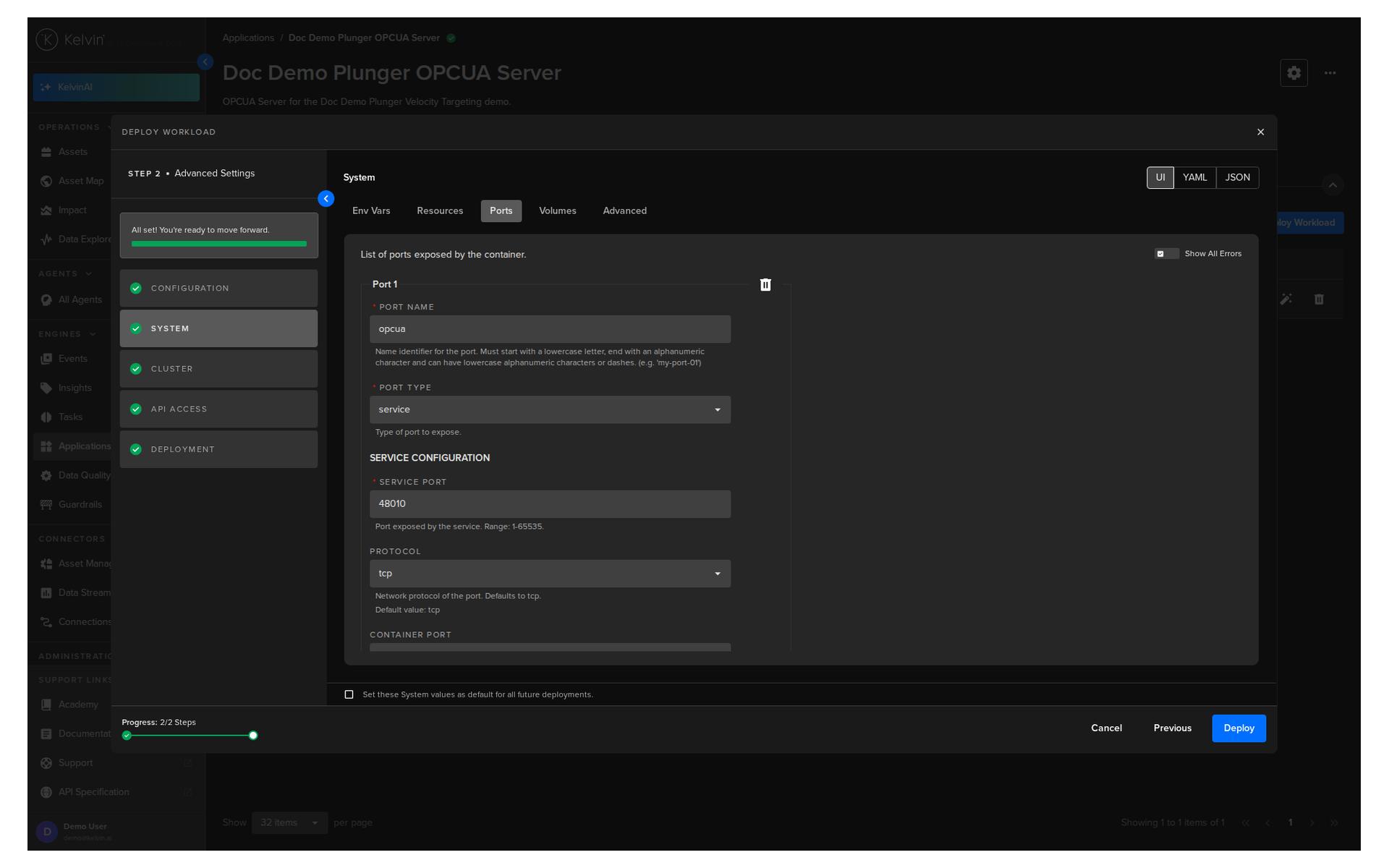
Ports
Open ports to your Workload. See Ports for a description of all port fields.
Note
To let the platform scrape Prometheus metrics from your Docker App, declare the port and path in system.metrics in the app.yaml. See Expose Application Metrics.
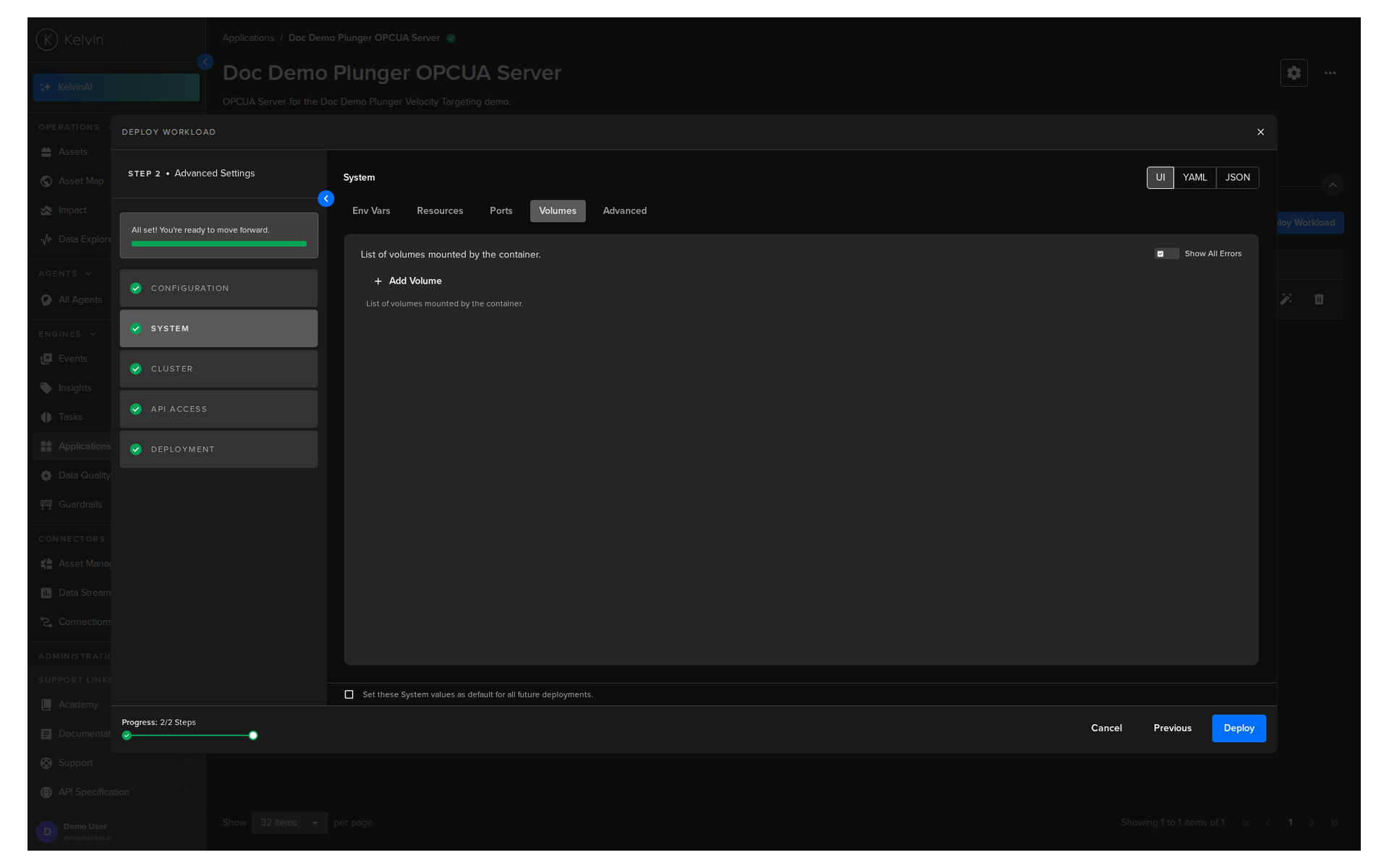
Volumes
Mount volumes to your Workload.
Note
A volume can hold a secret value as its file content. Set the volume type to secret and reference a secret held on the Kelvin Platform. Kelvin writes that secret value into the file at the target path when the Workload starts.
Use this for credentials that must be read from a file, such as a certificate or a key. See Mount a Secret as a File for the full syntax.
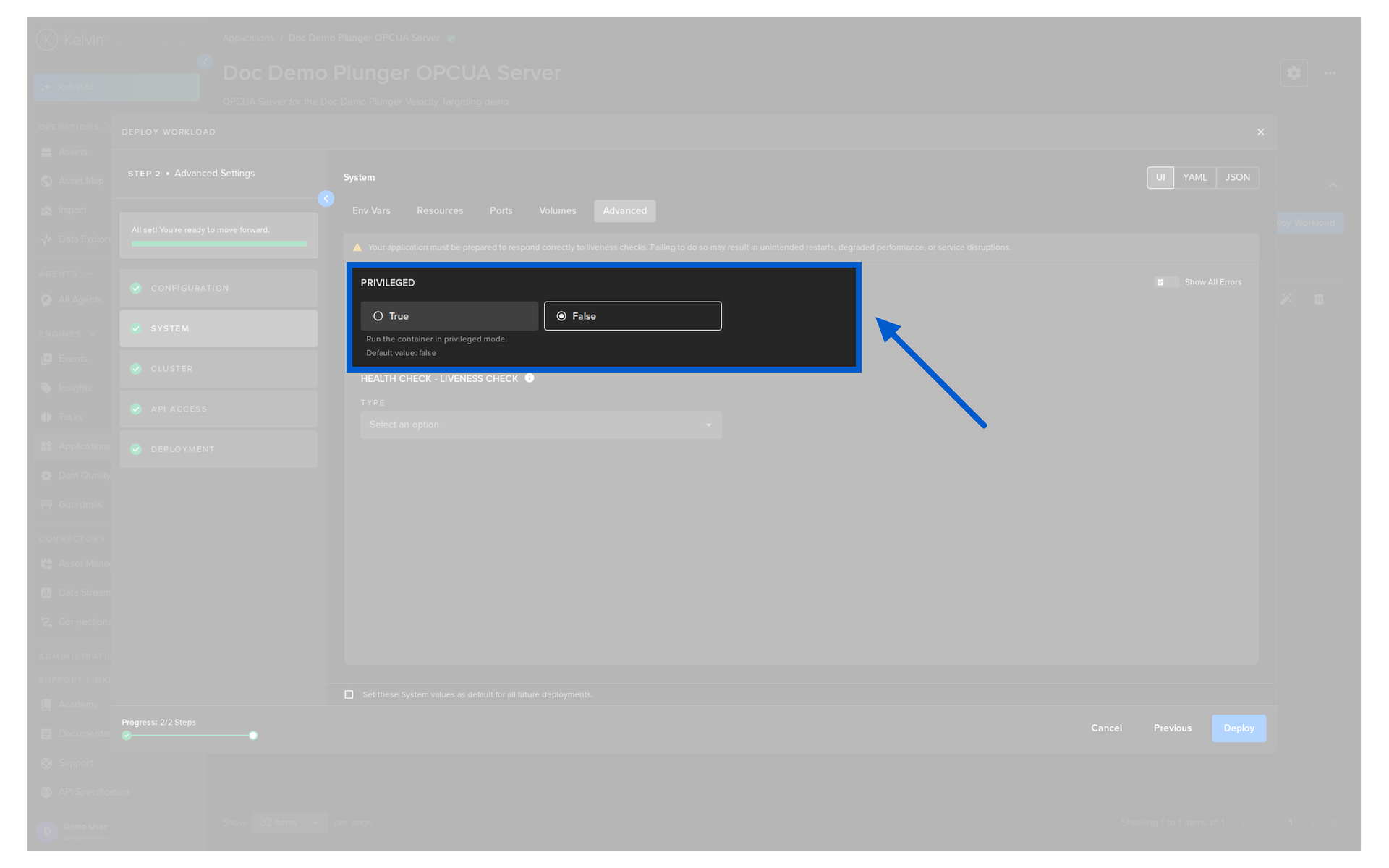
Advanced
Choose if you would like to add Privileged mode to the Workload;
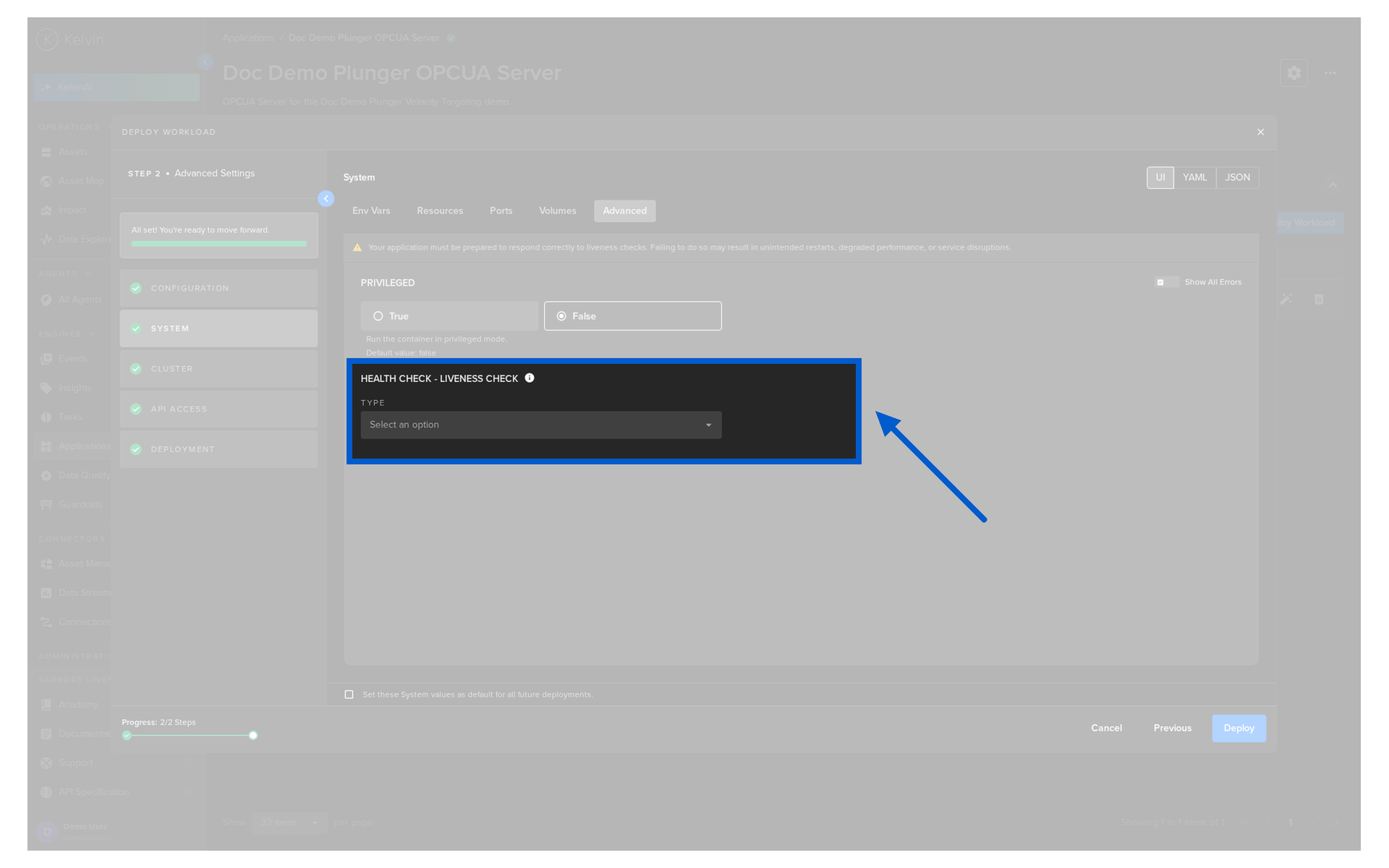
Optionally choose a health check for your Workload. These are Kubernetes liveness probes and detailed information can be found on the Kubernetes Website.
The options available are;
| Option | app.yaml type |
|---|---|
| HTTP request returns a successful status (200-399) | http_get |
| TCP connection open successfully | tcp_socket |
| Command run inside the container exits with status 0 | exec |
Warning
If you use a Health check option, make sure you add code to respond to the liveness probe requests.
Readiness
A readiness probe is optional. It tells the platform when the Workload is ready to serve, not only that it is running. If a readiness probe is used and declared in the app.yaml, it will show here in the UI next to the health check.
When a readiness probe fails, the Workload is marked as not ready. It is not restarted. Restarting is the job of the health check.
Read Health & Readiness to learn the difference and how to set them up.
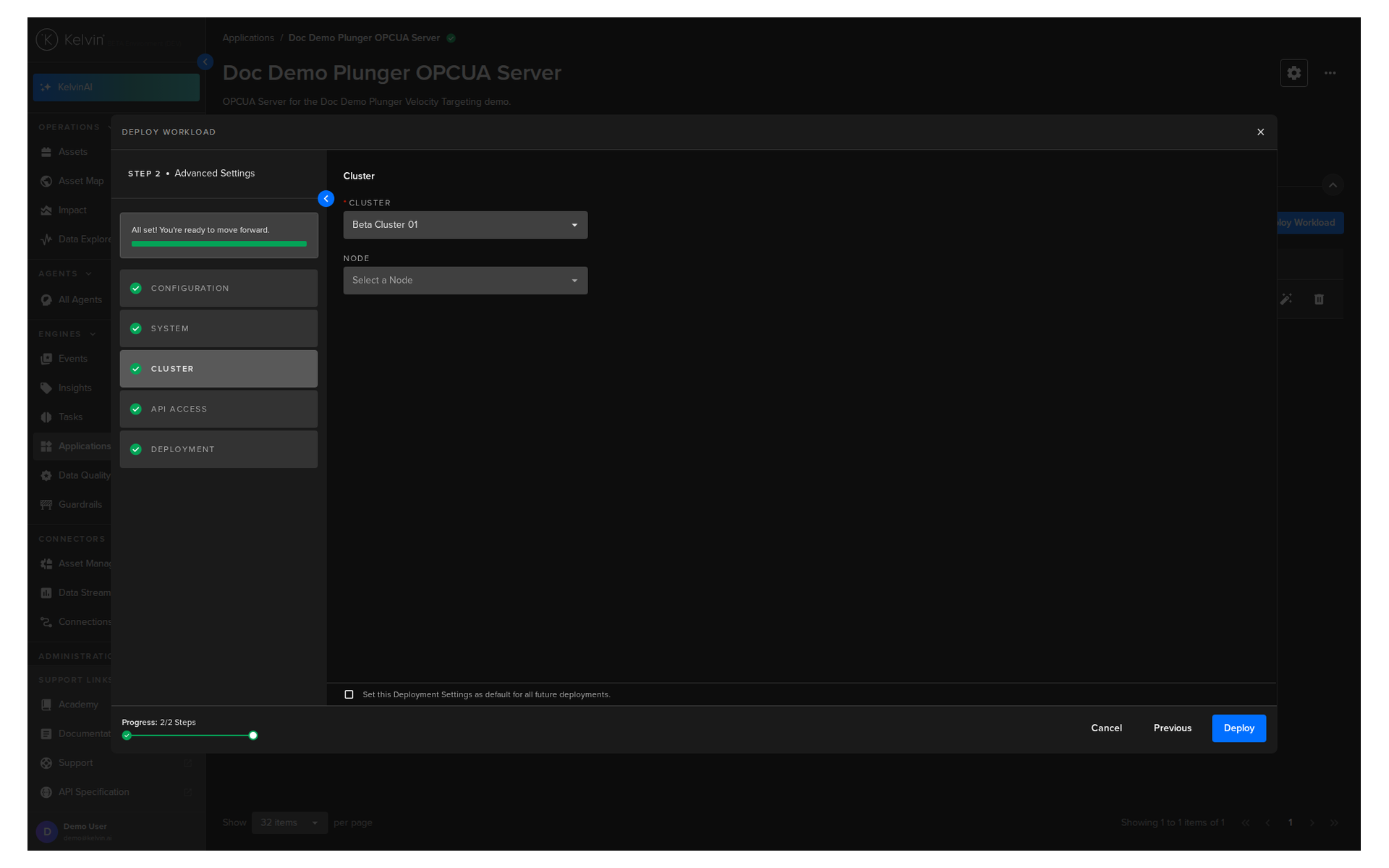
Cluster
Choose a cluster to run your Docker App on.
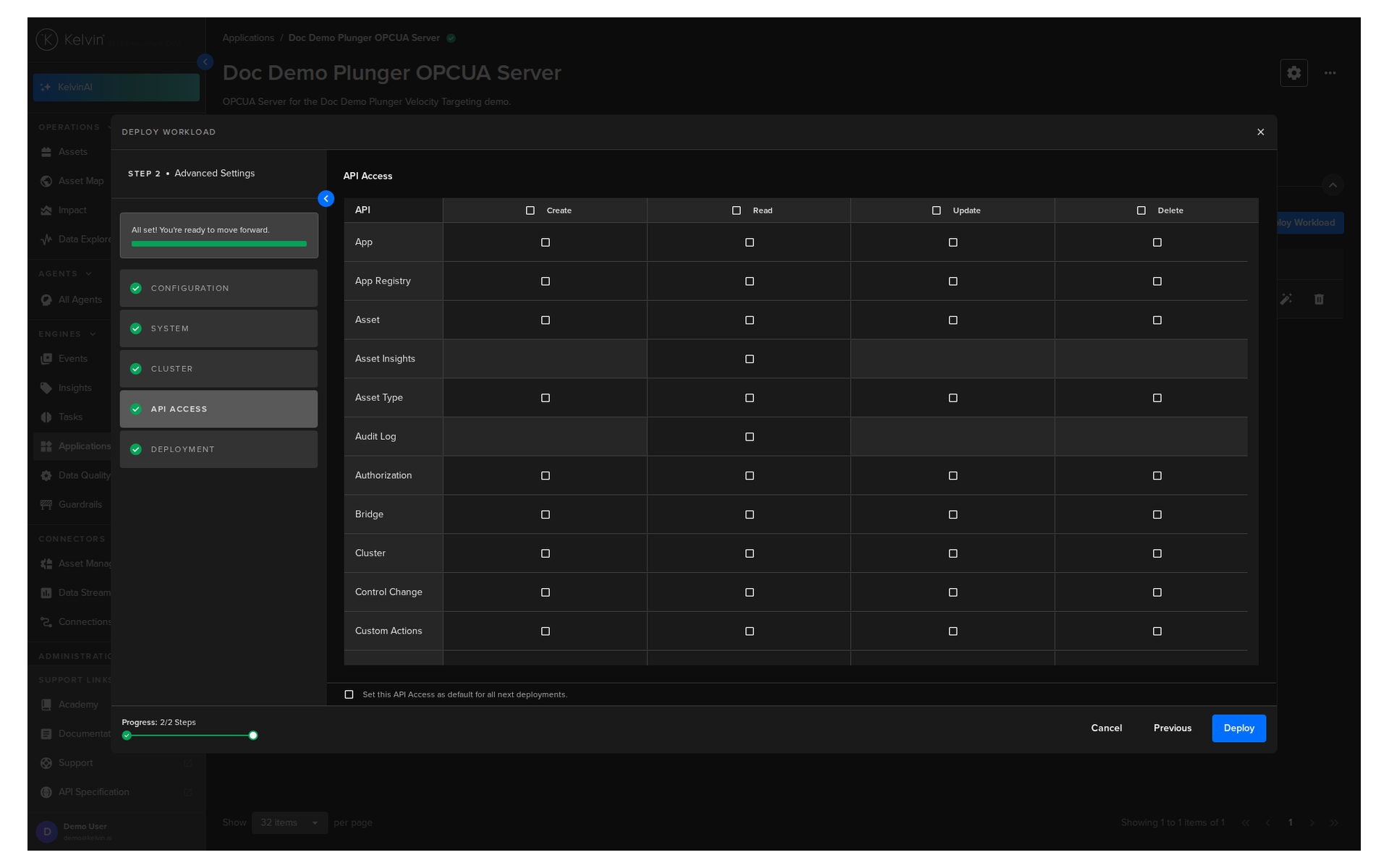
API Access
Define the API access permissions for the docker workloads. This allows you to specify exactly which API endpoints the workload is authorized to use, improving security by granting only the permissions required to run the application.
Warning
The API Access selection can NOT be changed once the workload has been deployed.
To alter the API Access settings, you must delete and redeploy the workload.
Deployment
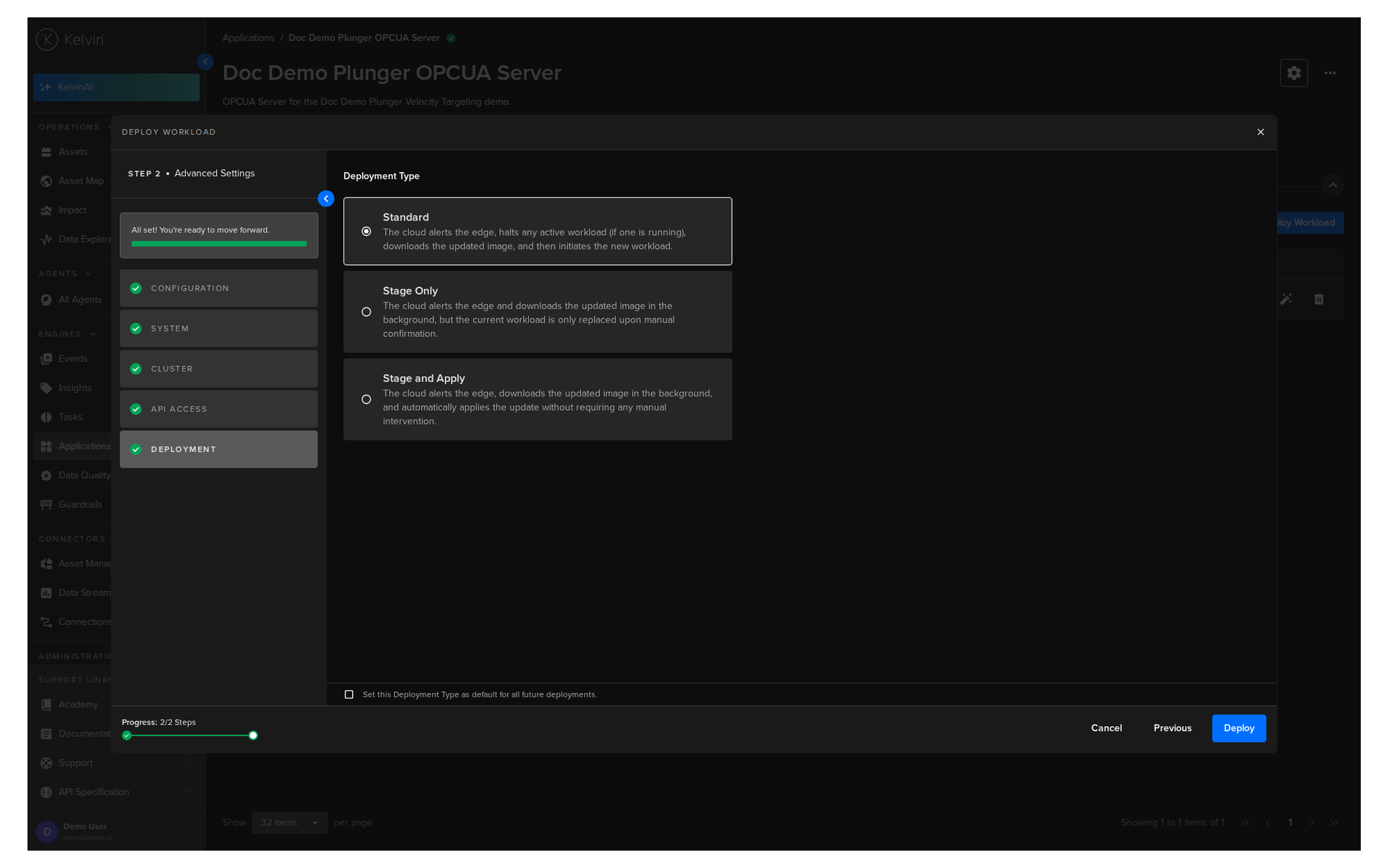
For a standard Workload deployment, choose the Standard option.
Note
Stage Only and Instant Apply are covered in a different documentation section.
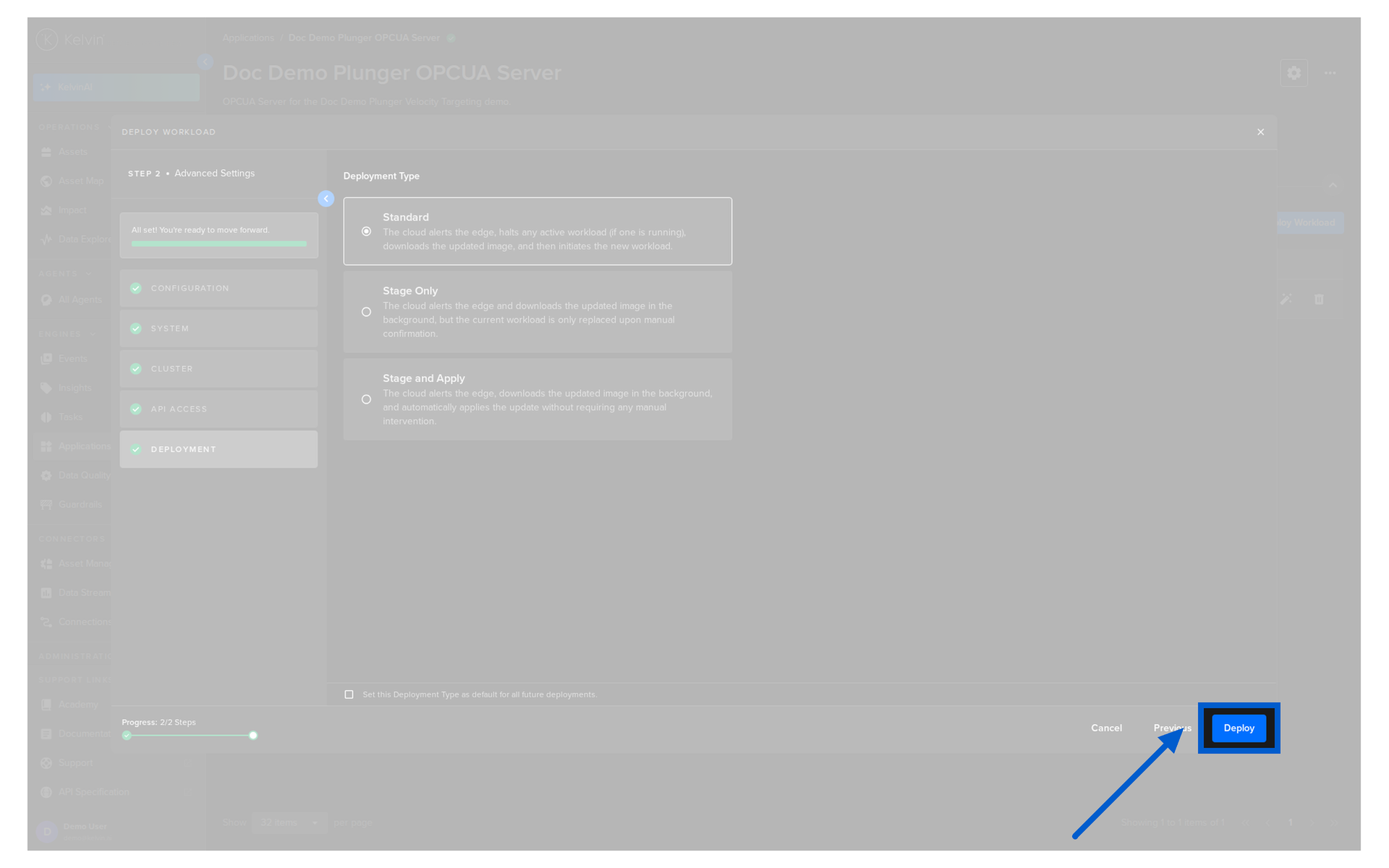
When you are ready and all mandatory areas are filled in, you will see the Deploy button turn blue.
You can then see the status of the Workload in the Workloads list going from Pending, Deploying to Running.
You can even deploy the app if the Cluster is offline. It will be placed in a queue with a status of Pending and will be automatically deployed when the Cluster comes back online.