Insights
On this page you will learn how to capture an Insight from a detected event.
Create from Events
The Capture Insight page opens immediately after you click Add Insight on an event card.
You can watch this short demo video or read the full step-by-step written tutorial below.
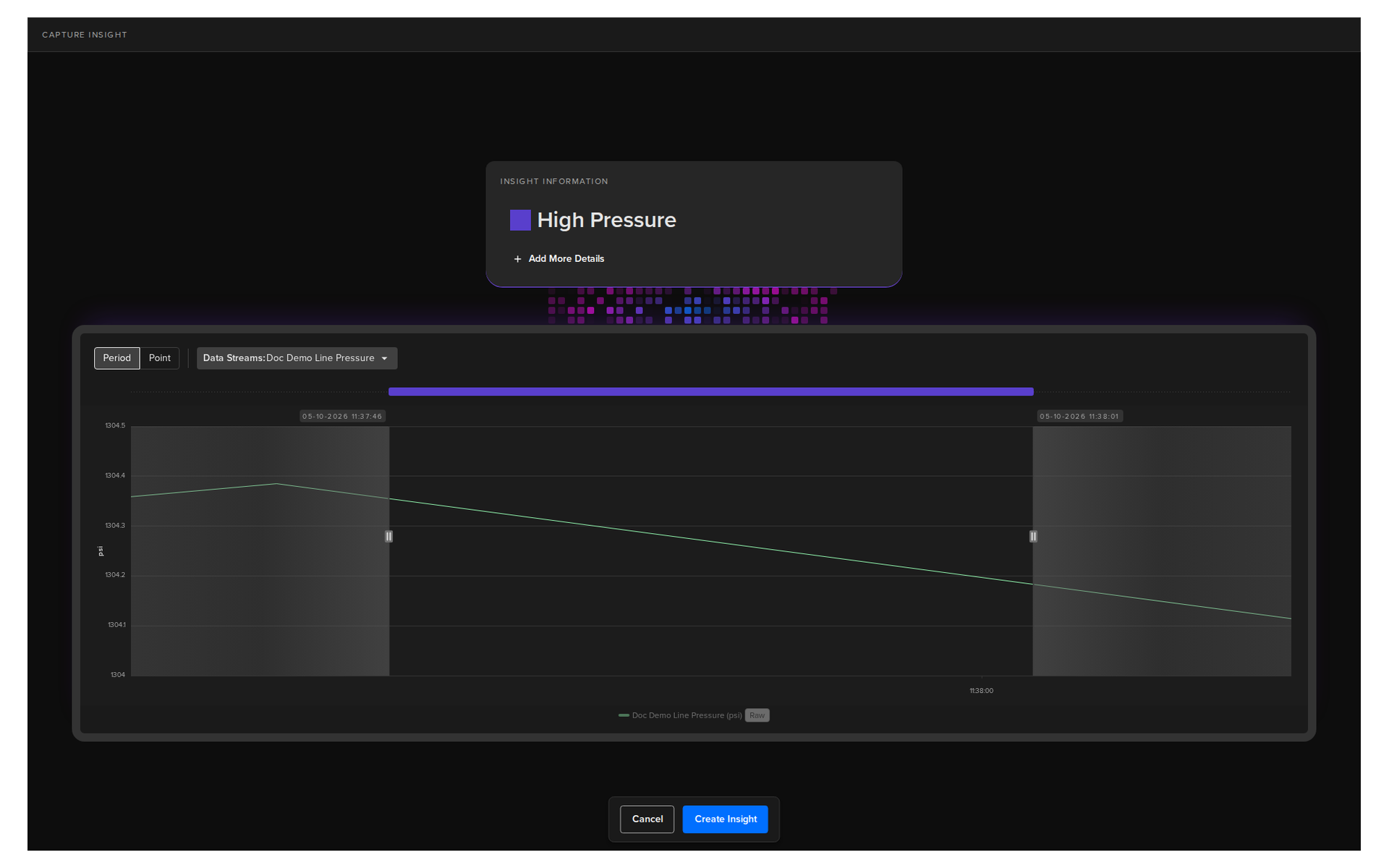
This is where you give the event meaning. You name it, describe it, choose whether it represents a period of time or a single point, and confirm which data streams are relevant.
Once captured, the platform searches for similar historical patterns across your assets so you can build up a picture of the event before deciding what to do next.
Name your Insight
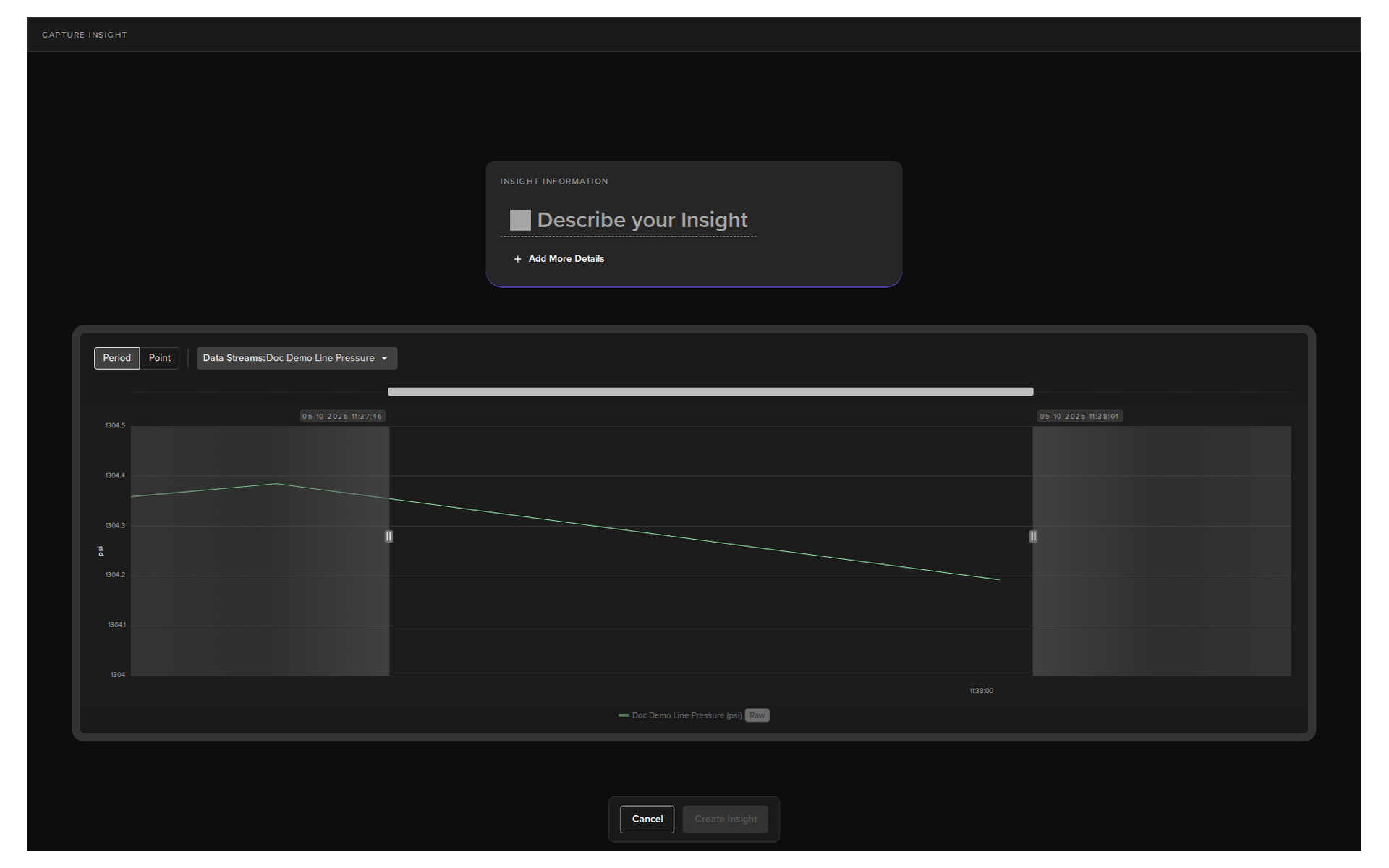
In the Describe your Insight field, type a name for this insight.
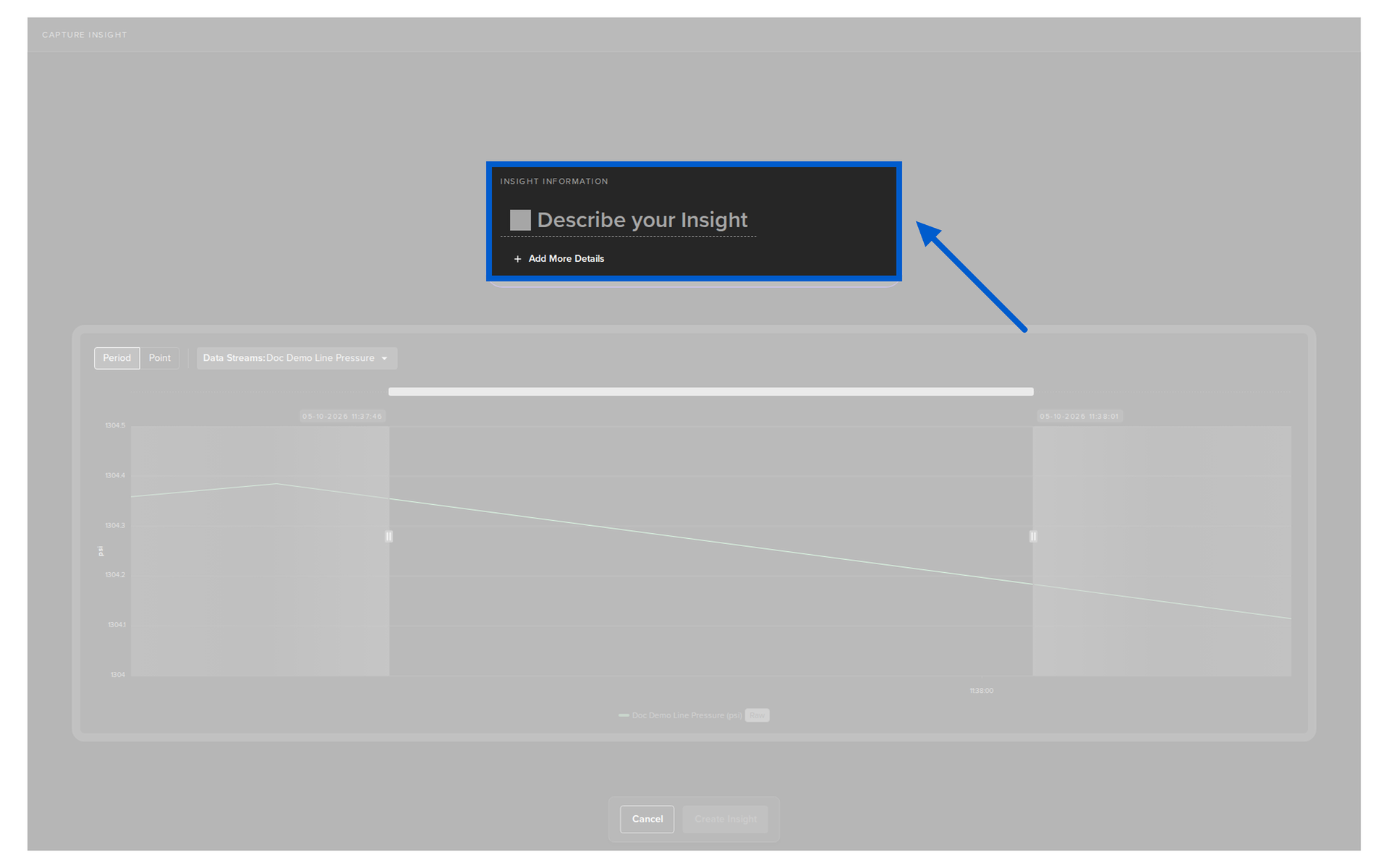
As you type, a list of existing insight names appears. If this event matches something you have already named before, select it from the list. If this is a new type of event, type a new name and click Create.
Note
Selecting an existing name in the Insights does not automatically associate it with the other Insights with the same name.
You will need to explicitly click on Accept when similar events are listed in the Insight Match, see Find Similar, to connect similar patterns together for model detection improvement.
Info
If you create a brand new Insight name here, you will then be asked if you want to Find Similar. This takes you directly to the Find Similar page in Insight Matches.
If the name alone is not enough context, click + Add More Details to open a longer description field. Use this to capture anything that will help you and your team understand the insight in future.
Select the event type
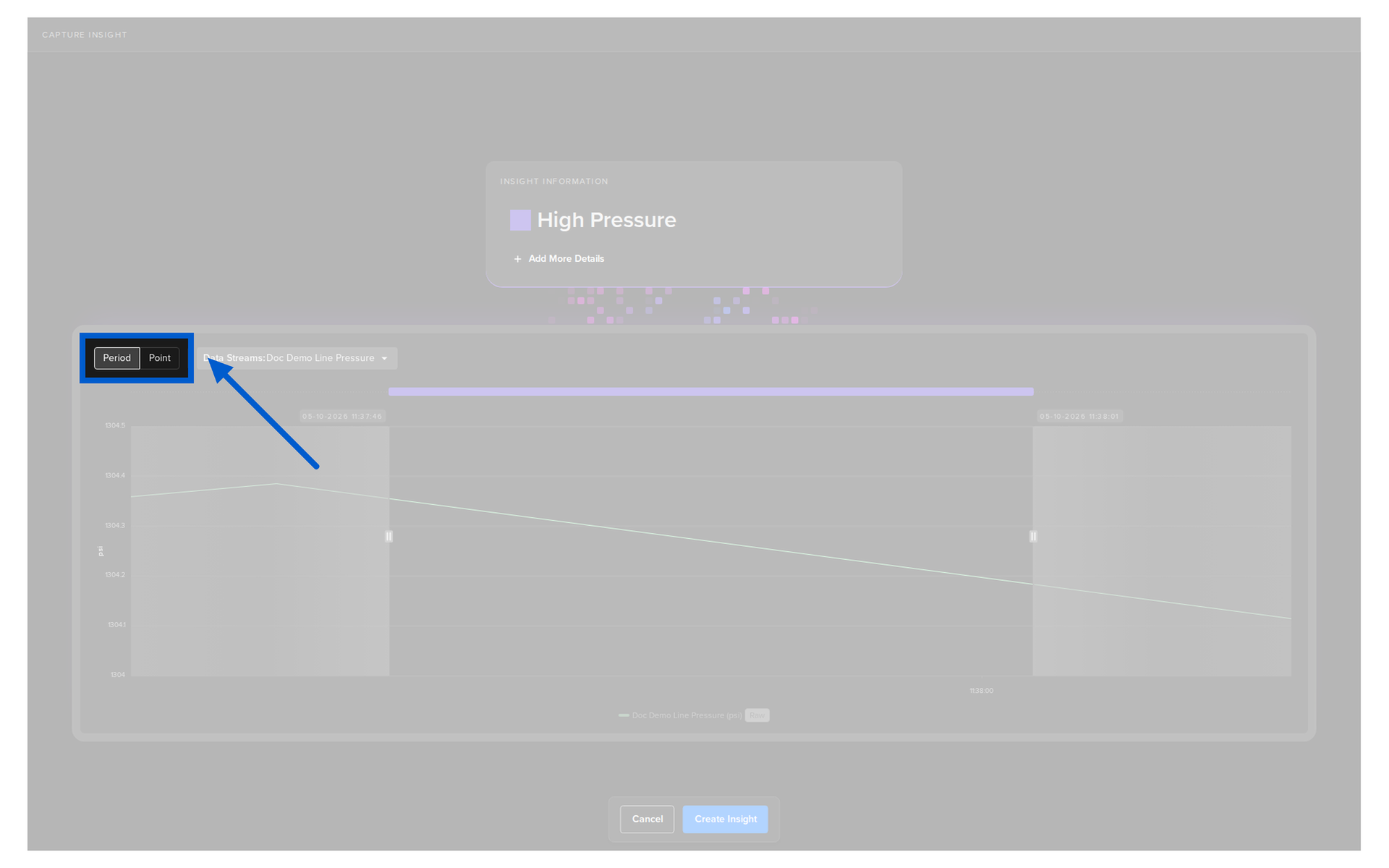
Choose whether the event occurred over a period of time or at a specific point:
Note
If you select period, you can then use the markers in the Data Explorer to drag and highlight the exact start and end points of the event.
- Period: the event spans a range of time. Use this when the behavior developed gradually or continued for a duration.
- Point: the event happened at a single moment. Use this when the behavior is a sudden spike, drop, or threshold crossing.
Select data streams
If the event involves more than one data stream, select only the streams that are relevant to this specific insight. Streams that are not meaningful for this event type can be left out.
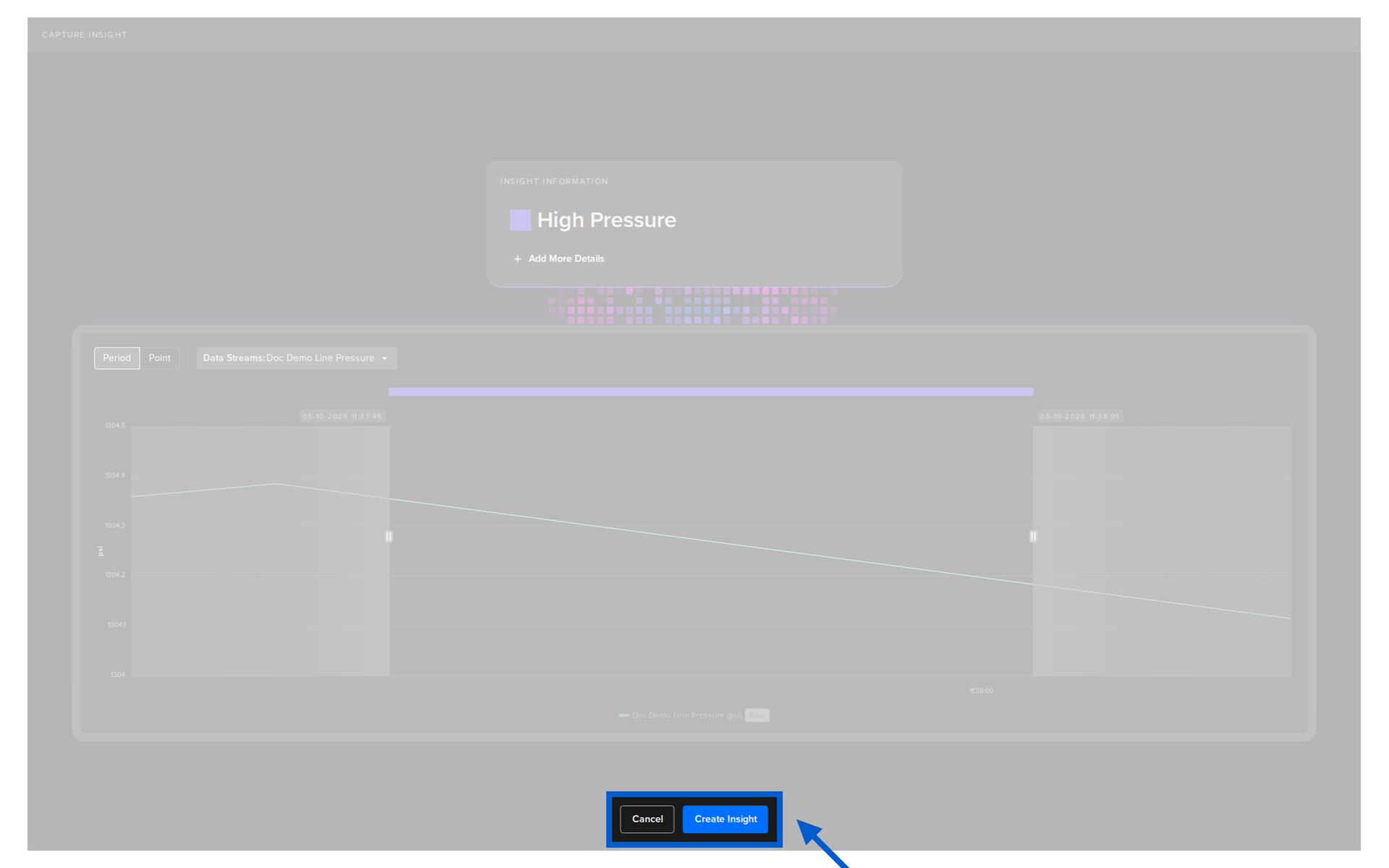
Create Insight
When you are ready, click Create Insight. The Insight is saved and Kelvin moves on to the next event.