Actions in Data Explorer
On this page you will go through understanding the Actions activity lane in the Data Explorer.
Overview
Actions are the changes performed on an Asset, such as Control Changes. Control Changes can be initiated through manual control updates or through Recommendations.
Every Action performed is shown in the Actions lane in the Data Explorer. This allows you to quickly and visually see the effects of individual Actions on your Data Streams.
You can watch this short demo video or read the full written guide below.
Show or Hide the Actions Lane
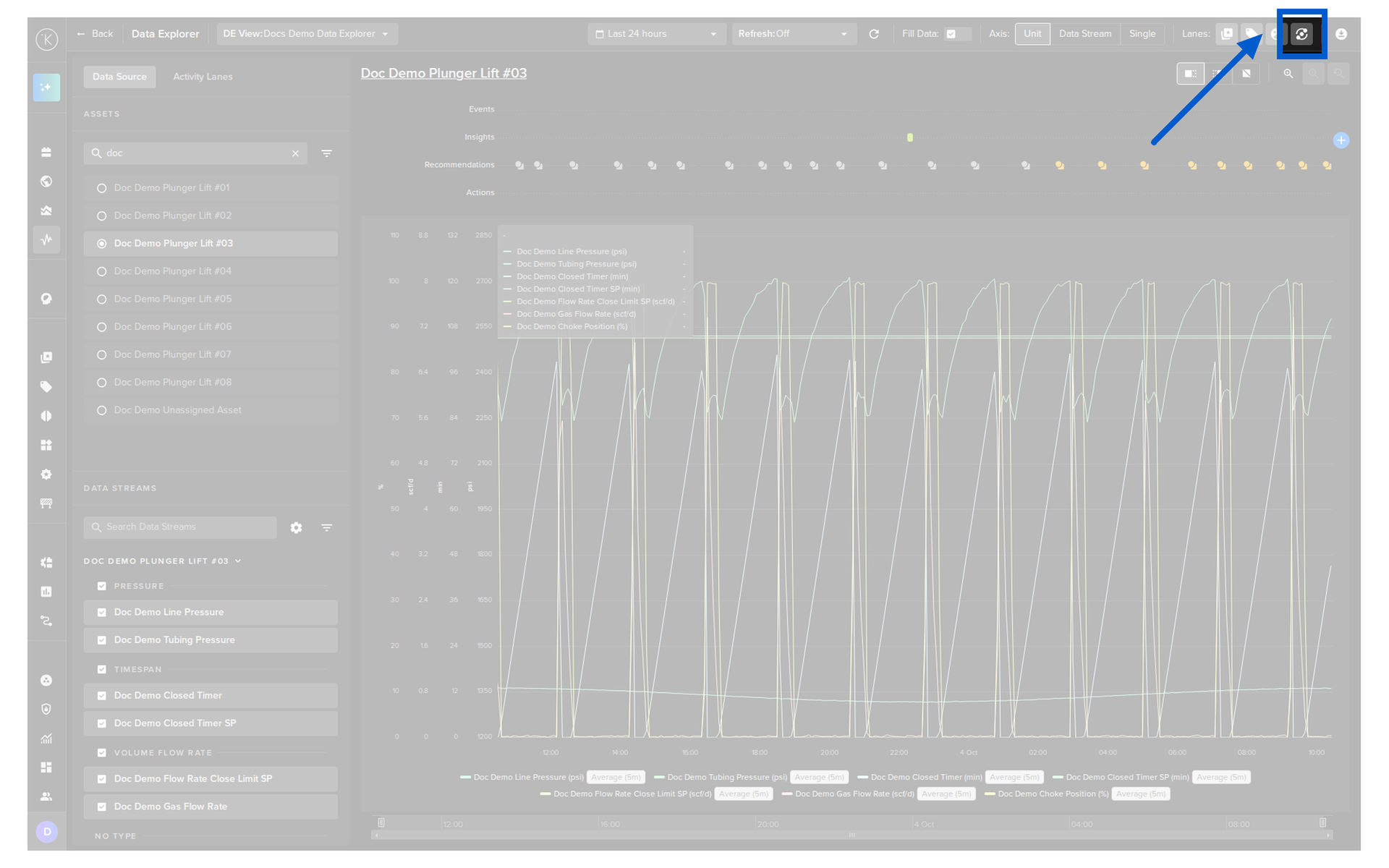
Click the Actions icon in the Lanes control in the top right corner to show or hide the lane.
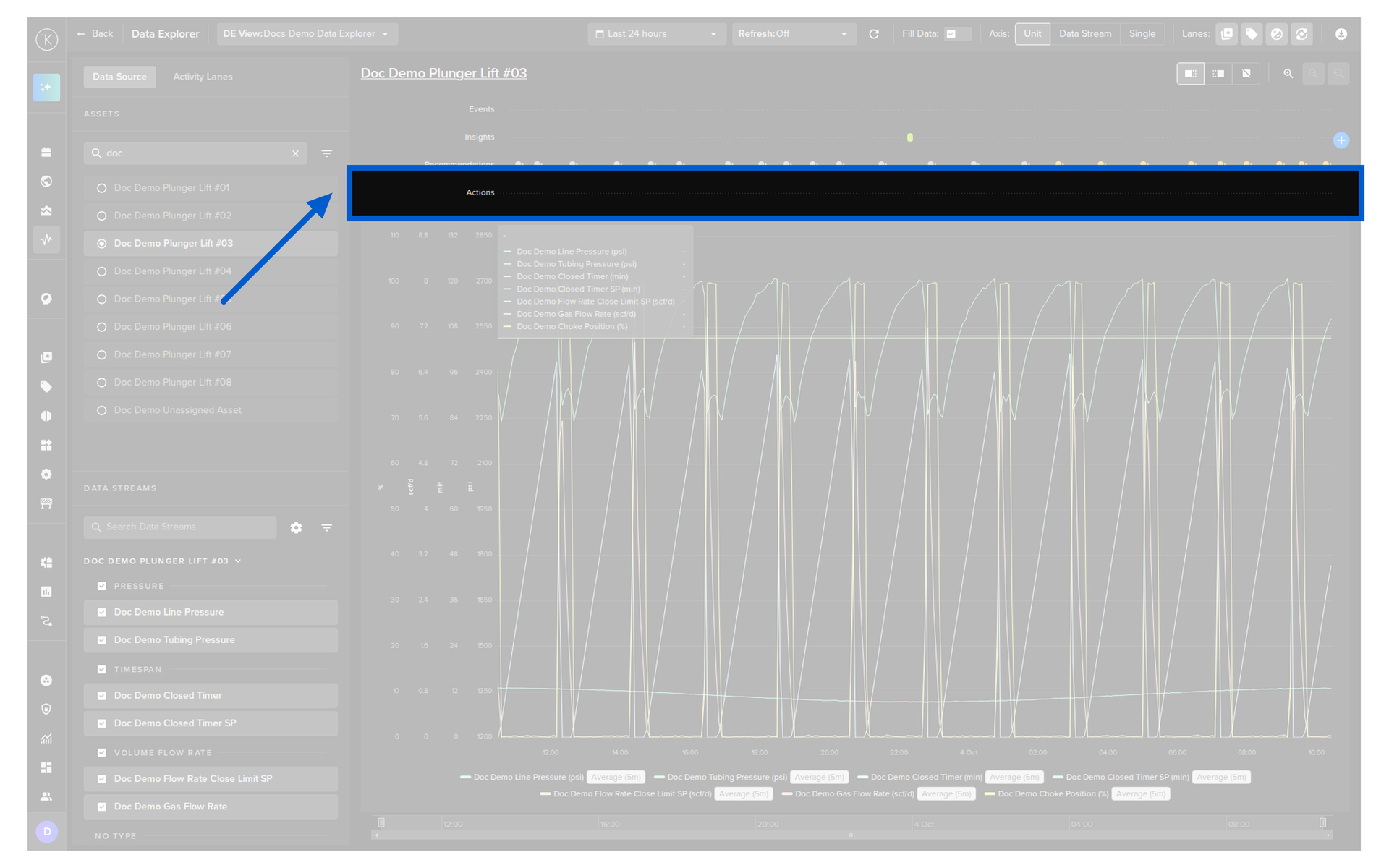
If the X-axis scale is too small to show individual Action times, then they will be grouped together and the number of Actions is shown on the group.
Double-click on the group and the graph will automatically zoom to that location in time and show the individual Actions.
View Current and Past Actions
Click the Activity Lanes tab in the left panel and select the Actions option to see the current and past Actions as a list of cards.
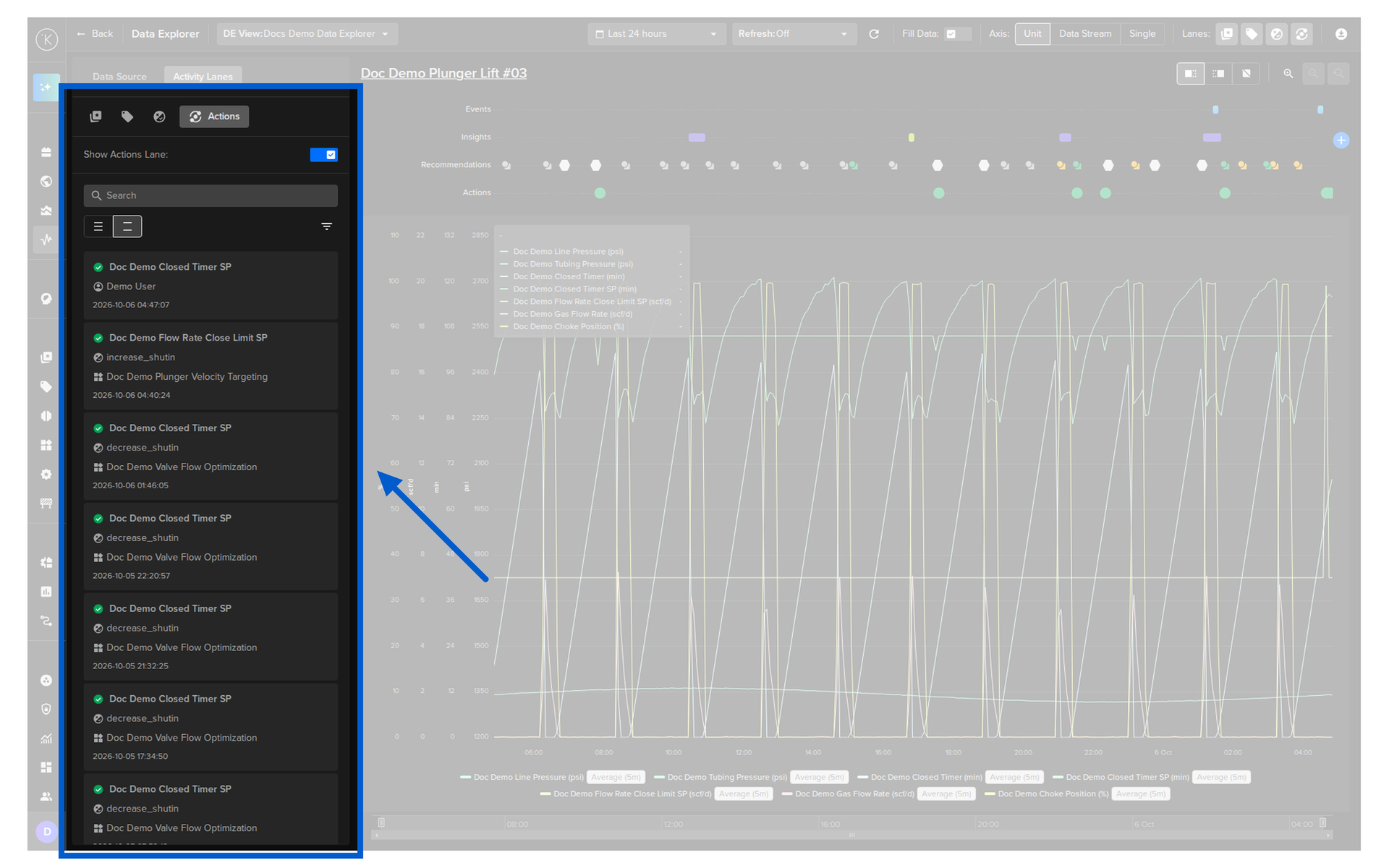
You can search the list, filter it and change the row size.
| Status | Meaning |
|---|---|
| Applied | Control Change applied successfully to the Asset |
| Pending | Control Change currently being sent to Asset |
| Failed | Control Change failed to write to Asset for one of the reasons; Timed Out trying or a Guardrail rule was breached. Reason for failure will be annotated and saved with the Control Change object |
View the Details of an Action
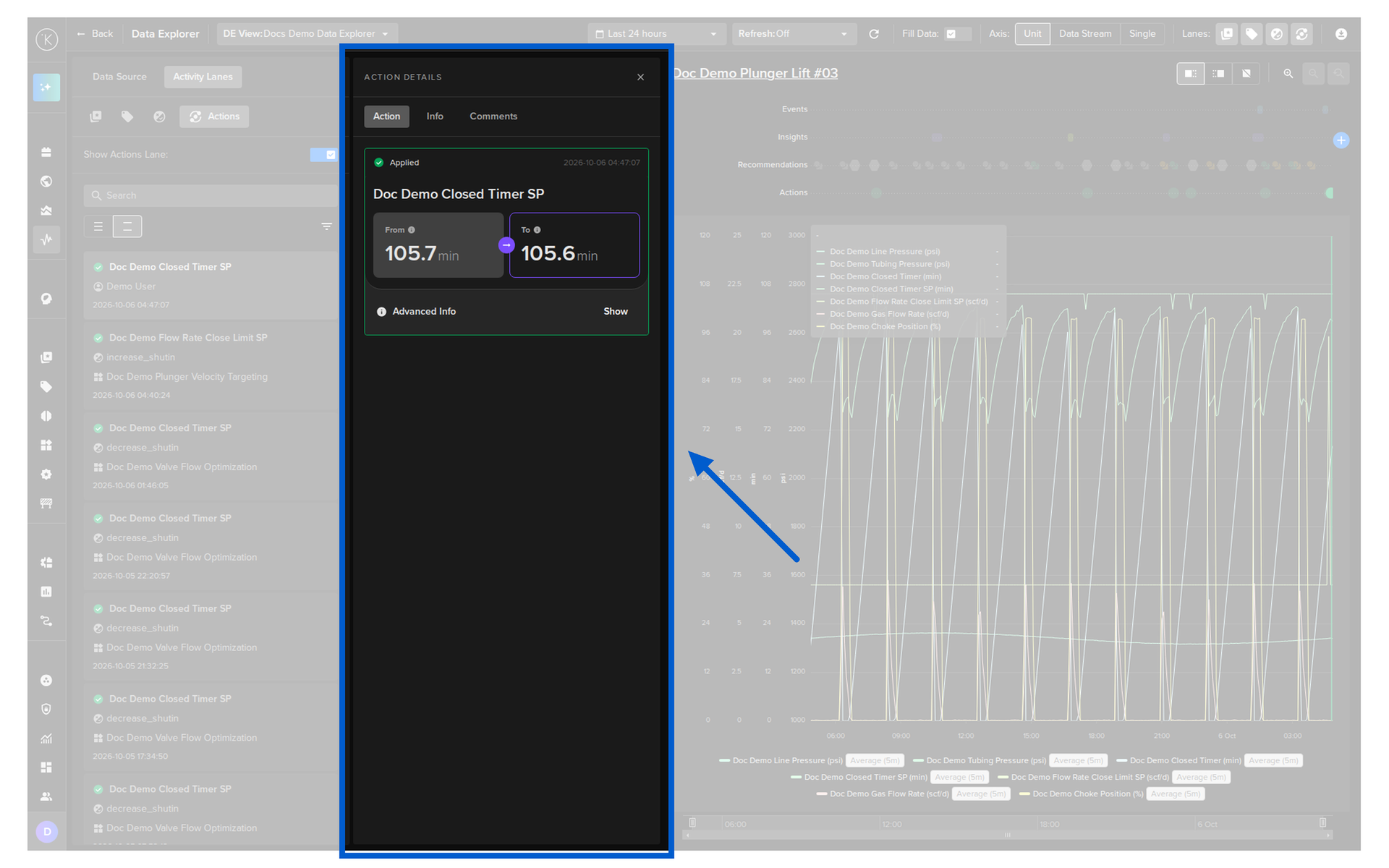
Click a card in the list to open its details.
Action
Note
The reason for any Control Change failures will also appear here.
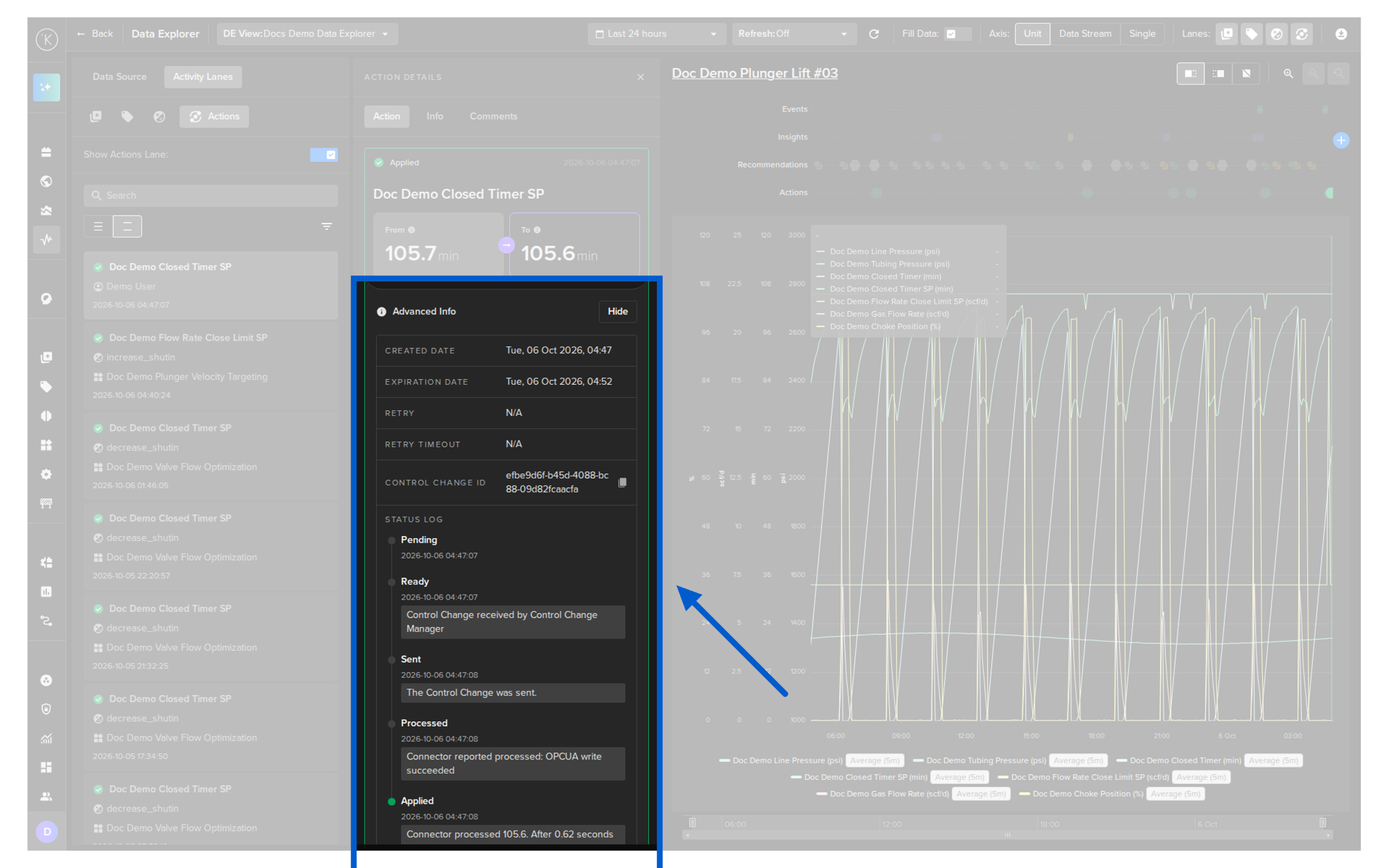
You can also see advanced information about an Action, such as its status log and creation dates.
To do this;
- Click the Activity Lanes tab in the left panel and select the Actions option
- Click the Action card in the list
- In the details that open, under the Action tab, click the Show button on the Advanced Info line
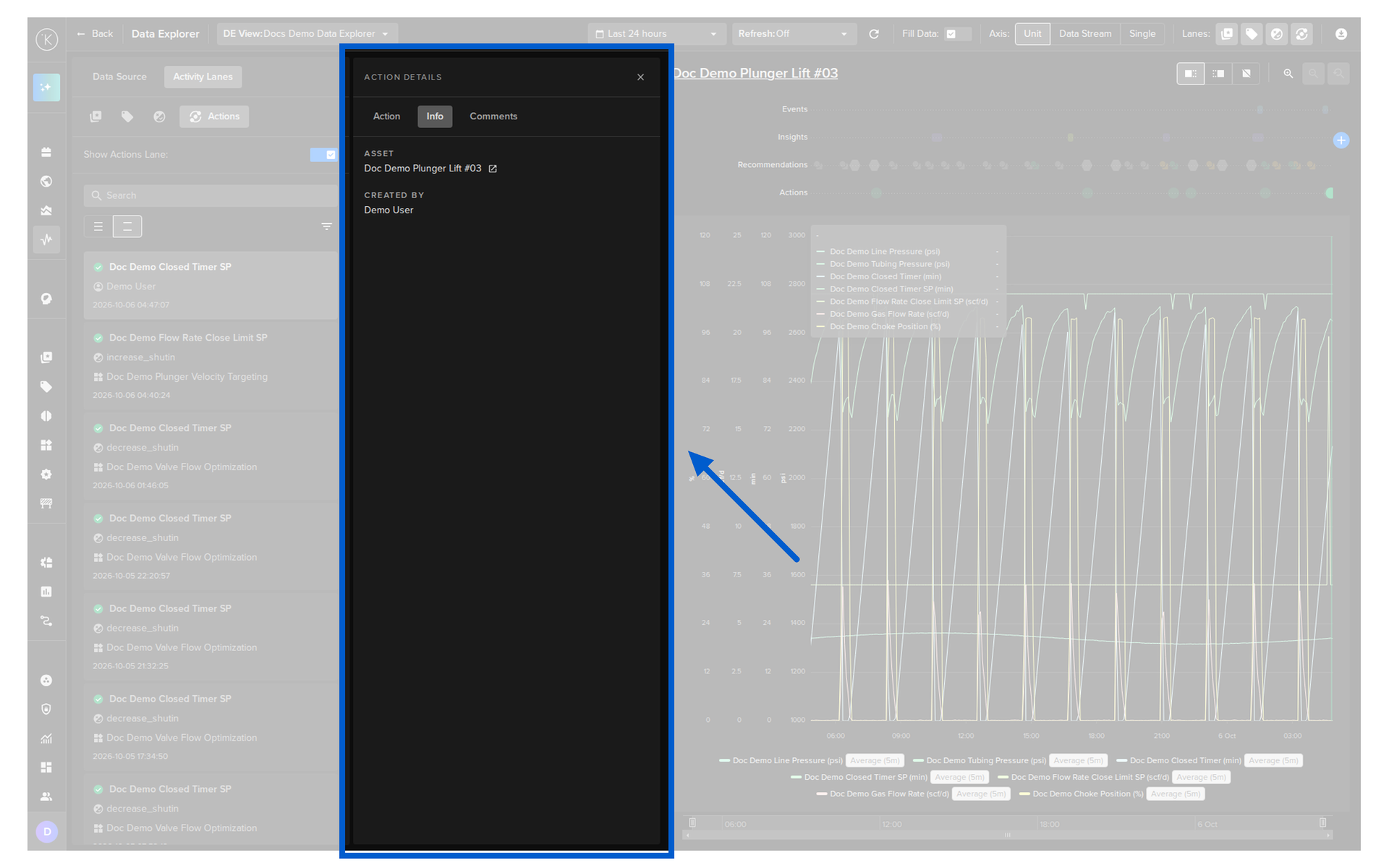
Info
The Info tab shows the details of the Asset, who created the Action and when, and the version of the Application.
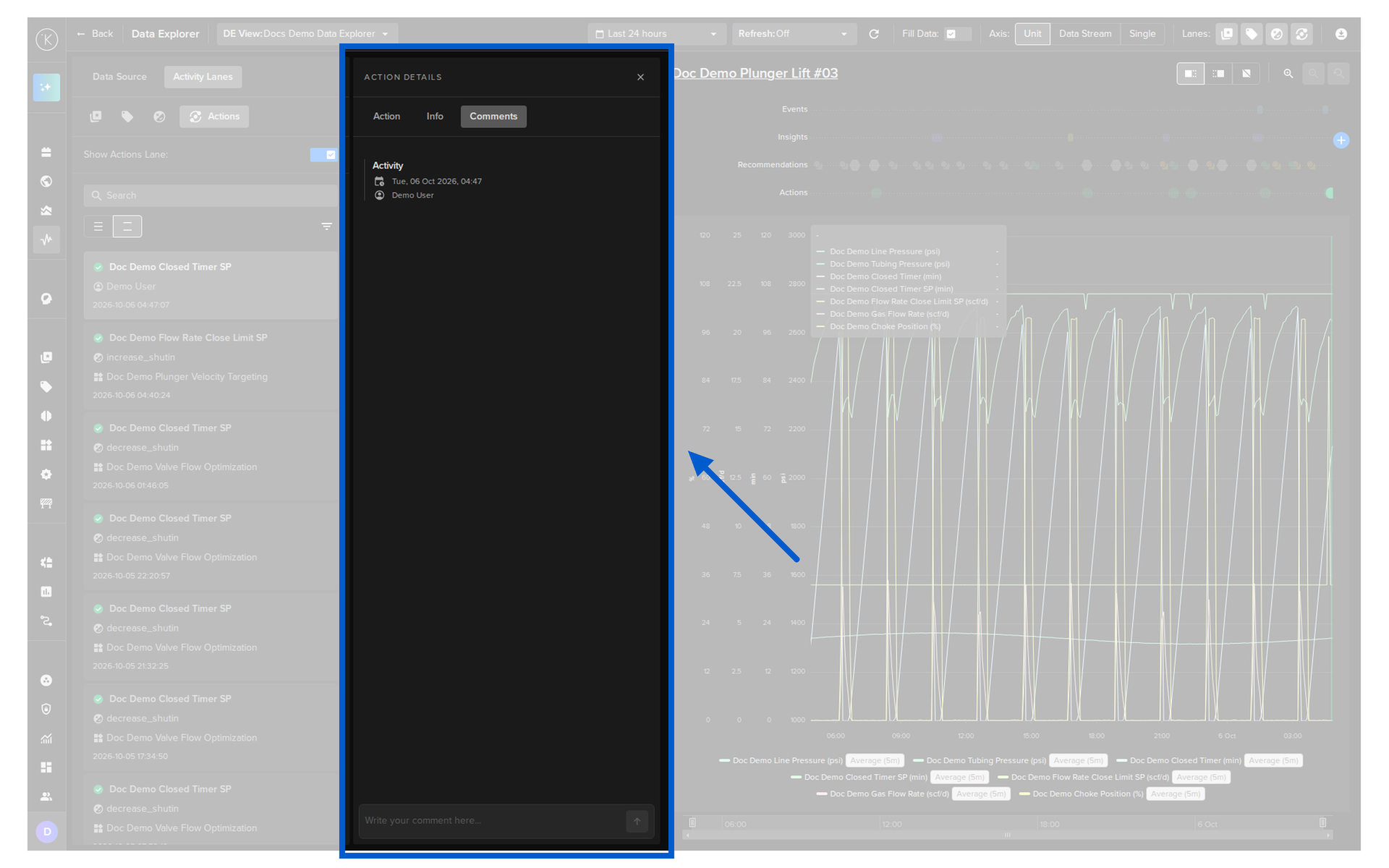
Comments
In the Comments tab you can read the comments and add new comments to the Action.