Action a Recommendation
Overview
When you click on View More button or Expand icon in the Inline Recommendation you will see the Recommendation popup where you can see the full details.
Warning
If you see a Details link instead of a View More button, this means there are no pending Recommendations for that Asset and no actions are available.
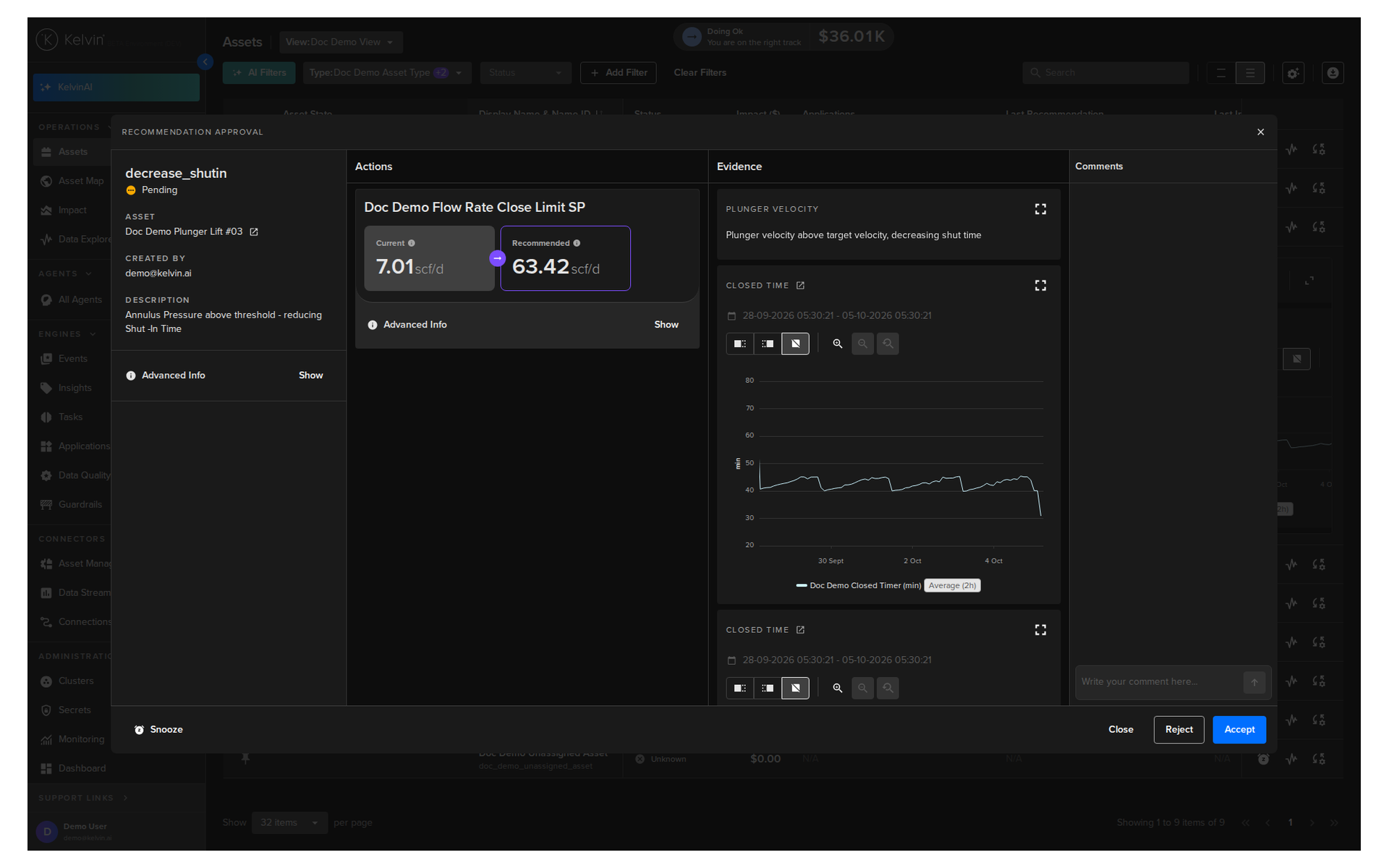
In the Recommendations popup you can see the full details of the Recommendation on the left hand side.
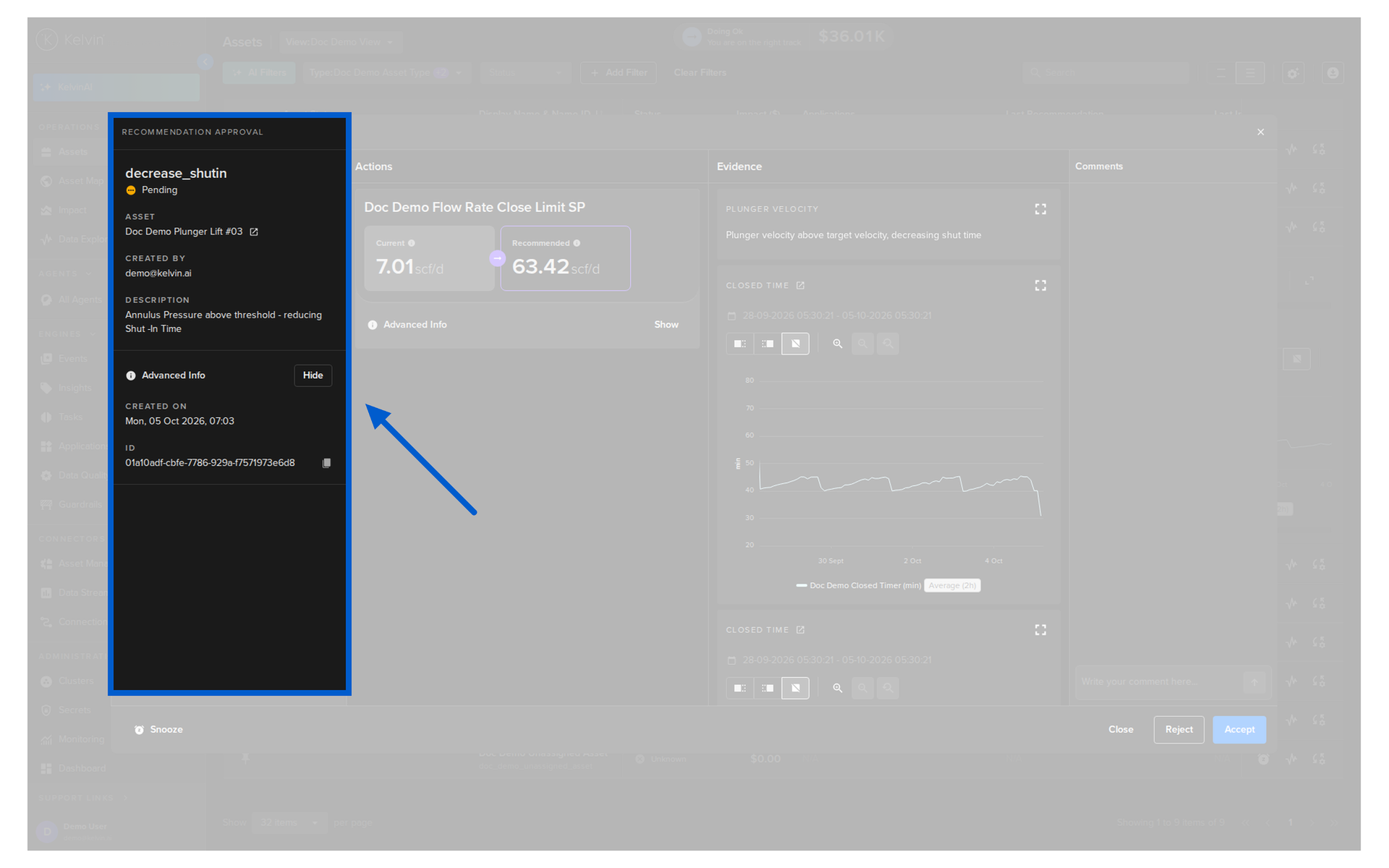
This will include information about;
| Title | Description |
|---|---|
| Recommendation Title | The name or title of the recommendation |
| Current Status | The present state of the recommendation. |
| Asset | Assets associated with the recommendation. Note that each associated action may not directly affect this Asset's Data Streams. |
| Created By | What process created the Recommendation, usually an Application. |
| Description | Detailed explanation of the recommendation. |
| Mode | Indicates if the recommendation is in Open or Closed Loop mode. |
In the Advanced Info section;
| Title | Description |
|---|---|
| Created On | When the Recommendation was created. |
| Expires On | Only visible when Recommendation is not yet Accepted/Rejected.Date when the Recommendation will expire and be automatically Rejected. |
| Accepted On | Only visible when Recommendation has been Accepted. Date when the Recommendation was accepted, either automatically on Closed Loop or by Operations in Open Loop. |
| Version | The Application version of the Application that created this Recommendation. |
| ID | The unique ID for this Recommendation. This is useful for Developers for using Kelvin API to directly analyze the Recommendation's raw data programmatically. |
The middle column named Recommendation Actions shows all the actions that will be taken if the recommendation is accepted.
It is possible to have multiple actions in one Recommendation.
This will also give you information about the current setting when the Recommendation was created as well as the Recommended new setting.
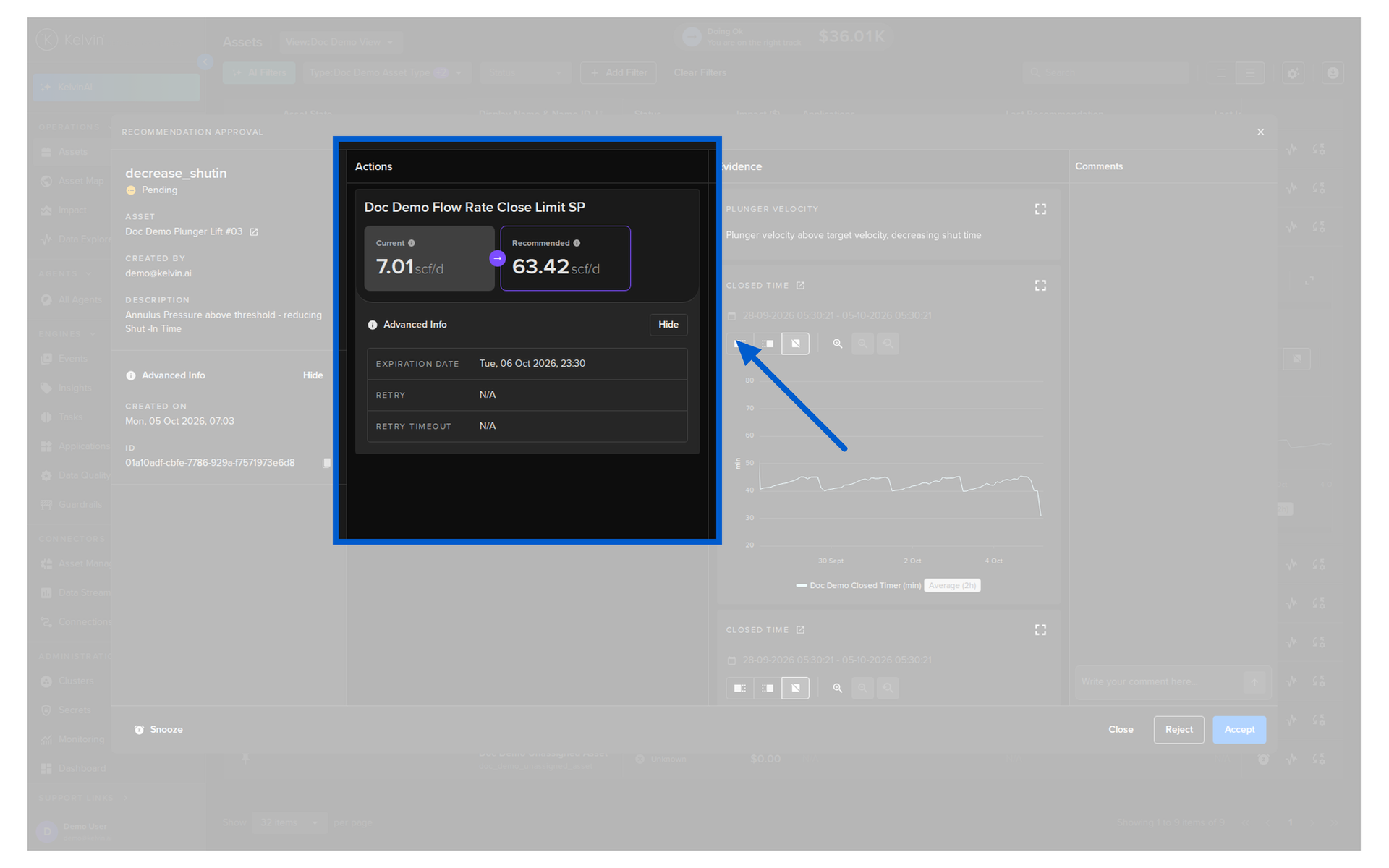
The actions are not just limited to Control Changes but can also be one of the following;
Warning
Even if a Recommendation is accepted, this does not mean the Actions will also succeed. It just means the Actions are initiated.
There may be cases where a Recommendation is accepted and highlighted green, but the Control Change fails, for example due to Guardrail rule violation, and is highlighted Red.
- Control Changes
- Send Emails and Alerts (using Custom Actions)
- Custom Exporters
Advanced Info
For each action, you can see advanced details on the action itself.
For example this can be details of the Control Change process after it is initiated by the acceptance of the Recommendation.
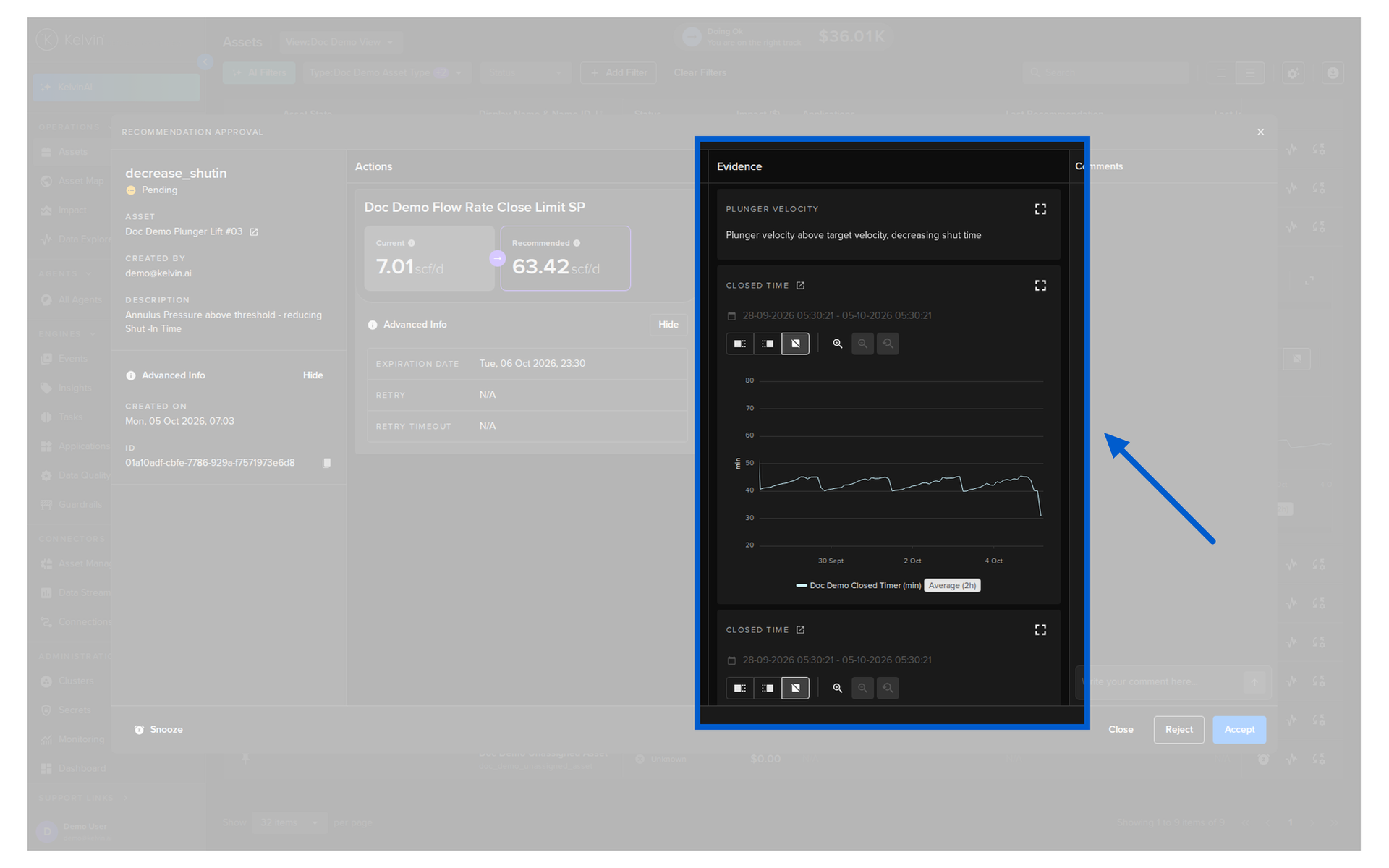
Evidence are attachments to the recommendation that provide comprehensive information to Operations, enabling informed decision-making.
If evidence is attached, it may include one or more items in various formats, such as bar or line charts, dynacards, images and even IFrames to external websites.
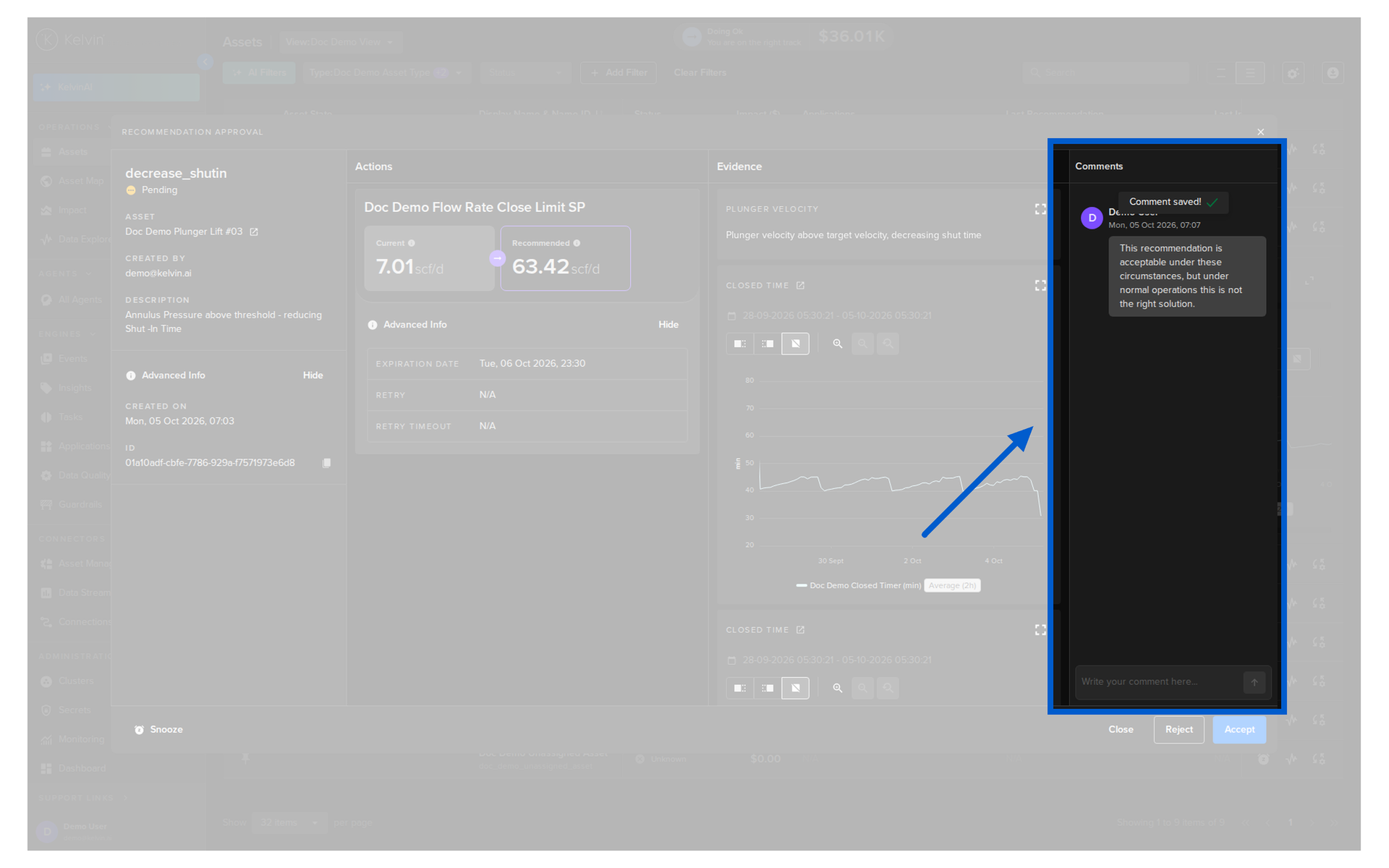
You can add an unlimited amount of comments at any time to this Recommendation.
You do not need to Accept or Reject a Recommendation to add a comment.
Comments are very useful for;
- Sharing information between Operations or shifts about certain Recommendations
- As feedback to the Developer. The Developers can use the comments to determine how to improve the Applications that produce the Recommendations.
To see or add comments, check on the right side of the popup.
Accept
Click the Accept button in the bottom right corner of the Recommendation popup to perform all the actions it contains.
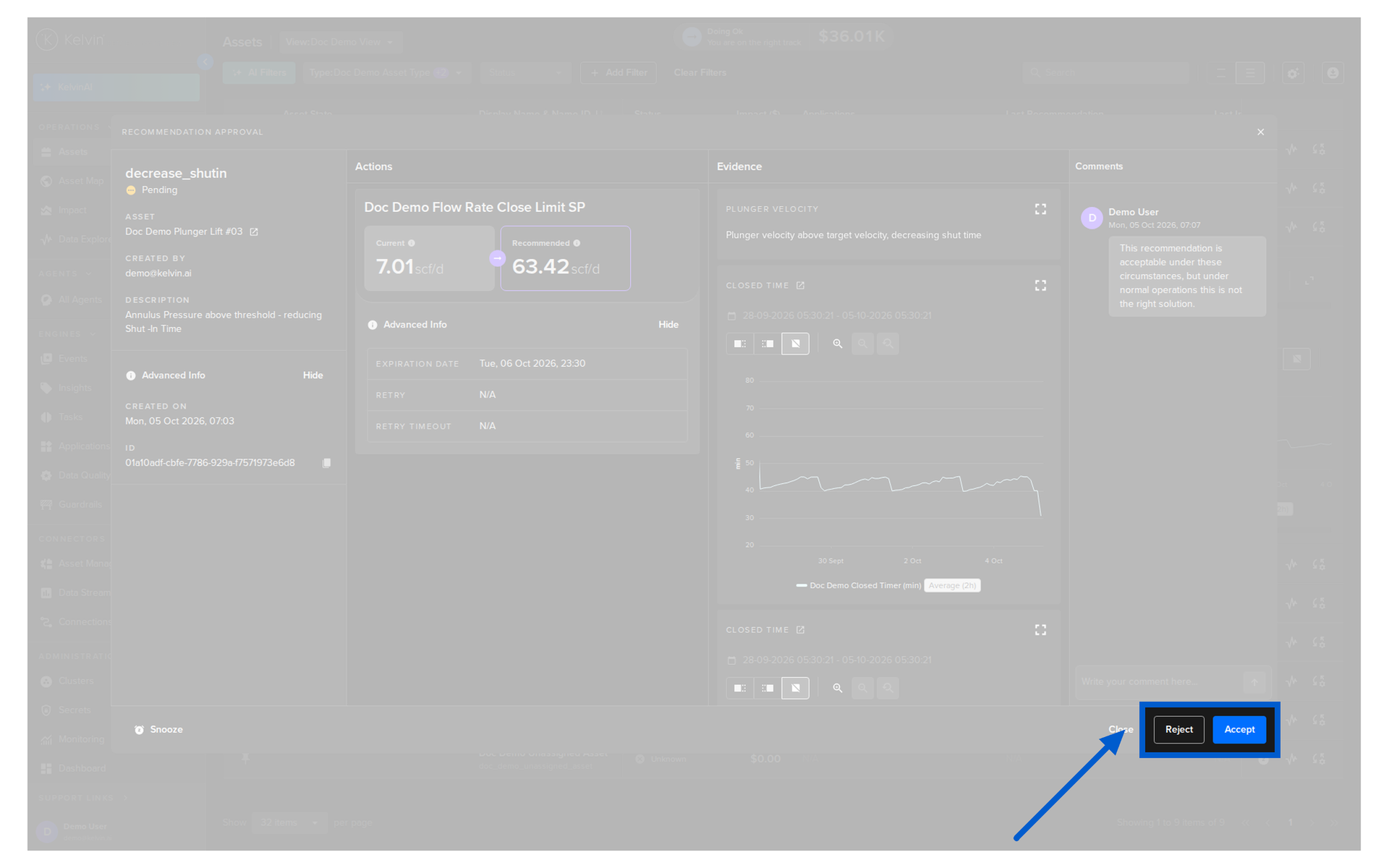
- All the actions in the Recommendation are initiated
- You can not accept only some of the actions
- If any action returns an error, the whole Recommendation is tagged as failed
Snooze
When a Recommendation type is snoozed for an Asset, every new Recommendation of that type for the Asset that is generated after you activate the snooze is automatically tagged Snoozed.
Important
If you open a Recommendation and click Snooze, the Recommendation you are looking at is NOT snoozed.
The action snoozes the Recommendation type for the Asset. All future Recommendations of that type, from the time you activated the snooze, WILL BE marked as snoozed. This is an important distinction.
Snoozing does not change existing Recommendations or the state of the Asset.
Snoozed Status
Recommendations have five statuses; Pending, Accepted, Rejected, Expired and Snoozed.
- A snoozed Recommendation can not be accepted or rejected. The Accept and Reject options are not available
- By default, the status filters show Pending, Accepted, Rejected and Expired. Snoozed is not selected, so snoozed Recommendations are not shown
- Where a status filter is available, select Snoozed to also see them. In the Data Explorer, Insights are the exception: they have no snooze filter and snoozed Insights are not shown
- Recommendations tagged as snoozed stay snoozed. They do not change status when the snooze ends or is removed
Create a Snooze
Click the Snooze button in the bottom left corner of the Recommendation popup.
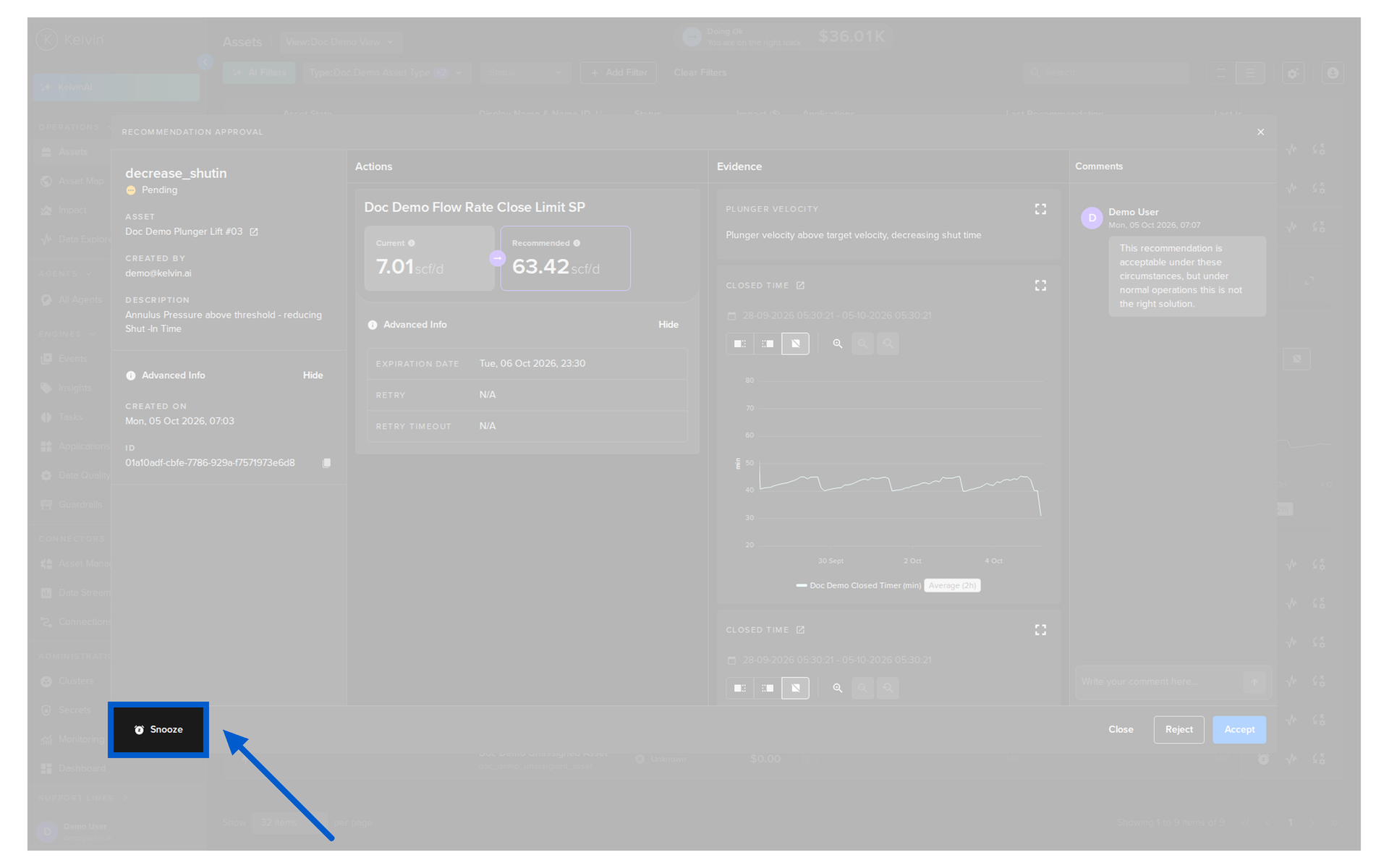
The Snooze popup opens.
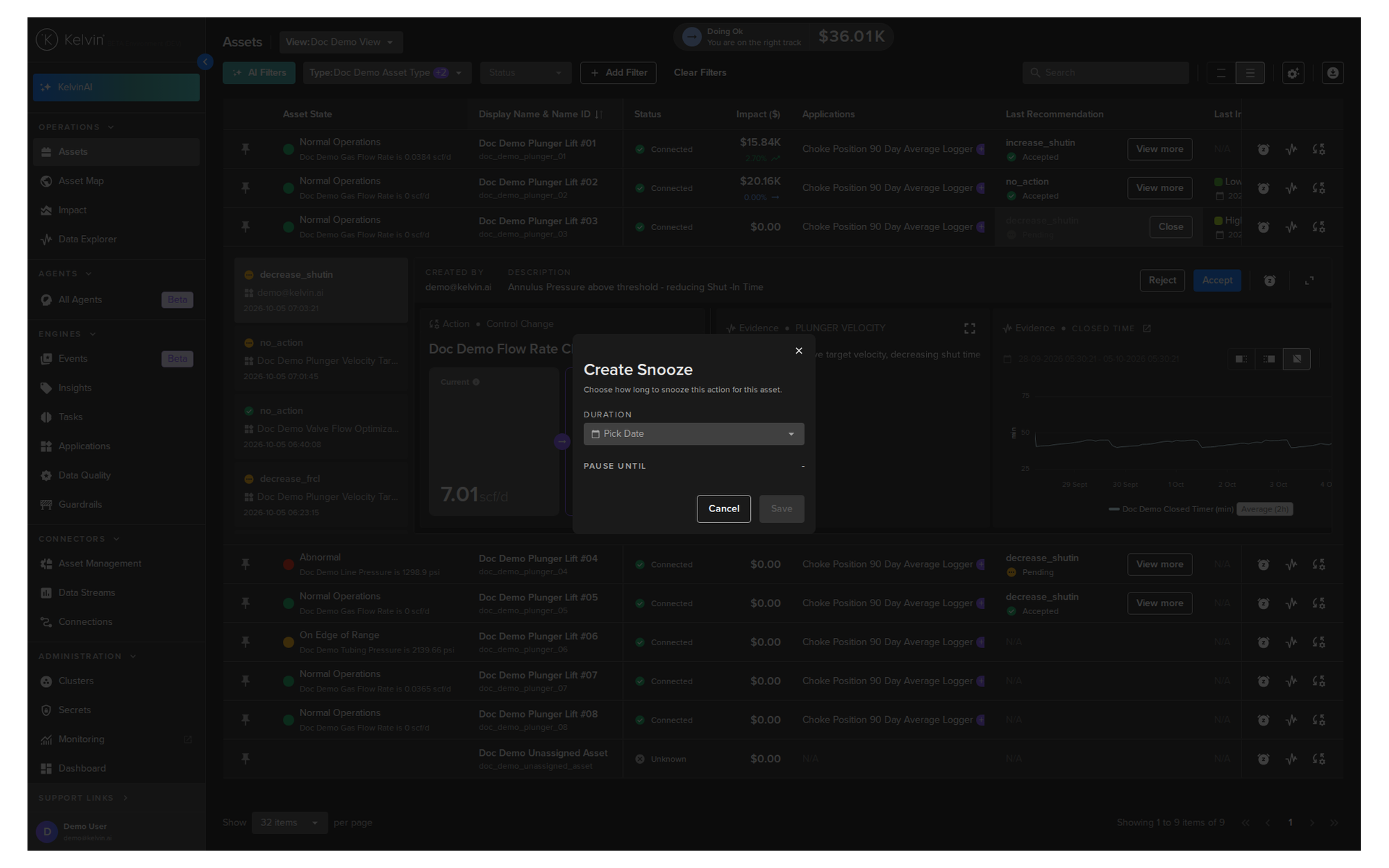
Open the duration dropdown and choose how long to snooze the Recommendation type.
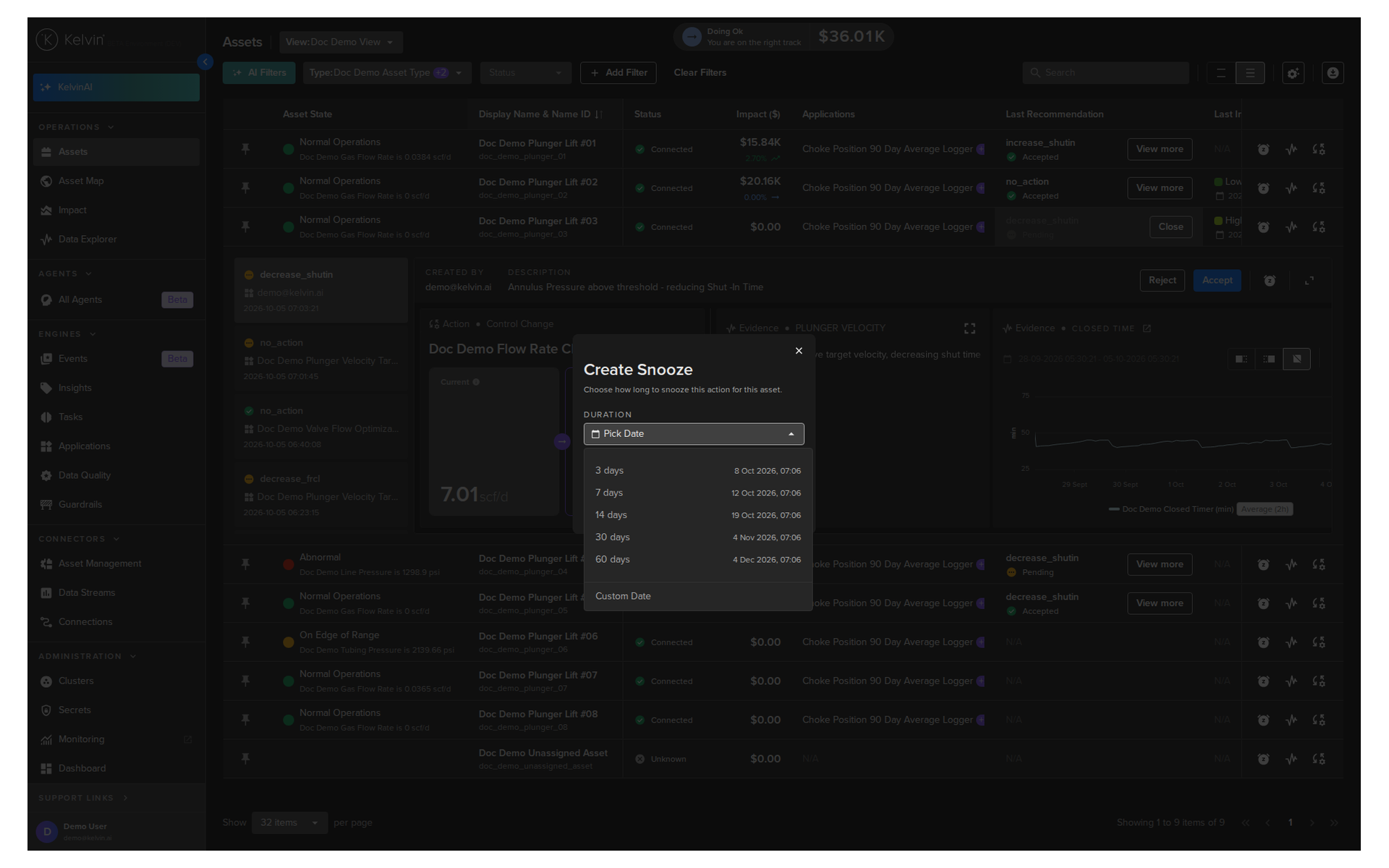
These are the default options of 3, 7, 14, 30 and 60 days. You can also choose a custom date and time.
Click Save to apply the snooze.
Snoozed Recommendation
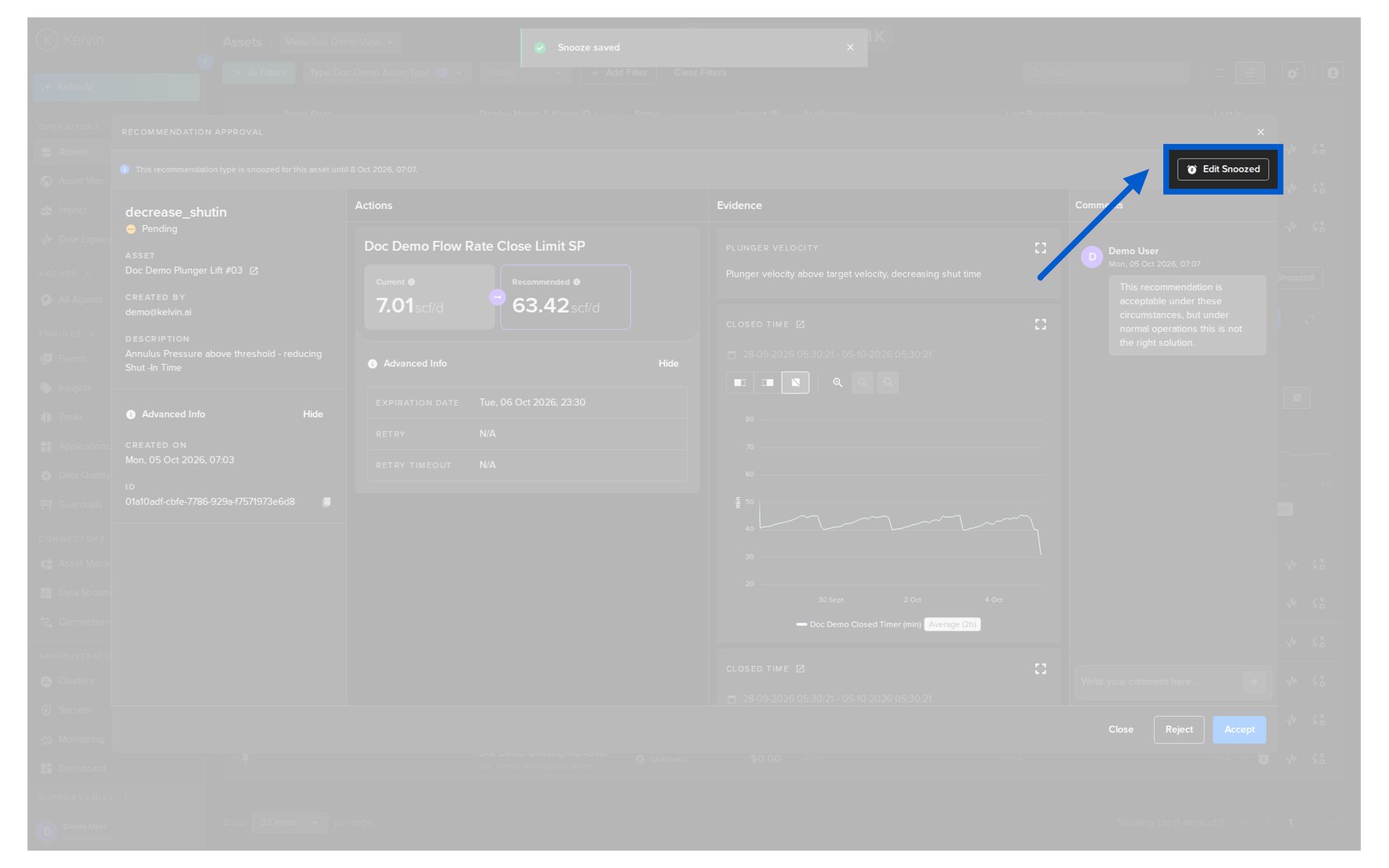
Once the snooze is active, the Snooze button is removed from the bottom left corner. The top of the popup now shows;
- On the left, the message
This recommendation type is snoozed for this asset until [date] - On the right, the Edit Snoozed button
This message is about the Recommendation type. The Recommendation in the popup is still not snoozed.
Edit or Remove a Snooze
Click Edit Snoozed to open the Snooze popup. It looks the same as when creating a snooze, but shows the current snooze time.
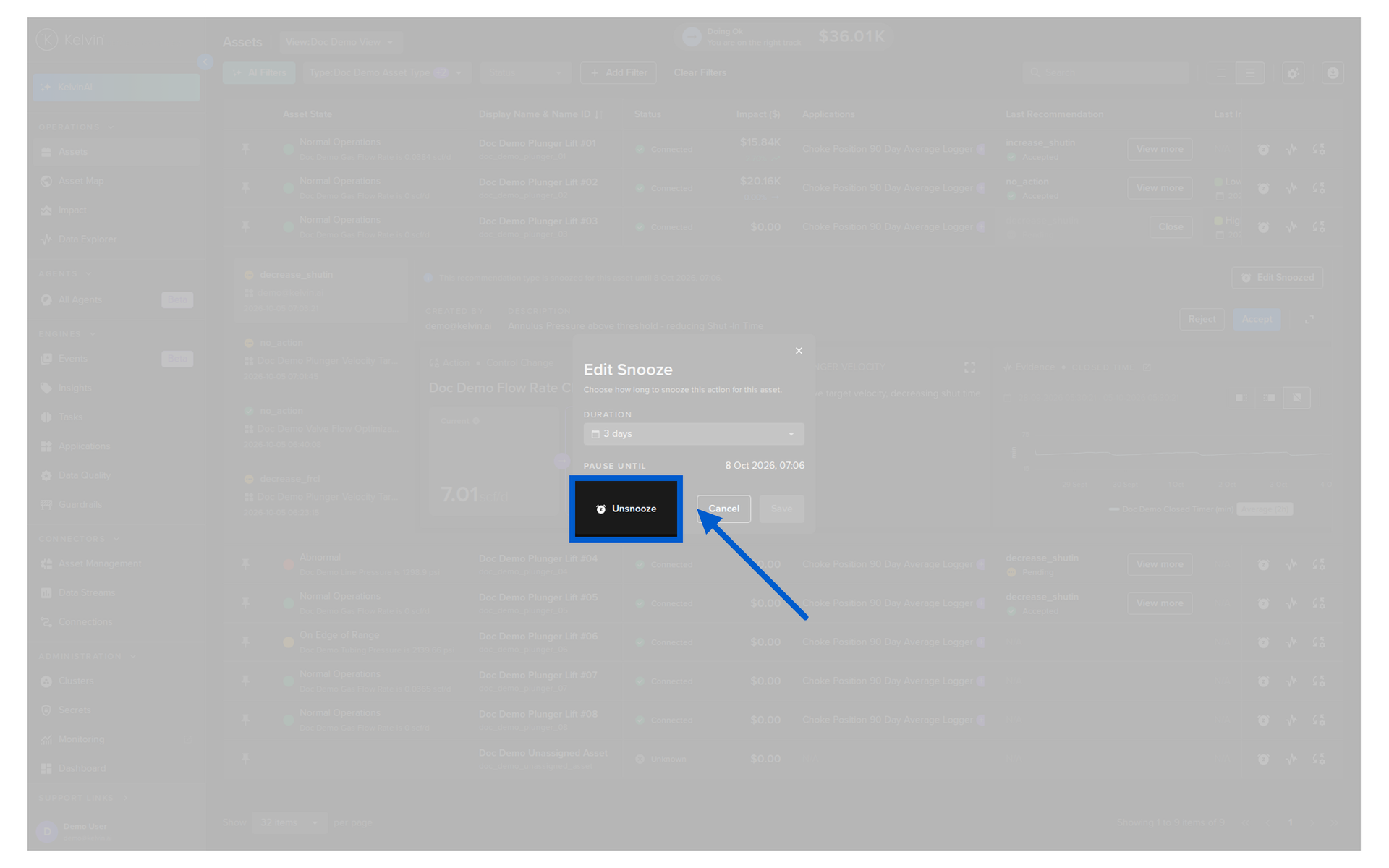
From here you can;
- Change the duration and click Save
- Click Unsnooze to reactivate the Recommendation type immediately. New Recommendations generated after that point act normally again
Note
You can also snooze from the inline Recommendation in the Assets table. Read more in Inline Recommendations.
Reject
Click the Reject button in the bottom right corner of the Recommendation popup when you do not want the actions to be performed.
- The Recommendation is stored for historical purposes
- No further actions are taken
- The Recommendation becomes read-only and can not be accepted later