Insights in Data Explorer
On this page you will go through understanding how to view, add, edit, delete and snooze Insights in the Data Explorer.
You can watch this short demo video on Events and Insights in the Data Explorer, or read the full written guide below.
Overview
Insights are a way for you to attach useful information to the Asset in Data Explorer at a defined time point or time range.
Information you can save with an Insight;
- The Insight Type
- Whether the Insight is a Period or a Point
- The time range of the Insight
- An optional comment
This information can also be retrieved programmatically by Developers and Data Scientists if required, so this is a good method of marking significant events for your records or for feedback to other teams.
Show or Hide the Insights Lane
Click the Insights icon in the Lanes control in the top right corner to show or hide the lane.
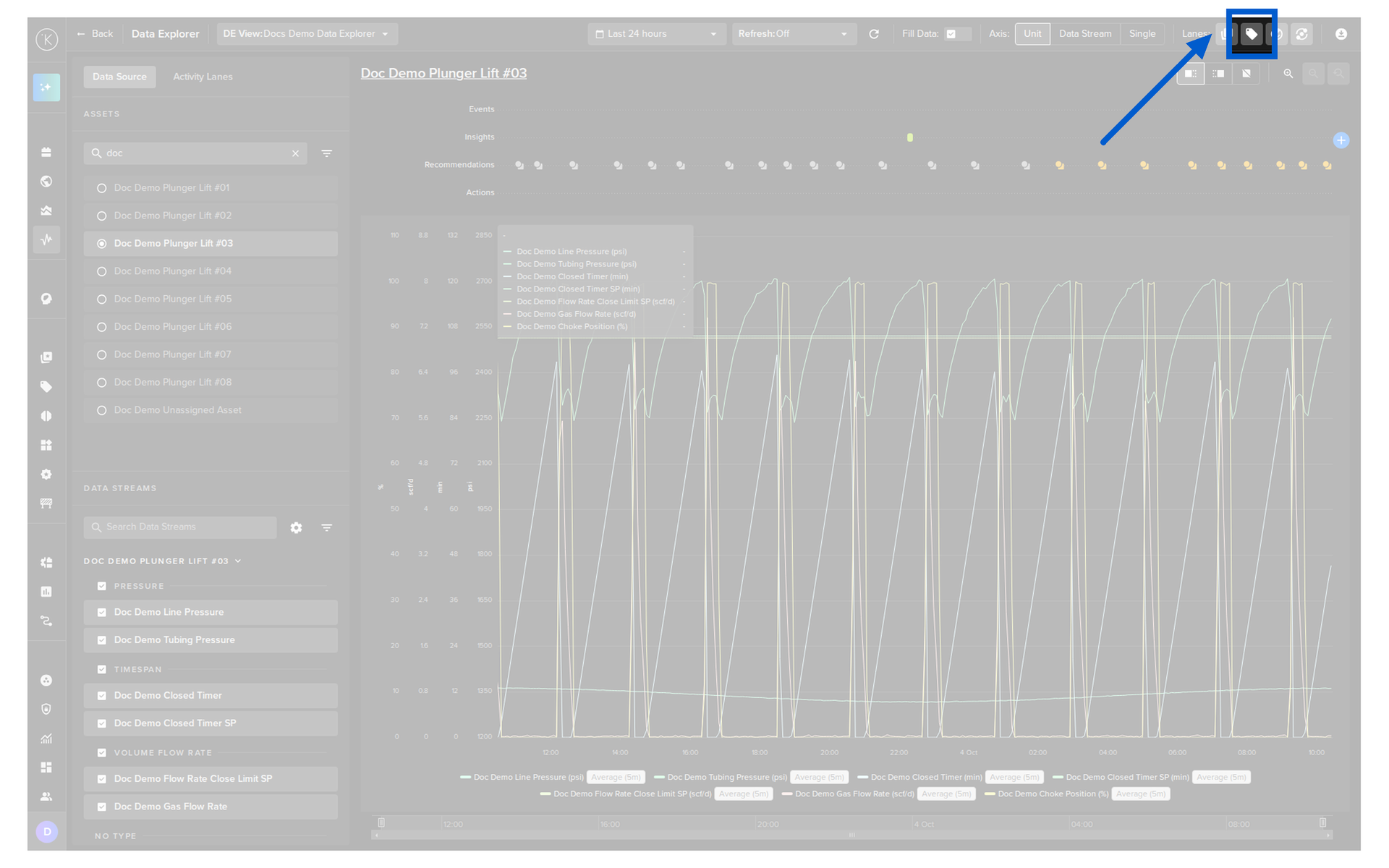
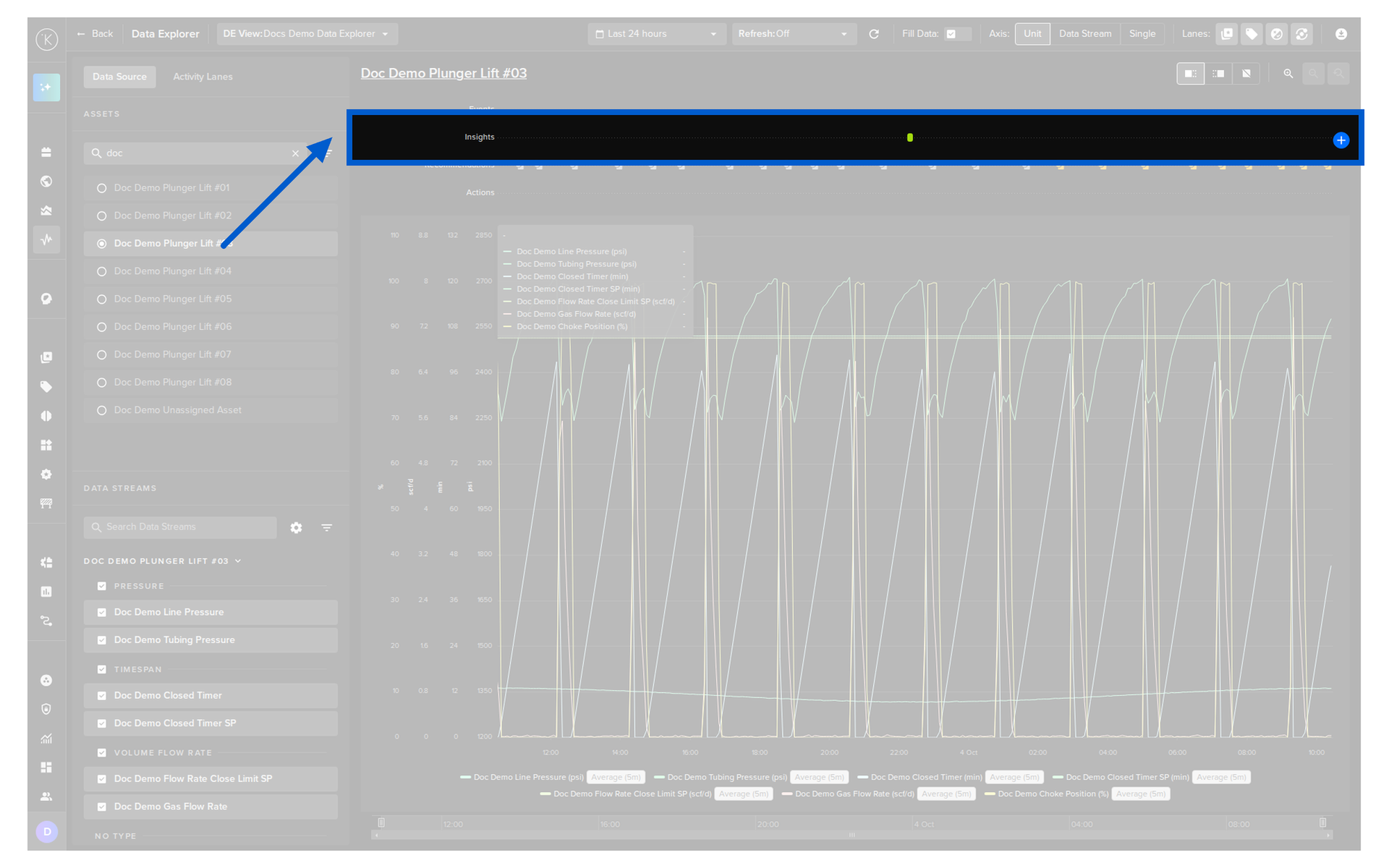
View Current and Past Insights
Click the Activity Lanes tab in the left panel and select the Insights option to see the current and past Insights as a list of cards.
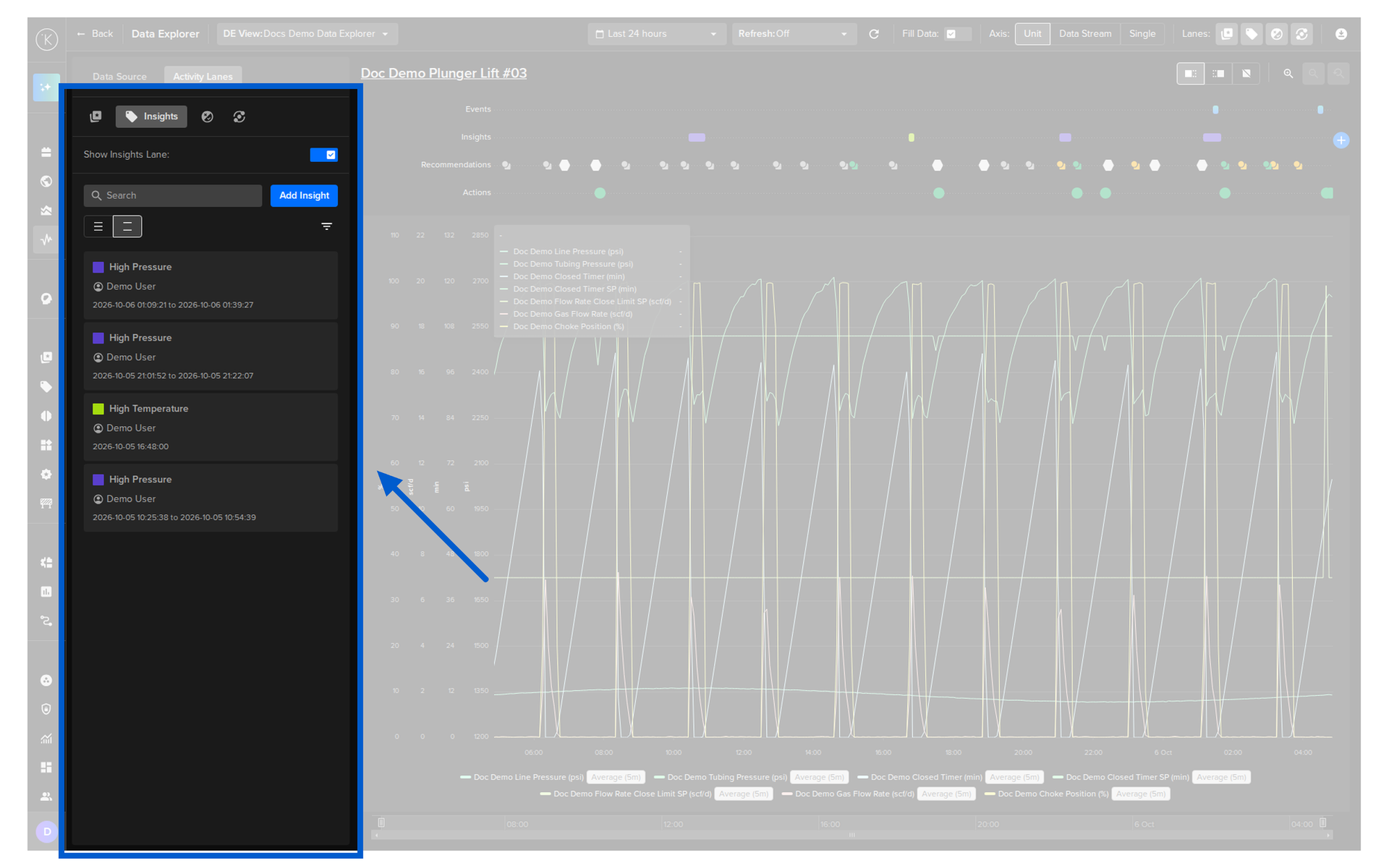
You can search the list, filter it and change the row size.
Note
Snoozed Insights are not shown in the Data Explorer. Read more in Snooze Insights.
View the Details of an Insight
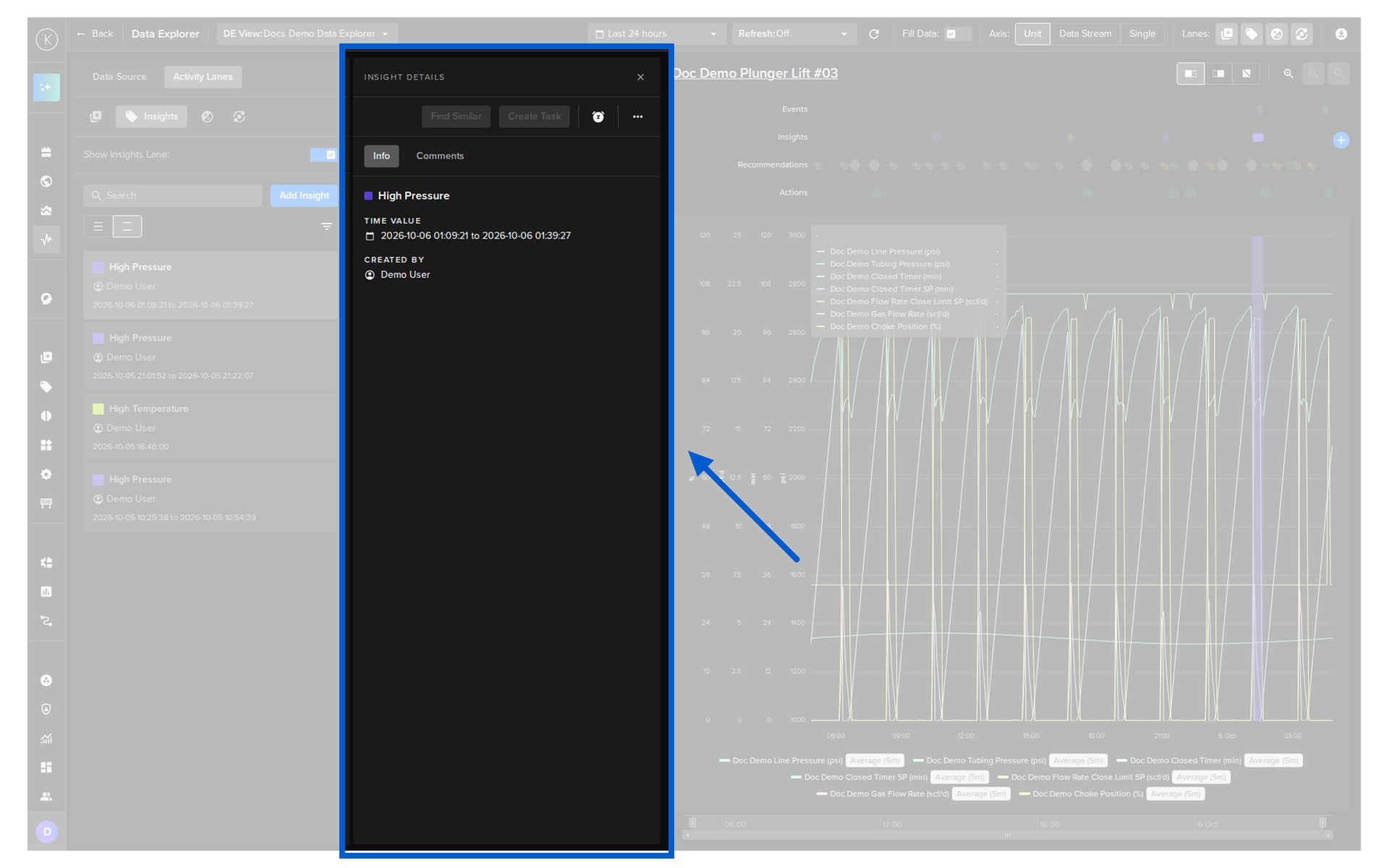
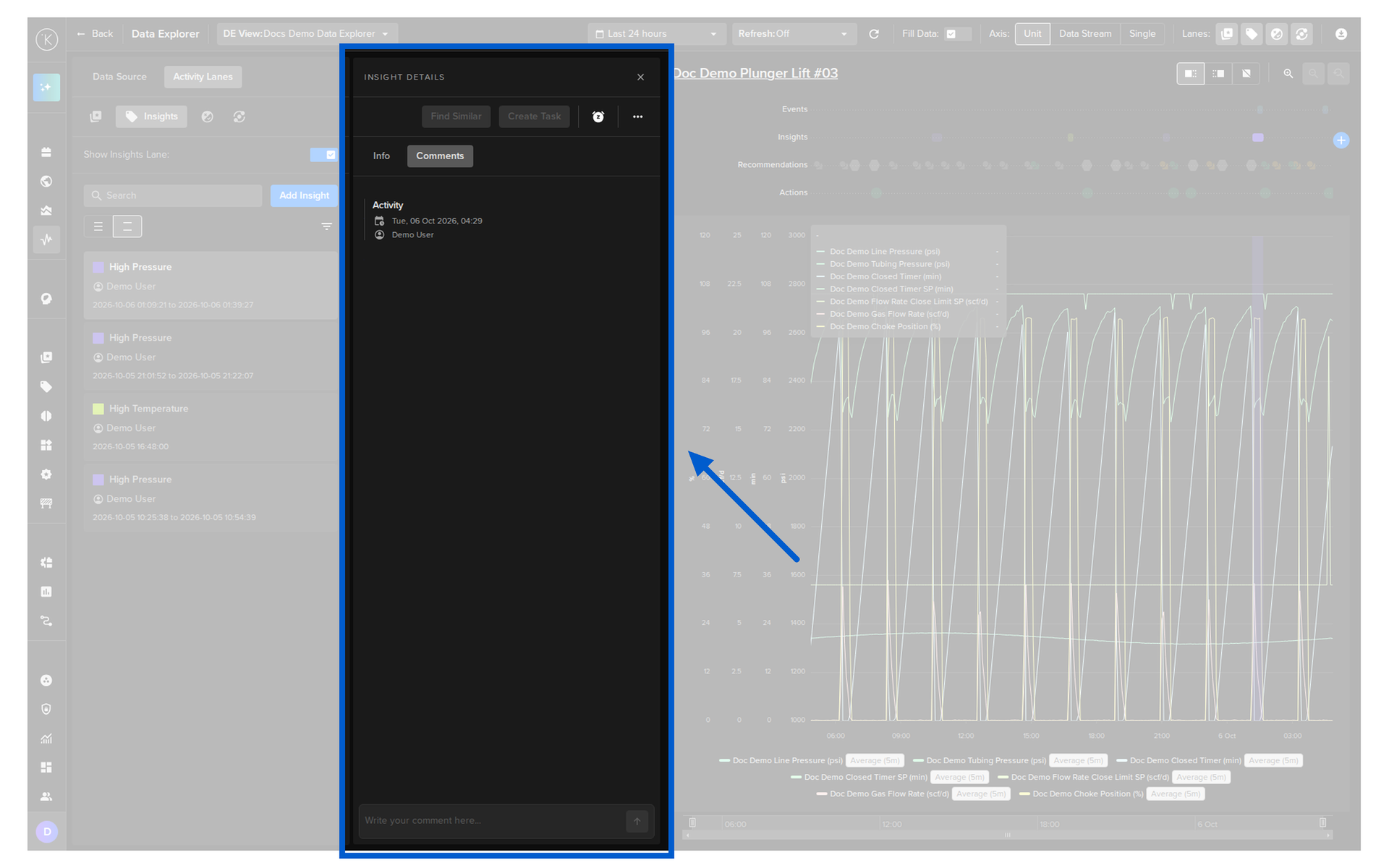
Click a card in the list to open its details.
Info
The Info tab shows the Insight type, the time and who created the Insight.
Comments
In the Comments tab you can read the comments and add new comments to the Insight.
Add Insights
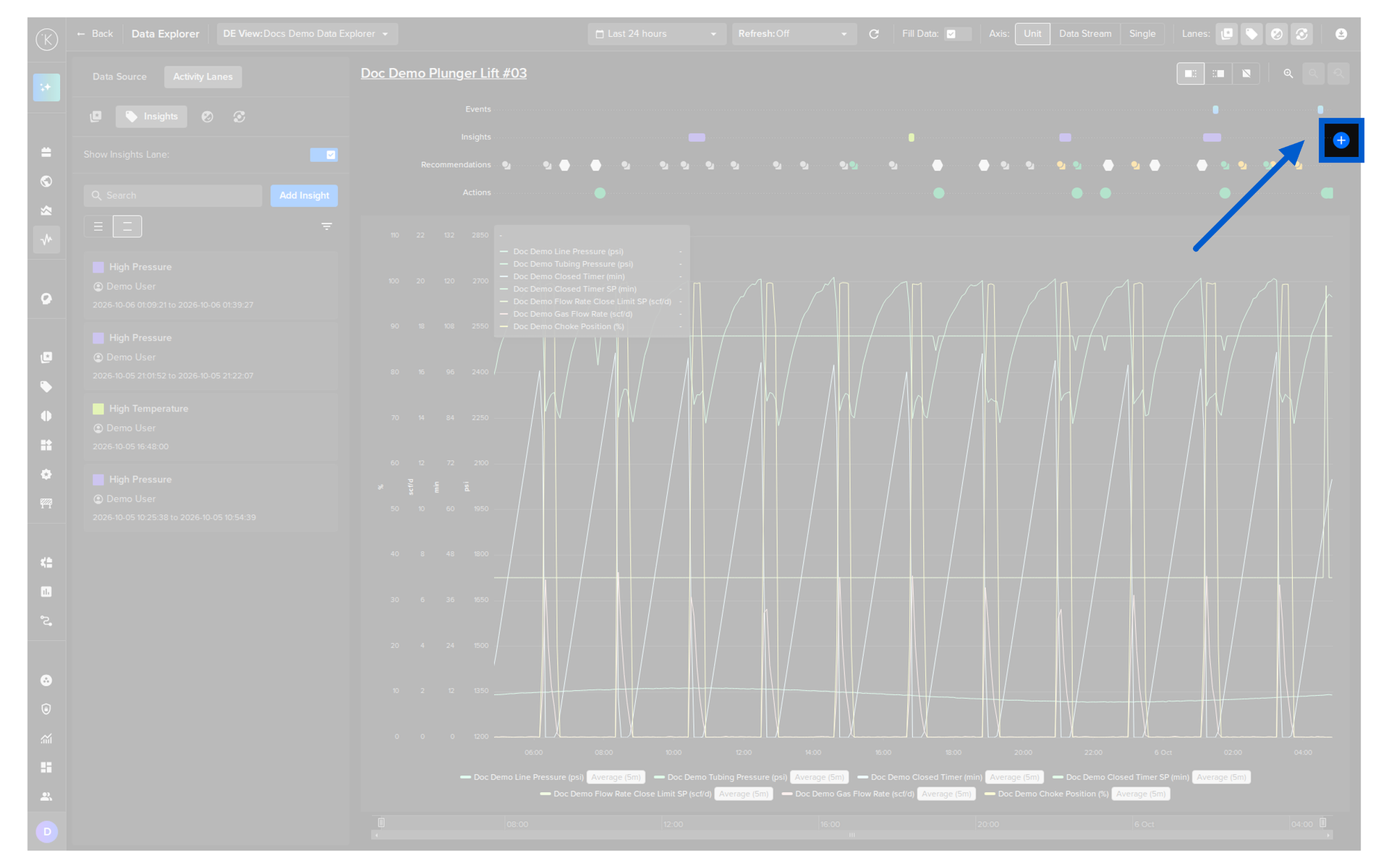
Click the plus icon at the end of the Insights lane above the chart.
Select the time range of the Insight on the Data Explorer chart itself.
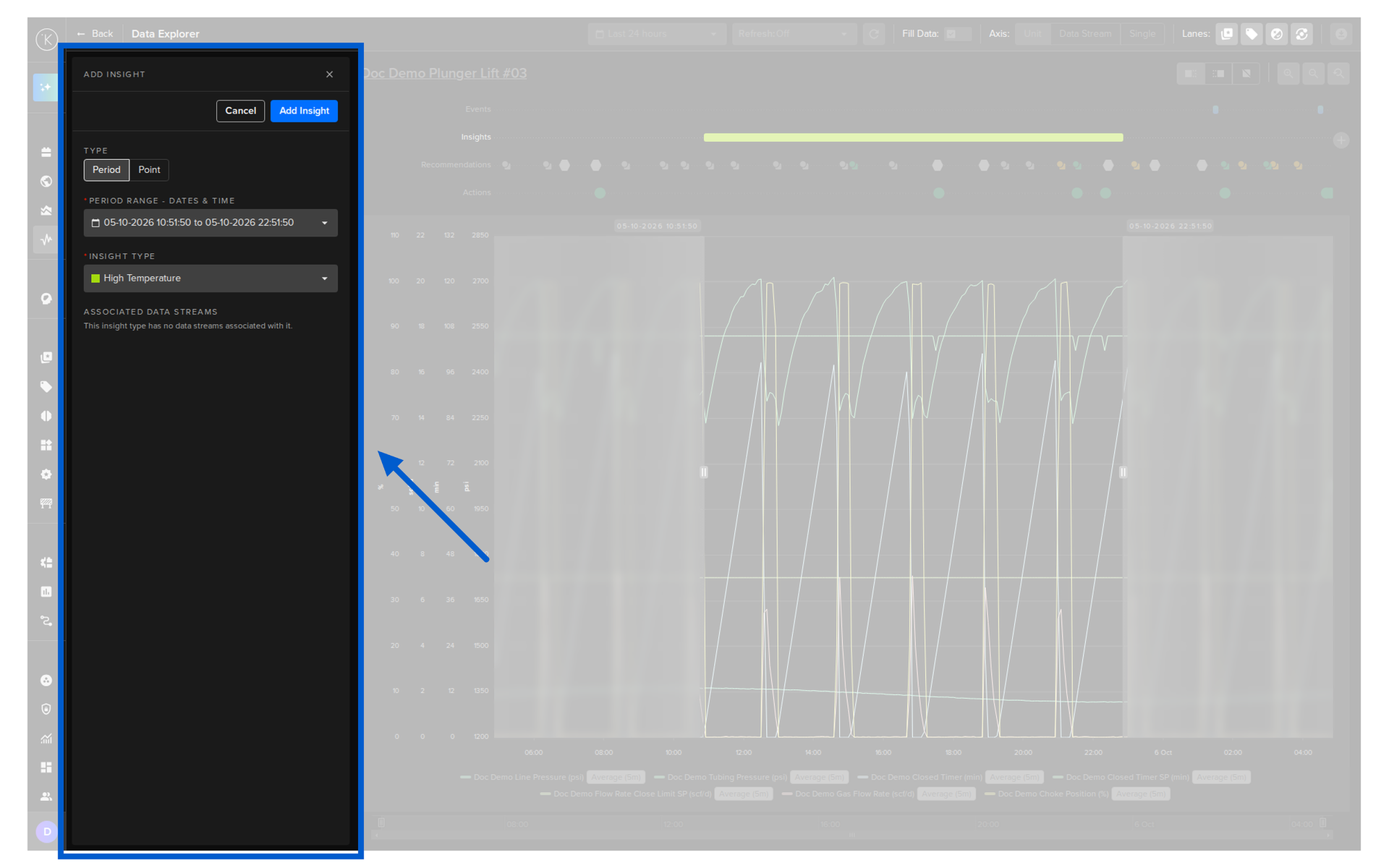
The panel has the following options.
| Option | Description |
|---|---|
| Type | Select whether the Insight covers a time range (Period) or a single moment (Point). |
| Period Range | The time range of the Insight. Select it on the Data Explorer chart. |
| Insight Type | Select the type of the Insight. |
Once the Insight Type is selected, click the Add Insight button.
A popup opens for an optional comment.
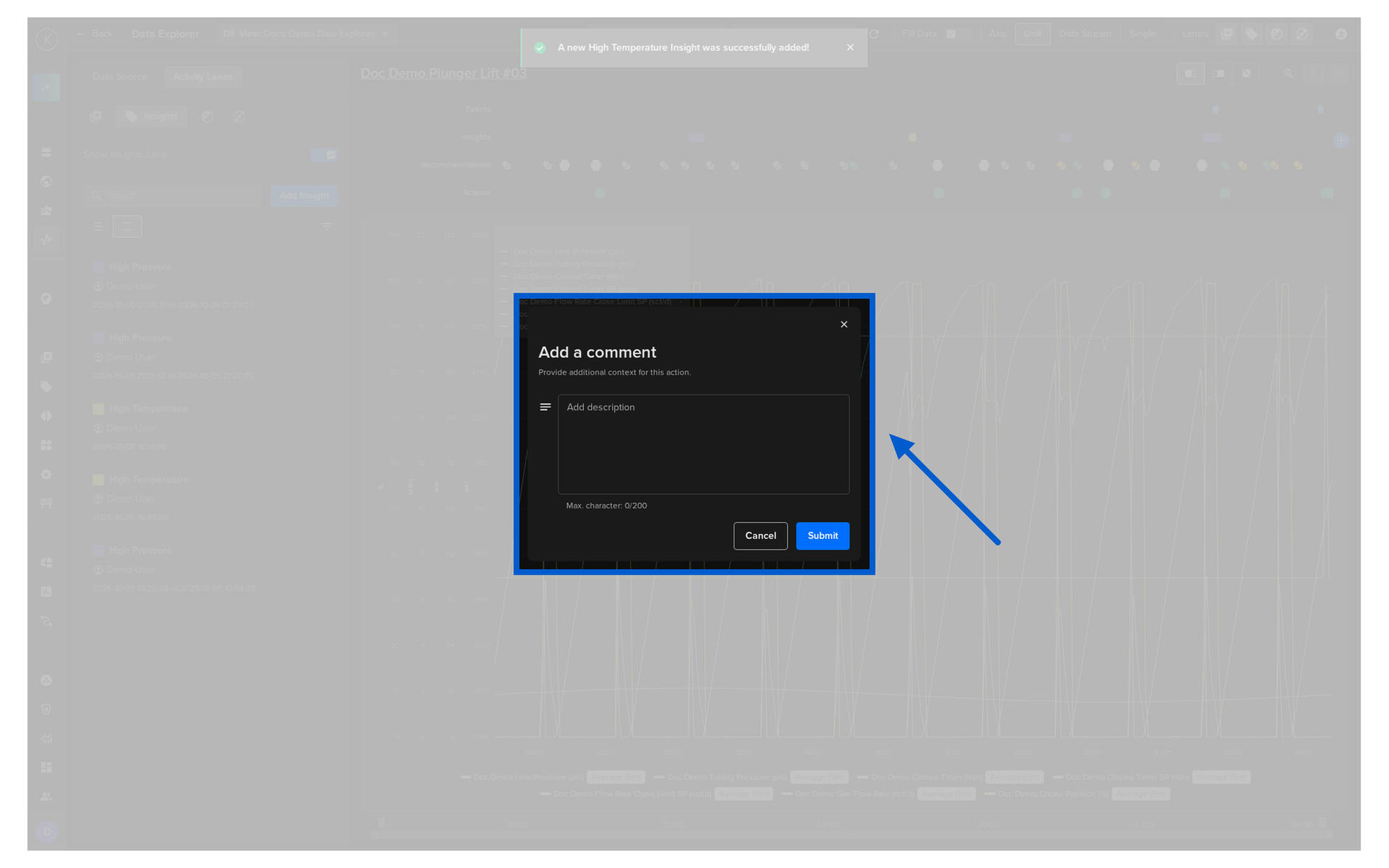
Click the Submit button and the Insight is added.
Edit Insights
To edit an Insight;
- Click the Activity Lanes tab in the left panel and select the Insights option
- Click the Insight card in the list
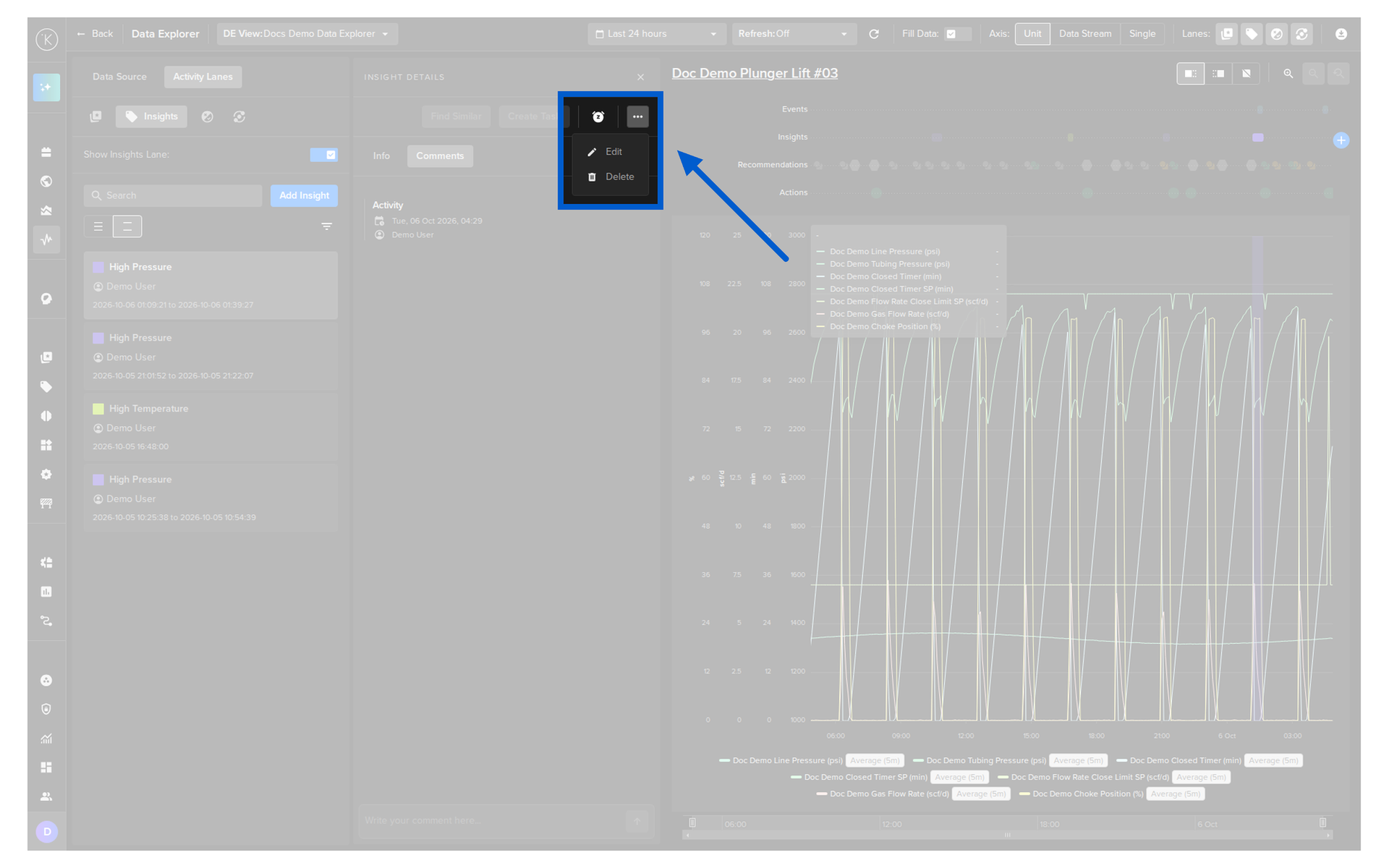
- In the details that open, click the meatballs icon
 and then click the Edit option in the menu
The Edit Insight panel has the same options as when adding an Insight.
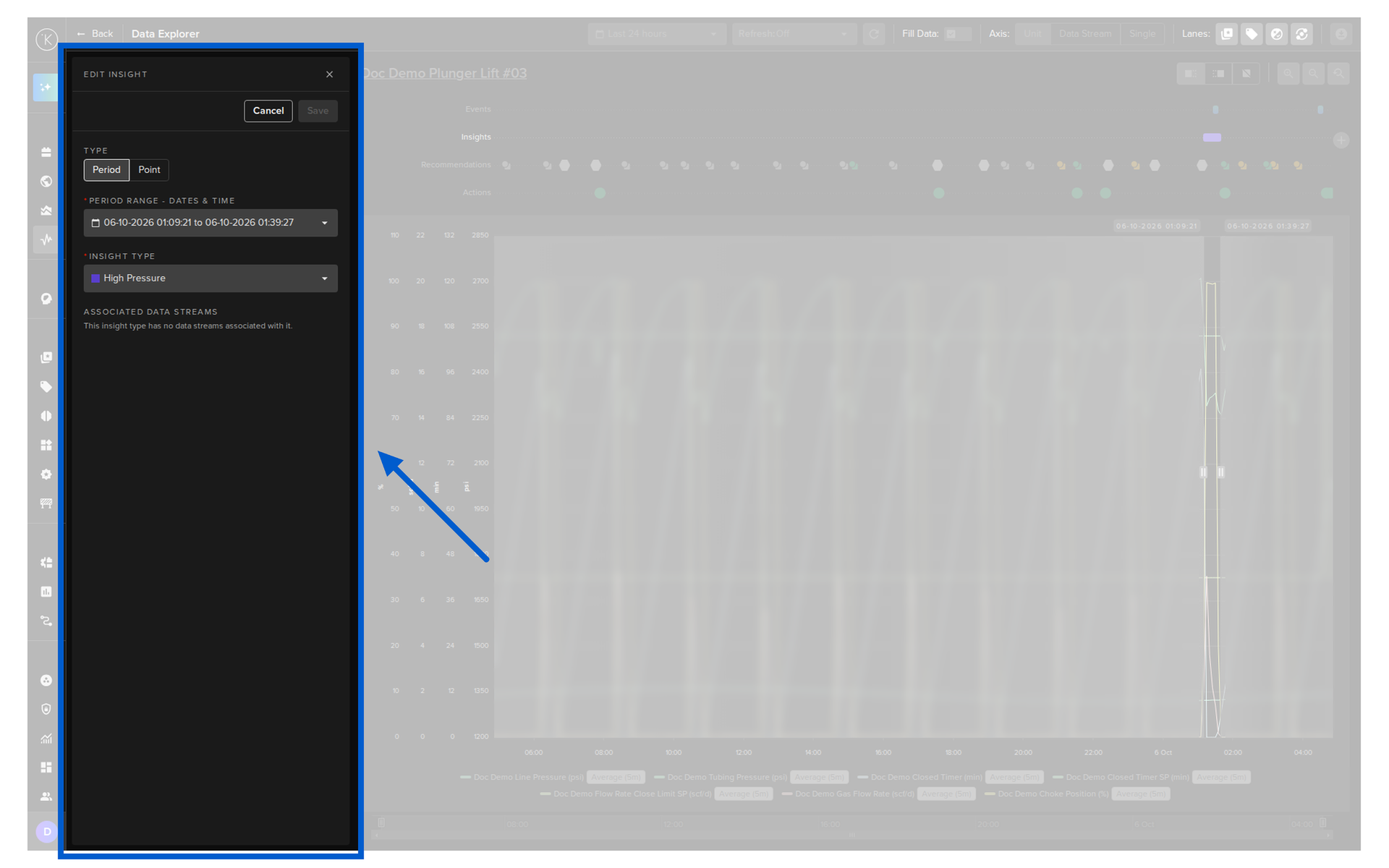
Make your changes and click the Save button.
Note
There is no comment popup after saving an edit.
Delete Insights
To delete an Insight;
- Click the Activity Lanes tab in the left panel and select the Insights option
- Click the Insight card in the list
- In the details that open, click the meatballs icon and then click the Delete option in the menu
- Type PERMANENTLY DELETE in the popup to confirm
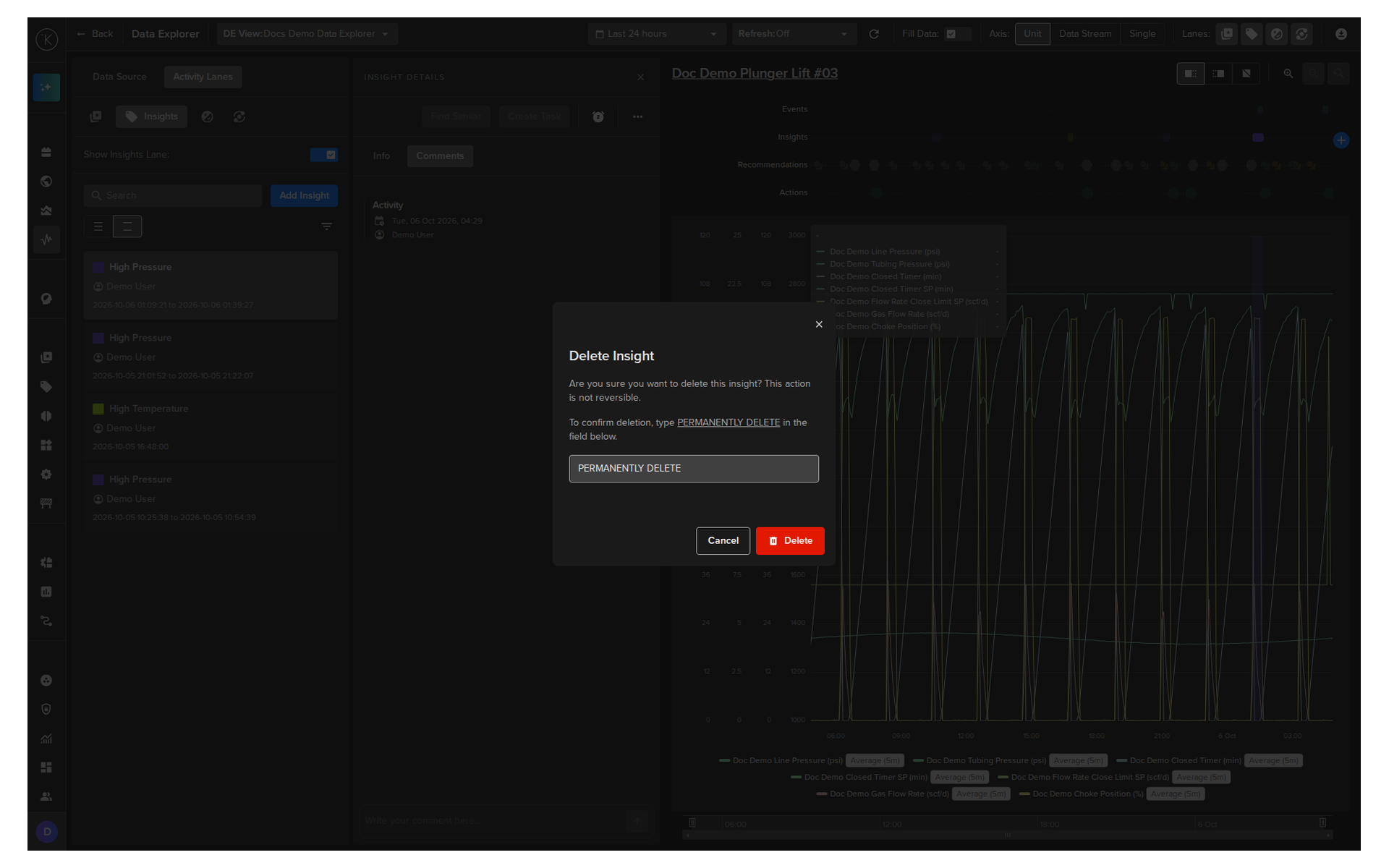
Warning
The Insight is permanently deleted and can not be recovered.
Snooze Insights
When an Insight type is snoozed for an Asset, every new Insight of that type for the Asset that is generated after you activate the snooze is automatically tagged Snoozed.
Important
If you open an Insight and click the snooze icon, the Insight you are looking at is NOT snoozed.
The action snoozes the Insight type for the Asset. All future Insights of that type, from the time you activated the snooze, WILL BE marked as snoozed. This is an important distinction.
Snoozing does not change existing Insights or the state of the Asset. Snoozed Insights are not shown in the Data Explorer.
Create a Snooze
- Click the Activity Lanes tab in the left panel and select the Insights option
- Click the Insight card in the list
-
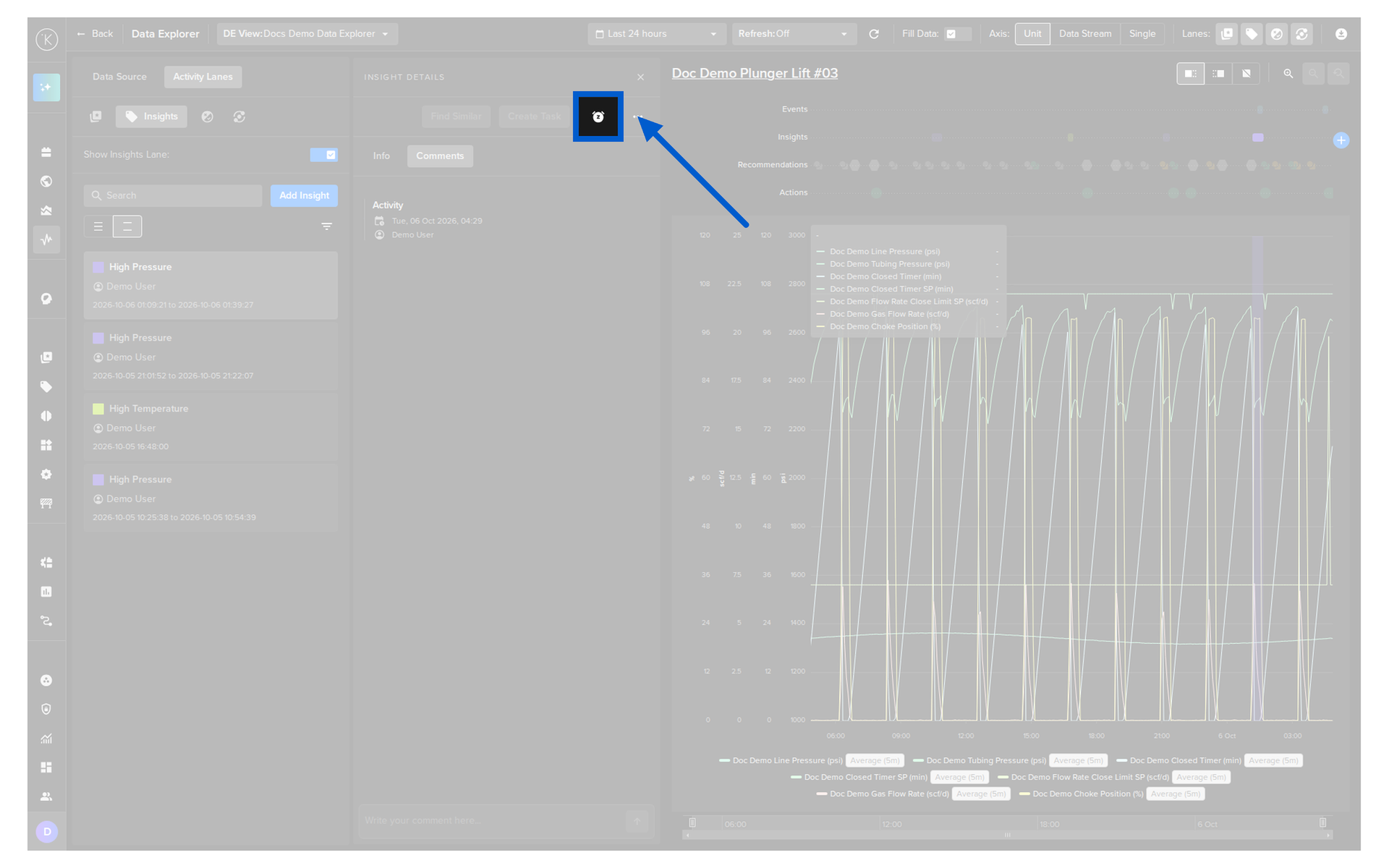
In the details that open, click the snooze icon
-
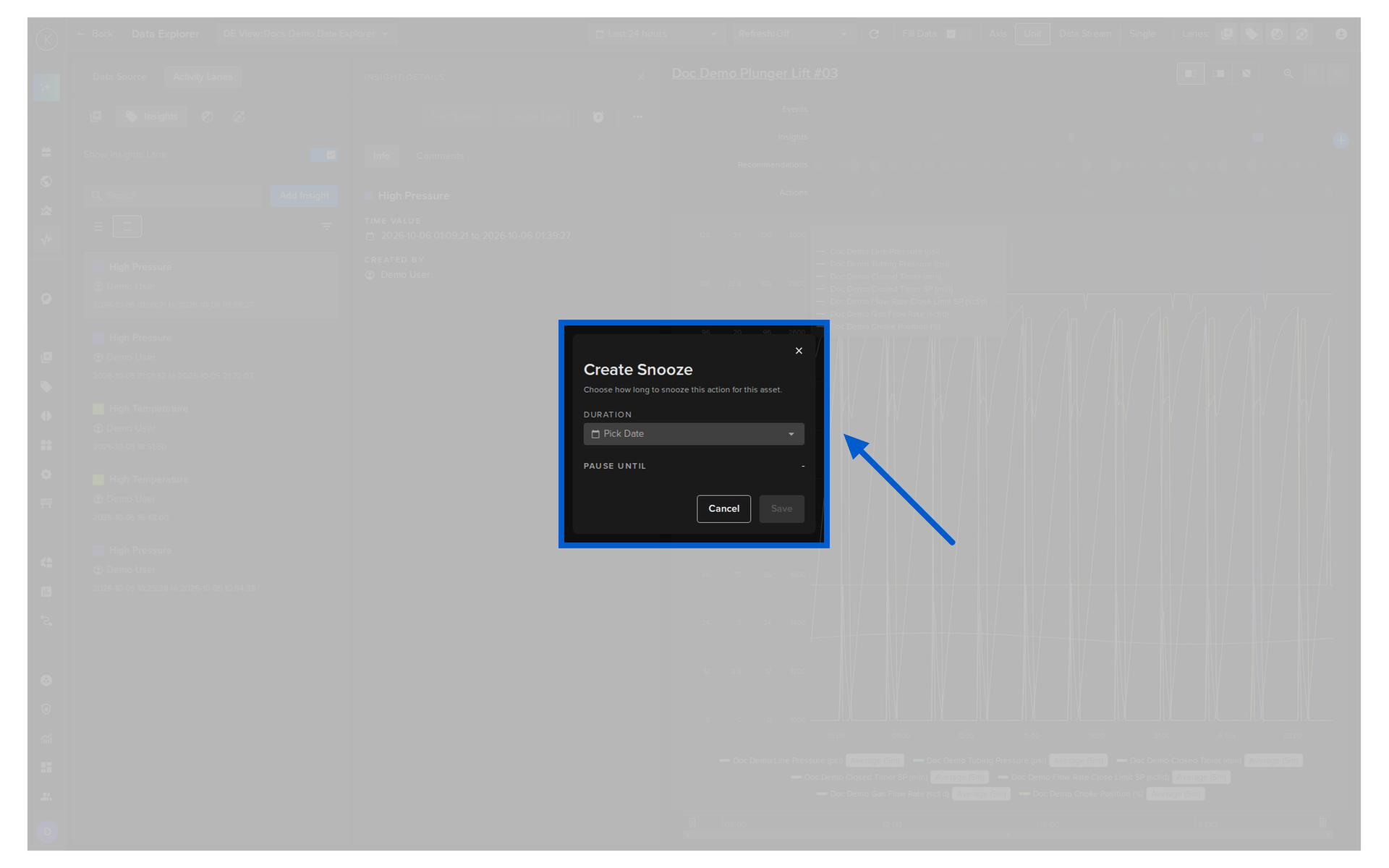
In the Create Snooze popup, select how long to snooze the Insight type: 3, 7, 14, 30 or 60 days, or a custom date and time
-
Click the Save button
Snoozed Insight
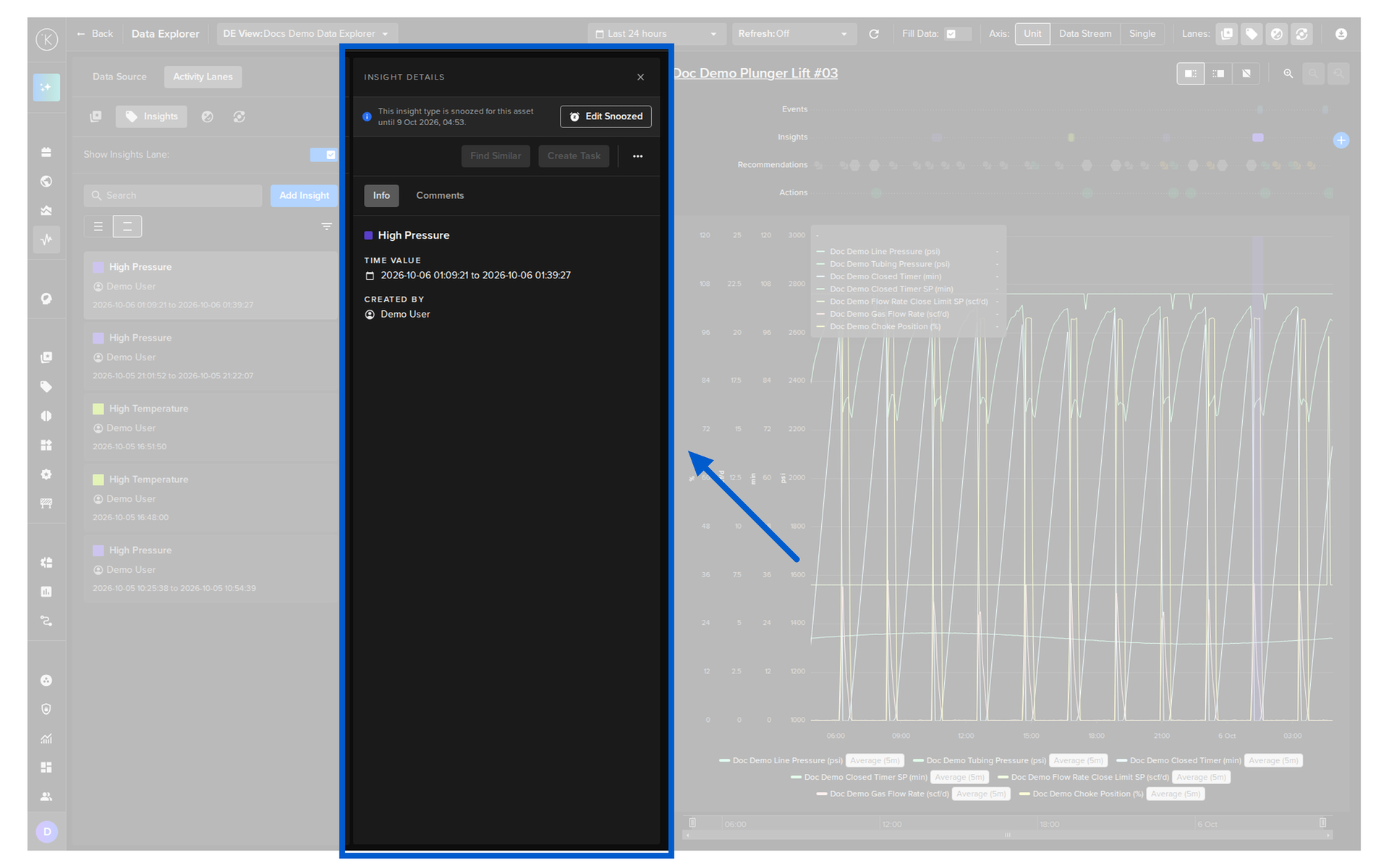
Once the snooze is active, the details of the Insight show the message This insight type is snoozed for this asset until 5 Oct 2026, 17:21. and the Edit Snoozed button. The message is about the Insight type. The Insight in the details is still not snoozed.
Edit or Remove a Snooze
- Click the Activity Lanes tab in the left panel and select the Insights option
- Click an Insight card of the snoozed type
-
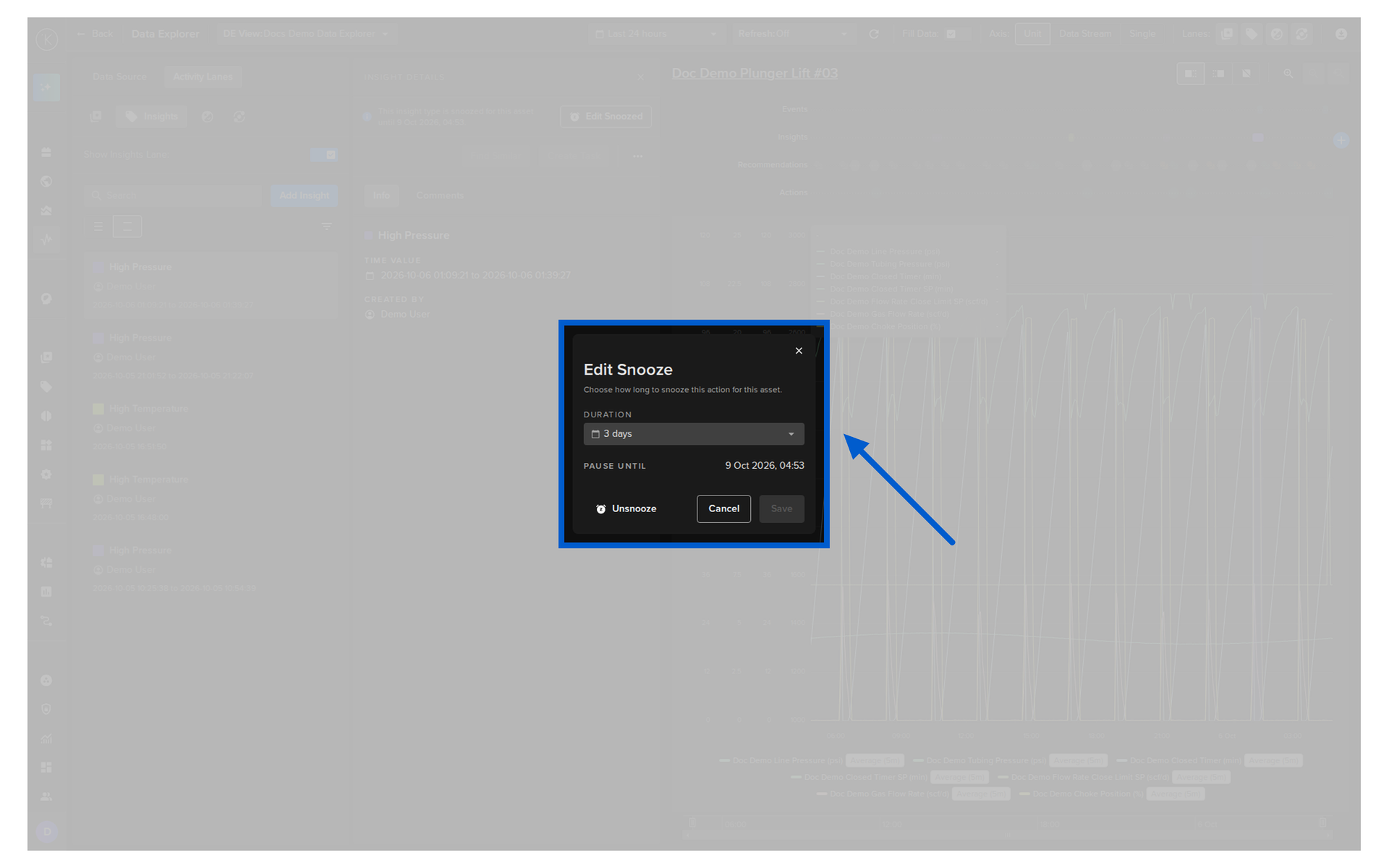
In the details that open, click the Edit Snoozed button
-
Change the duration and click the Save button, or click the Unsnooze button to reactivate the Insight type immediately. New Insights generated after that point act normally again