App Registry
On this page you will learn how to manage your your Kelvin Apps from the Kelvin Manager UI. There are new features coming every month, so be sure to check back regularly for updates.
Kelvin Apps
Kelvin Apps are sandboxed applications that can be developed and managed centrally on the Cloud Server and deployed to run at the edge.
At the edge they will be managed by the Kelvin Cluster. In the example here you can see a new Kelvin App being deployed from the App Registry.
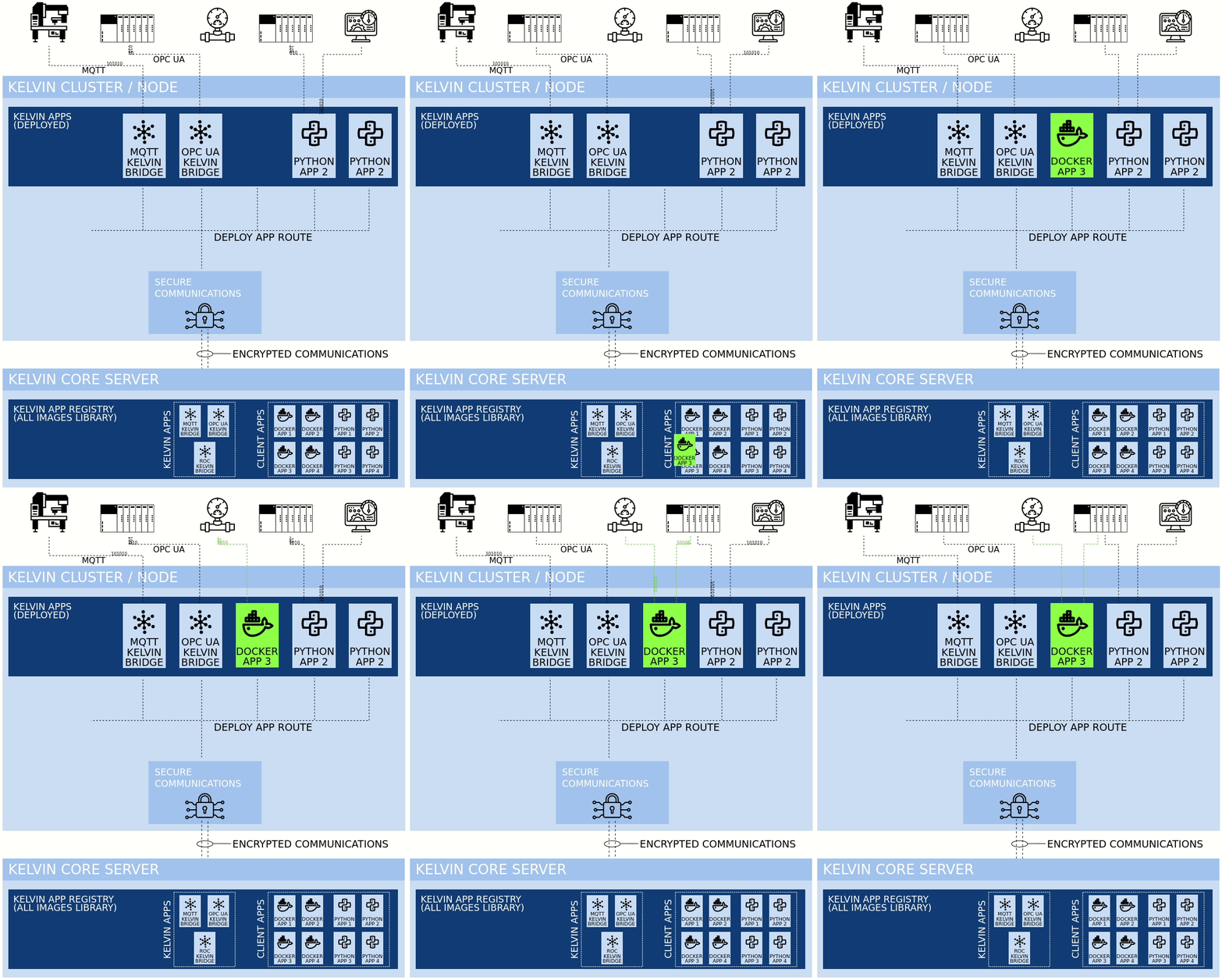
There are three types of Kelvin Apps available;
- Kelvin Developed Apps (such as Kelvin Bridges, etc.)
- Custom Kelvin Python Apps (Any python application)
- Custom Generic Docker Apps (Anything)
The Kelvin Cluster will manage the resources allocated to each Kelvin App to ensure that the computer that the Kelvin Node is installed on does not run out of cpu or memory resources.
Low or no resources can lead to the whole computer to freeze or crash and you will lose communications with the assets linked to the Kelvin Cluster.
Kelvin Bridges on the Kelvin Cluster 
Kelvin Bridges are actually special Kelvin Apps developed by Kelvin to communicate to different types of servers, PLC's, historians, SCADA systems, direct to sensors, etc., access the data and transmit this to the Cloud Server into the Kelvin Metrics.
There are current three types of Kelvin Bridges available;
Click on the relevant bridge above to understand more about the protocol and instructions on how to deploy, edit and troubleshoot each bridge.
Kelvin Python Apps on the Kelvin Cluster 
Kelvin Python Apps are python applications that can process data and information at the edge. This allows for real-time logic and control decisions at the edge. Or you can do some data pre-processing before sending it to the Cloud Server.
Using Kelvin Python Apps rather than a Kelvin Docker App gives you better integration with the Node's hardware. Kelvin Python Apps are optimized so you can easily incorporate internal data routing, pipeline support, machine learning algorithms some data persistence options. This is all accessed through libraries in the Kelvin SDK.
This allows you to focus on the actual data processing code and leave the application processes, resources and life cycle management to the Kelvin Core Engine in the Kelvin Cluster.
To understand more you can read the documentation on Kelvin Python Apps here.
Kelvin Docker App 
Kelvin Docker Apps give you complete freedom to develop any type of Kelvin App in any language and structure.
It iIt is the same as creating a standard Docker Container using a Dockerfile configuration file along with any files to be incorporated into the container.
You can also host web servers, MQTT brokers or even an OPC UA Server. Just make sure you define the ports to be opened in the DockerFile and make sure your firewall and virtual server routers forward the packets to the Kelvin Cluster IP address on the right port number.
Some common Kelvin Docker App applications can be;
- Create Flask application to have local web application
- Create a Node Red instance for a local SCADA system
- Create a local MQTT broker for local communications
- Create an InfluxDB database instance for local data retention
- Create an nginx web server
To understand more you can read the documentation on the Kelvin Generic App here.
Overview
The App Registry is where you can view all the Kelvin Apps you can created and stored in the Cloud Server.
To access the App Registry page simply click on App Registry under Repository.
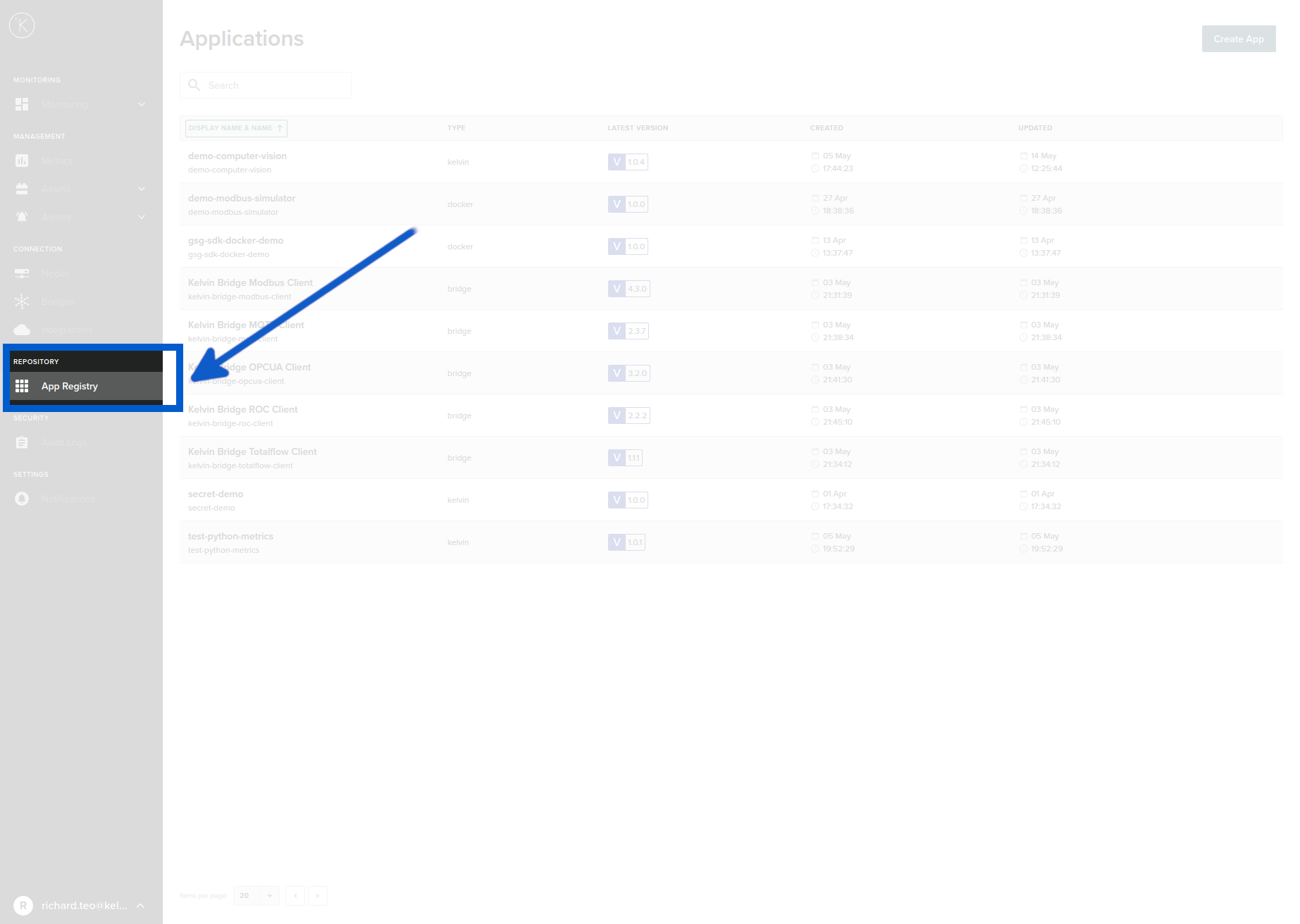
App Registry UI

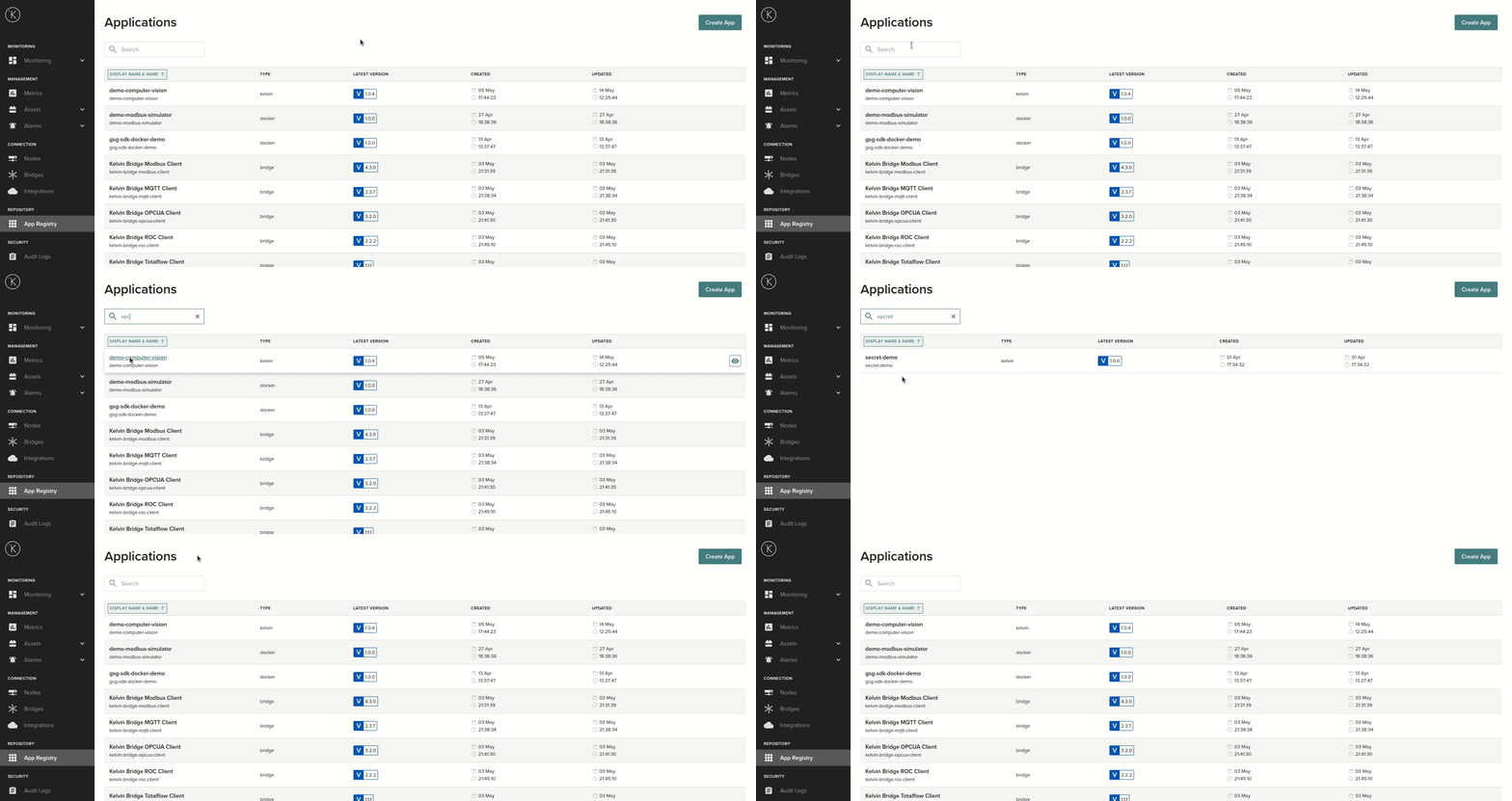
Searching / Filtering
You can search the App Registry by their Display Name.
On the left hand box, you can enter any text. The view below will be automatically updated with every key you press.
The search will look for any matches of the word you type. The word does not need to start at the beginning of the Display Name. For example if you type machine, then the search will find Kelvin Apps named "Demo Machine Learning App" and also "machine learning anomaly monitor".
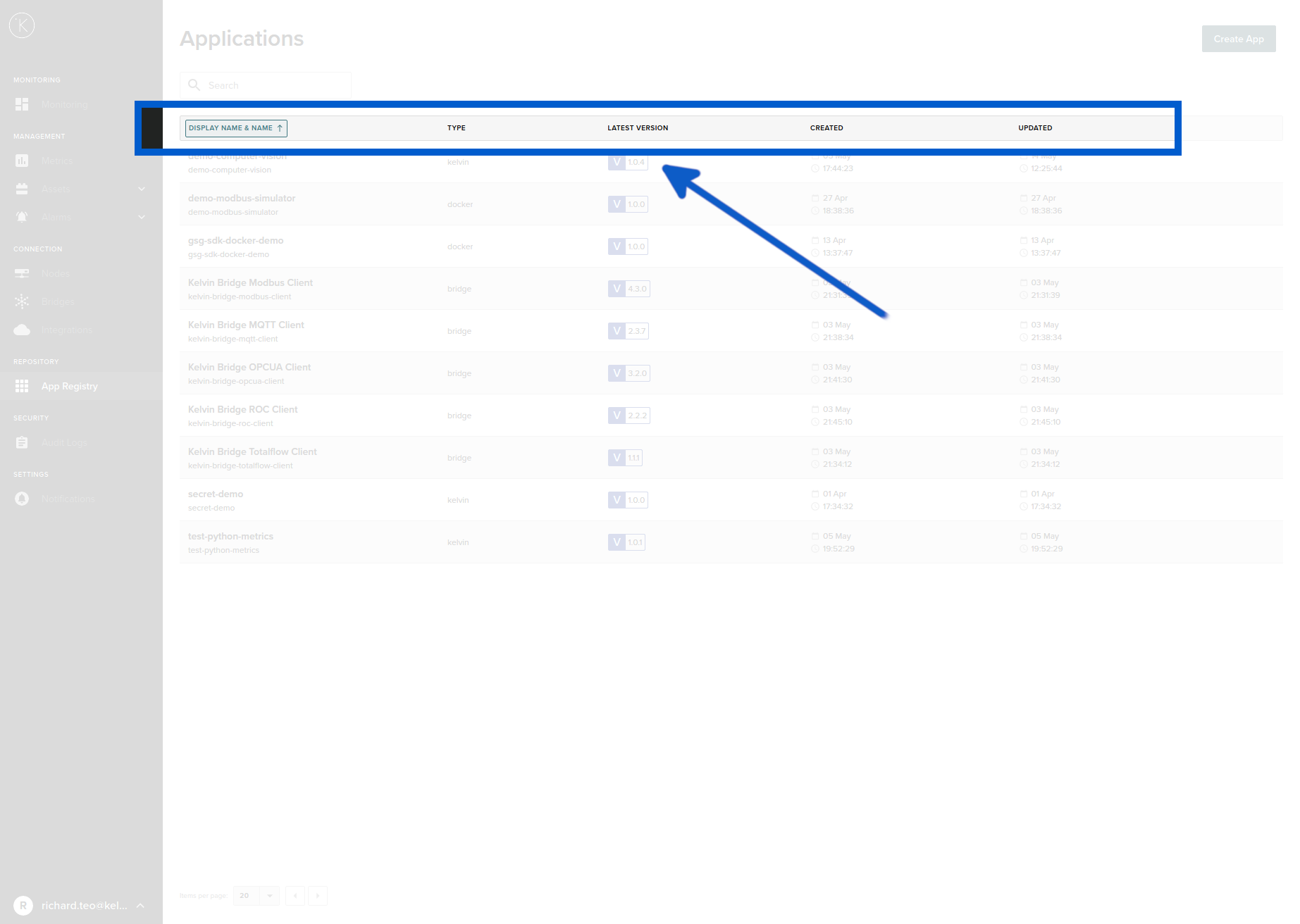
Sort View 
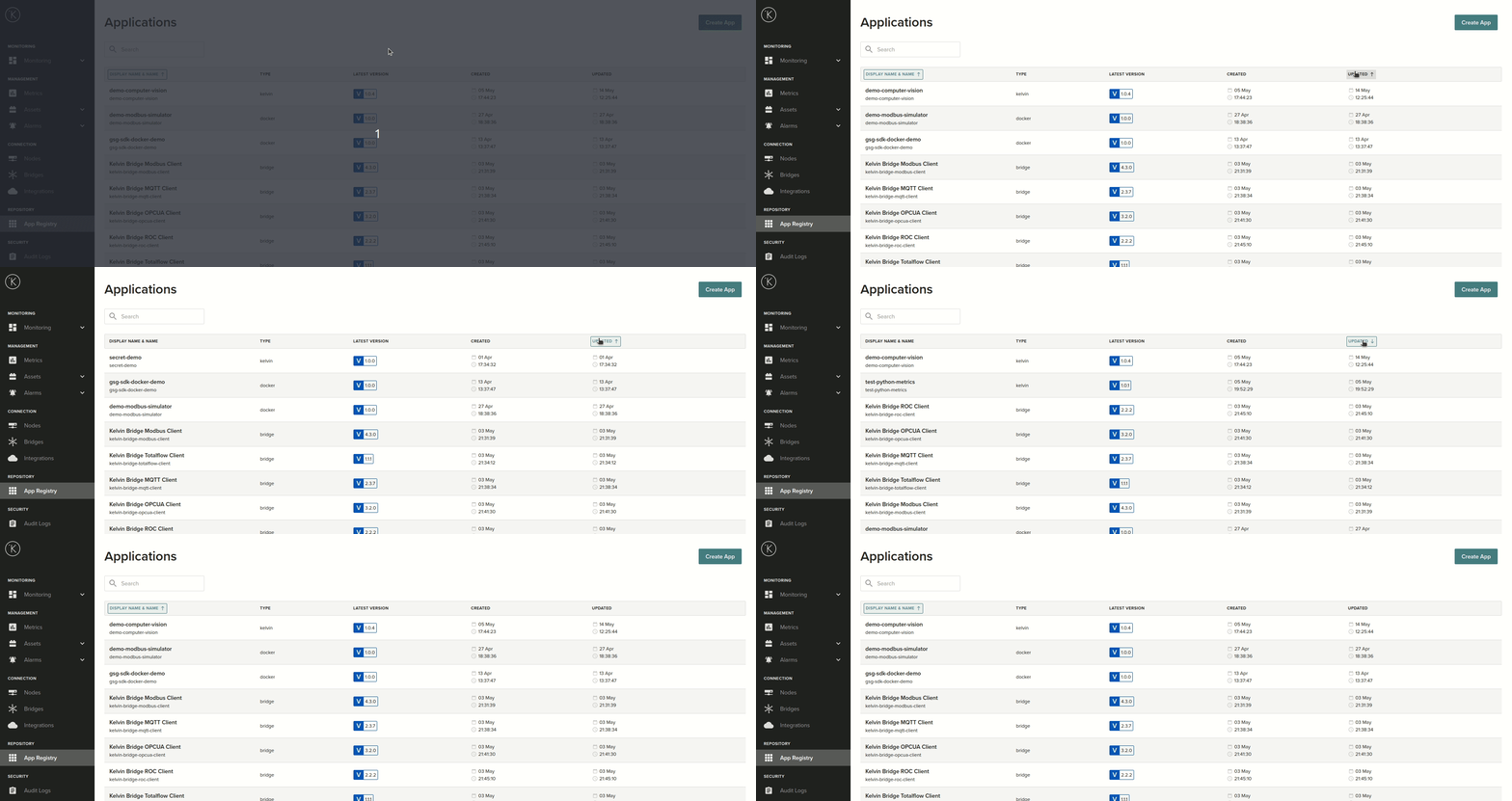
You can sort by ascending or descending order in any column. Simply click the column heading name.
Clicking the first time will sort in ascending order, clicking a second time will sort in descending order and if you click a third time the sort will be cancelled.
Kelvin App UI
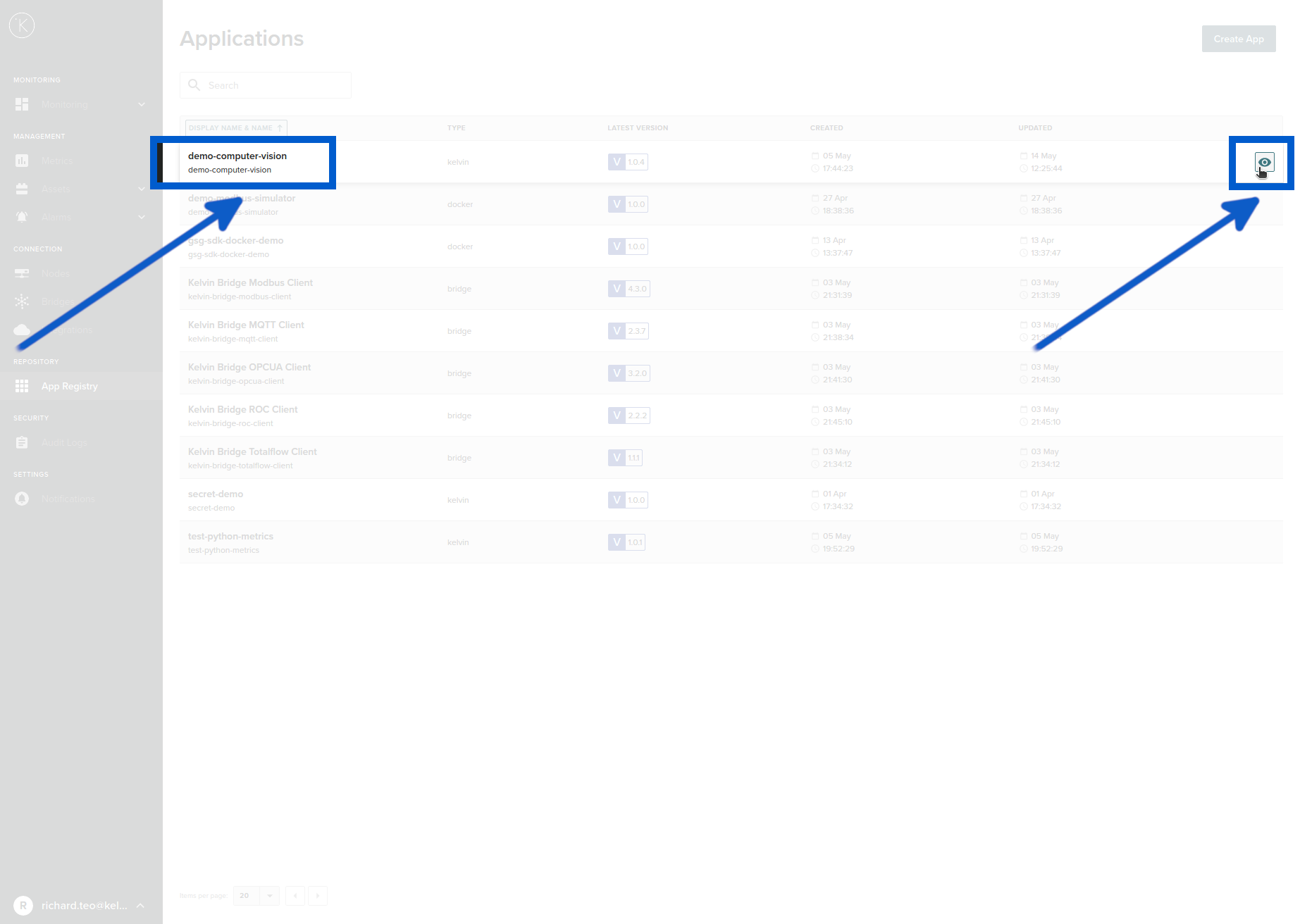
You can see the details of all versions of a Kelvin App by clicking on it's name or on the eye icon.
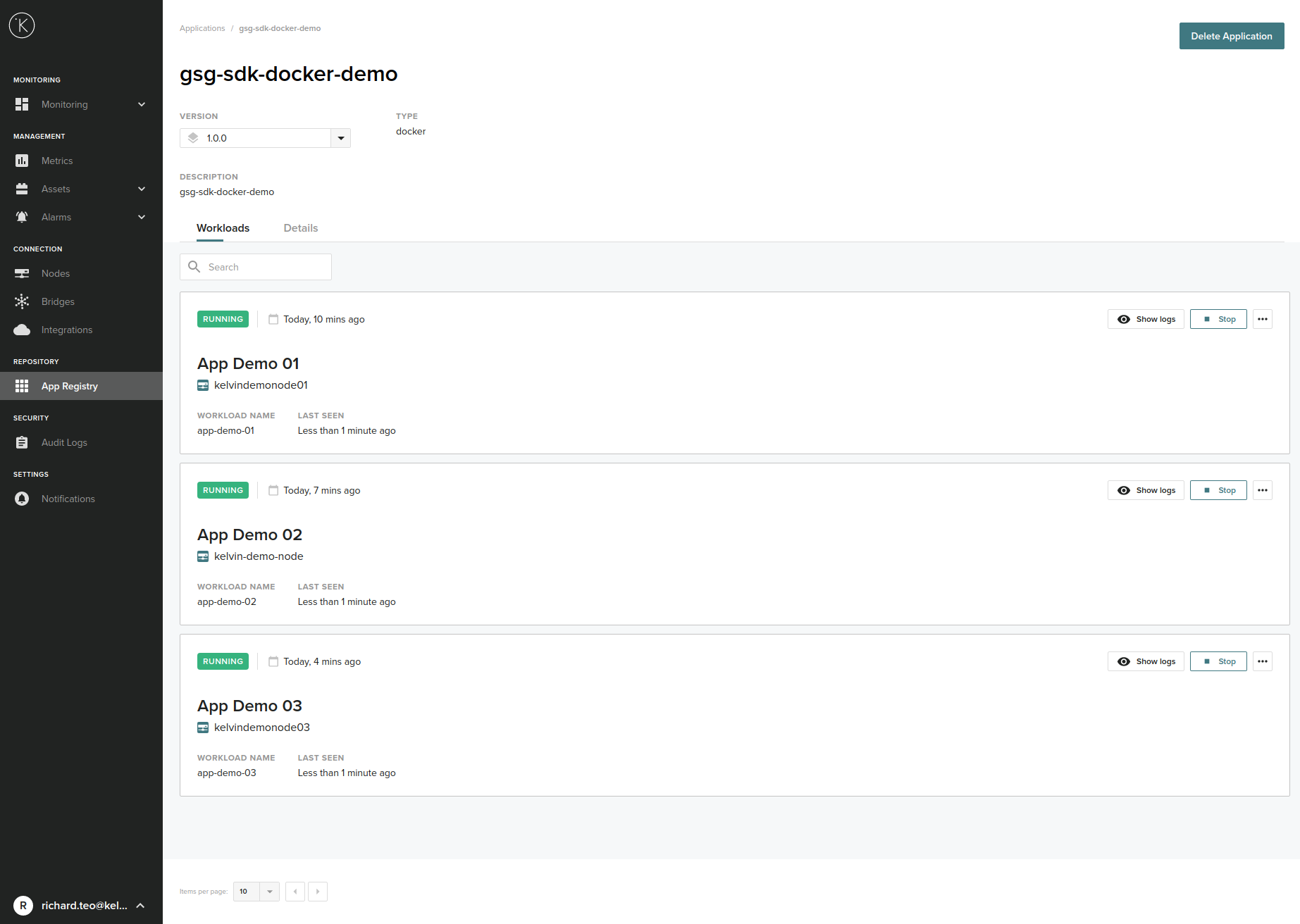
Workloads
In the overview page you can see where the Kelvin App has been deployed, its current status and other miscellaneous information.
Kelvin App
| Action | Description |
|---|---|
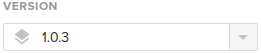 |
You can select which version of Kelvin App to filter. It will only show a list of Kelvin App deployments that meet the version number selected. |
 |
There are five types of Kelvin Apps mentioned here; kelvin, docker, poller, bridge. Kelvin : A Kelvin Python App. Docker : A Kelvin Docker App developed by any client. Poller : Bridge : A special App developed by the Kelvin development team to connect to assets automatically with MQTT, OPC UA and Emerson ROC. |
 |
This is the status of the Kelvin App in the App Registry. |
 |
This will delete the application from all Kelvin Clusters, the Kelvin Core and all it's versions. |
Delete Application Version
You can delete only certain versions of an application. Simply click on the Version drop down box and click on the delete button of the version you want to delete.
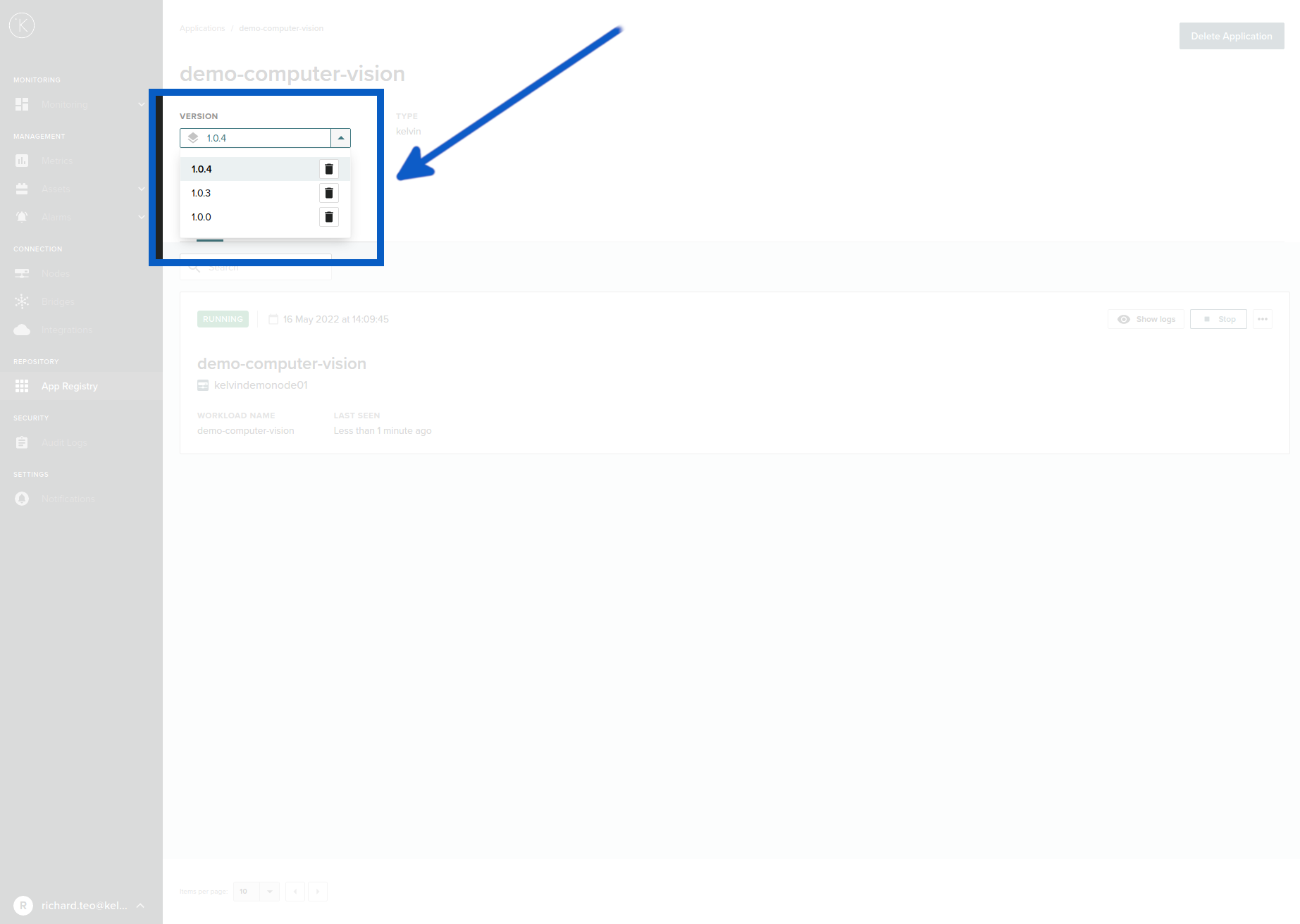
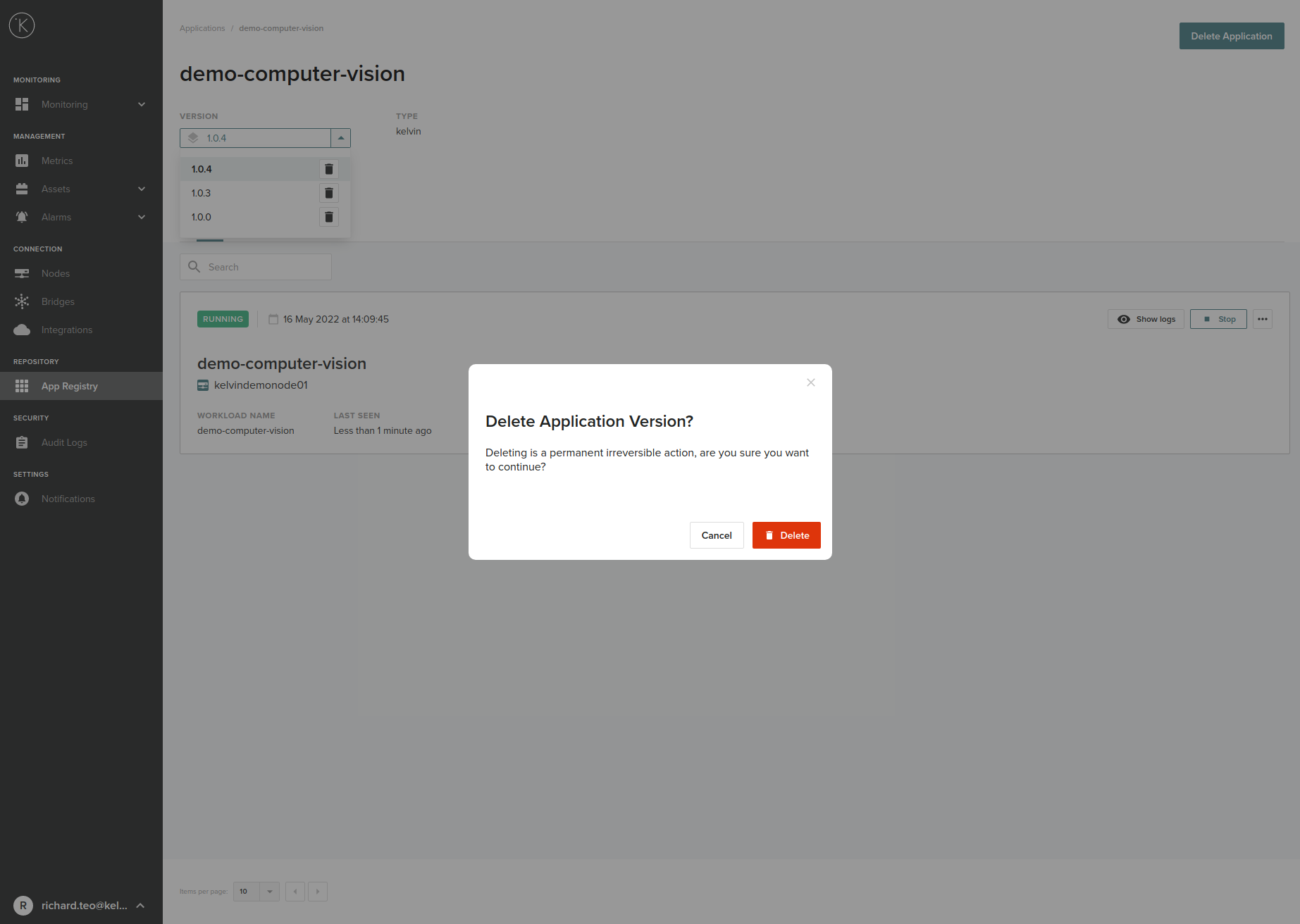
After clicking you will get a delete confirmation popup.
Individual Deployed App Details
| Action | Description |
|---|---|
 |
The status of the deployed Kelvin App on the Node. |
 |
The time when the Kelvin App was first deployed to the Kelvin Cluster. |
 |
This is the Display Name of the deployed Kelvin App. Click here will take you to the Connection -> Nodes -> App Details page. See here for more details. |
 |
This is the Kelvin Cluster where the Kelvin App is deployed and running on. Click here will take you to the Connection -> Nodes Details page. See here for more details. |
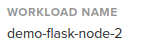 |
This is the Name of the deployed Kelvin App. |
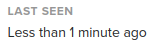 |
This is how long since the App was last detected online. |
Actions
If the Kelvin App is Offline, then only the Action, edit config and delete buttons will shown. All other buttons will be hidden.
| Action | Description |
|---|---|
 |
This button will show you the Kelvin App logs. More details about this page can be found here. |
 |
This button will control the Kelvin App. Depending on its status you can see Stop, Start or Reset button. |
  |
This menu item in more button will allow you to edit the app.yaml file for the app. More details about this page can be found here. |
 |
This menu item in more button will delete the selected Kelvin App on the selected Node. This will not delete the Kelvin App in the App Repository on the Cloud Server. You will be asked to confirm before deleting. |
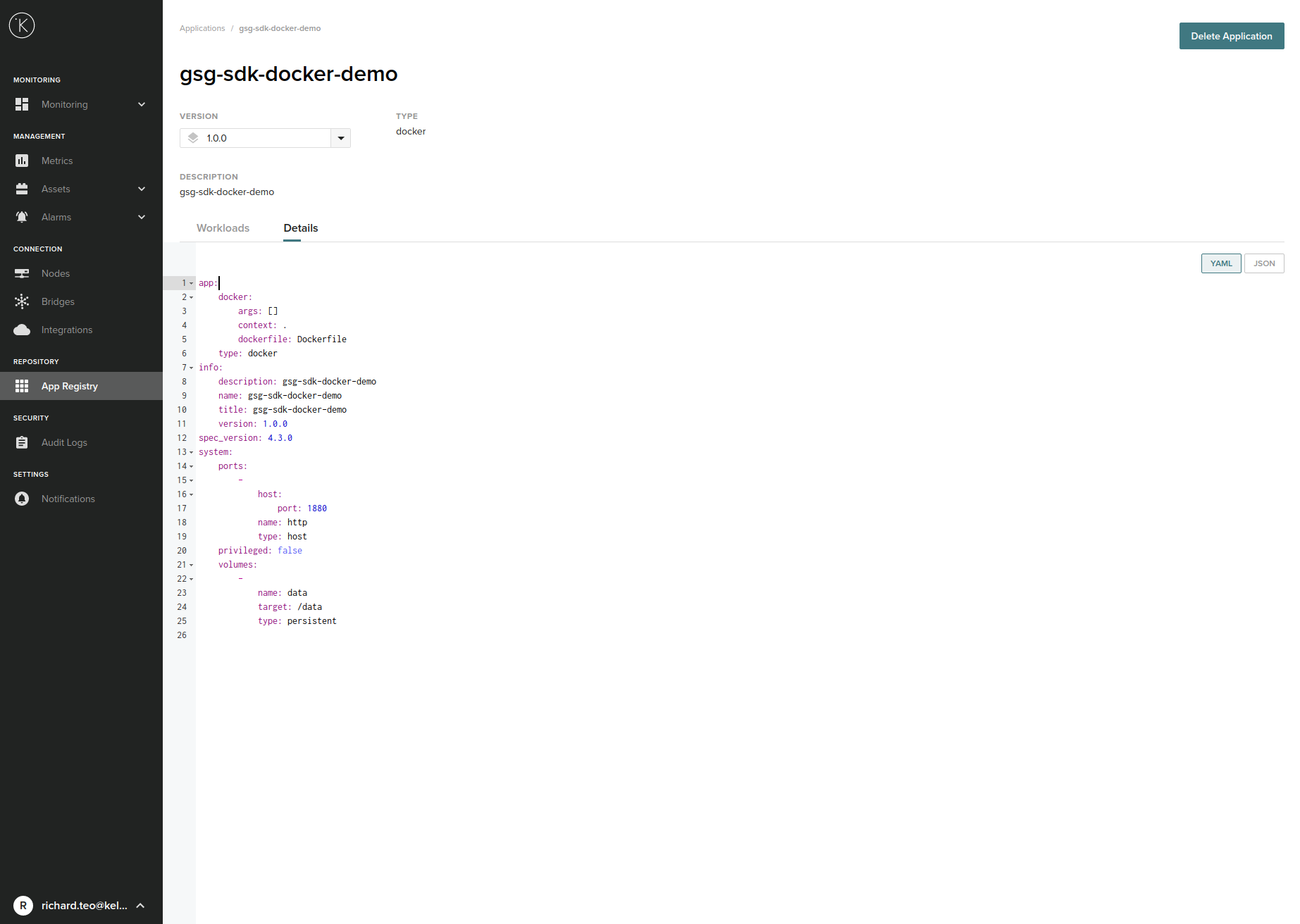
Details
This shows the app.yaml file which is written when creating a new core app (Kelvin App). You can view it in YAML or JSON format.
The app.yaml file is the Kelvin App configuration file.
Create Flow App
This feature is now discontinued and is available only for backwards compatibility.
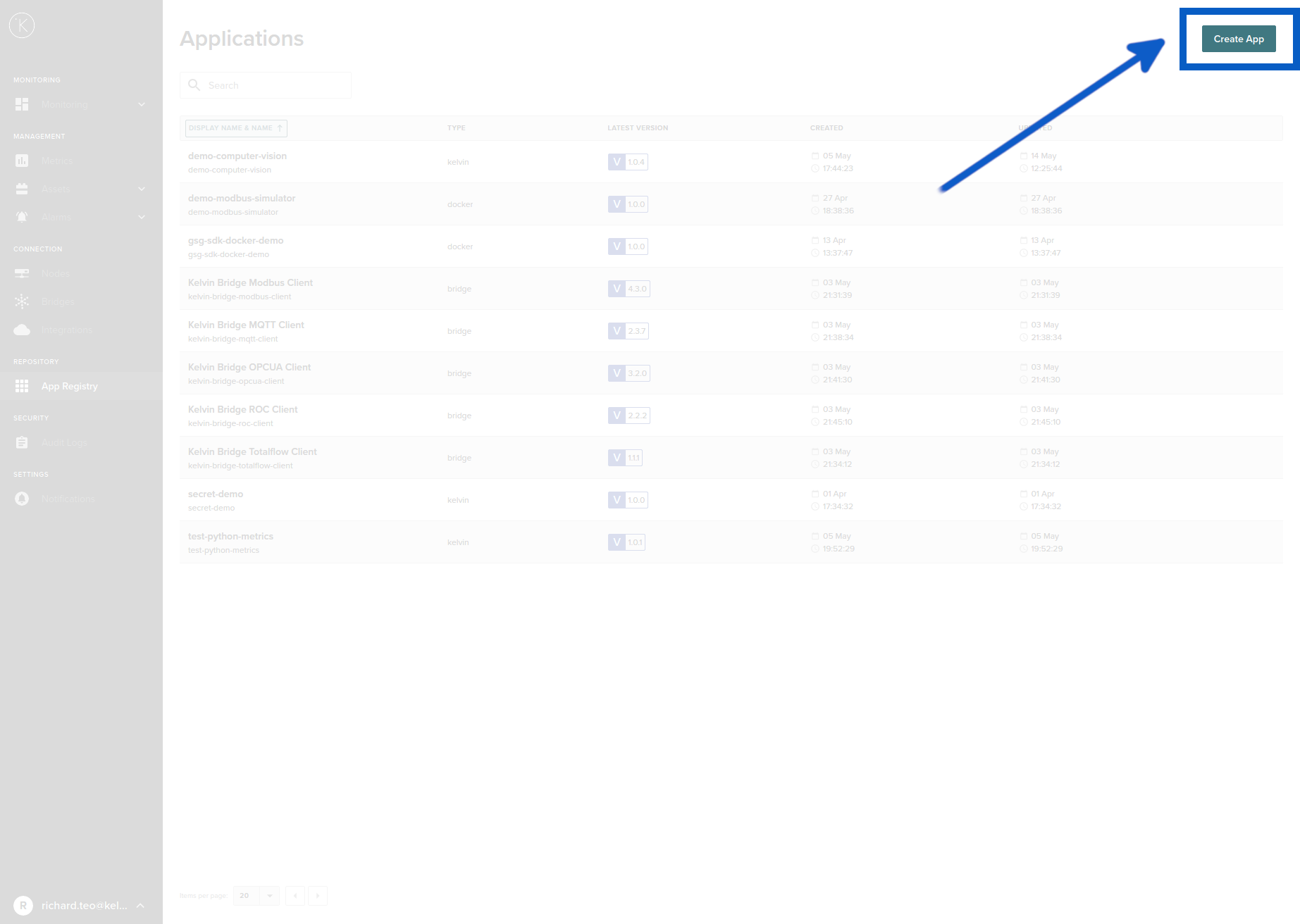
Create Core App (Kelvin App)
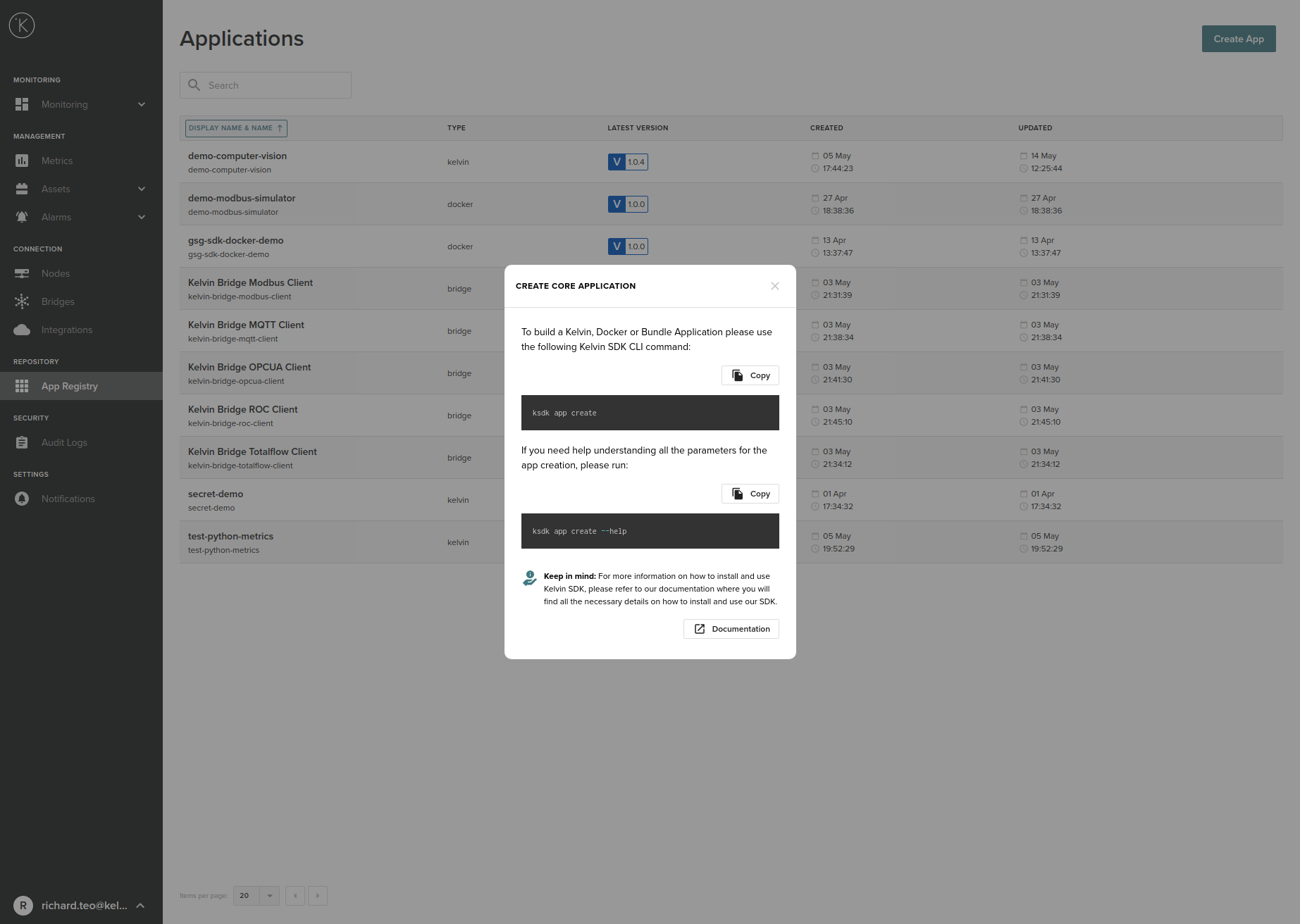
At the moment you can only create the Kelvin Python App and Kelvin Docker App with the command line SDK tools. Check back regularly as we add new features to the Kelvin Manager UI monthly and this will be included in future versions.
You can read the instructions by clicking on the Create Core App.
The instructions on how to create a core app (Kelvin App) show in a popup;
Creating a Kelvin App
Kelvin Bridge App
There are current three types of Kelvin Bridges available;
Click on the relevant bridge above to understand more about the protocol and instructions on how to deploy, edit and troubleshoot each bridge.
Python or Docker Kelvin App
At the moment Python and Docker Kelvin Apps can only be created using the Kelvin SDK at the command line.
For Kelvin Python Apps you can following this link to understand how to create, handle of data and the other features available.
For Kelvin Docker Apps (also know as Generic Apps) you can follow this link to understand how to create one.
What is App Resource Allocation ?
The amount of CPU and memory reserved for each app can be individually tailored to suit the app's requirements. Complex Kelvin Apps will require more and simpler ones will require less.
The reserved cpu and memory and the actual used cpu and memory may not be the same. Reserved means that these resources are booked on the Node and can not be shared with other Apps. Actual is the current resource usage by the App.
In any Kelvin Cluster you can not have more Reserved resources than physically resources available. If a Kelvin App deploy fails, it can be you do not have enough resources to reserve the required amount for the App.
You may look at the total resources being used now and see enough available. But be careful, that is the total actual used resources, not the total reserved resources. You can not view a total of the reserved resources.
By managing these resources manually, you can maximize how many Kelvin Apps can run on your existing Kelvin Cluster hardware.
Be careful when you change these values. In some cases the wrong parameters can lead to the failure of the Kelvin Cluster. See Troubleshooting & Tips below for more details.
Types of Resource Allocations
Limits
This is a maximum resource limit enforced by Kelvin Cluster. Each Kelvin App will not be allowed to use more than the limit set.
Requests
This is the minimum resources that is allocated to the Kelvin App. This is reserved for the Kelvin App and can not be used by other Kelvin Apps.
If there are extra resources available, the Kelvin App can use more than the requested resources as long as it does not exceed the Limits.
For example you set the memory allocation for a Kelvin App requests at 250 MB and Limits at 1 GB. The Kelvin Cluster will reserve the 250MB exclusively to the Kelvin App. If the Kelvin App needs more memory and it is available, the Kelvin Node will expand the memory available up to a maximum of 1GB.
Resource Definitions
CPU
CPU is allocated in absolute quantities only. 1.0 CPU is equivalent to one hyperthread on an Intel core processor.
There are two different ways that you can write the allocation. For example 1/10 of one hyperthread is;
- 0.1
- 100m
The absolute minimum you can allocate is 1m or 0.001.
Memory
You can allocate memory as either an integer in bytes or in multiples of G, M, k or Gi, Mi, Ki. When defining in the app.yaml do not write the "B" for bytes.
For example the number below is approximately the same;
- 128974848
- 129e6
- 129M
- 123Mi
What is the difference between M and Mi ?
One M is defined as 1000^2 (1,000,000) whereas one Mi is defined as 1024^2 (1,048,576).
App Resource Allocation
Automatic / First Deploy
When you first launch a Kelvin App, the Kelvin Cluster will automatically set the allocations for the request and limit resources. The default settings are;
- CPU : 0.1 or 100m
- Memory : 256Mi
Custom Allocation
At any time you can change the settings of the allocations for the request and limit resources.
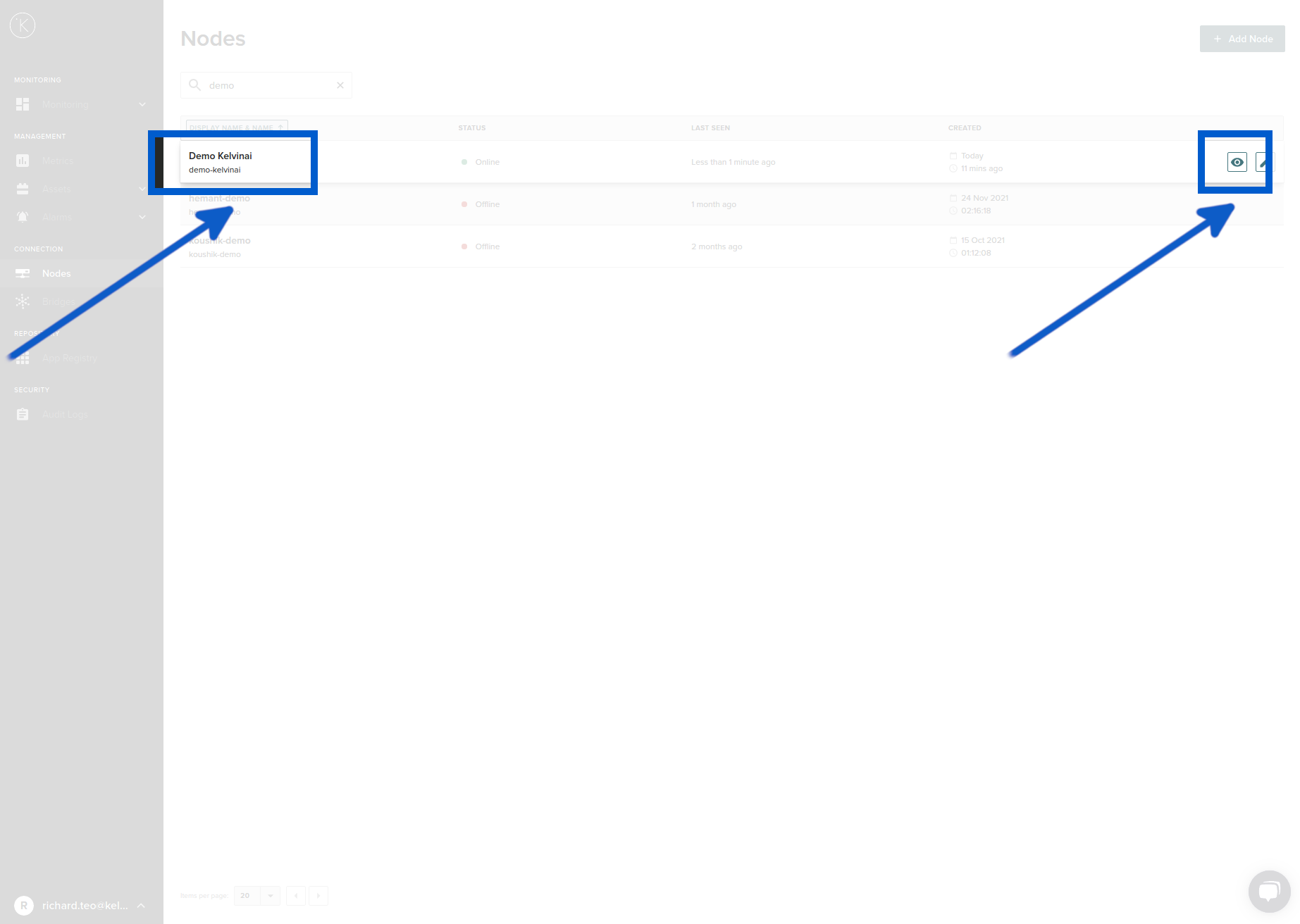
You can do this in the Control Manage UI. First go to Connections -> Nodes
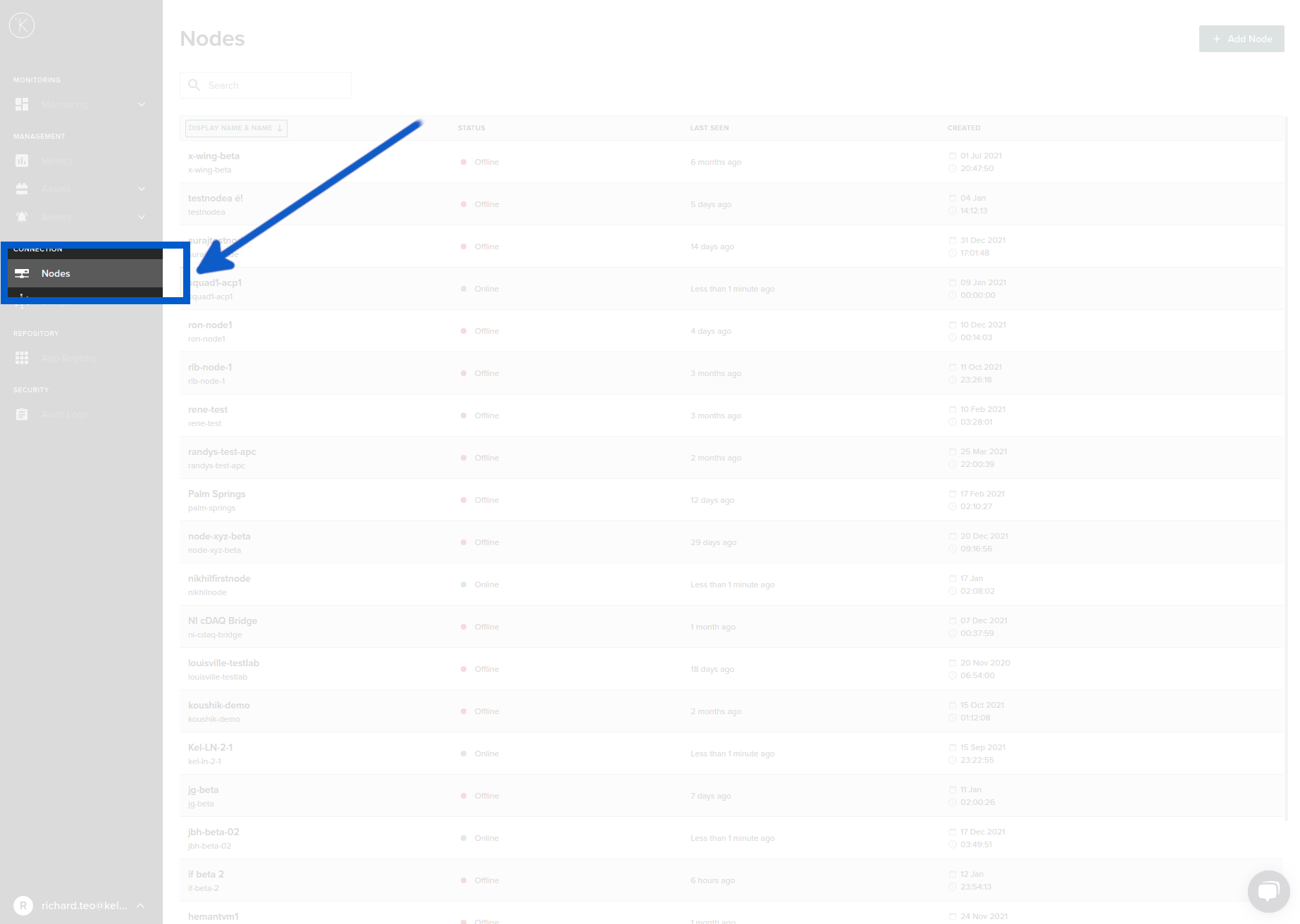
Then select the Kelvin Cluster that you want to modify the App Resource Allocations.
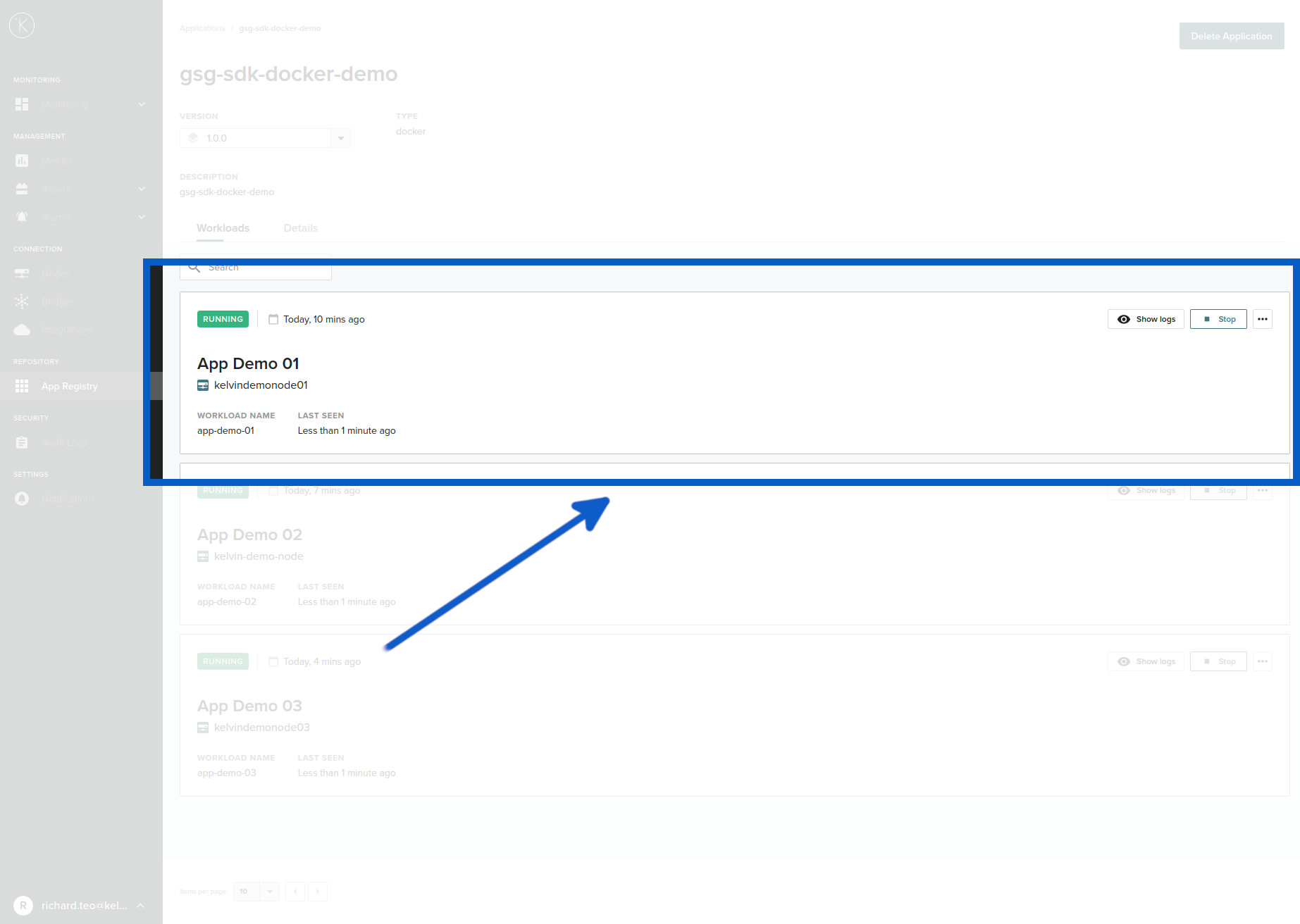
Now select the App that you want to change the resource allocations.
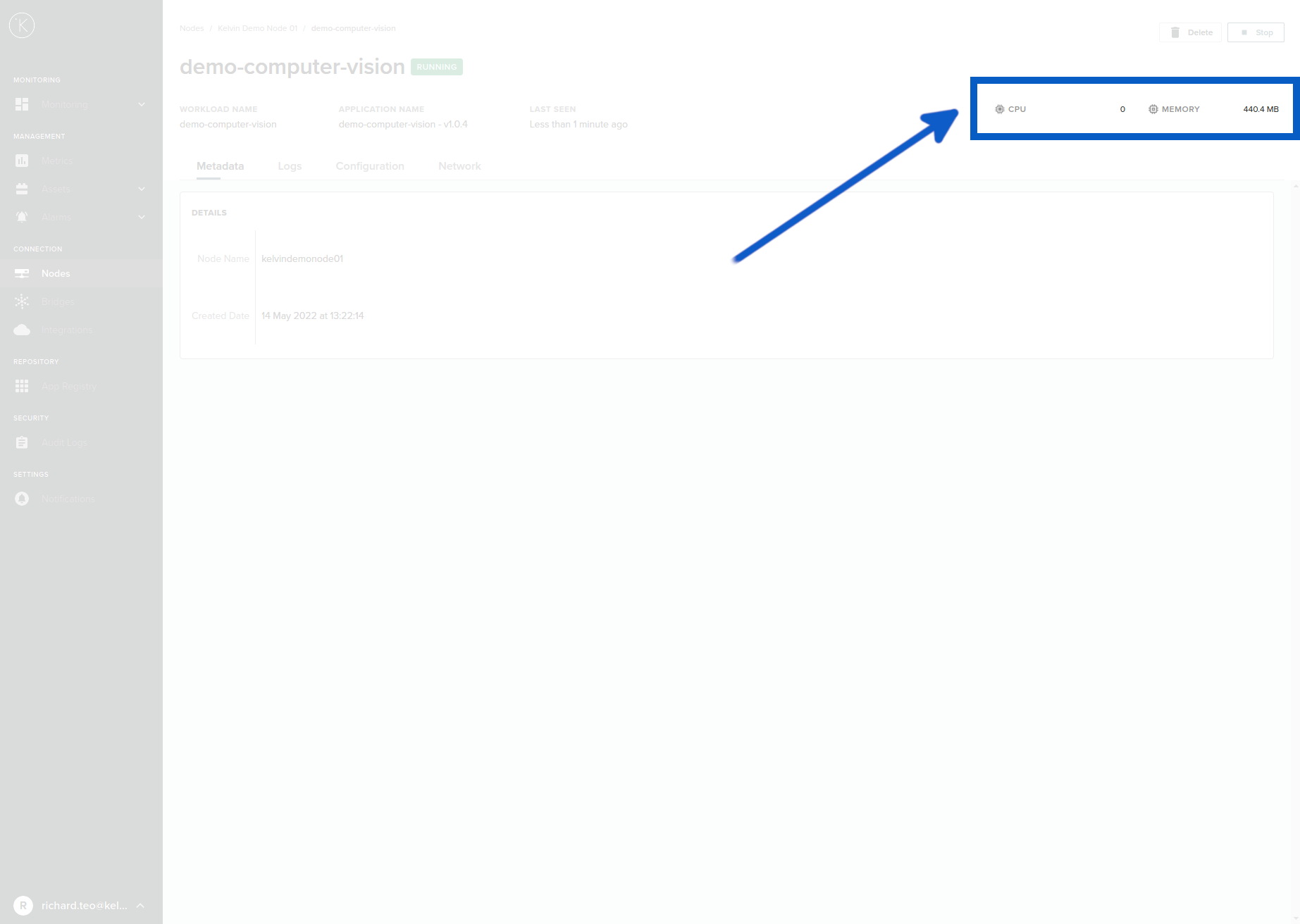
You can see the current resource allocation in the top right hand corner. If they are not set then wait a few minutes for the refresh to take effect.
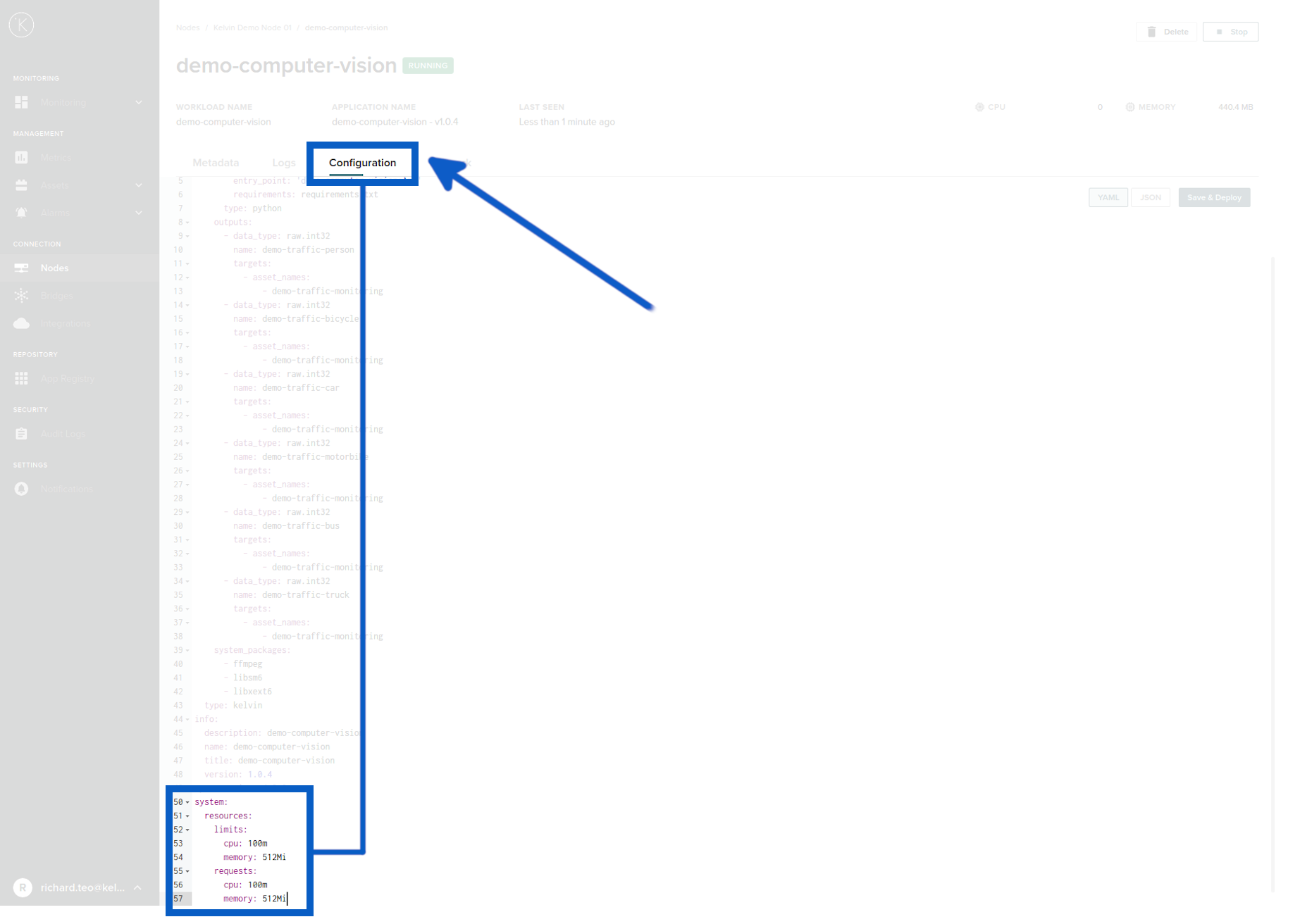
Now click on the configuration tab
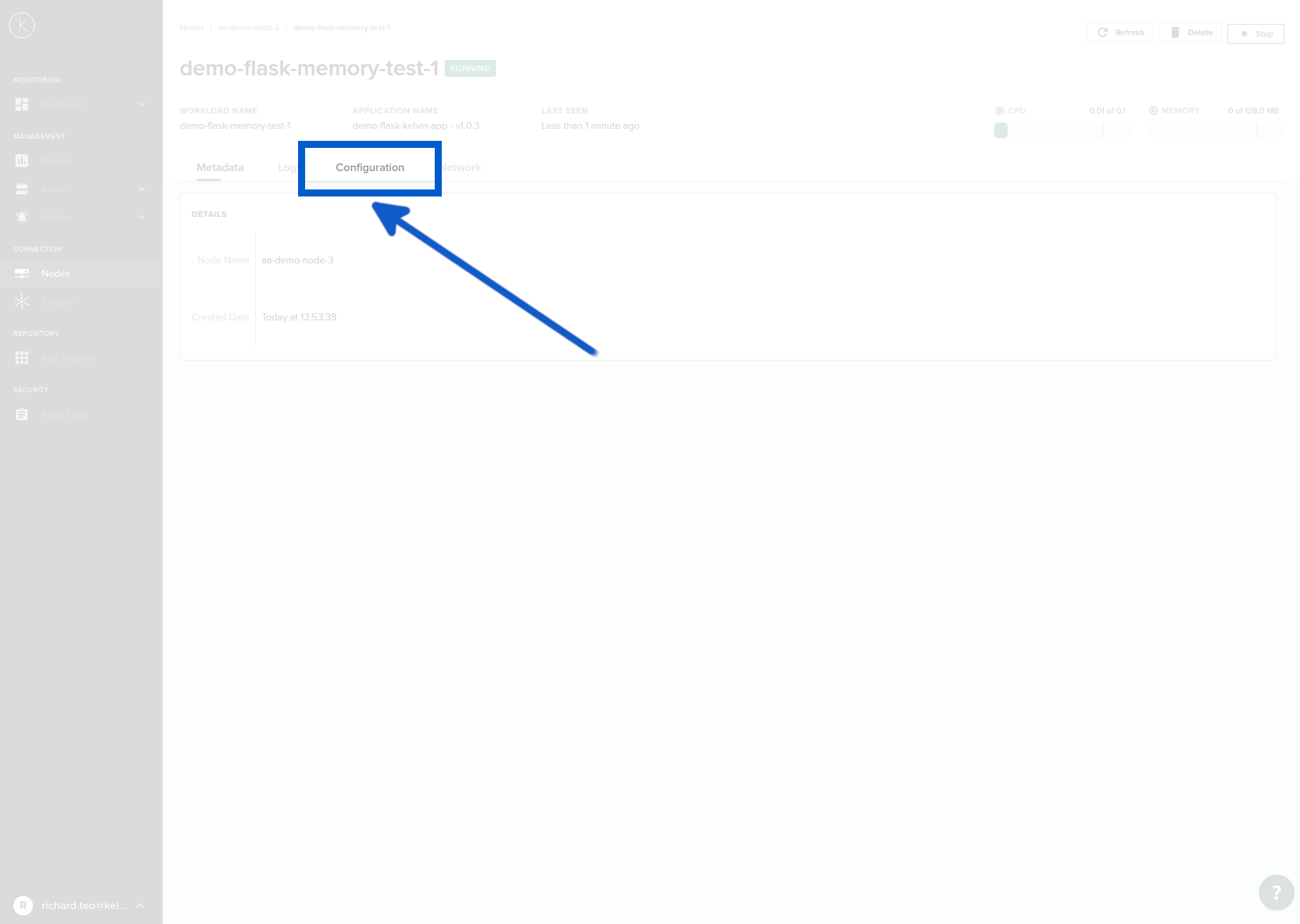
And you can add the following yaml settings at the bottom and put in your custom settings (If the yaml is already there, then you only need to change the settings);
  resources:
    limits:
      cpu: 100m
      memory: 512Mi
    requests:
      cpu: 100m
      memory: 512Mi
You can also edit in JSON if you are more comfortable with this format;
        "resources": {
            "limits": {
                "cpu": "100m",
                "memory": "512Mi"
            },
            "requests": {
                "cpu": "100m",
                "memory": "512Mi"
            }
        }
When you are happy with the new App Resource Allocations the you can click on Save & Deploy
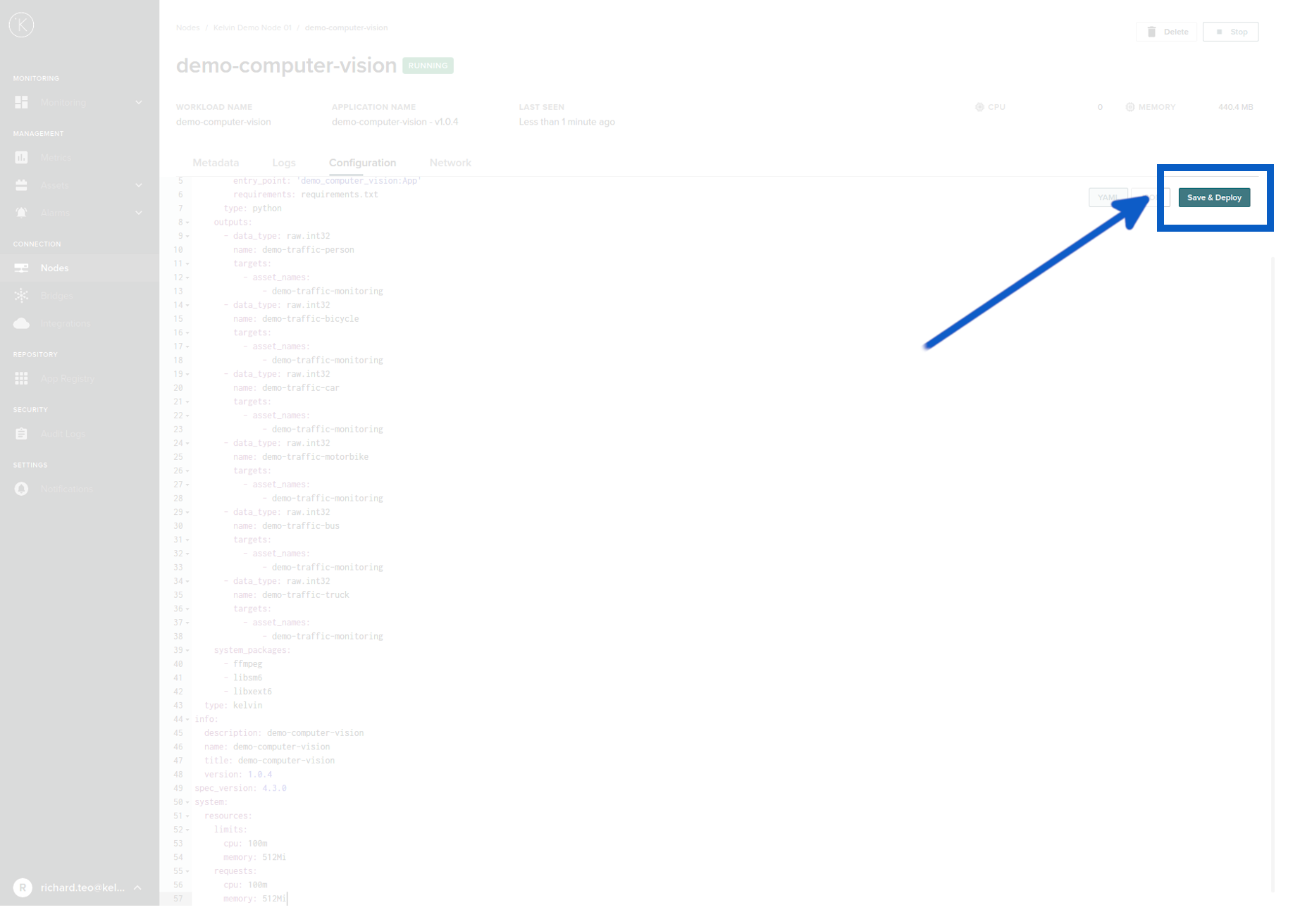
Congratulations, you have created a custom app dynamic resource allocation.
Troubleshooting & Tips
| Problem | Possible Solutions |
|---|---|
| CPU for the Kelvin App is very high, what happens if it reaches the limit ? | The Kelvin App will continue to run but the CPU will be throttled to the maximum limit of the CPU. |
| The memory is very high, what happens if it reaches the limit ? | The Kelvin App will be stopped and restarted. You may lose data. To avoid this raise the Limit of the memory for the Kelvin App. Add extra physical memory to the Kelvin Cluster computer if required. |
| I don't know the default settings for the app resource allocation. | It is 100m for the CPU and 256Mi for the memory. Click here to understand about the setting units. |
| Do I need to set a limit ? Is it ok to just set the requests ? | Yes. The limits will automatically be the full resources of the computer. If there is a memory leak or a bug you may overwhelm the system. It is strongly advised that you always set a limit. |
| Can I set the app resource allocation settings without redeploying ? | No. You will need to redeploy the Kelvin App after changing the configuration settings. |
| Can I change the app resource allocations for the Kelvin Bridges so I can have more Kelvin Bridges on one Kelvin Cluster ? | Yes you can, but be very careful with the configuration. A wrong configuration can lead to the Kelvin Node failure and loss of data. Always check the current usage of the CPU and memory in the top right hand corner and ensure it is not close to the limits. |
Other Related Links
Last Modified
Last Modified on 10th April 2023
10th April 2023
* Updated description of Kelvin Python Apps
16th June 2022
* Last update before detail updating records started

Kelvin Documentation AI Support
Hi. My name is KevDocBot. How can I help you?