Asset Types
On this page you will learn to use all the features in the Management -> Asset Type page in the Kelvin Manager UI.
Kelvin Asset Types
To understand what Kelvin Asset Types are and how they fit into the Kelvin Sustainable Operations Software, you can read a detailed explanation here.
Overview
Asset Types and Asset Classes are related together. Asset Classes are the overall category of a group of Asset Types - for example PUMPS. Asset Types are the sub-categories of Asset Class - for example CENTRIFUGAL PUMP and BEAM PUMP.
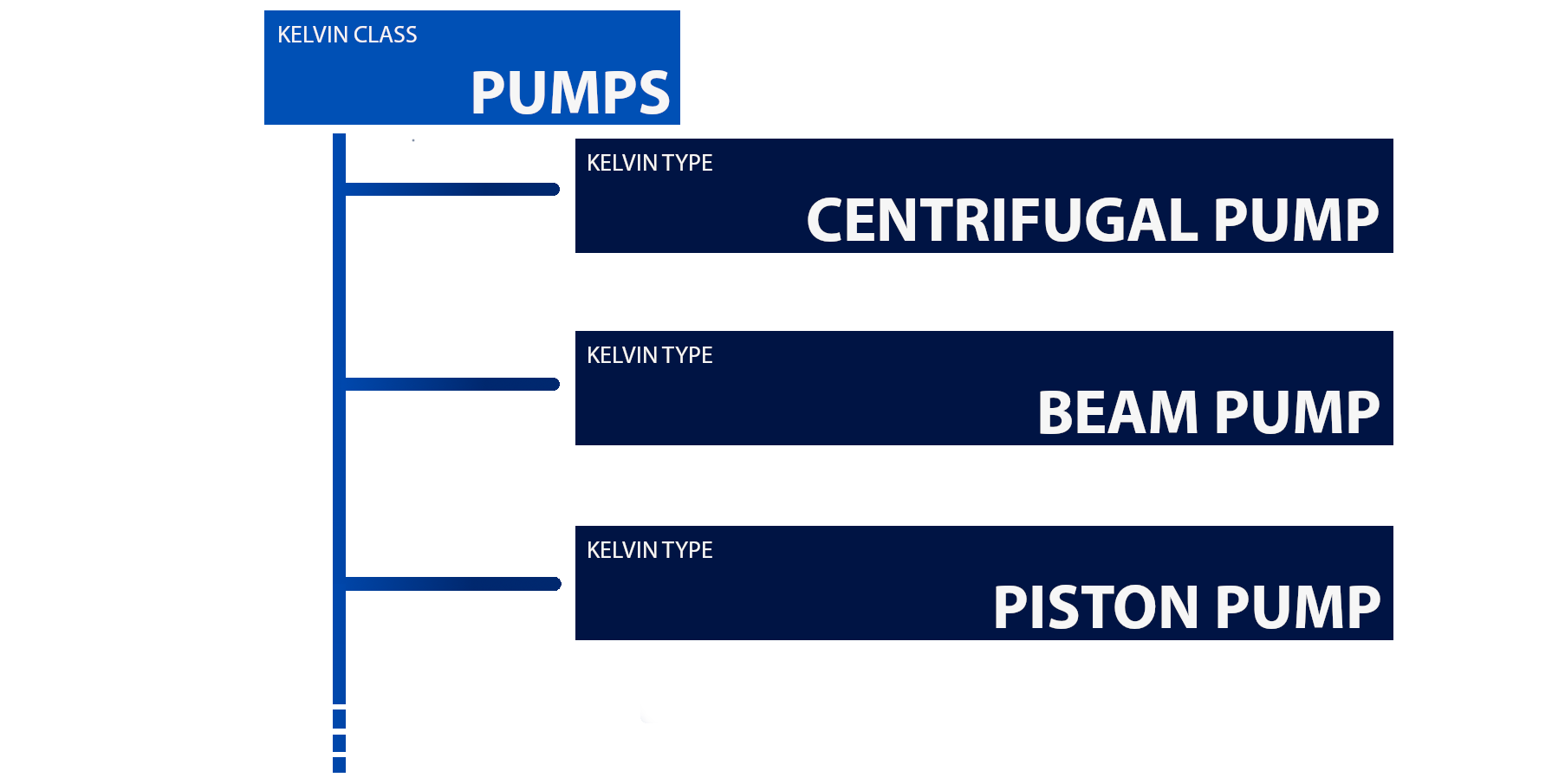
The word Asset Type and Asset Class is actually a little confusing. This because there is a Type and Class for each group of Kelvin Assets, Kelvin Components, Kelvin Parts and Kelvin Sensors.
When creating or editing a Kelvin Asset Class you can select what entity type is this asset class for; asset, component, part or sensor.
As this is a new feature. All existing asset classes that are undefined are automatically defined as a Kelvin Asset. This does not affect the operation of the Asset Classes but it may become a little confusing for users in future so we do advise you update the entity type for all asset classes.
For example you could classify the Asset Type and Asset Class for a Kelvin Sensor like this;

And for a Kelvin Part like so;
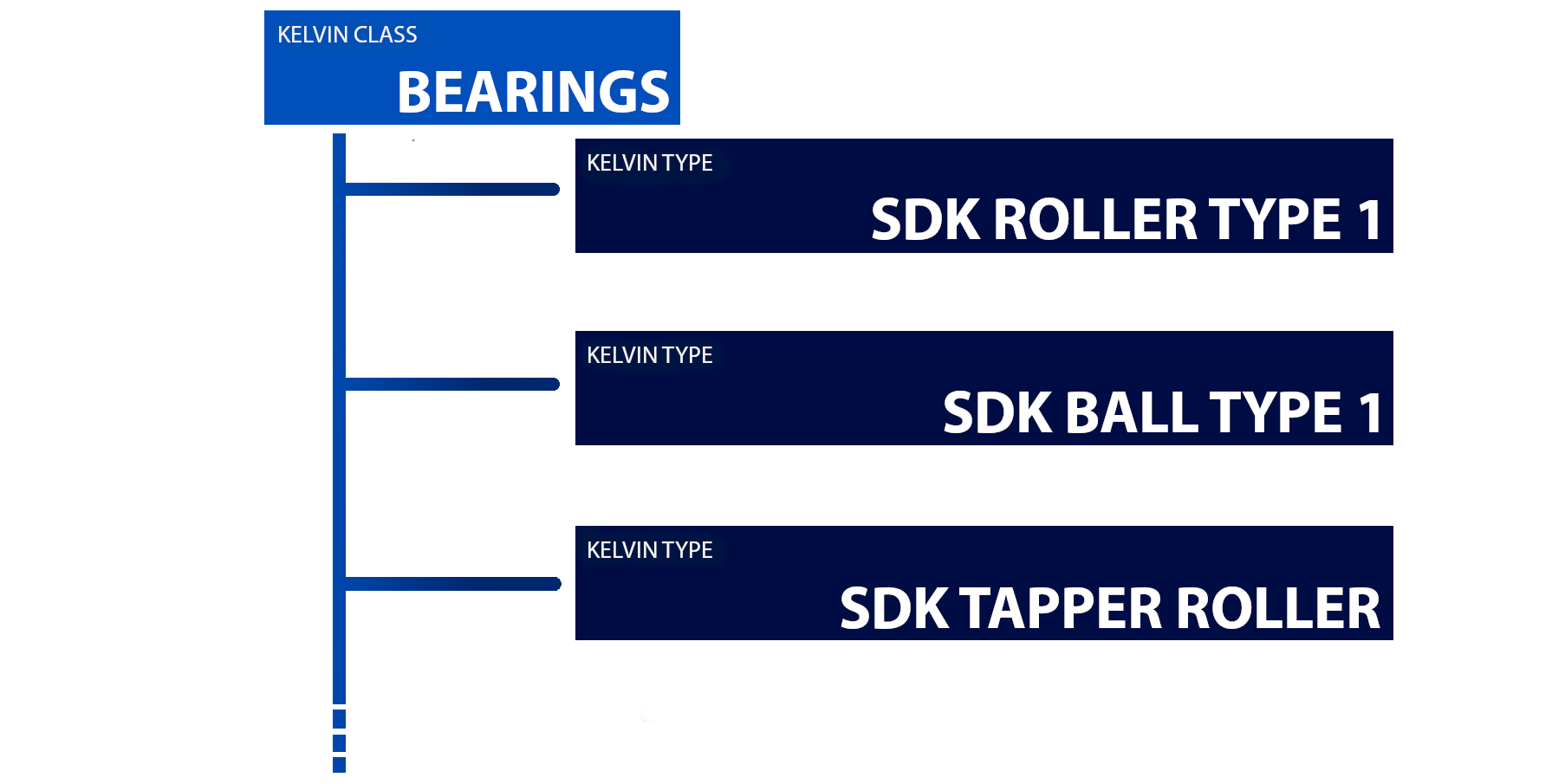
Before starting to create your own Asset Types, make sure you create your Asset Classes. You will need to select an existing Asset Class while creating your Asset Type. Your Asset Type will be associated with the Entity Type defined in the Asset Class.
To access the Asset Types page simply click on Assets under Management to expand the menu then click on Asset Types.
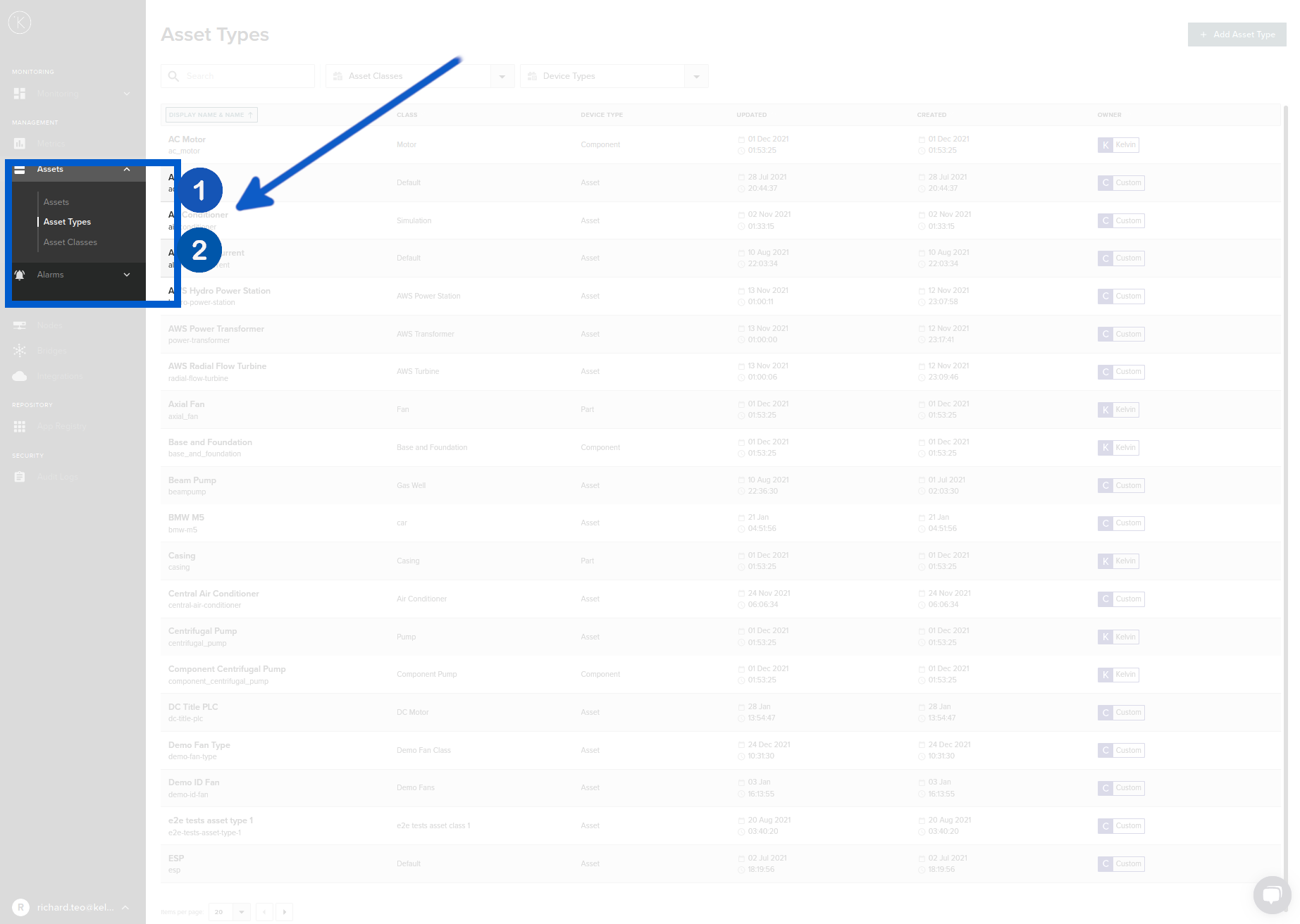
Asset Types UI
The Asset Types UI displays all your Asset Types in a list. You can add, edit and delete any custom Asset Types. In the overview page you can see when the Asset type was create or modified and which Kelvin Class it is associated with.
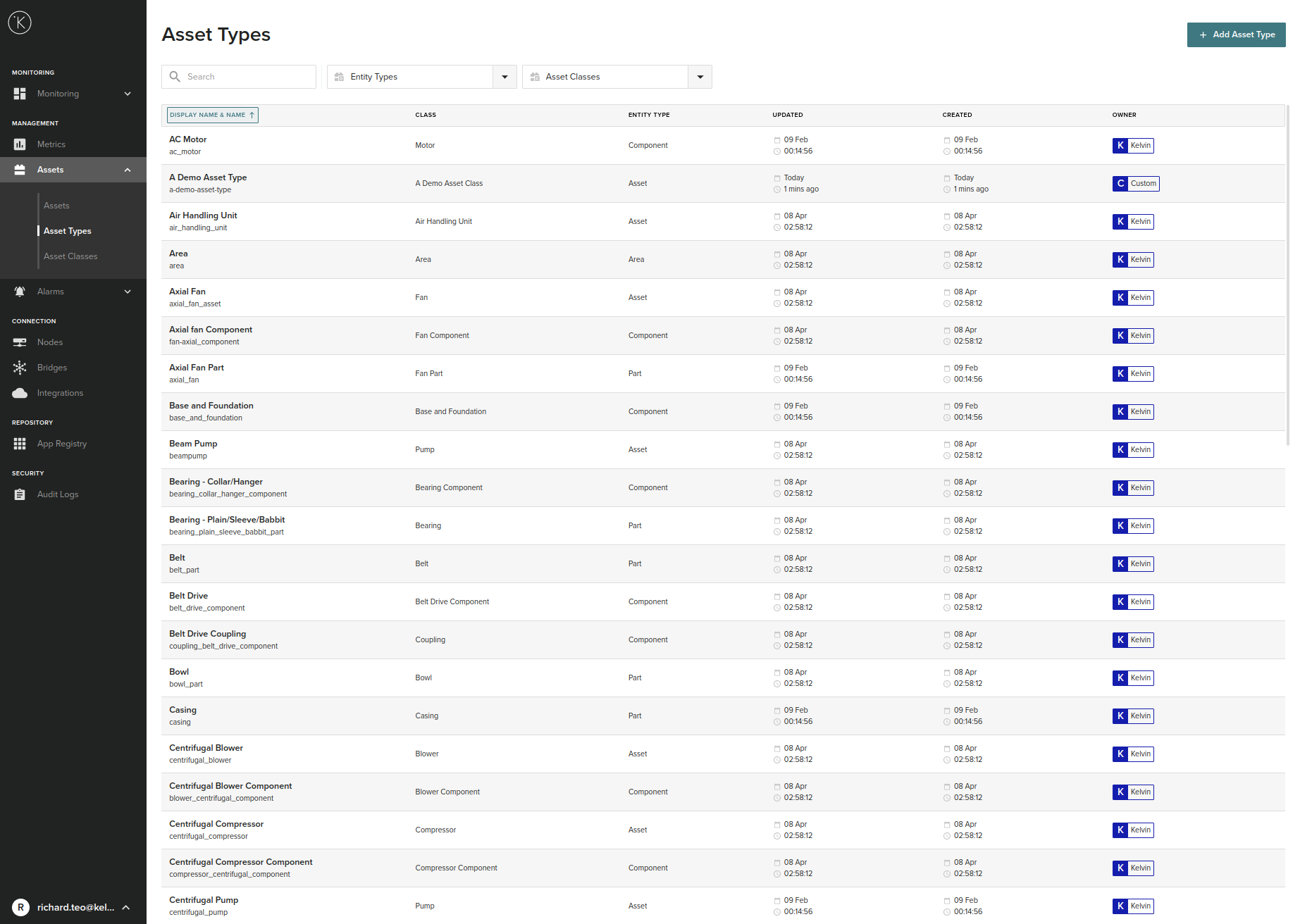
Entity Types
This shows which entity type the Asset Class is assigned to. There are four options for your assets;
- asset (Kelvin Asset)
- component (Kelvin Component)
- part (Kelvin Part)
- sensor (Kelvin Sensor)
There are also seven options for Kelvin Groups;
- area (Kelvin Group)
- enterprise (Kelvin Group)
- process-cell (Kelvin Group)
- production-line (Kelvin Group)
- production-unit (Kelvin Group)
- site (Kelvin Group)
- storage-unit (Kelvin Group)
This information is used to filter which types can be seen when you are creating an Asset. For example if you create a new Kelvin Sensor, you will only be able to select Types that are declared in Asset Class as a Sensor.
Owners
There are two types of owners in the Asset Types;
| Owner | Description |
|---|---|
 |
These are Asset Types that are created by you. You have full editing options for them. |
 |
These are Asset Types created and maintained by Kelvin. You can not edit them. |
Searching / Filtering
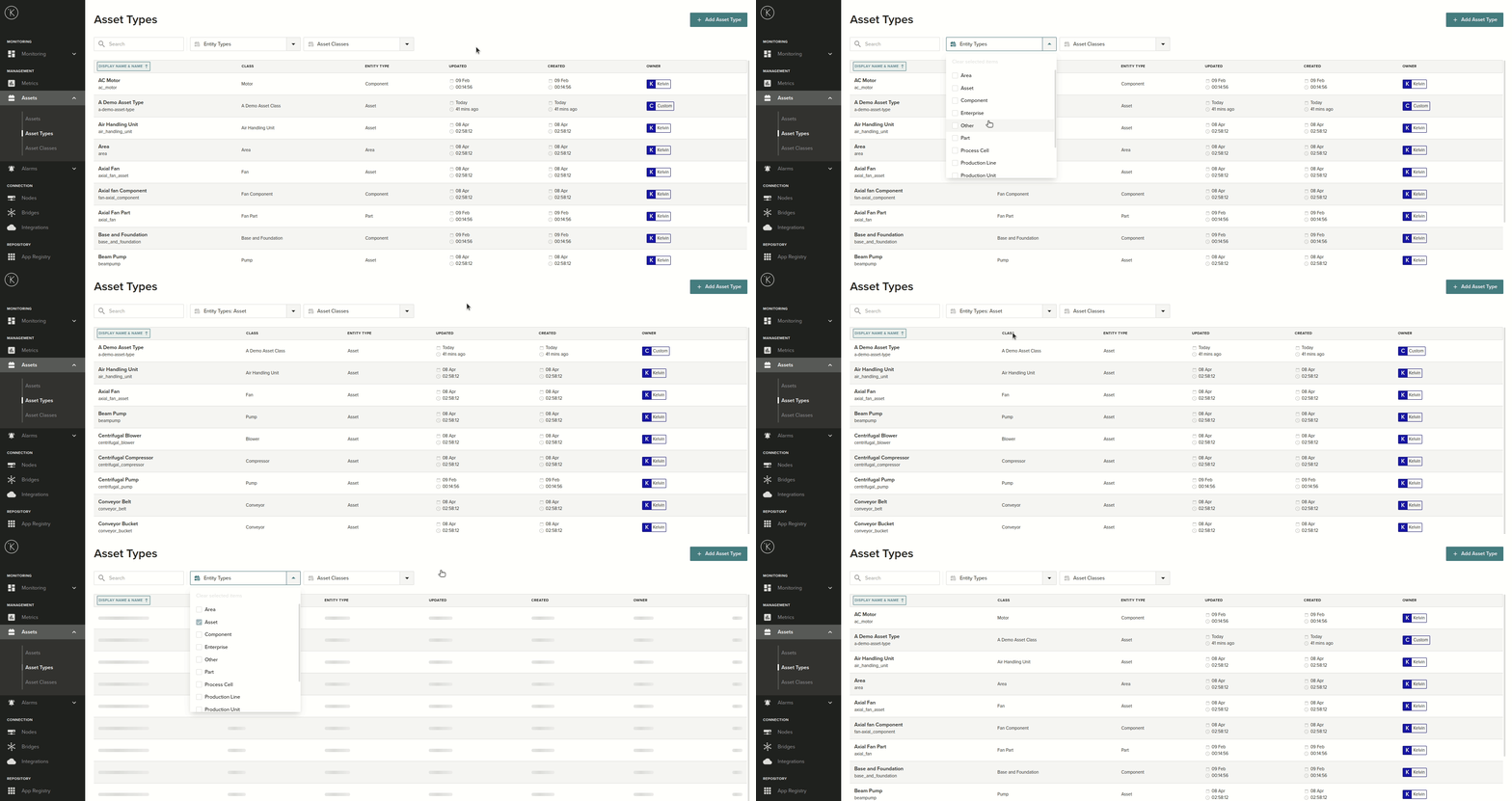
There are three options available in the search filter menu.
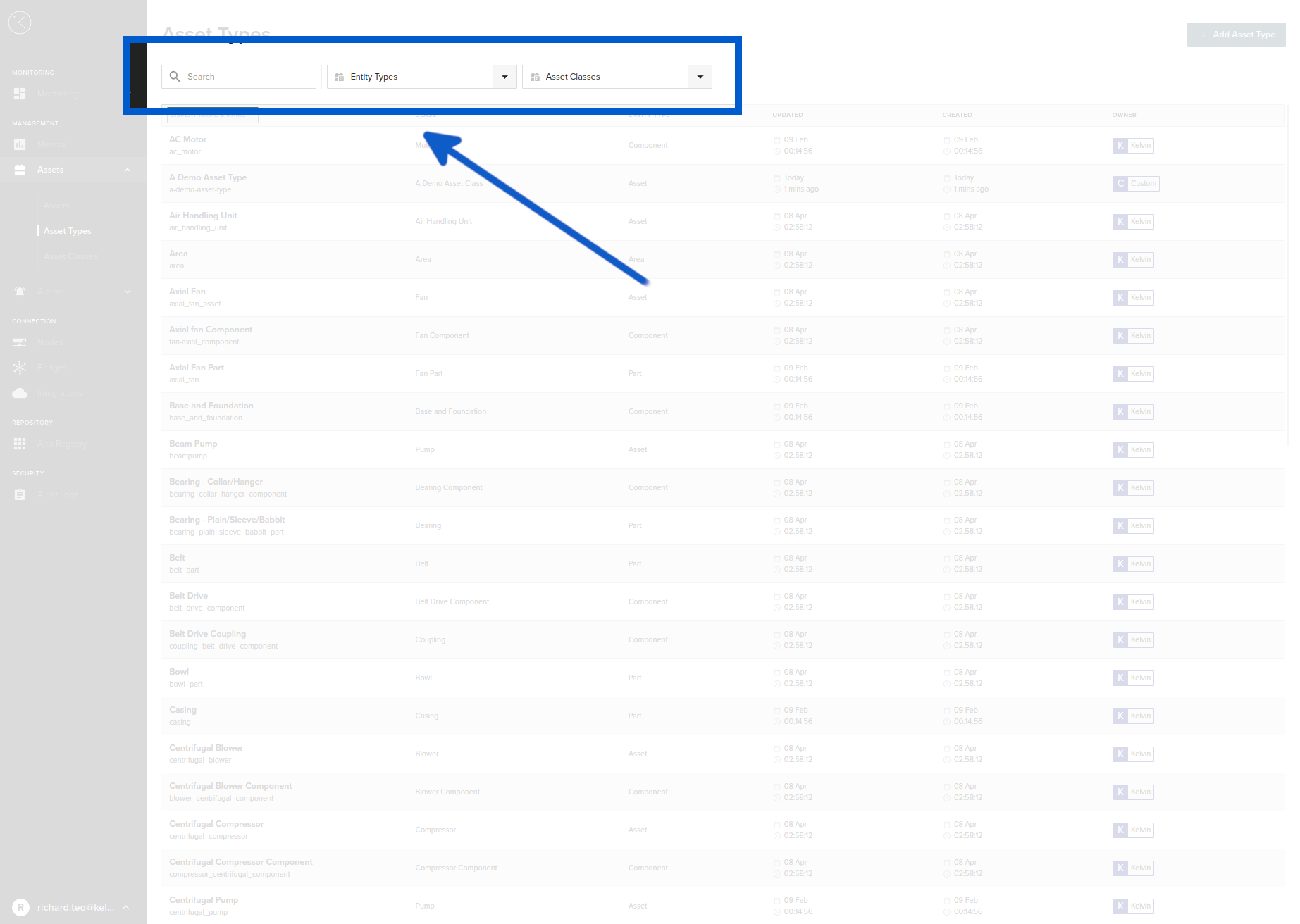
Searching on Asset Type Display Name 
On the left hand box, you can enter any text. The view below will be automatically updated with every key you press.
The search will look for any matches of the word you type. The word does not need to start at the beginning of the Display Name. For example if you type Demo, then the search will find Display Name named "Demo 98" and also "Asset Demo".
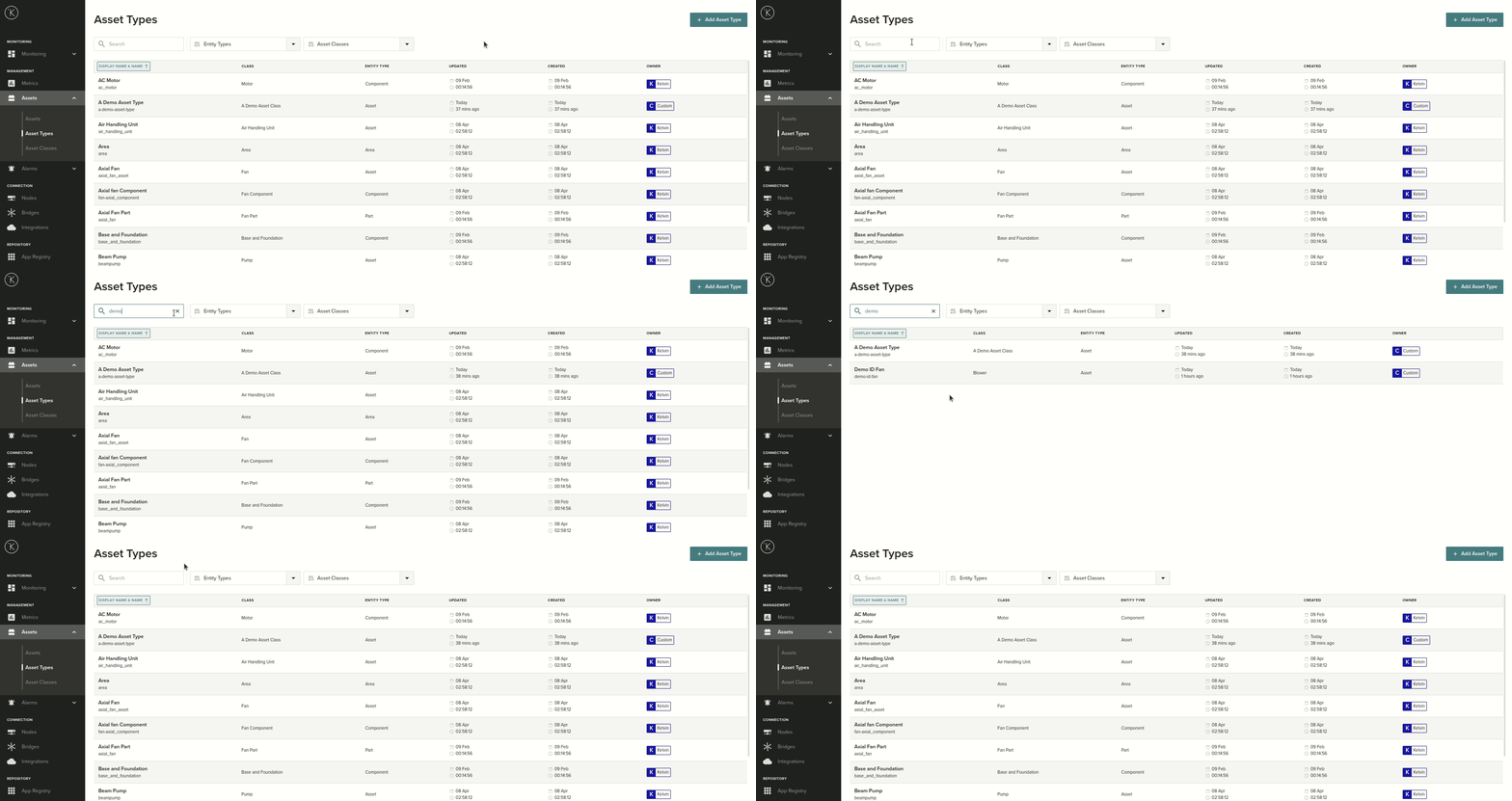
Filter on Asset Classes 
You can also search on Asset Class. You can select one or more Asset Classes to search the view.
You can not select by typing in an Asset Class name.
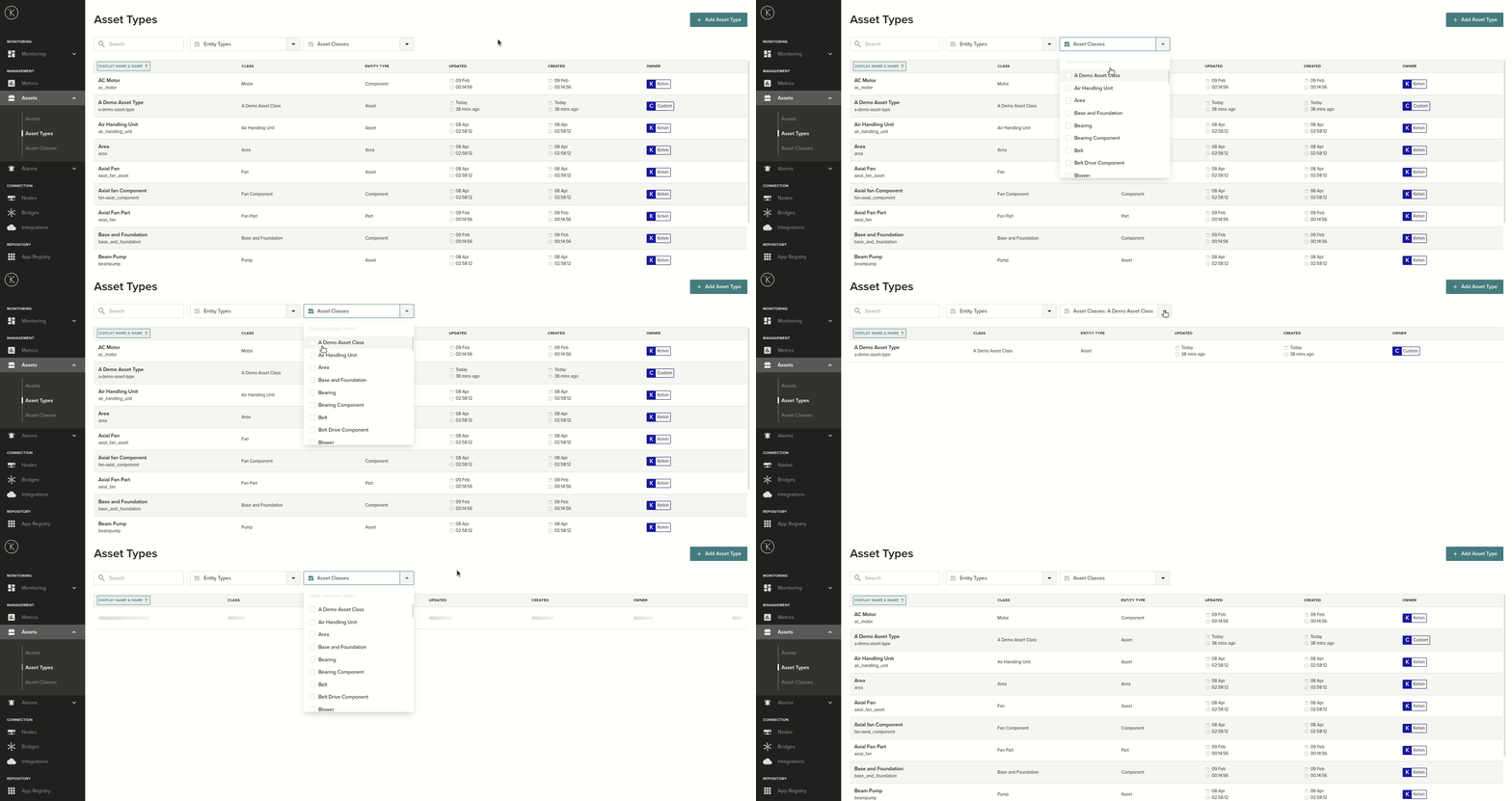
Filter on Entity Type 
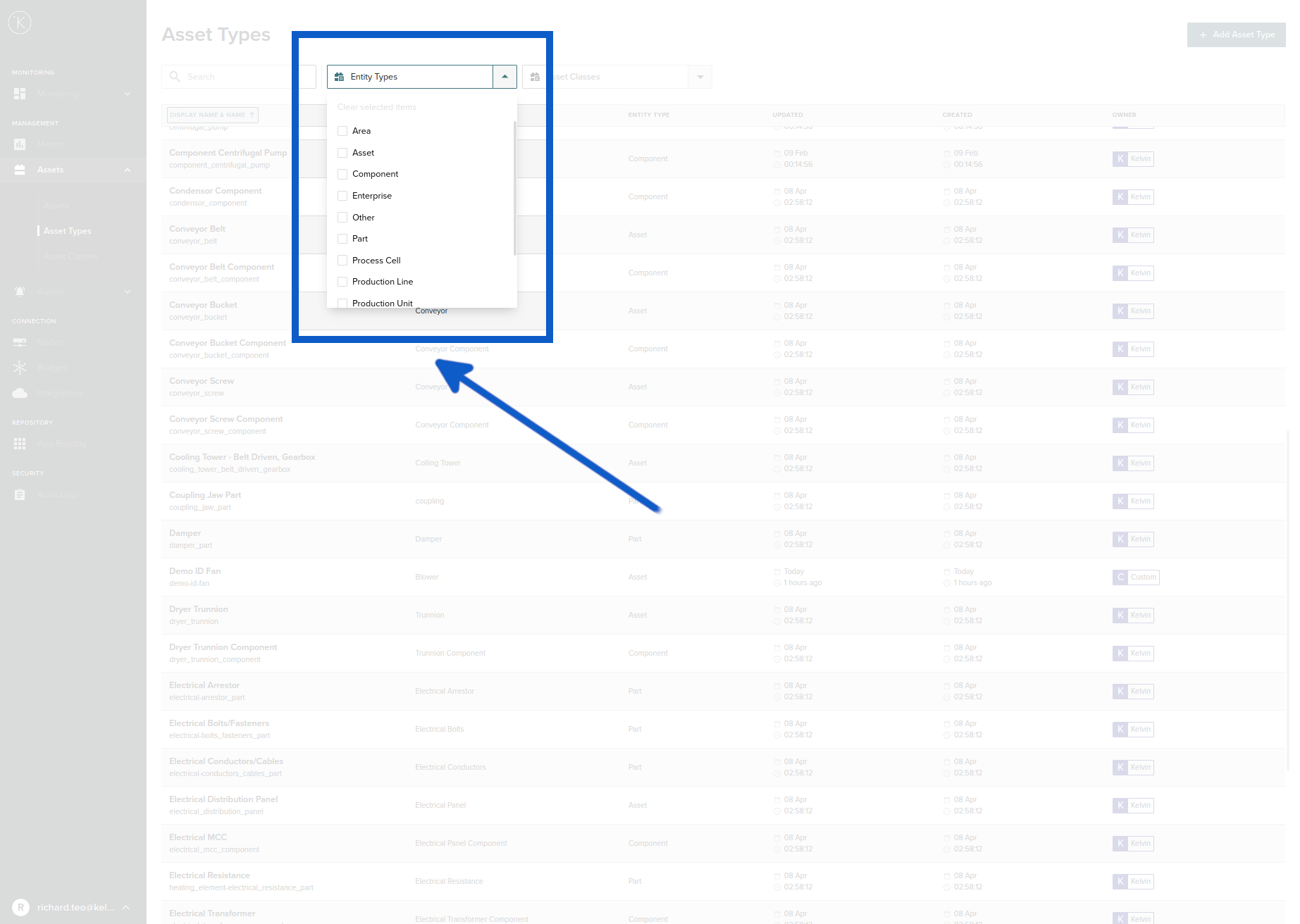
You can also filter on the entity type. The options you have are;
- Asset (Kelvin Asset)
- Component (Kelvin Component)
- Part (Kelvin Part)
- Sensor (Kelvin Sensor)
- area (Kelvin Group)
- enterprise (Kelvin Group)
- process-cell (Kelvin Group)
- production-line (Kelvin Group)
- production-unit (Kelvin Group)
- site (Kelvin Group)
- storage-unit (Kelvin Group)
You can not select by typing in a Entity Type name. You can however select multiple options.
Sort View 
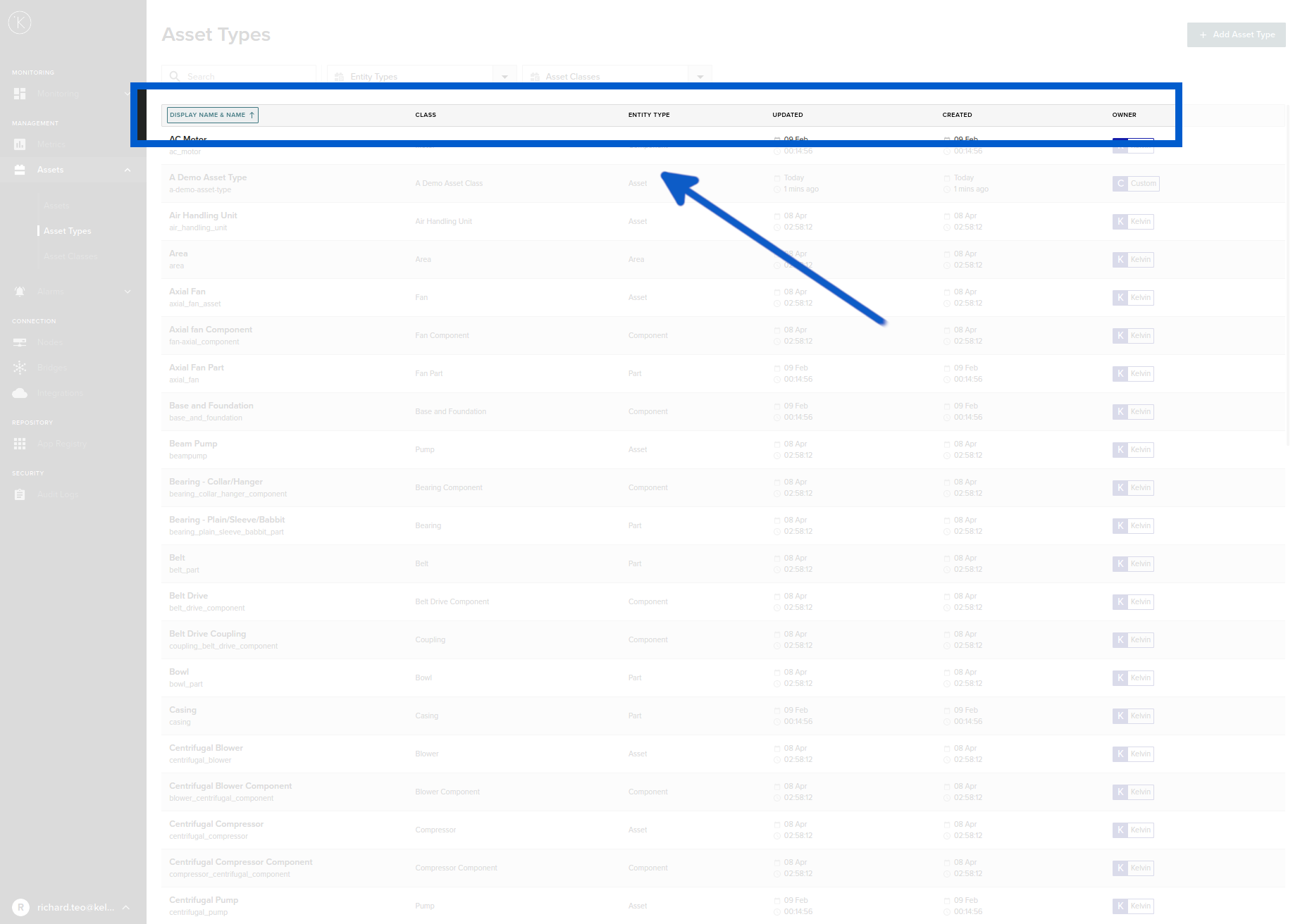
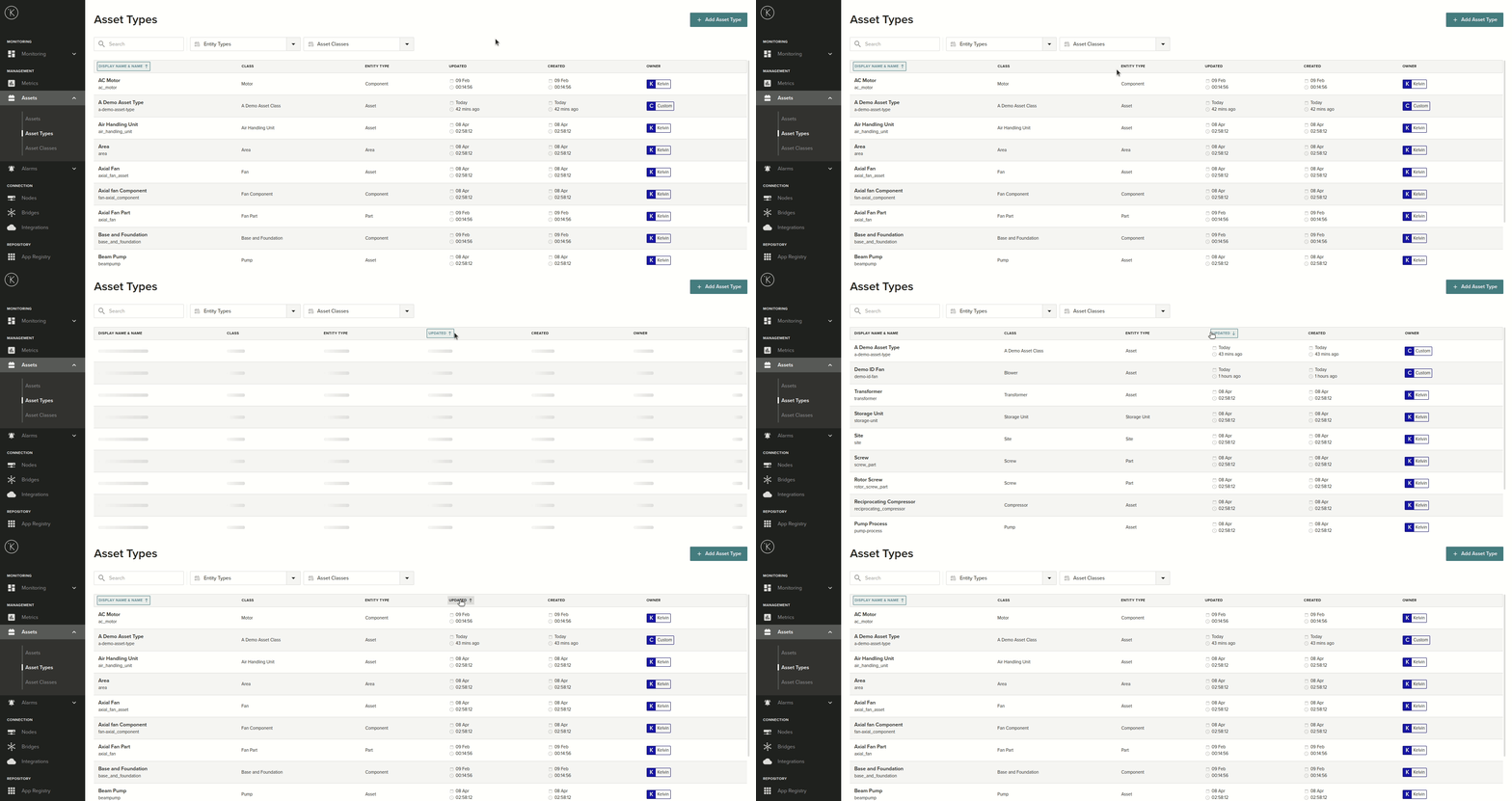
You can sort by ascending or descending order in any column. Simply click the column heading name.
Clicking the first time will sort in ascending order, clicking a second time will sort in descending order and if you click a third time the sort will be cancelled.
Adding New Asset Type 
Before you start adding Asset Types make sure you have added your Asset Classes. This is a mandatory field when adding an Asset Type.
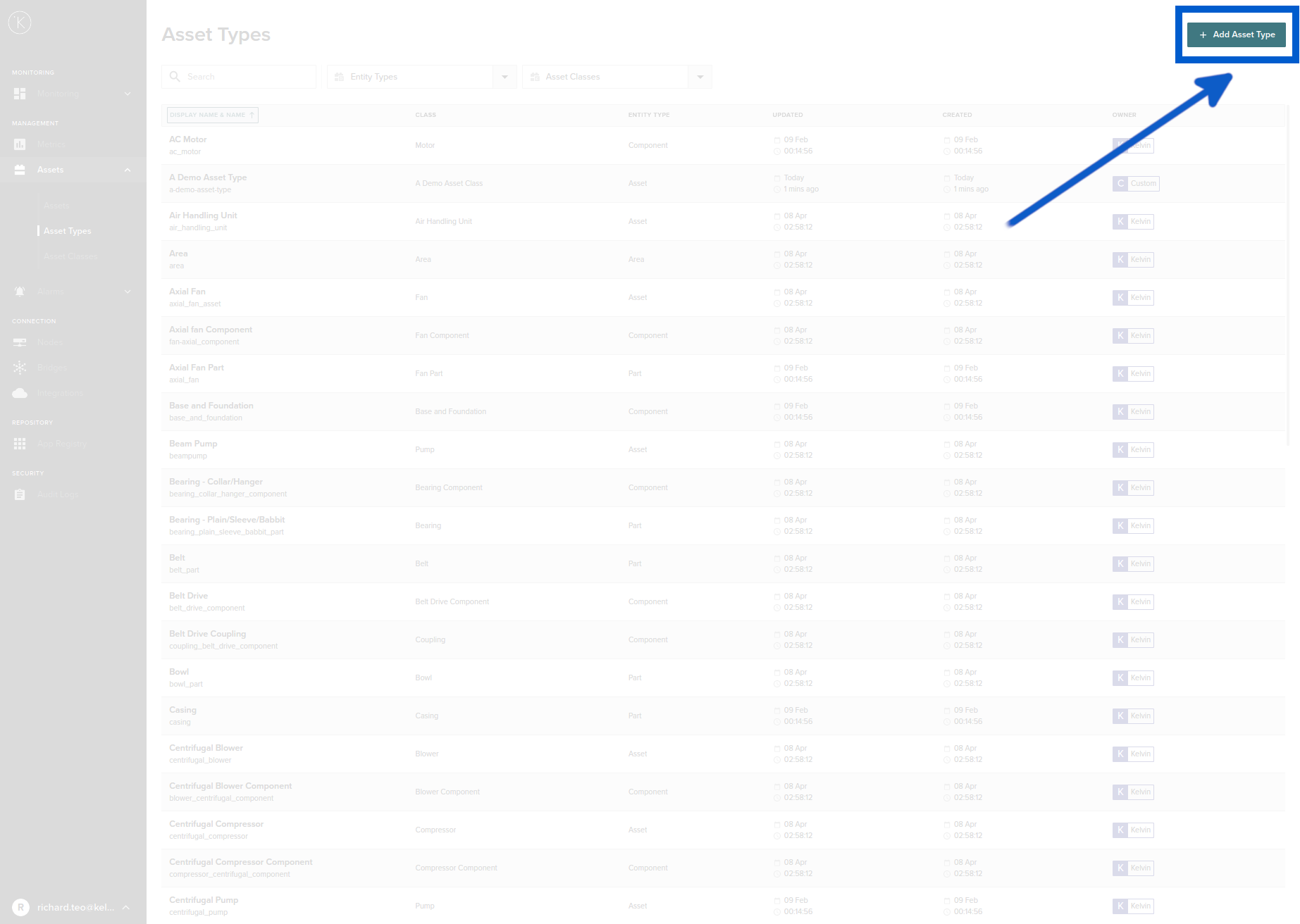
To add a new Asset Type, click on the Add Asset Type button in the top right hand corner.
You will see a popup window where you can add the new details;
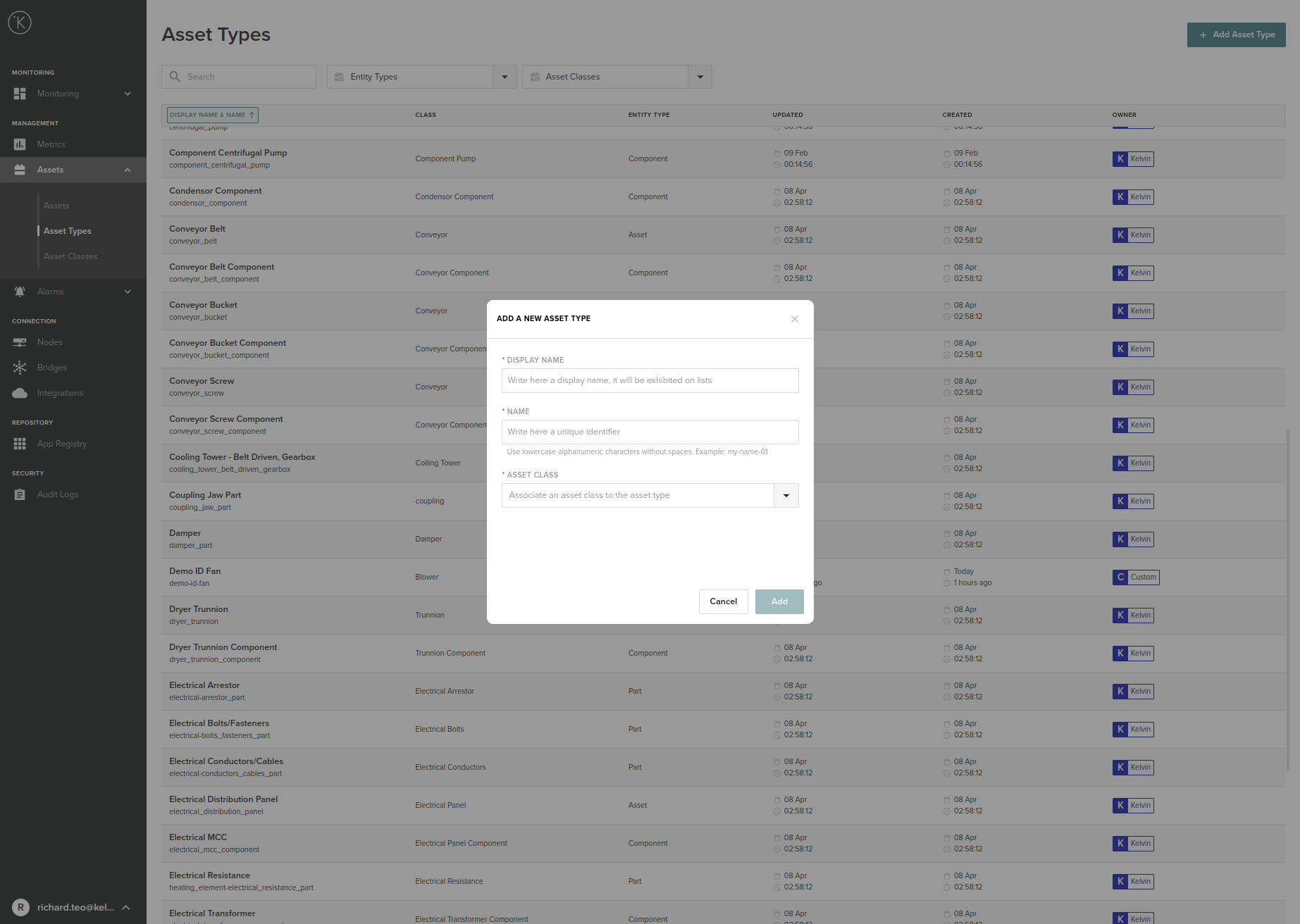
| Field | Explanation | Mandatory |
|---|---|---|
| Display Name | You can use any name that helps you identify the Asset Type. You can use any alphanumeric character. | Yes |
| Name | This will be automatically filled after you have added a Display Name. Normally you don't need to change this. |
Yes |
| Asset Class | You can select an Asset Class for this Asset Type to be associated with. You can not create an Asset Class here. | Yes |
When you are ready and all fields are entered correctly, the Add button will be enabled and you can add this new Asset Type.
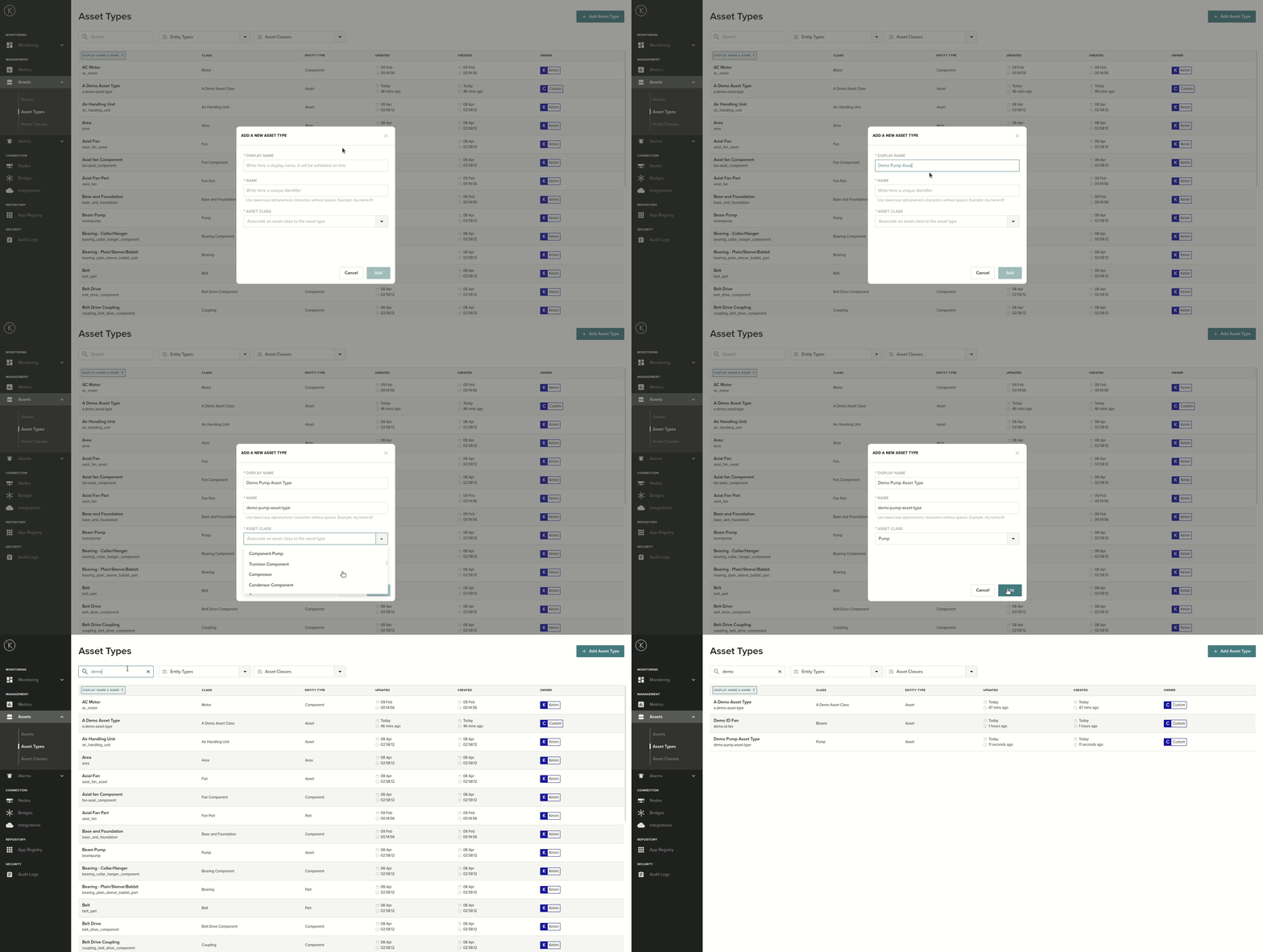
Editing Asset Type 
For existing Asset Types, you can edit all the information except the Name.
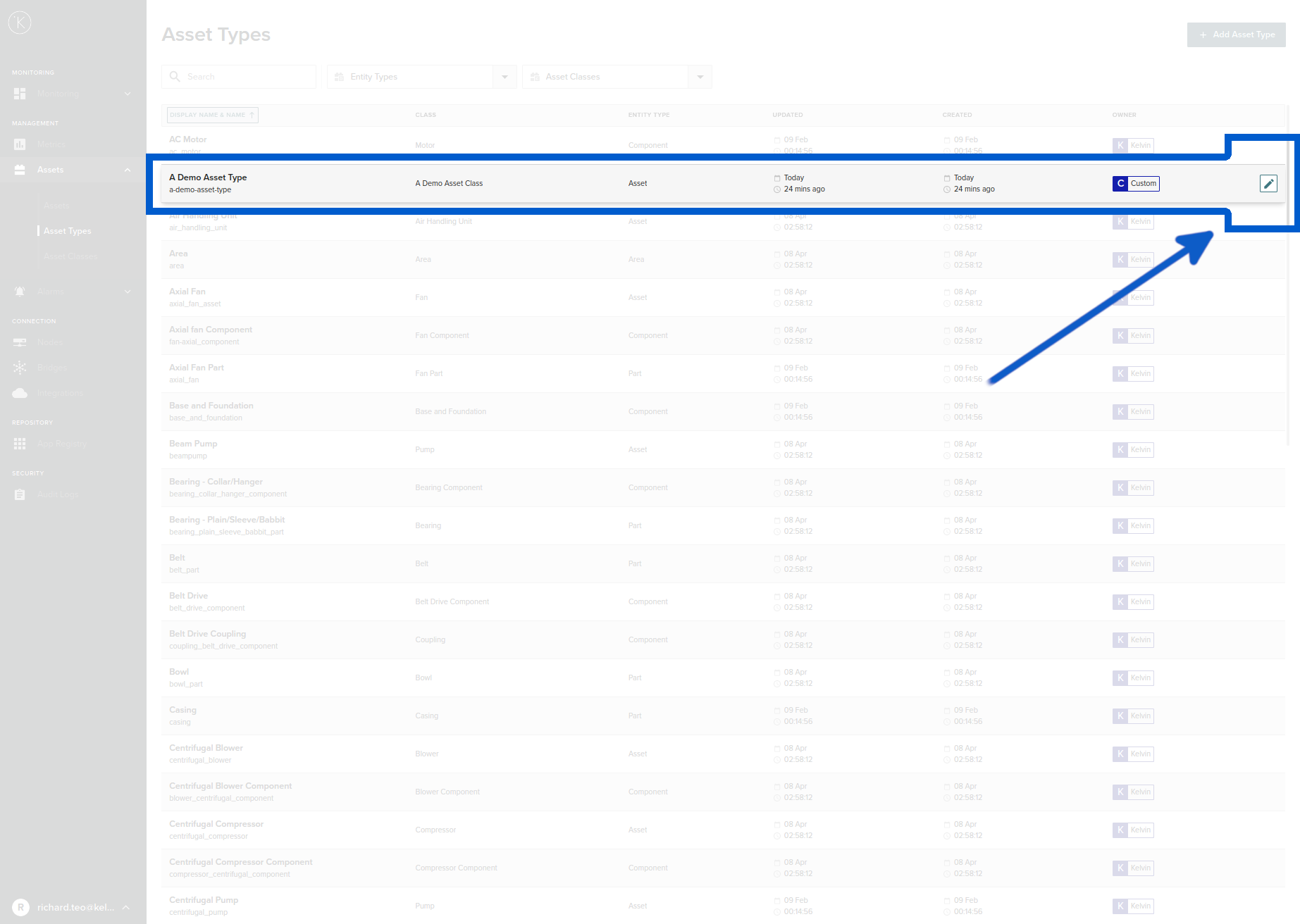
To edit an Asset Type find the Asset Type move your mouse over the row. A pencil icon will appear on the right hand side of the row. Click on this pencil icon.
You can only edit Assets Types with an owner as
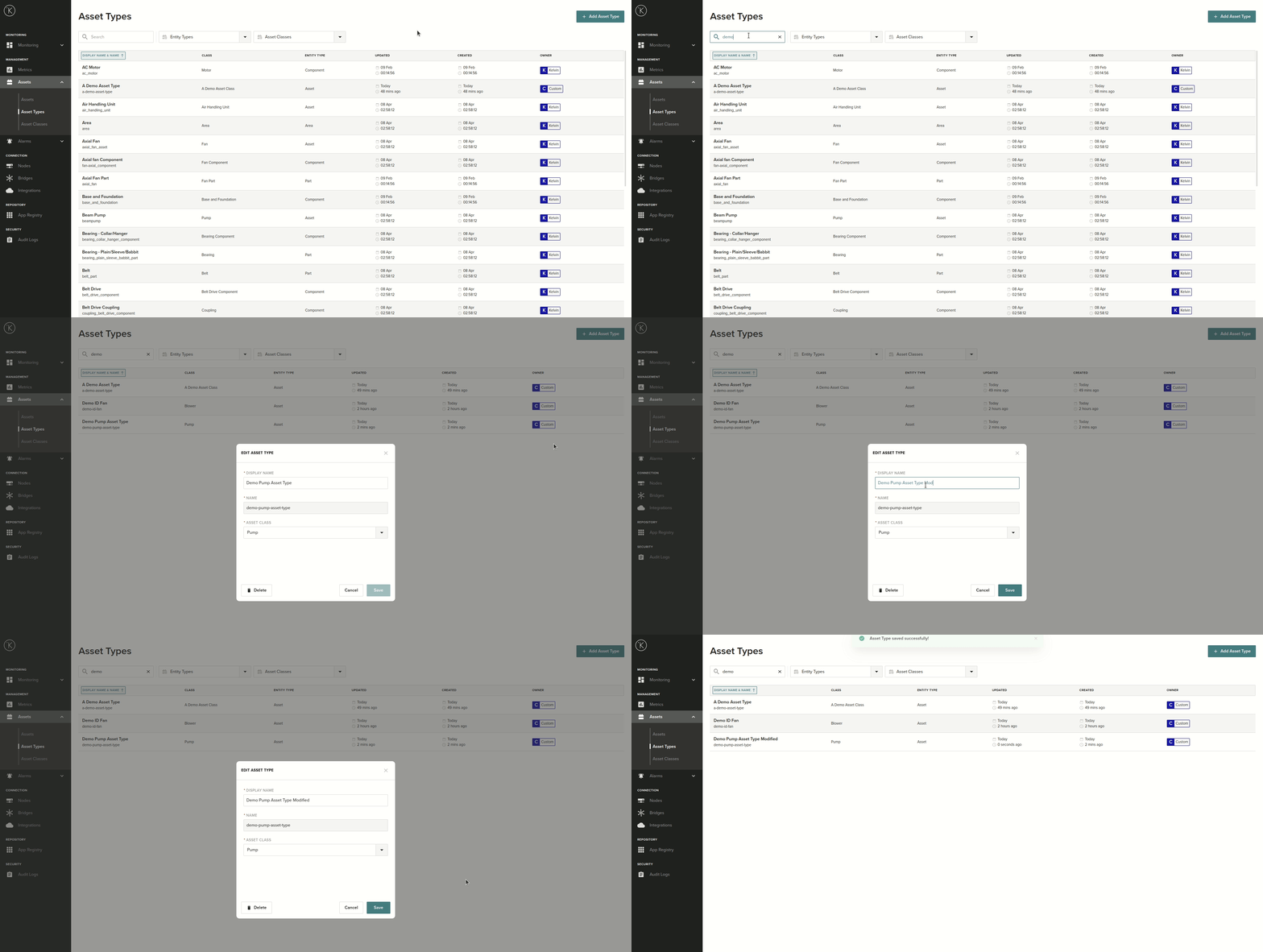
You will then see a window popup that is exactly the same as the Add New window but all values are prefilled with the current values. The only difference is you can not edit the Name.
Go to the Adding New Asset Type to see a description of all the options.
Deleting an Asset Type 
To delete an Asset Type, you go to the edit mode and there will be a button available to delete your Asset Type.
To go to edit mode, simply move your mouse over the line of the Asset Type you want to edit and click on the pencil icon that will appear on the right hand side of the line.
You can only delete Assets Types with an owner as
In the pop up window you will see a delete button on the bottom left hand corner. Simply press this and confirm your deletion.
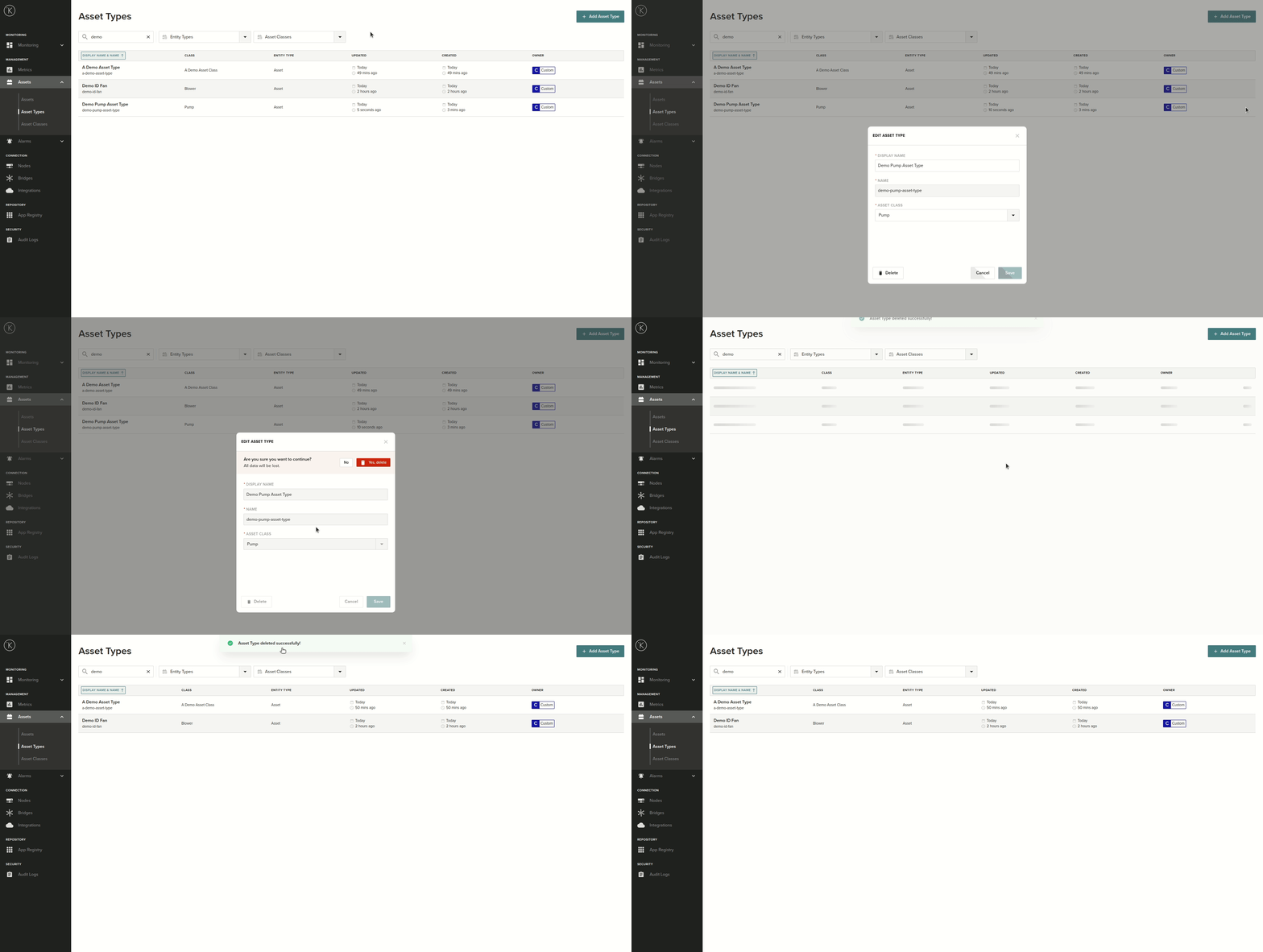
If you get the error message "It seems something went wrong!" when trying to delete, then this is most likely because you are trying to delete an Asset Type that is being used by a Kelvin Metric or Kelvin Asset. Delete all references first and then try again.
Troubleshooting
| Problem | Possible Solutions |
|---|---|
| When deleting I get an error message "It seems something went wrong!" | Most likely because you are trying to delete an Asset Type that is being used by a Kelvin Metric or Kelvin Asset. Delete all references first and then try again. |
| When editing an Asset Type, I can not change the Name. | Note : The name is only important for the interconnections in the Cloud Server. You can always manage your Asset Types visually with the Display Name and this is changeable anytime.When editing an Asset Type you can change all the variables except Name. This is fixed when you Add an Asset Type. Sorry, there is nothing you can do but delete and create a new Asset Type. |
| When editing an Asset Type, I can not press the save button. | The save button is enabled if you change some information and all information has been entered correctly. |
Other Related Links
Last Modified 
Last Modified on 13th April 2022
13th April 2022
* Last update before detail updating records started

Kelvin Documentation AI Support
Hi. My name is KevDocBot. How can I help you?