Assets Monitoring
On this page you will learn how to view the status of your assets and monitor the historical and live data.
Kelvin Assets
To understand what Kelvin Assets are and how they fit into the Kelvin Sustainable Operations Software, check out our detailed description here.
Monitoring all your Assets 
To access the Assets Monitoring page simply click on Monitoring to expand the menu then click on Assets Monitoring.
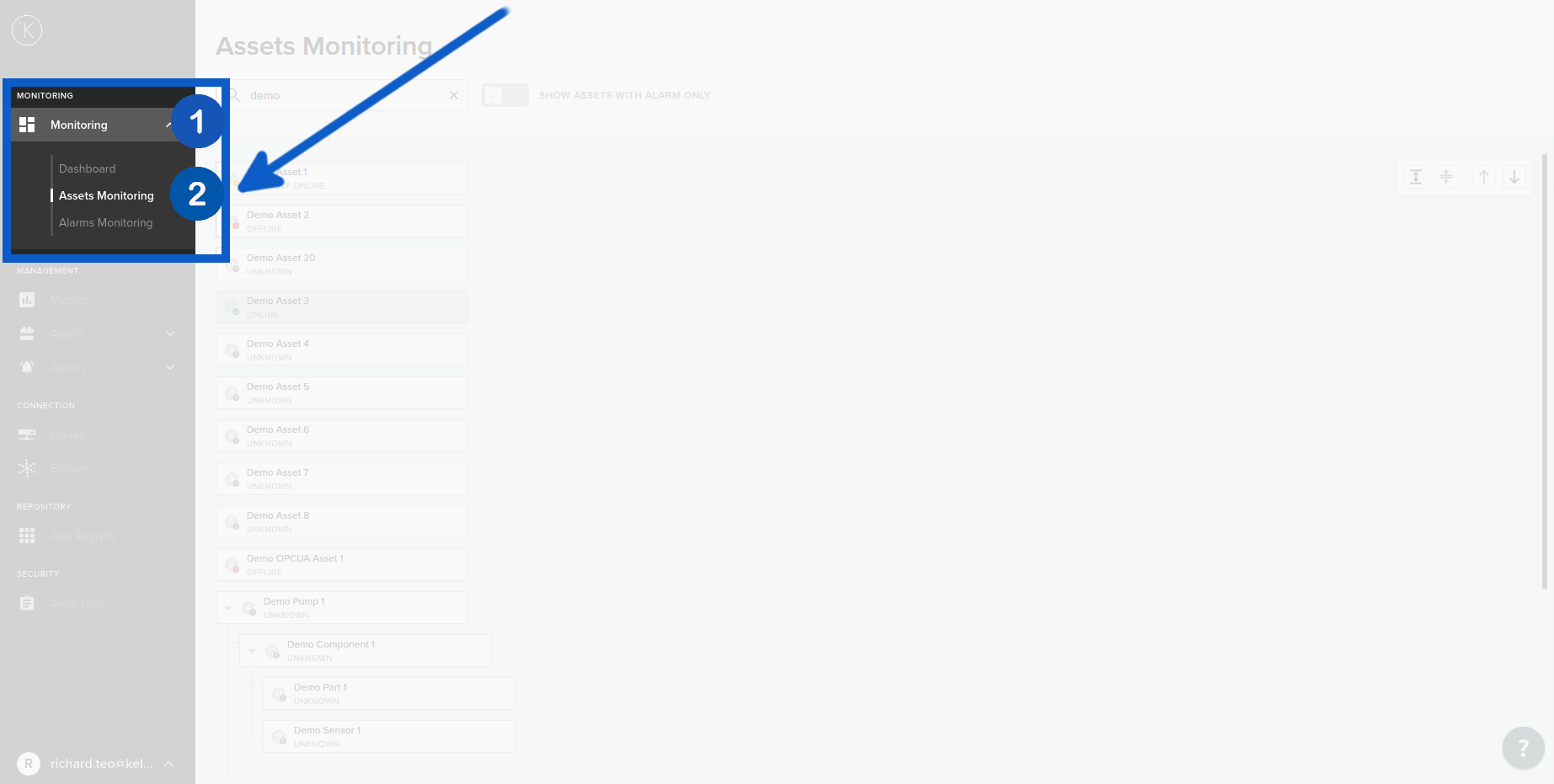
You will see a list of all your Assets and its current status. You have a few options on the top right hand corner;
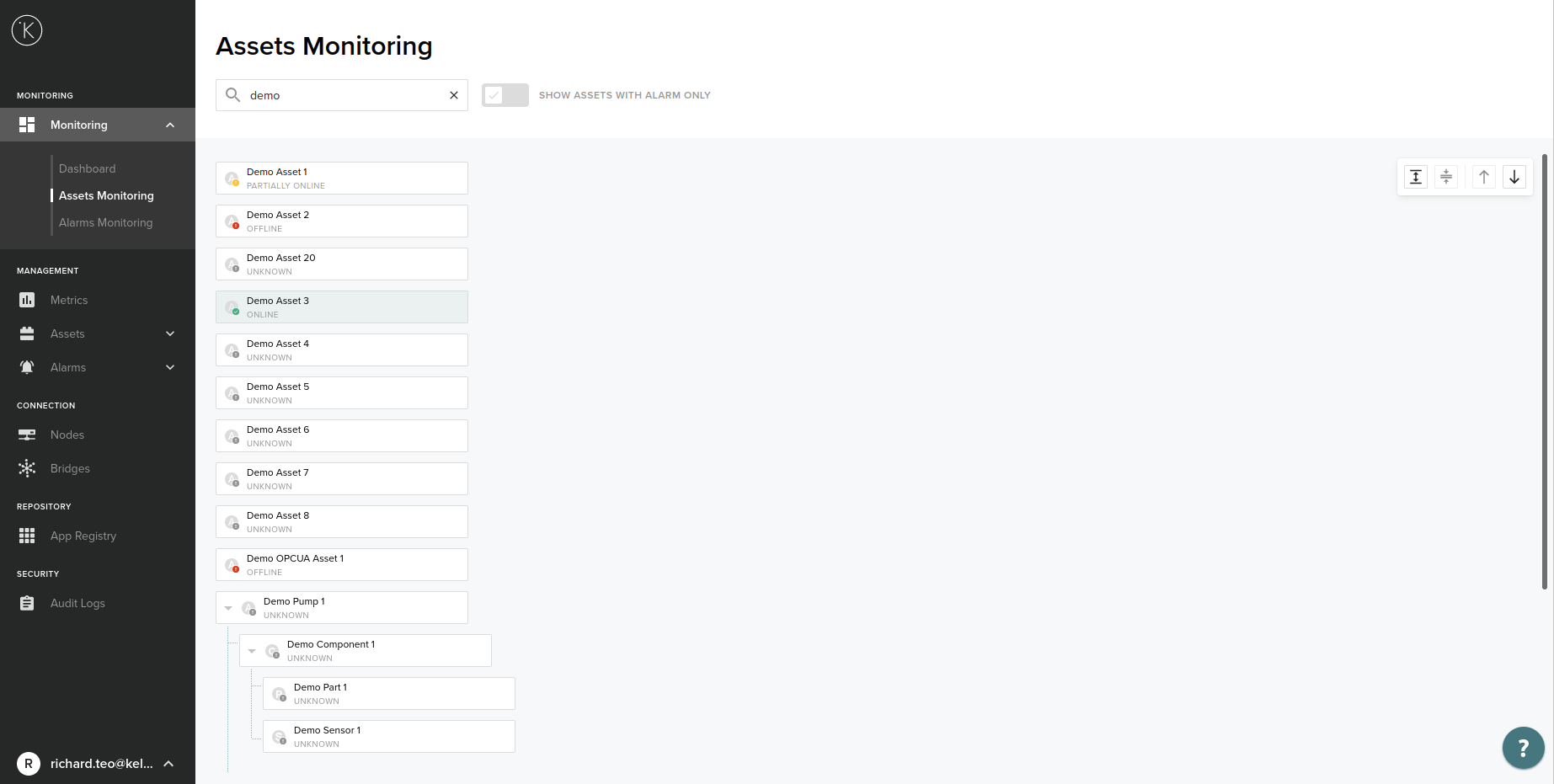
| Button | Description |
|---|---|
 Scroll to top Scroll to top |
This will take you quickly to the top of the tree list. |
 Scroll to Bottom Scroll to Bottom |
This will take you quickly to the bottom of the tree list. |
 Expand All Expand All |
This will expand all Assets to show their components, parts and sensors. |
 Collapse All Collapse All |
This will hide all components, parts and sensor and only show the top level Asset. |
Even though very similar, do not confused this Asset tree view with the Asset tree view in MANAGEMENT -> Assets -> Assets. In that screen you can not see any statuses or click on the Asset to see the historical or real time data.
Data Viewer
In the top right hand corner of the screen is a button Data Viewer. This will open a new tab with the Data Viewer screen where you can select the Kelvin Asset and associated Kelvin Metric pairs to view in the line graph.
The Data Viewer from this button will open up with no Kelvin Asset selected. If you want to go directly to a Kelvin Asset, then click on a Kelvin Asset first and then click on the Data Viewer button in the properties sidebar of that Kelvin Asset.
You can read more details in a later section below.

Searching a View
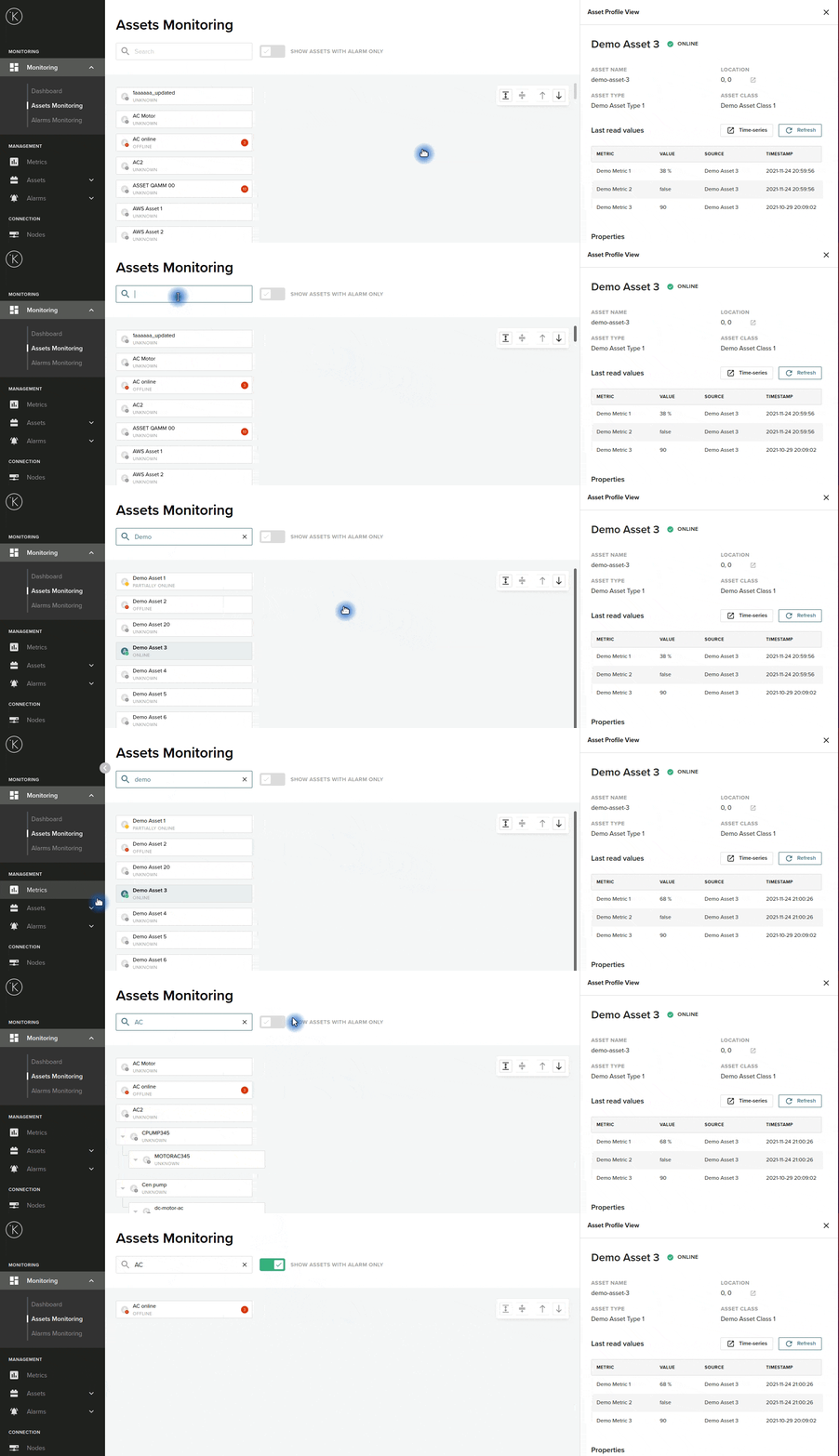
You can do a dynamic search from the search bar above the tree view.
The search will look for any matches of the word you type. The word does not need to start at the beginning of the Display Name. For example if you type Asset, then the search will find Assets or it's components, parts or sensors named "Asset 98" and also "Demo asset".
The filter is also case insensitive
Asset Status
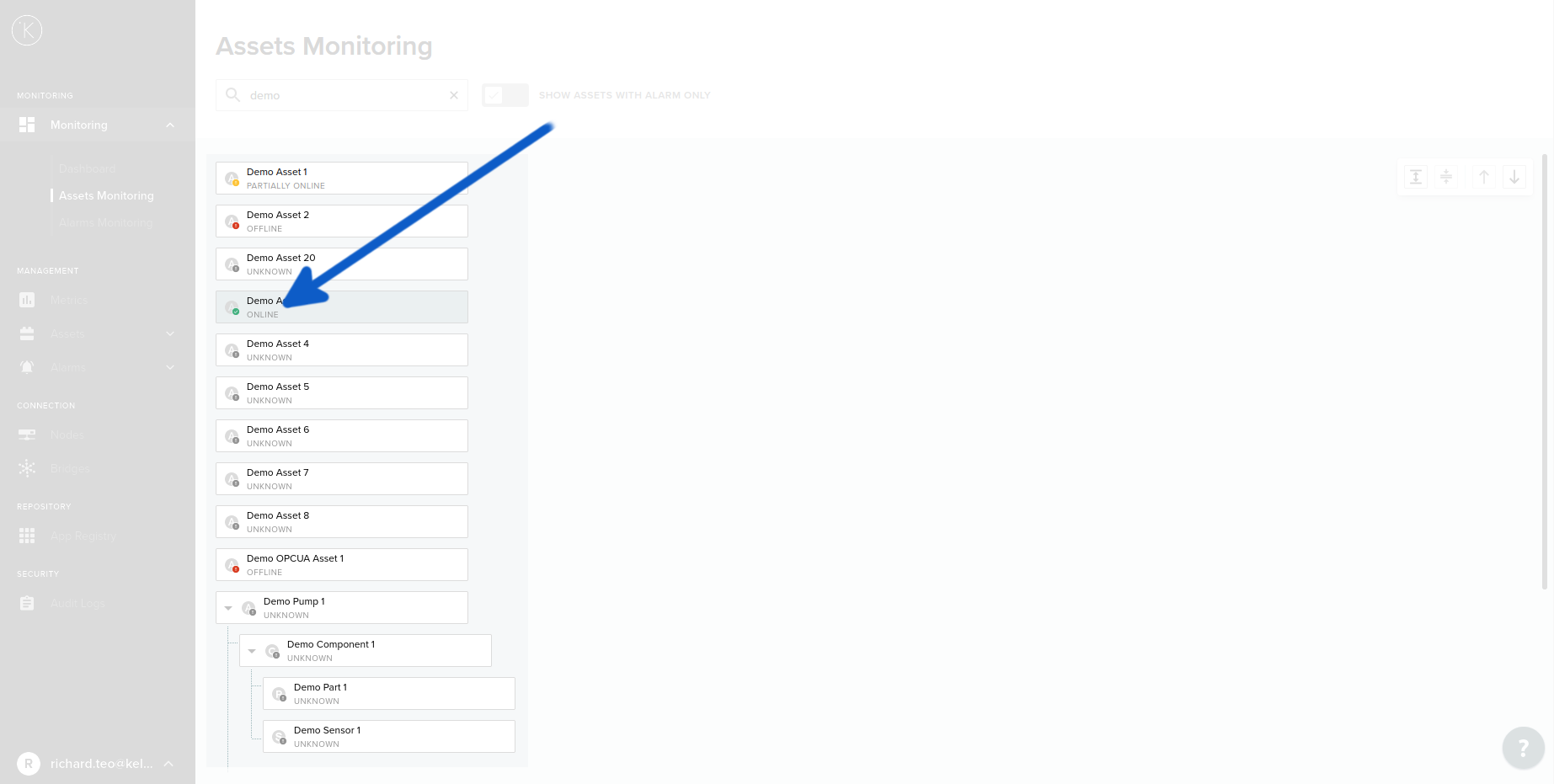
The status of each Asset is located just below the name of the Asset. You will have three options;
| Status | Description |
|---|---|
| OFFLINE | The Asset is not connected or transmitting data to the Cloud Server. |
| PARTIALLY ONLINE | The Asset currently has streaming metrics data coming in to the Cloud Server for some of its metrics. |
| ONLINE | The Asset is connected and streaming all metrics data to the Cloud Server. |
| UNKNOWN | The Asset currently has no metrics associated with it. |
Asset Profile View
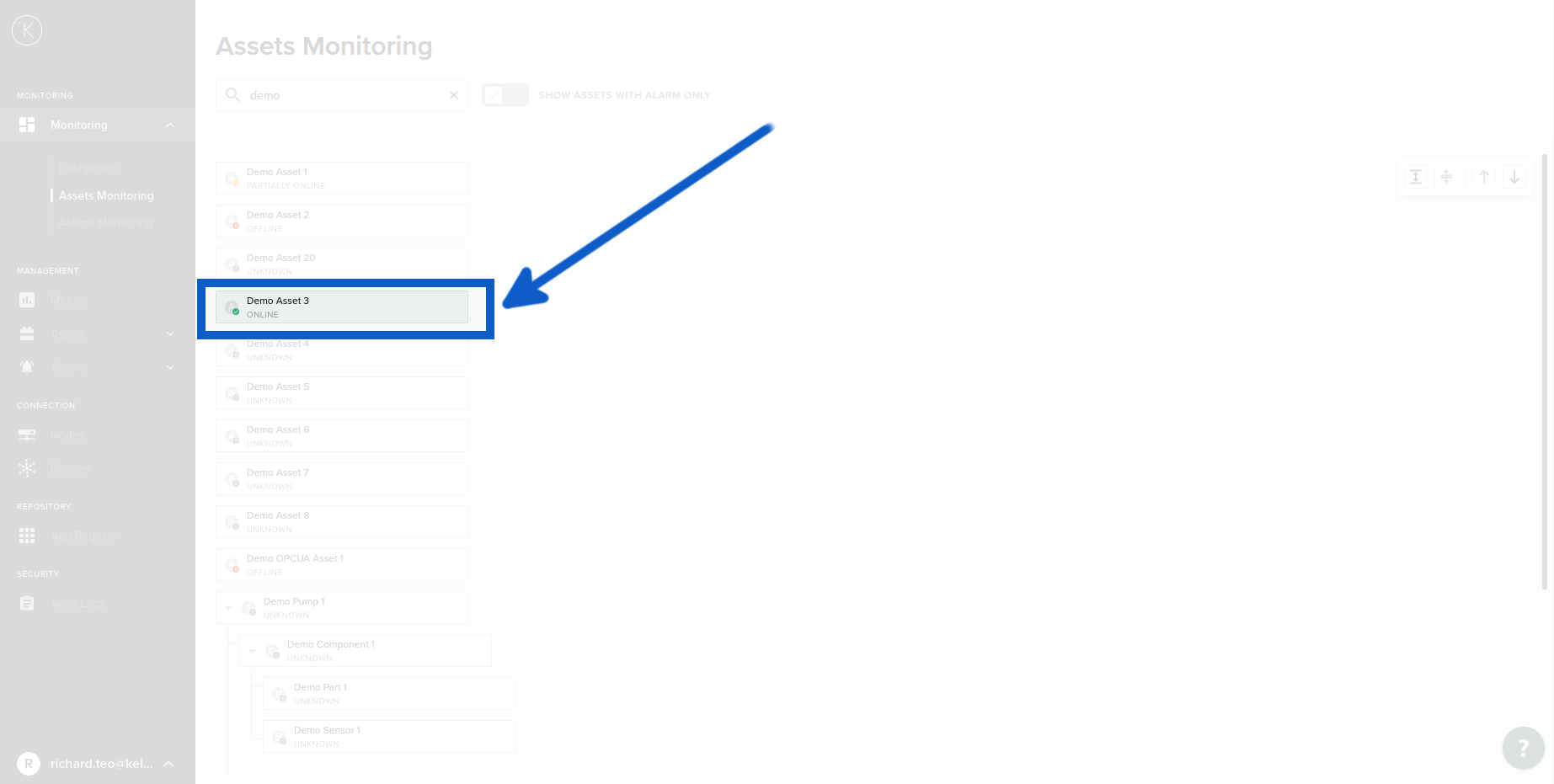
To see details about a single Asset, find the Asset in the list on the left and click on the link on the display name above it's status. You will then see its profile view on the right hand side
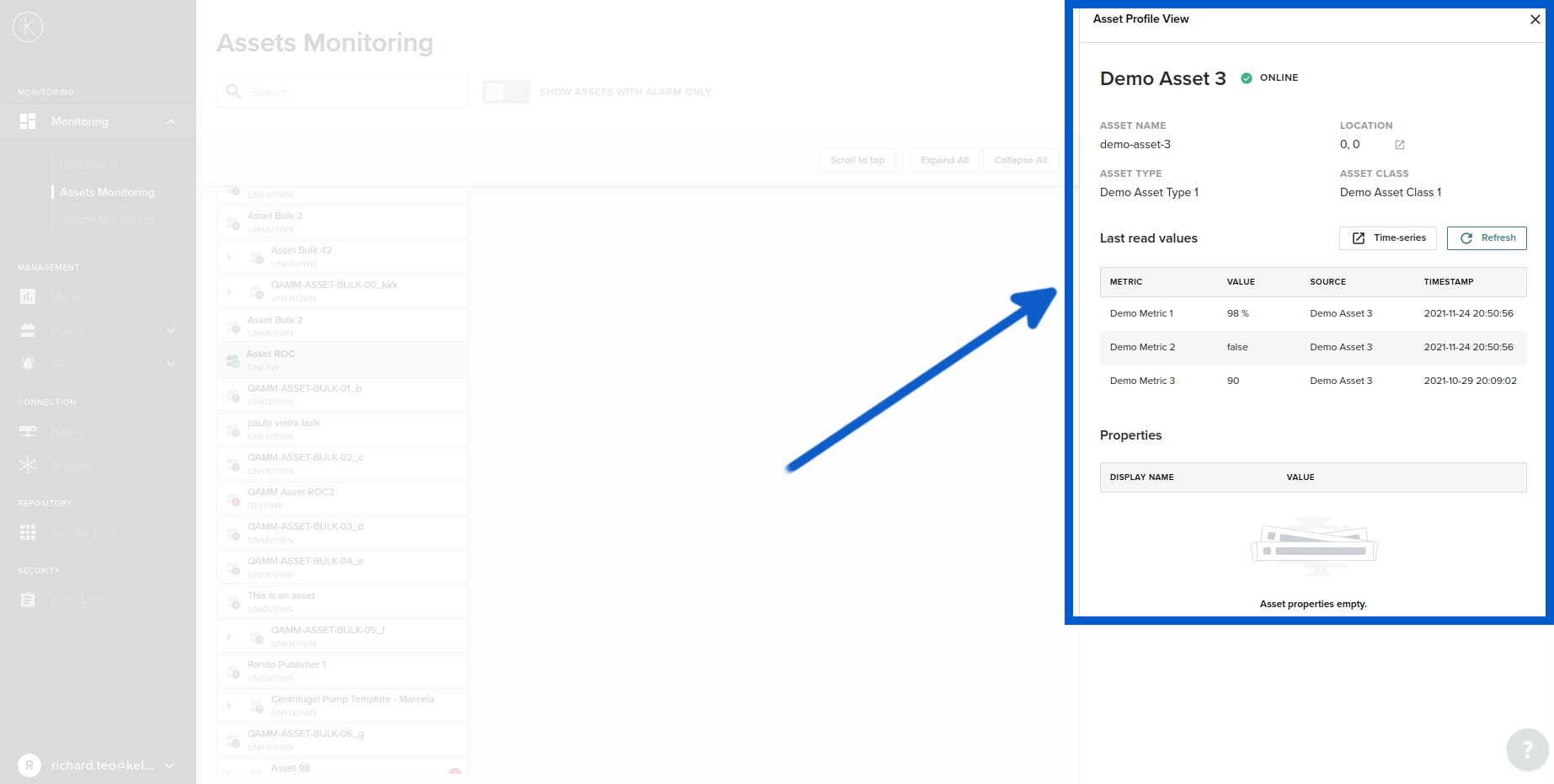
In the profile view you can see a summary of the Asset, its current status, its last read value of all the metrics connected to the selected Asset.
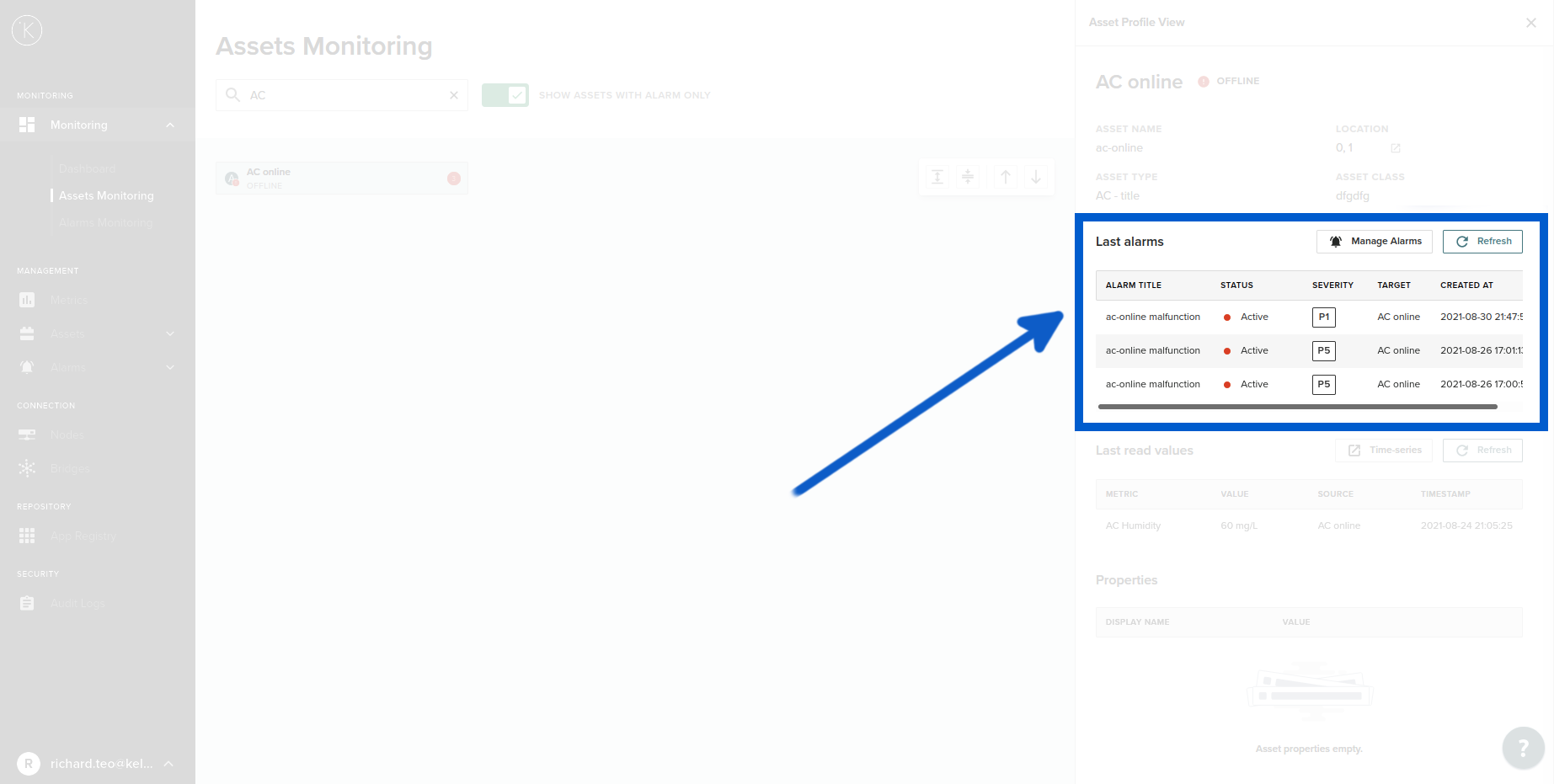
Asset Alarms View
This list will only appear if there are any alarms associated with this Asset. They will be displayed as a list in the Last alarms section located just under the Asset details.
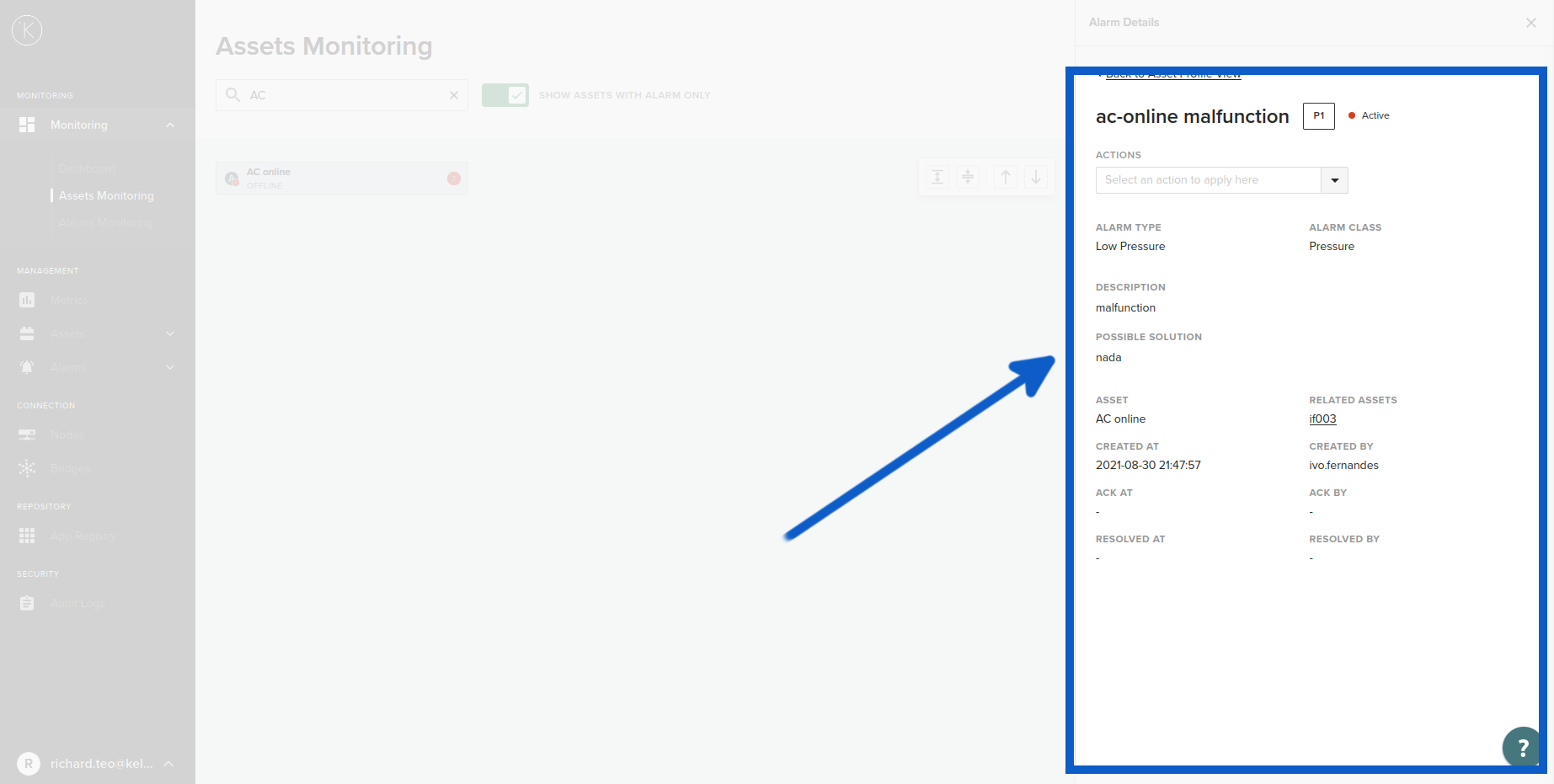
Alarm Details Link
If you click on an alarm title, then it will display the full details of the alarm. You can also perform some alarm actions on this page with the drop down list.
| Action | Description |
|---|---|
| Acknowledge this alarm | This will change the alarm from Active to Acknowledged. |
| Resolve this alarm | When the problem has been fixed, you can change the alarm from Acknowledged to Resolved. |
| Reactivate this alarm | This will delete the Acknowledged and Resolved information and set the alarm as active again. |
Manage Alarms Button
This will take you to the MONITORING -> Monitoring -> Alarms Monitoring page. This will also automatically filter the display to show only the Active and Acknowledged alarms.
Data Viewer Graphs 
If you click on the Data-viewer button in the profile view;
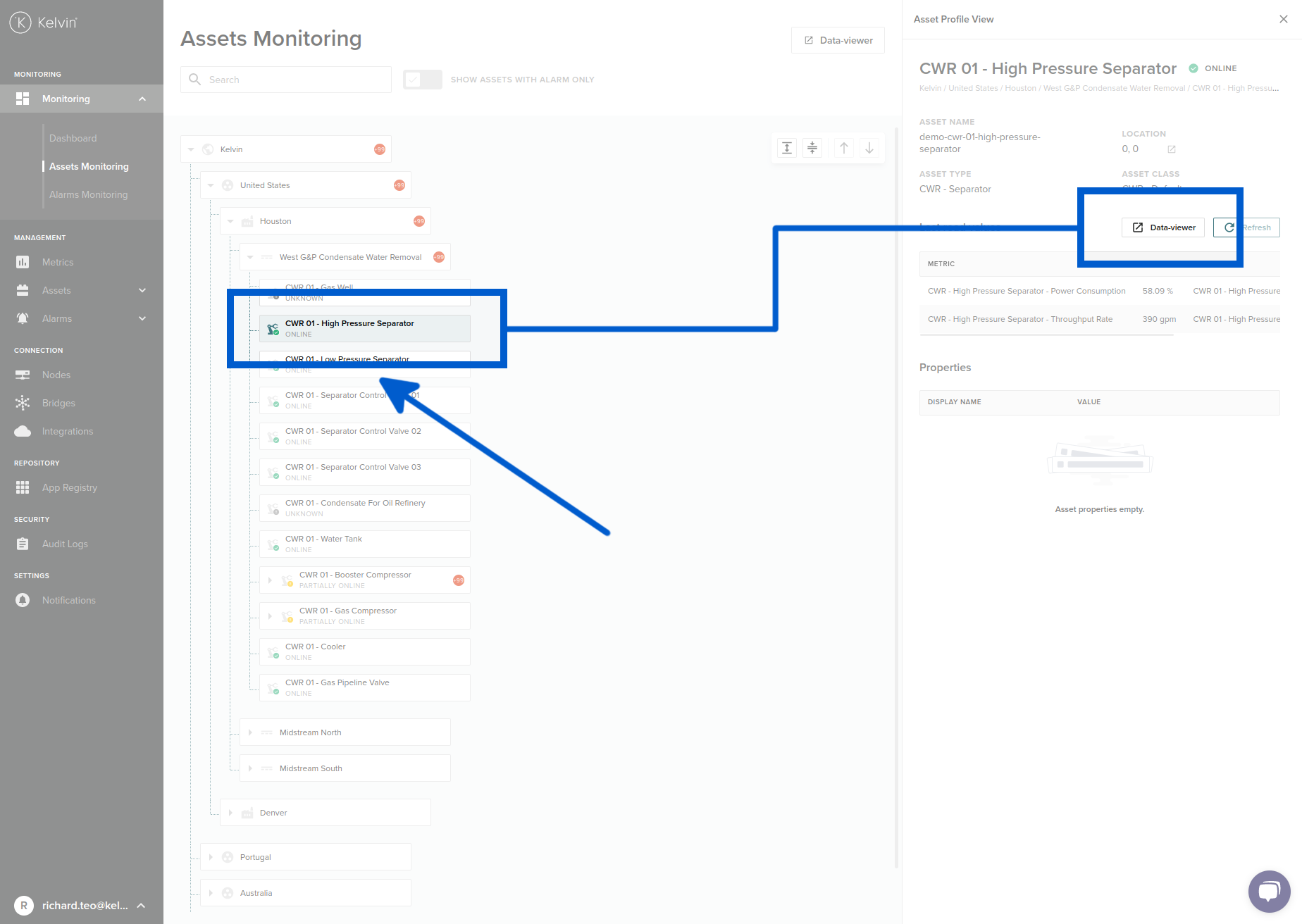
A new tab will be opened up with a dedicated time graph of your selected Kelvin Asset and associated Kelvin Metrics connected to the Kelvin Asset.
Check out more details about Data Viewer in a dedicated page Data Viewer.

There are many standard options available including time frame of the graph, real time values, options for Raw or normalized data.
Other Related Links
Interesting links related to Assets Monitoring
- Kelvin Assets
- Documentation -> Kelvin Core -> Kelvin Manager UI -> Monitoring -> Data Viewer
- Documentation -> Kelvin Core -> Kelvin Manager UI -> Manager -> Assets -> Assets
Last Modified
Last Modified on 18th April 2023
18th April 2023
* Updated the Data View buttons available in the main screen and in the properties sidebar
6th January 2022
* Last update before detail updating records started

Kelvin Documentation AI Support
Hi. My name is KevDocBot. How can I help you?