Timeseries Data
Timeseries Data Messages
Note
Visit the concept overview for Data Streams to understand how time series data references are constructed using one Asset name and one Data Stream name as a pair.
Timeseries data from Assets can be served to the Kelvin SmartApp™ in multiple ways, depending on the preferred data consumption method.
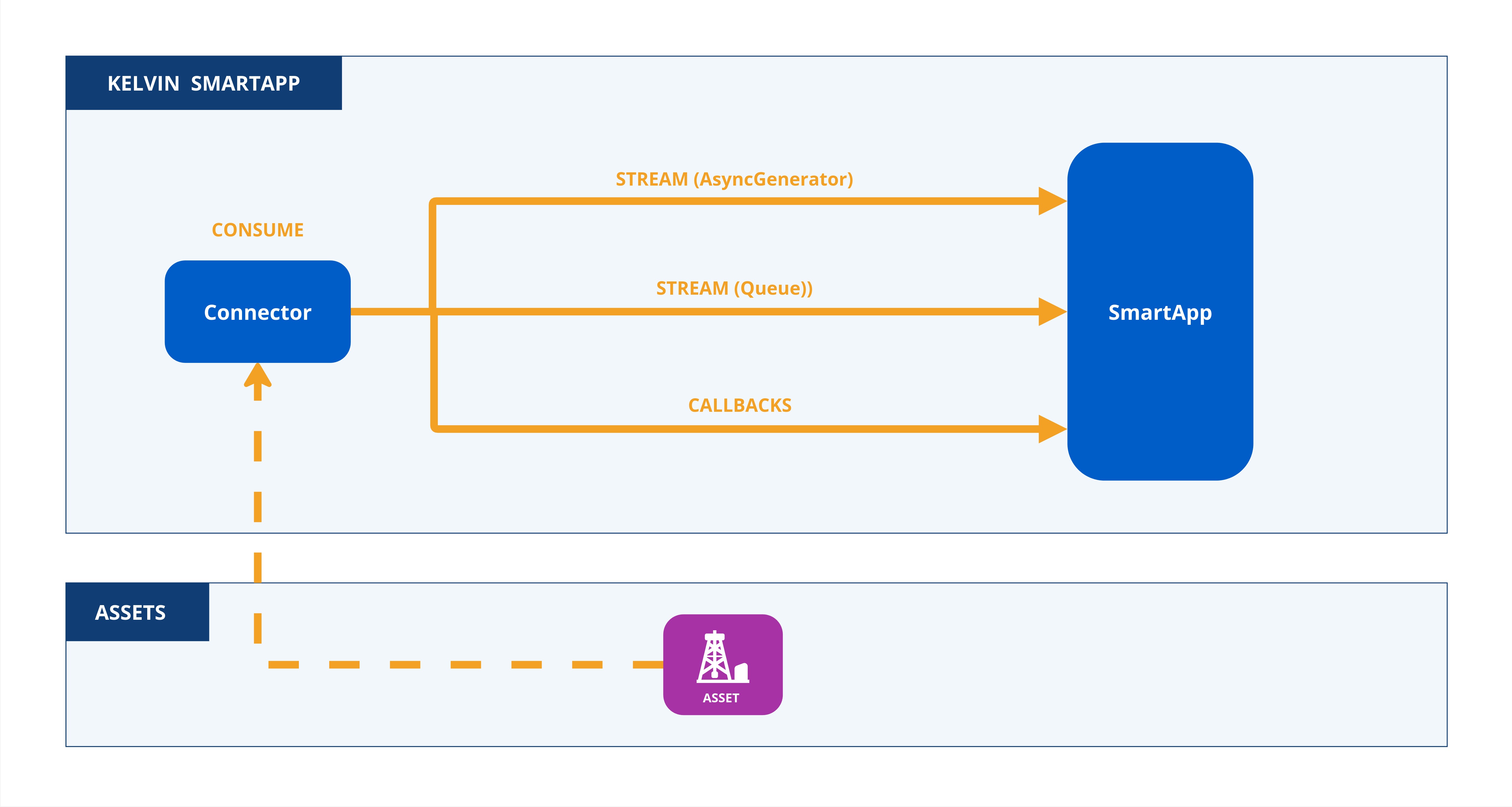
Data can be consumed primarily in two ways:
-
Asynchronous Consumption (
async): This approach pauses program execution until new data arrives, resuming only when data is available. To enhance efficiency and reduce unnecessary executions, filters can also be applied to limit the types of data that trigger events. -
Callback Consumption: In this method, a callback function allows the program to continue performing other tasks while waiting for new data, enabling non-blocking execution suitable for concurrent operations.
Each method provides flexible and efficient handling of Asset timeseries data, tailored to specific application requirements and performance needs.
In order to consume streaming data, the inputs section needs to filled upon the app.yaml.
Note
That means that Kelvin SmartApps™ is only going to be able to consume the specified inputs. i.e.:
app:
  type: kelvin
  kelvin:

    inputs:
        - data_type: number
          name: motor_temperature

        - data_type: string
          name: motor_state
inputs is an array (list) composed by two fields:
- A unique name to identify the input. This will be used in the Python code to reference the input. It must contain only lowercase alphanumeric characters. The characters
.,_and-are allowed to separate words instead of a space BUT can not be at the beginning or end of the name. - An expected data type, which can be:
number,booleanorstring.
Now that we've defined Kelvin SmartApps™ inputs, there are a few ways to consume them within the Kelvin Python library.
Streams are a different way of filtering inputs as a Python Async Generator, also based upon a filter function.
Info
Different Data filters are available within the filters class, such as input_equals(input: str), resource_equals(resource: KRN) and asset_equals(asset: str). On the following example we're gonna use the most common and expected use case (input_equals(input: str)).
Filters to limit which inputs are monitored can be expressed as filters.input_equals(input: str).
import asyncio
from typing import AsyncGenerator # AsyncGenerator import

from kelvin.application import KelvinApp, filters # filters import
from kelvin.message import Number # Number (Input Type) import


async def main() -> None:
    app = KelvinApp()

    # Create a Filtered Stream with Temperature (Number) Input Messages
    motor_temperature_msg_stream: AsyncGenerator[Number, None] = app.stream_filter(filters.input_equals("motor_temperature"))

    await app.connect()

    # Wait & Read new Temperature Inputs
    async for motor_temperature_msg in motor_temperature_msg_stream:
        print("Received Motor Temperature: ", motor_temperature_msg)


if __name__ == "__main__":
    asyncio.run(main())
Filters can be used to filter a specific subset of the Kelvin Inputs as a Python Message Queue based upon a filter function.
Info
Different Data filters are available within the filters class, such as input_equals(input: str), resource_equals(resource: KRN) and asset_equals(asset: str). On the following example we're gonna use the most common and expected use case (input_equals(input: str)).
Filters to limit which inputs are monitored can be expressed as filters.input_equals(input: str).
import asyncio
from asyncio import Queue # Queue import

from kelvin.application import KelvinApp, filters # filters import
from kelvin.message import Number # Number (Input Type) import


async def main() -> None:
    app = KelvinApp()

    # Create a Filtered Queue with Temperature (Number) Input Messages
    motor_temperature_msg_queue: Queue[Number] = app.filter(filters.input_equals("motor_temperature"))

    await app.connect()

    while True:
        # Wait & Read new Temperature Inputs
        motor_temperature_msg = await motor_temperature_msg_queue.get()

        print("Received Motor Temperature: ", motor_temperature_msg)


if __name__ == "__main__":
    asyncio.run(main())
The callback on_asset_input can be used to read every input flowing into Kelvin SmartApps™:
import asyncio

from kelvin.application import KelvinApp
from kelvin.message.primitives import AssetDataMessage # AssetDataMessage import


# on_asset_input Callback
async def on_asset_input(msg: AssetDataMessage):
    print("Received Data Message: ", msg)

    # Get Asset and Value
    asset = msg.resource.asset
    value = msg.payload

async def main() -> None:
    app = KelvinApp()
    # Set on_asset_input Callback
    app.on_asset_input = on_asset_input

    await app.connect()

    # [Required] Forces Kelvin SmartApps™ to run forever
    while True:
        await asyncio.sleep(1)


if __name__ == "__main__":
    asyncio.run(main())
Event Callbacks
Concepts Made Simple
A callback in Python is like a WhatsApp notification. Imagine you’re waiting for a message from a friend, but instead of constantly checking your phone, you let WhatsApp notify you when the message arrives. You only get alerted when the specific event—your friend’s message—actually happens.
In Python, a callback works similarly. Instead of constantly checking for updates, the program waits until a certain event occurs, and when it does, the callback function (like the WhatsApp notification) is triggered to perform a specific action.
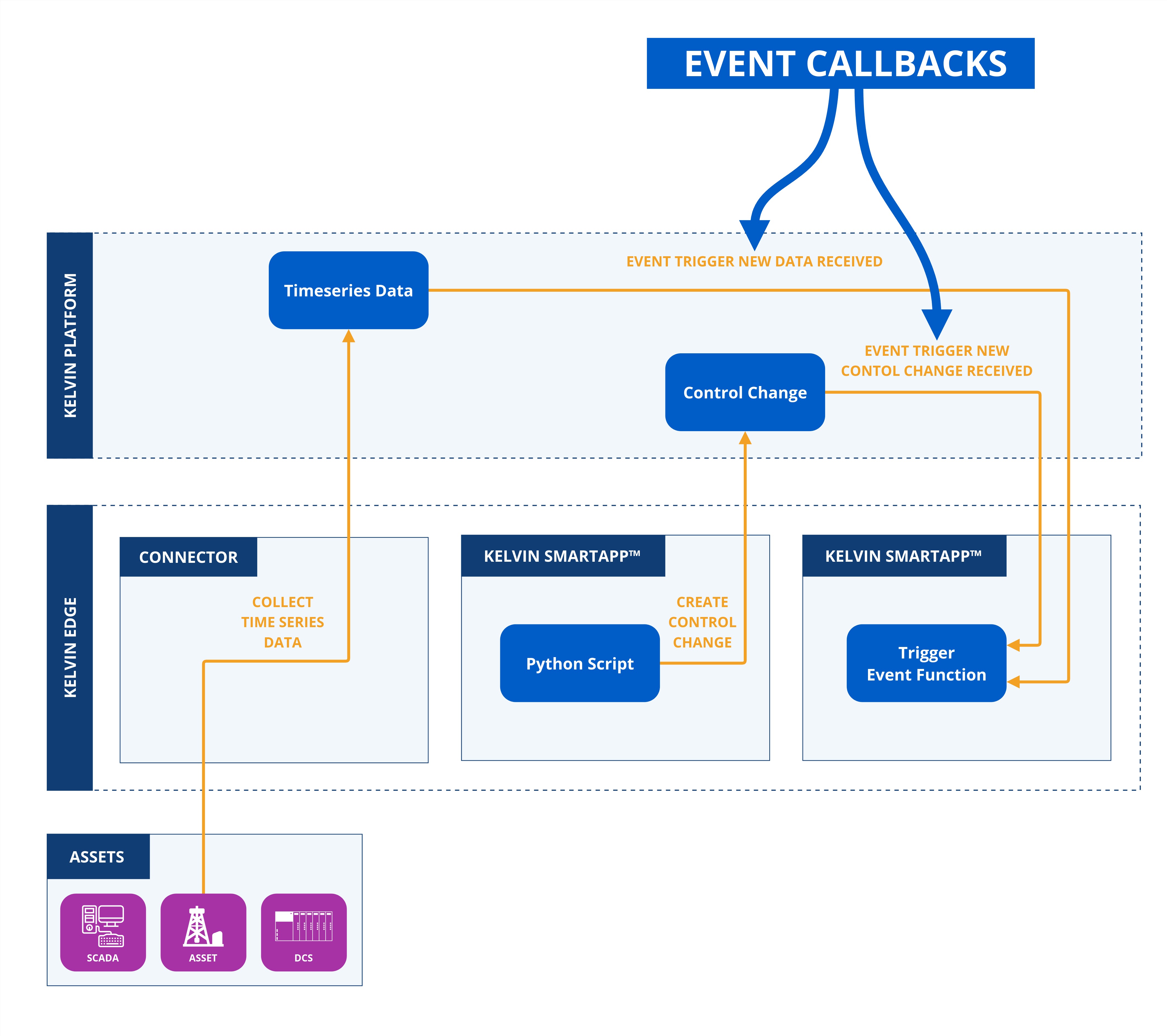
Event Callbacks are functions that are triggered when certain events happen, such as new time series data is received or a control change is initiated.
Video Tutorial
You can watch this Event Callback video tutorial which will show you how to program and test it on you local machine with the Kelvin test data generator Python script.
Copy the code in the Video Tutorial
In the following chapters after the video tutorial you can see and copy all the scripts shown in the video tutorial.
Written Tutorial
When any new time series data is created for any Asset / Data Stream pair, a callback event is created.
Detailed Explanation of Parameters
Response Parameters
-
id: UUID('db18aaaf-9a70-4c3e-babb-b7571867871f')
- Description: A unique random generated UUID as the key
idfor the time series data.
- Description: A unique random generated UUID as the key
-
type: KMessageTypeData('data', 'pt=number')
- Options:
number,boolean,string - Description: The format of the data to expect.
- Options:
-
trace_id: UUID('db18aaaf-9a70-4c3e-babb-b7571867871f')
-
timestamp: datetime.datetime(2024, 10, 28, 11, 51, 44, 601689, tzinfo=datetime.timezone(datetime.timedelta(seconds=25200), '+07'))
- Description: The time of recording of the time series data in the local computer's timezone.
-
resource: KRNAssetDataStream(asset='test-asset-1', data_stream='sa-rw-number')
- Description: The Asset and Data Stream names associated with the time series data.
-
payload: The actual value in the declared
typekey format.
The full code is given here for the main.py script.
Detailed Code Explanations
Click on the for details about the code
| main.py | |
|---|---|
1 2 3 4 5 6 7 8 9 10 11 12 13 14 15 16 17 18 19 20 21 22 23 24 25 26 27 28 29 30 31 32 33 | |
- The
asynciomodule is used to ensure the program is running in asynchronous mode. This allows code, especially that which typically waits such as I/O-bound operations, to effectively execute in parallel thereby making the most efficient use of processor time. - The
KelvinAppclass is used to initlize and connect the Kelvin SmartApp™ to the Kelvin Platform. - The
AssetDataMessageis a class representing the structure and properties of the asset data messages which will be held in an instance calledmsg. - The
on_asset_inputcallback function is triggered automatically whenever a new asset / data stream time series data associated with the Kelvin SmartApp™ is received on the platform. It serves as an event handler to process incoming data in real time, ensuring that relevant actions or data updates occur immediately upon receipt. - The
mainfunction initializes the Kelvin SmartApp™, connects it to the Kelvin Platform, and configures an event callback to execute a specific function whenever new data arrives from an Asset associated with the Kelvin SmartApp™ on the Kelvin Platform.
When you run this Python script, the following output will be view in the terminal or logs;
Received Data Message:  id=UUID('db18aaaf-9a70-4c3e-babb-b7571867871f') type=KMessageTypeData('data', 'pt=number') trace_id=None source=None timestamp=datetime.datetime(2024, 10, 28, 11, 51, 44, 601689, tzinfo=datetime.timezone(datetime.timedelta(seconds=25200), '+07')) resource=KRNAssetDataStream(asset='test-asset-1', data_stream='sa-rw-number') payload=9.0

Asset: test-asset-1, Value: 9.0
Data Generator for Local SmartApp Testing
Easily test your SmartApp locally on your computer.
Comprehensive documentation is available for the Generator Tool. Click here to learn how to use this event callback script with the Test Generator on the "Test a SmartApp" ⟹ "Generator" page.