Edit Impact Metric
On this page you will learn how to edit the parameters of an existing Impact Metric.
Step 1 -- Open the Impact Metric
Go to Impact in the left navigation, click the Configuration tab, then select the Impact Metrics sub-tab.
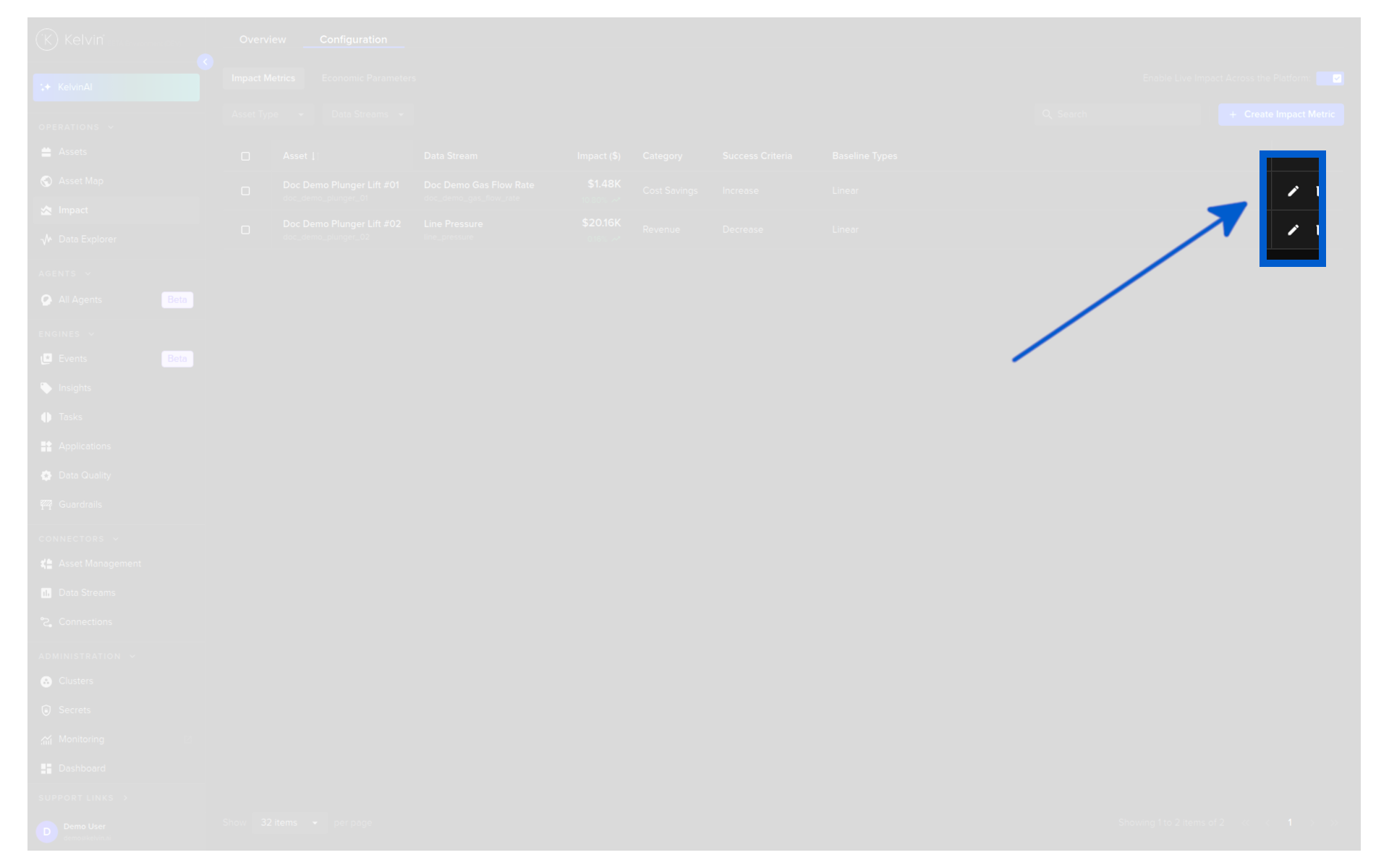
Find the impact metric you want to update in the list and click the Edit icon on that row.
Step 2 -- Update Parameters
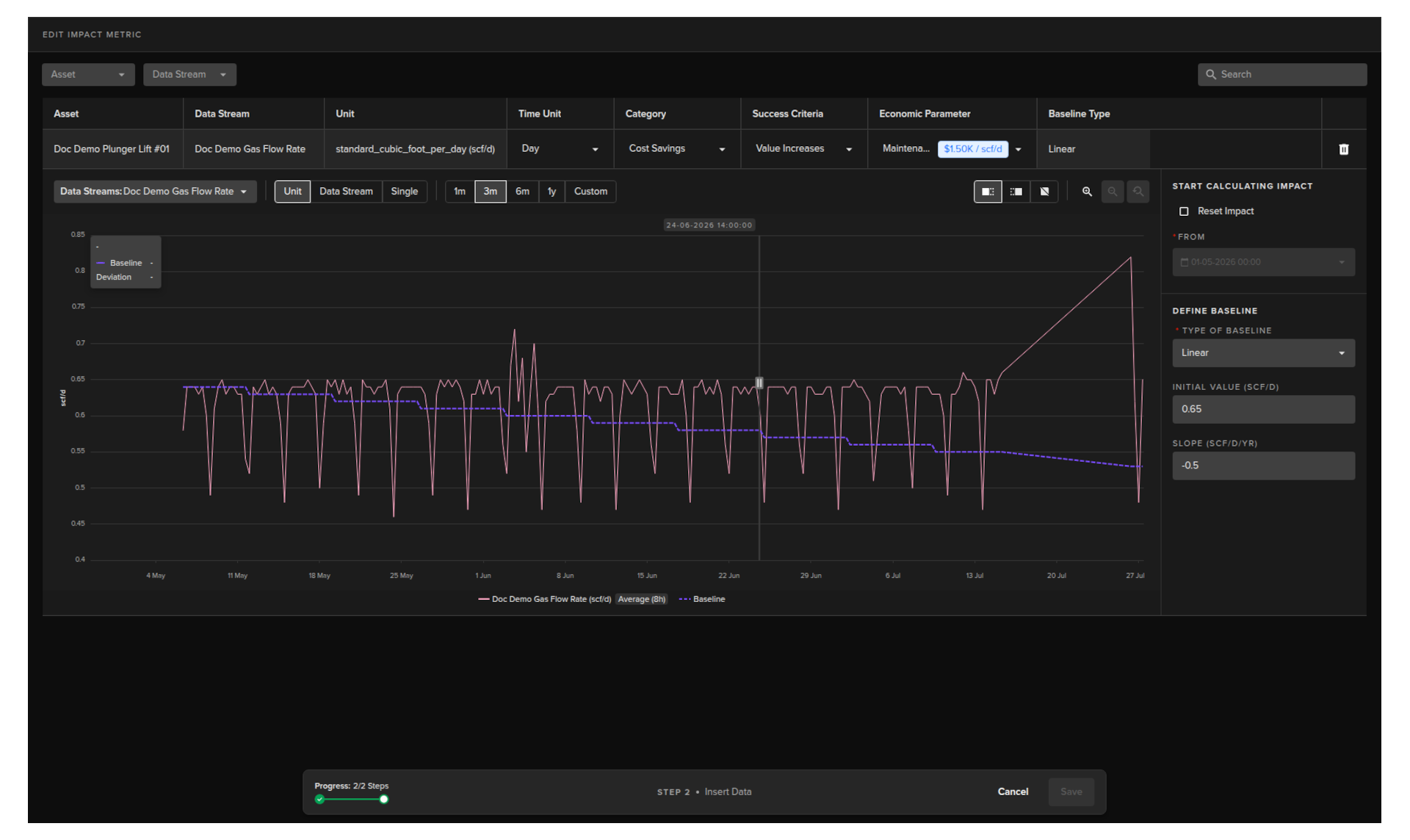
The edit view opens showing only the data streams that had Impact Metric information configured when the metric was originally created.
Note
Unlike the create flow, you will not see all data streams associated with the asset. Only the data streams that already have Impact Metric configuration assigned are shown here.
Warning
You can not add any other Data Streams. To add other Data Streams associated with the Assets yu will need to create a new Impact Metric.
You can only edit existing impact calculation definitions here.
Update any of the editable fields on each data stream row -- Time Unit, Category, Success Criteria, Economic Parameter, or the baseline settings -- as needed.
Step 3 -- Apply Changes
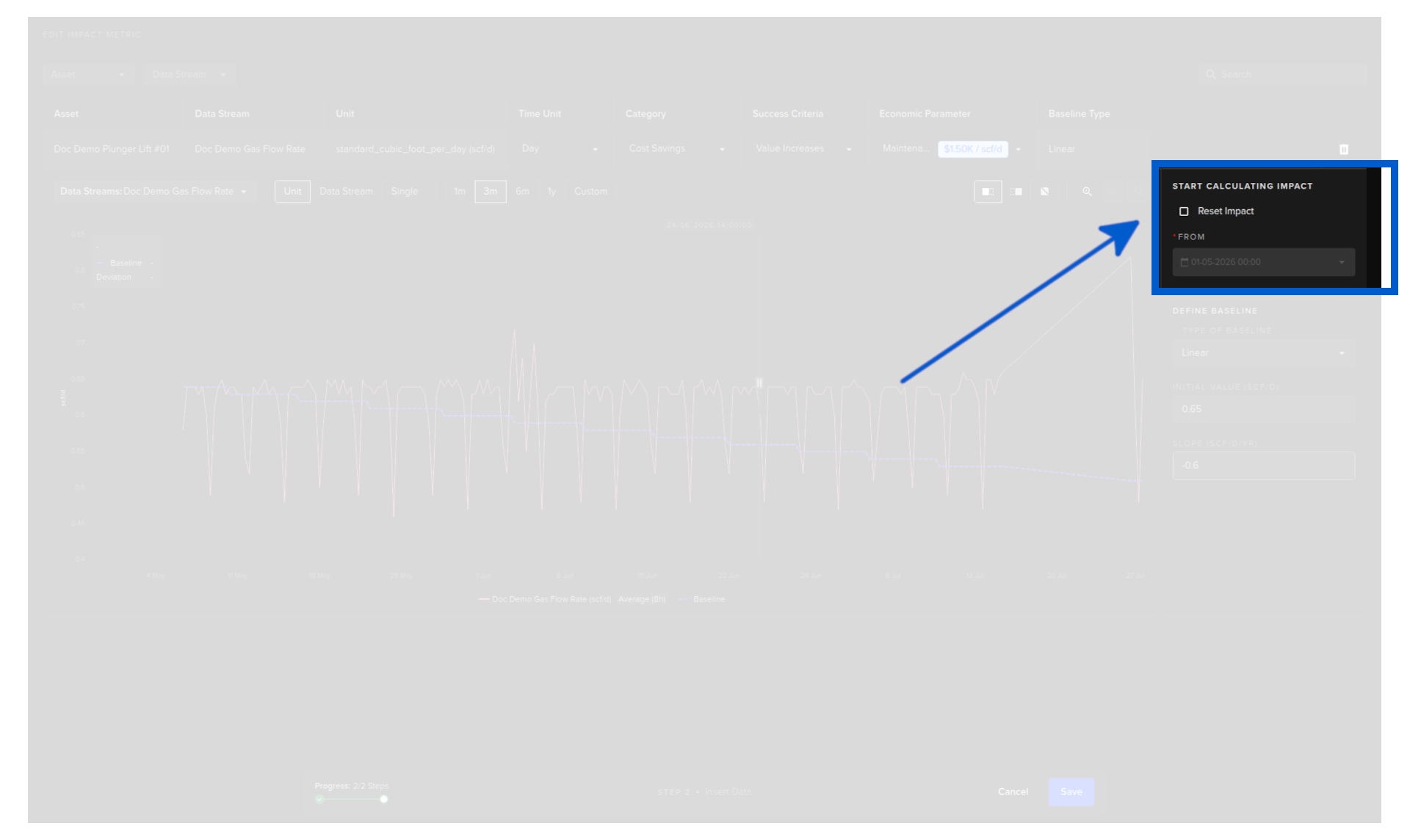
Once you have updated the parameters, decide how the new values should be applied.
| Option | What it does |
|---|---|
| Save without reset | The updated parameters apply from now onwards only. Historical impact values calculated with the previous settings are preserved unchanged. |
| Reset Impact | Recalculates impact from a date you select. Use this when you want the new parameters to apply retroactively. Choose the start date from which the recalculation should run. |
Step 4 -- Save
Click Save to apply your changes.
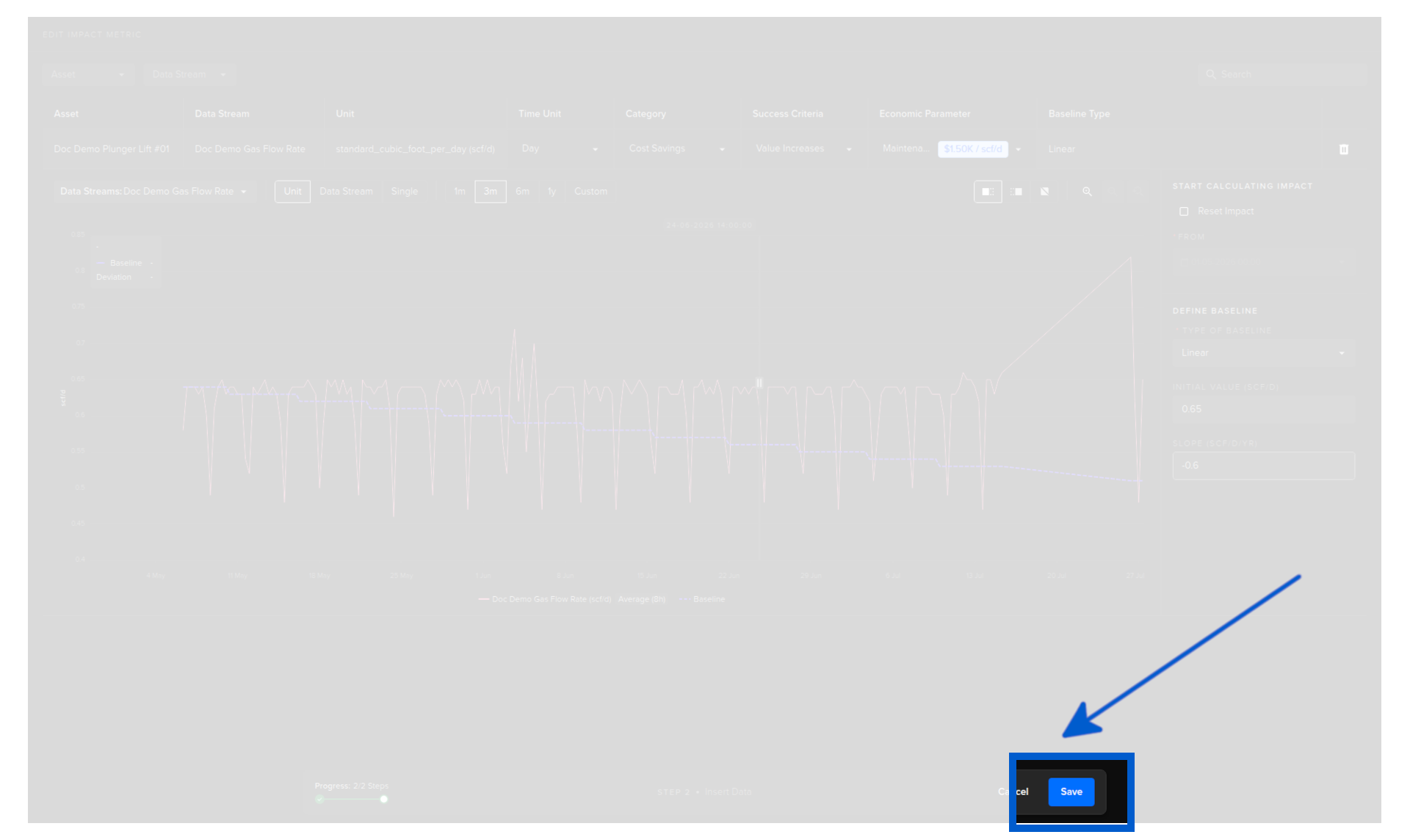
The platform will save the updated configuration and, if you chose Reset Impact, begin recalculating the impact values from the selected date.