Task Impact Metrics Beta
Beta Release
Tasks is currently in beta. Improvements and new capabilities will continue to be added quickly with each new release.
On this page you will learn how to configure the time saved by each task output, so the platform can calculate the hours and financial value your tasks are delivering.
Overview
Each task you create can generate recommendations and control changes. For every one of these outputs, you can tell the platform how much manual effort it saves your Operations Engineers. The platform then accumulates these savings over time and displays them in the Impact section.
There are two results calculated from this:
- Operator Hours Saved -- the total hours saved, shown on the Impact dashboard.
- Cost Savings -- the monetary equivalent of those hours, calculated using the labor cost rate configured in Economic Parameters.
Opening the Impact Metrics Panel
To configure the time saved for a task, go to the Tasks list and click the Impact Metrics icon on the row of the task you want to configure.
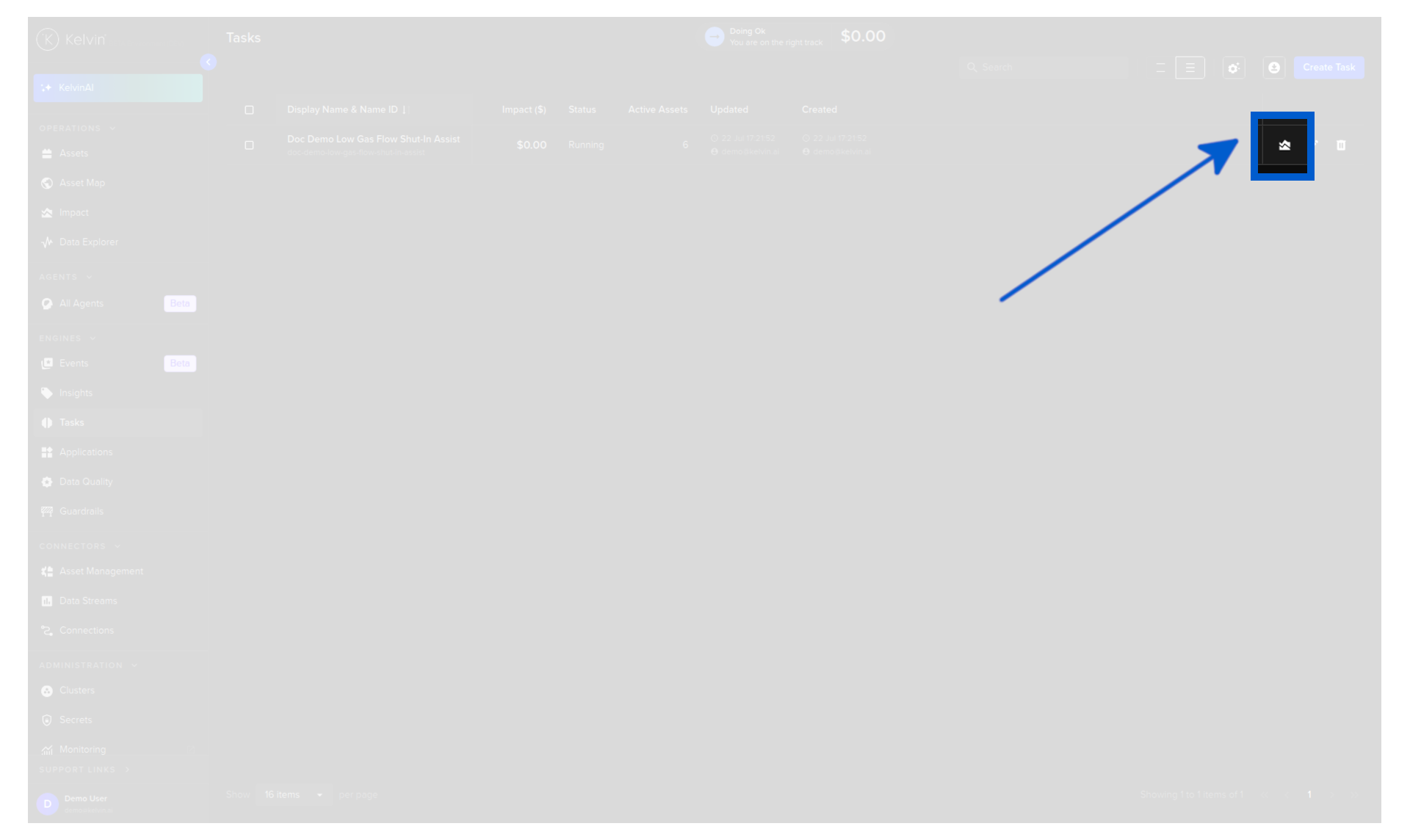
This opens the Impact Metrics panel for that task.
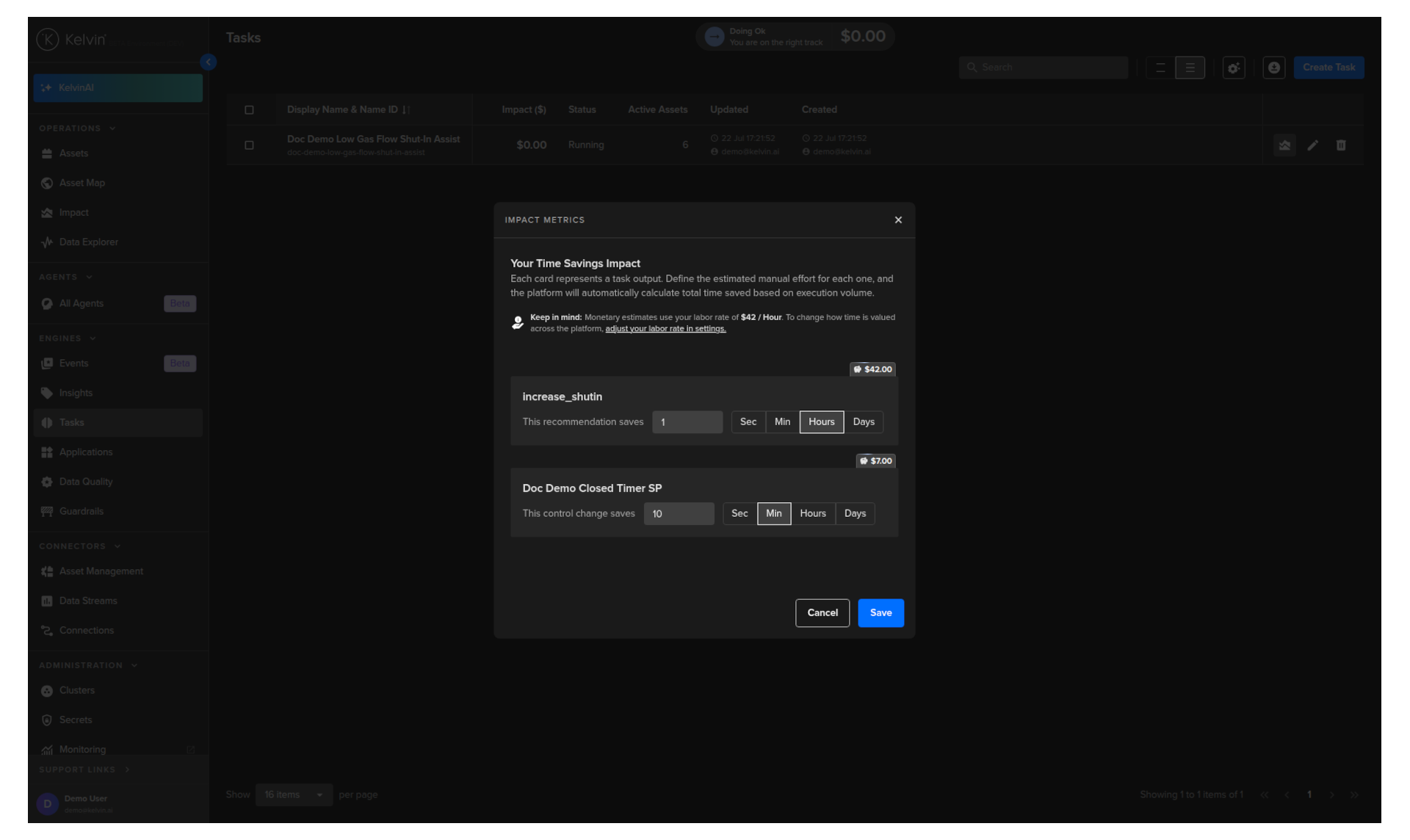
Configuring Time Saved per Output
The panel shows one card for each output the task produces -- one card per recommendation type and one card per control change type.
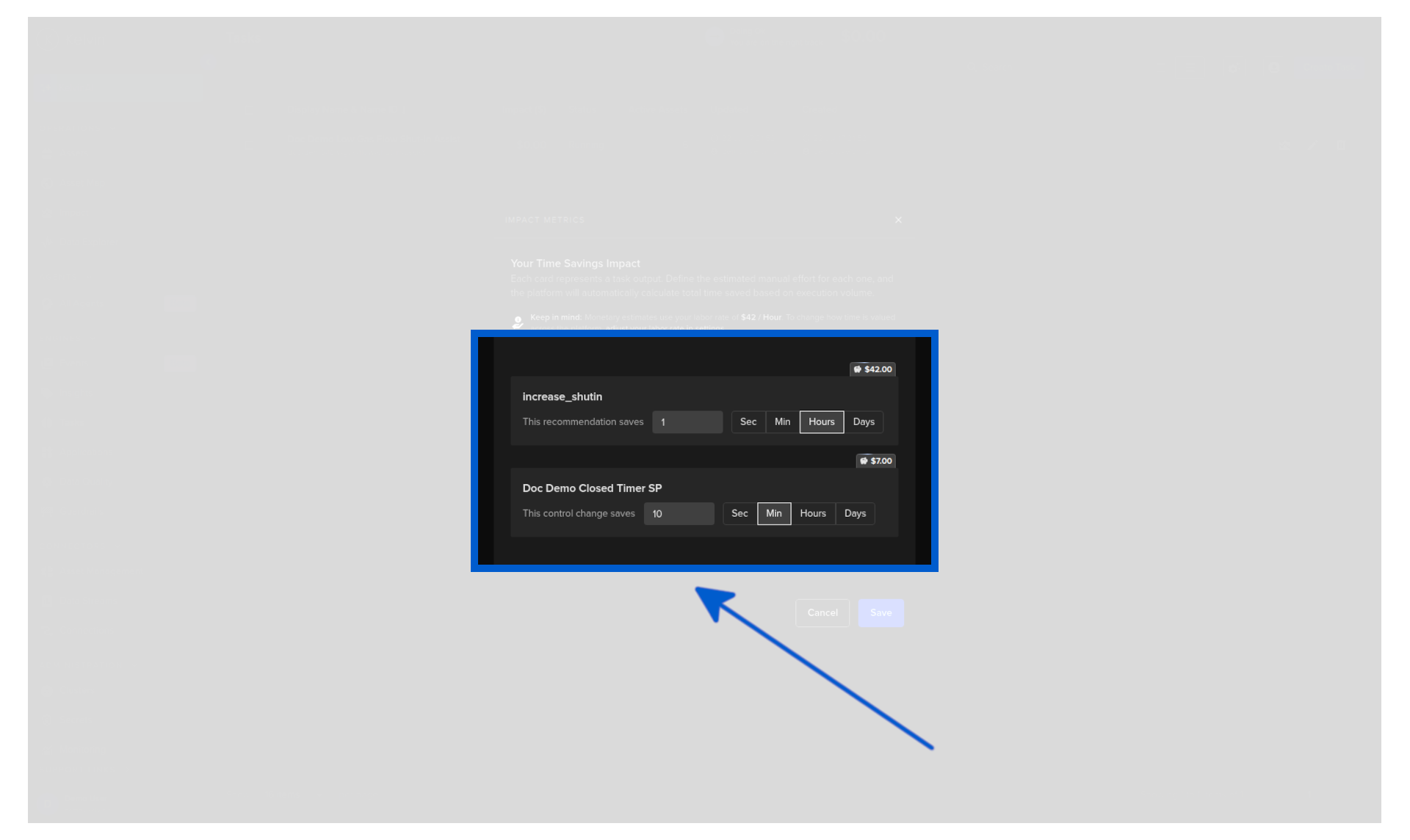
For each card you can see:
- The name of the data stream or output that the task acts on.
- A label showing whether this output is a recommendation ("This recommendation saves") or a control change ("This control change saves").
- A time value field where you enter the estimated manual effort saved each time this output is triggered.
- A time unit toggle where you choose how to express that time: Sec, Min, Hours, or Days.
- A monetary value shown in the top-right corner of the card, calculated automatically from your entered time and the platform's configured labor rate.
Example
If your labor rate is set to $42 / hour and a recommendation is configured to save 1 hour, the platform shows $42.00 for that output. If a control change saves 10 minutes, the platform shows $7.00 (10 / 60 × $42).
Note
The monetary value displayed is based on the Cost of Labor rate set in Economic Parameters. To change how time is valued across the platform, update that setting. The monetary figures in all tasks will update automatically.
Saving Your Configuration
Once you have set the time saved for each output, click Save to apply the configuration.
From this point on, every time the task triggers a recommendation or control change, the configured time is added to the cumulative total for that task. These totals feed directly into the Impact dashboard under Operator Hours Saved and Cost Savings.
Note
This configuration is per task. Each task independently tracks its own time savings, so you can set different values for different tasks based on how much effort each one actually replaces.