Economic Parameters
On this page you will learn how to configure the Cost of Labor and Impact Units that are used by Impact Metrics to calculate Revenue and Cost Savings.
Before You Start
Economic Parameters must be configured before you create any Impact Metrics. The labor rate and impact unit values you define here are referenced directly in every Impact Metric calculation across the platform.
Open Economic Parameters
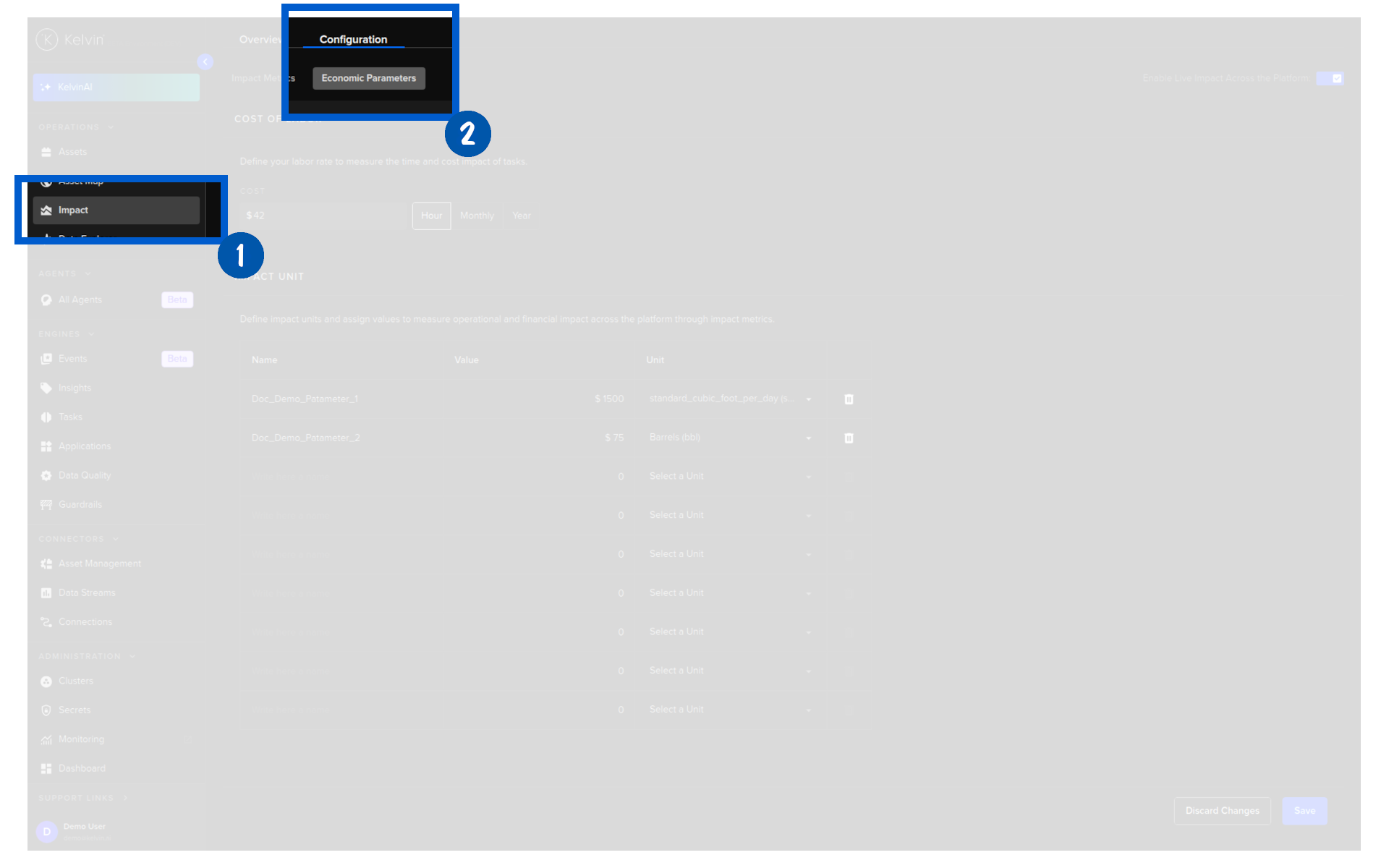
Go to Impact in the left navigation, click the Configuration tab, then select the Economic Parameters sub-tab.
Cost of Labor
The Cost of Labor is the labor rate used to convert the hours saved by task recommendations and control changes into a financial Cost Savings figure.
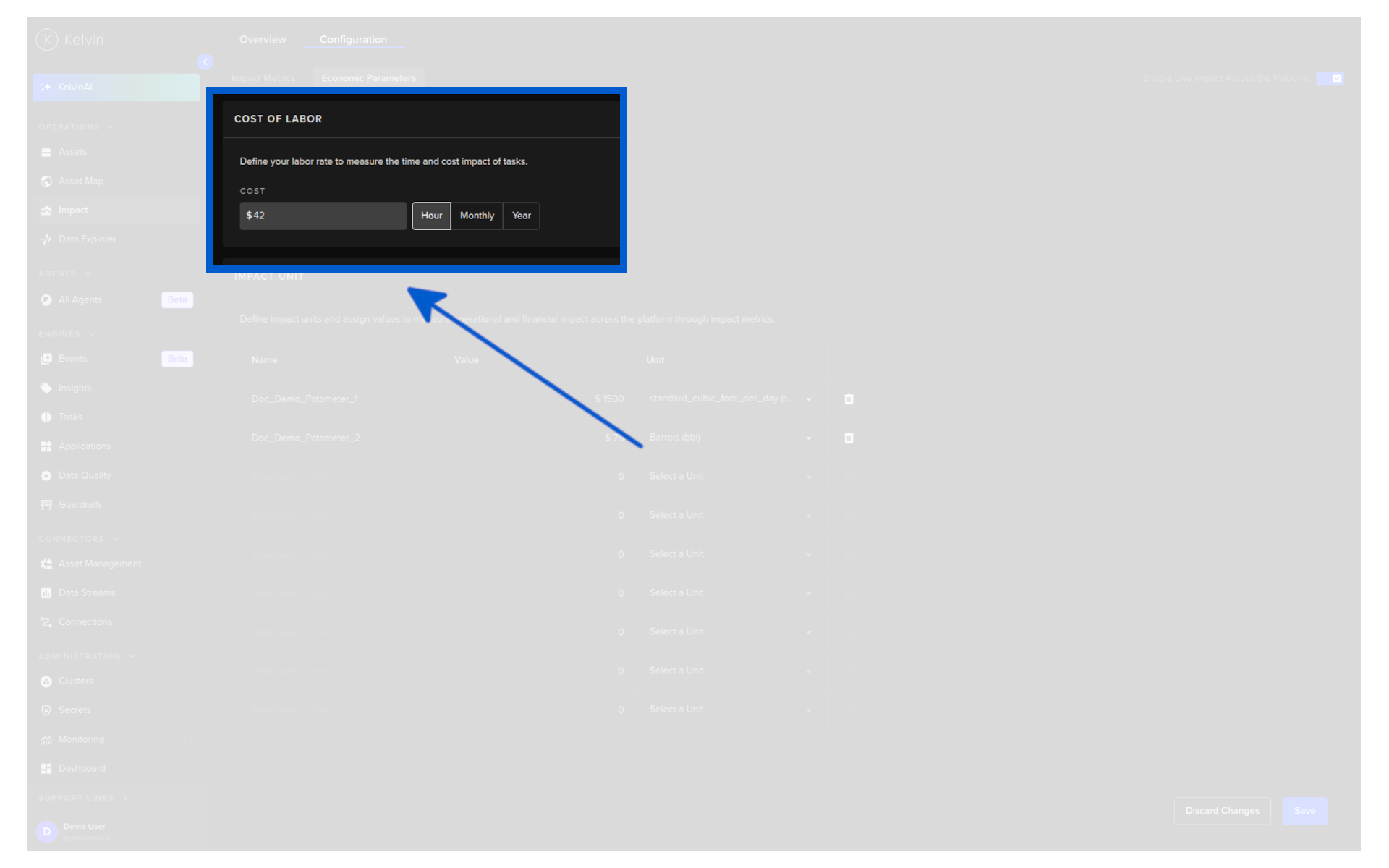
Enter your labor cost and select the time unit: Hour, Month, or Year.
Note
Monthly and yearly rates are based on a 40-hour working week. The platform converts them automatically:
- Monthly rate = hourly rate x 8 hours x 20 working days
- Yearly rate = hourly rate x 8 hours x 20 working days x 12 months
Note
You can only add one Cost of Labor rate. If you need to account for different types of labor at different rates, you can add additional custom rates as Impact Units below.
Impact Units
Impact Units let you define named financial values to measure operational and financial impact across the platform through Impact Metrics. For example, you can define the price of a barrel of crude oil, the cost per mscf of natural gas, or a custom rate for a specific type of labor.
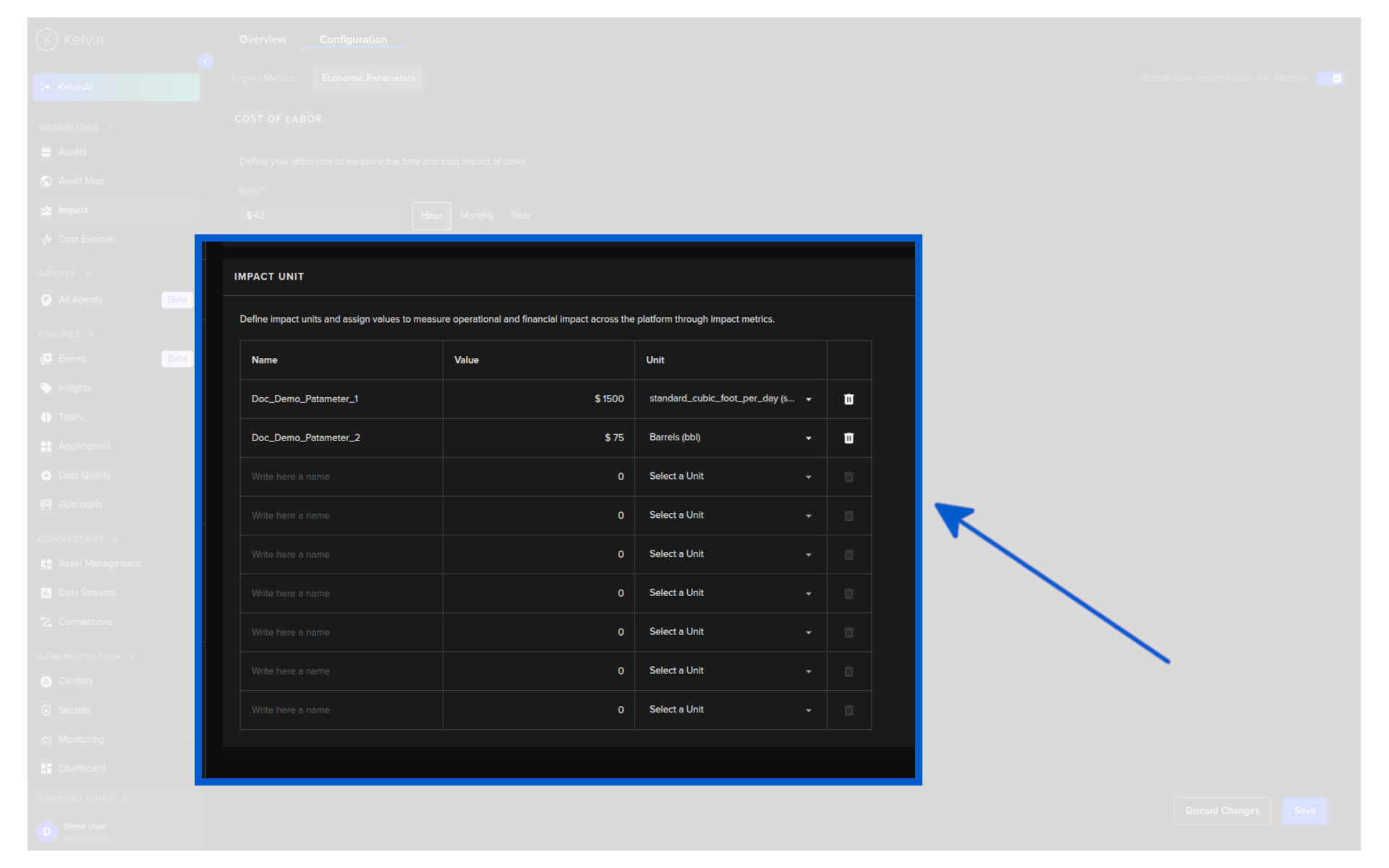
Each Impact Unit is defined by three fields:
| Field | Description |
|---|---|
| Name | A descriptive label for the unit (for example, Crude Oil or Natural Gas). |
| Cost | The financial value per unit (for example, 5.00 for $5 per barrel). |
| Per Unit | The unit of measure this cost applies to. The unit must already exist in the Units section of Kelvin. |
Note
Units are managed by Platform Administrators. If the unit you need does not appear in the list, contact your Platform Administrator to have it added.
Save
Once you have set your Cost of Labor and added all required Impact Units, click Save.
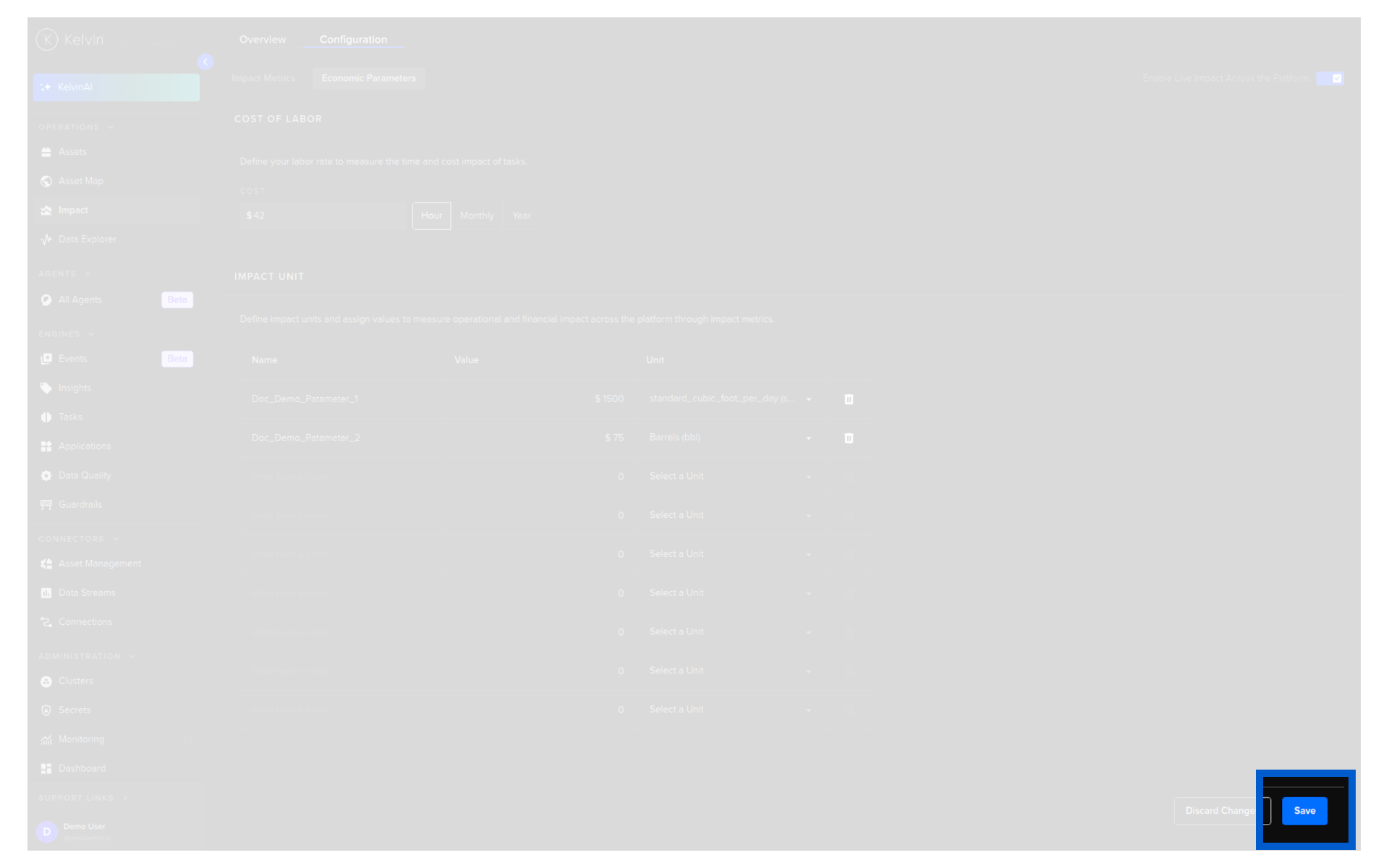
These values are now available to select when creating Impact Metrics.