Data Quality Data
Data Quality Data Messages
Data Streams can have automated validation checks enabled to monitor the quality of the data being received from the Asset.
You can read all about Data Quality concept here and the app.yaml settings here.
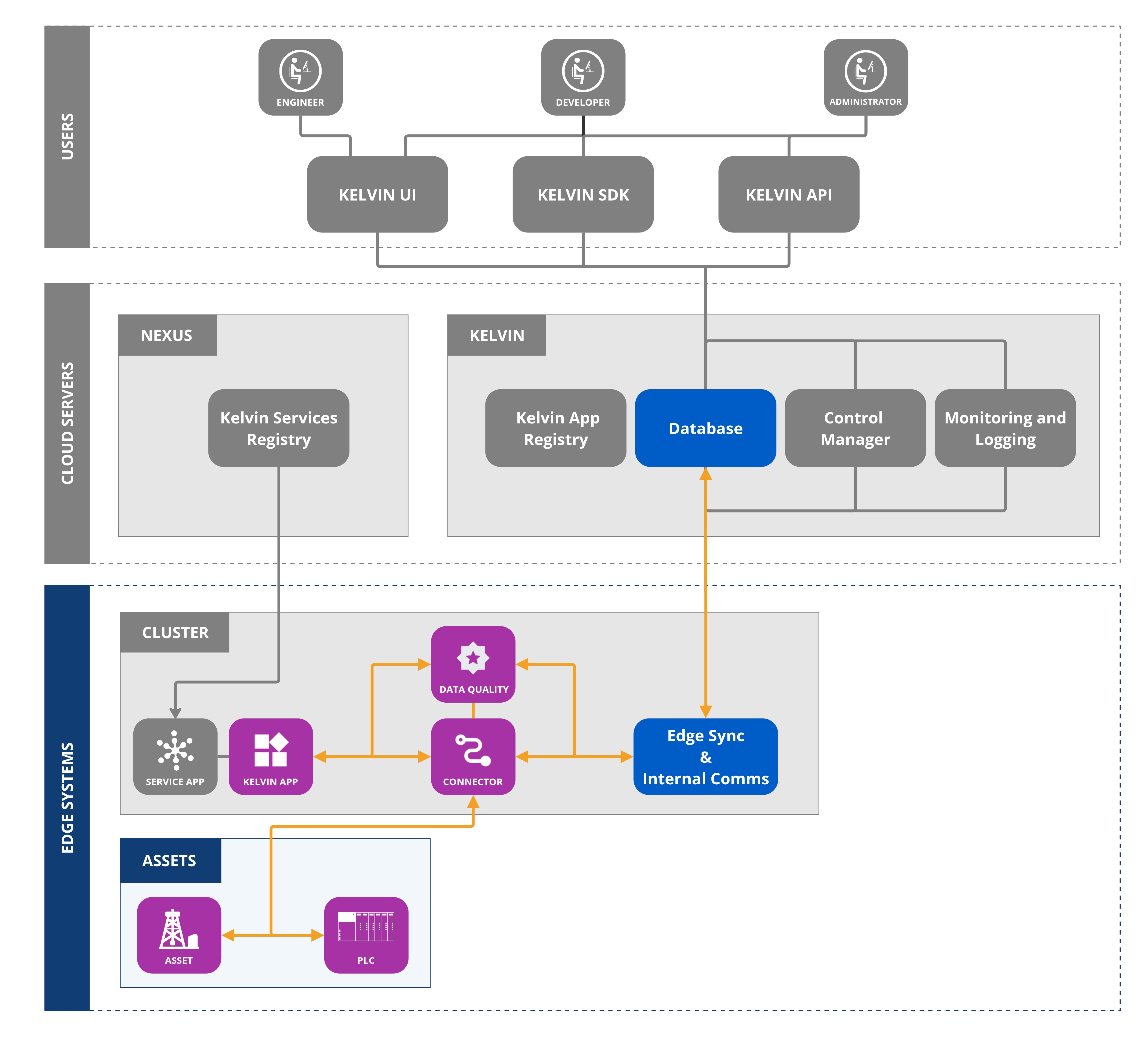
Once you have connected to the wanted Data Stream validations you can monitor the output of the Data Quality validations in real time.
Get Values
You can retrieve Data Quality values or aggregated information in Python with the API endpoint /asset-insights/get using the Kelvin API Client (Python).
Get Data Quality Values
Get Latest Value
Note
Click here to see a full list of all the data_quality_name options.
This does not include any custom Data Quality validation Applications on your Kelvin Platform. Check with your developer for details.
| Get Latest Data Quality Value |
|---|
 1
 2
 3
 4
 5
 6
 7
 8
 9
10
11
12
13
14
15
16
17
18
19
20
21
22 | from kelvin.api.client import Client
# Login
client = Client(config={"url": "https://<url.kelvin.ai>", "username": "<your_username>"})
client.login(password="<your_password>")
# Get the latest Data Quality Score for Asset PCP #03
response = client.asset_insights.get_asset_insights(data={
"asset_names": [
"pcp_03"
],
"extra_fields": {
"data_qualities": [
{
"data_quality_name": "kelvin_data_quality_score",
"name": "quality_score"
}
]
}
})
print(f"The Data Quality Score is {response[0].extra_fields['quality_score']} and was last recorded on {response[0].last_seen.strftime('%d %b %Y %H:%M:%S')}")
|
The output will look like this
| Get Latest Data Quality Value Output |
|---|
| The Data Quality Score is 96 and was last recorded on 17 Oct 2025 07:17:26
|
The response variable will hold all the data like this;
| Get Latest Data Quality Value Output |
|---|
| [AssetInsightsItem(asset_type_name='pcp', asset_type_title='PCP', extra_fields={'data-quality-kelvin-timestamp-anomaly': 95}, last_seen=datetime.datetime(2025, 10, 17, 7, 6, 26, 978233, tzinfo=TzInfo(0)), name='pcp_03', pinned=False, state='online', title='PCP #03')]
|
Get Aggregation Over Time
You can also get Data Quality information in an aggregated format.
Note
This helps save bandwidth if you do not need to download all values over a time range.
Note
Click here to see a full list of aggregate options available.
| Get Data Quality Aggregation over Time |
|---|
 1
 2
 3
 4
 5
 6
 7
 8
 9
10
11
12
13
14
15
16
17
18
19
20
21
22
23
24
25
26
27 | from kelvin.api.client import Client
# Login
client = Client(config={"url": "https://<url.kelvin.ai>", "username": "<your_username>"})
client.login(password="<your_password>")
# Get the latest Data Quality Score for Asset PCP #03
response = client.asset_insights.get_asset_insights(data={
"asset_names": [
"pcp_03"
],
"extra_fields": {
"data_qualities": [
{
"computation": {
"agg": "mean",
"start_time": "2025-10-12T12:00:00Z",
"end_time": "2025-10-16T12:00:00Z"
},
"data_quality_name": "kelvin_data_quality_score",
"name": "quality_score_mean"
}
]
}
})
print(f"The average Data Quality Score over the last four days is {response[0].extra_fields['quality_score_mean']} %")
|
The output will look like this
| Get Data Quality Aggregation over Time |
|---|
| The average Data Quality Score over the last four days is 94.722 %
|
The response variable will hold all the data like this;
| Get Data Quality Aggregation over Time |
|---|
| [AssetInsightsItem(asset_type_name='pcp', asset_type_title='PCP', extra_fields={'quality_score_mean': 94.72222222222223}, last_seen=datetime.datetime(2025, 10, 17, 7, 33, 56, 966453, tzinfo=TzInfo(0)), name='pcp_03', pinned=False, state='online', title='PCP #03')]
|
Data Quality Messages
Note
You will need to first enable the Data Quality monitoring.
It is recommended this is done from the Kelvin UI, though you can also use the Kelvin API or Kelvin API Client (Python)
If you monitor Data Quality outputs from Data Streams that have not been enabled, you will not receive any outputs.
app.yaml
For Data Quality information the app.yaml only needs to have the Data Streams declared in the data quality section.
| app.yaml Example |
|---|
 1
 2
 3
 4
 5
 6
 7
 8
 9
10
11
12
13
14
15
16
17
18
19
20
21
22
23
24
25
26
27
28
29
30
31
32
33
34
35
36
37
38 | ...
# ------------------------------------------------------------------------------
# Data Streams Definitions
# ------------------------------------------------------------------------------
data_streams:
inputs: []
outputs: []
# ------------------------------------------------------------------------------
# Data Quality Definitions
# ------------------------------------------------------------------------------
data_quality:
inputs:
- name: kelvin_data_availability
data_type: number
data_streams:
- casing_pressure
- fluid_over_pump
- gas_flow_rate
- speed
- temperature
- torque
- tubing_pressure
- water_flow_rate
- name: kelvin_outlier_detection
data_type: number
data_streams:
- casing_pressure
- fluid_over_pump
- gas_flow_rate
- speed
- temperature
- torque
- tubing_pressure
- water_flow_rate
...
|
main.py
The Kelvin SmartApp™ uses asynchronous programming (asyncio) to connect to the Kelvin message bus and continuously listen for new data as it is emitted from assets or data streams.
By using async for loops with asynchronous generators (AsyncGenerator), the app reacts to each incoming message instantly without blocking other operations. This allows real-time processing of Data Quality messages as soon as they are published by the Data Quality Application.
By using the stream_filter method we filter to only process Data Quality messages is_data_quality_message).
| main.py Example |
|---|
 1
 2
 3
 4
 5
 6
 7
 8
 9
10
11
12
13
14
15
16
17
18
19
20
21 | import asyncio
from typing import AsyncGenerator
from datetime import timedelta
from kelvin.application import KelvinApp, filters
from kelvin.message import Number
async def main() -> None:
app = KelvinApp()
await app.connect()
data_quality_stream: AsyncGenerator[Number, None] = app.stream_filter(filters.is_data_quality_message)
# Wait & Read new Data Quality Messages
async for data_quality_msg in data_quality_stream:
print(f"\nReceived Data Quality Message: {data_quality_msg}")
if __name__ == "__main__":
asyncio.run(main())
|
When deployed and running, if you look at the logs of the workload, you will see this output;
| main.py Example |
|---|
| 2025-10-14T06:00:00.002169184Z Received PCP02 | Asset: type=KMessageTypeData('data', 'pt=number') resource=KRNAssetDataStreamDataQuality(asset='pcp_02', data_stream='speed', data_quality='kelvin_data_availability') id=UUID('3d5b1084-193c-4c7e-a079-287c1c622a32') trace_id=None source=KRNAssetDataStream(asset='pcp_02', data_stream='speed') timestamp=datetime.datetime(2025, 10, 14, 6, 0, tzinfo=TzInfo(UTC)) payload=20
2025-10-14T06:04:59.004776951Z Received PCP02 | Asset: type=KMessageTypeData('data', 'pt=number') resource=KRNAssetDataStreamDataQuality(asset='pcp_02', data_stream='gas_flow_rate', data_quality='kelvin_data_availability') id=UUID('4ba13bcd-2bb5-4f00-9611-45f82a1e1852') trace_id=None source=KRNAssetDataStream(asset='pcp_02', data_stream='gas_flow_rate') timestamp=datetime.datetime(2025, 10, 14, 6, 5, tzinfo=TzInfo(UTC)) payload=66
|
Here you can see that the Data Stream speed has an availability of 20% and gas_flow_rate availability of 66%.