Add OPC-UA Connection - How To
You can add an OPC-UA connection through the Kelvin UI, Kelvin SDK and Kelvin API.
Now available for x86_64 and arm64 devices !
Connections was formerly called Bridges. You will find the Kelvin SDK and Kelvin API commands still refer to Connections as Bridges.
You can watch this short demo video or read the full step-by step written tutorial below.
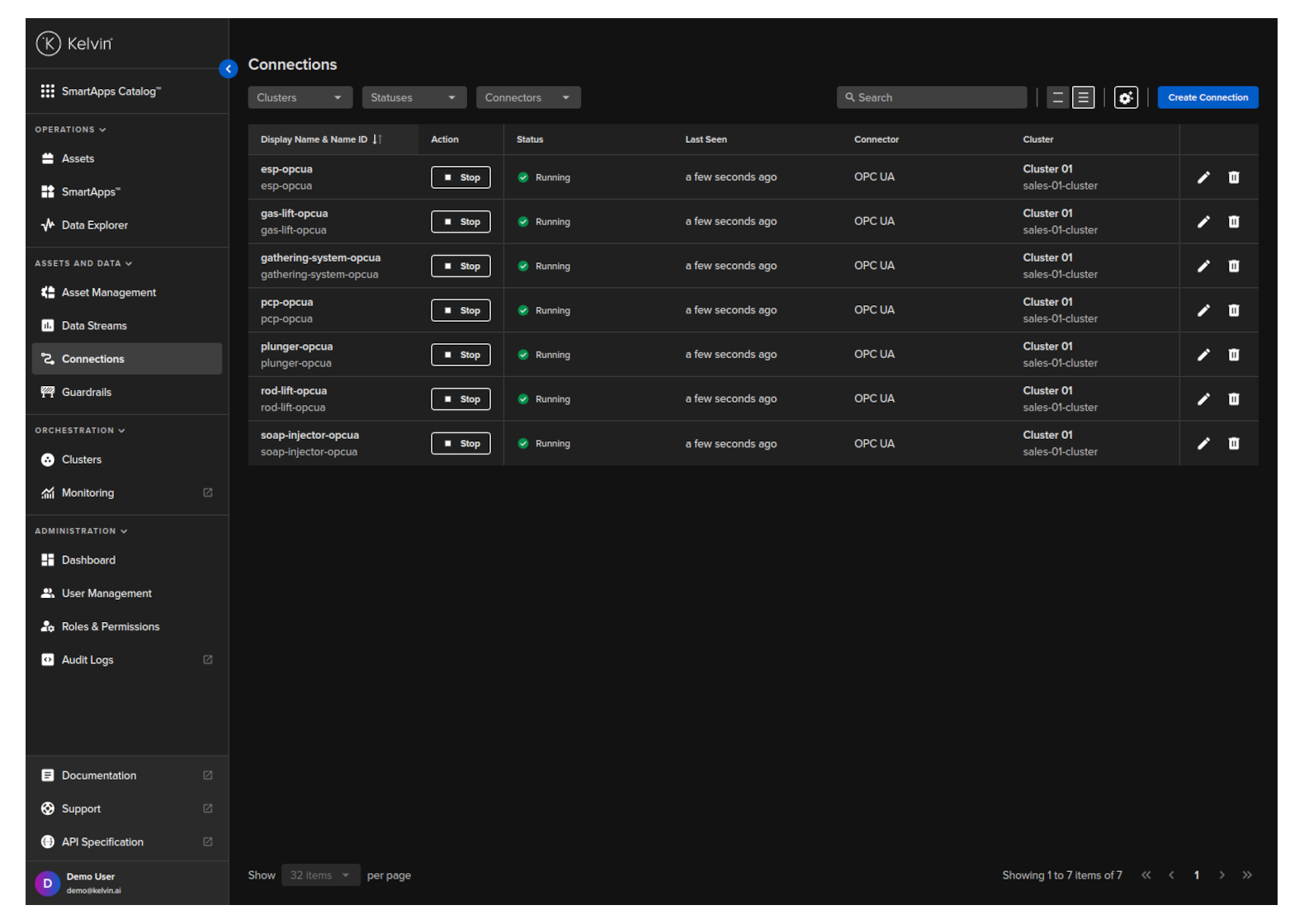
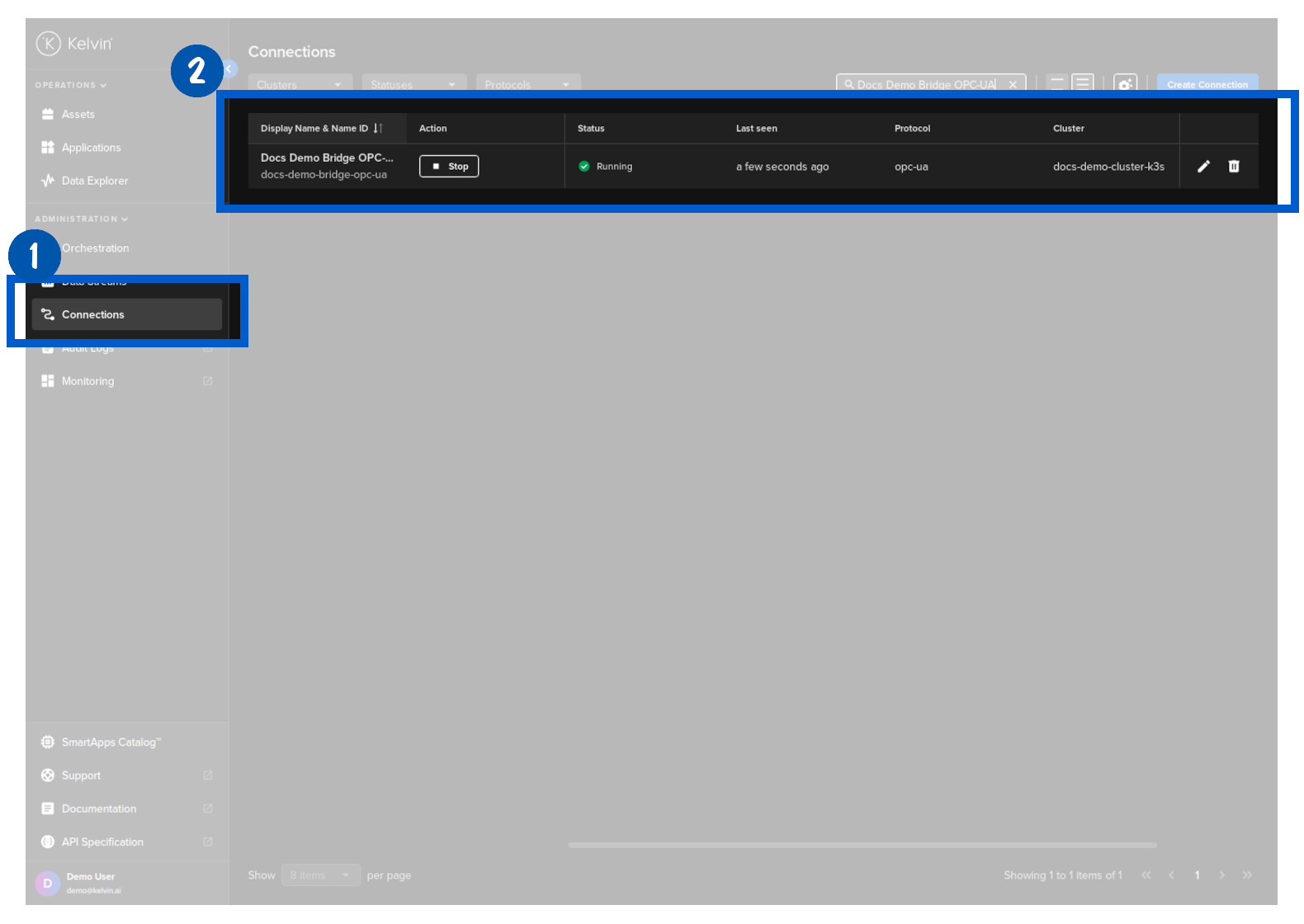
To start click on the Connections menu option from the left side bar menu.
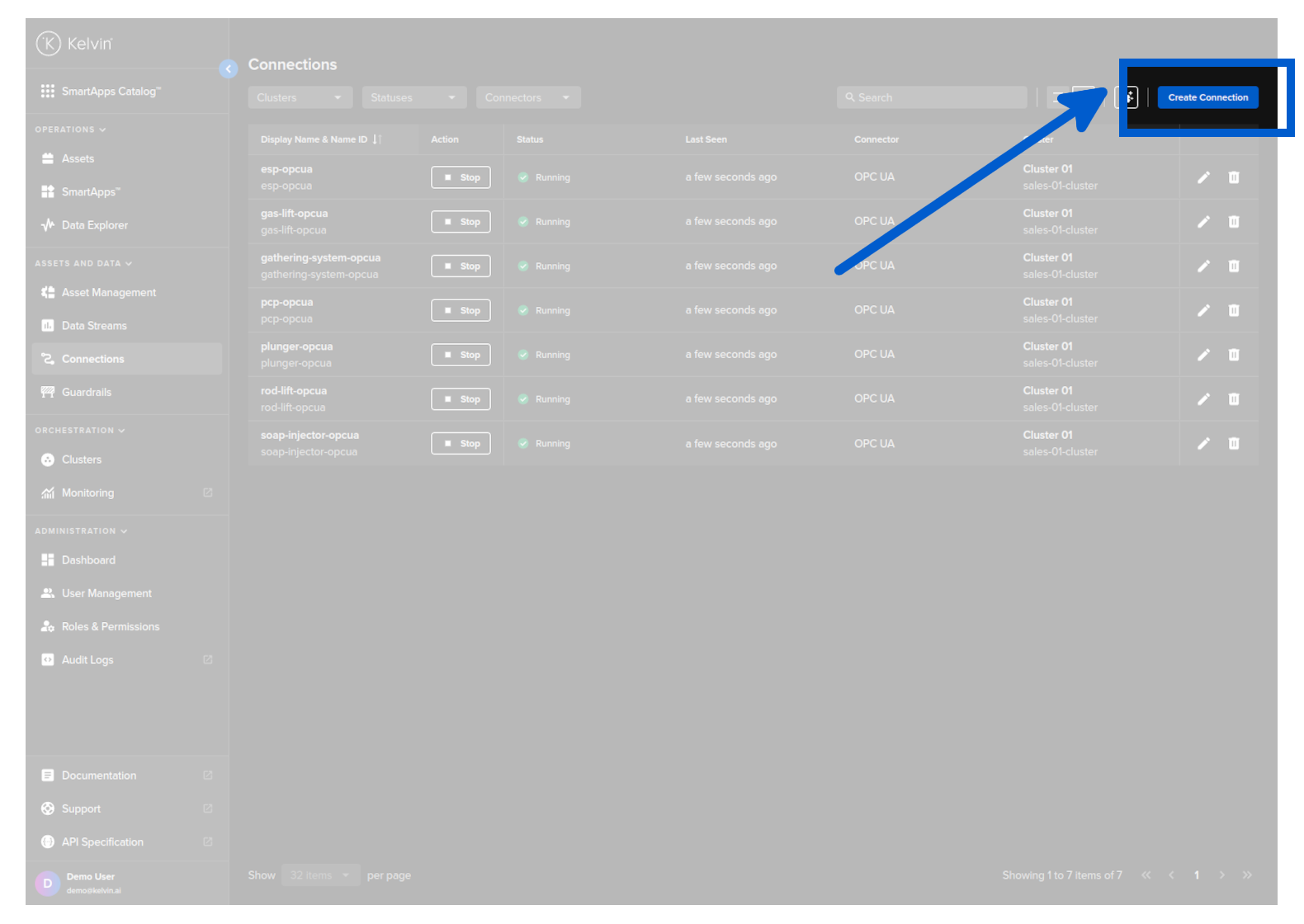
click on the Create Connection button.
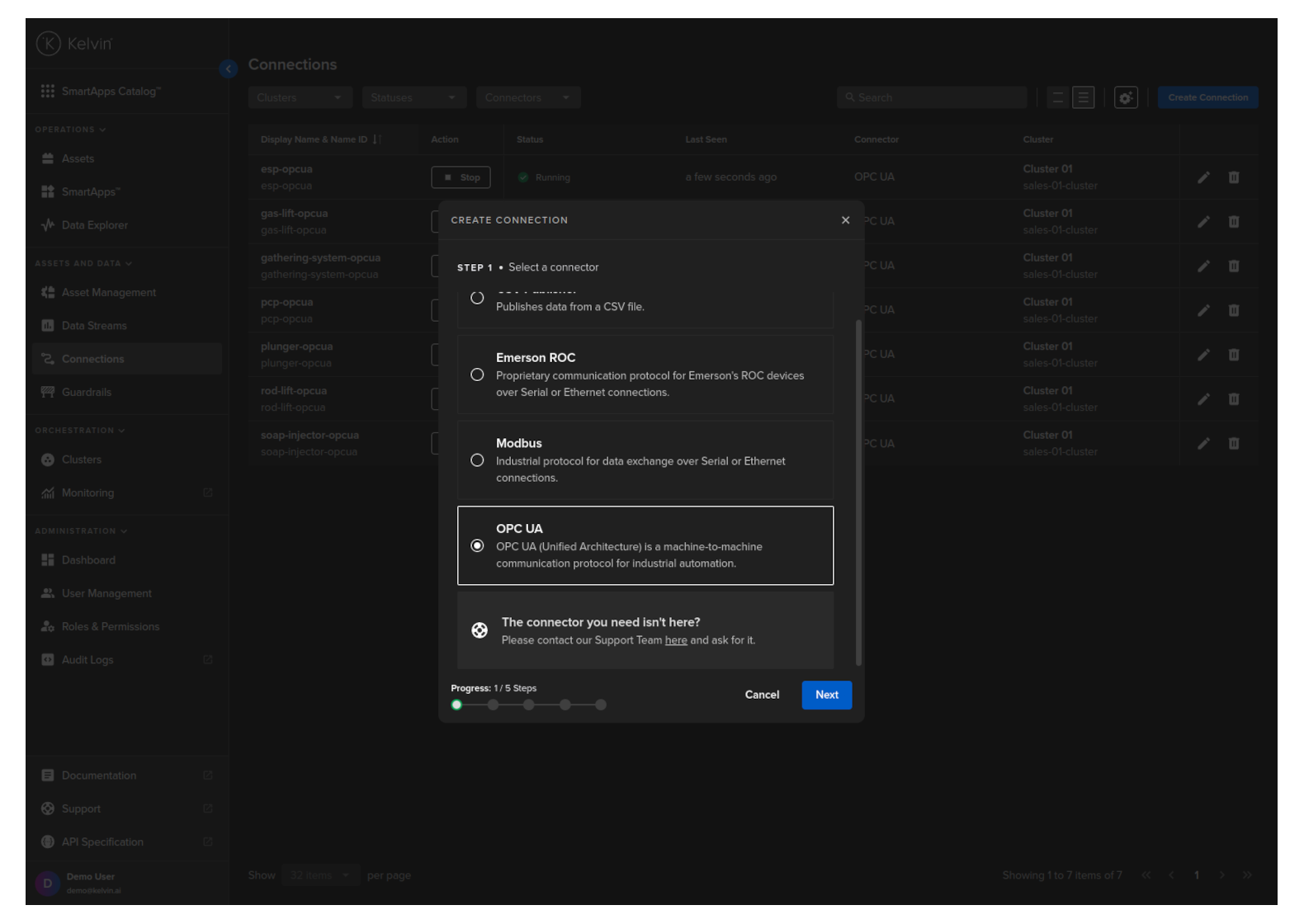
Step 1
Select the OPC UA option and click Next.
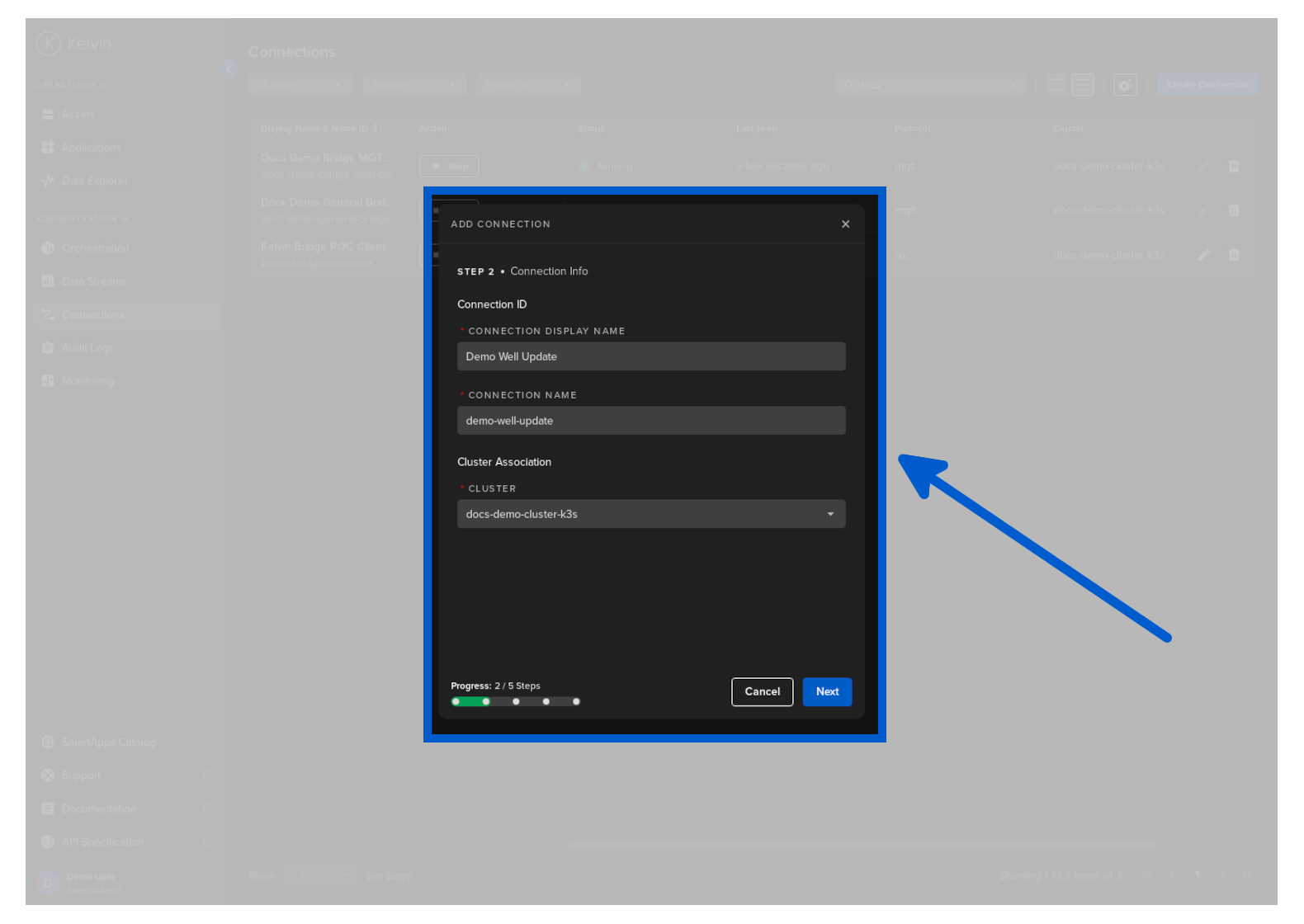
Step 2
Type in a memorable name in the Connection Display Name text input. You can use any letters, numbers and special characters.
The Connection Name text input will be automatically converted and filled in as you type in the Connection Display Name section. The conversion ensures the Connection Name only contains lowercase alphanumeric characters and ., _ or - characters.
Then select which Cluster to deploy the new Connector to.
It is important that the asset is reachable from the selected Cluster.
Step 3
Configure the OPC-UA connection to the asset. There are a number of optional and mandatory parameters to fill in.
For the optional parameters, if you do not fill in any values, the default values will be used.
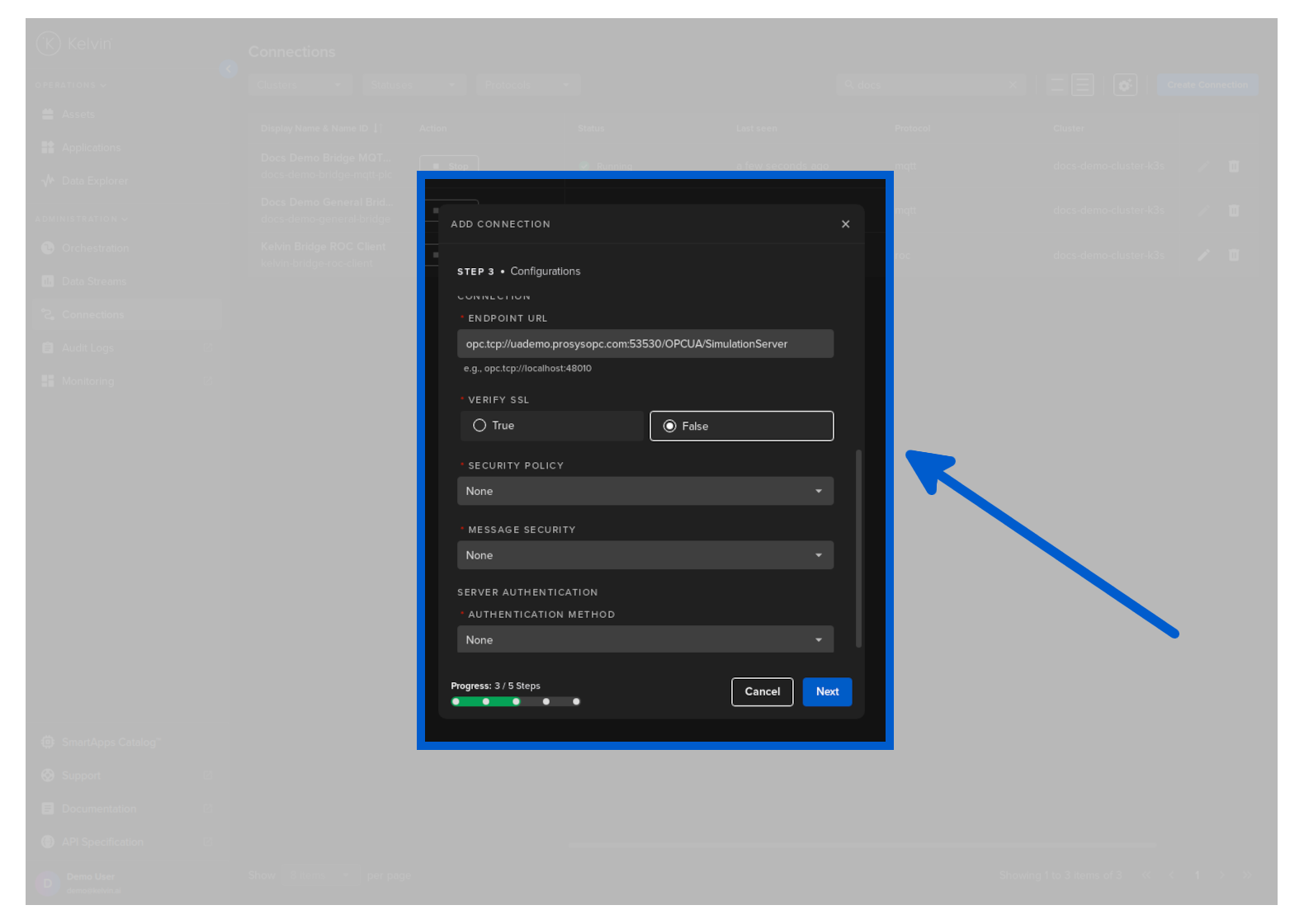
| Parameter | Options | Description | Default | Mandatory |
|---|---|---|---|---|
| Read Timeout | Numeric value (in milliseconds) | Specifies the maximum time to wait for a response when reading data from an OPC UA server. | No | |
| Write Timeout | Numeric value (in milliseconds) | Specifies the maximum time to wait for a response when writing data to an OPC UA server. | No | |
| Watchdog Timeout | Numeric value (in milliseconds) | Defines the timeout for the watchdog mechanism, which monitors the health of the connection to the OPC UA server. | No | |
| Session Name | String | A custom name for the session, used for identification and logging purposes. | No | |
| Endpoint URL | String (opc.tcp://localhost:48010) | The URL of the OPC UA server endpoint to connect to. | Yes | |
| Verify SSL | Boolean (True/False) | Determines whether SSL certificates are verified when connecting to an OPC UA server over a secure channel. | Yes | |
| Security Policy | String (specifying security type) | Specifies the security policy for the connection, such as None, Basic256Sha256, etc. This defines the level of security like encryption and data integrity. |
Yes | |
| Message Security | String (specifying security mode) | Determines the security mode of the messages, such as None, Sign, or SignAndEncrypt. |
None | Yes |
| Authentication Method | String (specifying method) | Specifies the method of authentication used when connecting to the OPC UA server, such as Credentials or Certificate. |
None | Yes |
| Username | String | The username used for authentication if the Credentials option is chosen in Authentication Method. |
Depends | |
| Password | String | The password corresponding to the username if the Credentials option is chosen in Authentication Method. |
Depends | |
| Certificates | File path or certificate object | The path to the certificate file(s) or the certificate object itself if the Certificate option is chosen in Authentication Method. |
Depends | |
| Key Password | String | The password for the private key associated with the client's certificate if the Certificate option is chosen in Authentication Method. |
Depends |
Step 4
Download, complete, and upload the available template to define the mapping connections between the OPC UA address and the Asset/Data Stream.
You can only upload one file. Multiple file uploads is not allowed and only the latest selected file will be used.
Do not modify the header in the downloaded template file. In the next step the header will be checked to ensure the csv structure is correct. Start adding your data from row 2 onwards.
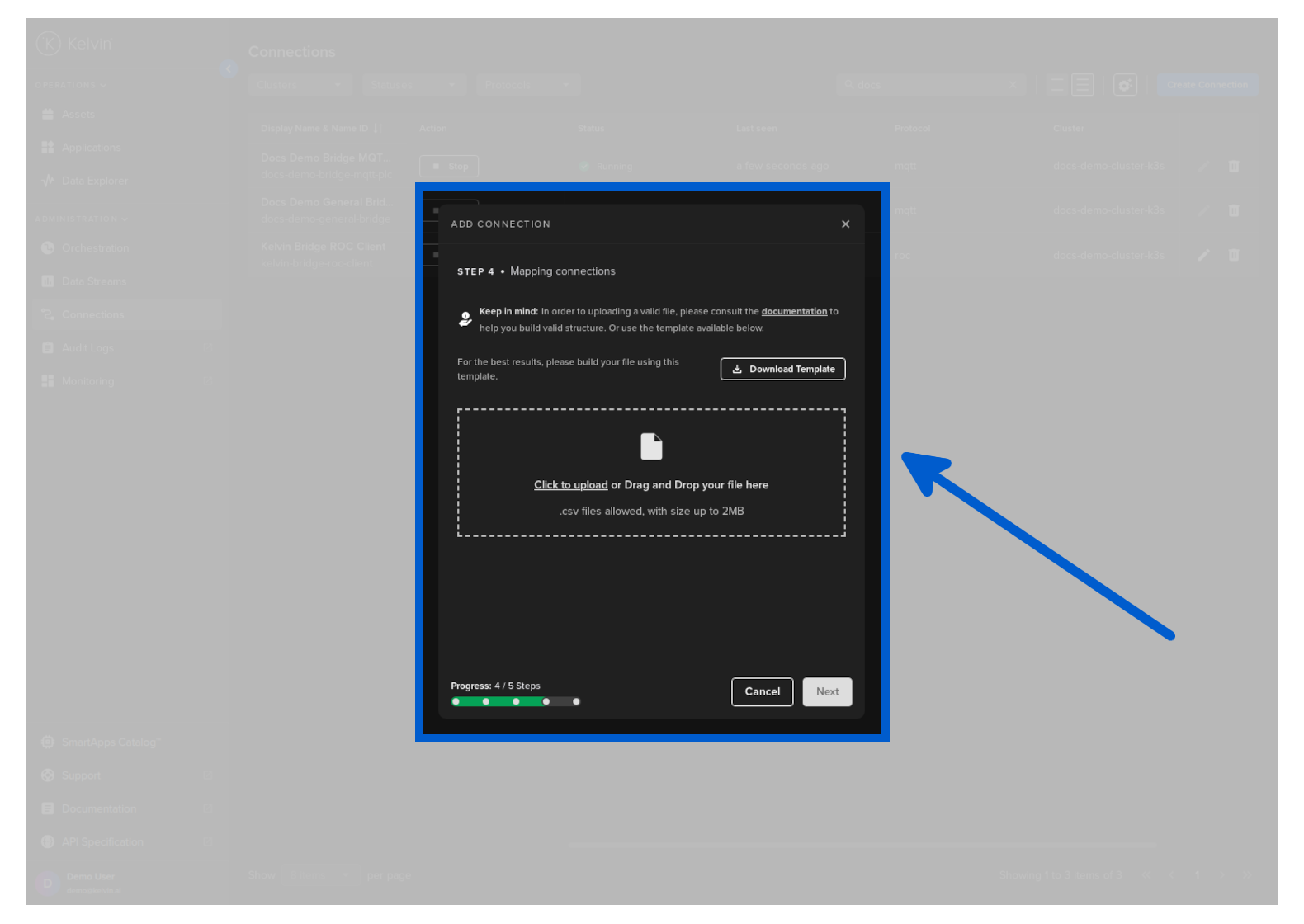
| Header | Description | Example | Mandatory |
|---|---|---|---|
| DataStream Name | The Kelvin Data Stream name (must be lowercase alphanumeric with no spaces) | water-flow | Yes |
| Asset Name | The Kelvin Asset name (must be lowercase alphanumeric with no spaces) | well-01 | Yes |
| DataStream Type | The type of data (boolean, number, object and string) | number | No |
| Access | Read/Write (RW) or Read Only (RO) | RO | Yes |
| Storage | Location of the storage; "none", "node", "node-and-cloud" | node-and-cloud | No |
| Node ID | OPC UA data address | ns=4;i=1002 | Yes |
| Polling Rate (in seconds) | How often to pull the data from the asset | 30 | Yes |
Step 5
The file will now be validated before you can initiate the connection with the following checks;
- Structure
- All required columns are present
- Columns naming is correct
- File has content below the header
- Content
- Required Fields (Data Stream Name, Asset Name and Access fields are properly filled)
- Content Matches the patterns and is valid content
- No duplicate content has been detected
- System
- All Assets exist on the system
- All Data Stream exist on the system
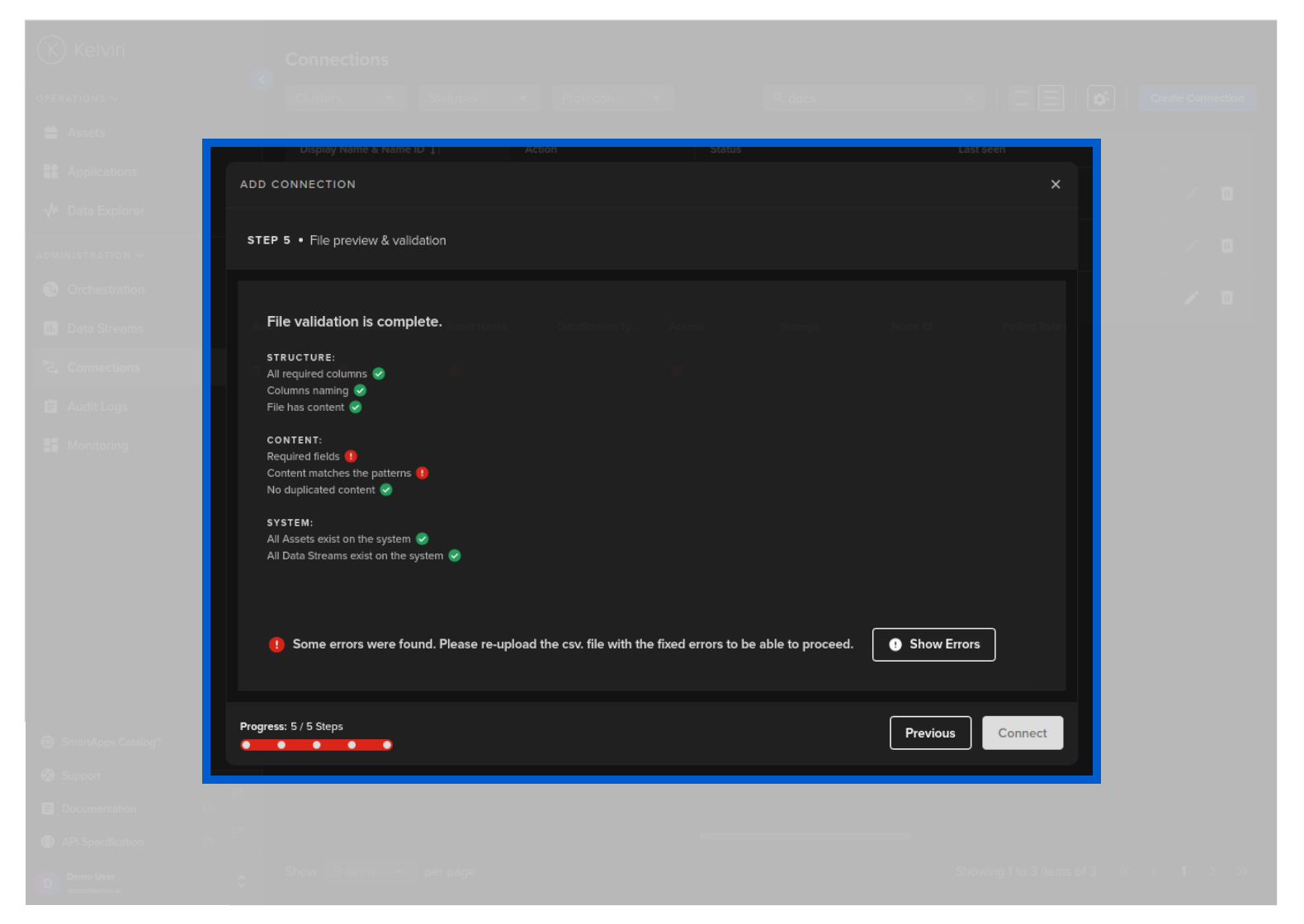
If there are any errors, you can view the details by clicking on the Show Errors button.
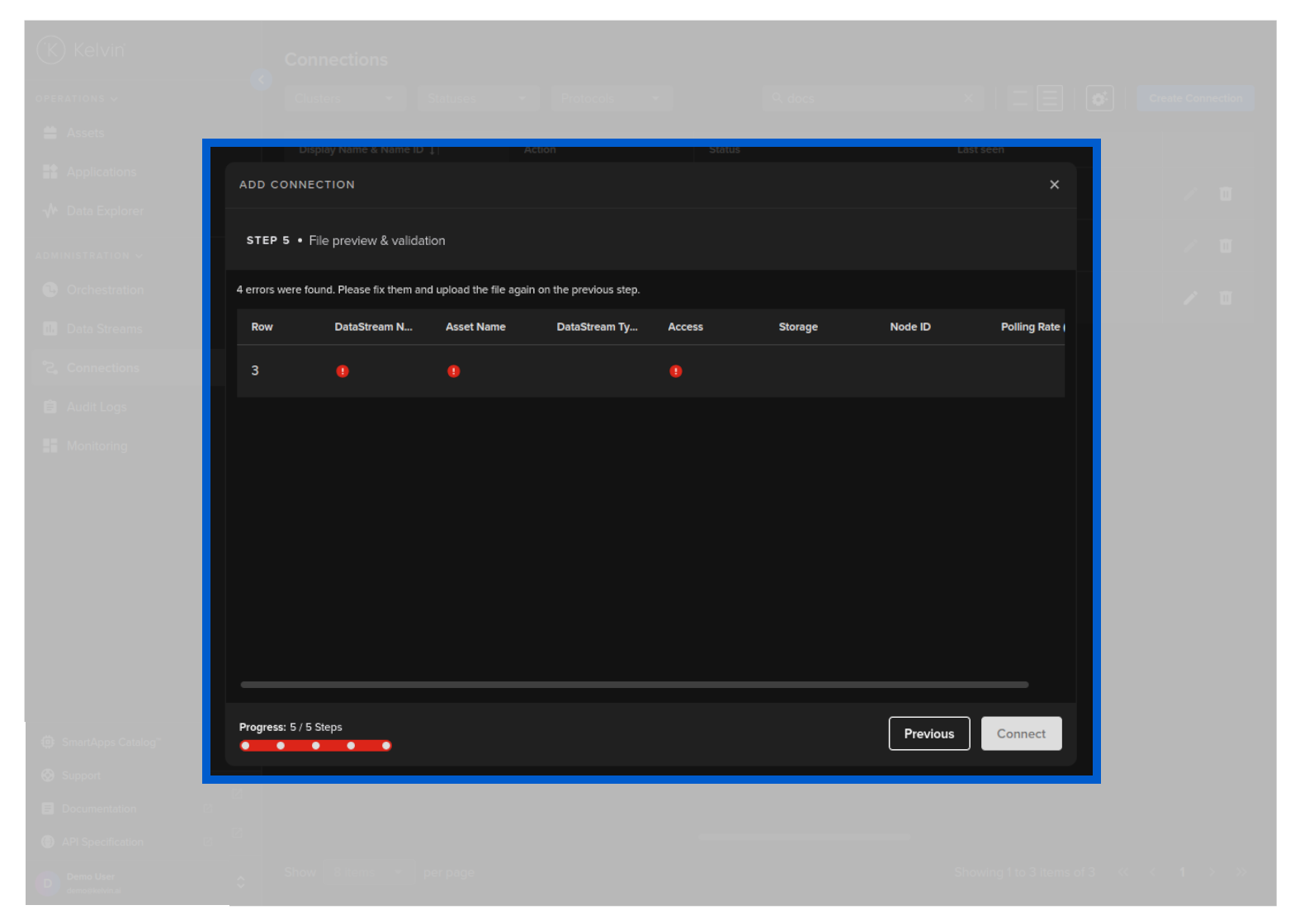
After looking at the error list, you will need to correct your csv file and then return to Step 4 to re-upload. The new file will then be checked and validated again.
When everything is validated, then you can click on Connect button to deploy the Connector to the Cluster. It will start automatically, connect to the asset and start collecting data.
Then in Kelvin UI under Connections you will see your Connection deployed and running.
If you have any issues in the deployment and the Add Connection fails to run, then you can check its logs.
curl -X "POST" \
  "https://<url.kelvin.ai>/api/v4/bridges/deploy" \
  -H "Accept: application/json" \
  -H "Content-Type: application/json" \
  -d '{
  "name": "docs-demo-bridge-opc-ua",
  "title": "Docs Demo Bridge OPC-UA",
  "cluster_name": "demo-cluster",
  "app_name": "kelvin-bridge-opcua-client",
  "app_version": "3.4.4",
  "payload": {
    "configuration": {
      "authentication": {
        "type": "none"
      },
      "connection": {
        "endpoint_url": "opc.tcp://uademo.prosysopc.com:53530/OPCUA/SimulationServer",
        "message_security": "none",
        "security_policy": "none",
        "verify_ssl": false
      },
      "read_timeout": 10,
      "watchdog_timeout": 30,
      "write_timeout": 10
    },
    "metrics_map": [
      {
        "access": "RO",
        "asset_name": "pcp_01",
        "configuration": {
          "node": "ns=4;i=1002",
          "polling_rate": 30,
          "scale_multiplier": null
        },
        "data_type": "number",
        "name": "accelerometer_data"
      }
    ]
  }
}'
The response will look something like this;
{
   "name":"docs-demo-bridge-opc-ua",
   "title":"Docs Demo Bridge OPC-UA",
   "cluster_name":"demo-cluster",
   "workload_name":"docs-demo-bridge-opc-ua",
   "payload":{
      "configuration":{
         "authentication":{
            "type":"none"
         },
         "connection":{
            "endpoint_url":"opc.tcp://uademo.prosysopc.com:53530/OPCUA/SimulationServer",
            "message_security":"none",
            "security_policy":"none",
            "verify_ssl":false
         },
         "read_timeout":10,
         "watchdog_timeout":30,
         "write_timeout":10
      },
      "metrics_map":[
         {
            "access":"RO",
            "asset_name":"pcp_50",
            "configuration":{
               "node":"ns=4;i=1002",
               "polling_rate":30,
               "scale_multiplier":null
            },
            "data_type":"number",
            "name":"accelerometer_data"
         }
      ]
   },
   "enabled":true,
   "node_name":"demo-cluster",
   "app_name":"kelvin-bridge-opcua-client",
   "app_version":"3.4.4",
   "status":{
      "state":"pending_deploy",
      "message":"Pending for deploy",
      "last_seen":"2024-06-01T06:29:46.424939533Z",
      "warnings":null
   },
   "created":"2024-06-01T06:27:35.401371Z",
   "updated":"2024-06-01T06:29:46.293339Z"
}
Then in Kelvin UI under Connections you will see your Connection deployed and running.
If you have any issues in the deployment and the /bridges/deploy fails to run, then you can check its logs.
from kelvin.api.client import Client

# Login
client = Client(config={"url": "https://<url.kelvin.ai>", "username": "<your_username>"})
client.login(password="<your_password>")

# Create Connection (Bridge)
response = client.bridge.deploy_bridge(data={
  "name": "docs-demo-bridge-opc-ua",
  "title": "Docs Demo Bridge OPC-UA",
  "cluster_name": "demo-cluster",
  "app_name": "kelvin-bridge-opcua-client",
  "app_version": "3.4.4",
  "payload": {
    "configuration": {
      "authentication": {
        "type": "none"
      },
      "connection": {
        "endpoint_url": "opc.tcp://uademo.prosysopc.com:53530/OPCUA/SimulationServer",
        "message_security": "none",
        "security_policy": "none",
        "verify_ssl": False
      },
      "read_timeout": 10,
      "watchdog_timeout": 30,
      "write_timeout": 10
    },
    "metrics_map": [
      {
        "access": "RO",
        "asset_name": "pcp_50",
        "configuration": {
          "node": "ns=4;i=1002",
          "polling_rate": 30,
          "scale_multiplier": None
        },
        "data_type": "number",
        "name": "accelerometer_data"
      }
    ]
  }
})

print(f'Created Connection {response.title} on Cluster {response.cluster_name}')
You will get a response similar to this;
cluster_name='demo-cluster' created=datetime.datetime(2024, 6, 1, 6, 23, 19, 24631, tzinfo=datetime.timezone.utc) enabled=True name='demo-well-roc' node_name=None payload=AppYaml(configuration={'asset_configurations': {'tank-farm': {'device_series': '32', 'roc_group': 18, 'roc_unit': 24}}, 'connection': {'ethernet': {'ip': '192.168.0.100', 'mode': 'client', 'port': 8080, 'protocol': 'tcp'}, 'type': 'ethernet'}, 'dead_poll_enabled': False, 'host_group': 24, 'host_unit': 32, 'optimize_read_requests': False, 'optimize_write_requests': False}, metrics_map=[{'access': 'RO', 'asset_name': 'pcp_50', 'configuration': {'address': '000.3838.388', 'polling_rate': 1, 'protocol_type': 'INT8', 'scale_multiplier': None}, 'data_type': 'raw.float64', 'name': 'accelerometer_data'}], logging_level='INFO') status=WorkloadStatus(last_seen=datetime.datetime(2024, 6, 1, 6, 23, 20, 33055, tzinfo=datetime.timezone.utc), message='Received', state=<WorkloadStatus.received: 'received'>, warnings=None) title='Demo Well ROC' updated=datetime.datetime(2024, 6, 1, 6, 23, 19, 24631, tzinfo=datetime.timezone.utc) workload_name='demo-well-roc' app_name='kelvin-bridge-roc-client' app_version='3.0.2'